New article
Recently updated
Requesting a Billing Audit Trail

This walkthrough explains how to generate a billing audit report.
1. Introduction
You will learn how to navigate the audit trail features and download requested reports efficiently.
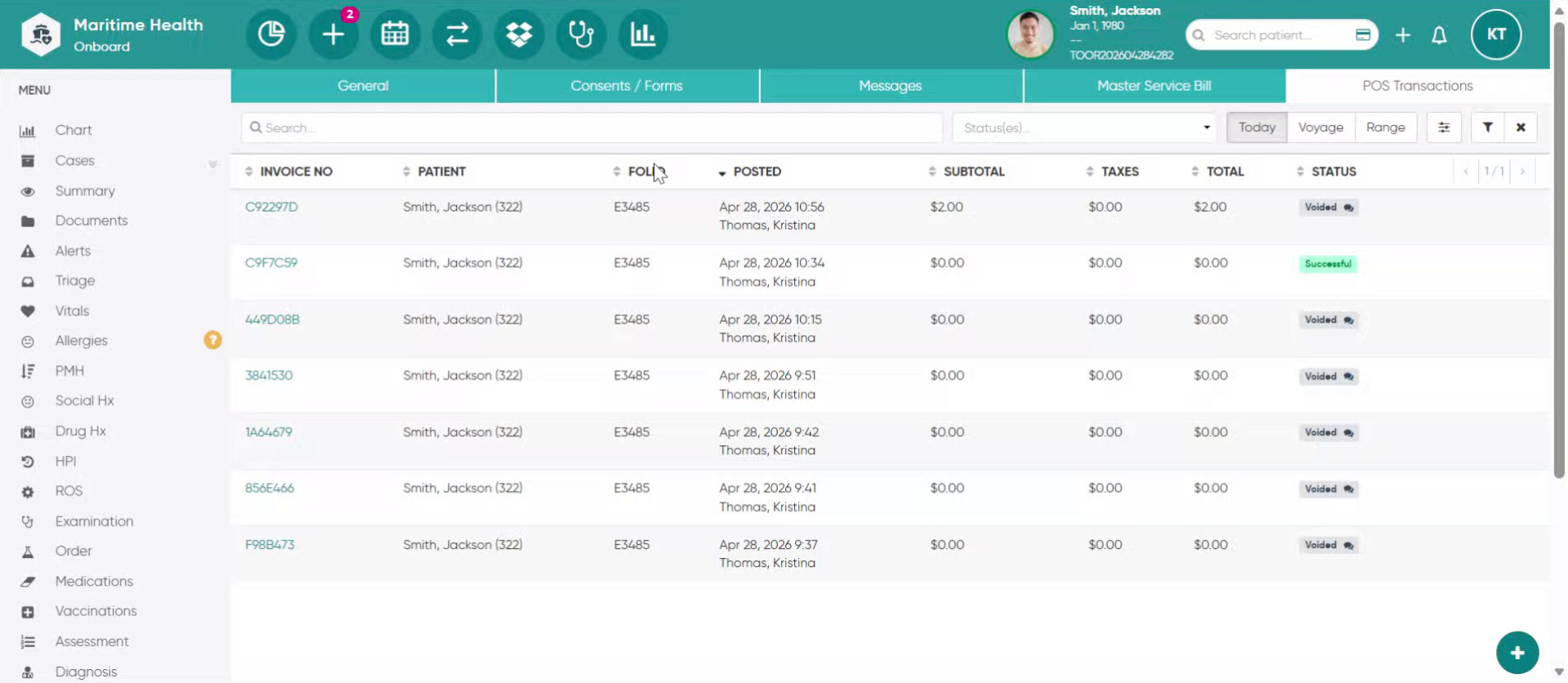
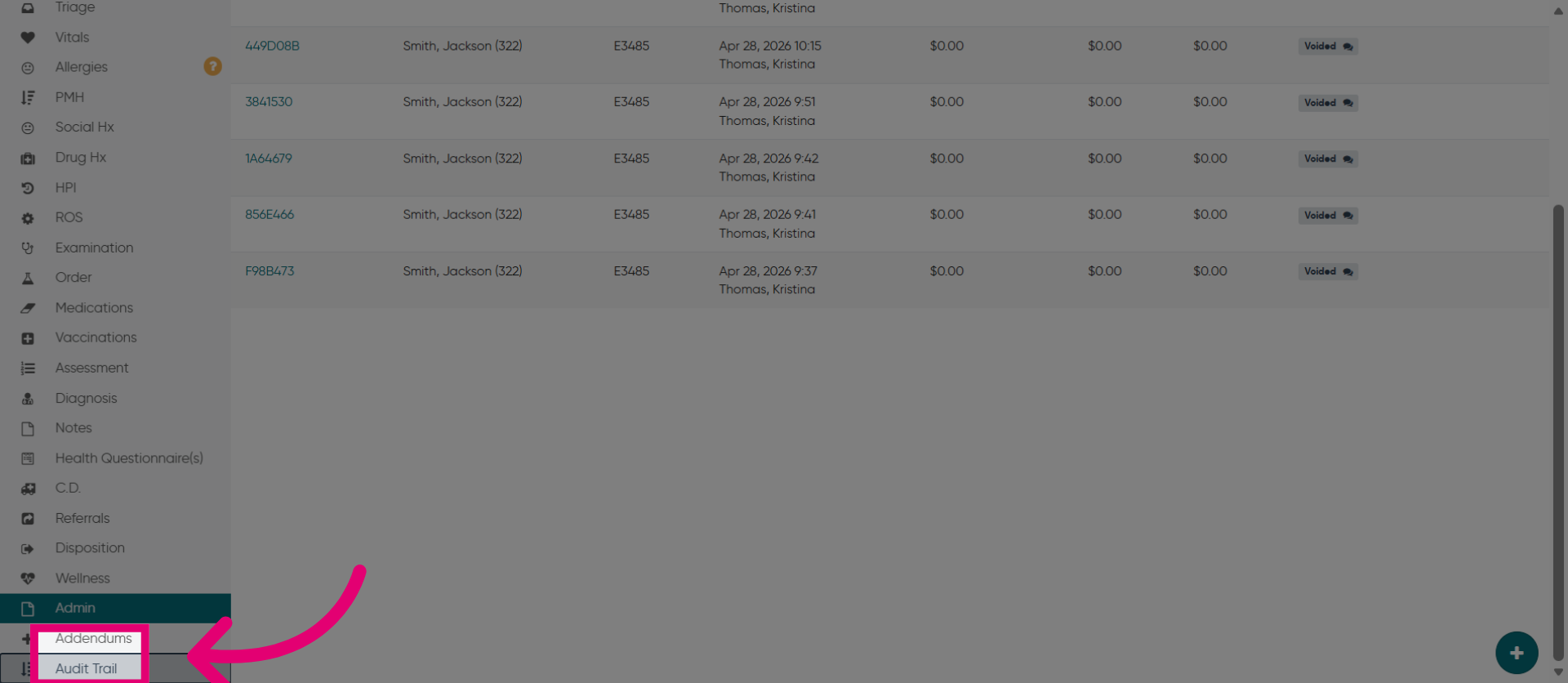
2. Access Audit Trail Section
Start by clicking "Audit Trail" to open the audit trail section from the patient chart.
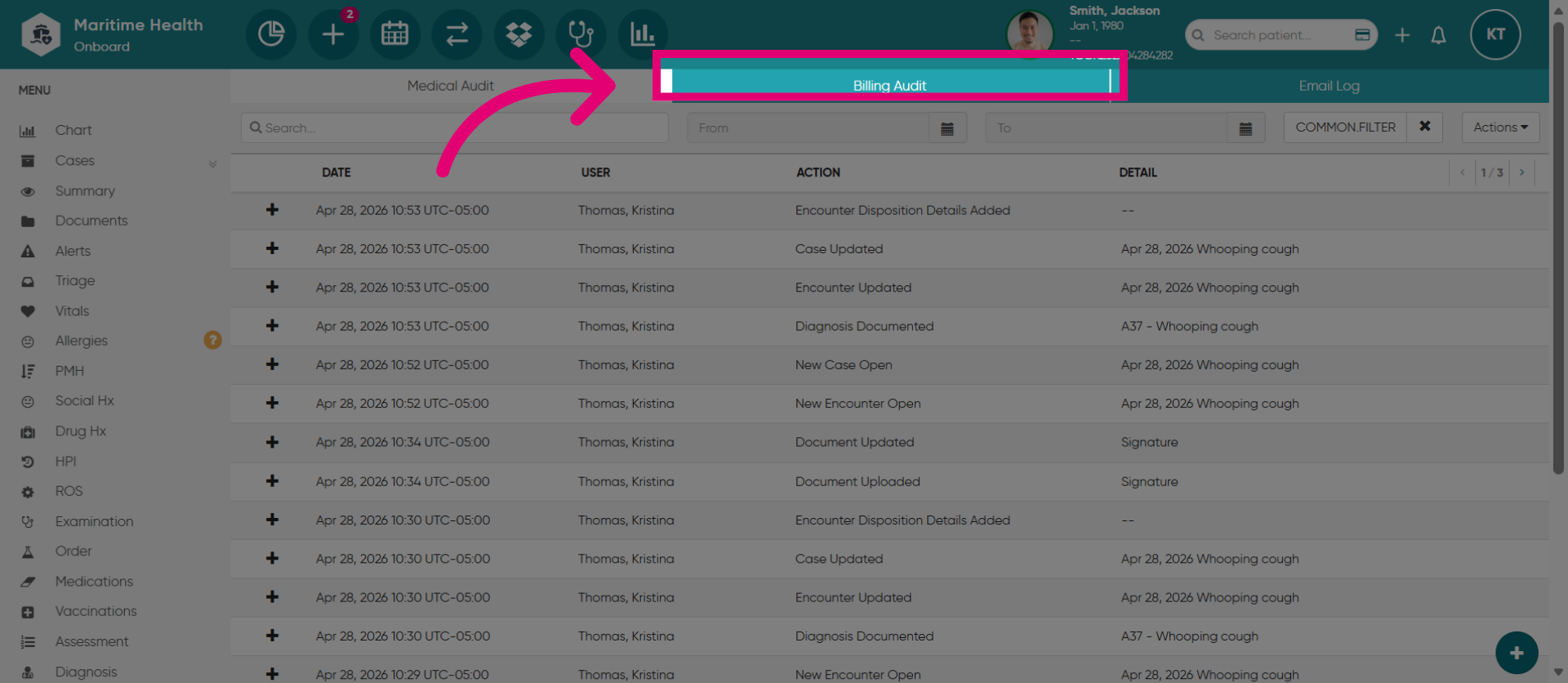
3. Open Billing Audit Tab
Click "Billing Audit" to view billing-related audit records.
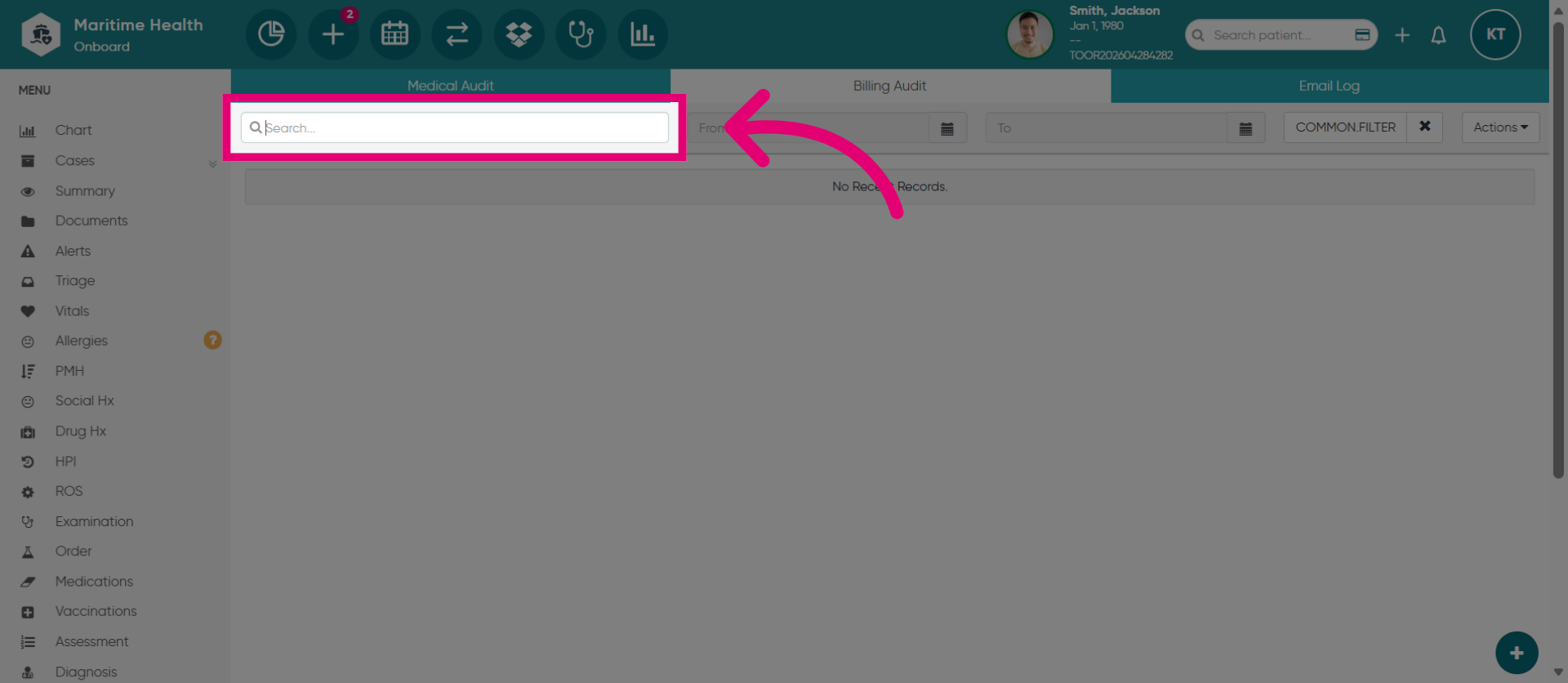
4. Open Search Field
You can use the search field for filtering audit records.
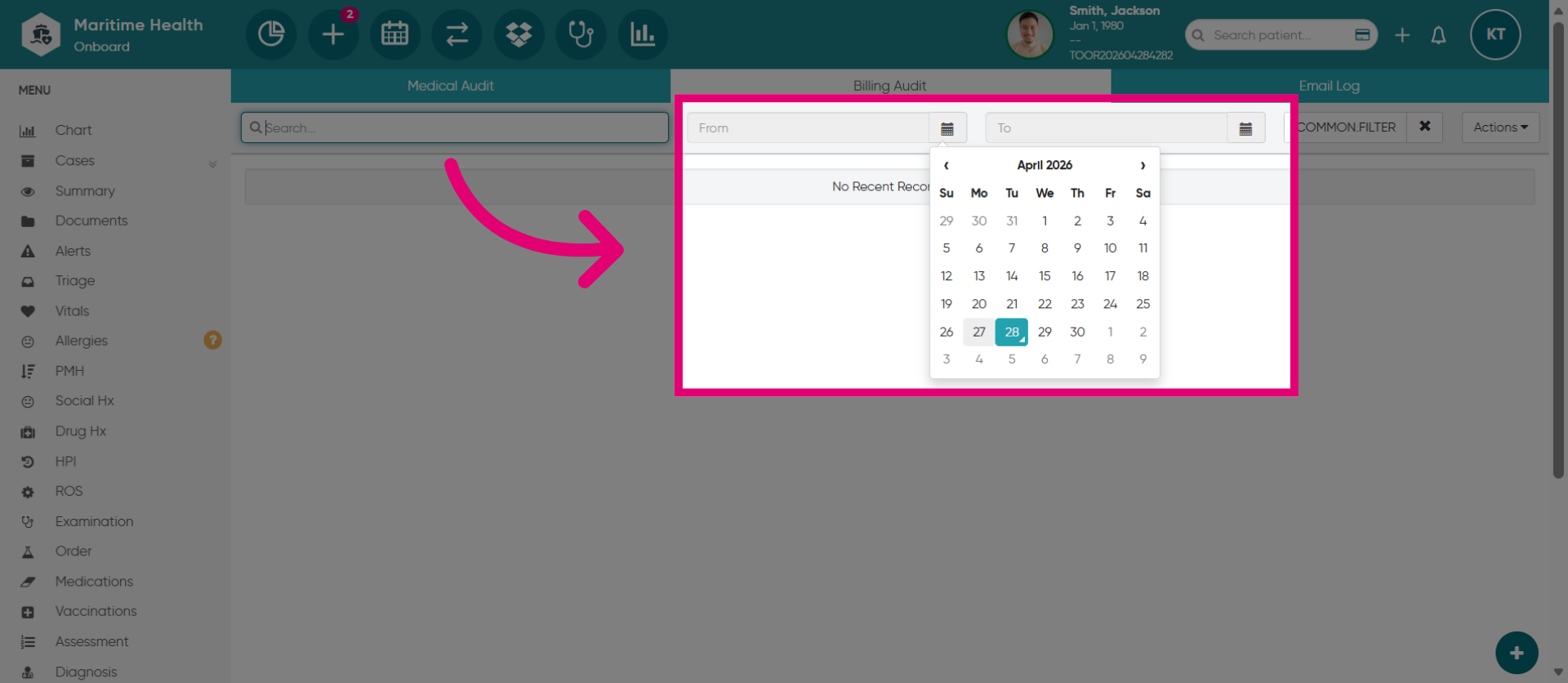
5. Select the Date Range
Select the date range to locate the bill.
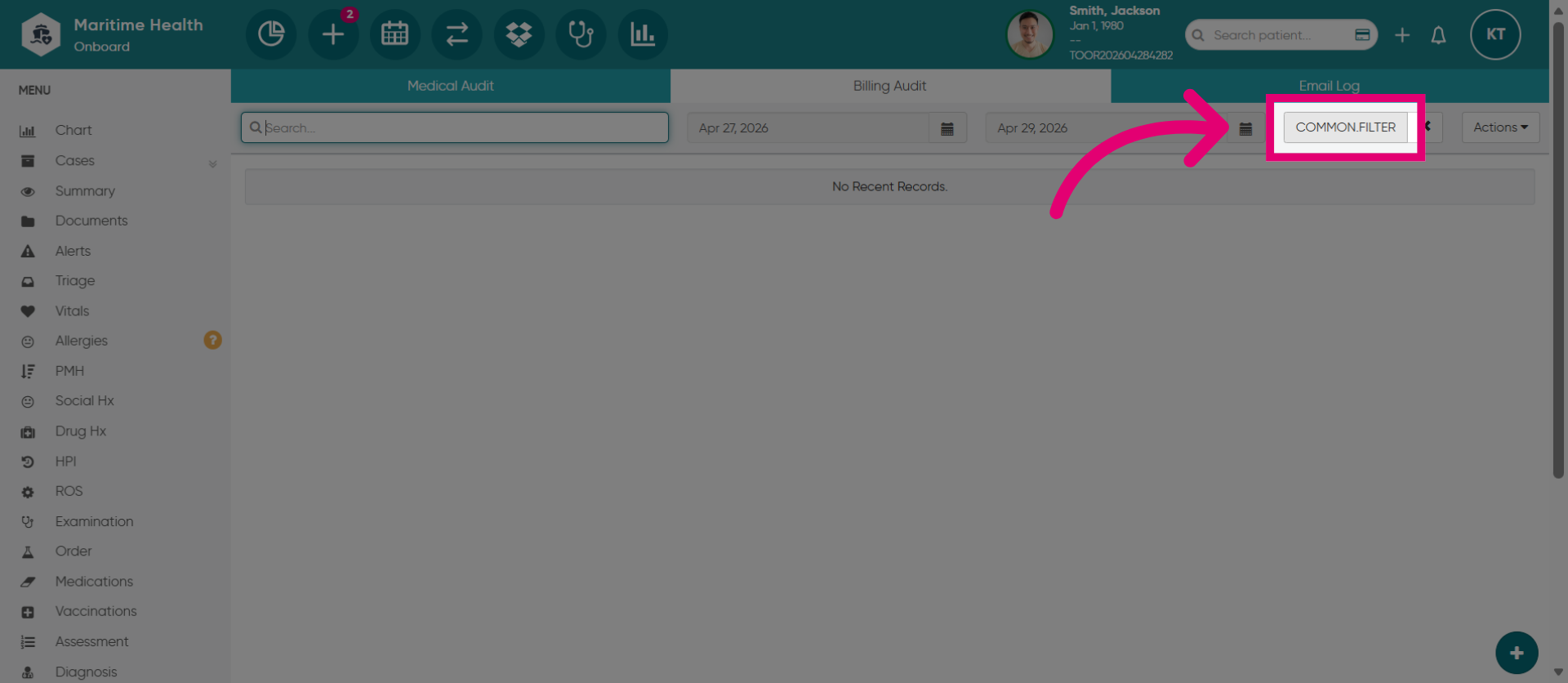
6. Open Common Filter Options
Then, click on the filter to generate results.
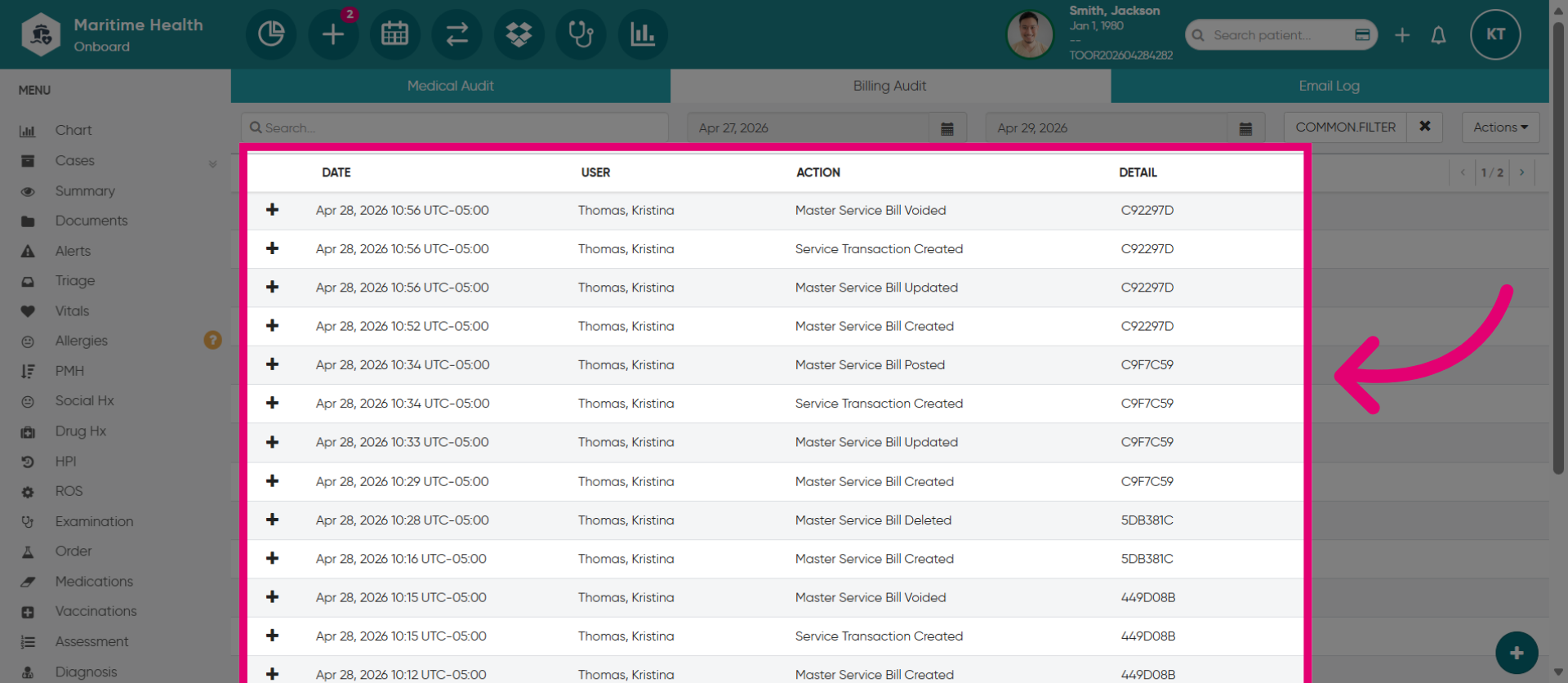
7. View the billing details
View the list with all billing details.
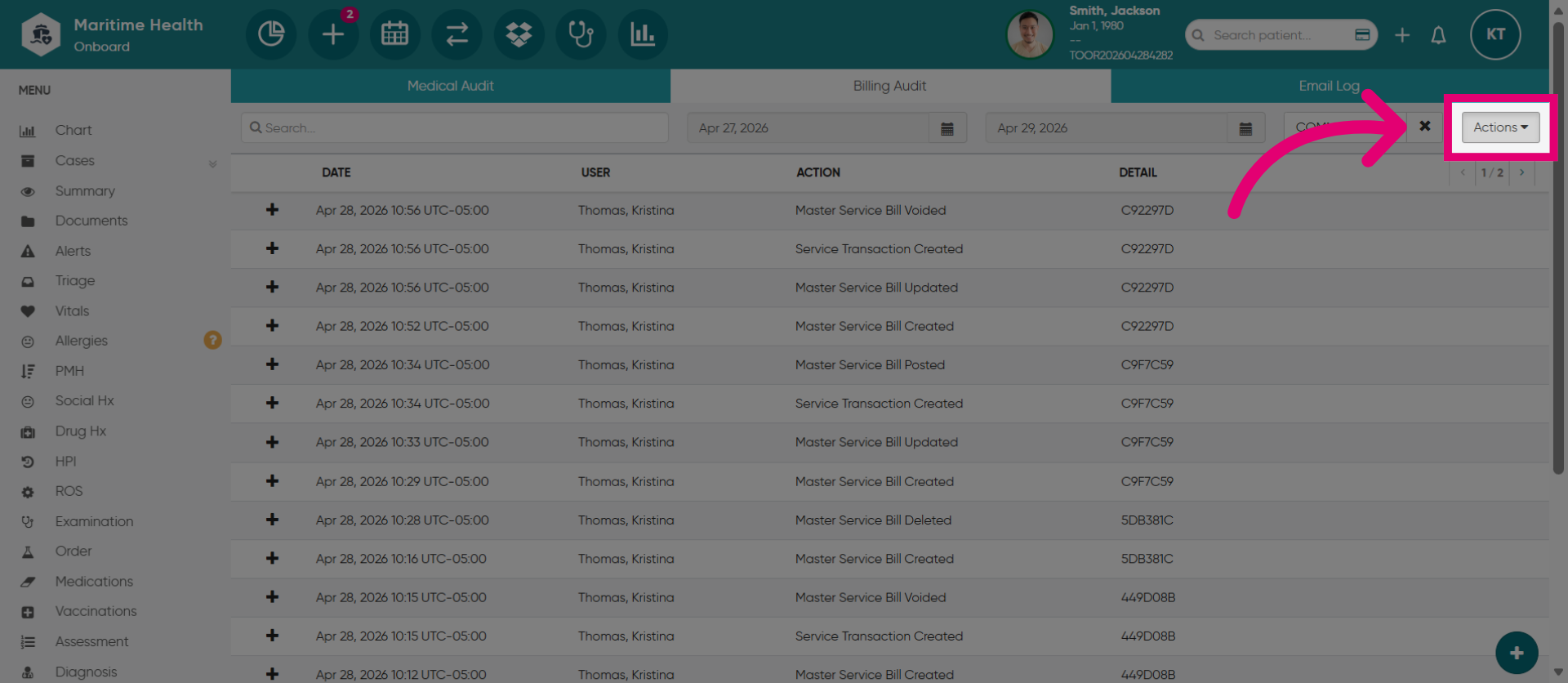
8. Open Actions Menu
When you are ready to request the reportClick "Actions" to open the menu for available audit trail actions.
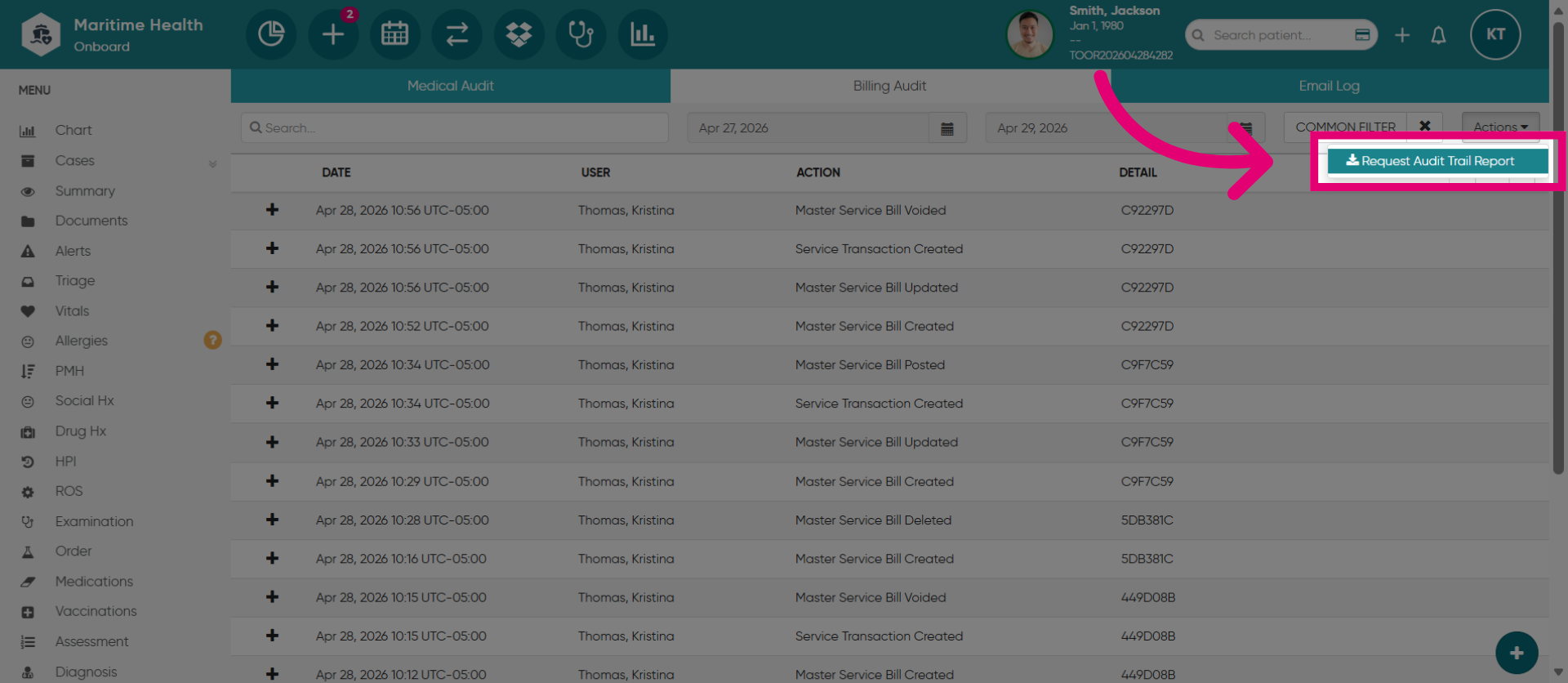
9. Request Audit Trail Report
Next, lick "Request Audit Trail Report" to initiate a new audit report request.
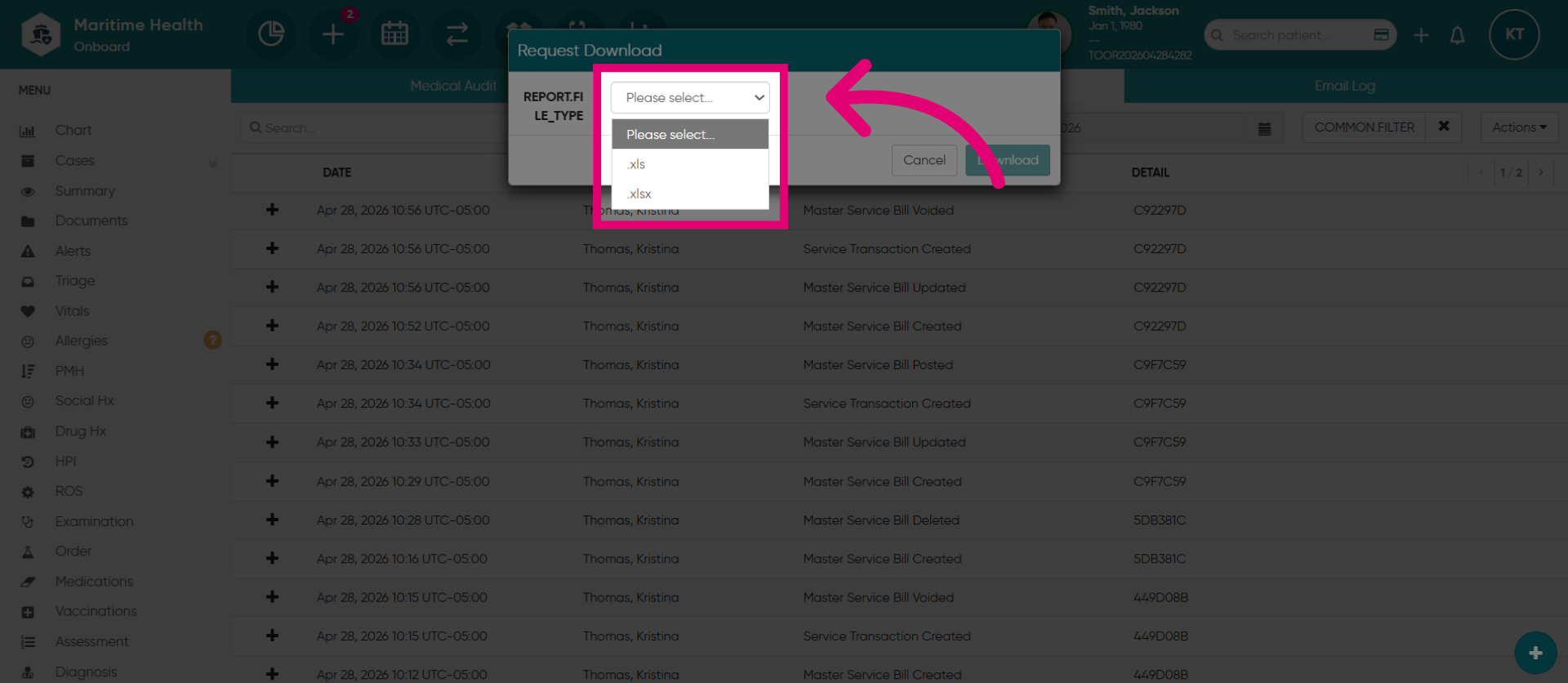
10. Select Report Format
Click to choose the report format for download.
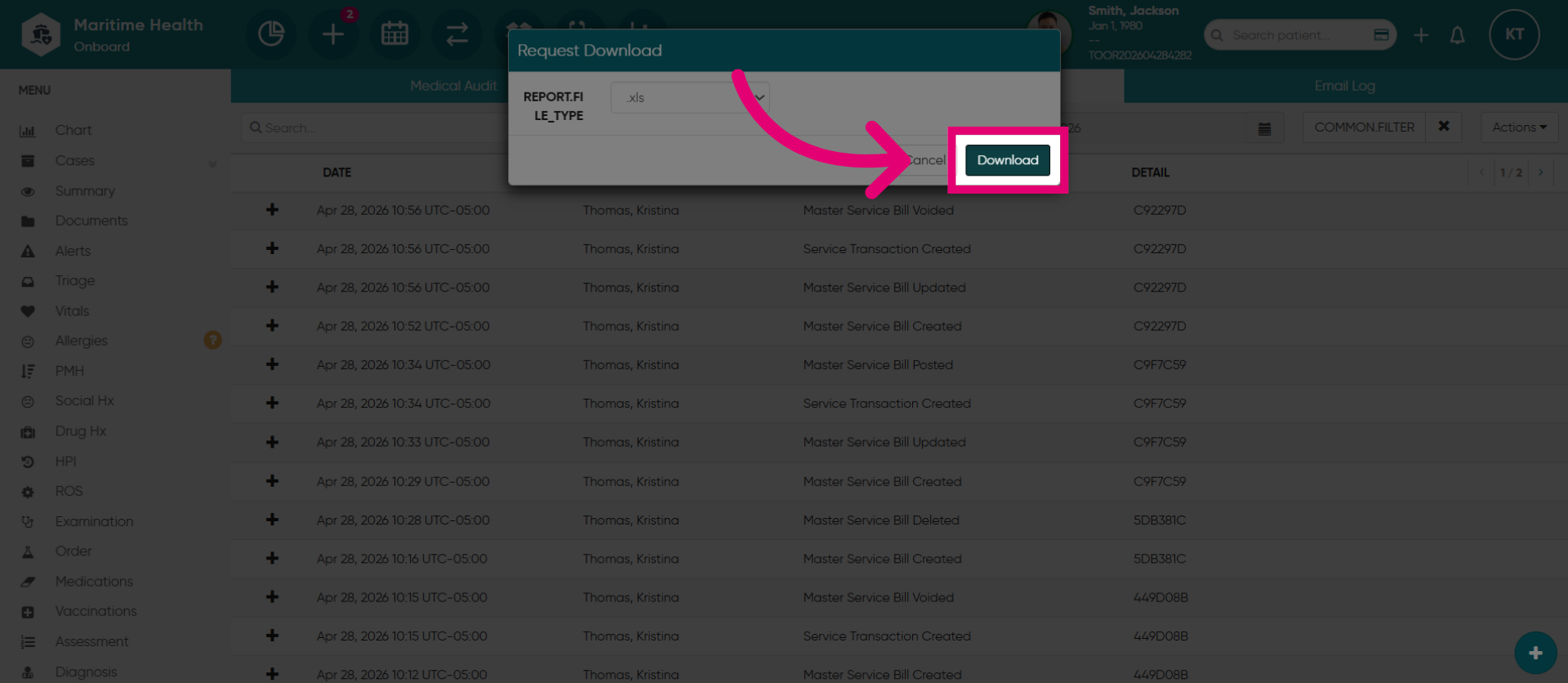
11. Download Report
Then, click "Download" to initiate the report.
12. Open Report Options
The report will be generated within the Reports module. Click "Reports" to access this module.
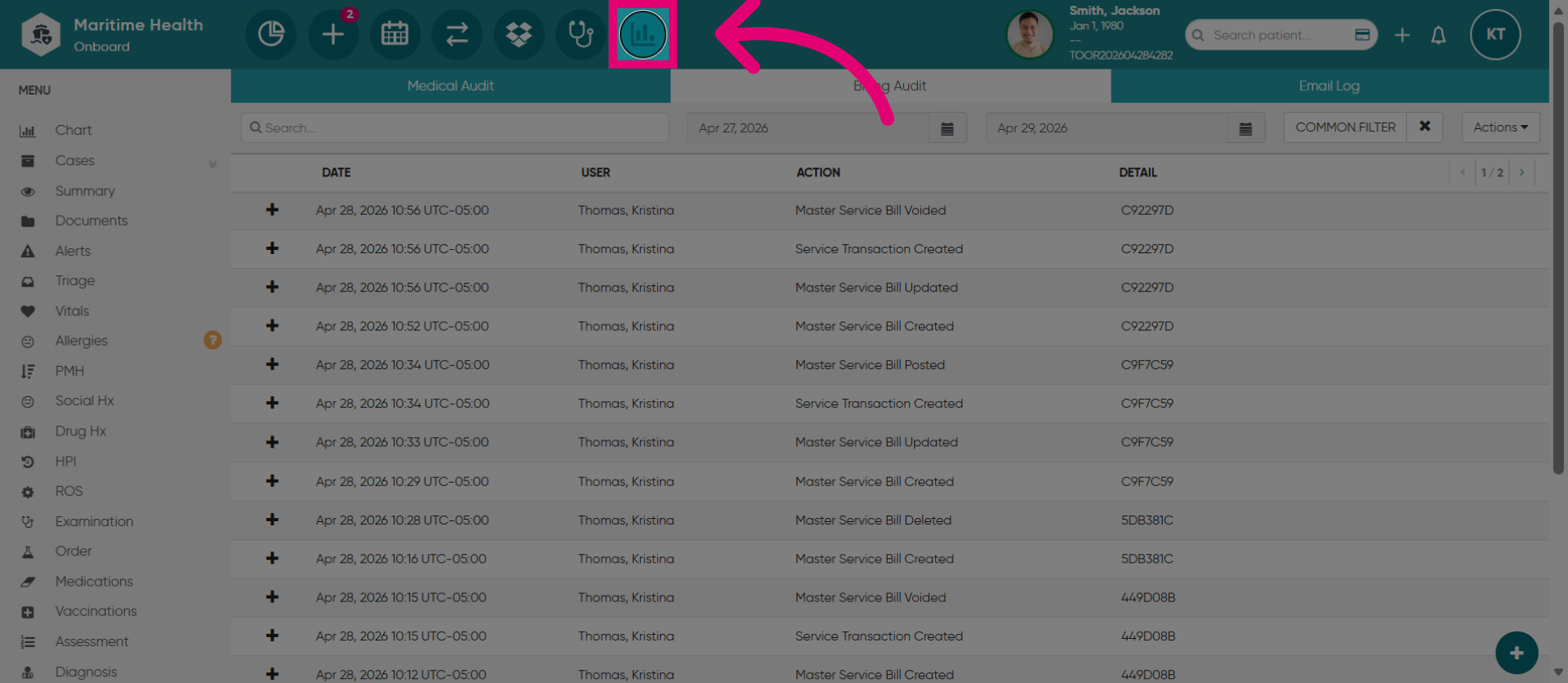
13. Select the Requested Reports tab
Click "Requested Report(s)" to view all reports you have requested.
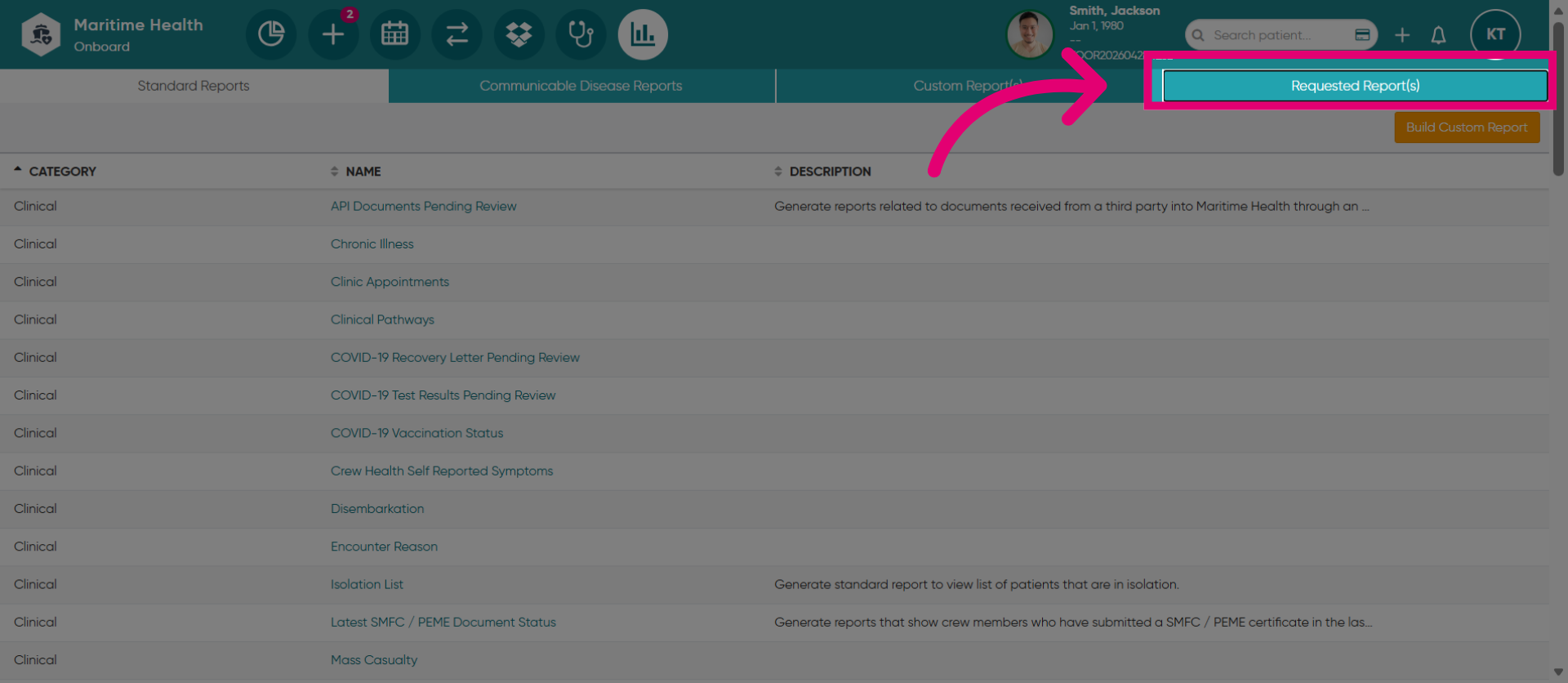
14. Filter Pending Reports
Click "Pending" to filter and view reports that are still processing.
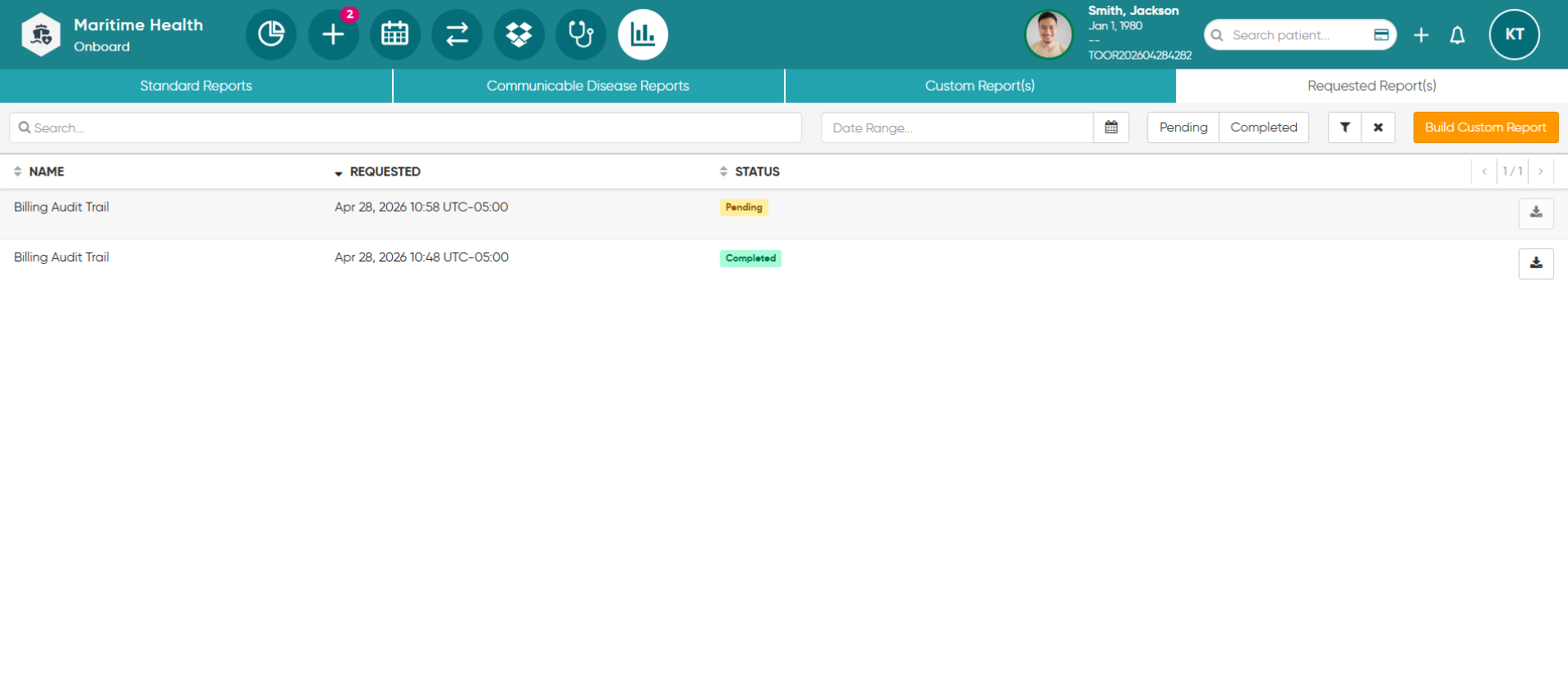
15. View all Reports
Here lies all requested reports.
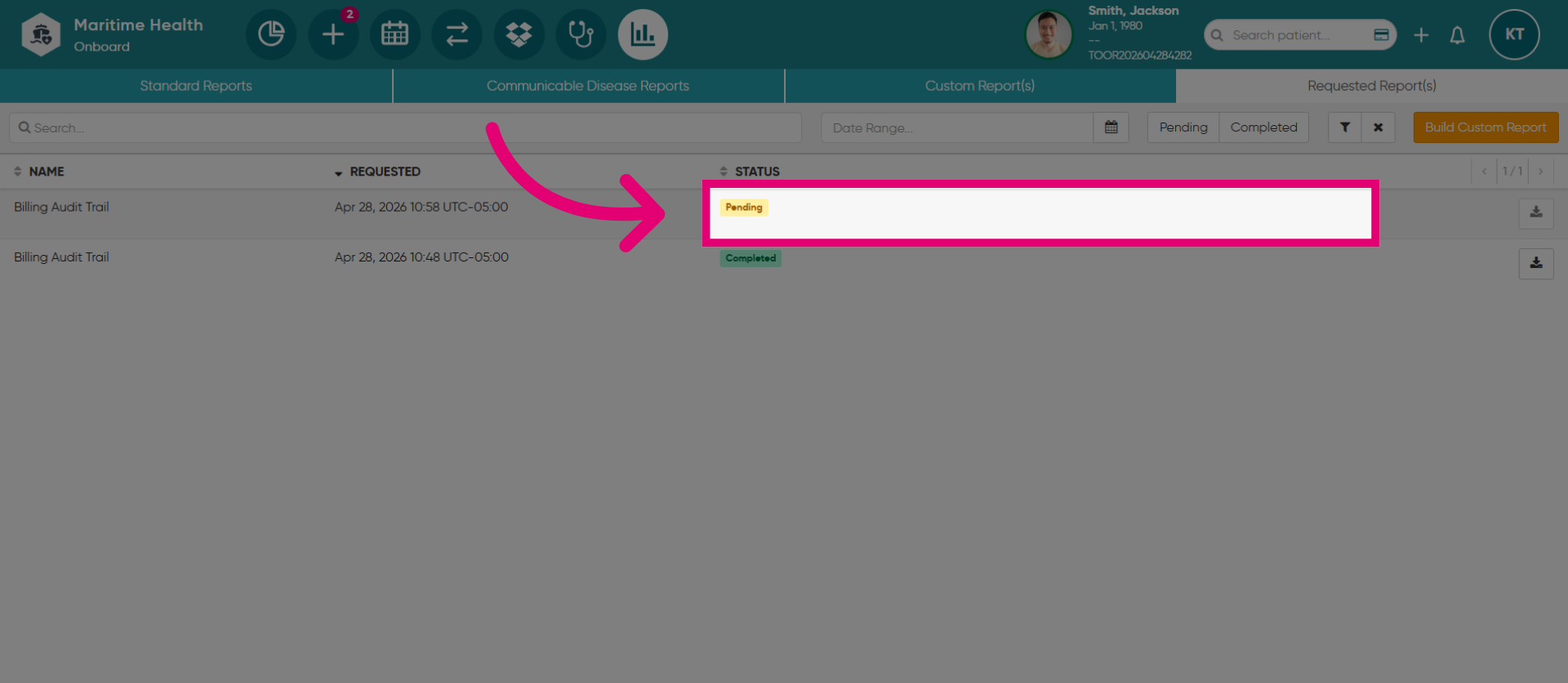
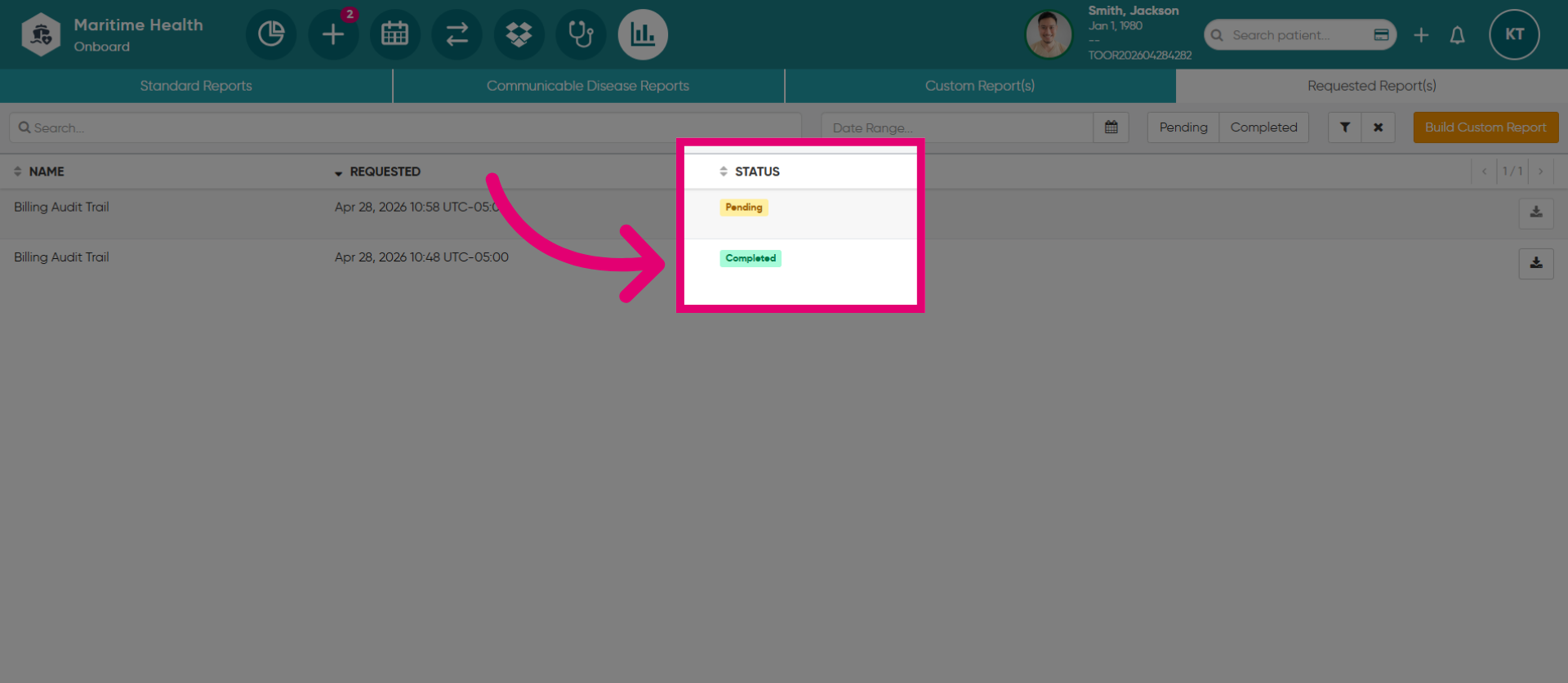
16. View Report Status
View the report status which is either Pending, Completed or Failed.
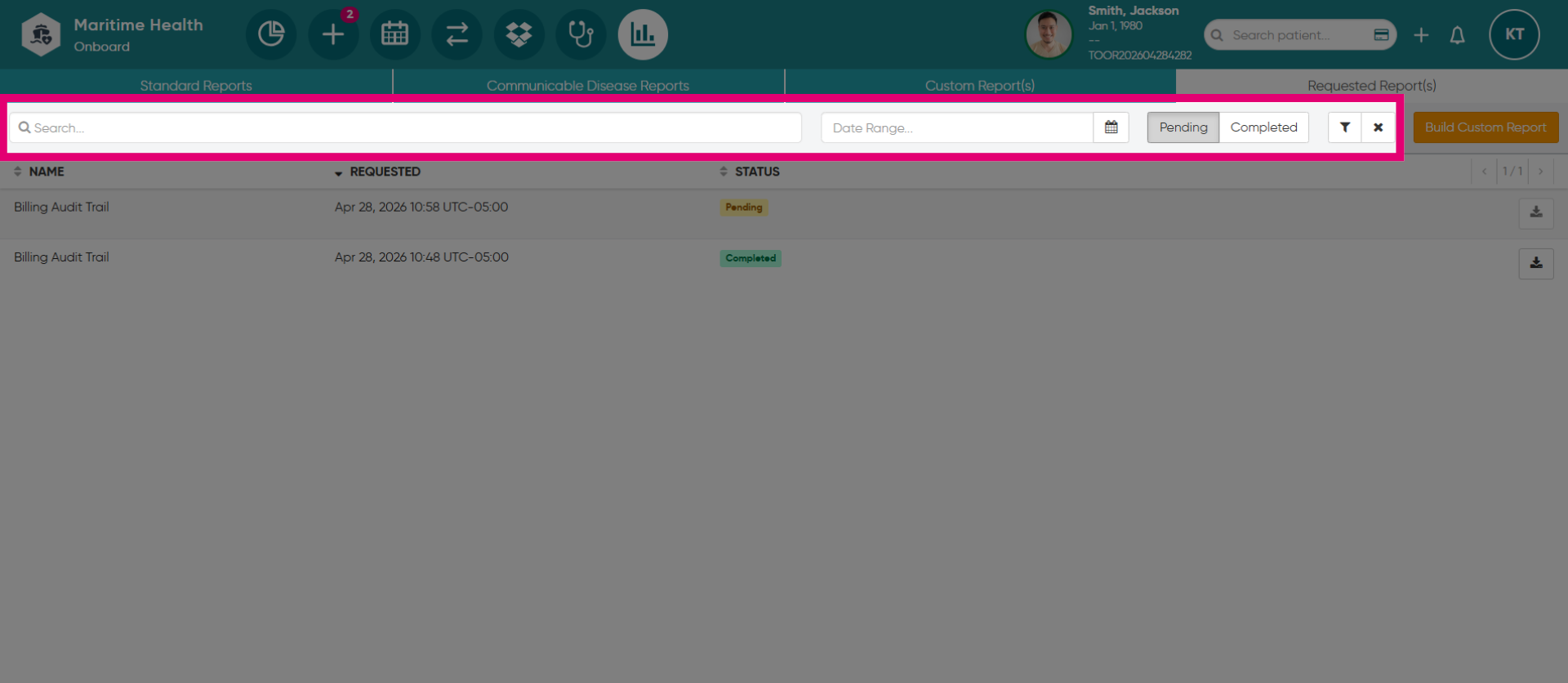
17. Apply Filter
Use the filters at the top to locate a specific report.
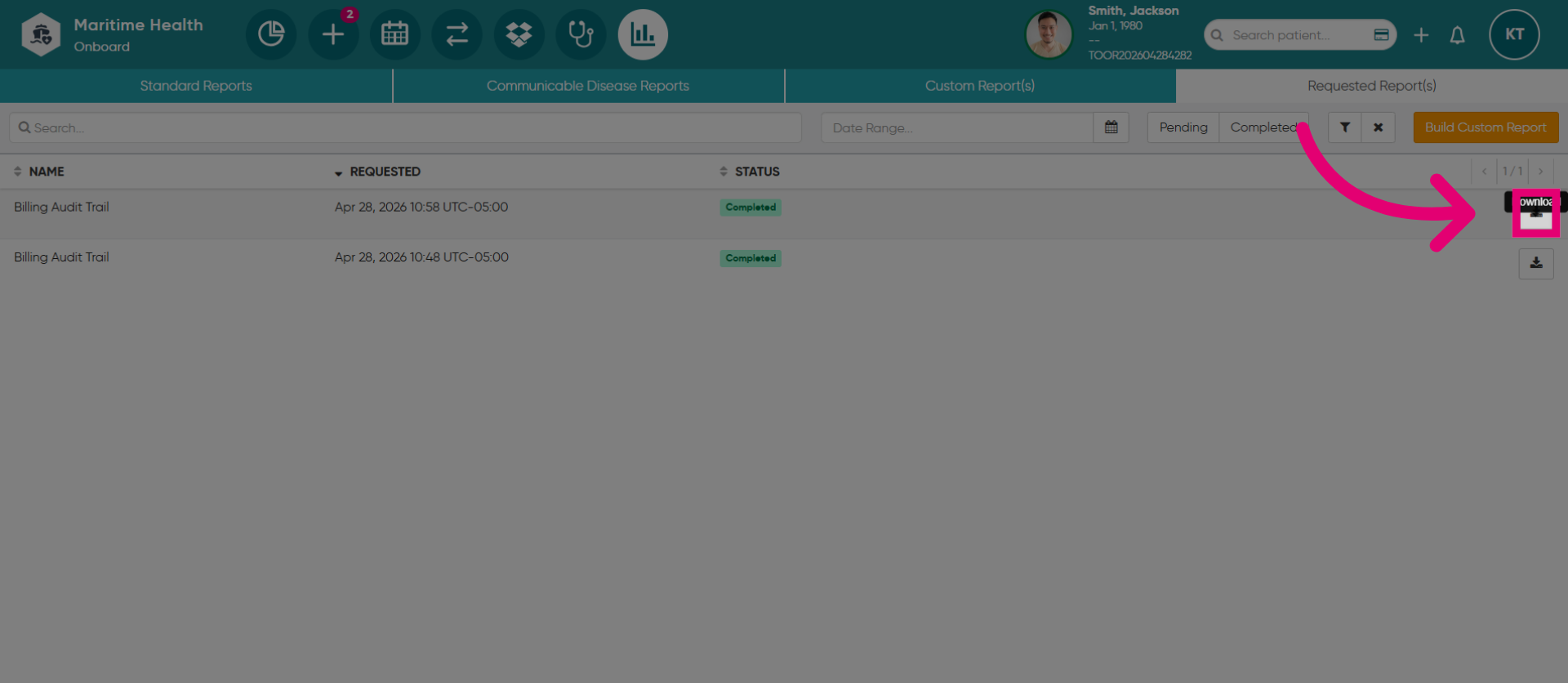
18. Open Additional Report Settings
Click here to access more settings related to report management.
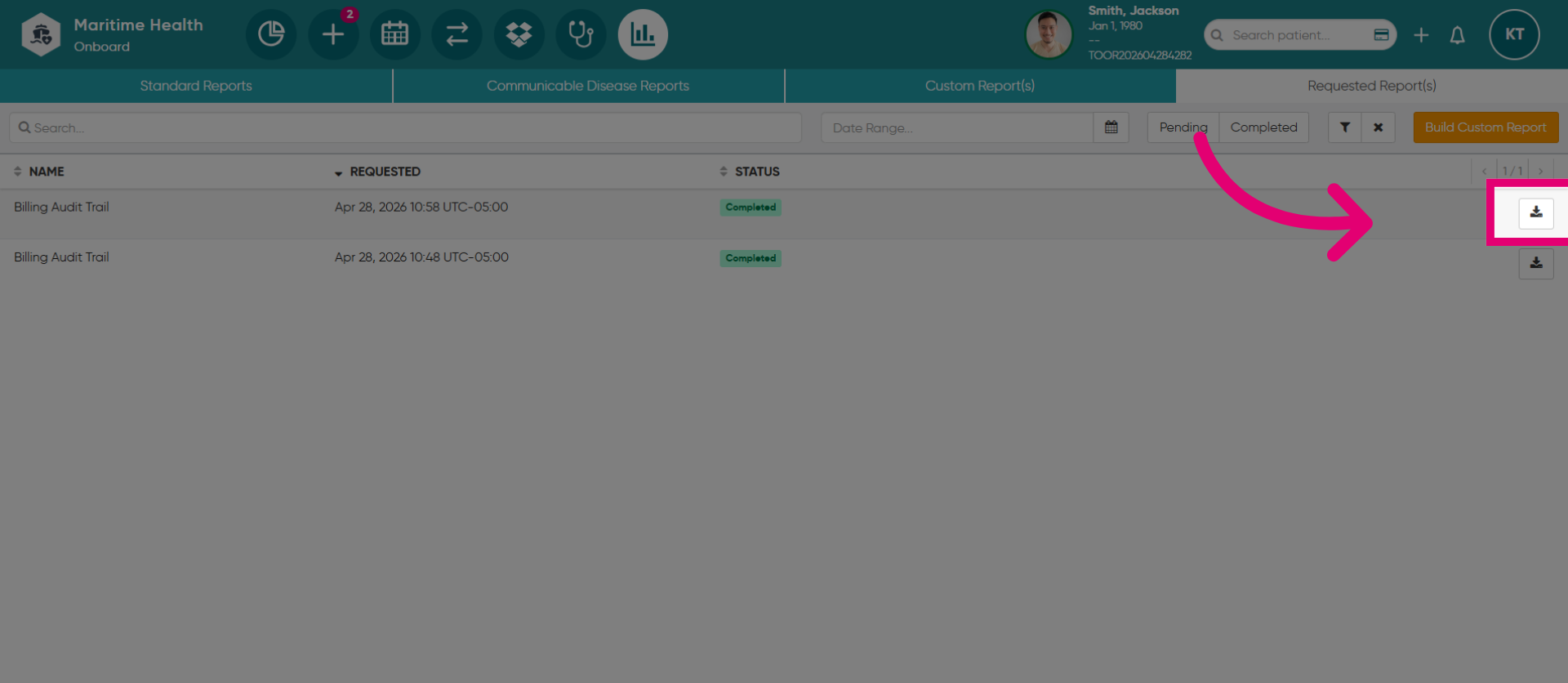
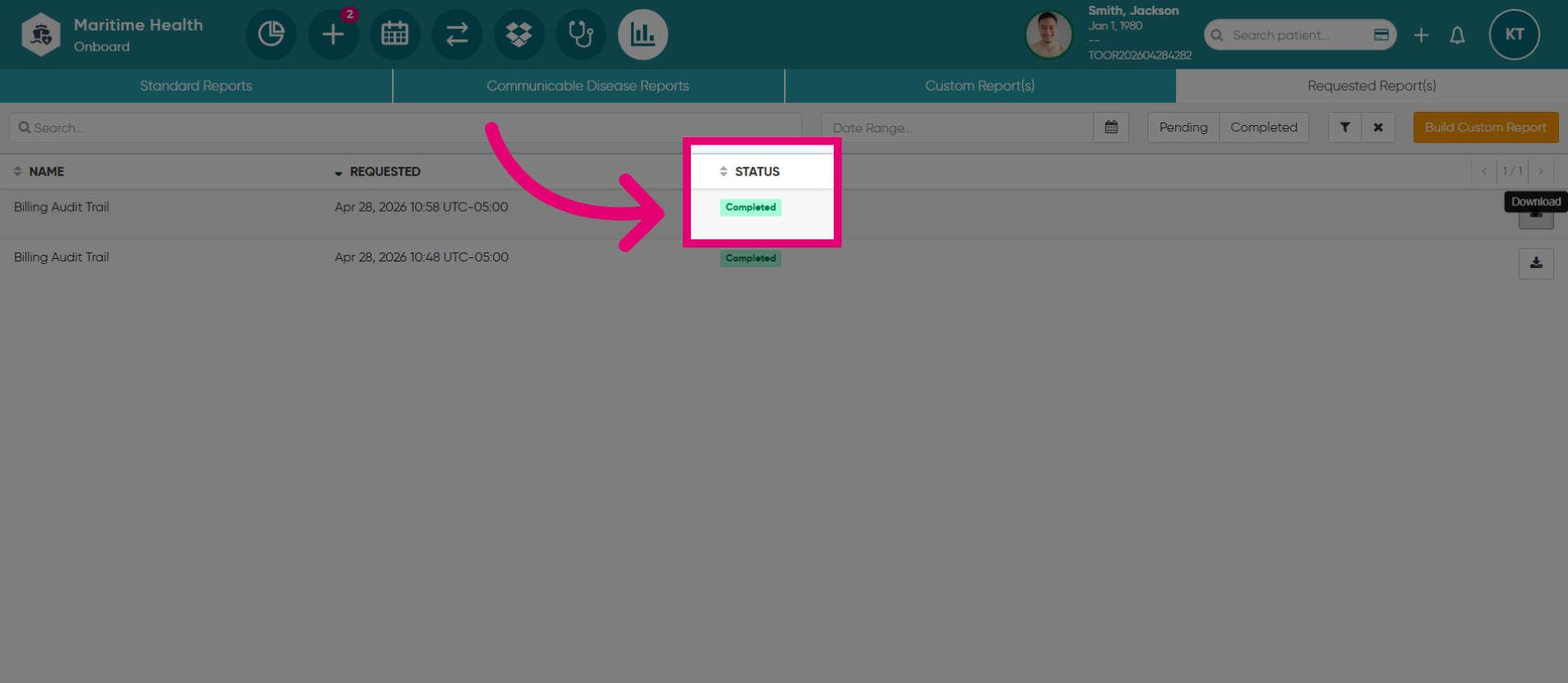
19. Download "Completed" Report
Once the report is ready, the status will be marked as "Completed" for download.
20. Select "Download"
Then, select "Download" to download the report to your device.