New article
Recently updated
Voiding the MSB

This walkthrough explains how to void an MSB during a patient encounter.
1. Introduction
You will learn how to void the MSB, starting in the patient chart during an active encounter.
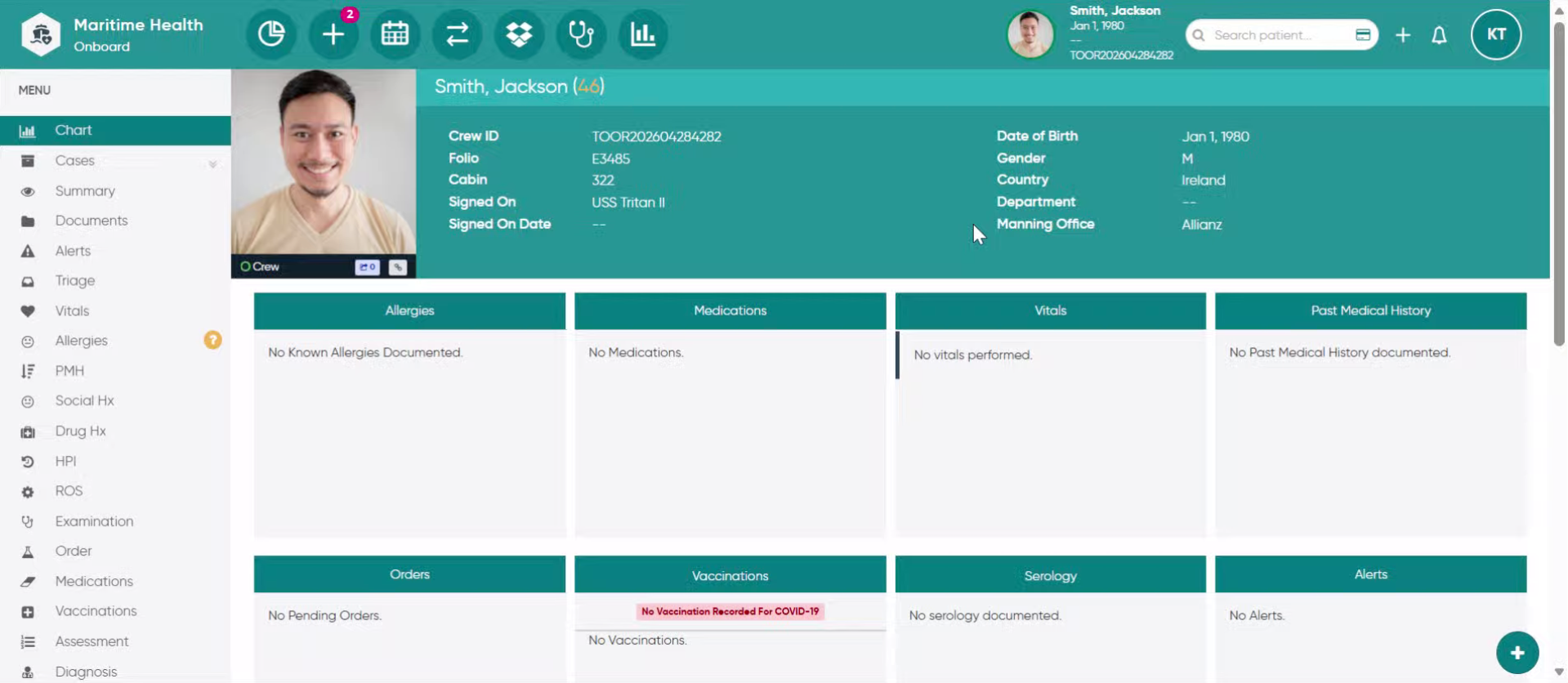
2. Go to the Void Option
In the Admin, under the Master Service Bill tab, if all the billing details are already entered but you wish to void the transaction. Scroll to the void section
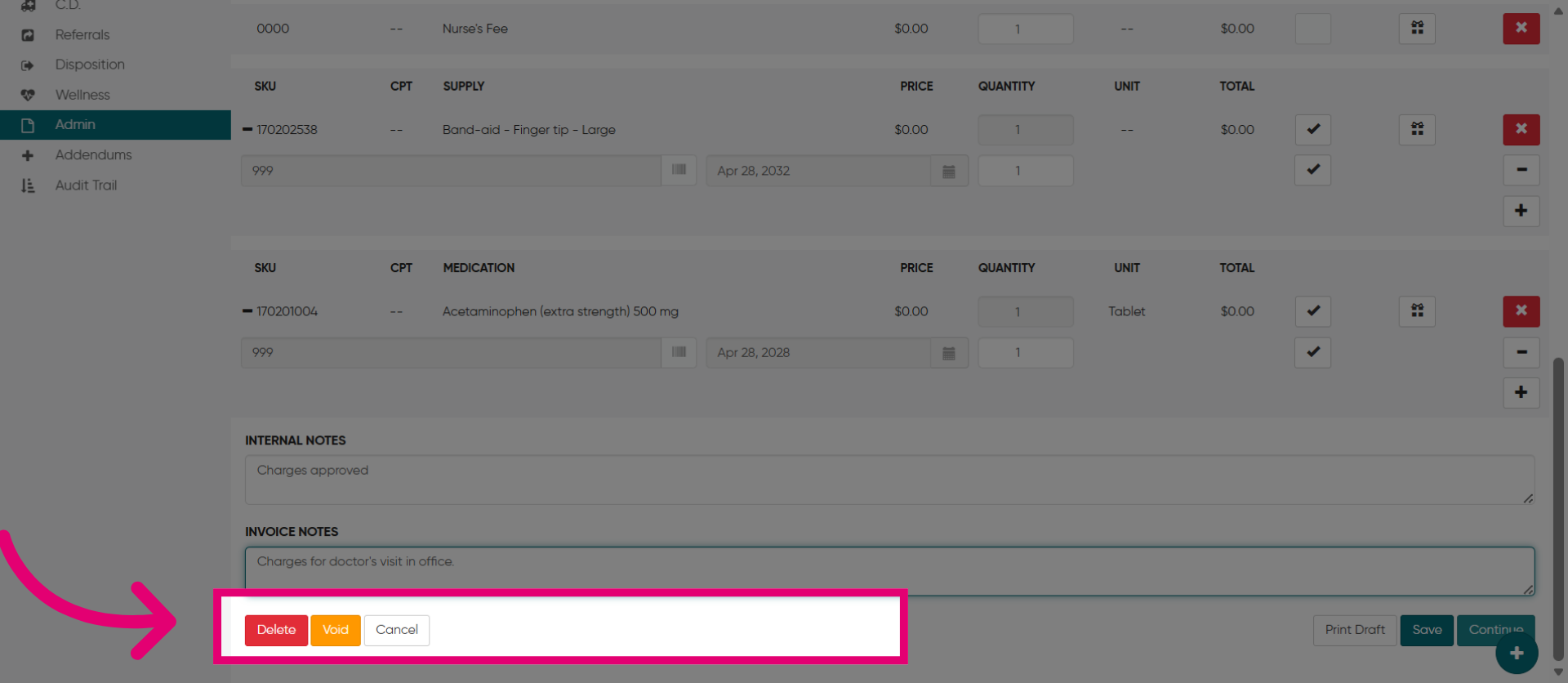
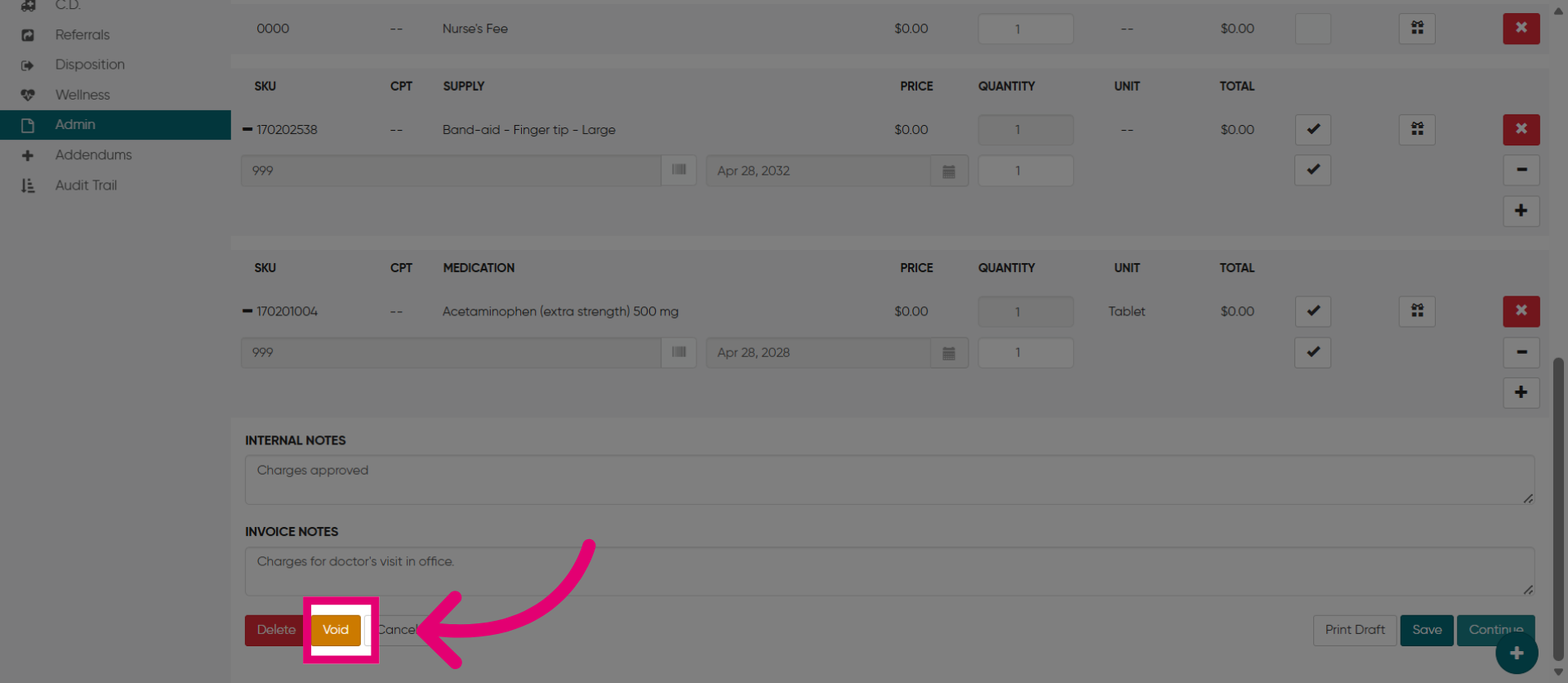
3. Select Void Option
Click Void to cancel the selected billing entry or transaction.
4. Select the Void "Reason"
Choose a reason or category for voiding the transaction.
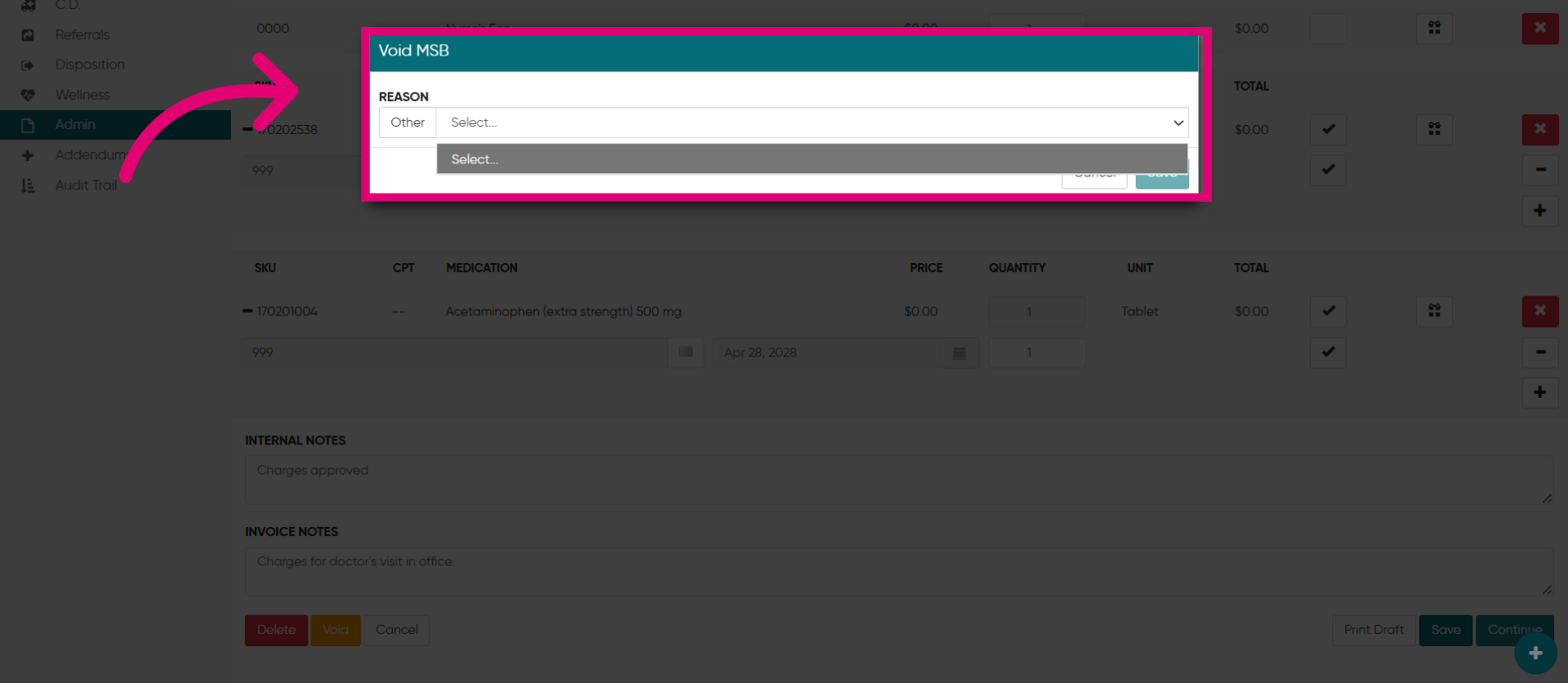
5. Select Other Reason
Click Other to specify an alternative reason for voiding the billing entry.
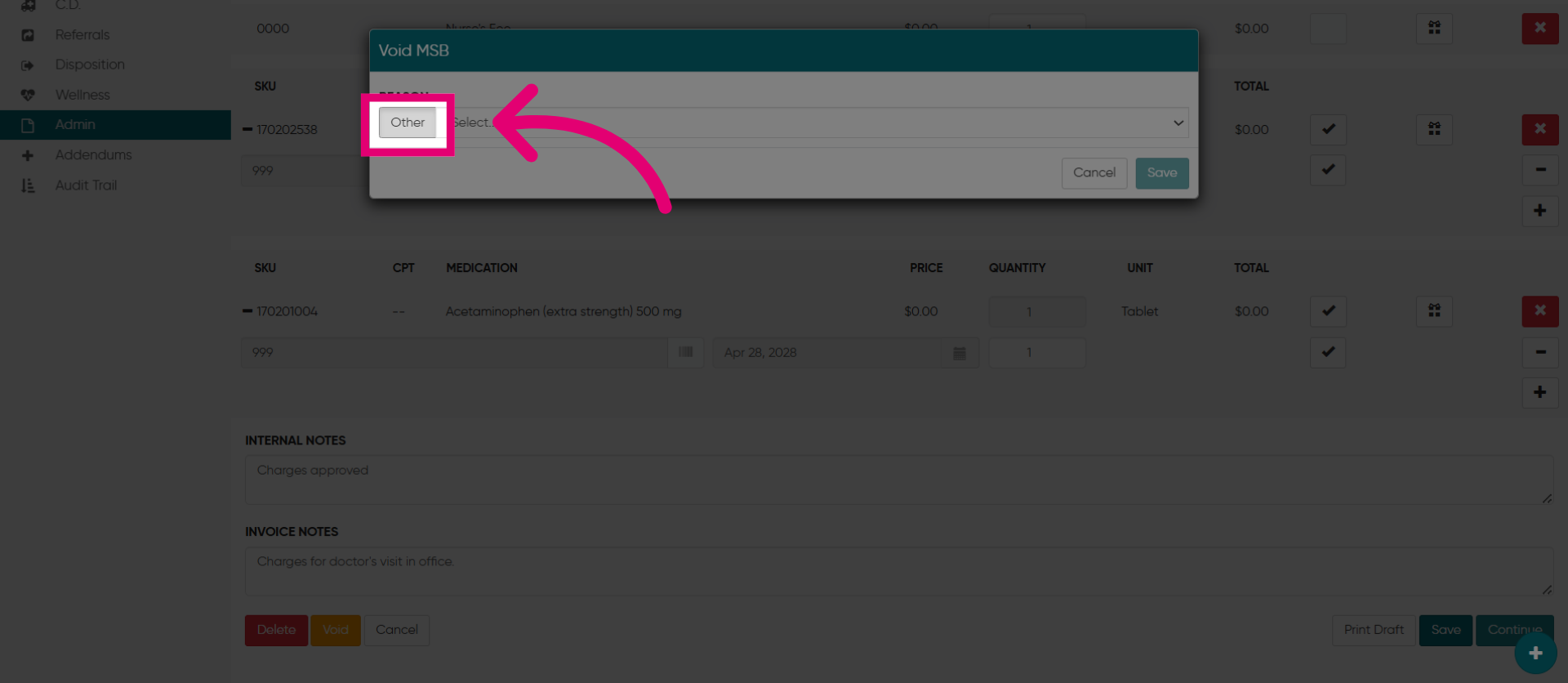
6. Save Void Details
Click Save to confirm and apply the void status to the billing record.

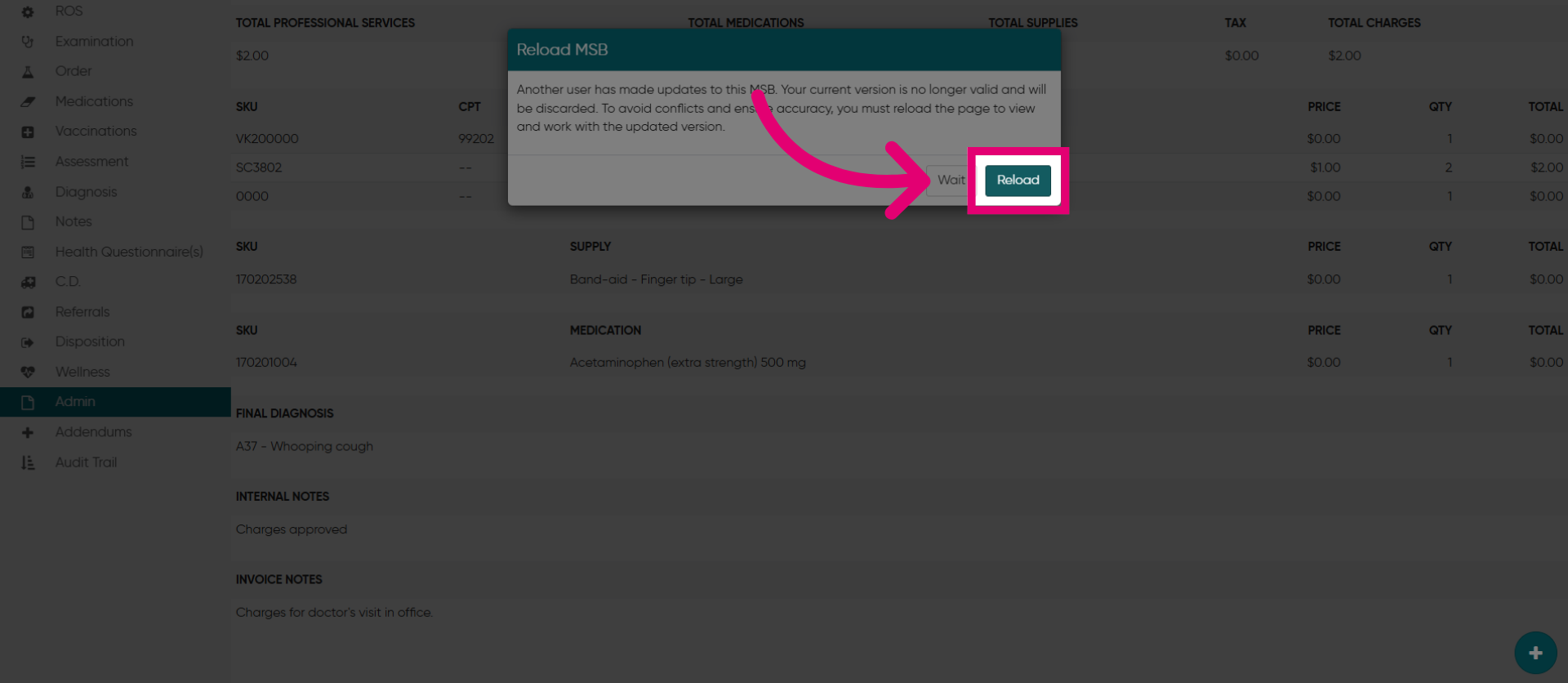
7. Reload Billing Data
Click Reload to refresh the billing information and update the display.
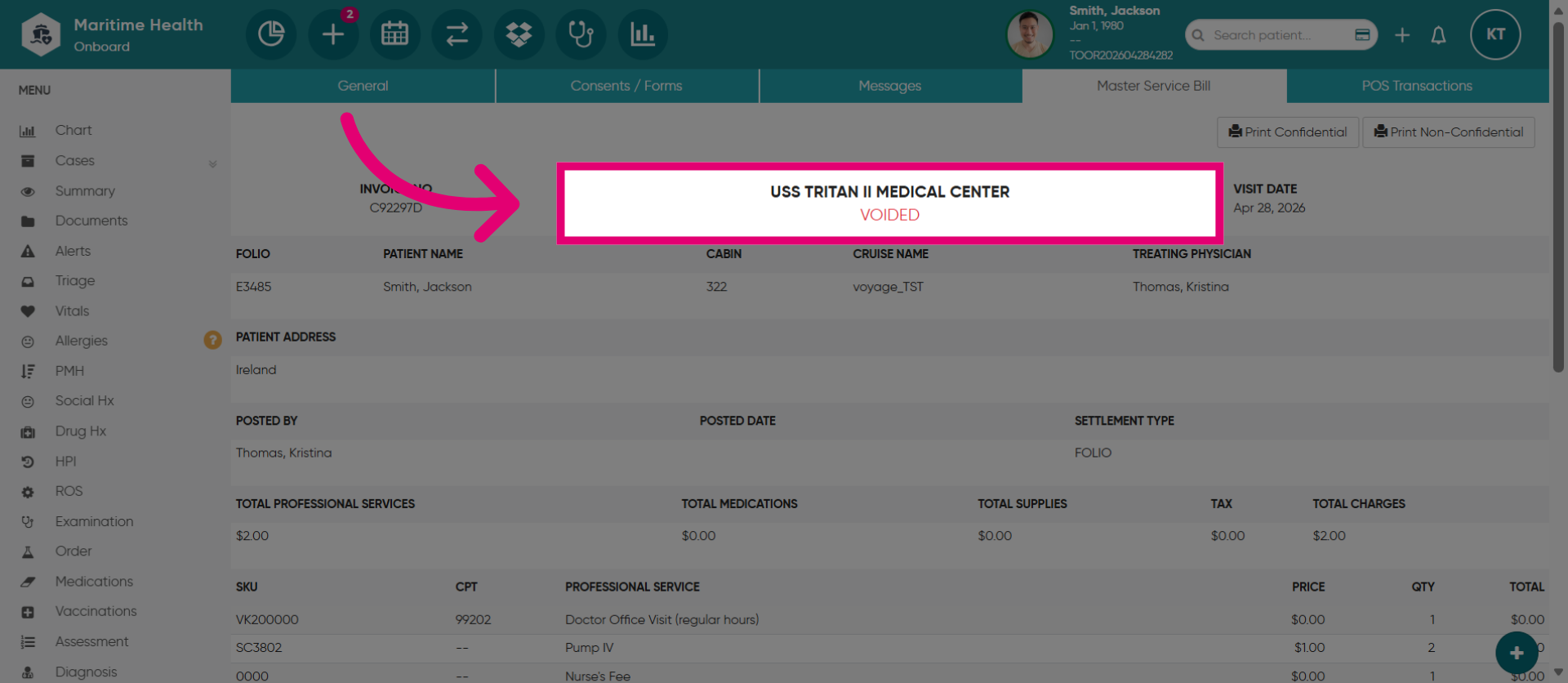
8. View the Void Update
The bill will be updated to "Void
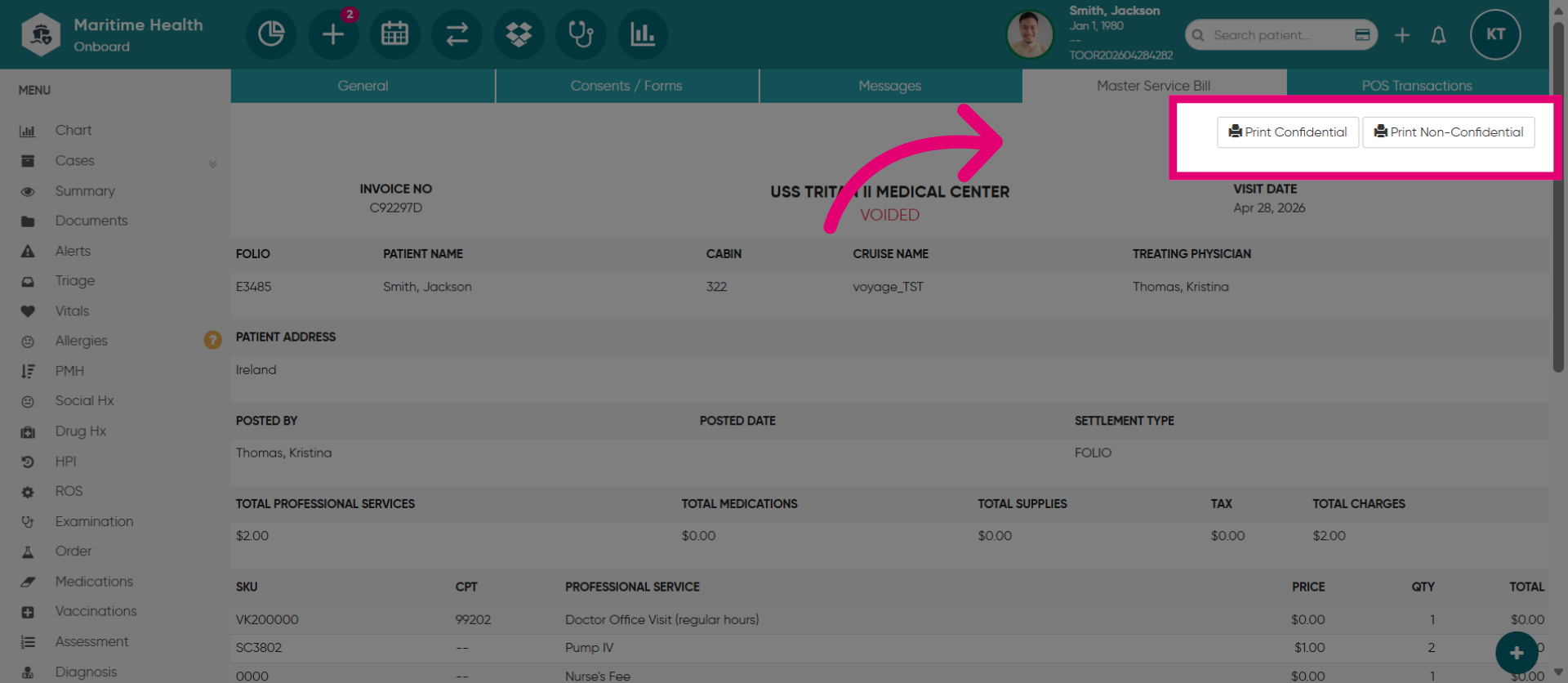
9. Print Document Options
Click Print Confidential or Print Non-Confidential to generate the desired document version.
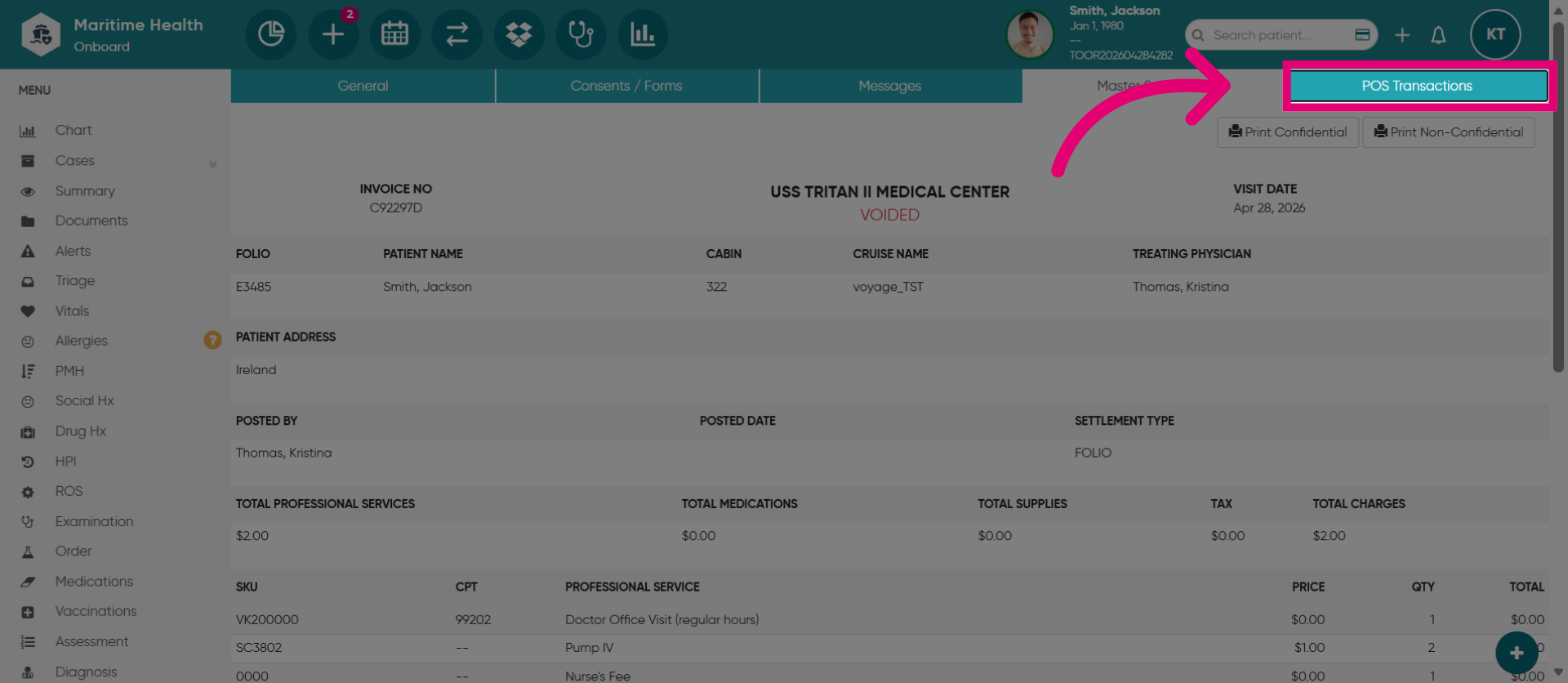
10. Access POS Transactions
Click POS Transactions to review point-of-sale billing activities.
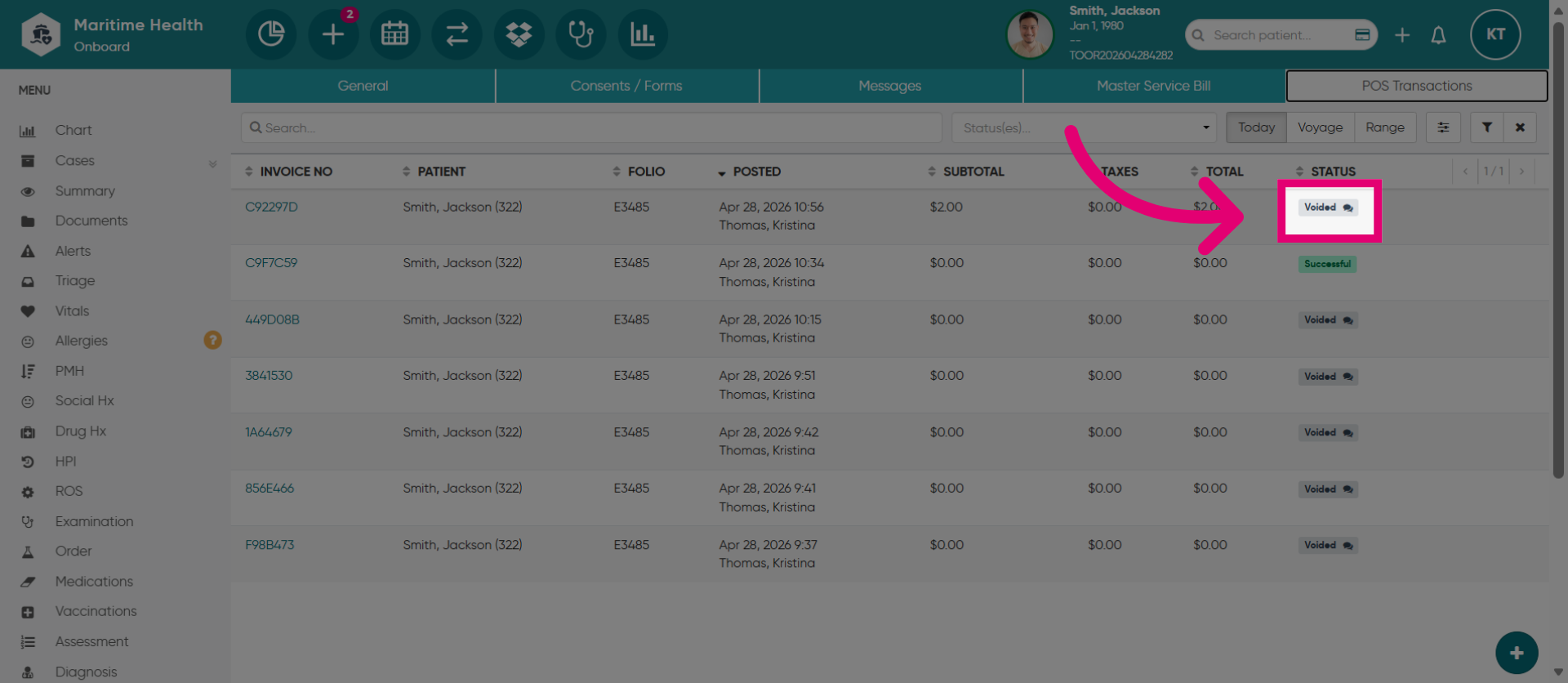
11. View Voided Transactions
Click Voided to filter and display canceled or voided transactions.
12. Open Status Filters
Click Status(es) to apply the filters based on the "Void" status
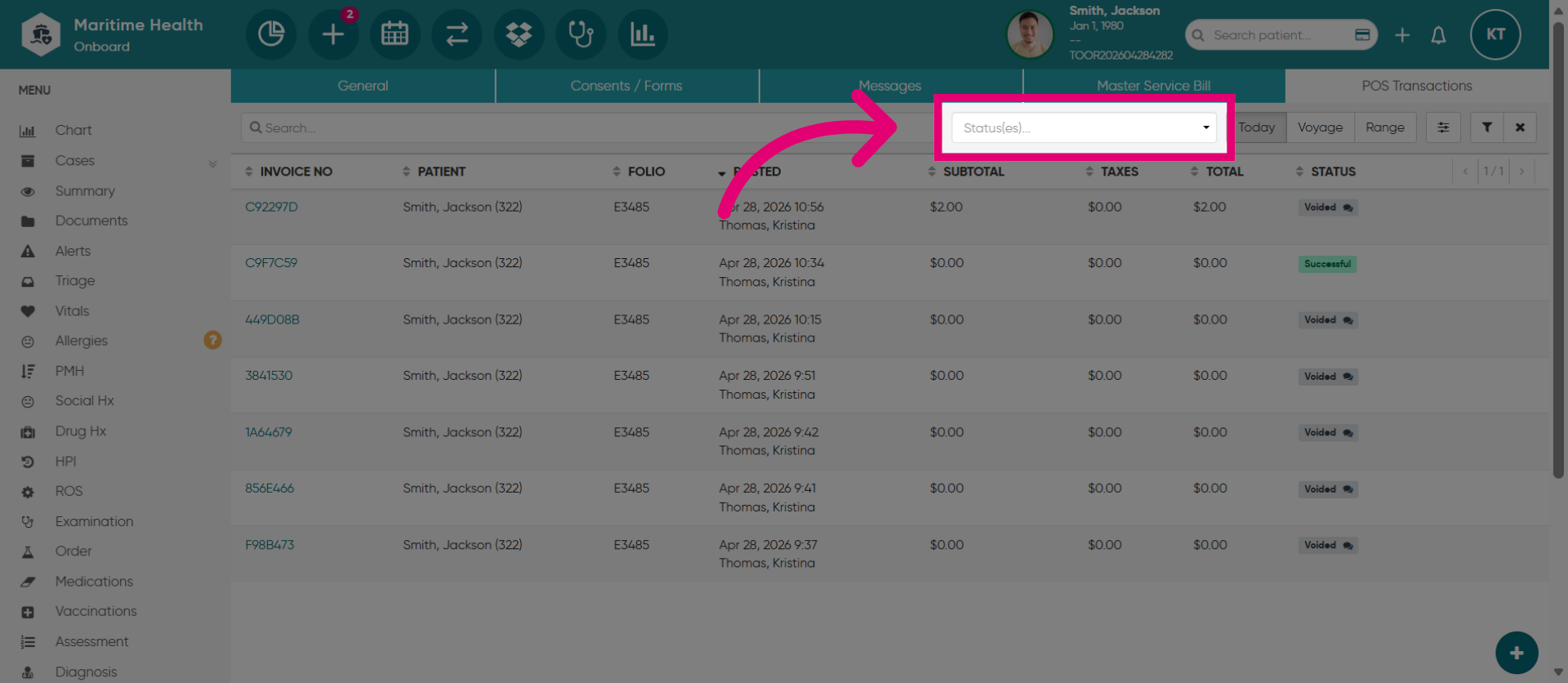
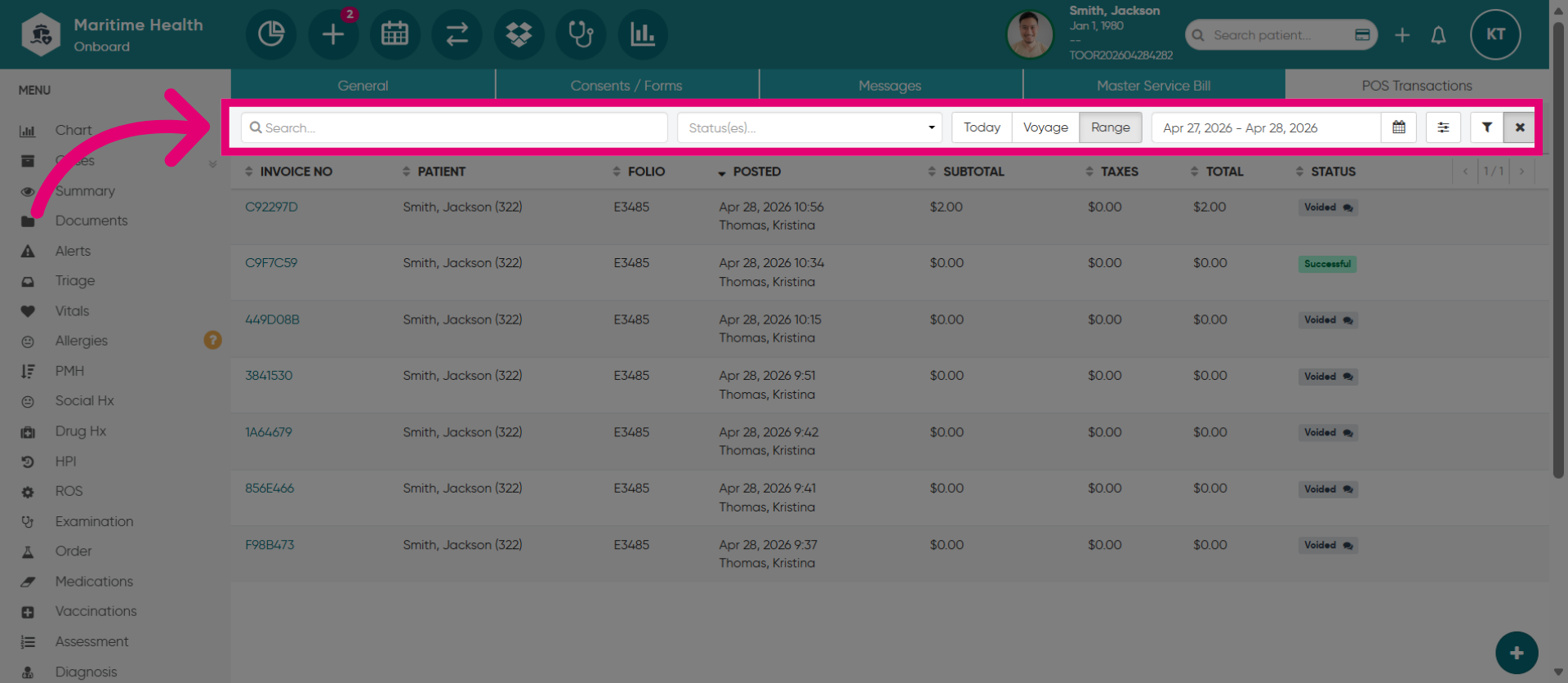
13. Use Additional Filters
Use additional filters to locate specific voided transactions by date range or voyage.
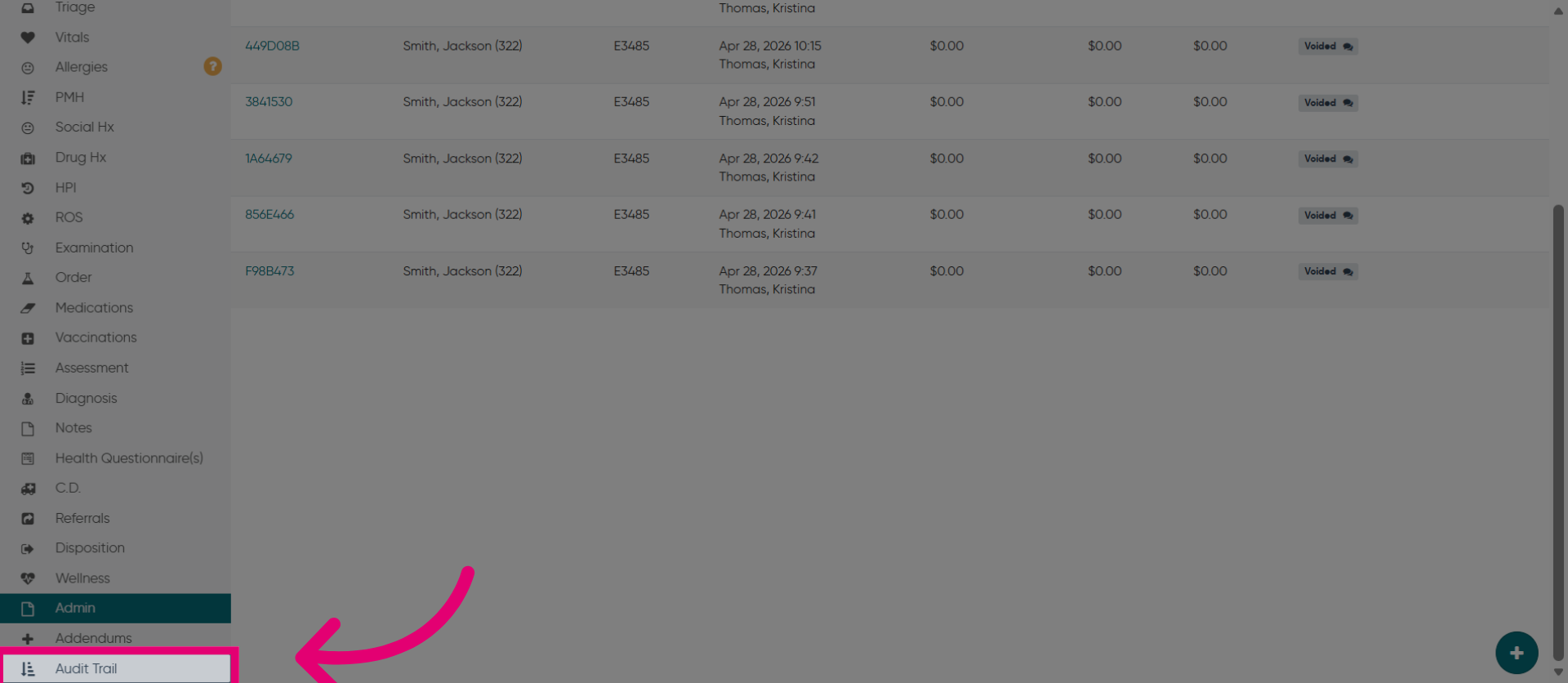
14. View Audit Trail
You can view additional logs in the Billing Audit section under Audit Trails. Click Audit Trail to review the history of changes and actions within the system.