New article
Recently updated
Edit "My Profile" Settings in Ideagen Maritime Management

This walkthrough explains how to set up and manage your profile in Ideagen Maritime Management.
1. Introduction
You will learn how to update personal information, change your password, configure your signature, and manage SMS notifications.
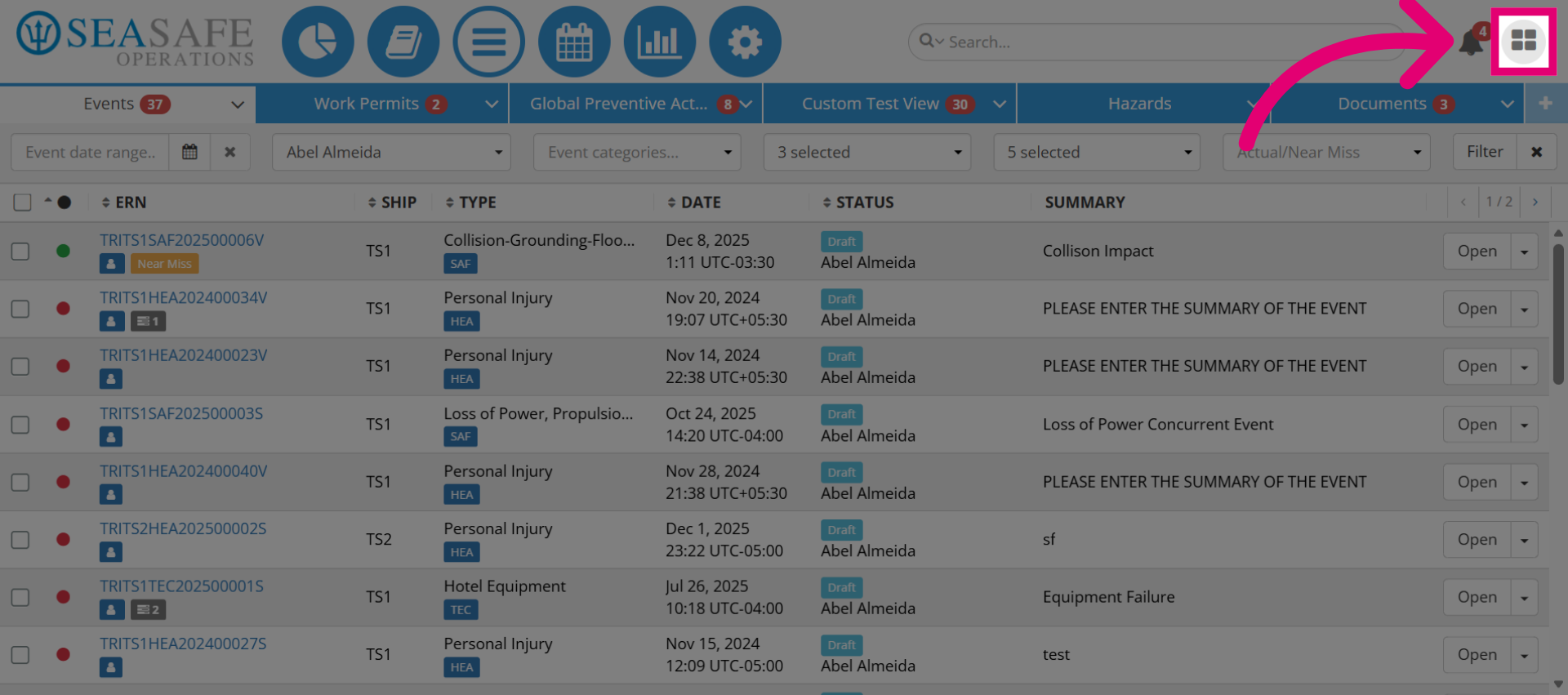
2. Access Profile Menu
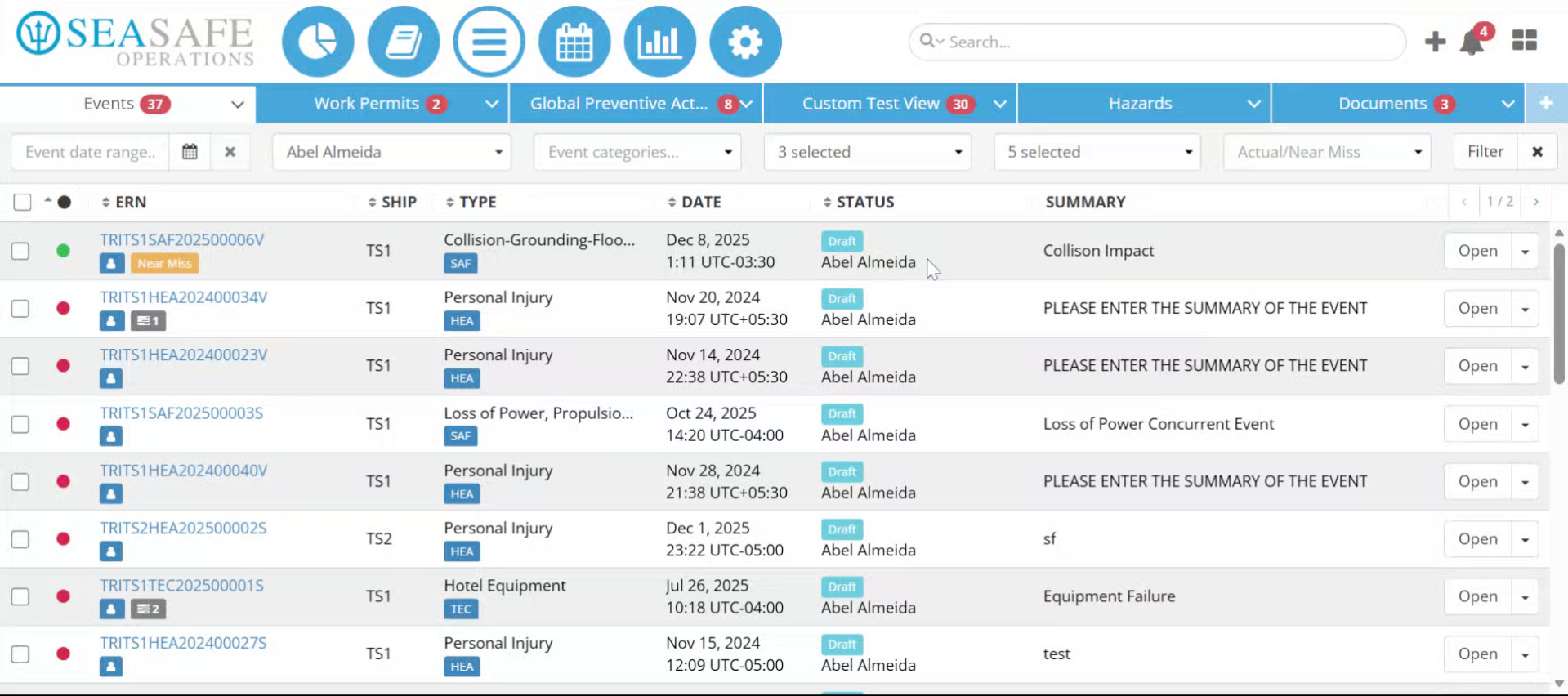
Upon first logging in. Click here to open the main menu where profile options are available.
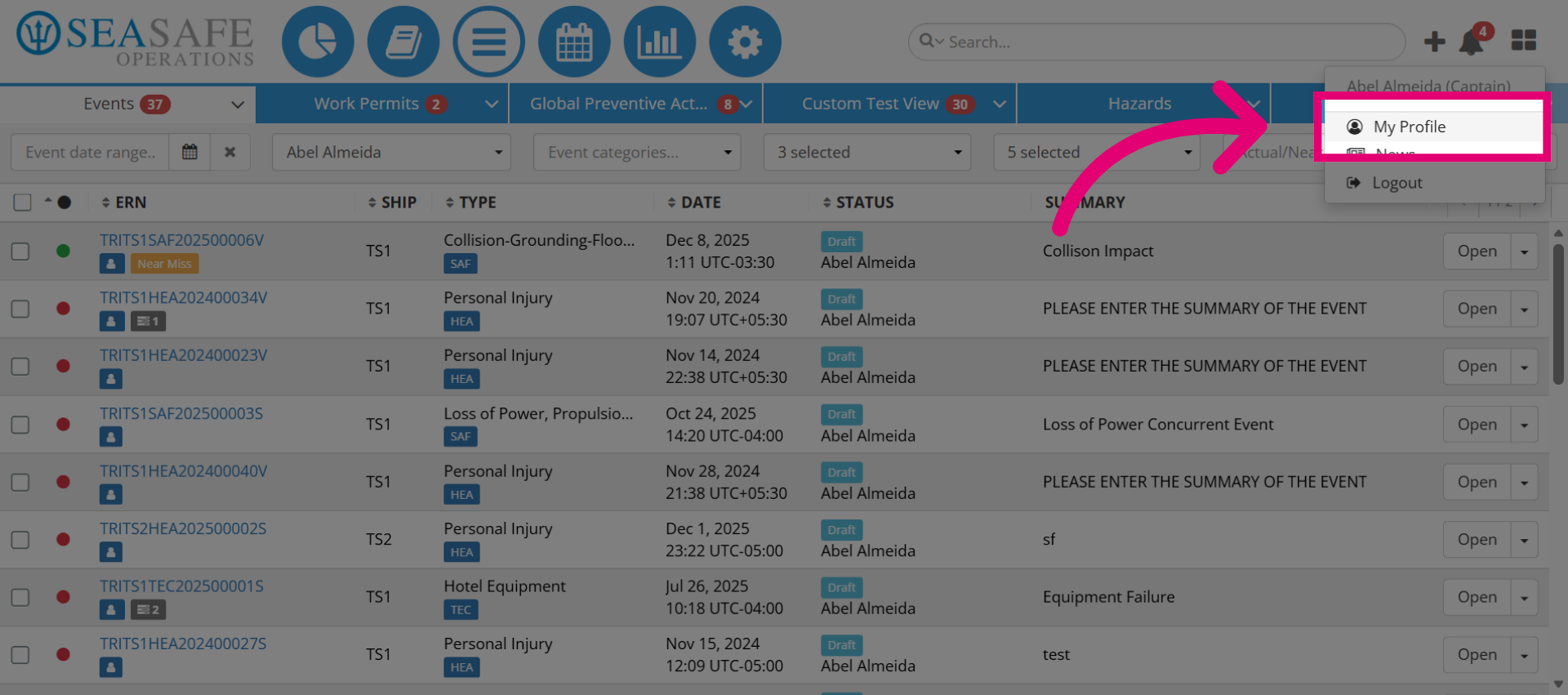
3. Open My Profile Section
Click "My Profile" to access your personal profile settings.
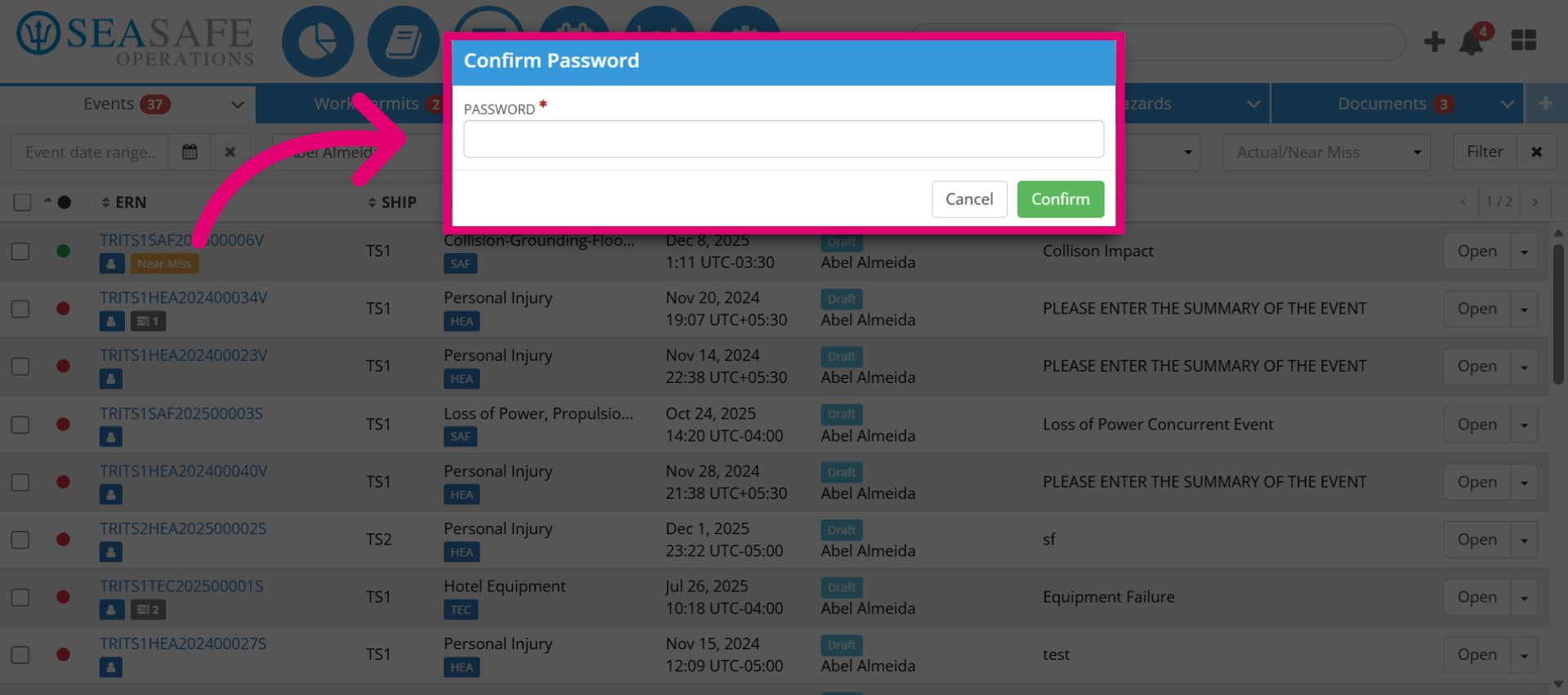
4. Select Password Field
Click the password field and add your password again to re-authenticate.
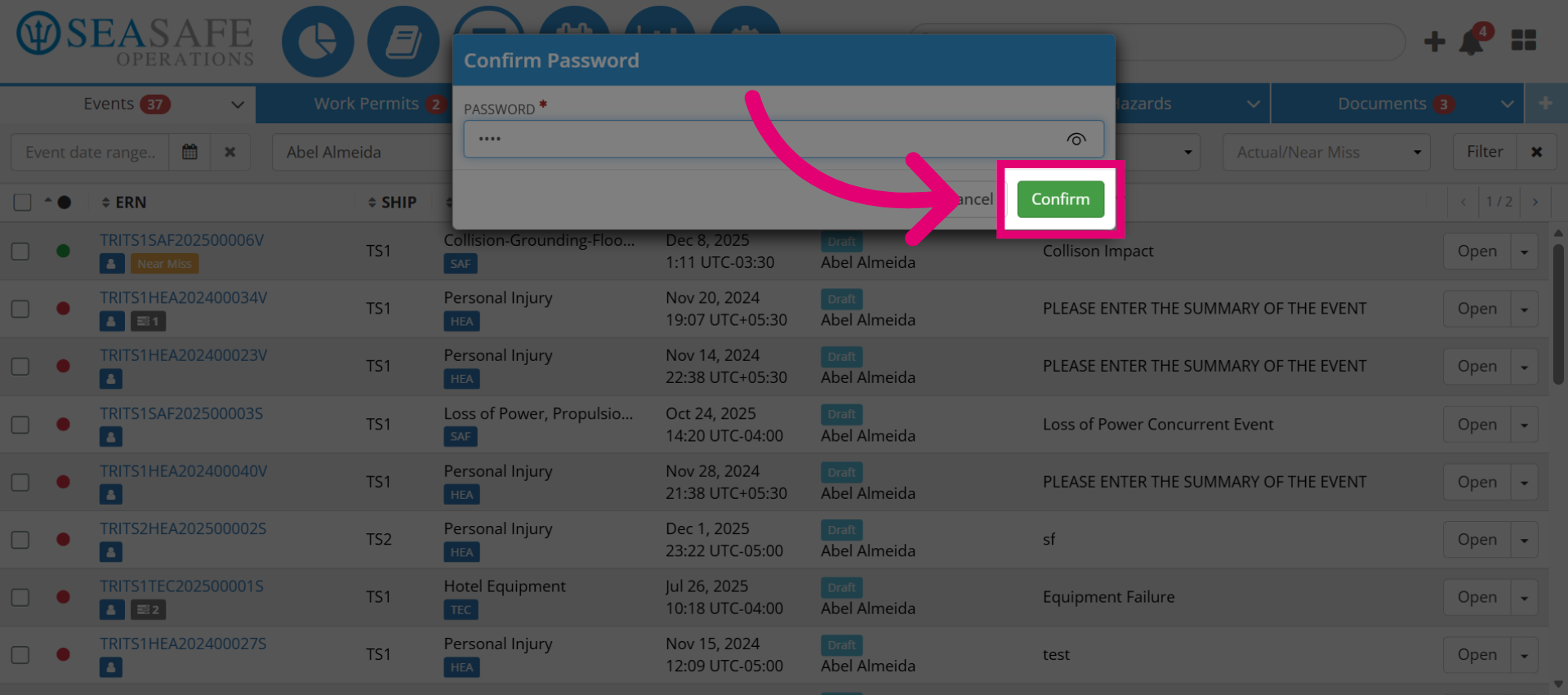
5. Confirm Password Change
Click "Confirm"
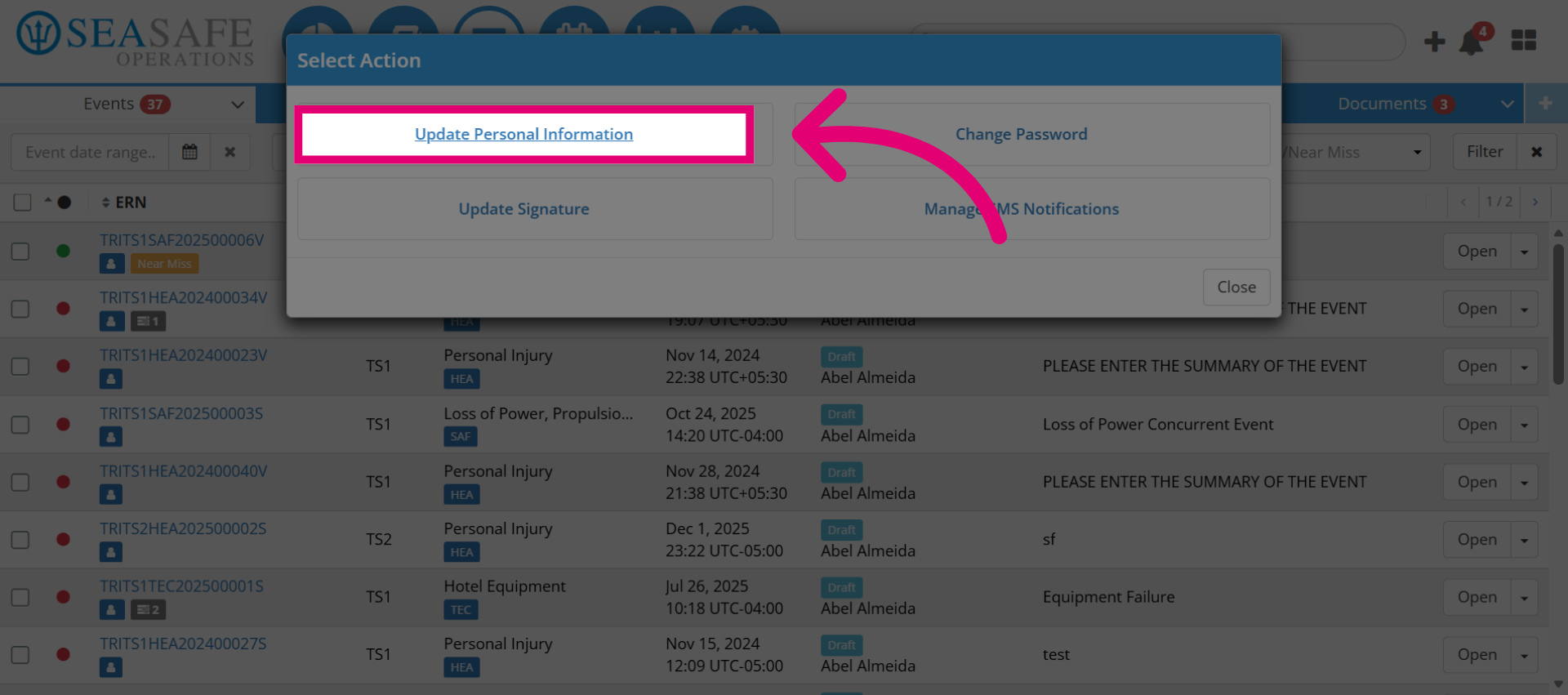
6. Open Personal Information Update
Click "Update Personal Information" to modify your profile details.
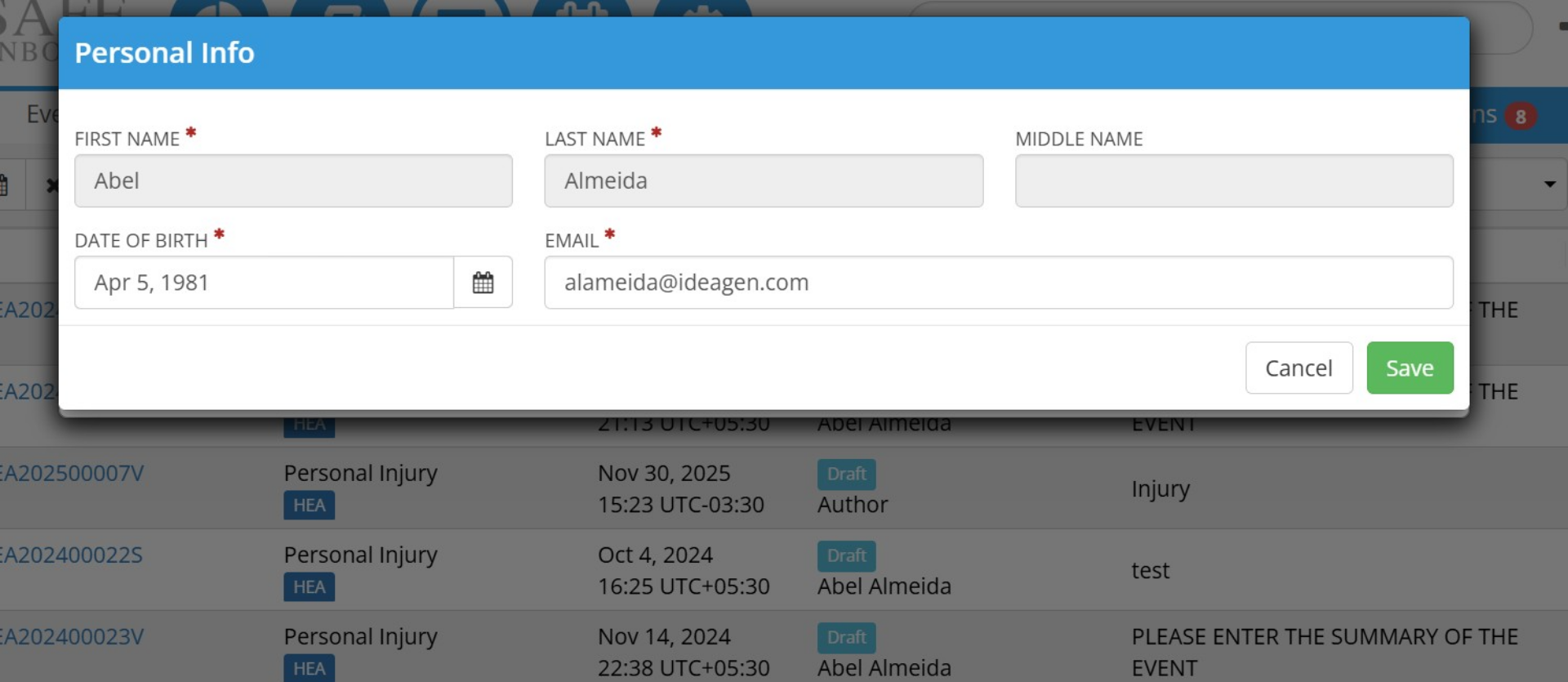
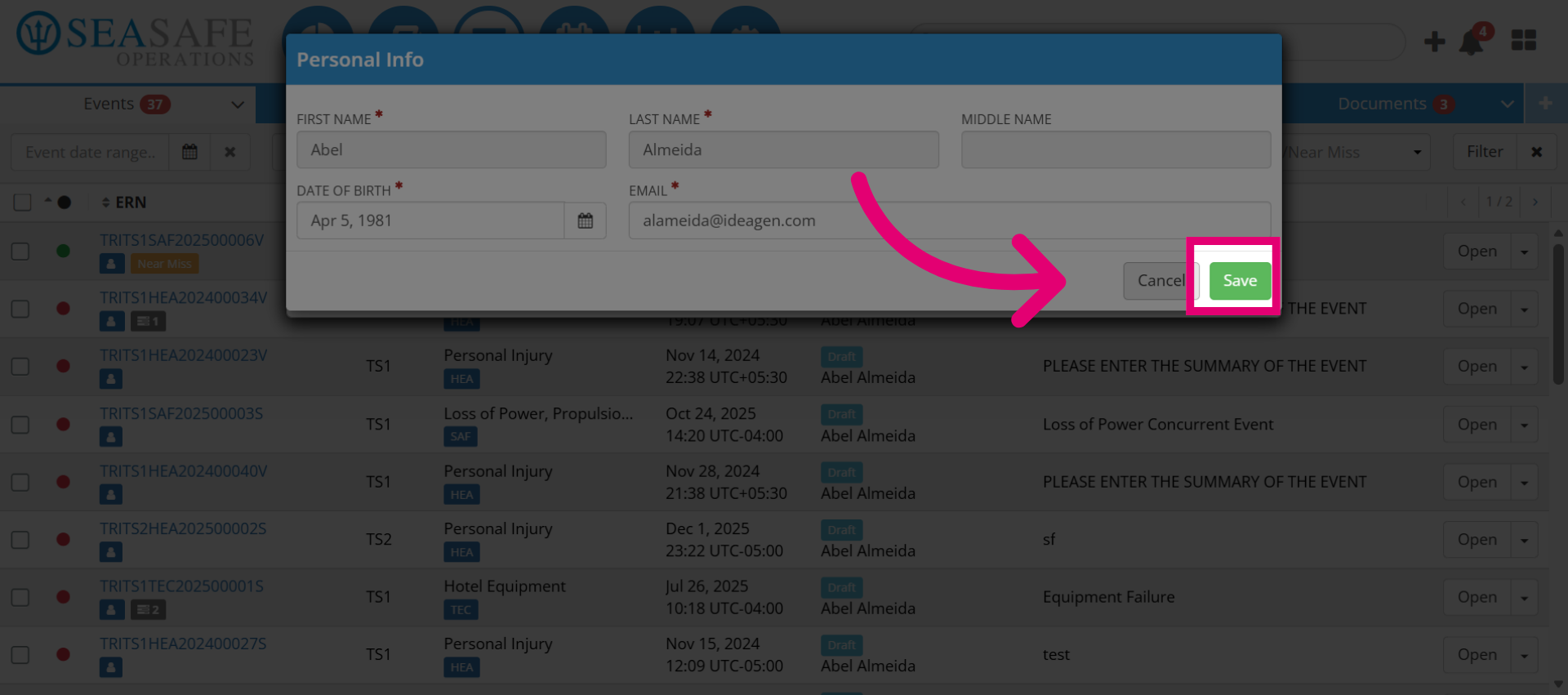
7. Update Personal Info
Update your personal info such as your date of birth or email
8. Save Your Updates
Save your udpates.
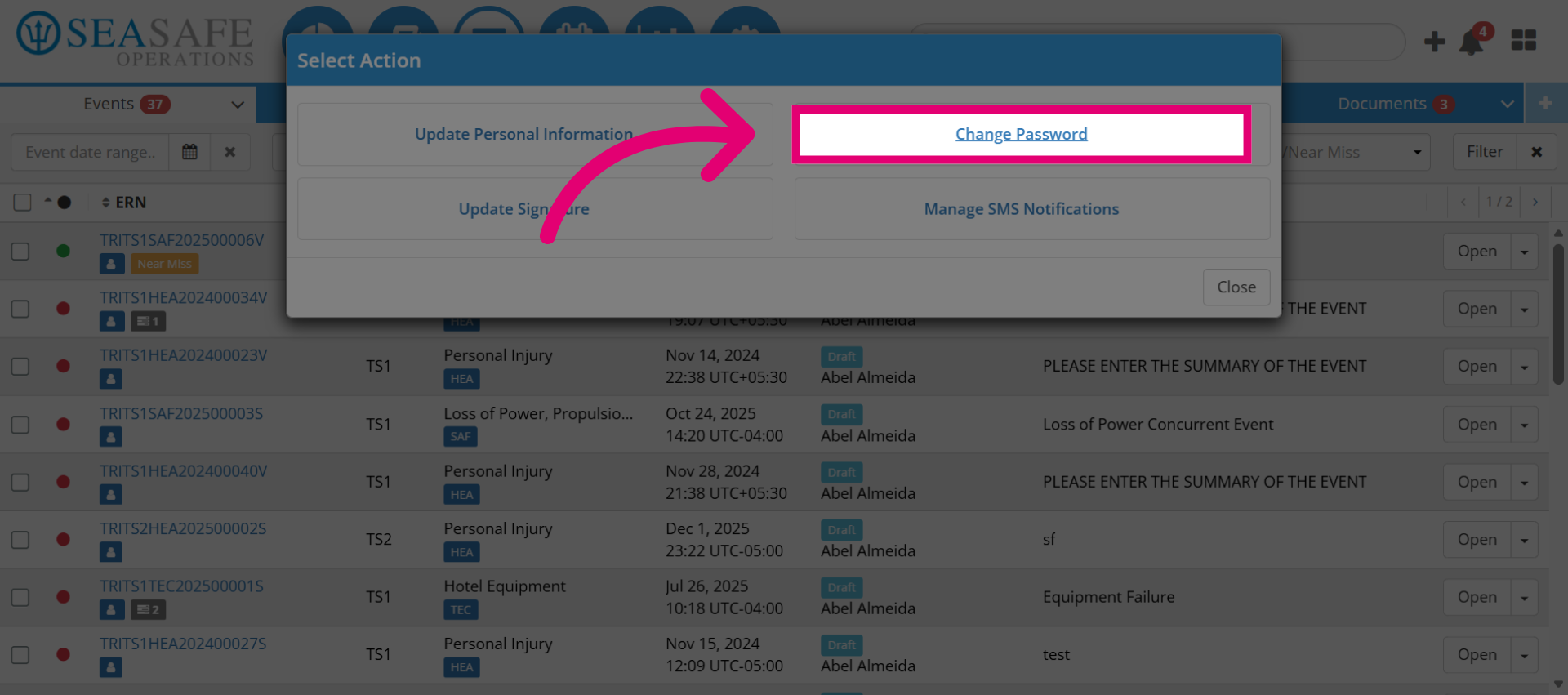
9. Access Password Change Option
Click "Change Password" to initiate the password modification process.
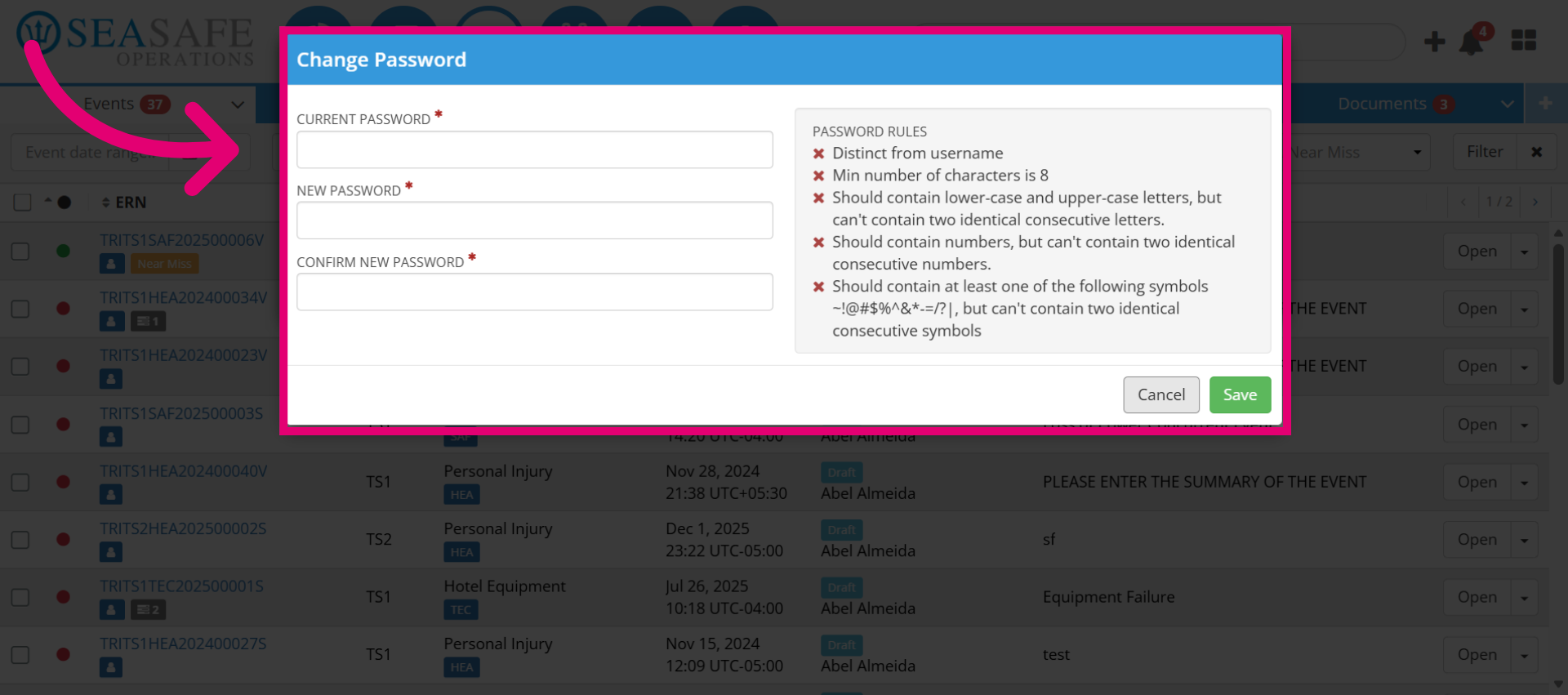
10. Select Password Input
Click the password field to enter your new password.
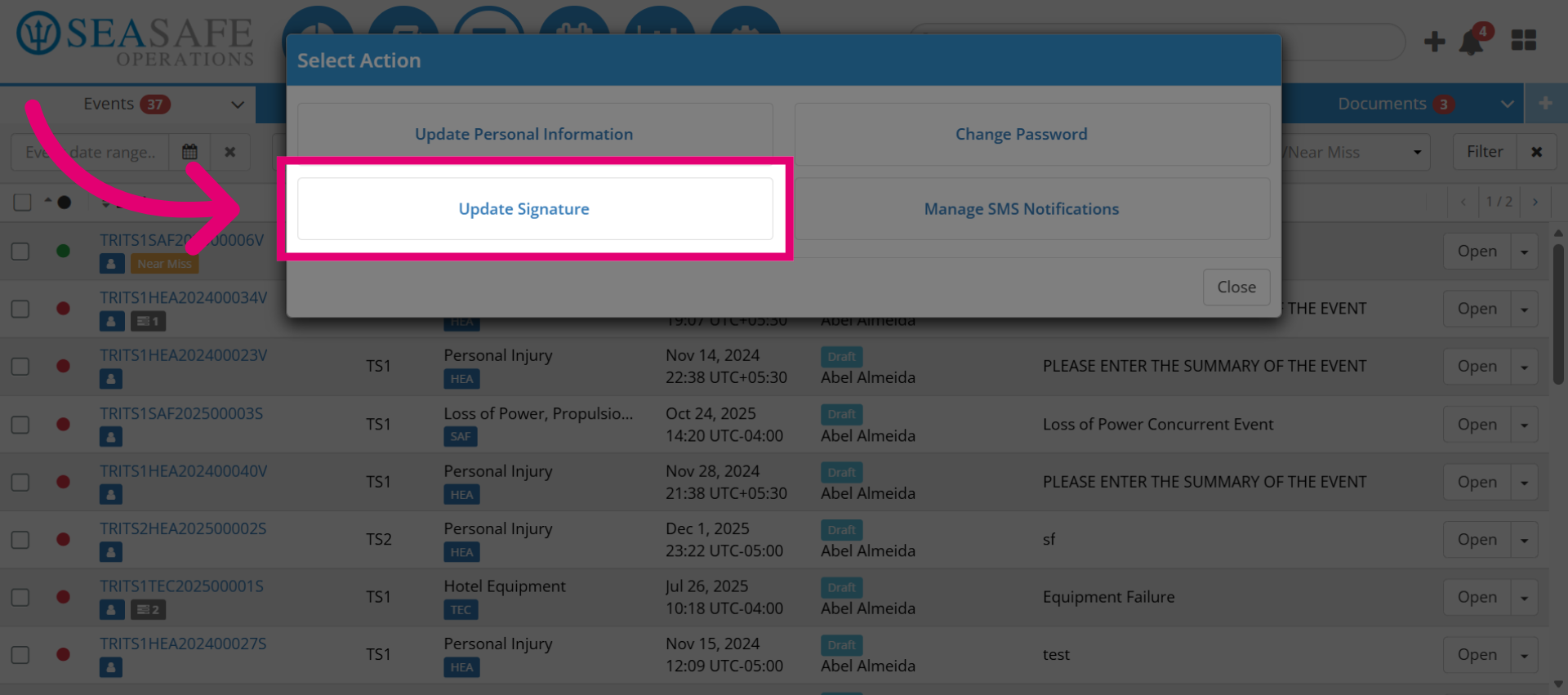
11. Open Signature Update
Click "Update Signature" to modify your digital signature settings.
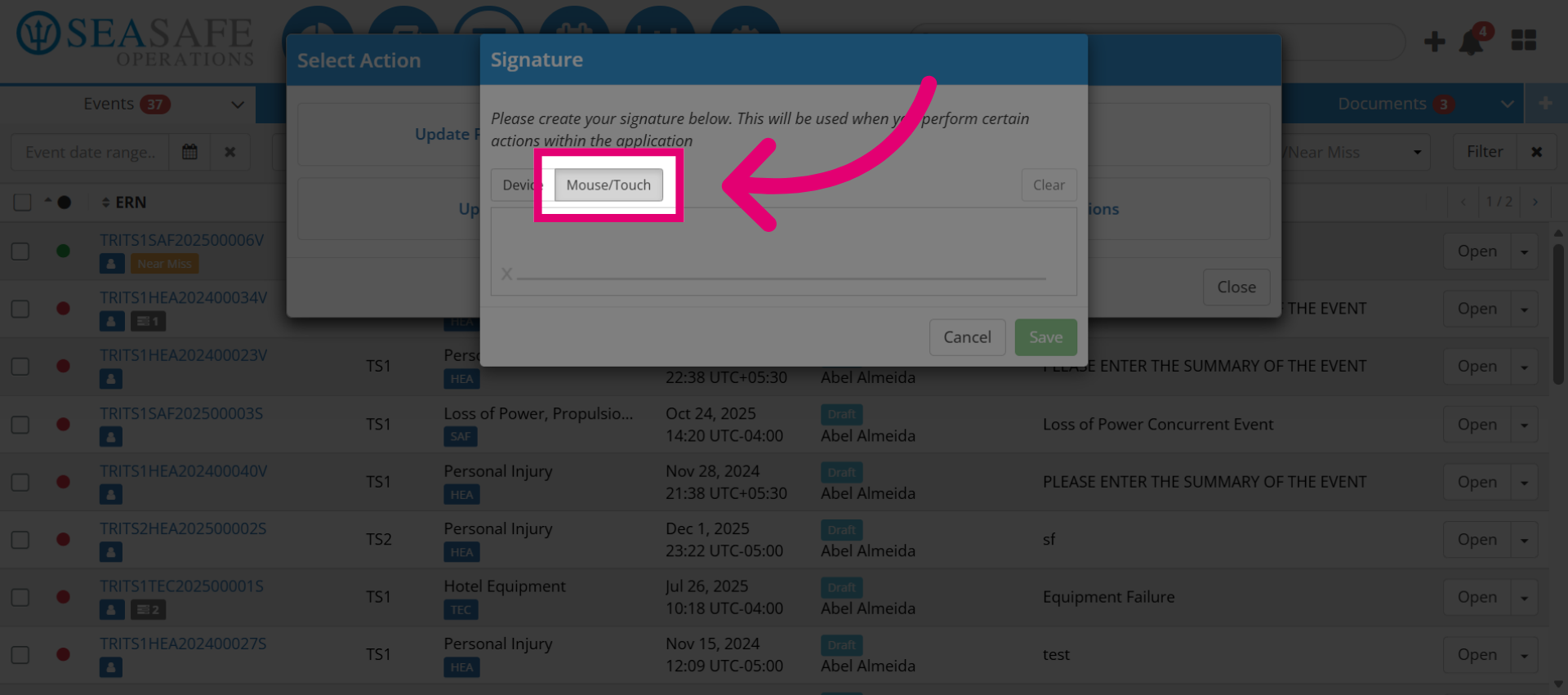
12. Choose Input Method
Click "Mouse/Touch" to select your preferred signature input method.
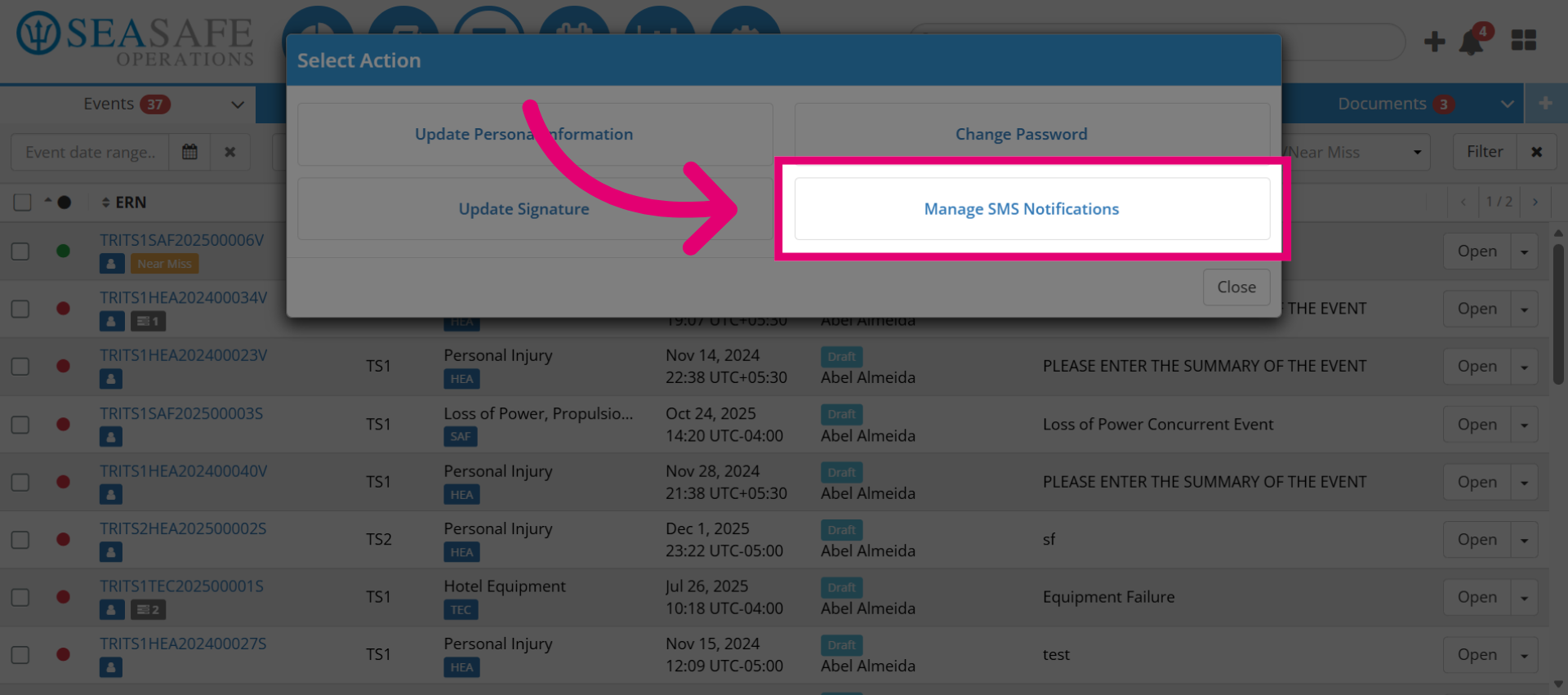
13. Manage SMS Notifications
Click "Manage SMS Notifications" to configure your message alert preferences.
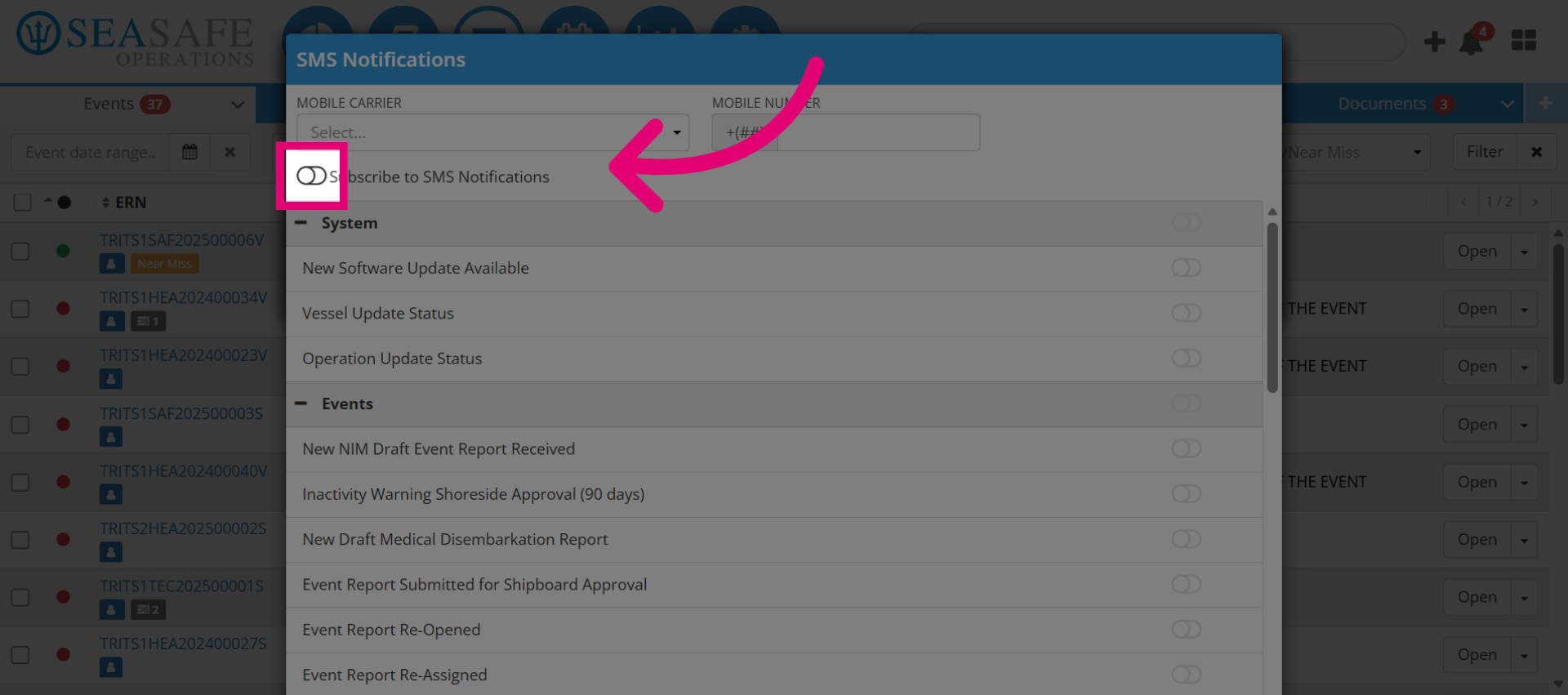
14. Access SMS Settings
Select to subscribe to SMS notifications.
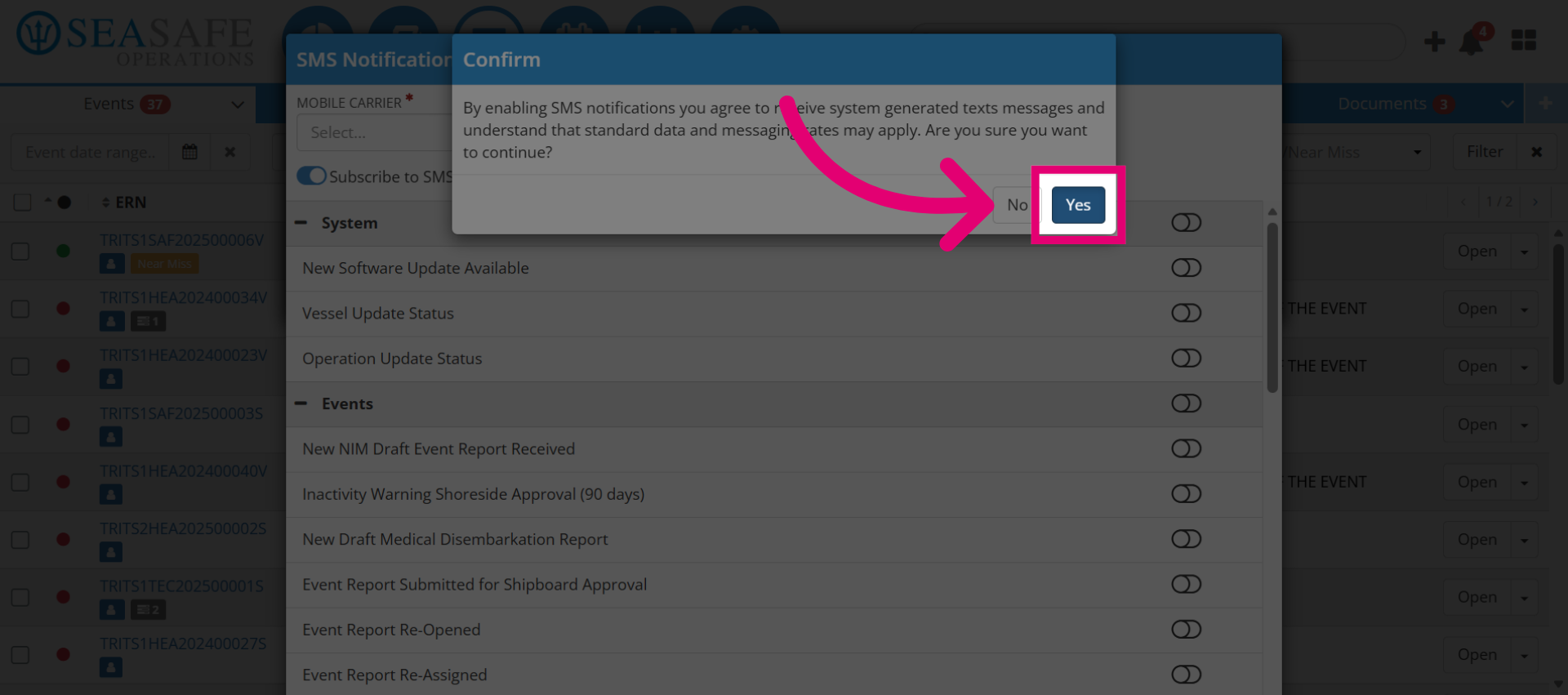
15. Confirm SMS Notification Change
Click "Yes" to enable or confirm changes to SMS notifications.
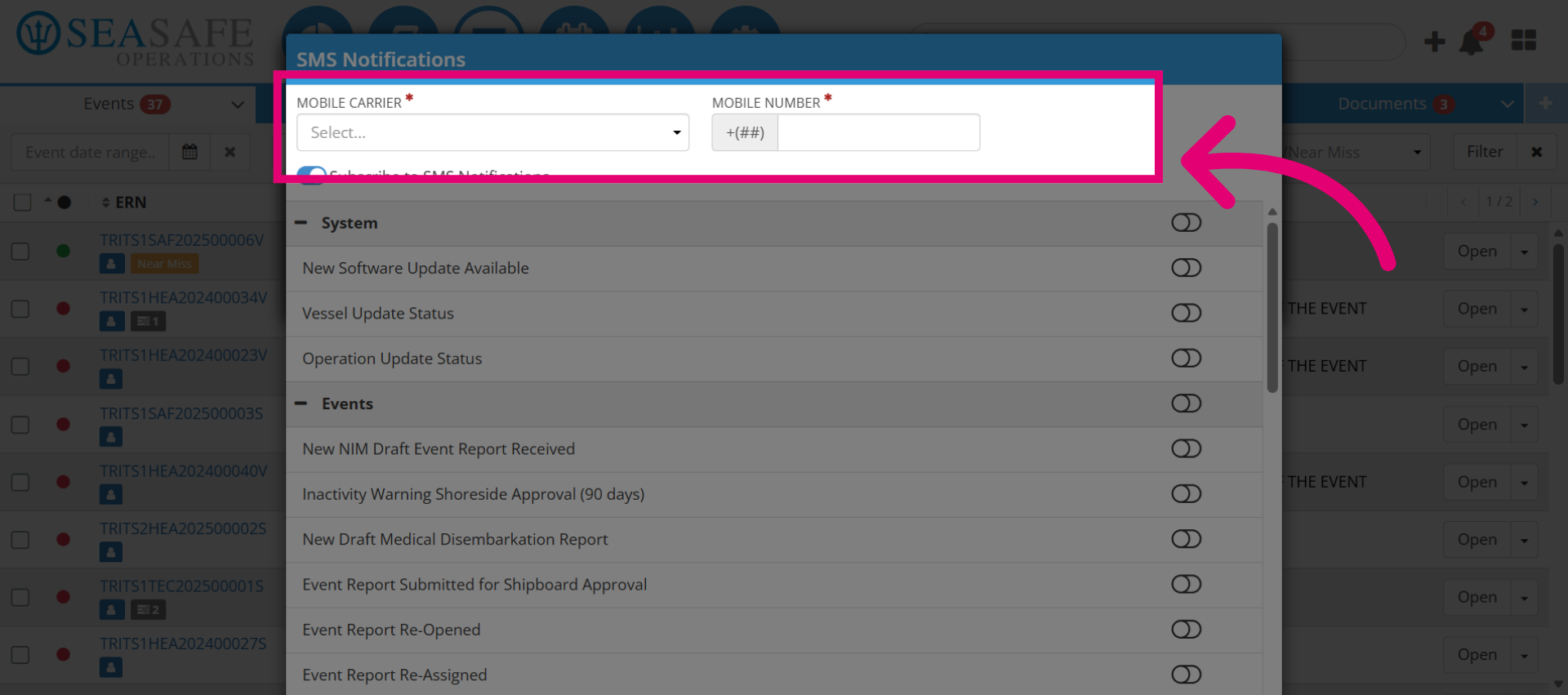
16. Select Mobile Carrier Field
Click "Mobile Carrier" to choose your cellular service provider.
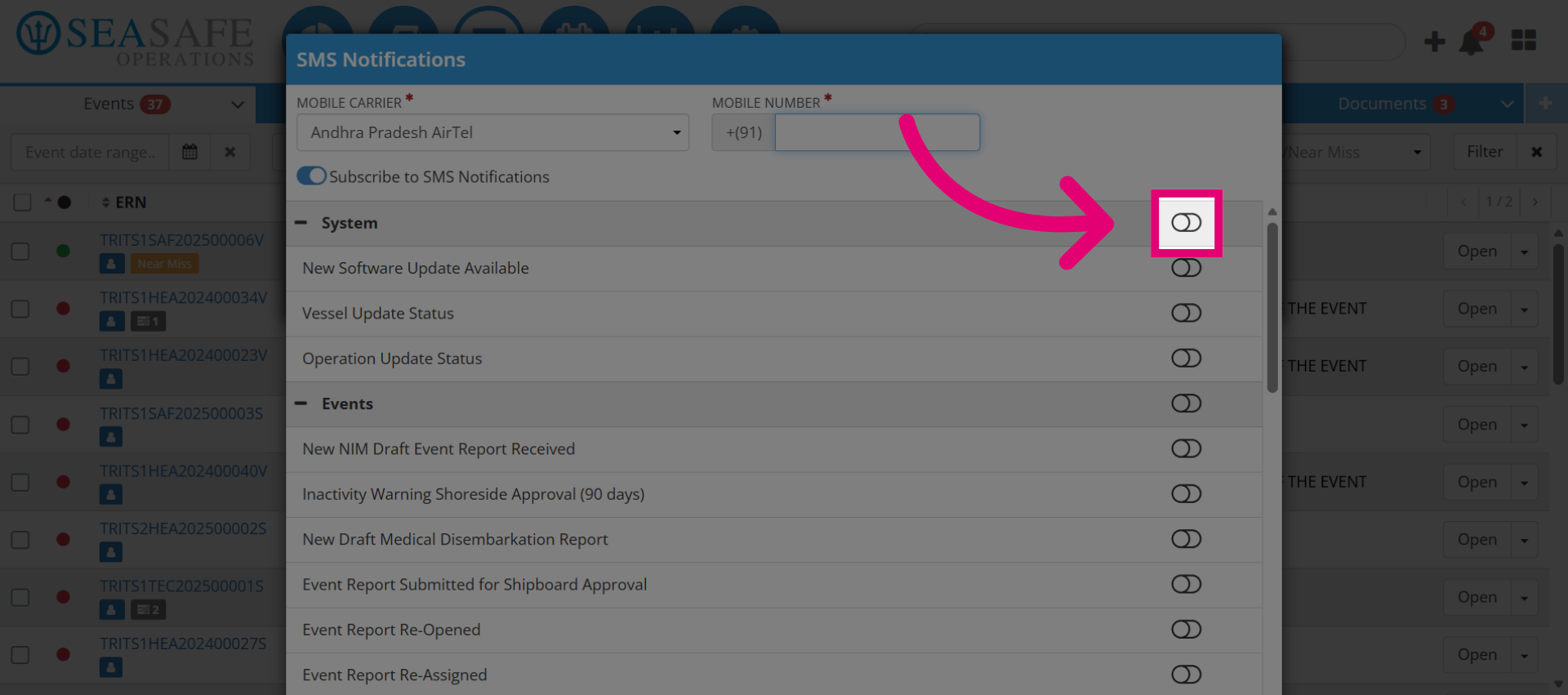
17. Toggle the Notifications
Toggle the notifications you want to receive via SMS
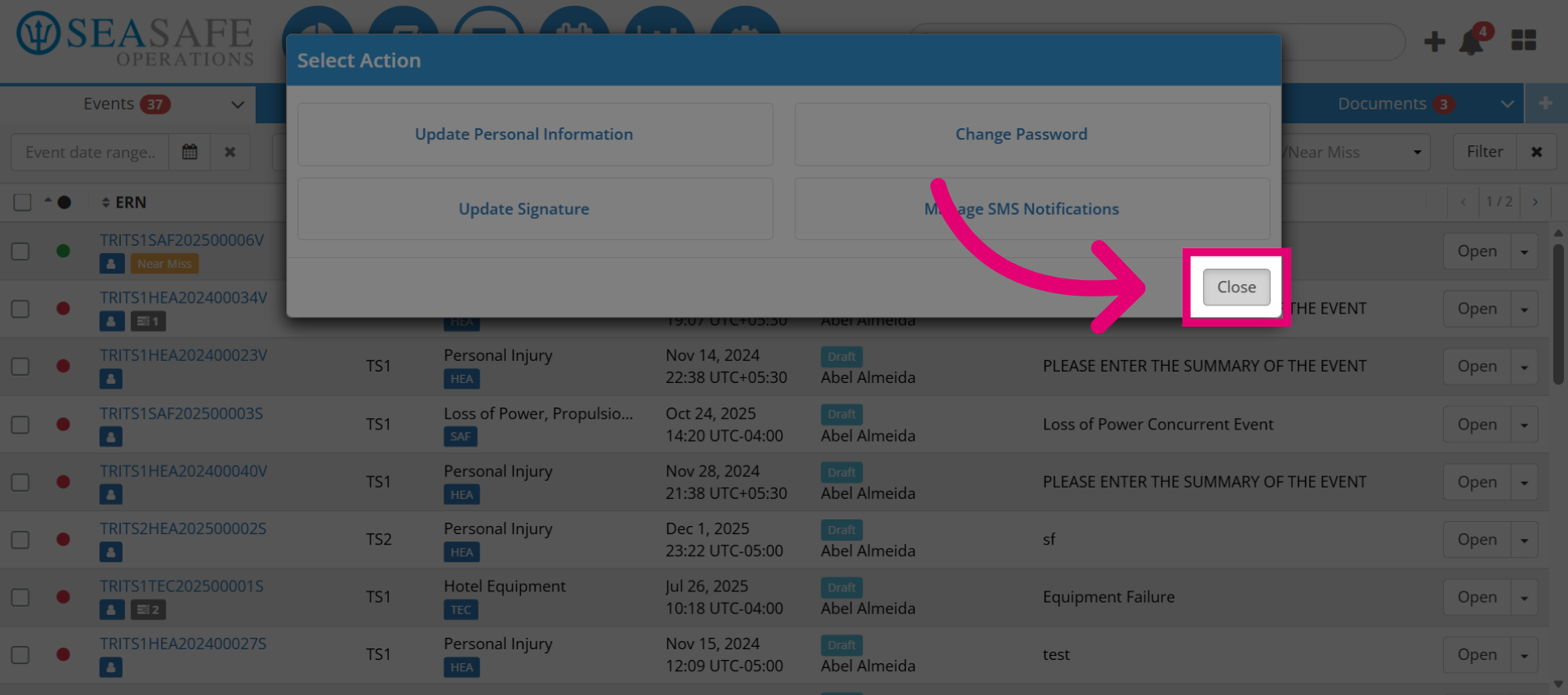
18. Close Profile Setup
Click "Close" to exit the profile setup and return to the main interface.