New article
Recently updated
Add Members to a Profile in Ideagen Maritime Management Operations

This walkthrough explains how to add members to a profile within Ideagen Maritime Management.
1. Introduction
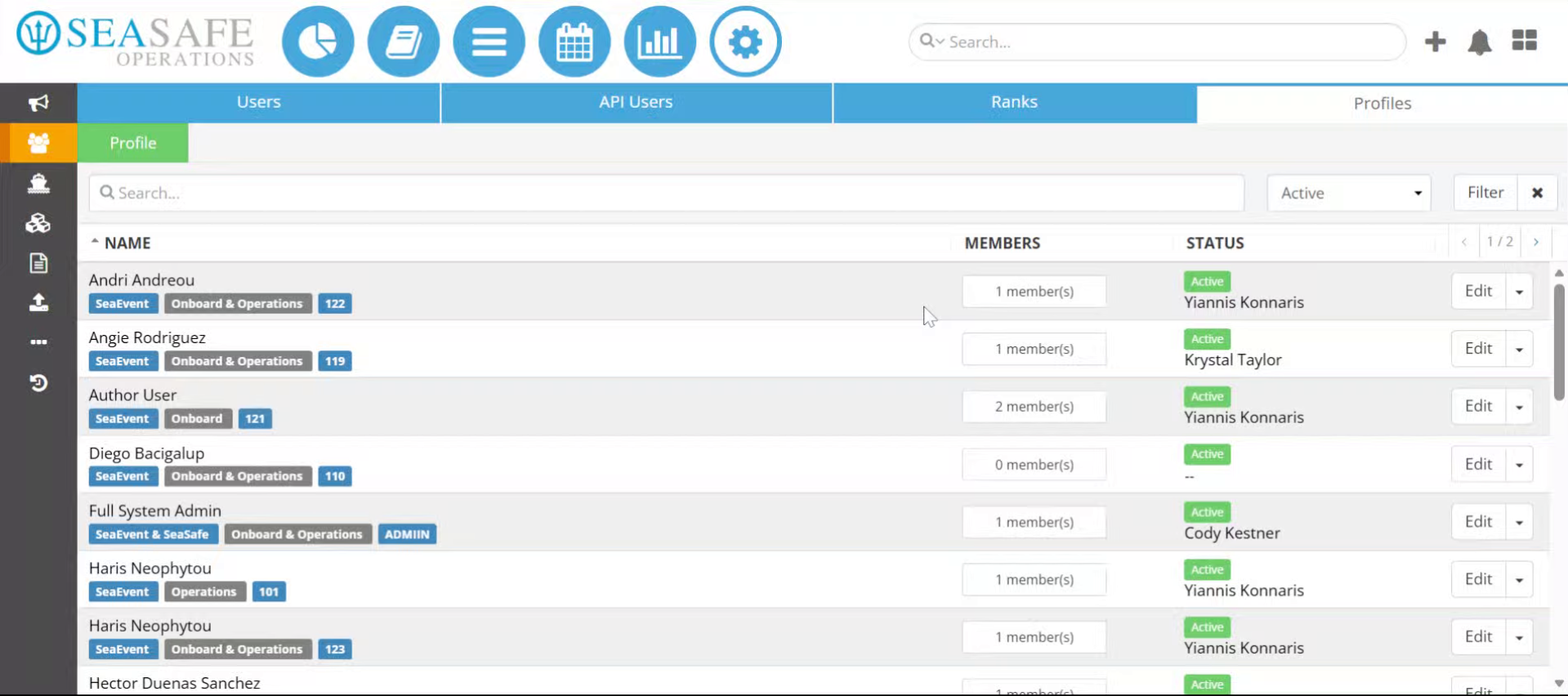
You will learn the steps to search, select, and assign roles to members effectively. Start in the shoreside "Admin Menu", under the Users, Ranks, and Profiles section. In the Profile's tab.
2. View Profile List
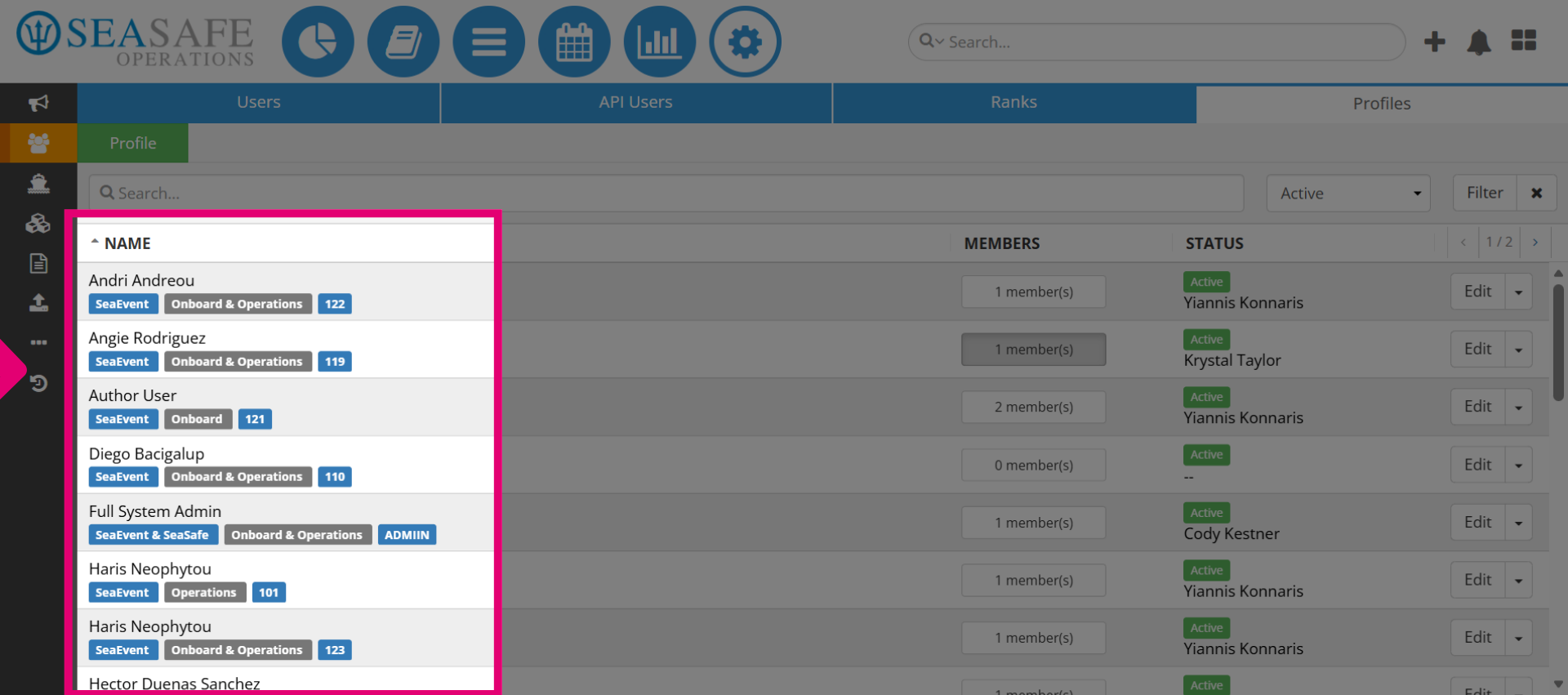
In the "Profile" list, you can view information for each profile, the application (Onboard or Operations), and the profile code.
3. View Status
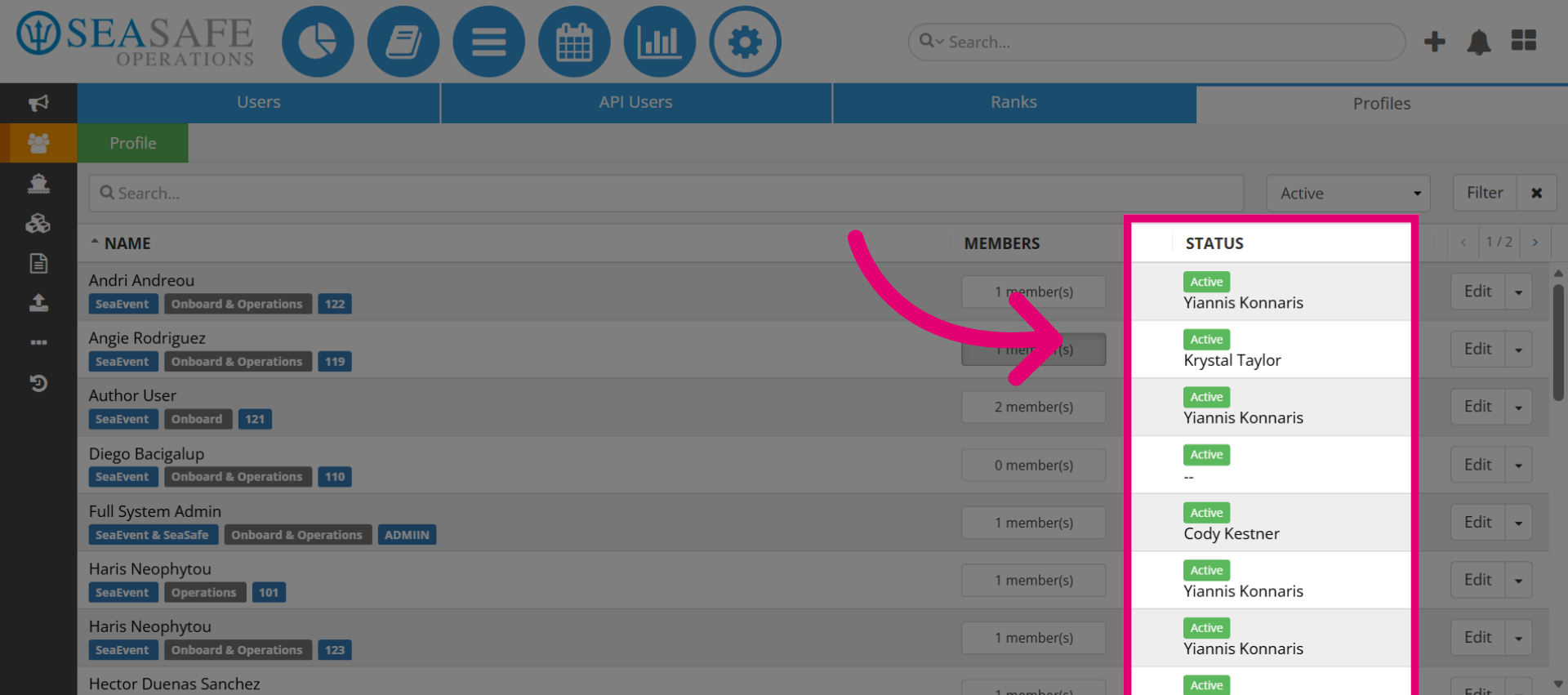
View the profile status as either "Active "or not, and the user who created the profile.
4. Open Members List
In the "Members" column, you can view how many member are assigned to the profile. Click the "members" link to view the current members associated with the profile.
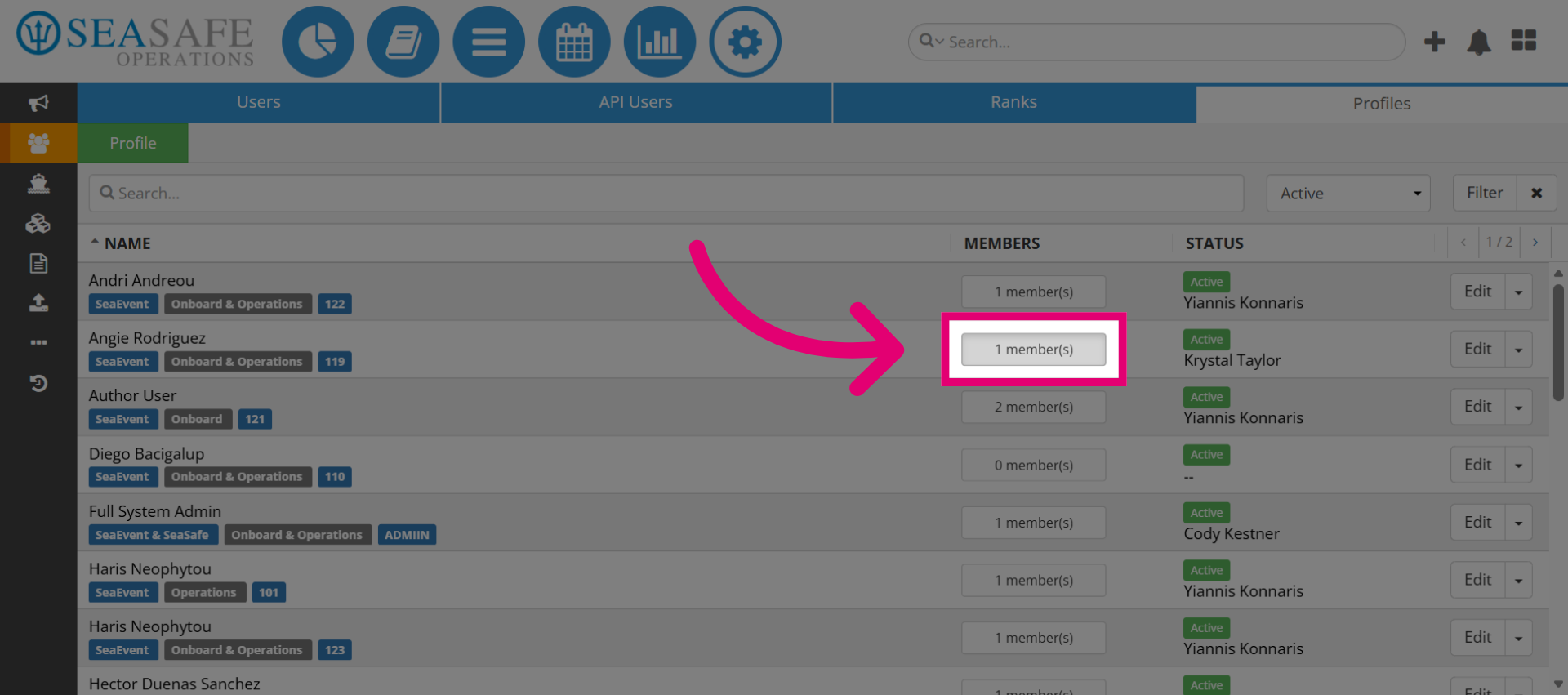
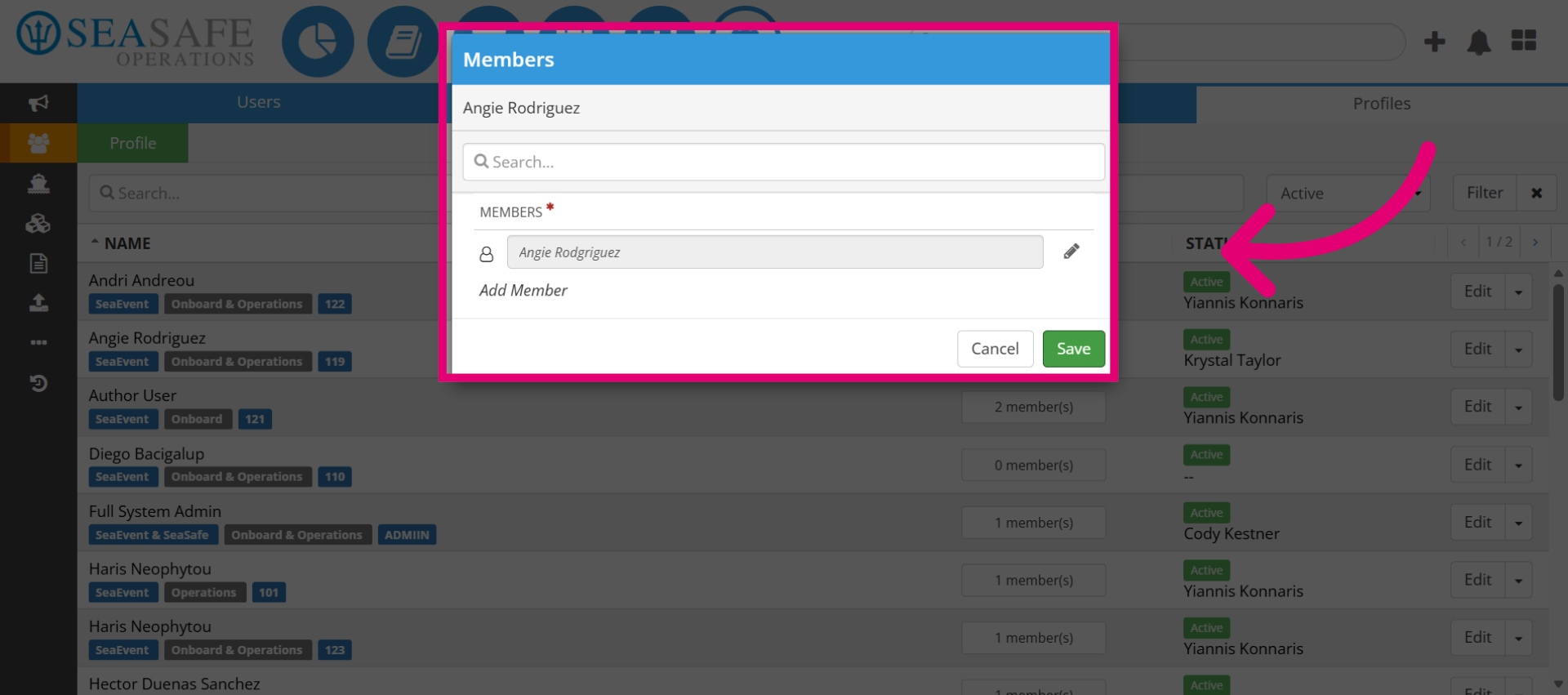
5. View Members List
View the list of members associated with the profile who have been assigned.
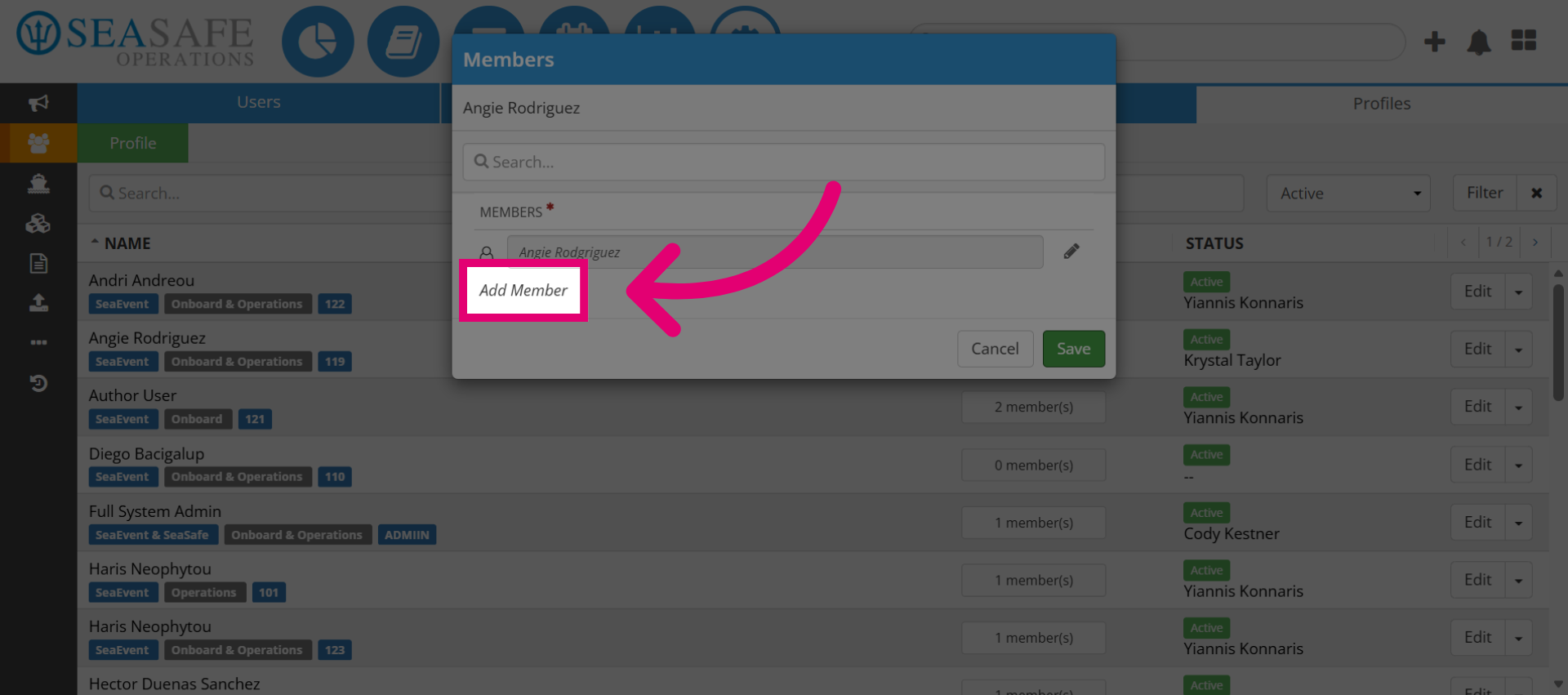
6. Initiate Add Member Process
Click the "Add Member" button to start adding a new member to the profile.
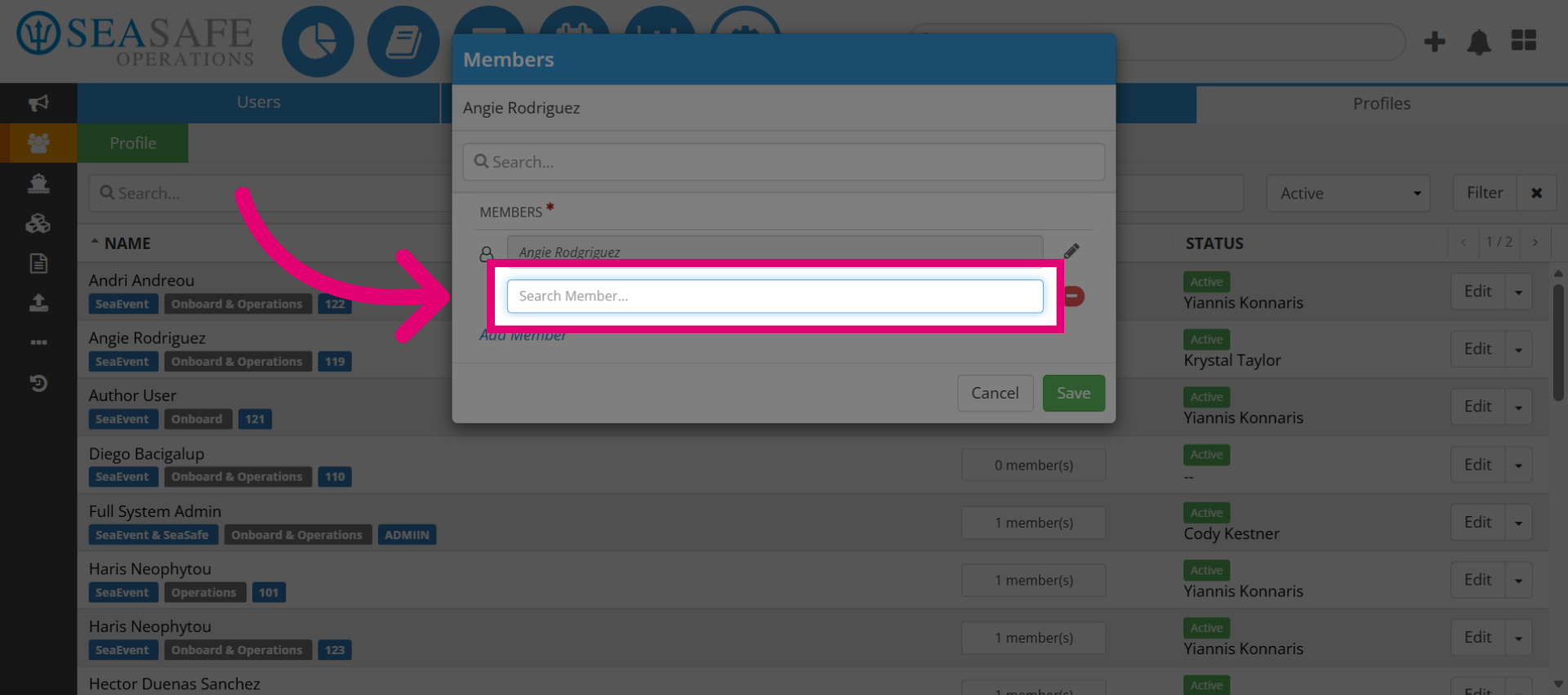
7. Access Member Search
Then, click the "Search Member" field to begin searching for a member to add.
8. Select Member From Results
Next, elect the appropriate member from the search results to add them to the profile.
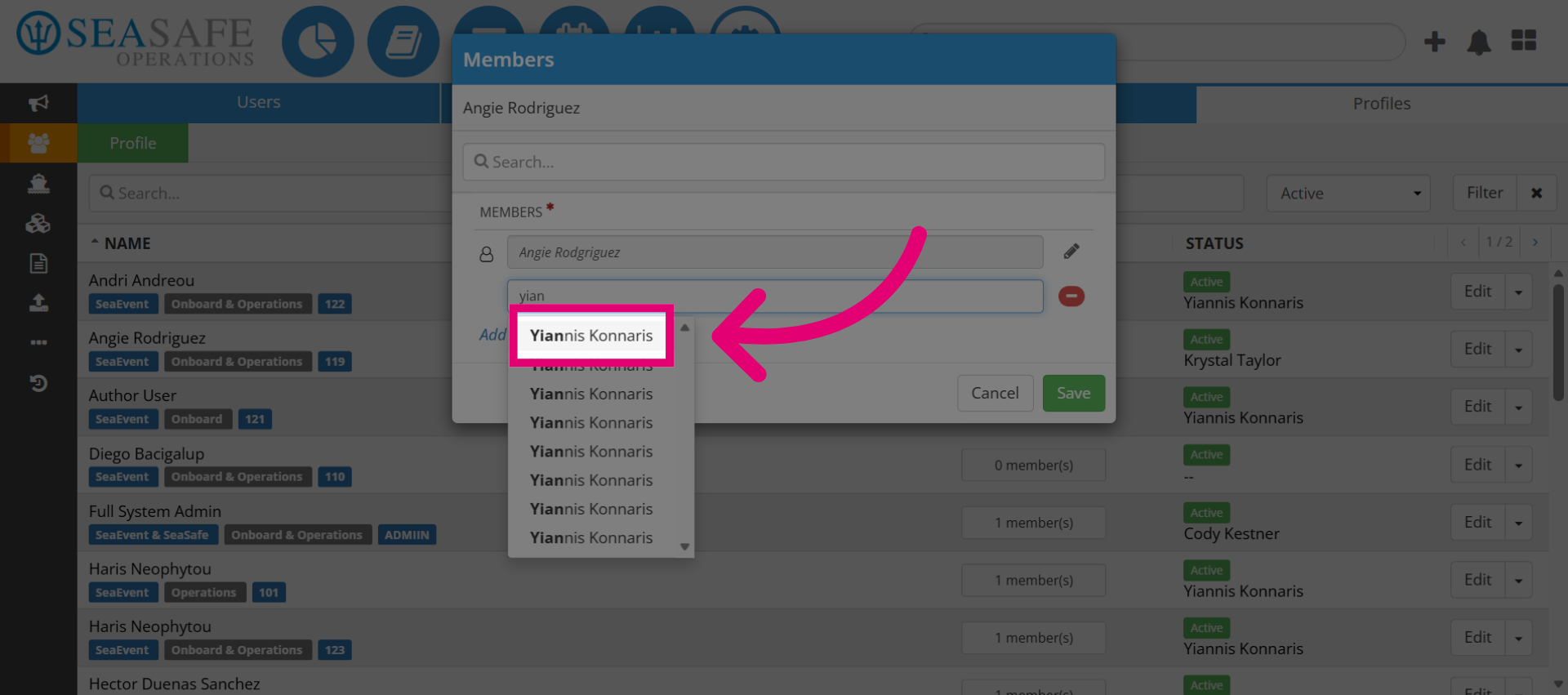
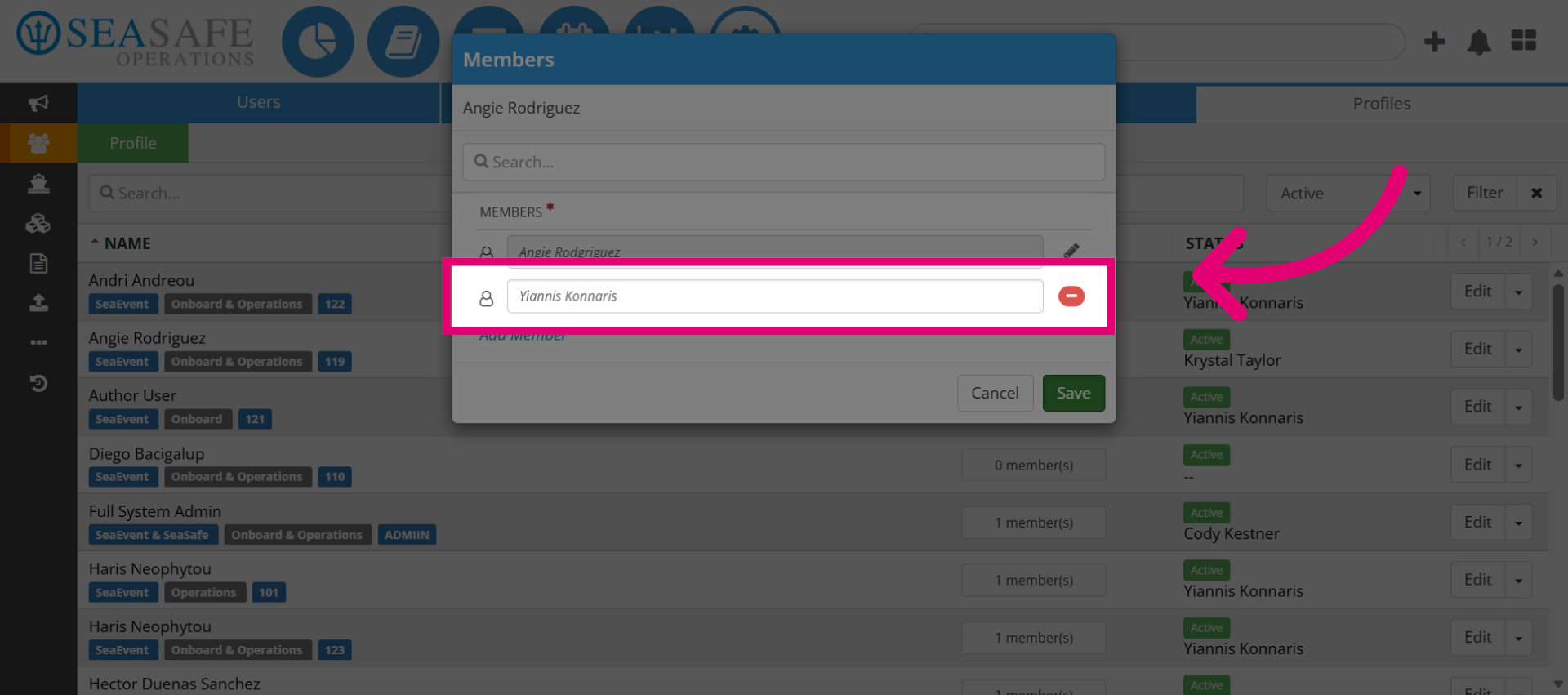
9. View the Newly Added Member
View the newly added member in the list. You can click the delete button to remove the member.
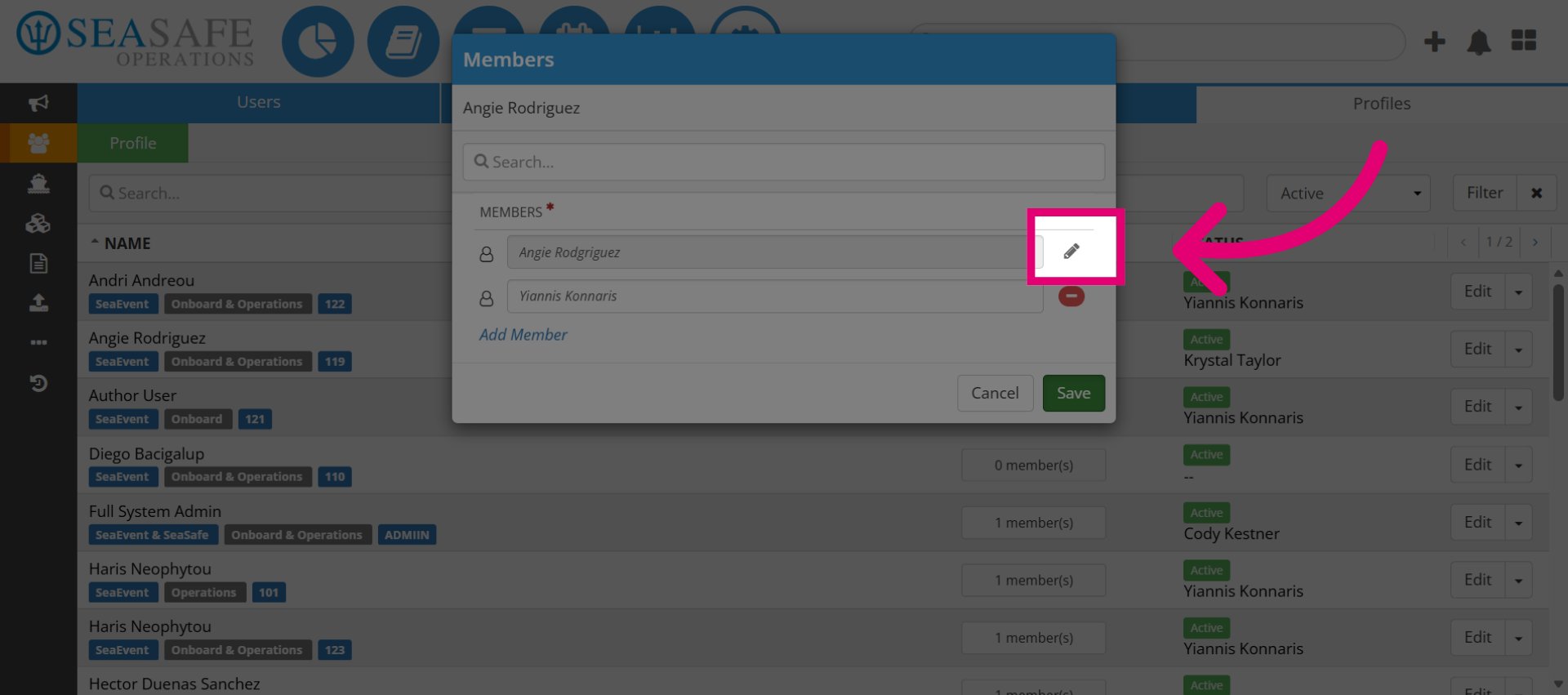
10. Select the "Edit" pencil button
You can also select the "Edit" button to edit an existing member.
11. Search a name
Or use the search bar to search for a profile name.
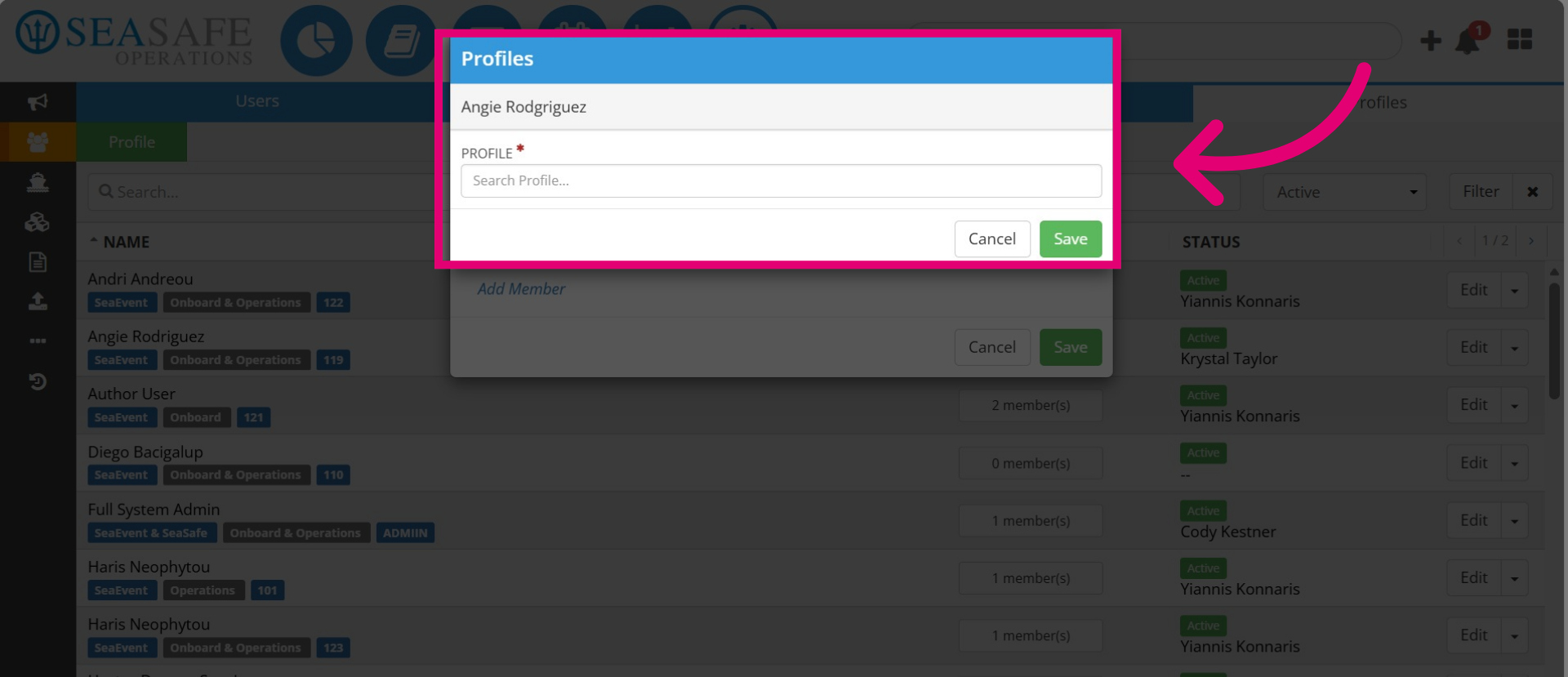
12. Add User and Save
Add the user from the search and select save or "Cancel" to remove this addition.
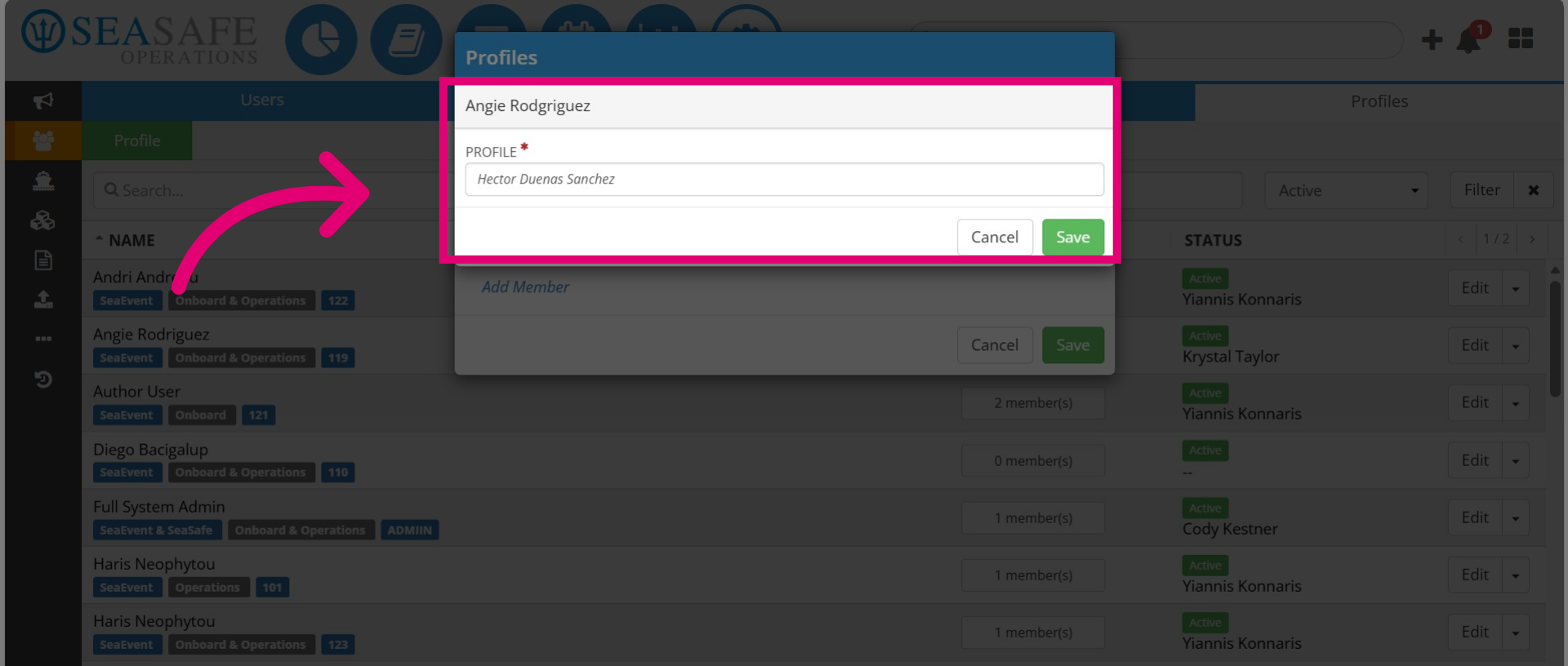
13. Save the Changes
Ensure you have the correct users and select "Save"
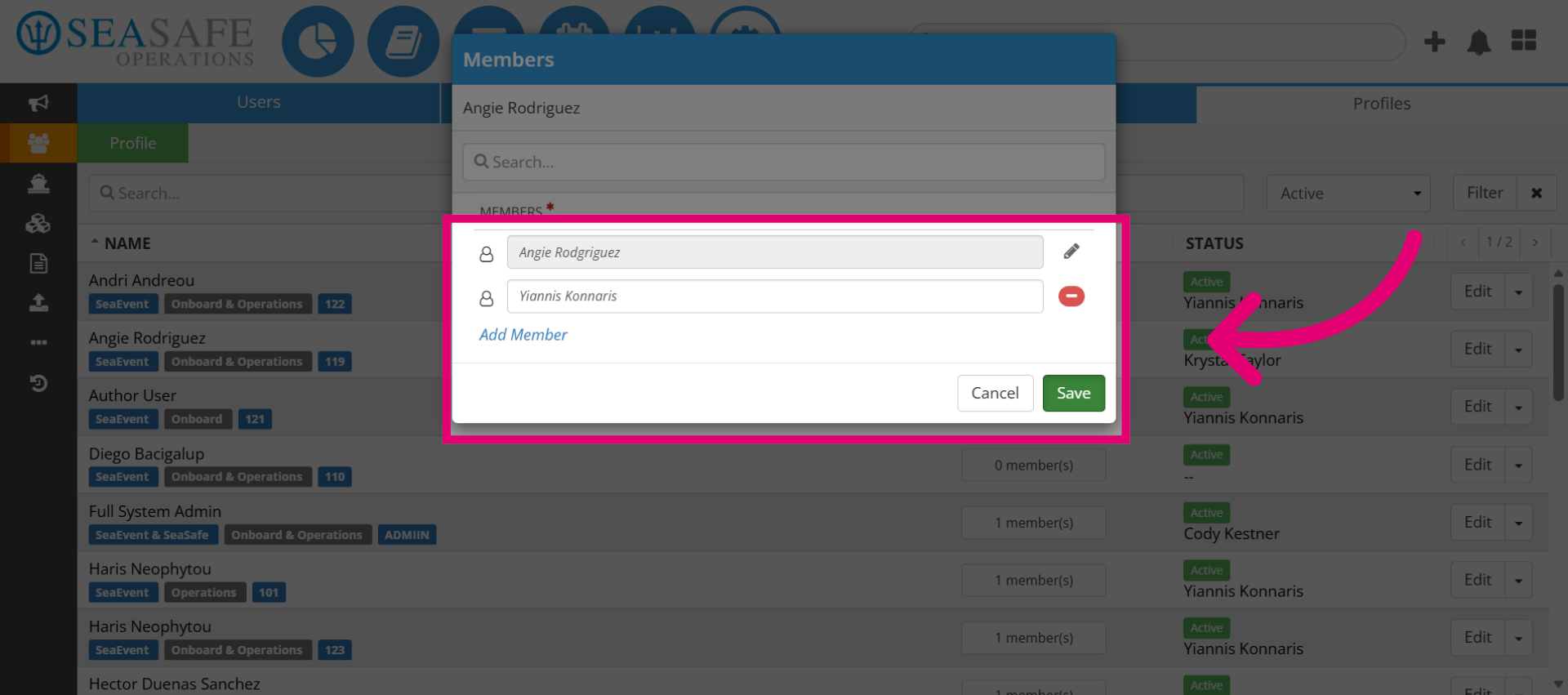
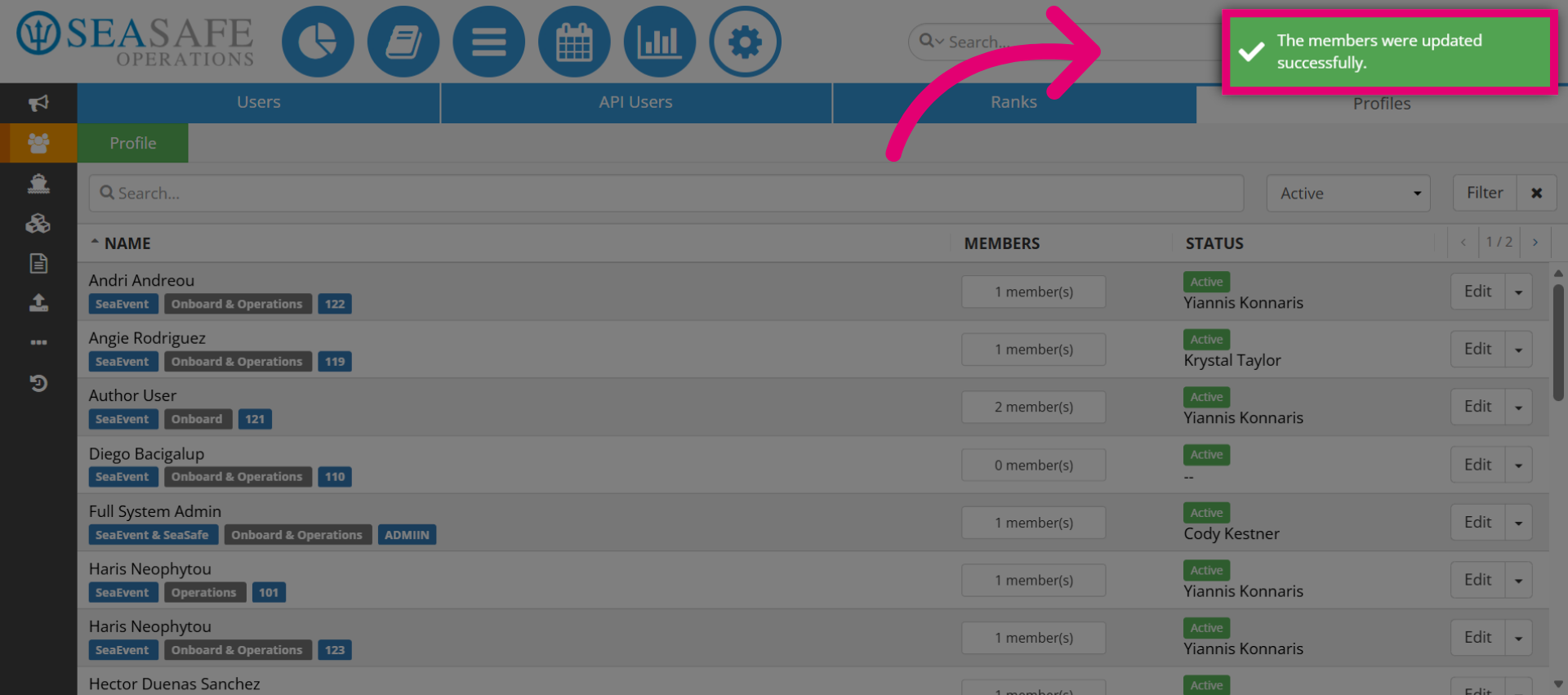
14. Confirm Update Success
View the confirmation message indicating "The members were updated successfully", to acknowledge the update.