New article
Recently updated
Adding a User Managed by Rank in Ideagen Maritime Management

This walkthrough explains how to create a user managed by rank within Ideagen Maritime Management.
1. Introduction
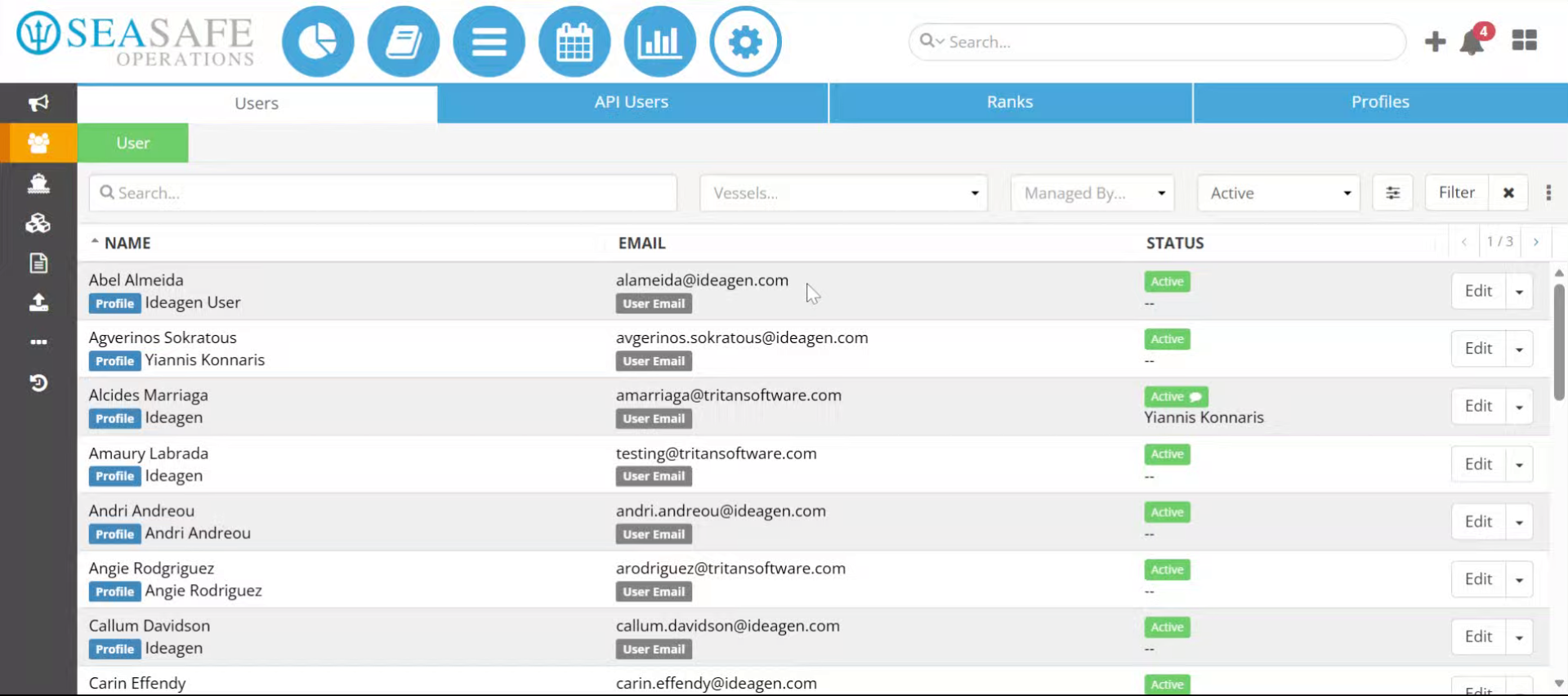
You will learn to create a new user managed by Rank in Ideagen Maritime Management. Ranks indicate roles like Captain, 2nd Officer, and Chief Engineer. To begin, log into Ideagen Maritime Management Operations and select the Admin menu, then open the Users, Ranks, and Profiles section. This hub allows for managing user accounts, creating users, editing profiles, and assigning ranks
2. Navigate To User Section
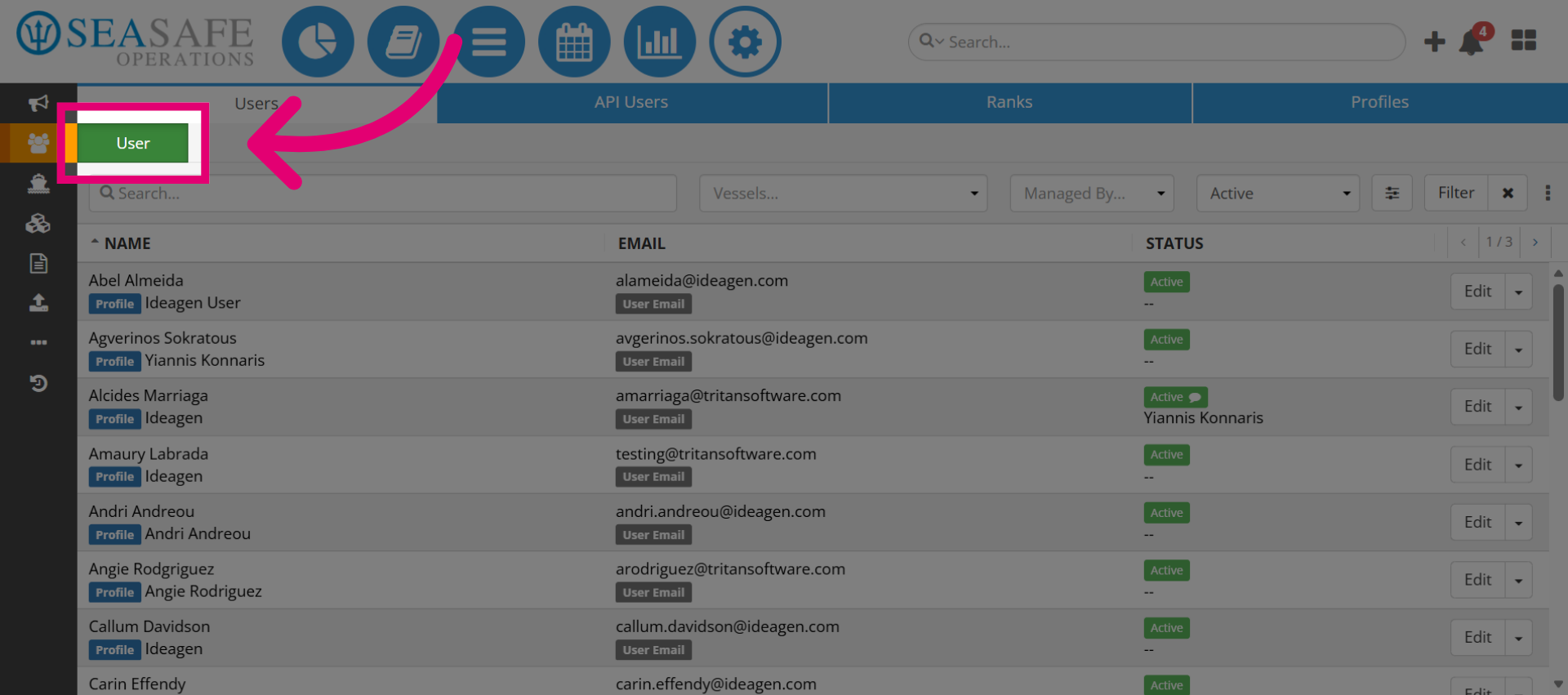
Navigate to the "User" tab, and then click the green User button to start adding a user.
3. Access User Management
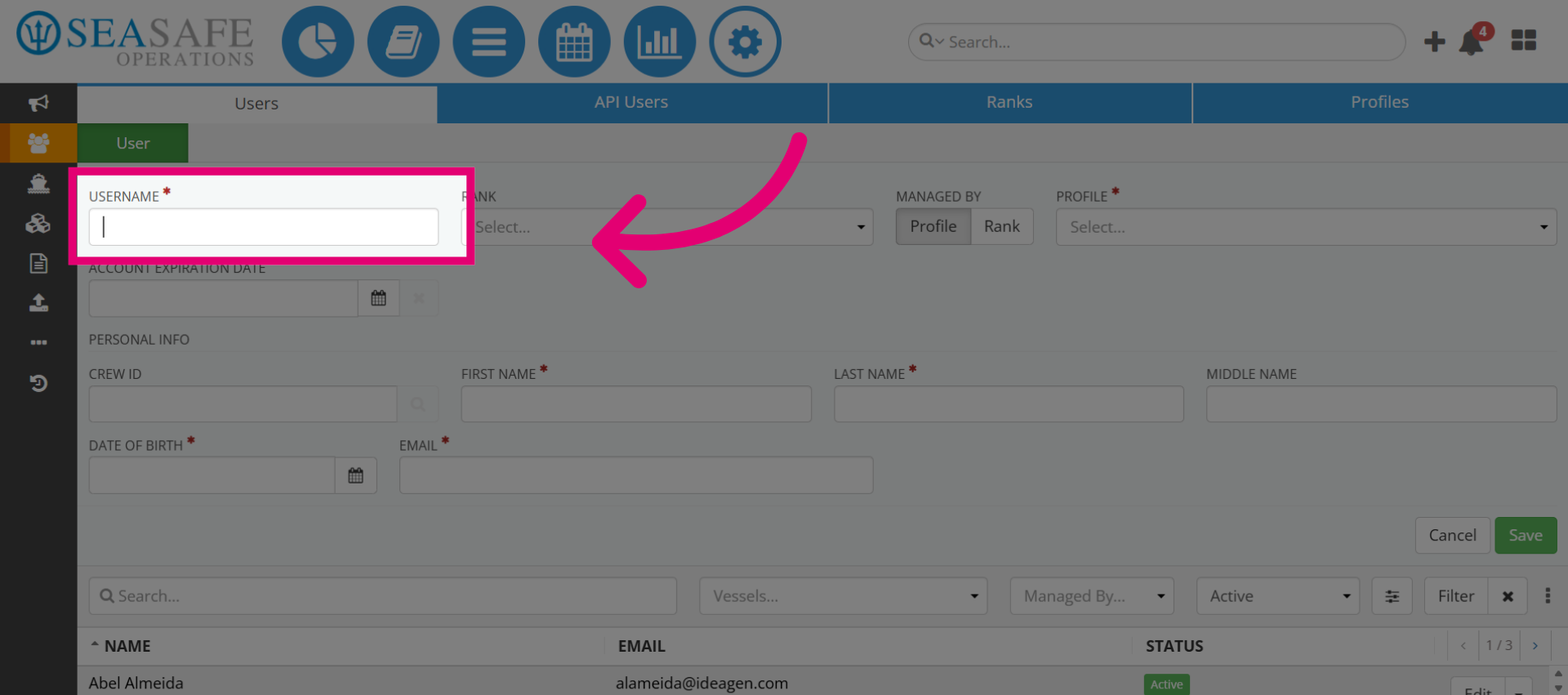
Begin adding the user details. Type the desired username in the Username field.
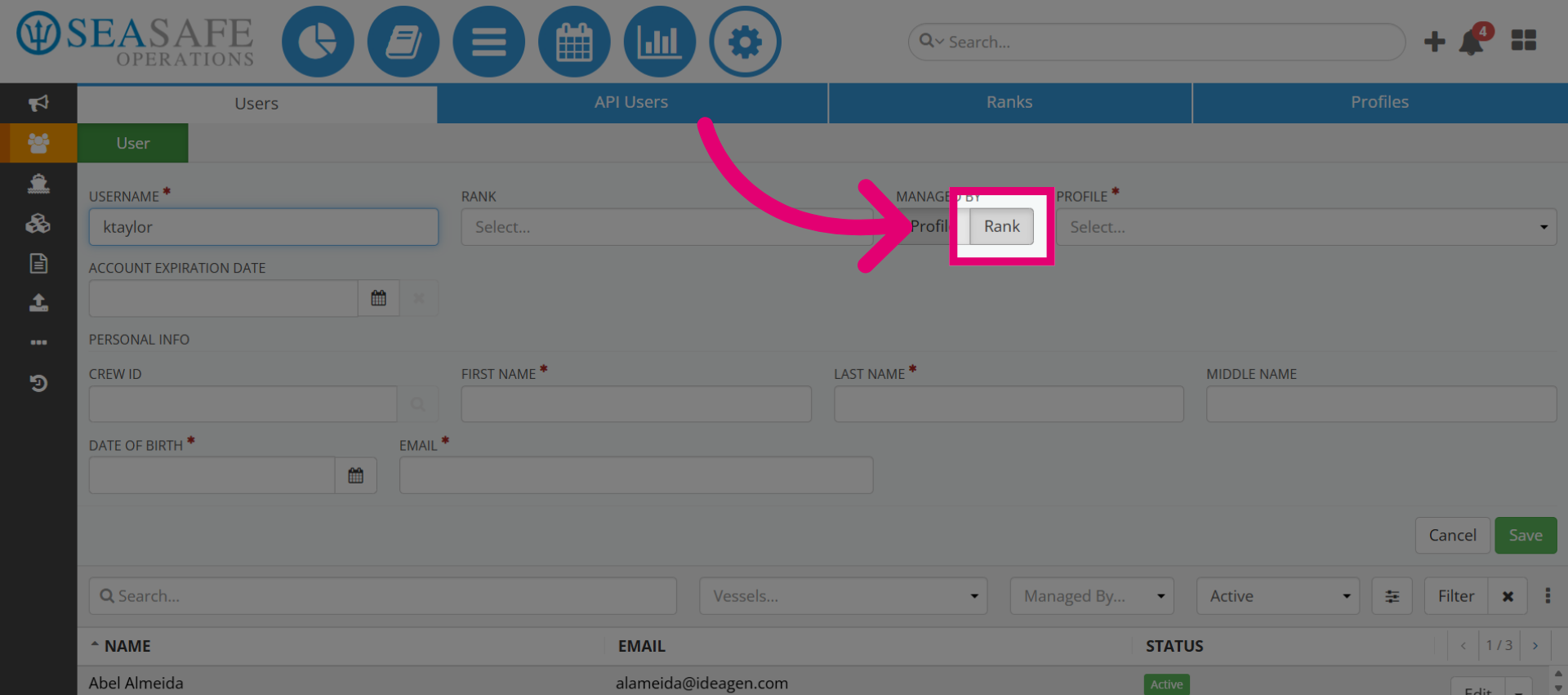
4. Assign Managed by "Rank"
In the Managed by section, choose Rank.
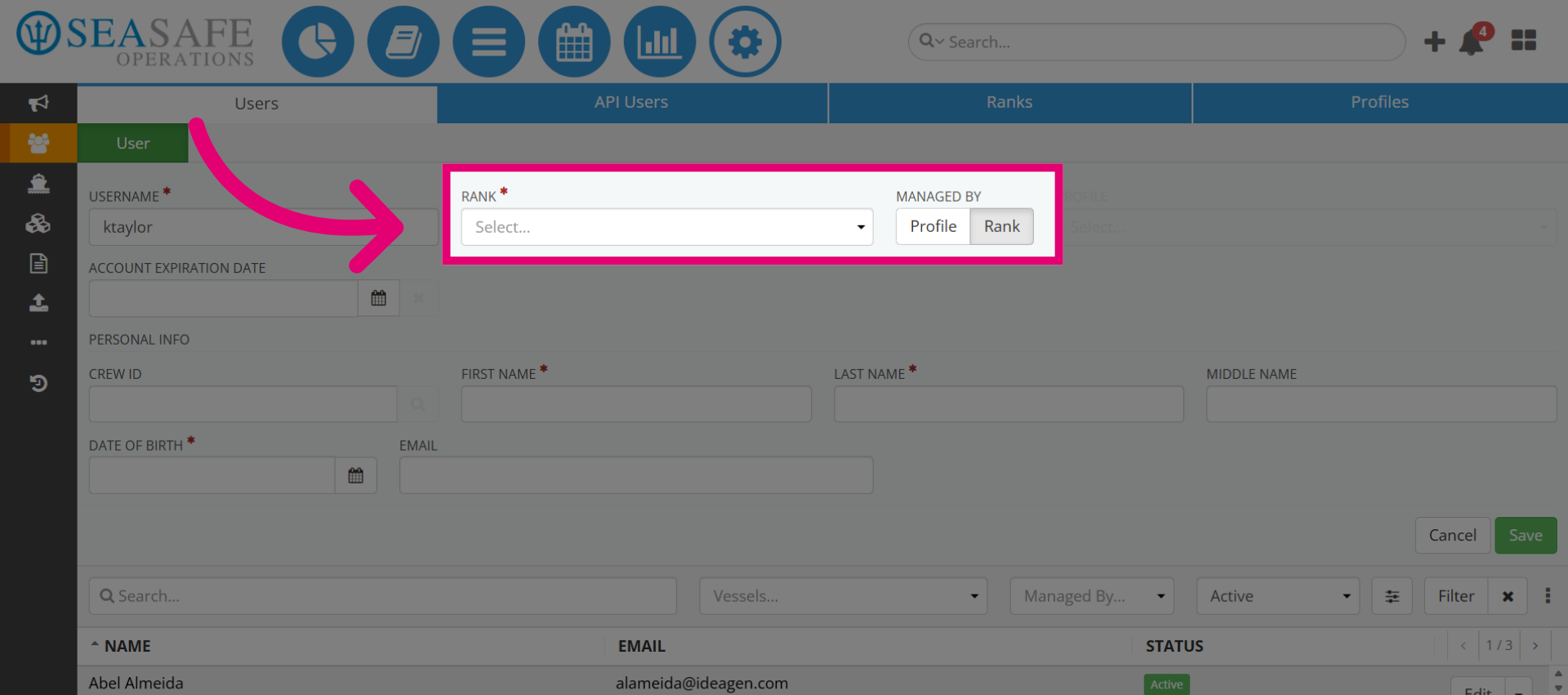
5. Open Rank Selection
Select to view available rank options.
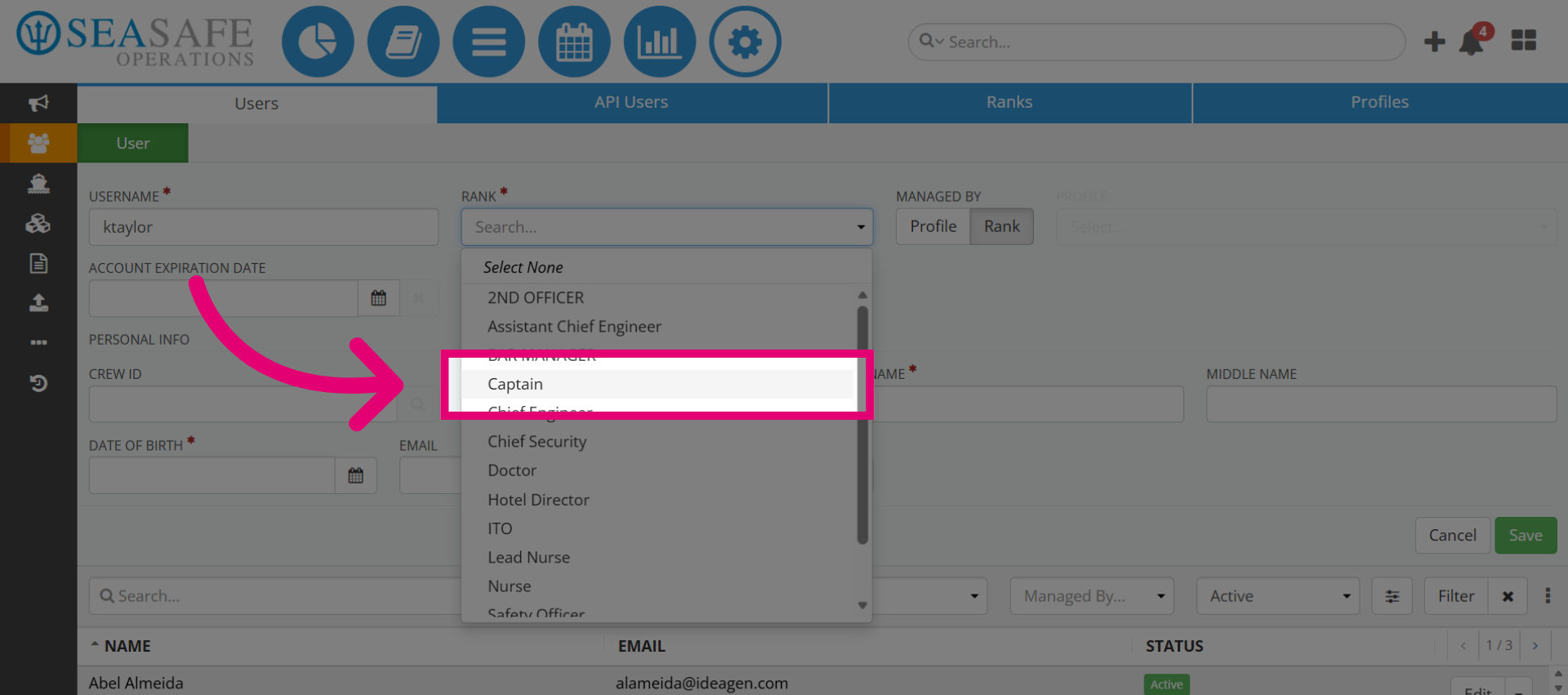
6. Select User Rank
For example, we'll select "Captain".
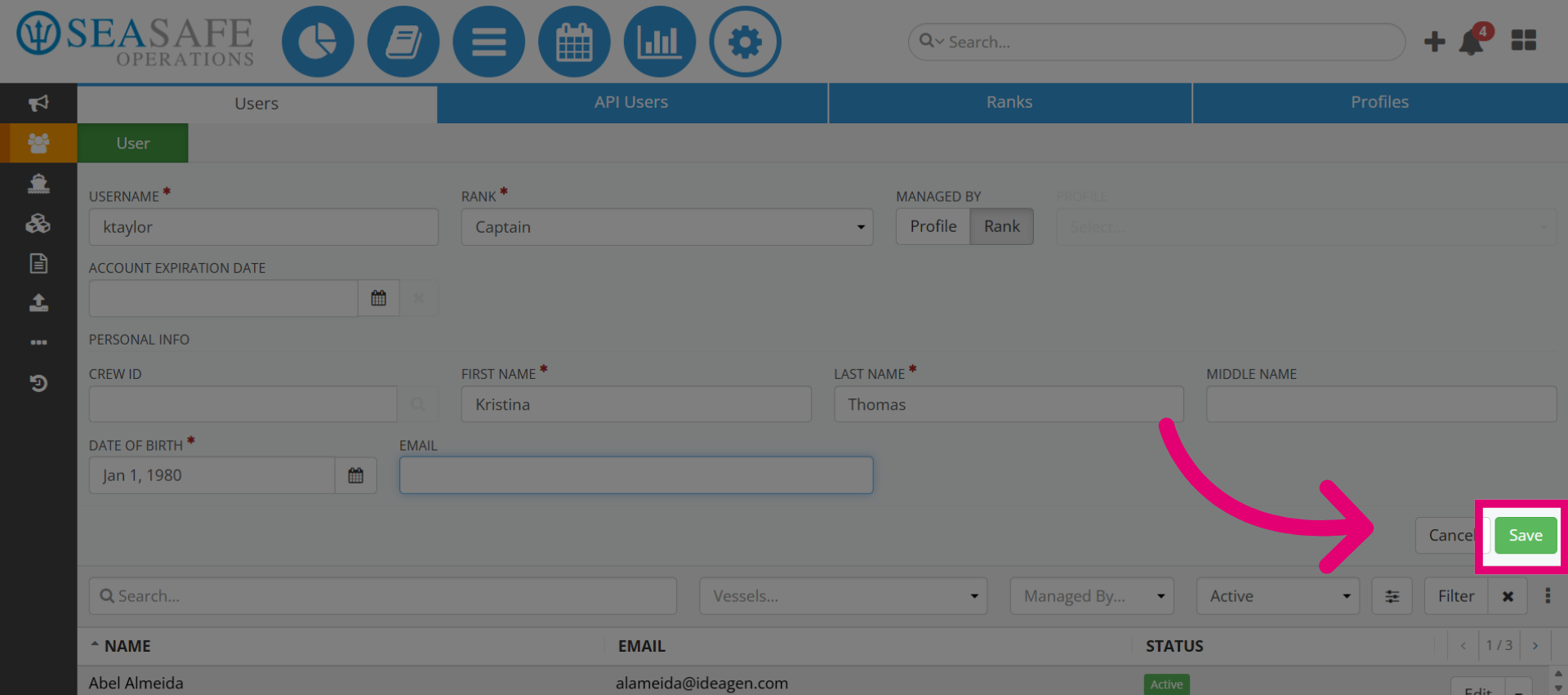
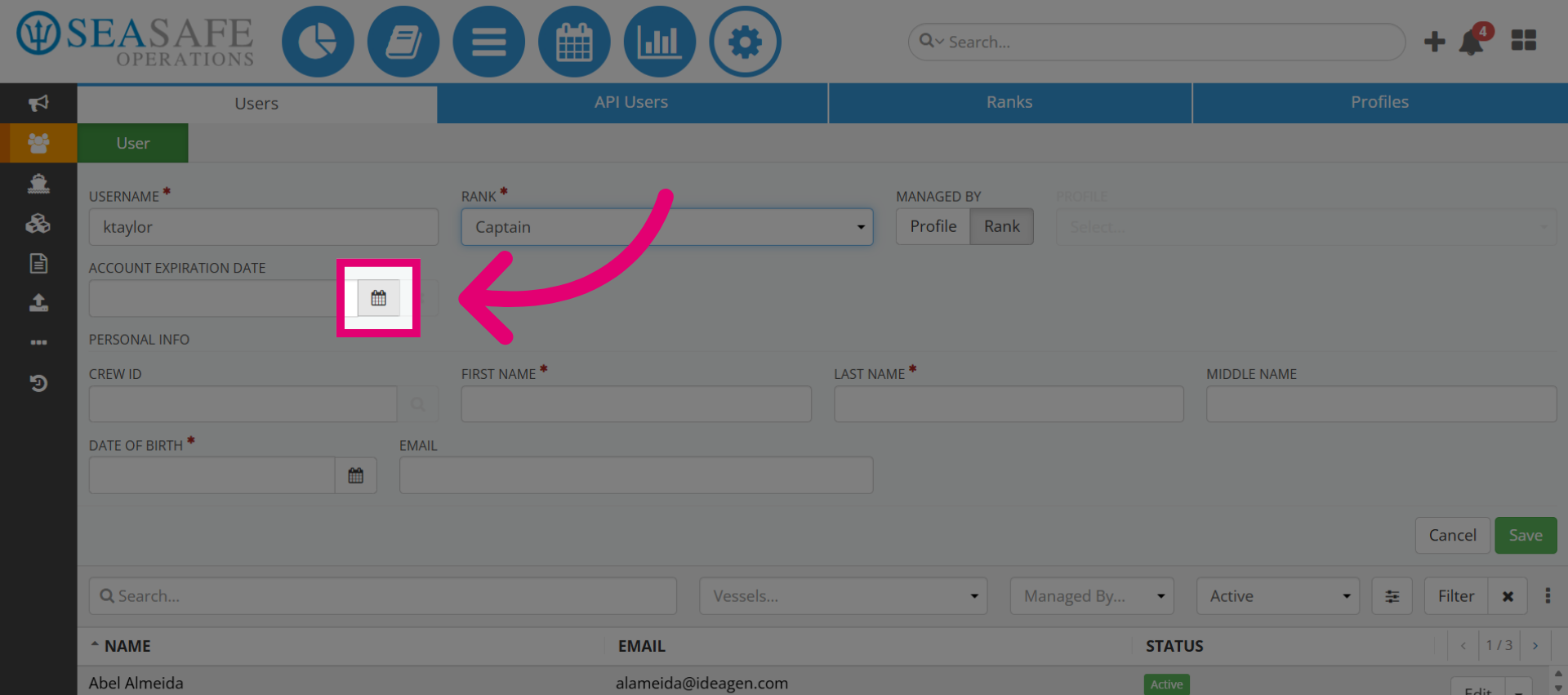
7. Add Account Expiration Date
Then add Account Expiration Date if needed.
8. Add Remaining Information
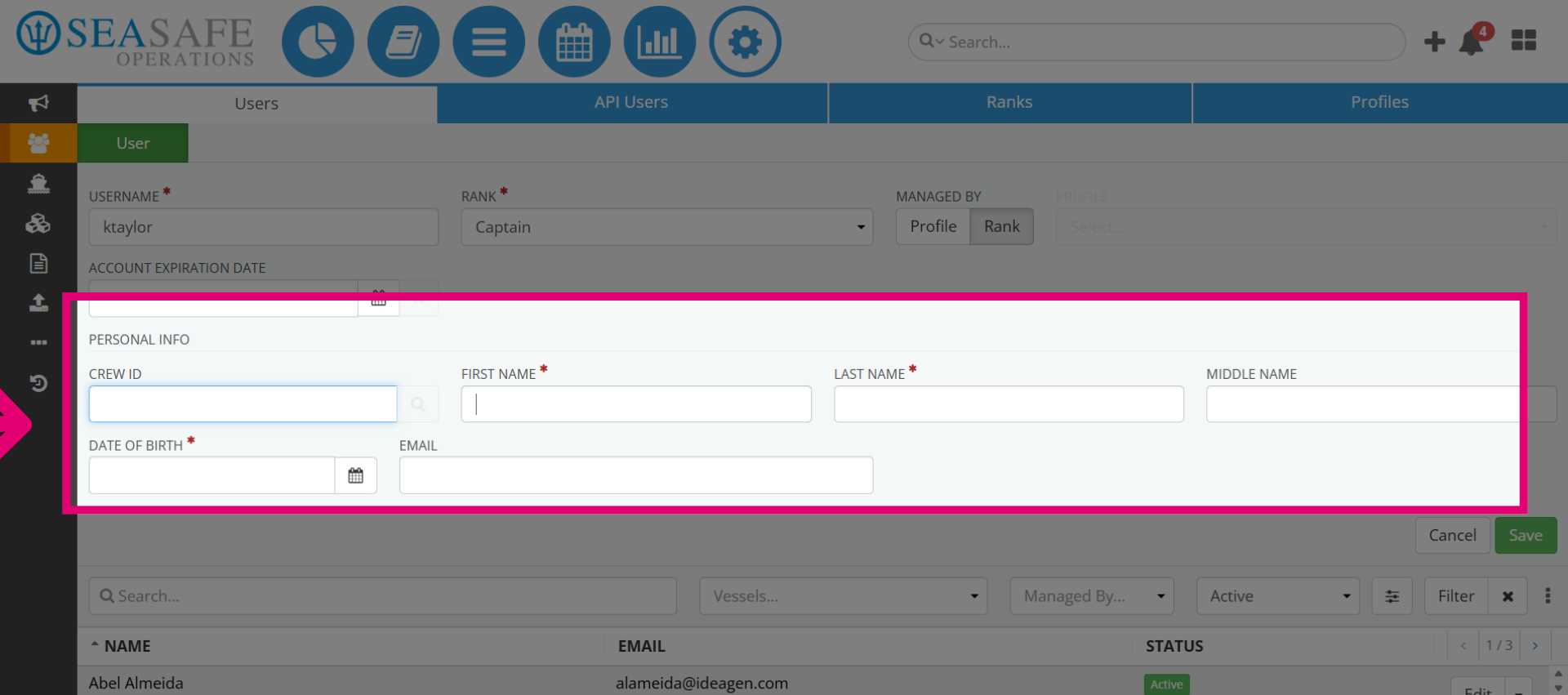
Next, enter the remaining information for the Date of BirthFirst and Last Name.
9. Enter the Email
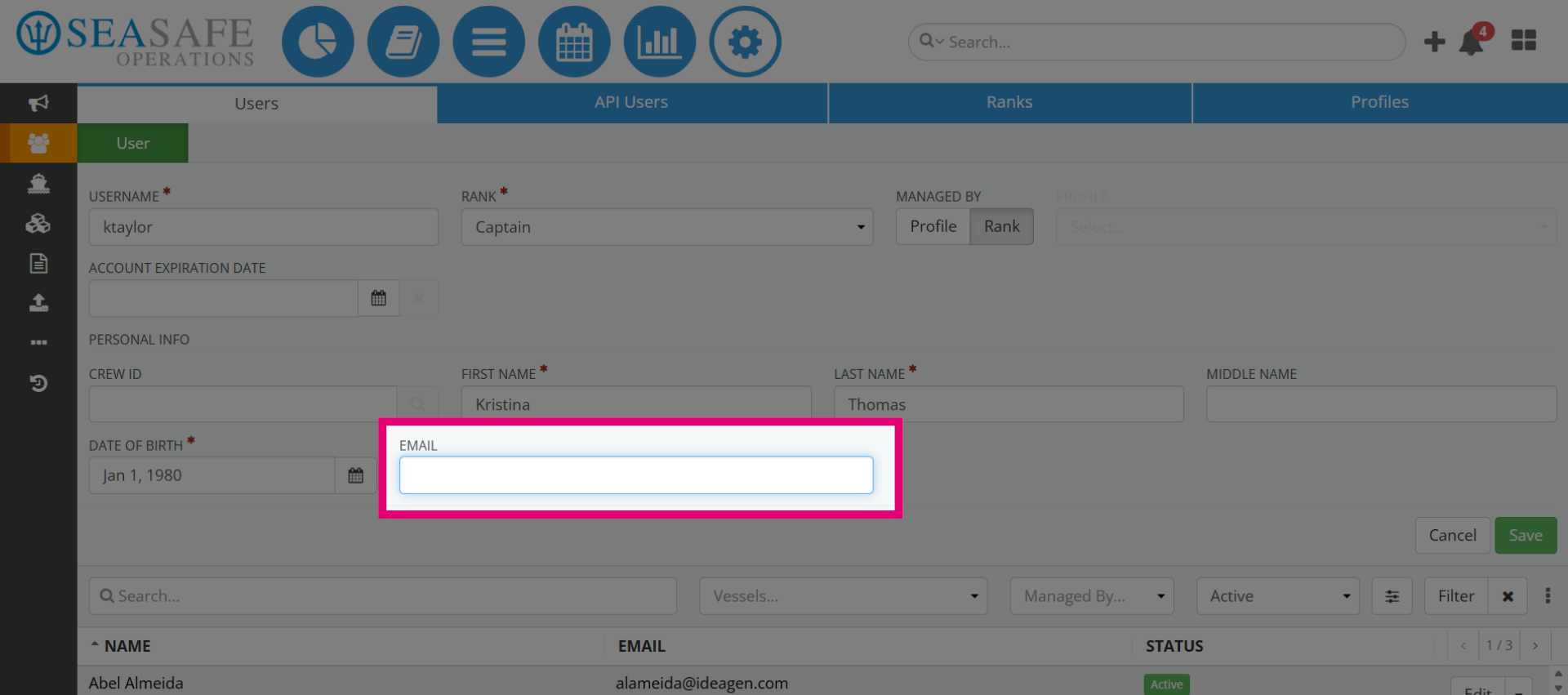
Then, enter the Email.
10. Save the Information
Select "Save" to save the user information