New article
Recently updated
Creating a Custom Dashboard in Ideagen Maritime Management

This walkthrough guides you through the process of creating custom dashboards in Ideagen Maritime Management. Learn how to personalize your data views for optimal monitoring and analysis.
1. Accessing the Dashboard Module
Let's walk through the process of creating custom dashboards in Ideagen Maritime Management. This guide will show you how to set up personalized views to monitor your key metrics and data.
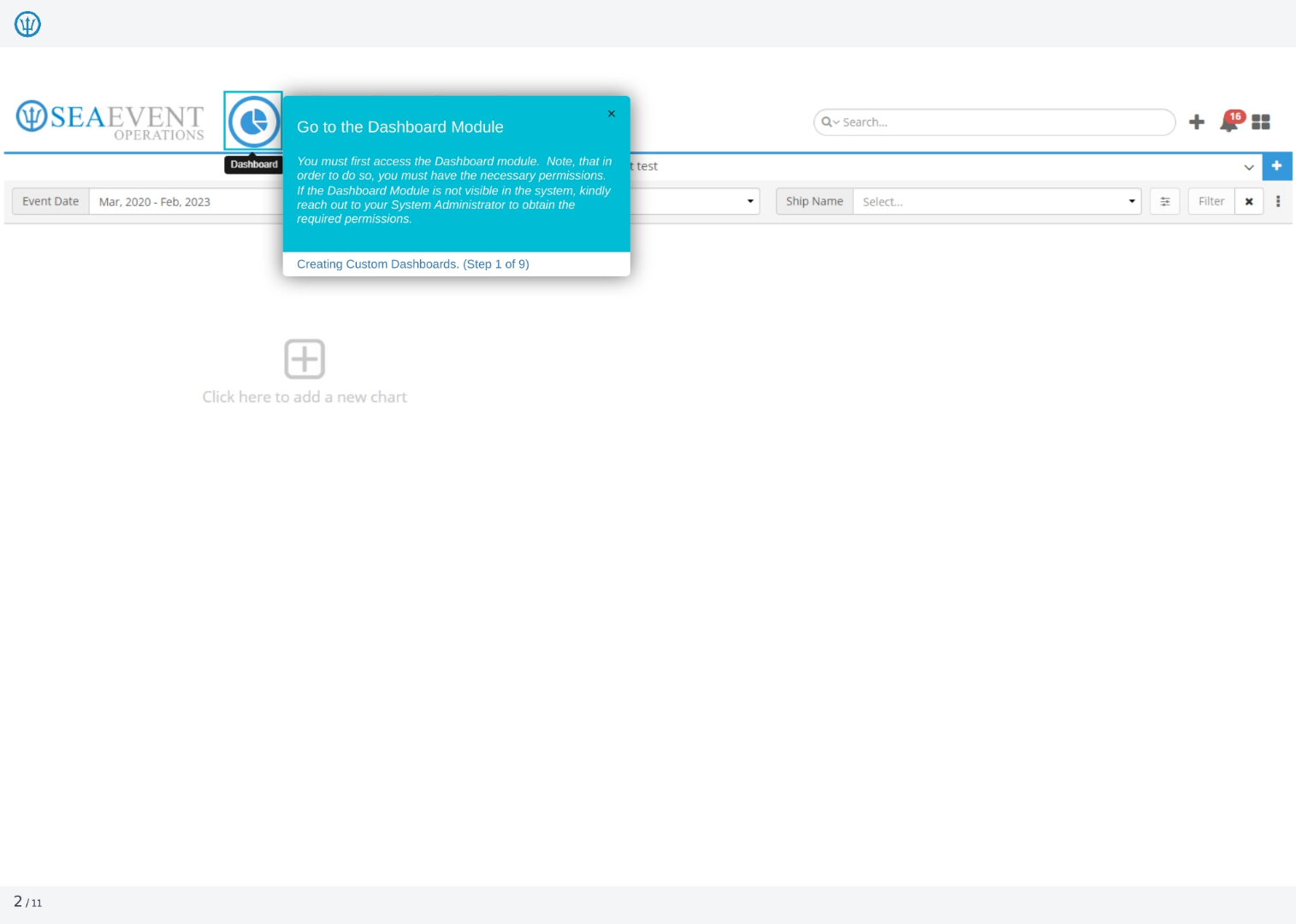
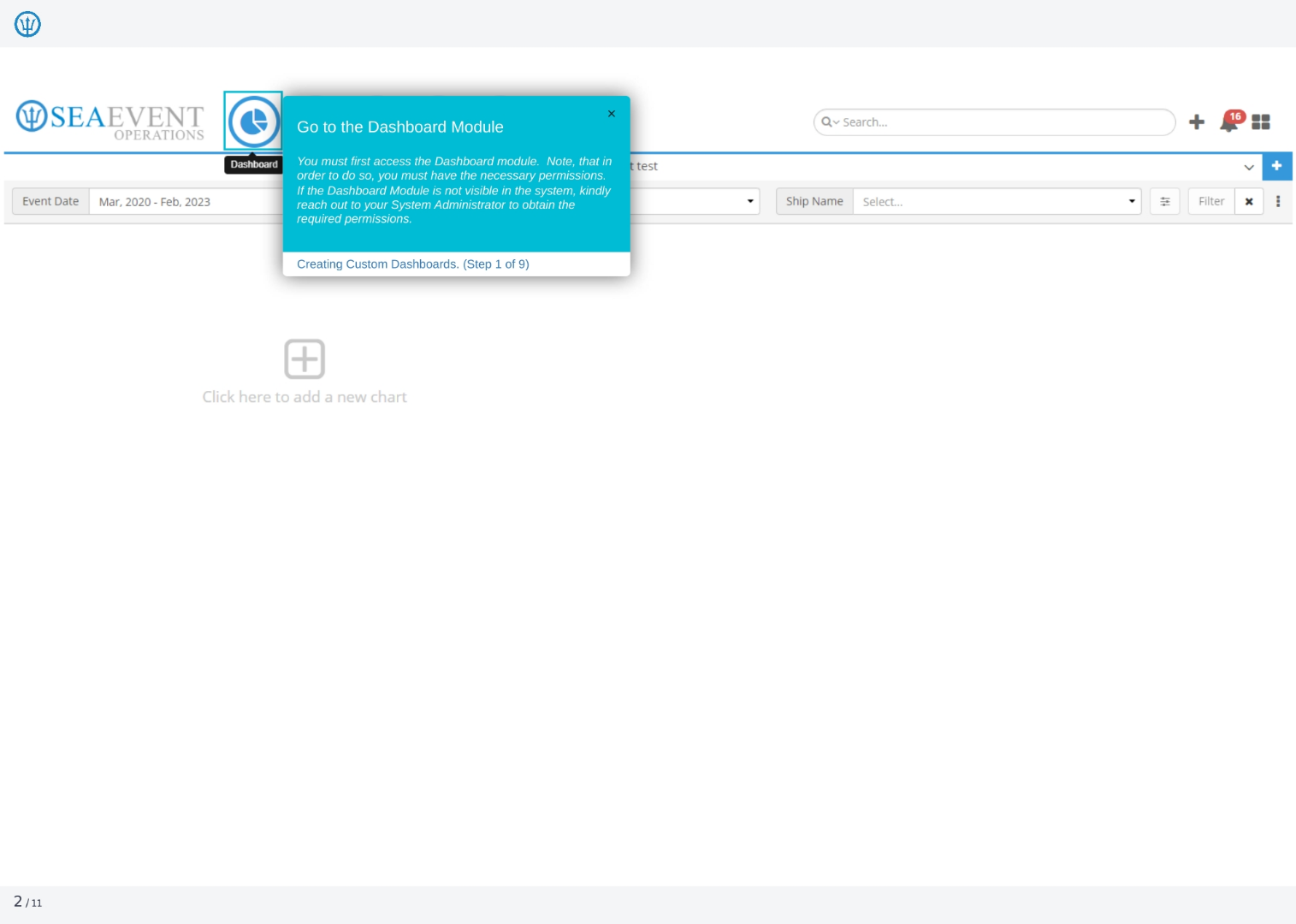
2. Accessing the Dashboard Module
To begin, you'll need to access the Dashboard module. Keep in mind that you must have the necessary permissions to do so. If the Dashboard module isn't visible, contact your system administrator to get the required permissions.
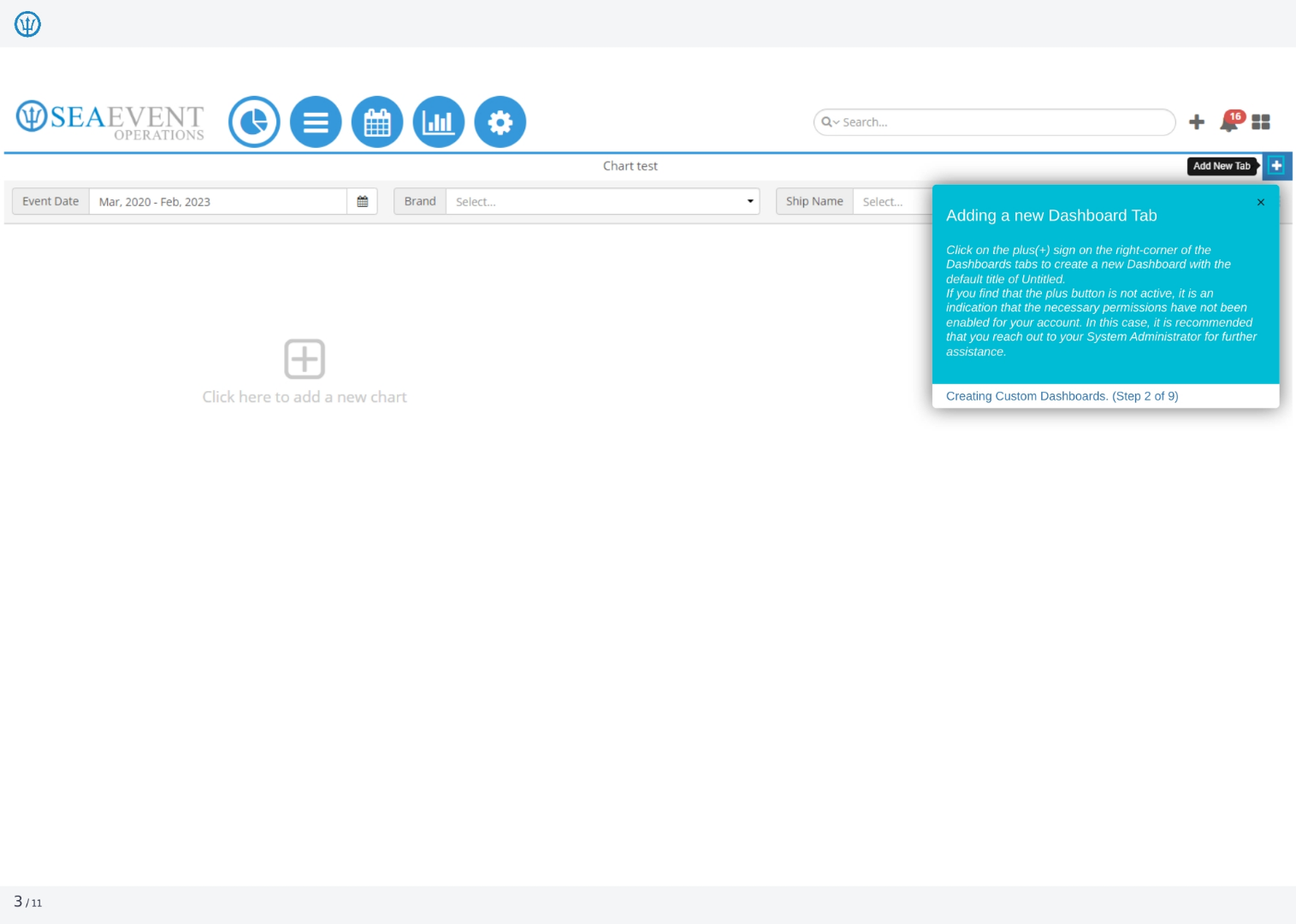
3. Adding a New Dashboard Tab
To create a new dashboard, click the plus sign on the right corner of the dashboard tabs. This will create a new dashboard with the default title of 'Untitled'. If the plus button is inactive, it indicates that you may need additional permissions from your system administrator.
4. Adding a New Chart
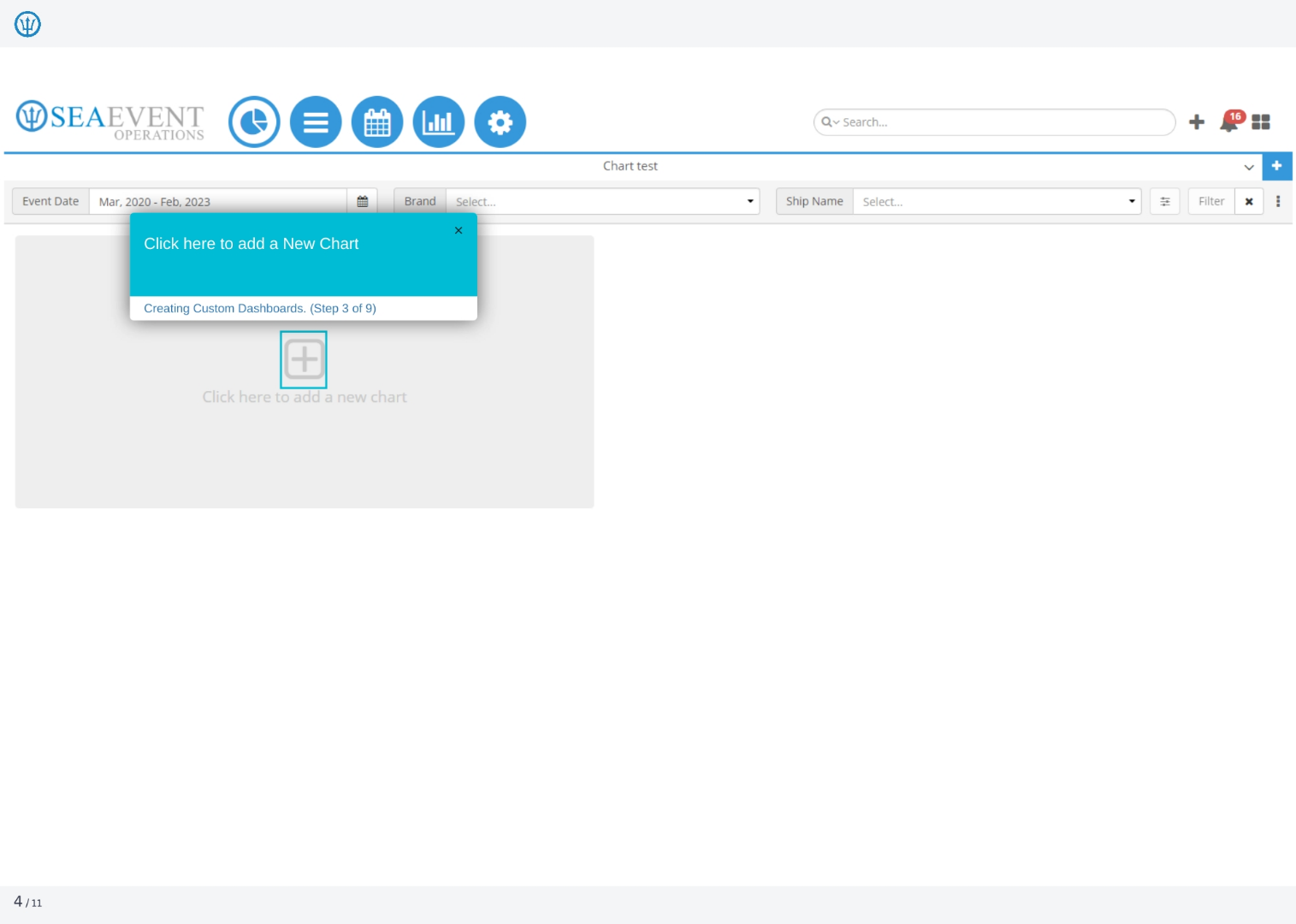
Now, let's add a new chart. Click the 'Click here to add a new chart' button to start selecting the data you want to visualize.
5. Selecting an Existing Report
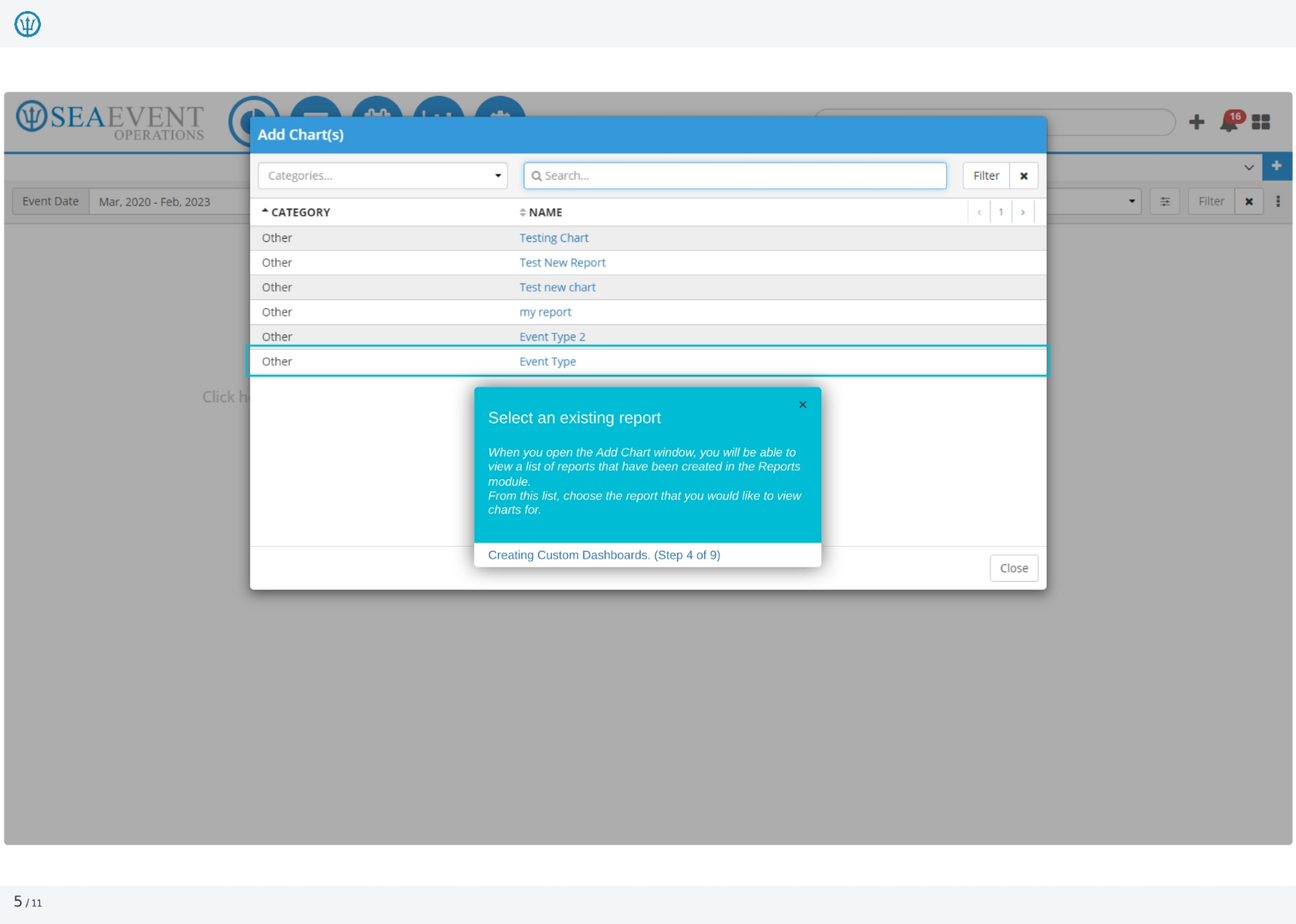
When the 'Add Chart' window opens, you'll see a list of reports created in the Reports module. From this list, choose the report you want to use to create charts for your dashboard.
6. Adding Charts to the Dashboard
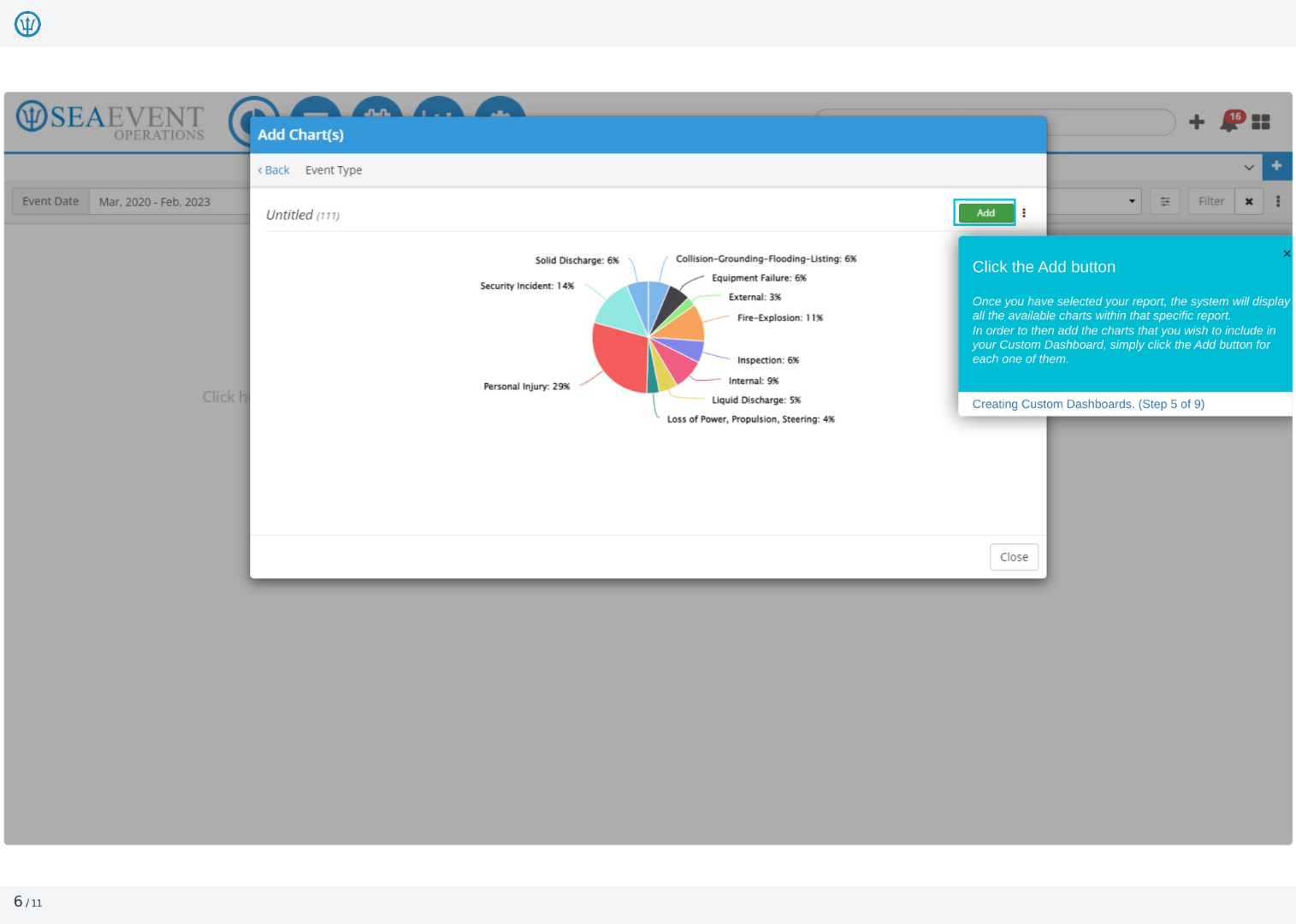
Once you've selected your report, the system will display all available charts within that report. To add charts to your custom dashboard, simply click the 'Add' button for each chart you want to include.
7. Exploring the Actions Menu
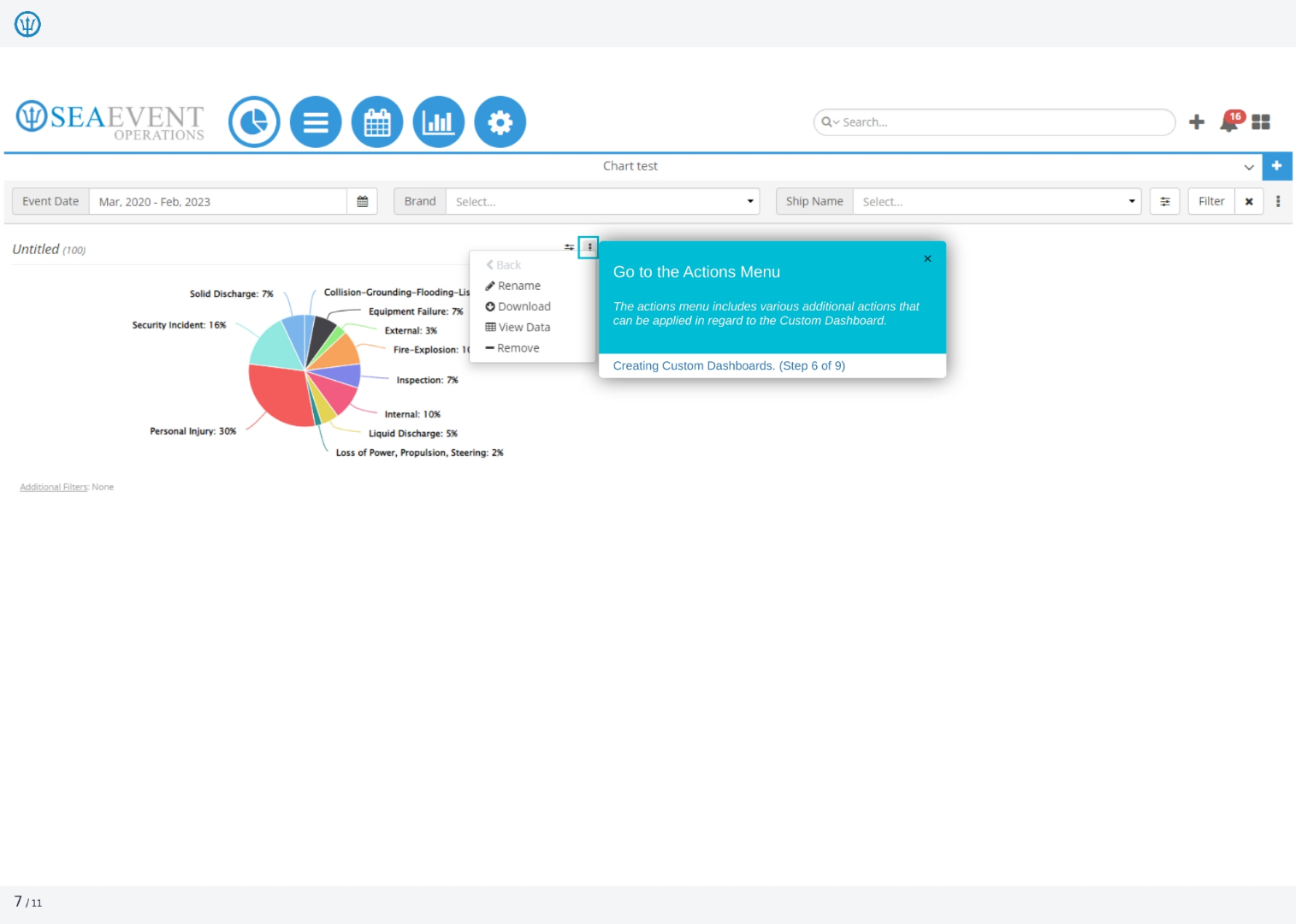
The actions menu includes various additional actions that can be applied in regard to the Custom Dashboard.
8. Saving Your Dashboard
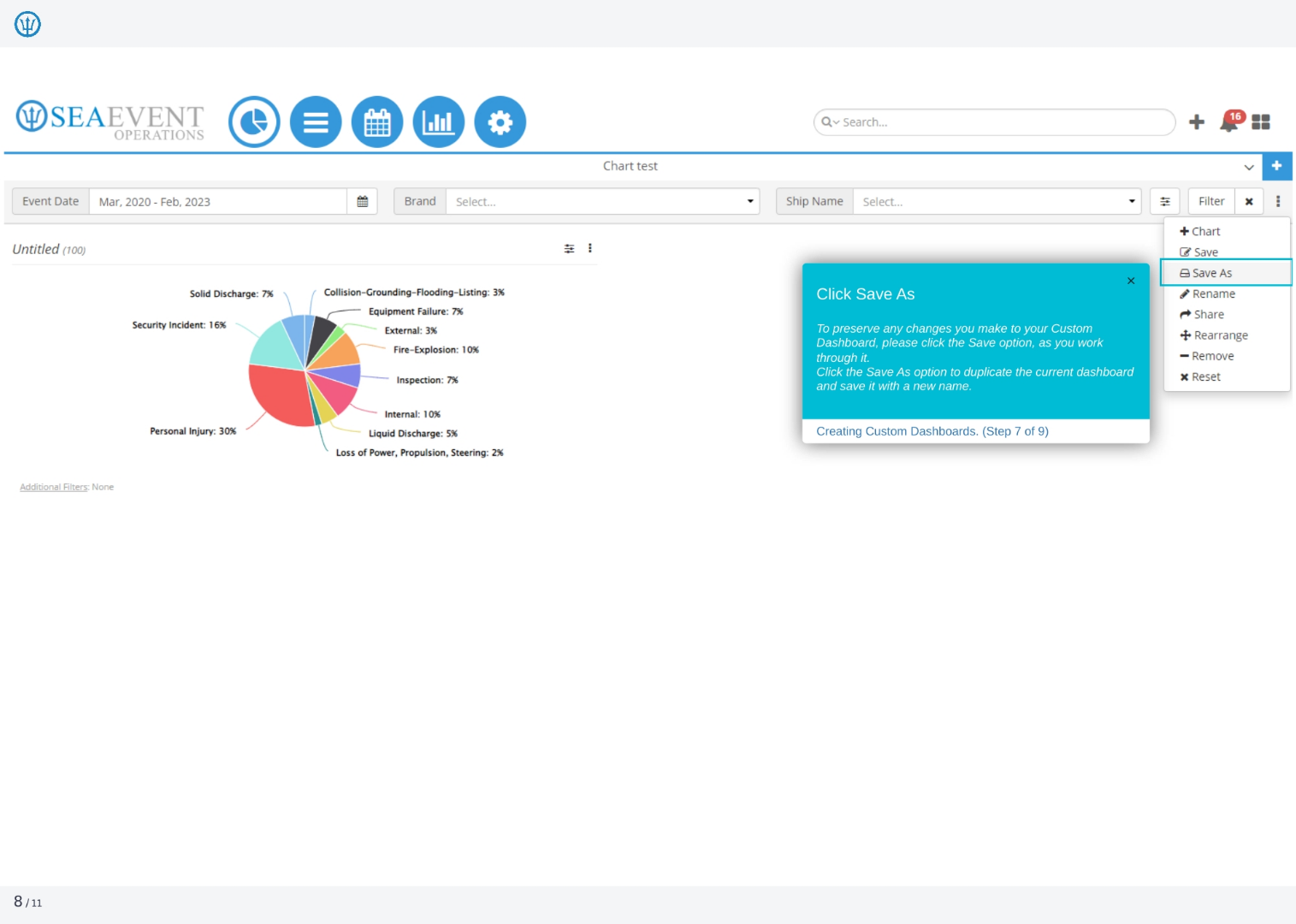
To preserve any changes you make to your custom dashboard, click the 'Save' option as you work. You can also click the 'Save As' option to duplicate the current dashboard and save it with a new name.
9. Resetting Your Dashboard
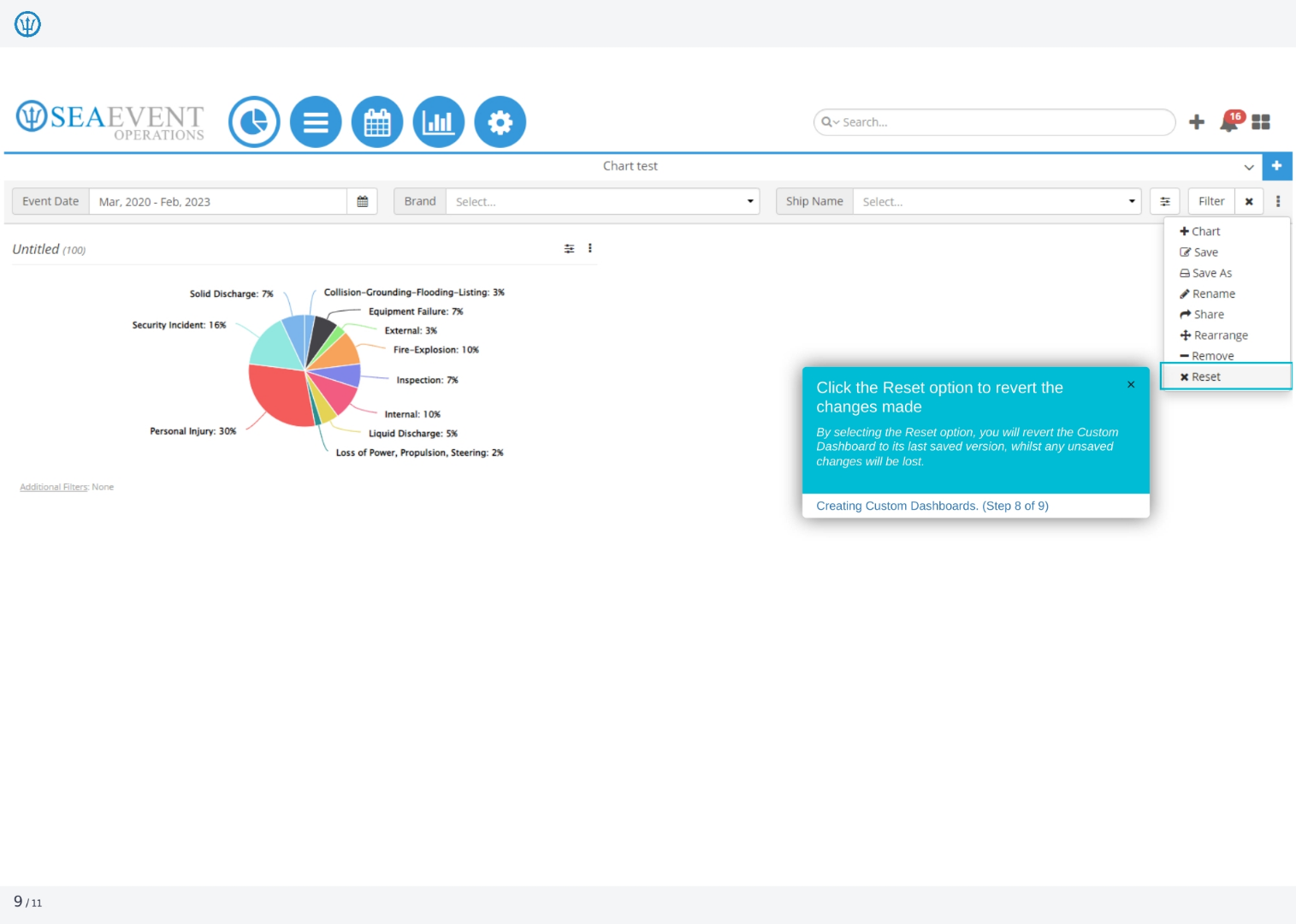
Click the 'Reset' option to revert the changes made. By selecting 'Reset', you'll revert the custom dashboard to its last saved version, losing any unsaved changes.
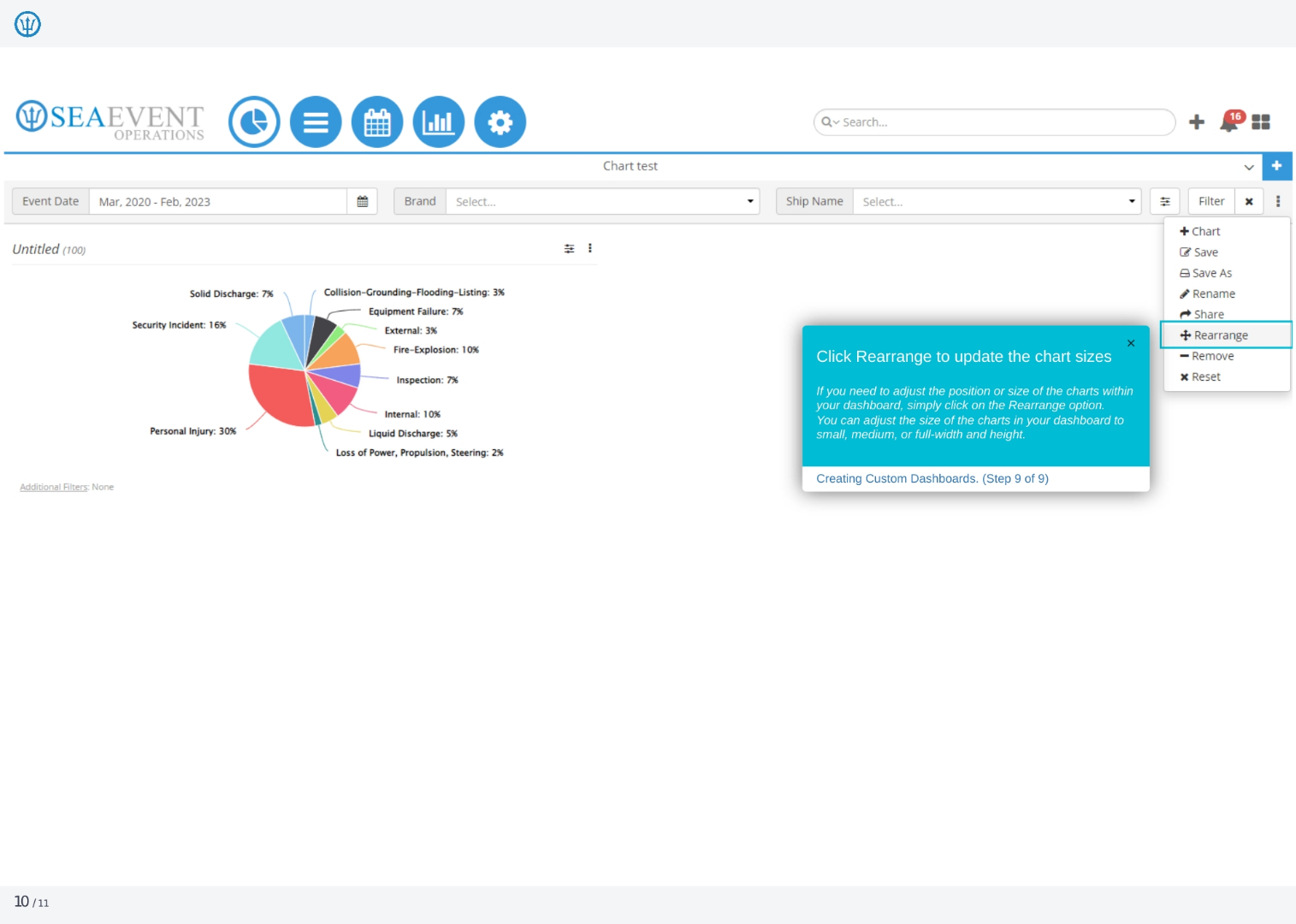
10. Rearranging Chart Sizes
If you need to adjust the position or size of the charts within your dashboard, click on the 'Rearrange' option. You can adjust the size of the charts in your dashboard to small, medium, or full-width and height.