New article
Recently updated
Creating a User Managed by Profile in Ideagen Maritime Management

This walkthrough explains how to create a User Managed By Profile in Ideagen Maritime Management.
1. Introduction
You will learn the step-by-step process to configure user details and assign the appropriate profile. Begin in the shoreside "Admin Menu", in the "Users, Ranks & Profiles" section, under the "Users" tab.
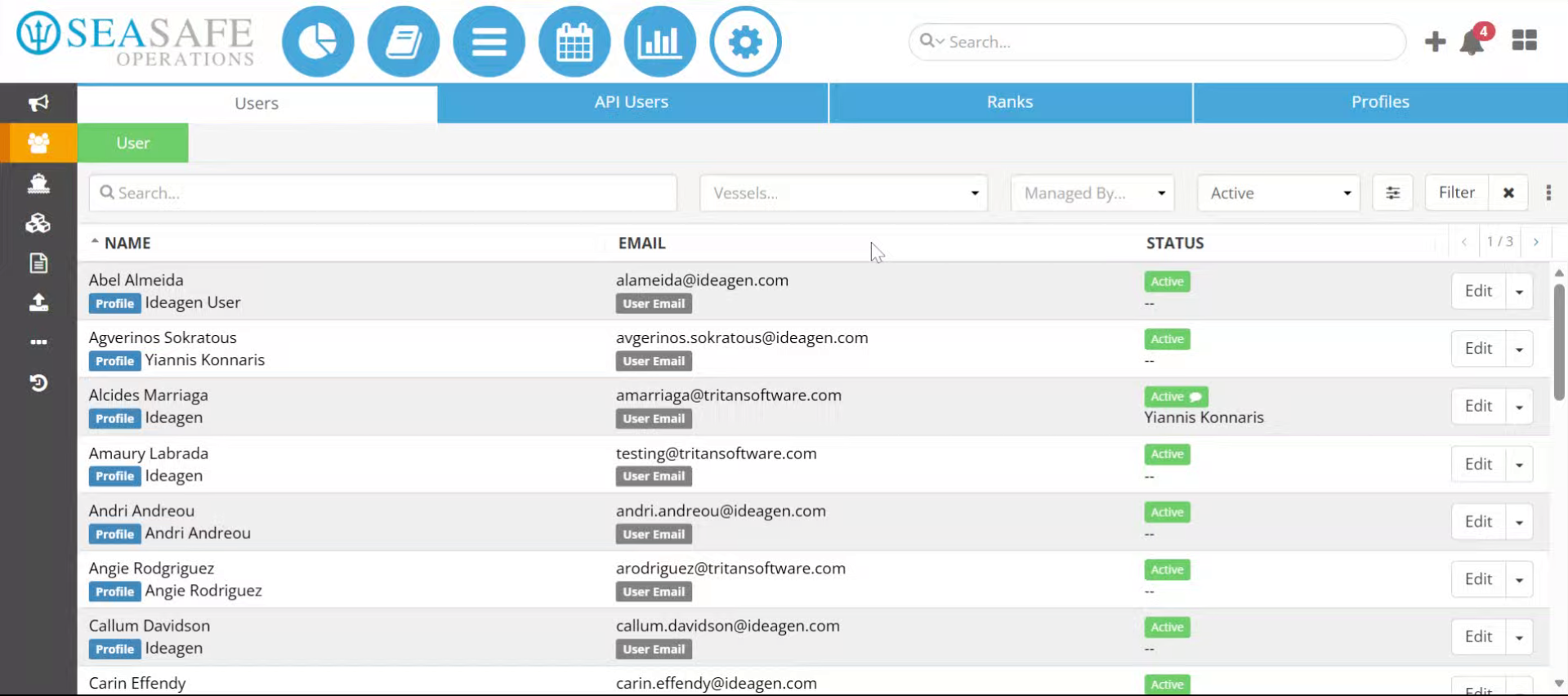
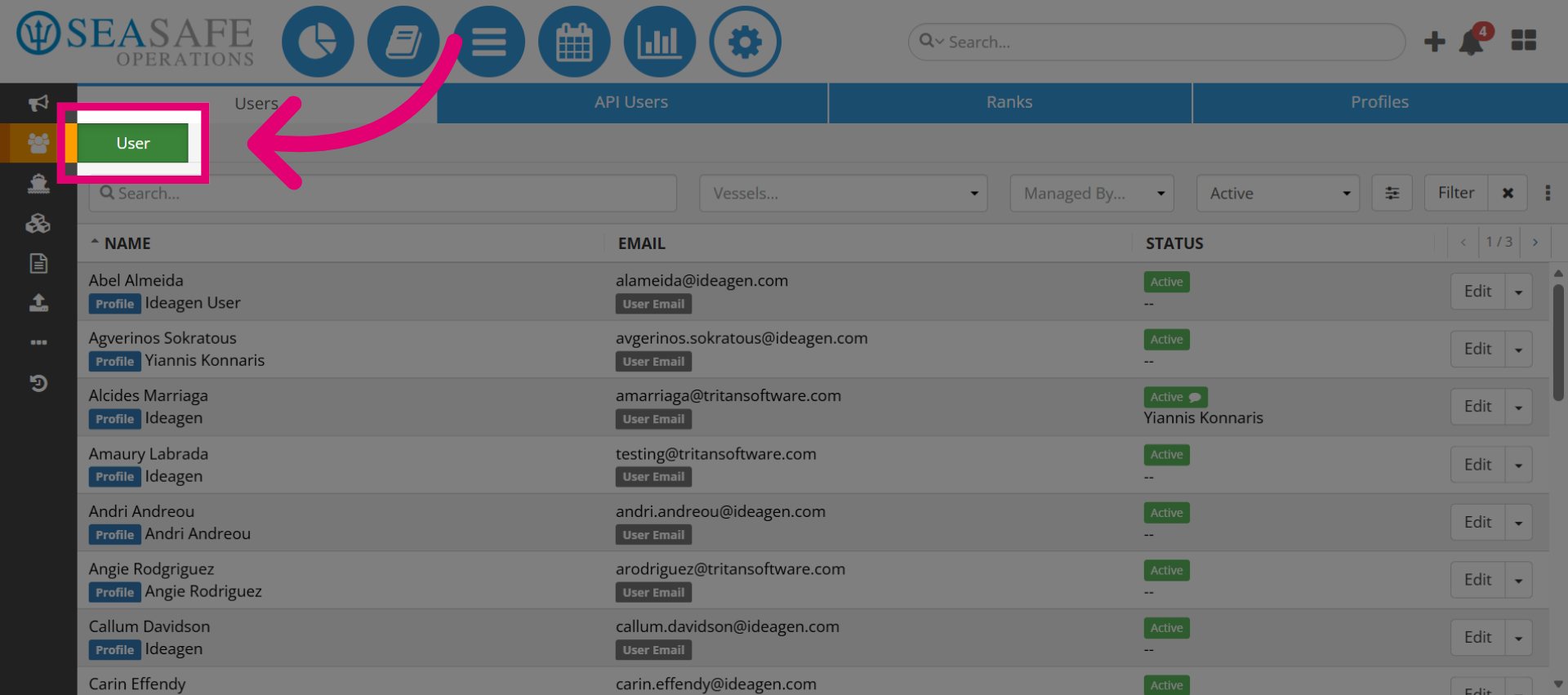
2. Navigate to User Section
Click the green "User" button to begin managing user profiles.
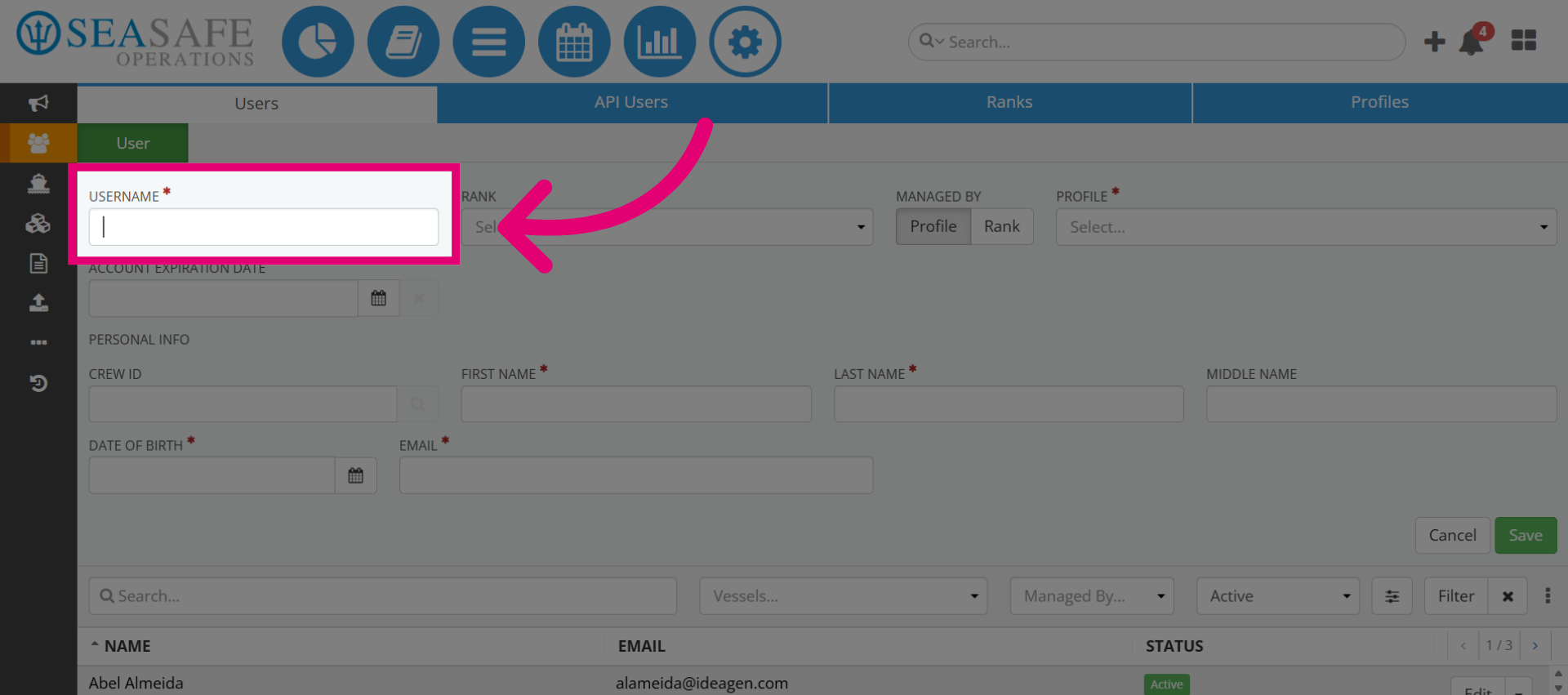
3. Access User Management
Enter your username in the designated field to identify the user.
4. Open Profile Selection
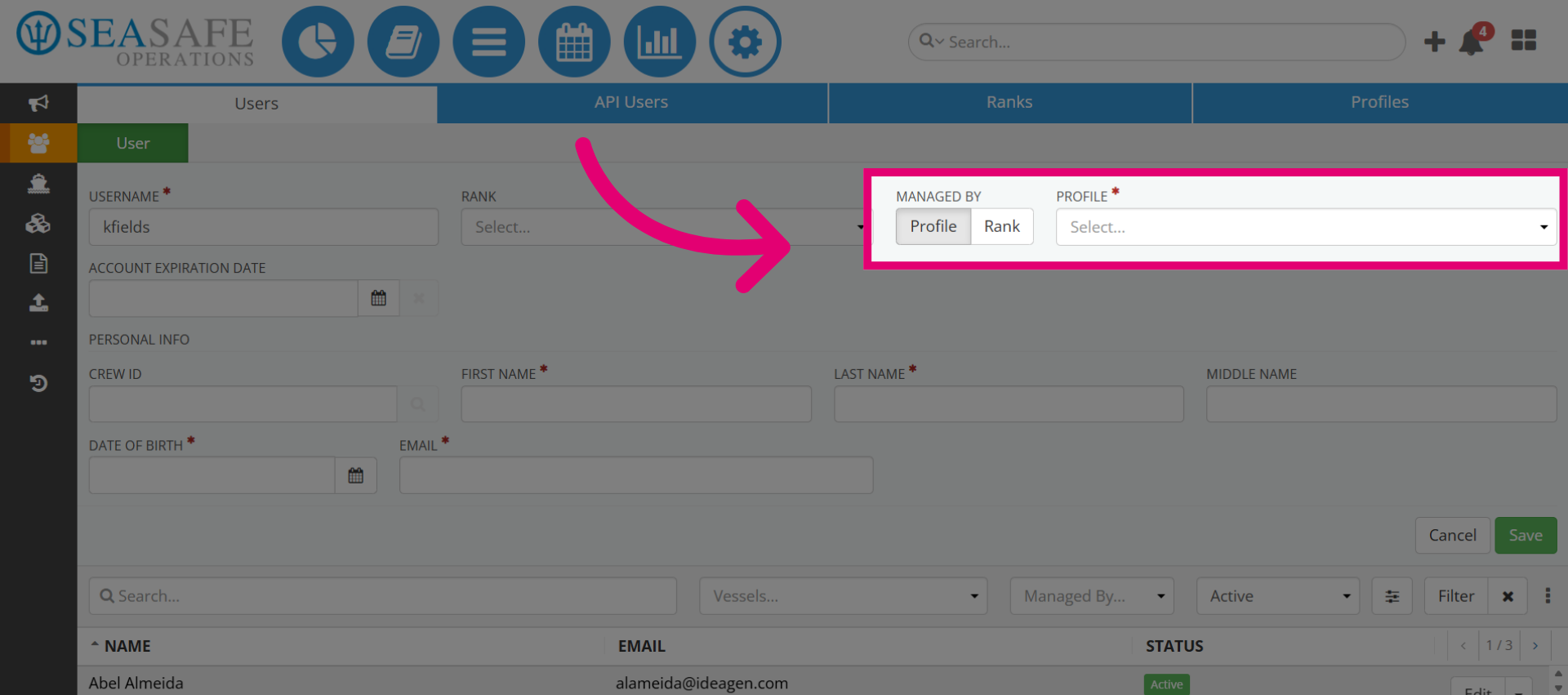
In the "Managed by" section, select choose profile for the user.
5. Select the Profile from the list
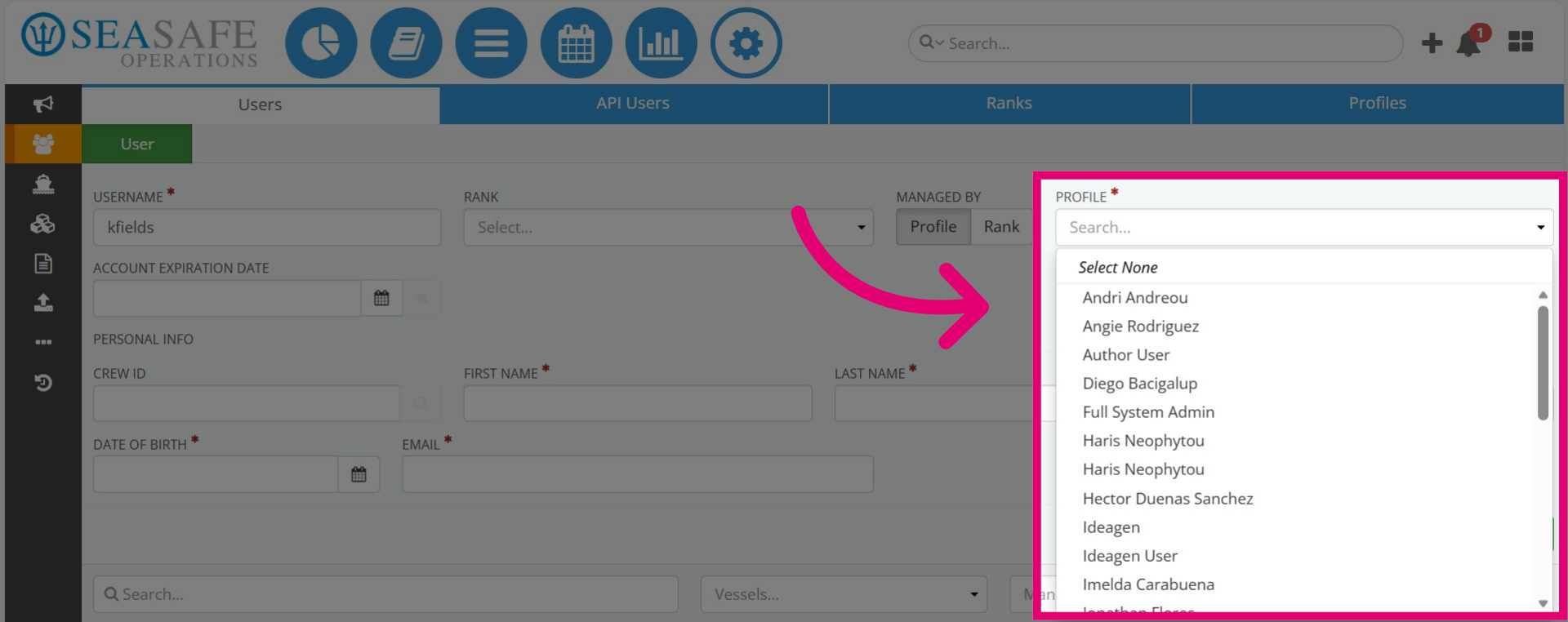
Then, open the dropdown profile list, and select the profile user from the list.
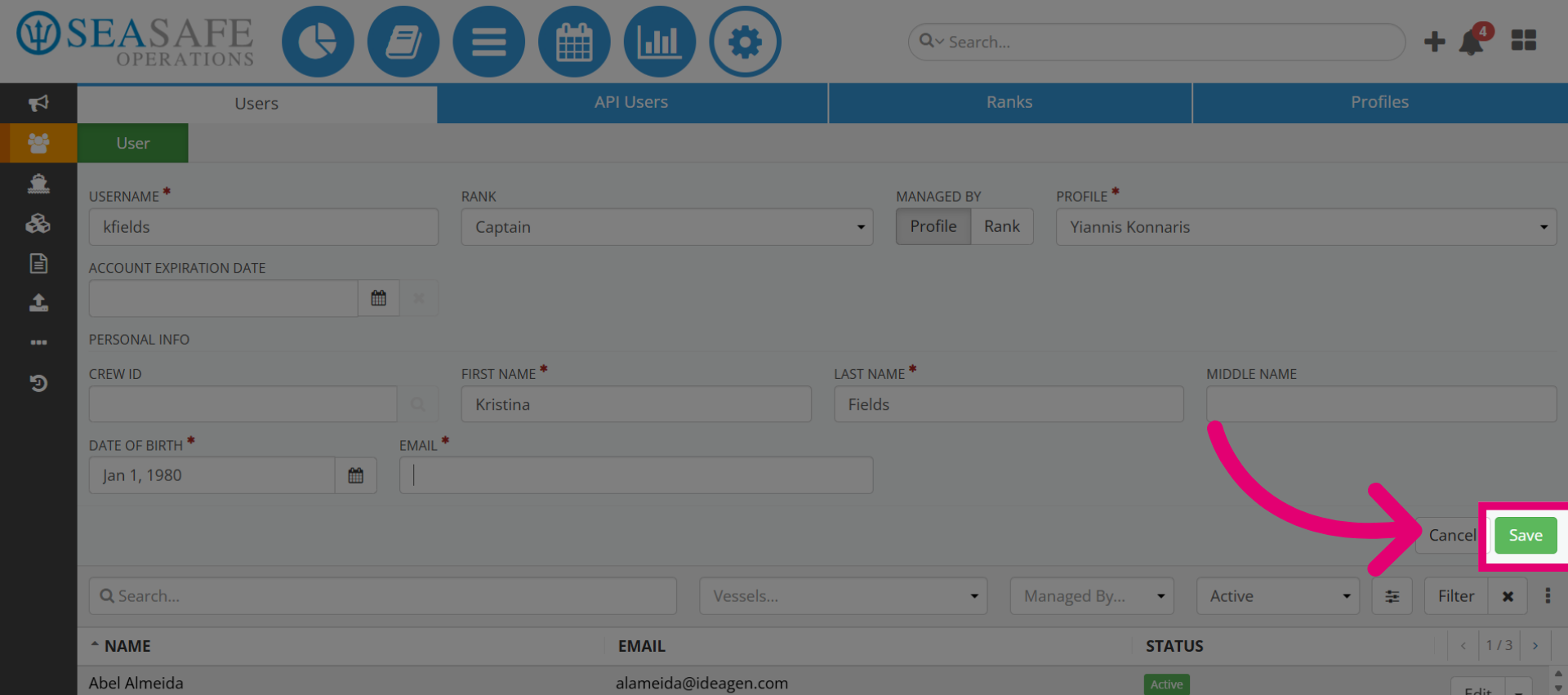
6. Add Required Account Information
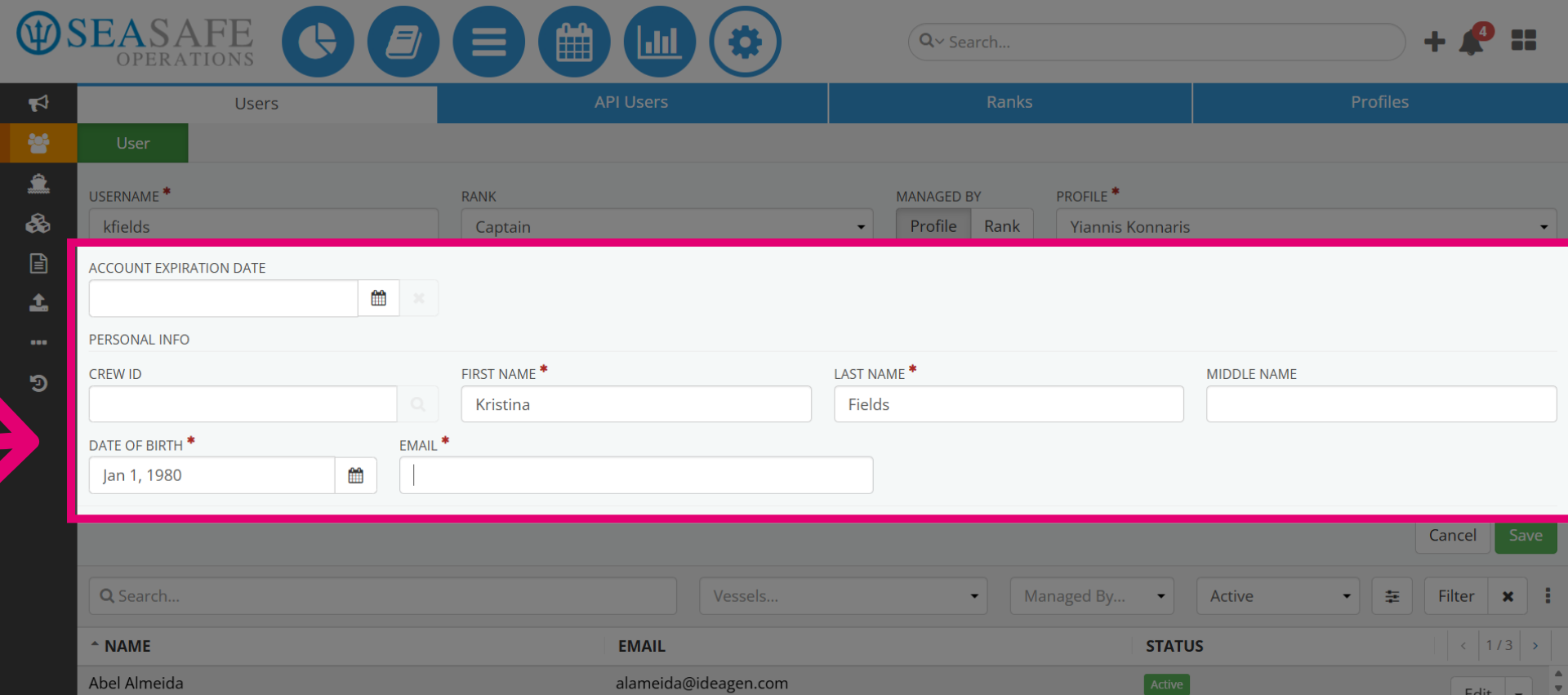
Then, enter the required user account information .
7. Enter the First and Last Name
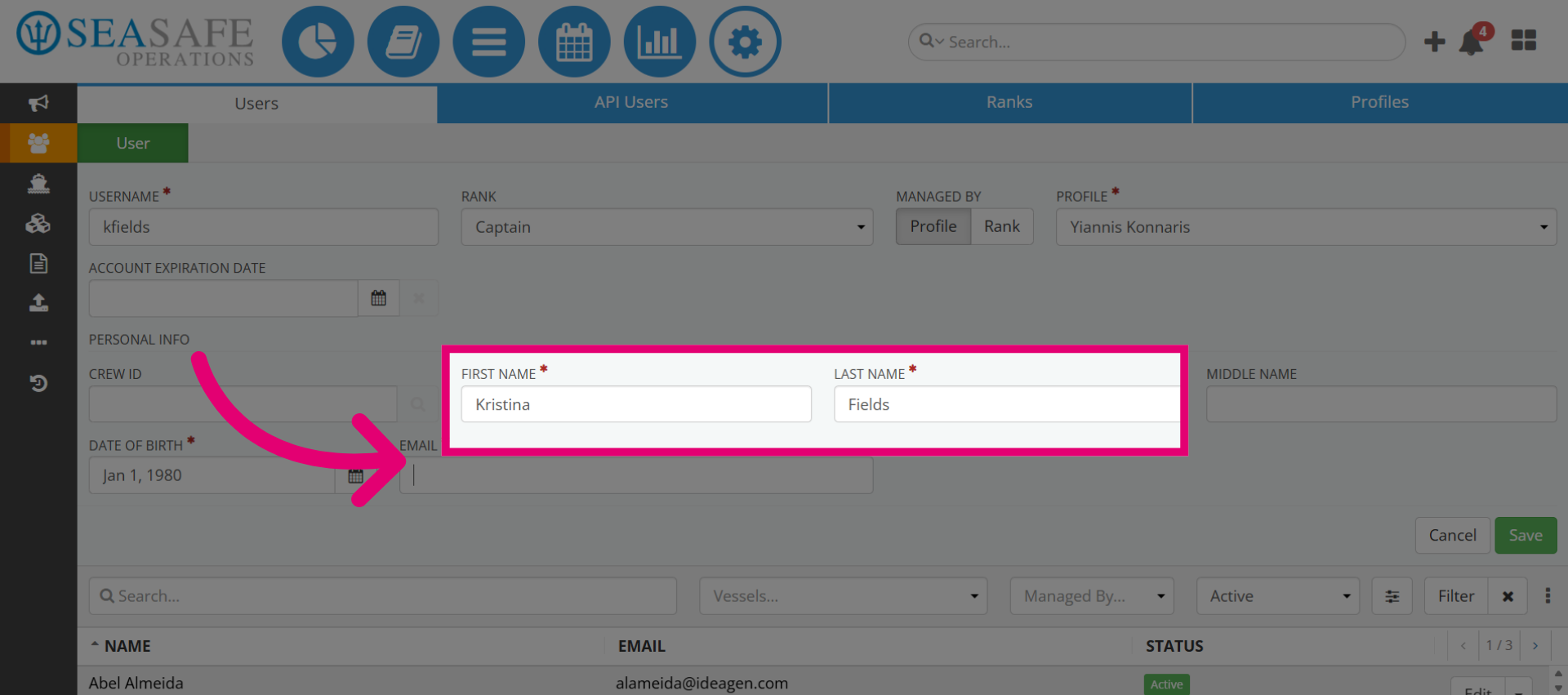
Enter the First and Last Name.
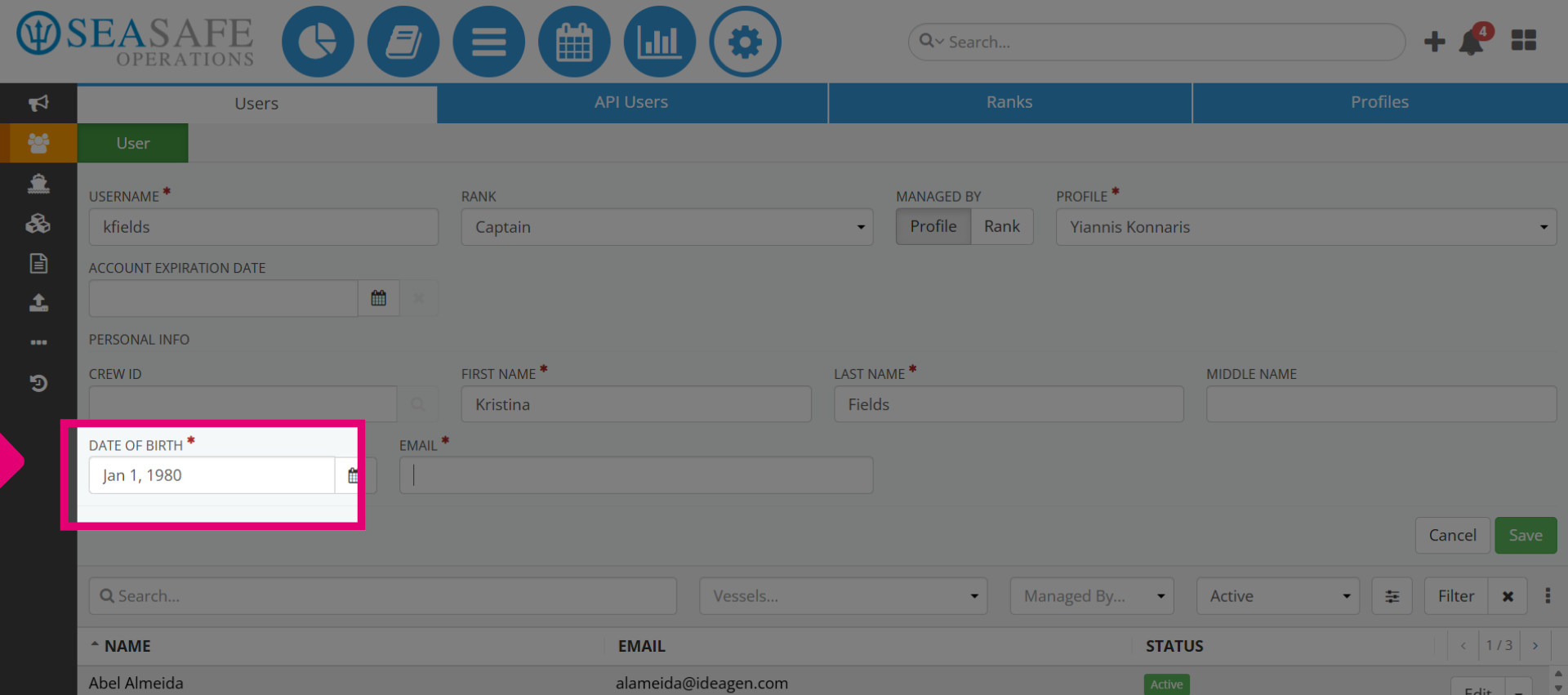
8. Add the "Date of Birth"
Next, dd the "Date of Birth".
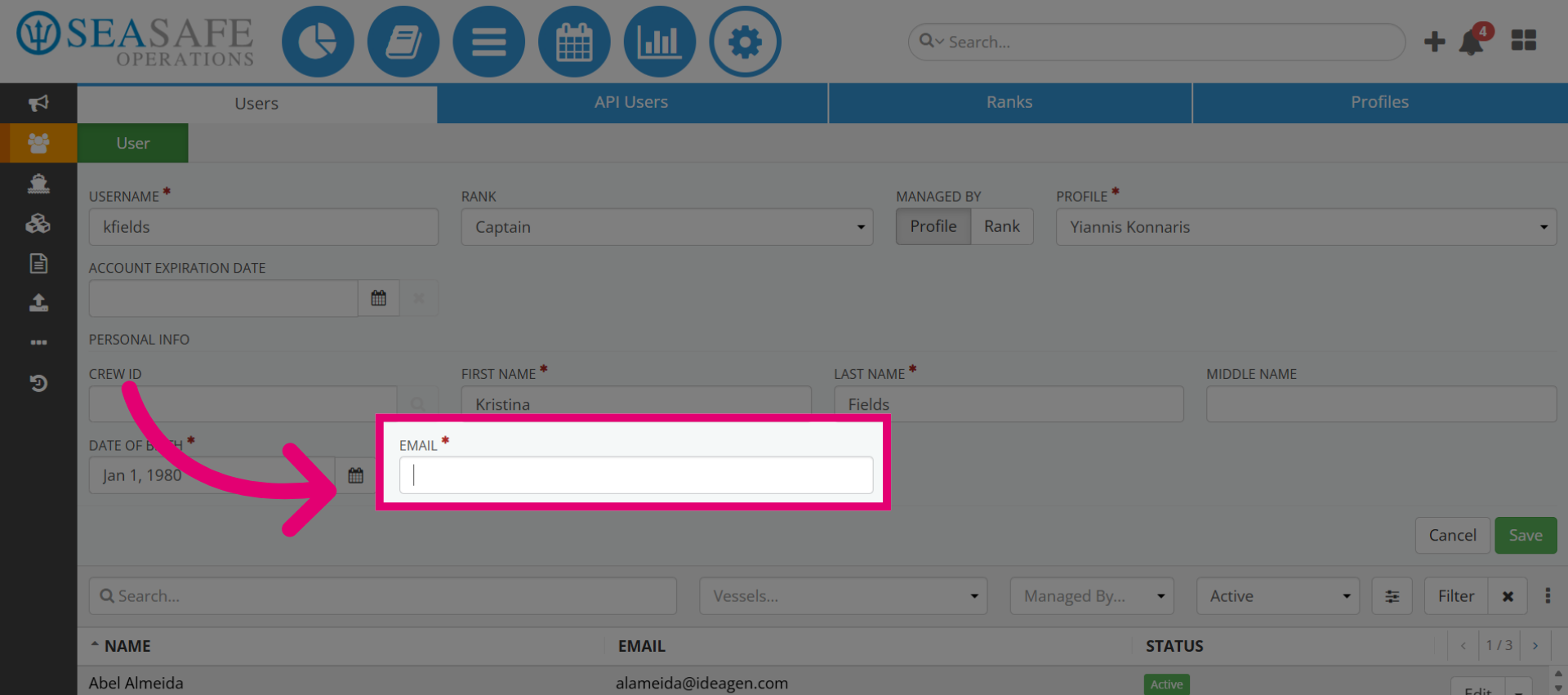
9. Enter the "Email"
Then, enter the user's "Email".
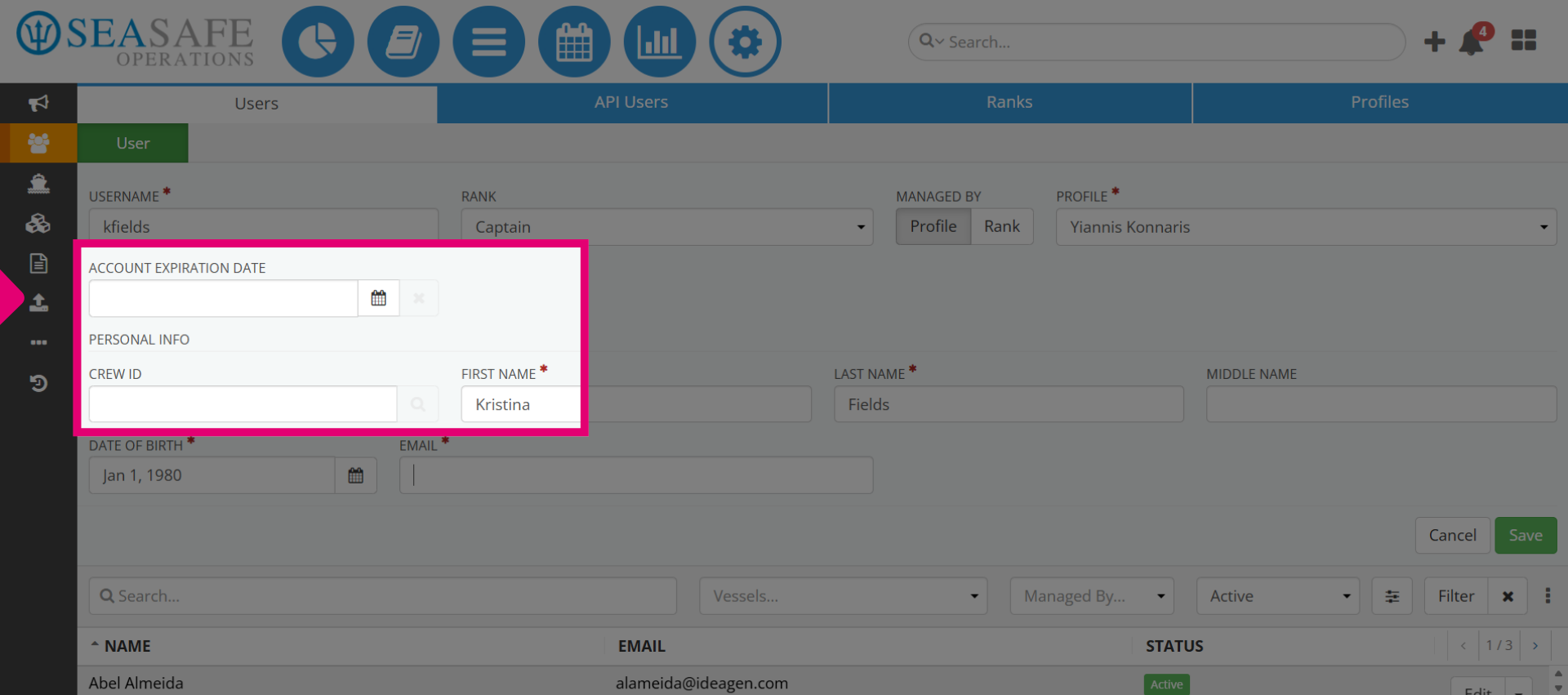
10. Add Account Expiration or Crew
You can also add Account Expiration Date if the account is to expire or add the Crew ID number if desired; both are optional.
11. Select "Save"
Then, select "Save" to save the account information