New article
Recently updated
Navigating the Operations View in Ideagen Maritime Management

This walkthrough explains how to navigate the Ideagen Maritime Management Operations application view.
1. Introduction
You will learn how to access key sections such as the workflow, dashboards, tasks, notifications, profile settings, and documents.
2. Workflow Module
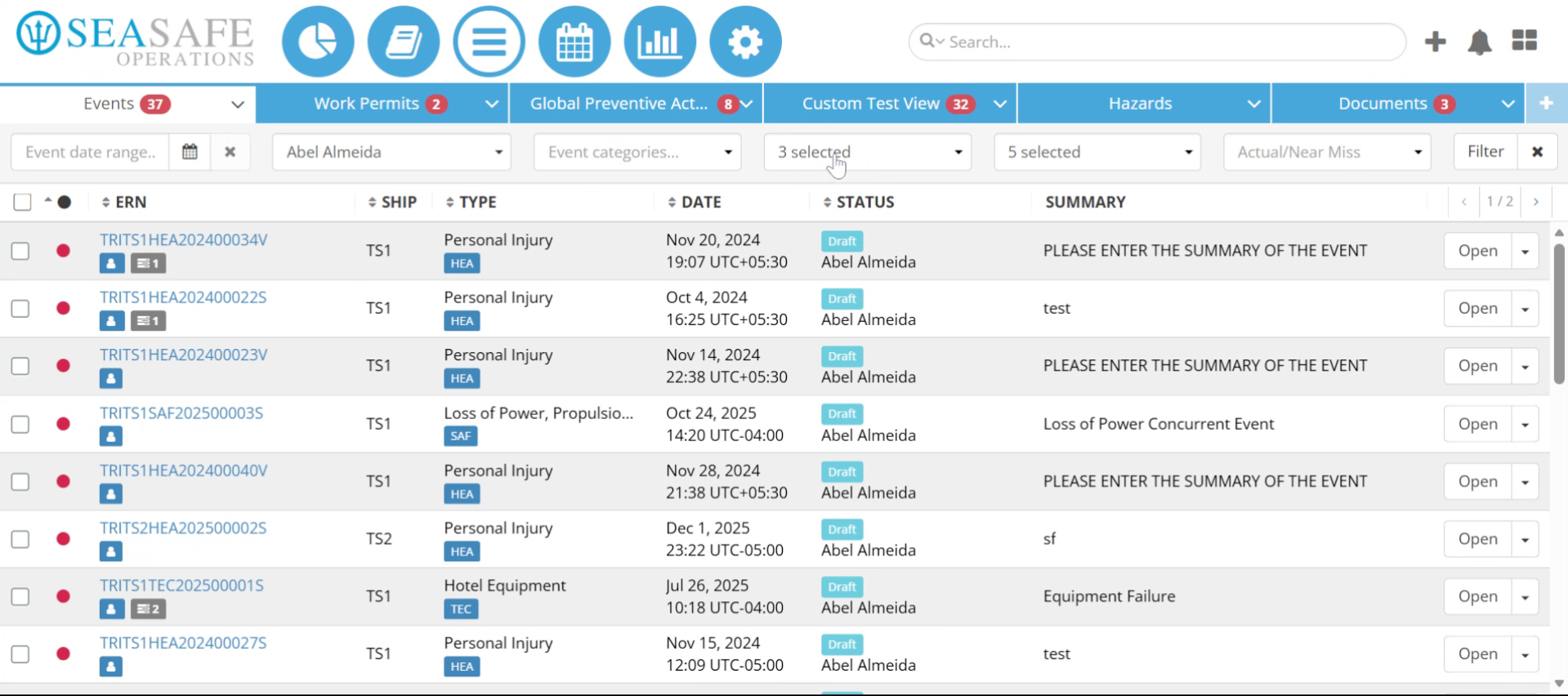
The default module is the "Workflow Module", which is the central hub for you to manage report workflows.
3. Access Reports
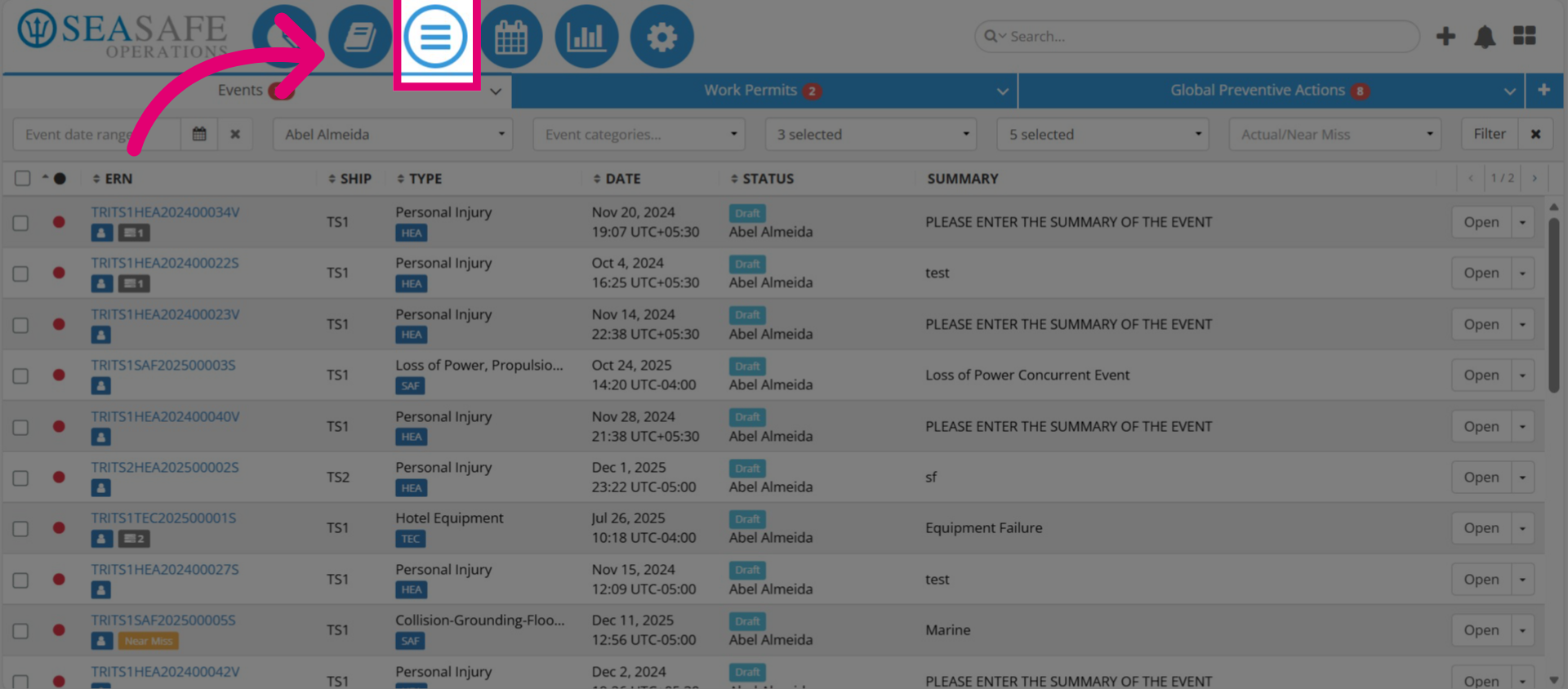
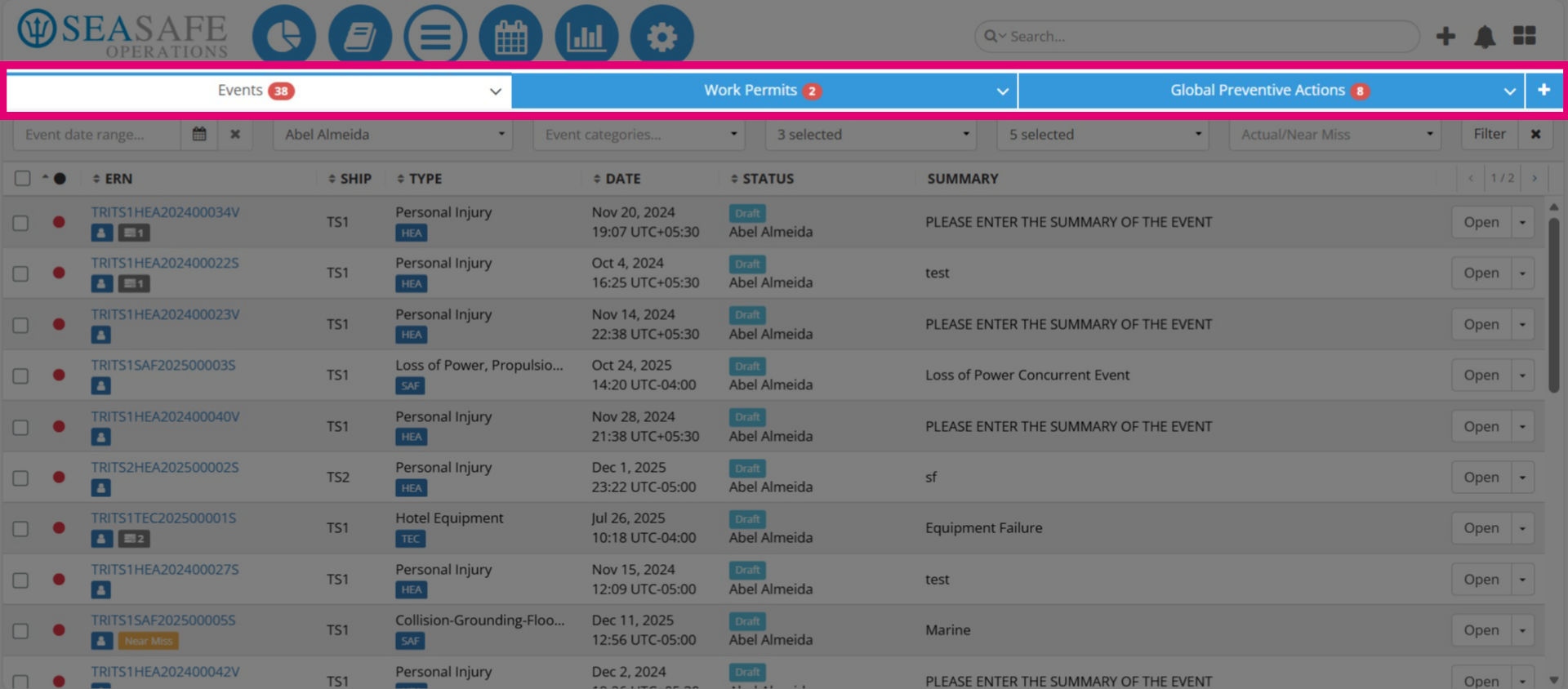
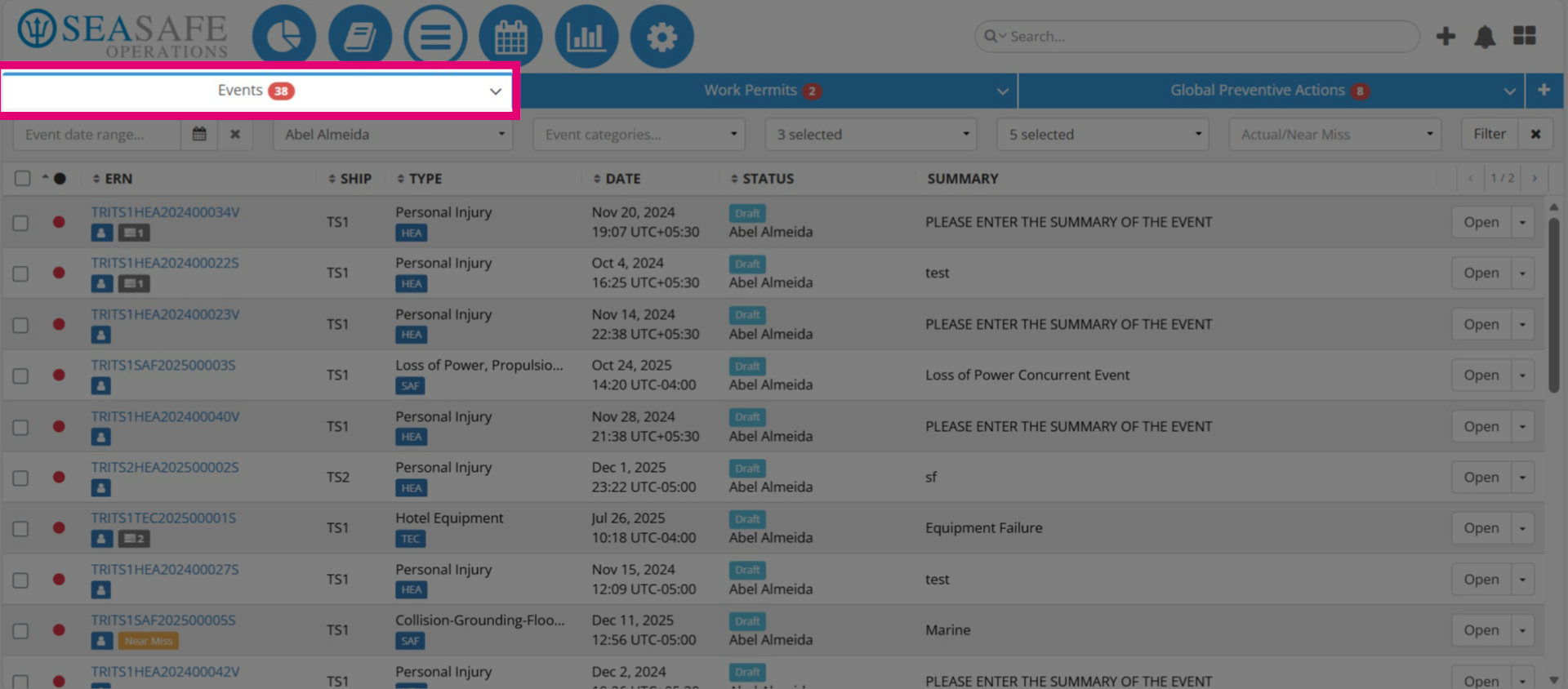
Access report types like "Events" or "Work Permits" in one place. Each tab allows easy switching and management.
4. Access Event Reports
For example, here is a tab for all of your "Event" reports. Let’s take a closer look at what you can do.
5. Locate Specific Report(s) using Filters
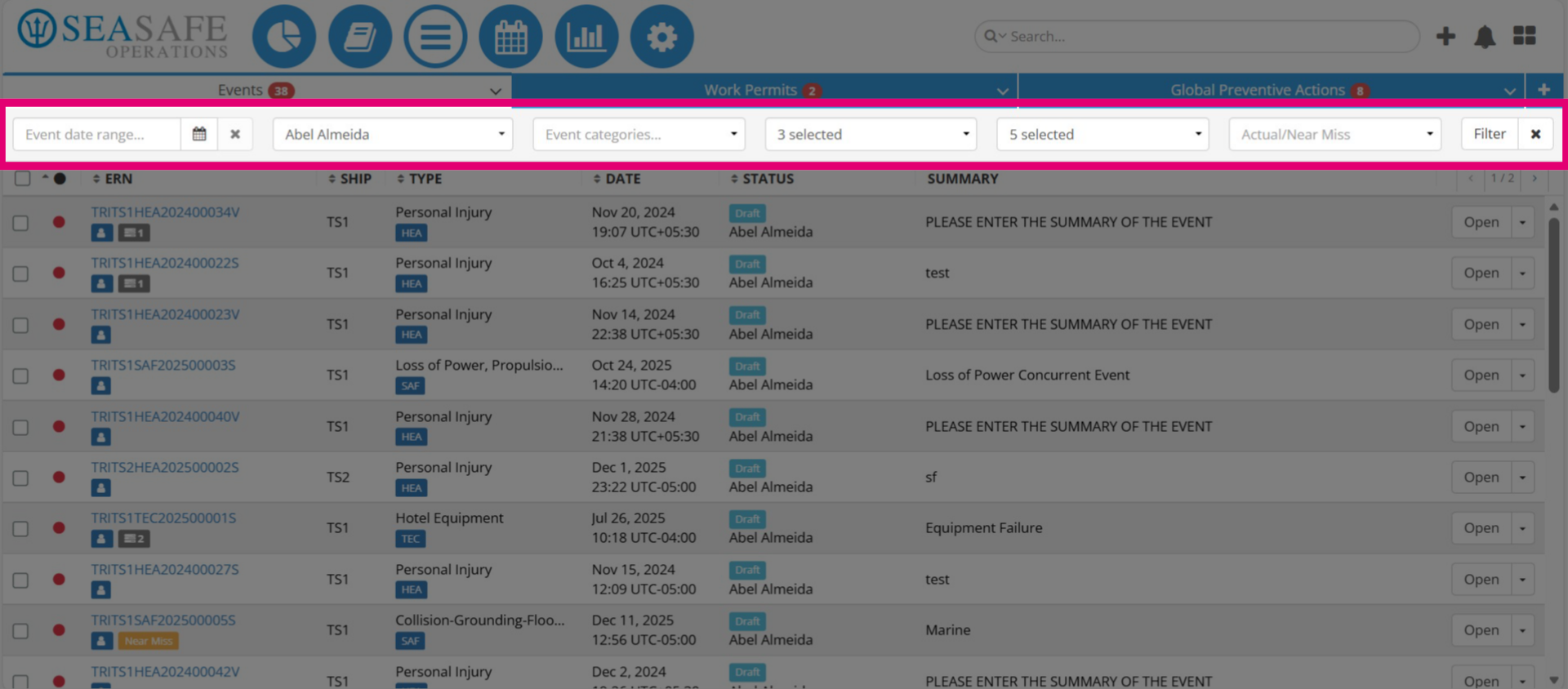
You can use the filters to quickly locate specific reports. Filters allow you to search by: date range, assigned to you, event categories, ship name, and status such as pending shipboard review or shoreside approval, or actual or near miss incidents. Click "Filter" to apply and use the "x" to reset the filters.
6. View Report Information
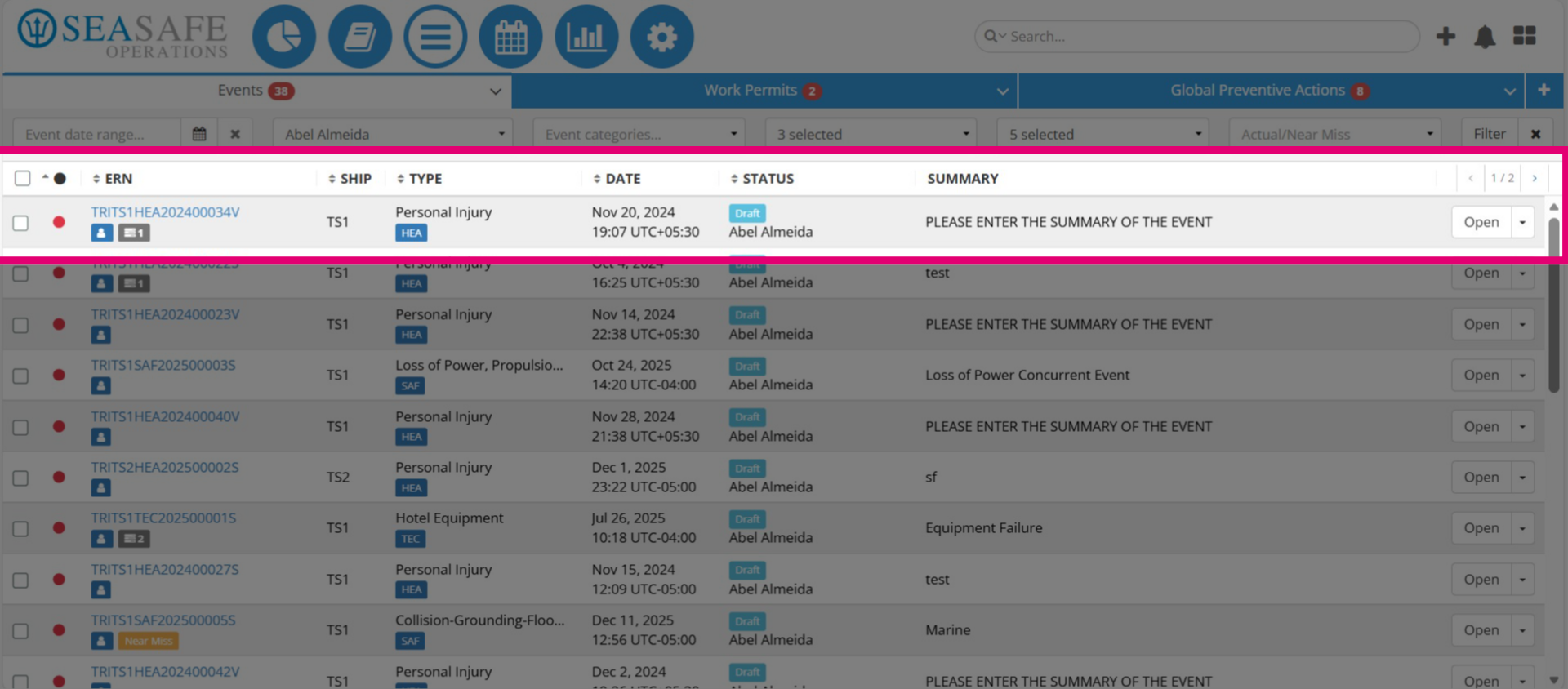
You can also view report information from the list, including: Event Report Number (E-R-N), Ships it occurred, Event Type, Date, Status, and a Summary.
7. Access the "Actions Menu"
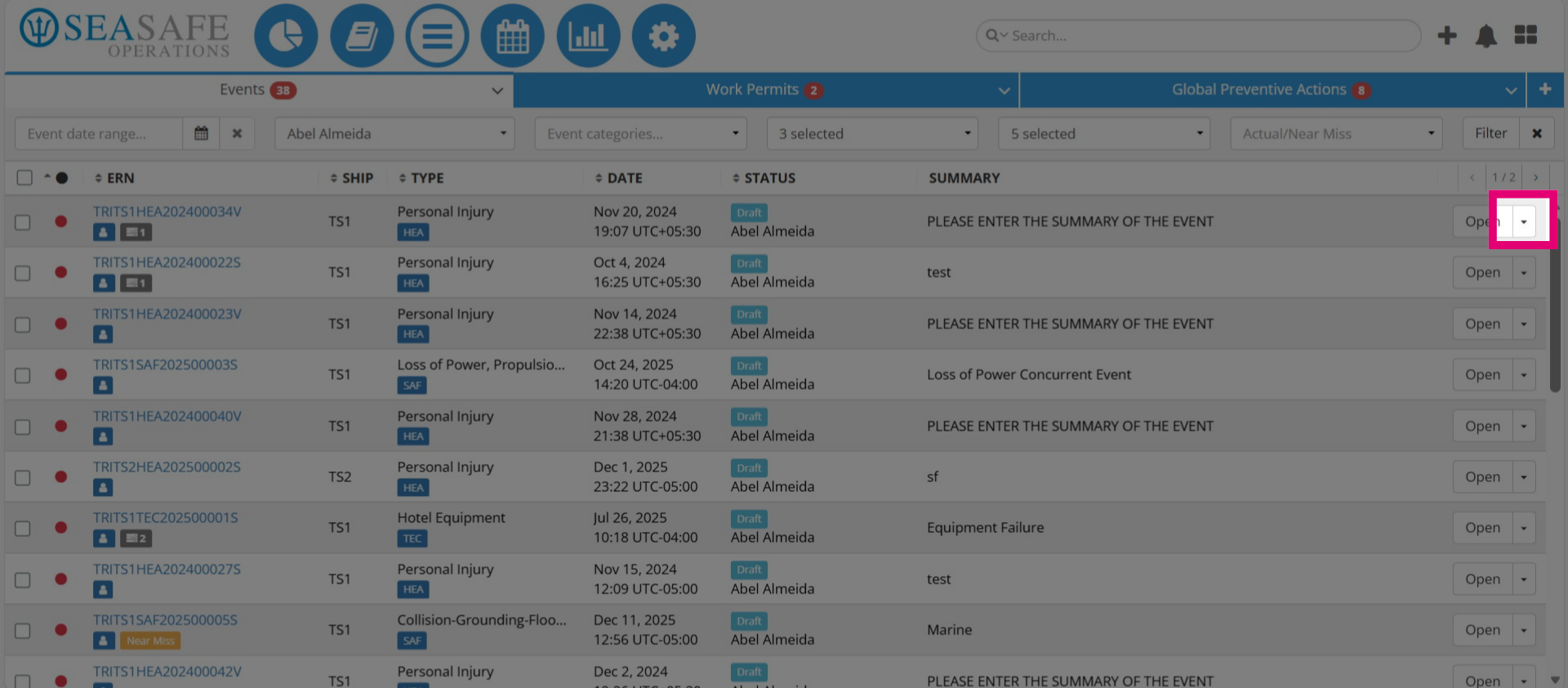
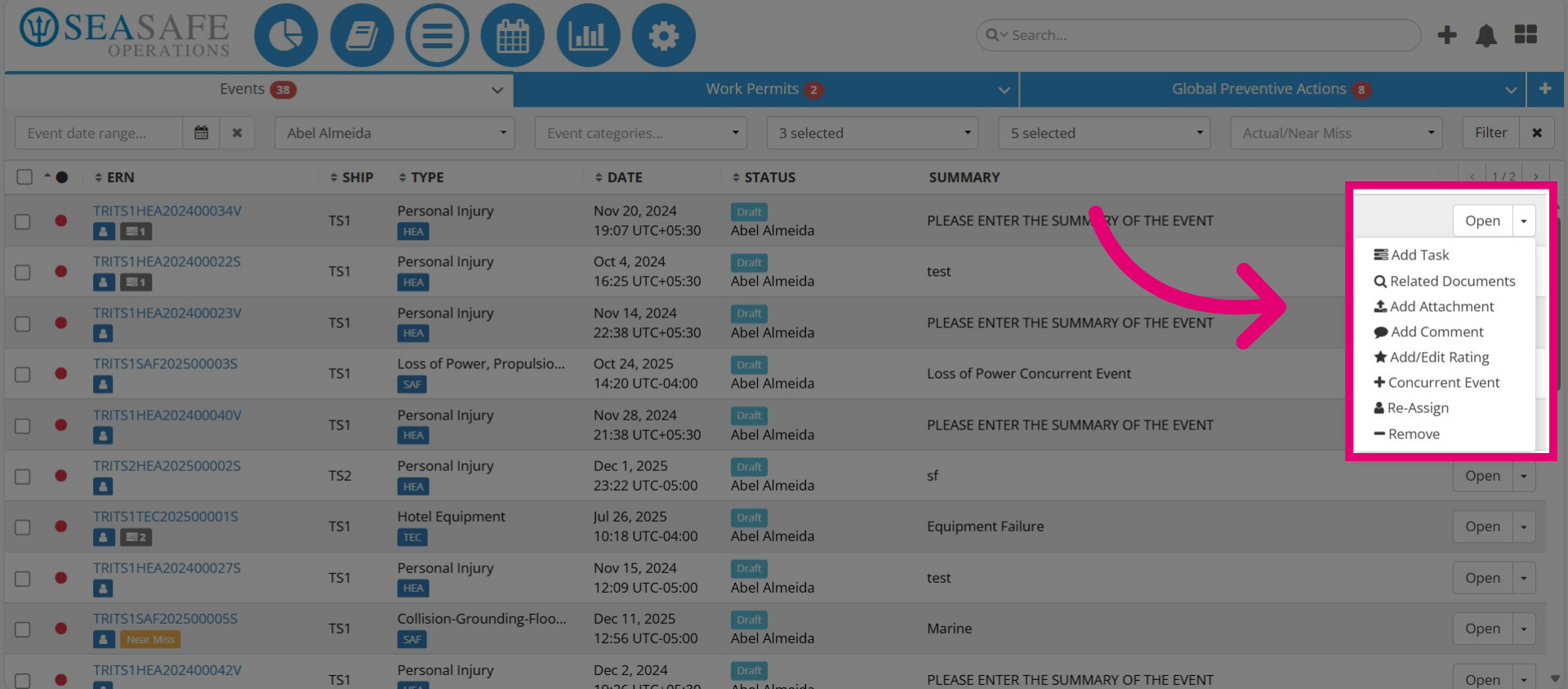
On the right, you will find the "Actions Menu". Click the dropdown arrow to access it.
8. Manage Reports
Then, manage reports directly from the list without opening the report: - Add Tasks: By creating a follow-up task. - Add Related Documents: By linking associated documents to the event. - Add Attachments: By uploading supporting files. - Add Comments: To collaborate with notes. - Add/Edit Ratings: By updating severity or risk rating. - Add Concurrent Events: To link the event to another related event. - Re-Assign: To change the responsible person. - Remove: To delete the report if needed.
9. Open a Report
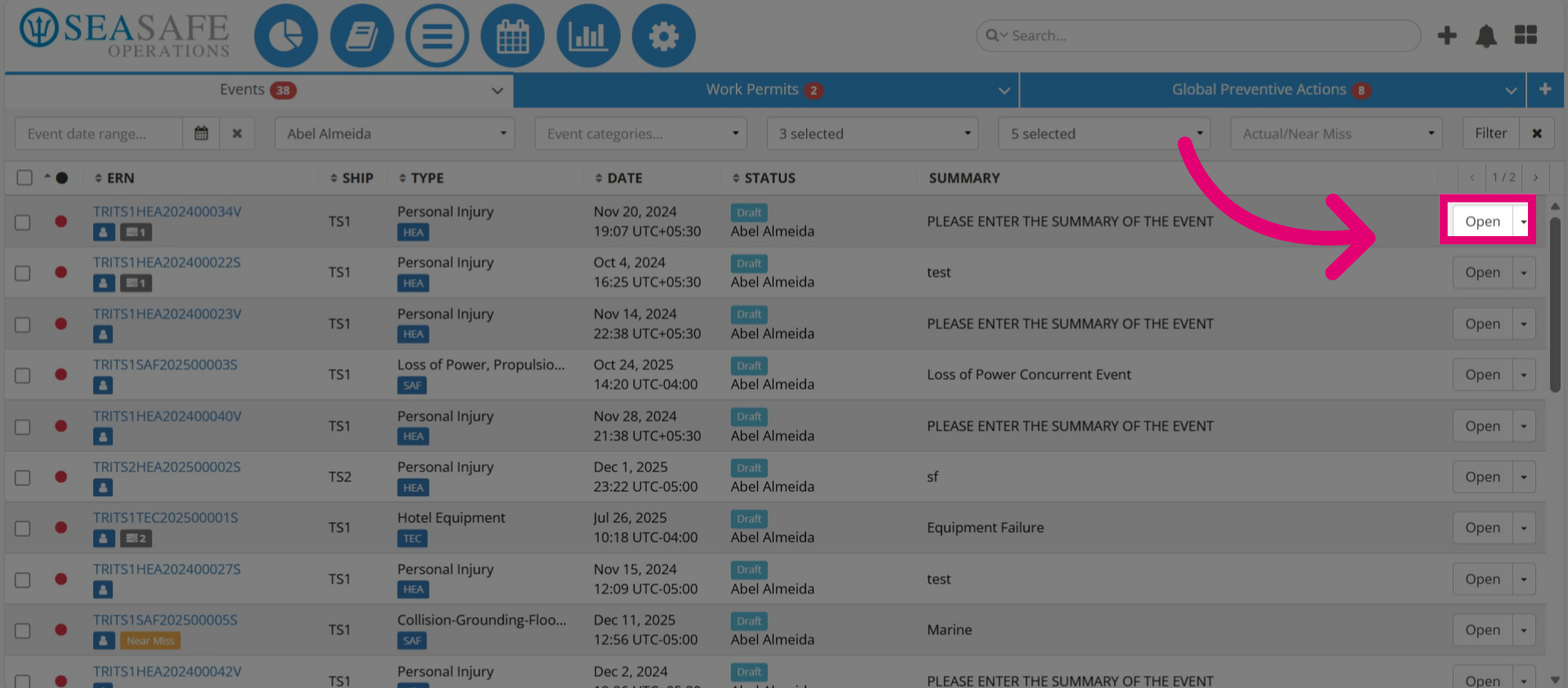
Also, click here to "Open" the report.
10. Open a Report via a Link
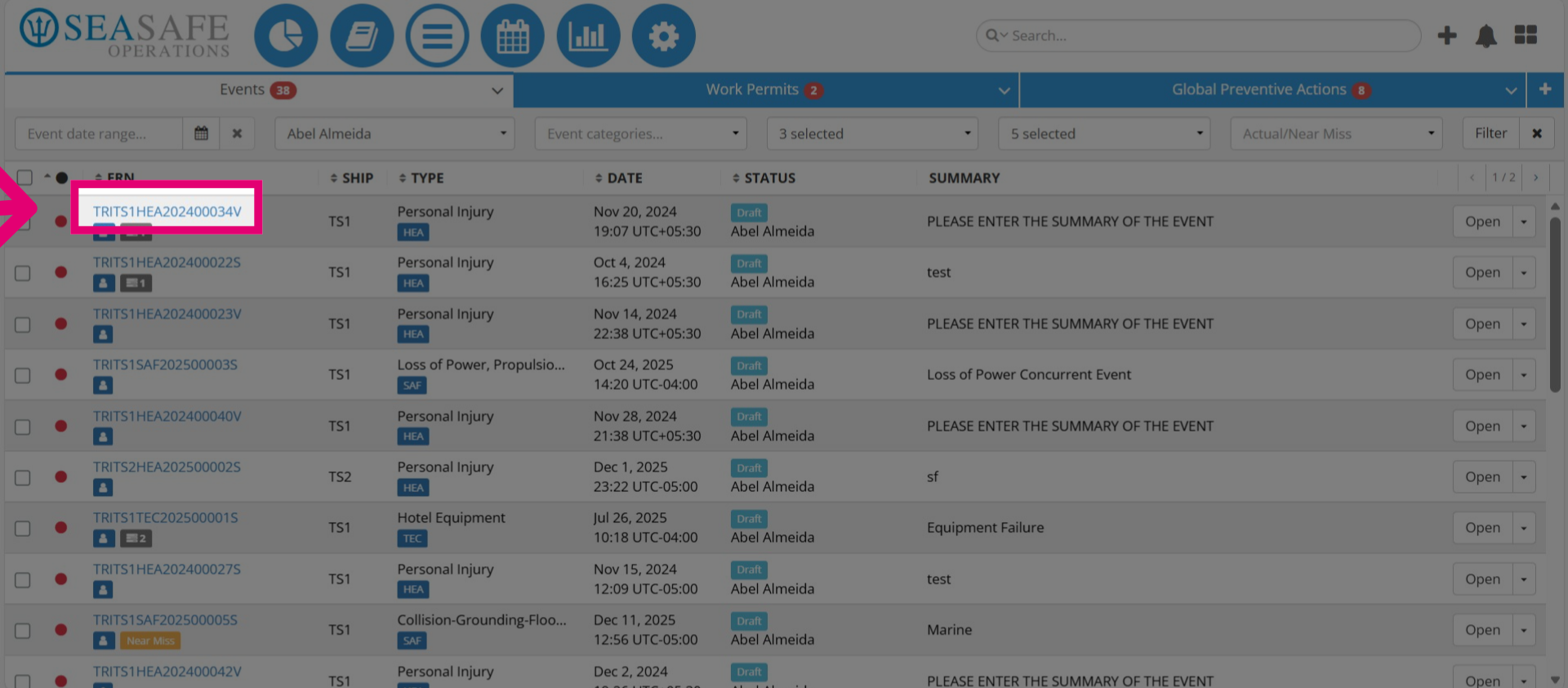
You may also click on the E-R-N report link to open it.
11. Mass "Re-assign"
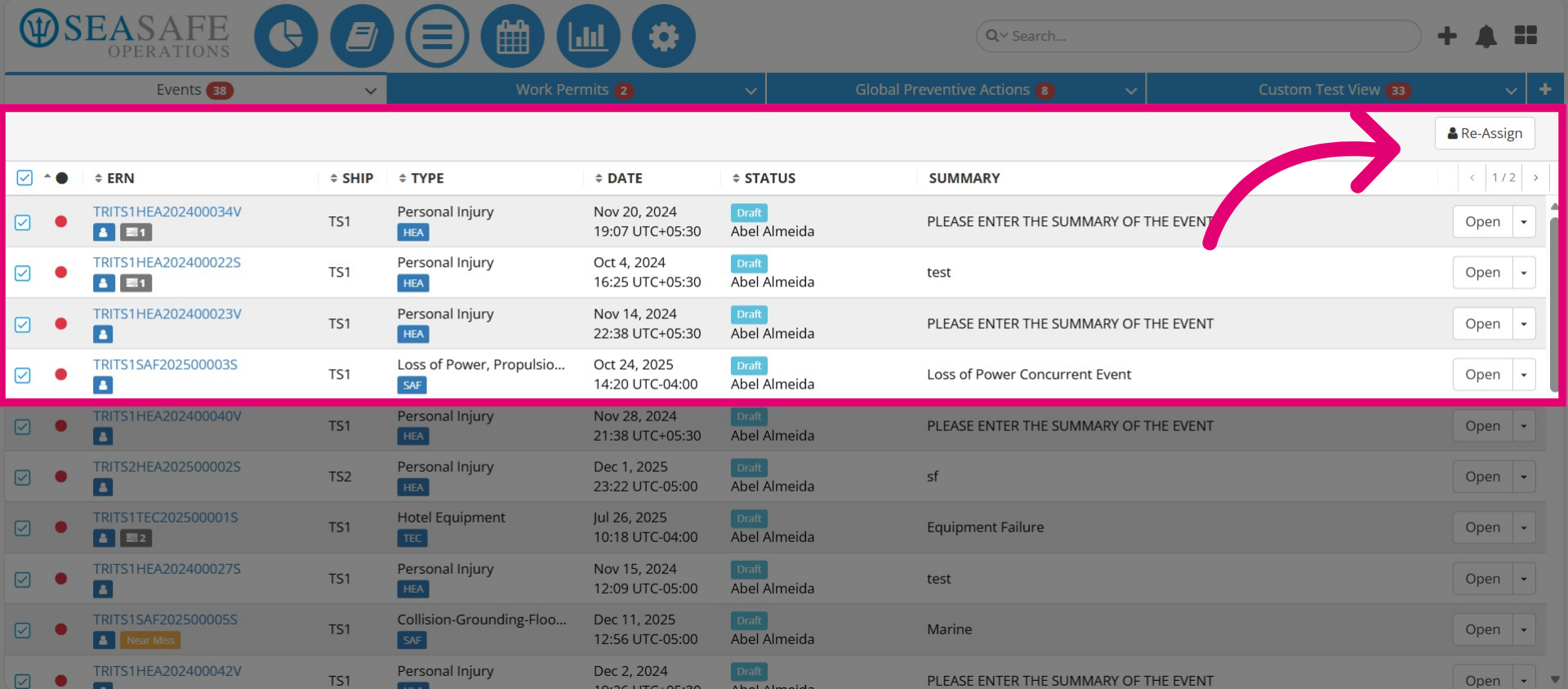
You can also click the checkboxes to mass "Re-assign" multiple reports to another user to be responsible.
12. Change the Report View
Click the dropdown arrow next to the Events tab to switch to other report type dashboards.
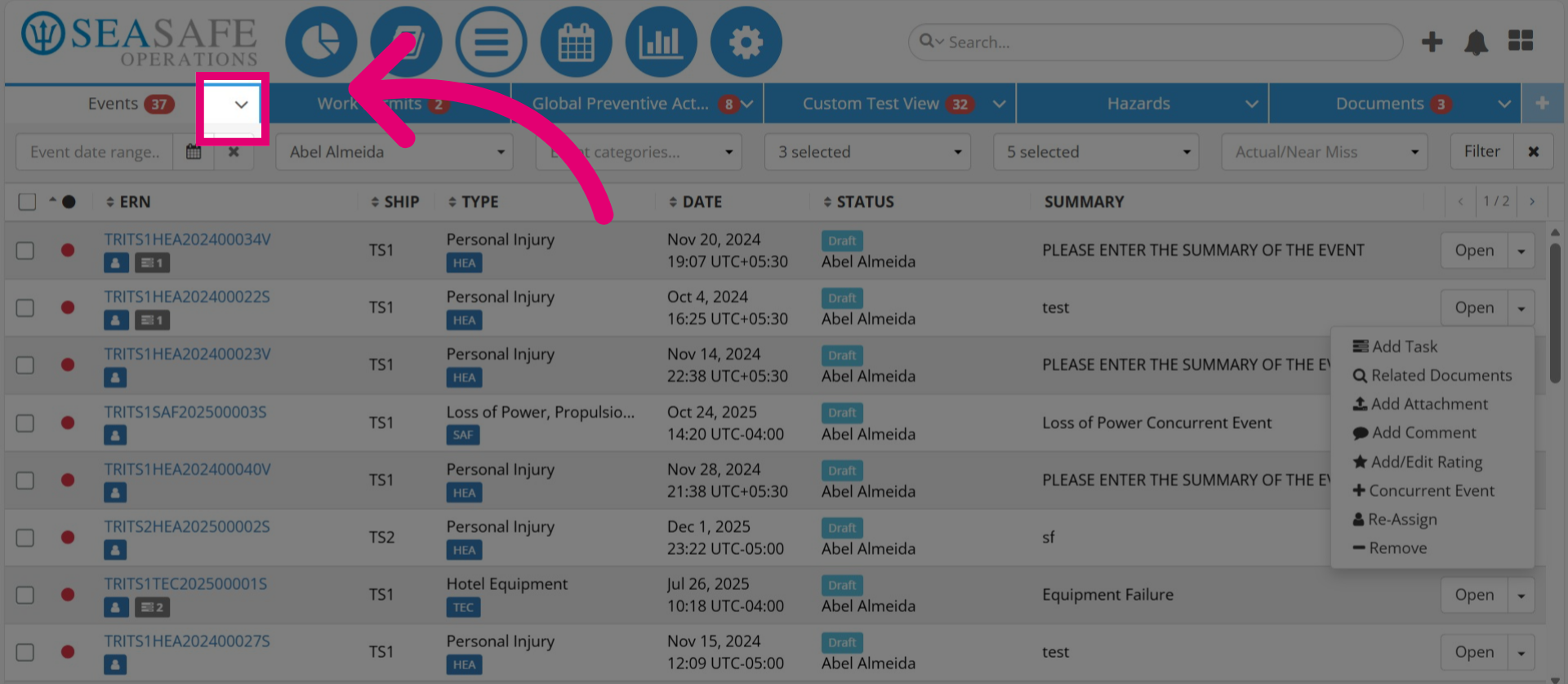
13. Select a Report Type
Here you can unpin the current tab which removes this dashboard tab or switch to replace it with another report tab view from the list. Or, "Create Custom View" to add another.
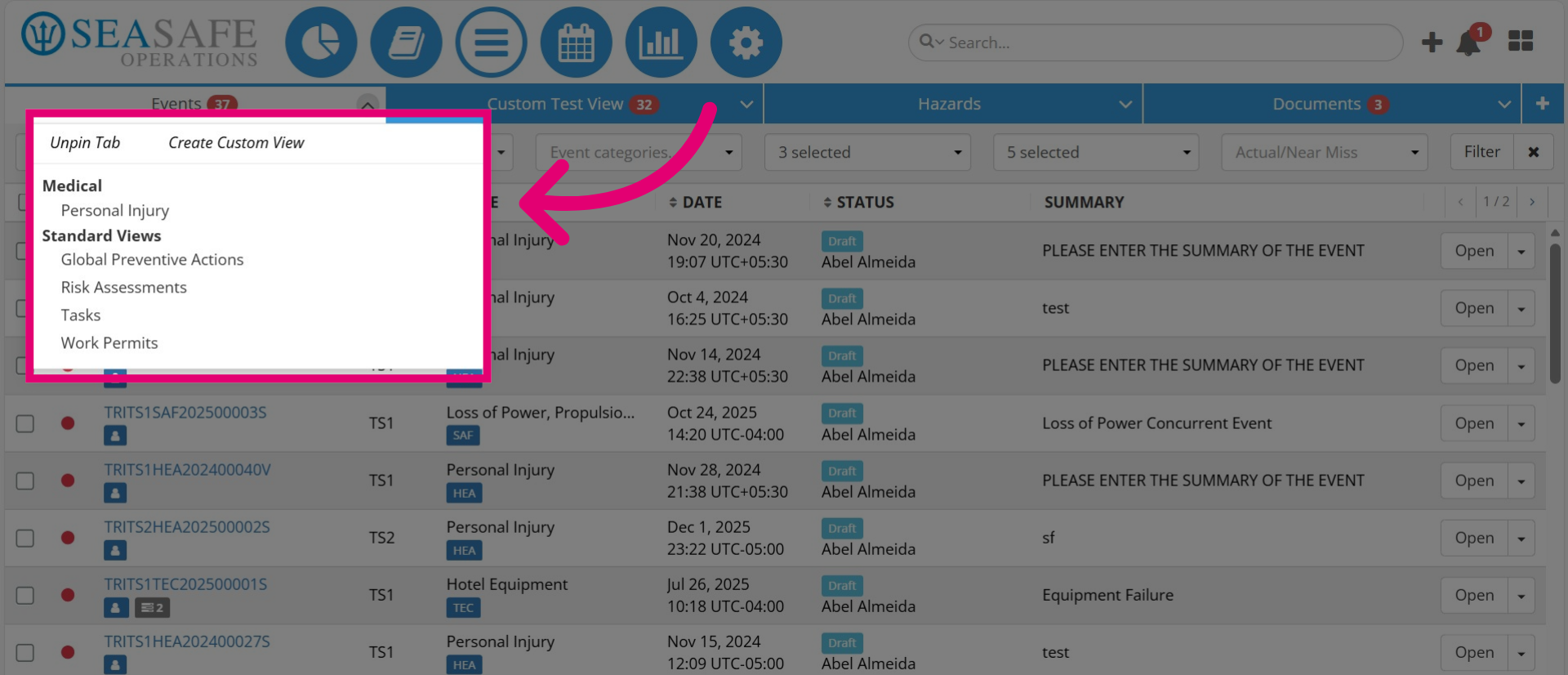
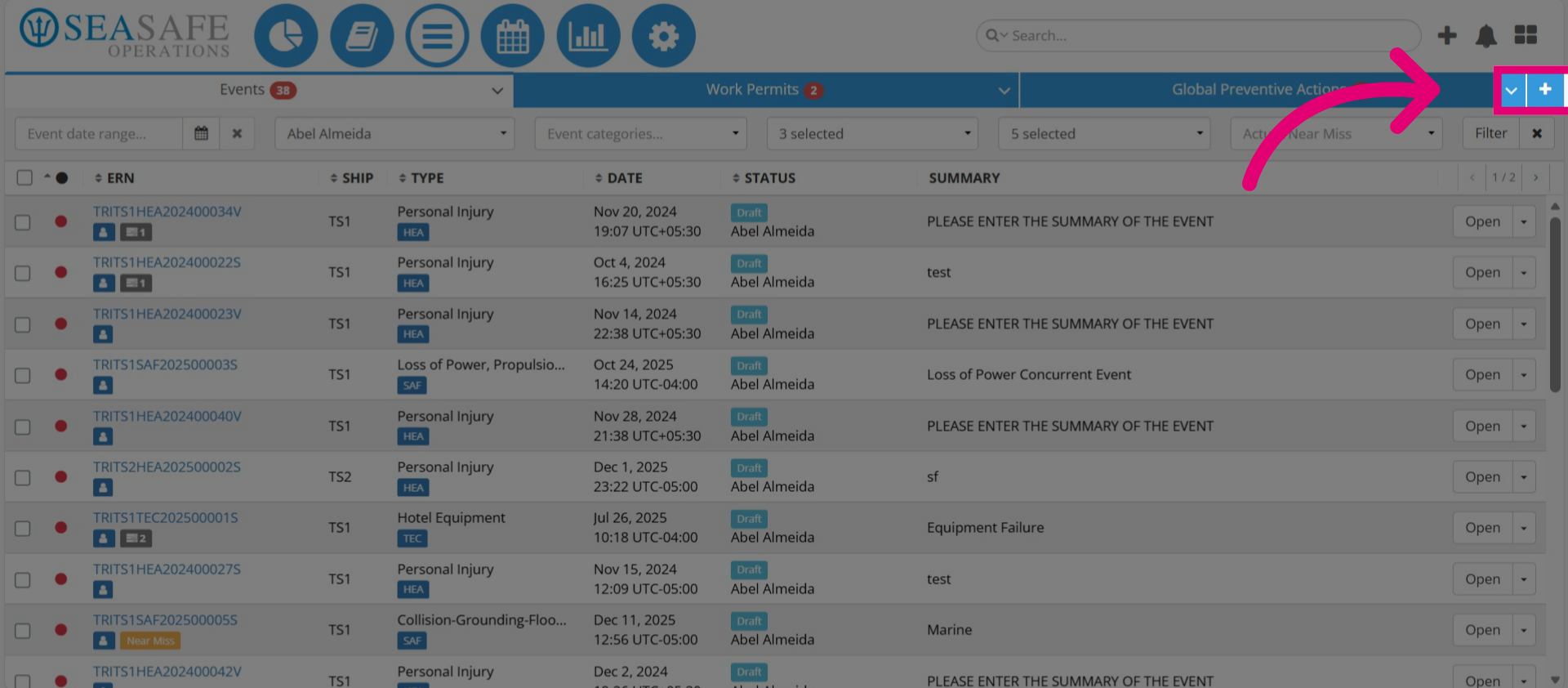
14. Select the plus sign to Add a New Tab
You can also select the plus sign here to add a new tab.
15. Create a Custom View
Then, select to "Create a Custom View"
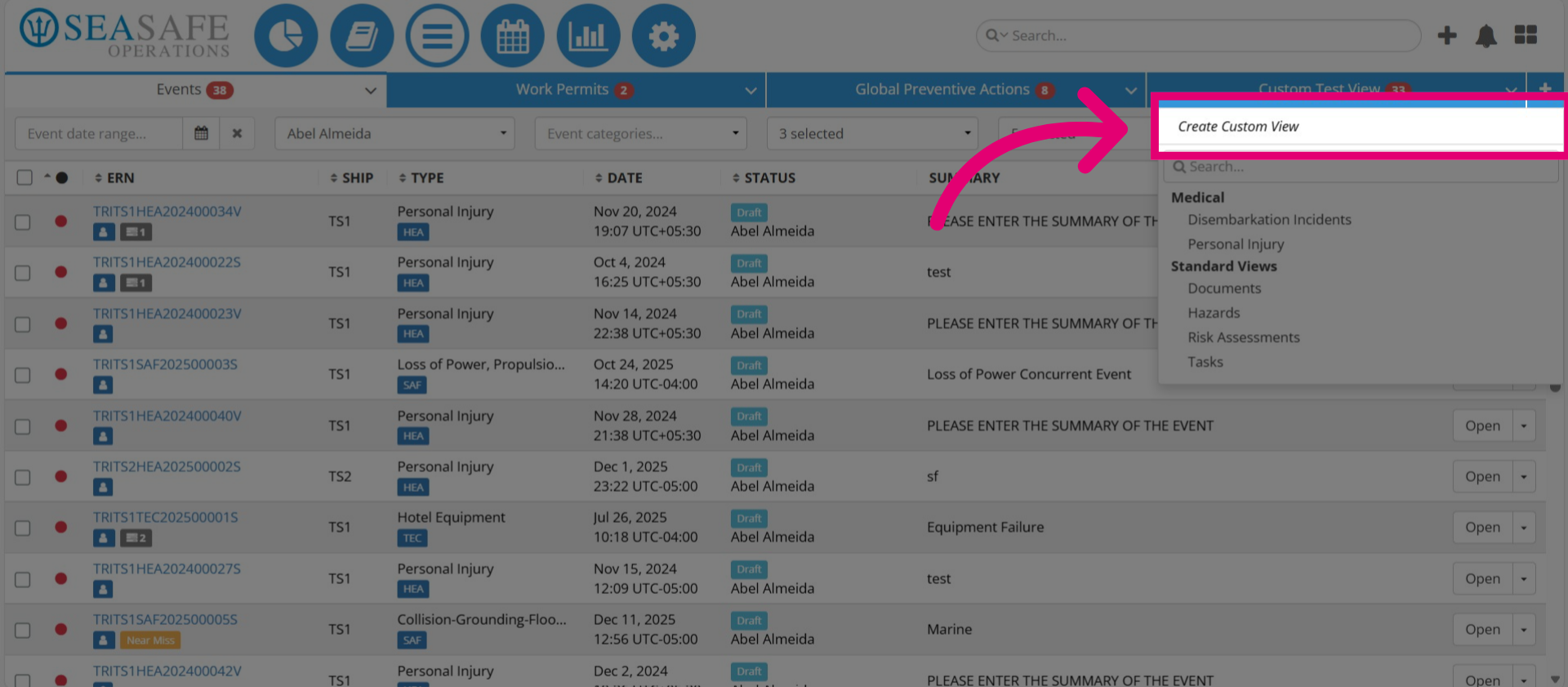
16. Open a Report via a Link
Or, click on the the existing tabs to open, for example "Work Permits" to access these reports.
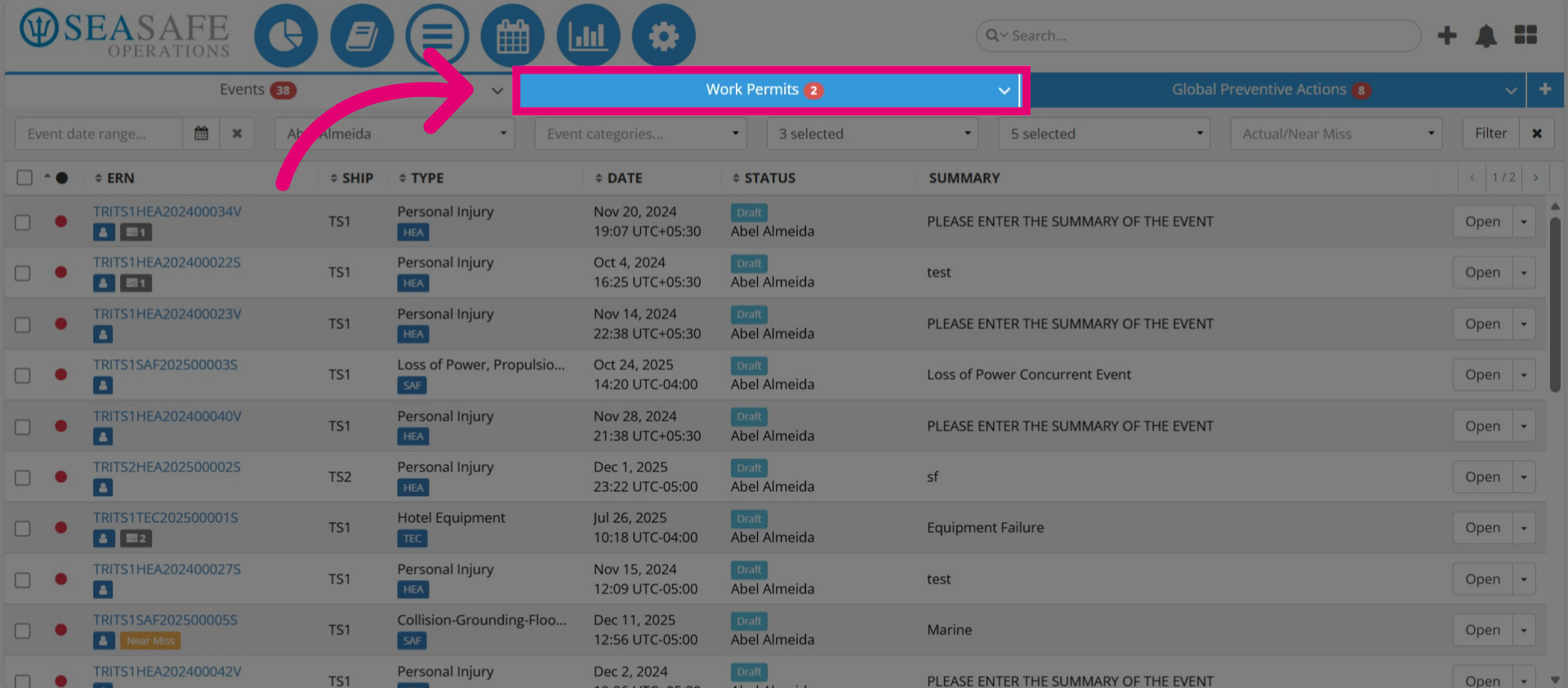
17. Manage Work Permits
Here, you can apply filters that differ from Event filters because these filters are based on the report type. Manag
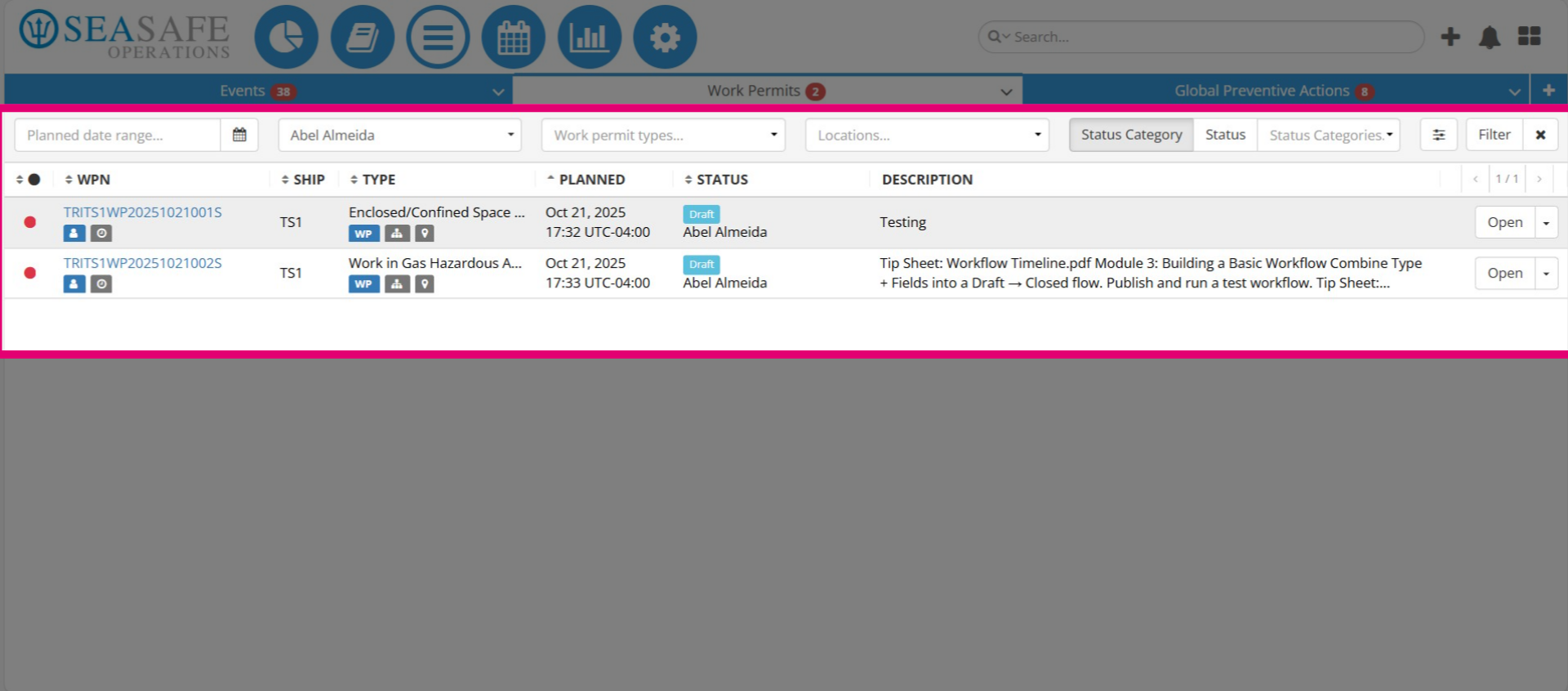
18. Complete Actions
Click the dropdown in the actions menu to manage tasks to: add tasks linked to the work permit, link associated documents, attach supporting files, reassign responsibility, reuse to duplicate the permit for similar work scenarios, or remove.
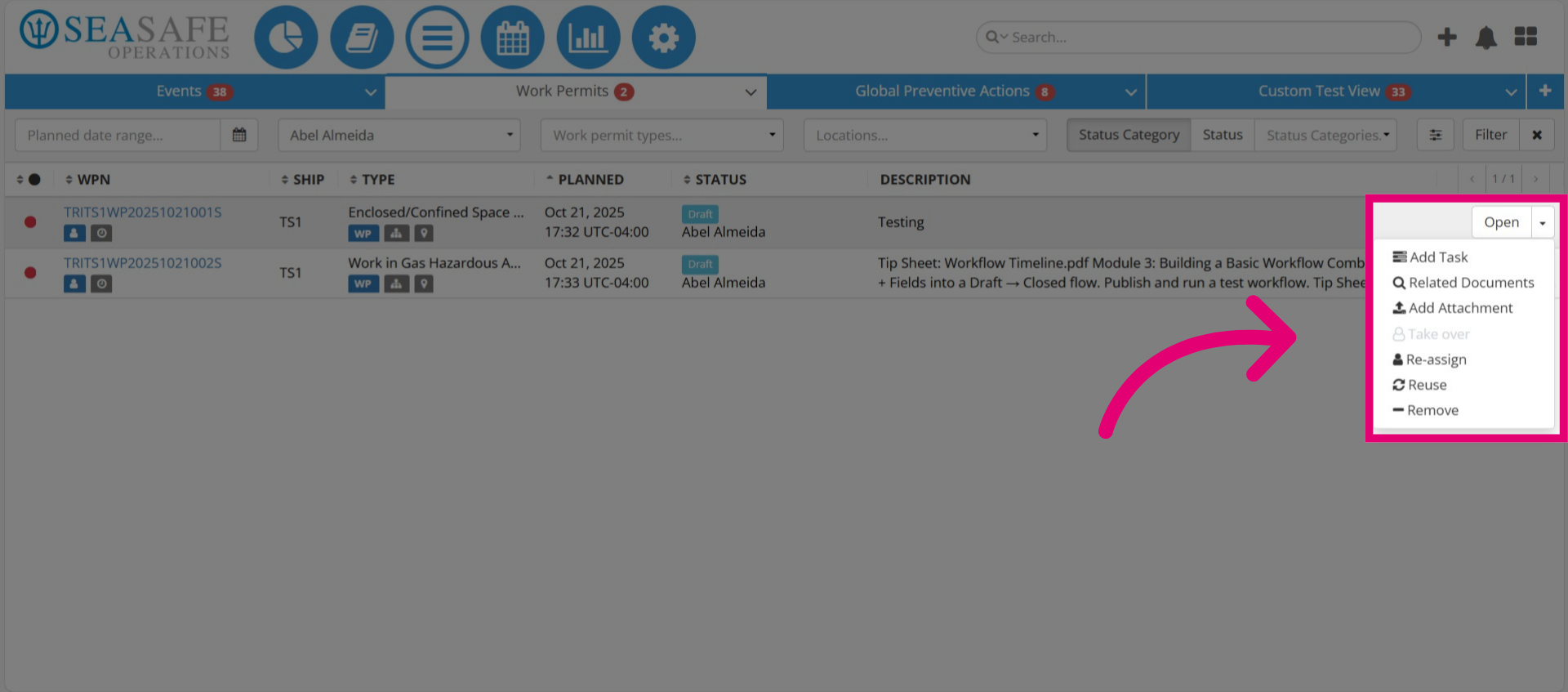
19. Open the Work Permit
Click to "Open" the work permit report from the actions menu or click on the report number.
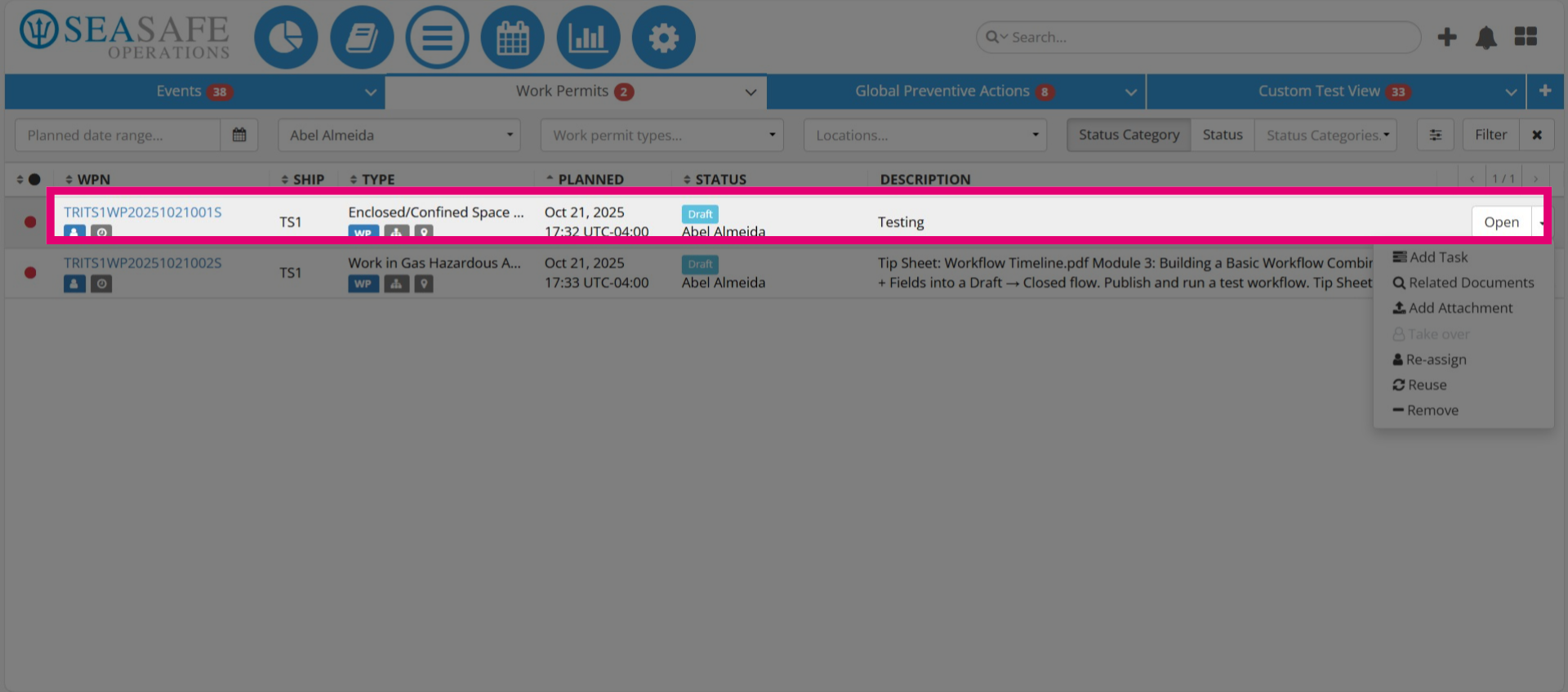
20. Open the Dashboard Module
Now, select the "Dashboard Module" to view custom dashboards.
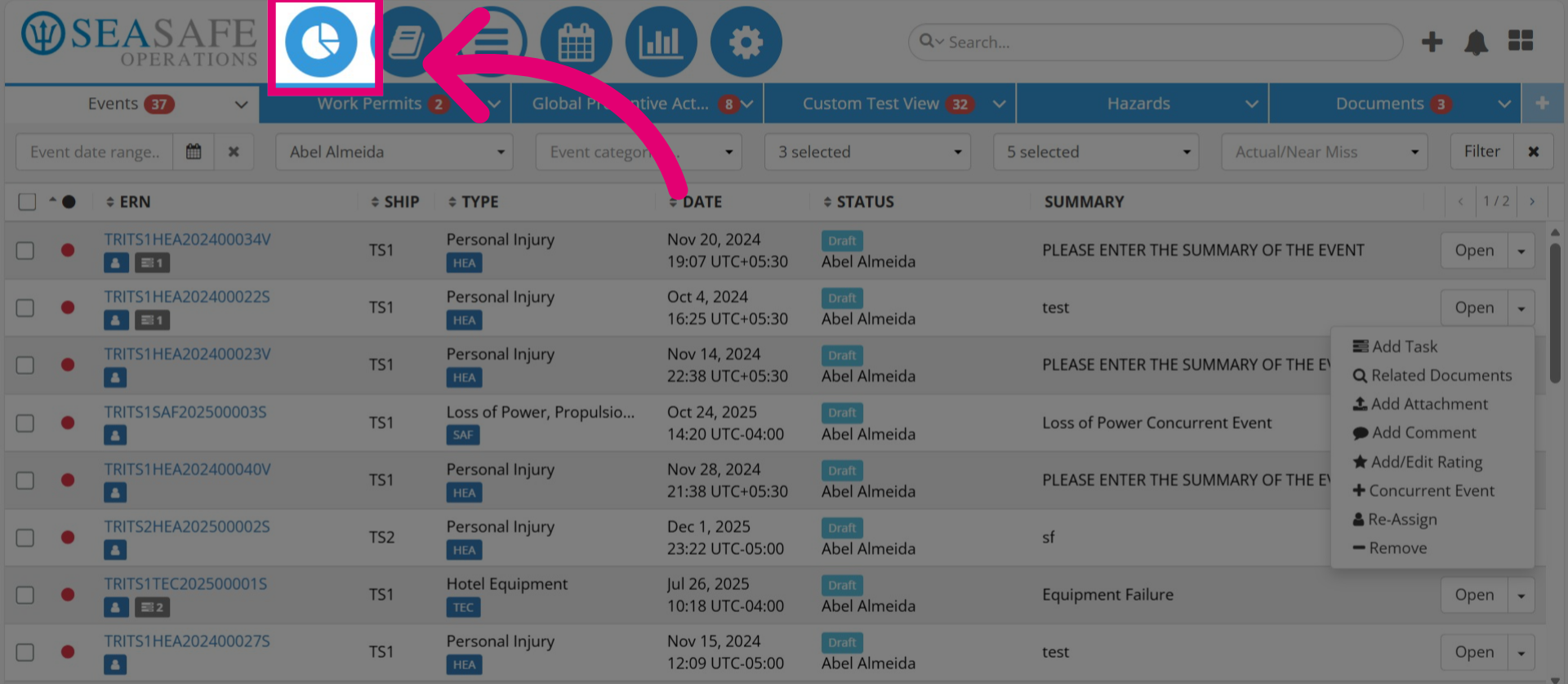
21. View Custom Dashboard
This section showcases charts from custom reports that illustrate trends and analytics, allowing you to analyze data across the brand or for specific ships. For example, one chart focuses on Personal Injury. To create a dashboard, start by generating a custom report, since they are custom built.
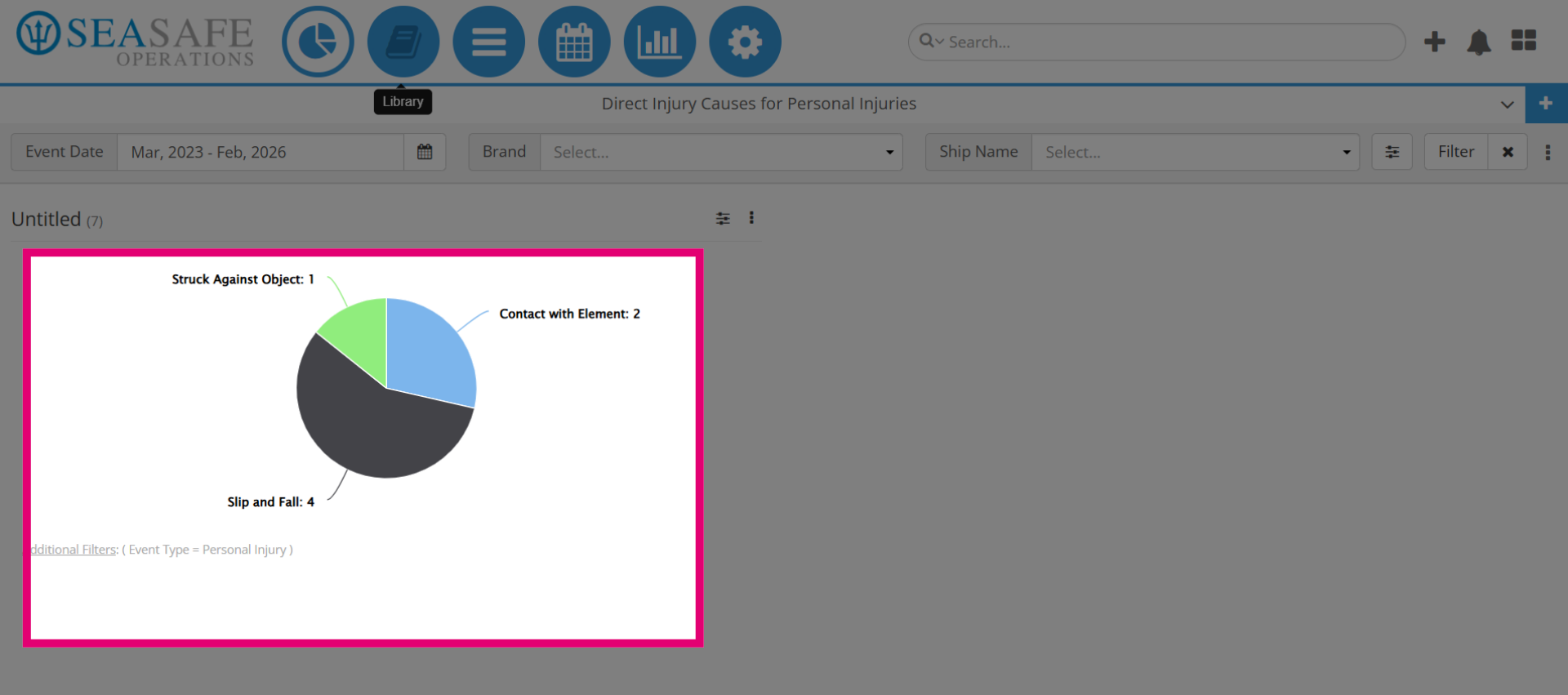
22. Fleet Data Insights
You have additional filter option to generate specific data on the chart by brand ship.
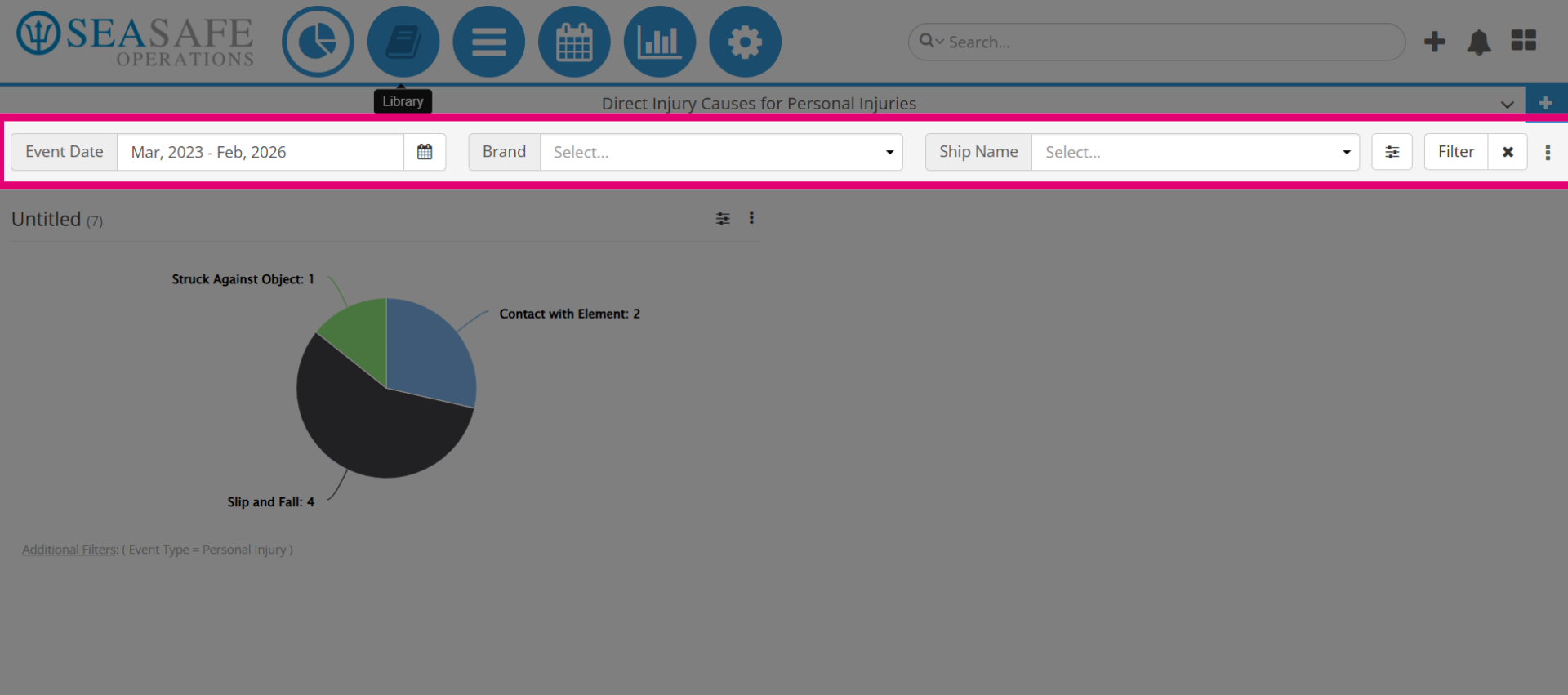
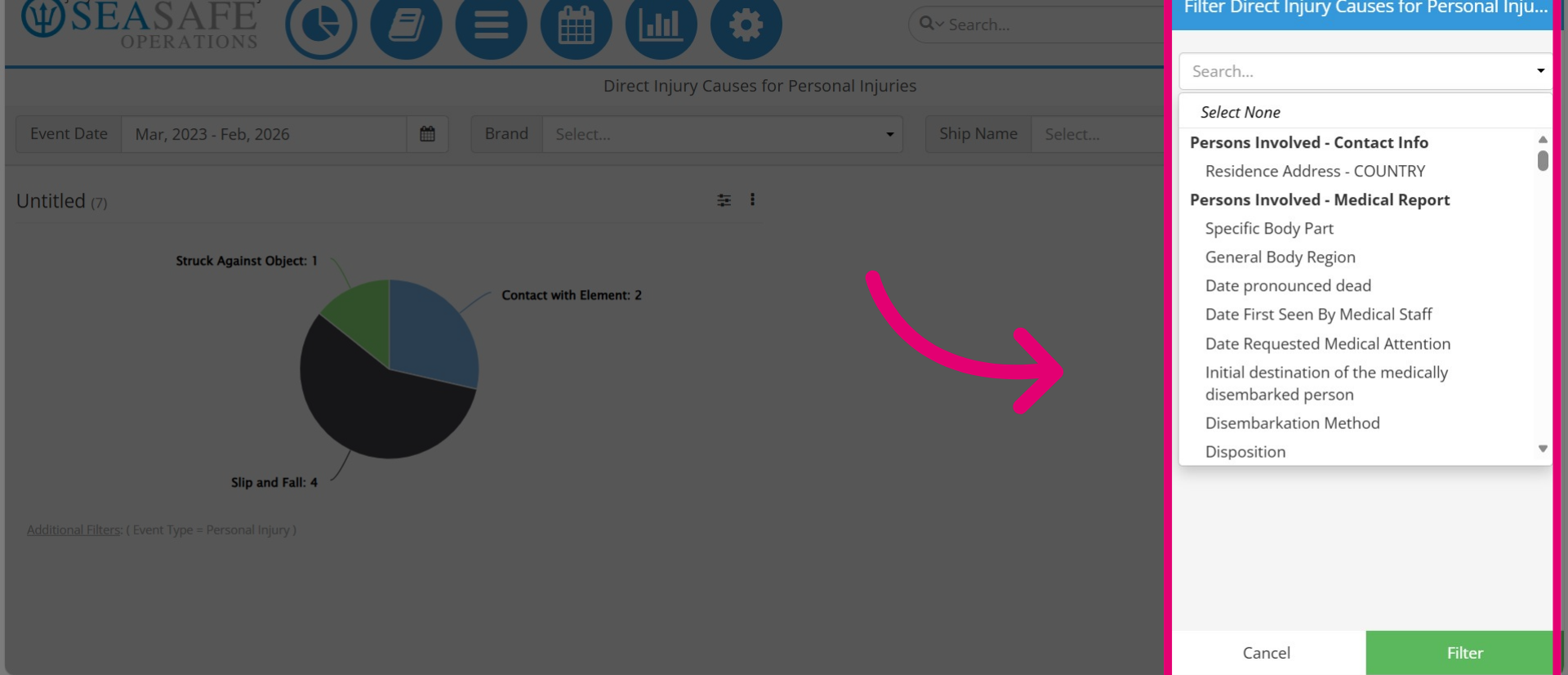
23. Choose Reporting Fields
Choose additional reporting fields for your chart and click "Filter" to apply.
24. Select the "Library Module"
Next, let's review the "Library Module".
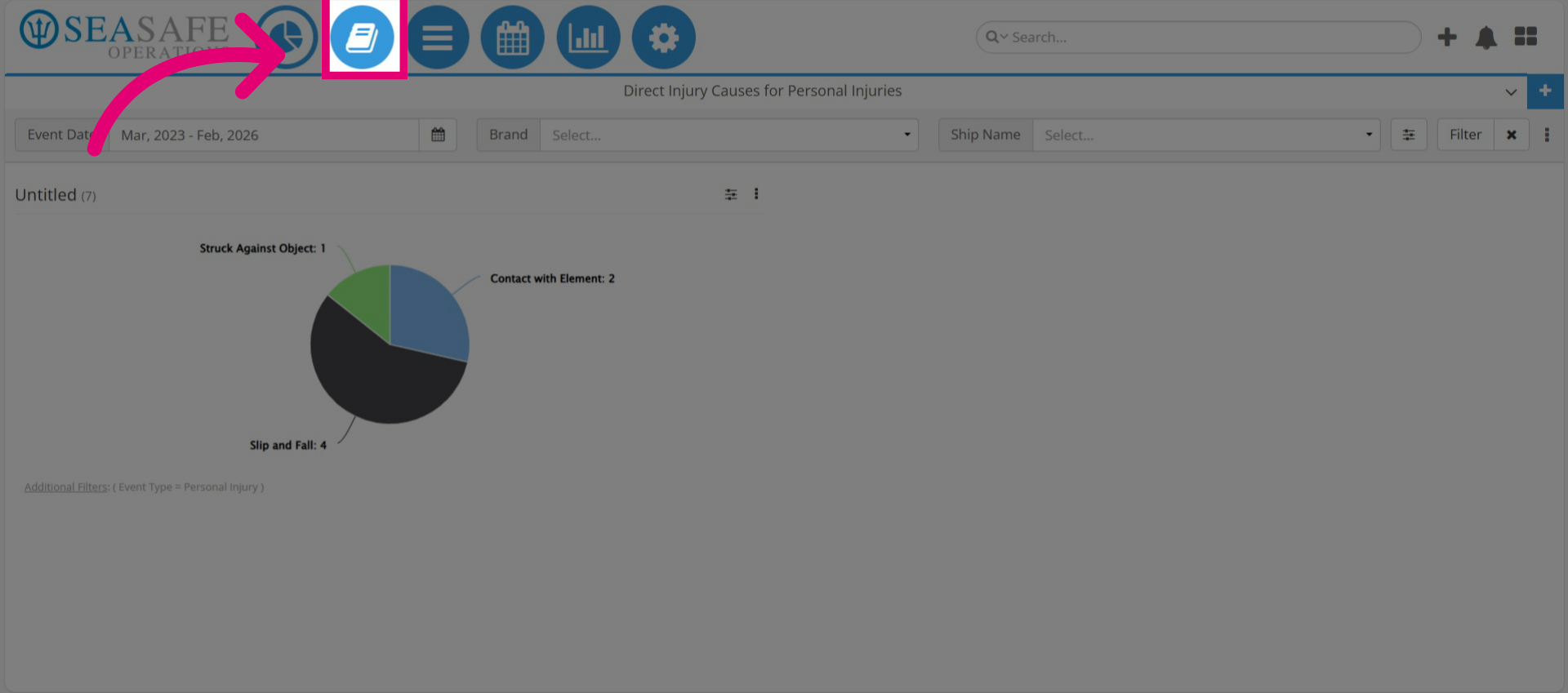
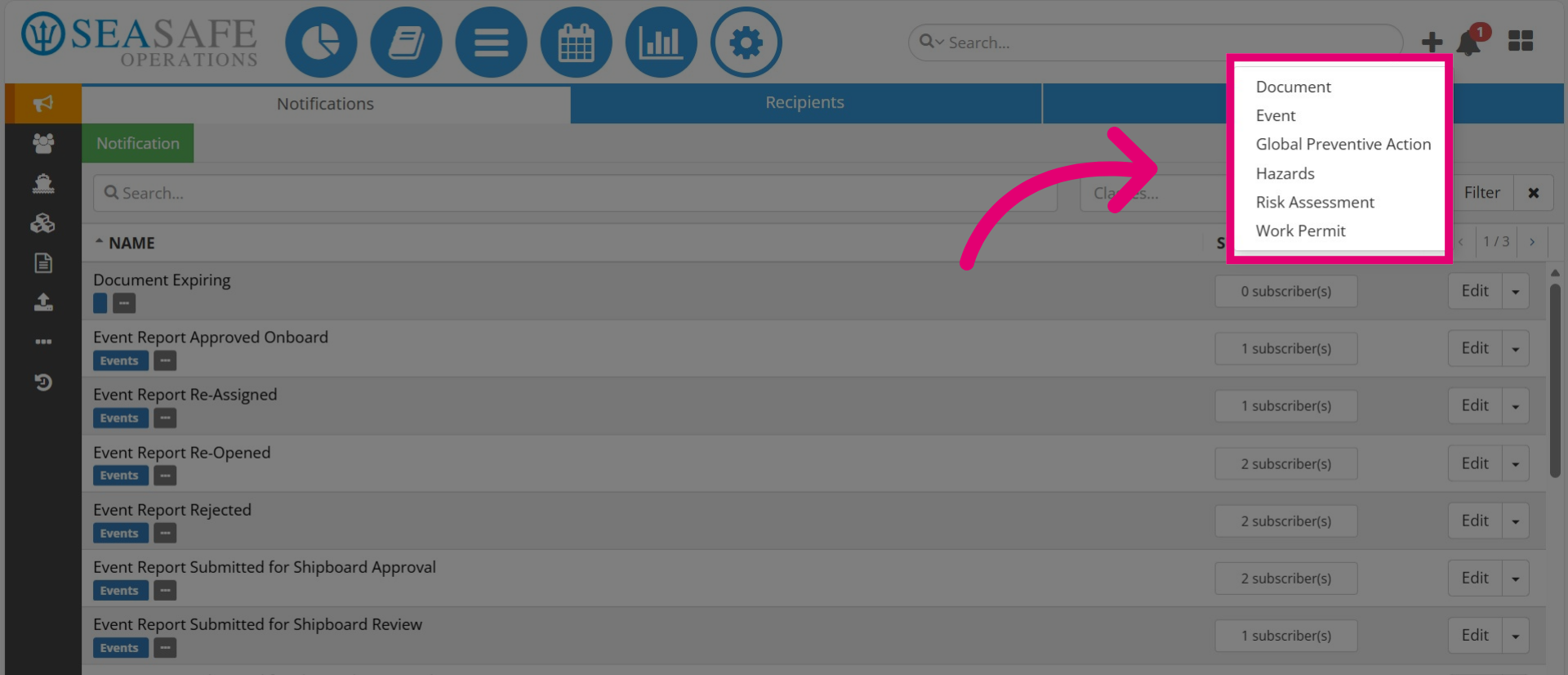
25. Library Module Overview
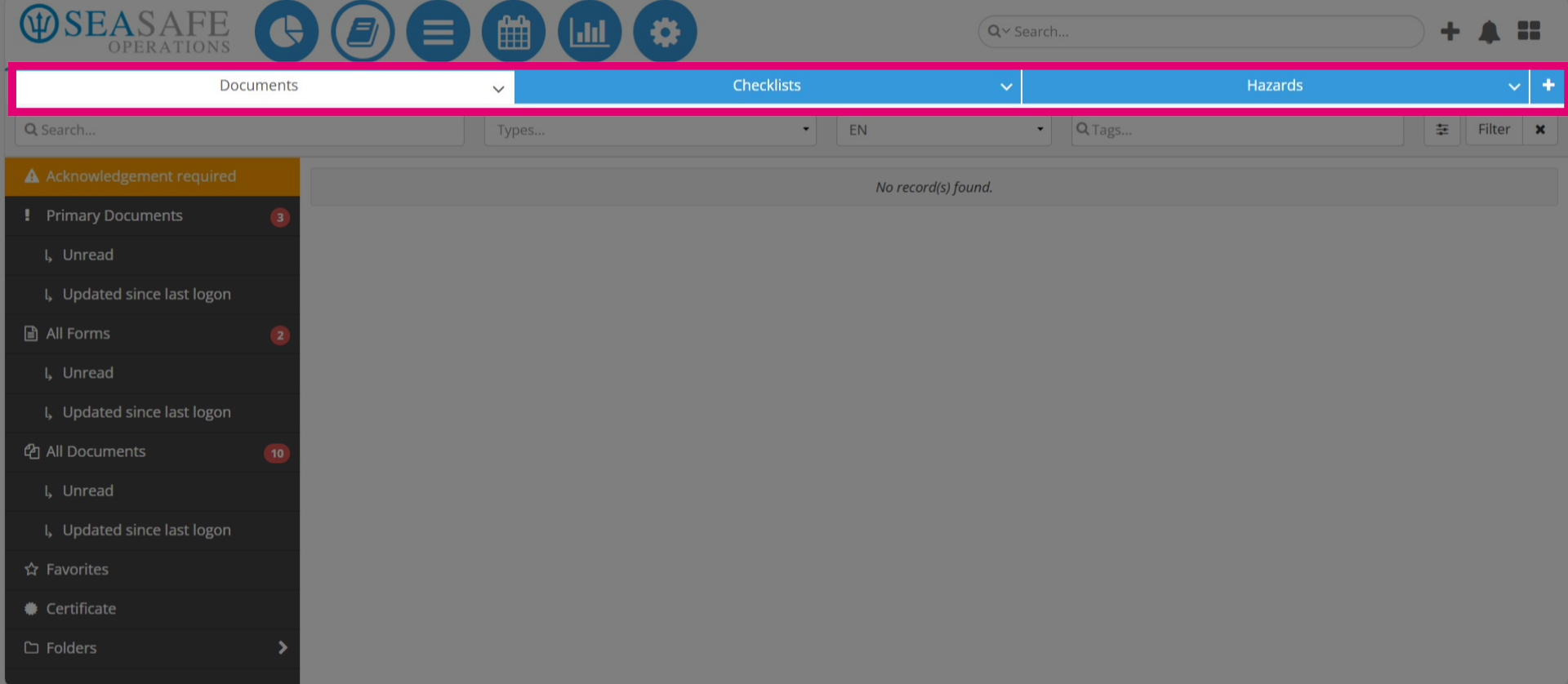
The "Library Module" is where users can manage essential safety documentation through three main tabs: Documents, Checklists, and Hazards.
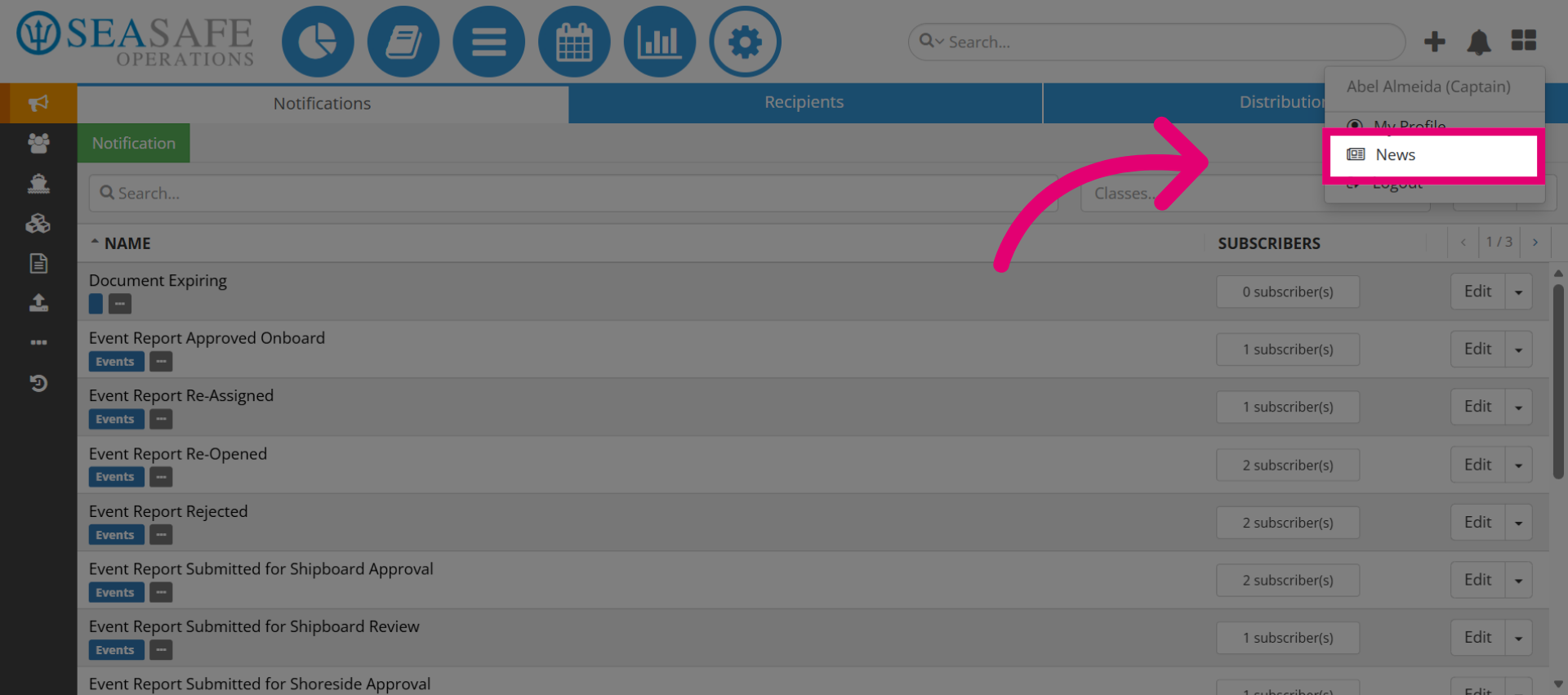
26. Manage Document Tabs View
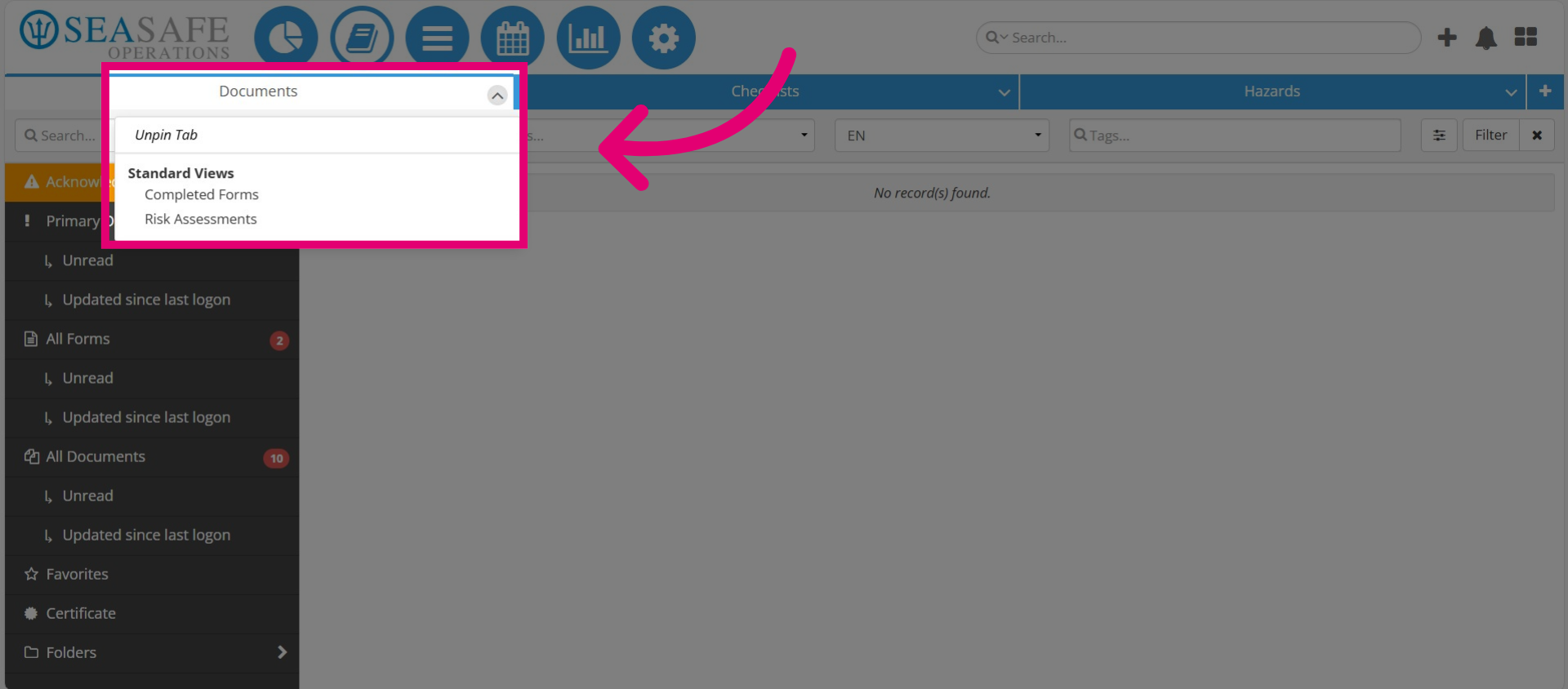
Click the dropdown arrow next to any tab in the "Library Module" to unpin the current tab or replace it with another document-related view, such as "Completed Forms" or "Risk Assessments", creating a custom view for easier navigation
27. Document Acknowledgements
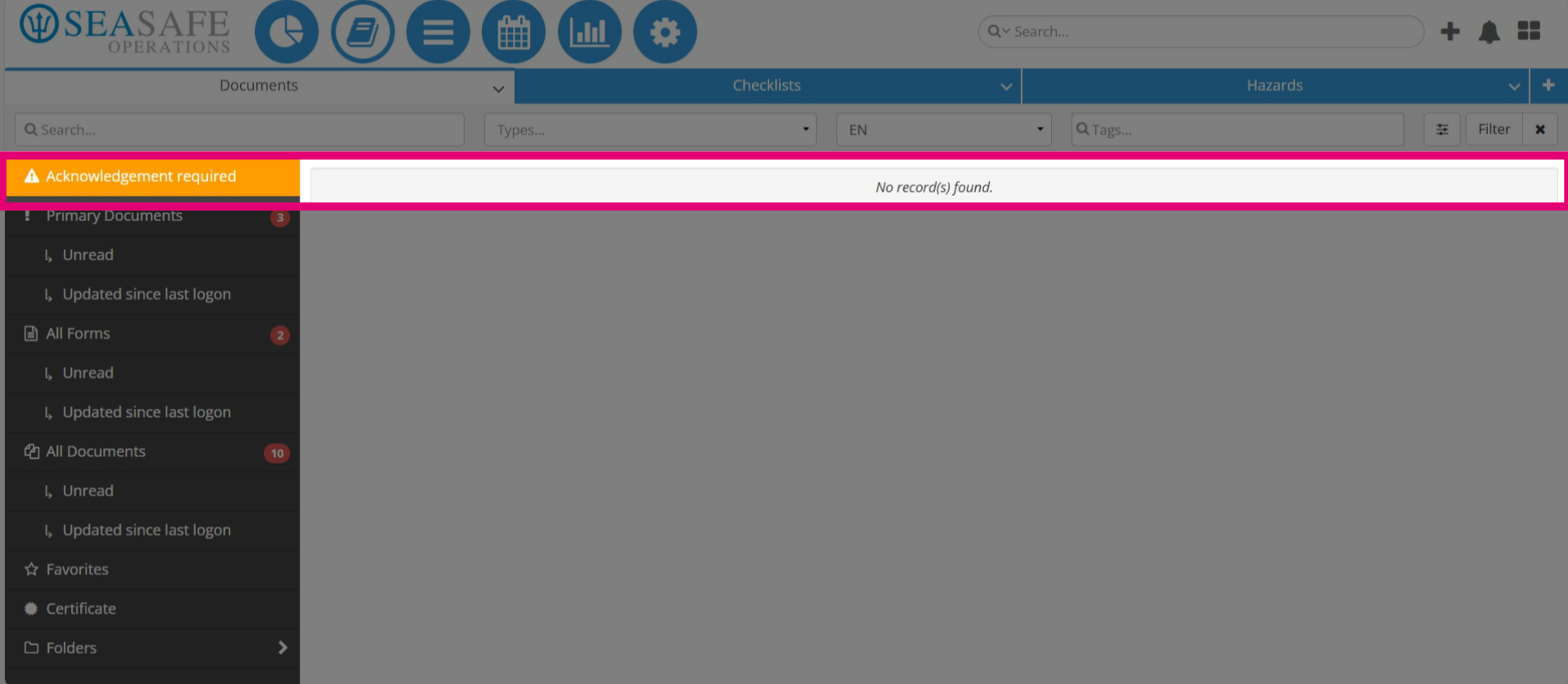
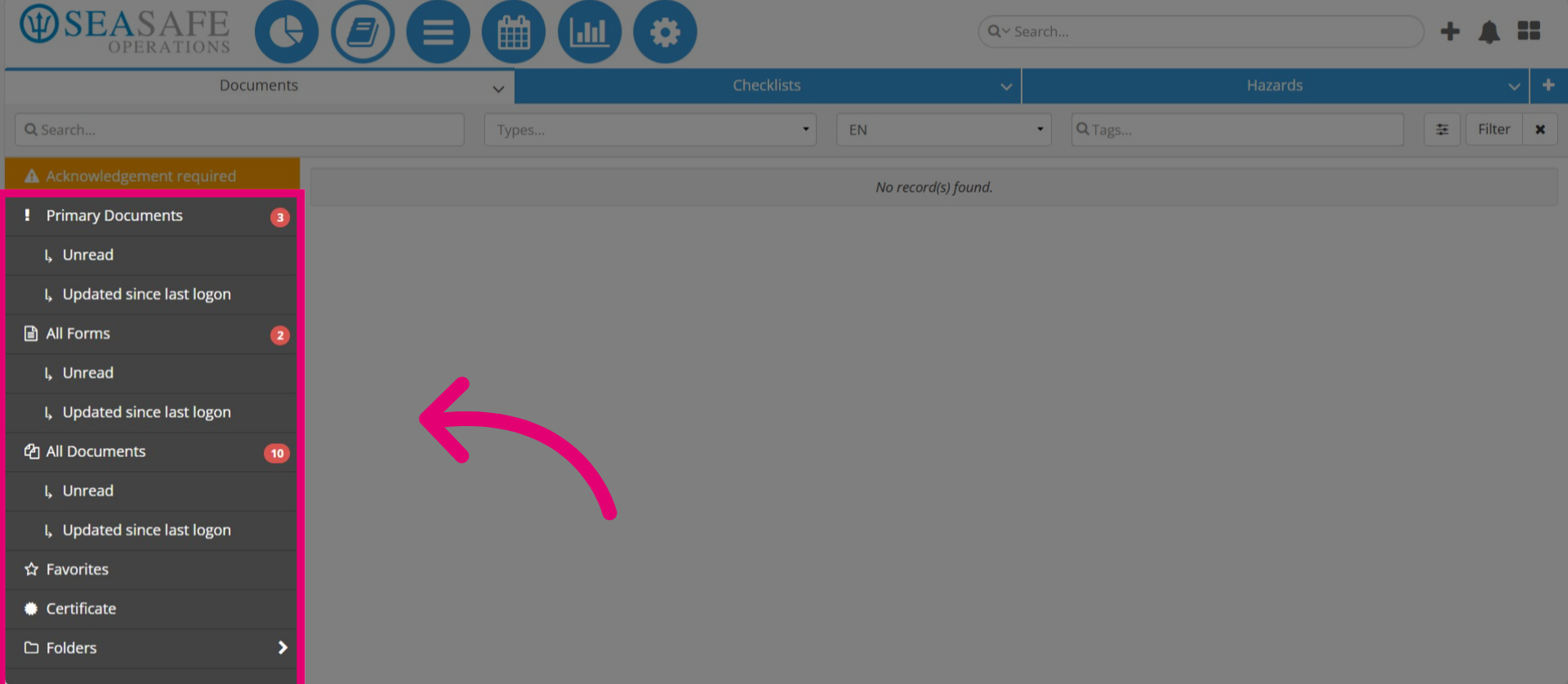
The "Documents" tab menu displays all document categories and status indicators for easy navigation. At the top, you’ll see "Acknowledgement Required", which highlights documents needing user confirmation. The "No Record(s) Found" means there are no documents to acknowledge.
28. Documents Tab Menu
The menu below it includes "Primary Documents", "All Forms", and "All Documents" with unread counts and updates. Additional options are "Favorites", and "Certificates" for compliance-related documents, like training certifications, and other safety records. Then, "Folders" to provide quick access to frequently used files.
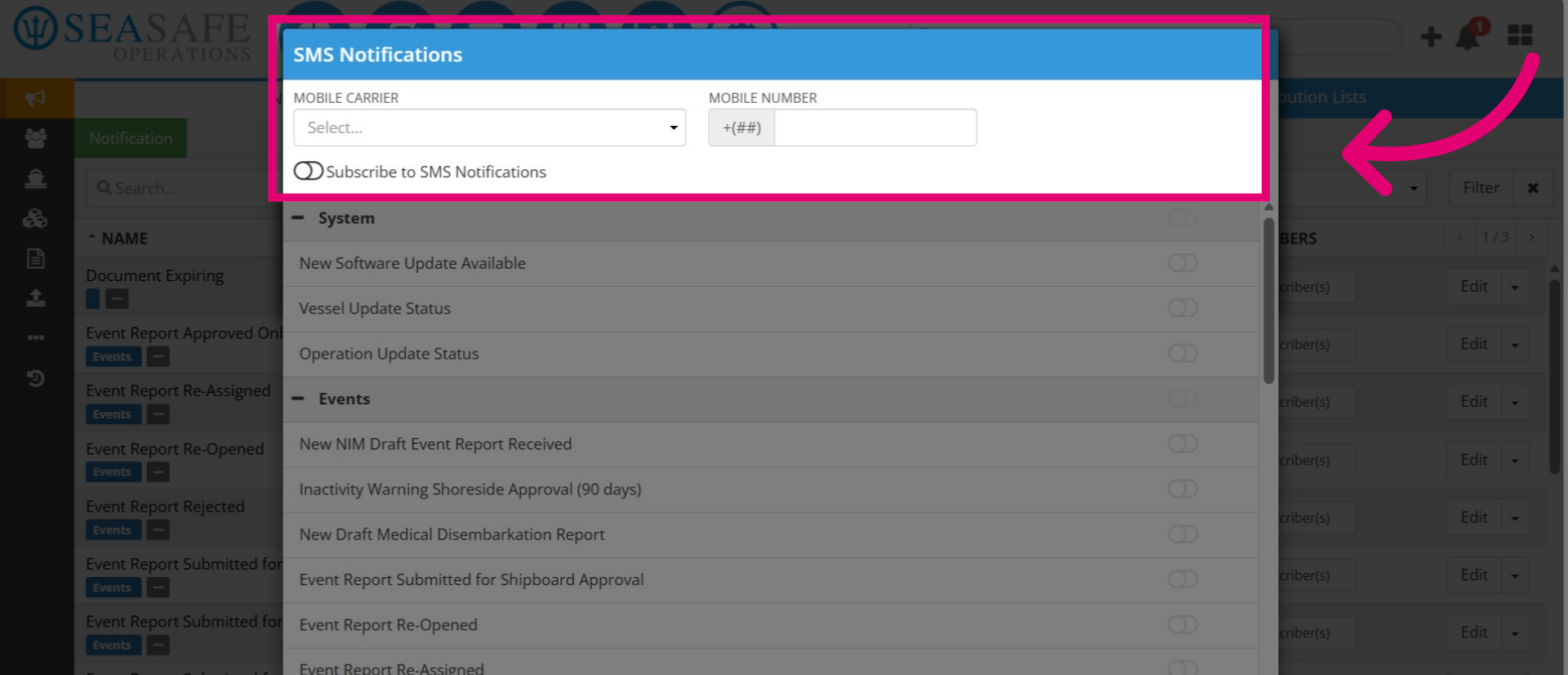
29. View Primary Documents
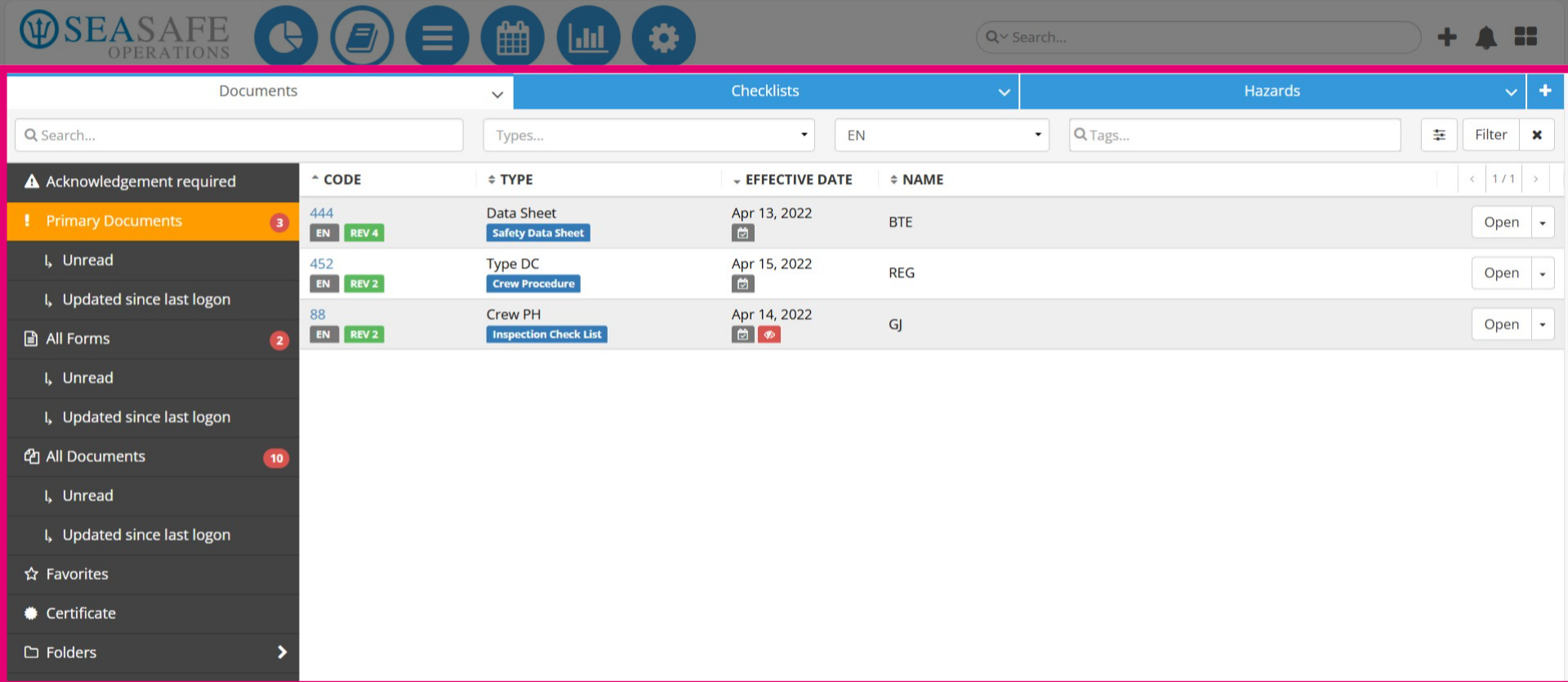
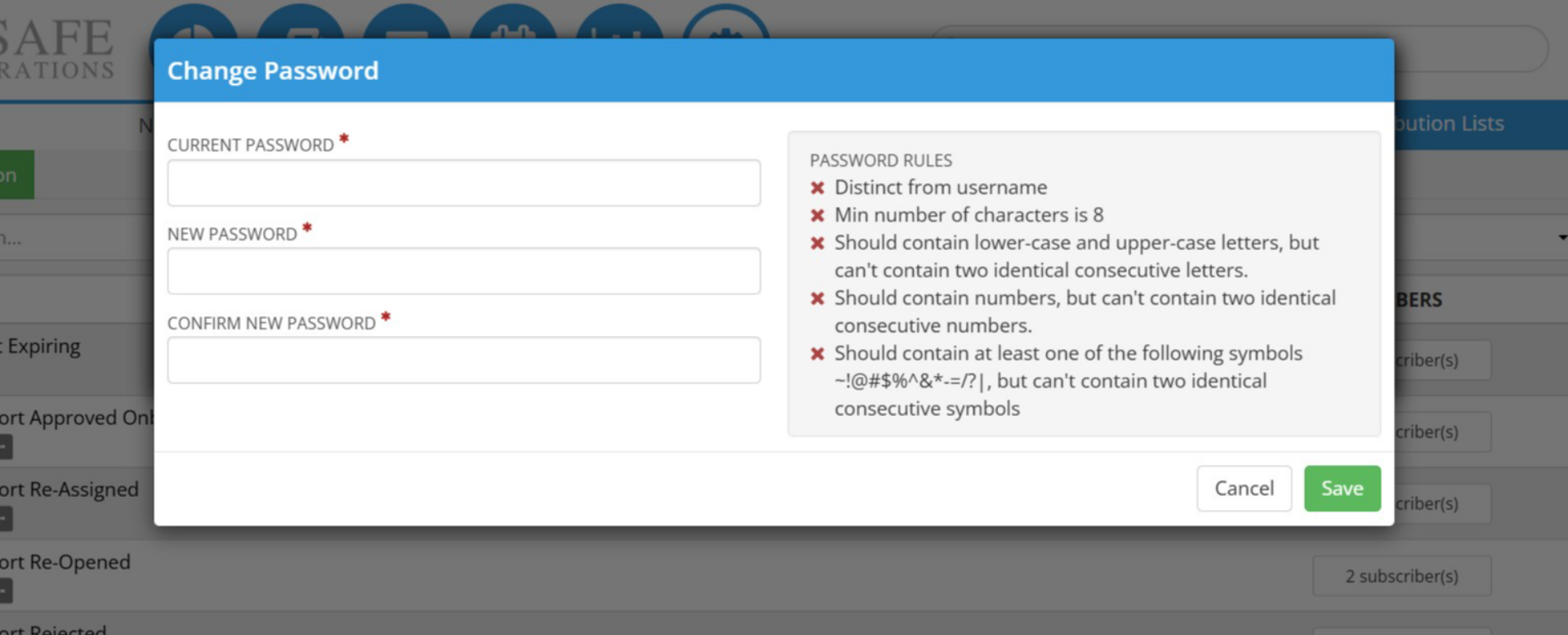
Select "Primary Documents" to view this section. This section contains critical documents store through here and used in workflows, forms, and news.
30. Open Menu Options
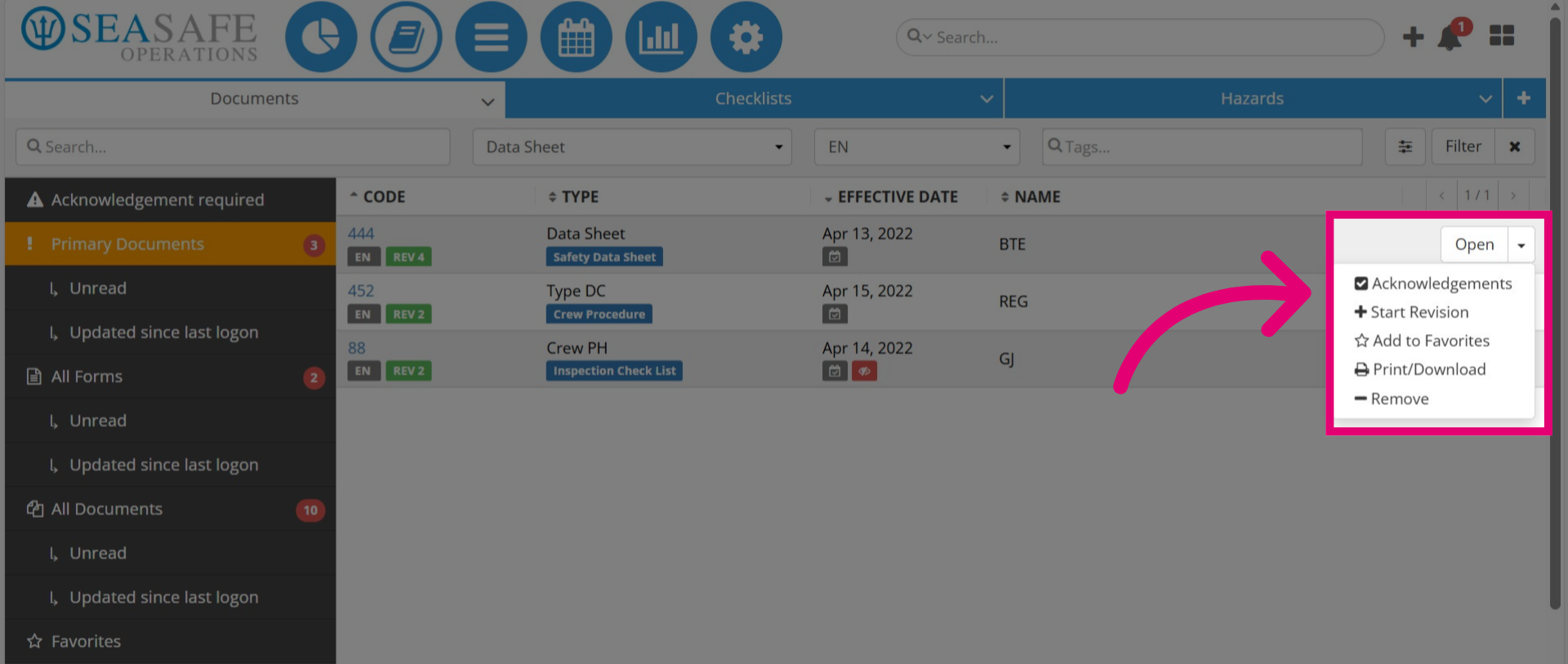
Then, click the dropdown next to "Open" for document options: Acknowledgements confirms review, Start Revision creates a new version, Add to Favorites saves for quick access, Print/Download lets you print or download, and Remove deletes it from view.
31. "Checklists" tab
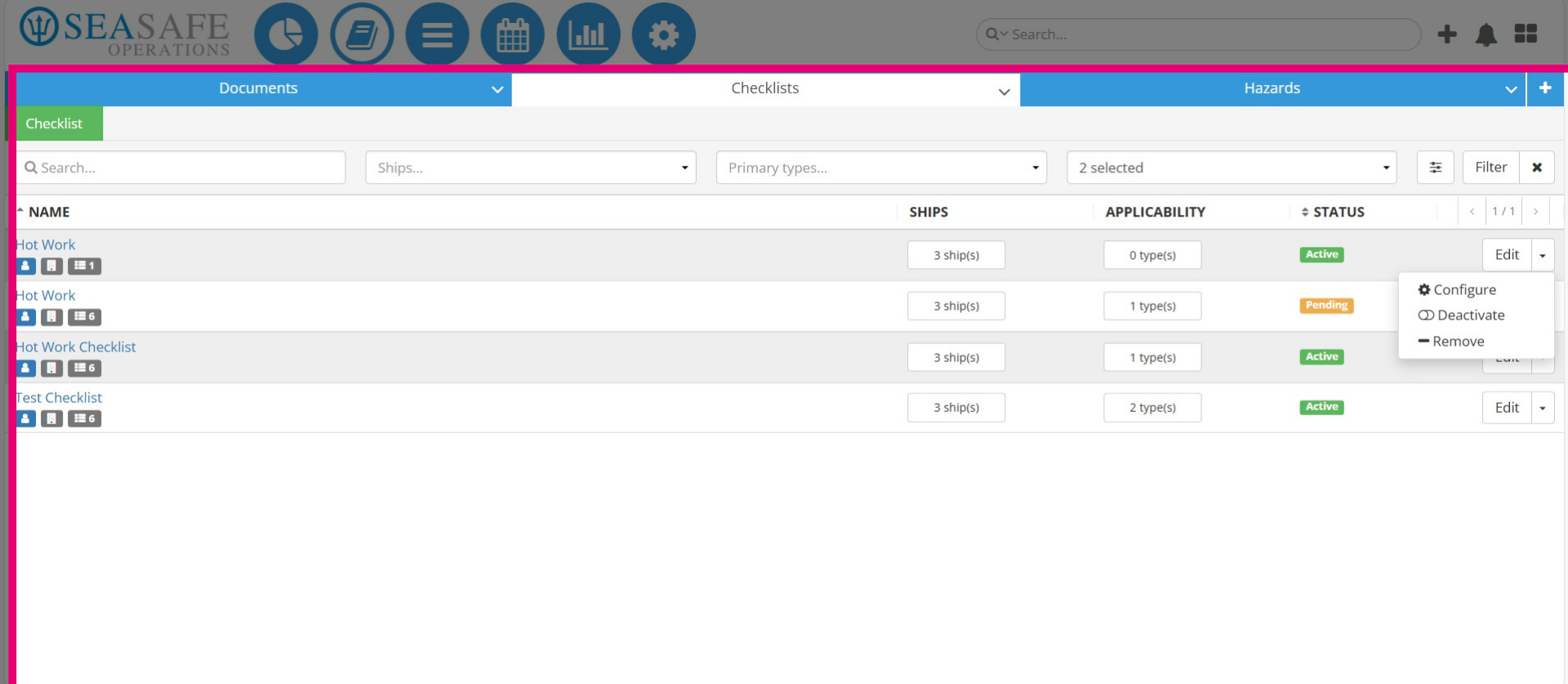
The "Checklists" tab lists all available checklists along with their status indicators, such as Active or Pending. Click the dropdown arrow next to Edit to open the Actions menu, where you can Configure checklist settings, Deactivate a checklist to make it inactive, or Remove it entirely from the view.
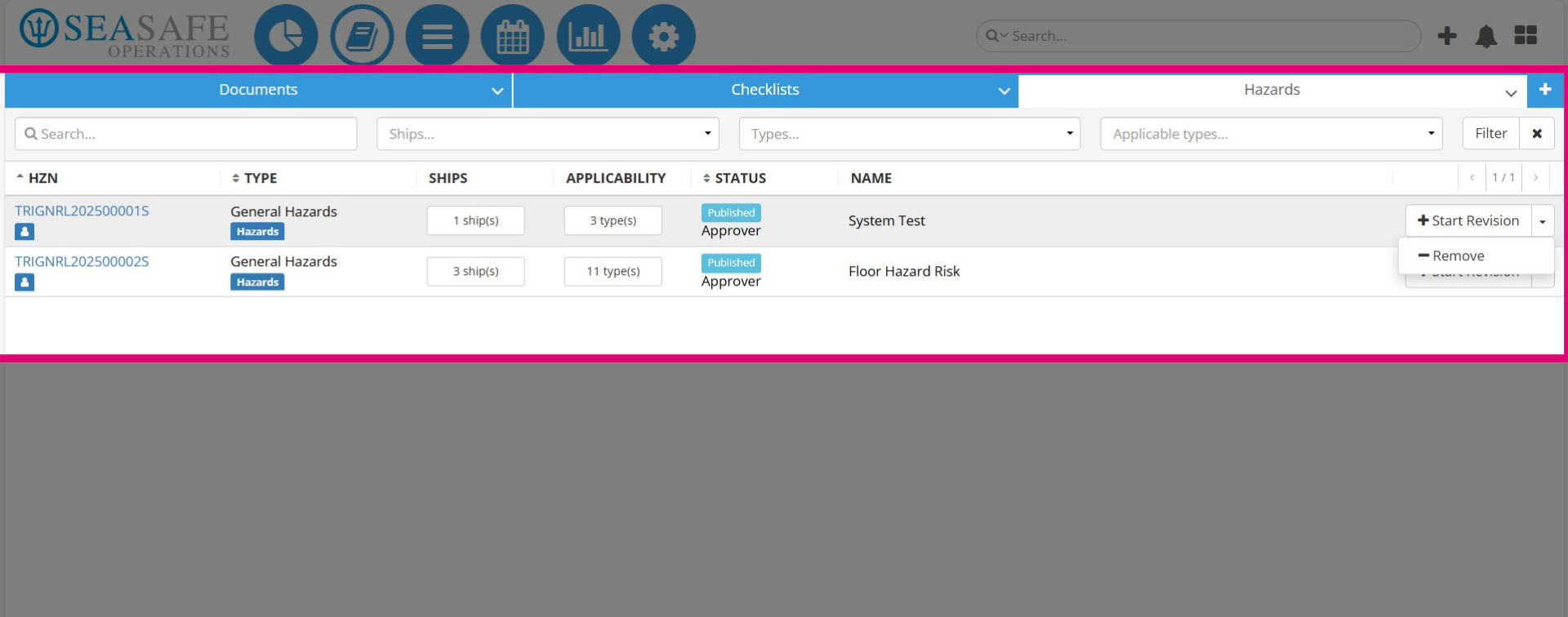
32. "Hazards" documents tab
The "Hazards" tab is designed to store and manage hazard-related documents that identify potential risks within operations. These documents include details such as hazard type, applicability to ships, and control measures, helping ensure compliance and proactive risk management. To manage a hazard record, click the dropdown arrow next to "Edit" to open the "Actions" menu, where you can "Configure" hazard settings, "Deactivate" a hazard to make it inactive, or "Remove" it entirely from the view.
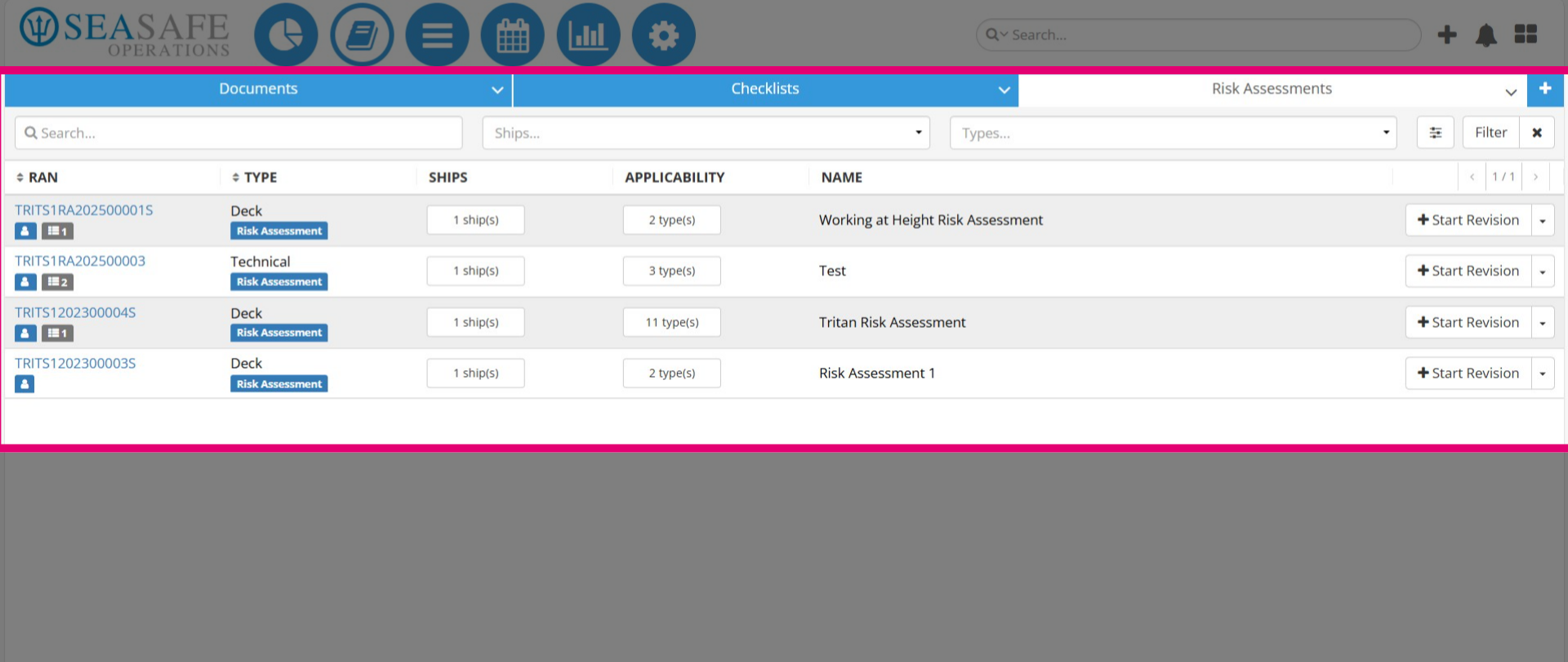
33. "Risk Assessment" tab
The "Risk Assessments" tab displays all risk assessment records, including their type, applicable ships, and applicability details. To manage a record, click the dropdown arrow next to "Start Revision" to either create a new version of the risk assessment or select "Remove" to delete it from the current view.
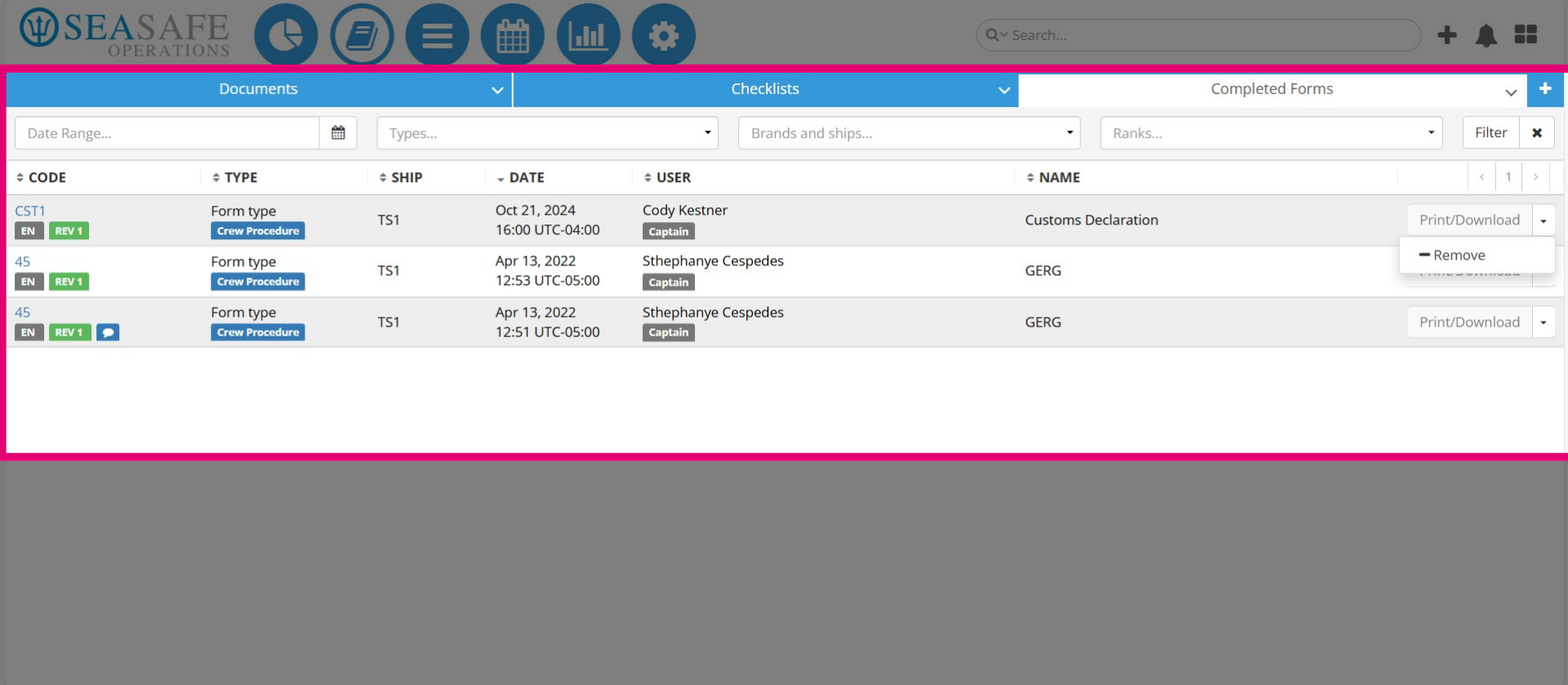
34. "Completed Forms" tab
The "Completed Forms" tab provides access to all finalized forms for review and reference. From the "Actions" menu, users can "Start Revision" to update a form or "Remove" it if it is no longer needed, ensuring that only relevant and current forms remain in the system.
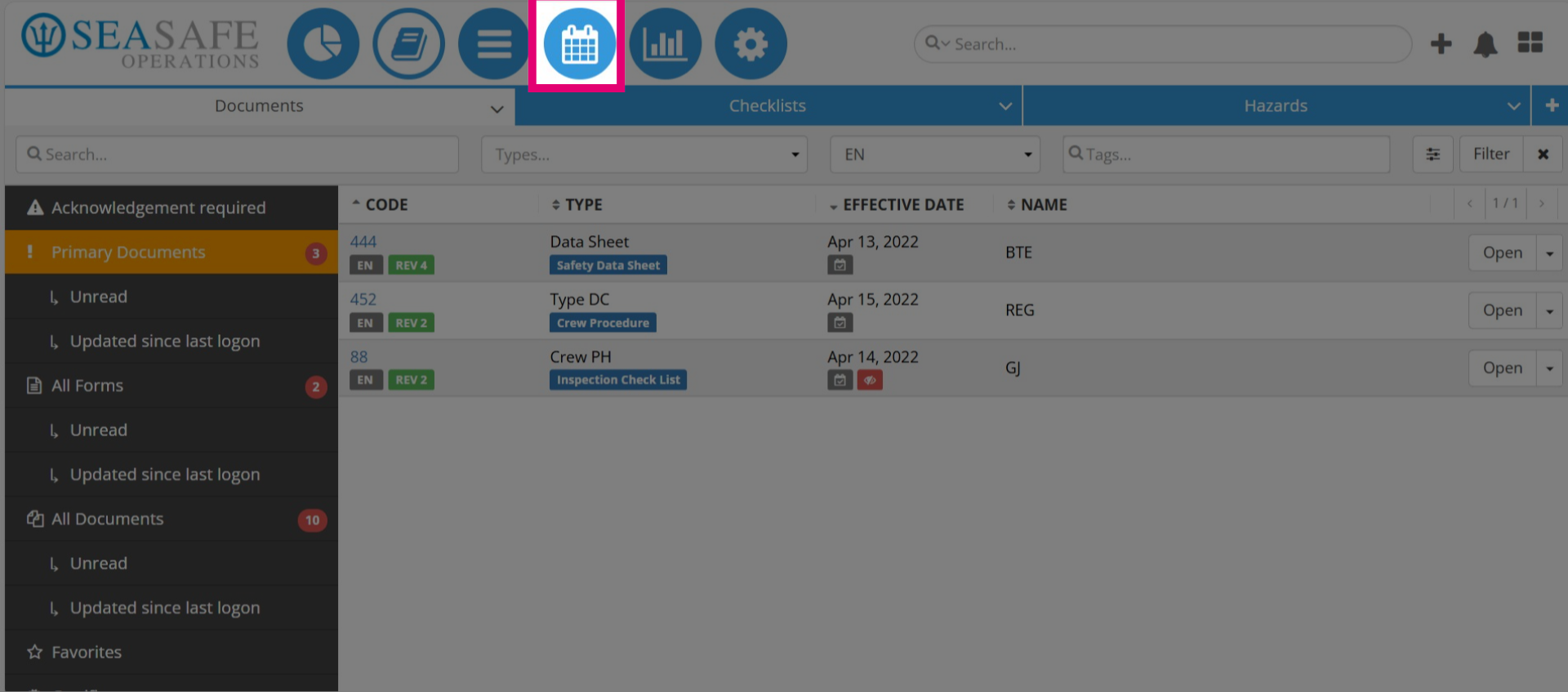
35. Select the Calendar Module
Next, let's go to the "Calendar Module".
36. View all Tasks
Here, you can view all "Tasks" assigned to you on the calendar. You can use the "Filter" to sort them by "Day", "Week", or "Month".
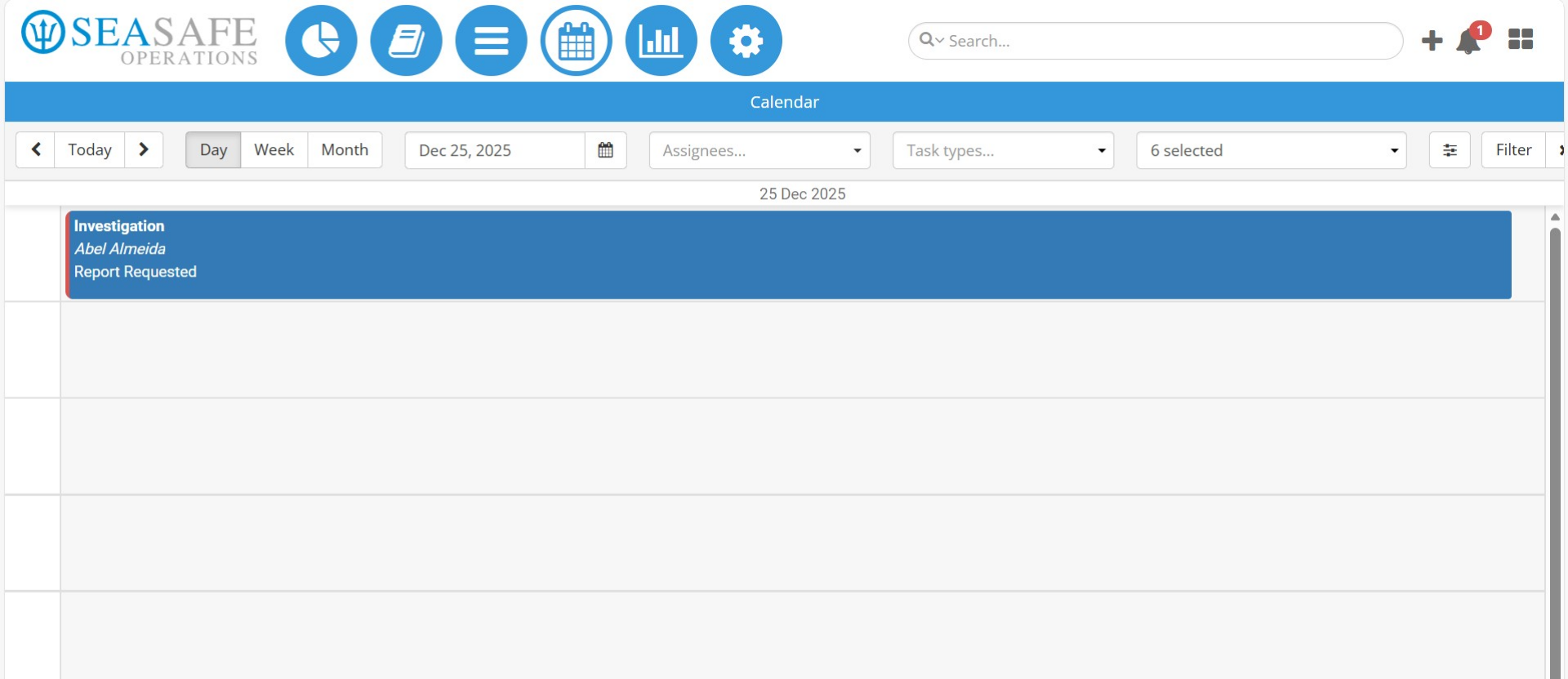
37. Manage Tasks using Filters
Also, you can view all tasks assigned to you on the calendar. You can use the filter to sort them by day, week, month, the assignee, task type and status such as pending completed, rejected.
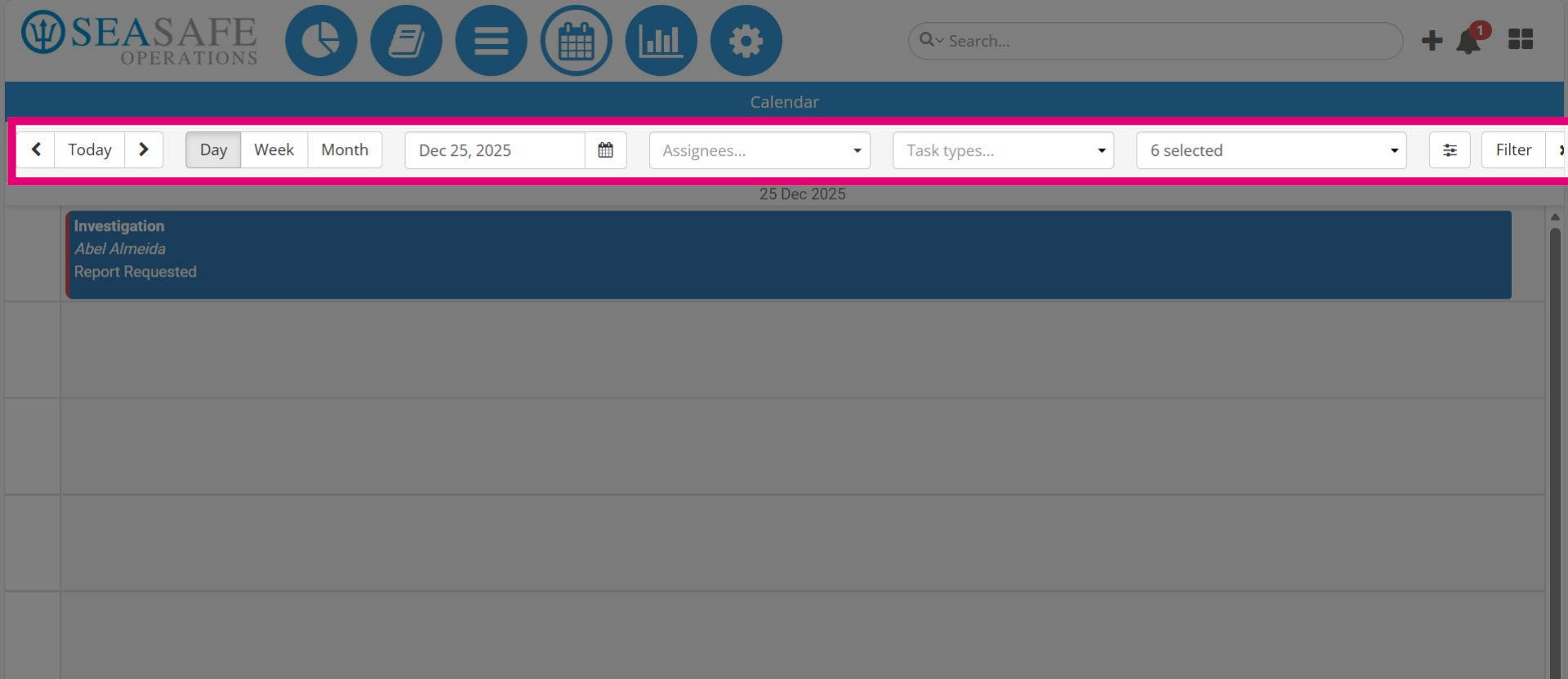
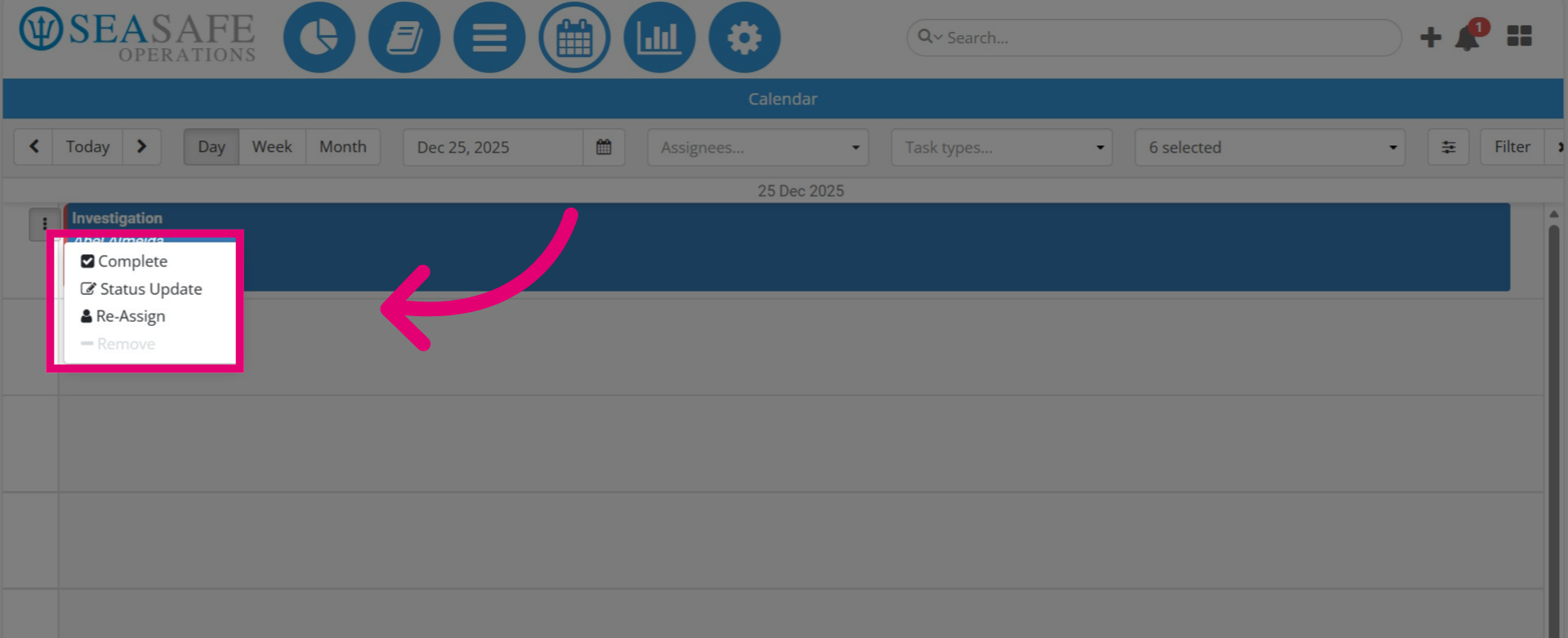
38. Click to open the Task Menu
Click on the task to access the menu, where you can complete, update the status, or reassign the task.
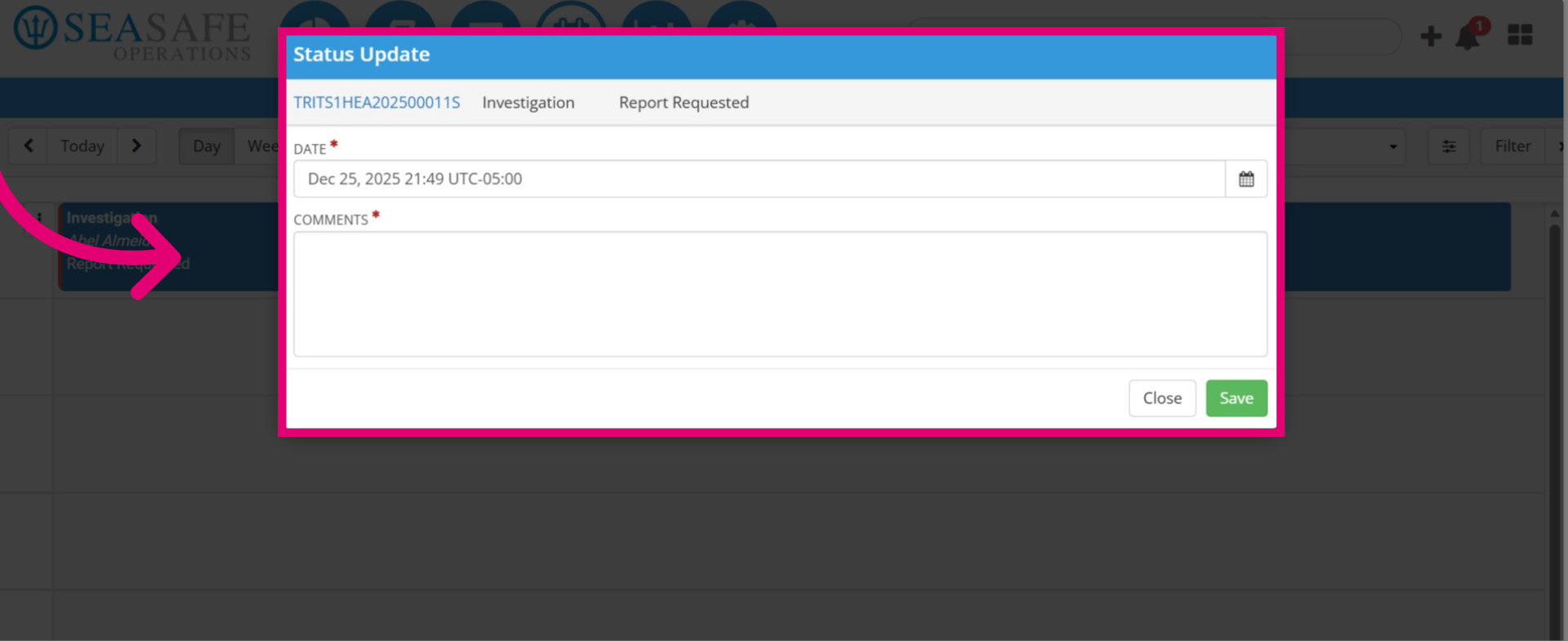
39. Add a Status Update
Select "Status Update" to provide an update on the task, such as adding new information or reporting on progress.
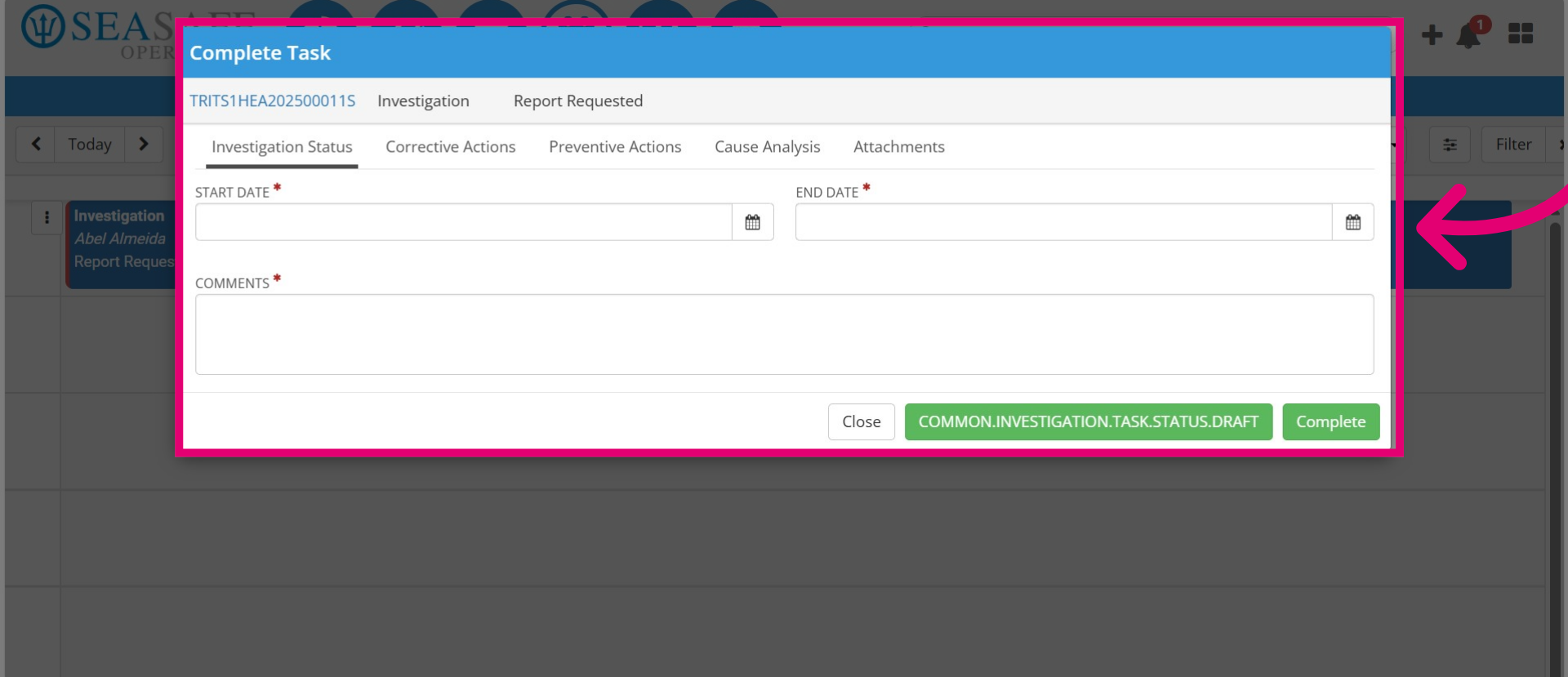
40. Complete a Task
Then, select "Complete" to complete a task when it has been fulfilled.
41. Open the "Reports" Module
Next, open the "Reports" module.
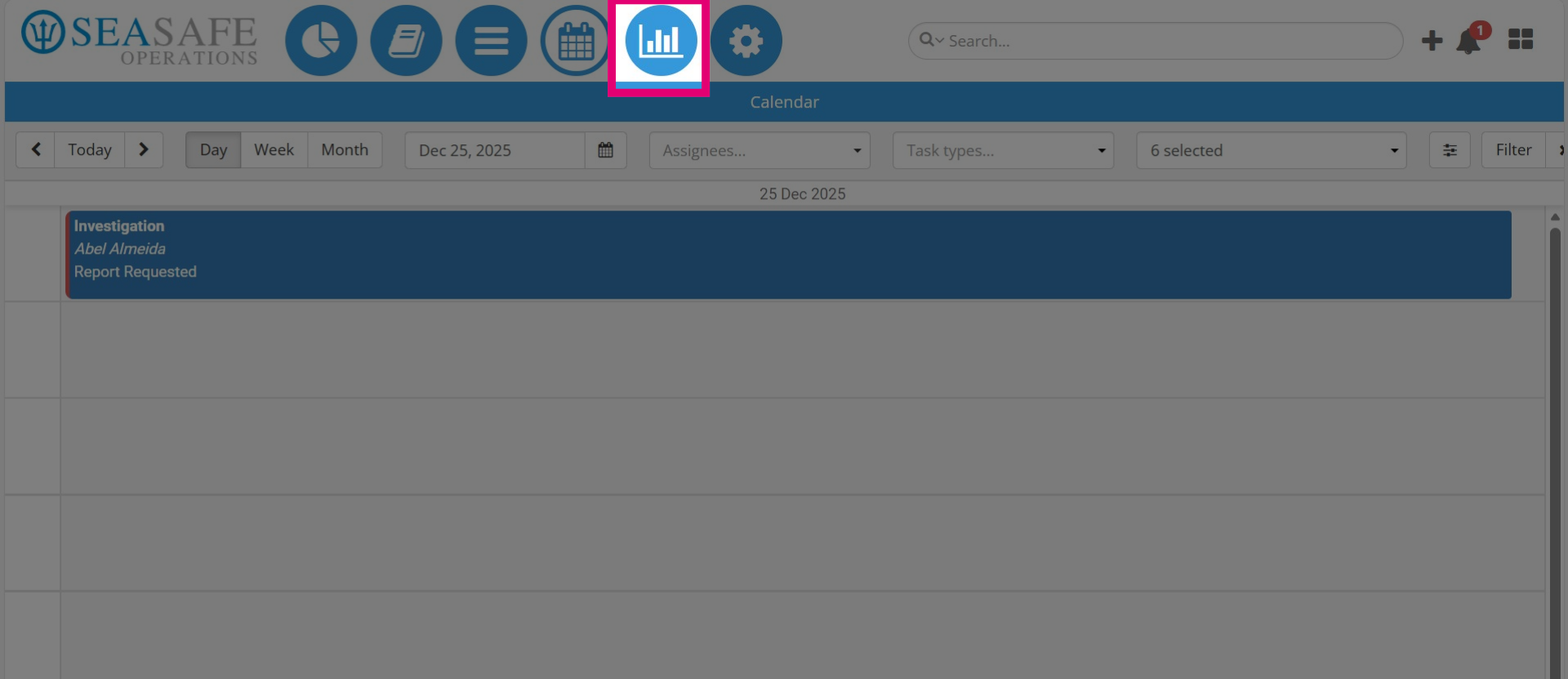
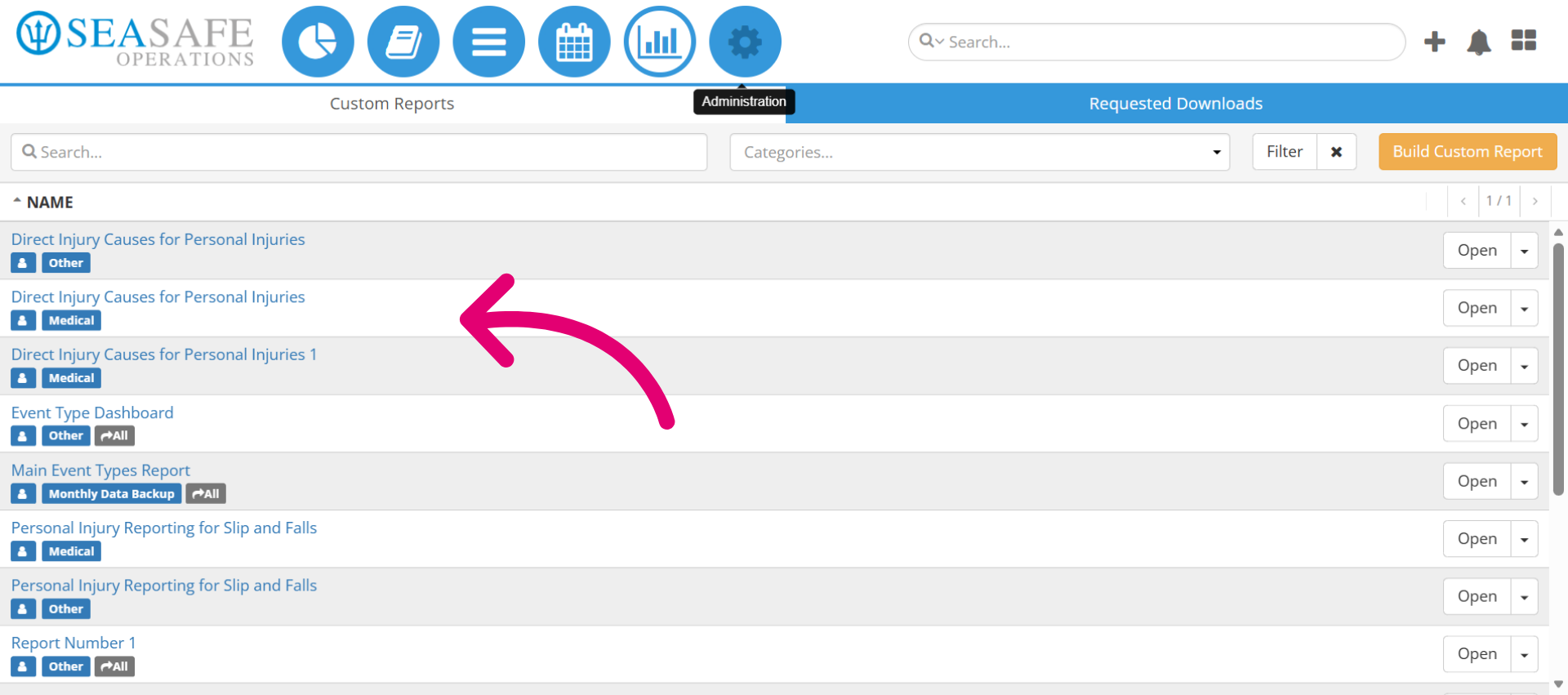
42. Access Custom Reports
This is the reports module that enables you to build custom reports with data from your entire fleet. These reports can be connected to create custom dashboards.
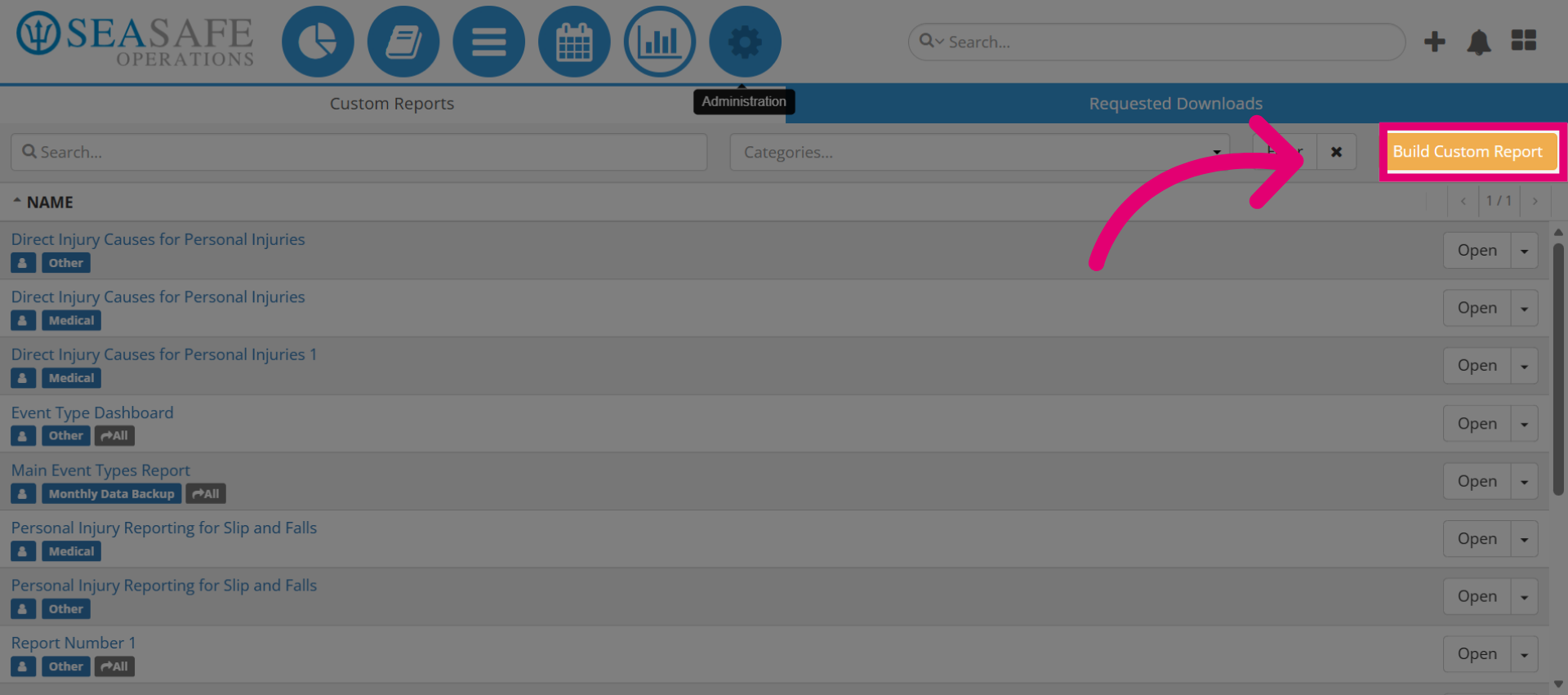
43. Build a Custom Report
Click on "Build Custom Report" to open the custom report module.
44. Build Custom Reports
Utilize the data and document editor to build custom reports for data insights as well as visual reports displaying charts. These charts can be used to build custom dashboards.
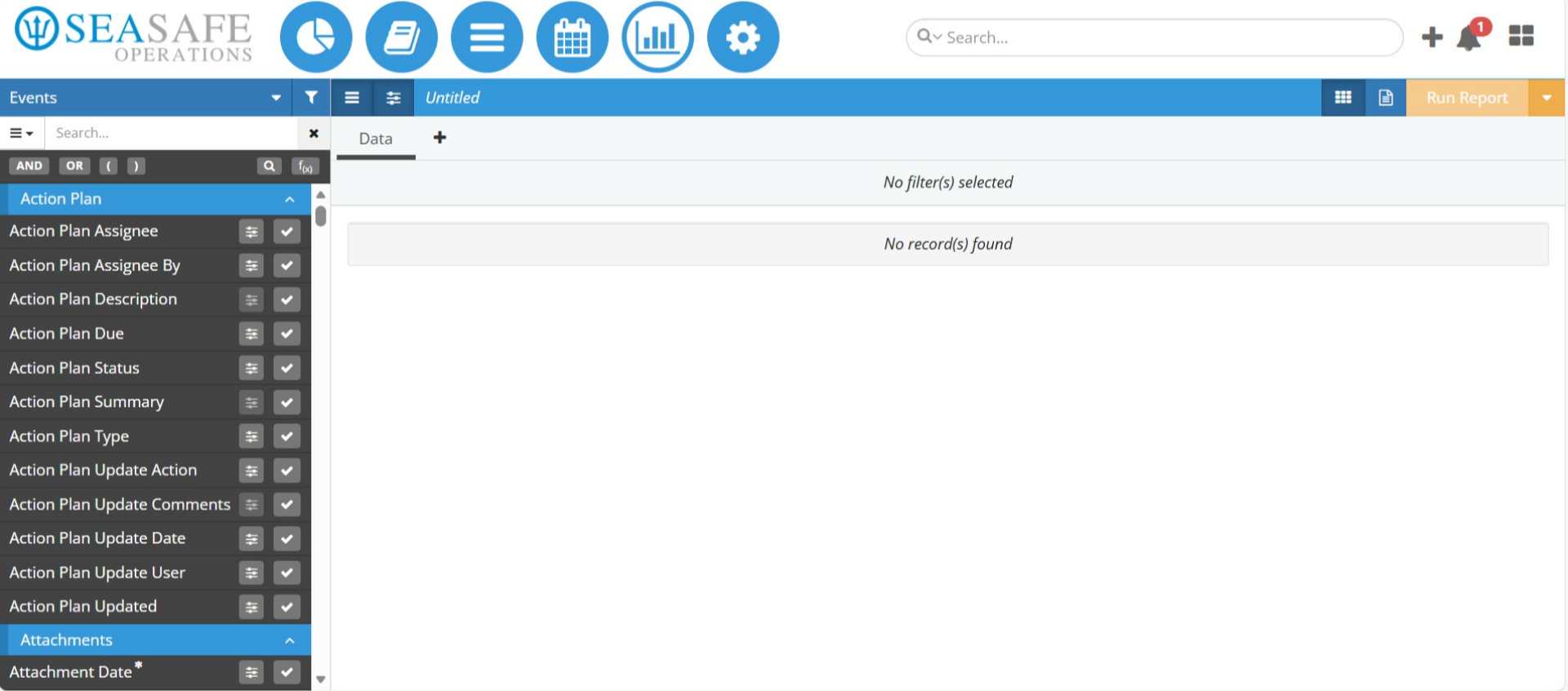
45. Go to the Admin Menu
Now, we will select the "Admin Menu" to review how the admin manages the platform
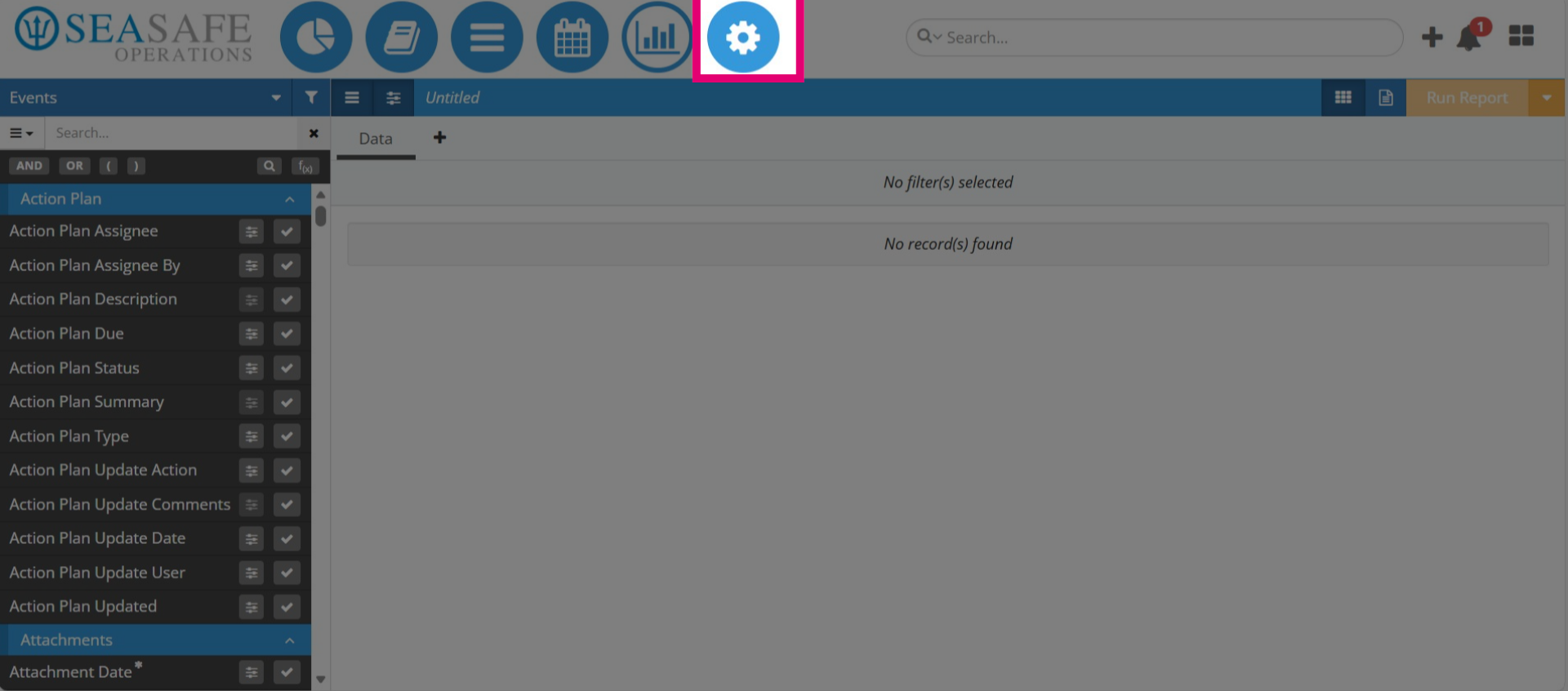
46. Admin Menu Options
In the "Admin Menu", you can manage and configure notifications, types, fields, and workflows. You can also oversee users by rank or profile, departments, and vessels. Additionally, you have the ability to add and update forms, as well as track the history logs of updates made in the admin.
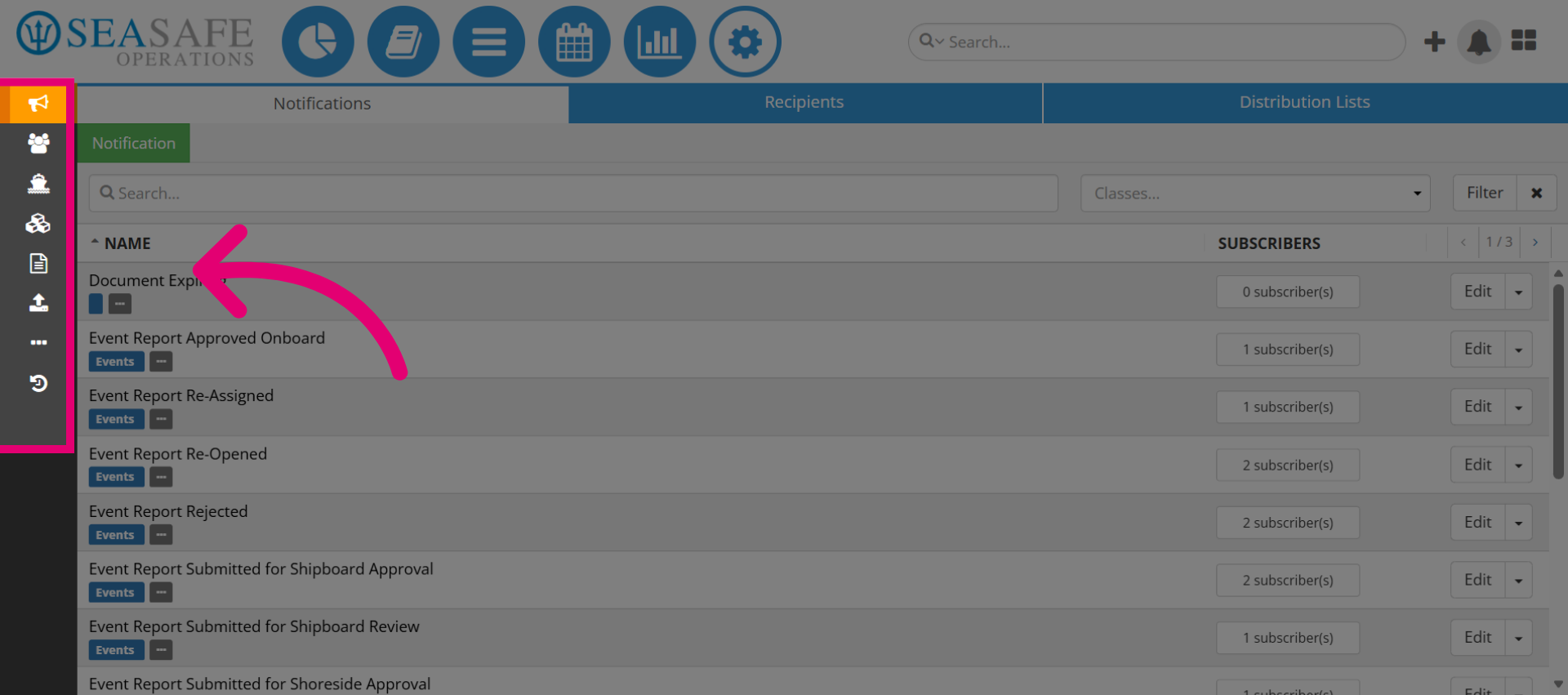
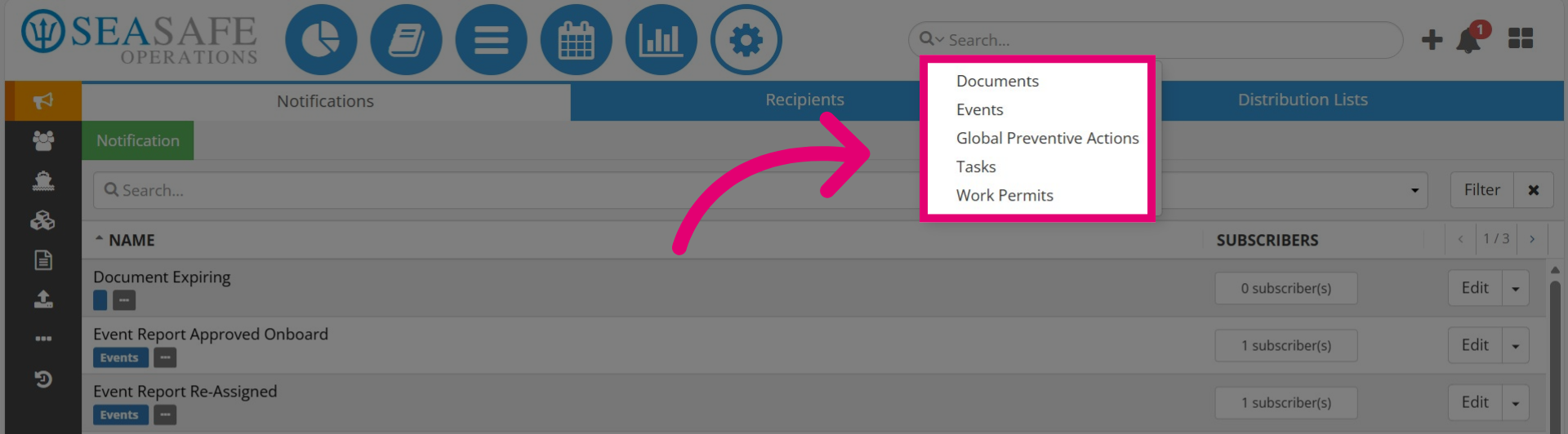
47. Use "Global Search" to locate reports
You can also use the "Global Search" section to locate a report by typing the report number or keywords into the search bar or clicking the dropdown arrow.
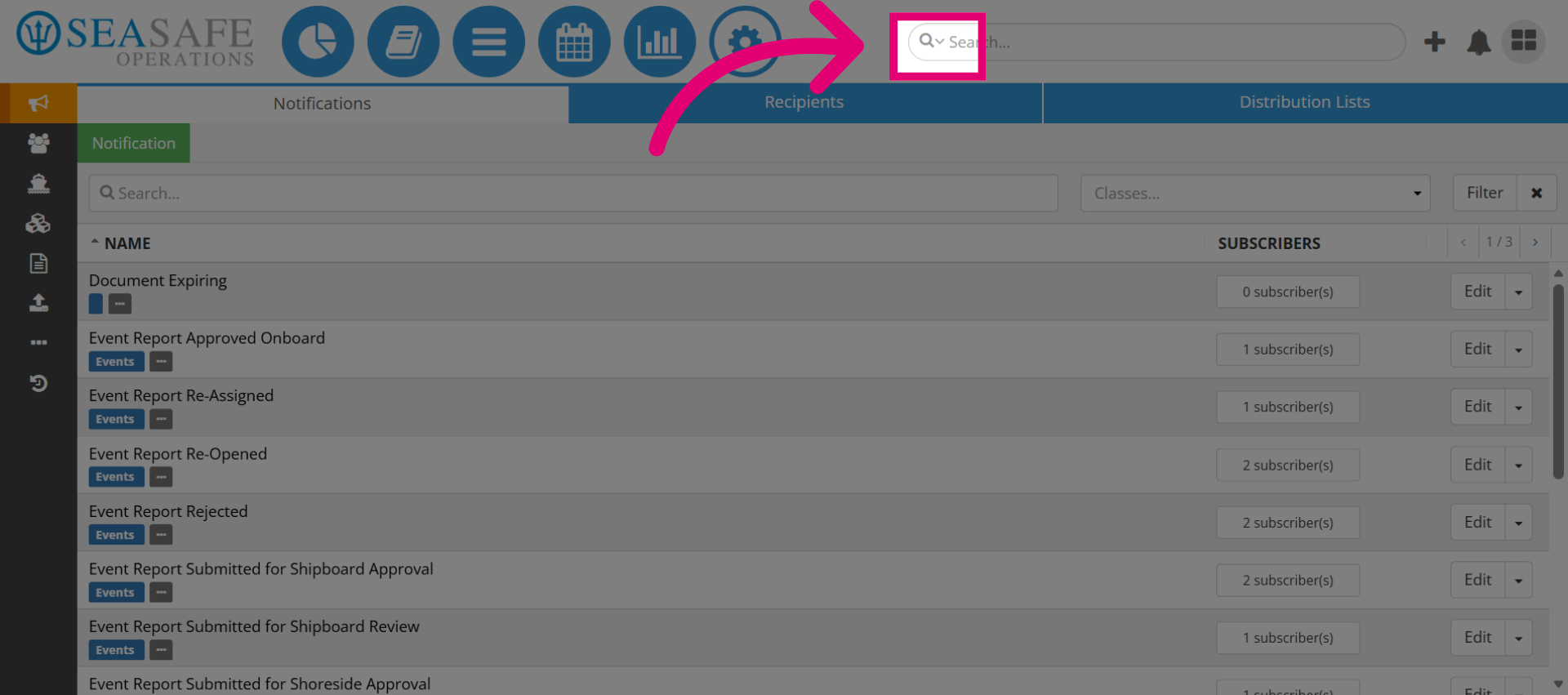
48. Select a Report to Search
Choose from the list to search by a specific report type.
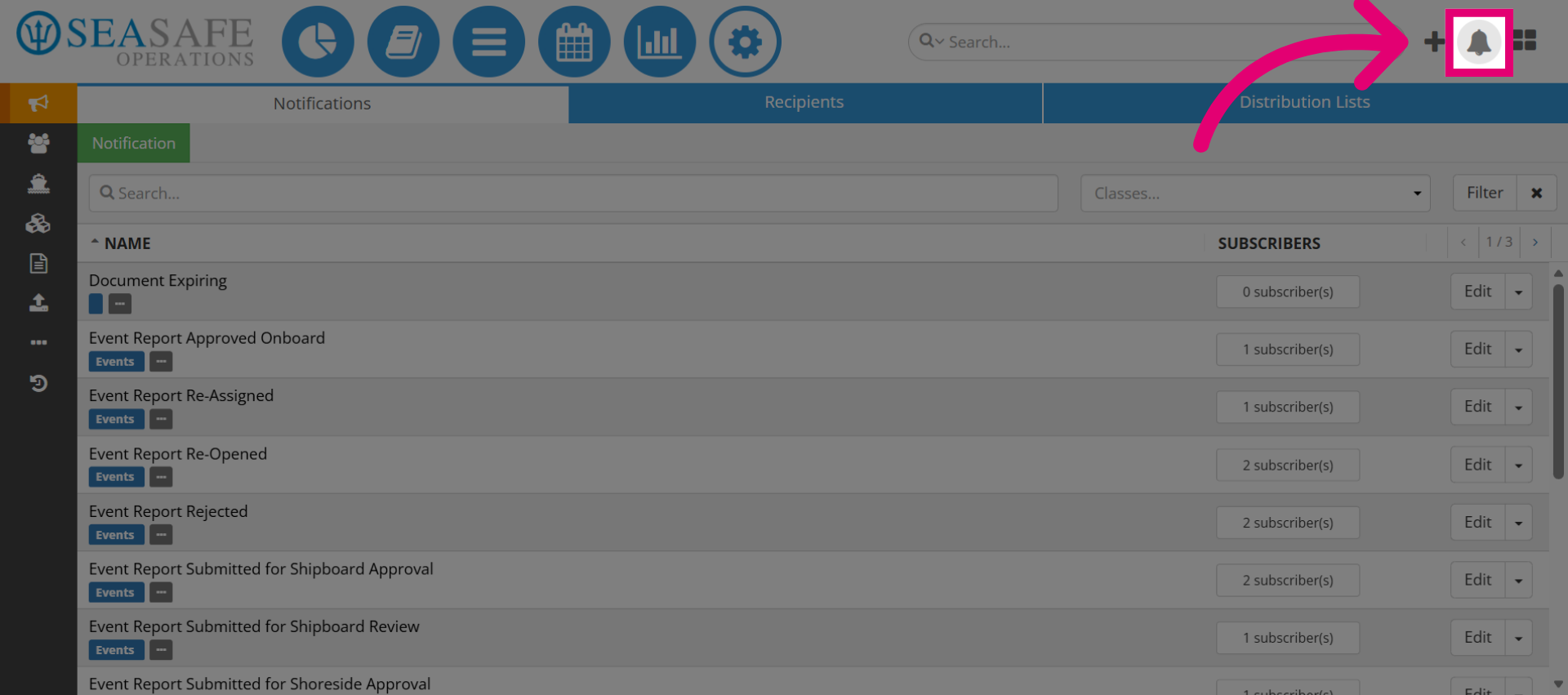
49. Select to view "Notifications"
Additional, click here to open your notifications. All notifications you are subscribed to will appear here.
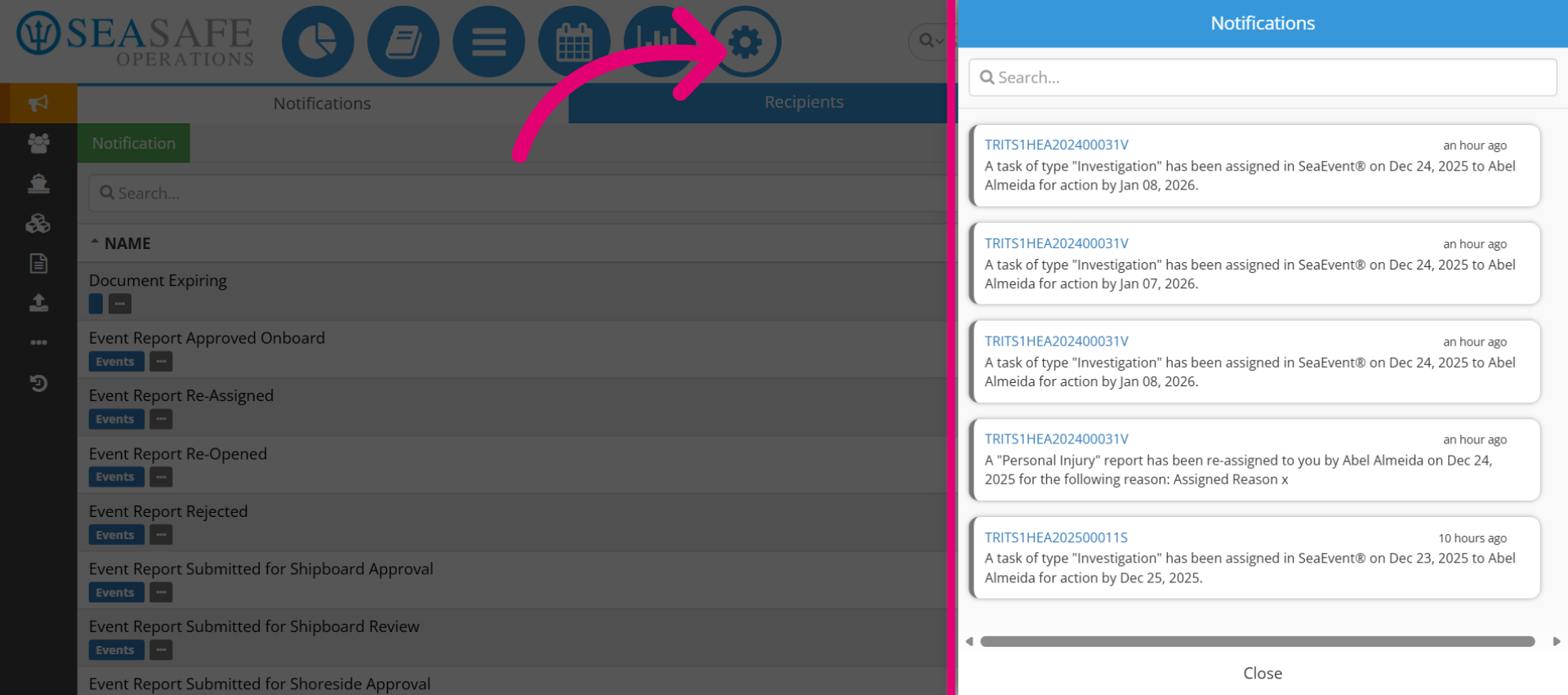
50. View "Notifications"
This section allows you to view alerts and updates related to reports.
51. Start a New Report
Then, one of the main features is starting a new report workflow. Select the plus sign button to start a new report.
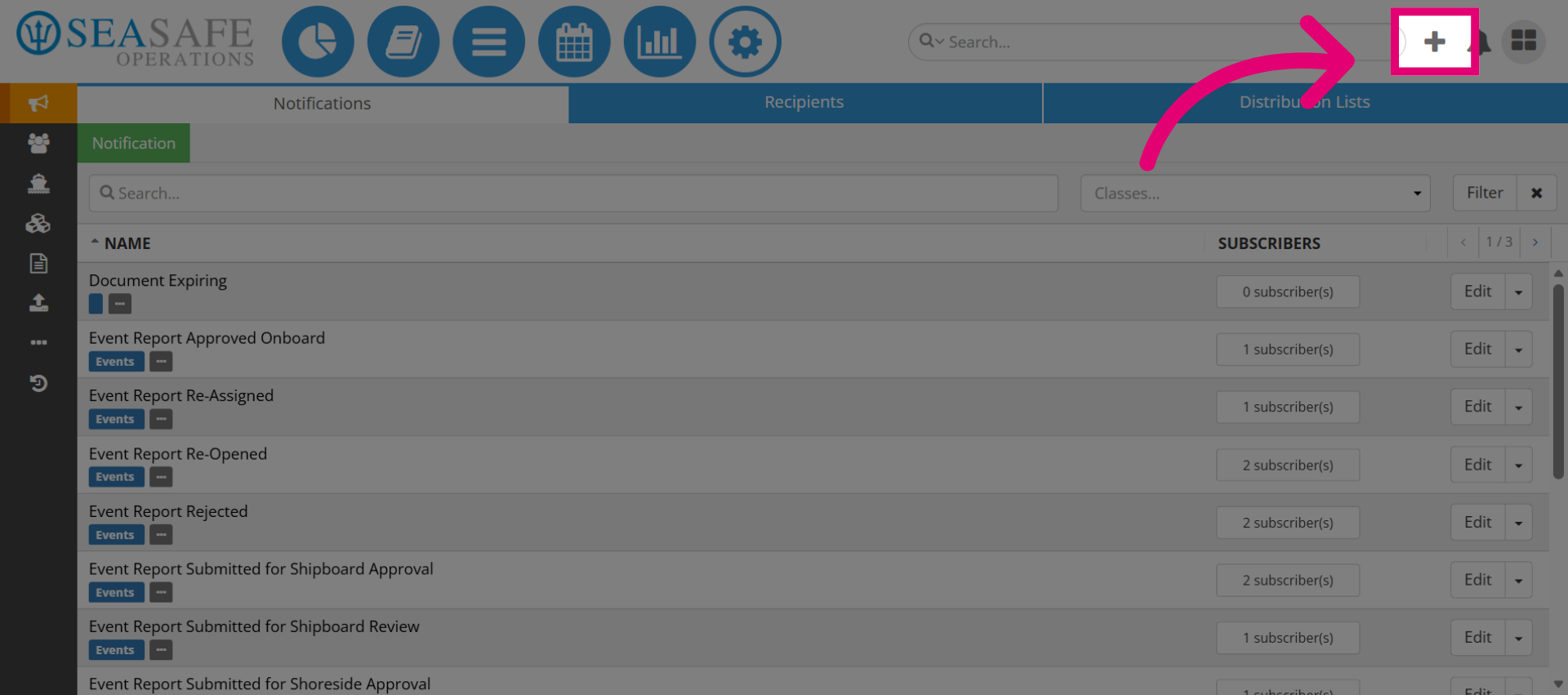
52. Select a Report Class
This is how you initiate a new report workflow. Select the desired report class in the system (Event, Risk Assessment, Hazards, Work Permit) to start a new report record.
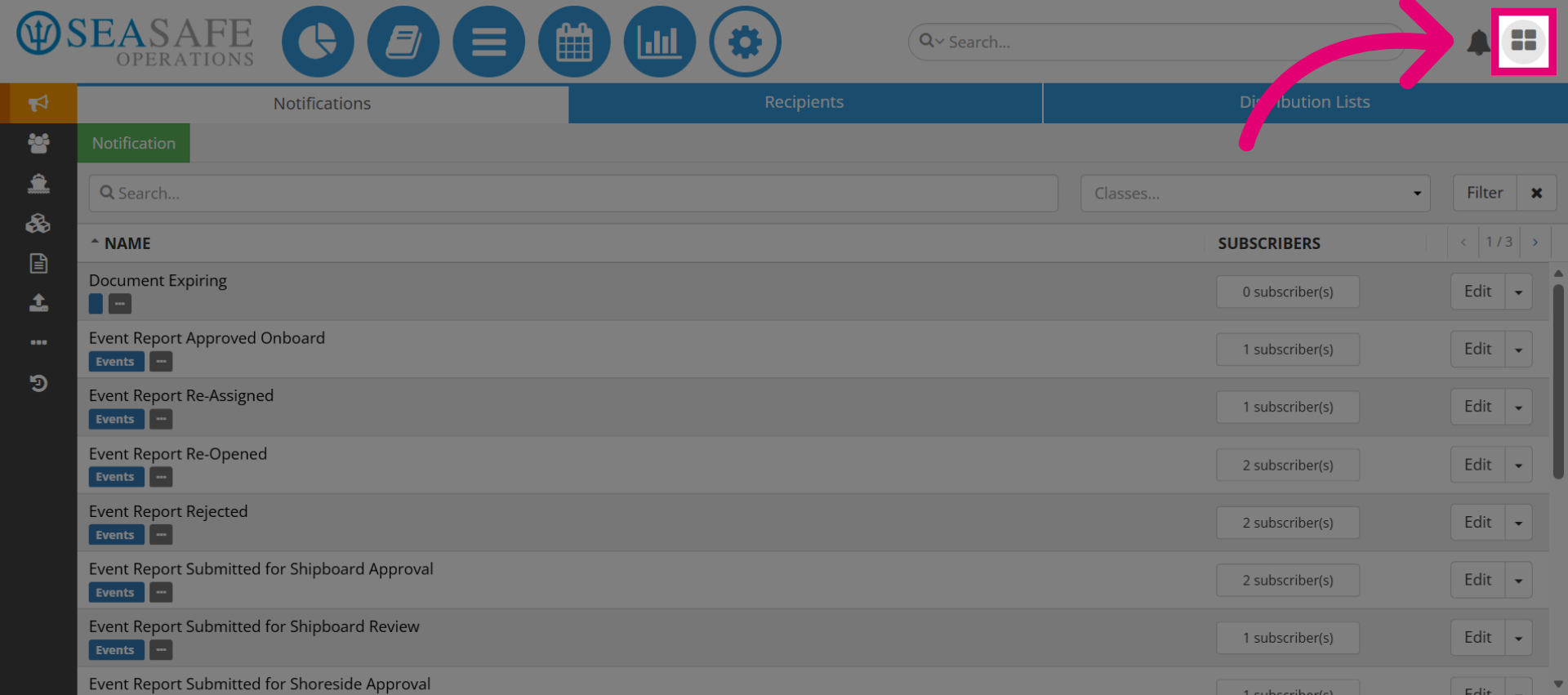
53. Access User Account
Then, click the "Main Menu" section to access your user account information.
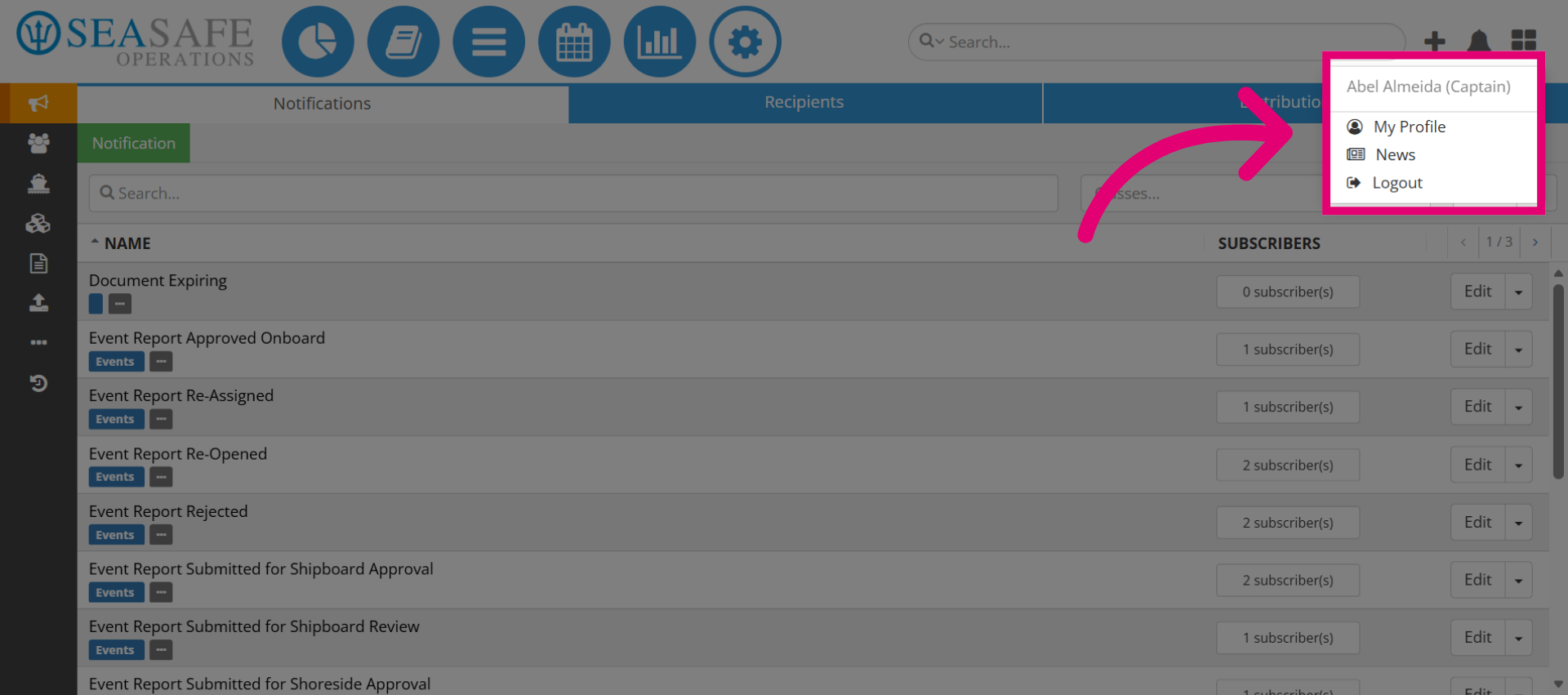
54. Account Access Options
You can access your "My Profile" settings, "News" and "Logout" from here. You can also check that your rank or position is accurate for example, "Captain".
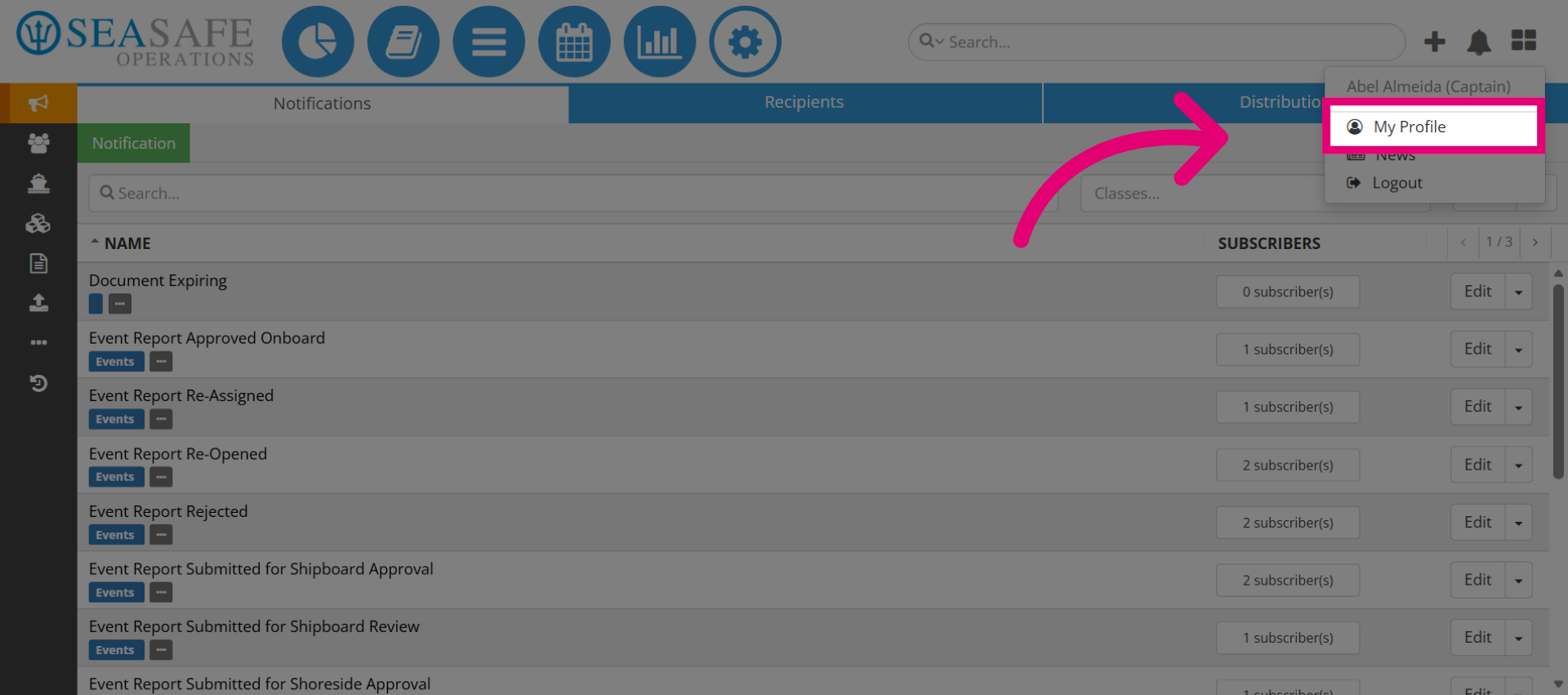
55. Select My Profile
Select "My Profile" to open your profile settings.
56. Re-enter your password
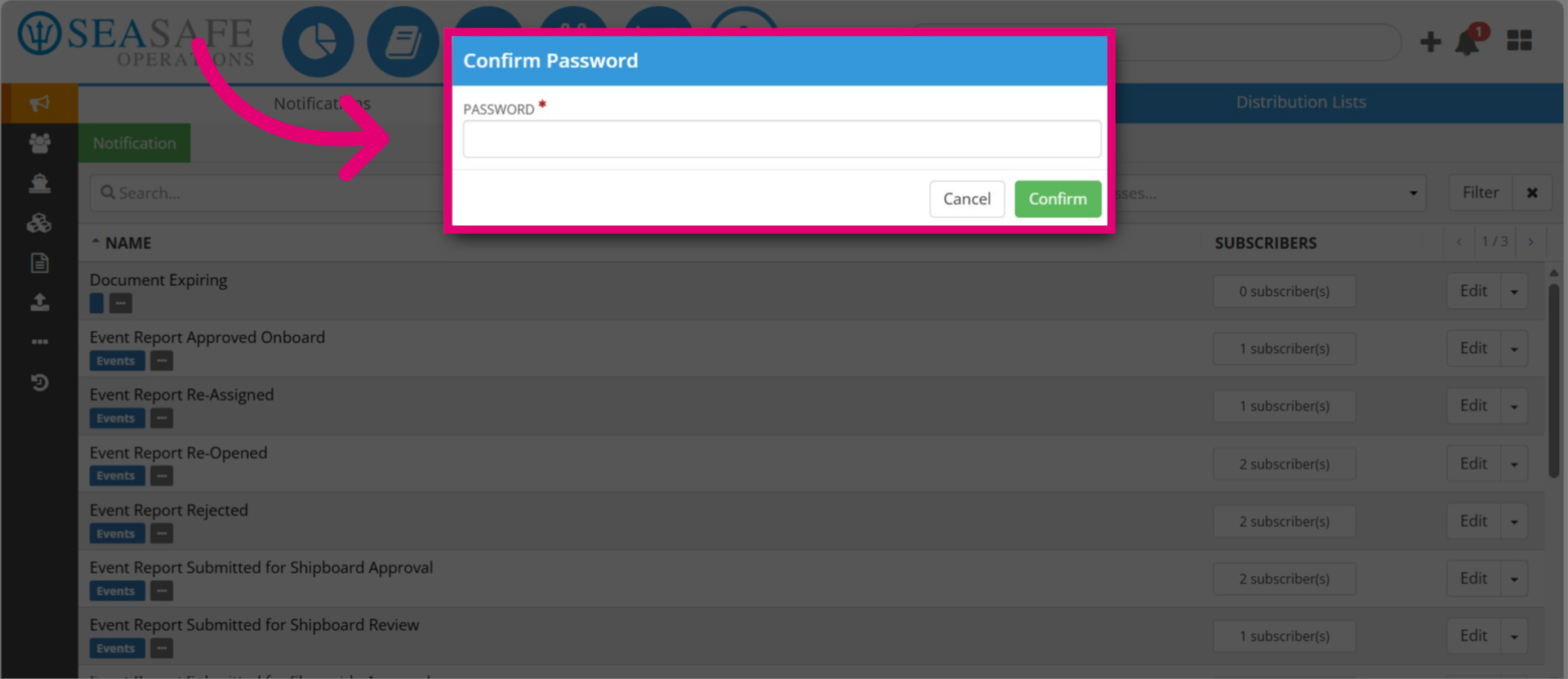
Re-enter your password to re-authenticate your account.
57. Edit Your Profile
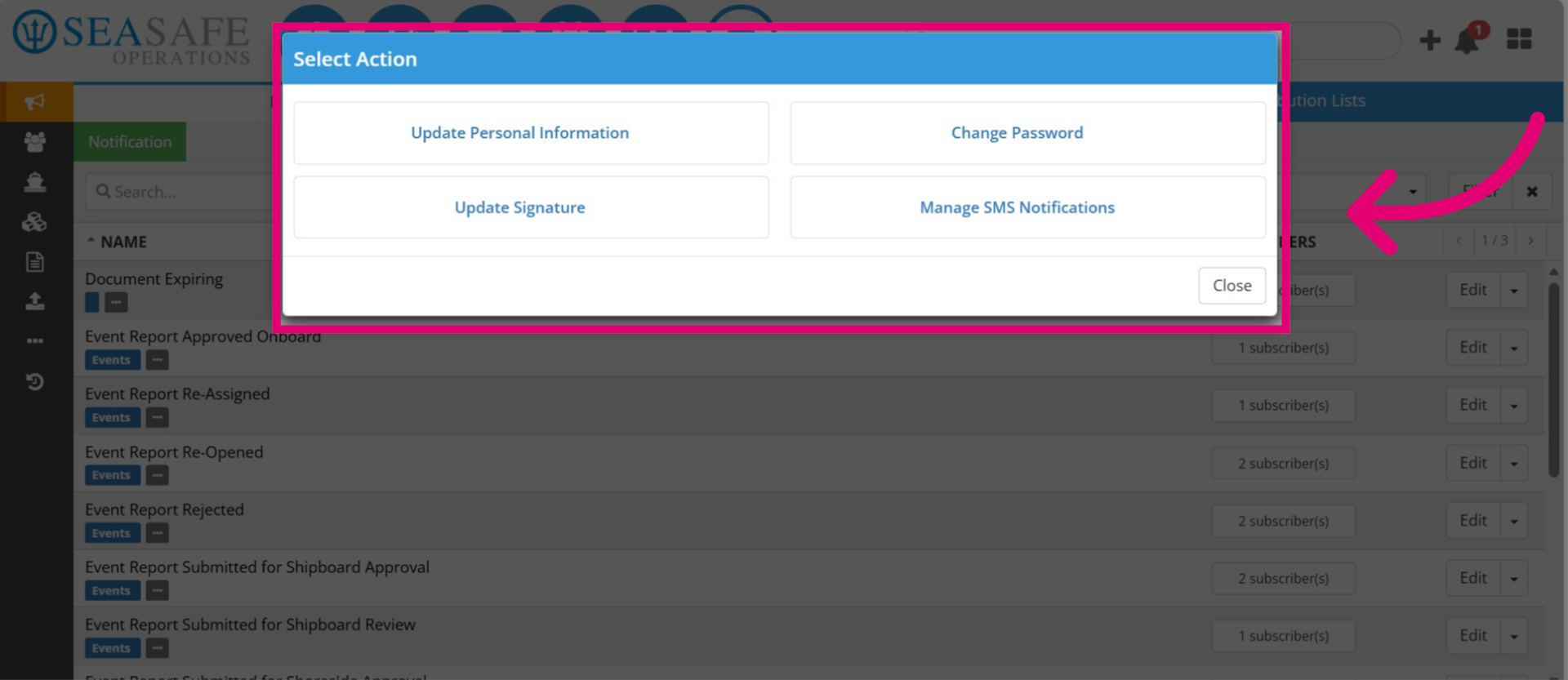
Here, manage your profile settings to update personal info, change your password, update signature and SMS notifications.
58. Edit Personal Info
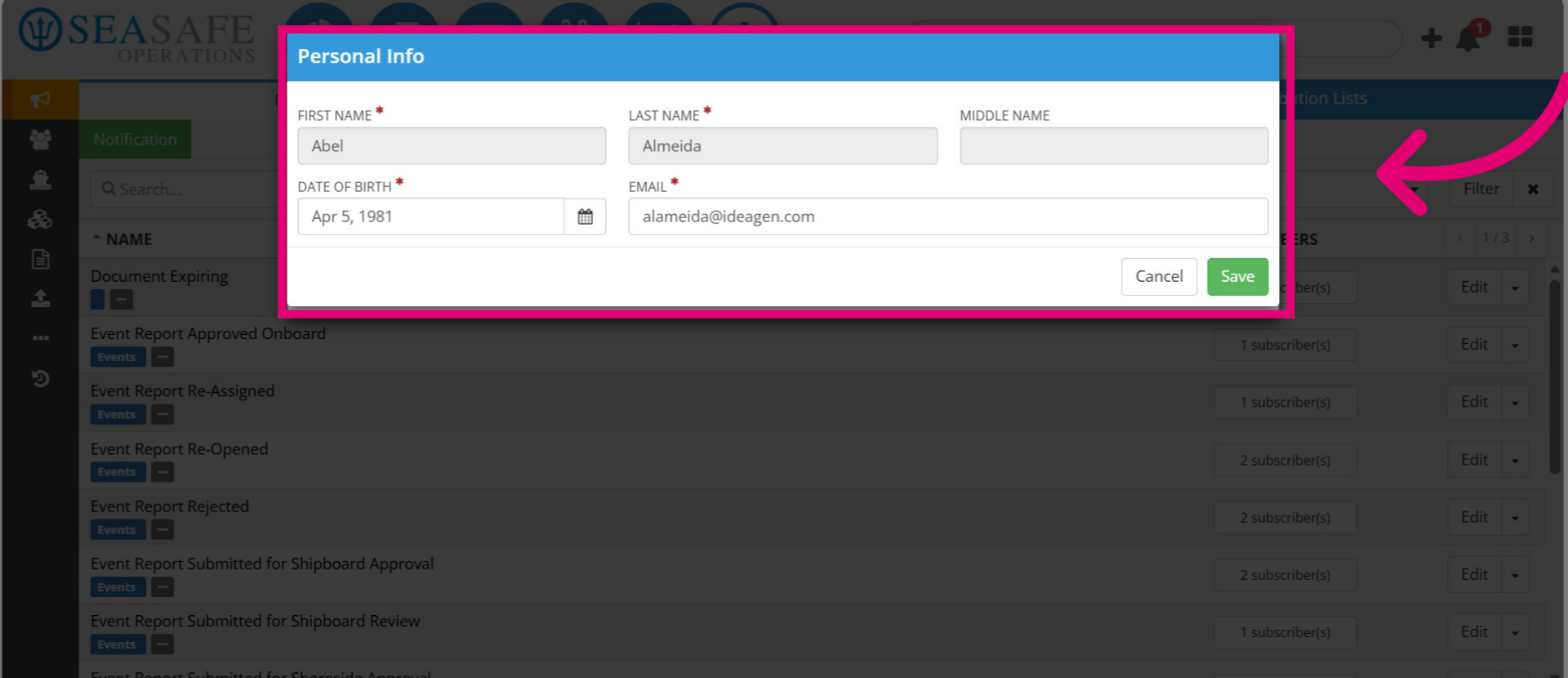
In the "Personal Info" section, you can update your date of birth or email.
59. Update Signature
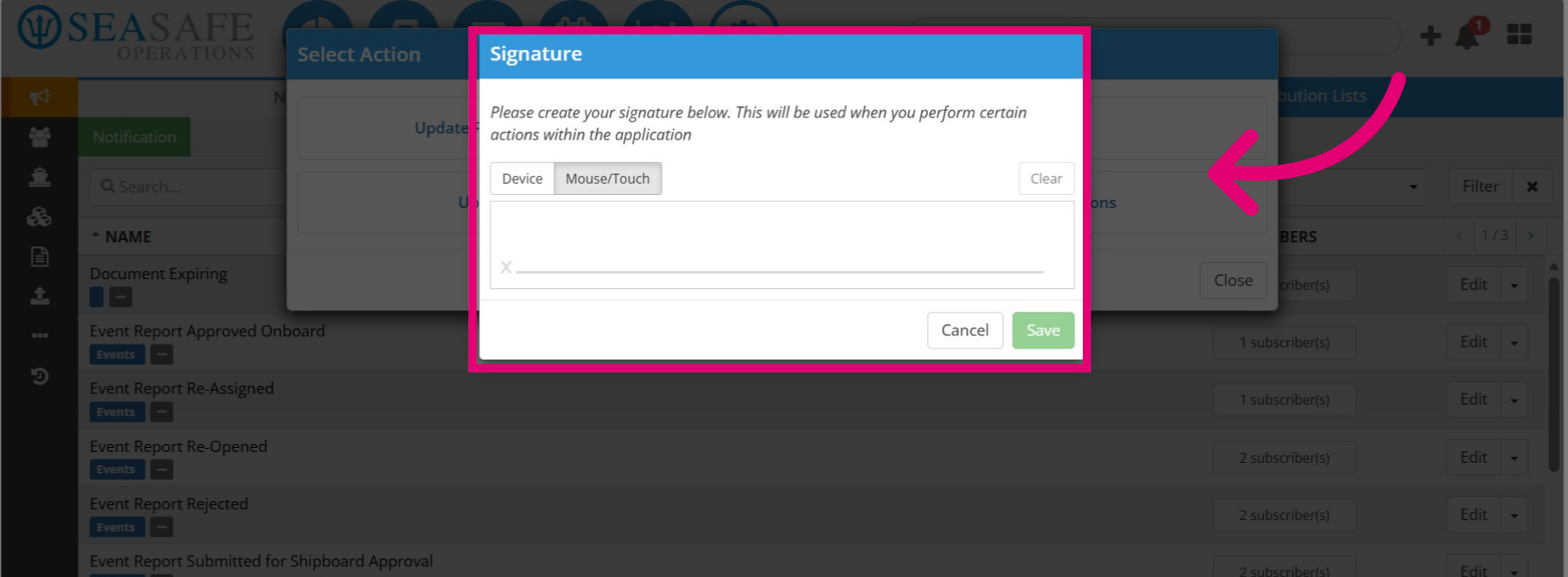
Also, update your signature by signing via a device or using a mouse or touchpad and "Save".
60. Subscribe to Notifications
Toggle on the "Subscribe to SMS Notification" button, enter your carrier and number. Then, toggle on all of the notifications you want to get.
61. Change Your Password
In this section, follow the password rules to change your password and "Save".
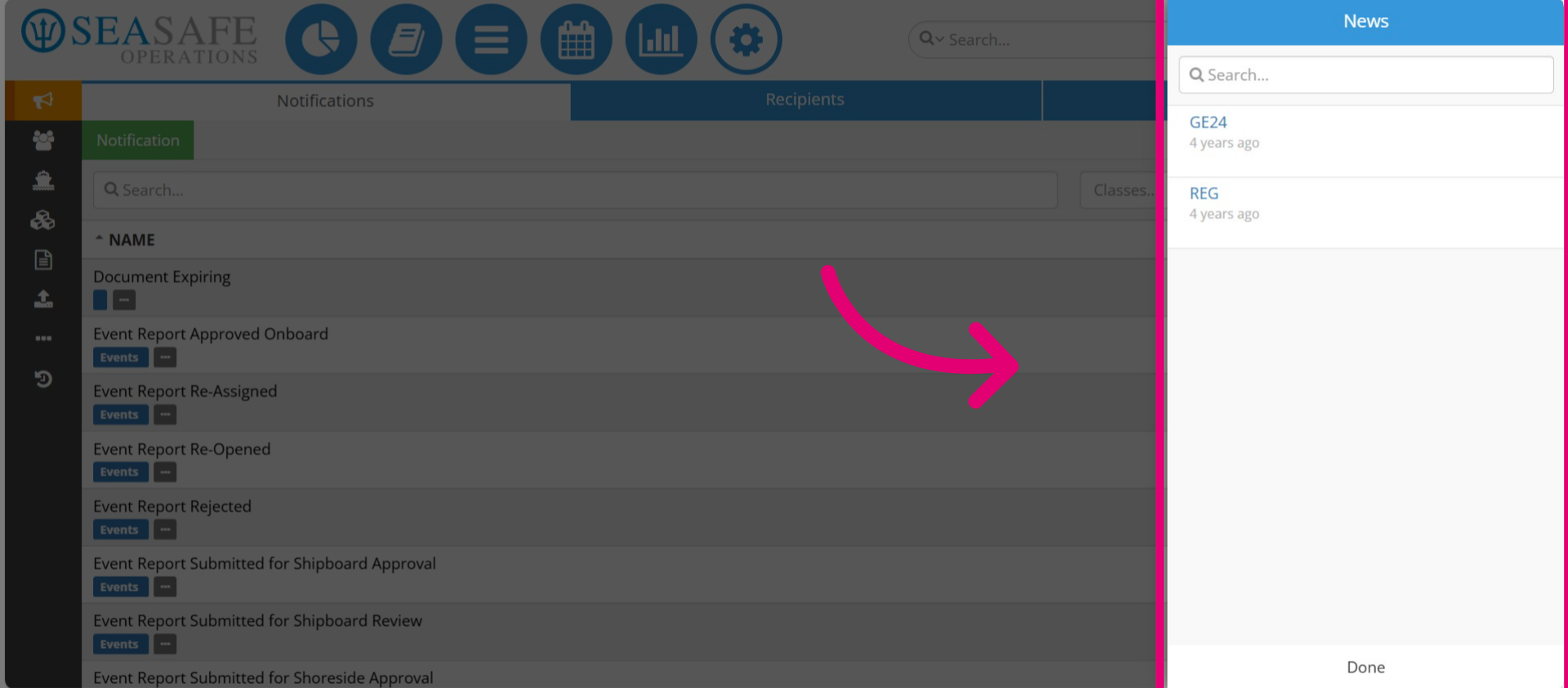
62. Access the "News" section
Next, back in the menu click here to access the "News" section.
63. Access "News" Updates
Open to access the latest "News" updates and announcements relevant to your tasks.