New article
Recently updated
Submit Report for Approval in Ideagen Maritime Management

This walkthrough explains how to submit a report for approval within the Ideagen Maritime Management platform.
1. Introduction
You will learn the necessary steps to filter, select, and submit reports for review, approval and to close.
2. Select Specific Report
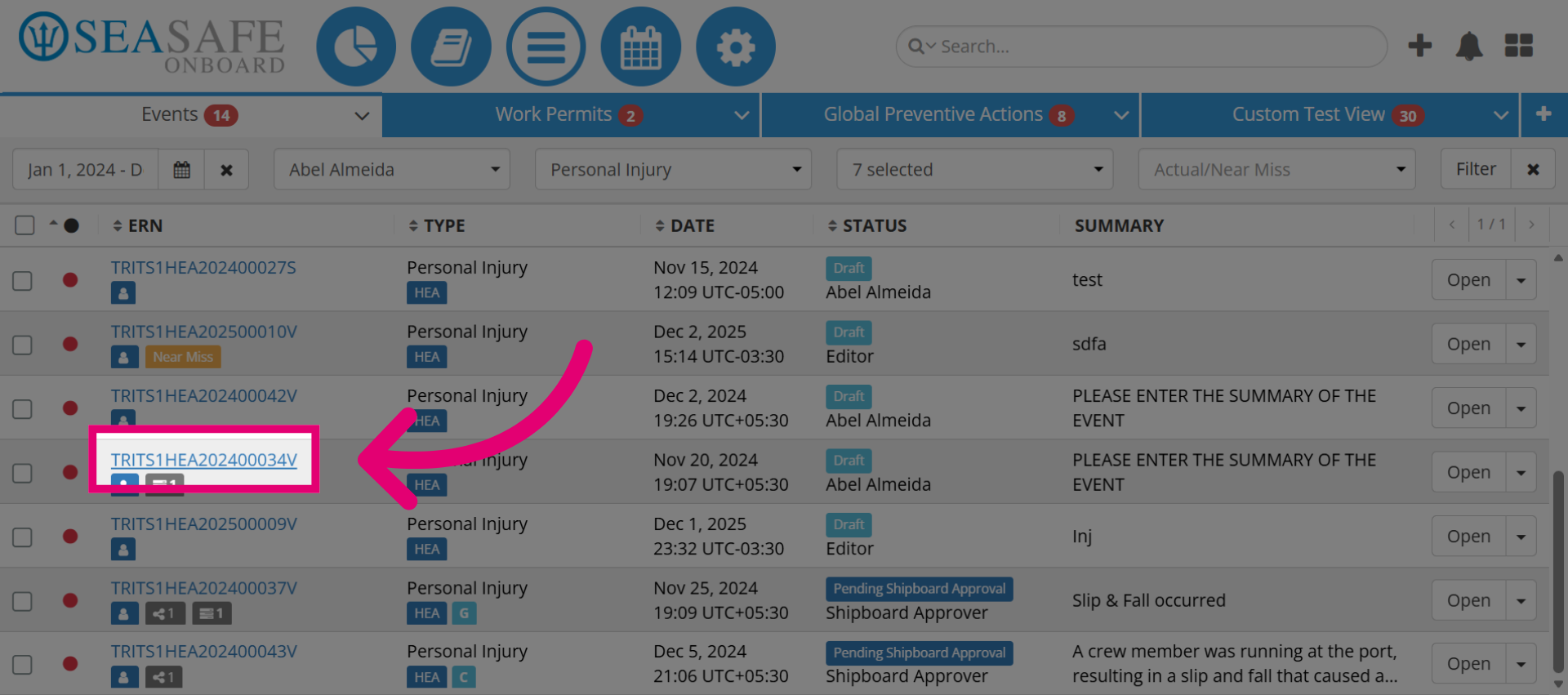
First, let's envision a real scenario in which you will conduct a shipboard review and approval. To start, navigate to the "Workflow Module", locate the report, and click on the "E-R-N" number to access the detailed view of the selected report.
3. Open Report Options
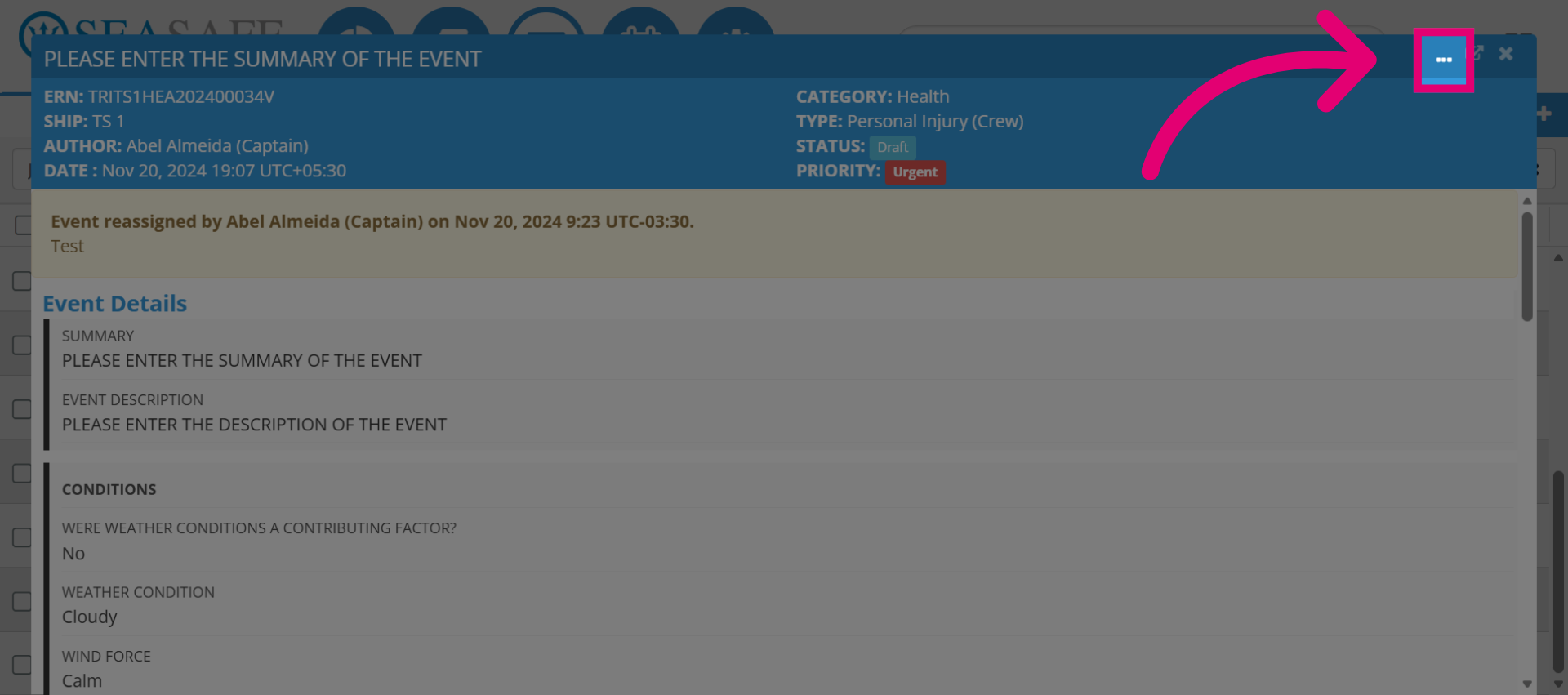
Then click here to open additional options for the report.
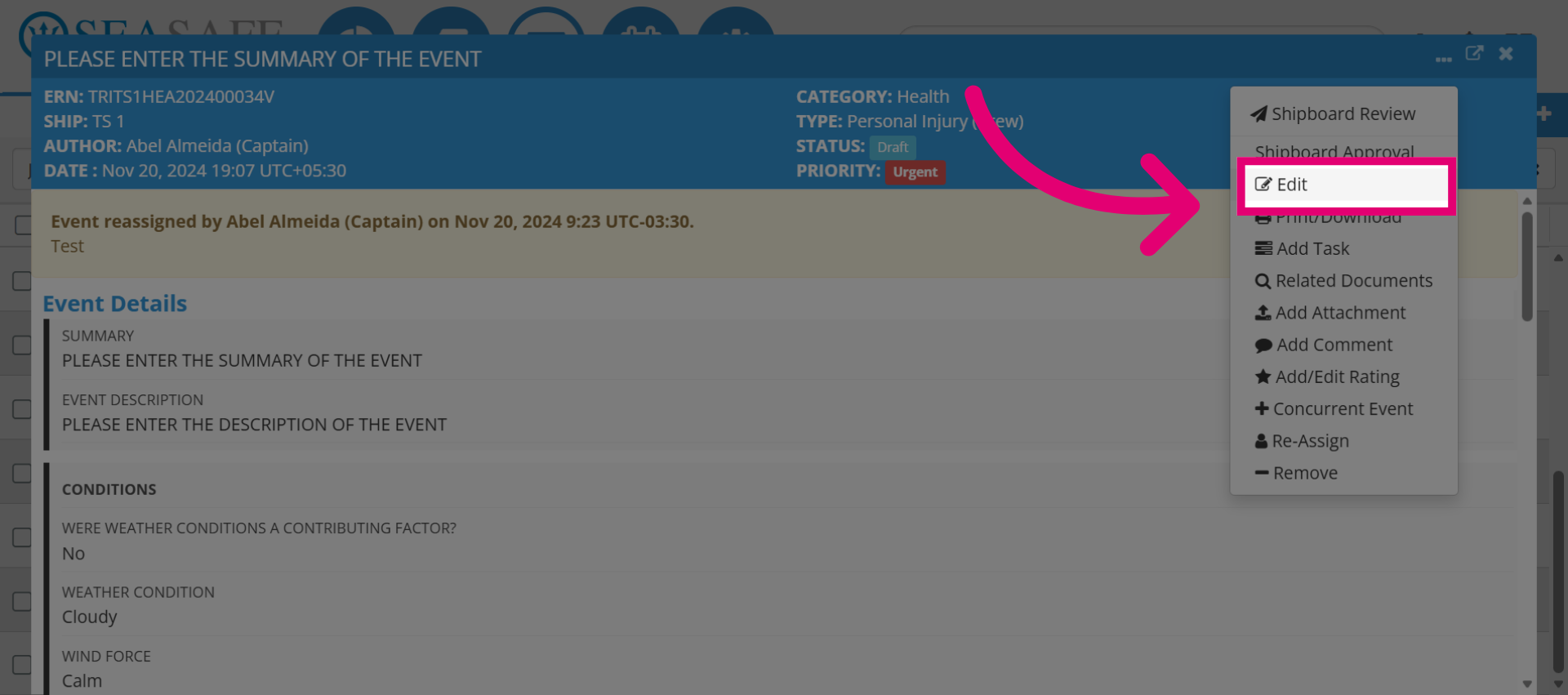
4. Enter Edit Mode
Next, elect "Edit" to modify the report details before submission.
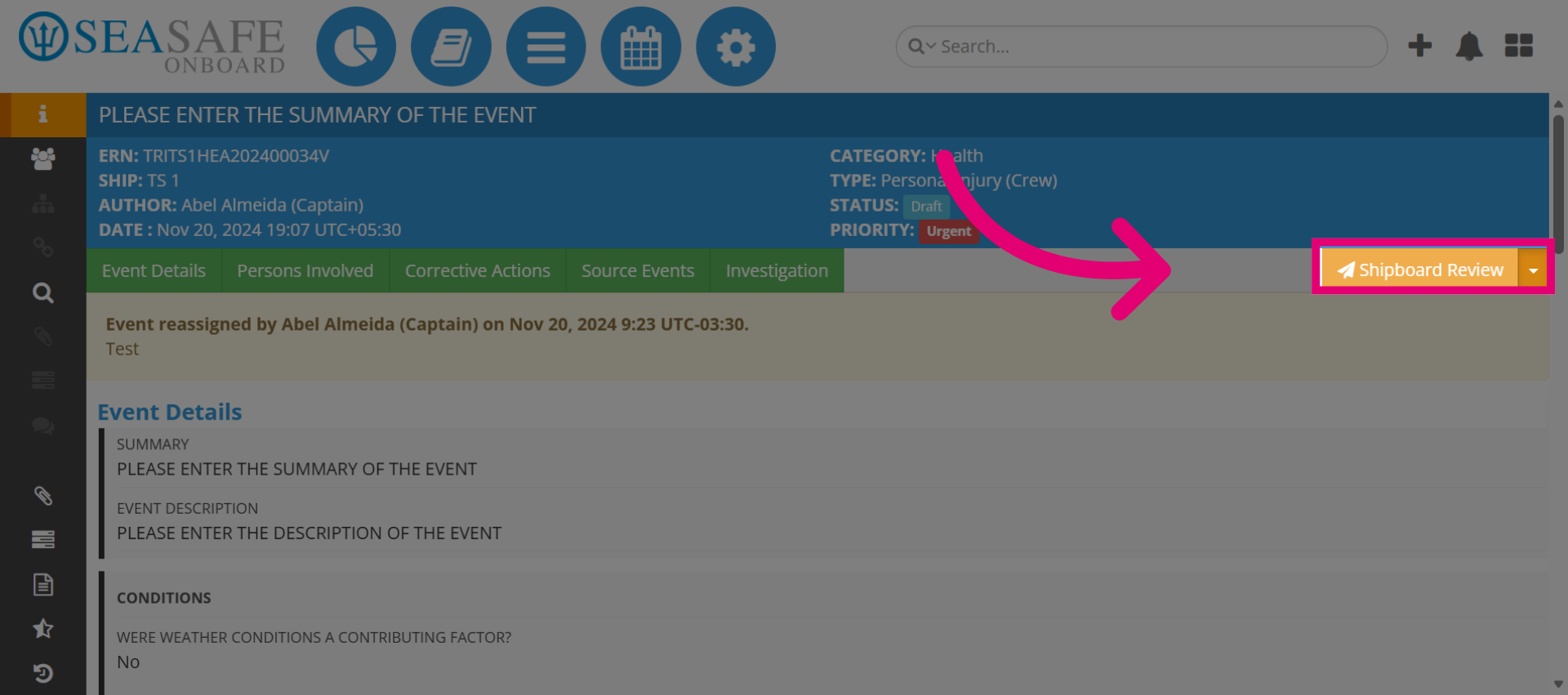
5. Access Review Section
When you are ready to submit your review, click on "Shipboard Review" to navigate to the review section within the report.
6. Submit Shipboard Review
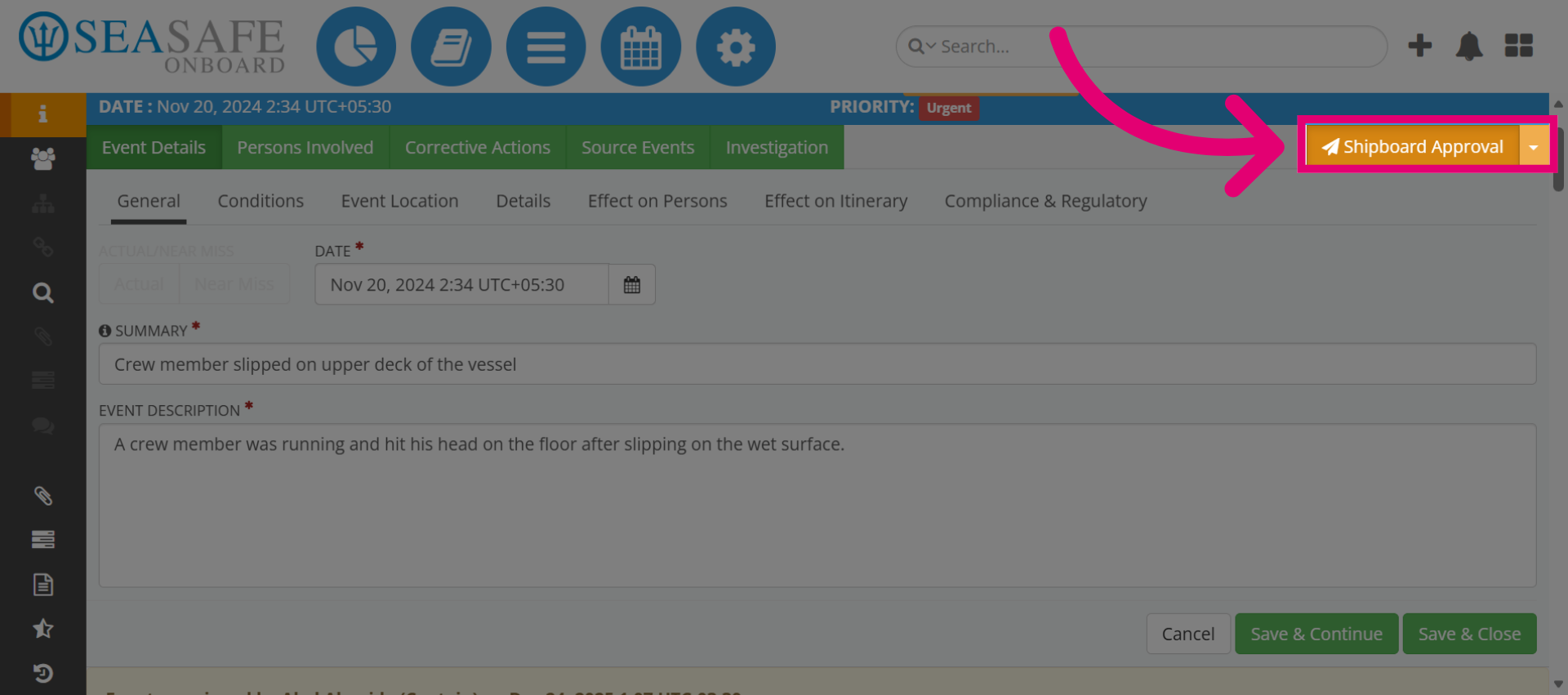
To begin the shipboard review process for the report, select "Shipboard Review." Once selected, the user clicks the transition button, which changes the event status from Shipboard Review to the next status, such as "Shipboard Approval." This action advances the workflow to the next stage for formal approval, as configured in the Workflow Editor.
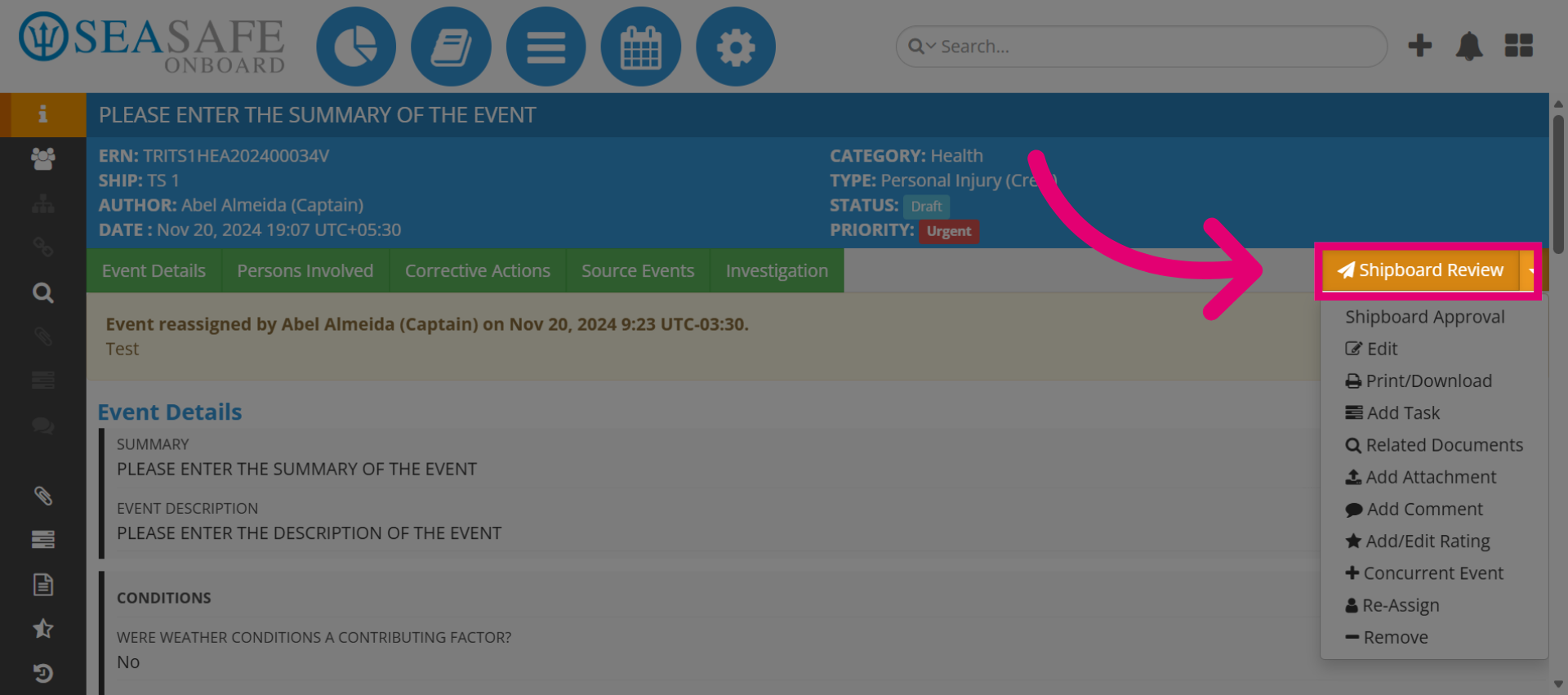
7. Submit Shipboard Approval
The Shipboard Review button was the transition action; when clicked, it executed the workflow rule moving the event from Shipboard Review to Shipboard Approval, advancing the report for formal approval. The user designated as "Shipboard Approval" will approve the report after completing all required tasks in the current workflow stage. Let's also assume the role of the approver and select the Shipboard Approval button and that's all.