New article
Recently updated
Complete Persons Involved For Ideagen Maritime Management Onboard Report Workflows

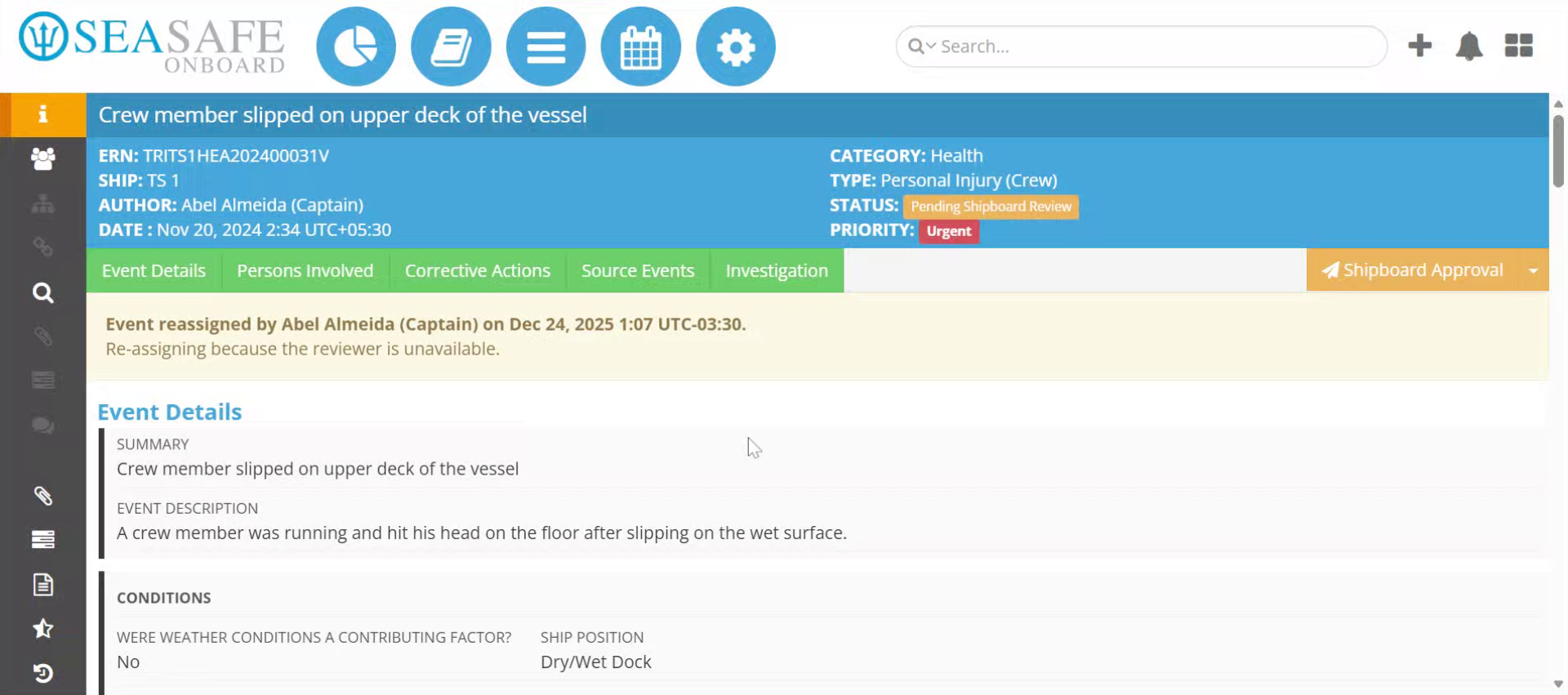
This walkthrough explains how to complete the Persons Involved wizard for a report workflow in Ideagen Maritime Management.
1. Introduction
You will learn the step-by-step process to navigate and fill out all necessary sections efficiently. We will walkthrough the steps for documenting details for the wizard
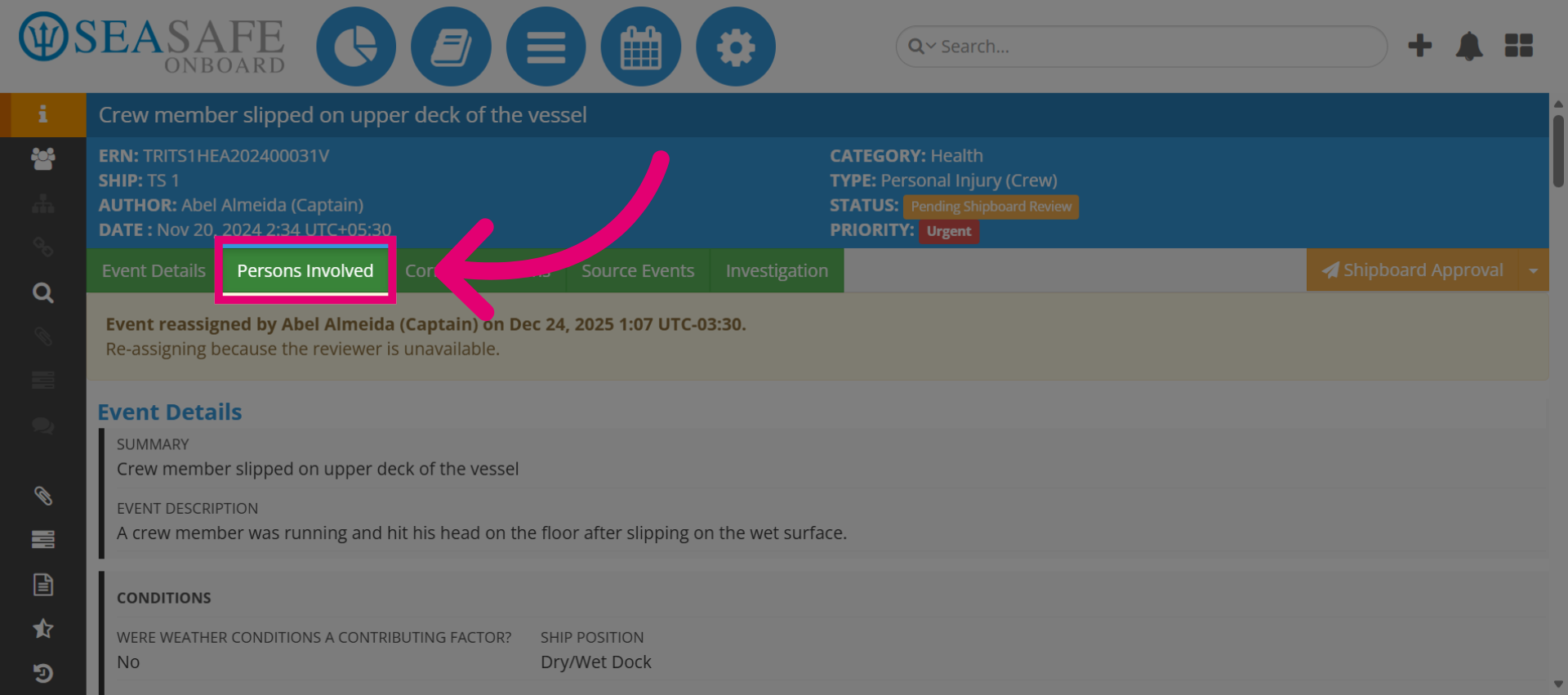
2. Open Persons Involved Section
Let's begin by clicking the Persons Involved section to begin managing involved individuals.
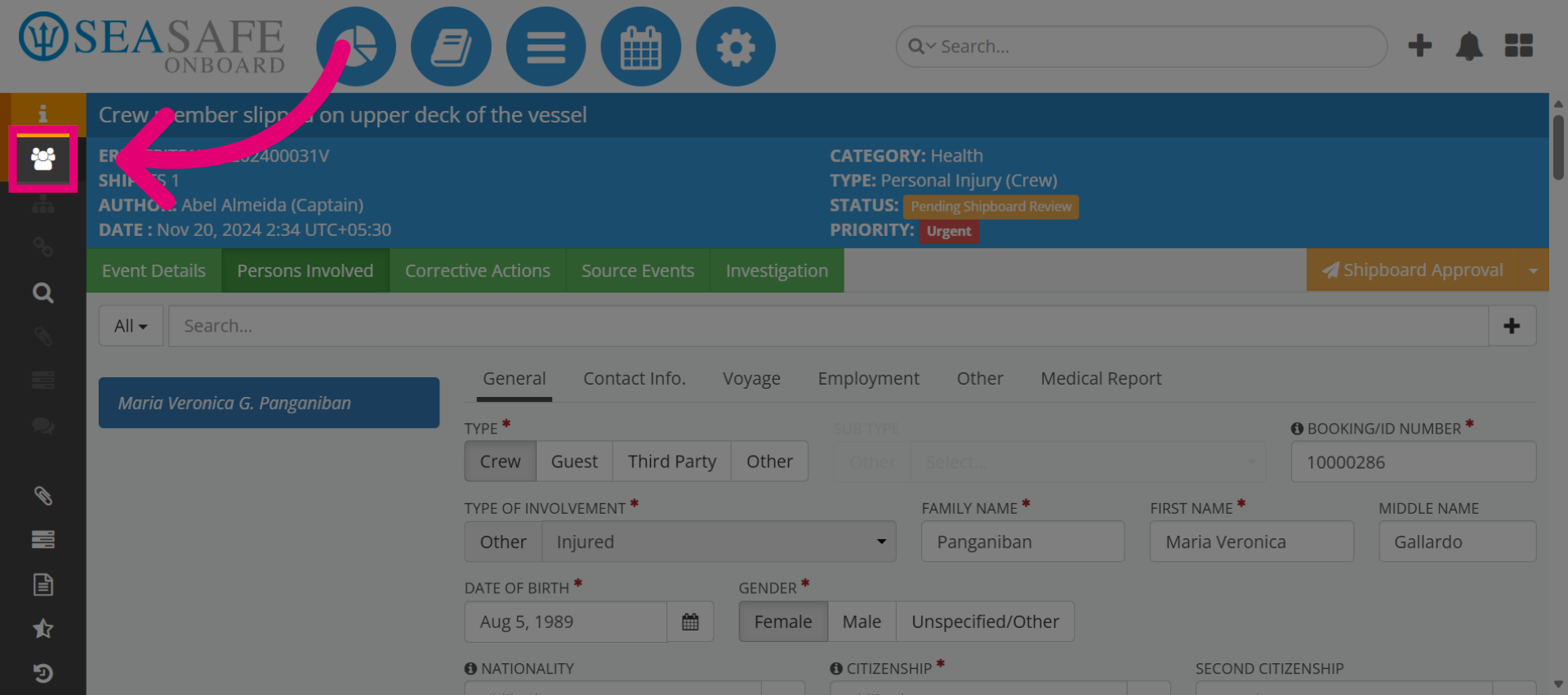
3. Access Next Wizard Step
You can also access this section by selecting from the side menu here to proceed to the next step in the wizard.
4. Persons Involved
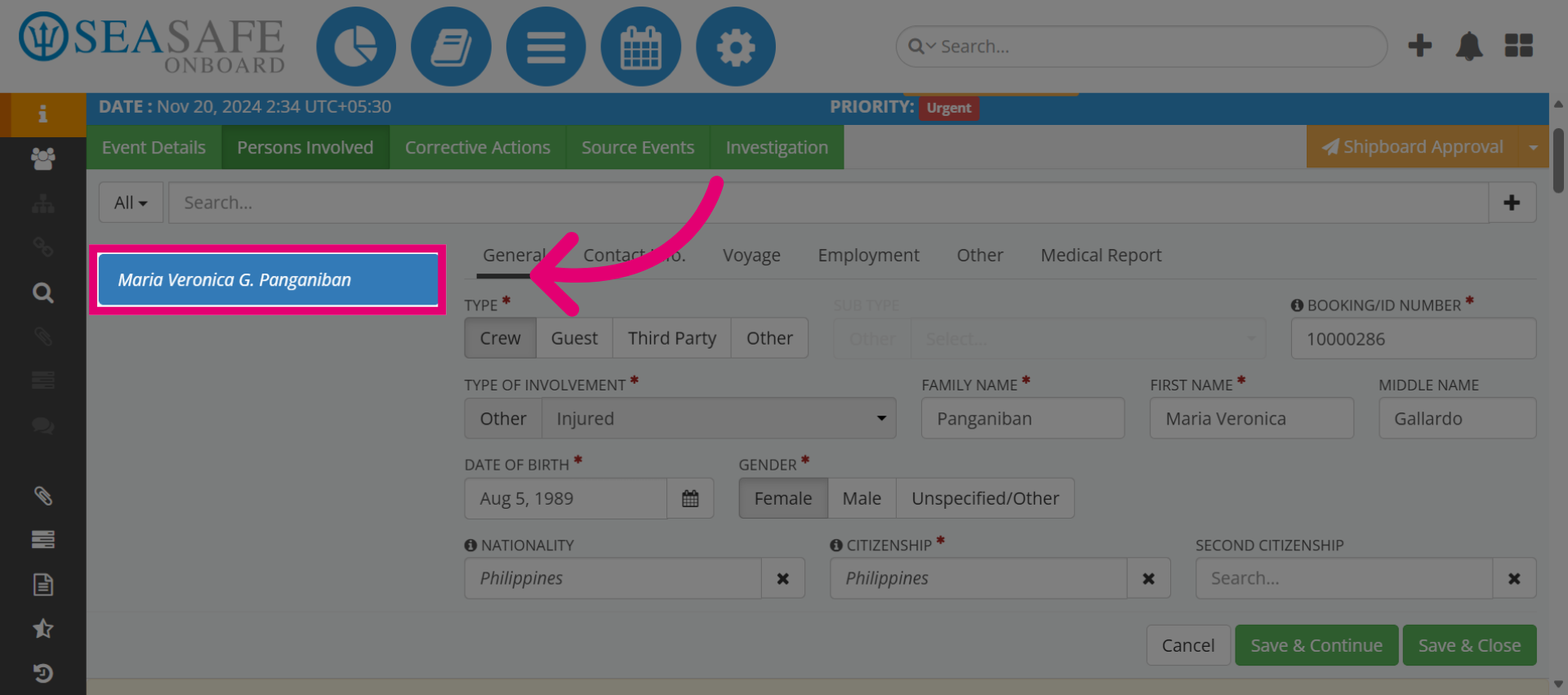
Here you have the person involved in the incident. Anytime there is an injury or outbreak, then this needs to be addressed.
5. Complete Required Fields
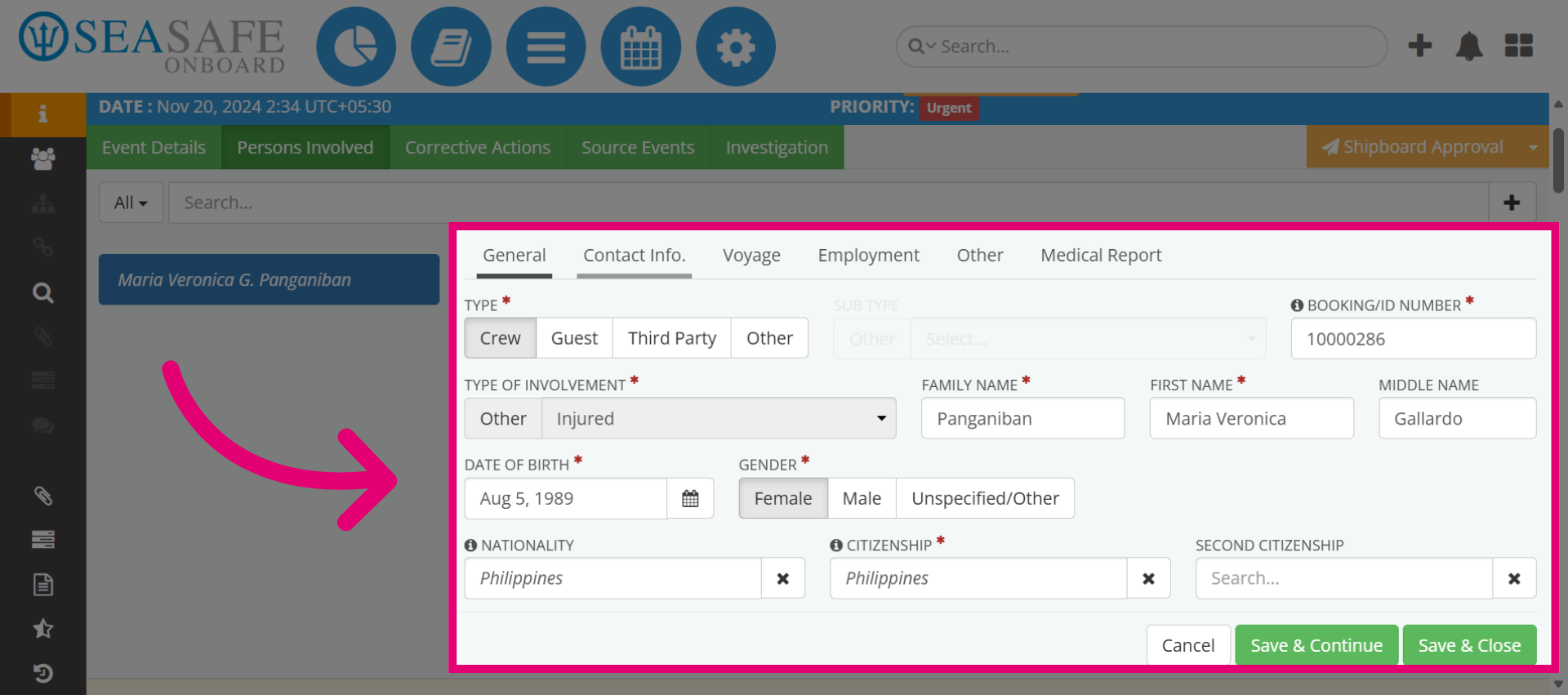
Complete all required fields for the person marked by a red asterisk. This is already filled in so you can view these details for General information.
6. Complete Remaining Tabs
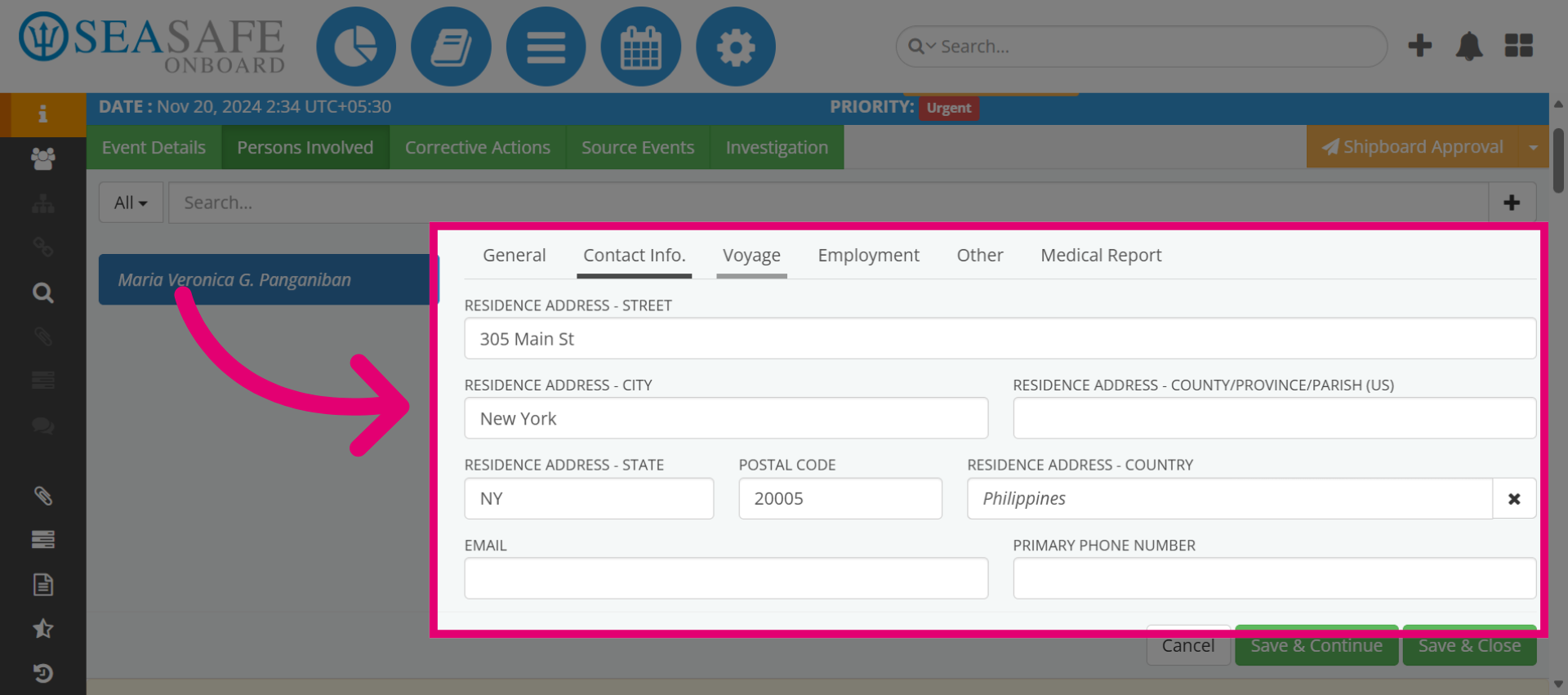
Then, complete required fields in the remaining tabs: Contact info, Voyage, Employment, and if an injury occurred then the Medical Report tab will be activated to complete the medical report.
7. Complete Medical Report
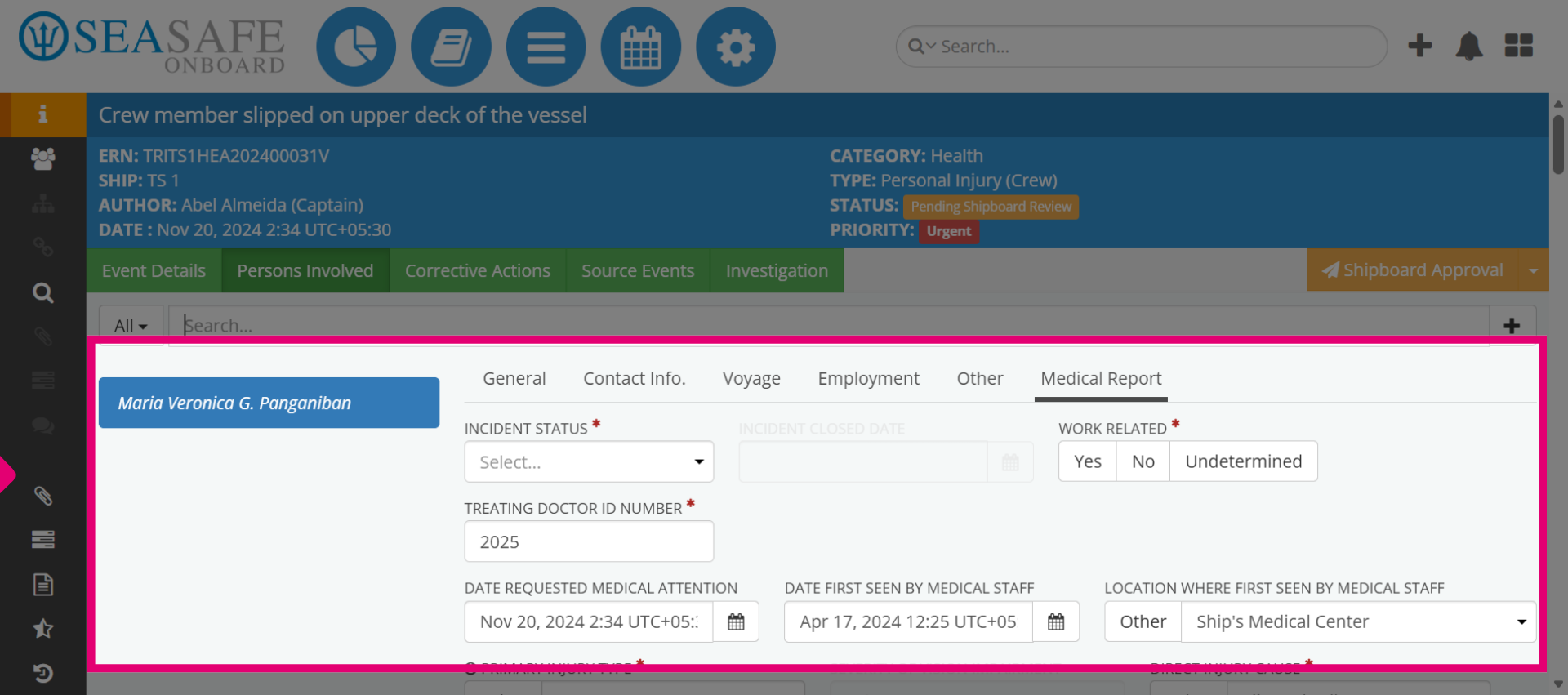
Here is the Medical Report details that must be completed for the person involved.
8. Add New Person Involved
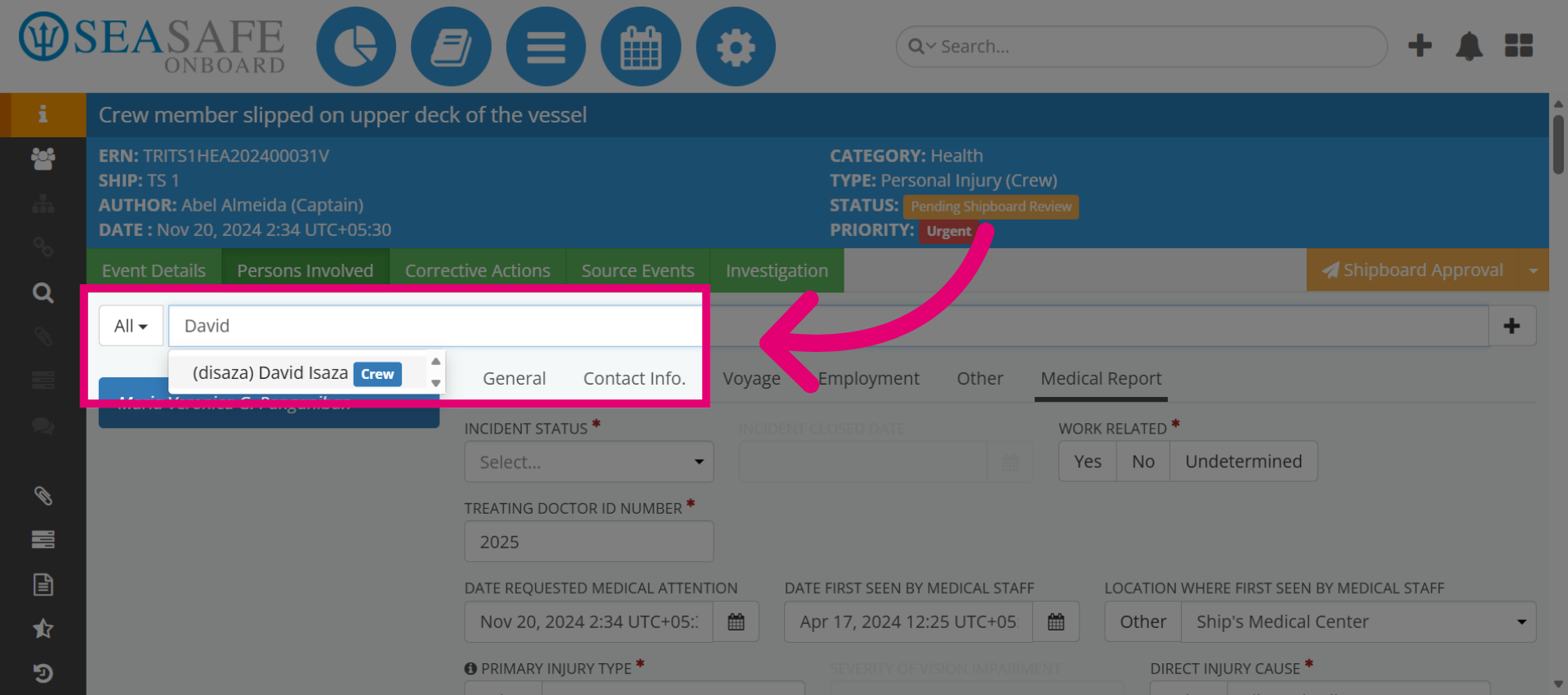
Add a new person involved if needed by typing in the name and pressing enter.
9. New Person Added
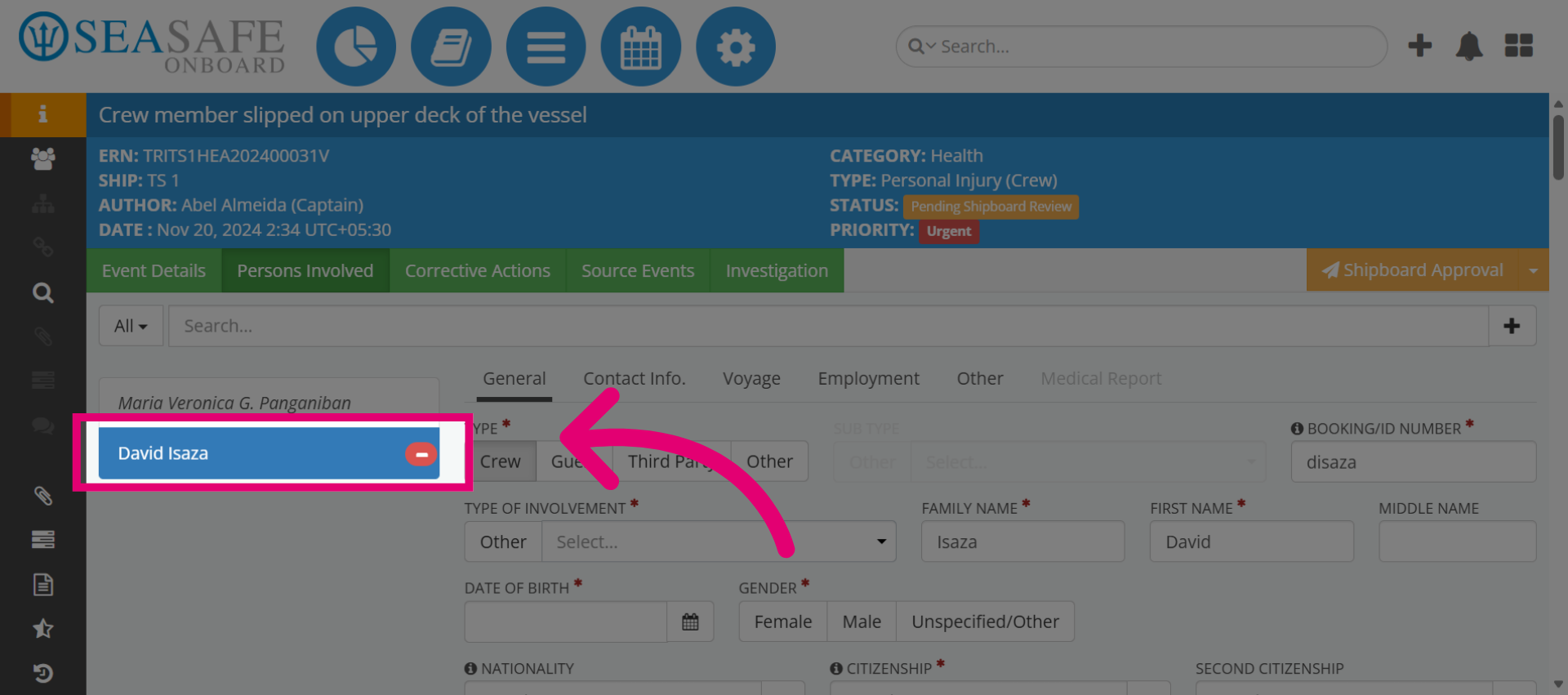
The individual has been added and then you can complete the same fields as the previous person
10. Select Injury Status
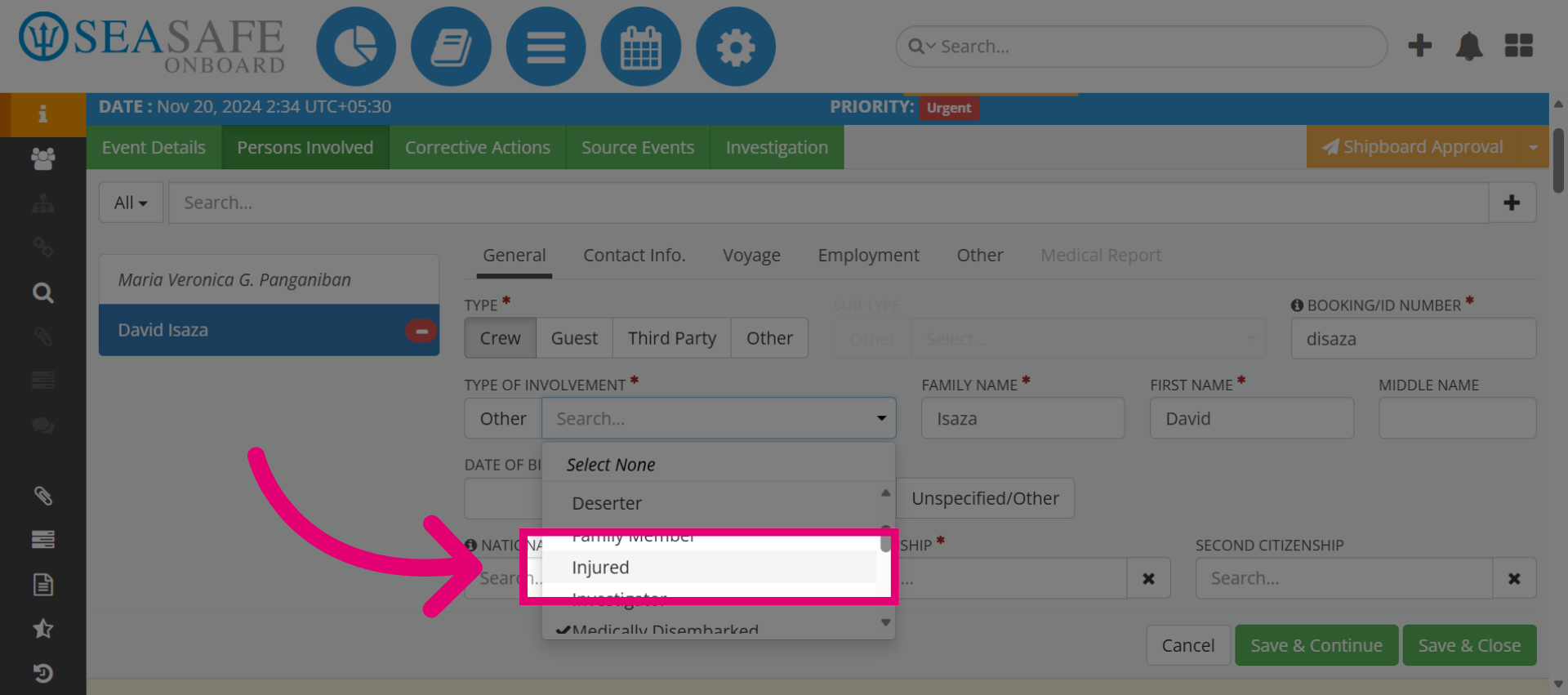
If Injury is selected for Type of Involvement, the Medical Report tab activates to complete a medical report.
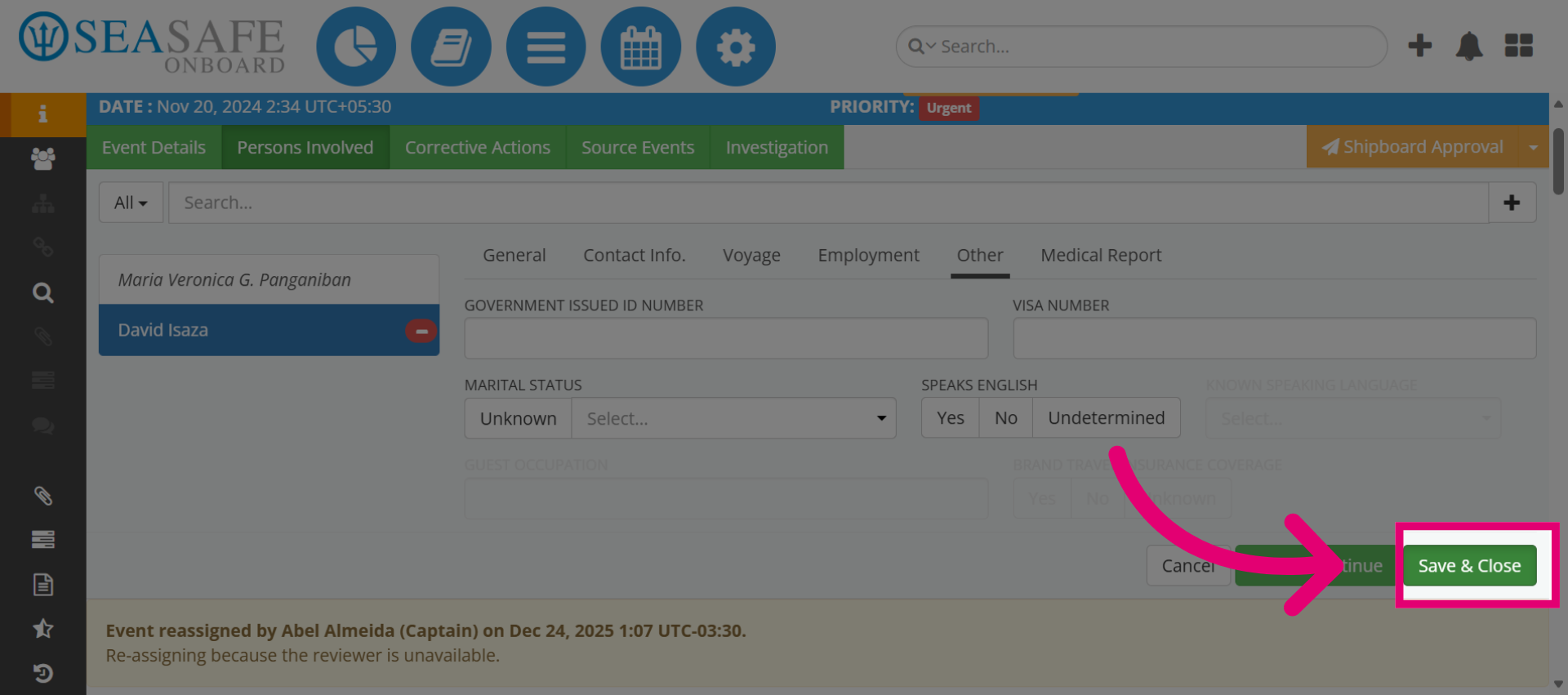
11. Save and Close Wizard
Click Save & Close to finalize and exit the report workflow.