New article
Recently updated
Implement Preventive Actions for a Report in Ideagen Maritime Management

This walkthrough explains how to implement preventive actions within a report workflow in Ideagen Maritime Management.
1. Introduction
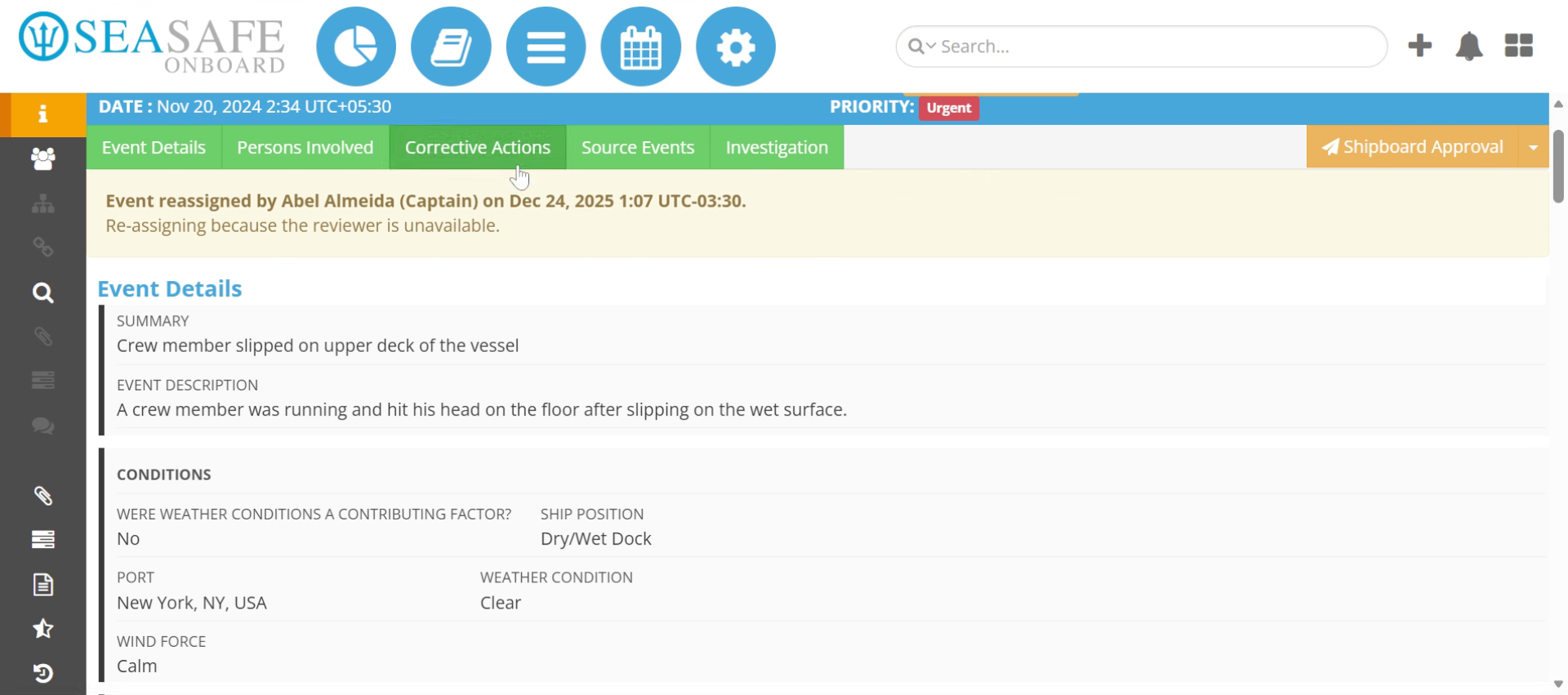
You will learn the steps to properly document and save preventive measures to enhance safety and compliance. Let's begin in an open event report.
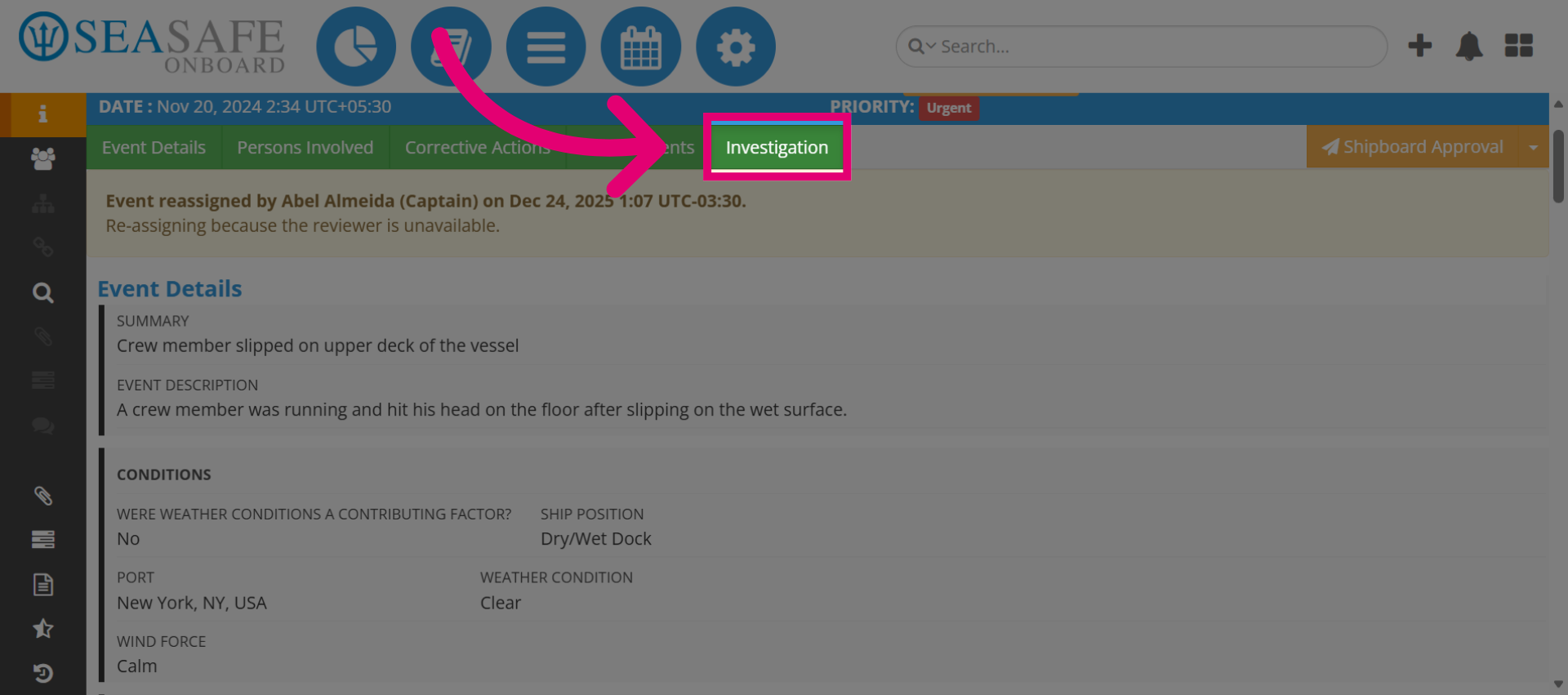
2. Navigate to Investigation Tab
First, click the "Investigation" tab to access the investigation section of the report workflow.
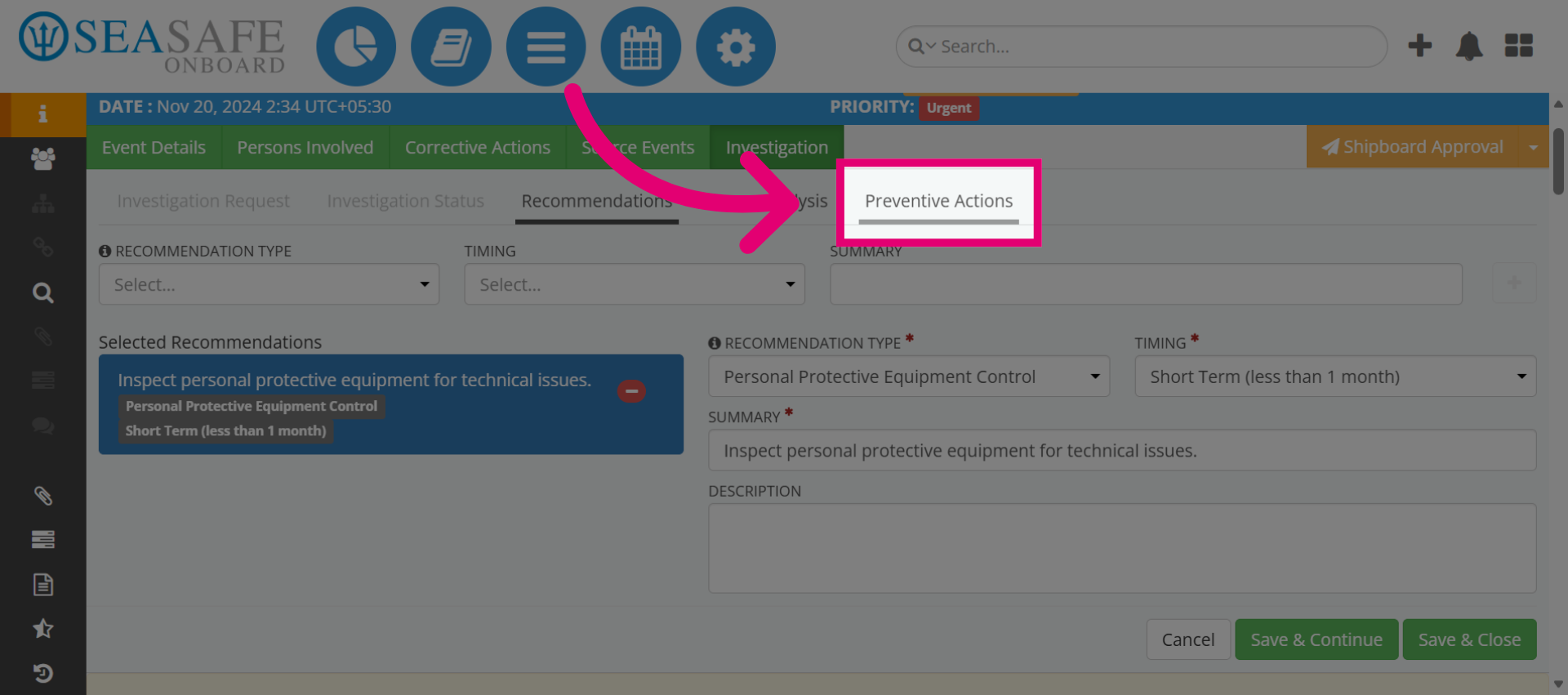
3. Open Preventive Actions Section
Then, click "Preventive Actions" to view and manage preventive measures related to the investigation.
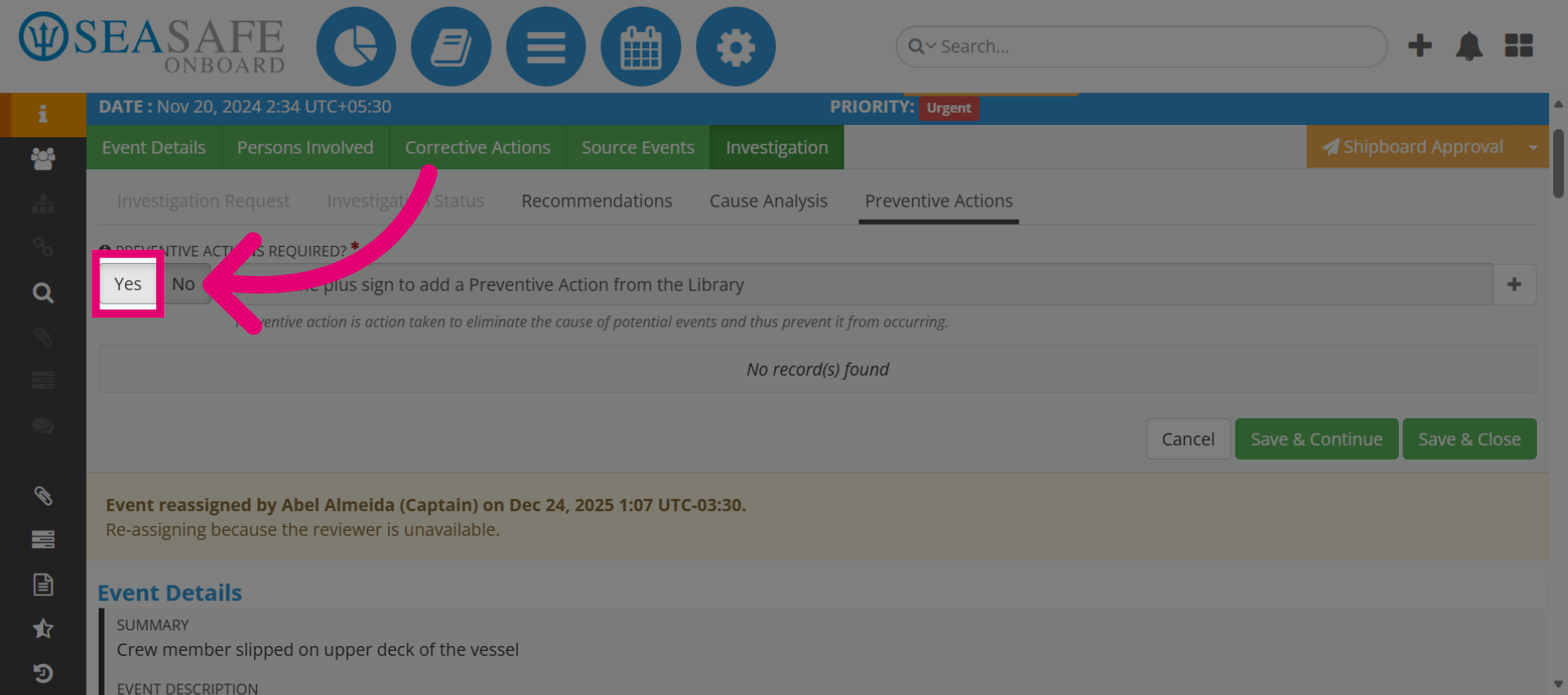
4. Enable Preventive Actions
Select "Yes" to enable the preventive actions feature for the current investigation.
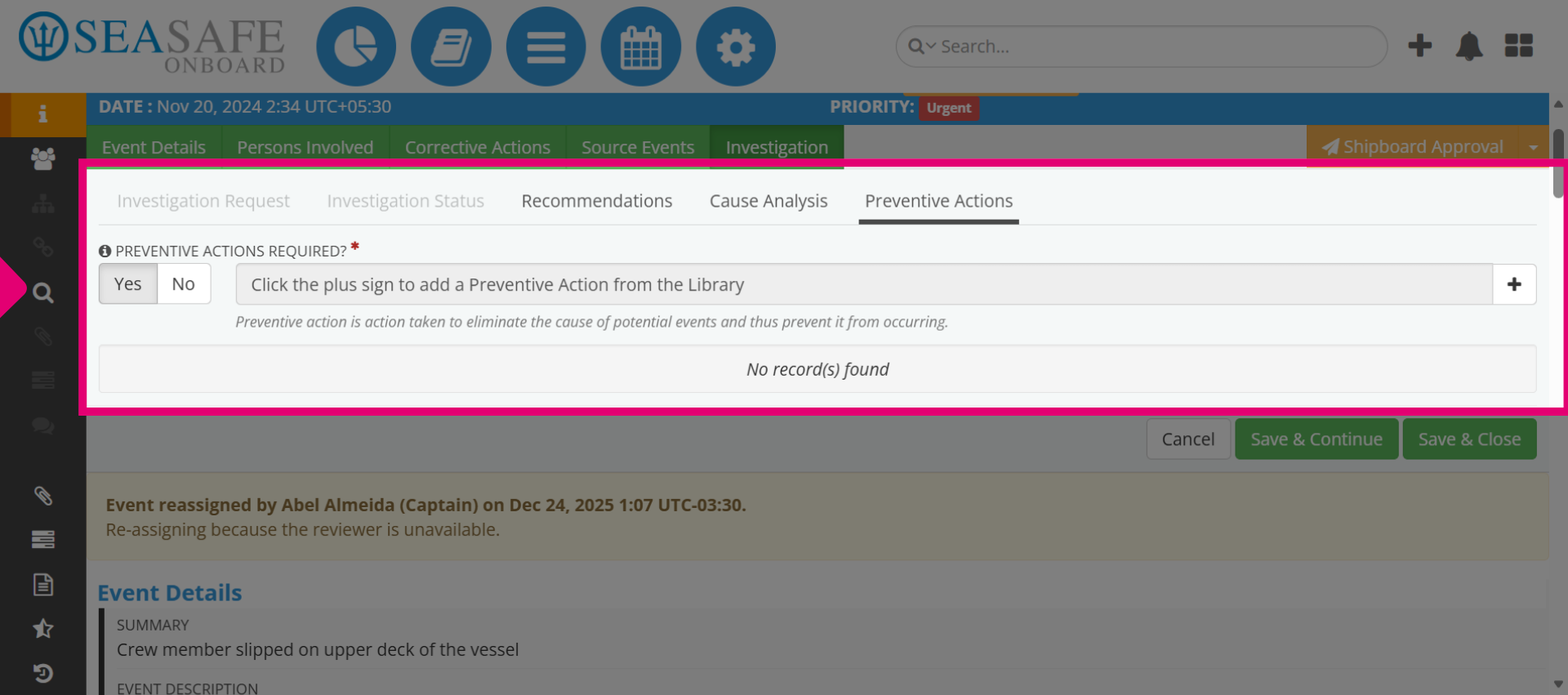
5. Access Preventive Actions Details
Next, access the "Preventive Actions" tab within the investigation interface to proceed with adding details.
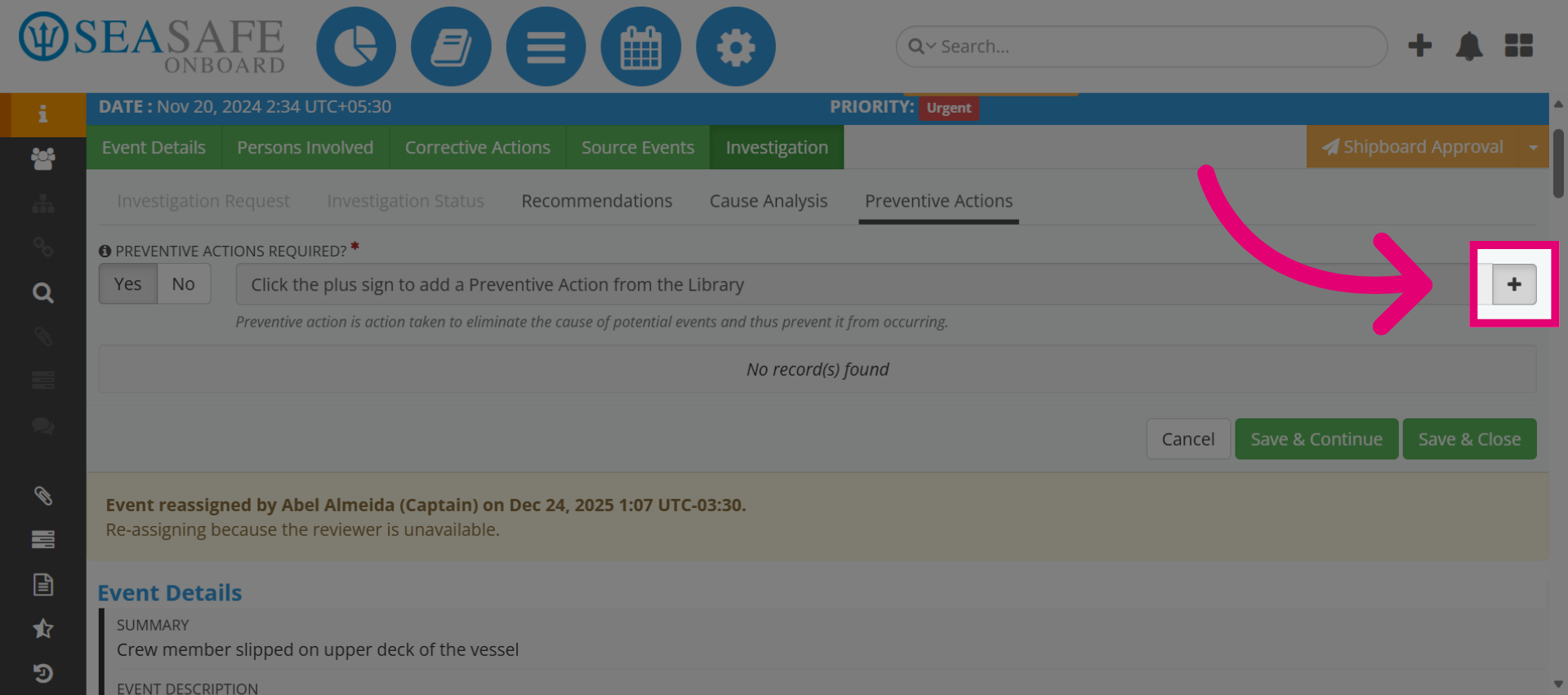
6. Open Preventive Actions Options
Then, click here to open the options available for adding the preventive actions in the workflow.
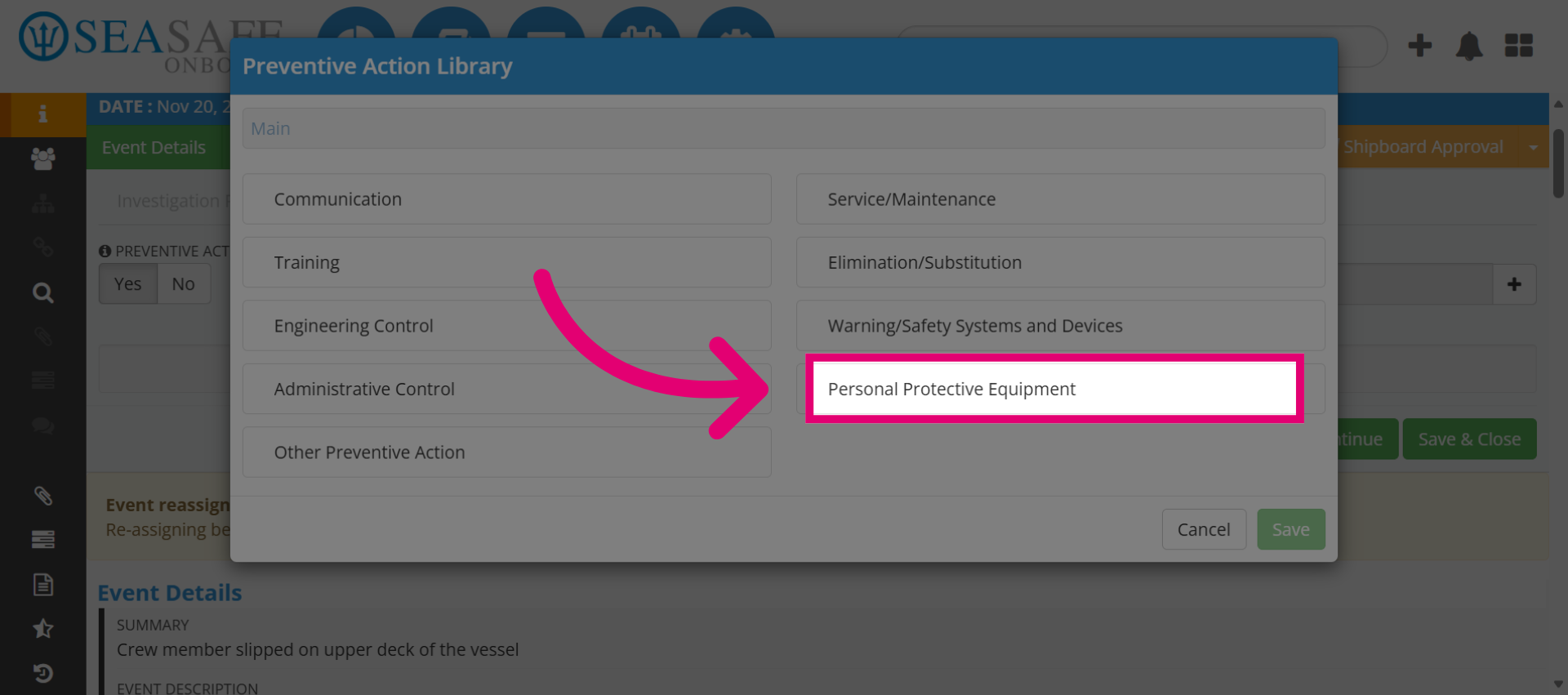
7. Select from the Preventive Actions Library
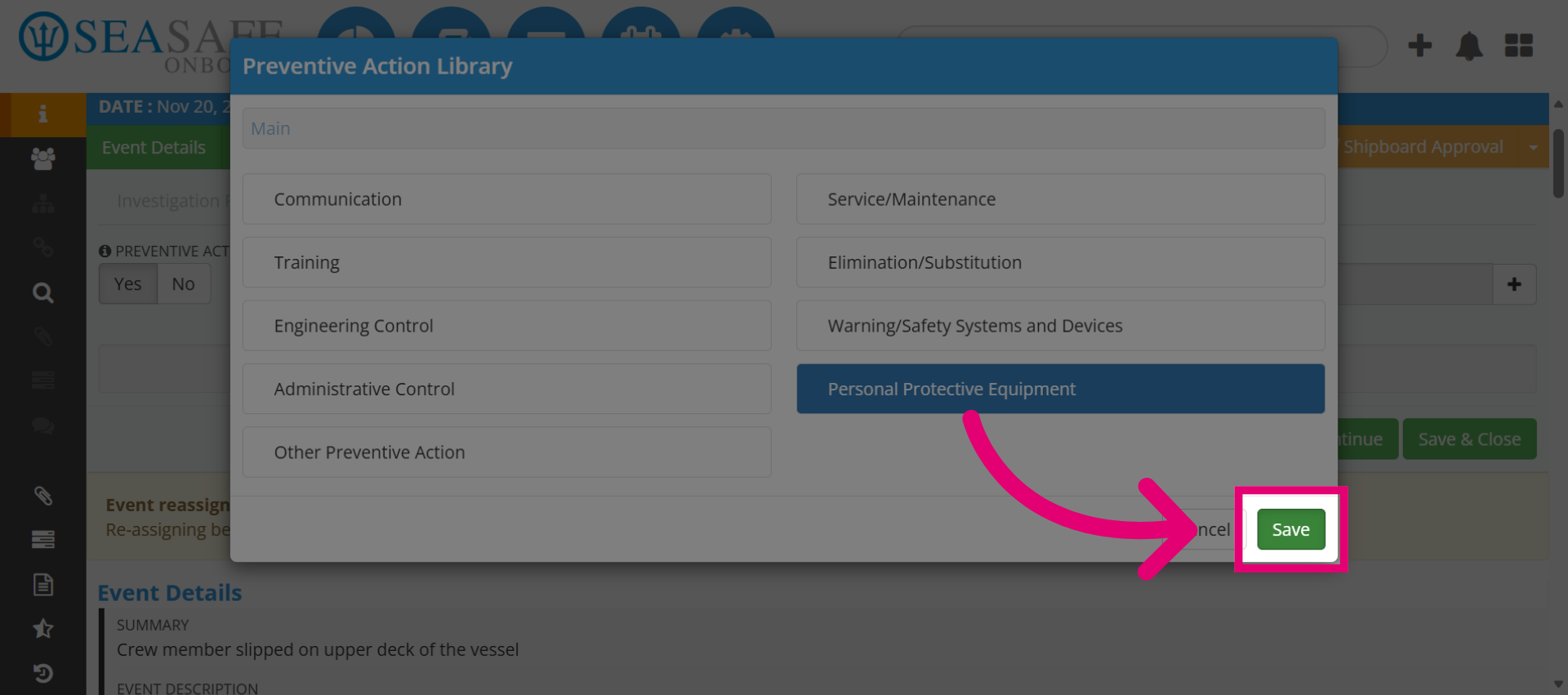
The "Preventive Actions Library" opens allowing users to categorize and select preventive actions when creating or managing safety workflows, investigations, or corrective action plans. For this example, select "Personal Protective Equipment".
8. Save Category Selection
Then, click "Save" to confirm the selection of the preventive action category.
9. Enter Preventive Action Description
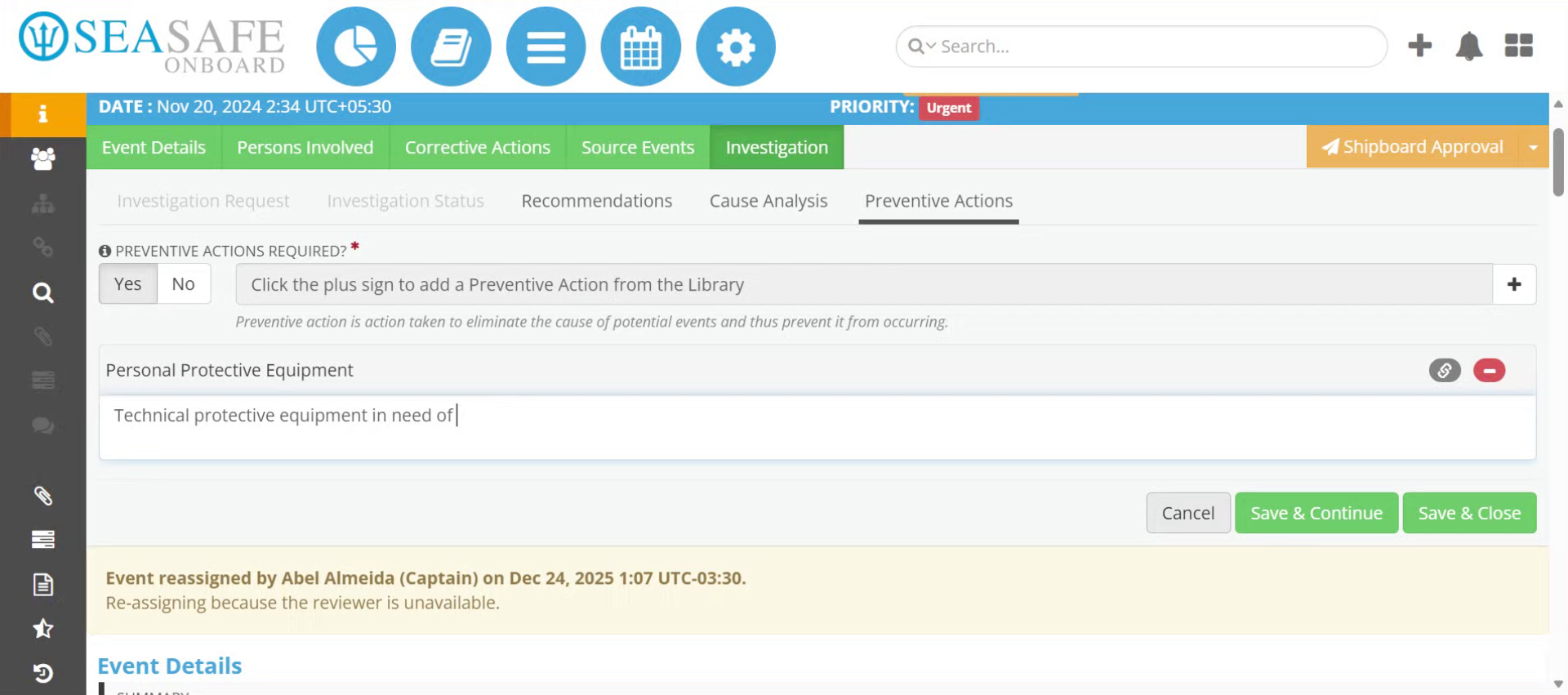
Enter the description of the preventive action, such as technical protective equipment in need of inspection or replacement.
10. Open Additional Options
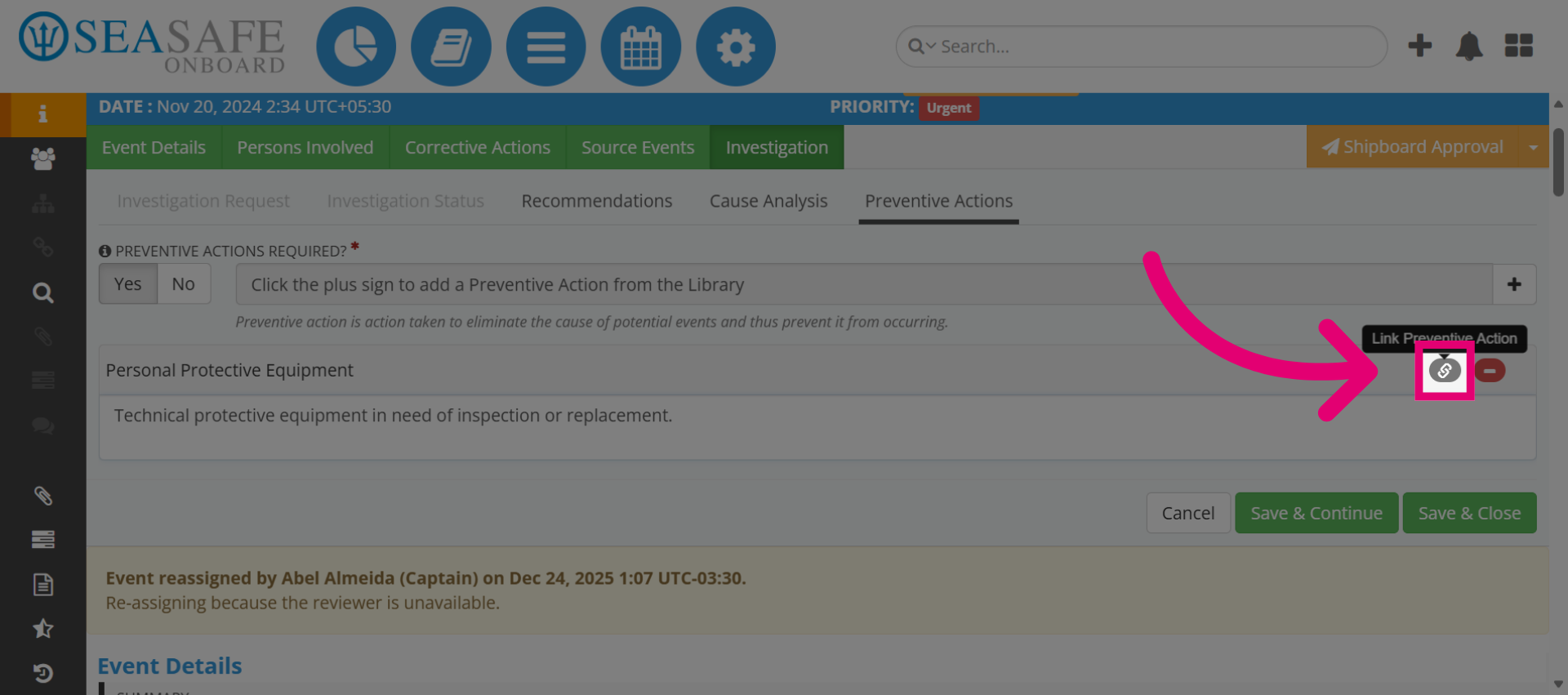
When done, you can choose this option to link preventive actions if applicable.
11. Save and Close Investigation
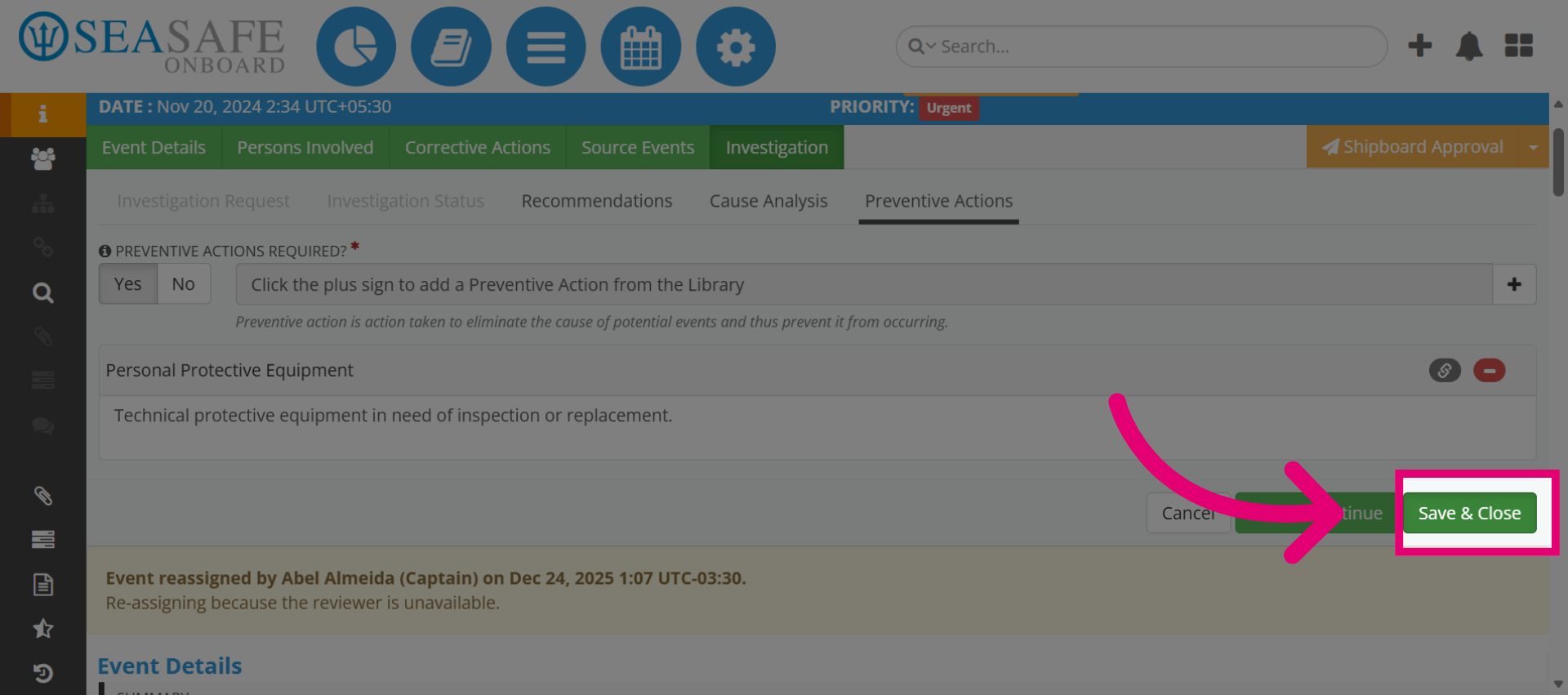
Next, click "Save & Close" to save all changes made to the investigation and close the workflow window.
12. Confirm Successful Update
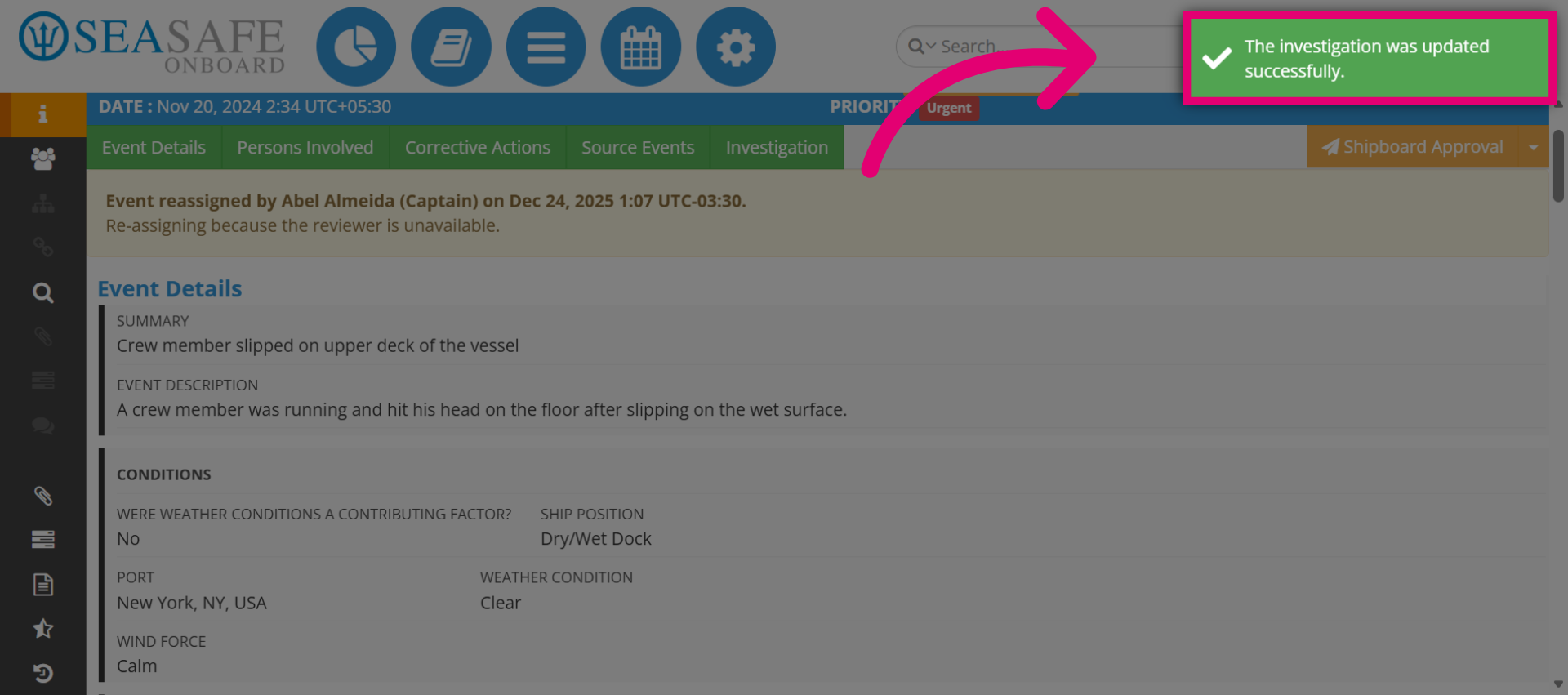
Then, confirmation shows that the investigation was updated successfully to acknowledge that the preventive actions have been saved.