New article
Recently updated
Add Concurrent Event to Report in Ideagen Maritime Management

This walkthrough explains how to add a concurrent event to a report within Ideagen Maritime Management Onboard.
1. Introduction
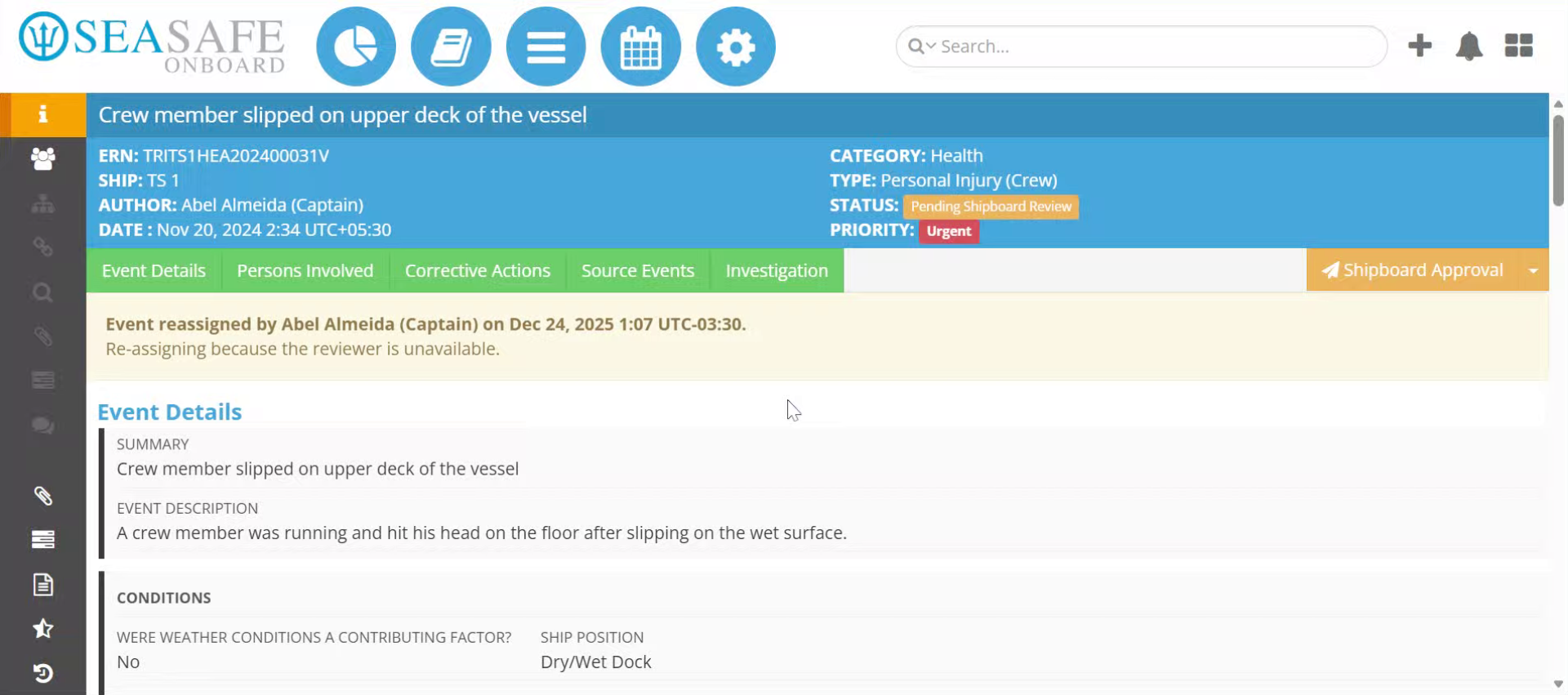
You will learn the step-by-step process to accurately document related incidents in your reports. Start in an open event report.
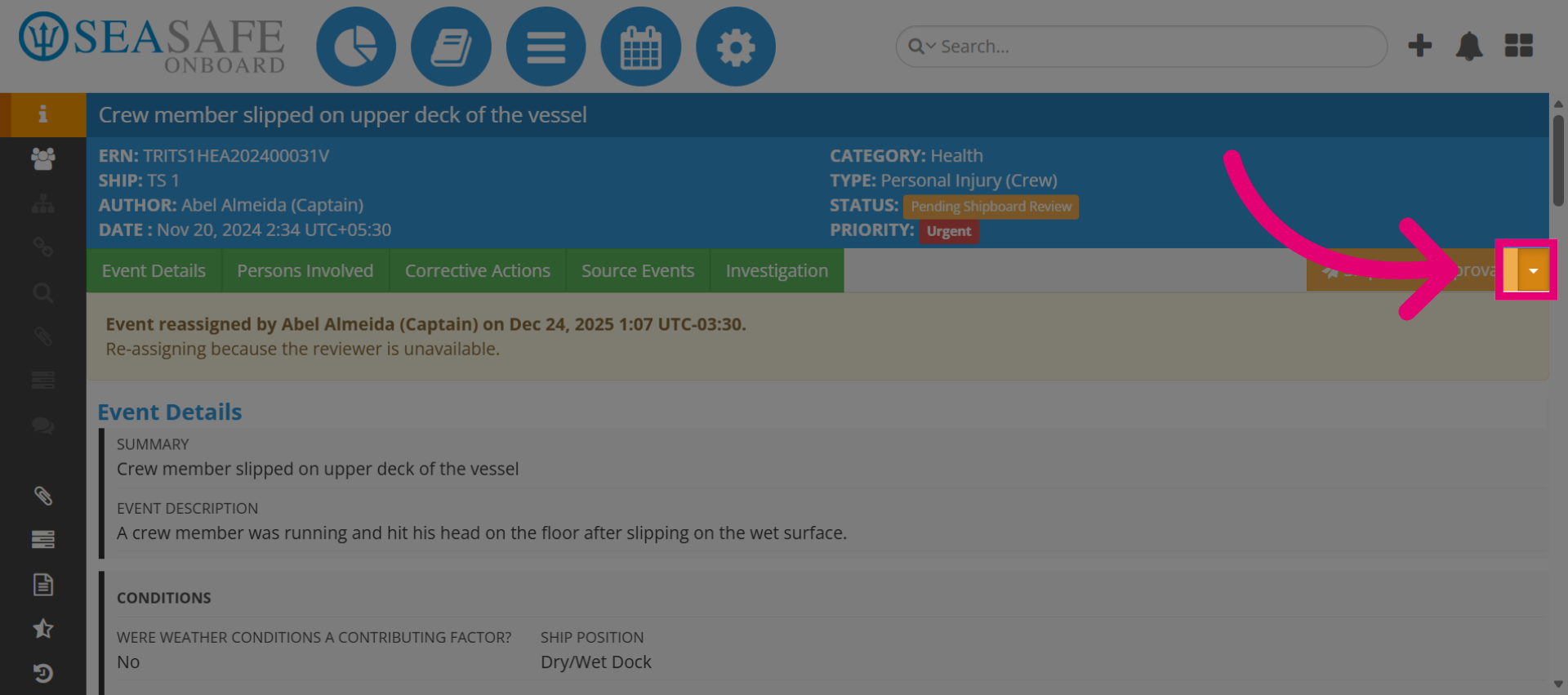
2. Open Concurrent Event Menu
Click here to open the menu for adding a concurrent event.
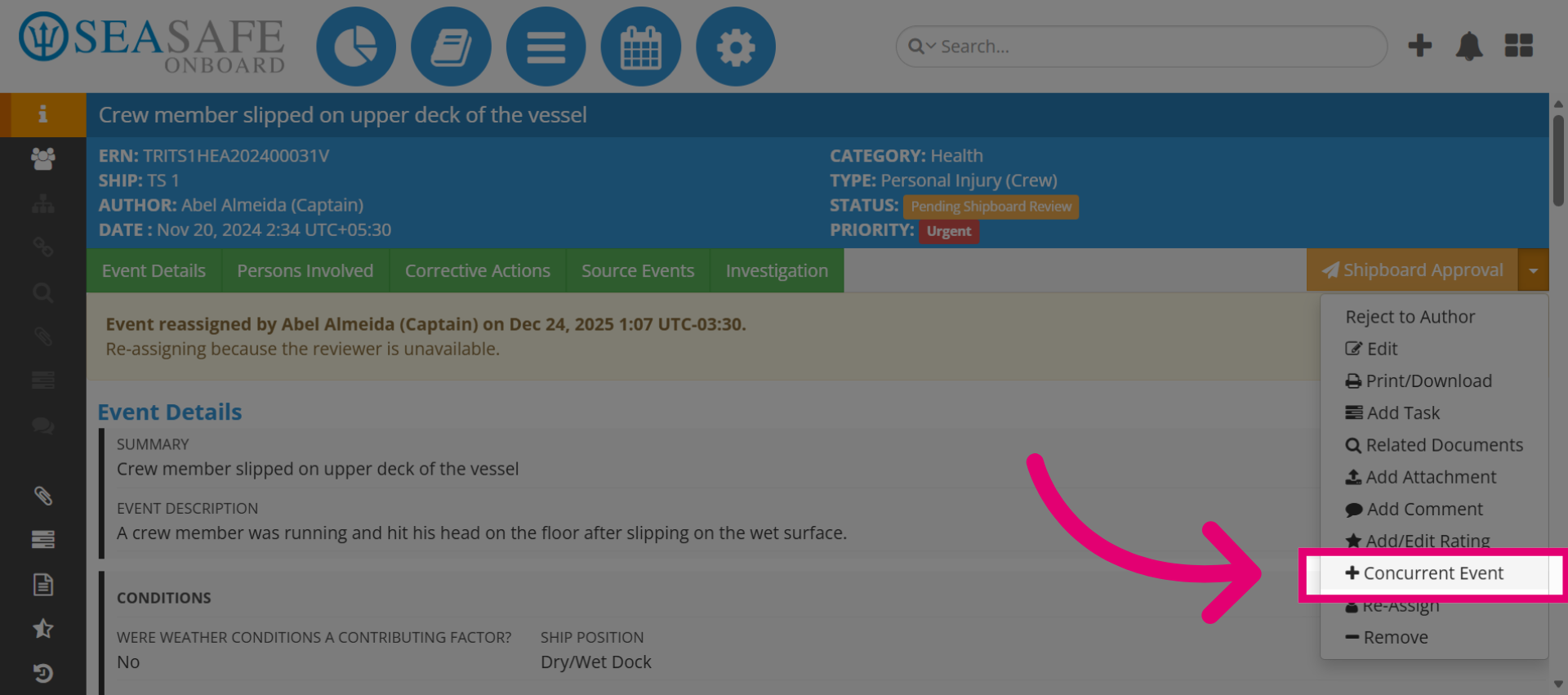
3. Select Concurrent Event Option
Select "Concurrent Event" to begin adding a new concurrent event to the report.
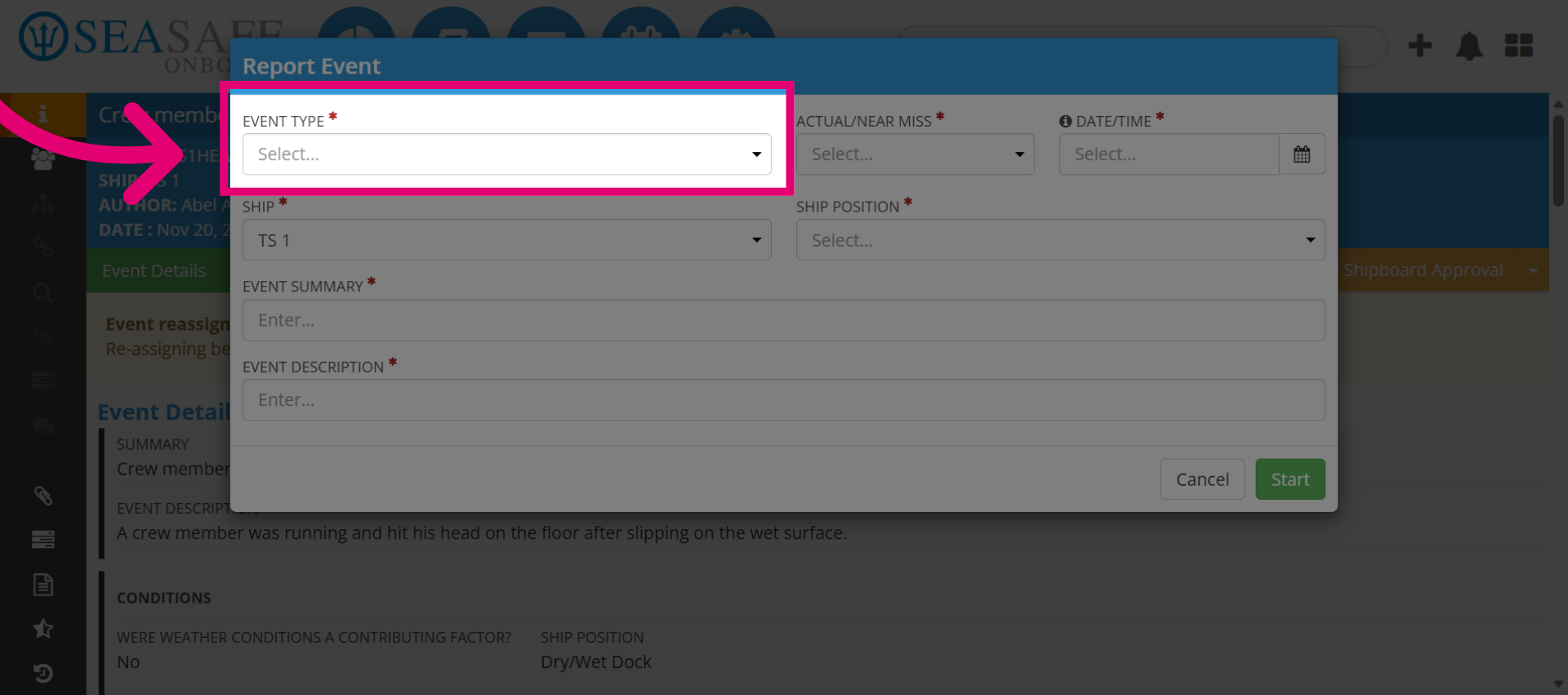
4. Open Event Type Selector
Then, choose the type of concurrent event you want to add.
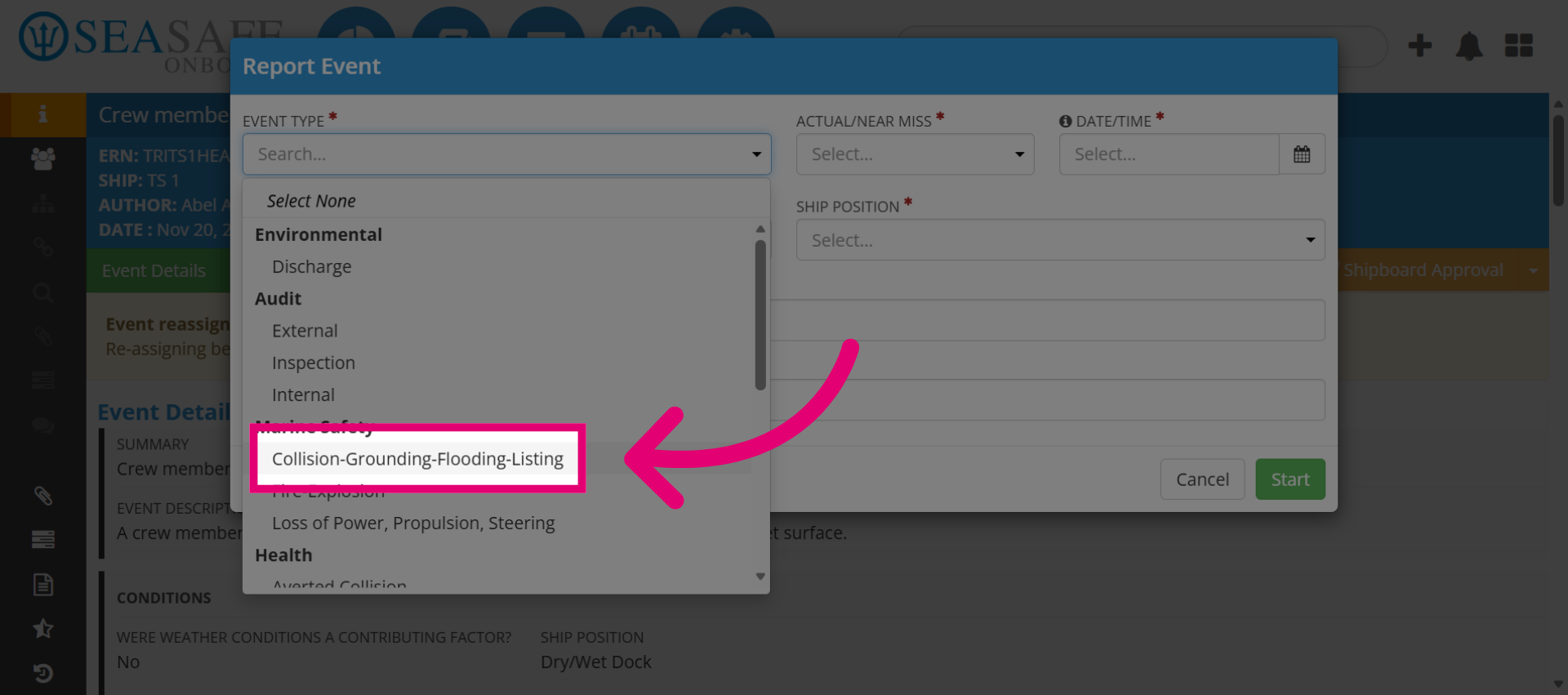
5. Choose Event Category
For example, we can choose "Collision-Grounding-Flooding-Listing" event category.
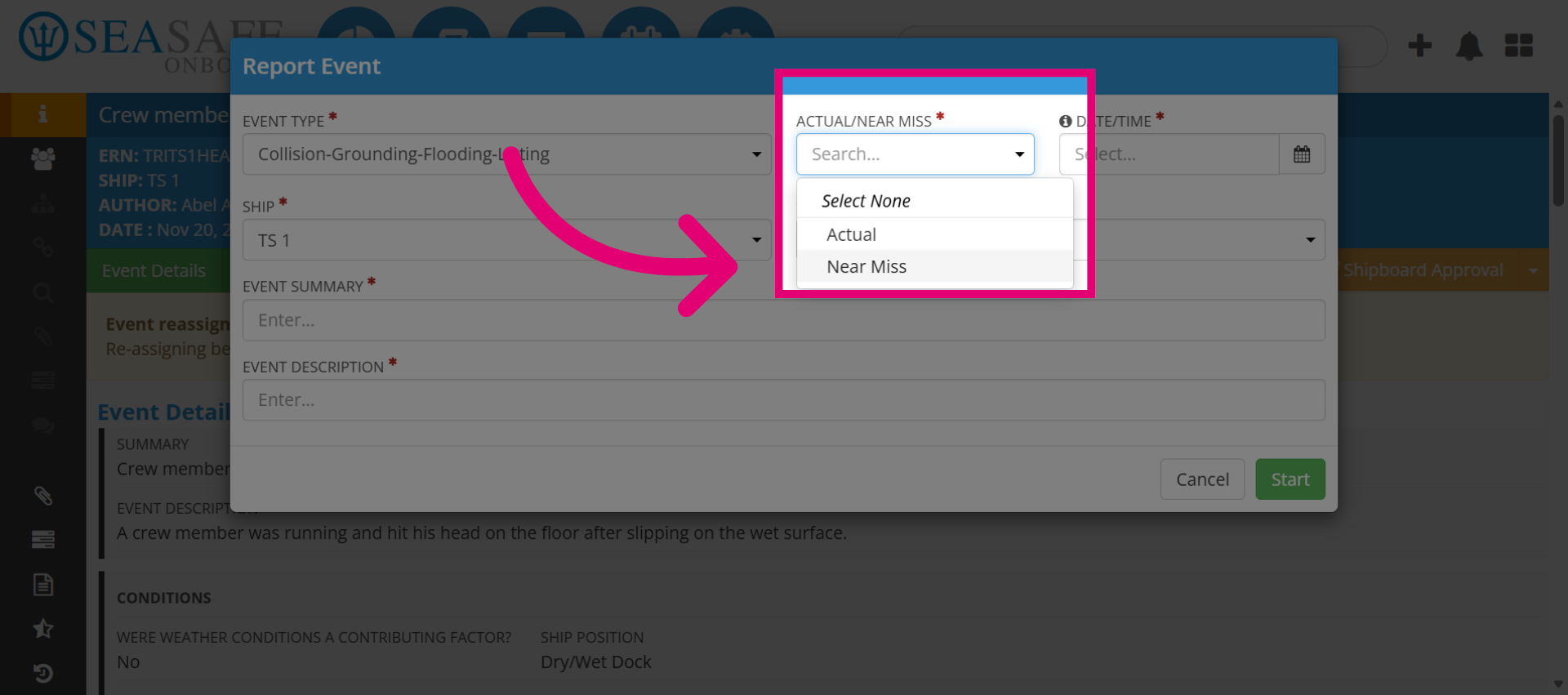
6. Choose "Near-Miss" or "Actual"
Specify the subtype of the concurrent event as Near Miss-meaning an accident almost occurred but did not or Actual-meaning an accident did occur.
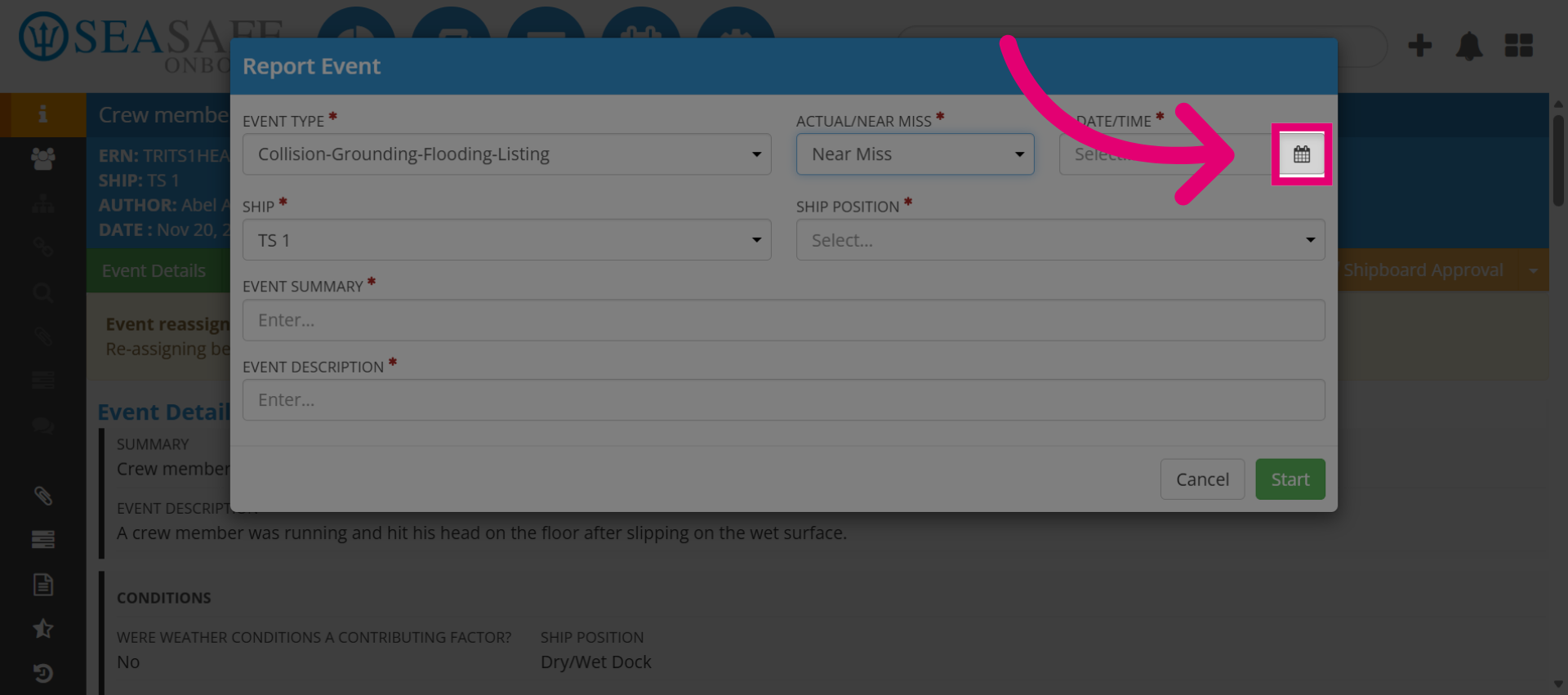
7. Access Event Date Selector
Click here to open the date selection for the concurrent event.
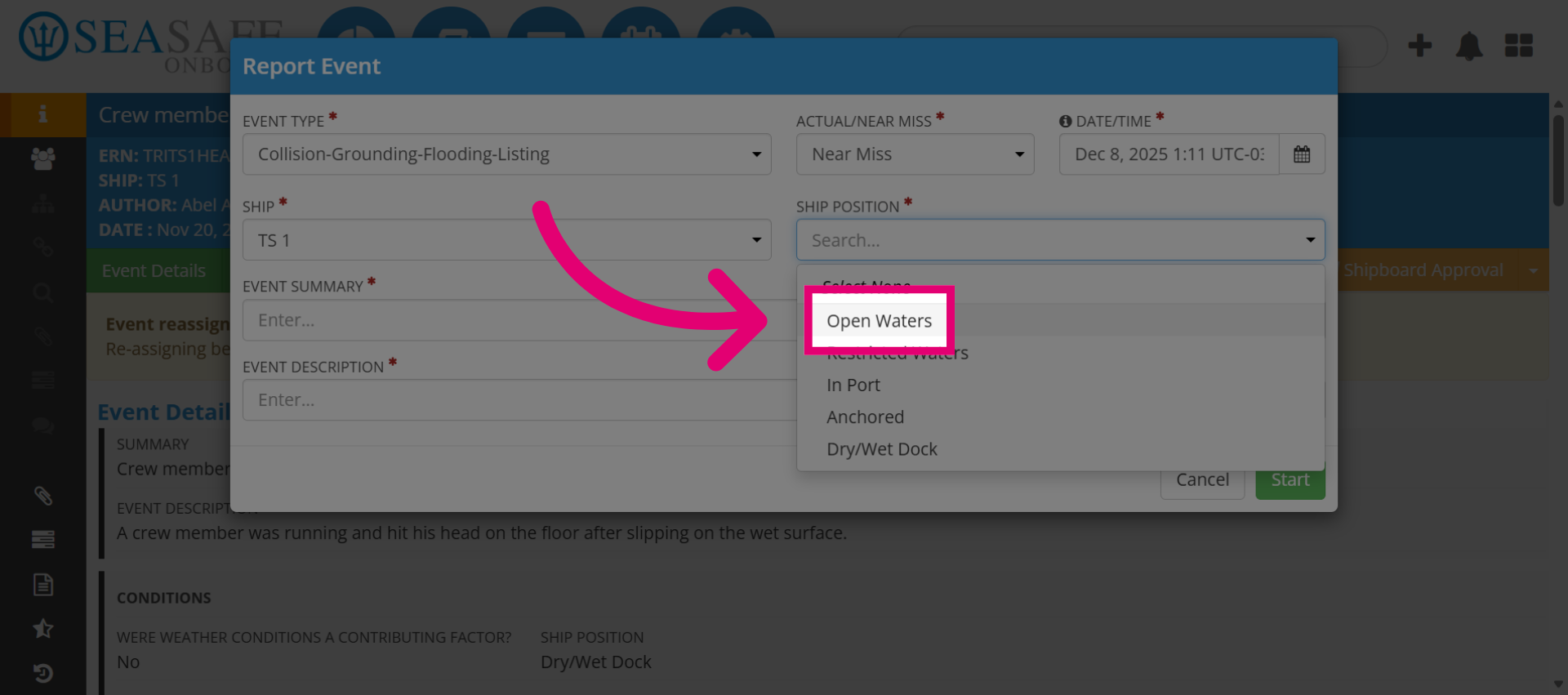
8. Choose Open Waters Location
Select the Ship's Position at the time of the event—options include Open Waters (at sea), In Port (at the port), or Anchored. Click "Open Waters" to designate the event's location.
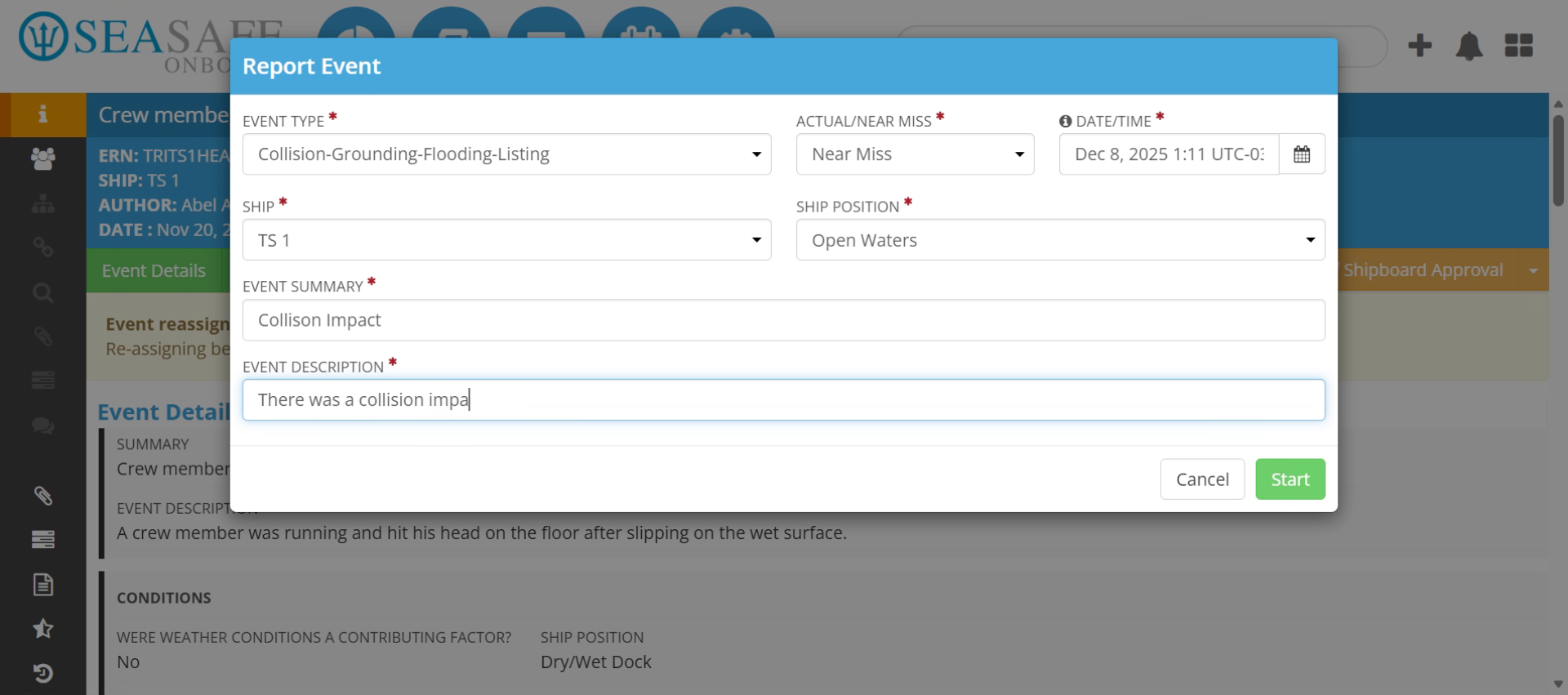
9. Enter Event Description
Enter the event description such as: "There was a collision impact in open waters."
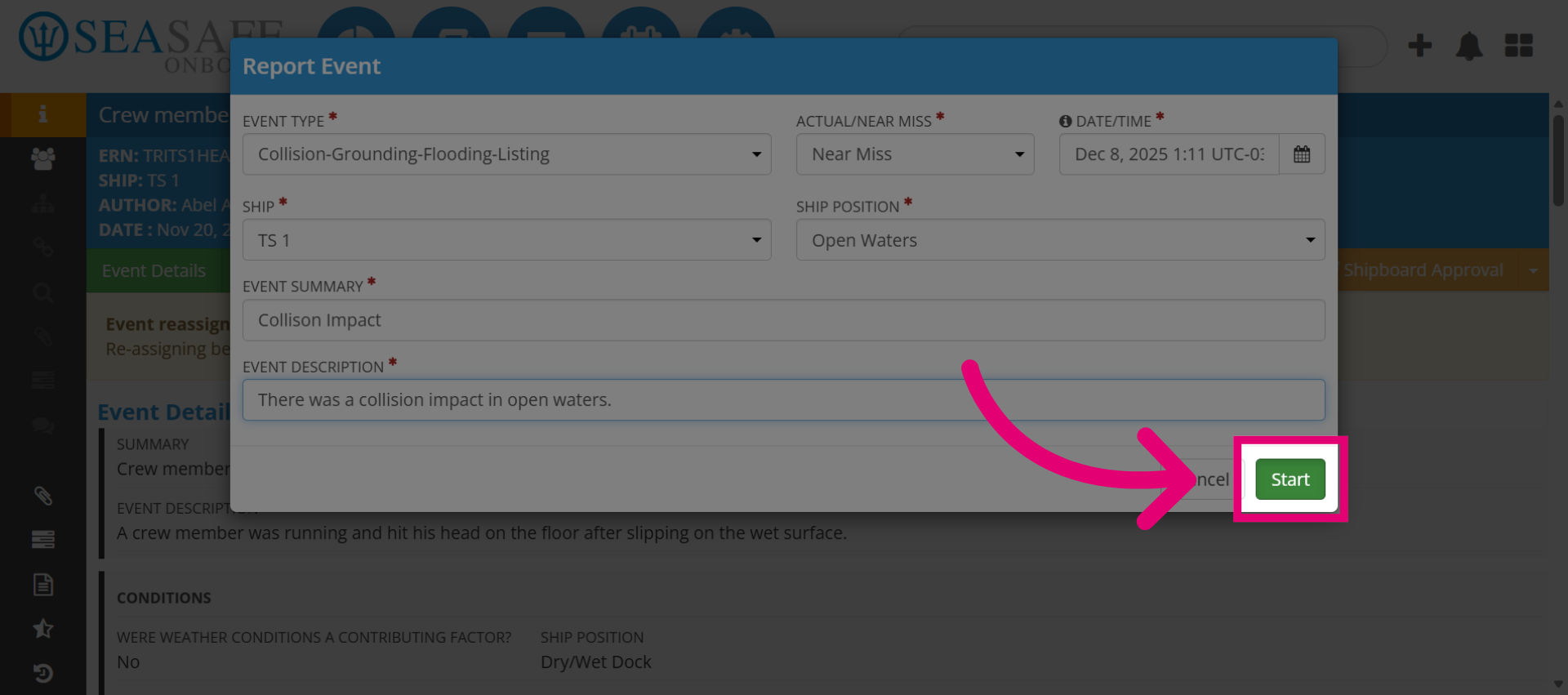
10. Start Event Recording
Click "Start" to begin recording the concurrent event details.
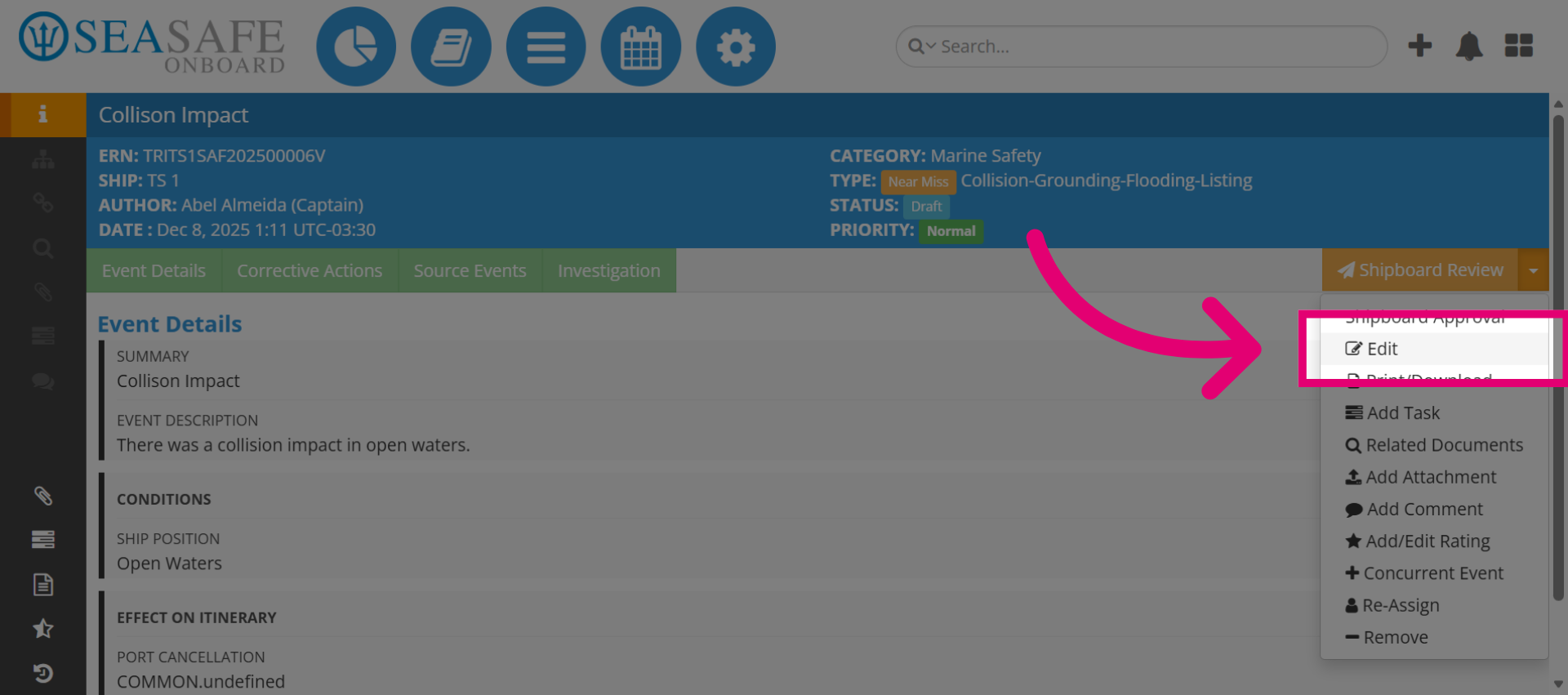
11. Edit Concurrent Event
Click "Edit" to modify the concurrent event information.
12. Open Event Details Tab
Click "Event Details" to view detailed information about the concurrent event.
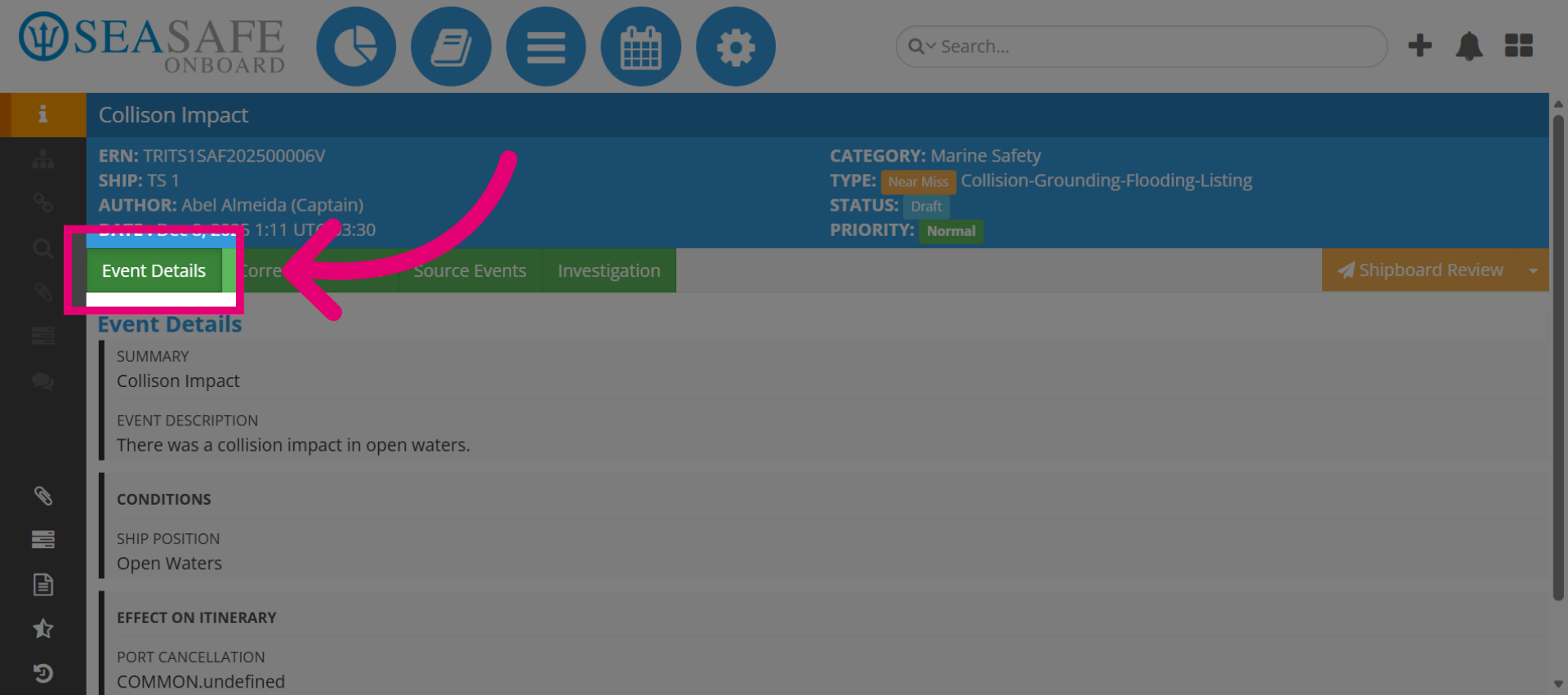
13. Open Event Summary
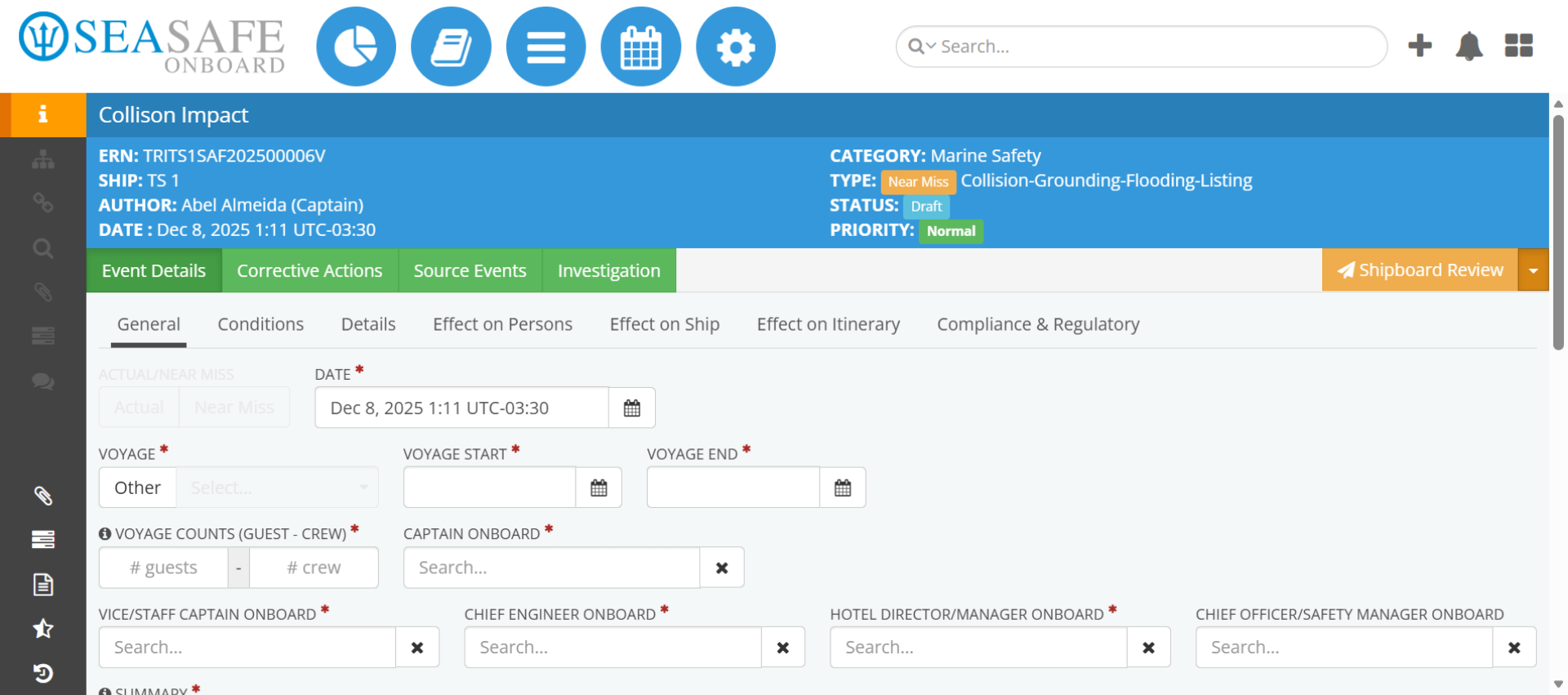
View the summary of the concurrent event. You will have the same fields to fill out as with the original event such as the Conditions, Event Location, Effects on ersons, etc.