New article
Recently updated
Complete Report Details in a Workflow in Ideagen Maritime Management Onboard

This walkthrough explains how to complete report details in a workflow in Ideagen Maritime Management Onboard.
1. Introduction
You will learn how to navigate and update event information effectively.
2. Open Report
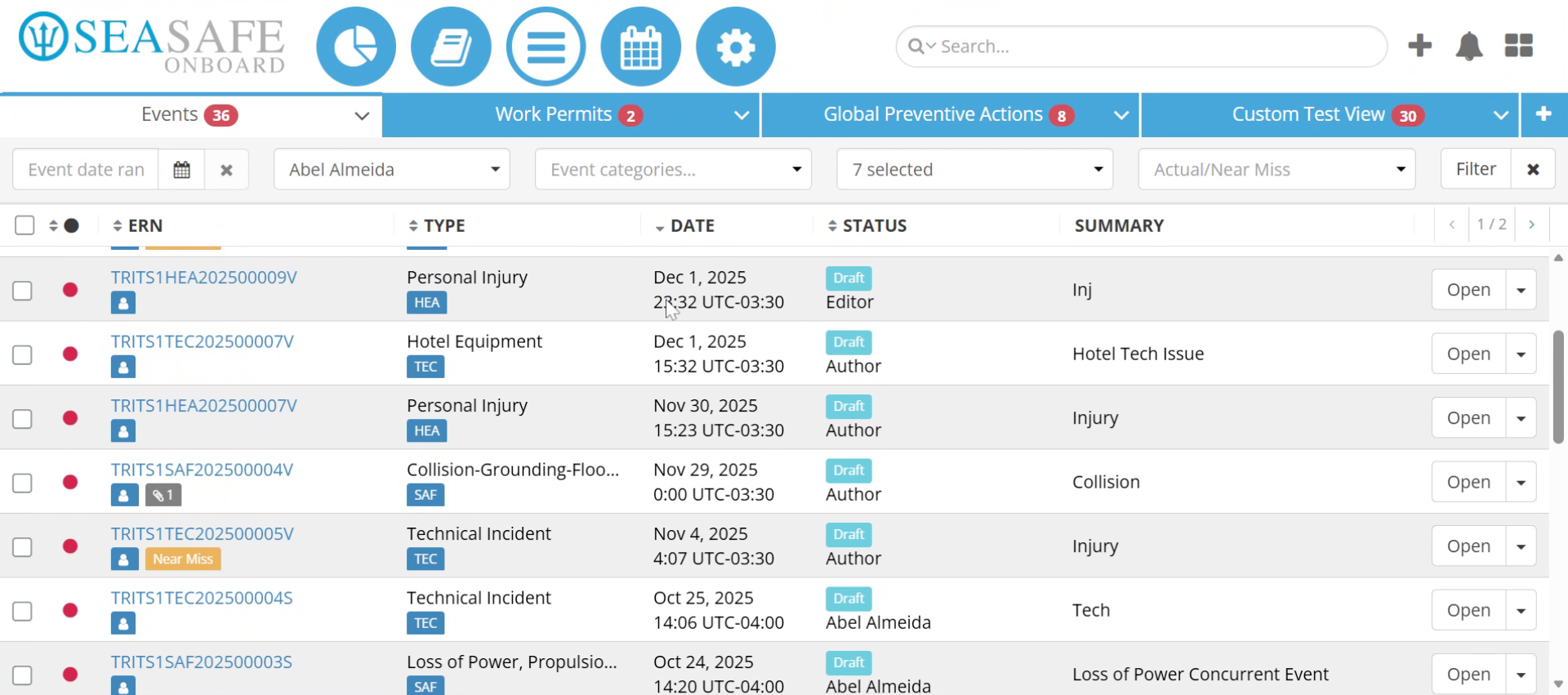
Start in the Workflow Module for Events. Click the Event Report Number (E-R-N) to open the specific report.
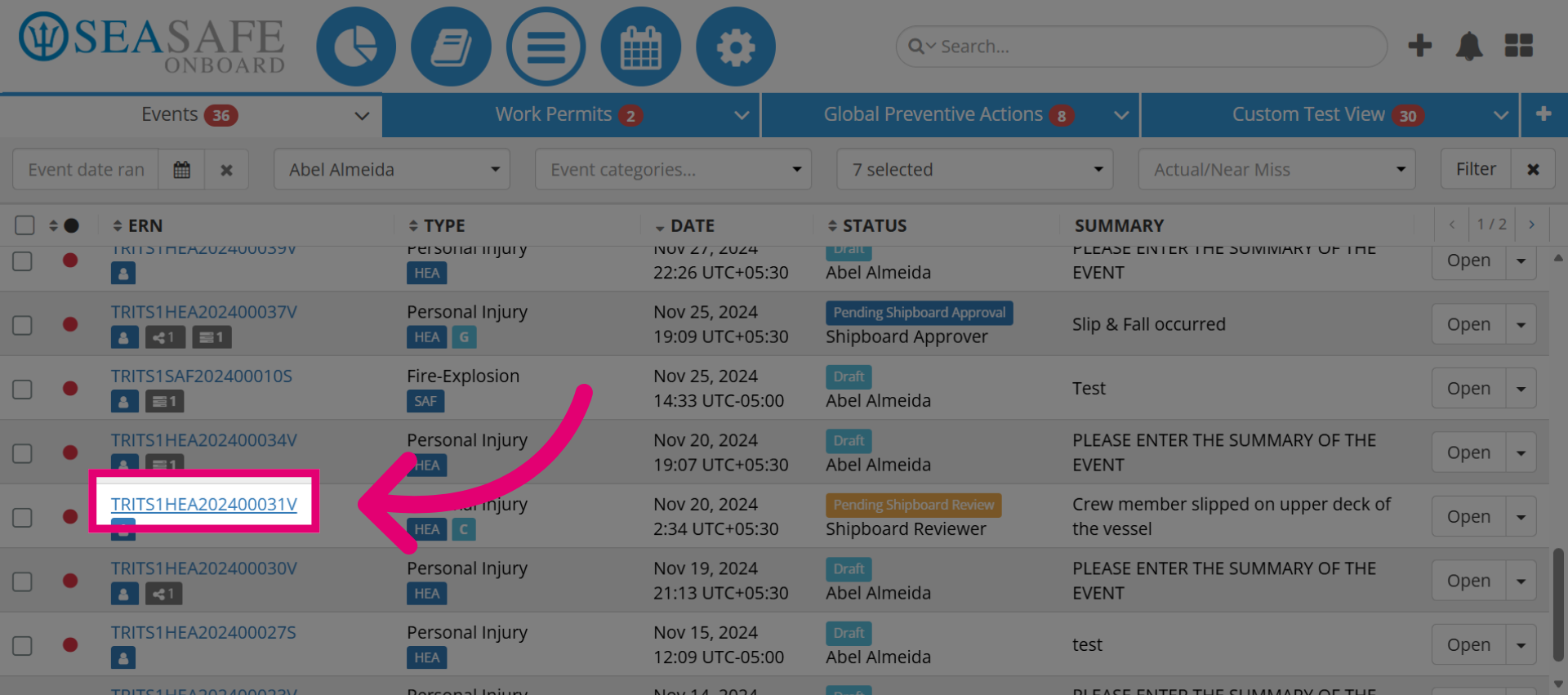
3. Access Report Options
Then, click the designated tab to access additional report options.
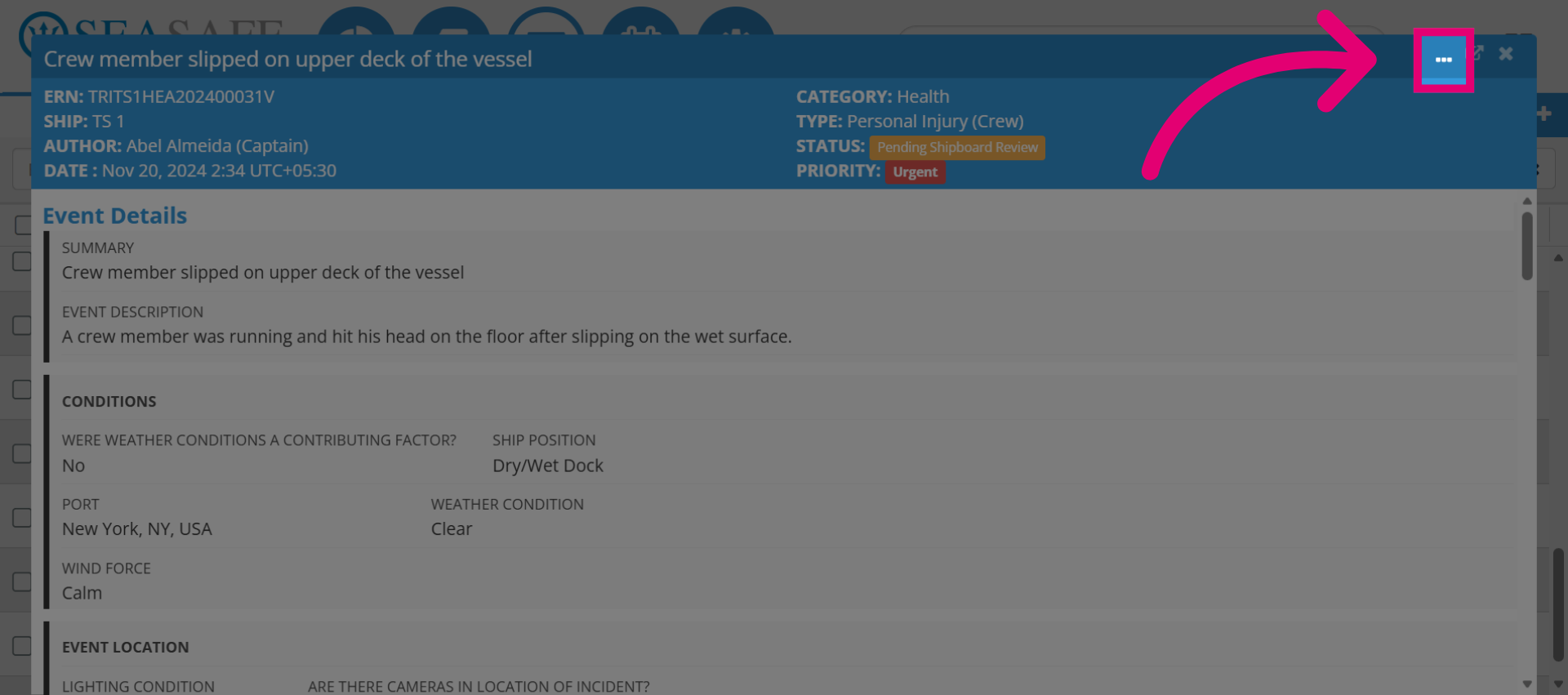
4. Enter Edit Mode
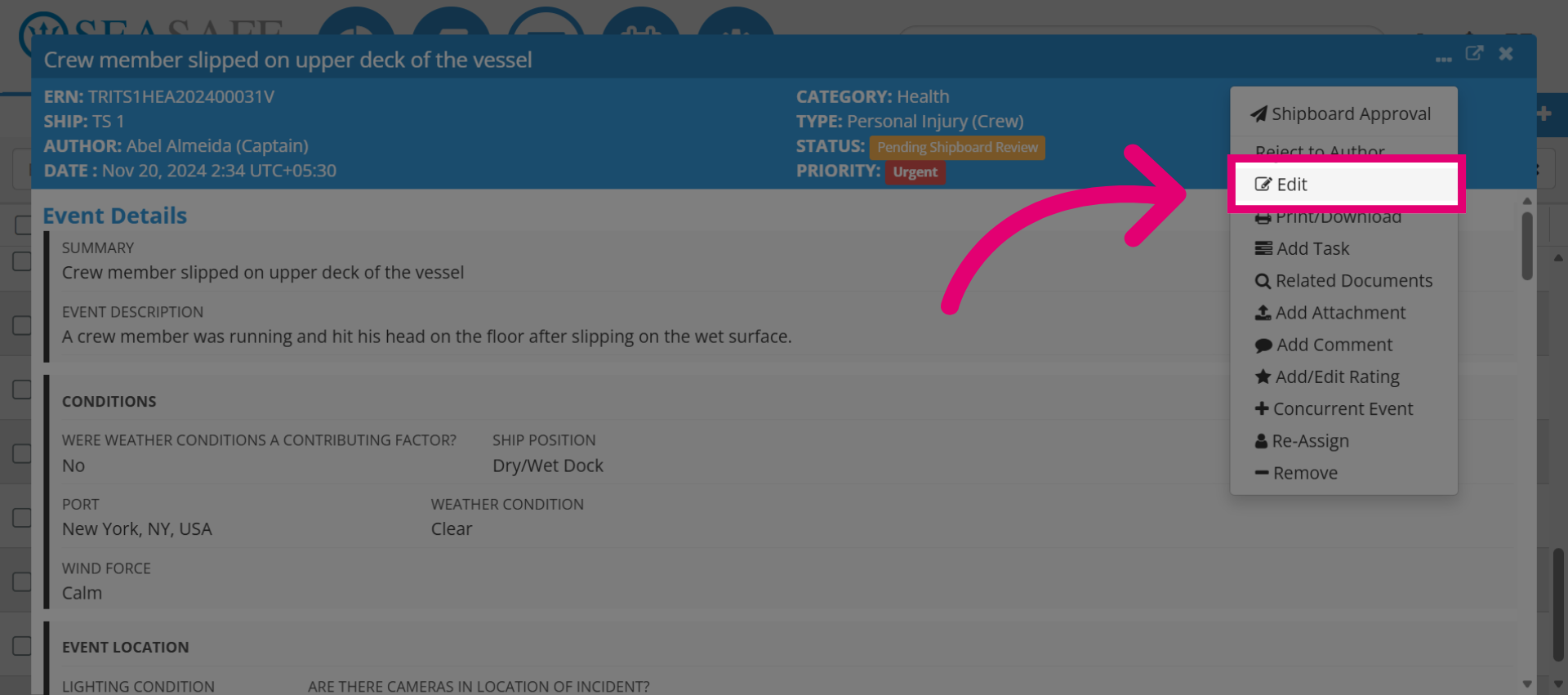
Next, click the "Edit" button to enable modifications to the report details.
5. Open Event Details Section
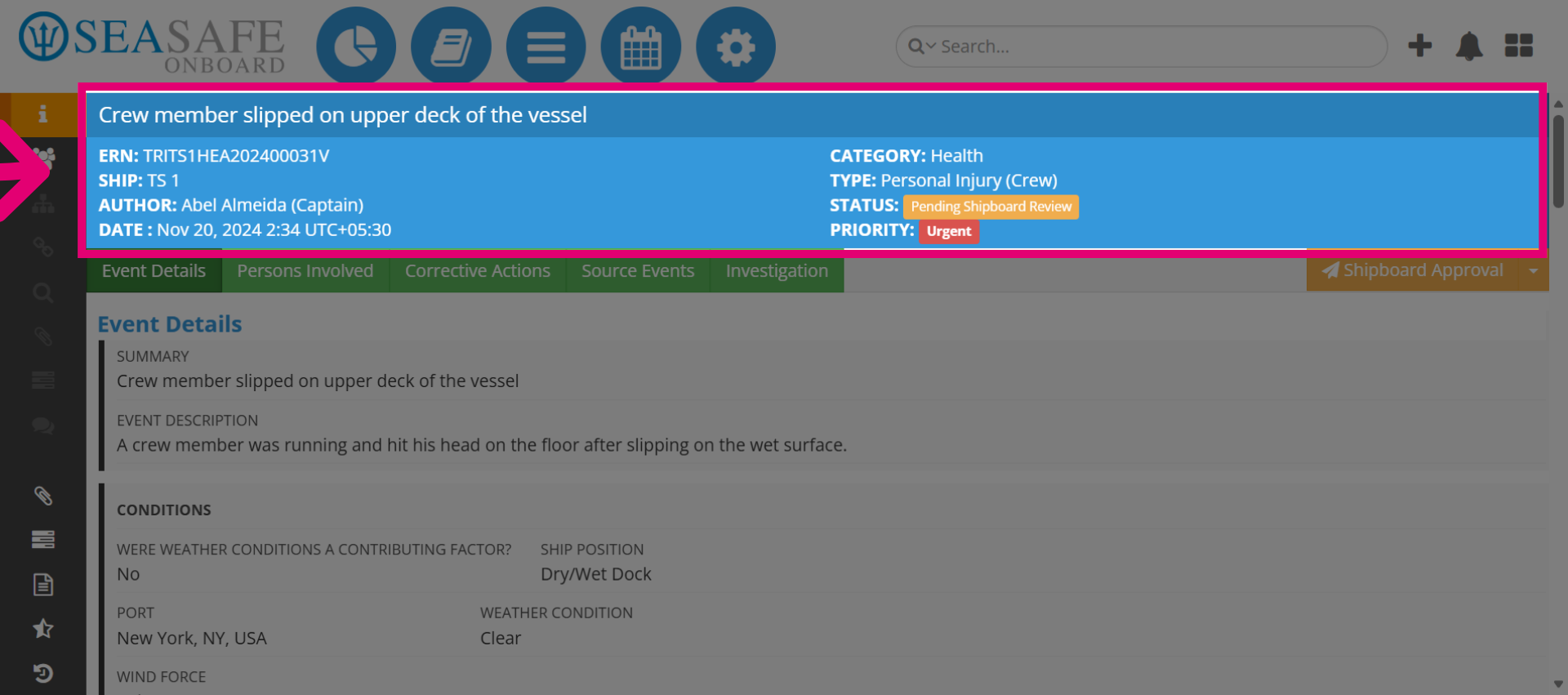
At the top, you will find the report information, which includes the Summary, the E-R-N, Author, Date, and Category-such as Health. For this report, the "Type" is "Personal Injury (Crew)" and the current "Status" in the Workflow is "Pending Shipboard Review".
6. Open Event Details Section
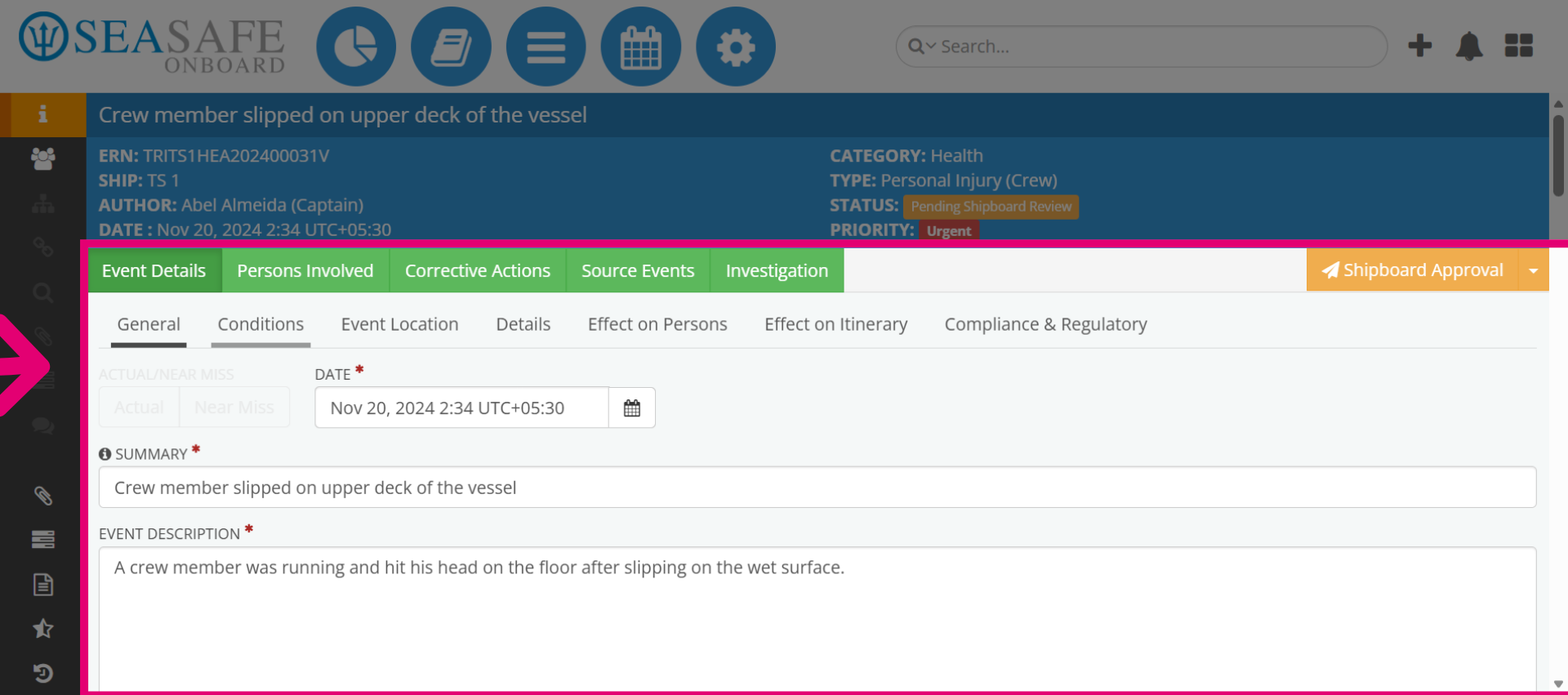
Then, select the "Event Details" tab to view and update event-specific information. From here you will complete all required fields under "General", "Conditions", "Event Location", "Details", "Effects on Persons", "Effects on Itinerary", "Compliance & Regulatory". Here, you begin filling in or updating the details for the event.
7. Add Ship's Location Details
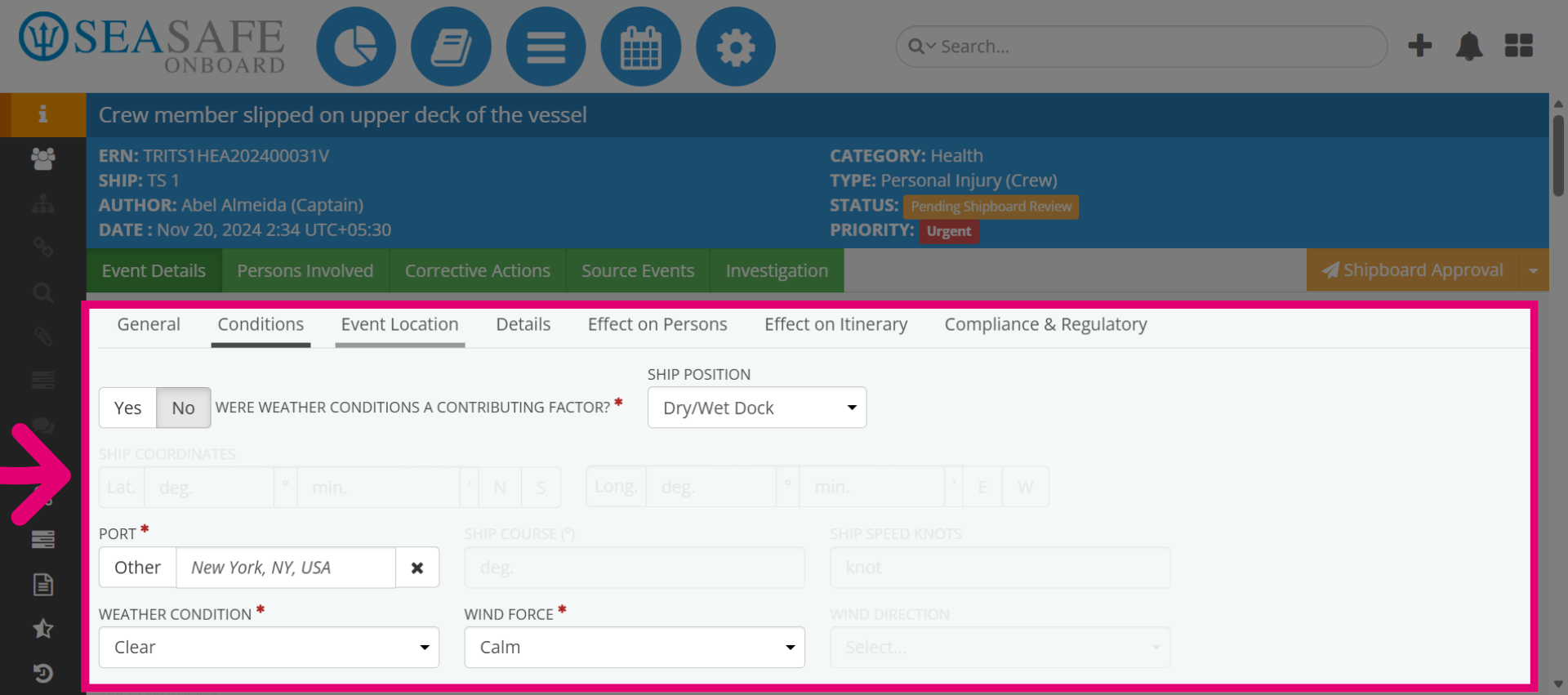
Open the "Location" tab to specify or update the location details. This includes adding details regarding the ship's location related to the weather conditions at the time of the incident and indicating whether or not it is a contributory factor for the incident.
8. Add Event Location Details
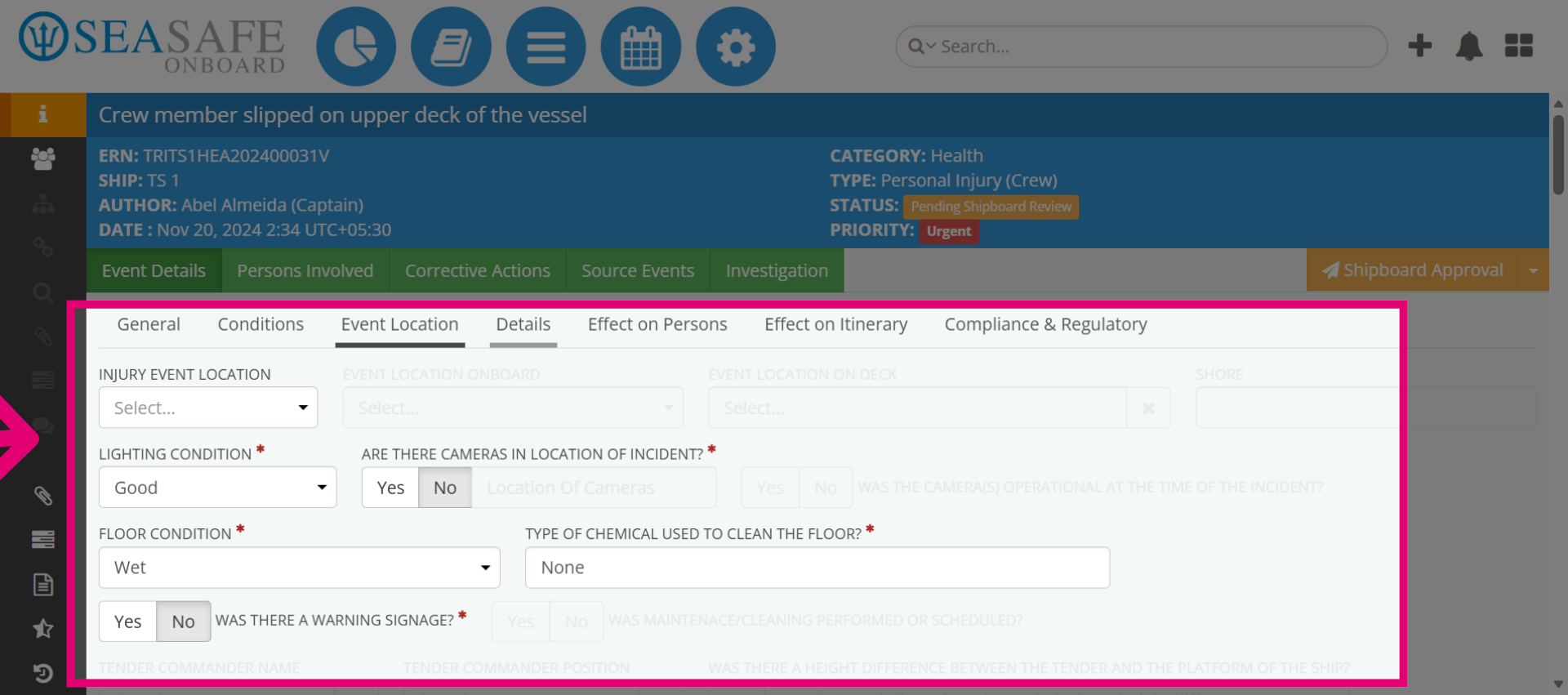
Next, select the "Event Location" tab to enter further descriptive information about the event. Answer questions about where the injury took place, cameras, lighting, floor conditions.
9. Review Effect on Persons
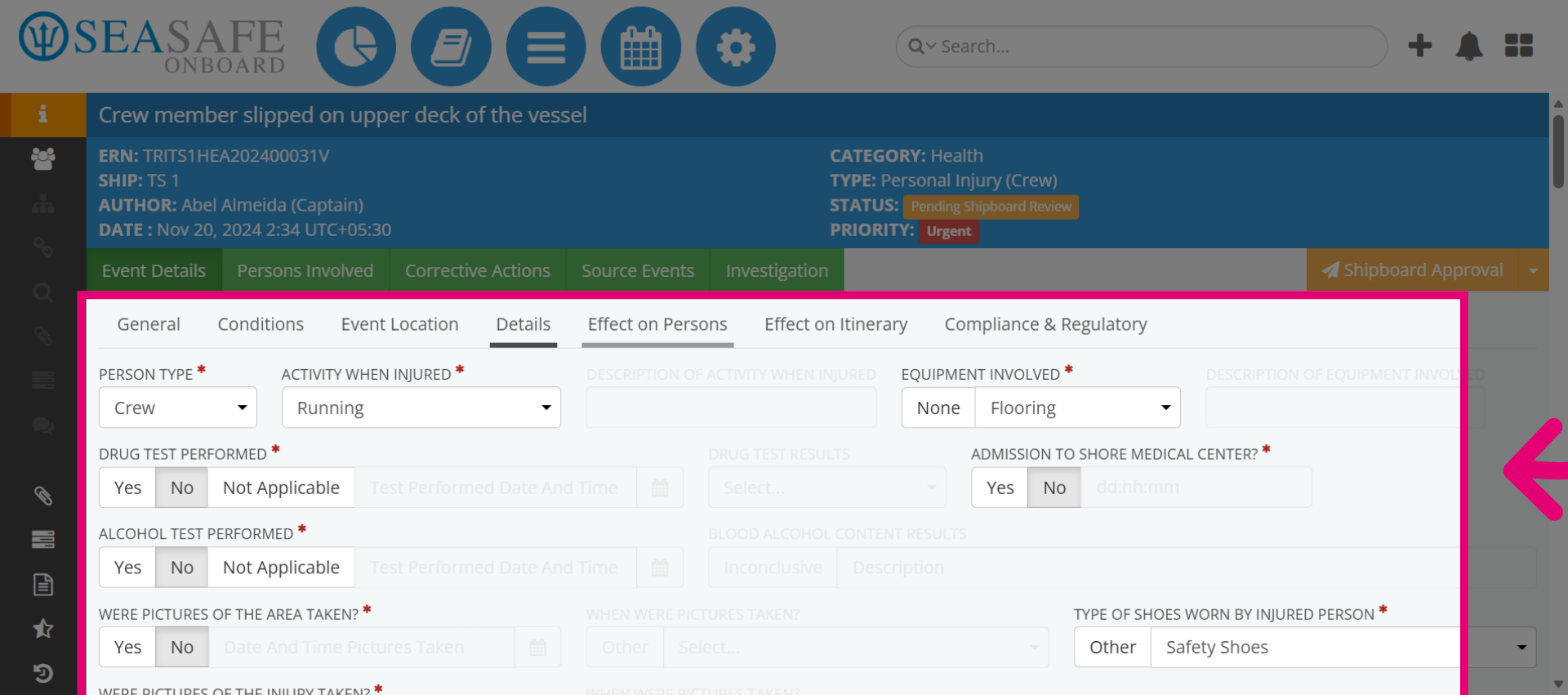
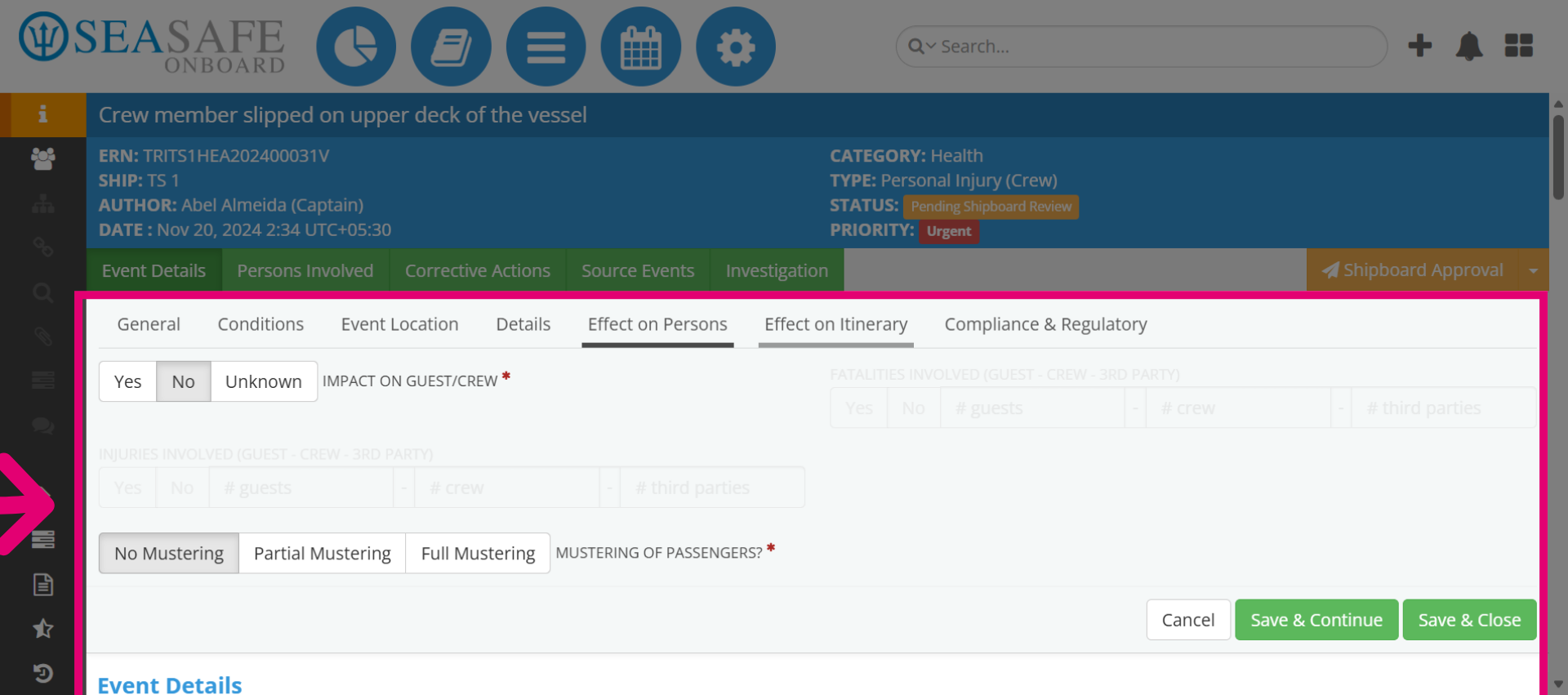
After that, open the "Effect on Persons" tab to assess and document impacts on individuals such as person type, drugs or alcohol used, equipment involved, or admission to the shore medical center.
10. Check Effect on Itinerary
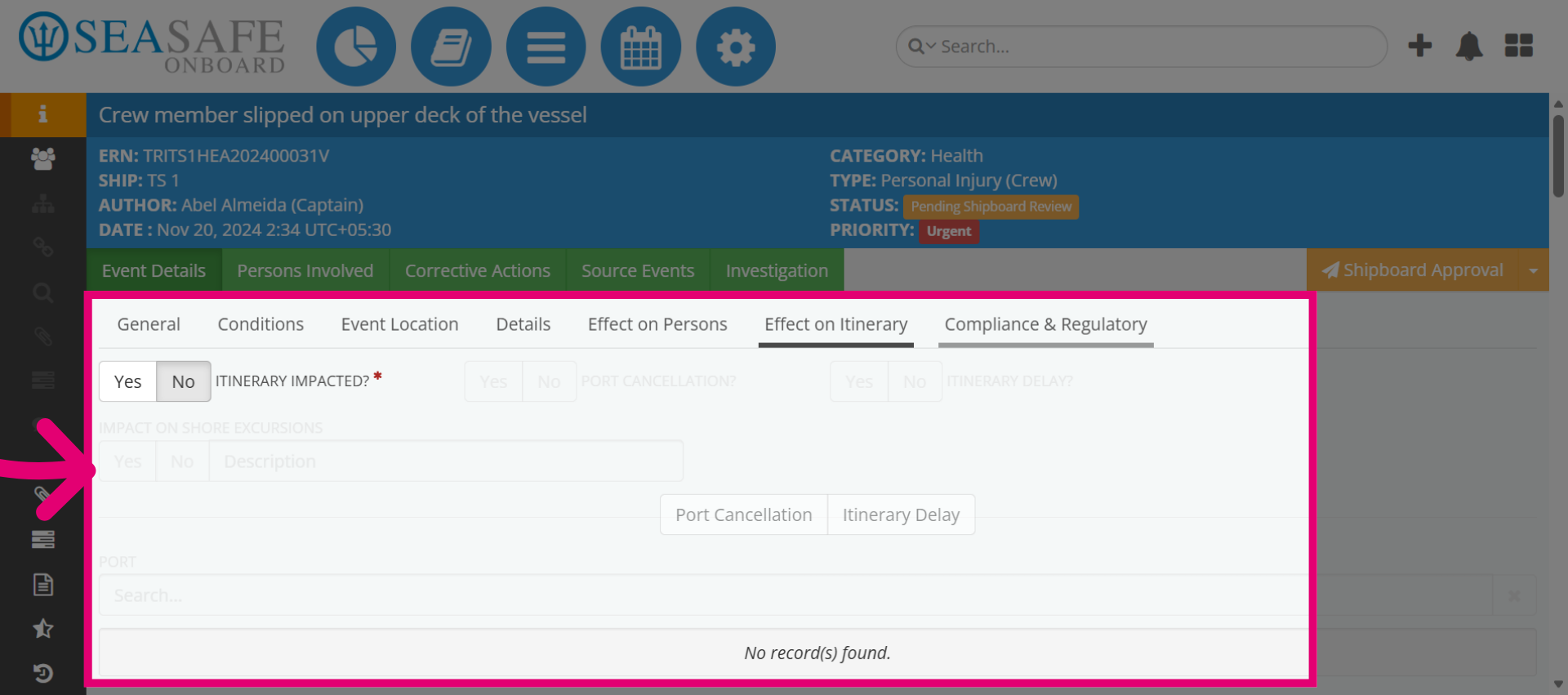
Then, click on the "Effect on Itinerary" tab to evaluate how the event affects the itinerary.
11. Open Compliance & Regulatory
Next, evaluate the questions in the "Compliance & Regulatory" tab to manage compliance-related details.
12. Access Additional Options
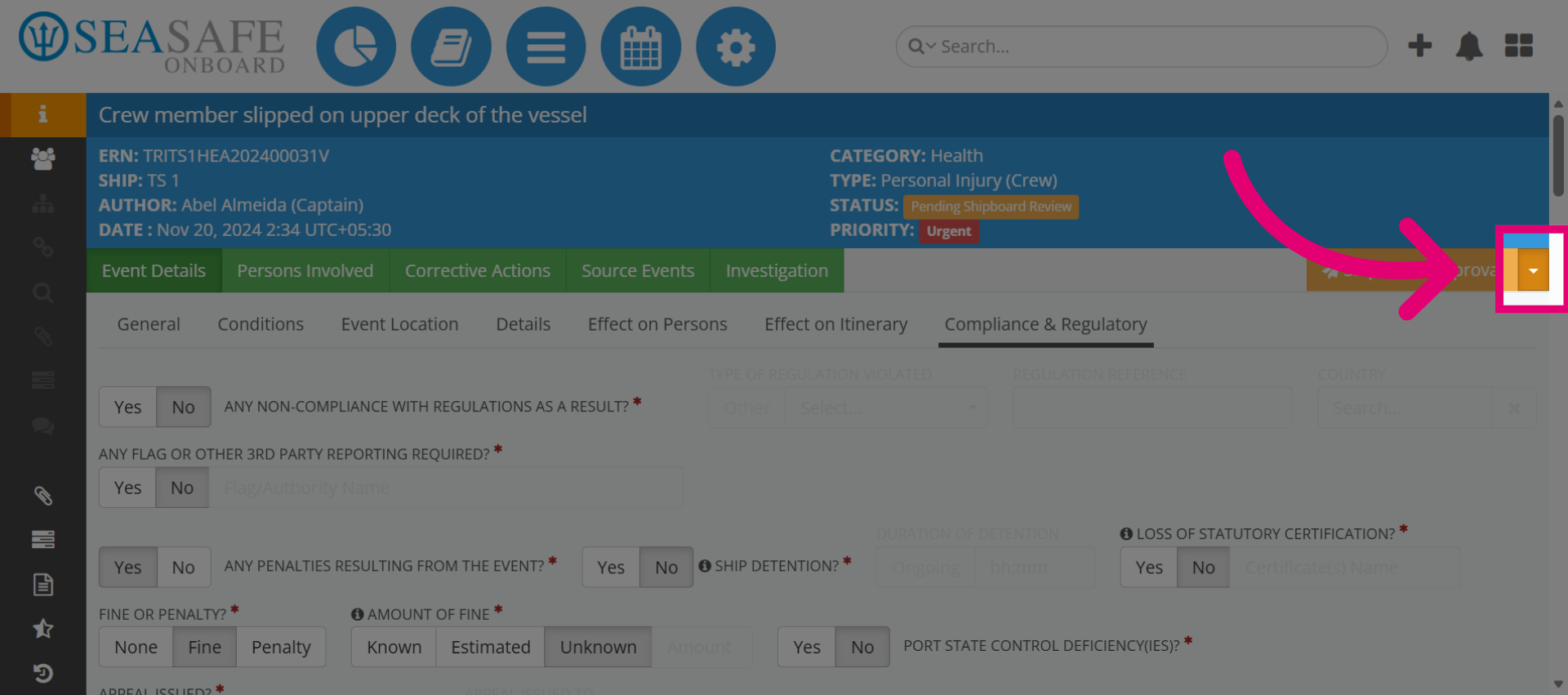
When done, click on the provided link to reveal more options related to the report.
13. Perform Actions
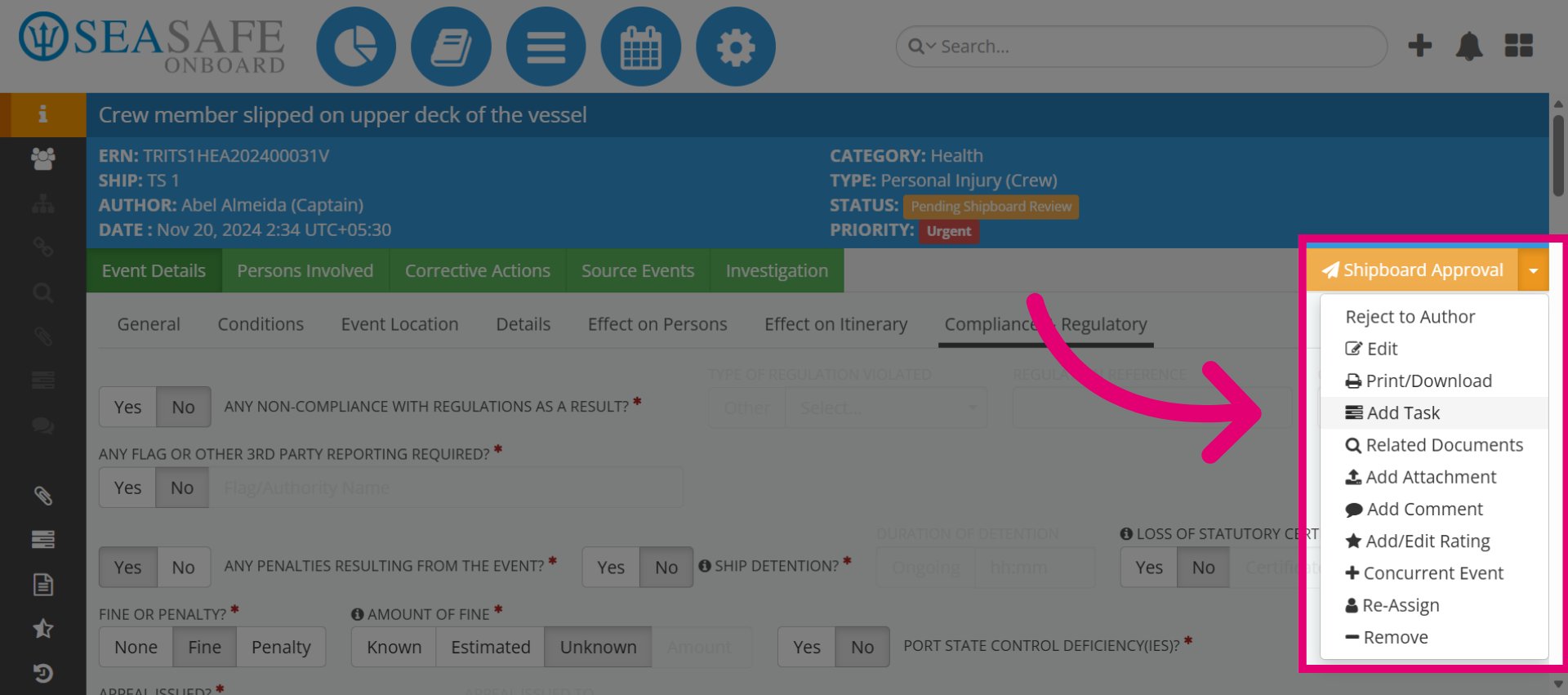
You can perform several actions such as attaching documents, adding tasks completing forms, adding ratings and comments and viewing the activity history logs. Click the Add Task button to create a new task associated with the report.
14. Add a Task
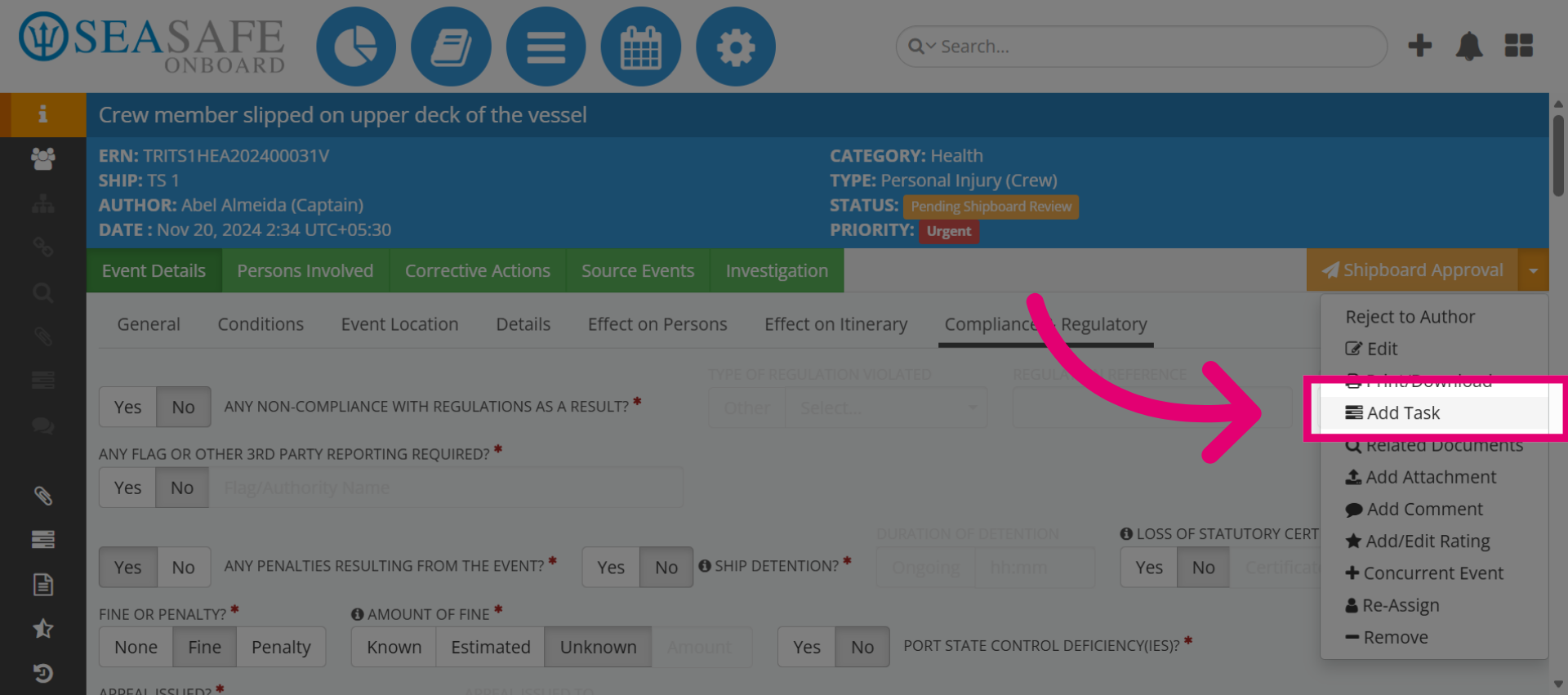
Click to add a task.
15. Open Task Selection
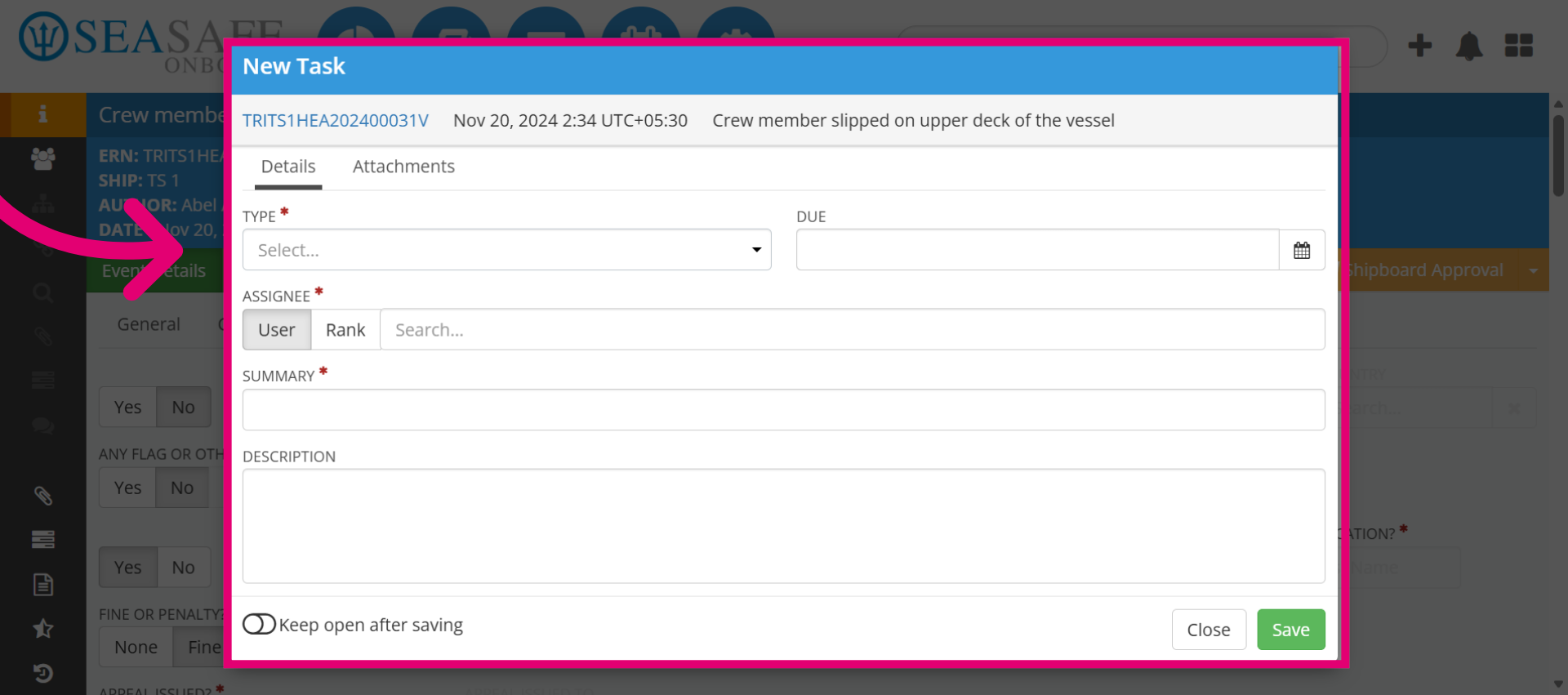
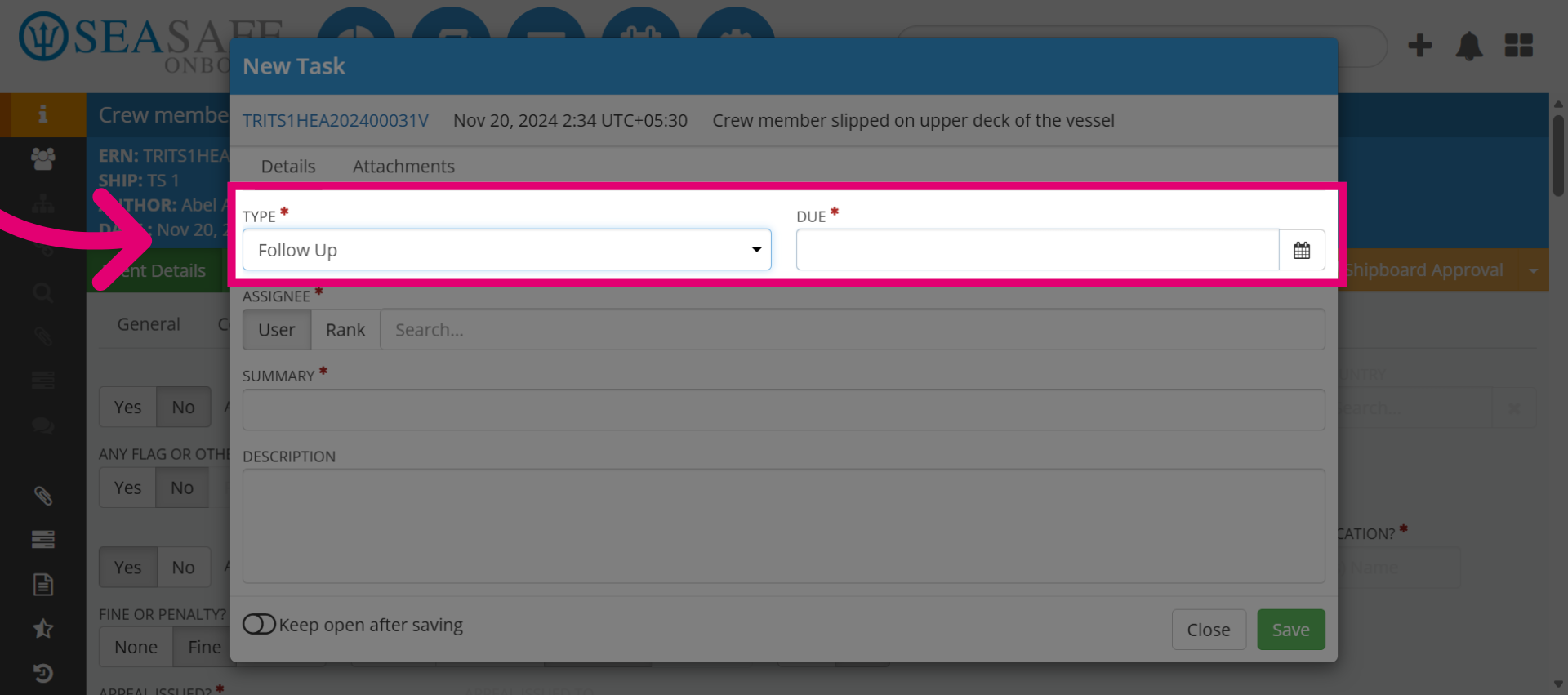
Tasks facilitate the assignment of additional actions to other users, such as follow-ups, corrective measures to resolve issues, document evaluations, or area assessments. To add a task, click the "Select" dropdown to choose the appropriate task type.
16. Select Task Type
Select the "Task Type" between a "Follow up" or "Corrective Actions" task. Then add the "Due Date".
17. Open Rank Selection
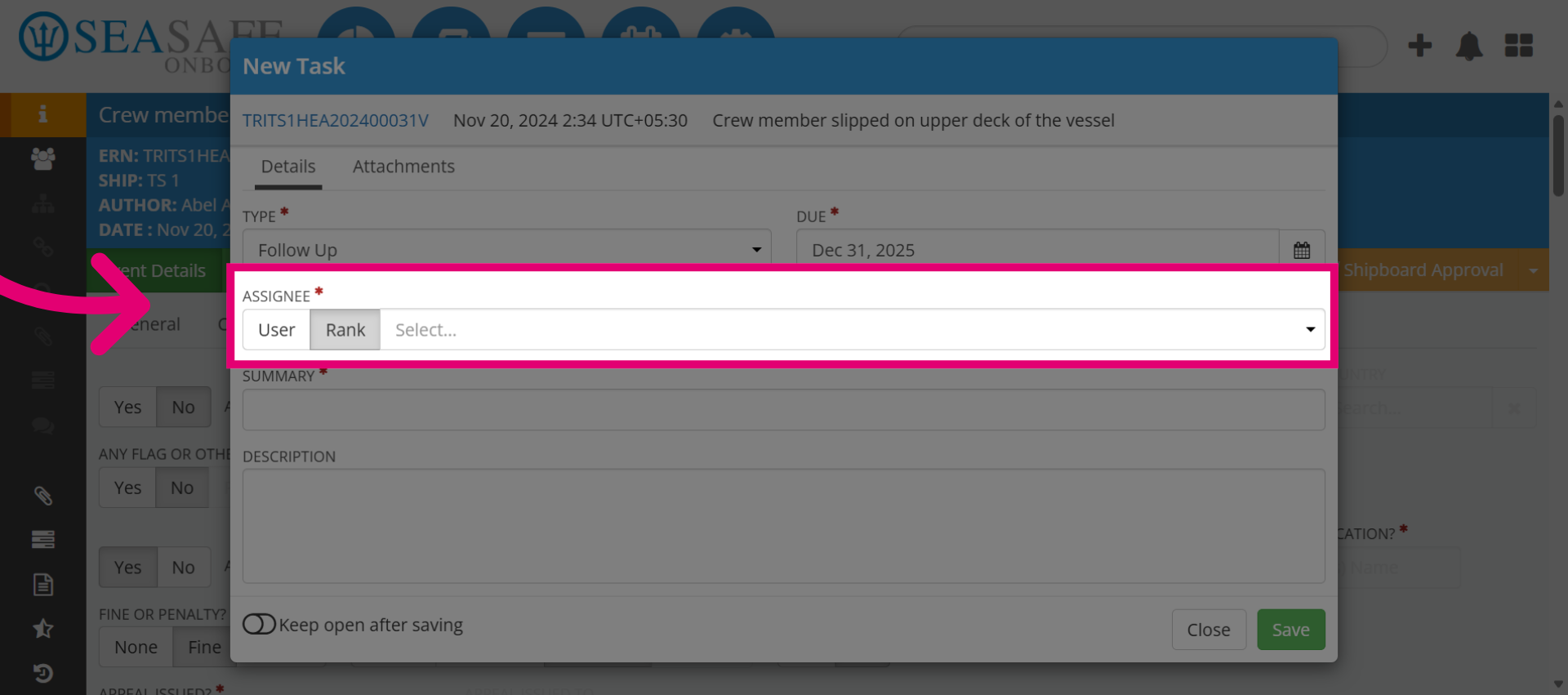
In the user section, select the "User" or "Rank" dropdown to assign a priority or rank to the task.
18. Enter Task Description
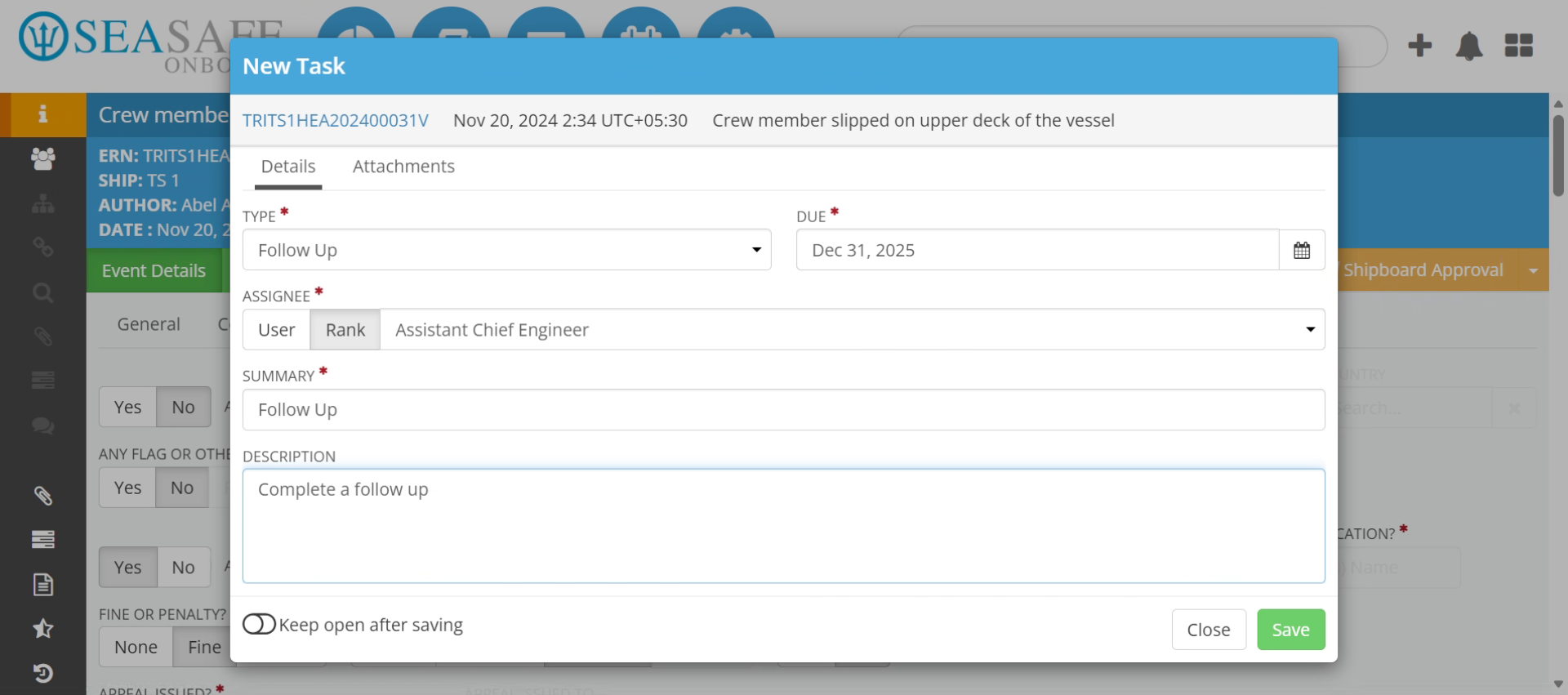
Next, complete the "Summary" and "Description" fields. For example, you might enter "Complete a follow-up" to specify the task details.
19. Access Attachments Tab
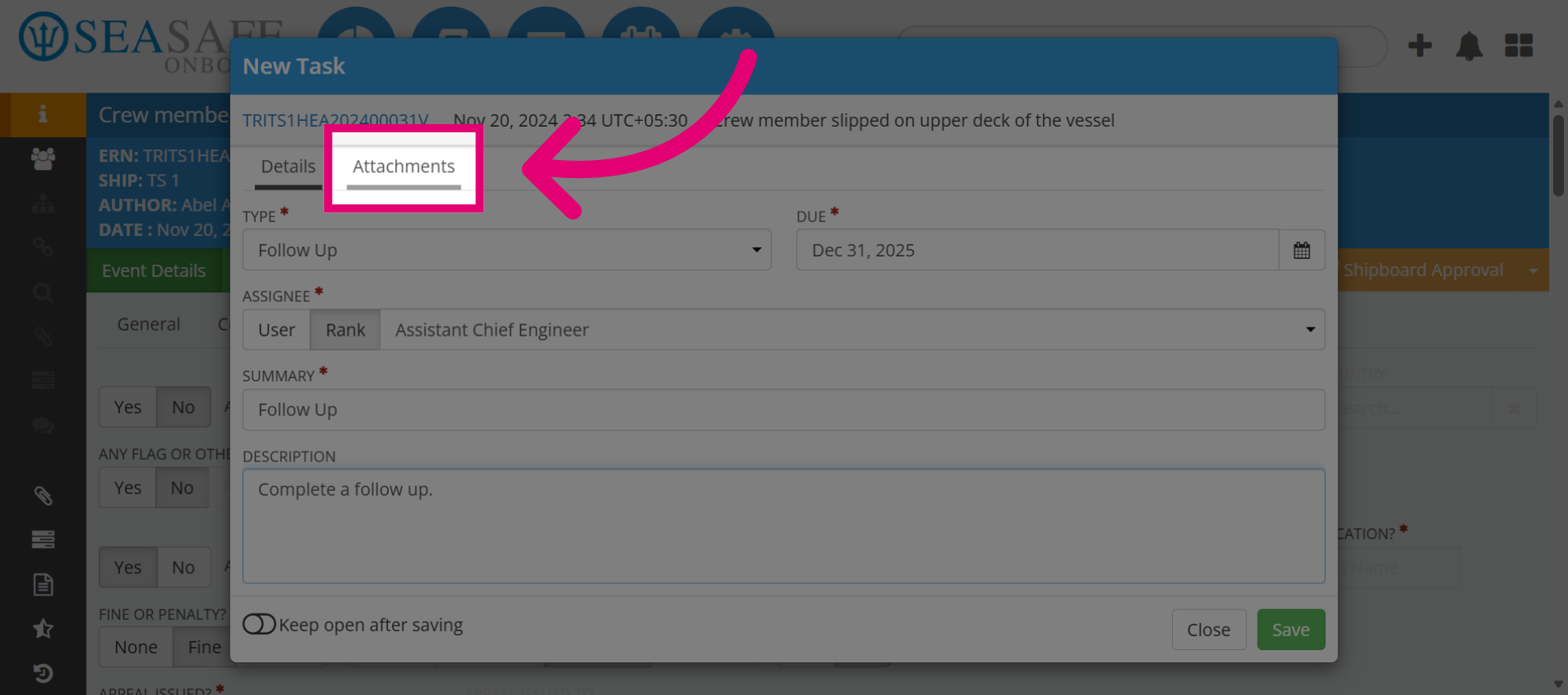
Next, lick the Attachments tab to add or review files related to the report.
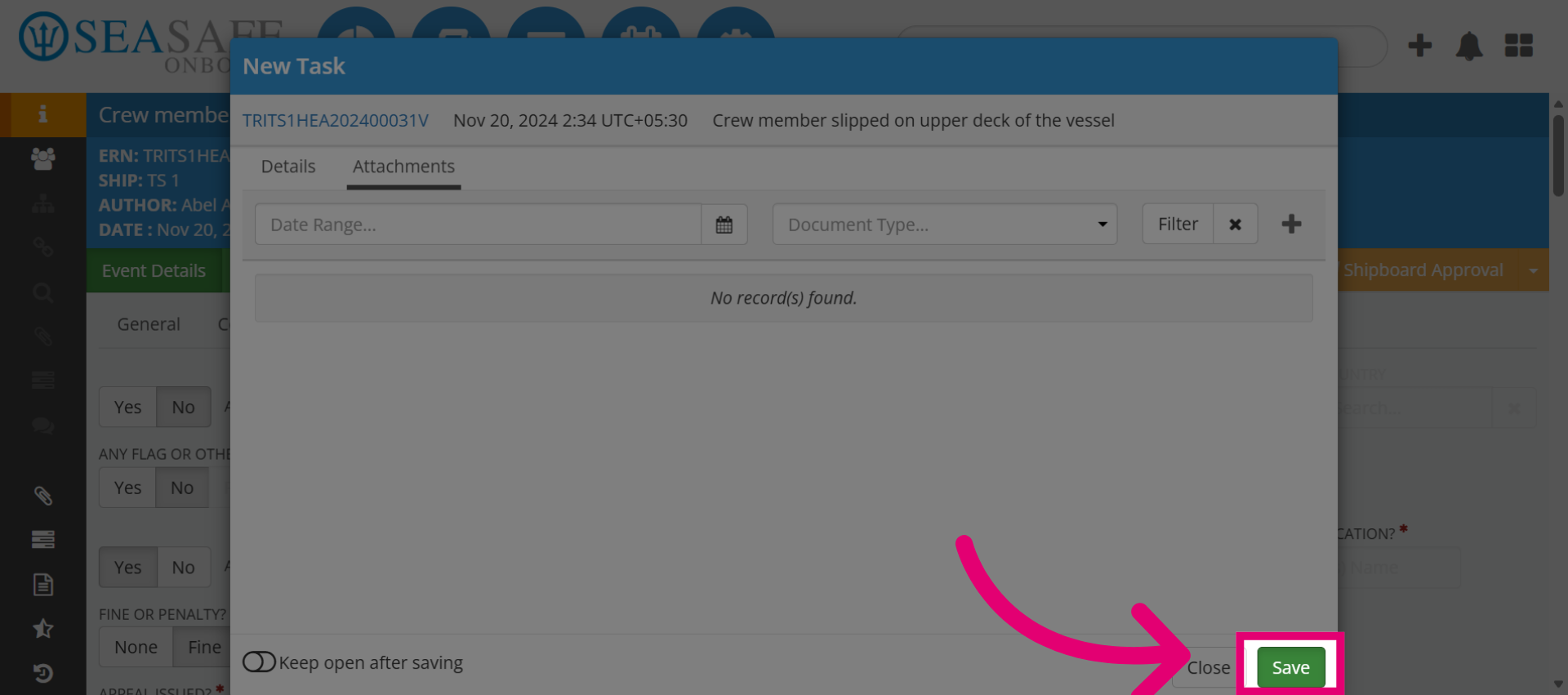
20. Save Report Changes
Then, select the "Save" button to apply all changes and update the report workflow.