New article
Recently updated
Add Notification Email to a Workflow Condition in Ideagen Maritime Management

This walkthrough explains how to add a notification email within the Workflow Editor.
1. Introduction
You will learn the step-by-step process to configure email notifications triggered by specific workflow events.
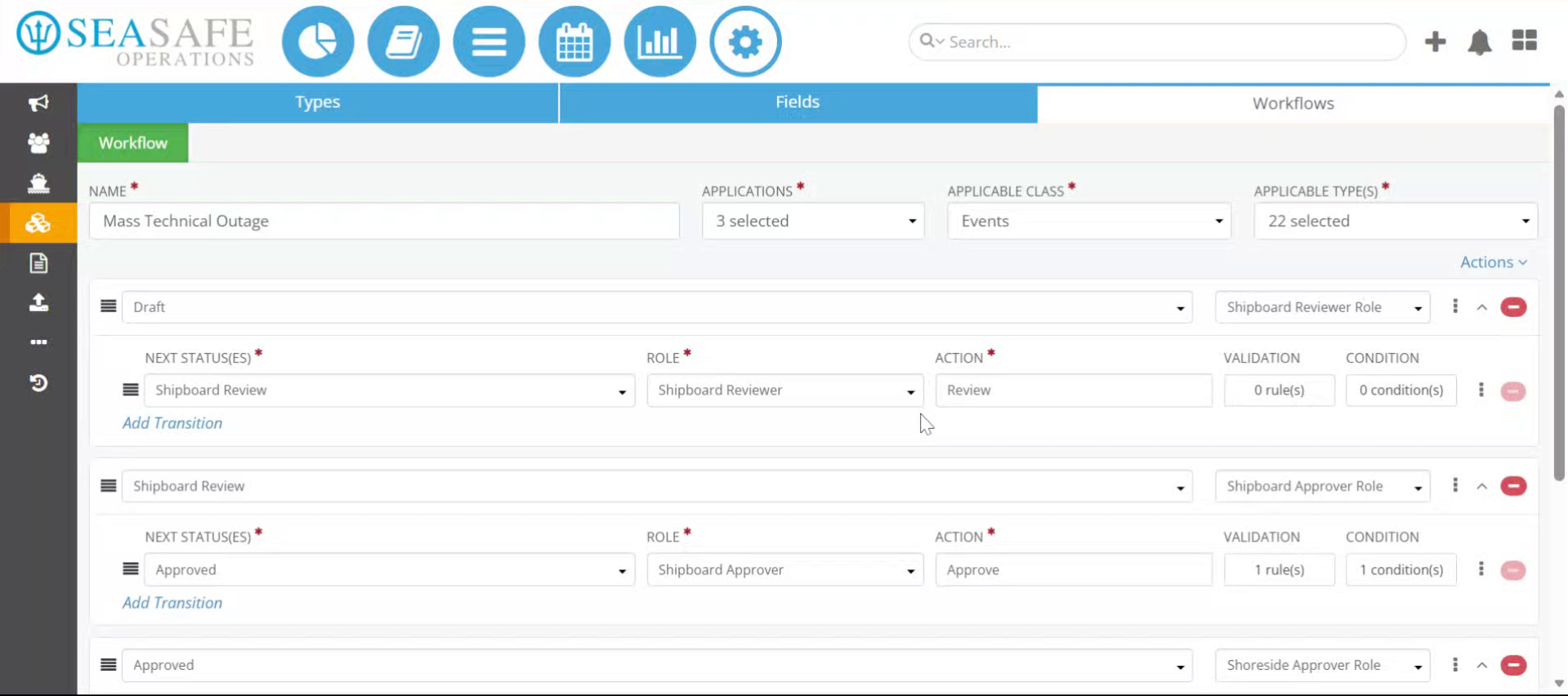
2. Open Workflow Editor
Click here to open the Workflow Editor where you will configure the notification email.
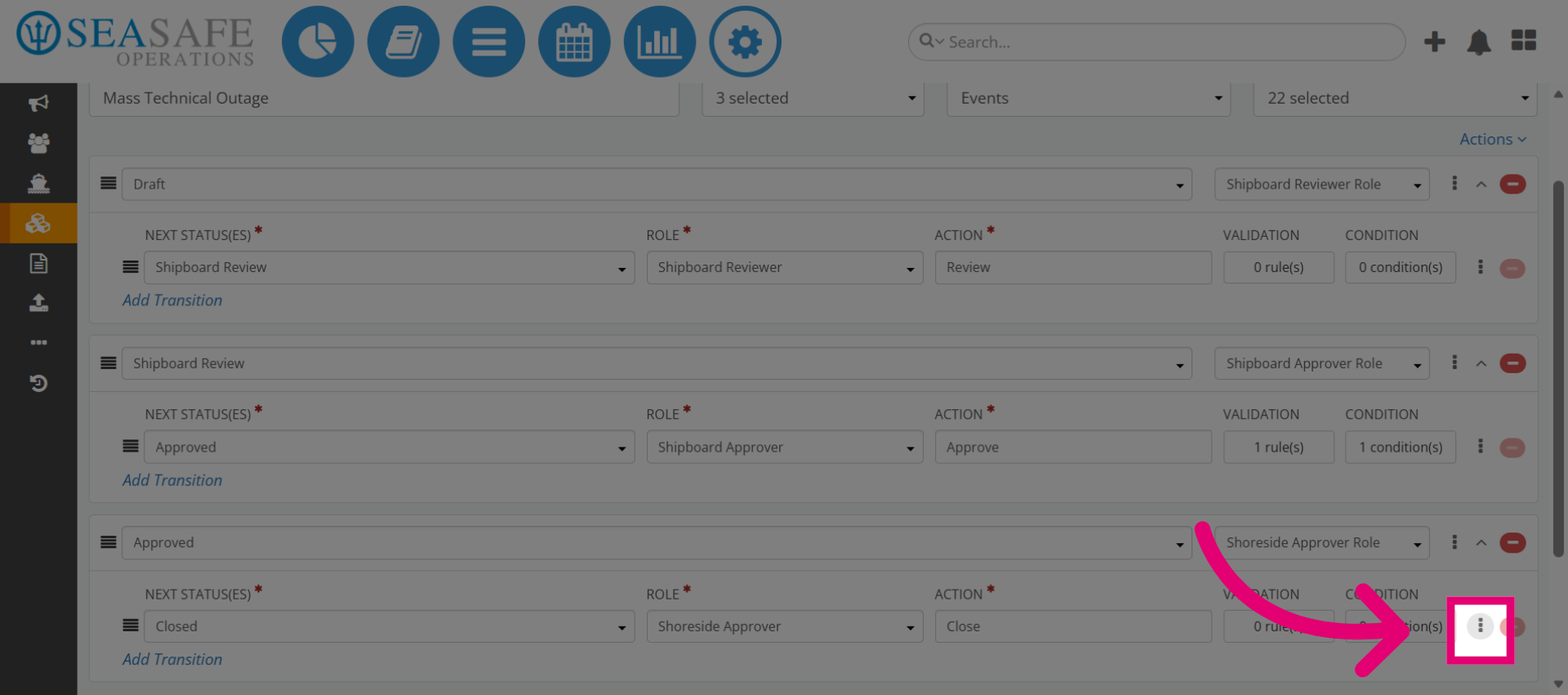
3. Access Post-Transition Actions
Then, select "Post-Transition Actions" to view actions that occur after a workflow transition.
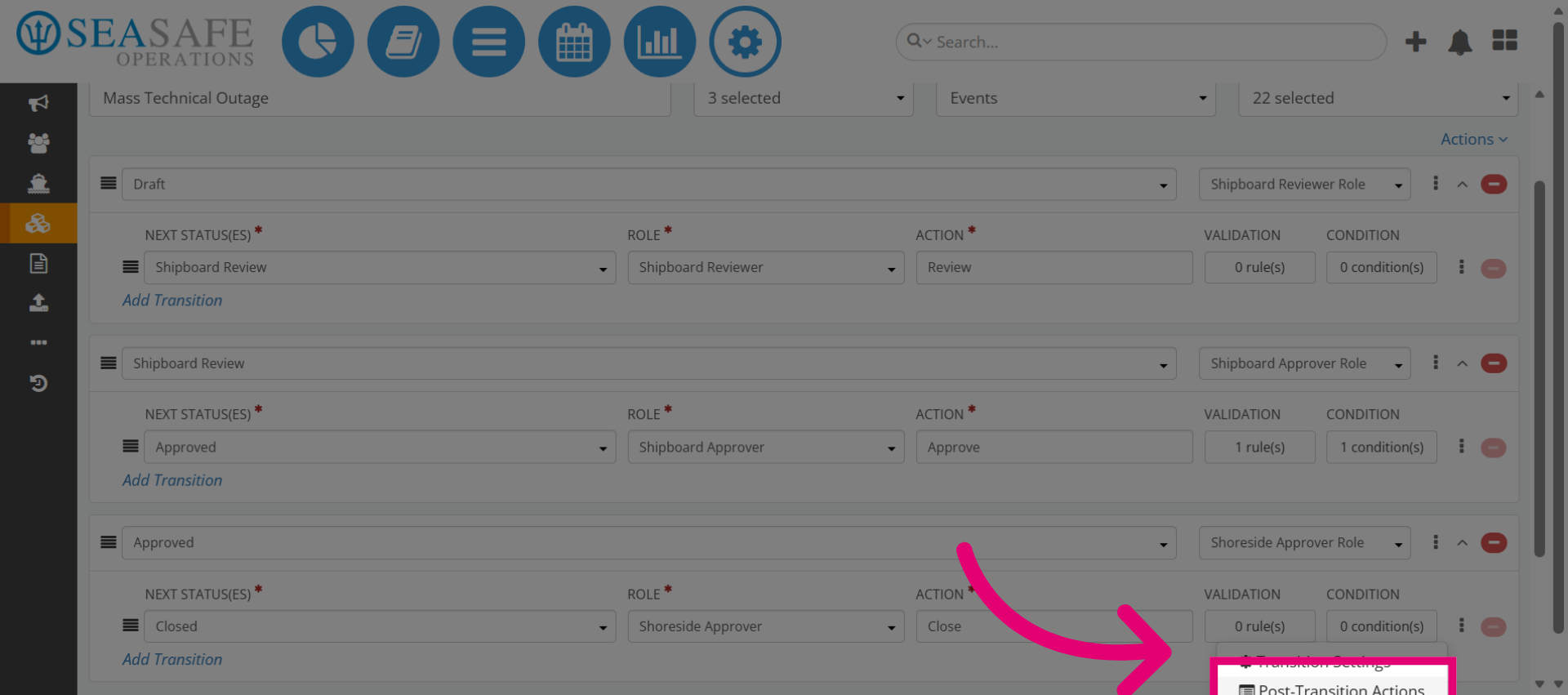
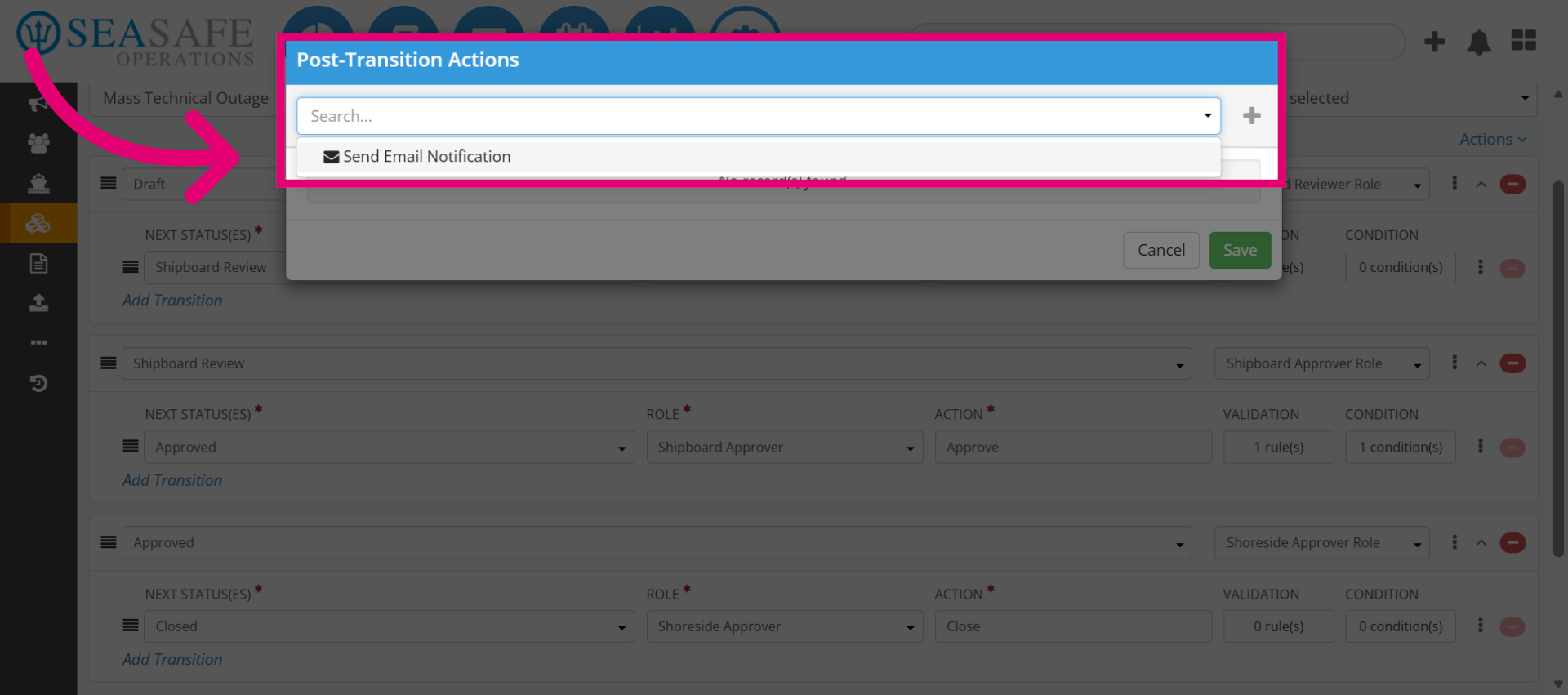
4. Choose Email Notification Action
Let's select an example option for "Send Email Notification" to add an email notification action to the workflow.
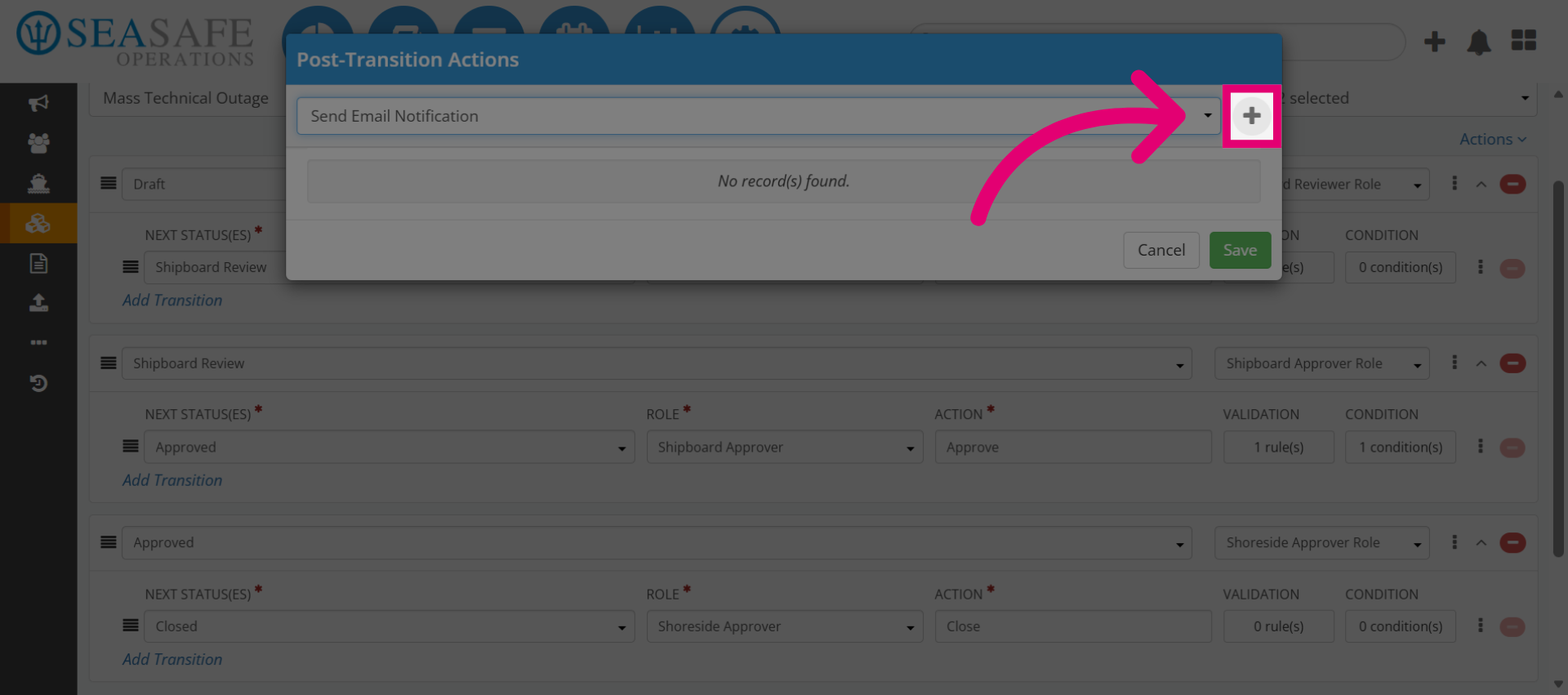
5. Add the Email Notification
Then, select here to add the email notification action.
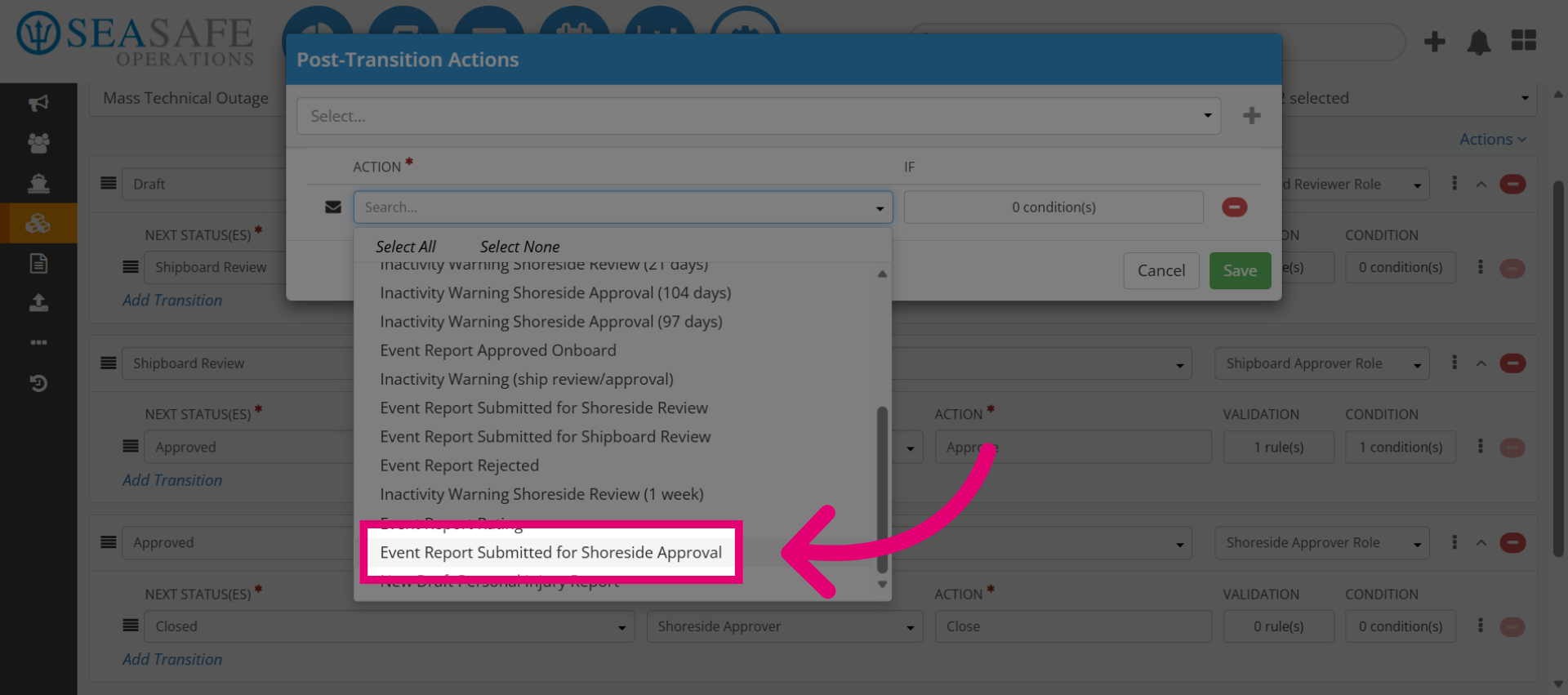
6. Select Event Report Action
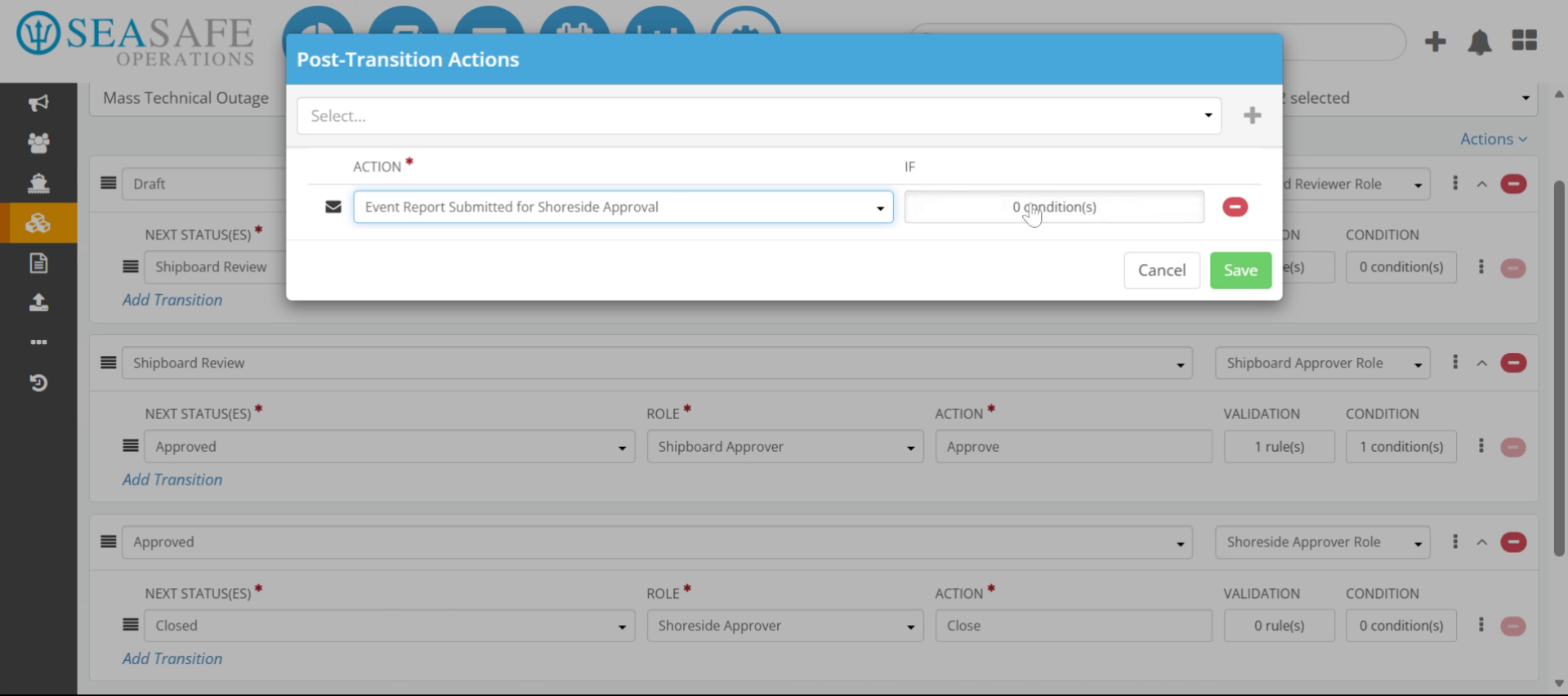
Then, select a trigger for the email notification from the list-such as "Event Report Submitted for Shoreside Approval" to specify the event that triggers the notification.
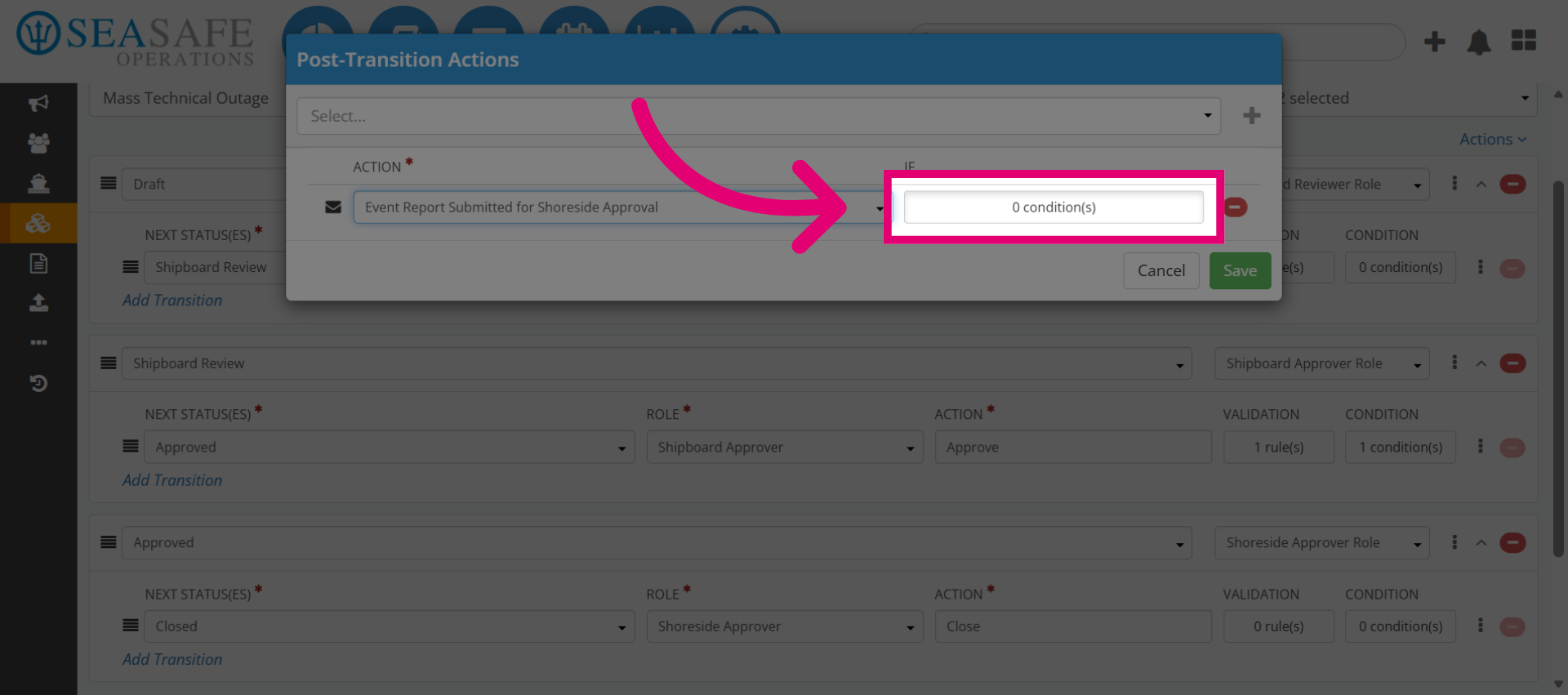
7. Open Condition Settings
Next, select to "conditions" to add conditions that control when the notification is sent.
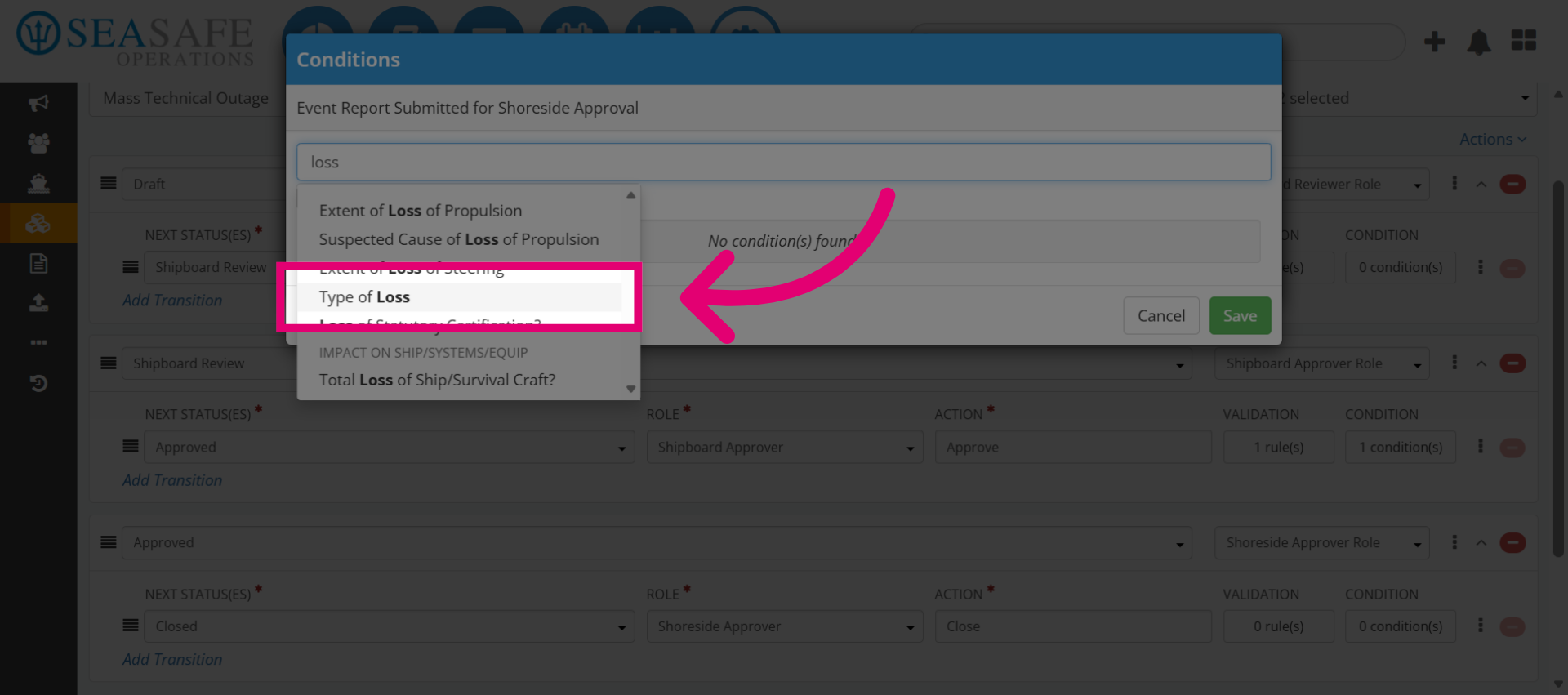
8. Enter Condition Keyword
Define the condition here, for instance, we will enter "loss" to filter conditions related to loss events.
9. Select Condition Field
Then, click the "Type of Loss" to specify the field for the condition.
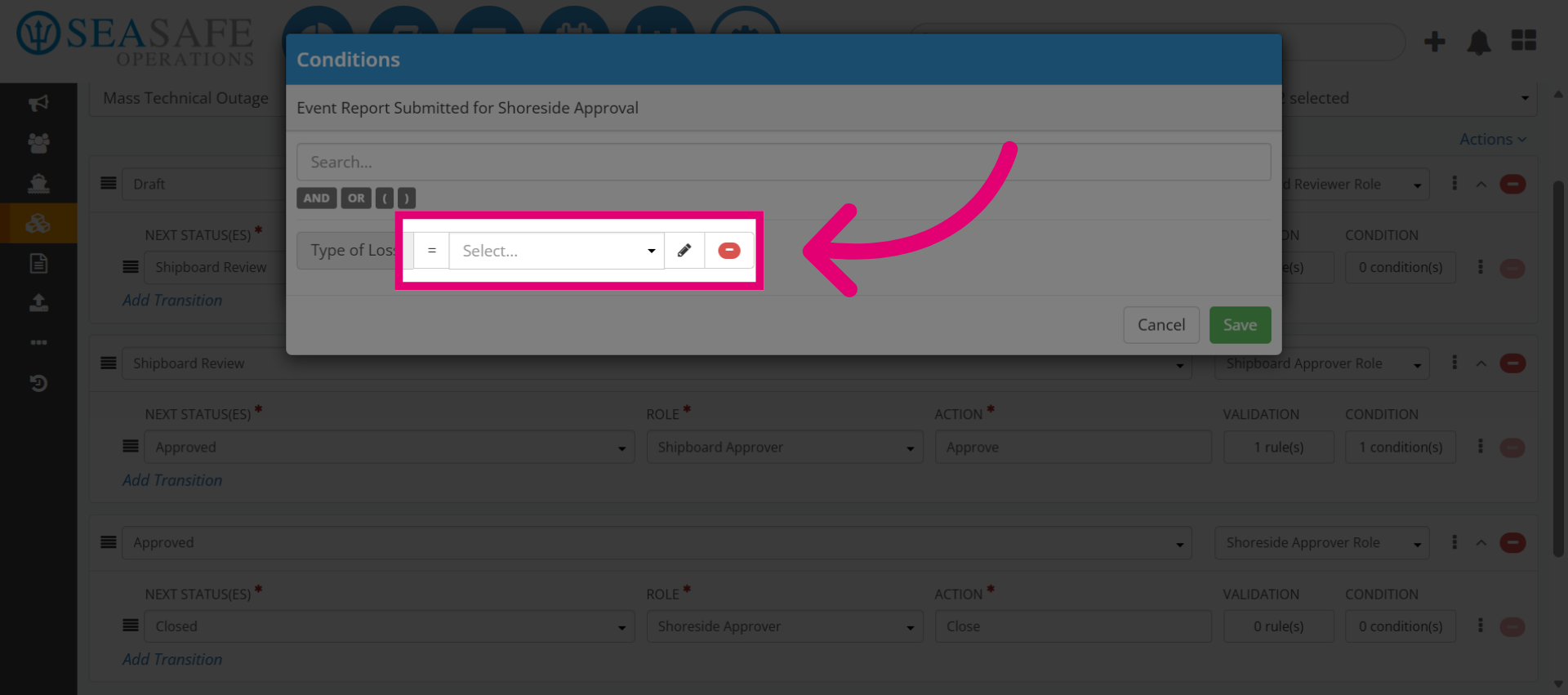
10. Specify the Operator and Value
Next, we will specify the operator and specific value.
11. Choose Loss Type
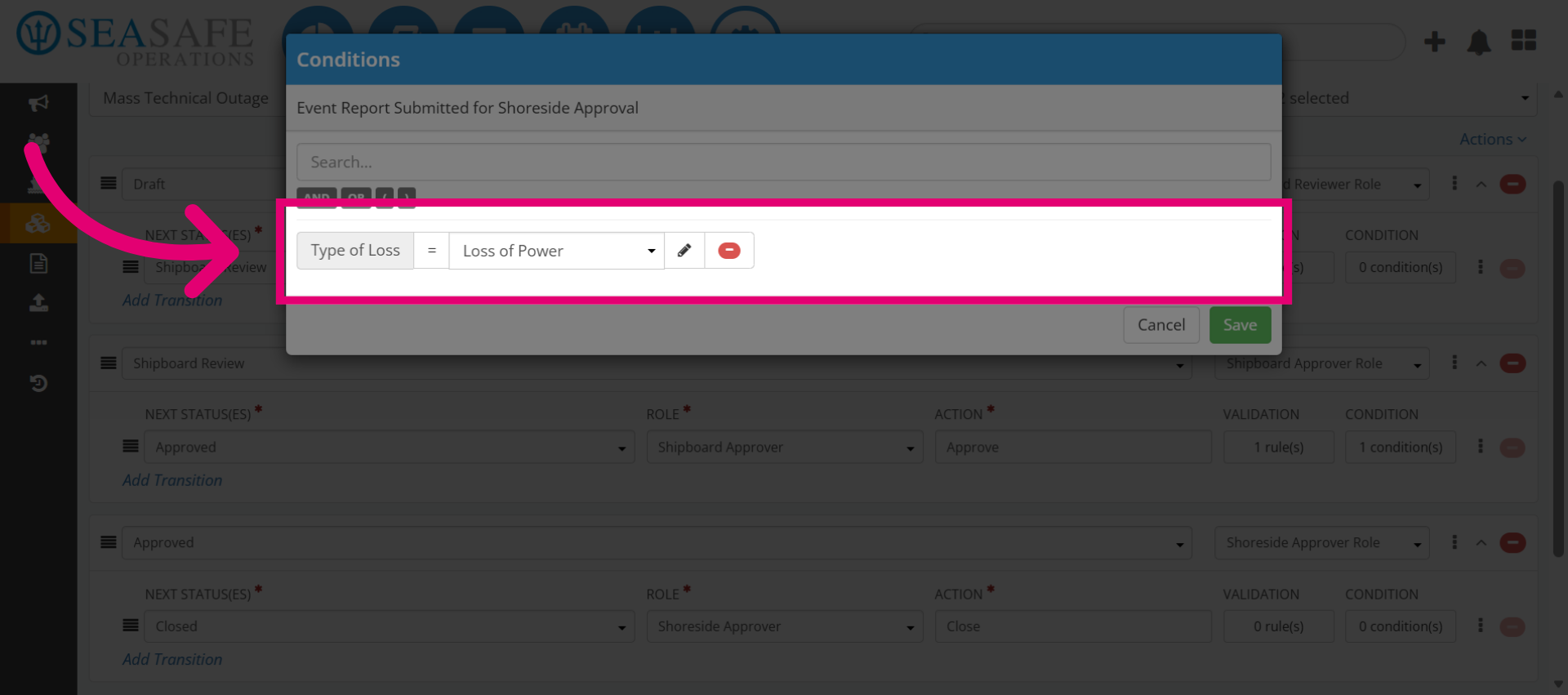
For example, by choosing "Loss of Power" to set the condition for this specific type of loss.
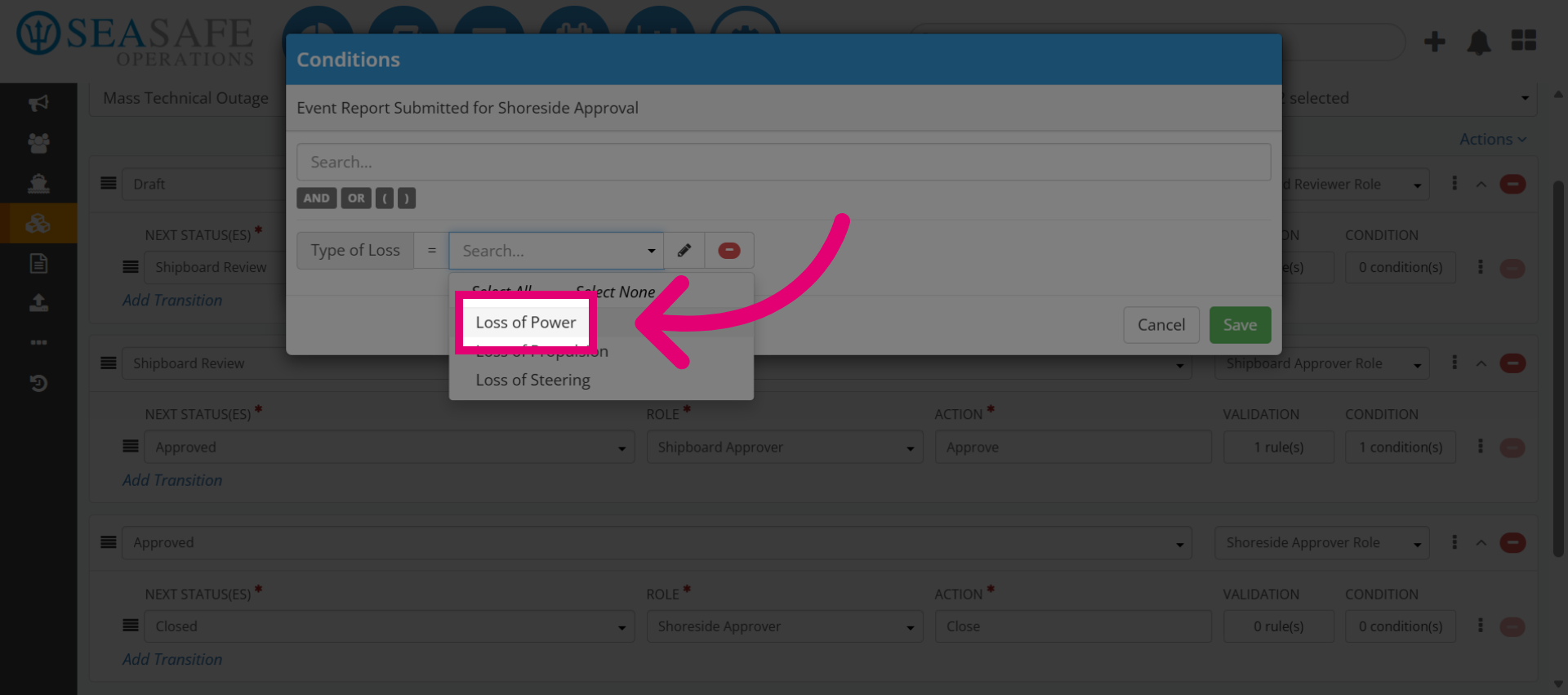
12. Confirm Condition Selection
That is set to equal to the "Type of Loss", which means the notification is triggered when these conditions are met.
13. Save Condition
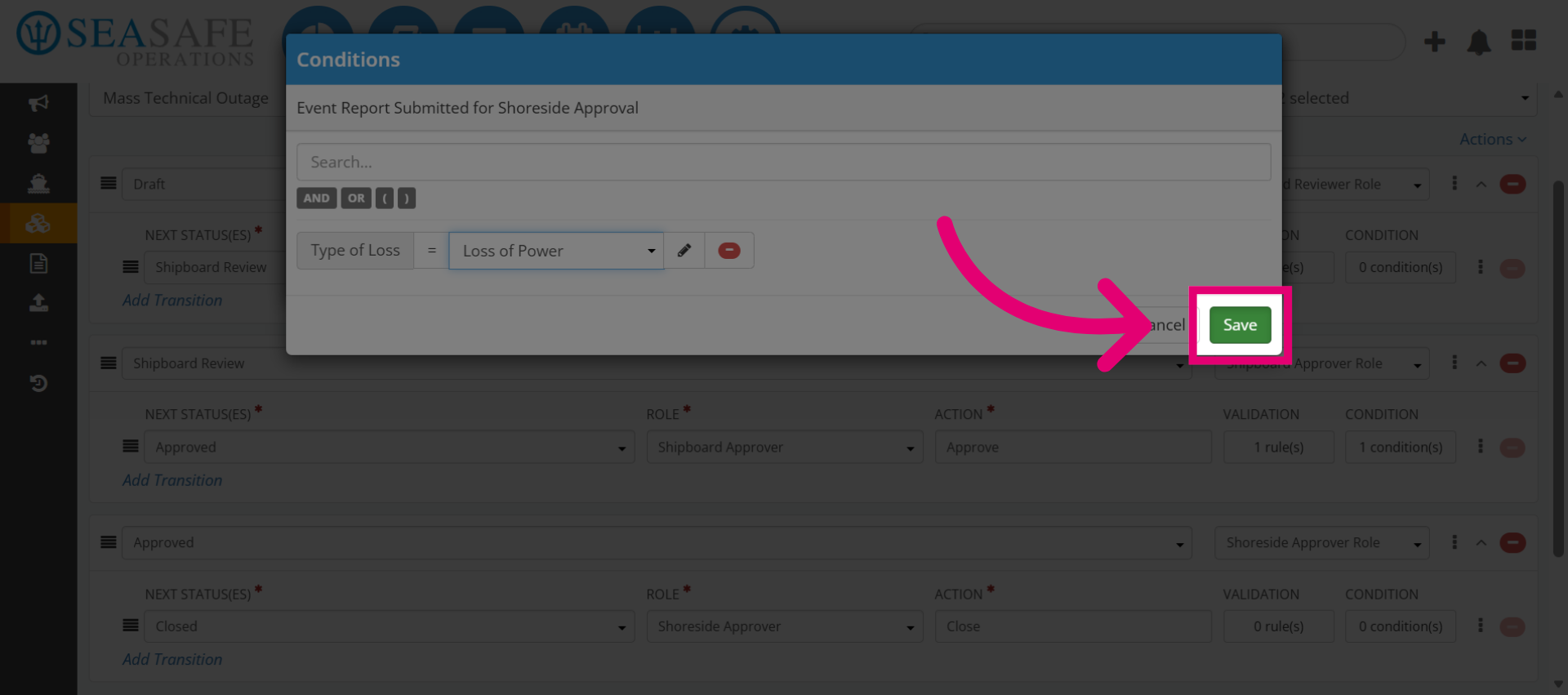
Then, "Save" to apply the condition to the notification action.
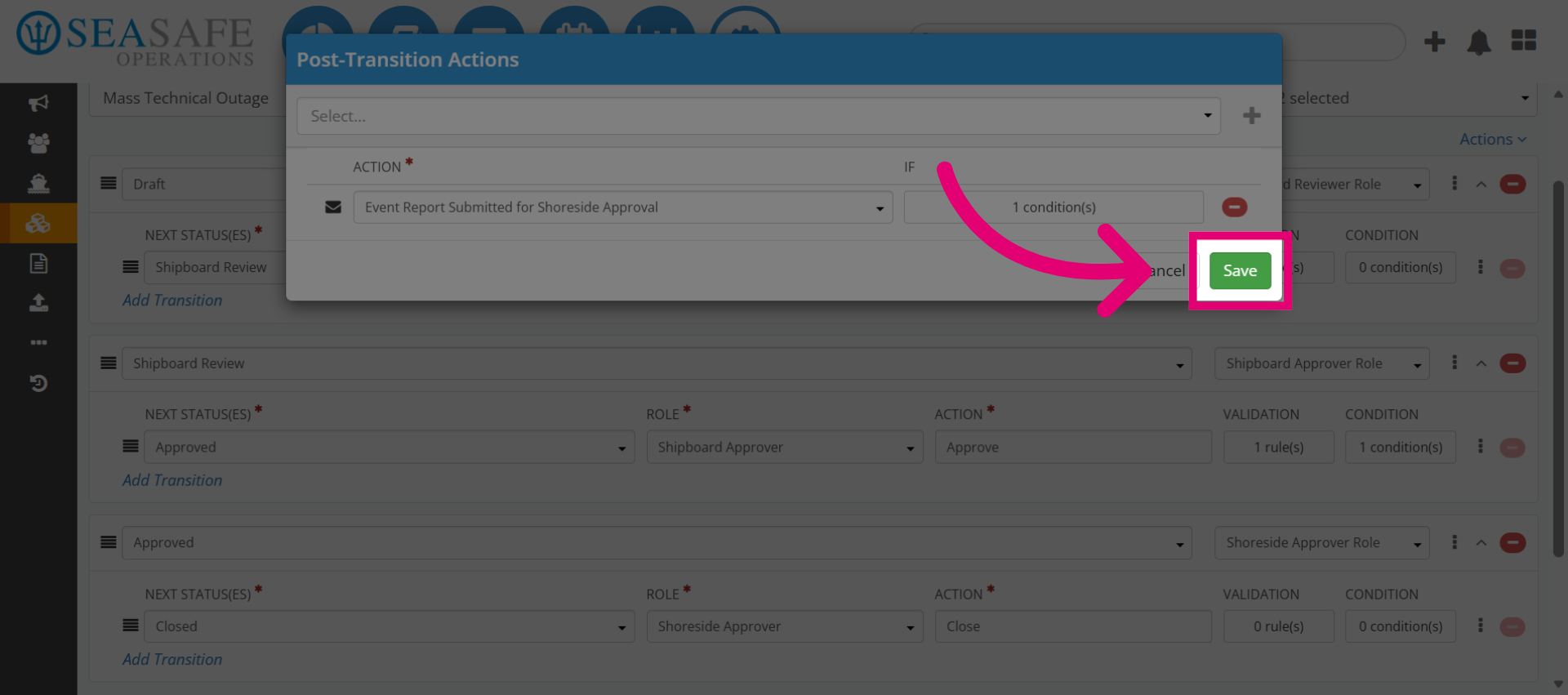
14. Save Workflow Configuration
Select to "Save" to finalize and save all changes made in the Workflow Editor.