New article
Recently updated
Add Conditions to Workflows in Ideagen Maritime Management

This walkthrough shows how to add conditions in the Workflow Editor for dynamic workflows. Conditions control routing based on criteria (for example, “If Type of Loss = Power -Transitions to-Require Technical Approval”), ensuring compliance.
1. Introduction
You will learn how to define and save specific conditions to customize your workflow processes. Start in the Types, Fields, Workflow module, under the Workflow tab, in the shoreside admin menu.
2. Open Conditions Panel
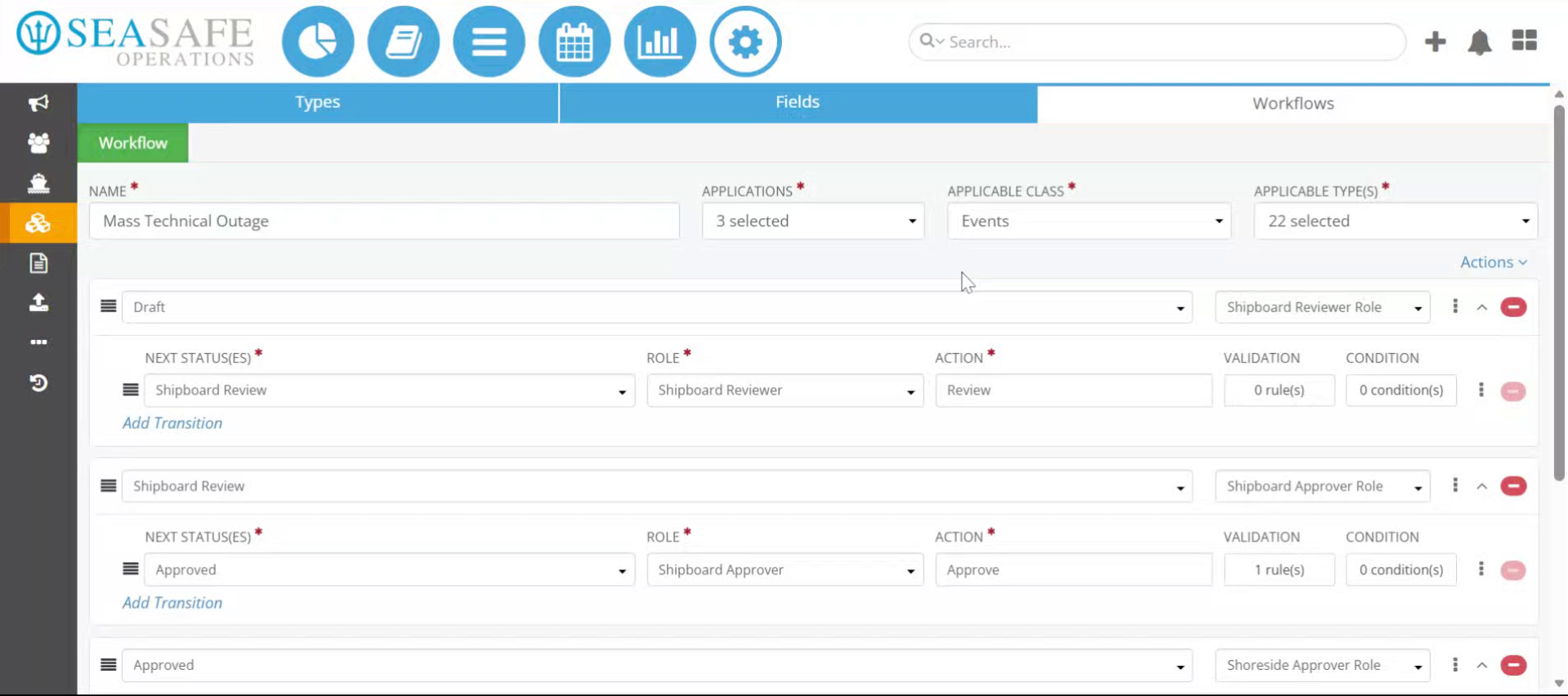
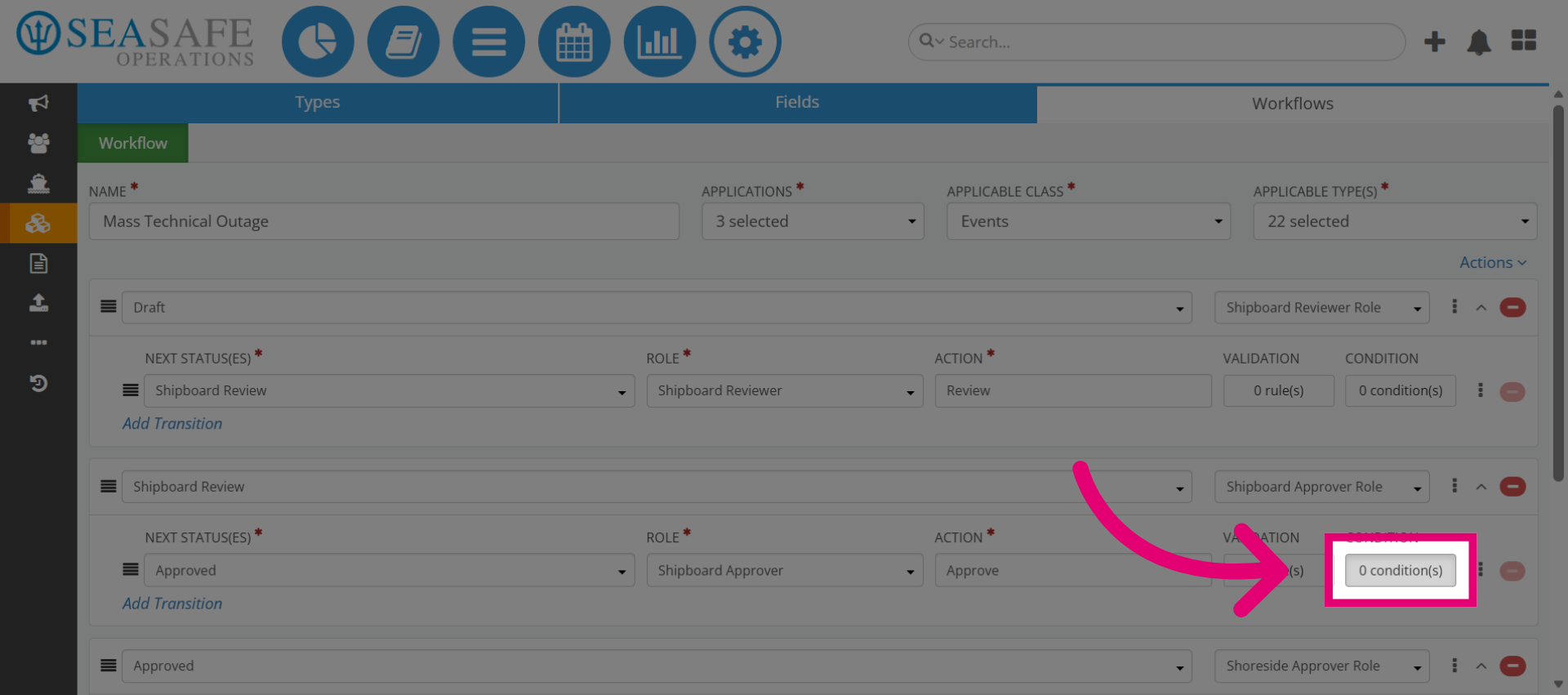
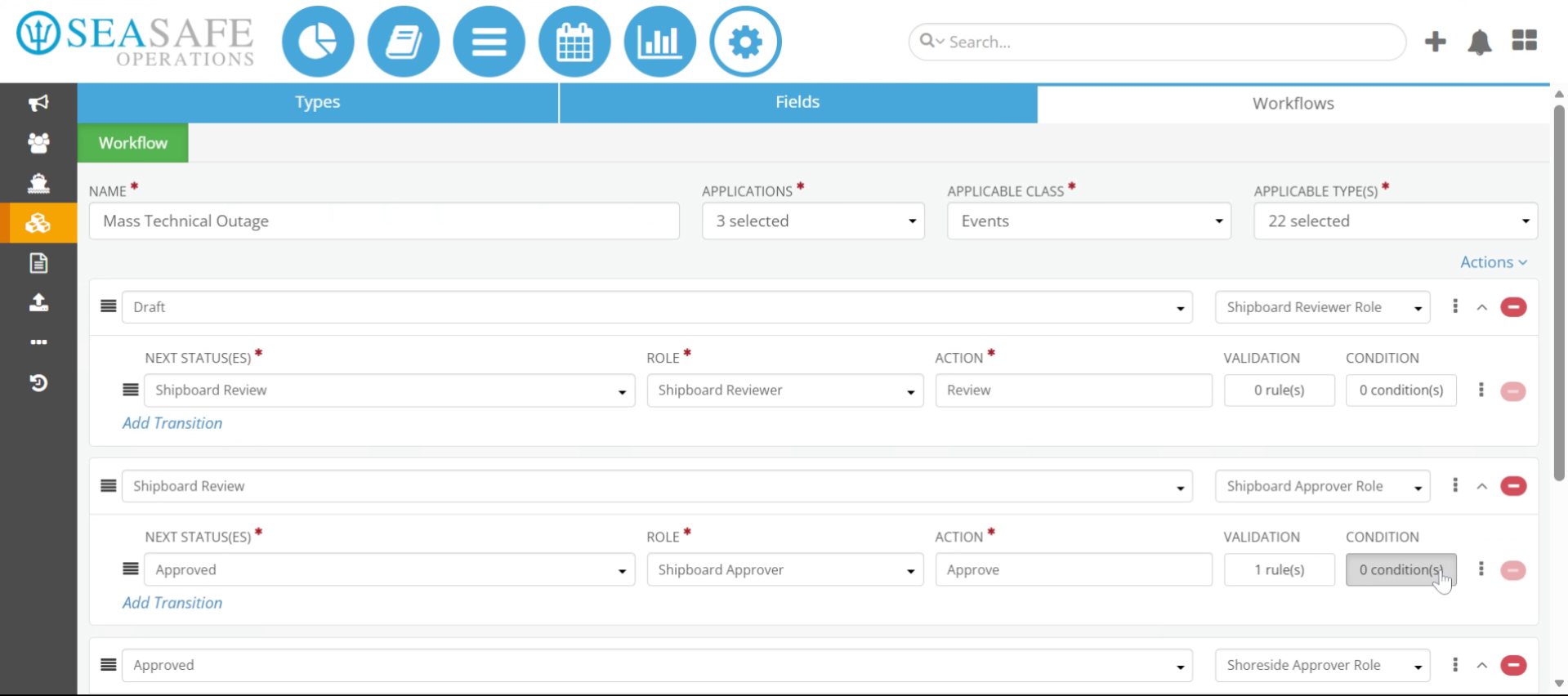
Under the Workflows tab, when the workflow is already open. Select "Conditions" to open the conditions settings in the Workflow Editor. This is where you define logic that determines how transitions behave.
3. Enter Condition Keyword
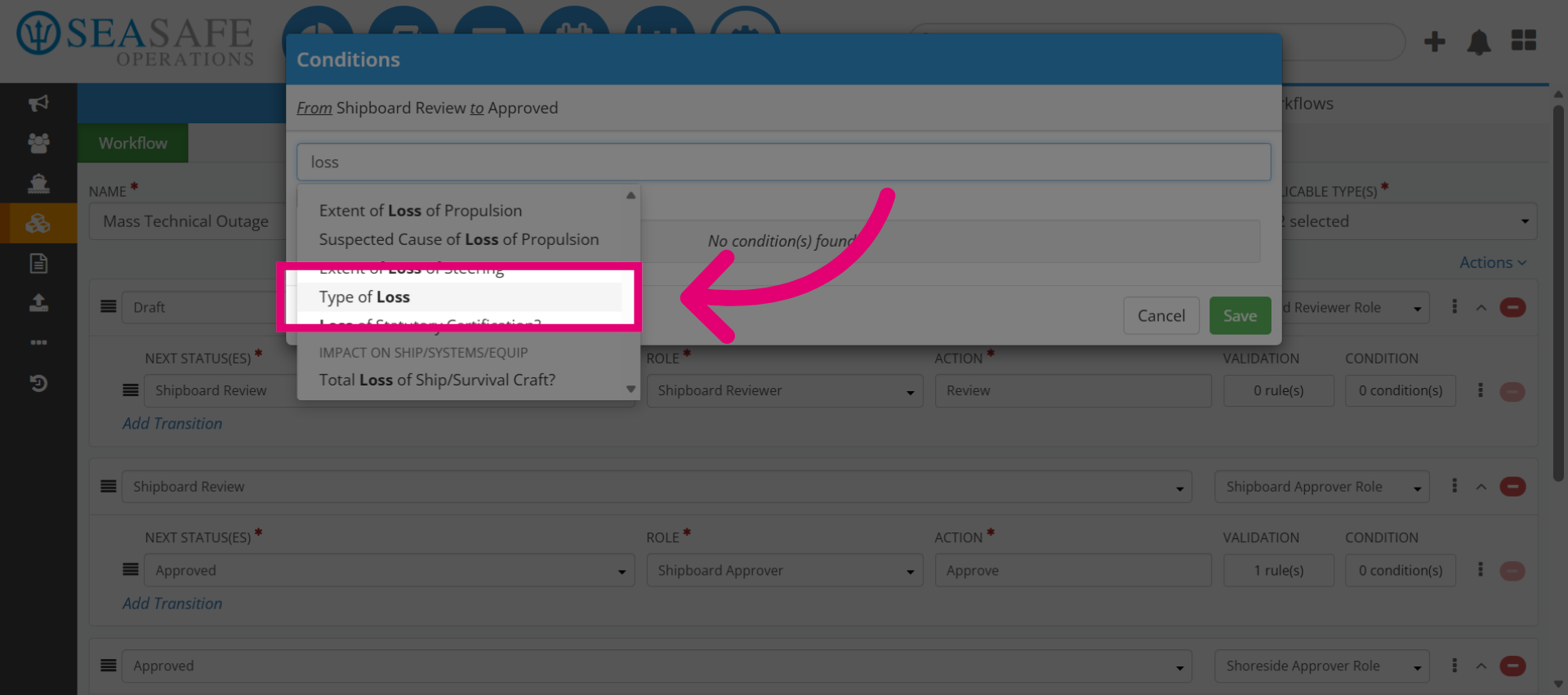
Enter the keyword "loss" in the condition search or input field to filter relevant condition types.
4. Access Condition Type
Then, select "Type of Loss" to specify the category of the condition you want to add. Choosing the right category ensures accurate routing logic.
5. Open Selection Menu
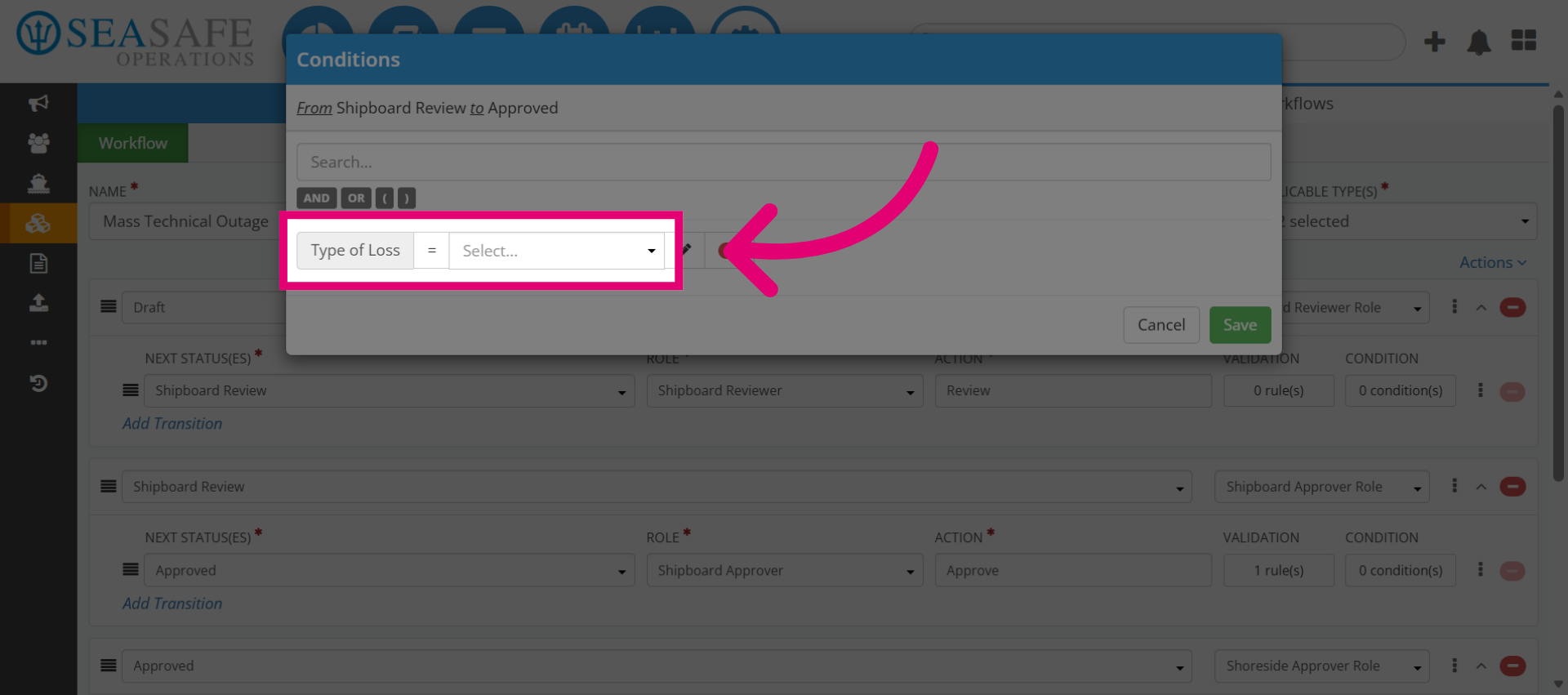
Next, click "Select" to open the dropdown menu for available condition options for the Type of oss.
6. Choose Specific Condition
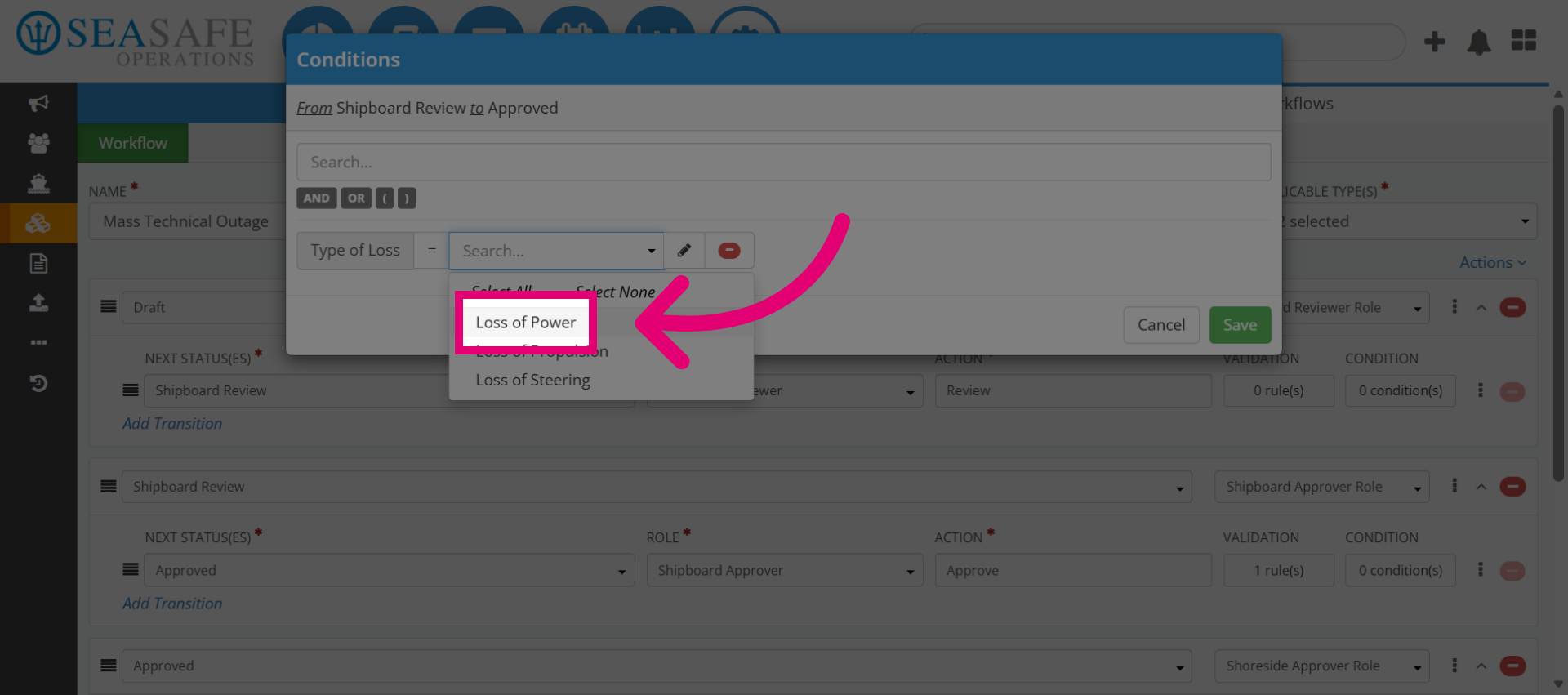
For example, we will select "Loss of Power" from the dropdown to define the condition type precisely and will define the exact scenario that triggers the condition, which is "Loss of Power".
7. Confirm Condition Selection
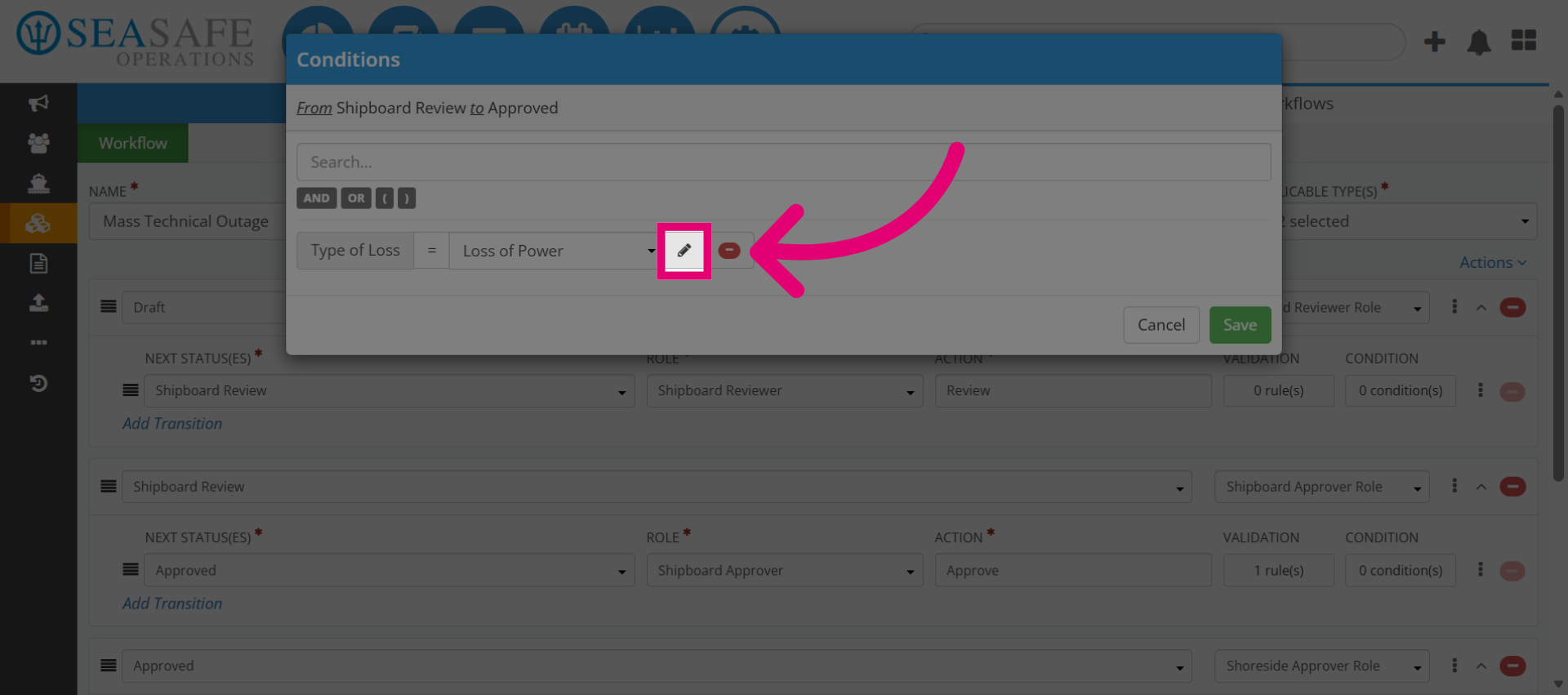
Next, we will confirm the selection and proceed with setting up the condition. Confirmation applies the condition to the workflow logic.
8. Review the Condition Setup
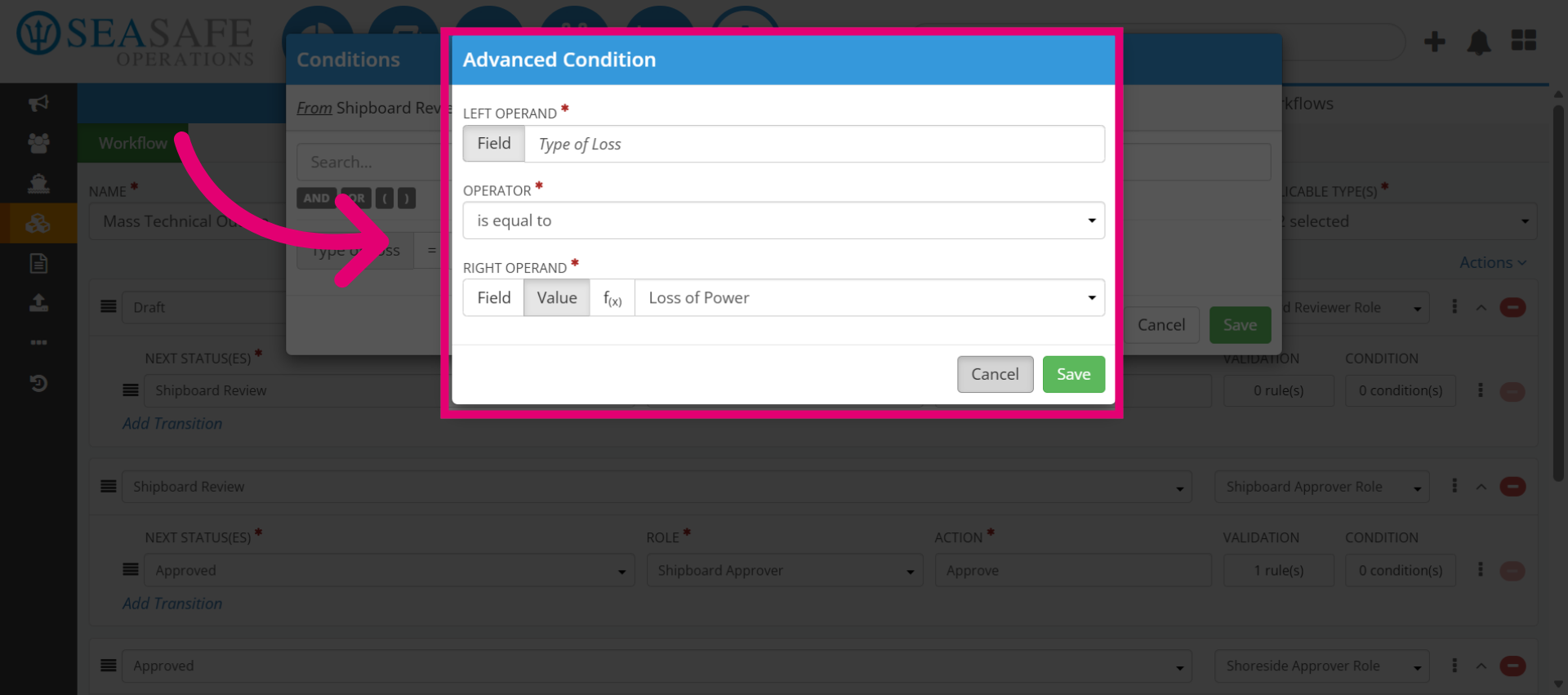
Then, review the advanced logic and make adjustments as needed. Though, click "Cancel" to exit the condition setup without saving changes if needed. This is useful if you need to adjust logic before applying.
9. Reopen Condition Type
Click "Type of Loss" again to revisit or modify the condition type selection. Conditions can be edited anytime for flexibility.
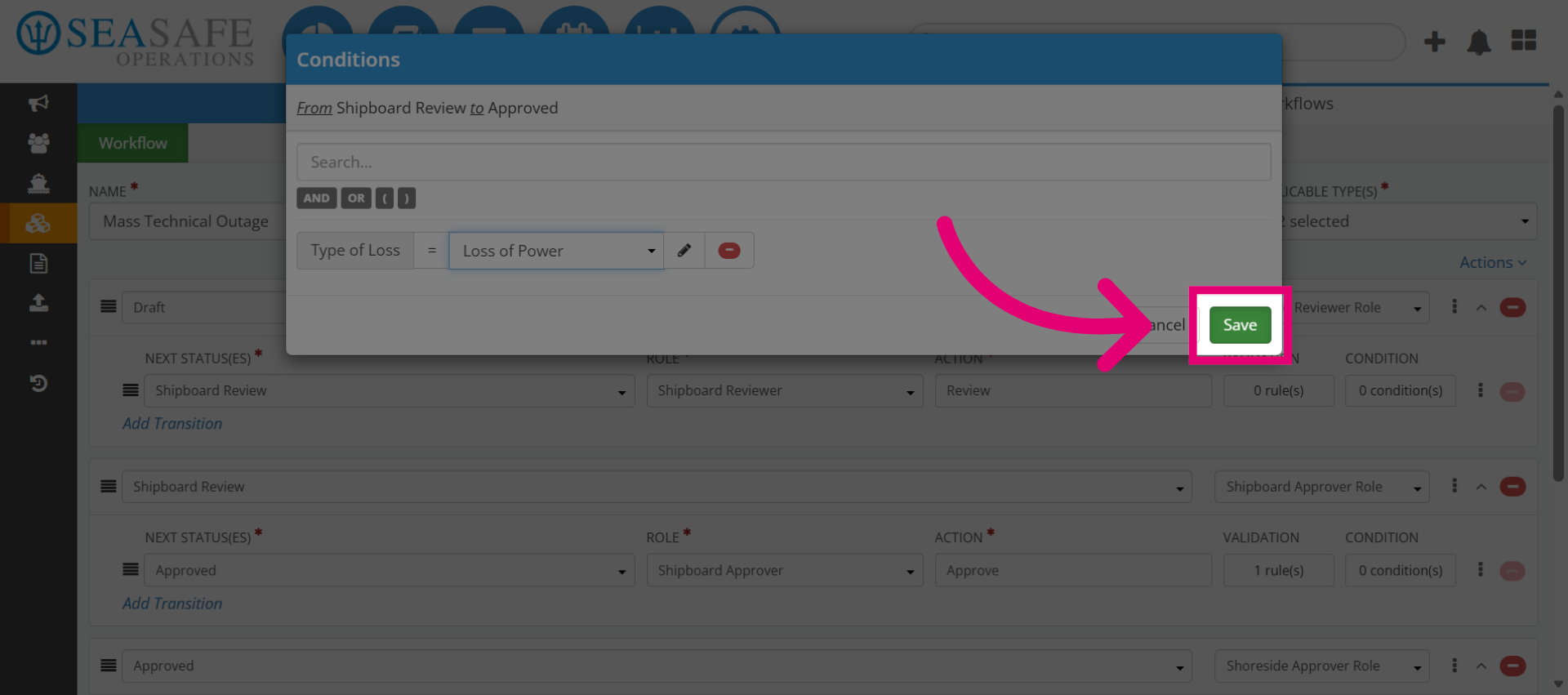
10. Save Condition
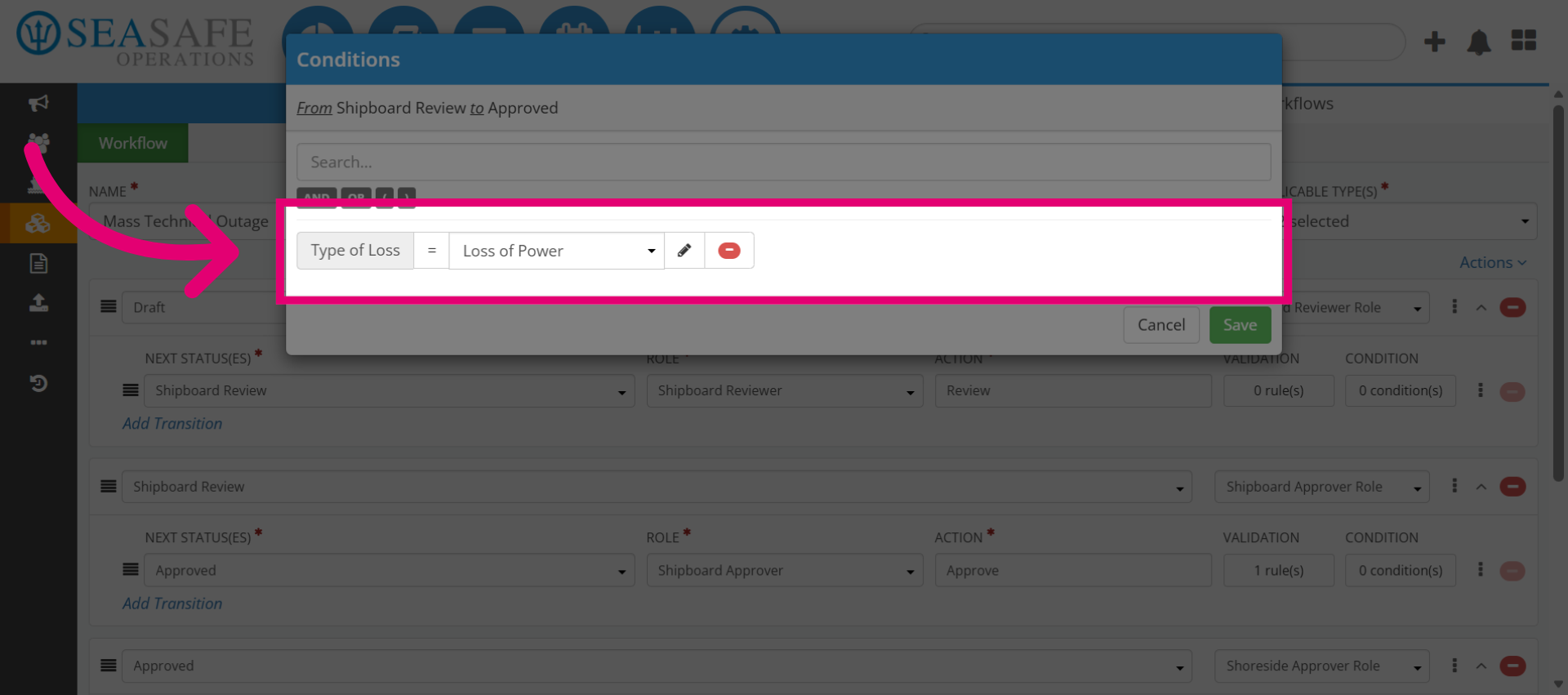
Then, "Save" to apply the condition to your workflow. This activates the logic for routing and approvals.