New article
Recently updated
Activate a Field in Ideagen Maritime Management Operations

This walkthrough explains how to activate a field within the Ideagen Maritime Management application.
1. Introduction
You will learn the steps to activate a new field in Ideagen Maritime Management. Start in the shoreside "Admin Menu", in the "Fields, Types & Workflow" section under the "Field" tab. Assume you have already created your field and it just needs to be activated.
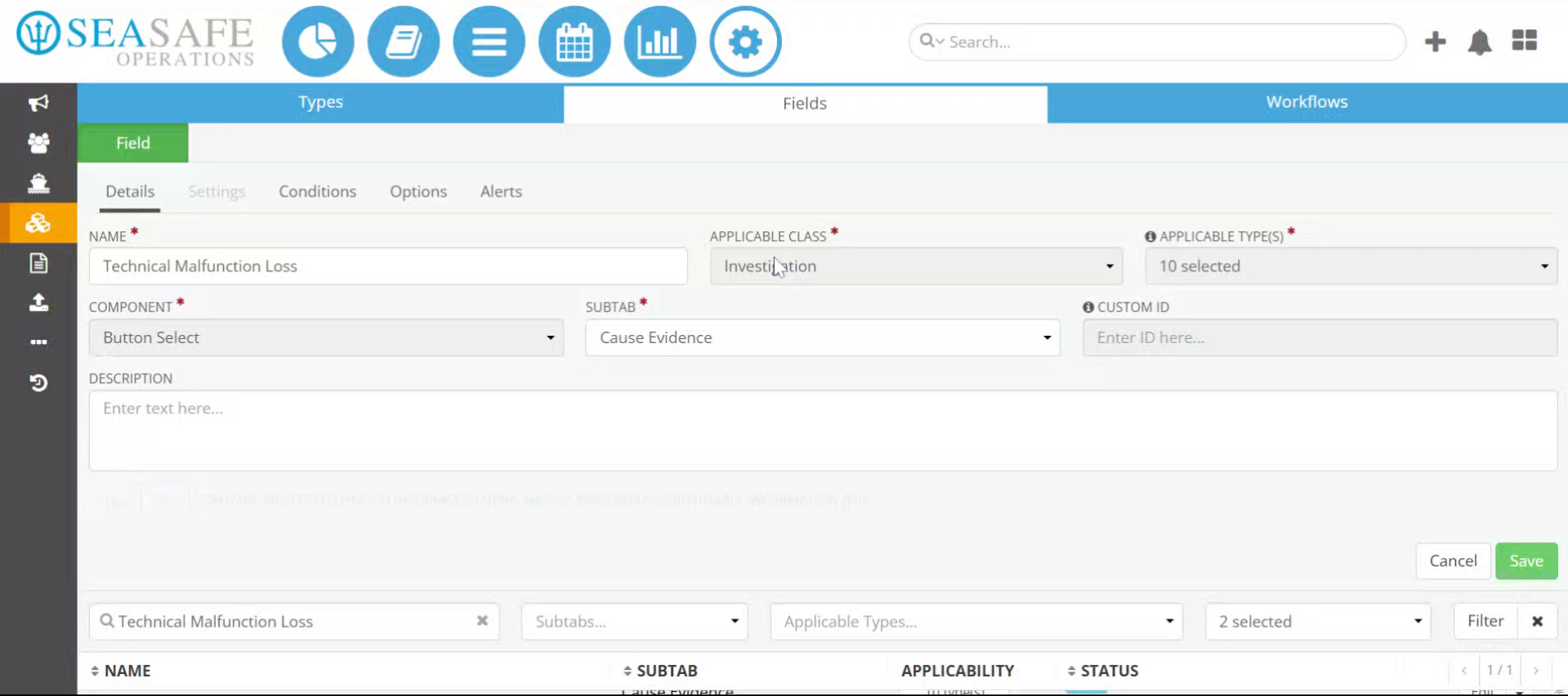
2. Click Save Button
Once you have added all of the Details, Settings, Conditions and Options and Alerts for the field, click the Save button to save the changes.
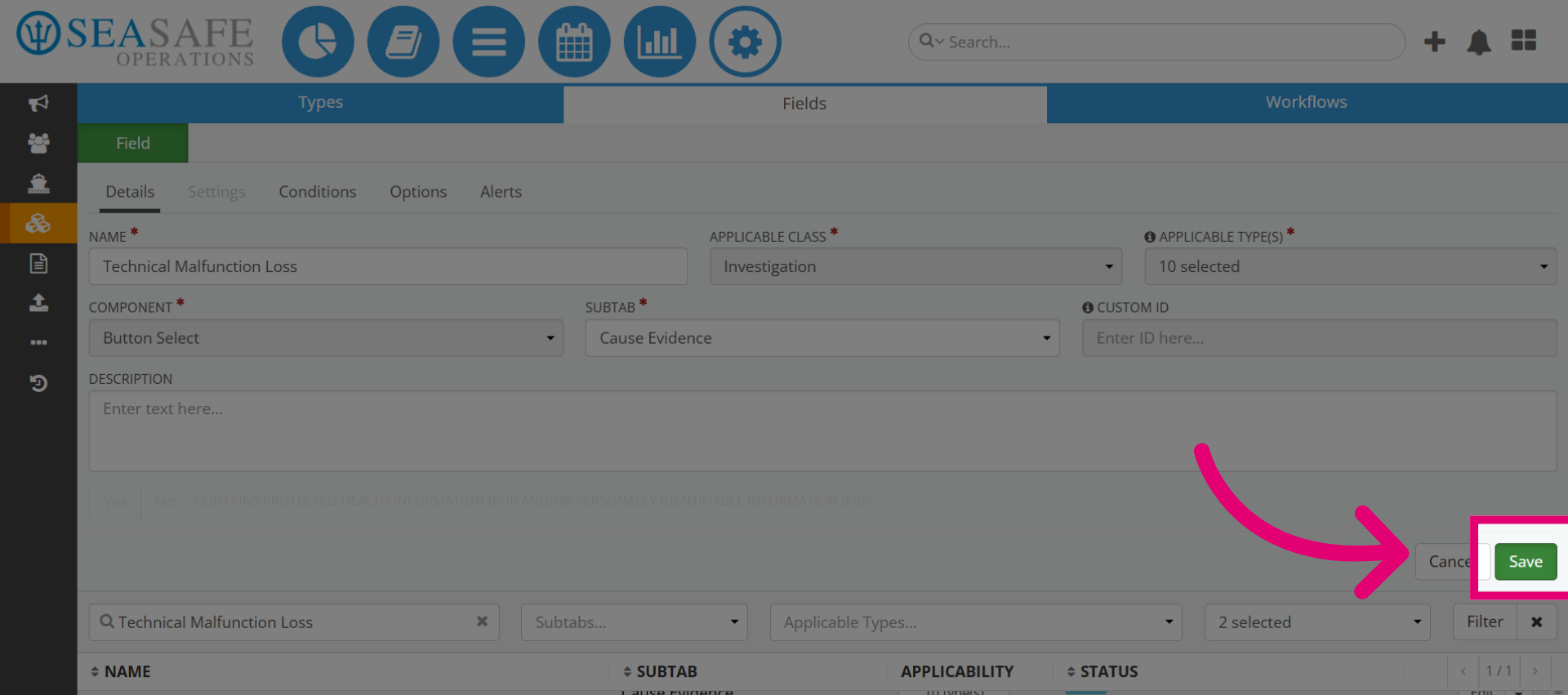
3. Select Draft Field
The field will be in "Draft" status in the list since it's not activated yet.
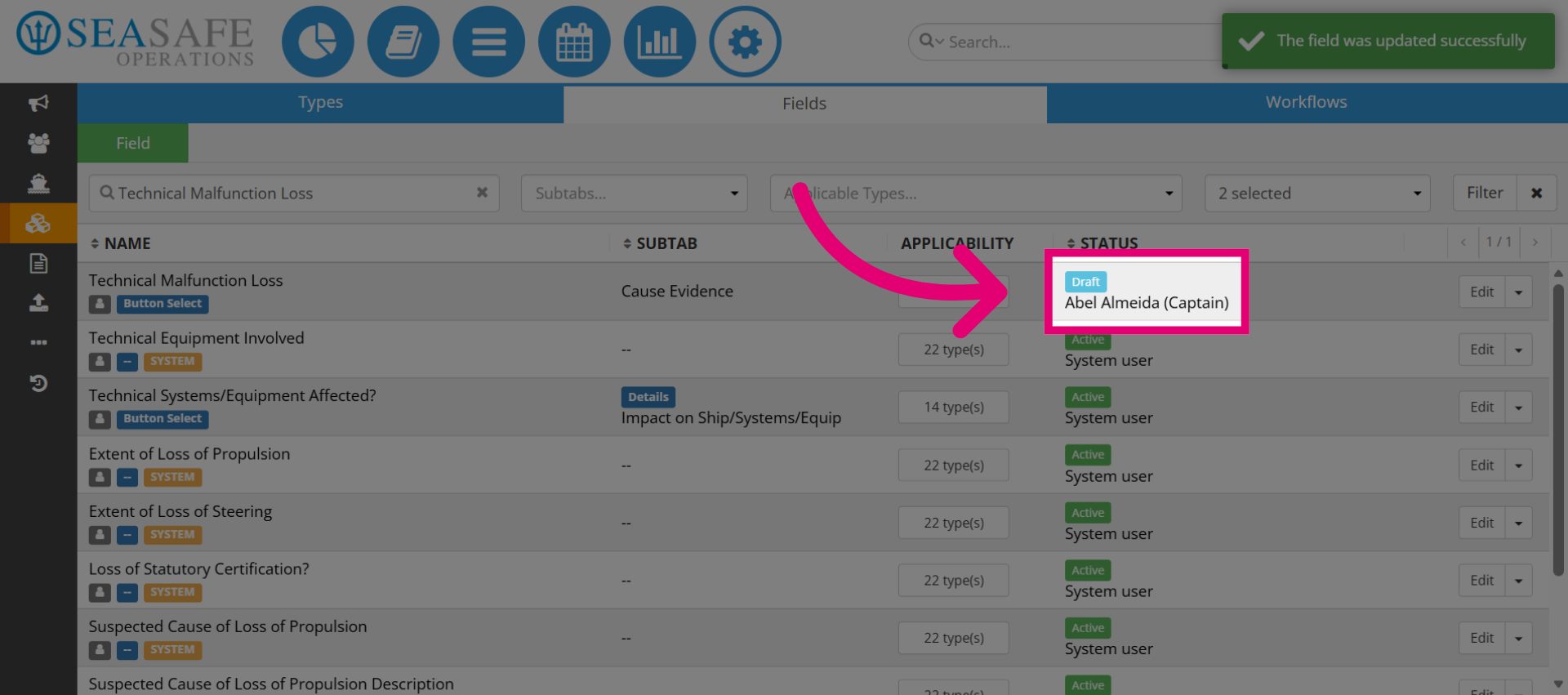
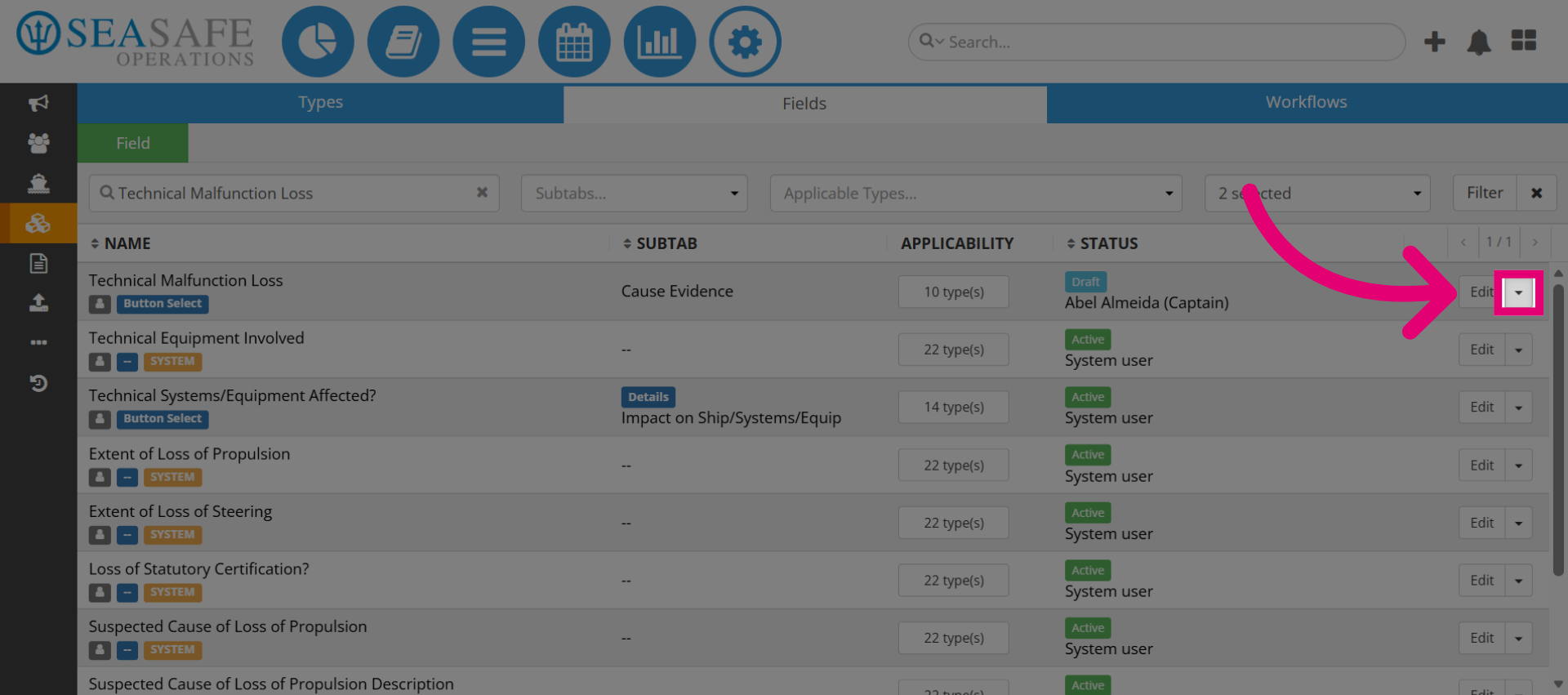
4. Open Field Options
Next click here to access additional options for the selected field.
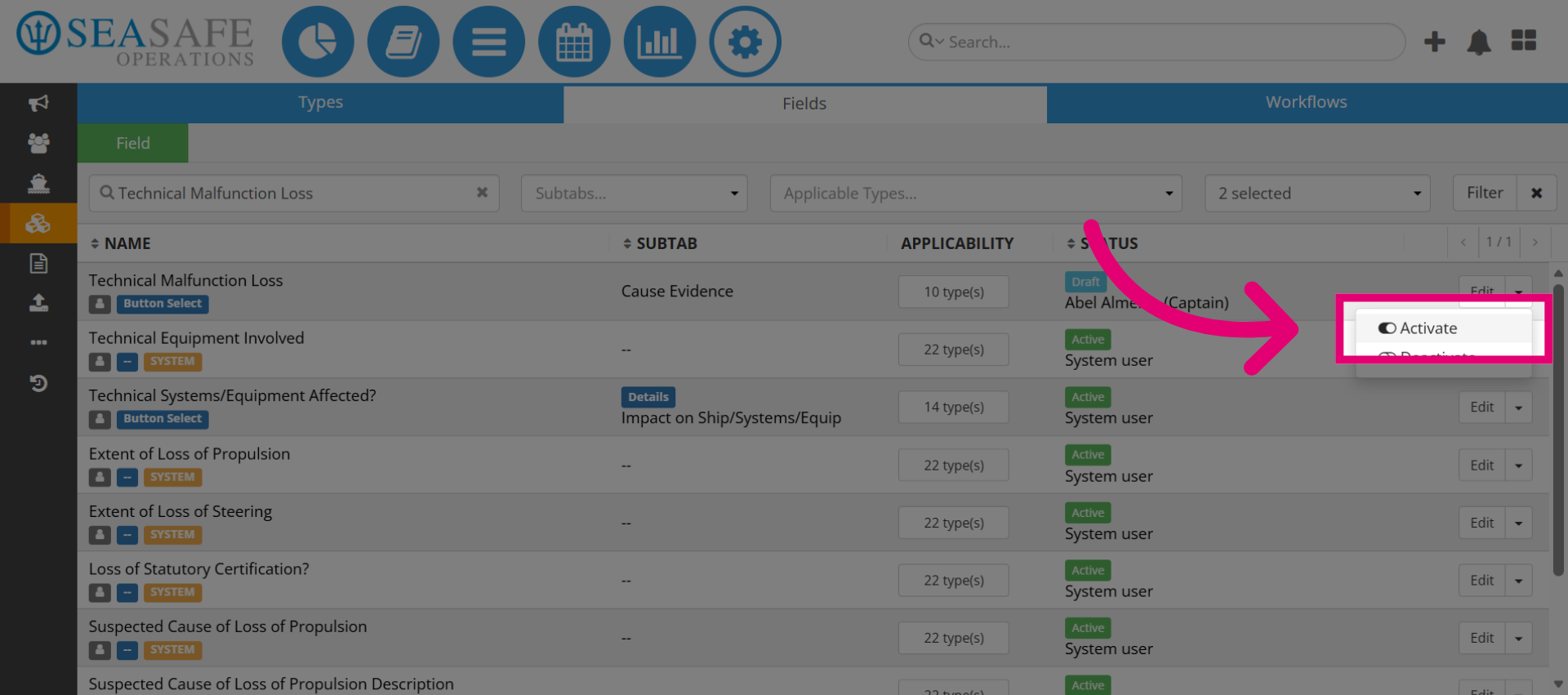
5. Click Activate Option
Then, select the "Activate" button toggling it on to initiate the activation process for the field.
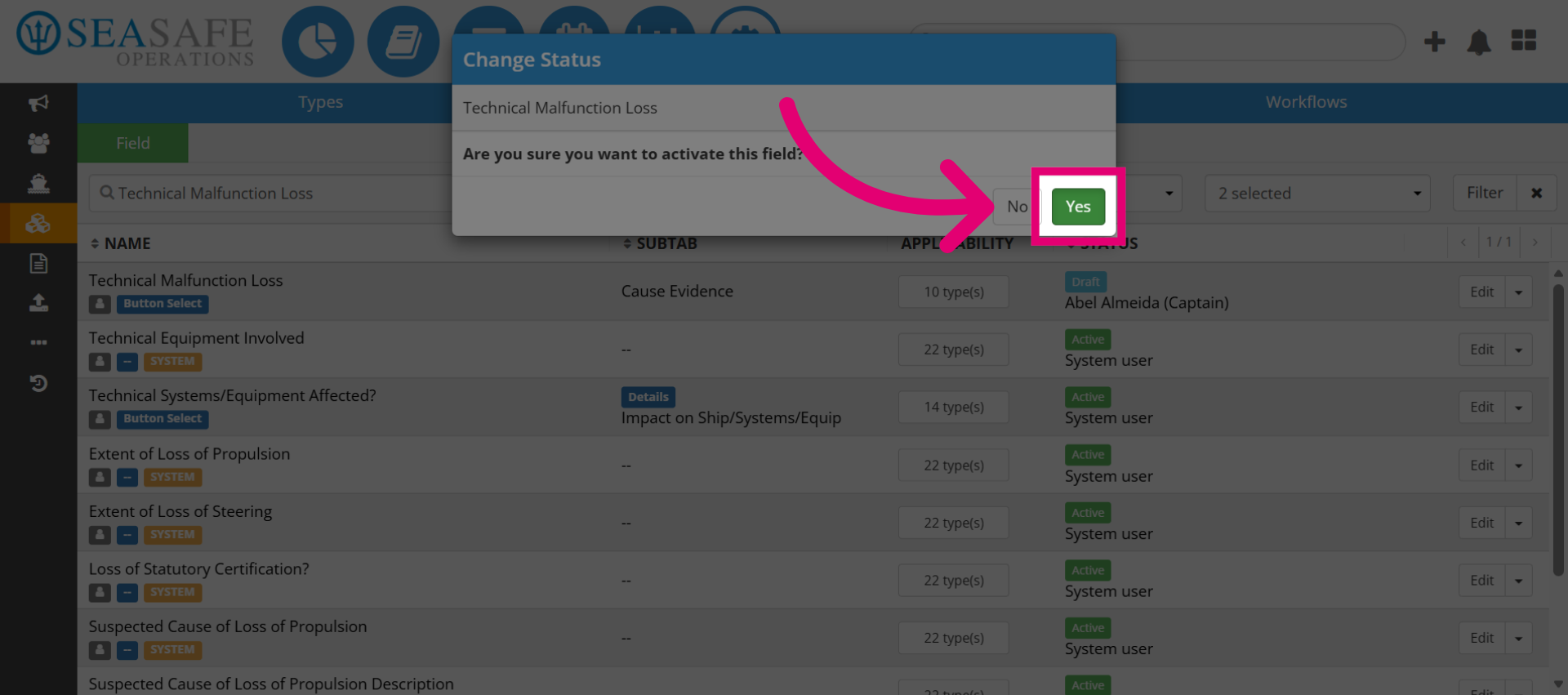
6. Confirm Activation
Next, click "Yes" to confirm that you want to activate the selected field.
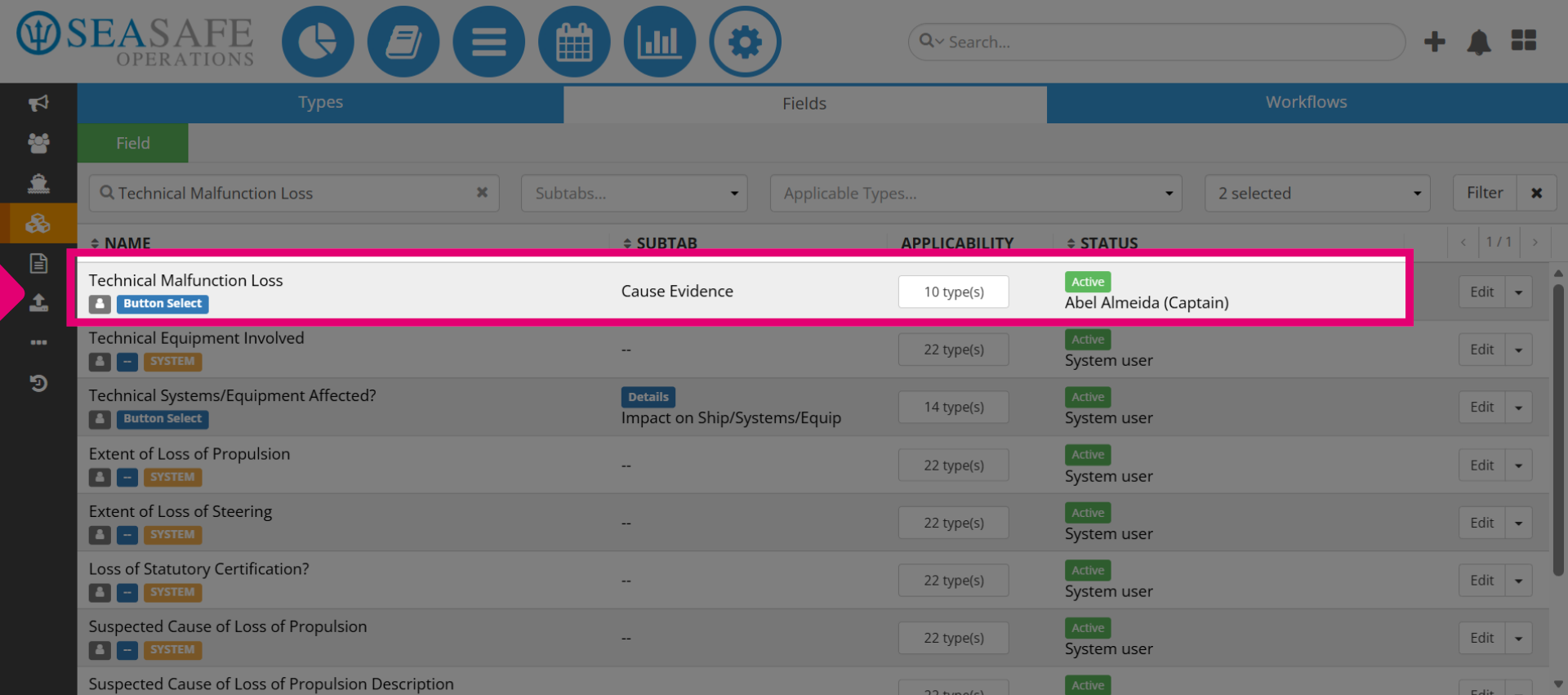
7. View the Updated "Status"
Then, view the updated status to "Active".
8. Open Status Dropdown
Click the toggle dropdown to reveal available status options for the field.
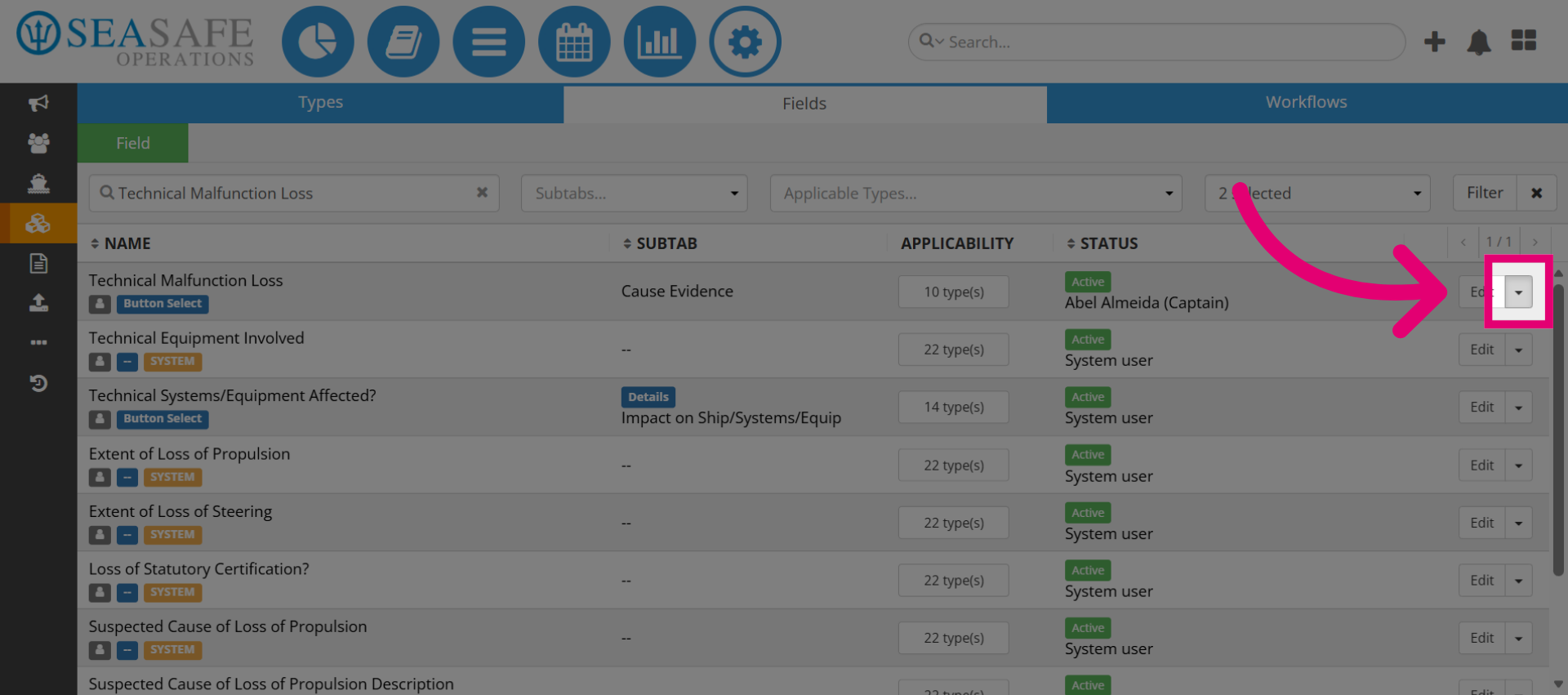
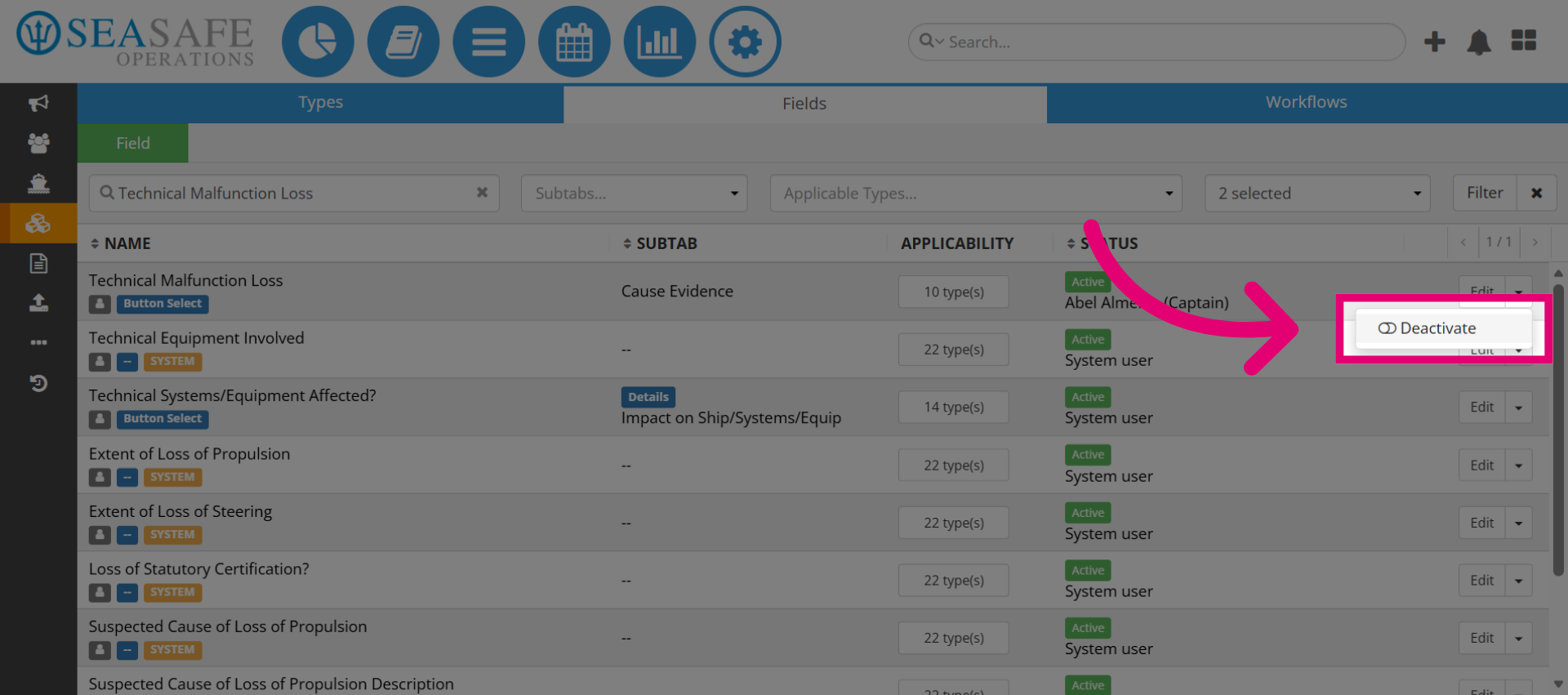
9. Deactivate the Field
If you ever need to deactivate the field, click "Deactivate" to change the field status from active to inactive.
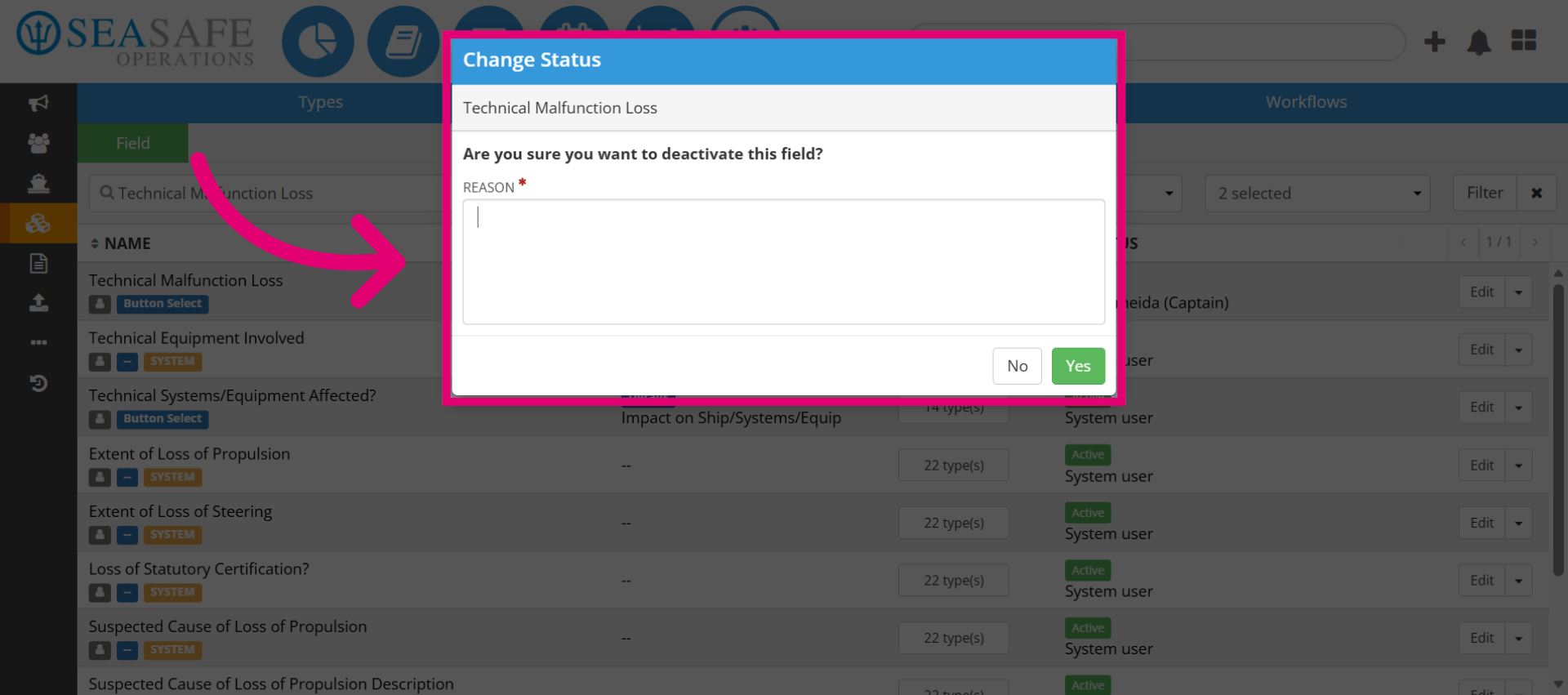
10. Add a Deactivation Reason
Then, dd a deactivation "Reason" details here.
11. Enter Status Description
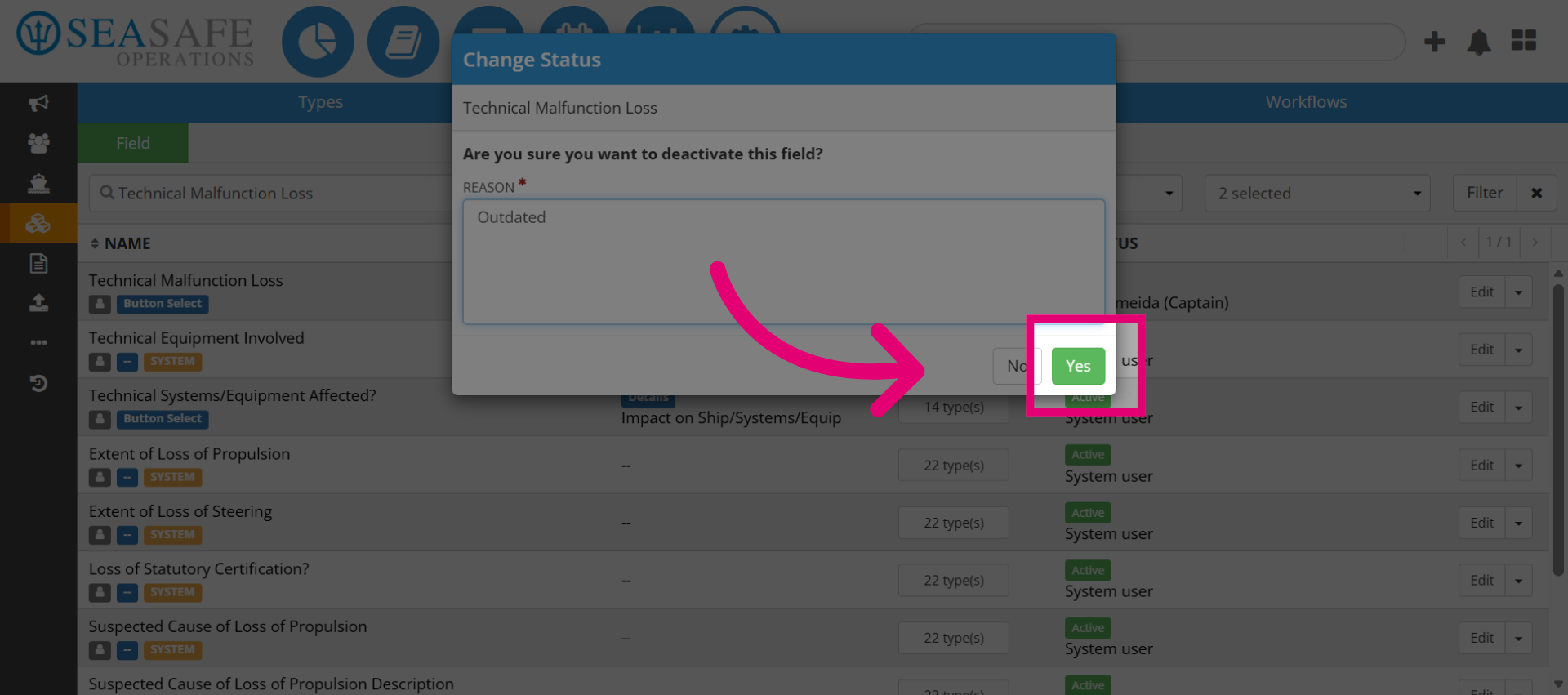
Enter the status description such as "Outdated" to indicate the field is no longer current.
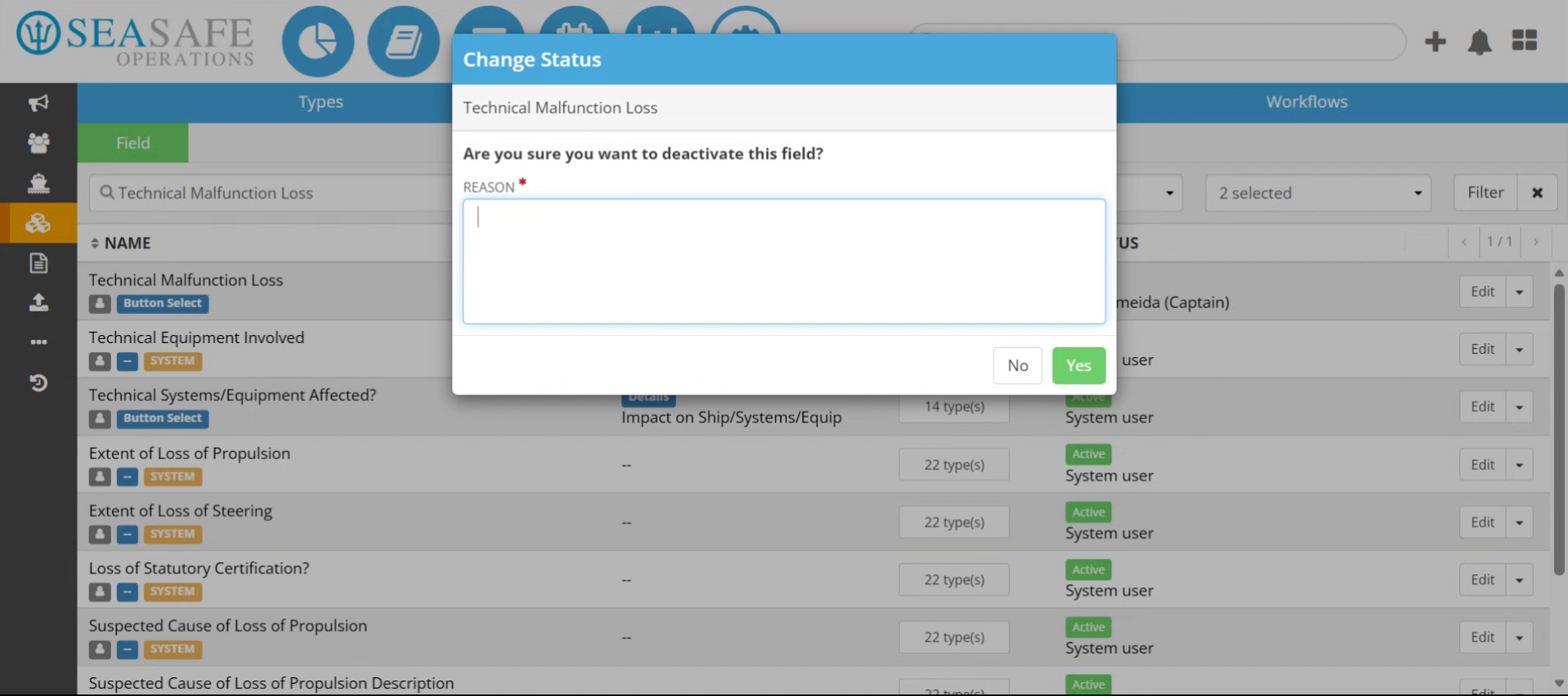
12. Confirm Status Change
Click "Yes" to confirm the change.