New article
Recently updated
Add Field Alerts in Ideagen Maritime Management

This walkthrough explains how to configure alerts for specific fields within Ideagen Maritime Management.
1. Introduction
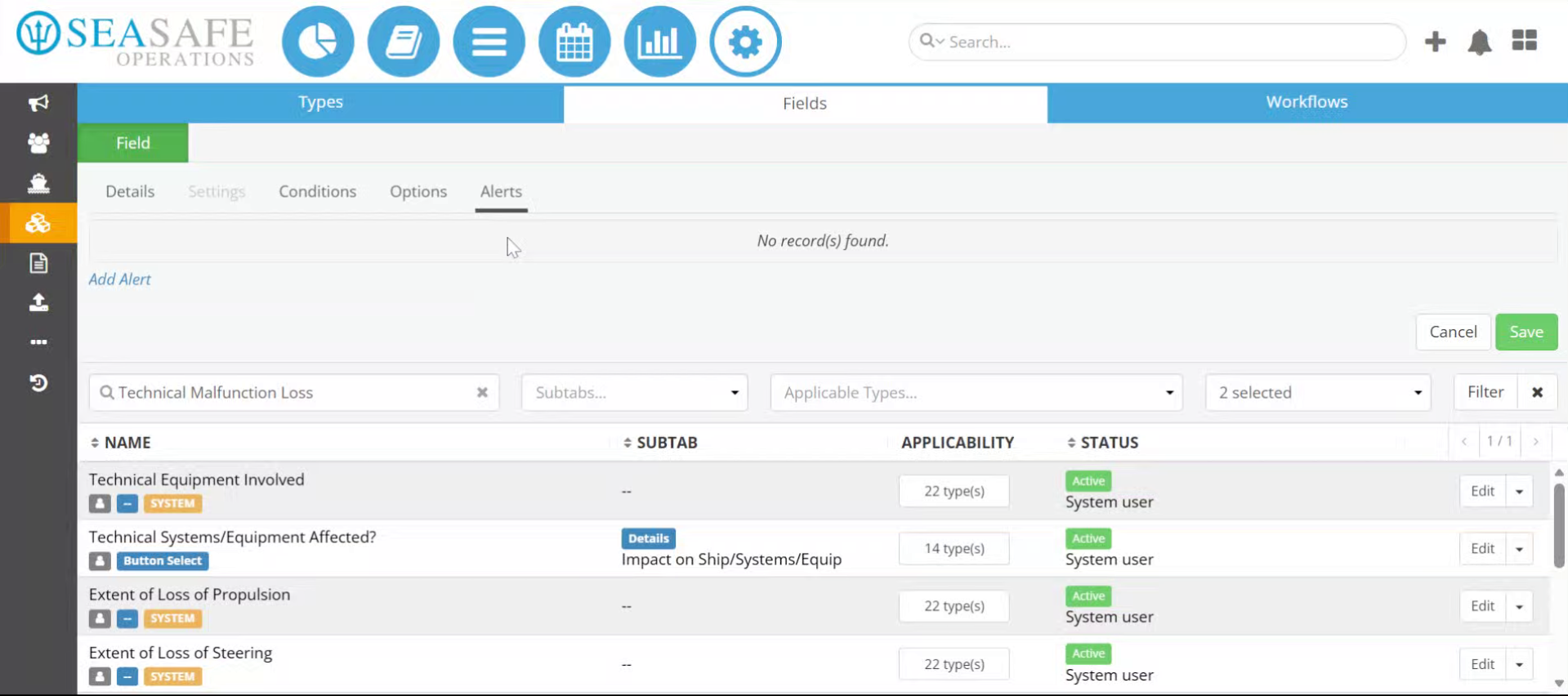
You will learn to set up conditions and customize alert messages to monitor critical events effectively. Start in the "Alerts" subtab of the "Fields" tab, under the "Fields, Types & Workflows" section in the shoreside "Admin Menu".
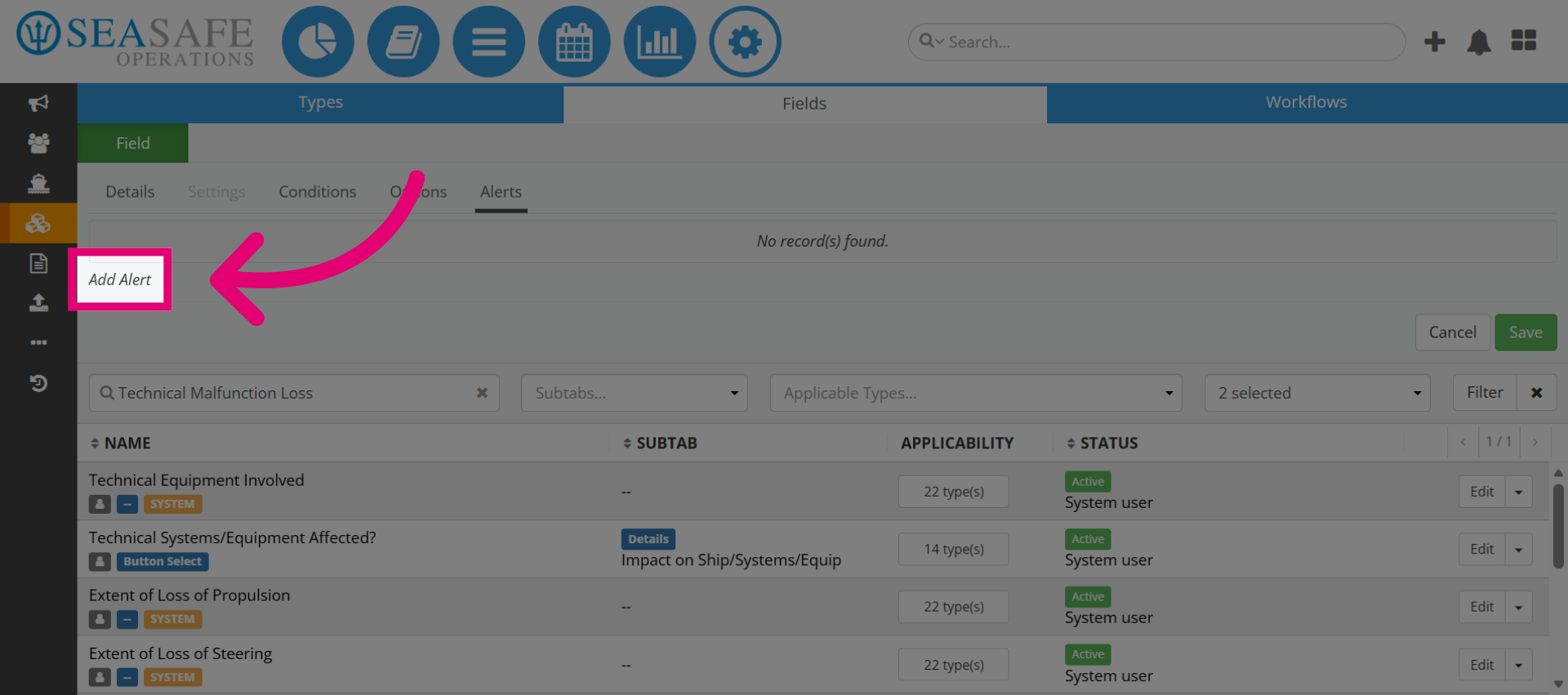
2. Select Add Alert Button
Start by selecting the "Add Alert" button to begin creating a new alert configuration.
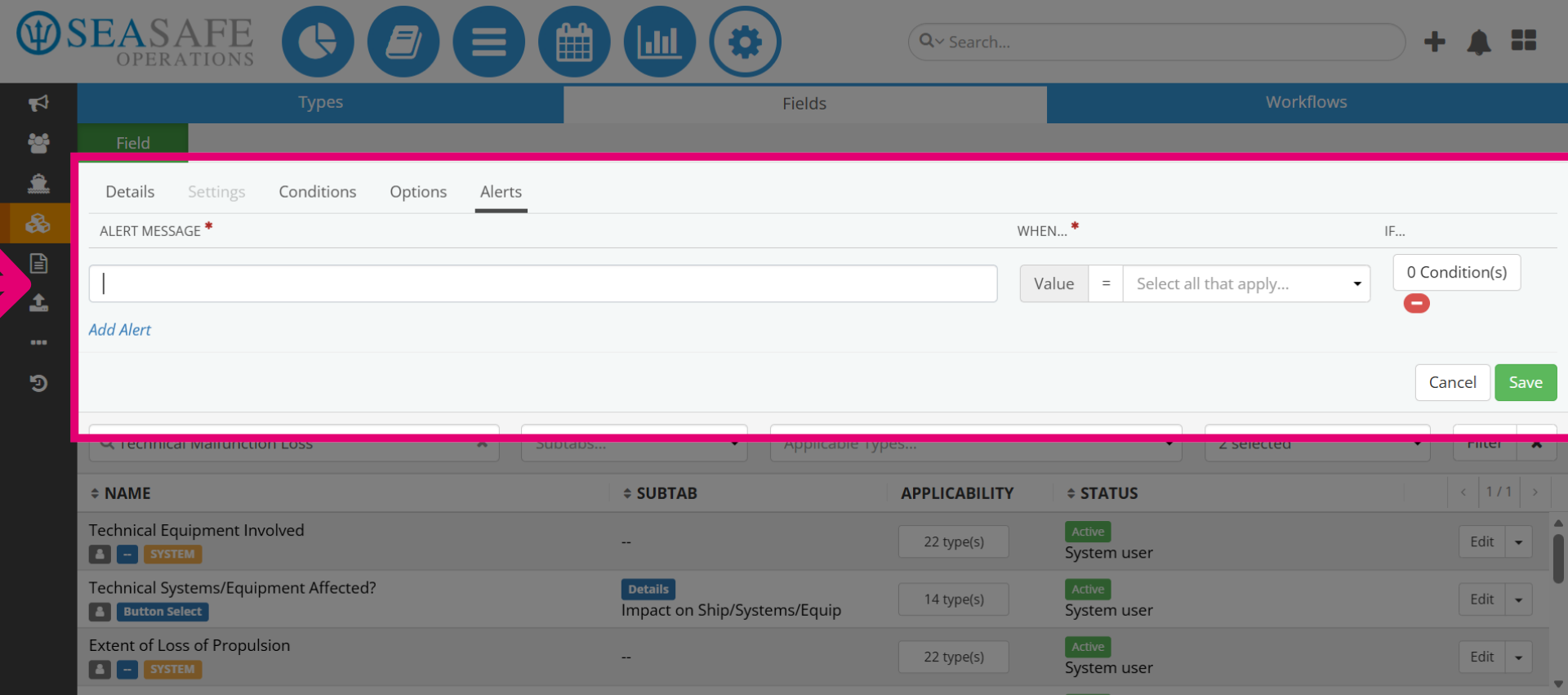
3. Open Alert Configuration
Alerts are triggered by your defined conditions using logic like:
- "When," "If," and "Values." "When" specifies the event that triggers the alert (for example, “When Status = Closed”).
- "If" adds a conditional check (for example, “If Severity = High”).
- "Values" is the data to compare (for example, “High,” “Closed,” “Yes”).
- "Operator" such as equal, checks how the field matches the value (for example, Status = Closed).
4. Enter Alert Name
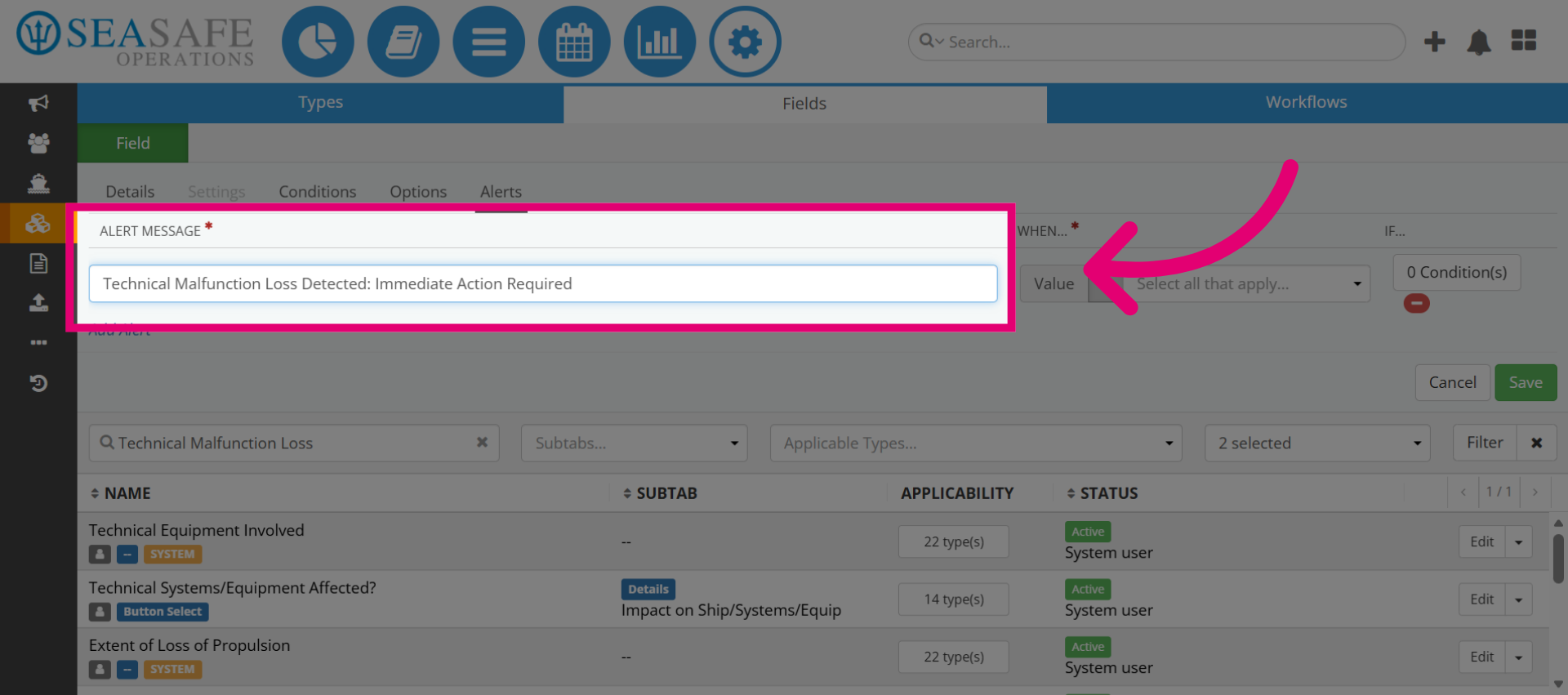
Let's continue, by entering the alert name such as "Technical Malfunction Loss Detected: Immediate Action Required". This is related to the purpose of the alert.
5. Set the Value Equals Operator
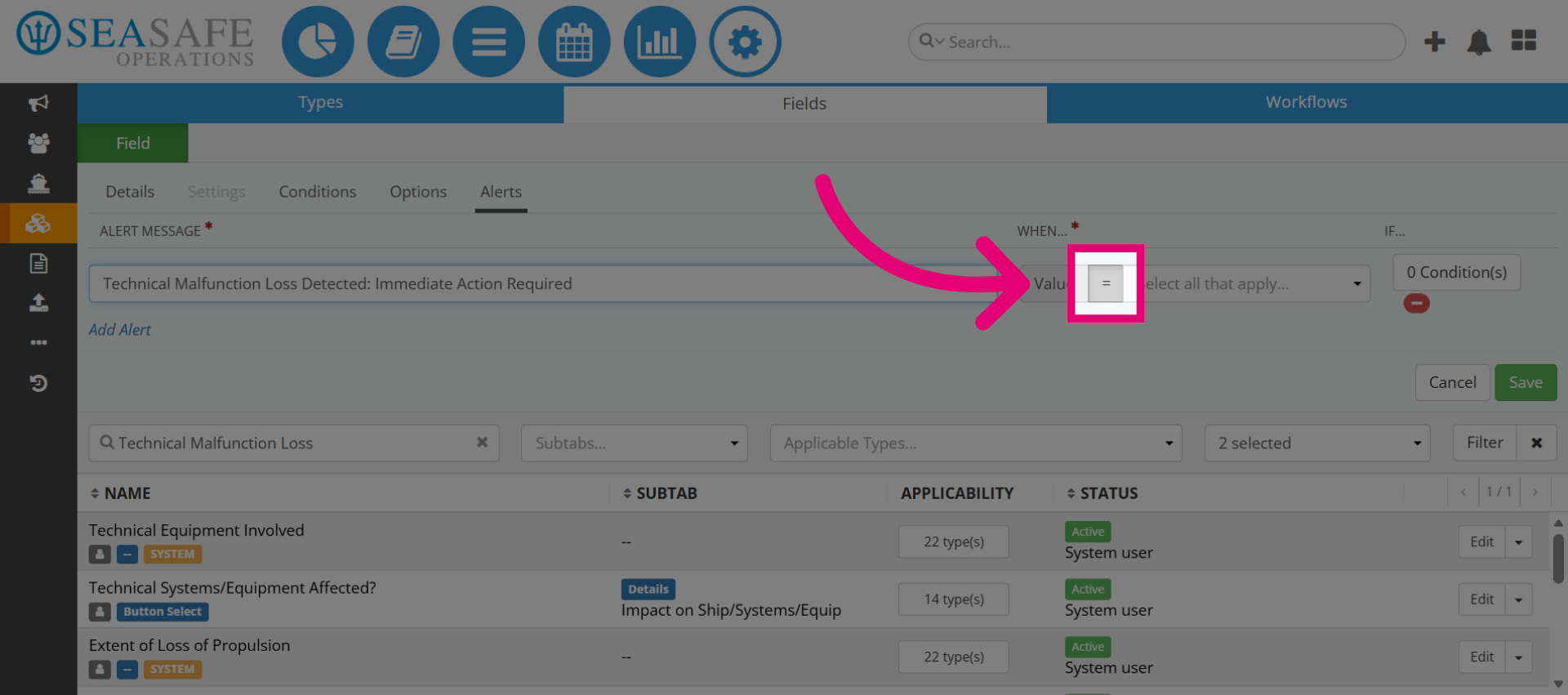
Then, set the value of "When" click the equals (=) operator to define the condition for the alert.
6. Set the Value Operator
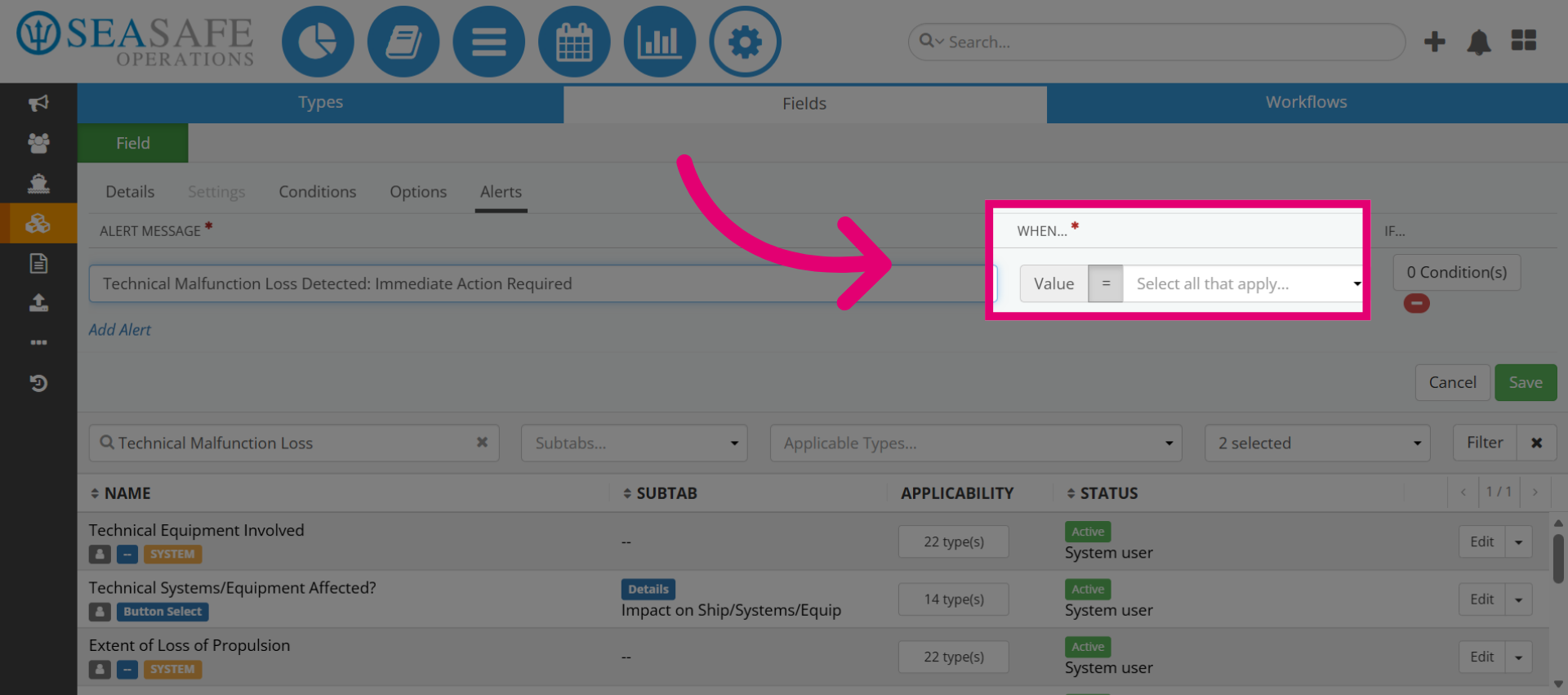
Then, set the value of "When" click the equals (=) operator to define the condition for the alert.
7. Set the Operator
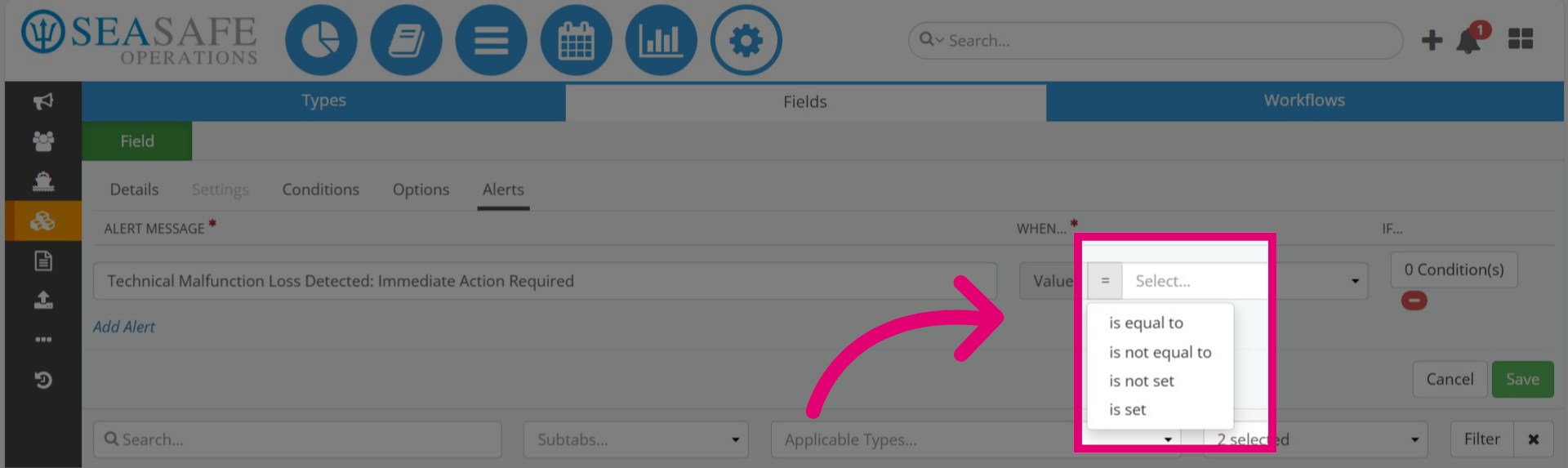
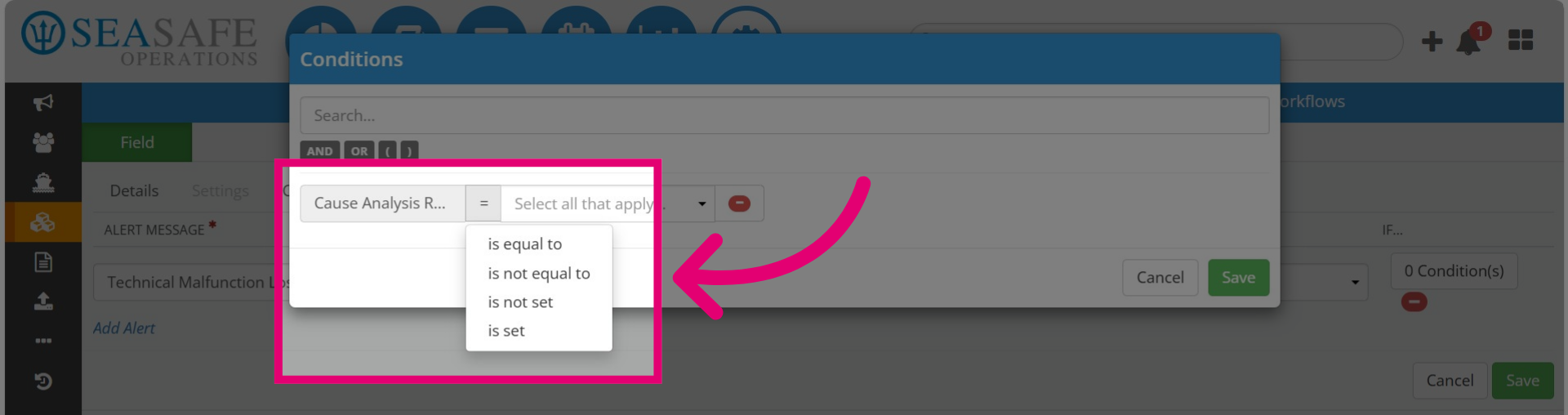
Next, select the option ‘is equal to’ to apply the equality operator. You may also choose other operator options: is not equal to, is not set, and is set.
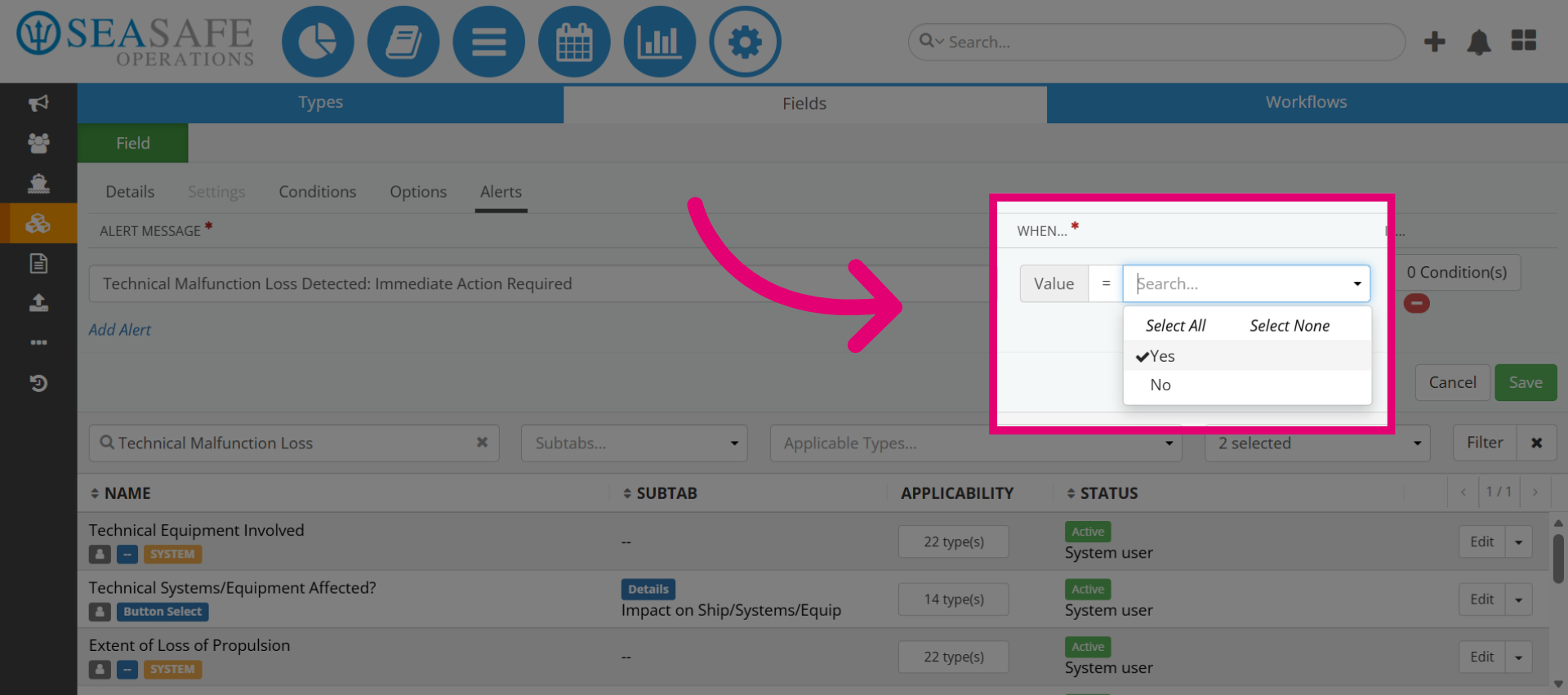
8. Select Yes Option
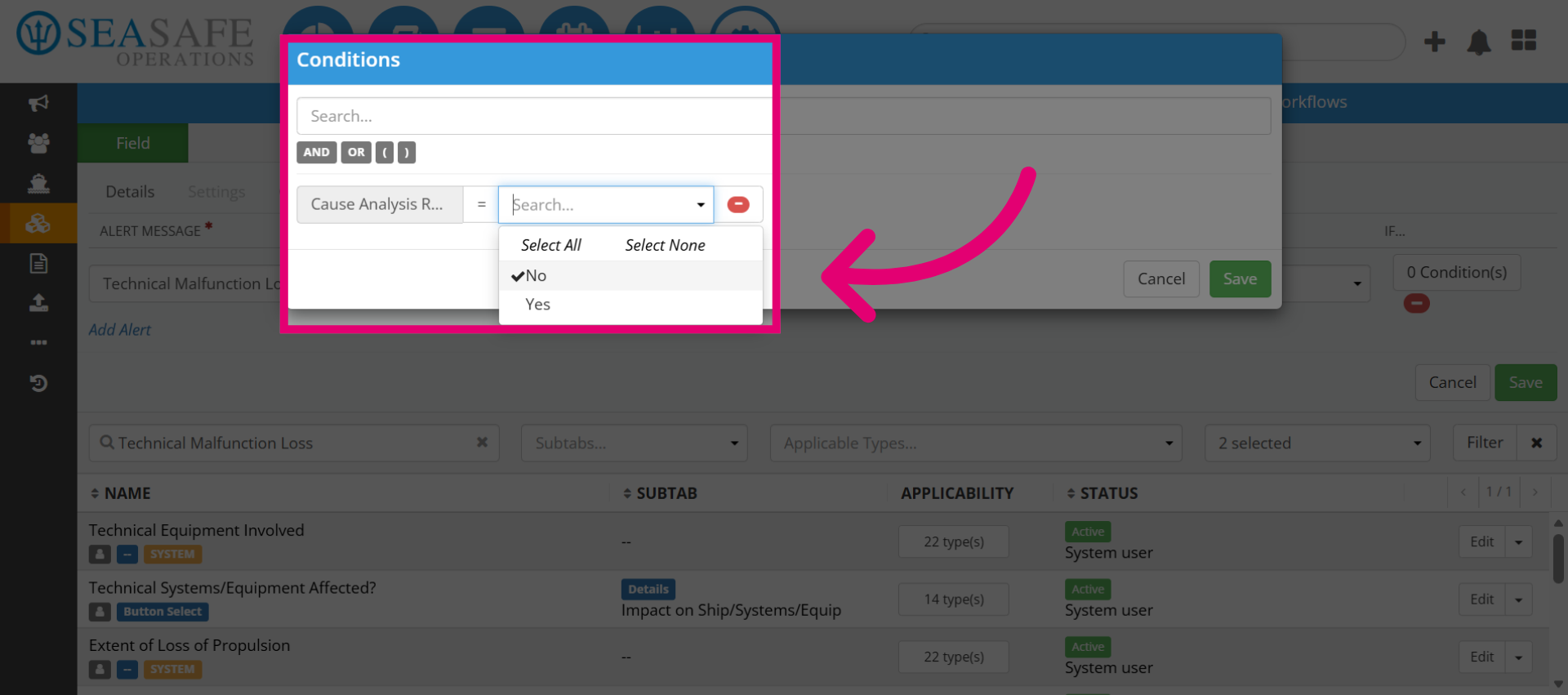
Then, select "Yes" or "No" to specify that the condition being met for the alert to activate. This is based on the option you added such as if it's between option of "Yes" or "No".
We will proceed with yes so that when "Yes" is selected the alert is triggered.
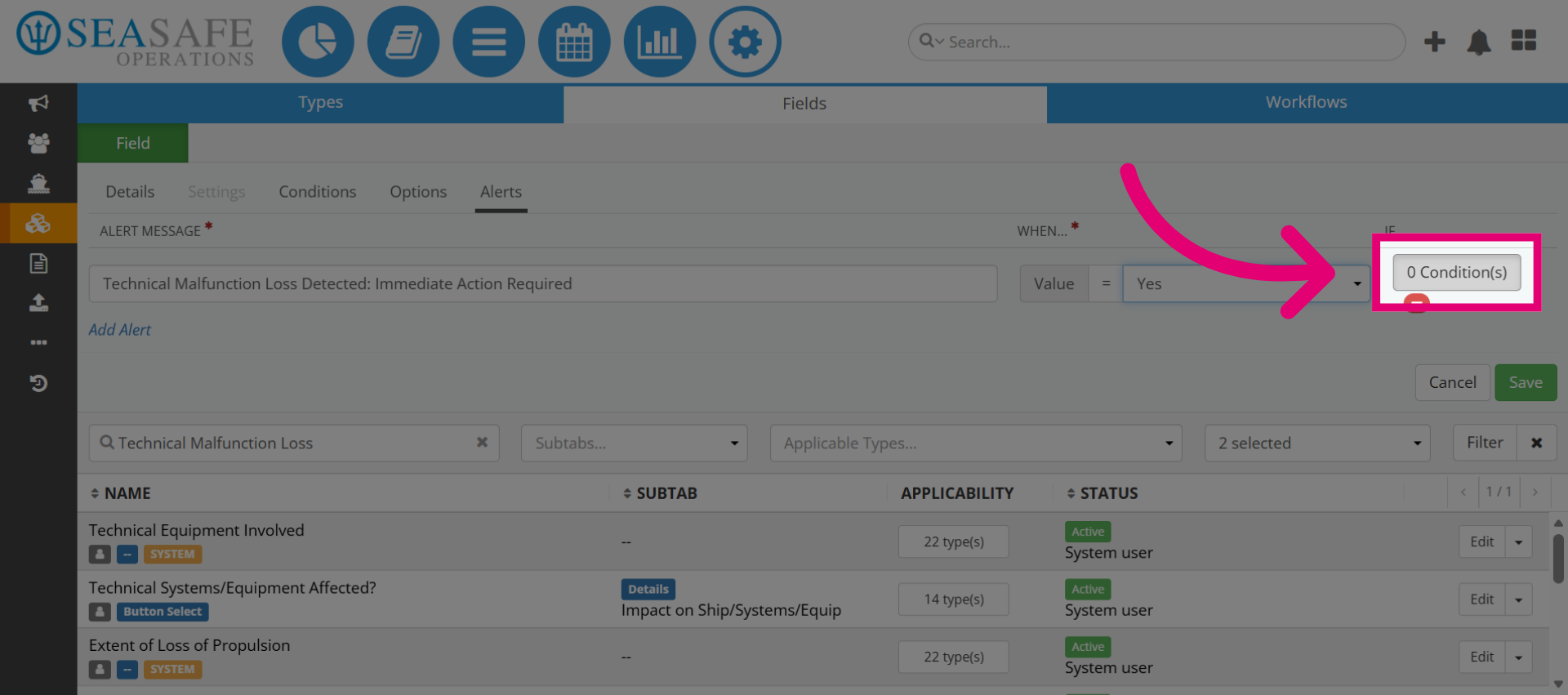
9. Open Condition Count
Next, select the "Conditions" to add for the alert.
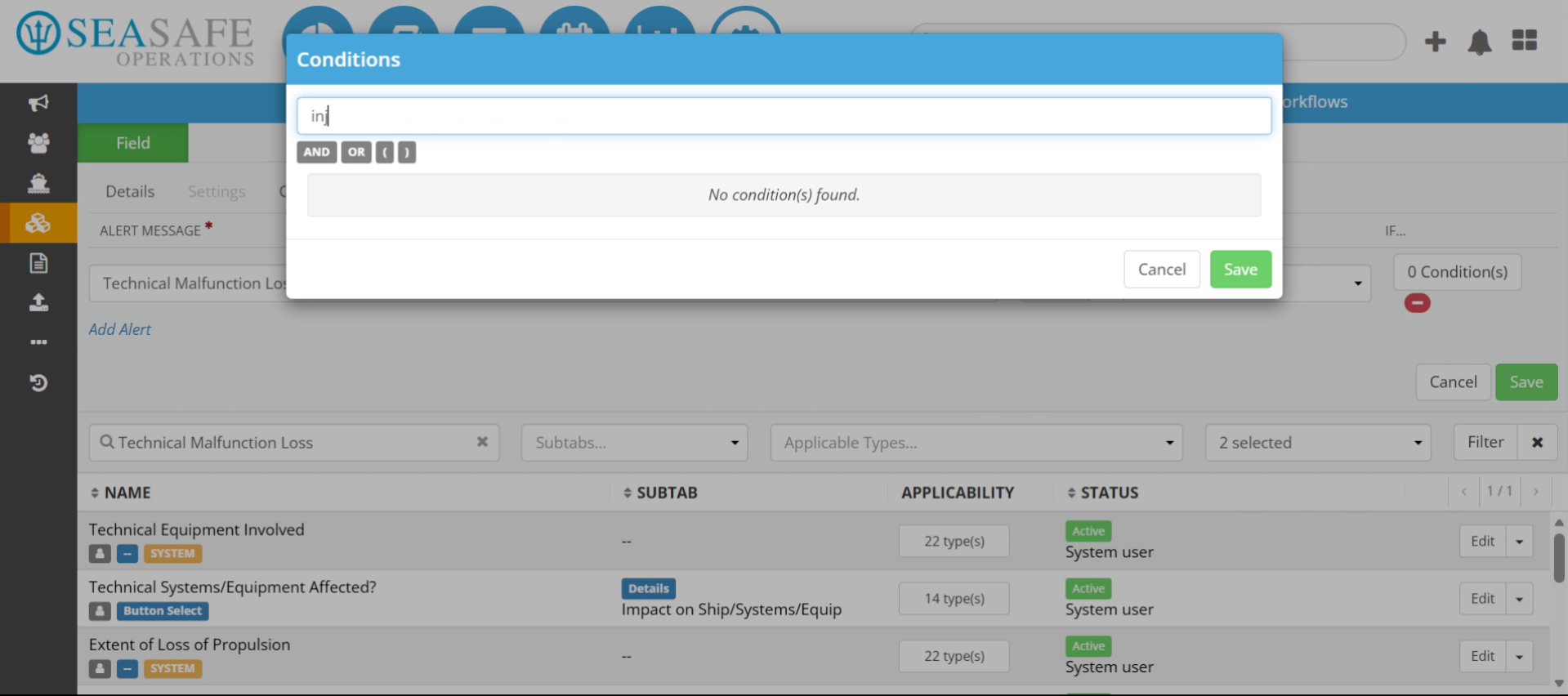
10. Search Conditions
Enter search terms in the search field to find specific conditions to apply.
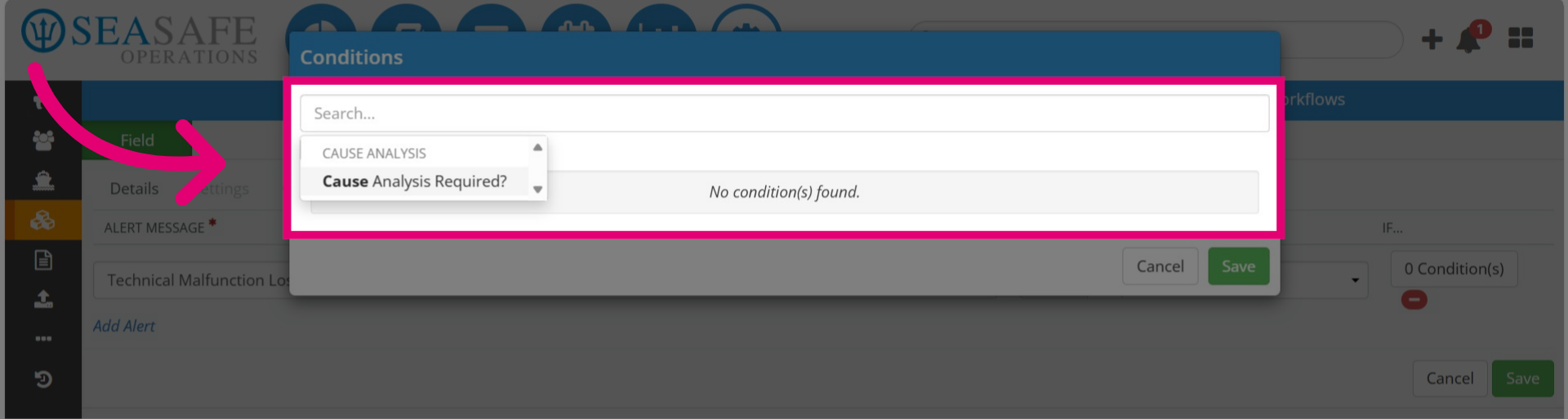
11. Select the condition you want to add
Then, select the field you want to add, such as, for example, "Cause Analysis Required".
12. Specifying the Condition
Then, specify the condition you want to link to it. For example, here we have "Cause Analysis Required?", so you can use the operator (to set the condition for "Yes" or "No").
13. Choose the operator
Then, choose the operator of either is:
- "equals to"
- "is not equal to"
- "is not set", "is set"
14. Click to Remove
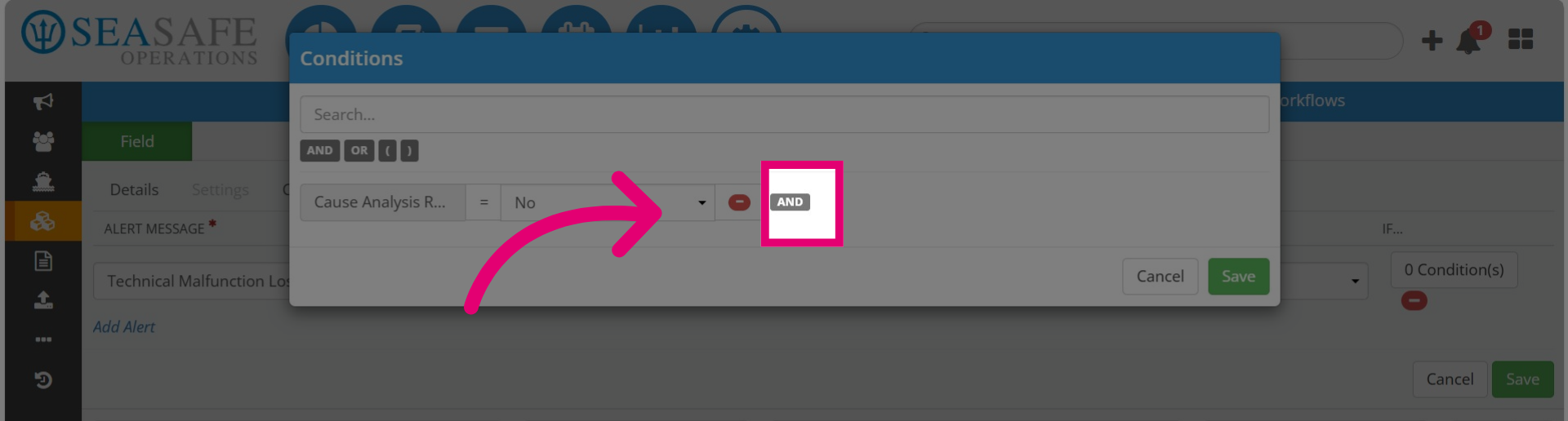
Then, click to remove the added "AND" condition, if desired.
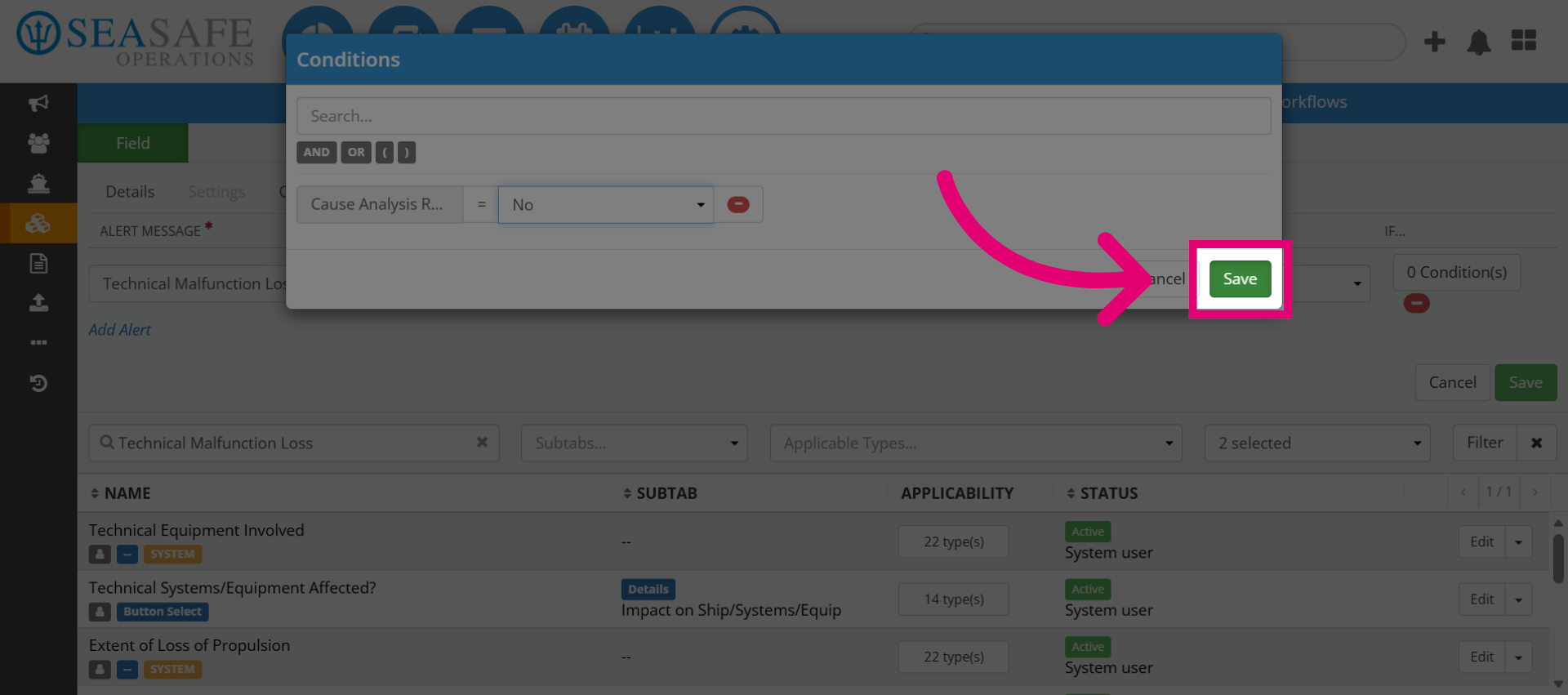
15. Save Alert Configuration
Next, click "Save" to apply and store the alert configuration settings.
16. Save Alert Configuration
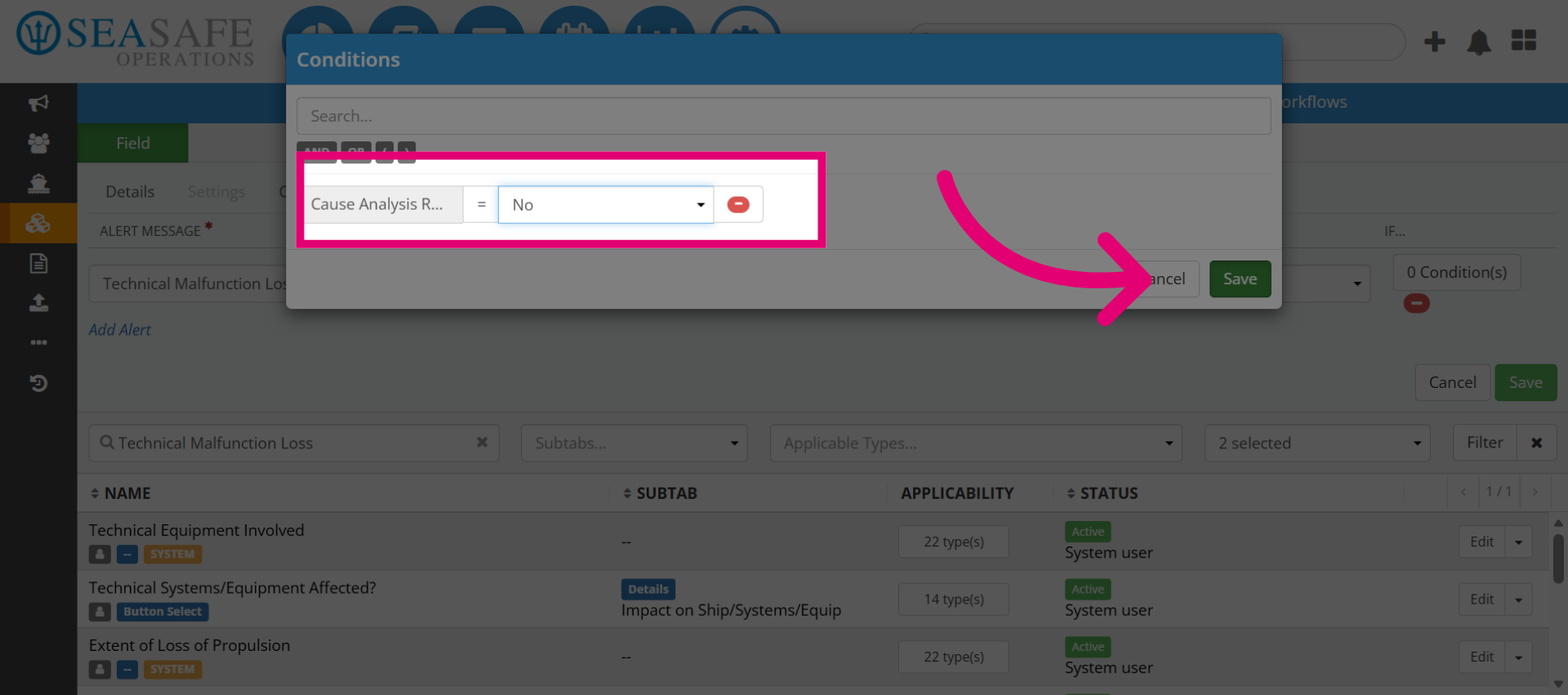
Then, click "Save" again to apply and store the alert configuration settings.