New article
Recently updated
Add Field Options in Ideagen Maritime Management

This walkthrough explains how to configure options for fields within Ideagen Maritime Management.
1. Introduction
You will learn how to set up single selection options and customize choices. Start in the shoreside "Admin Menu", in the "Fields, Types & Workflow" section under the "Field" tab.
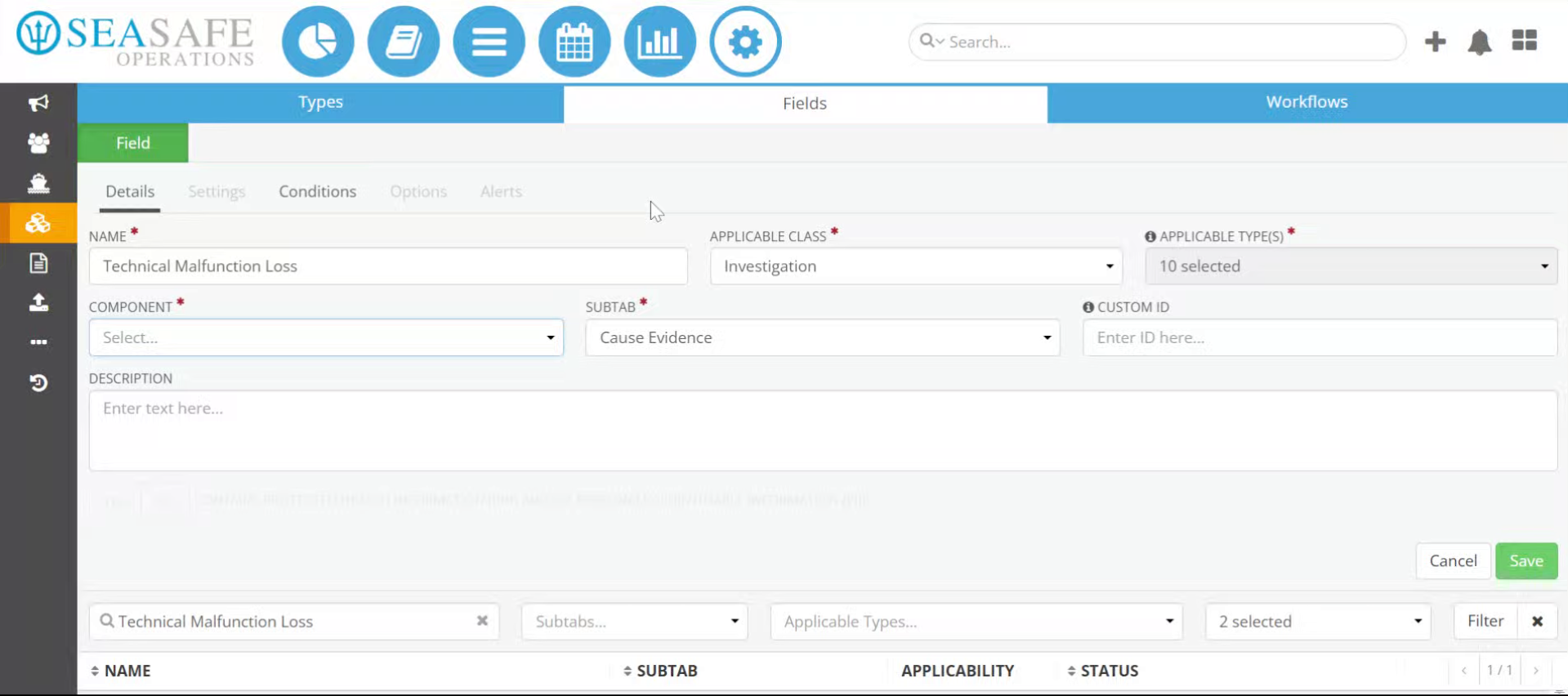
2. Open Selection Menu
Start by selecting the Component dropdown menu to initiate the process ofr adding "Options" to the field.
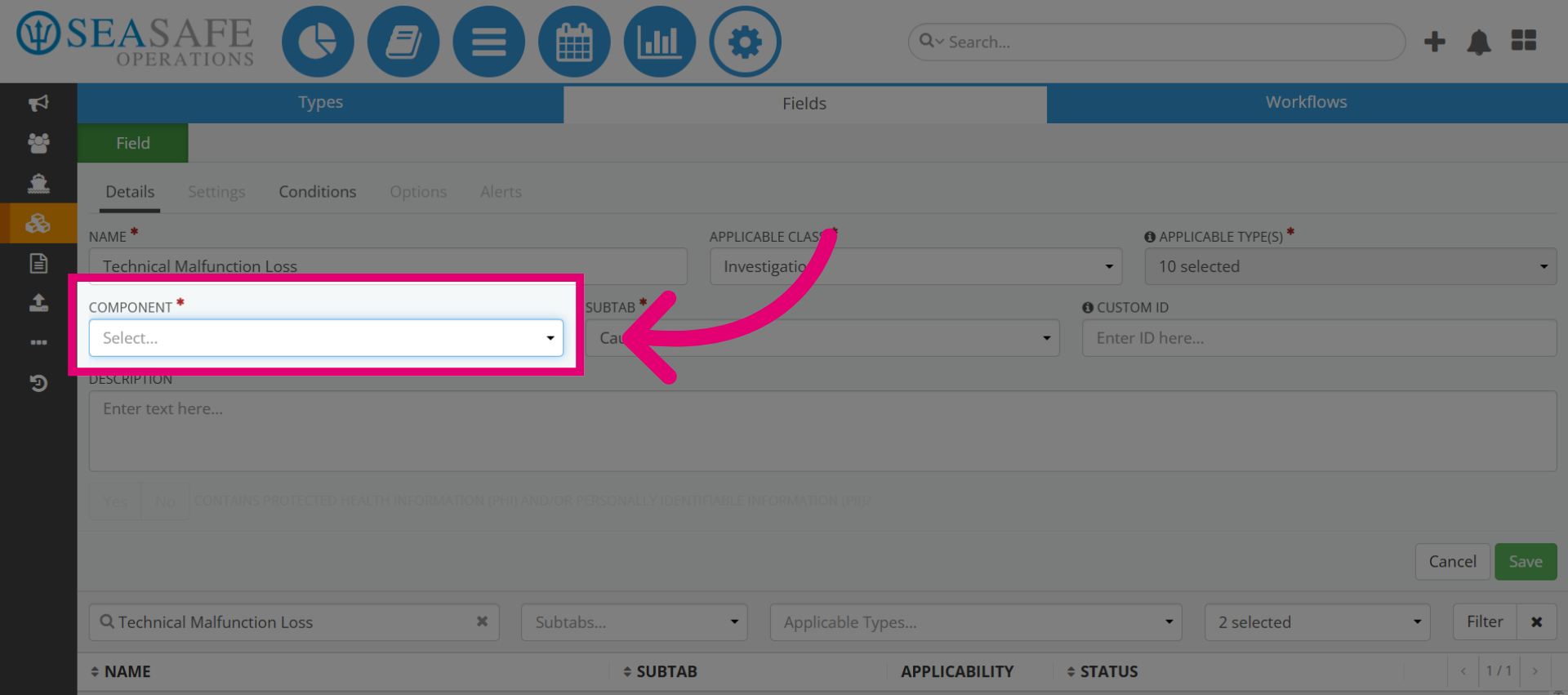
3. Select Button Option
Then click the "Button Select" option for the input method for the field.
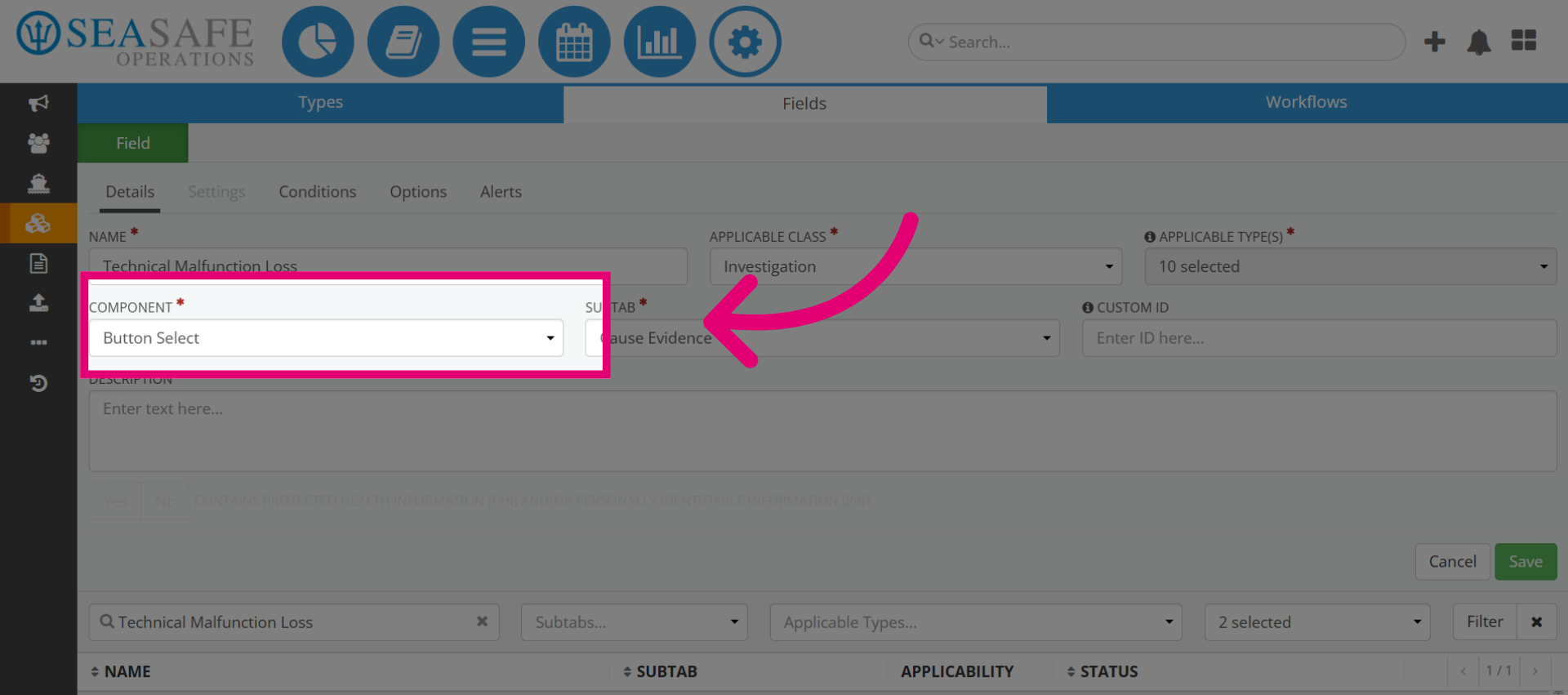
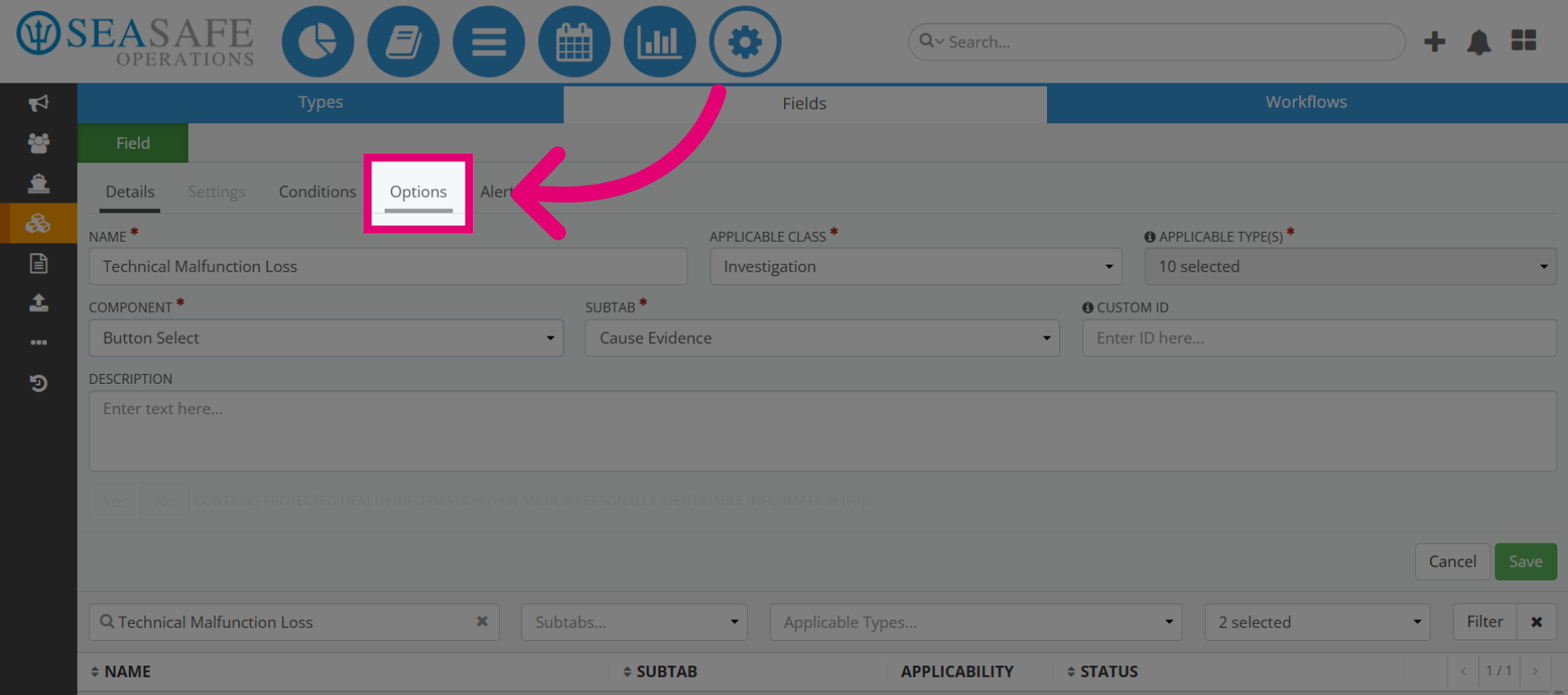
4. Access Options Settings
This activates the "Options" subtab for you to access. Click "Options" to open the configuration area for the "Button Selection".
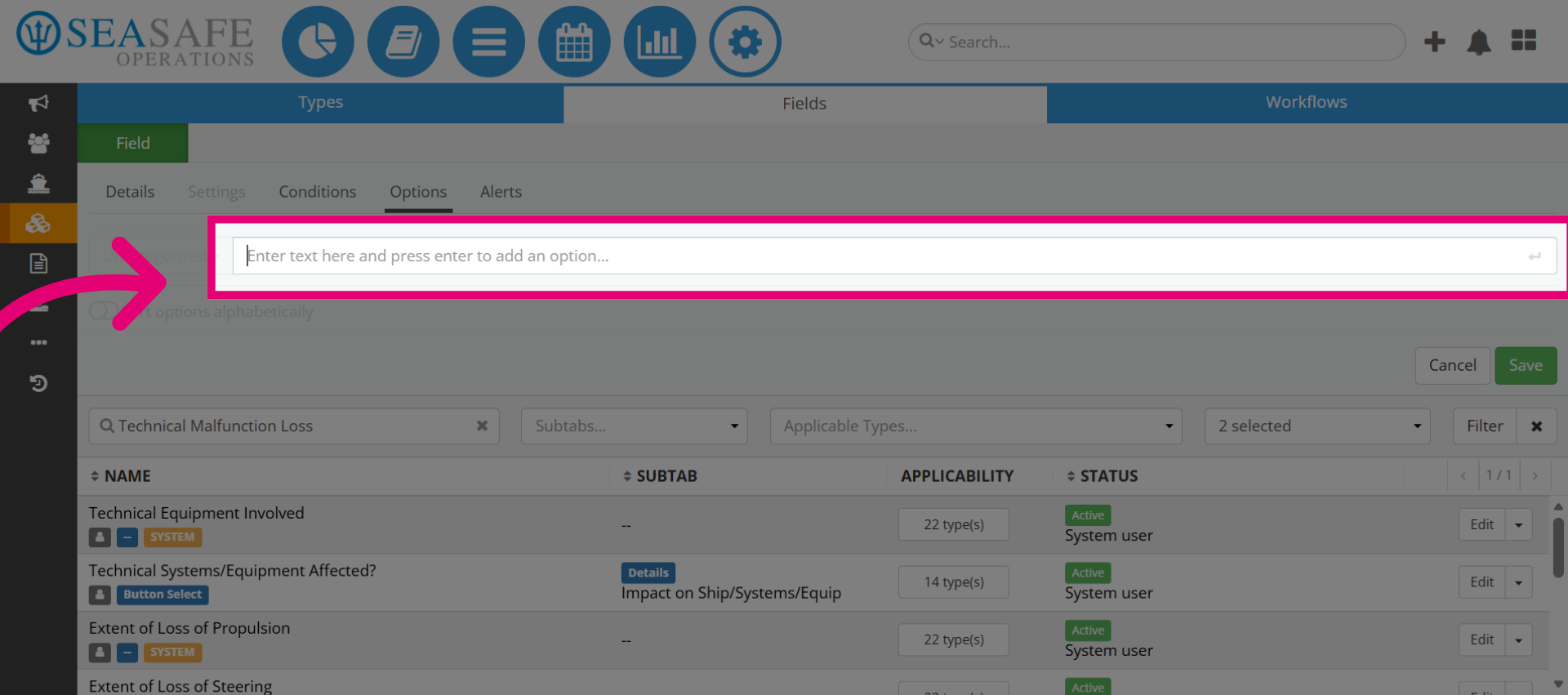
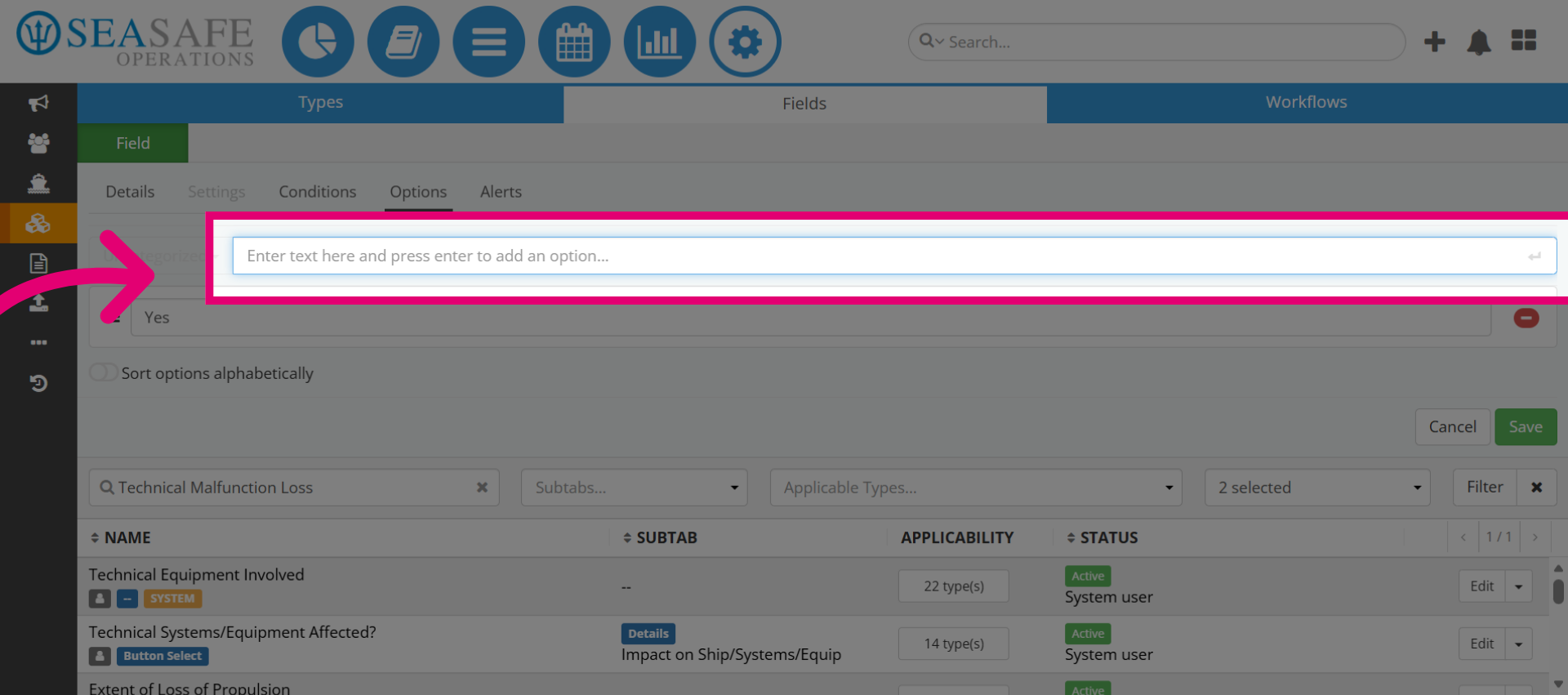
5. Activate Option Entry Field
Next, click on the text entry area and manually input the text for the button option, such as "Yes." After that, press enter.
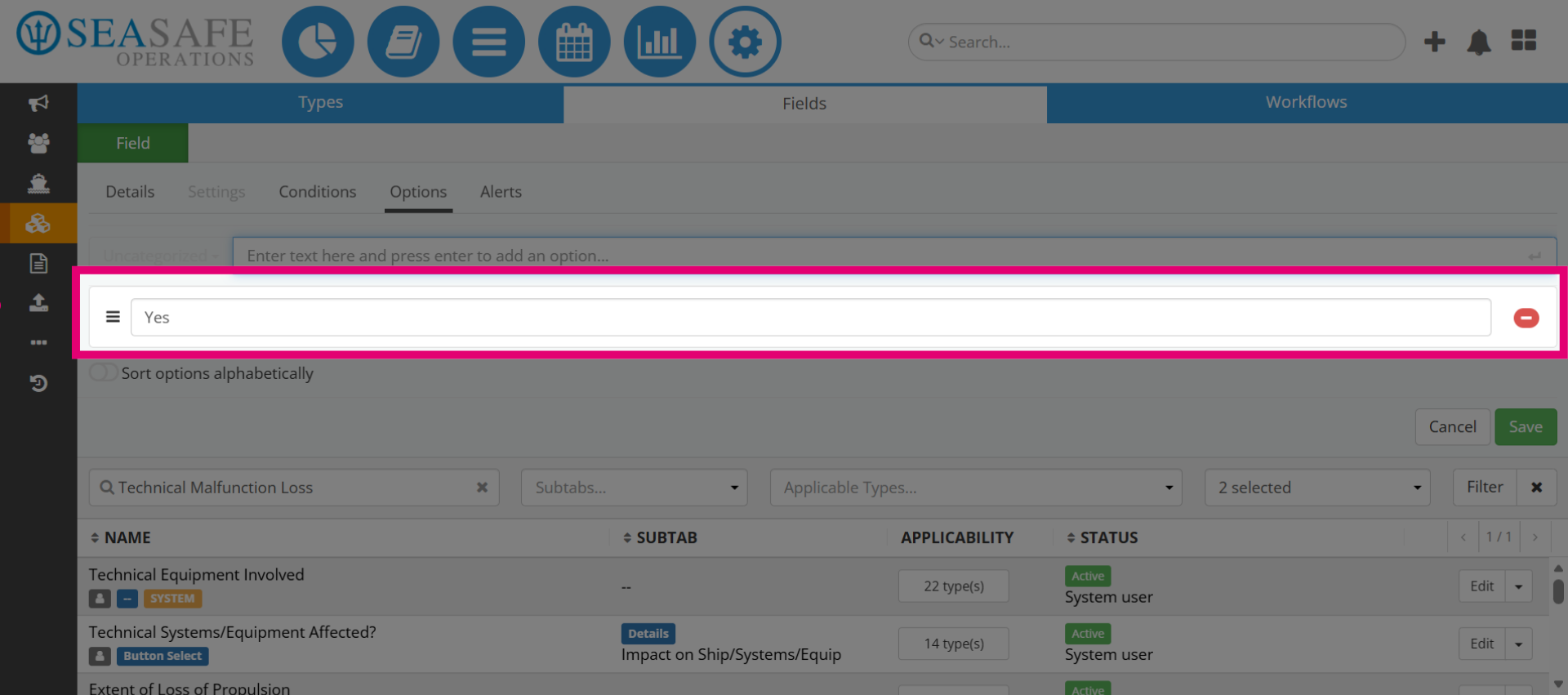
6. Review the Option Added
Next, review the "Yes" button option that was added to confirm its accuracy.
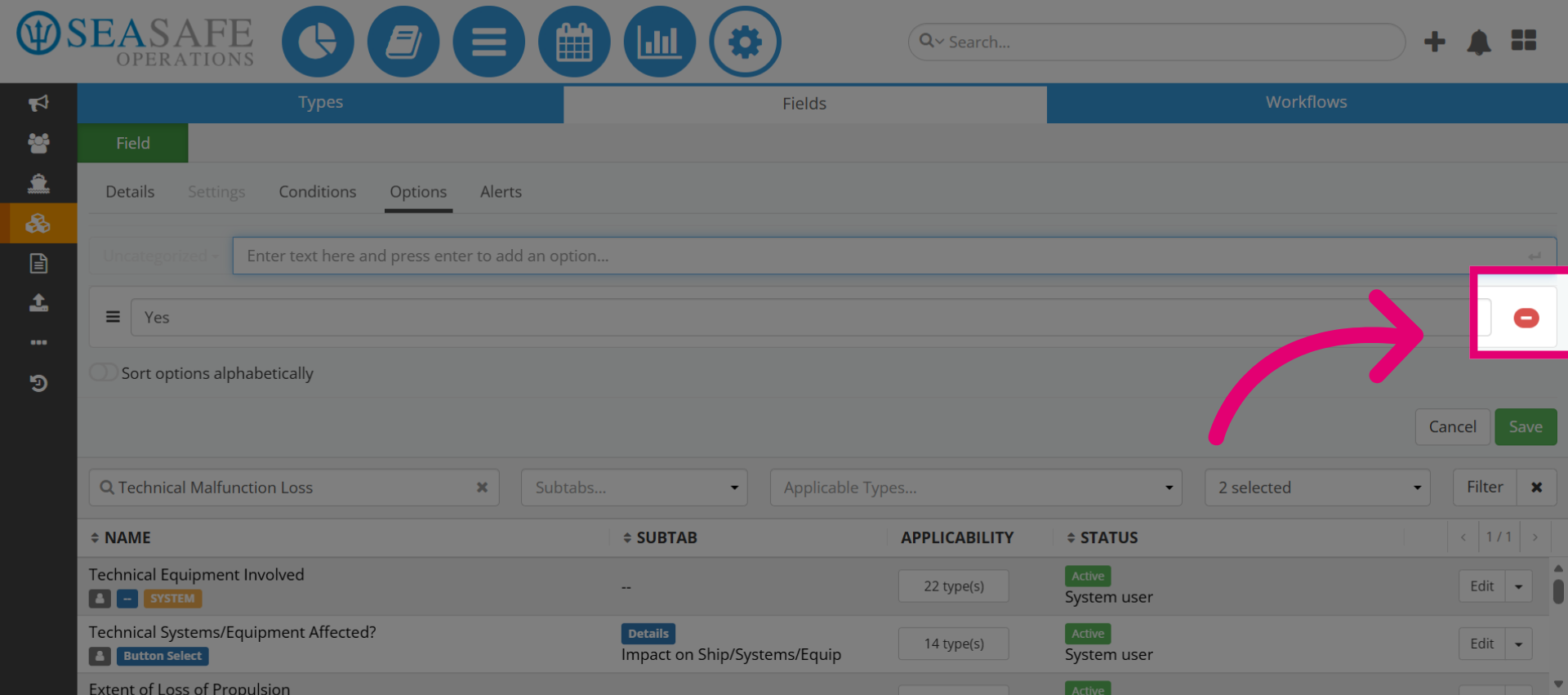
7. Remove the button option
If needed, select the red button to remove the button option.
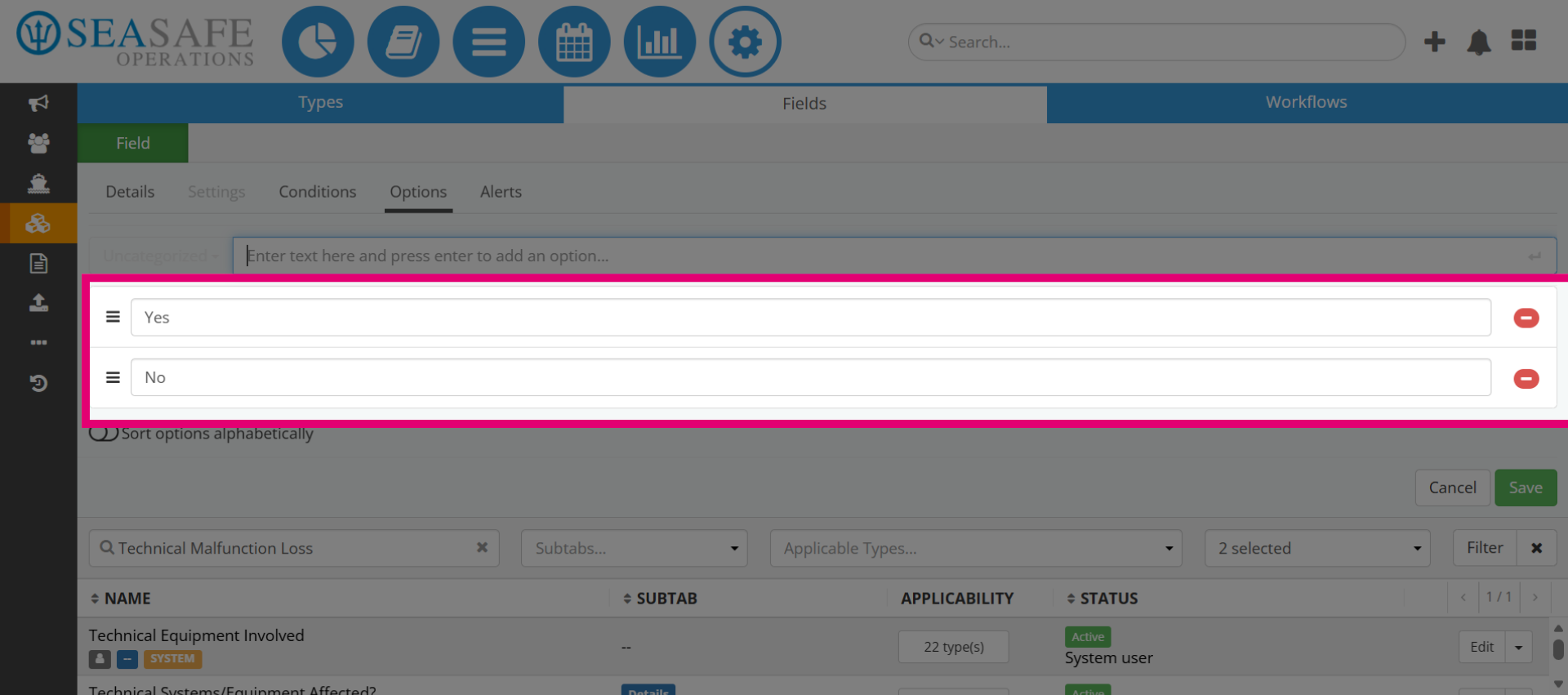
8. Enter Other Button Option
To continue, enter the text for the other button option, for example, "No."
9. Proceed to Final Option Area
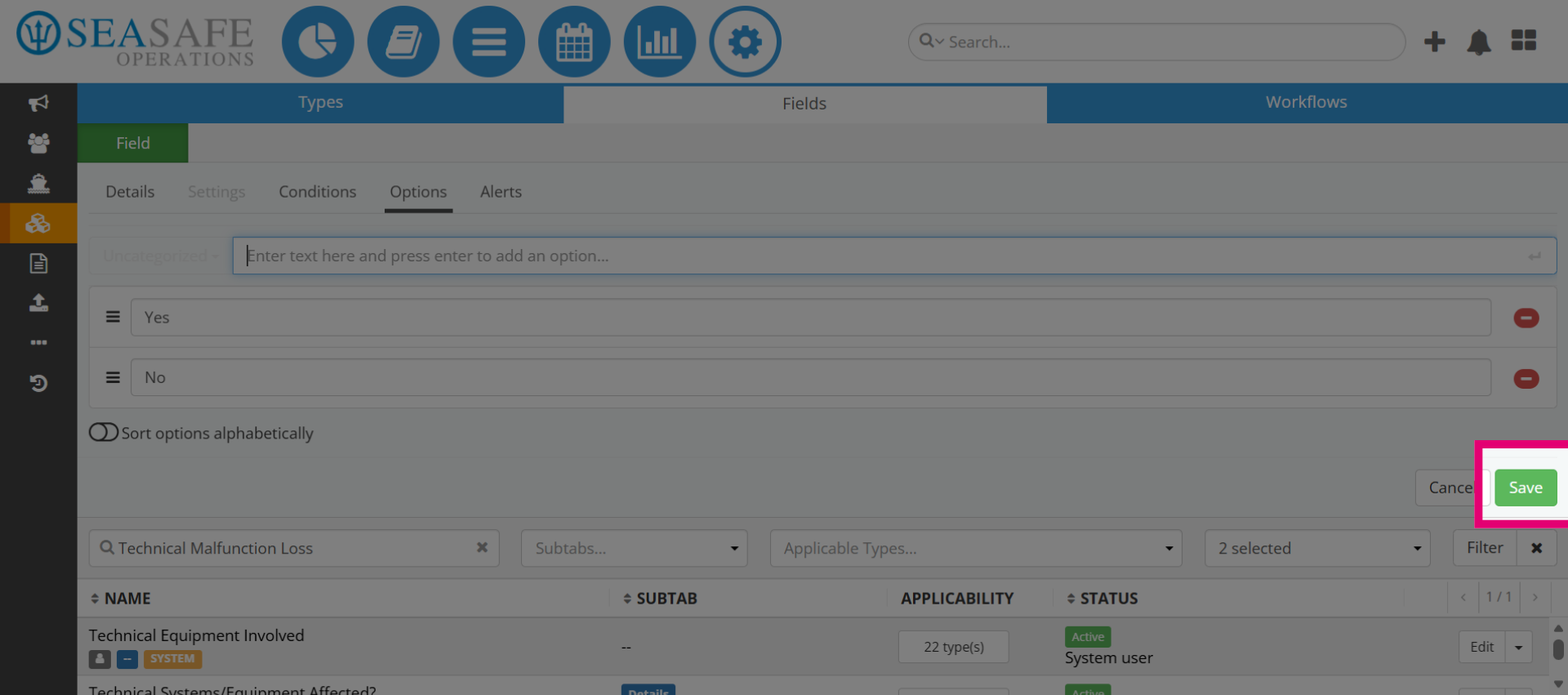
Now, you have "Yes" or "No" as the button options which will be displayed in the typeworkflow the field is added.
10. Save your updates
Then, save your options updates.