New article
Recently updated
Add Field Conditions in Ideagen Maritime Management

This walkthrough explains how to configure conditions for fields in Ideagen Maritime Management. Conditions are logical rules that control field visibility, behavior, or requirement status based on specific criteria. They make fields in the workflow more dynamic.
1. Introduction
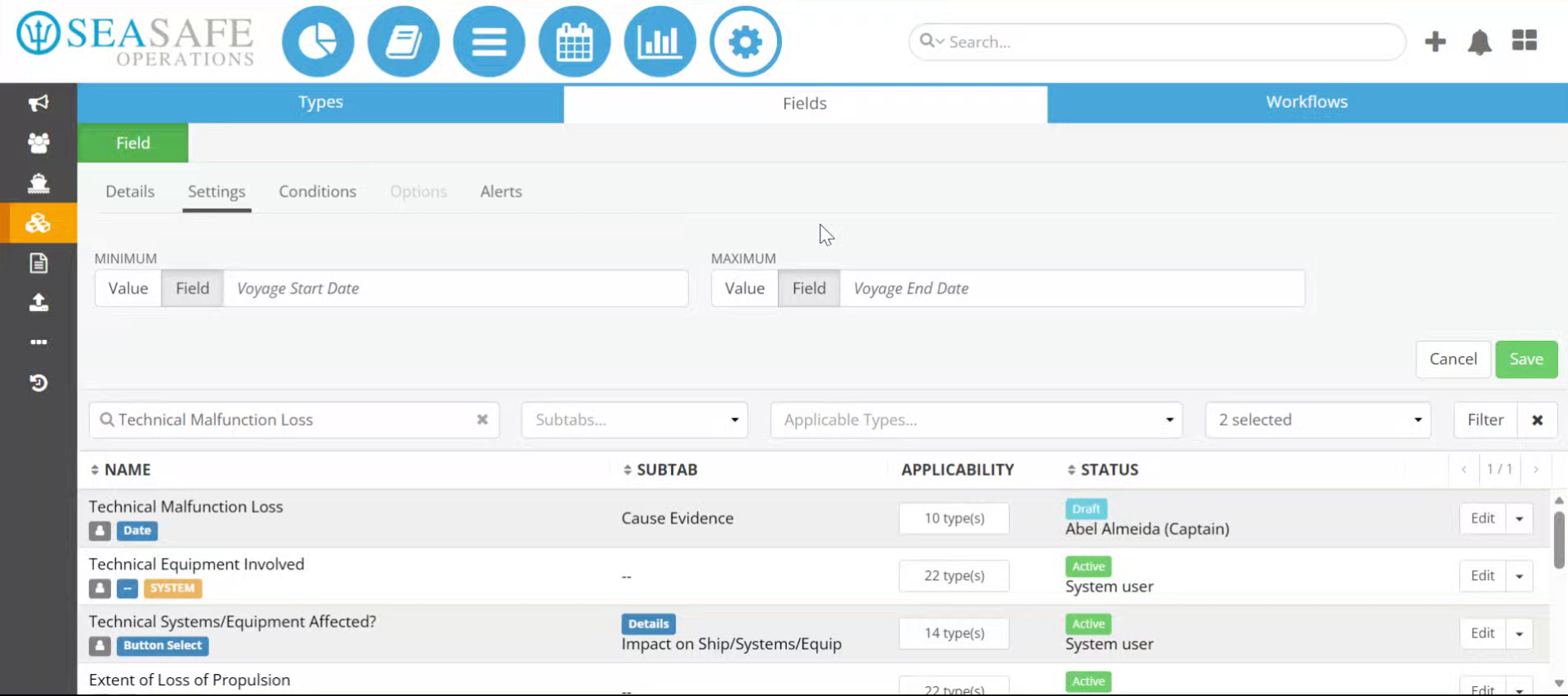
Conditions allow you to create smart workflows where fields appear, hide, or become mandatory based on user input or workflow logic. For example a condition where If “Investigation Required?” = Yes, then show “Investigation Details” fields reduces clutter, guides users, and ensures only relevant data is captured. Start in the shoreside "Admin Menu", in the "Fields, Types & Workflow" section under the "Field" tab.
2. Open Conditions Tab
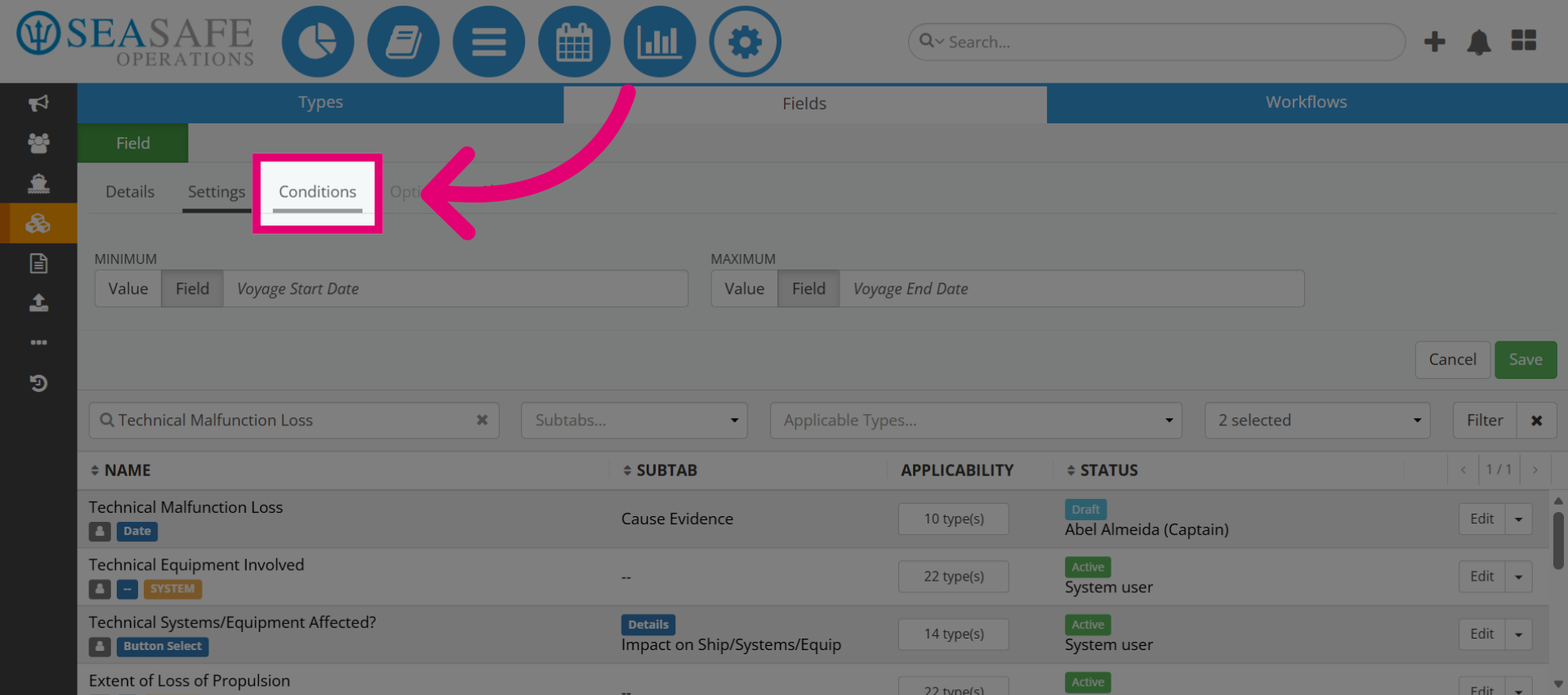
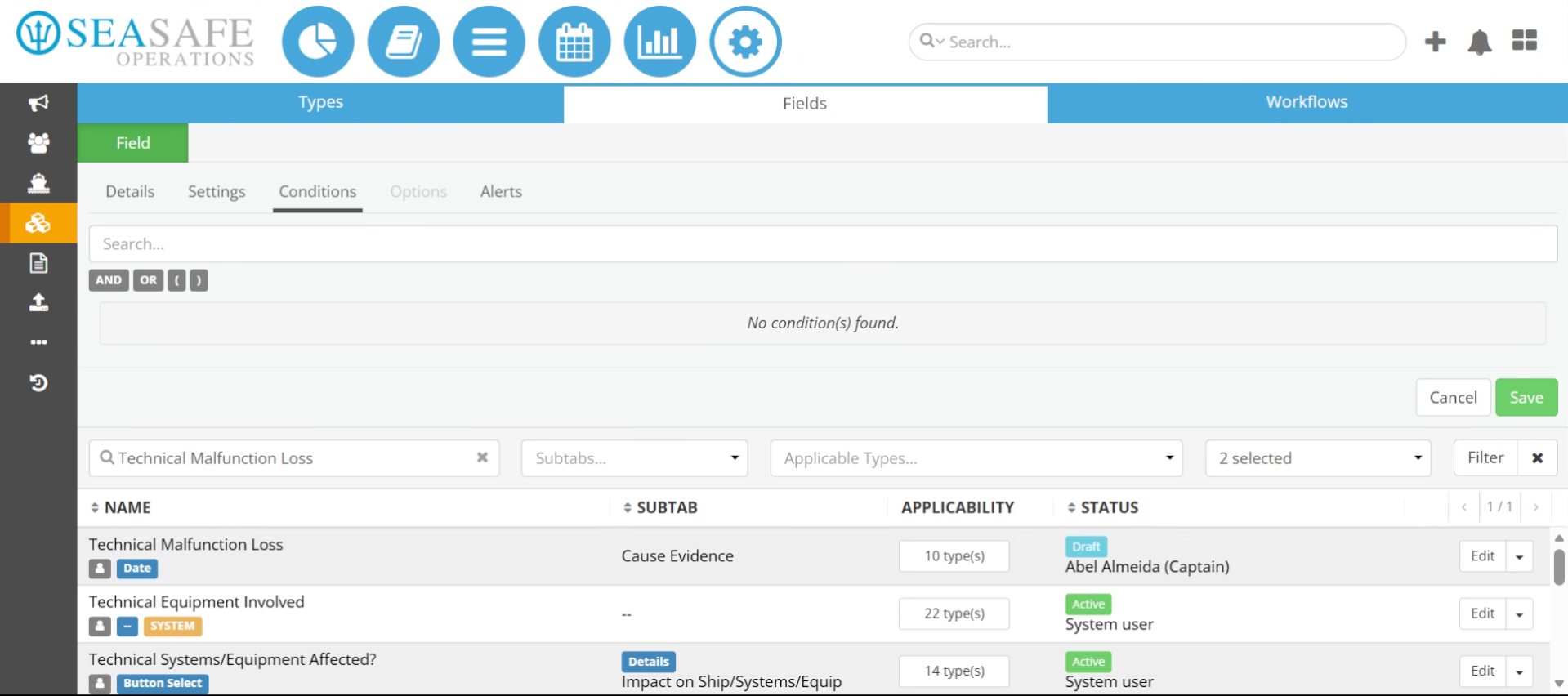
Then, click the "Conditions" tab to start configuring rules for the selected field. Conditions are applied at the field level, so make sure you select the correct field before opening this tab.
3. Access Search Field
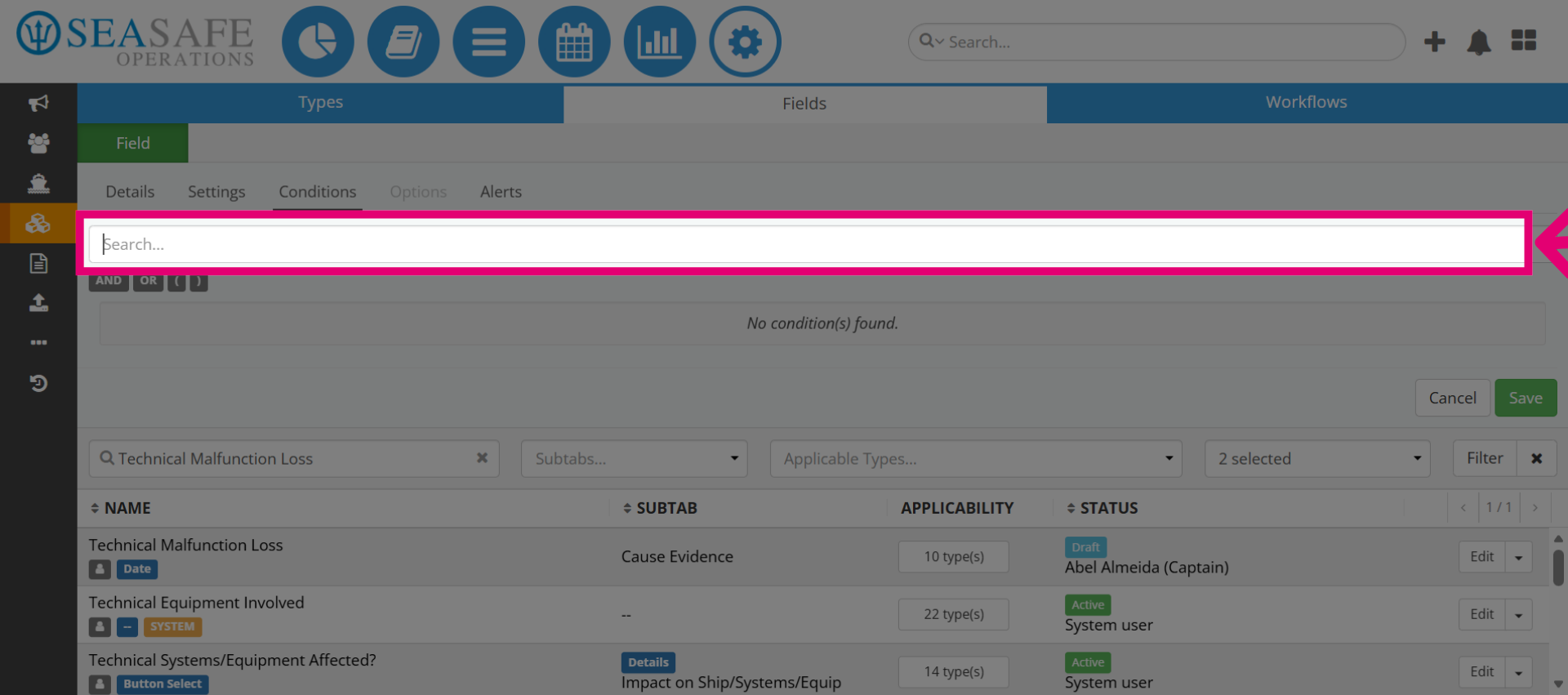
Use the Search field to locate condition options quickly. This is helpful when working with large forms that have many fields. Use clear keywords like “Investigation” or “Cause” to find related fields.
4. Enter Search Term
Then, type part of the field name (e.g., “invest”) to filter relevant fields. This saves time and ensures accuracy when selecting condition targets.
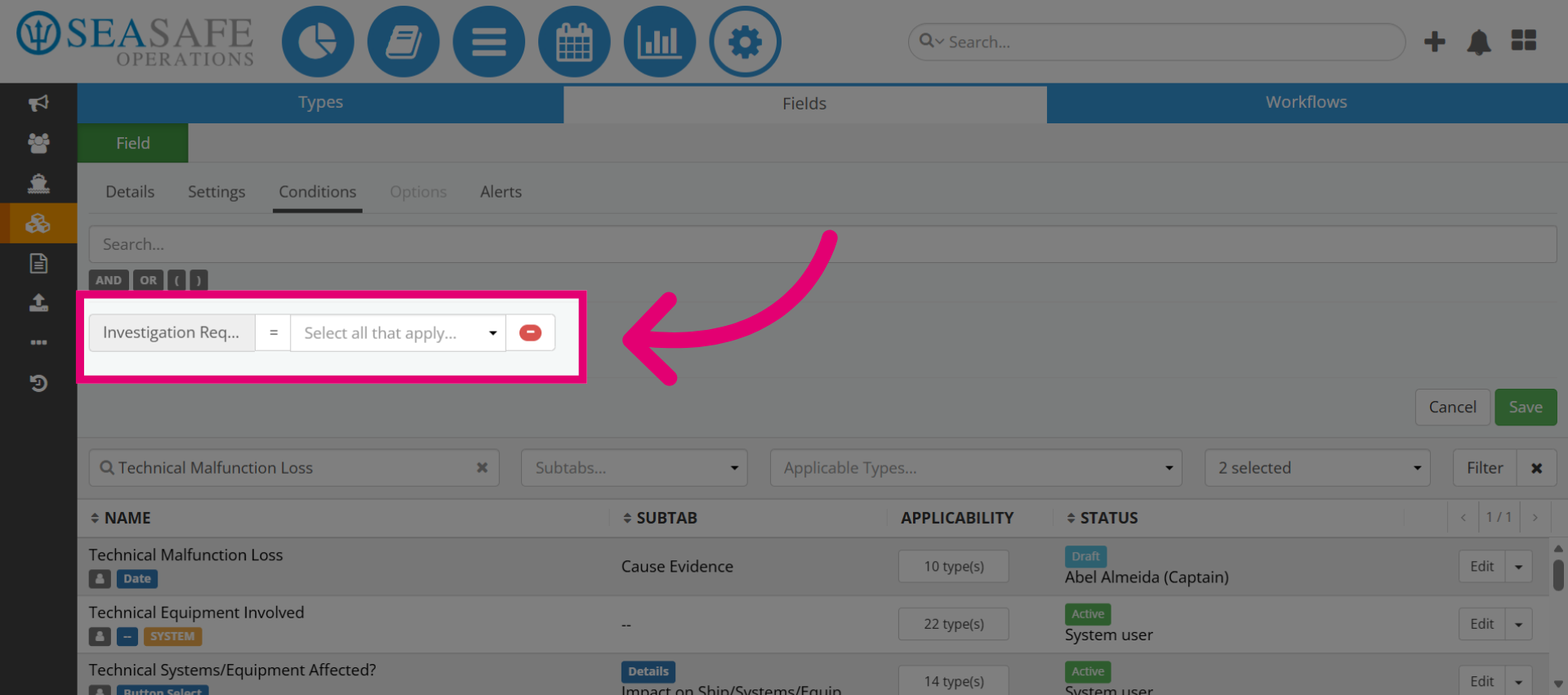
5. Select Investigation Field
Next, choose the field you want to base your condition on (for example, “Investigation Required?”).
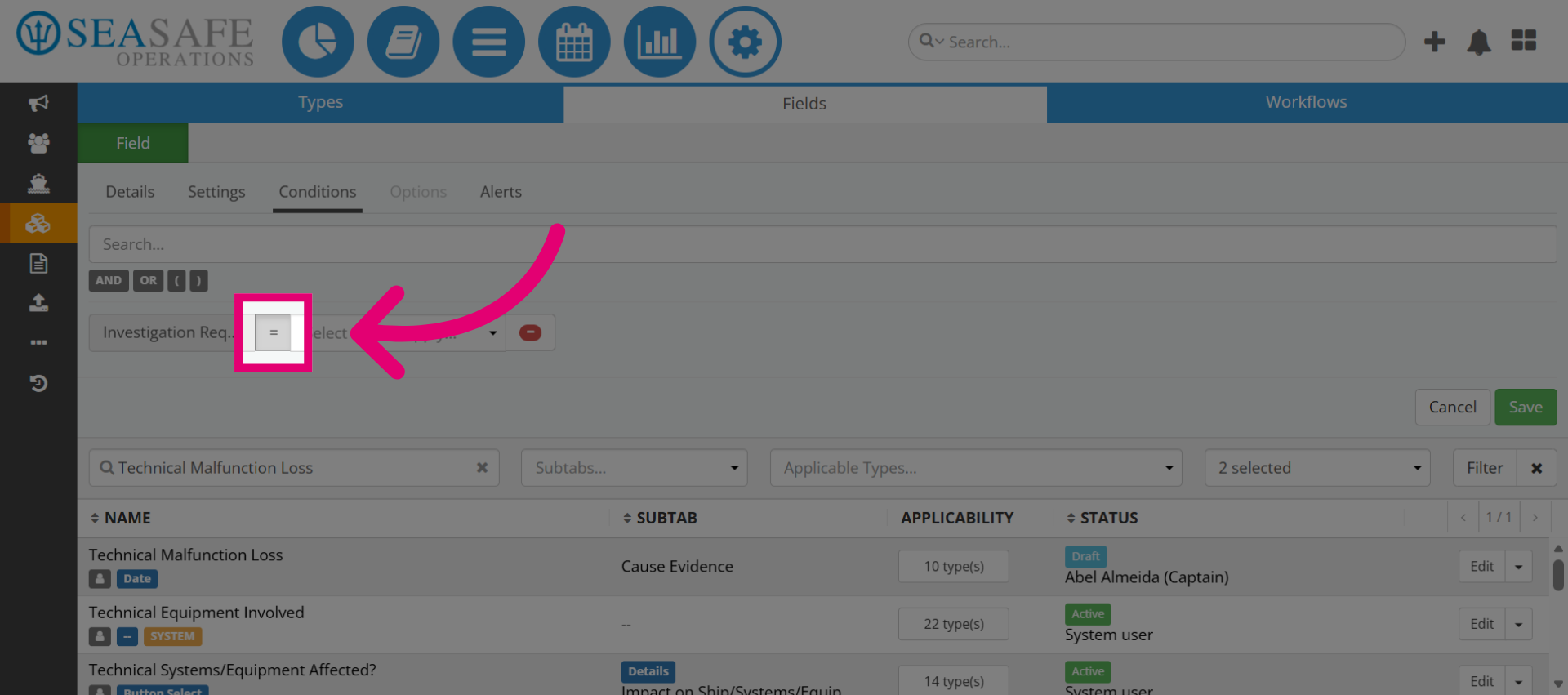
6. Open Operator Options
Then, click the equals sign (=) to open operator options. Operators define how the condition compares values. Common Operators to use are is equal to, is not equal to contains, and greater than or less than (for numeric fields.
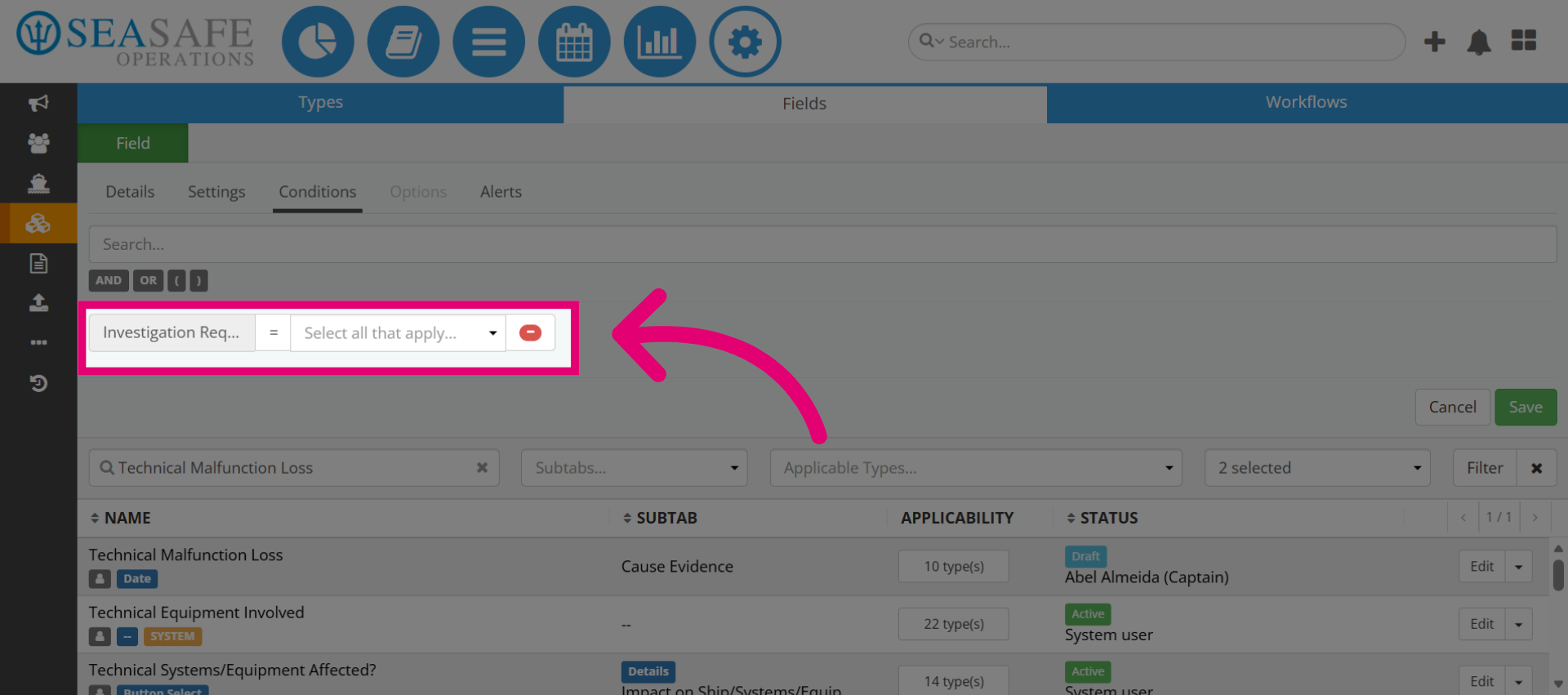
7. Choose Equality Operator
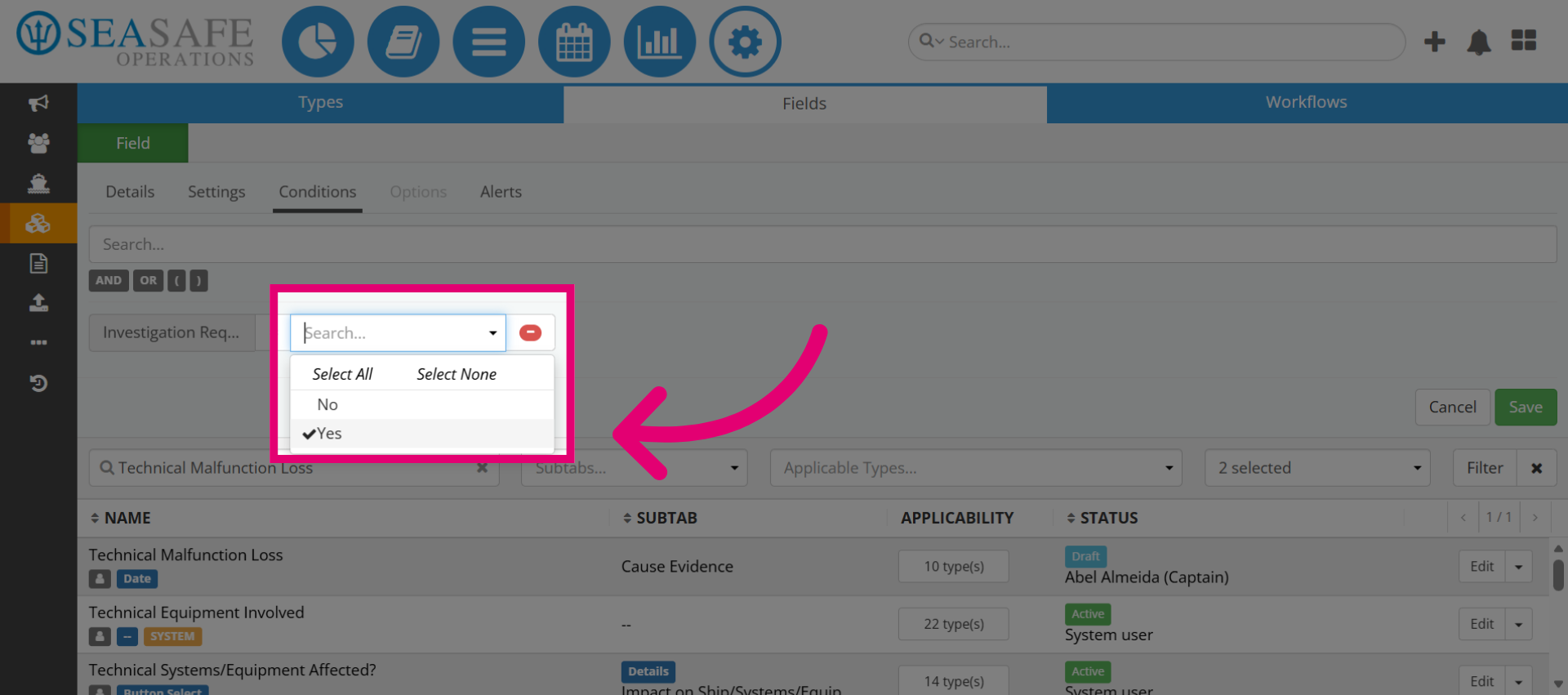
Next, select the "is equal to" operator for exact matches for the condition. For Example: A condition such as if “Investigation Required?” is equal to "Yes" then show Investigation Details.
8. Select Yes Value
Let's continue and choose "Yes" as the value for the condition. This tells the system when to trigger the behavior (for example, to display additional fields).
9. Add Logical AND
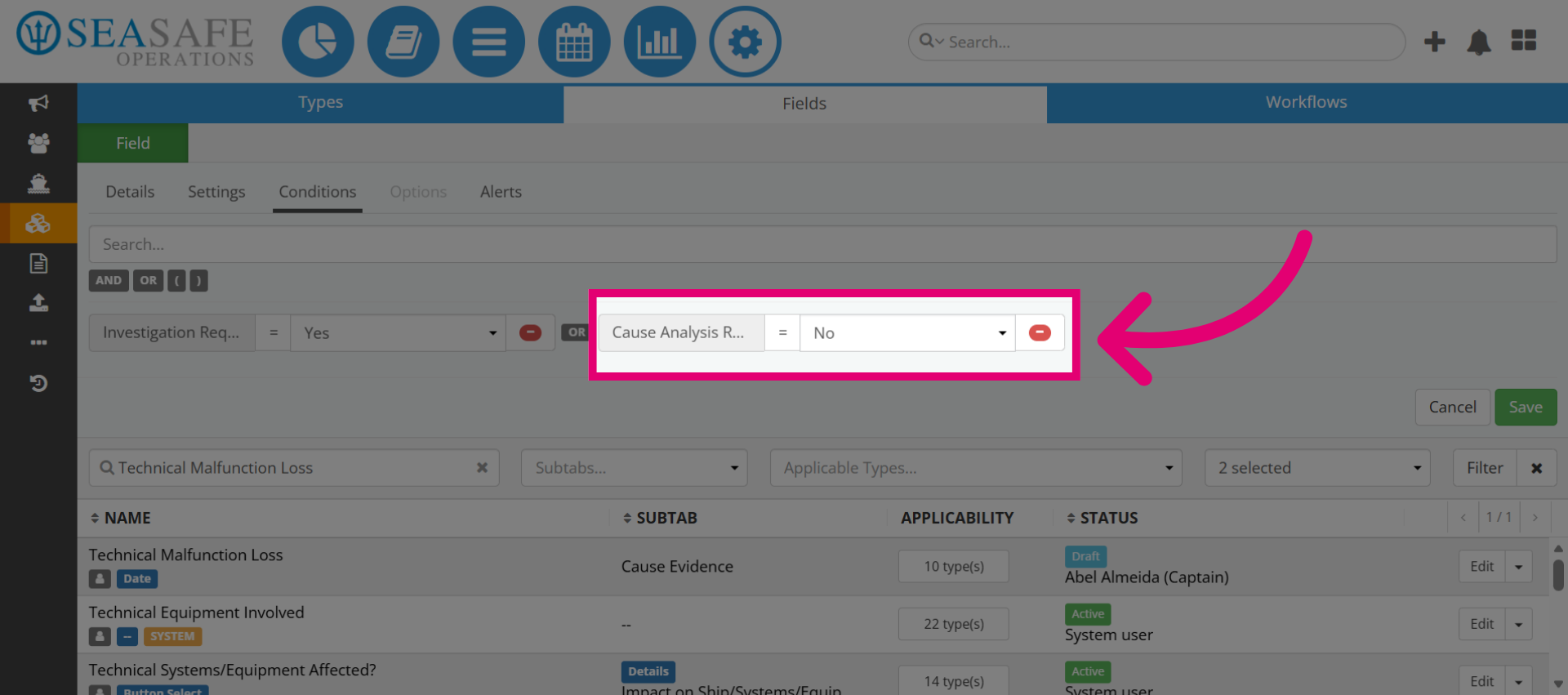
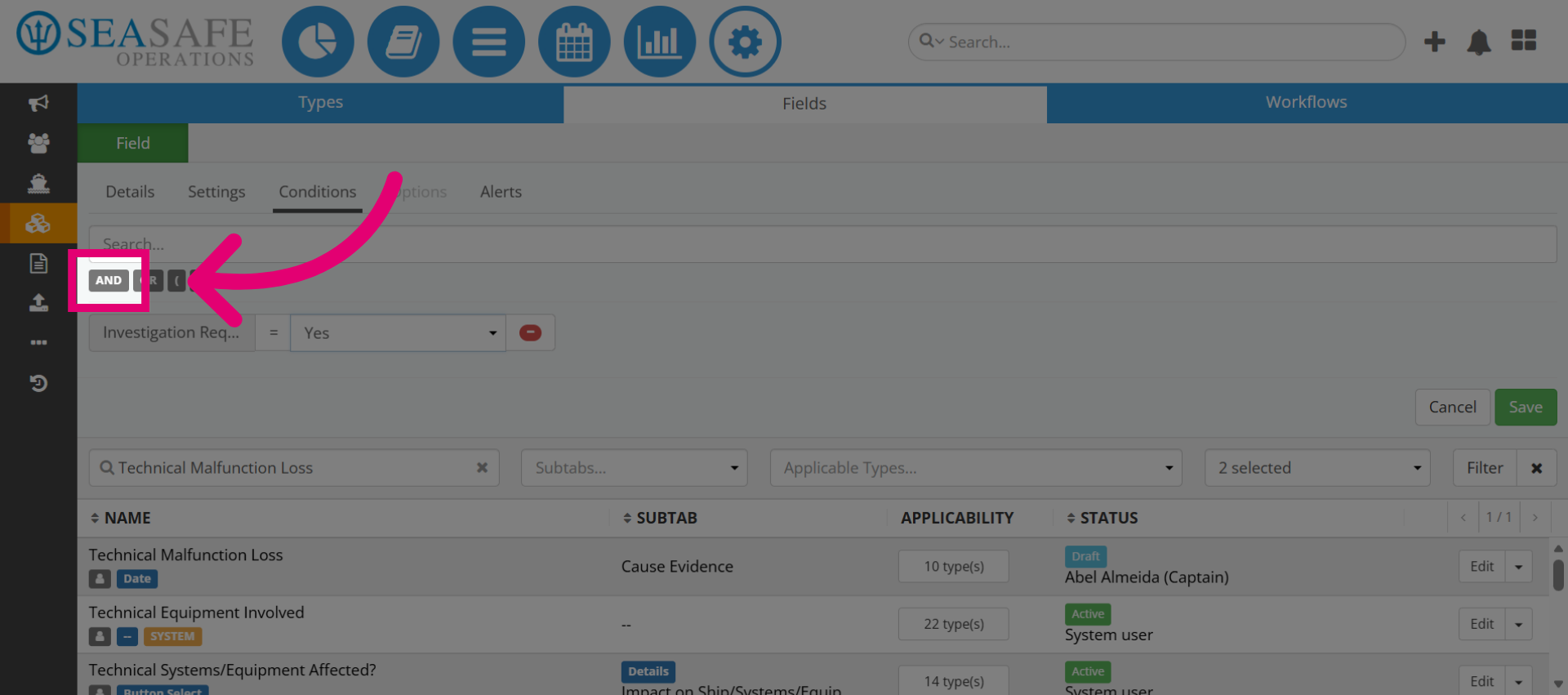
Next, click "AND" to combine this condition with another. For Example, Show field only if Investigation Required = Yes AND Cause Analysis Required = No. It's also useful to use AND for strict conditions and OR for flexible logic.
10. Access Second Search Field
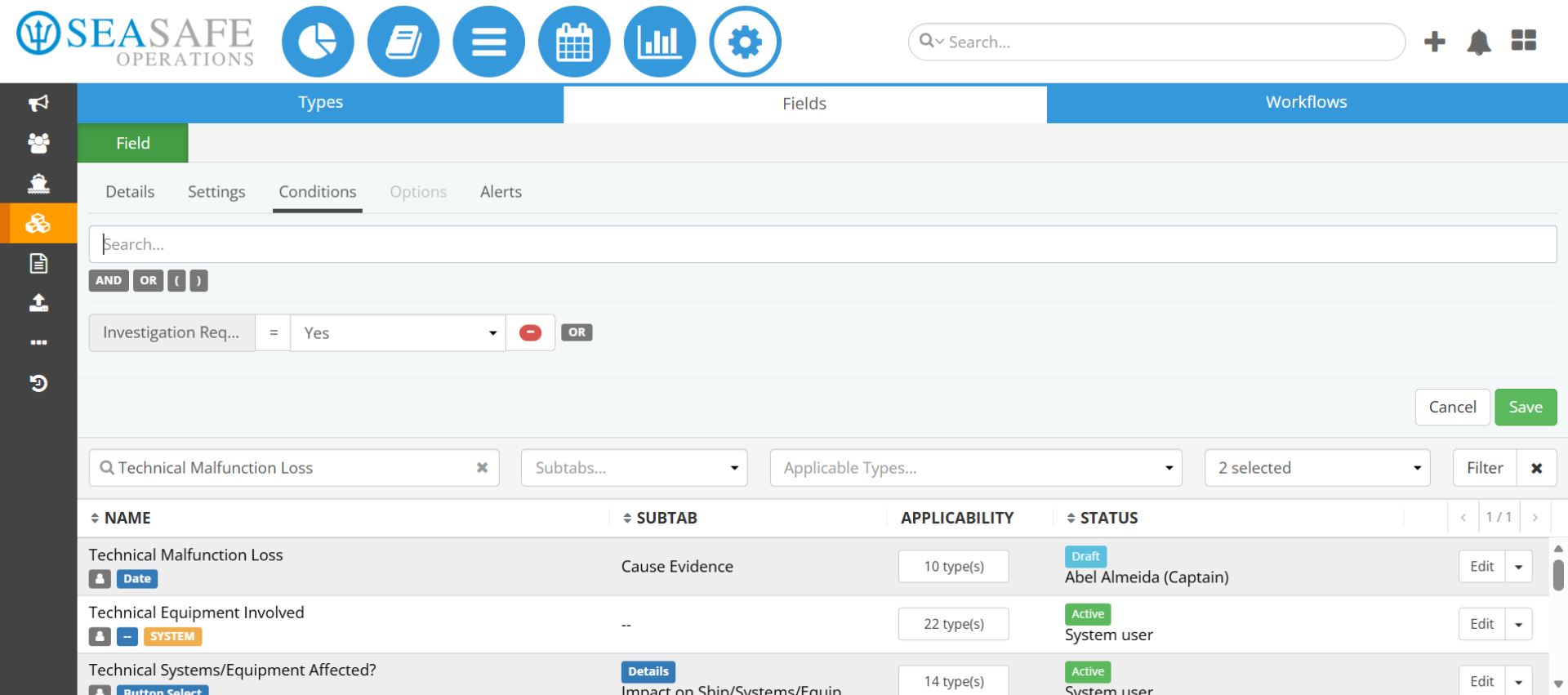
Then, search for the second field to add another condition (for example, “Cause Analysis Required?”).
11. Enter Cause Search Term
Then, enter the term cause to filter for cause-related fields.
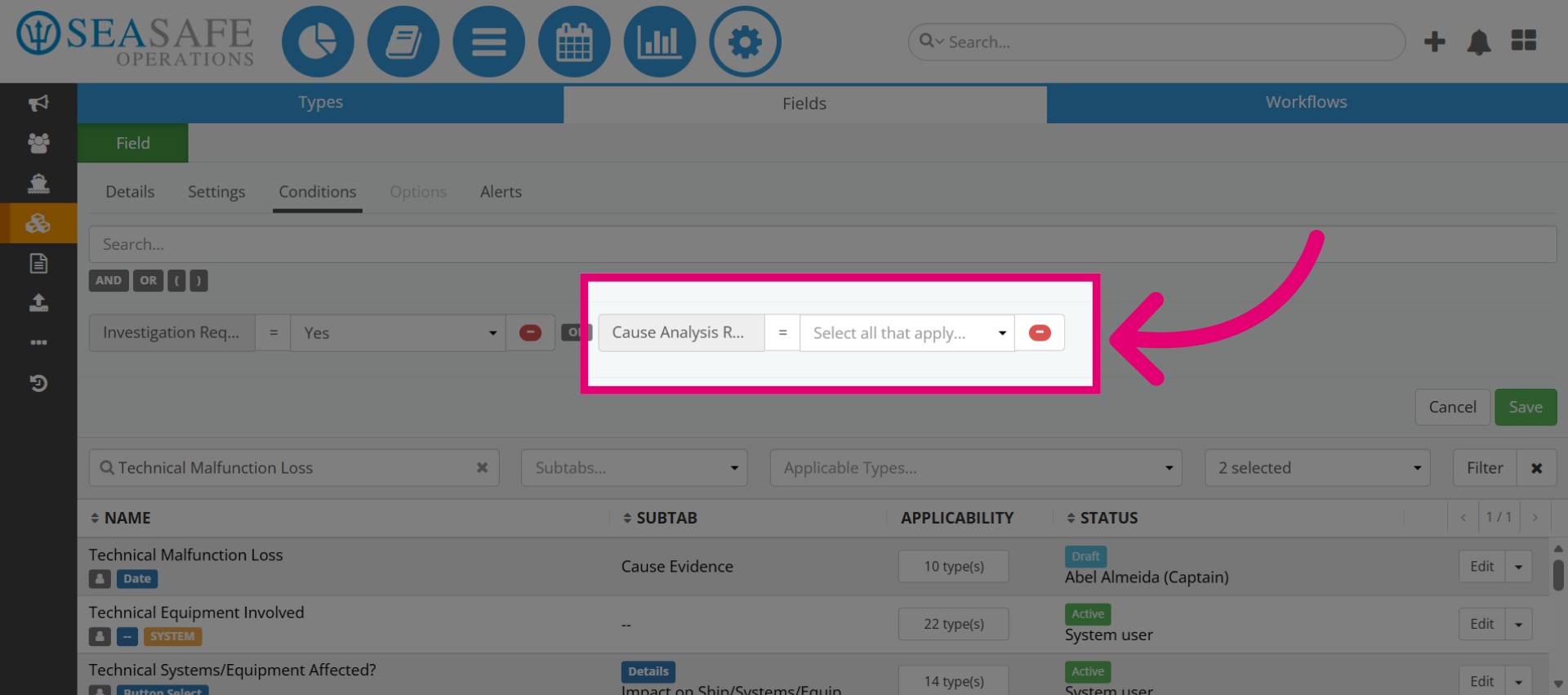
12. Select Cause Analysis Field
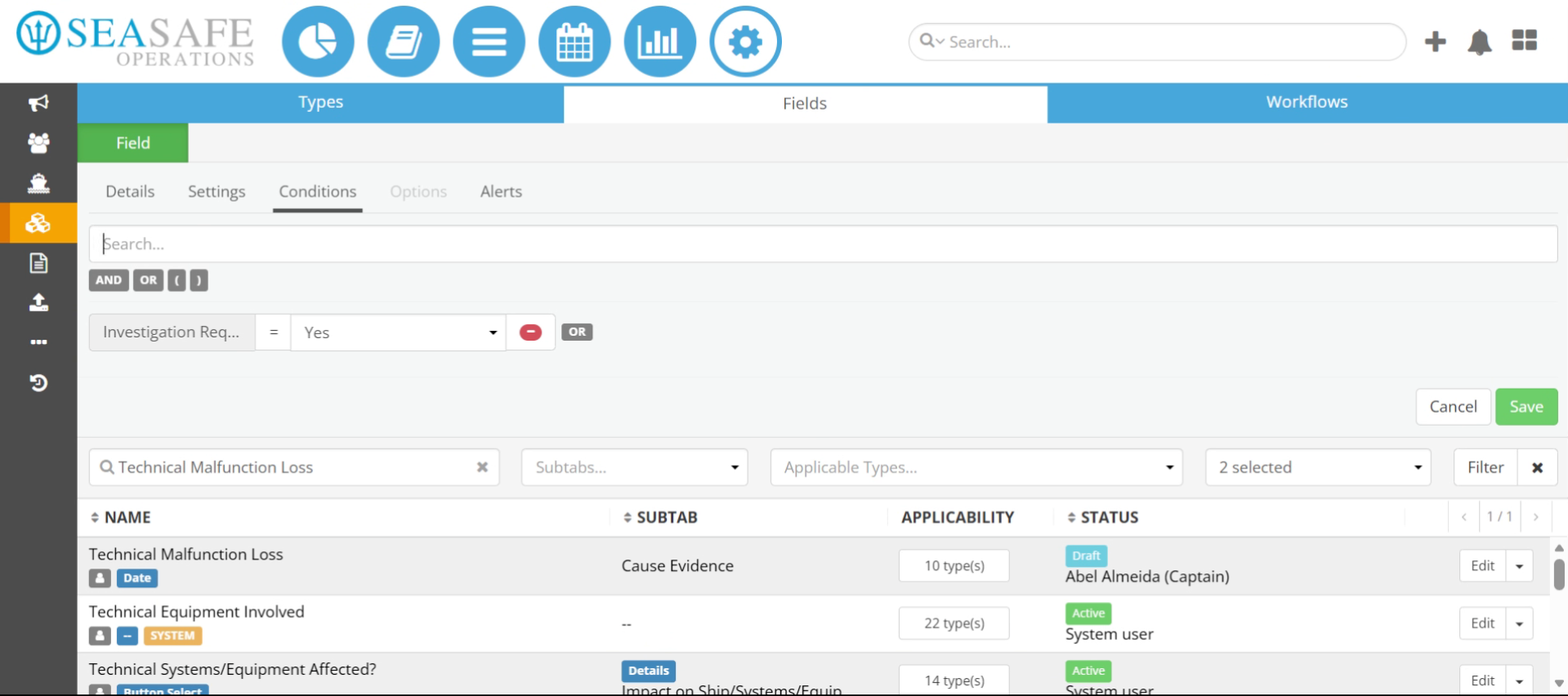
Choose Cause Analysis Required? as the second condition field.
13. Open Operator Selection
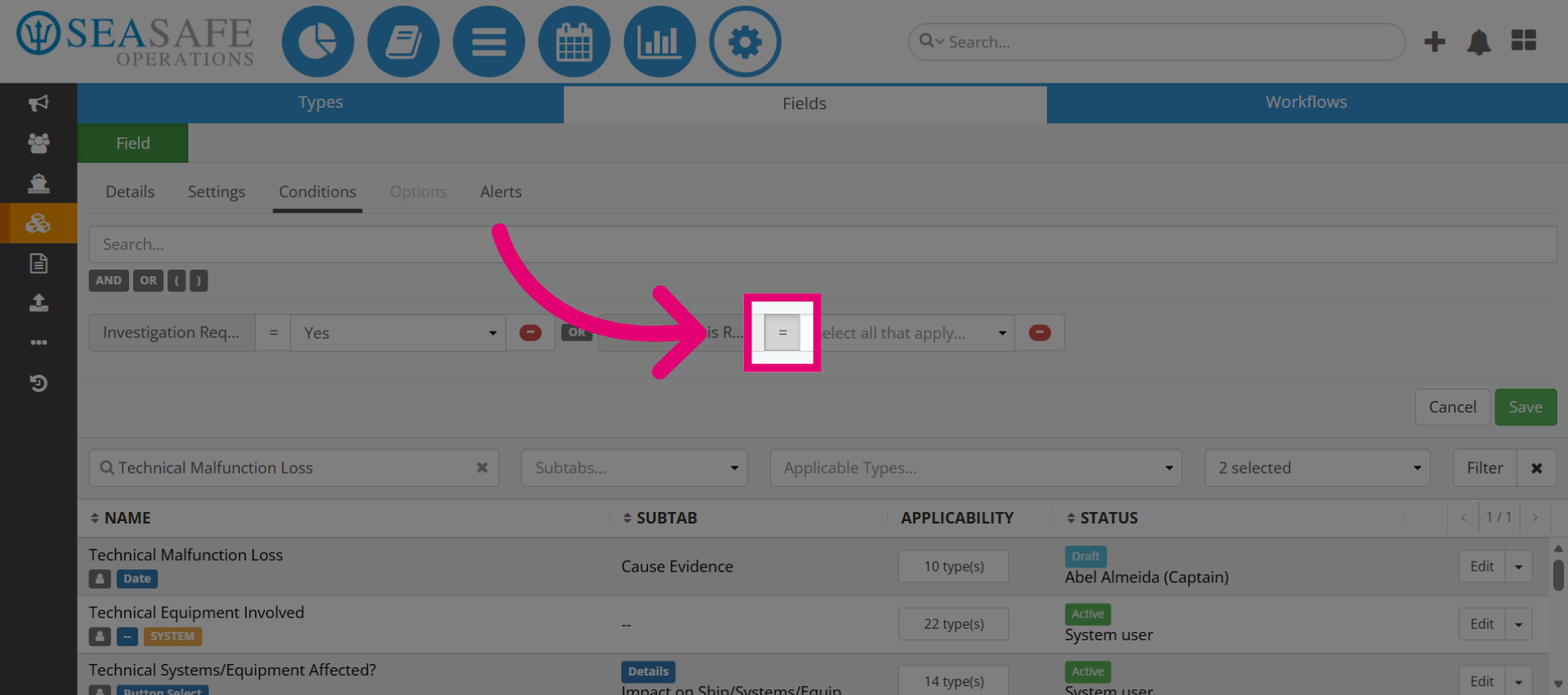
Then, click the operator again to define comparison logic for the second condition. For example, "is equal to".
14. Confirm Condition
Set the condition to No for the second field. So, the final logic will be