New article
Recently updated
Activating Component Tabs for Fields Ideagen Maritime Management

This walkthrough explains how Components activate tabs to configuring a field in the workflow editor in Ideagen Maritime Management.
1. Introduction
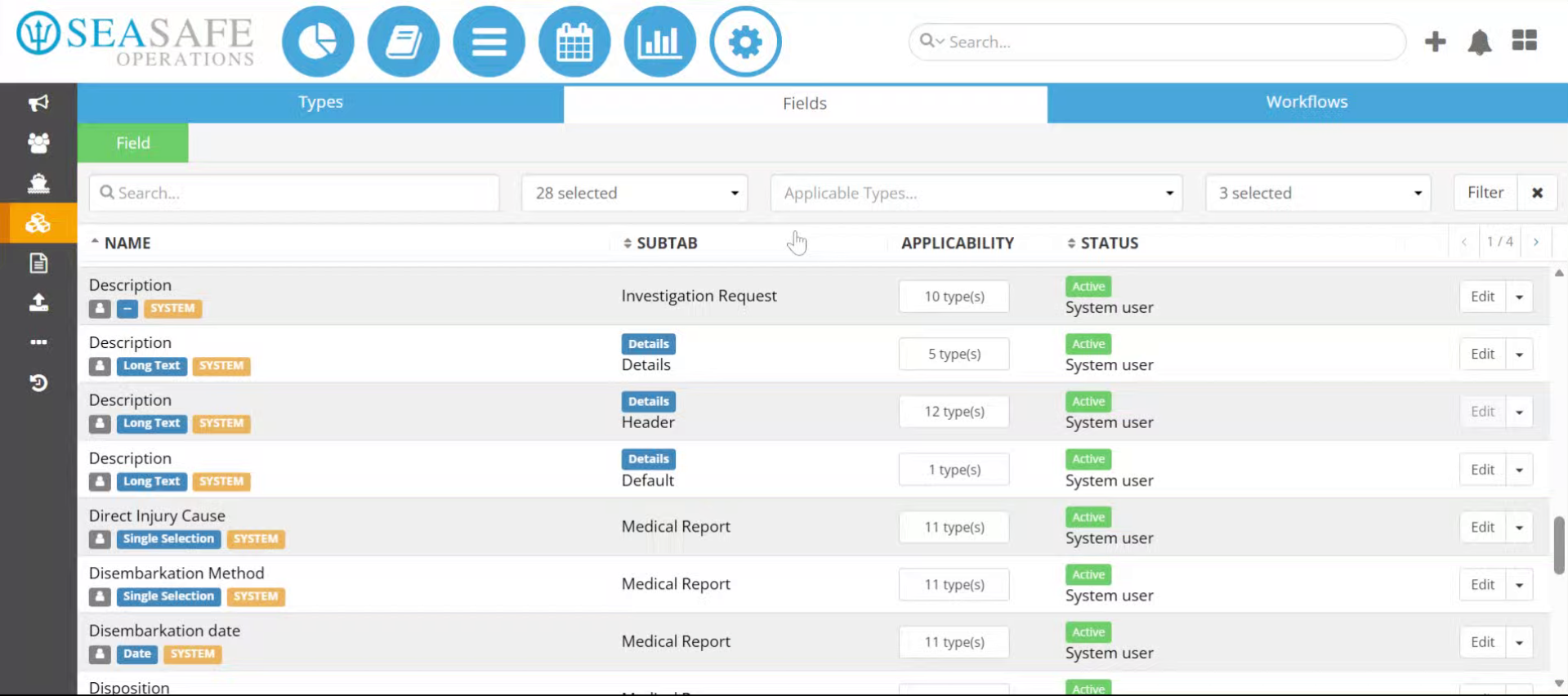
You will explore components and their corresponding tab. Start in the shoreside "Admin Menu", in the "Fields, Types & Workflow" section under the "Field" tab.
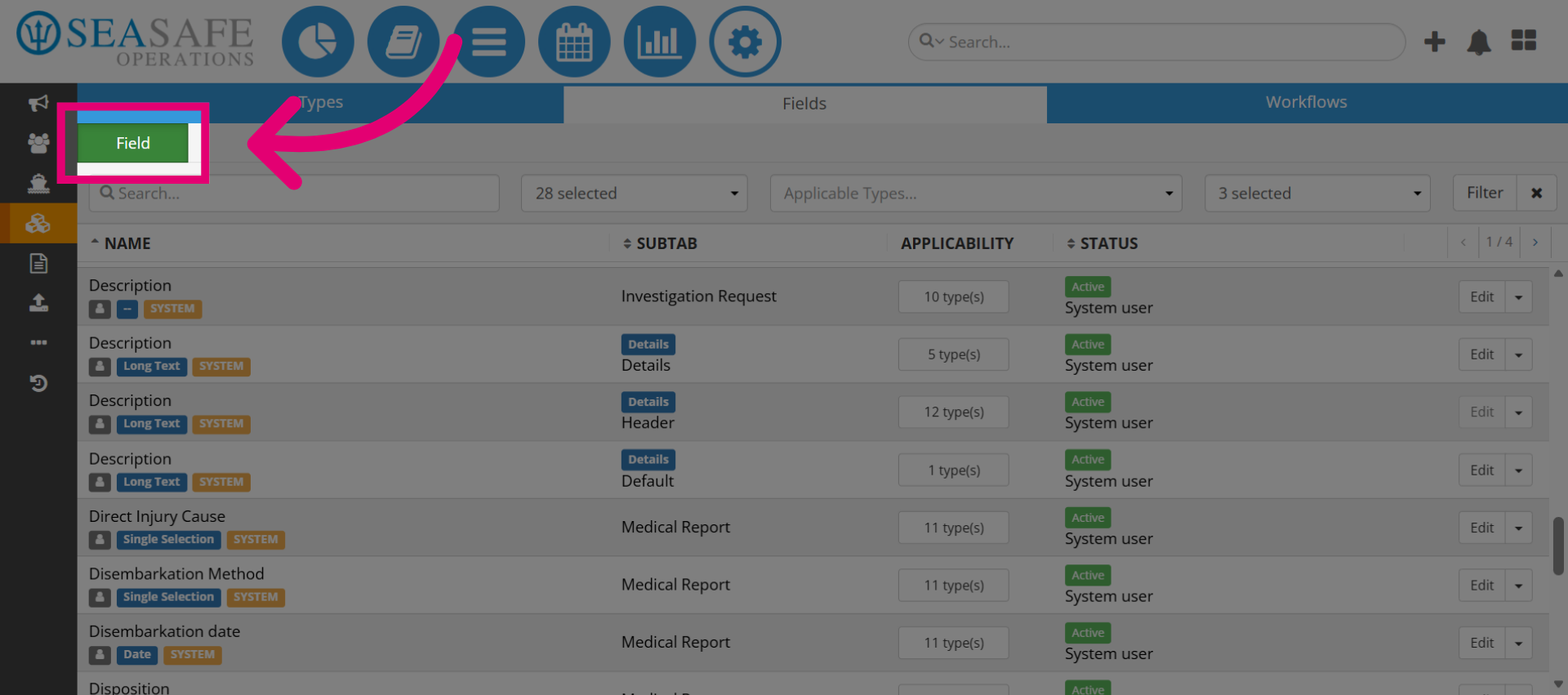
2. Click Field Tab
Click the Field tab to view configuring fields in the Components section.
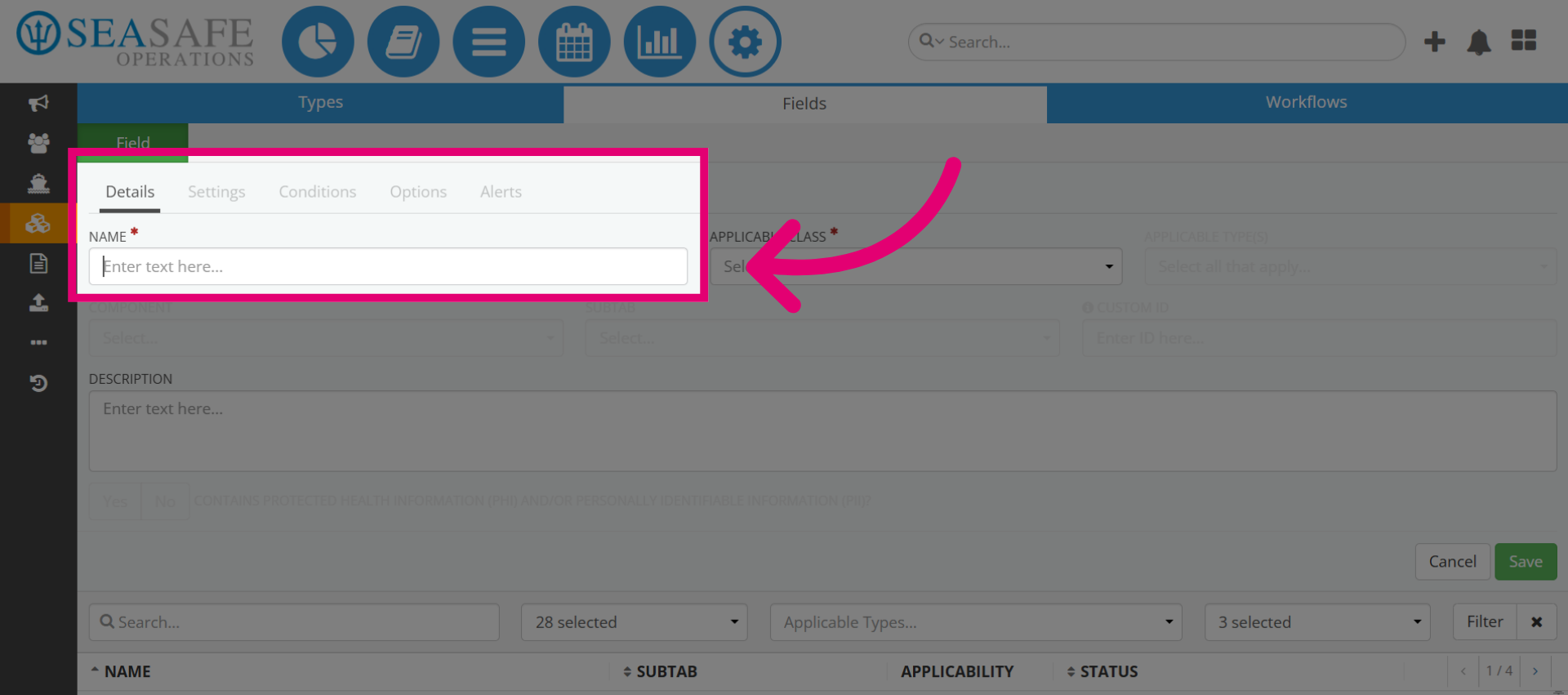
3. Enter a Field Name
First, enter a name for the field such as "Technical Malfunction Loss."
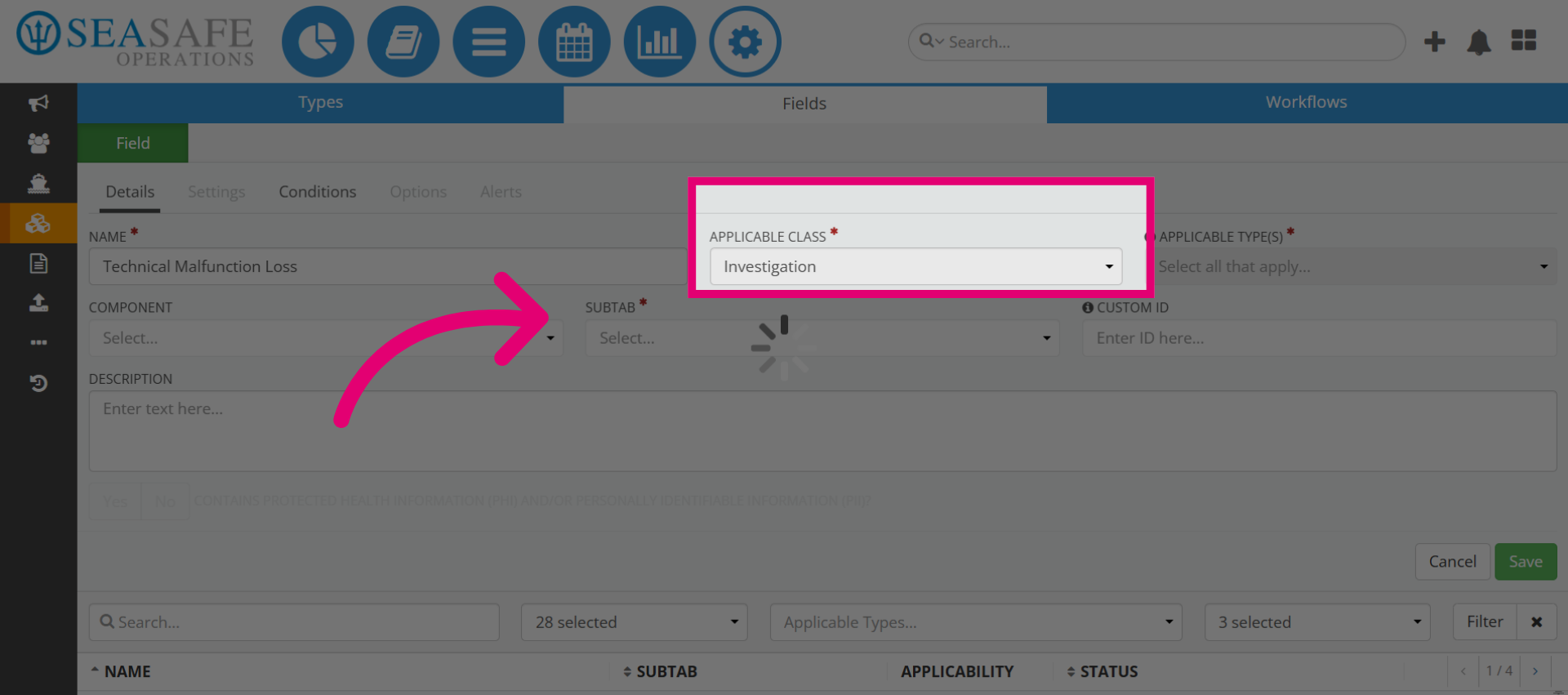
4. Choose Investigation Category
Select the class or wizard such as the Investigation category to classify the field accordingly.
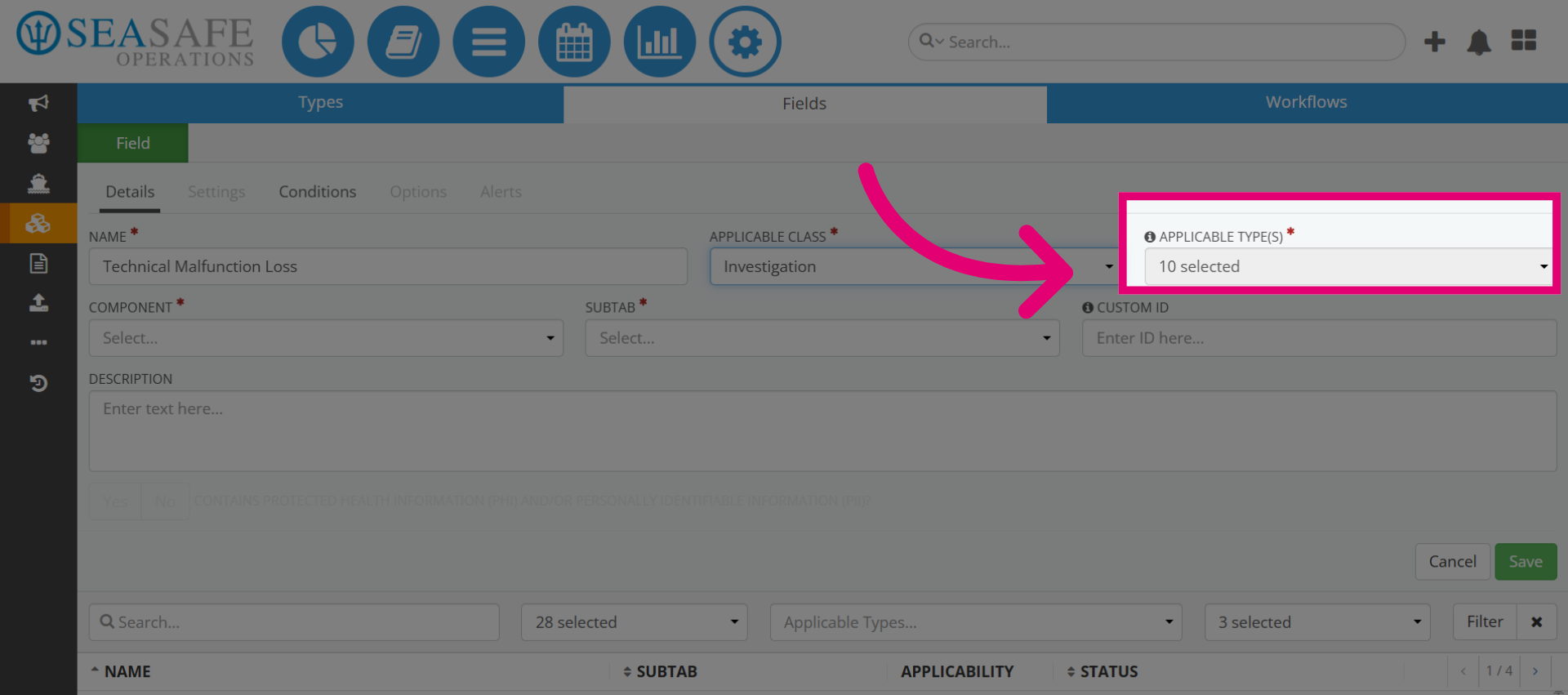
5. Access Applicable Types
Then, lick the Applicable Type(s) option to specify the field's applicable data types.
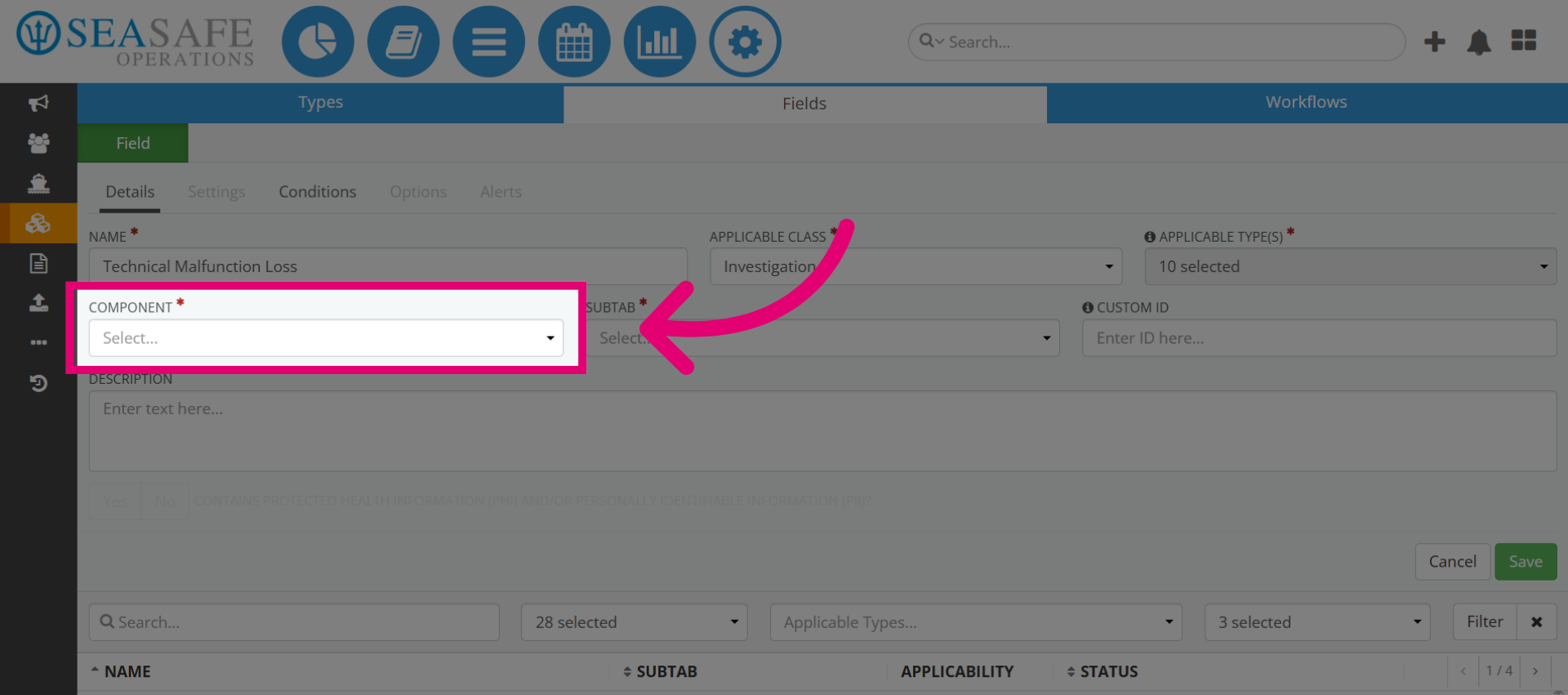
6. Select Component Type
Click COMPONENT to configure the field to the component type category.
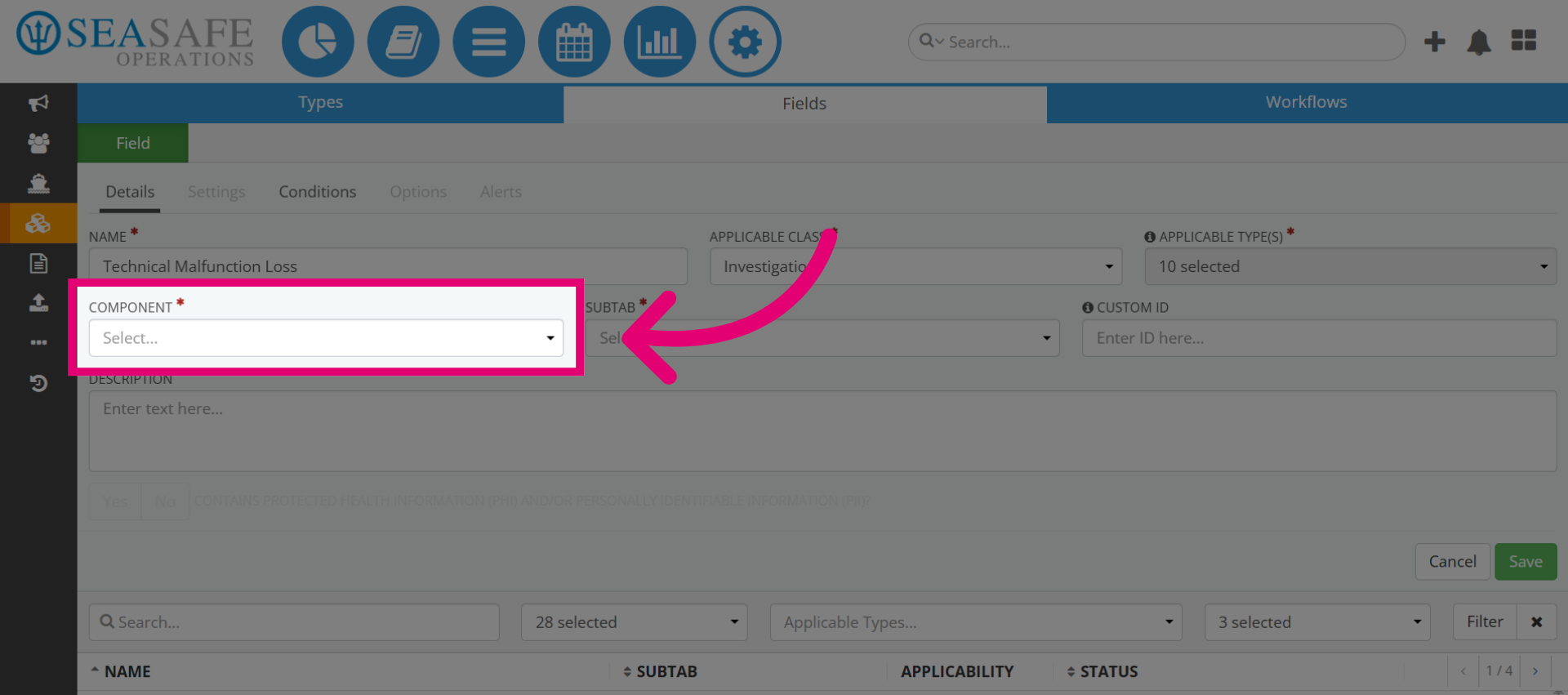
7. Open Selection Options
Then, lick the Select dropdown to view available selection types for the field.
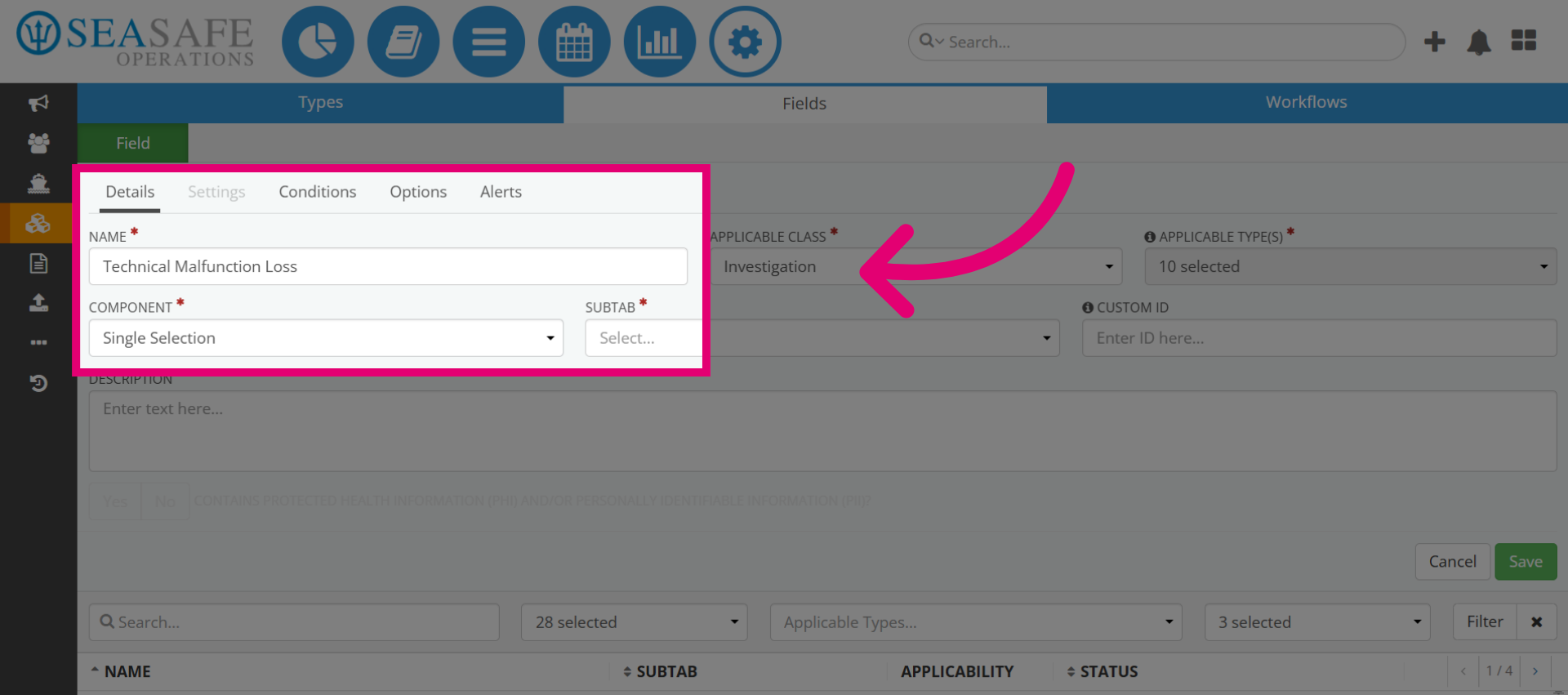
8. Choose Single Selection
For example, choose the "Single Selection" to view how the "Alerts" and "Options" tabs to activate.
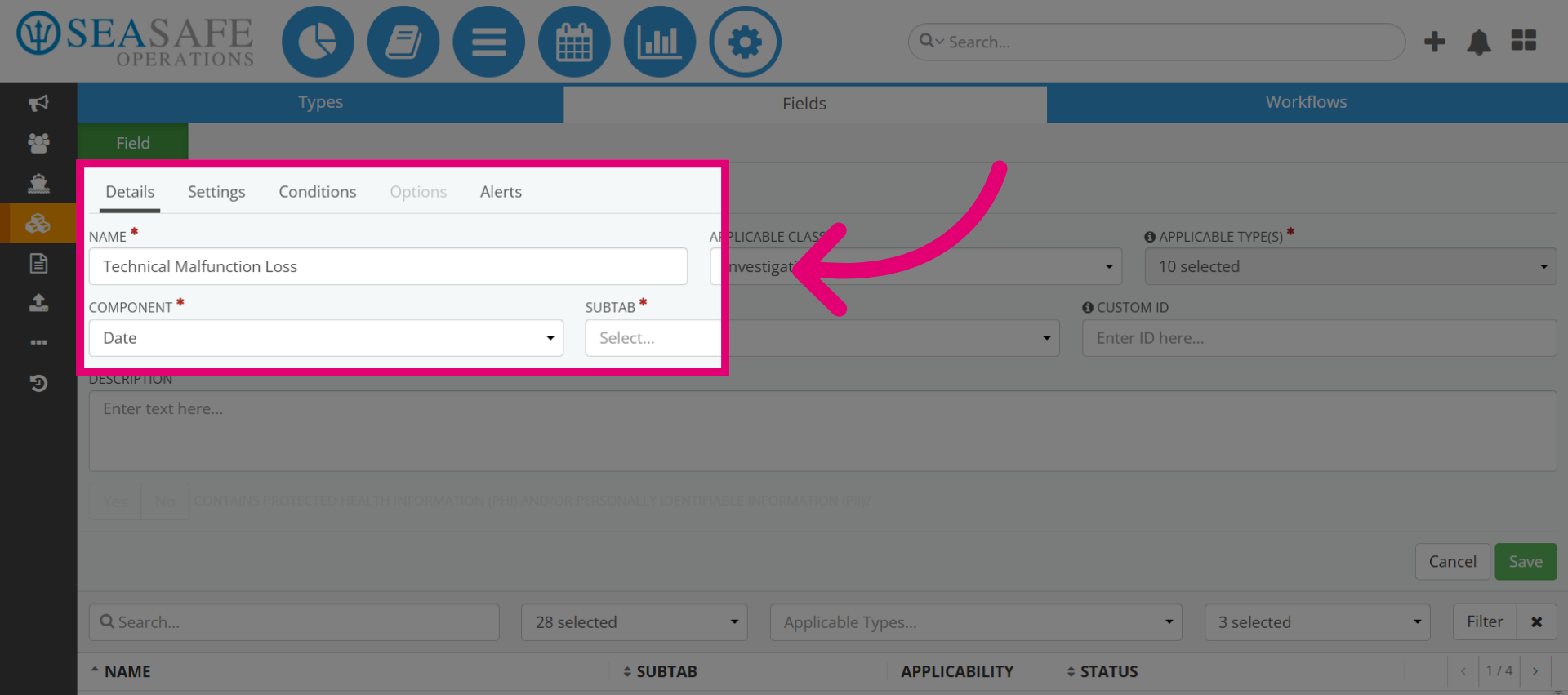
9. Select Date Field
Then, click "Date" to view how the Settings tab activated, along with Alerts.
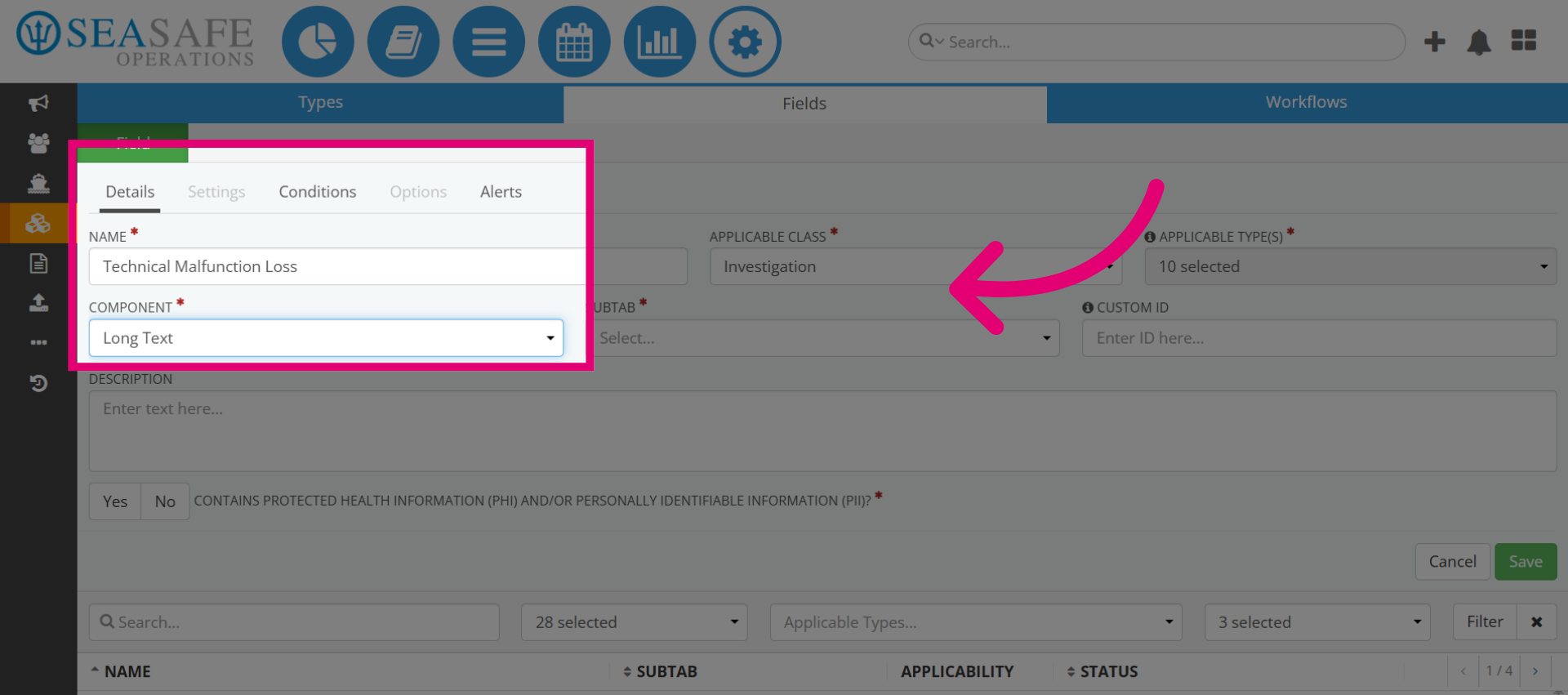
10. Confirm Long Text Field
Then, click "Long Text", for example, and view how only the "Conditions" and "Alerts" subtabs are activated.
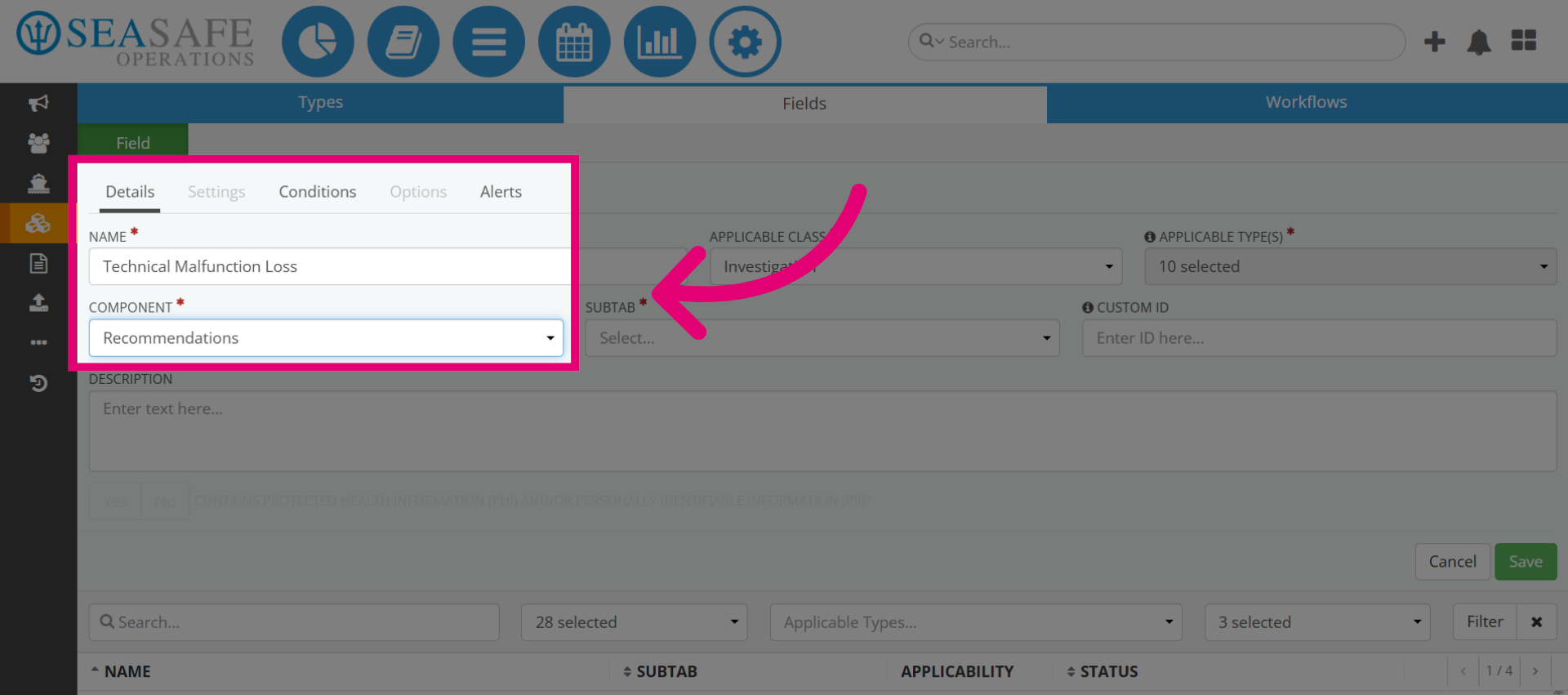
11. Confirm Recommendations Field
Lastly, try "Recommendation|" which enables only "Conditions" and "Alerts" tabs.