New article
Recently updated
Managing Devices Planned Maintenance (PM)

Who is this article for?Users who want to manage device's planned maintenance (PM).
No elevated permissions are required.
This demo will walk you through the process of managing device preventive planned maintenance tasks efficiently in Ideagen Maritime Health Onboard for devices on the ship. From accessing device details to completing checklists, each step will ensure your equipment is properly maintained.
1. Managing device's planned maintenance (PM)
1.1. Video
1.2. Steps
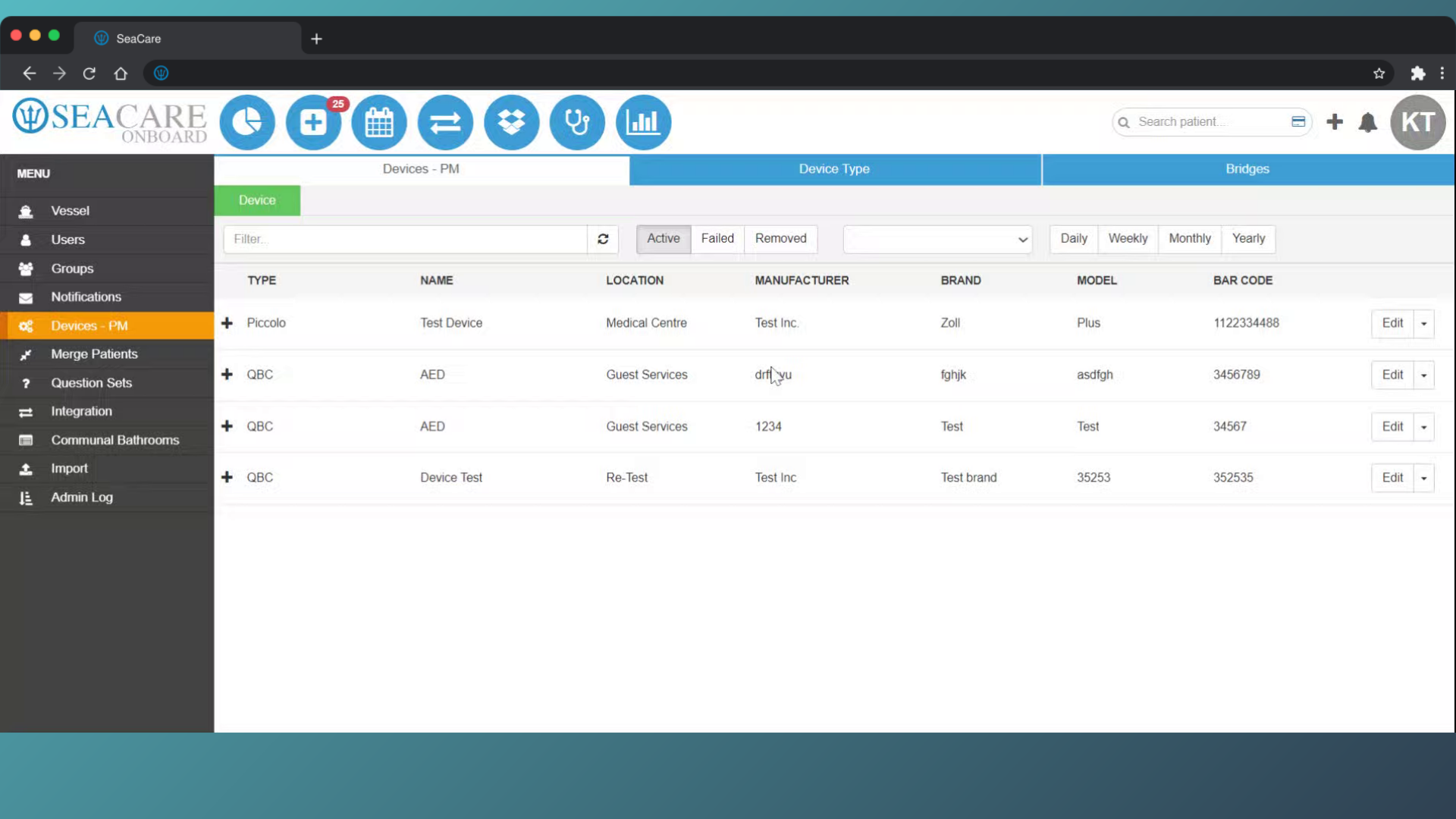
- Start in Ideagen Maritime Health Onboard, in the Admin Menu in the Devices - PM section.
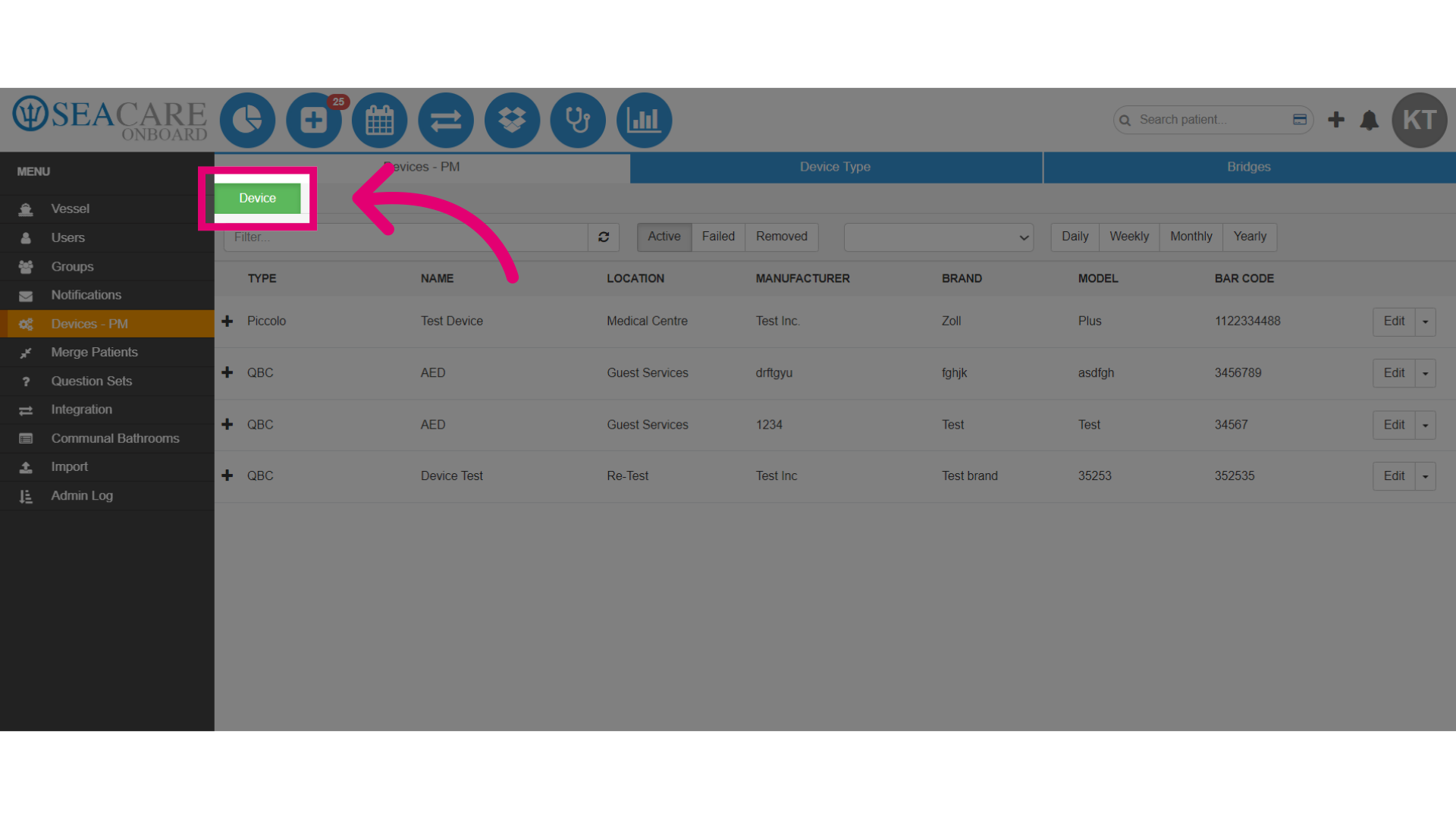
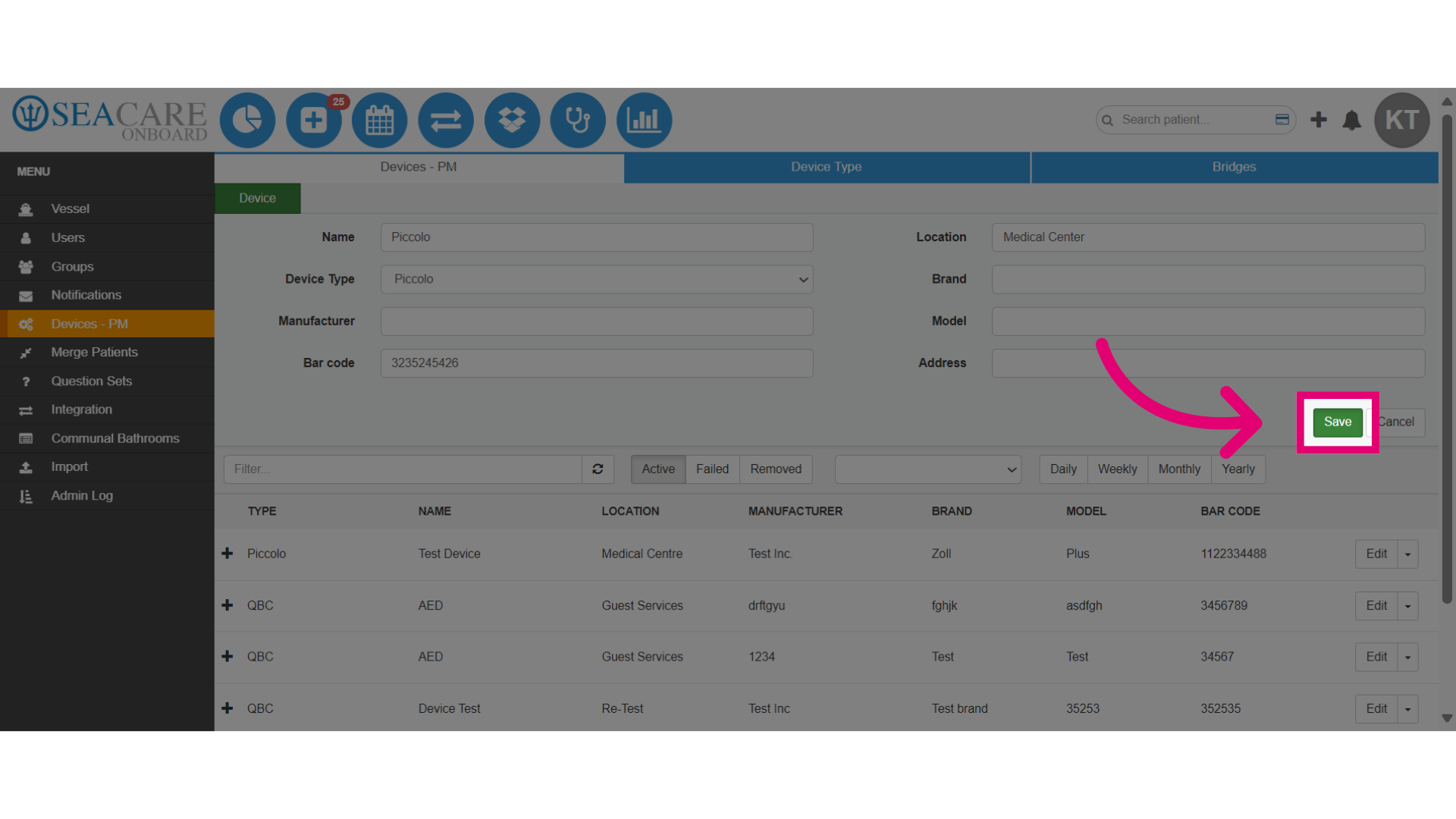
- Start by adding a device and complete a checklist for it, select the green Device button.
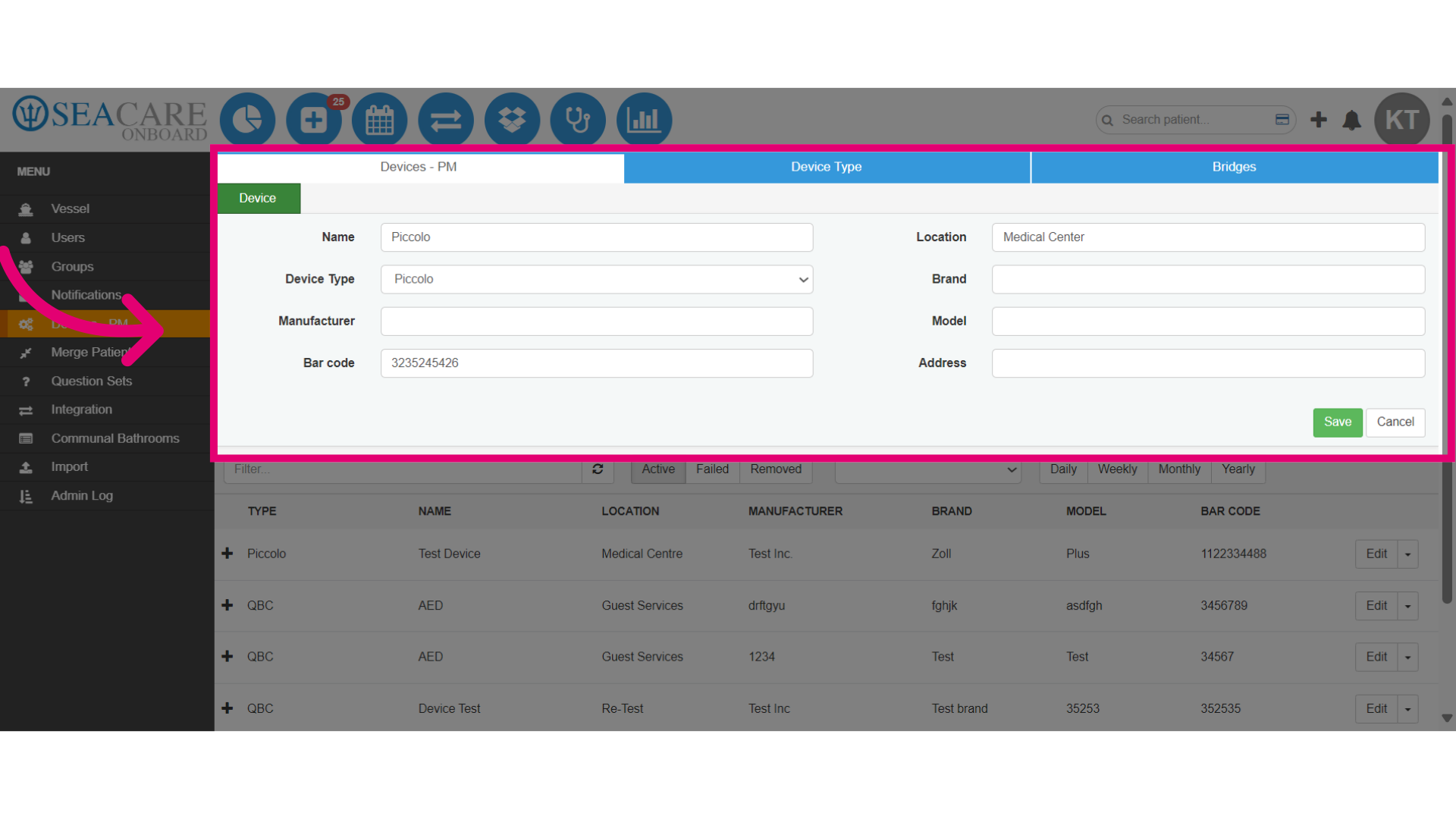
- Add the device to be maintained, including:
- Name
- Location (e.g., Medical Center, Engine Room)
- Device Type (e.g., Piccolo)
- Brand
- Model
- Manufacturer
- Bar Code
- Address
- Save the changes made.
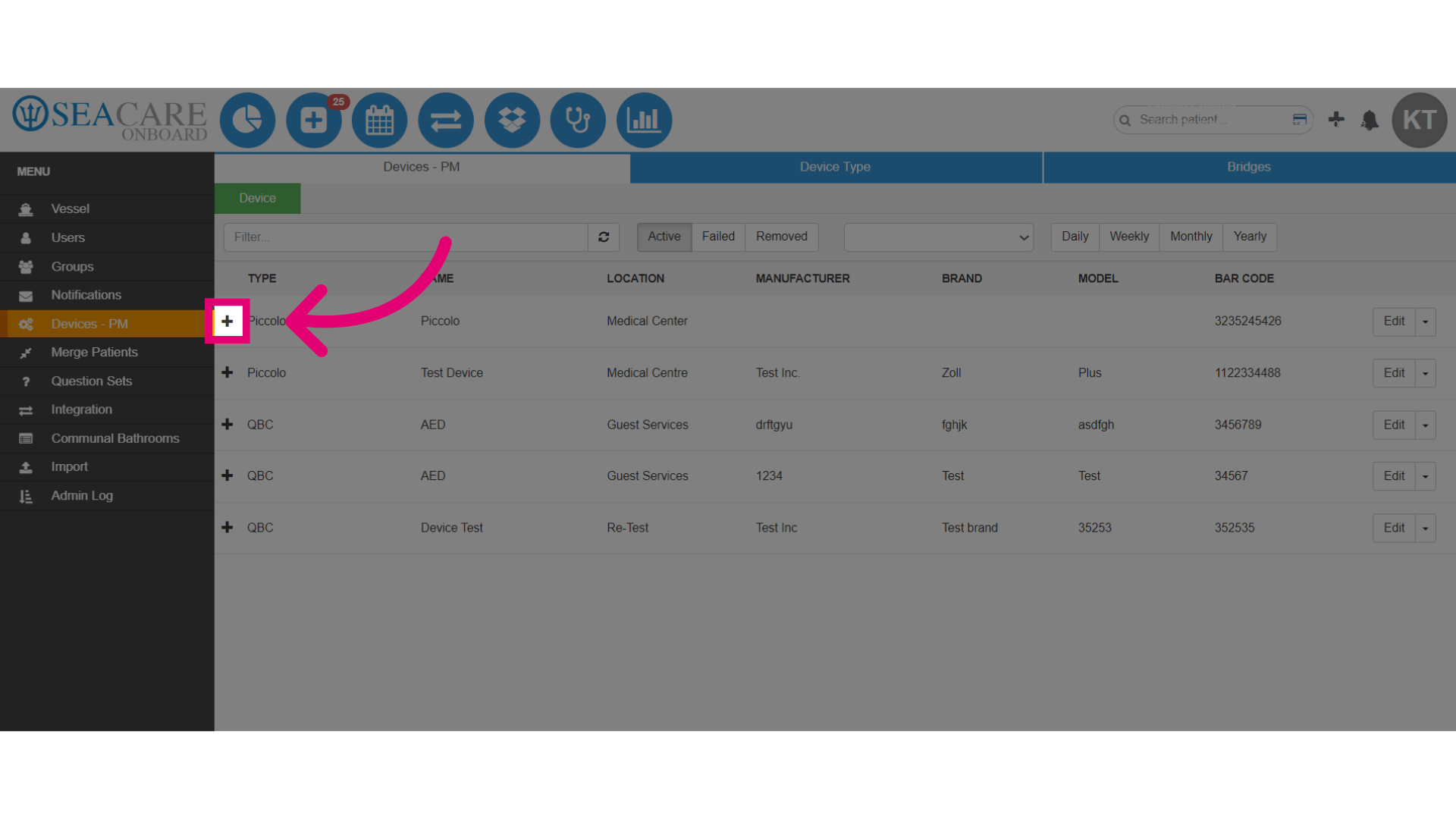
- Then, begin the process of adding a planned maintenance to the device by clicking on it and expanding the plus (+) sign.
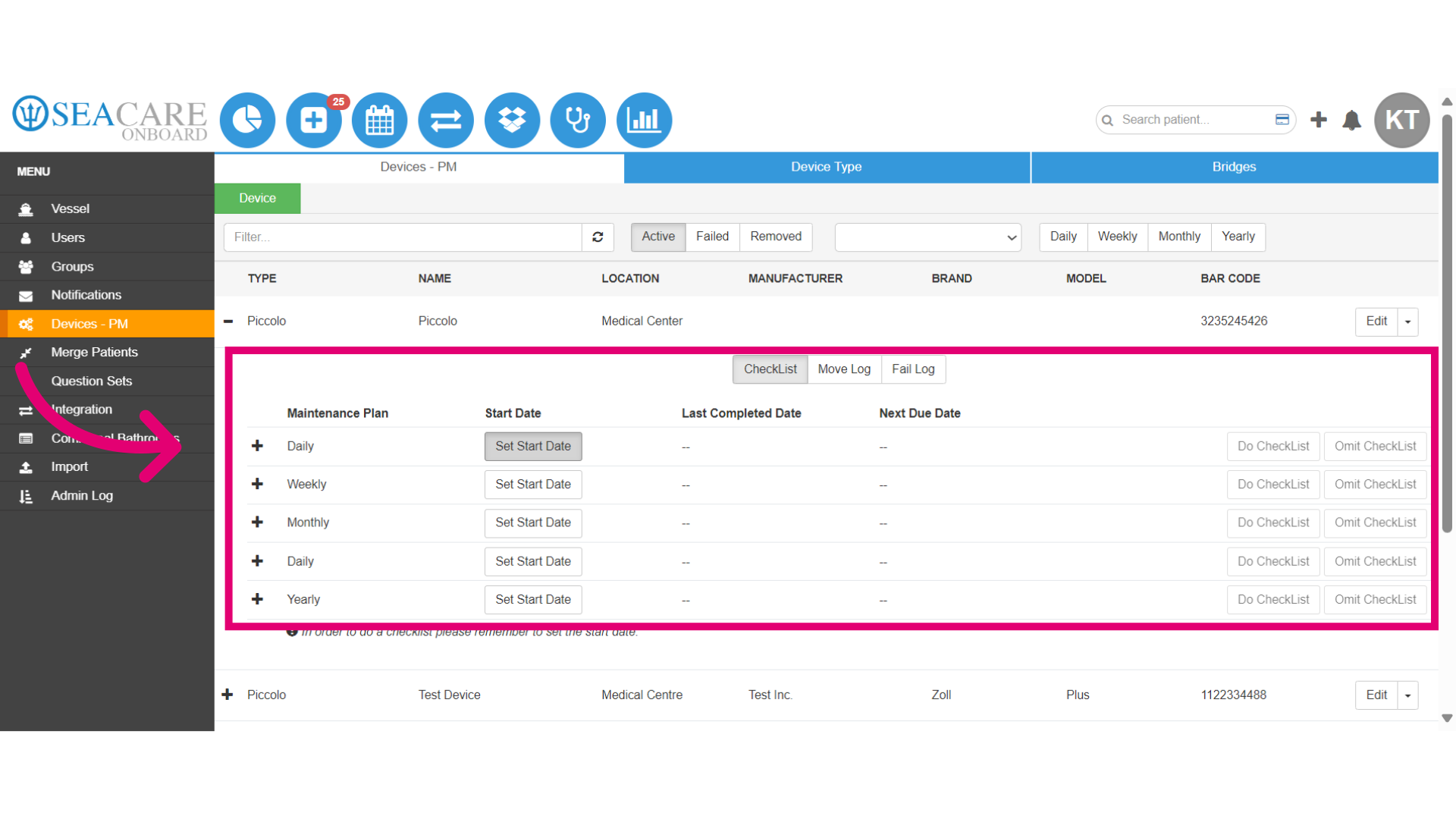
- Navigate to the Checklist tab where maintenance plans are detailed with:
- Frequency - How often tasks should be done (Daily, Weekly, Monthly, Yearly).
- Start Date - When maintenance activities should commence.
- Last Completed Date - The most recent date tasks were finished.
- Next Due Date - When the upcoming maintenance tasks are due.
- Do Checklist - Action to complete the checklist.
- Omit Checklist - Action to skip completing checklist tasks.
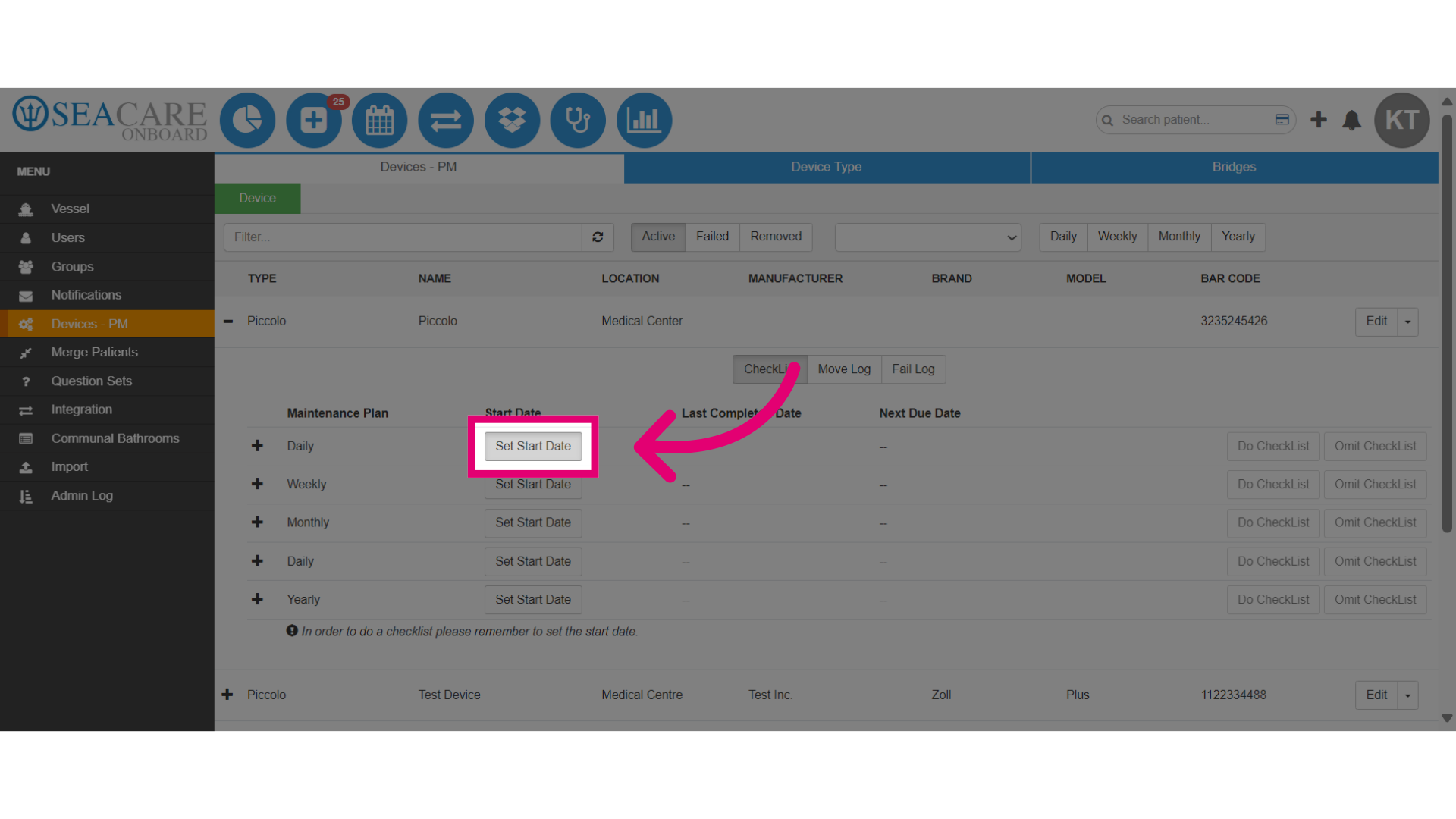
- Continue by first choosing the frequency for when tasks should be completed then click on Set Start Date.
- Then, click on the calendar and set the start date.
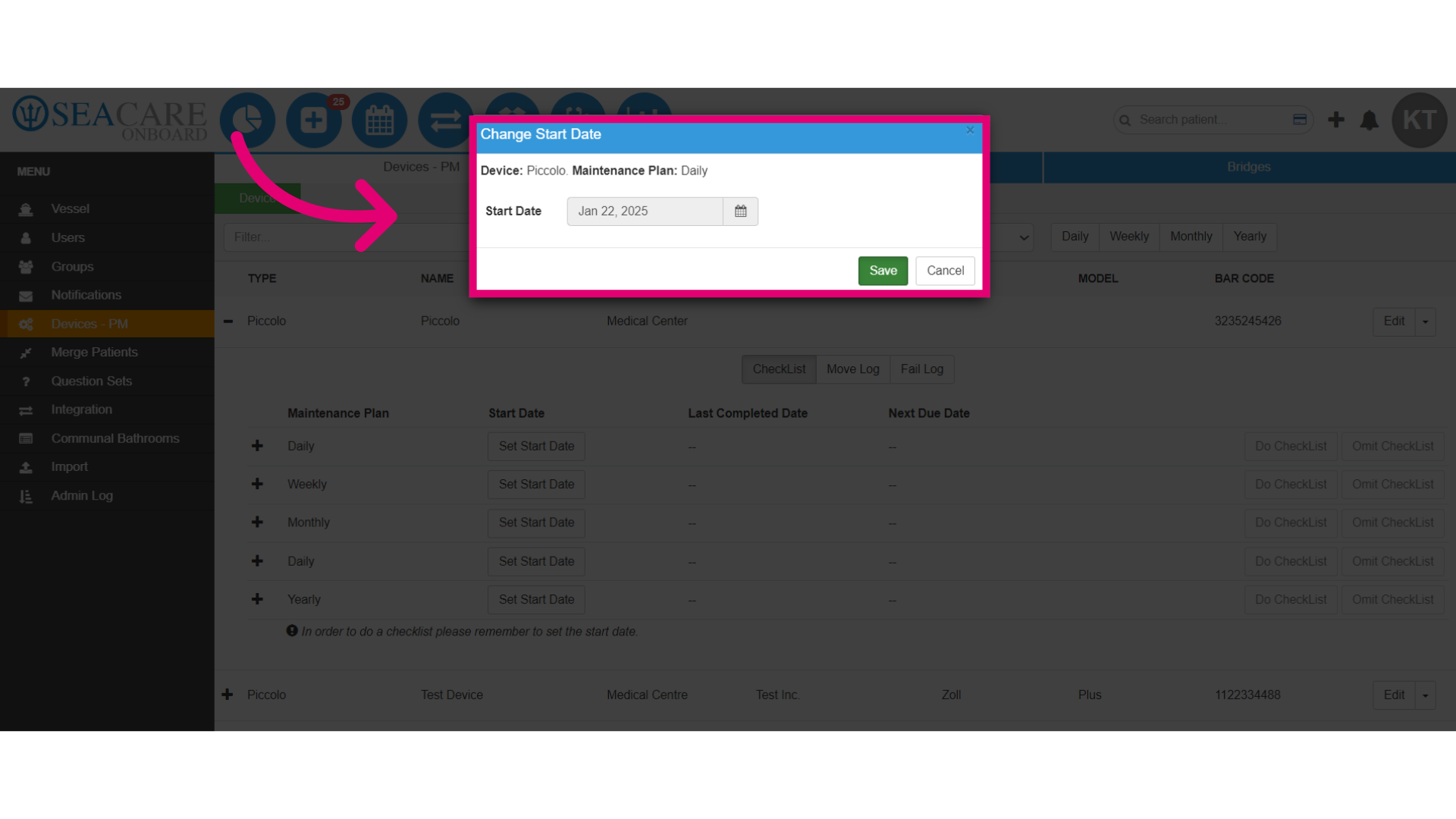
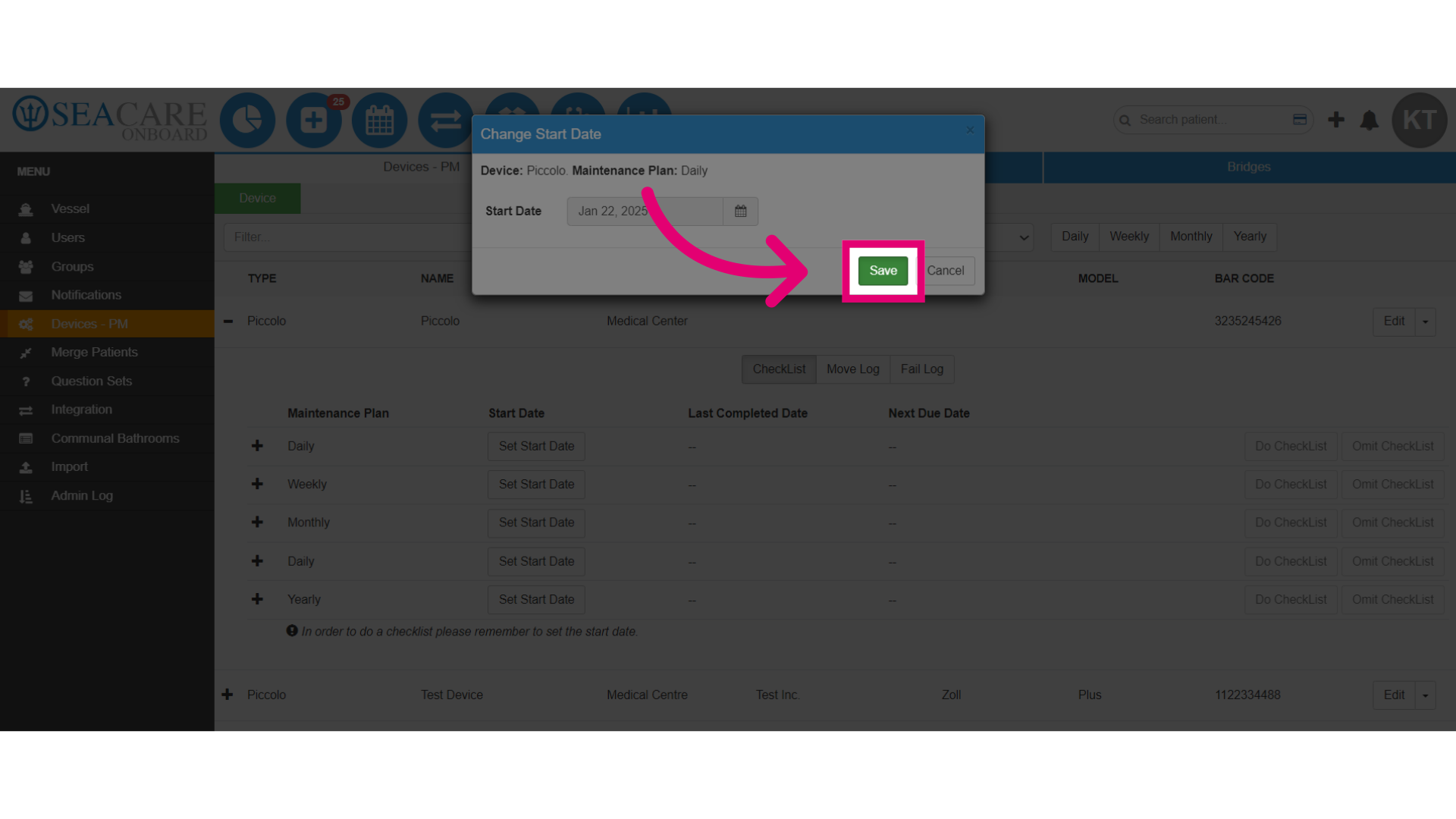
- When you are done, save the changes.
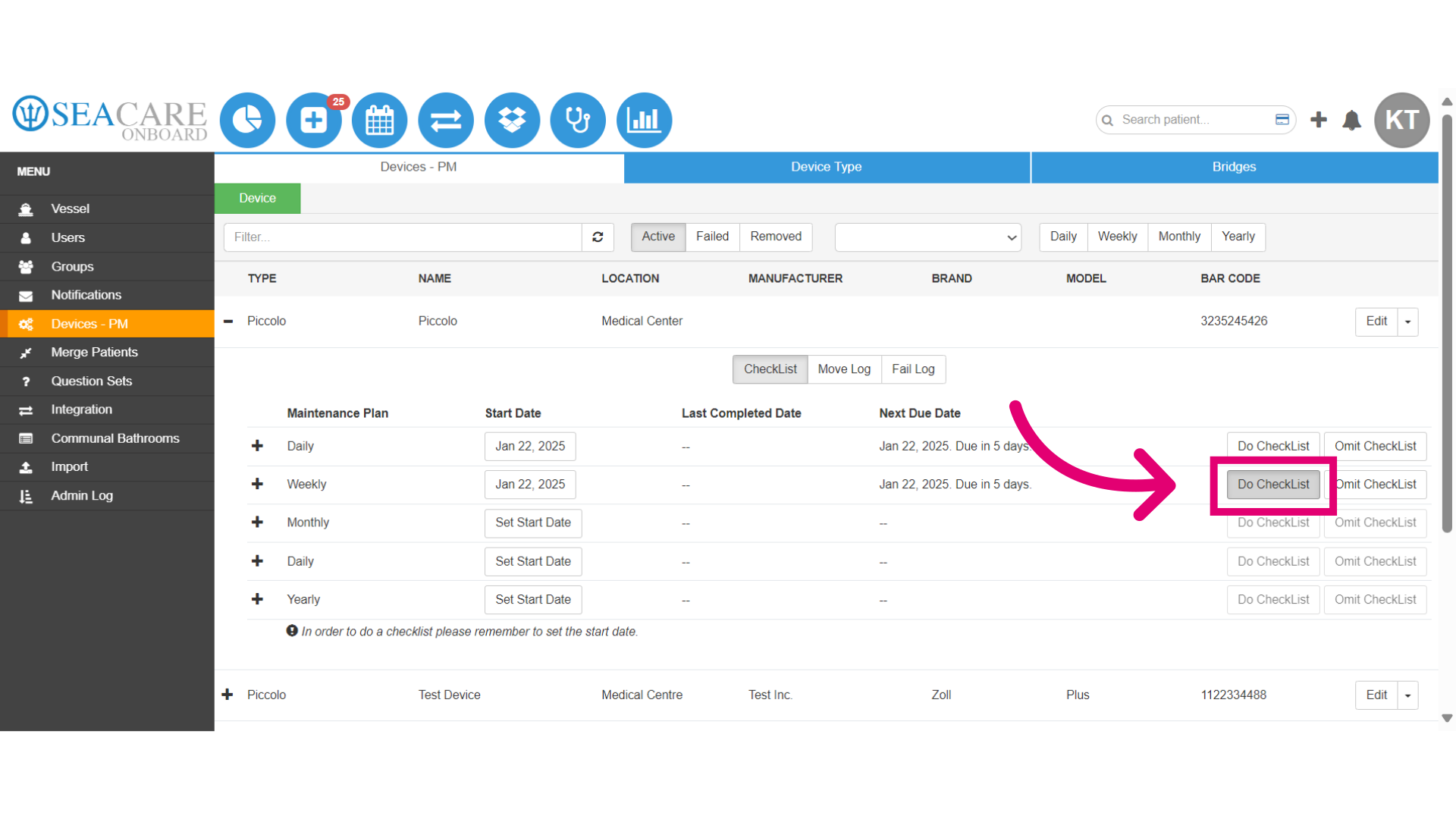
- When it's time to complete the checklist select Do Checklist.
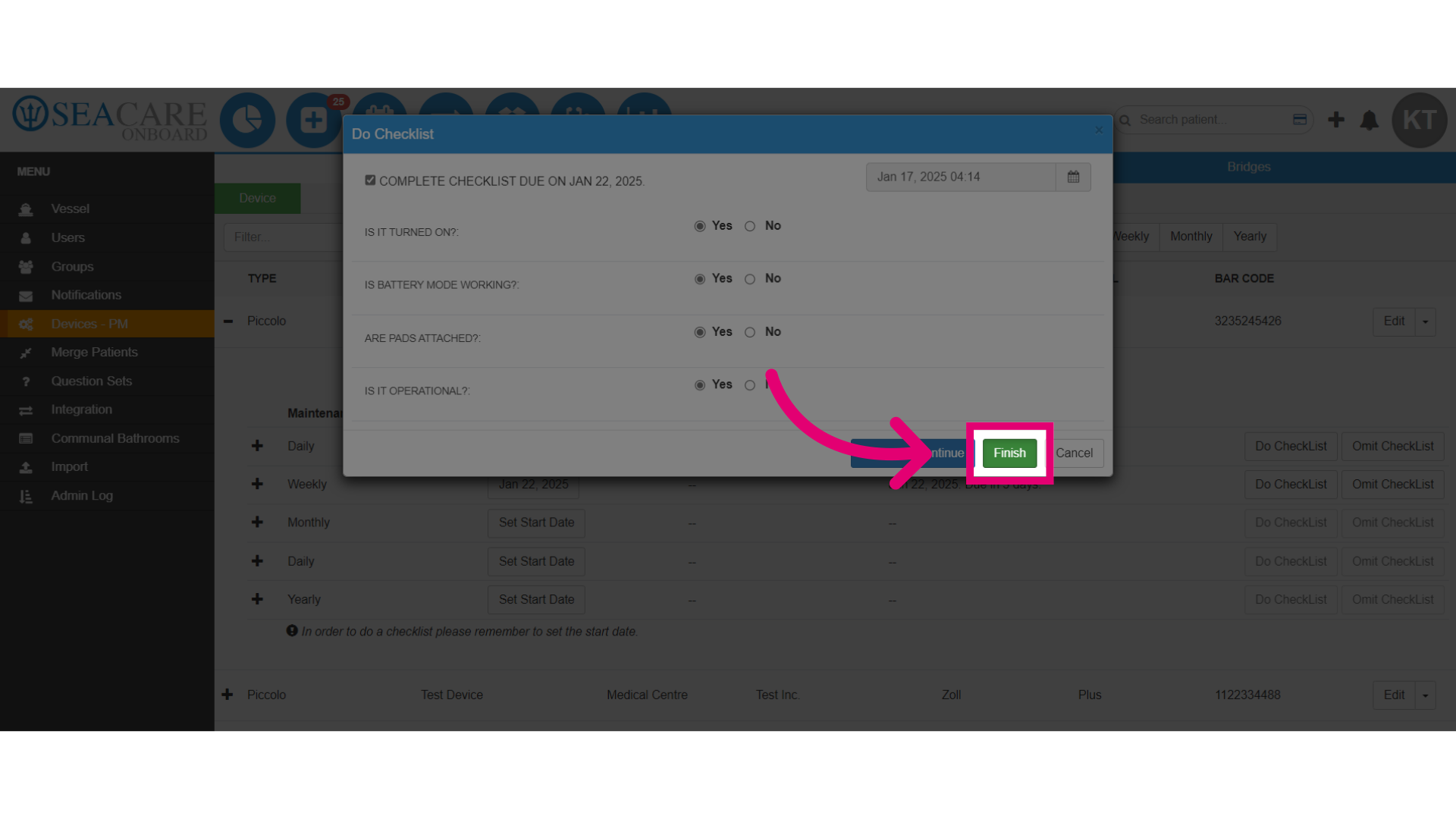
- Answer the the series of questions by examining the actual device at hand.

- Save your changes when you are done.
- Review the details that was completed, by expanding the details.
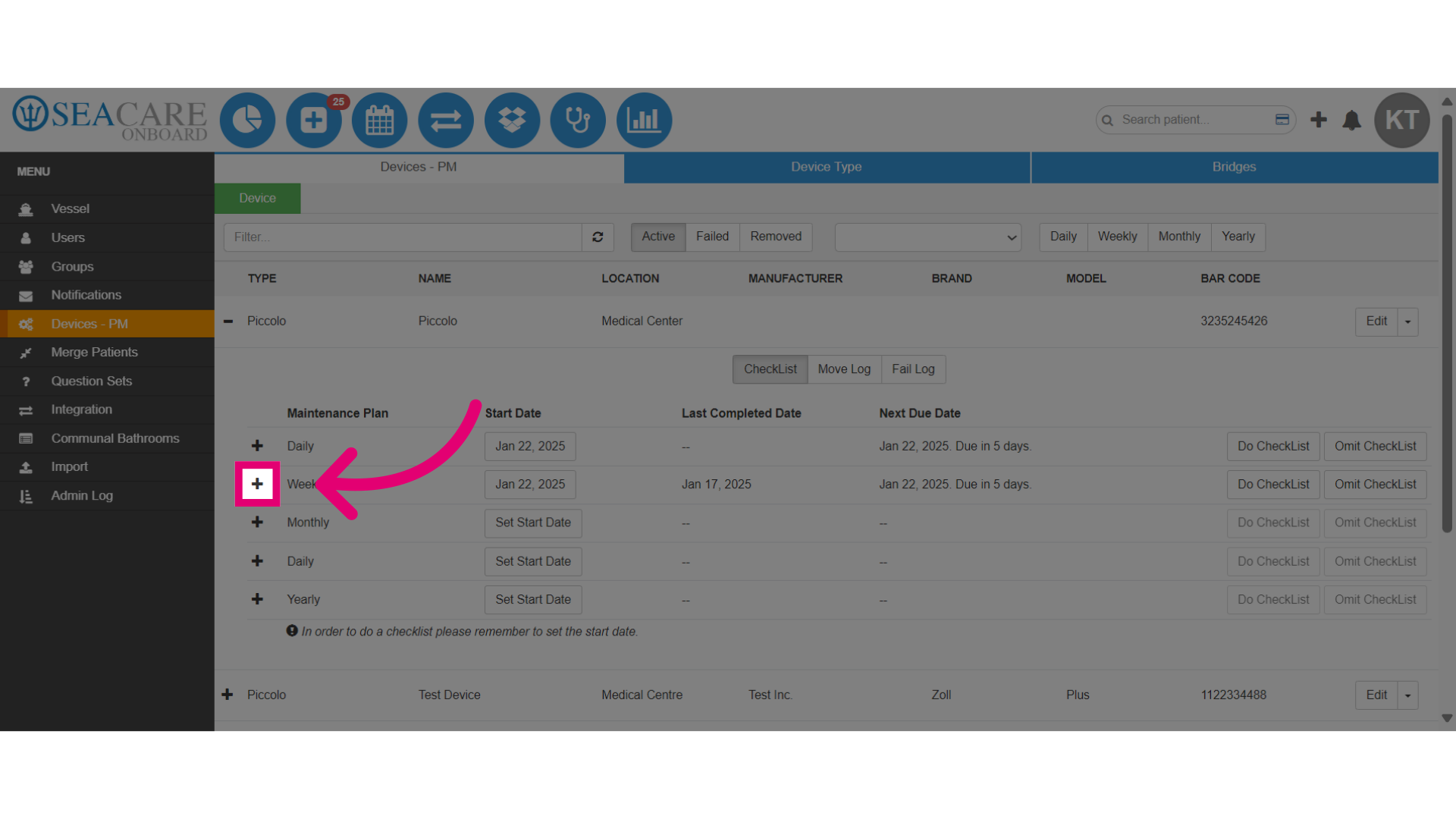
- Review the Maintenance History by expanding he plus sign to review your answers.
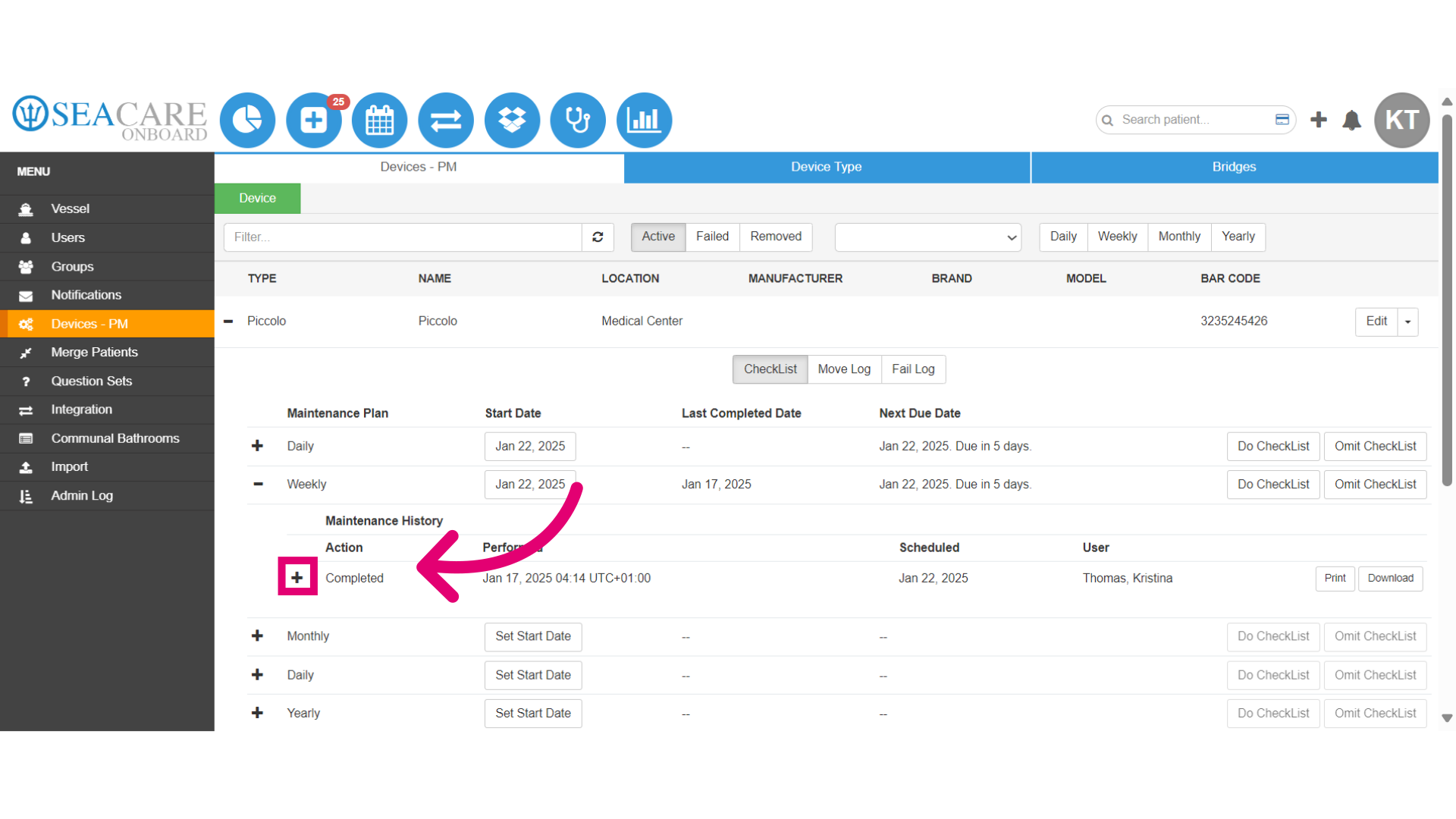
- Then, review the answers that you provided.
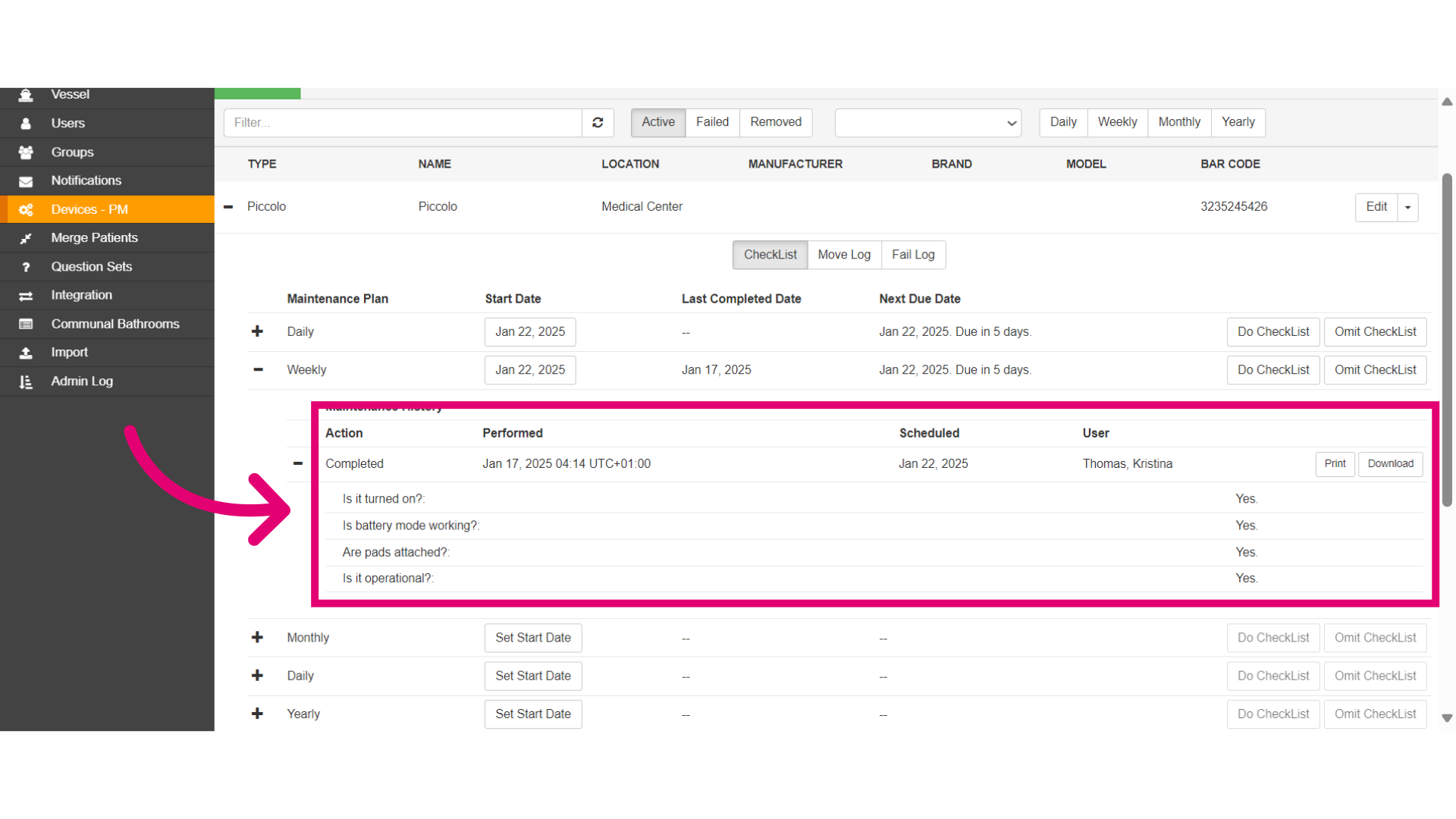
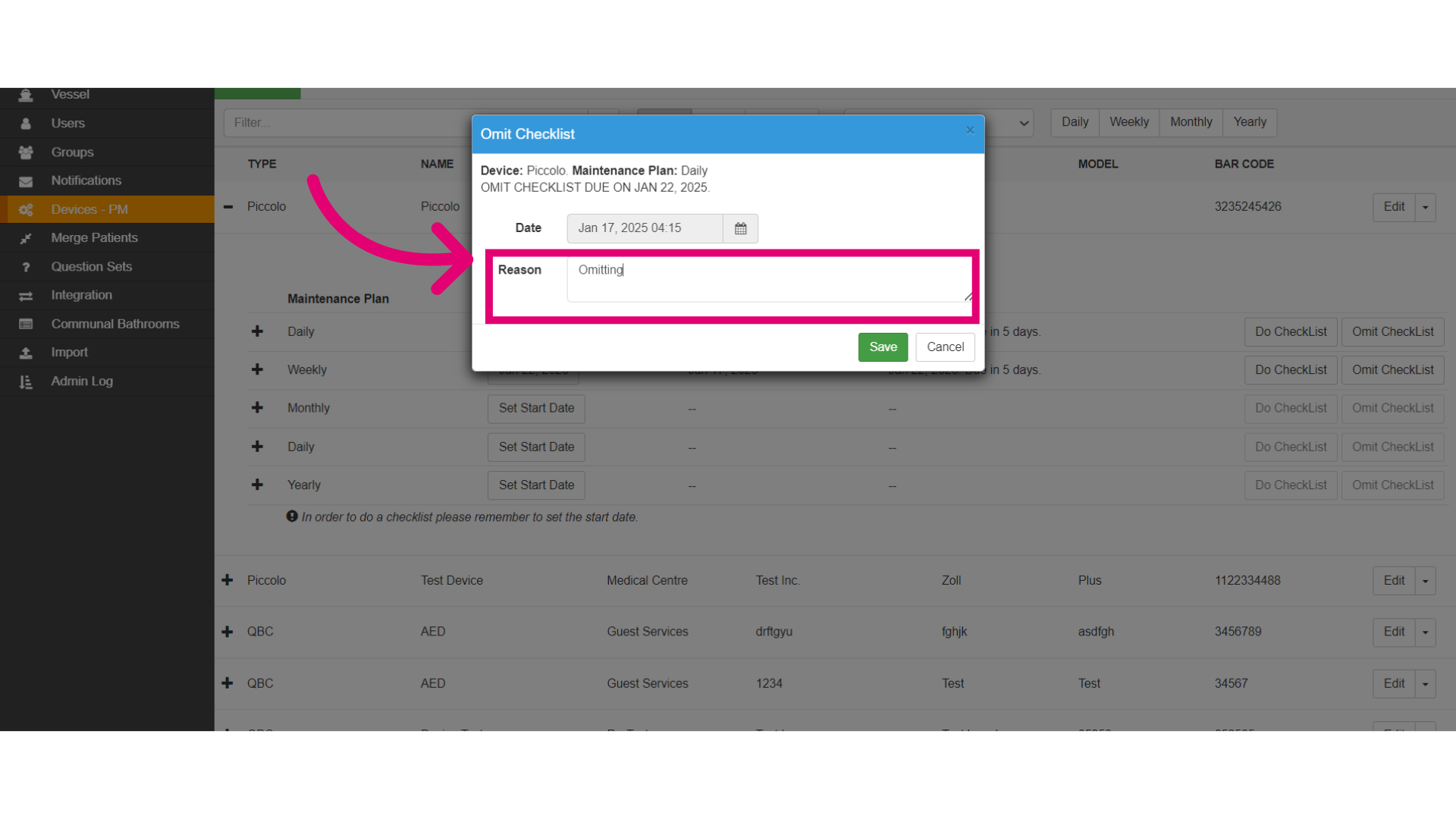
- Next, if applicable you may choose to omit a checklist by selecting Omit Checklist.
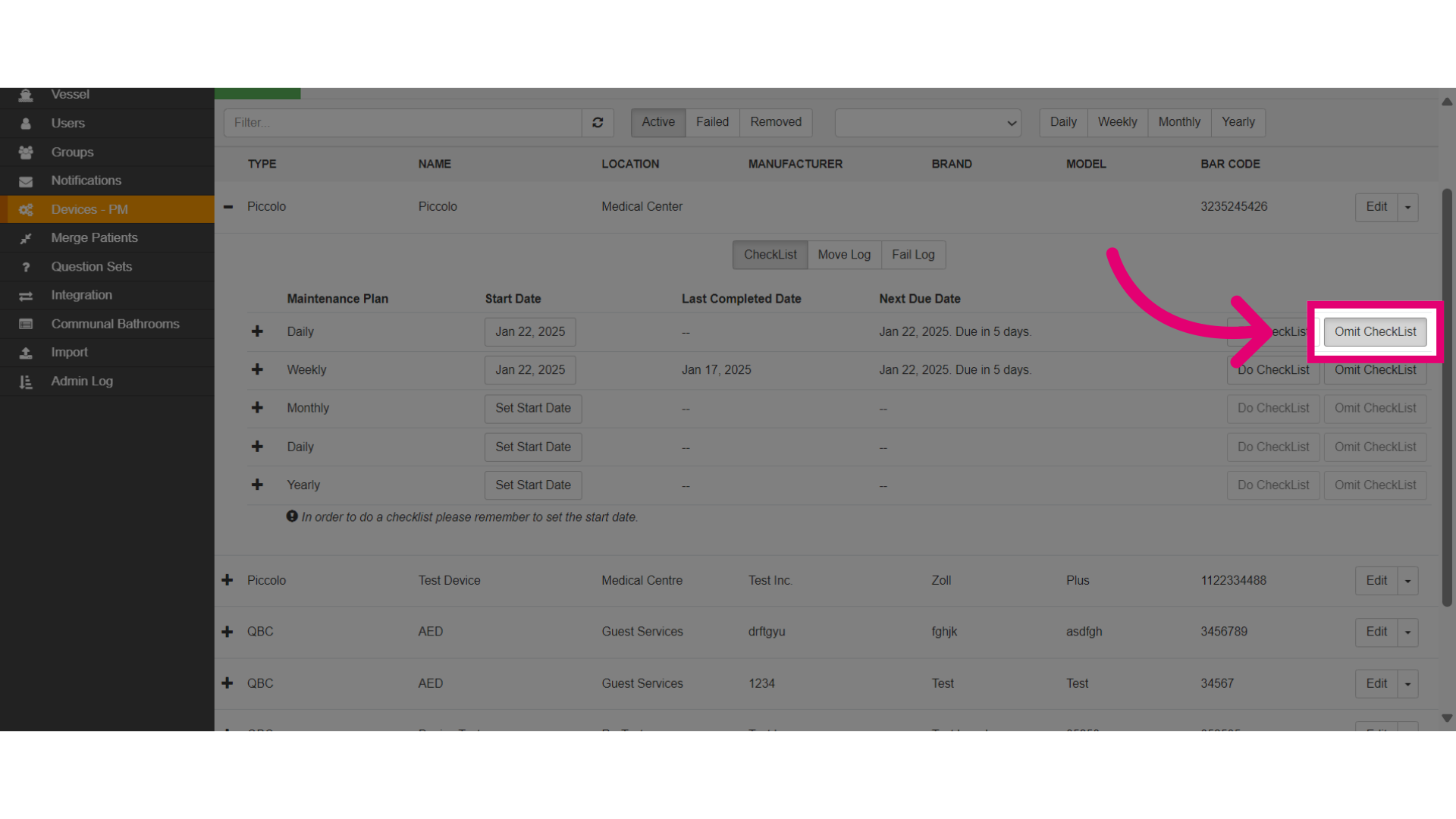
- Add the omitting reason.
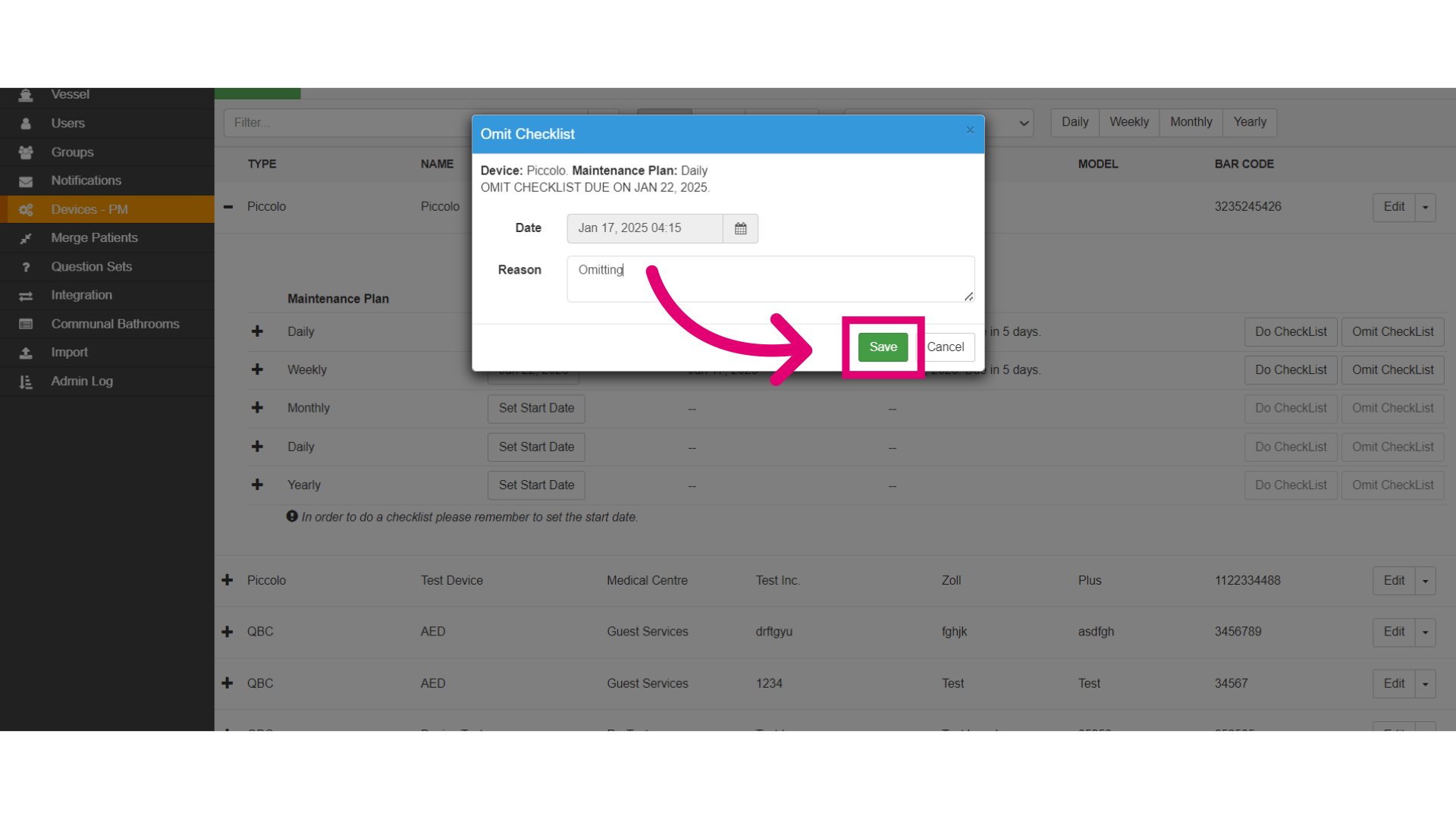
- Save the changes.
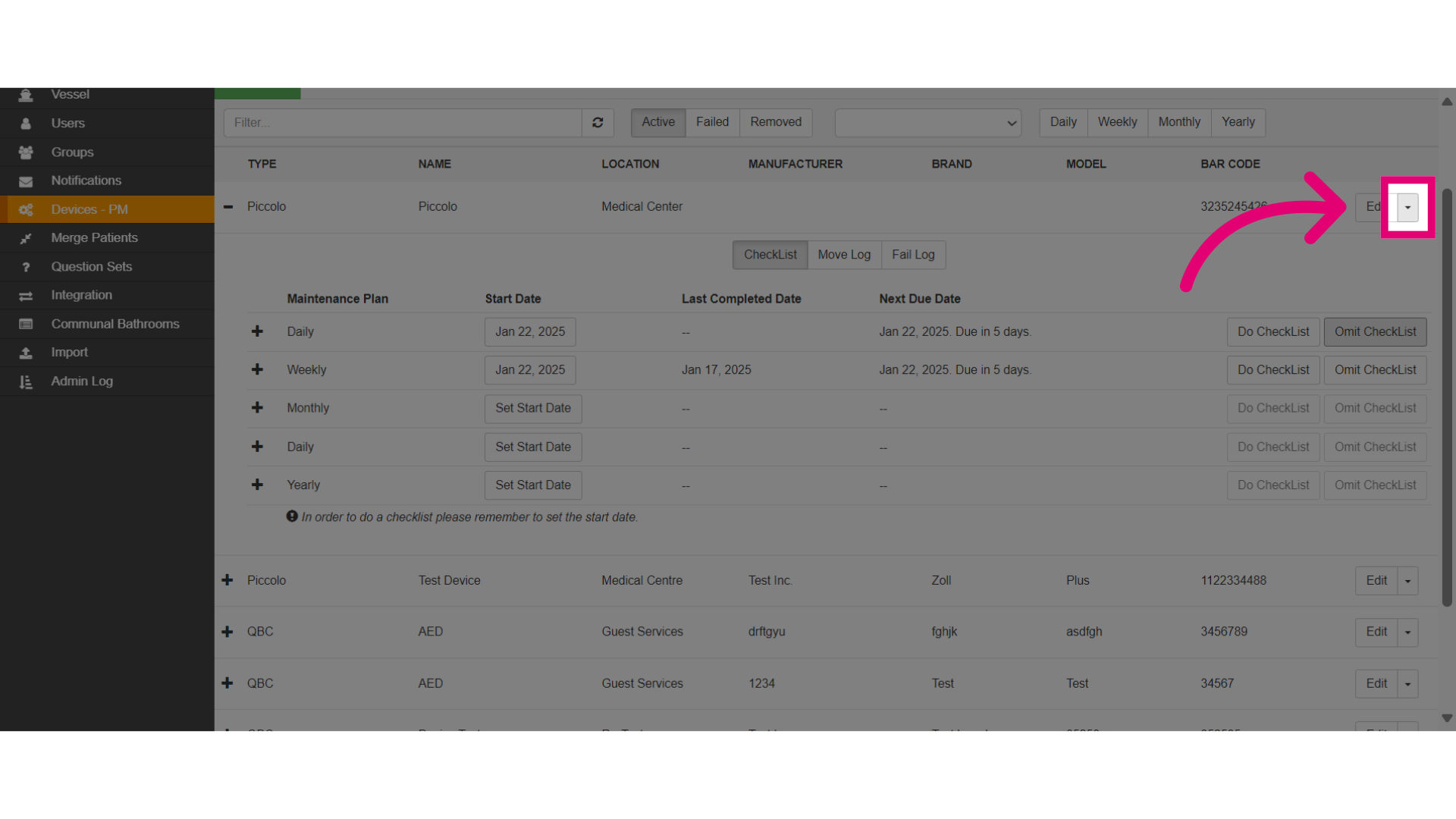
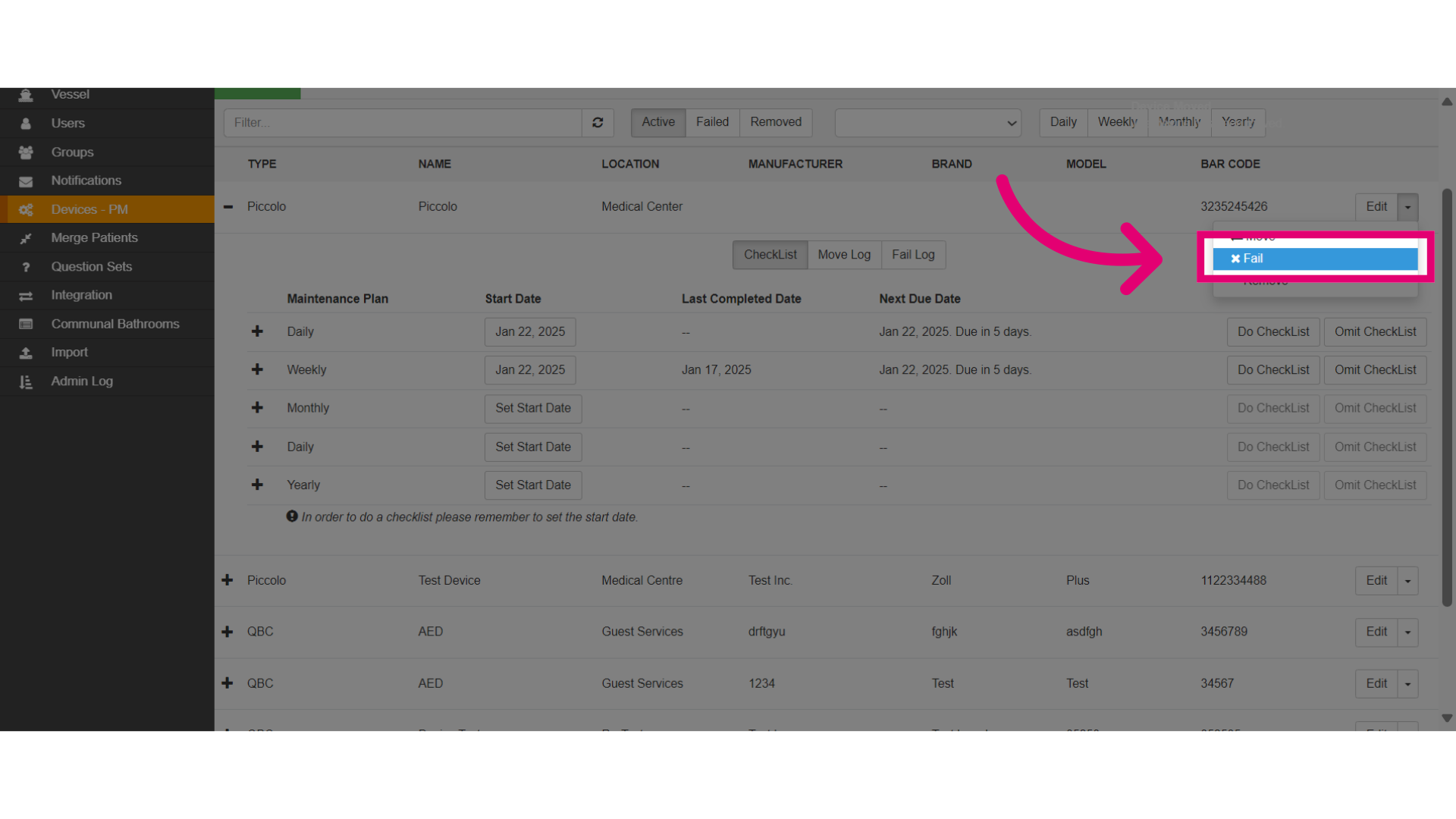
- View other options for the maintenance by toggling the dropdown menu.
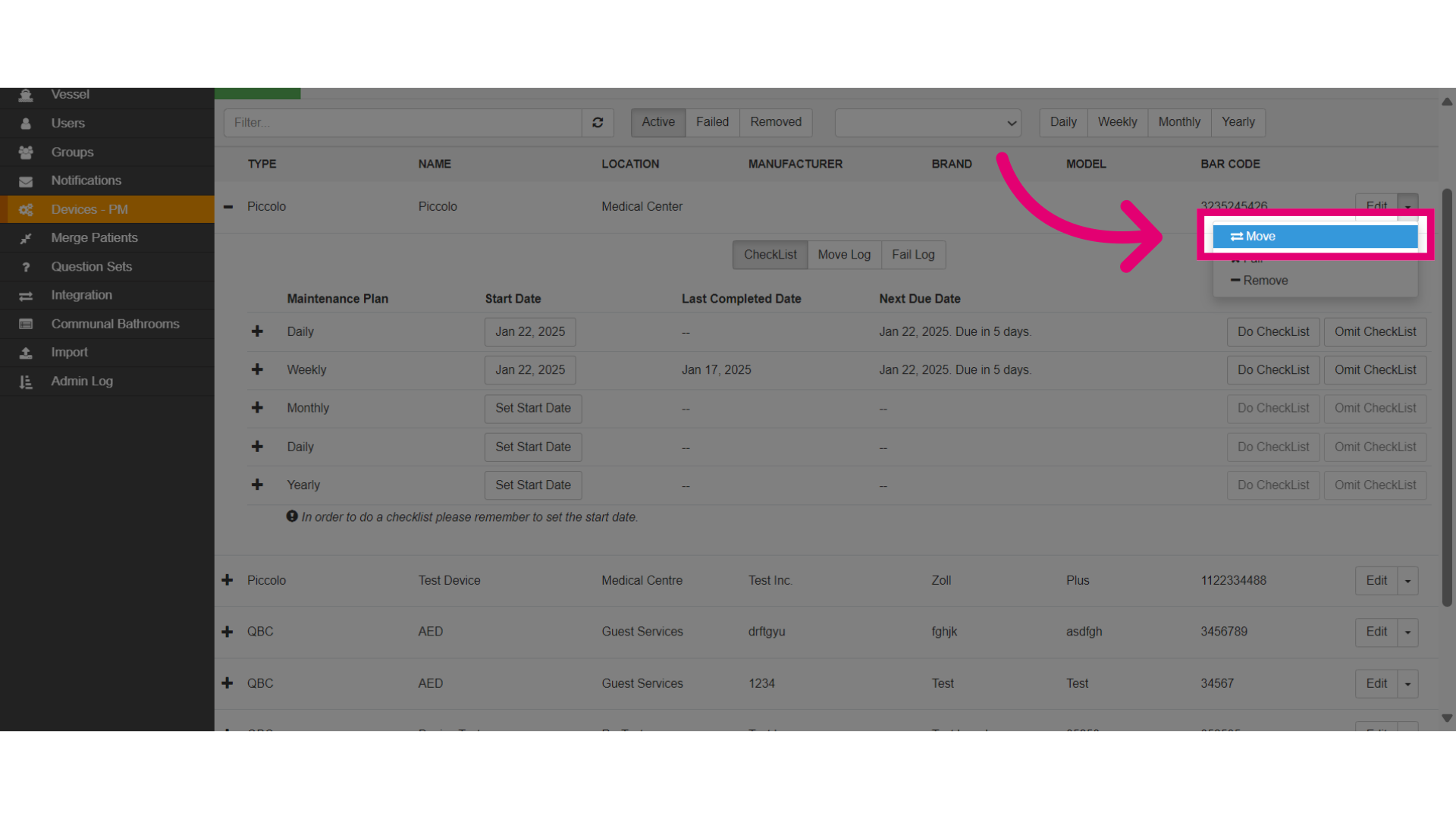
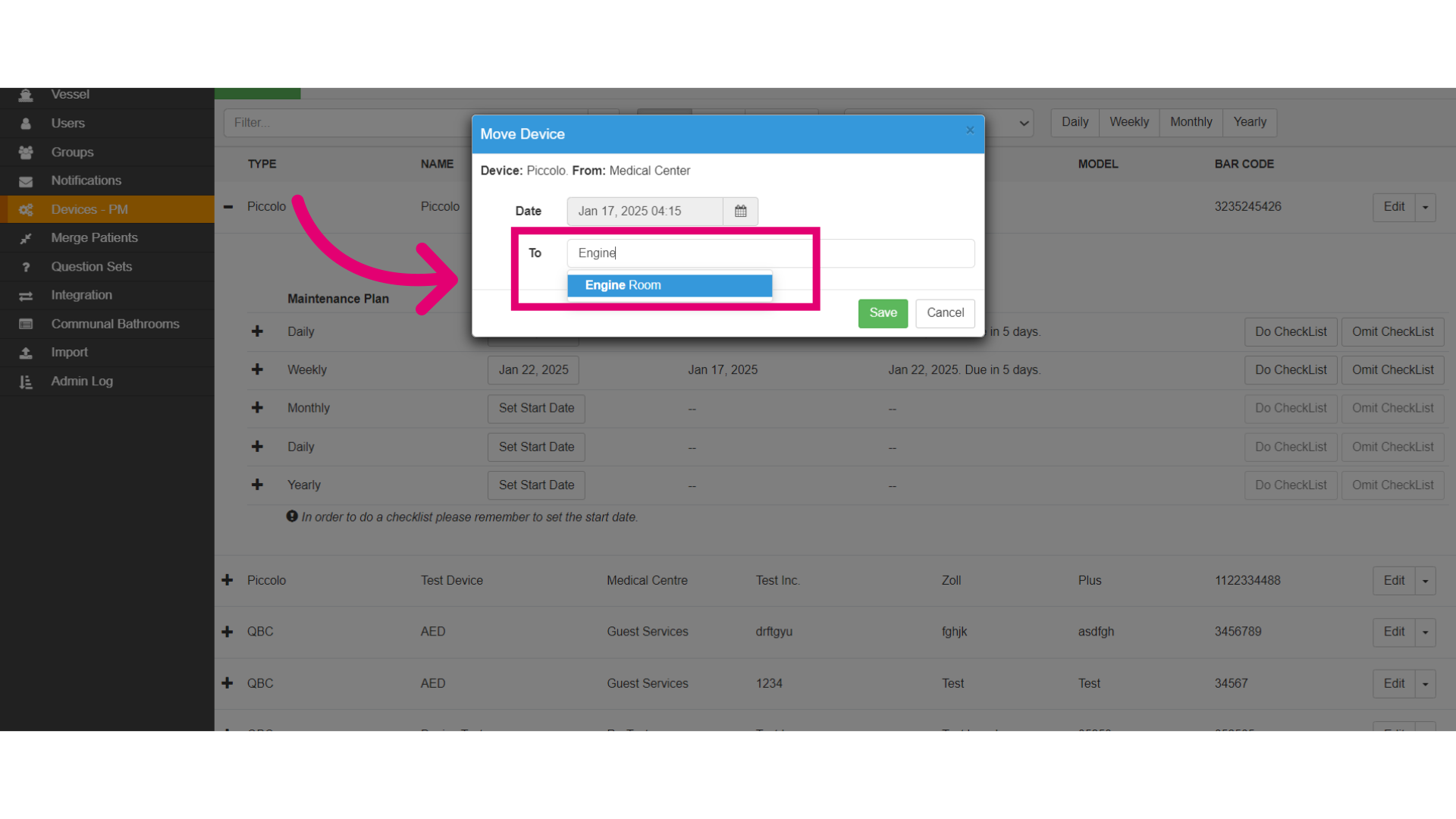
- Move the location of the device if it needs to relocated on the ship by first selecting Move.
- Type the new location in the Search field then select it such as by selecting engine room.
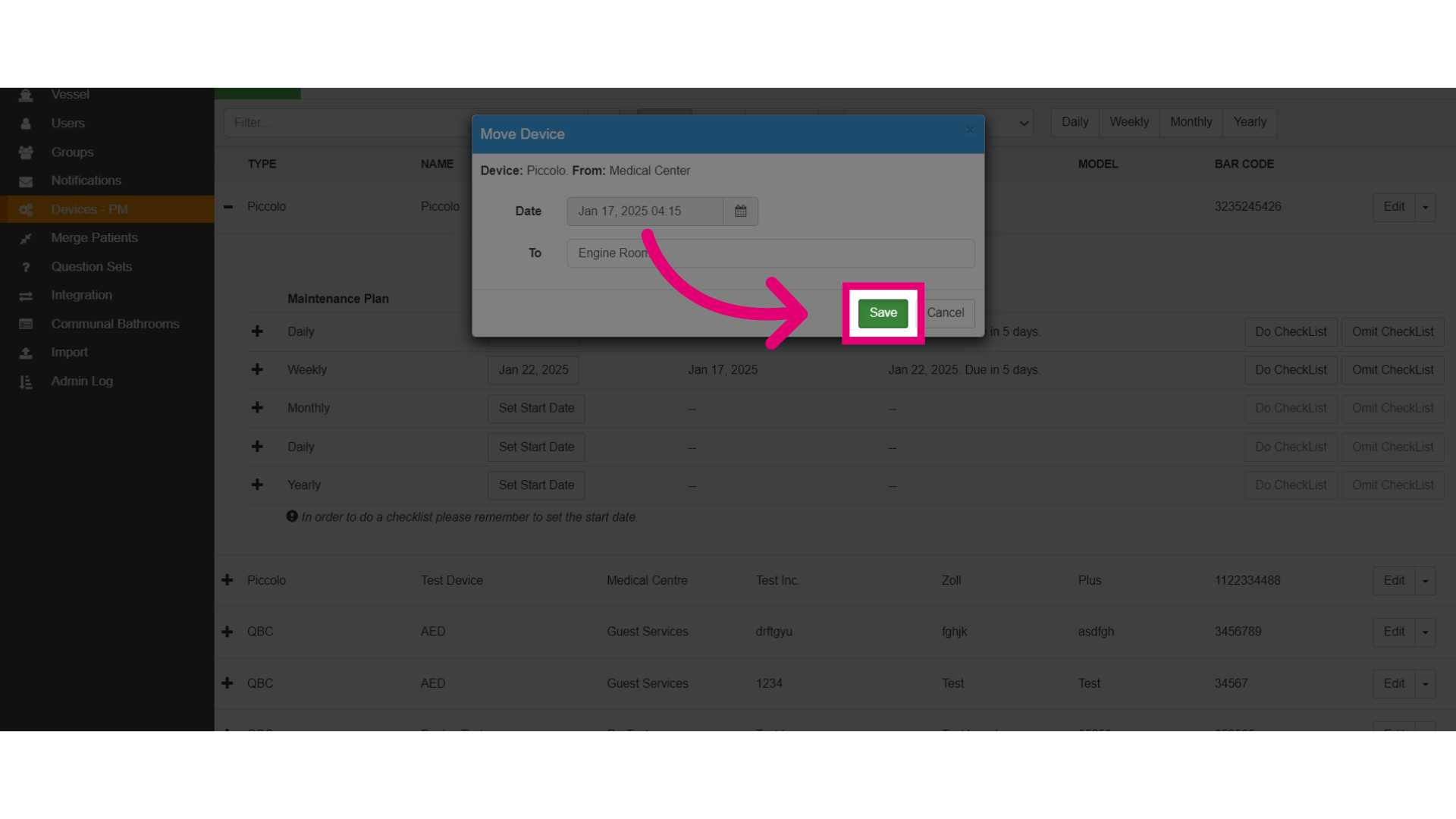
- Save the changes made.
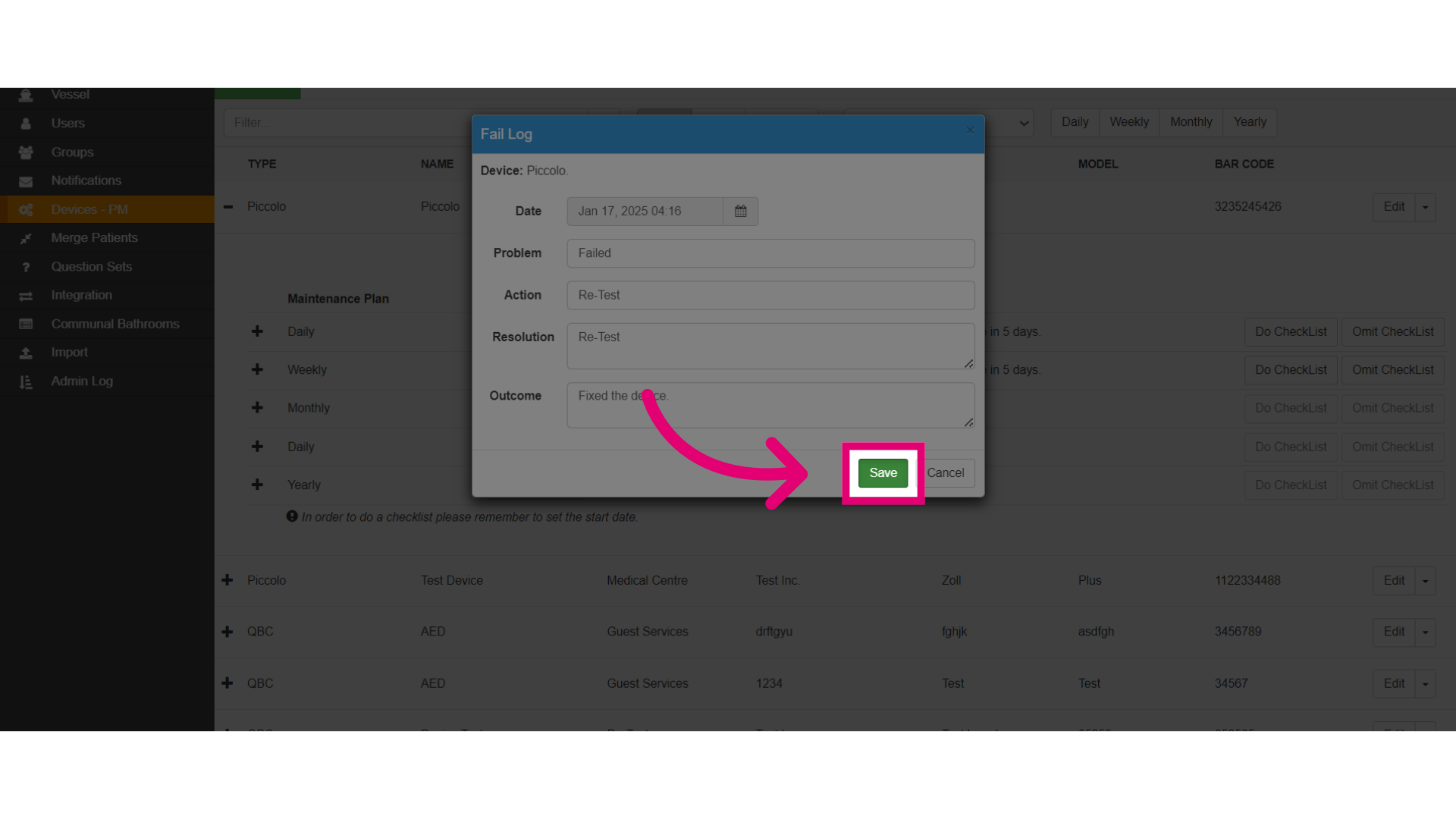
- You may also select to Fail the device if it did not pass the maintenance check.
- Add device failure details:
- Problem - Describe the issue (e.g., software glitches, hardware problems).
- Actions - Outline steps taken to resolve the issue (e.g., troubleshooting, support consultation, repairs).
- Resolution - Indicate if the issue is resolved or ongoing.
- Outcome - Summarise the outcome and its impact on future maintenance.
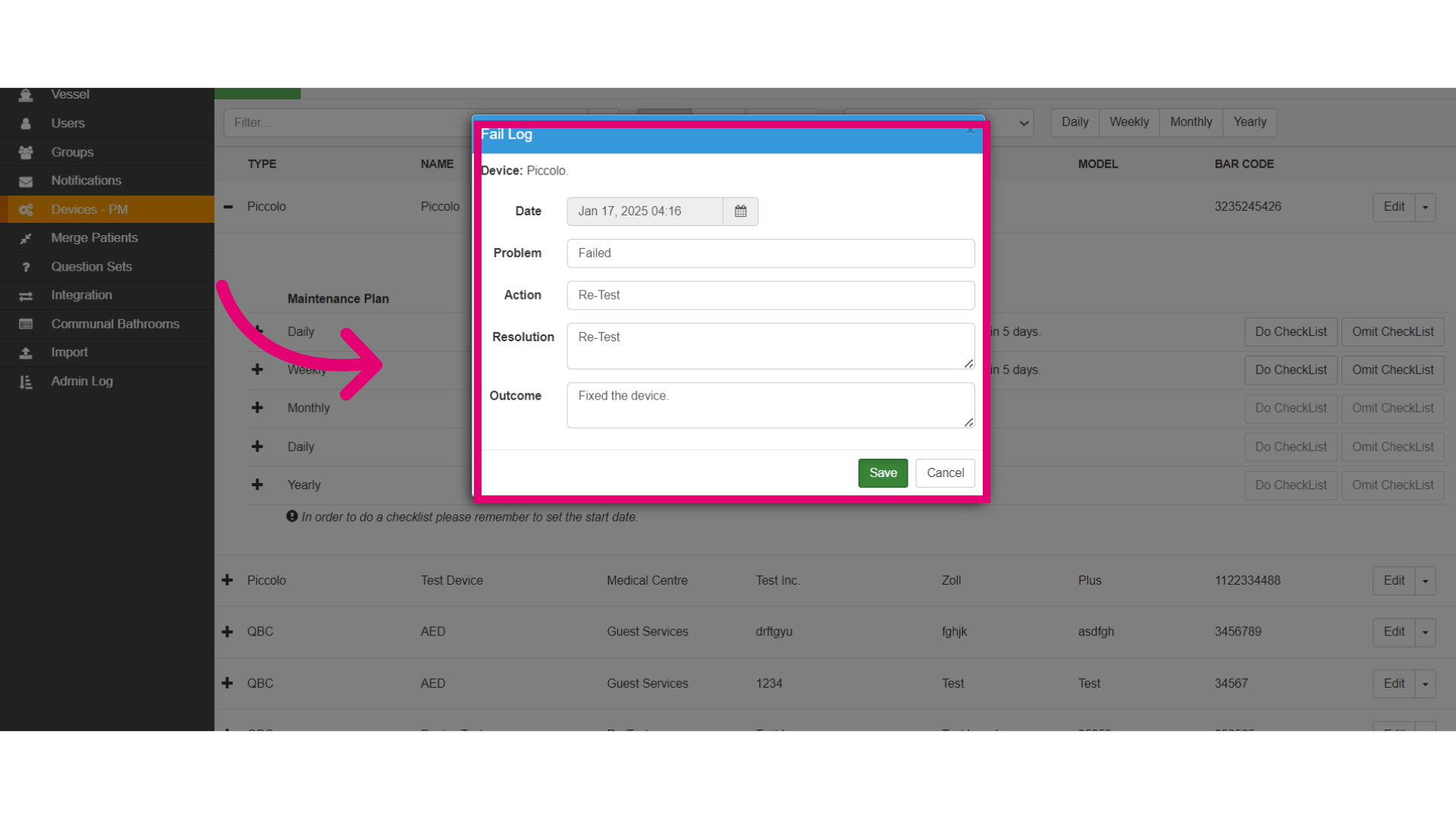
- Then, save your changes.