New article
Recently updated
Re-submit rejected documents in Crew Health

Who is this article for?Users who want to re-submit rejected documents in Crew Health
No elevated permissions are required.
This walkthrough will cover the steps to re-submit a rejected document that includes reviewing the reason for rejection, making corrections, communicating and re-submitting the document for review and approval.
1. Re-submit rejected documents in Crew Health
1.1. Video
1.2. Steps
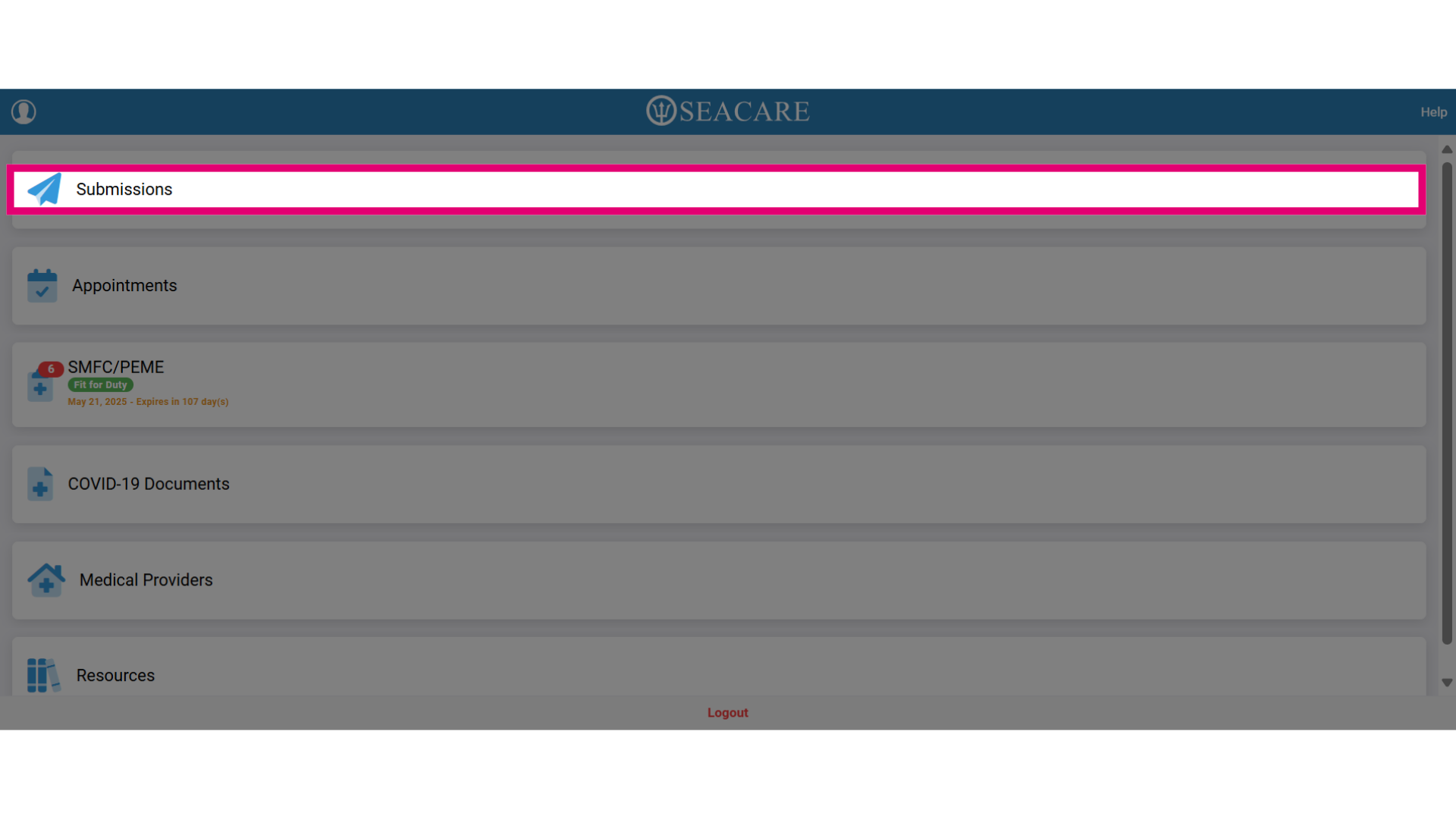
- Select the Submissions tab.
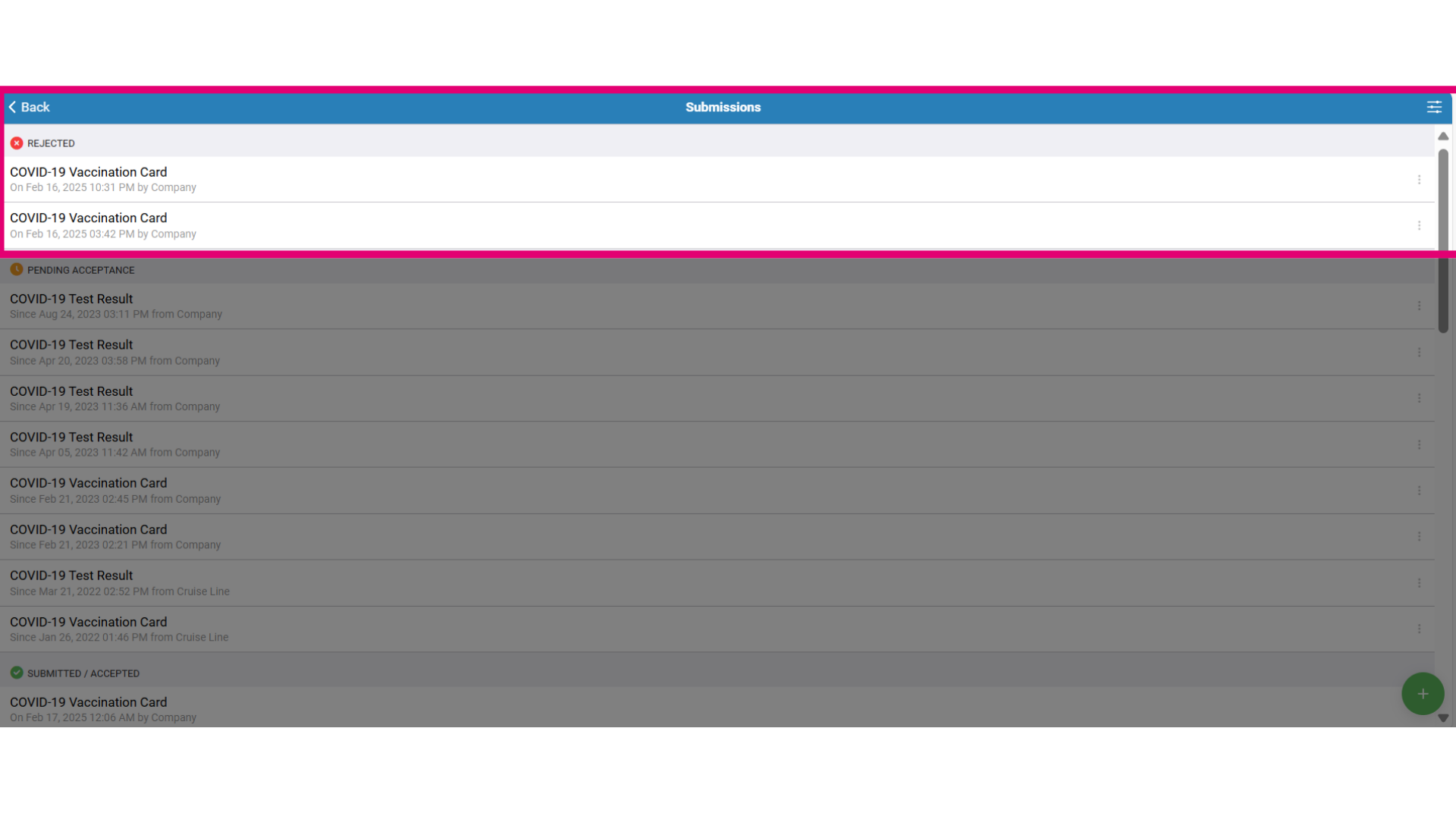
- Select the document under the Rejected section.
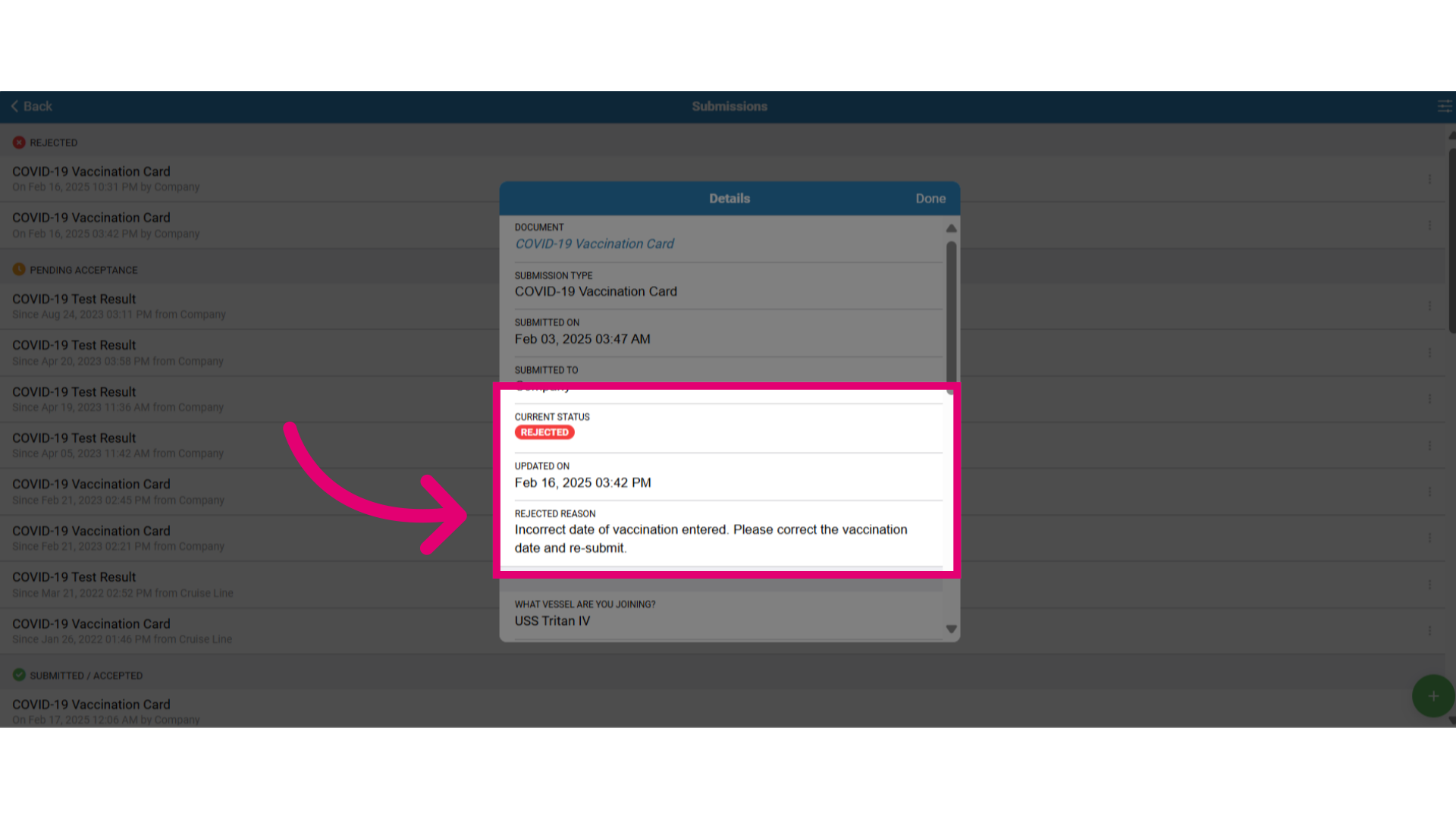
- Click on the document to open the details window to view the rejection reasons and instructions on how to make corrections to submit the document.
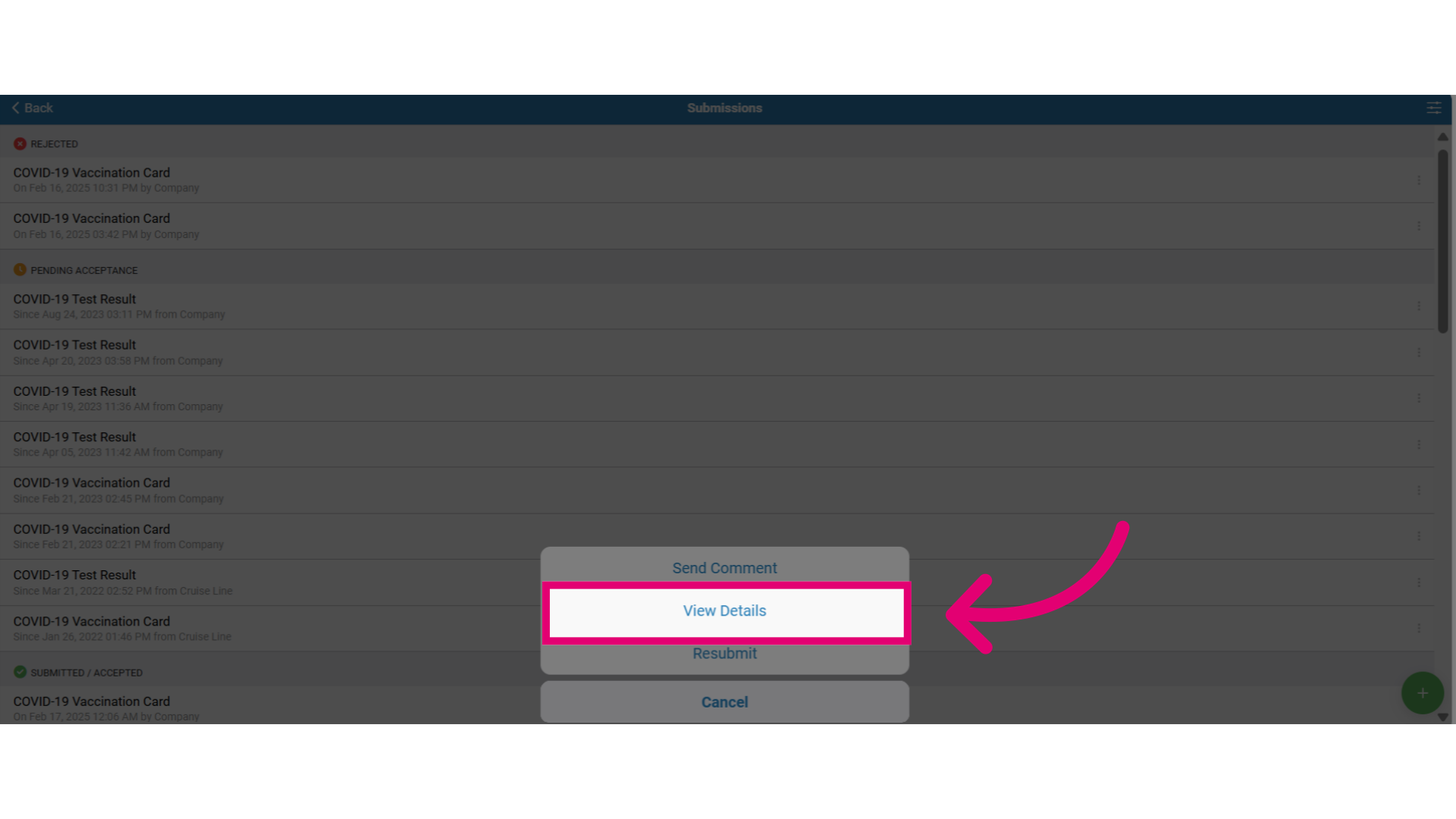
- After opening the details, follow these steps:
- Check the Rejection Reason for feedback from your employer or healthcare provider. Common reasons include missing, expired, or unclear information.
- Review any additional comments in the Comments section.
- Follow the instructions for corrections.
- Click Done to close the window.
- Follow these steps for resubmitting the document:
- Prepare the correct document to resubmit.
- Go to the Submissions tab.
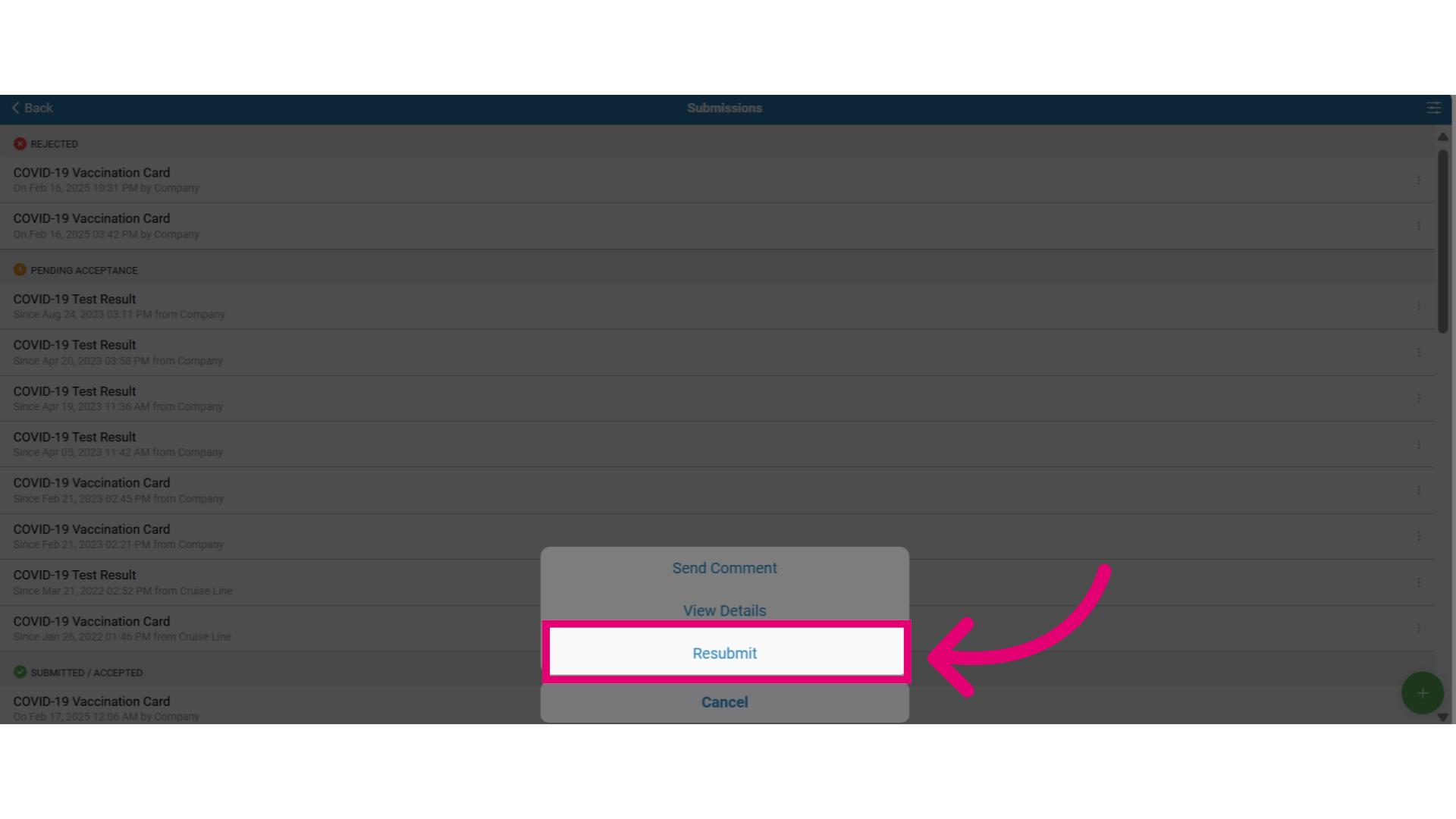
- Under the Rejected status click on the rejected document.
- Select the Resubmit option.
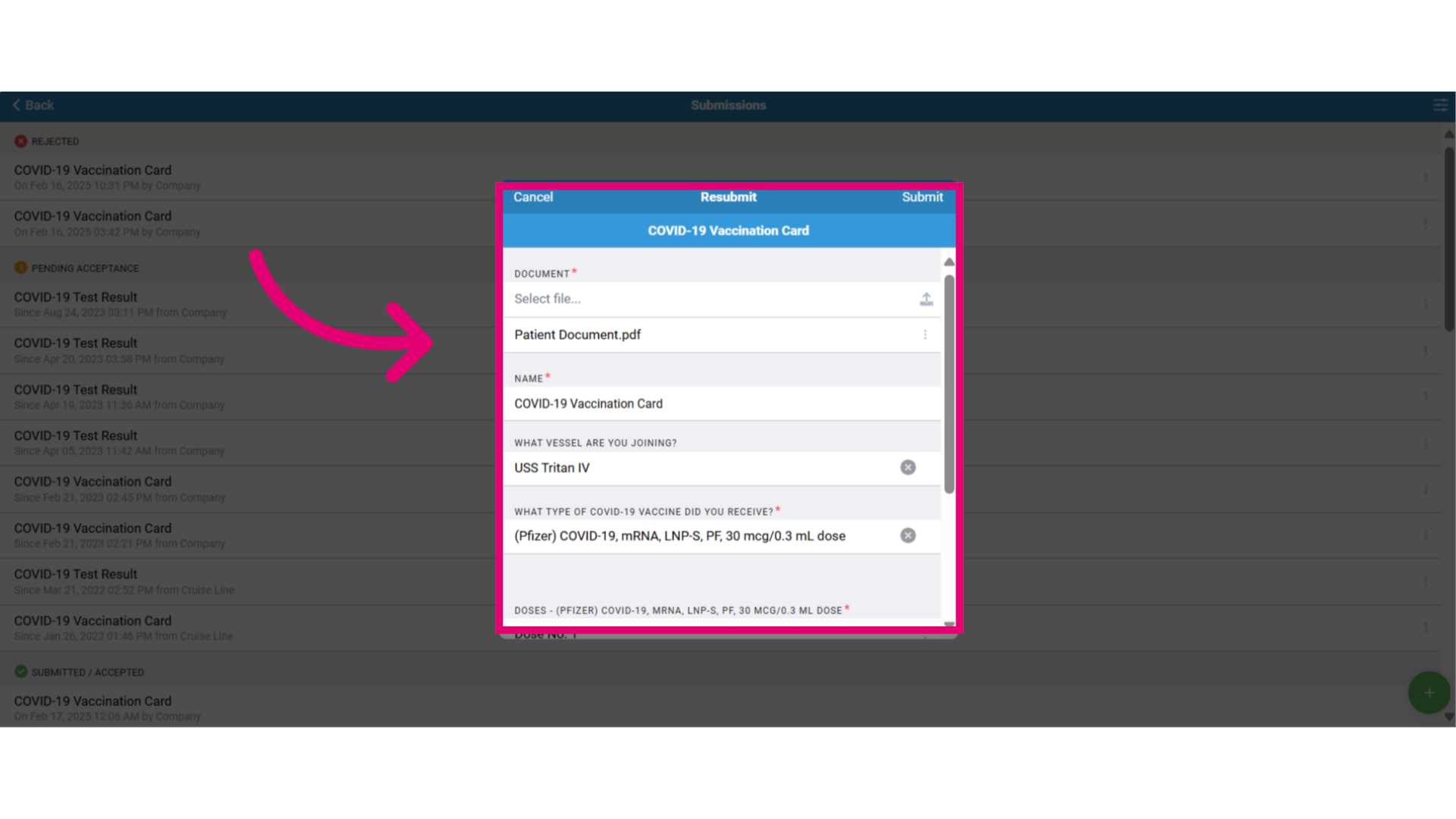
- In the Resubmit window, following these steps:
- Make the necessary updates and corrections by filling in correct information.
- Attach any required or necessary files.
- Select Submit to send it for review.
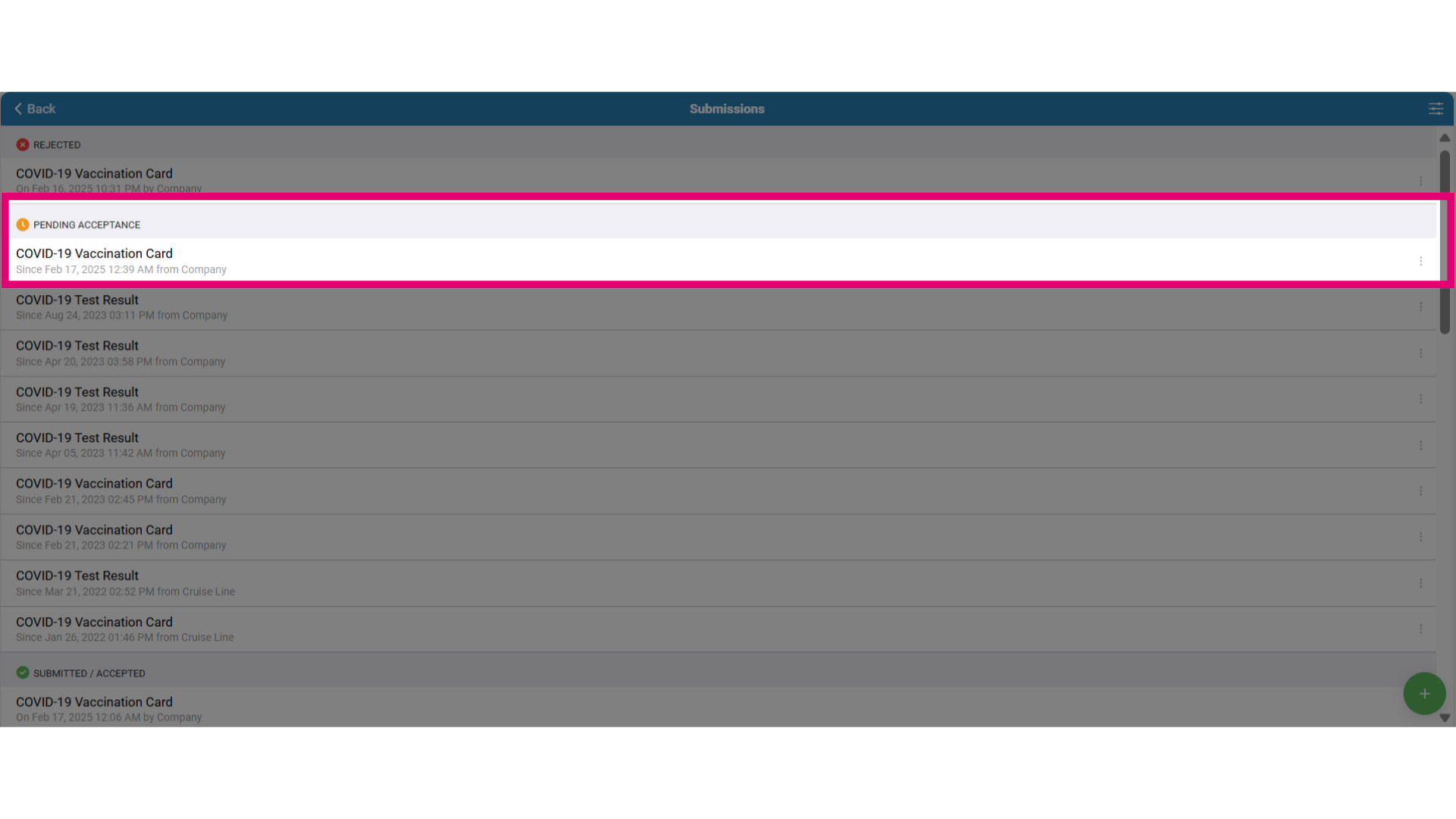
- Monitor submission updates in the Submissions tab, now listed under Pending Acceptance instead of rejected.
- Click on the document to review the submission updates and download the document.
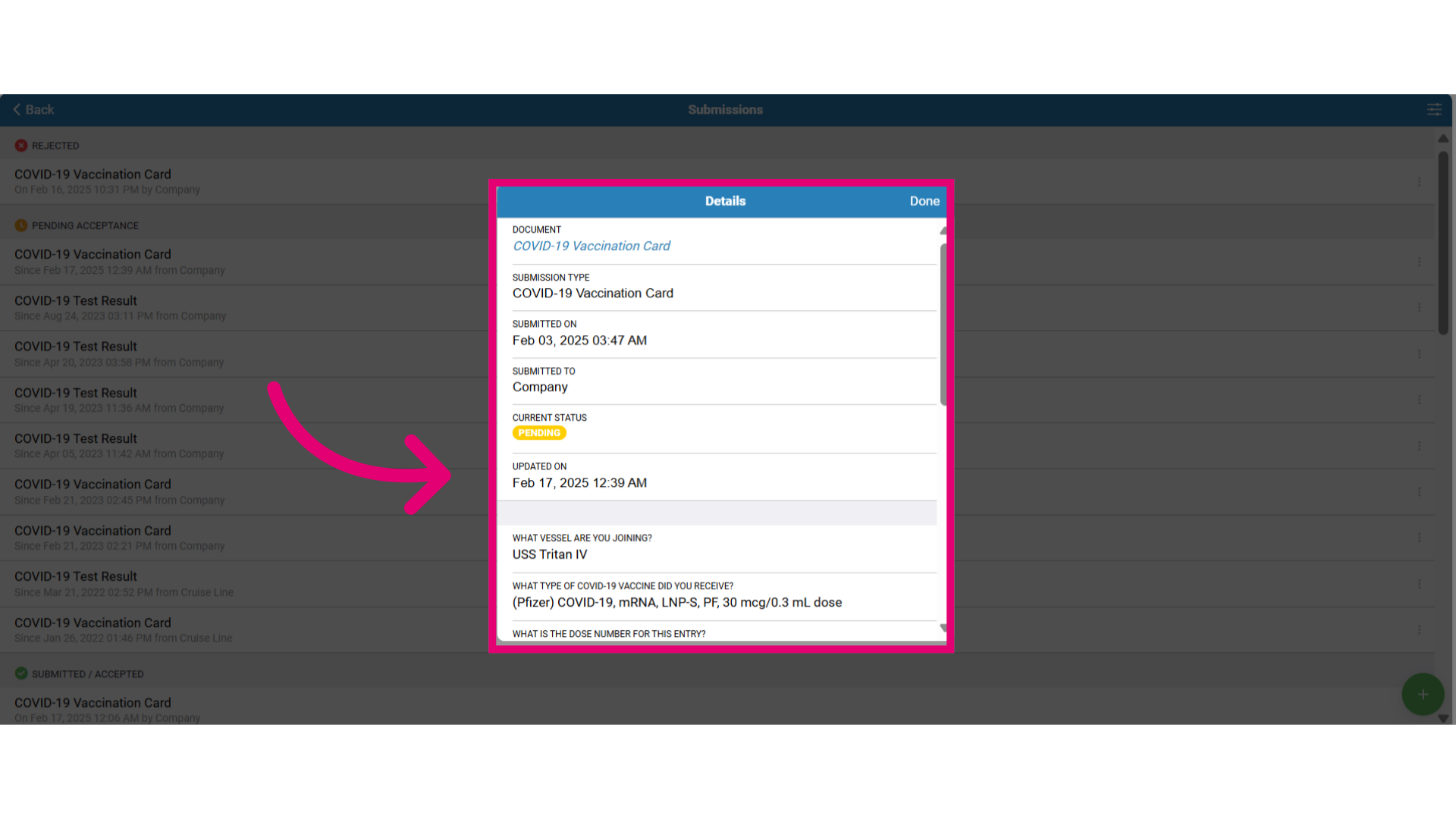
- Scroll down for new comments from the employer or provider regarding additional information or corrections needed for your submission.
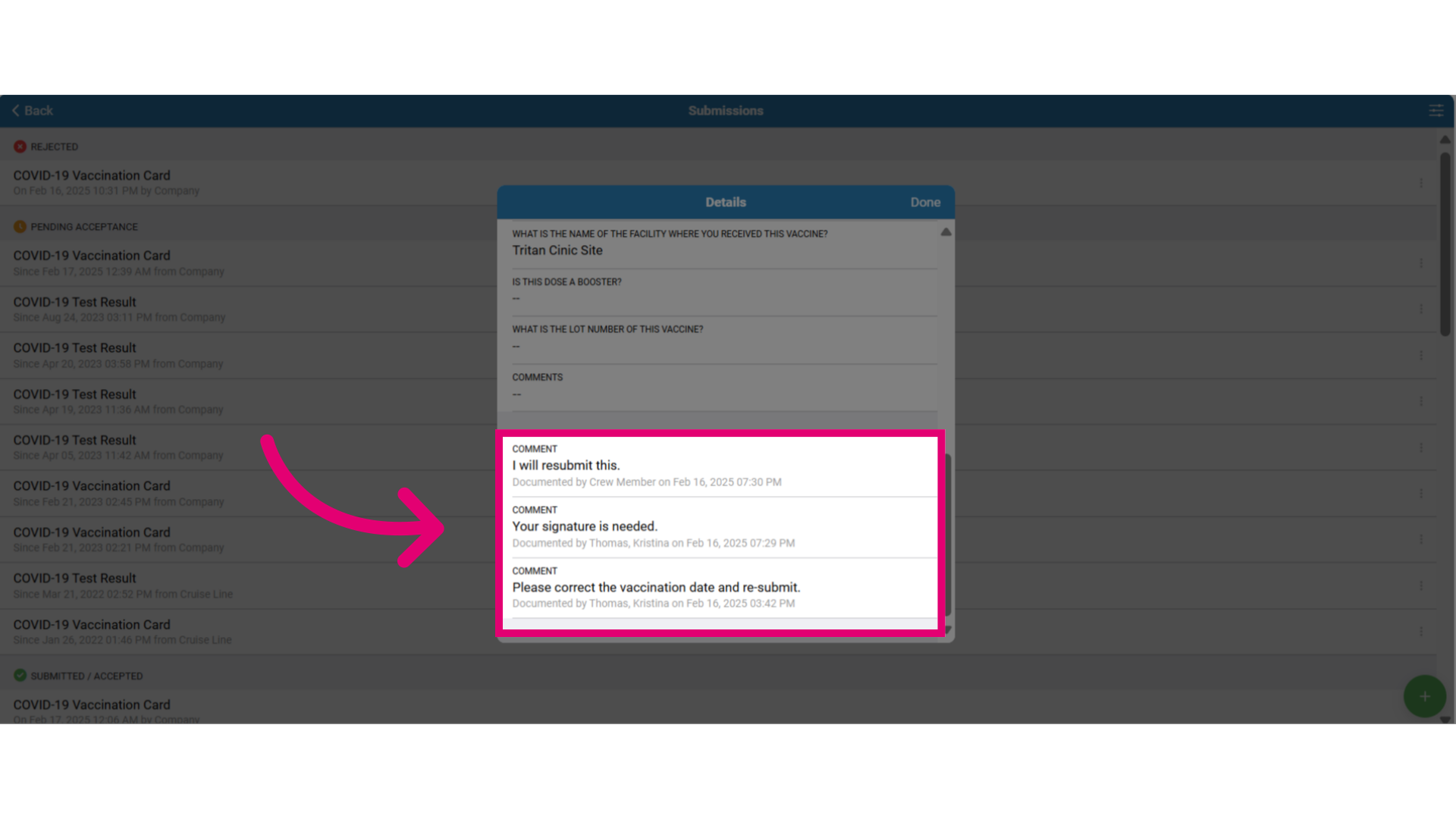
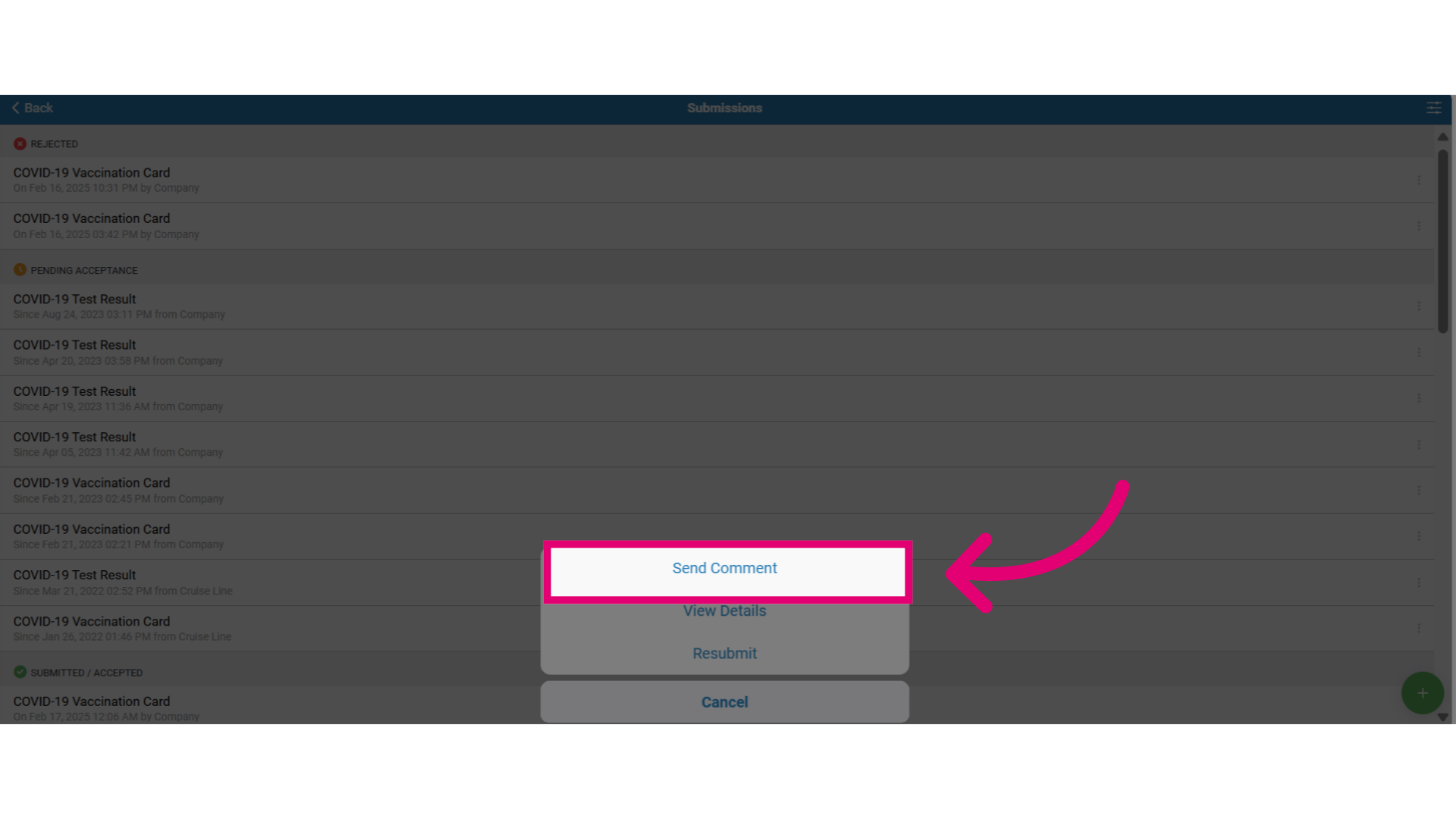
- To respond to a request, clarify, or confirm updates, go to the Submissions tab, select the Actions menu, and click on Send Comment.
- Add your comment in the comment section then select Submit to send it.
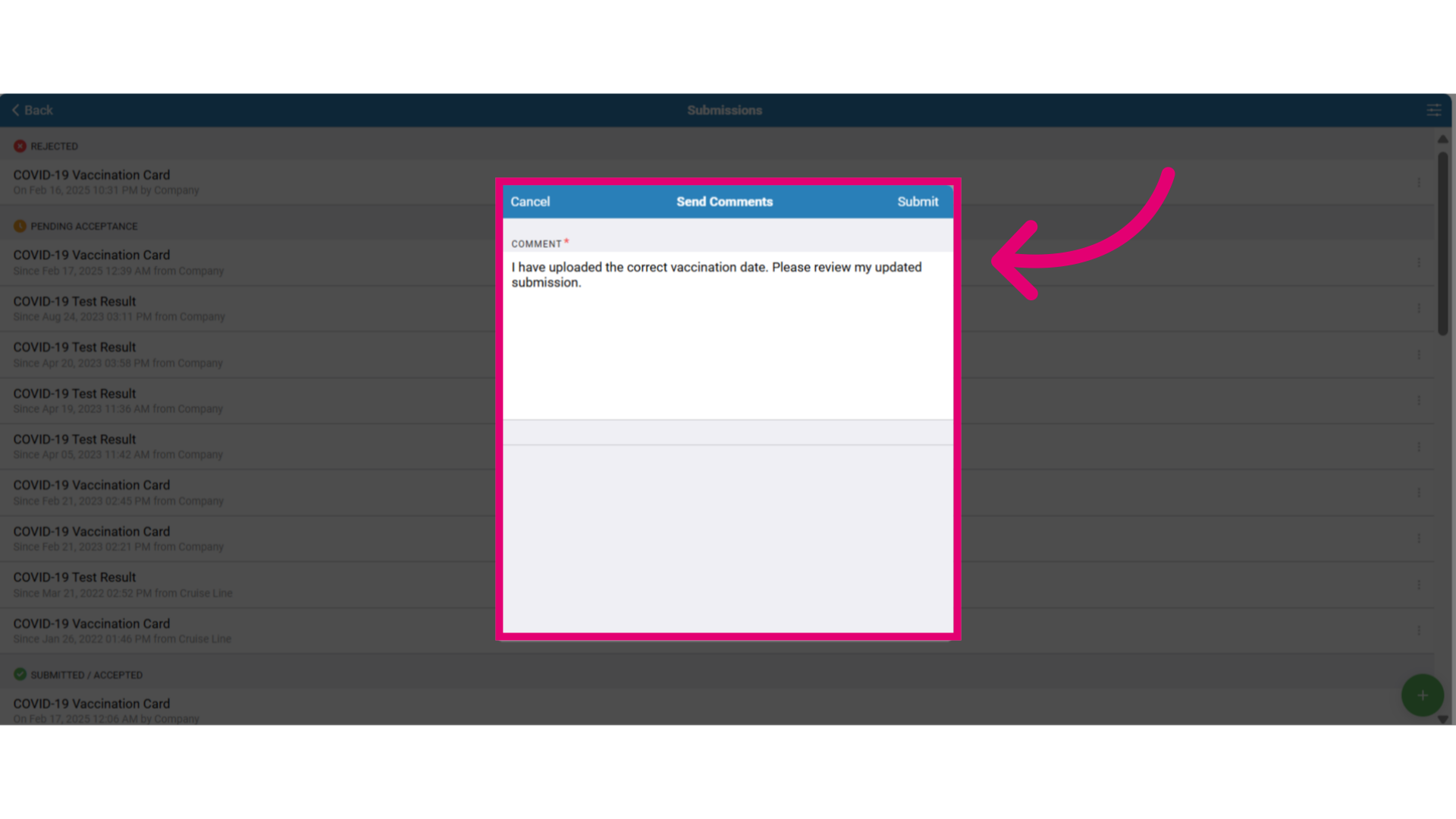
- Monitor your comment updates and responses, as well as any new comments from the employer or healthcare provider in the submission details.
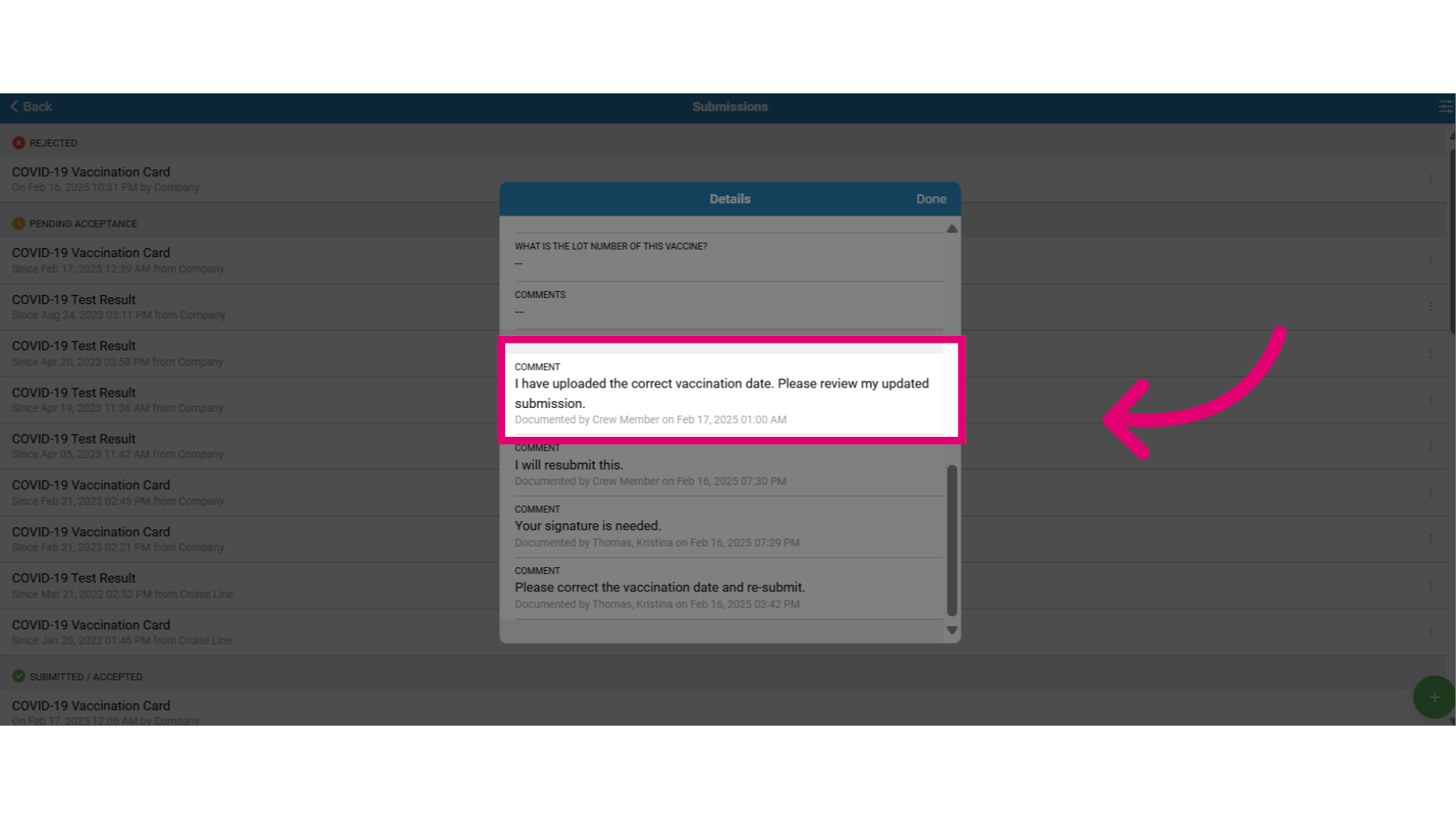
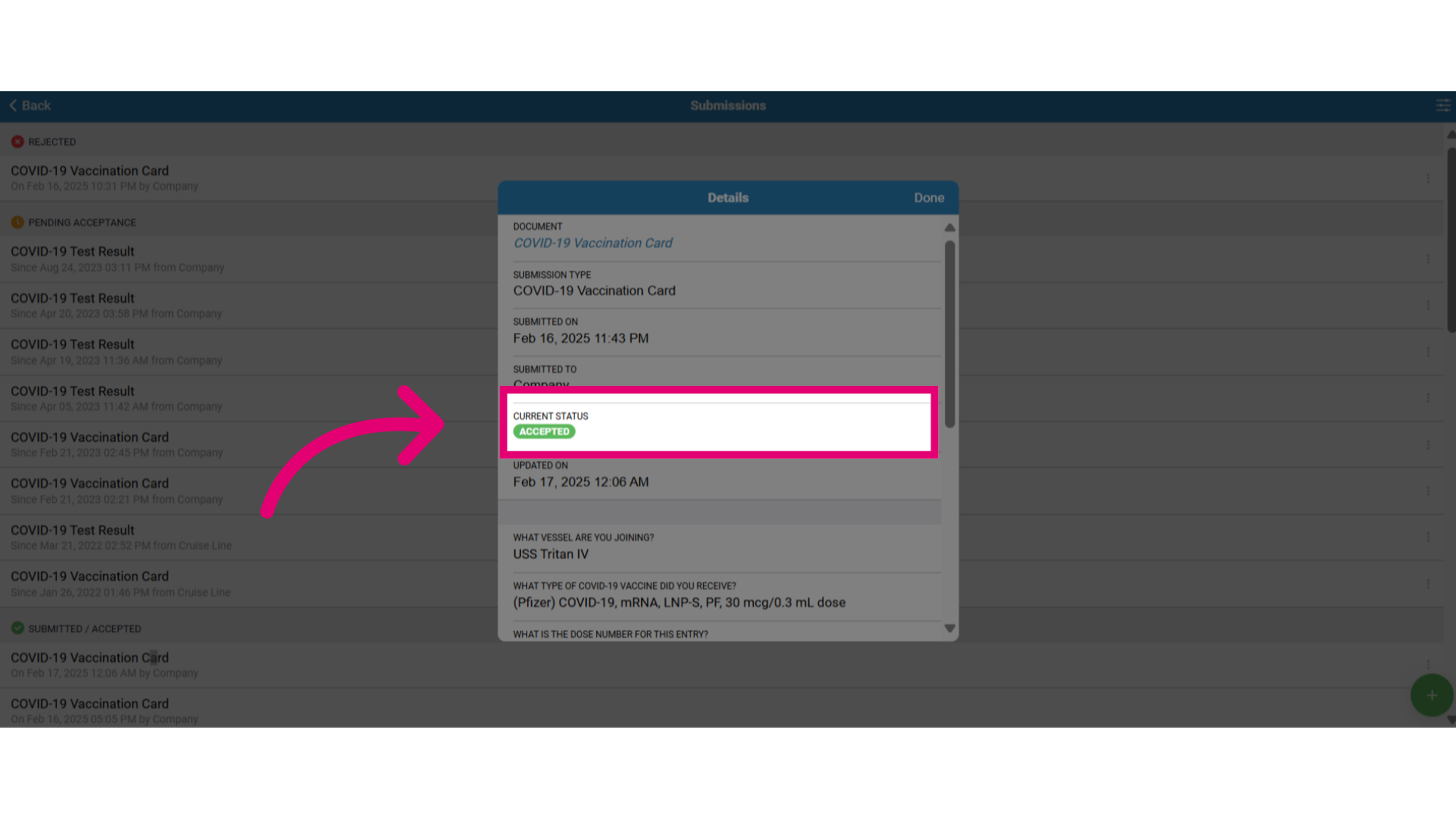
- Monitor document status in the Submissions tab. Once accepted, it will show under the Submitted/Accepted section. Click the document for updated status details.
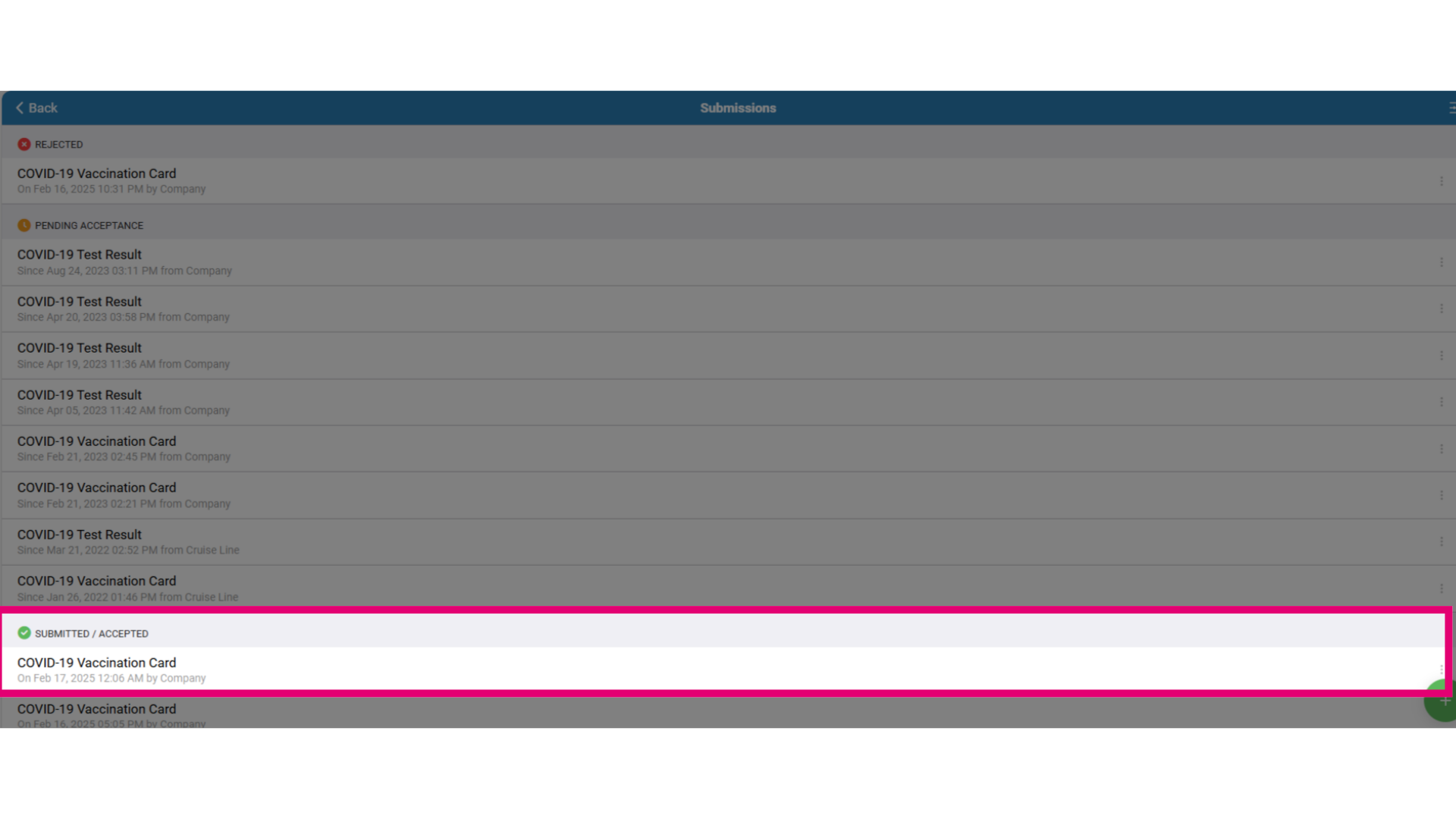
- The acceptance indicates that the document has been saved to your patient chart in the Ideagen Maritime Health Onboard app.