New article
Recently updated
Add and Review New Comments in Crew Health

Who is this article for?Users who want to learn how to add and review comments in Crew Health.
No elevated permissions are required.
This guide will walk you through the process of adding and reviewing new comments in Ideagen Maritime Health Crew Health. This instructions will walk you through how to add comments to your submitted documents, view comments from your employer or healthcare provider related to a document you submitted..
1. Add and Review New Comments in Crew Health
1.1. Video
1.2. Steps
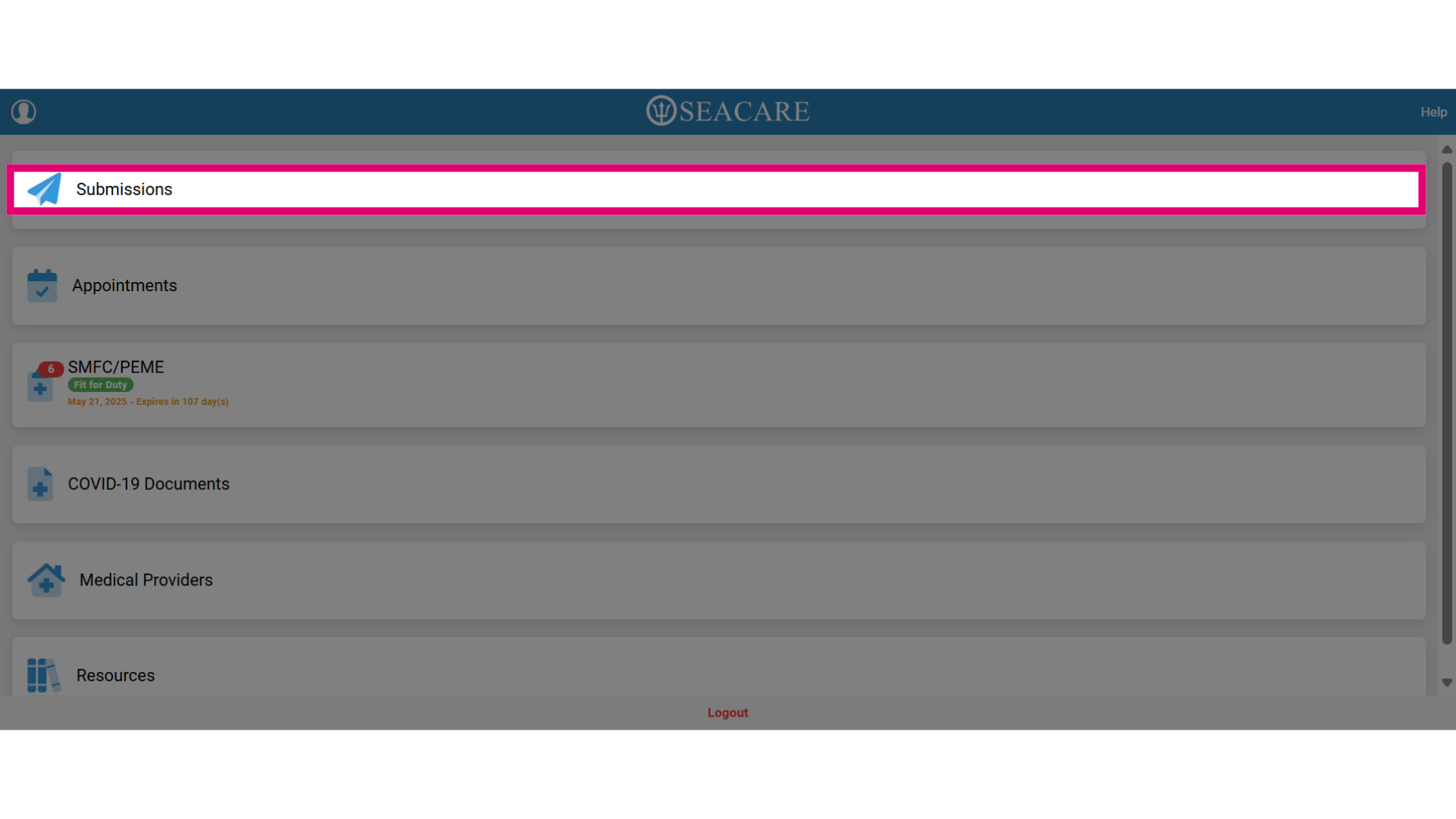
- Select the Submissions tab.
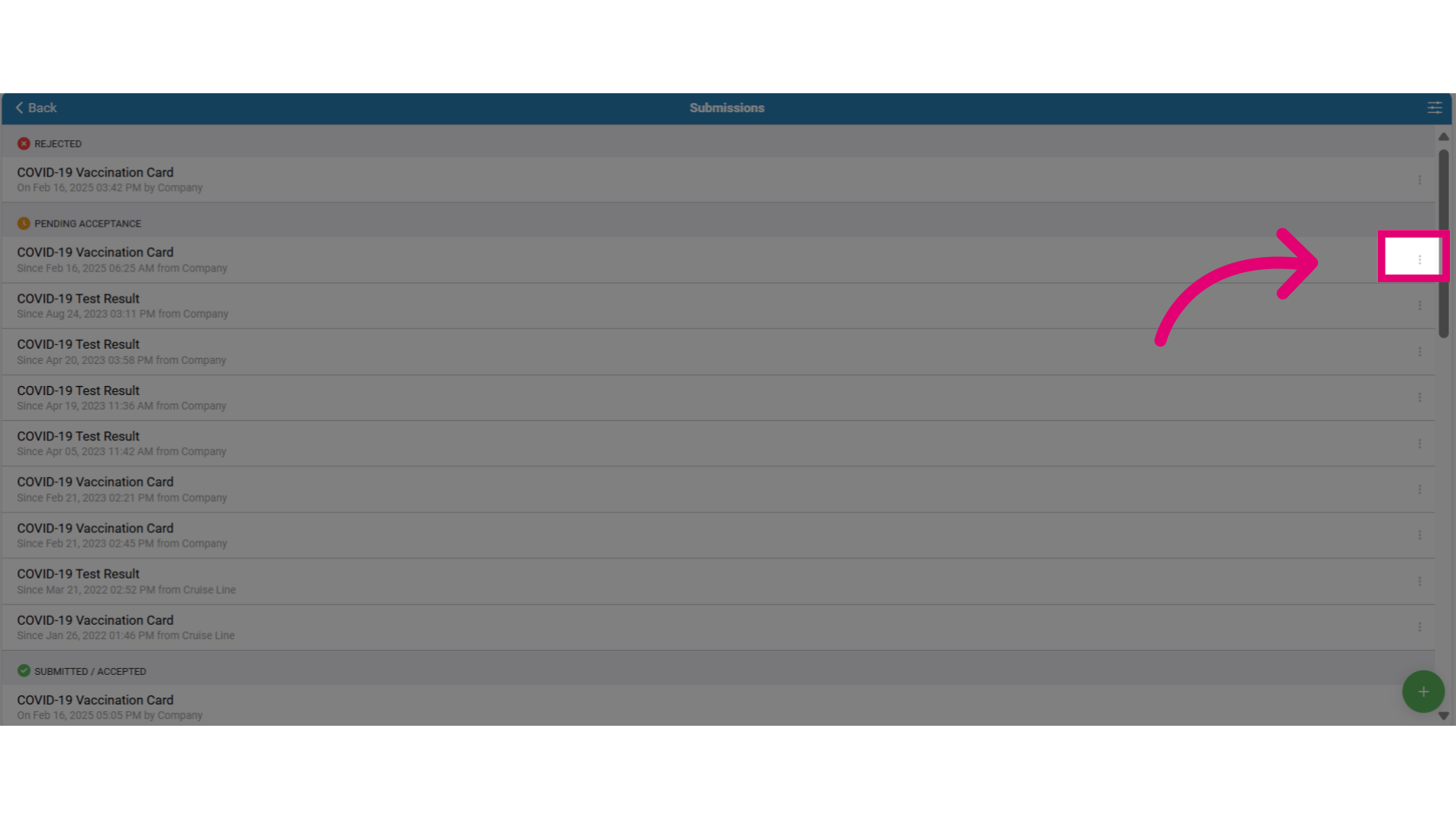
- Select the document Actions button with the three dots to the right of the document.
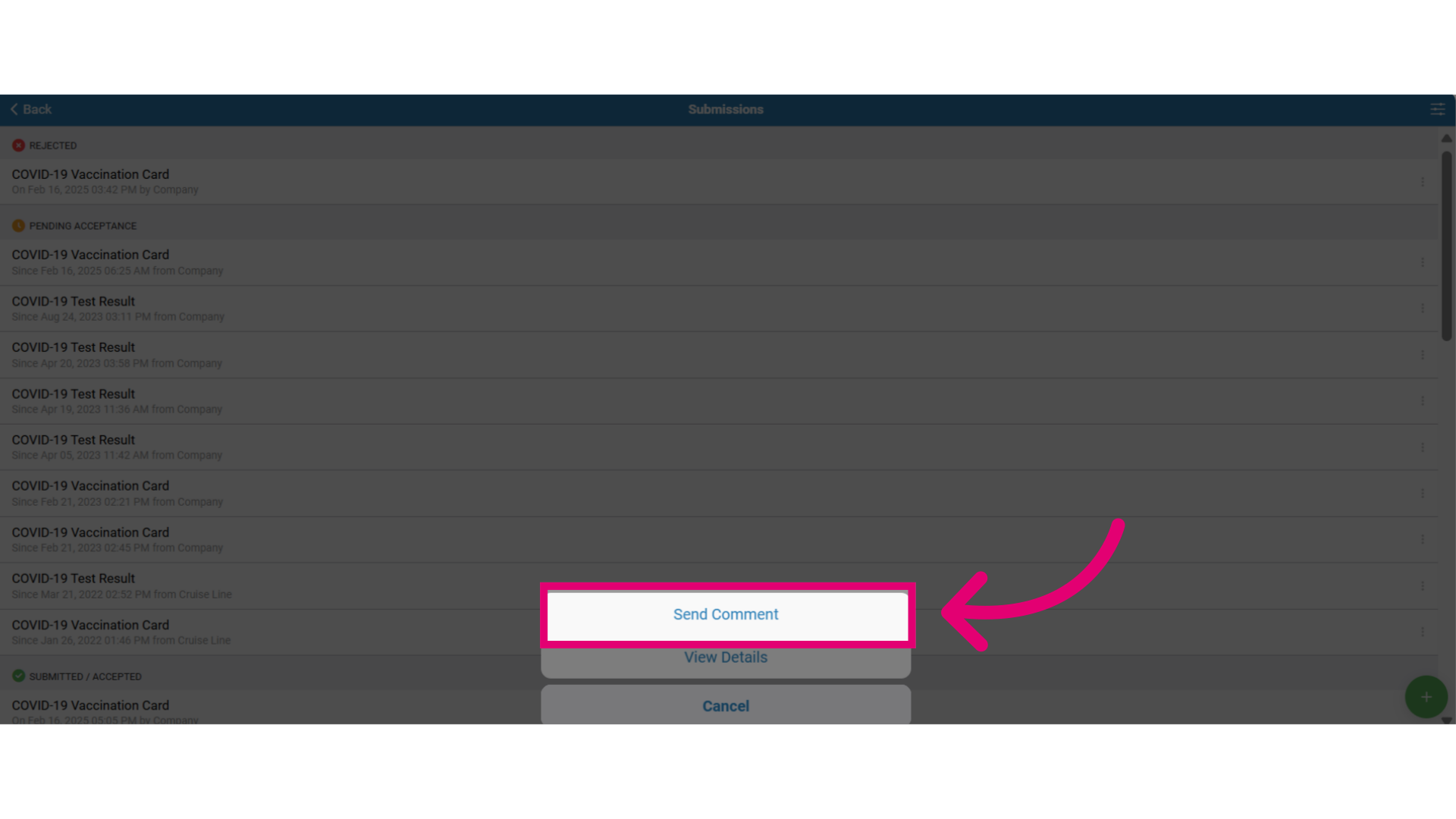
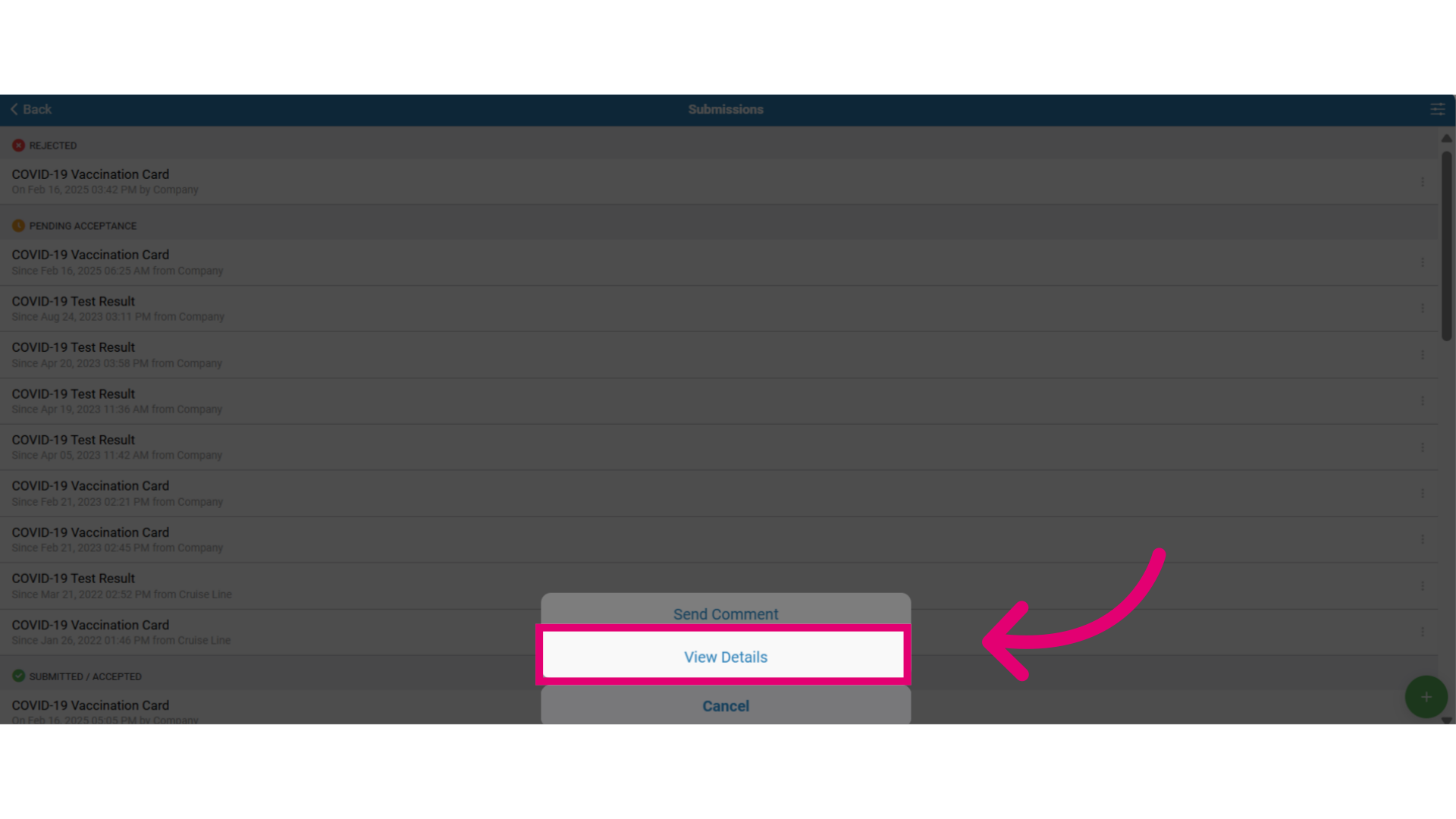
- Then, select the Send Comment option.
- This opens to a text box where you can enter your message to the company or provider regarding your medical documents and here are some suggestions for sending a message:
- To share any updates related to pre-employment documentation.
- Ask questions for clarification about documentation.
- Provide the information that has been requested such as if your documents were rejected or needs clarification.
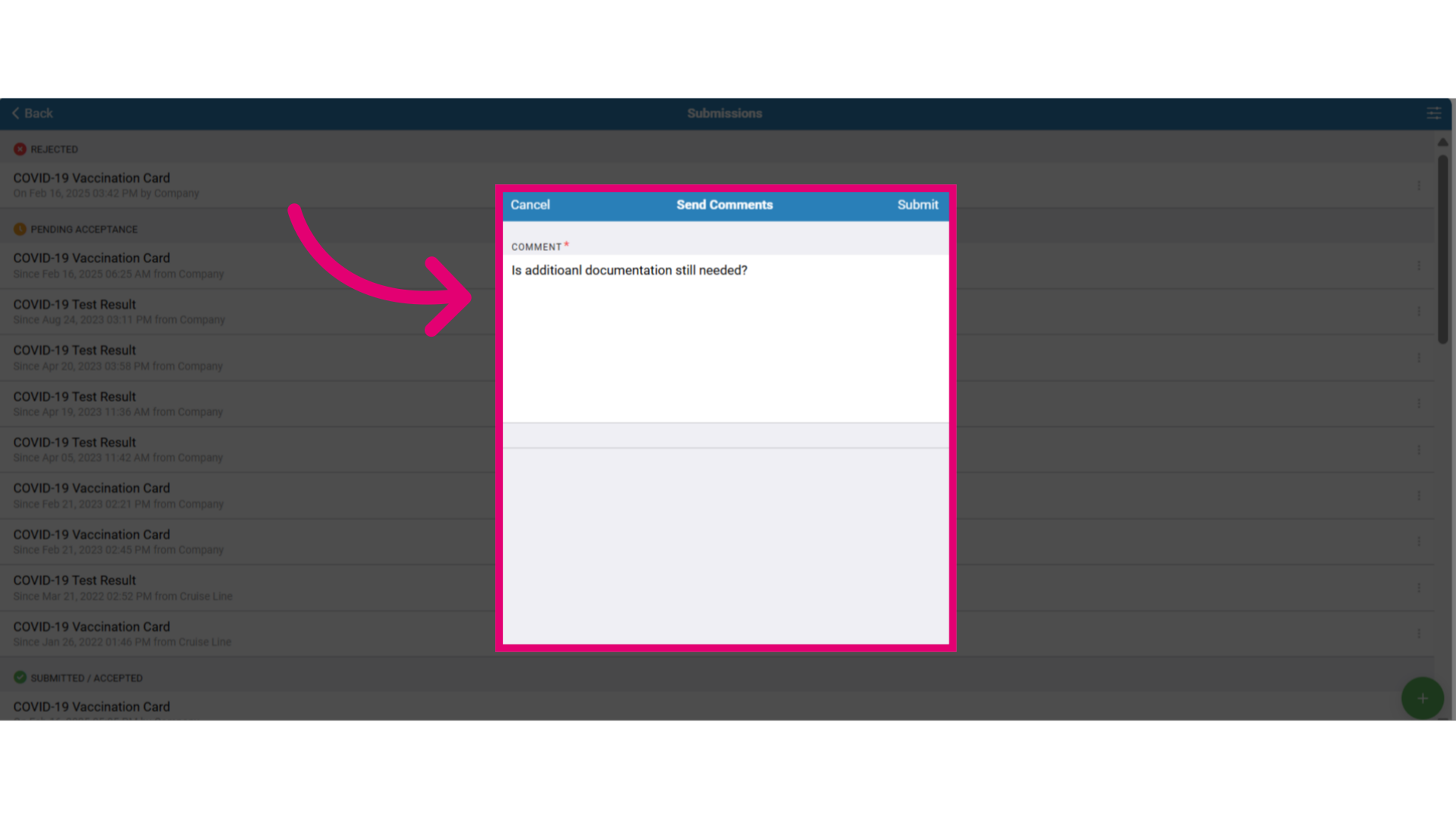
- Select Submit to send your comment for the recipient to read on their end.
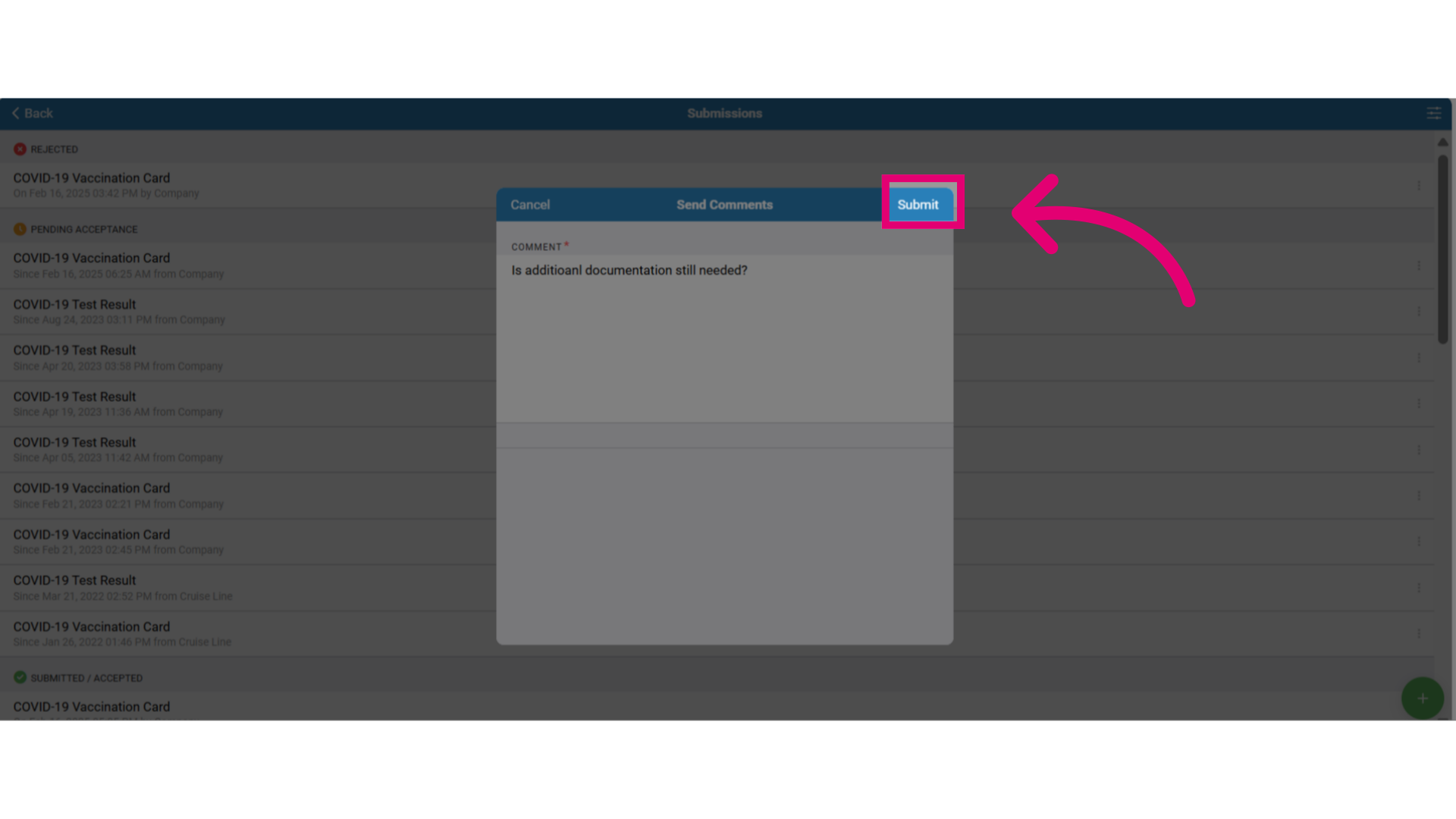
- To check for responses, click on the document in the list again where you made the comment.
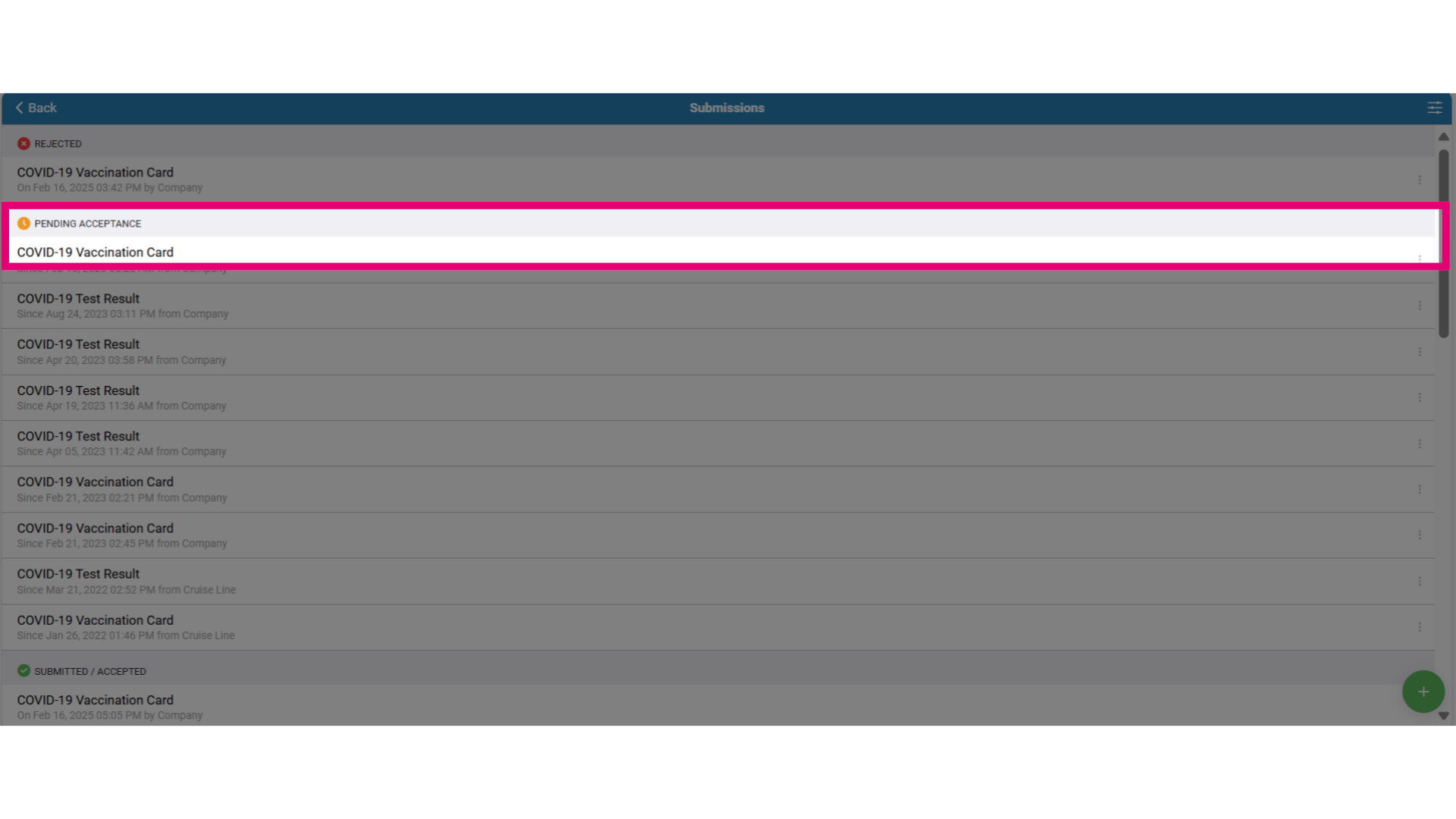
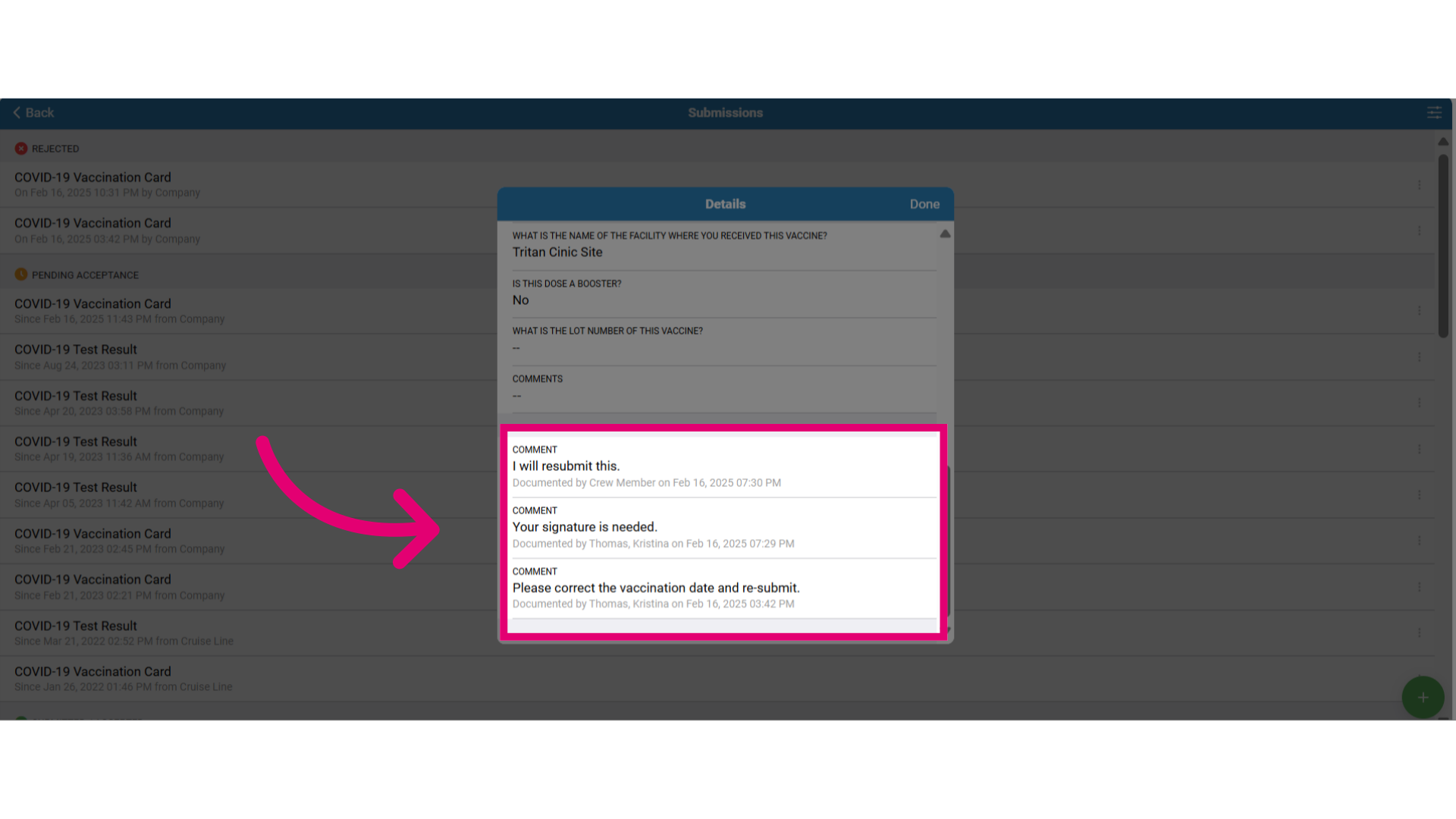
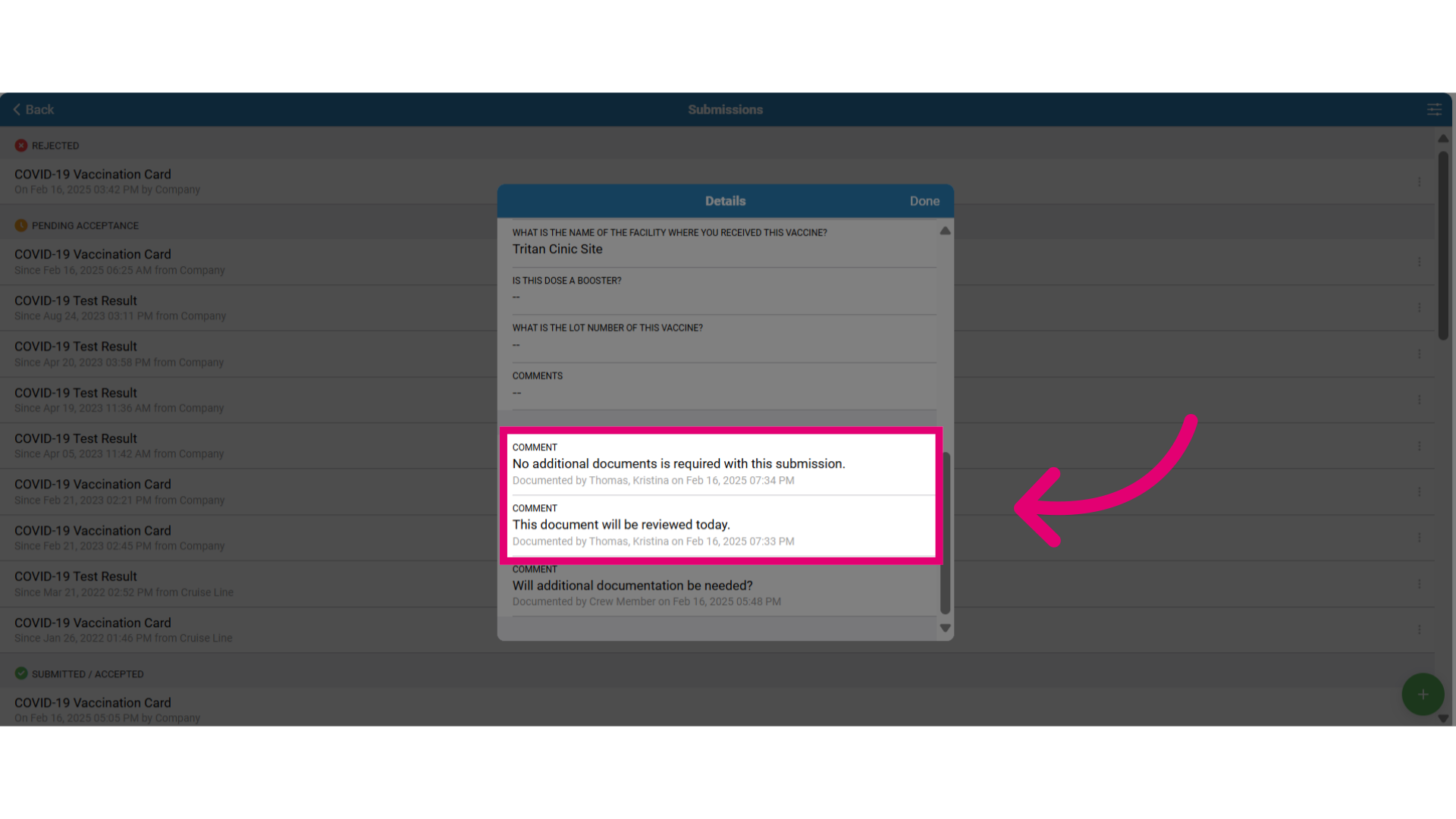
- Scroll towards the bottom of the document submission details to the Comment section where you can view:
- Original comment details
- Who documented the comment
- Date
- Timestamp
- Responses
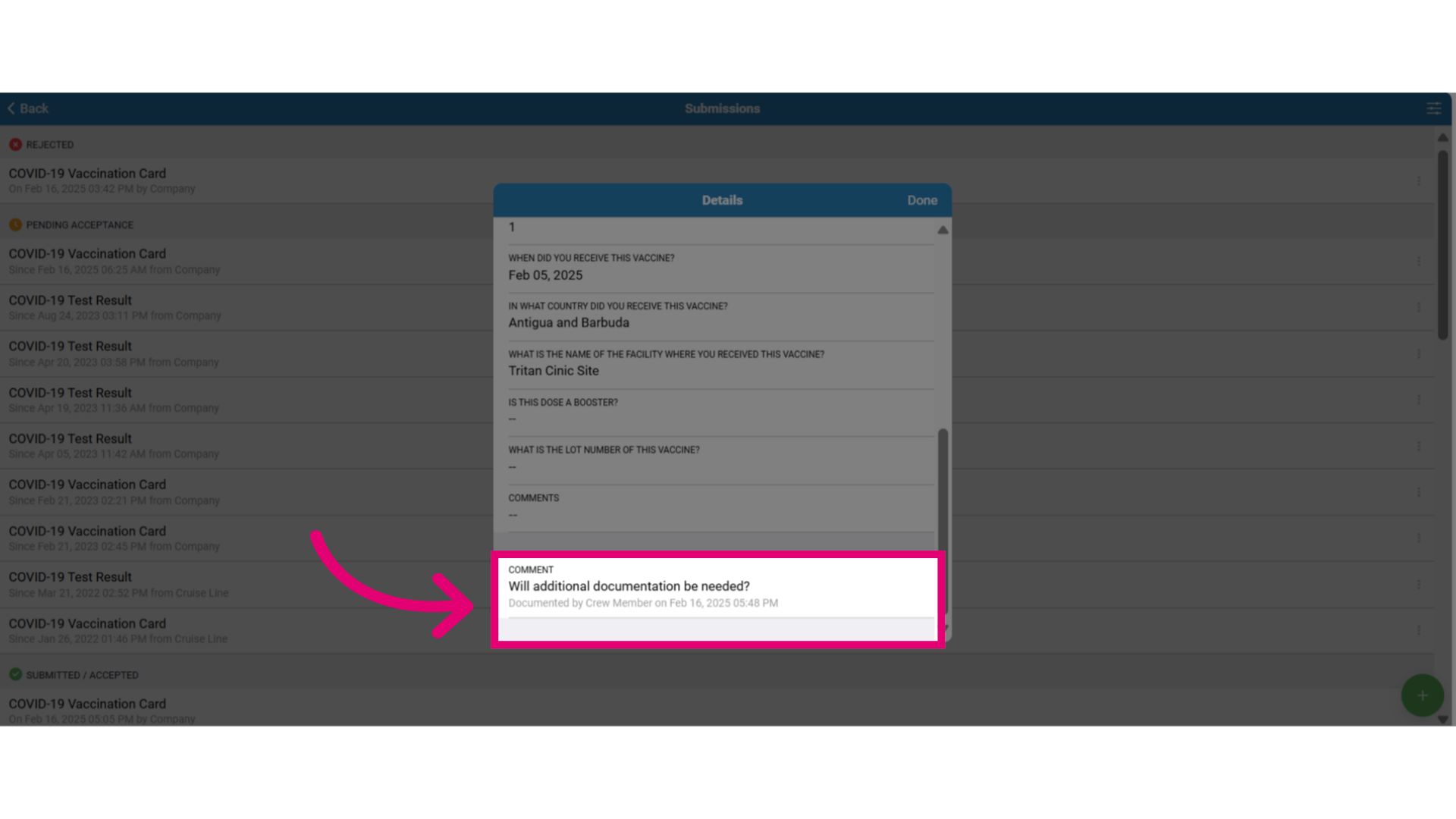
- Tracks all comments from you and the recipient on the document, including those made by the recipient without your input, along with details like the author and posting date.
- You can also view comments and document details by selecting the View Details section from the actions menu.
- For rejected documents, you may view any pending comments about the rejection by clicking on the document to open it.
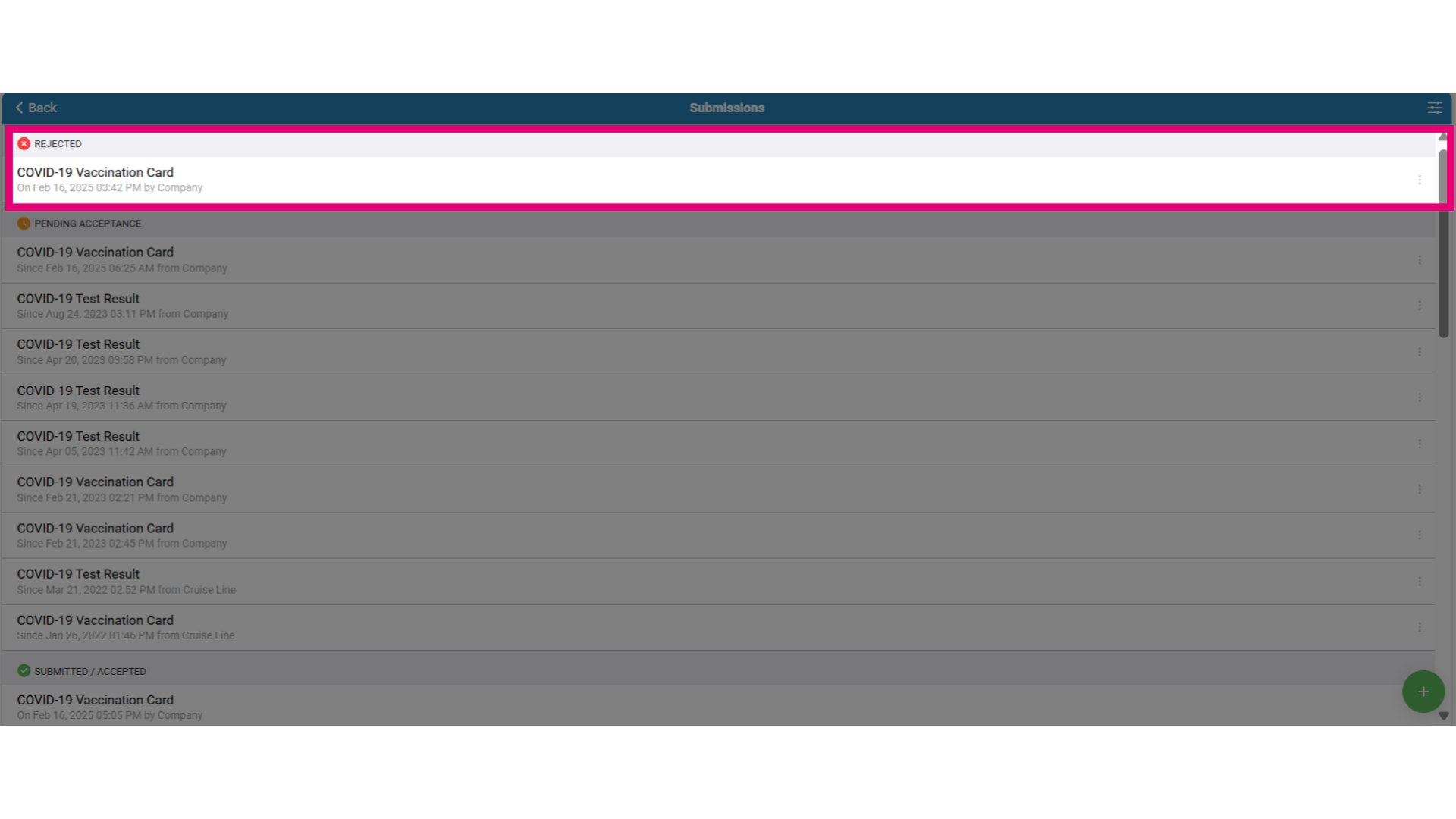
- Review the comments made about the document and requests you must take to make corrections and re-submit the document.