New article
Recently updated
Scheduling Appointments in Crew Health

Who is this article for?
Users who want to learn how to schedule appointments in the Crew Health portal.
No elevated permissions are required.
This guide explains how to schedule and manage medical appointments via the Crew Health portal. It covers booking pre-employment exams, COVID-19 tests, and vaccinations. Follow these steps to find a provider and make an appointment.
1. Scheduling Appointments
1.1. Video
1.2. Steps
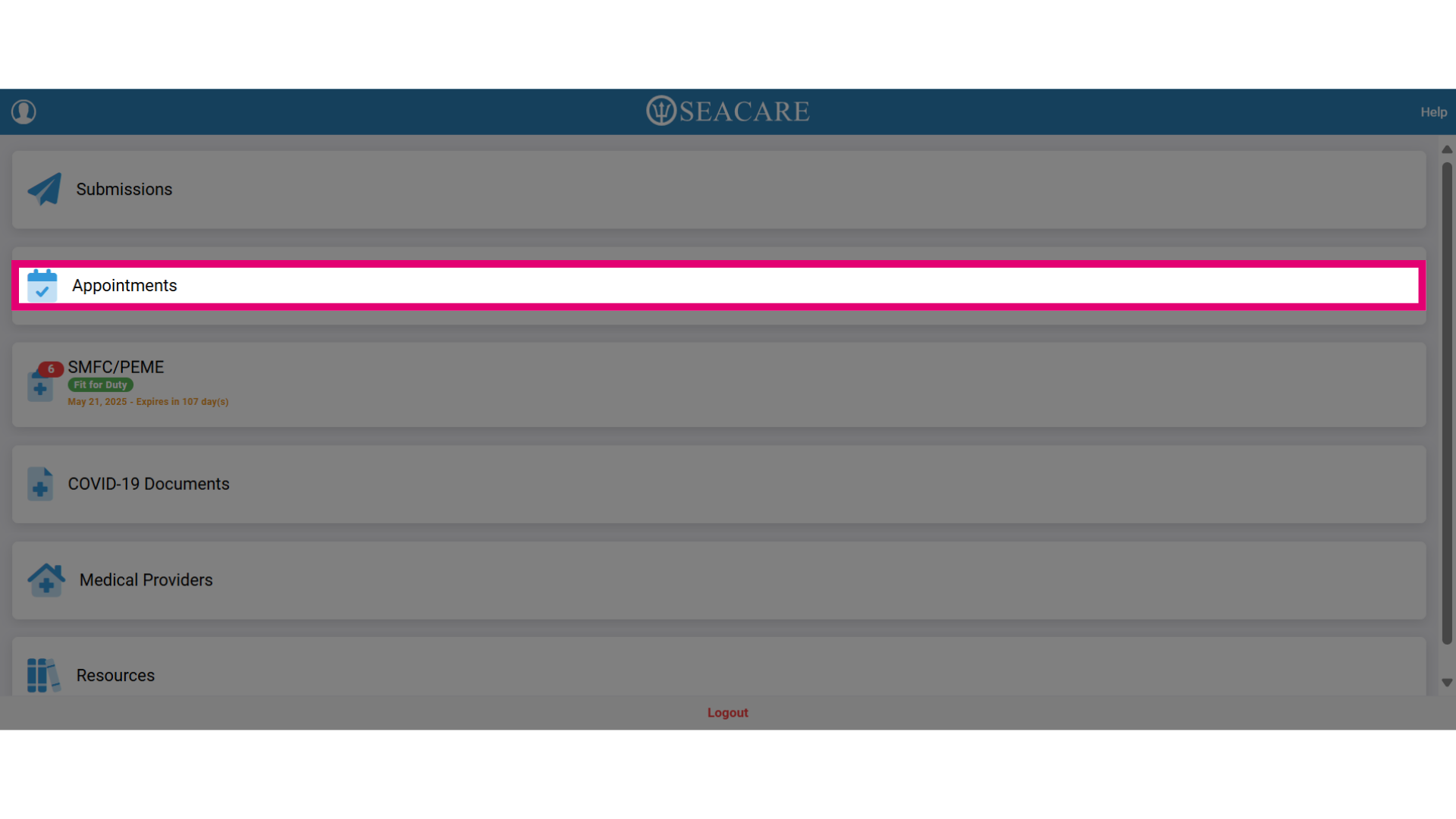
- Select the Appointments tab.
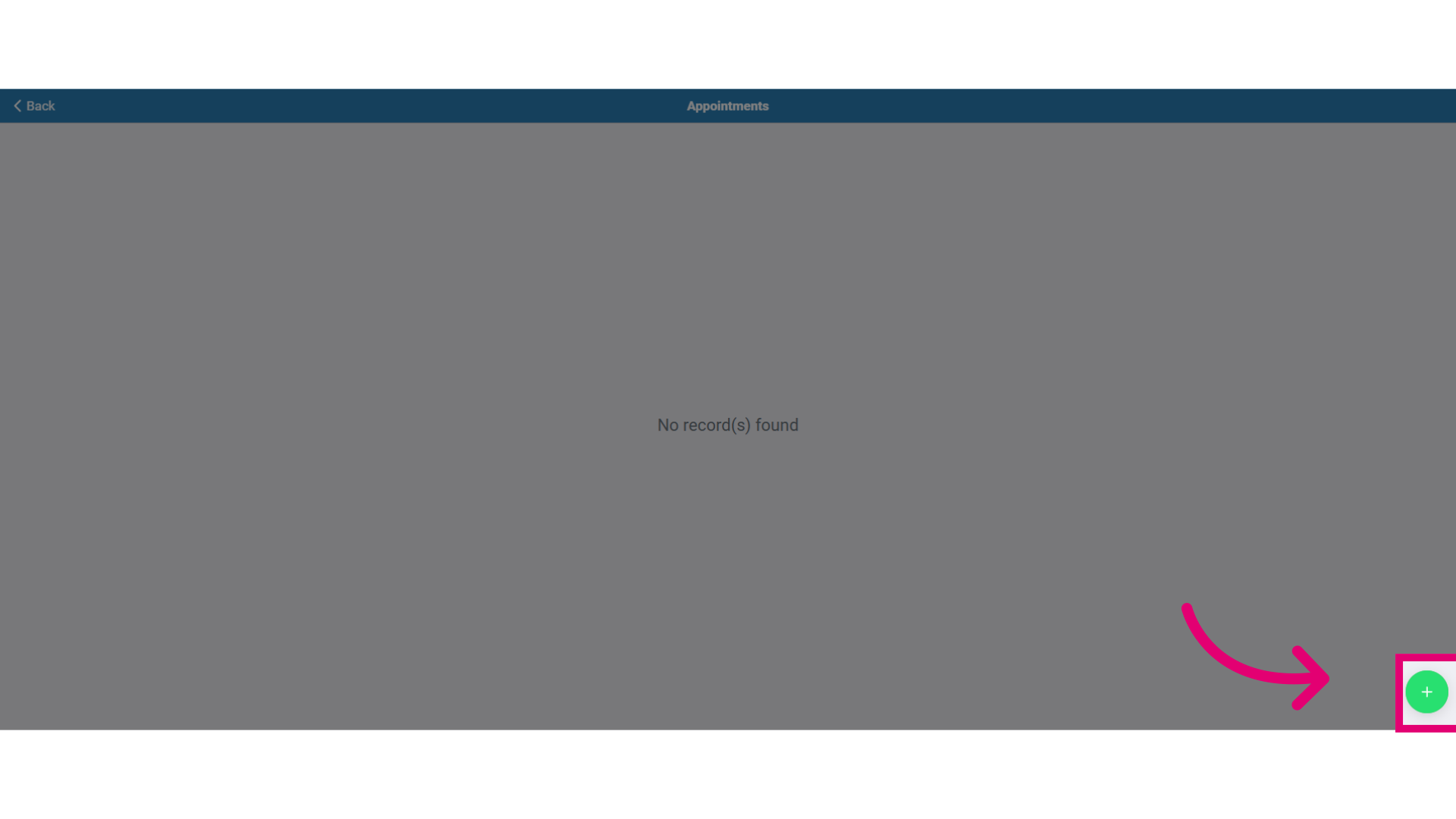
- Select the green plus(+) button to add a new appointment.
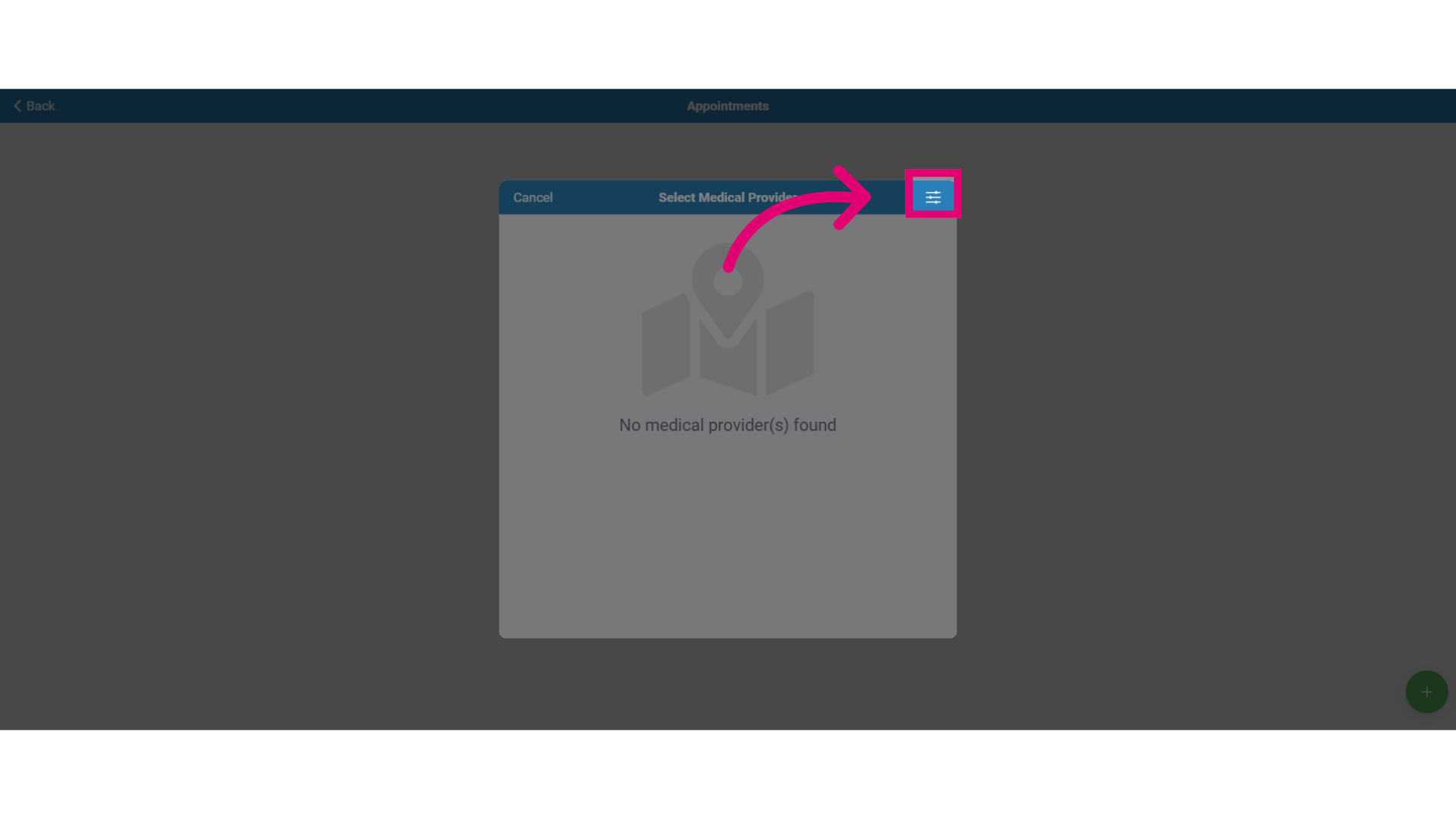
- Click on the Filter button to search for medical providers by location.
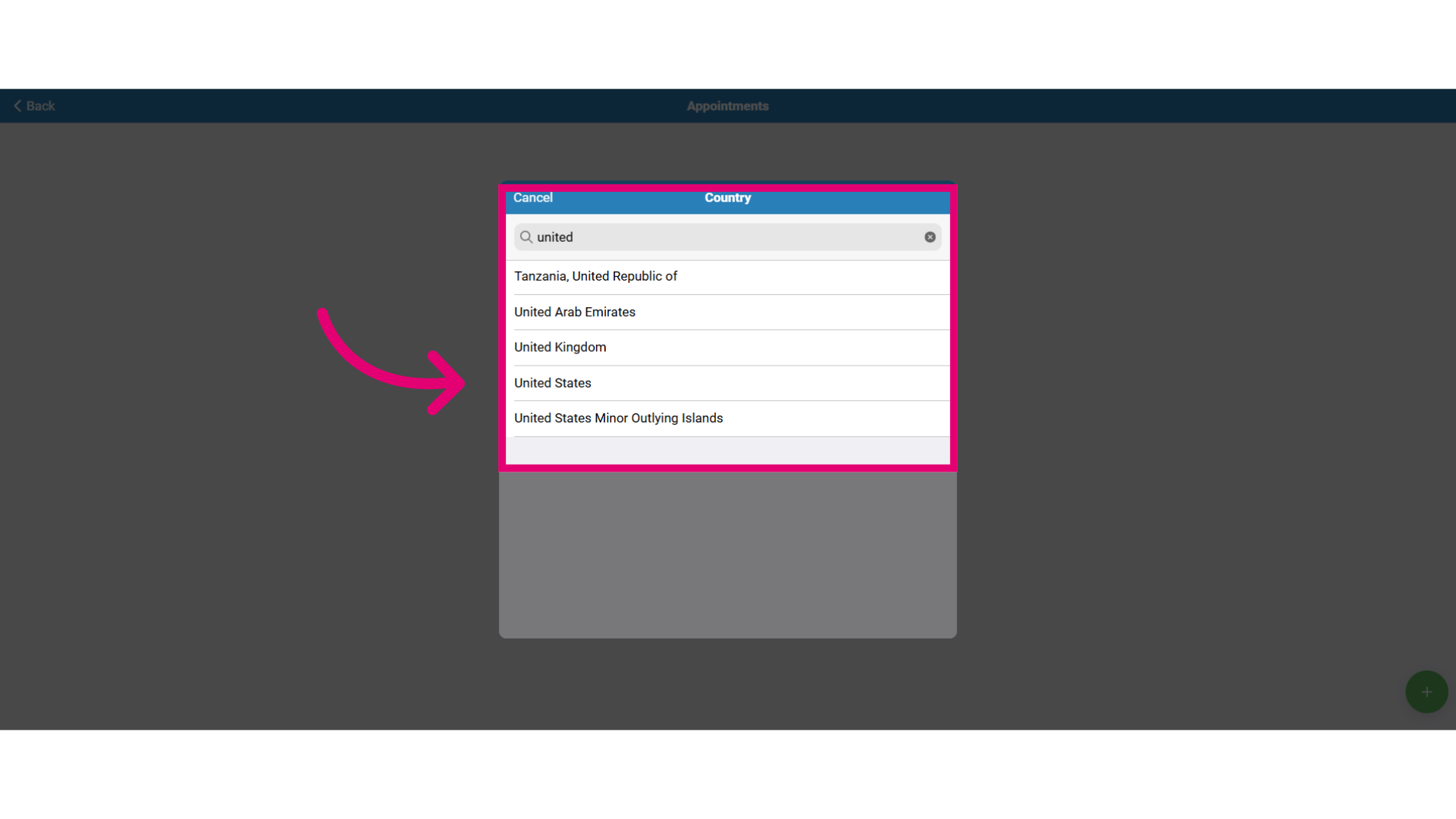
- Type in the country name where you want to schedule your appointment.
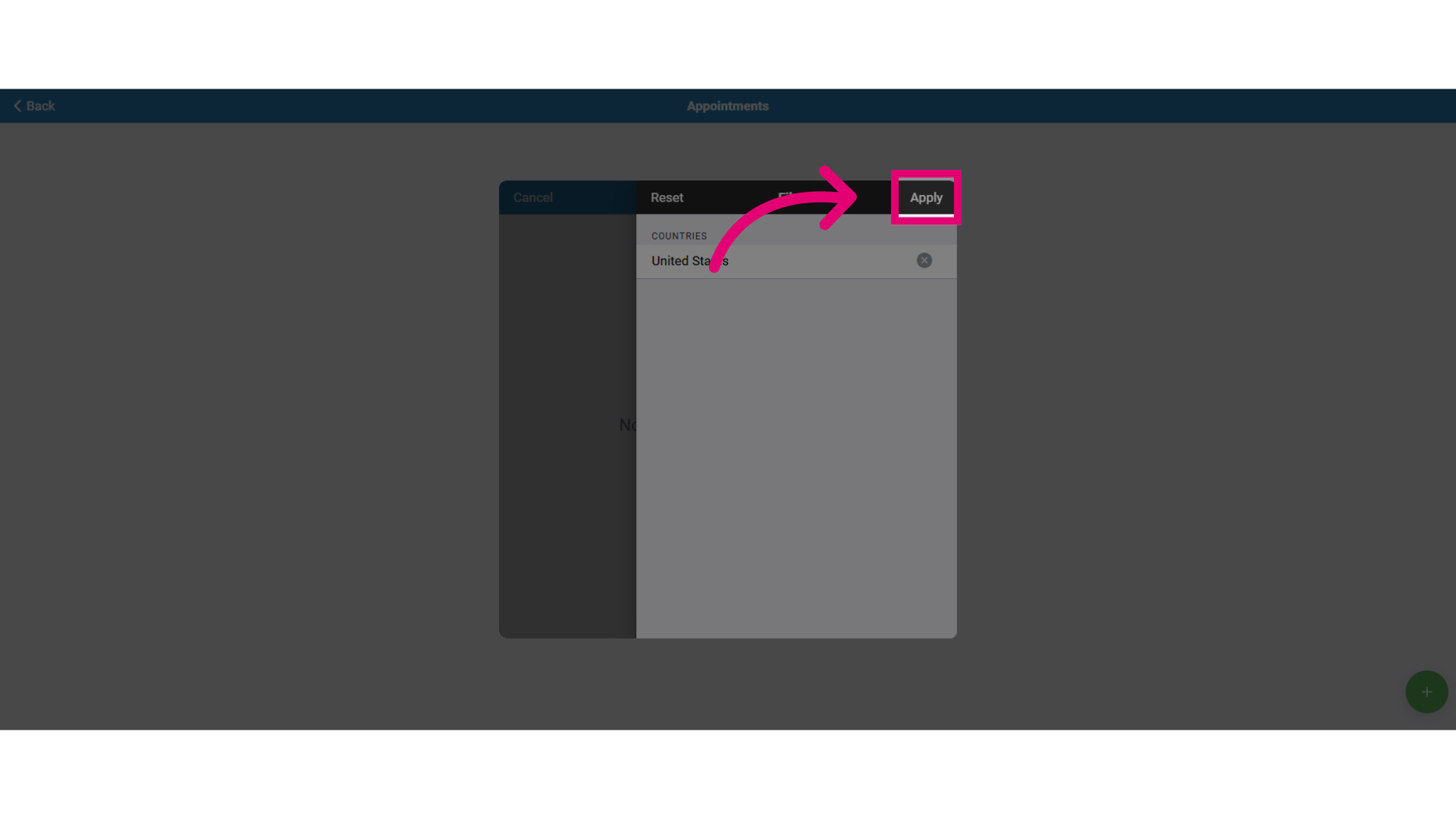
- Then, click Apply.
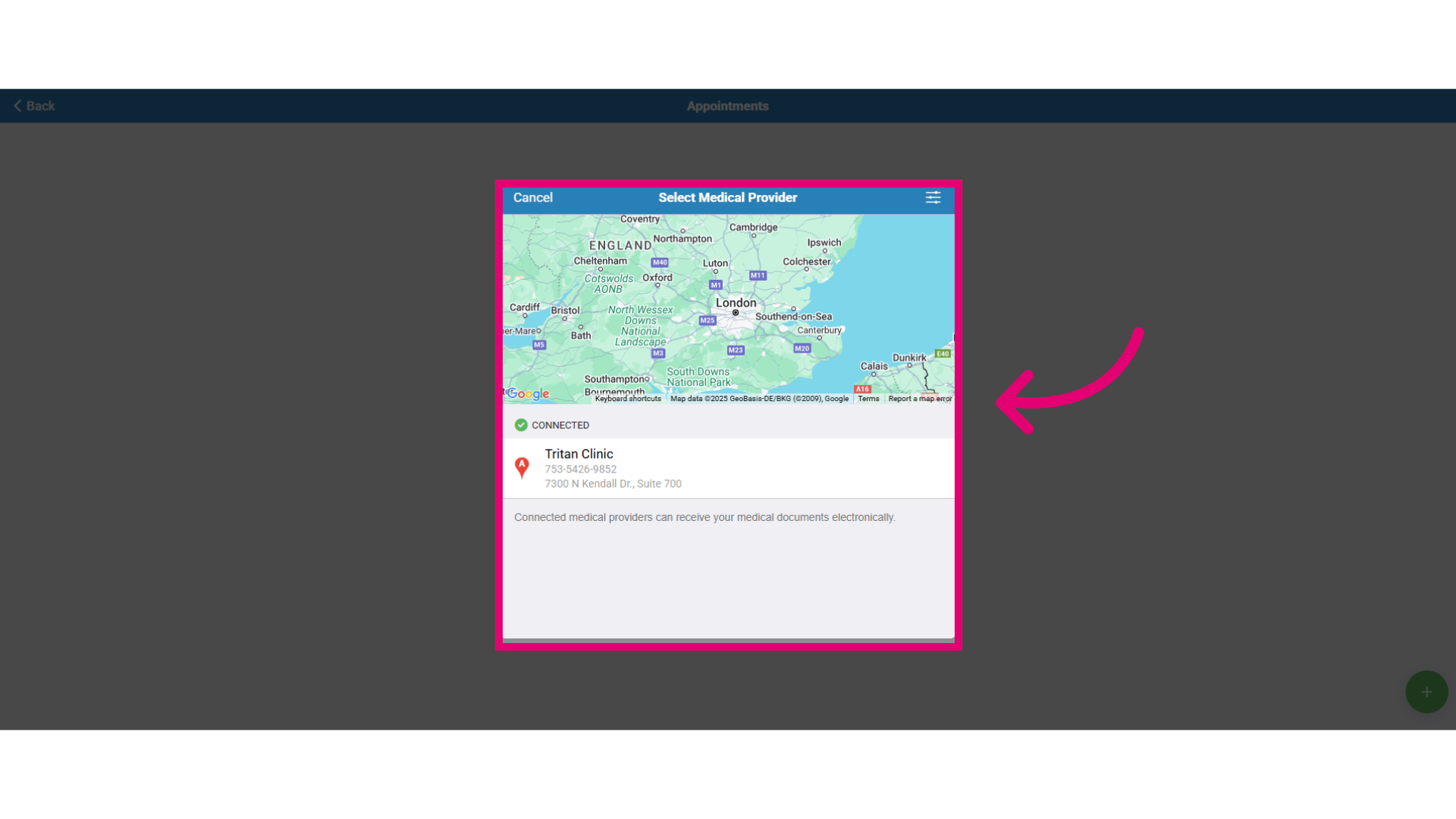
- Review provider details including the clinic's name, phone number, and address and click on the provider name to schedule the appointment.
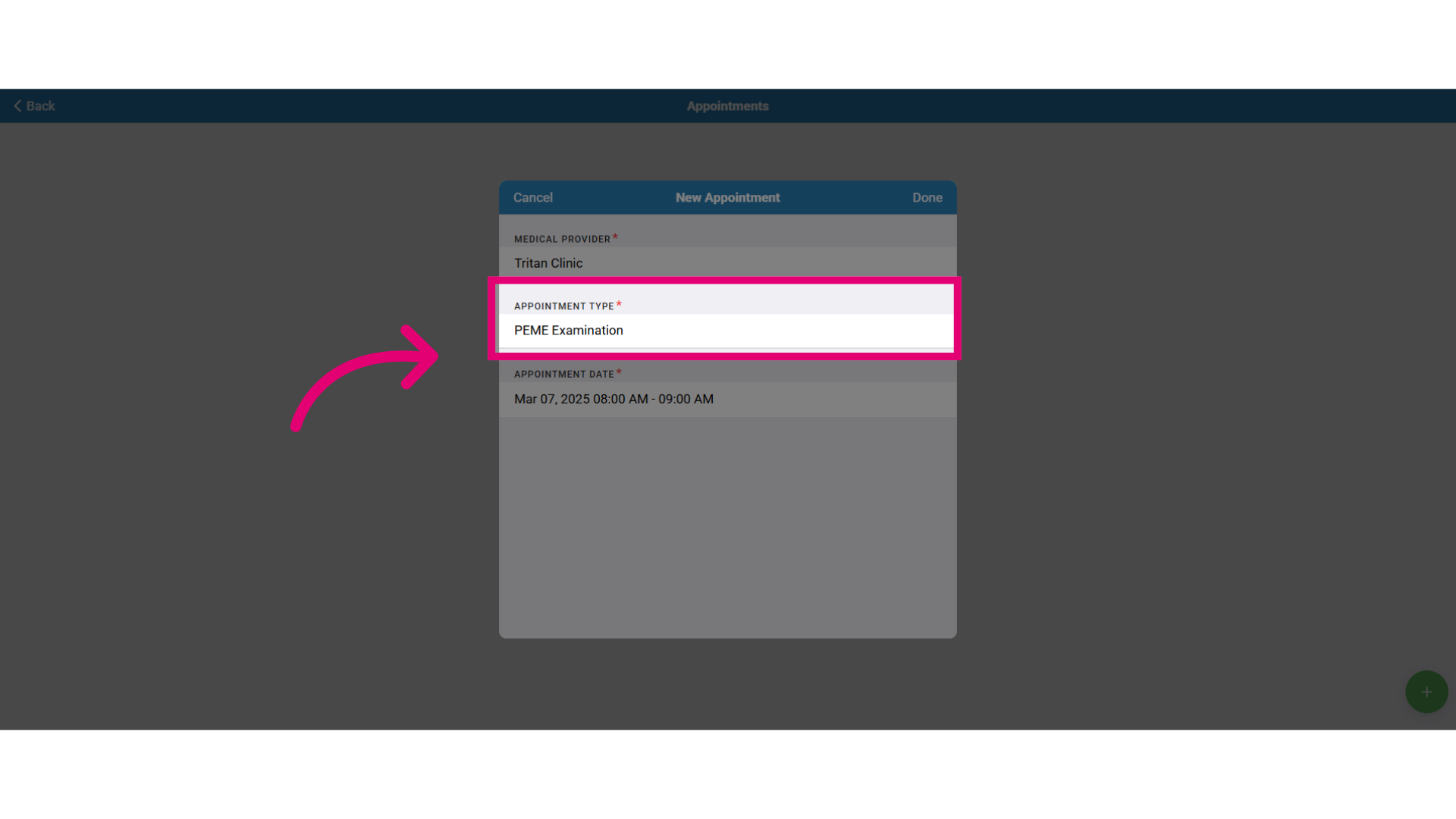
- In the New Appointment window, follow these instructions:
- Confirm the correct provider is selected.
- Choose the Appointment Type (e.g. PEME Exam)
- Set the Appointment Date.
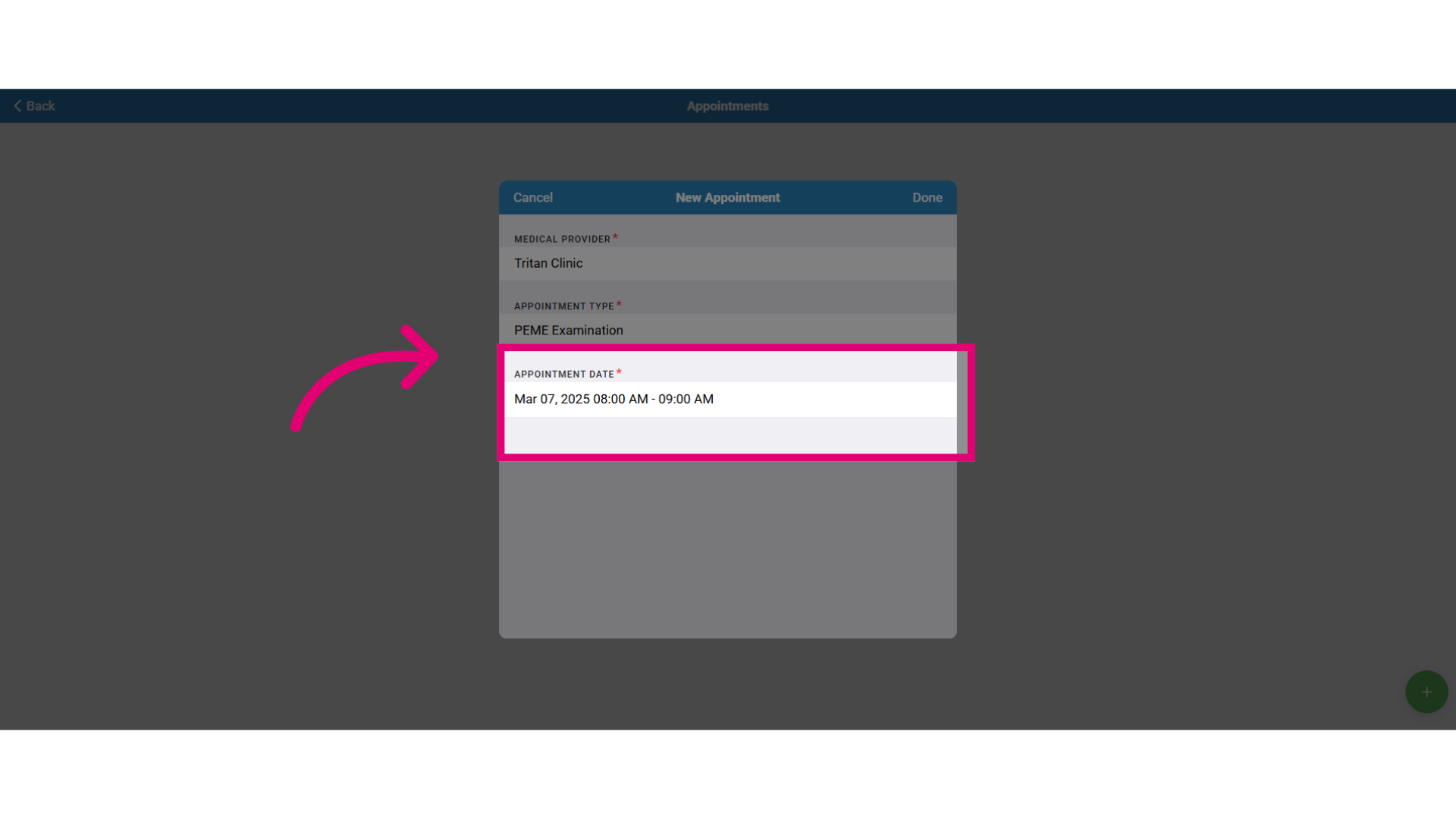
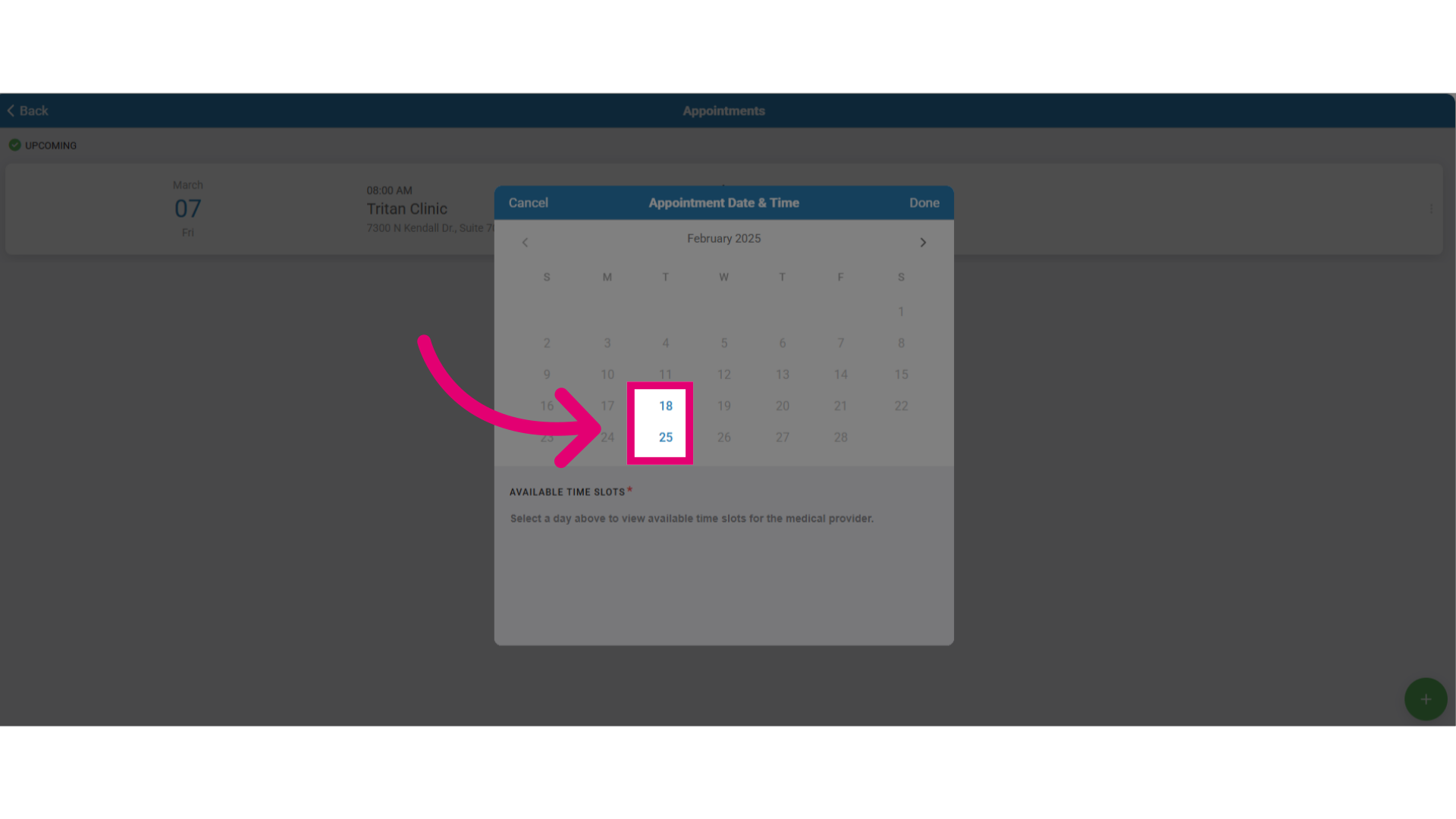
- Select an available slot on the calendar.
- Available slots are highlighted in blue.
- Grayed out slots are not available.
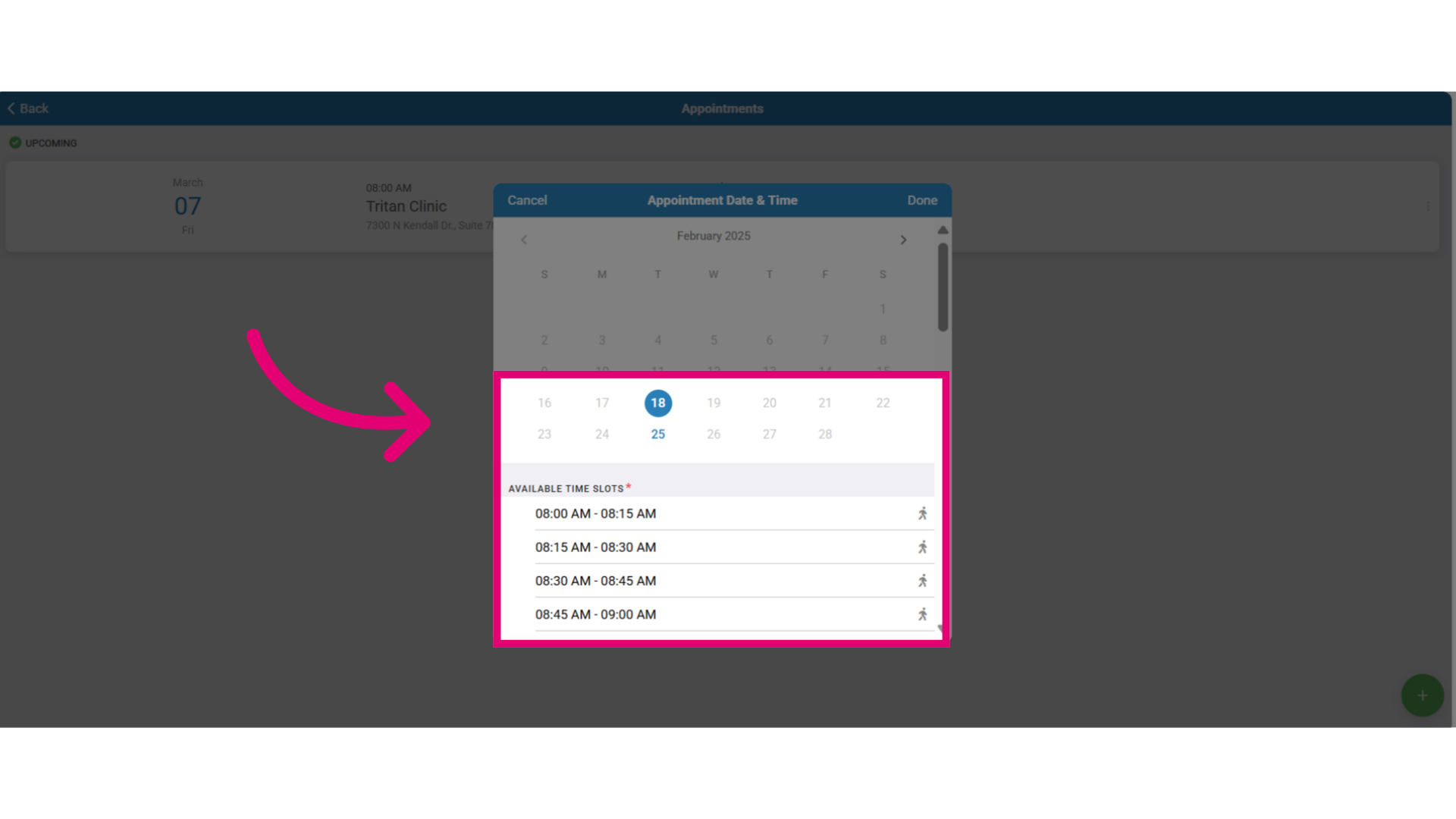
- Select the Appointment Time.
- The time shows the duration for the appointment. (e.g. 8am to 8:15am for a 15 minute appointment slot)
- Choose from one of the time slots.
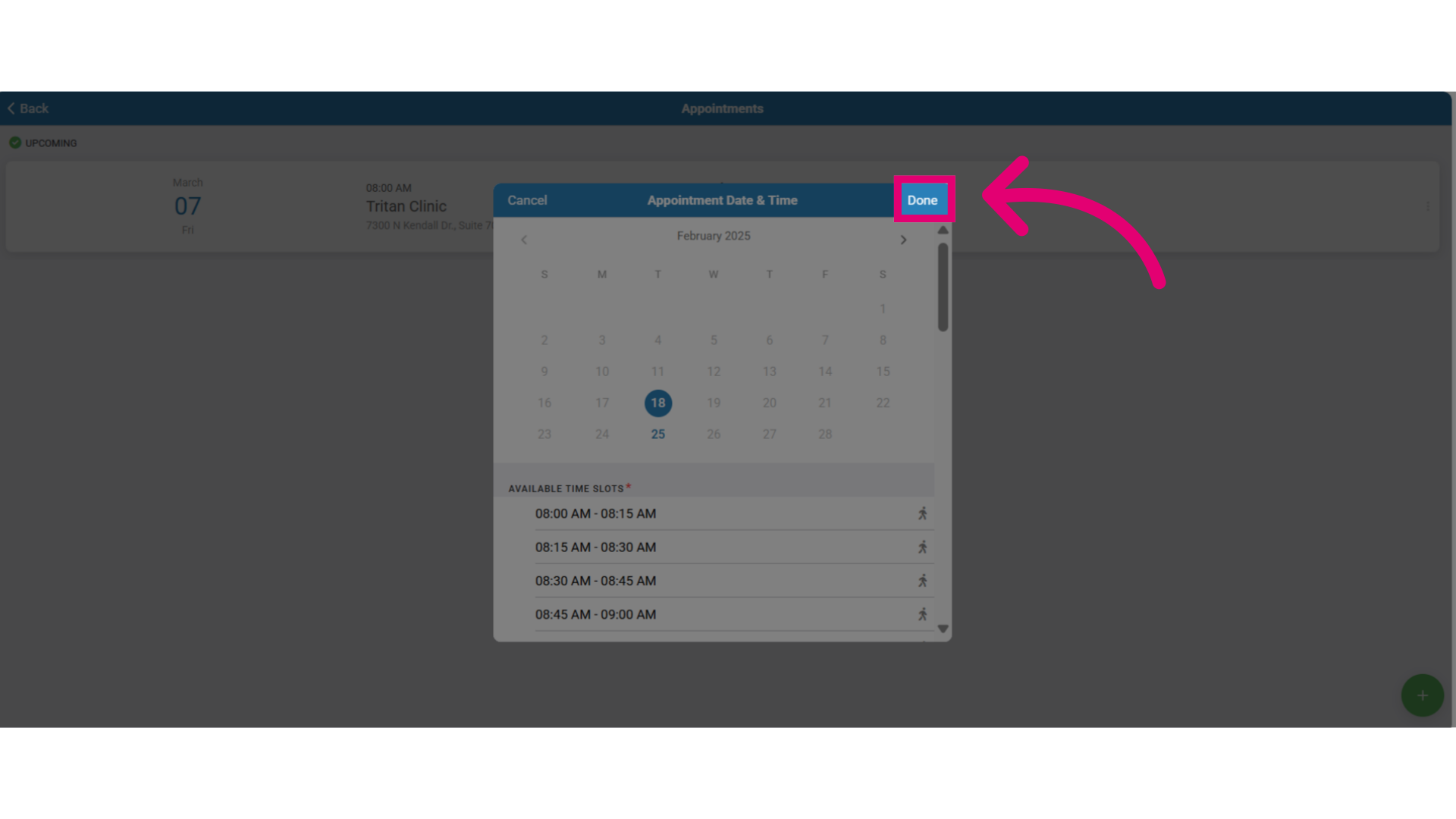
- Click Done when you are finished.
- Verify that the date and time are correct.
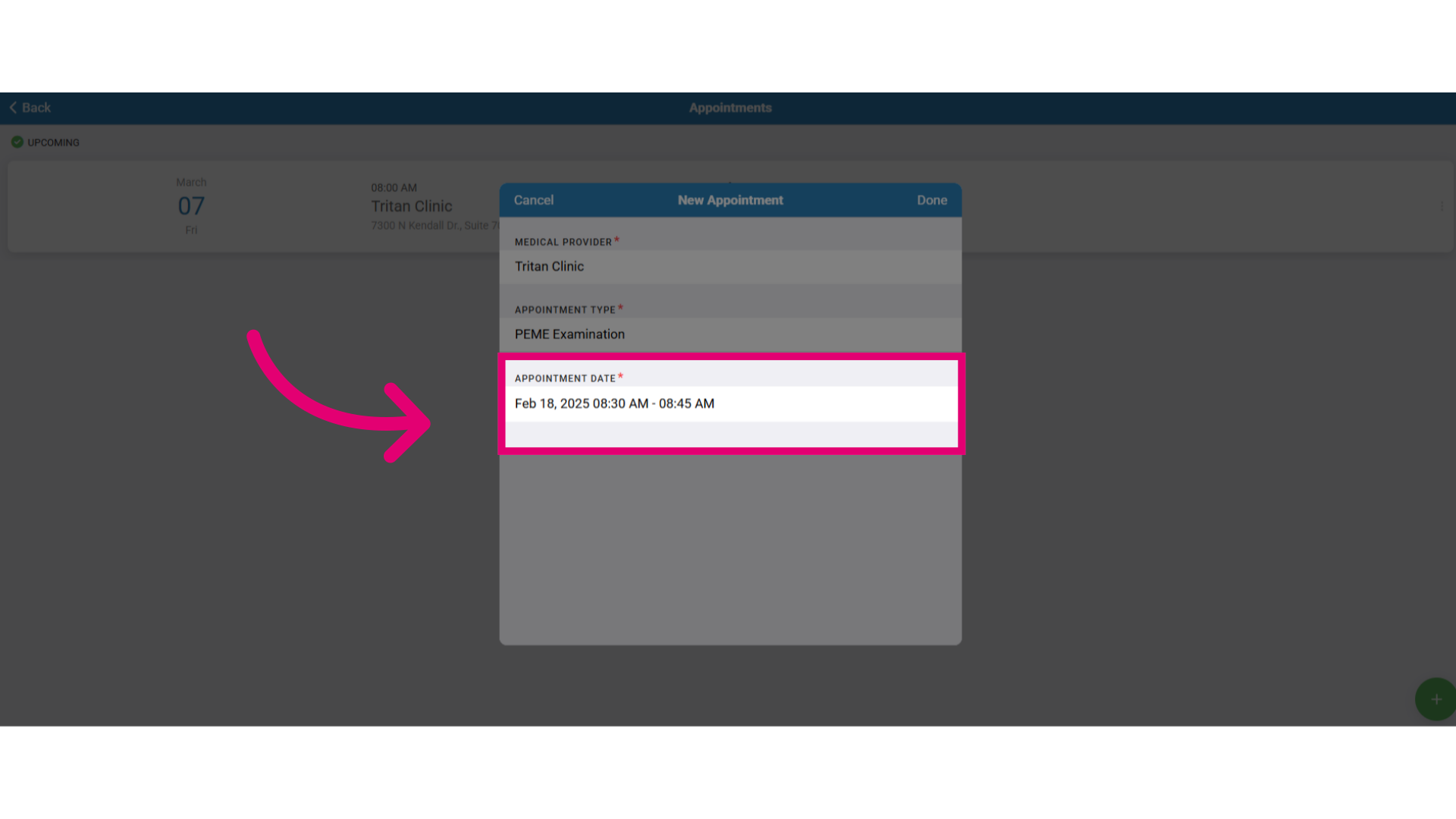
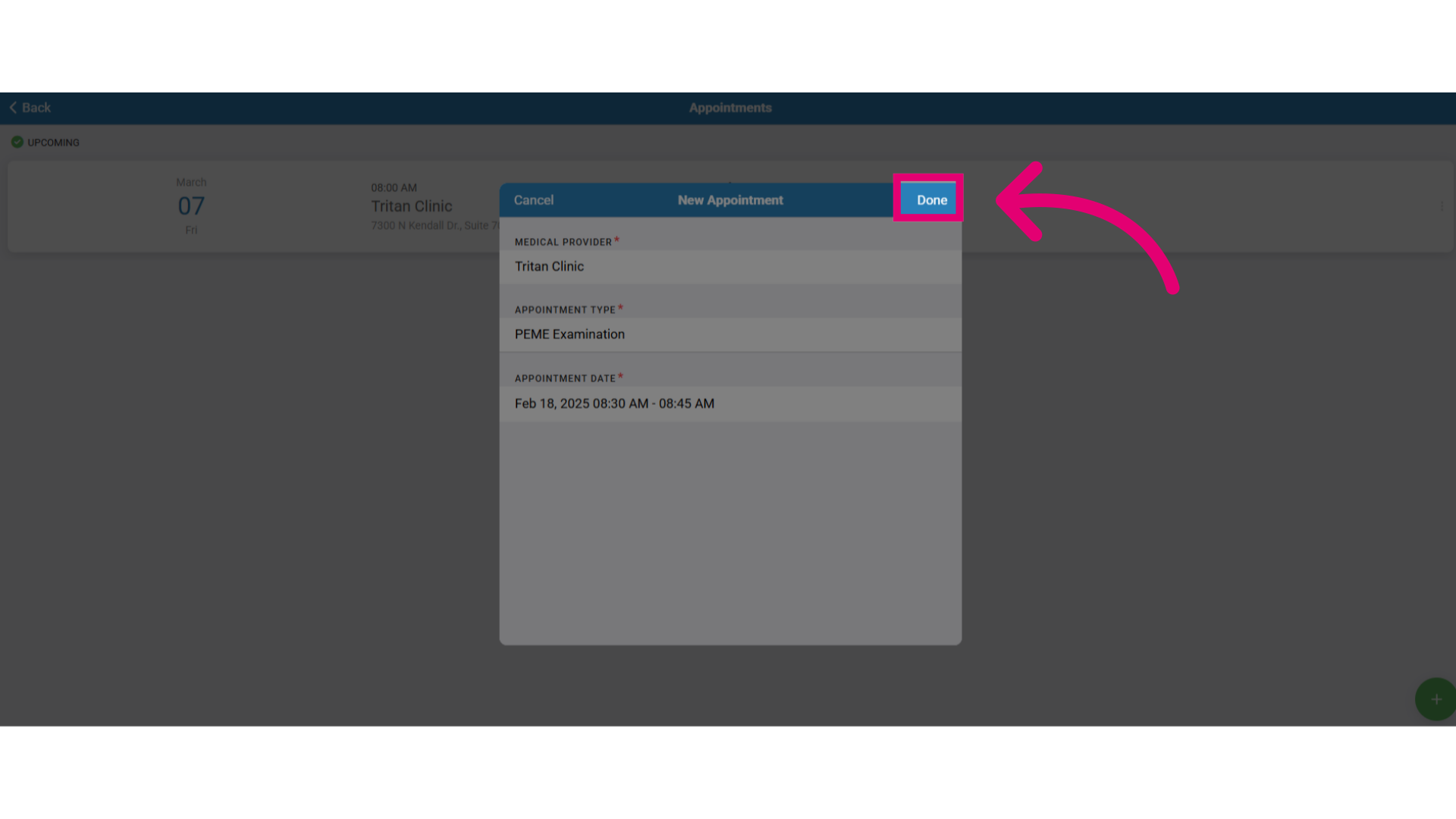
- Select Done to schedule the appointment.
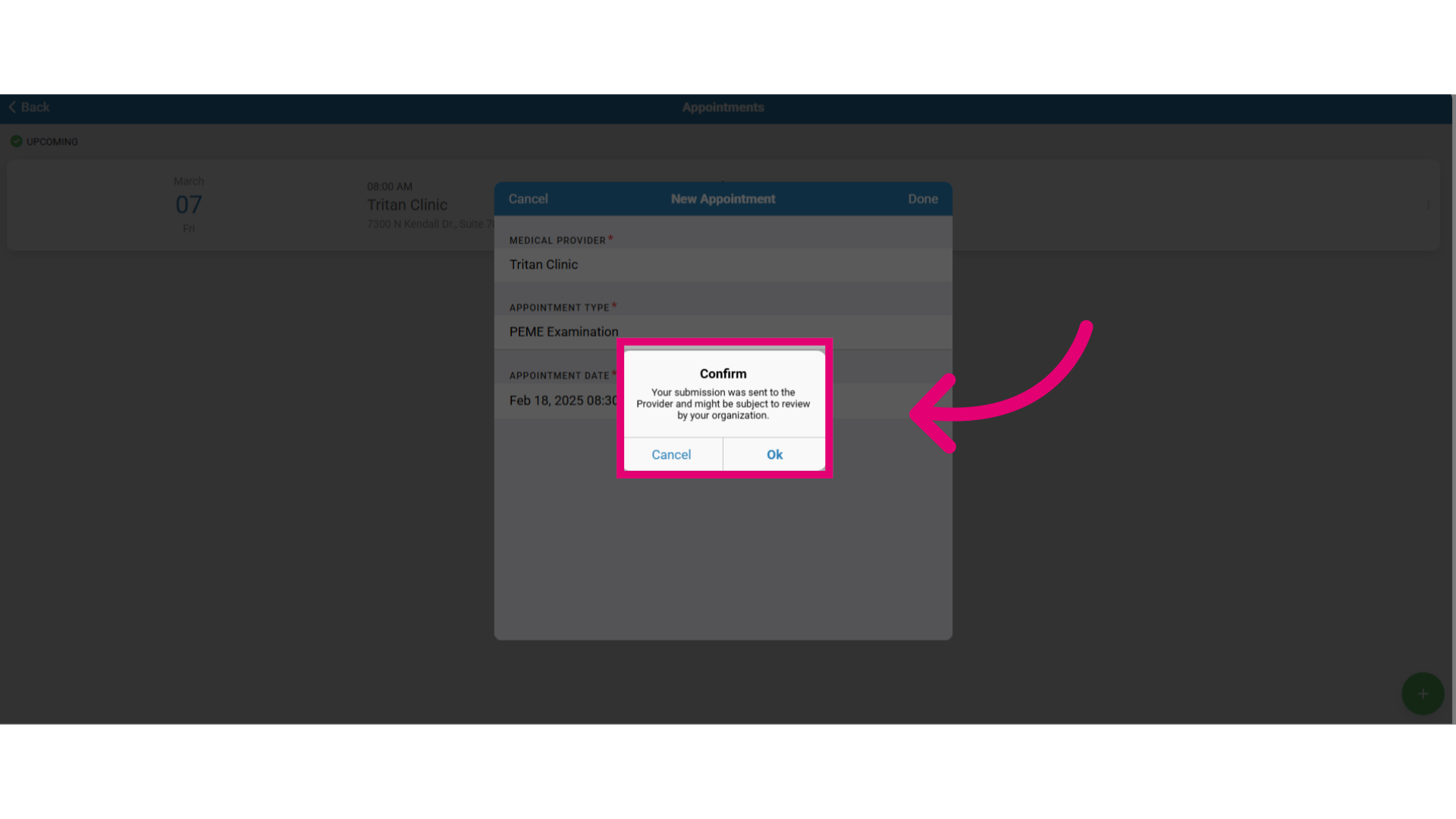
- Confirm the appointment and acknowledge it may be subject to the provider's approval by selecting Ok.
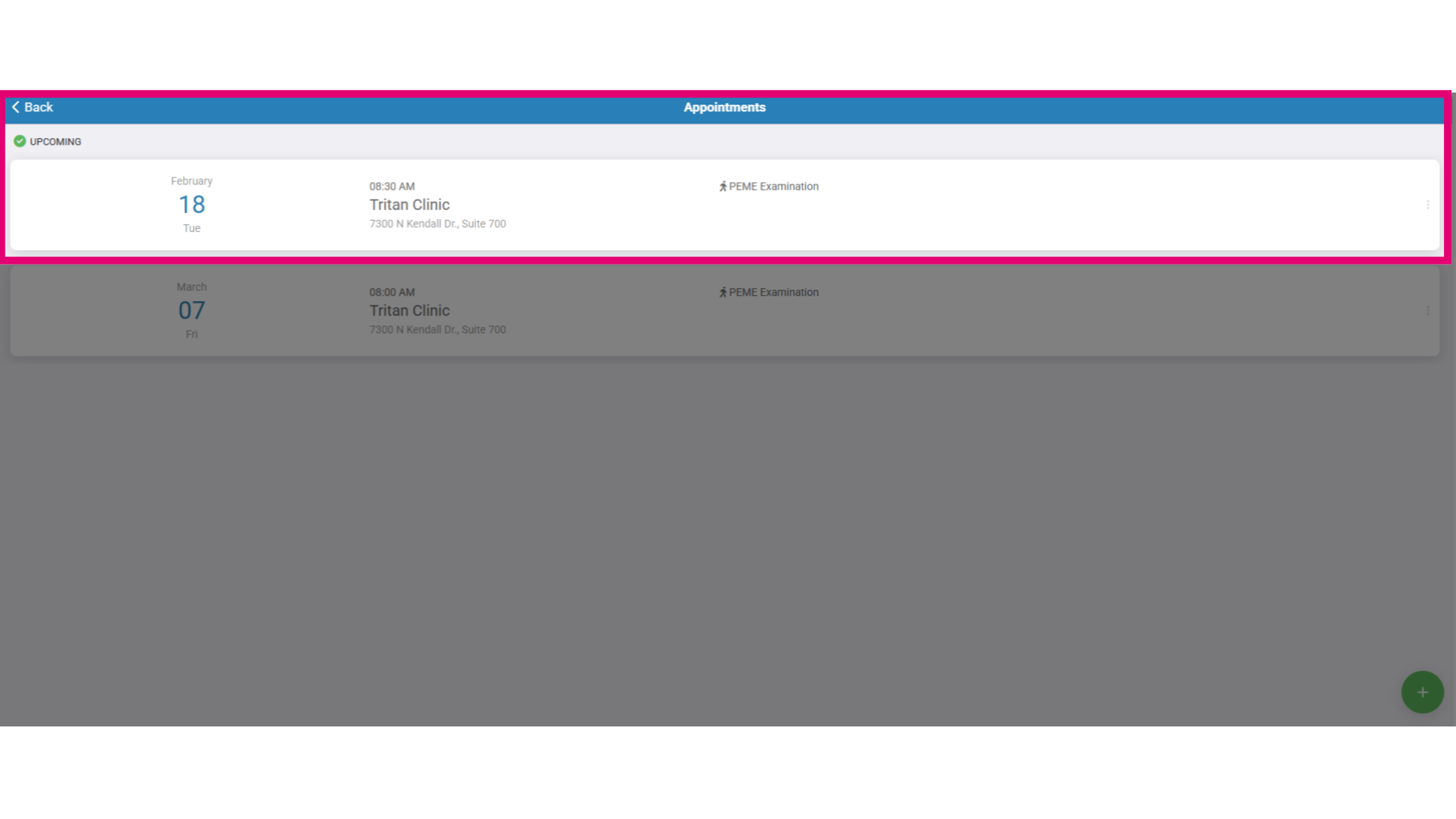
- View the scheduled appointment in the Appointments section.
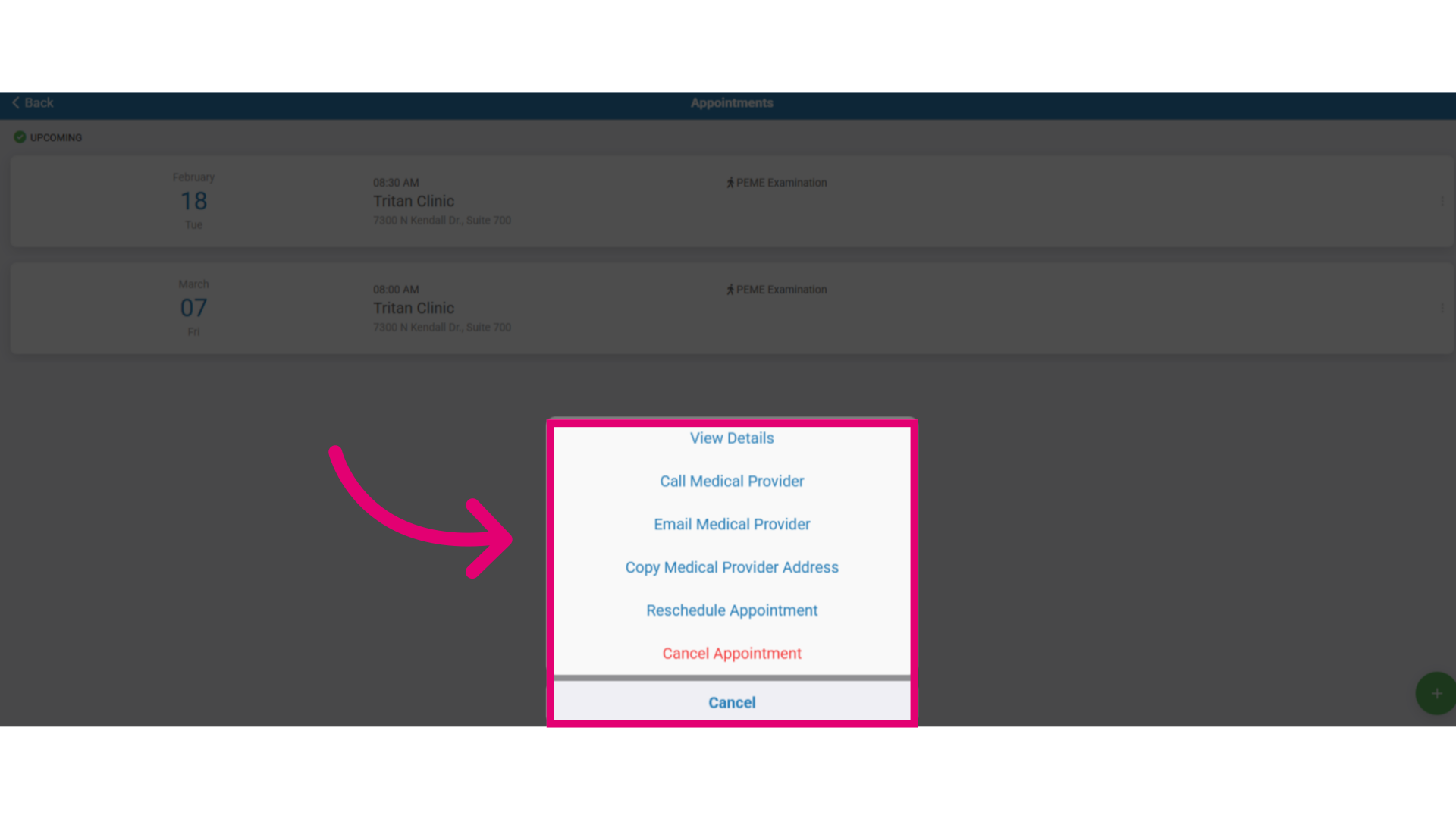
- Click to manage the appointment or access the appointment information. You will be able to:
- View the appointment details.
- Call the medical provider.
- Email the medical provider to confirm or request information.
- Copy the medical provider address so you can get directions.
- Reschedule the appointment for a different available date.
- Cancel the appointment.