New article
Recently updated
Navigating the Legal Module

Who is this article for?Users who want to learn how to navigate Legal Module.
No elevated permissions are required.
This comprehensive guide is designed to assist you in effectively navigating the Legal Module within Ideagen Maritime Health Operations. As you delve into this module, you will discover various features and functionalities that are essential for managing legal matters efficiently. By following this guide, you will gain a thorough understanding of how to utilise the tools and resources available.
1. Navigate the Legal Module
1.1. Video
1.2. Steps
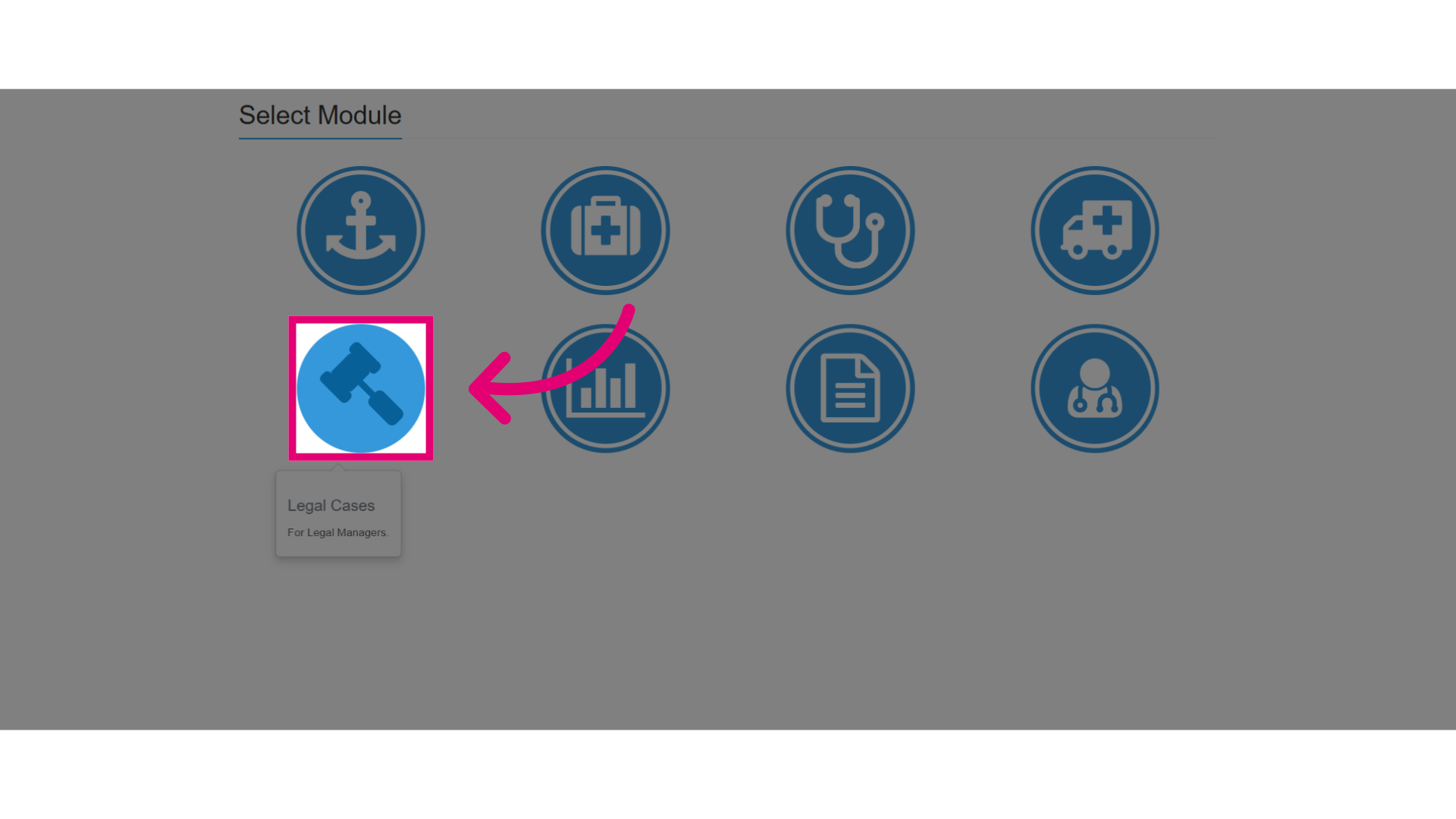
- Go to the Legal Cases module in Ideagen Maritime Health Operations.
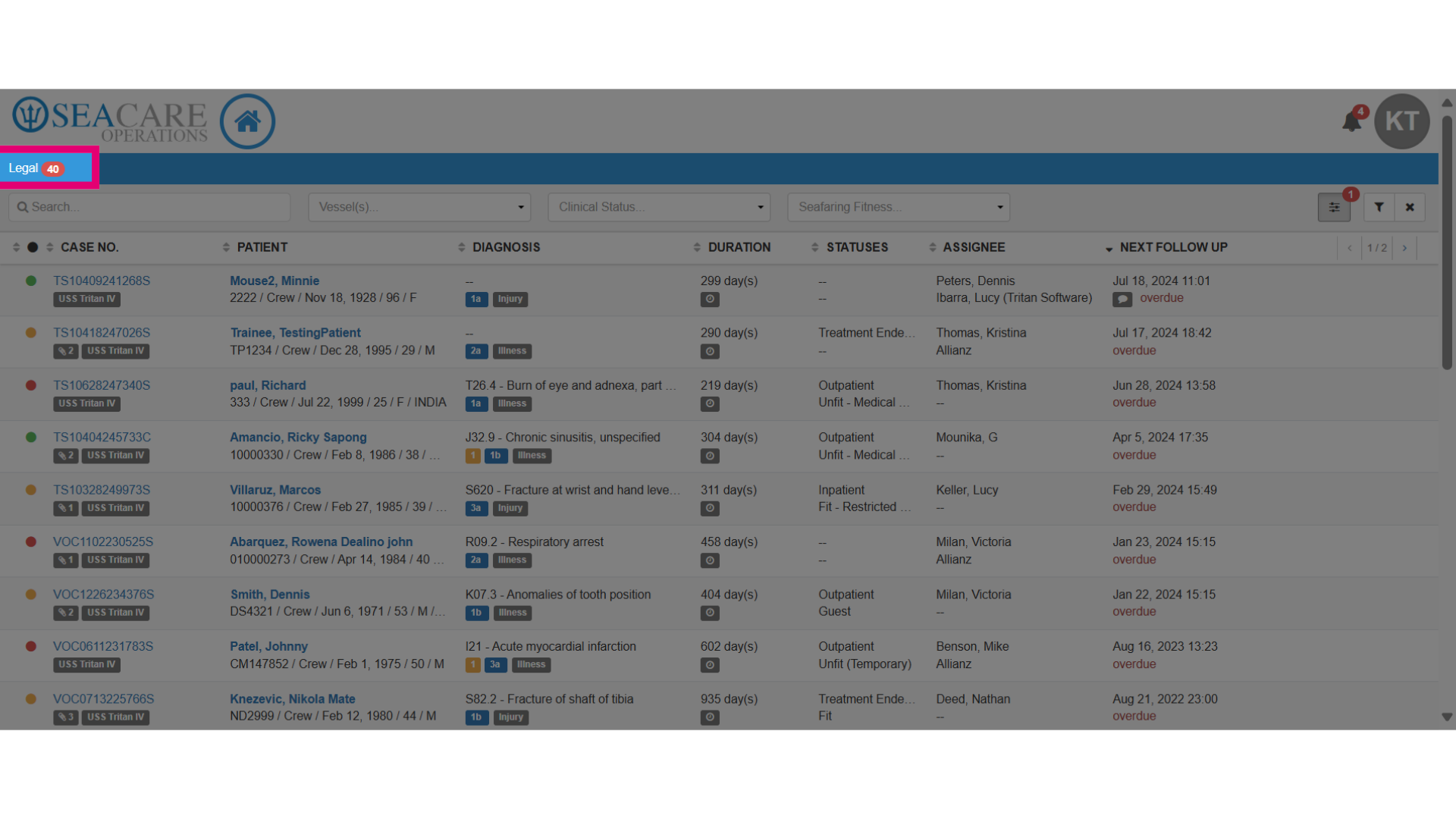
- Review the number of cases shared with you.
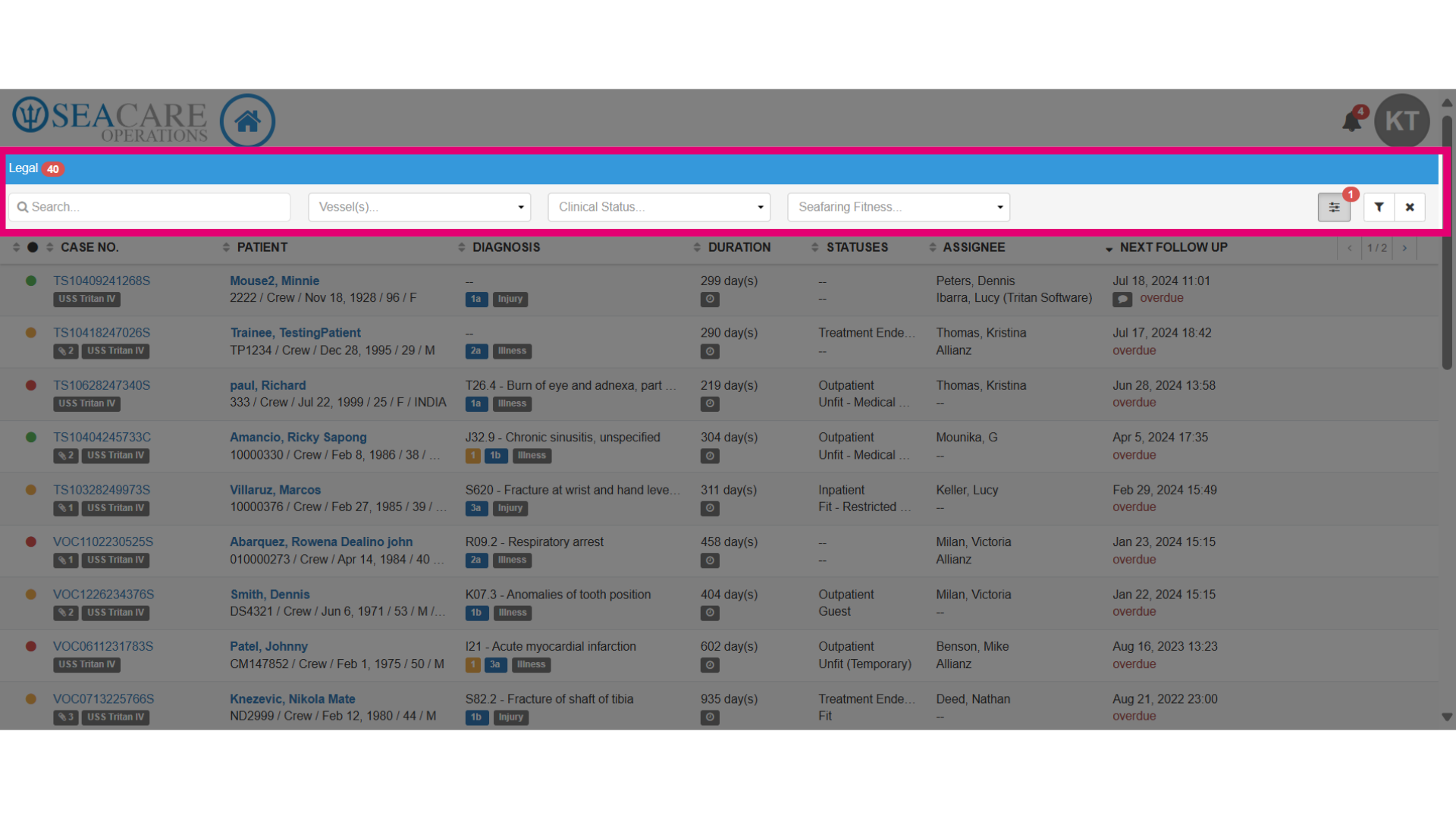
- Use the filters to manage the case list using these filter options:
- Patients - Filter the case list by specific patients.
- Vessels - Sort the cases based on the vessels involved.
- Clinical Status - Categorise cases according to their clinical status.
- SeaFaring Fitness - Access cases that pertain specifically to sea-faring fitness assessments.
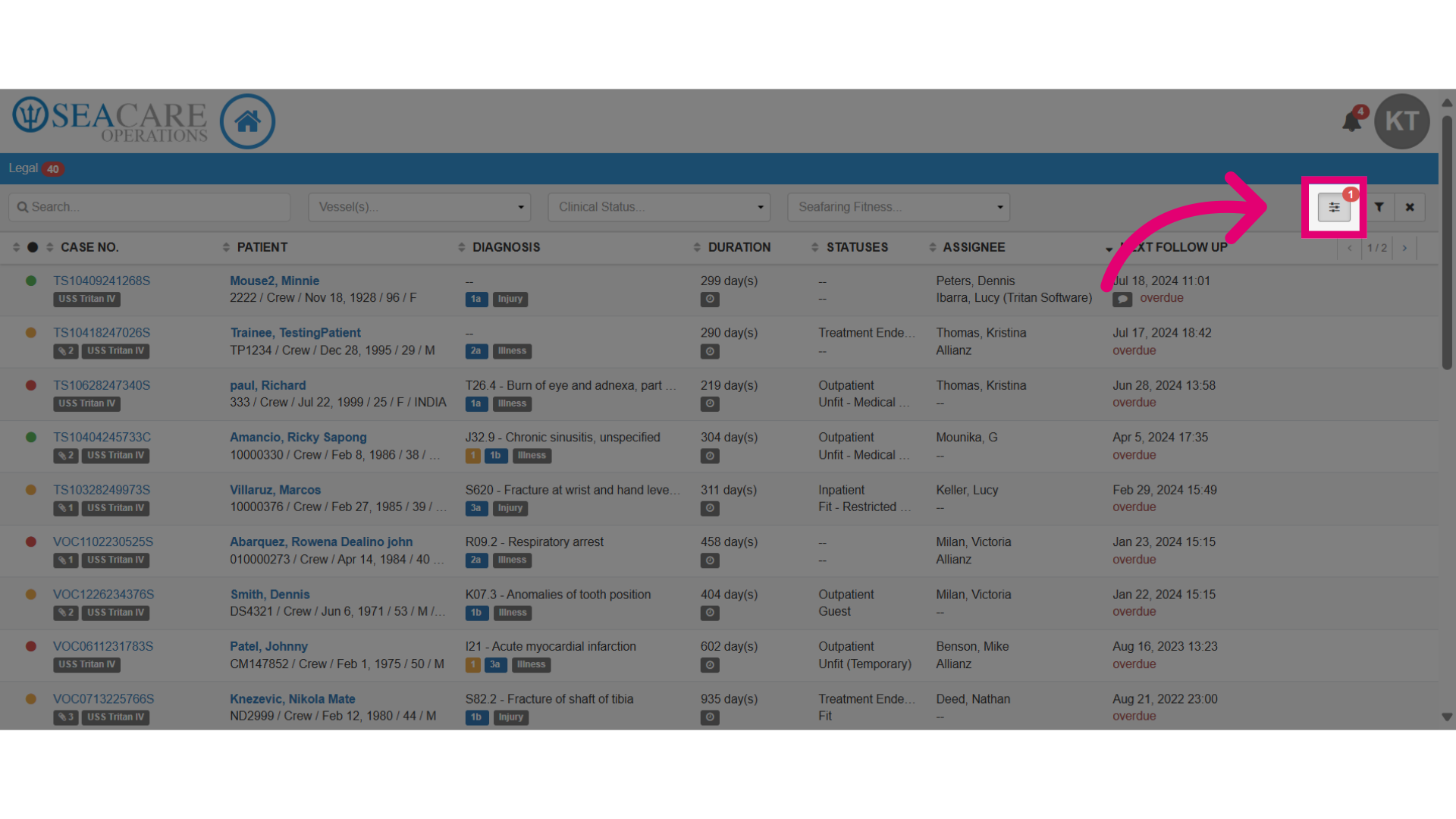
- Select the Additional Filters option to further refine a search for cases.
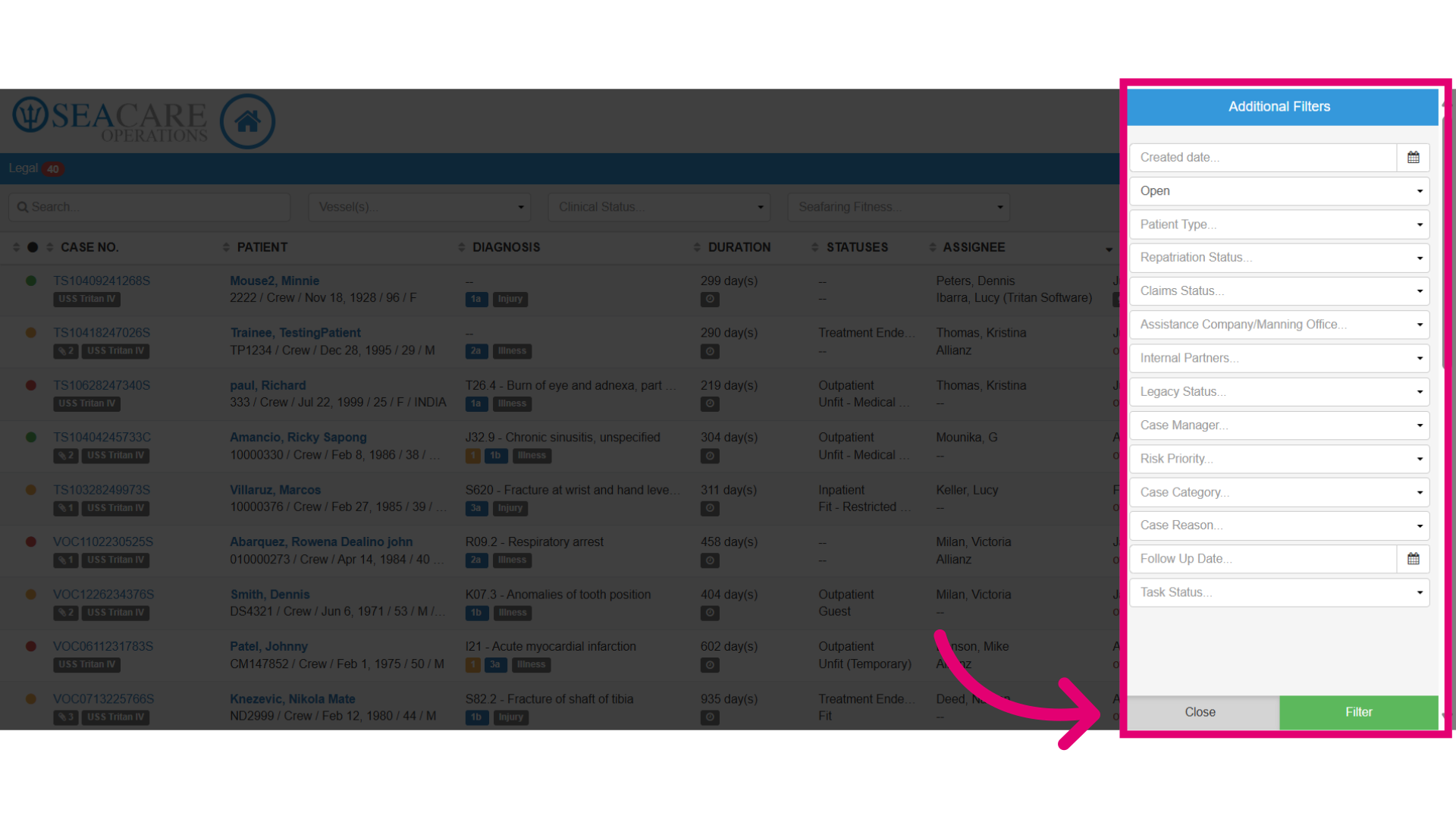
- Use the additional filters available in this window to refine your search by selecting from the provided options.
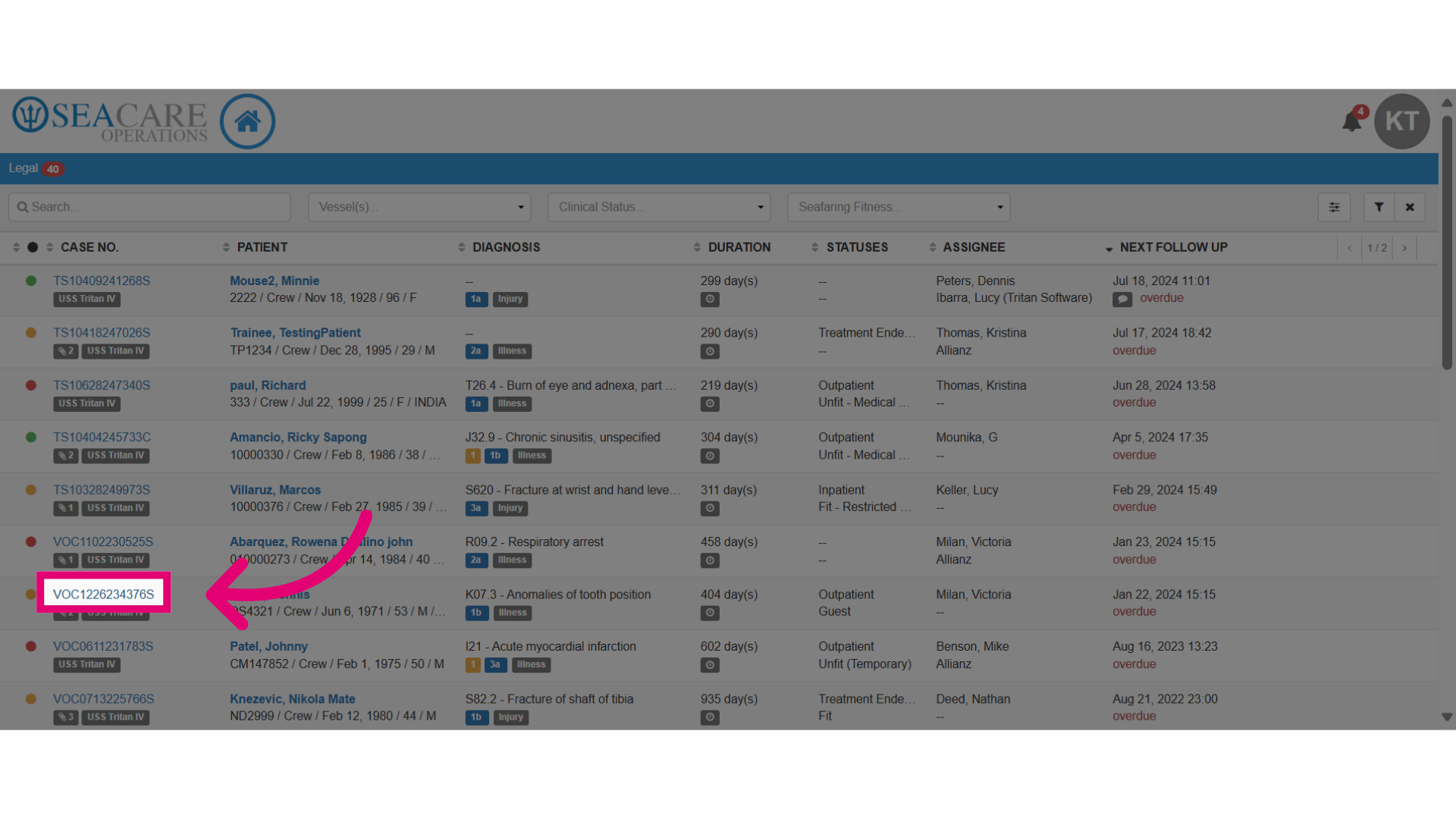
- To review the case, click on the patient's case number from the list.
- View the Case Summary tab for information for:
- Patient demographic
- Case details
- Patient Encounter details
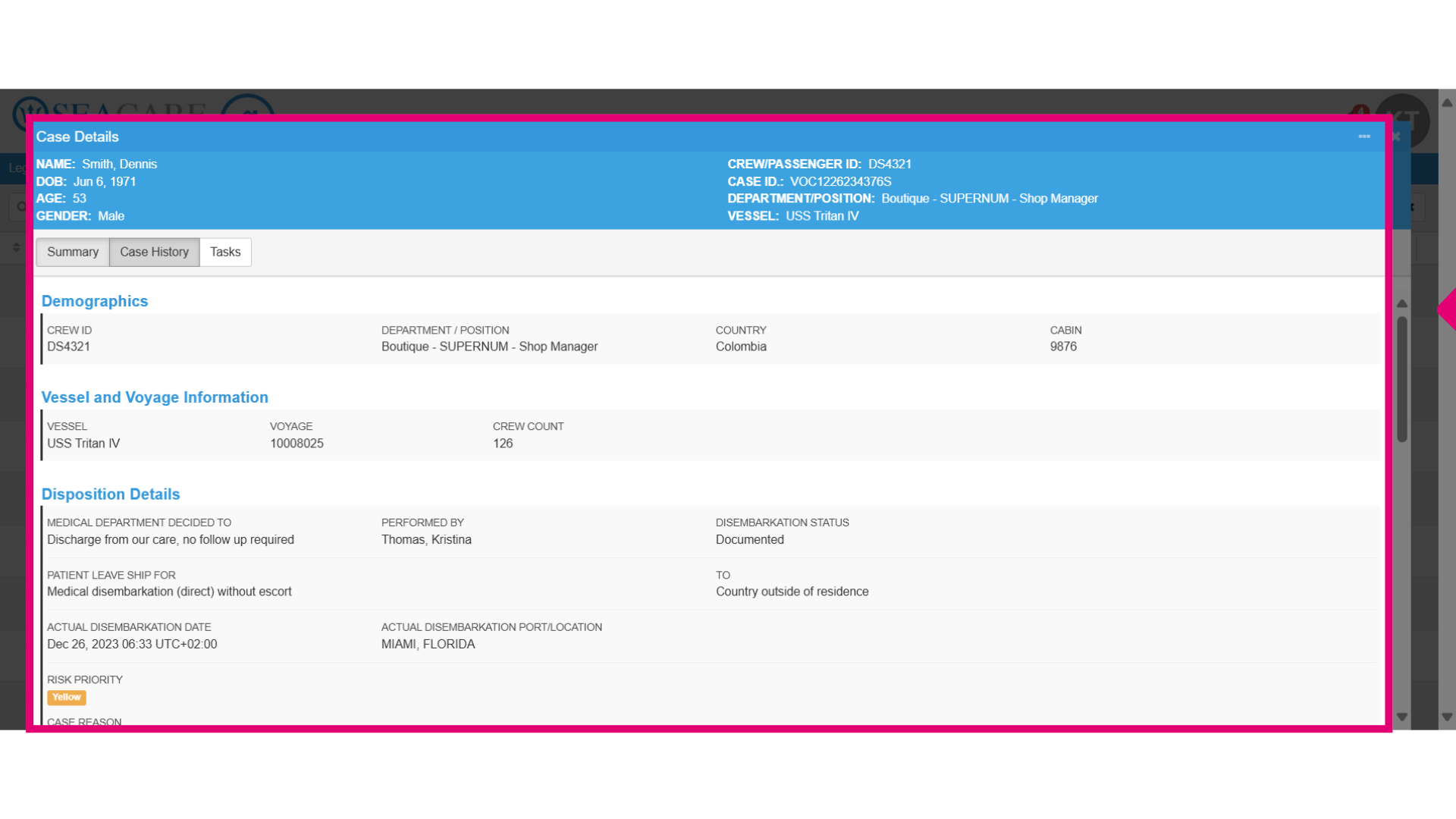
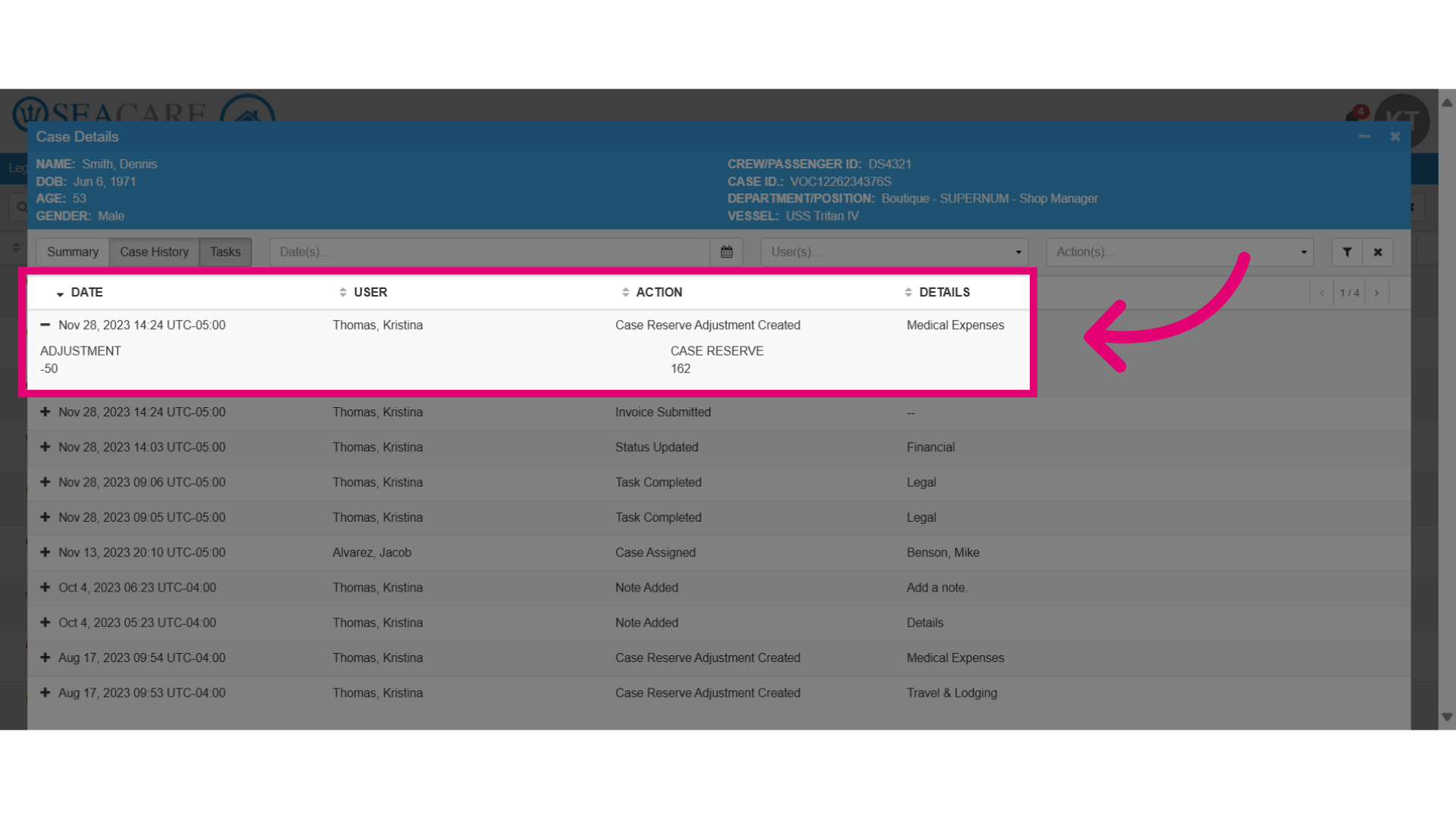
- You can also view the Case History tab. This provides insight into the history of the case and all updates have been streamlined in one centralized location.
- Select the plus sign to view more details of an update.
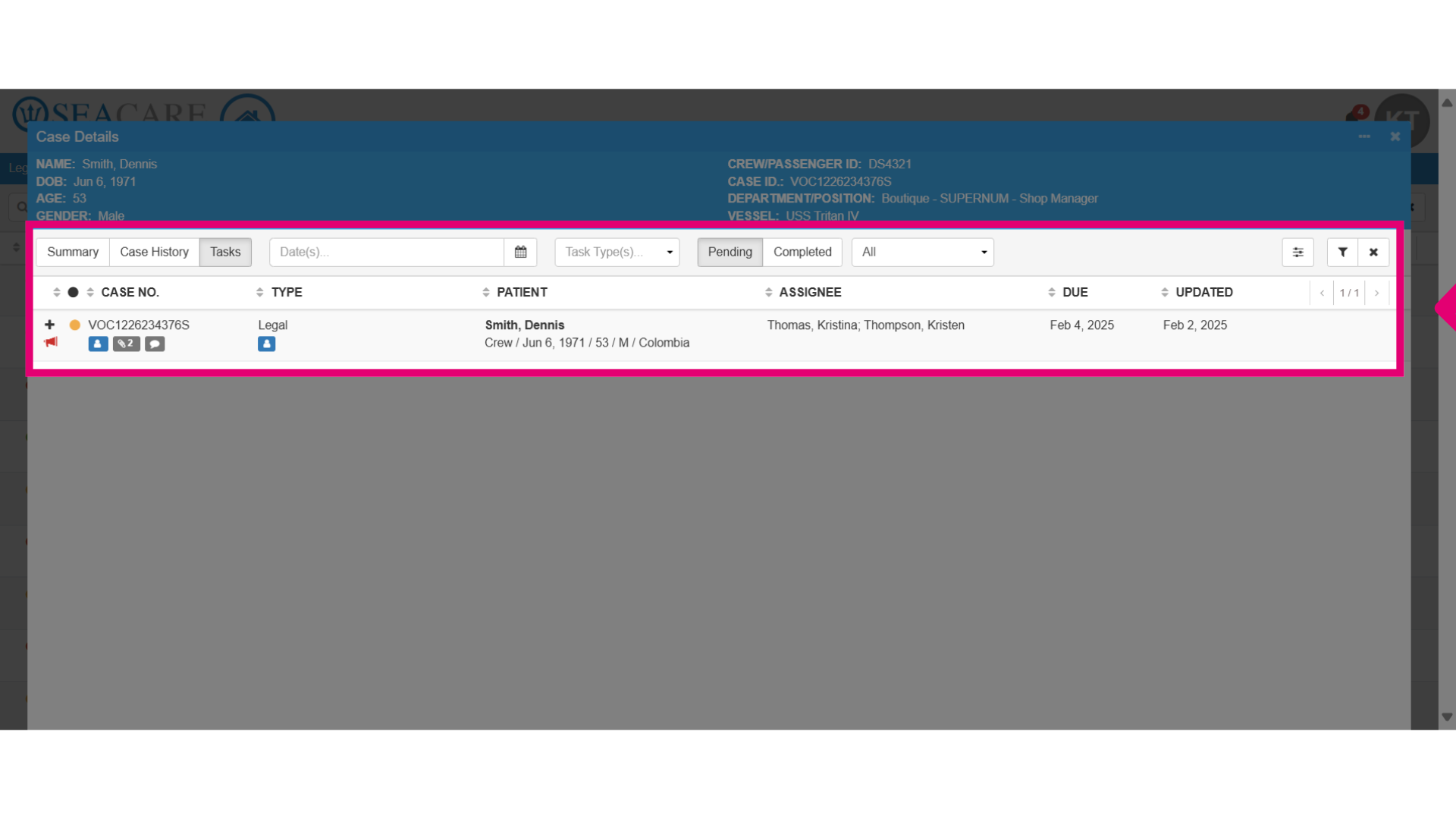
- Then, go to the Tasks tab to view tasks assigned to the case which needs your attention.
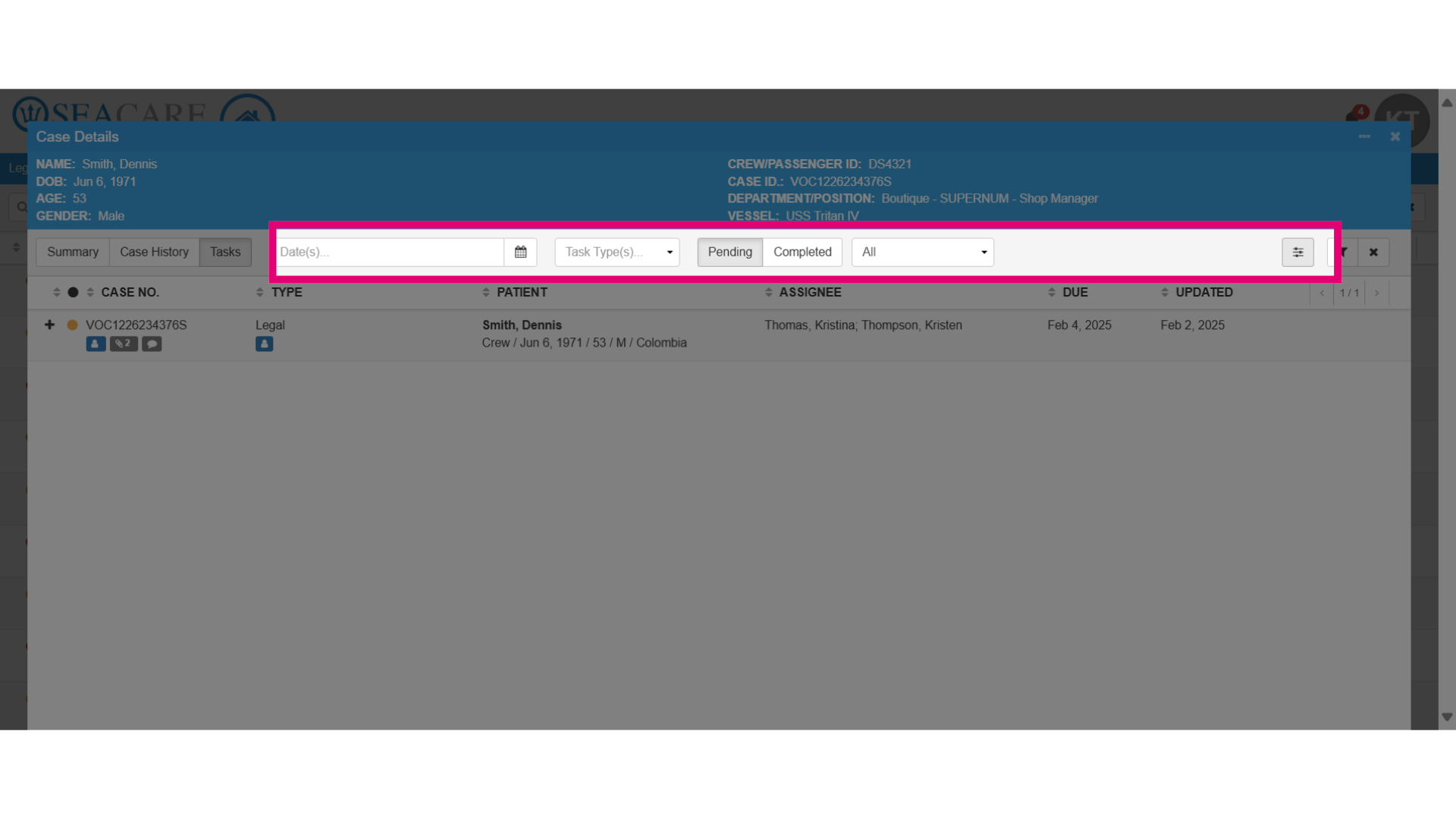
- Use the filters to search tasks by type, date, and pending or completed.
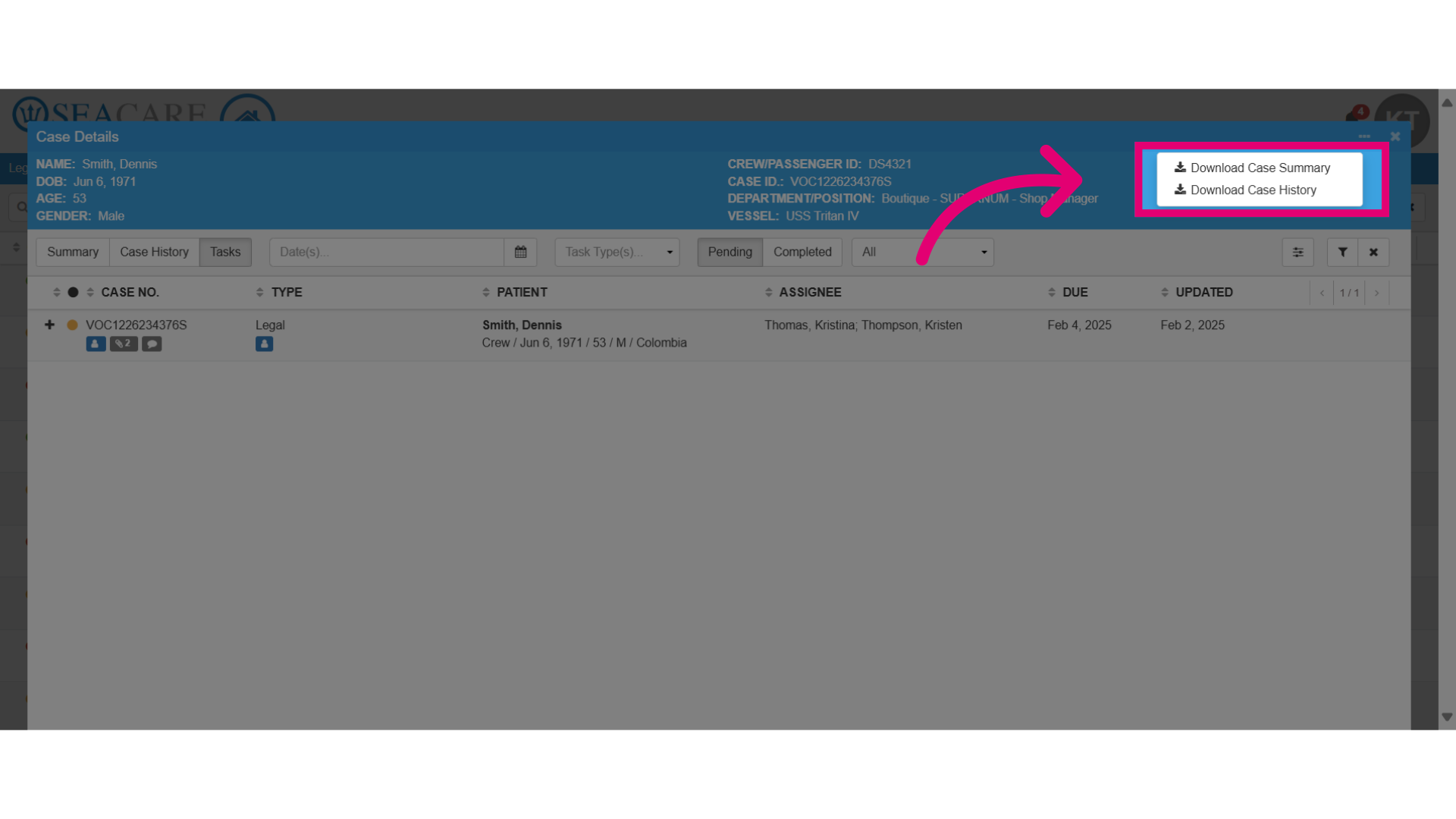
- Navigate to the specified section to download information.
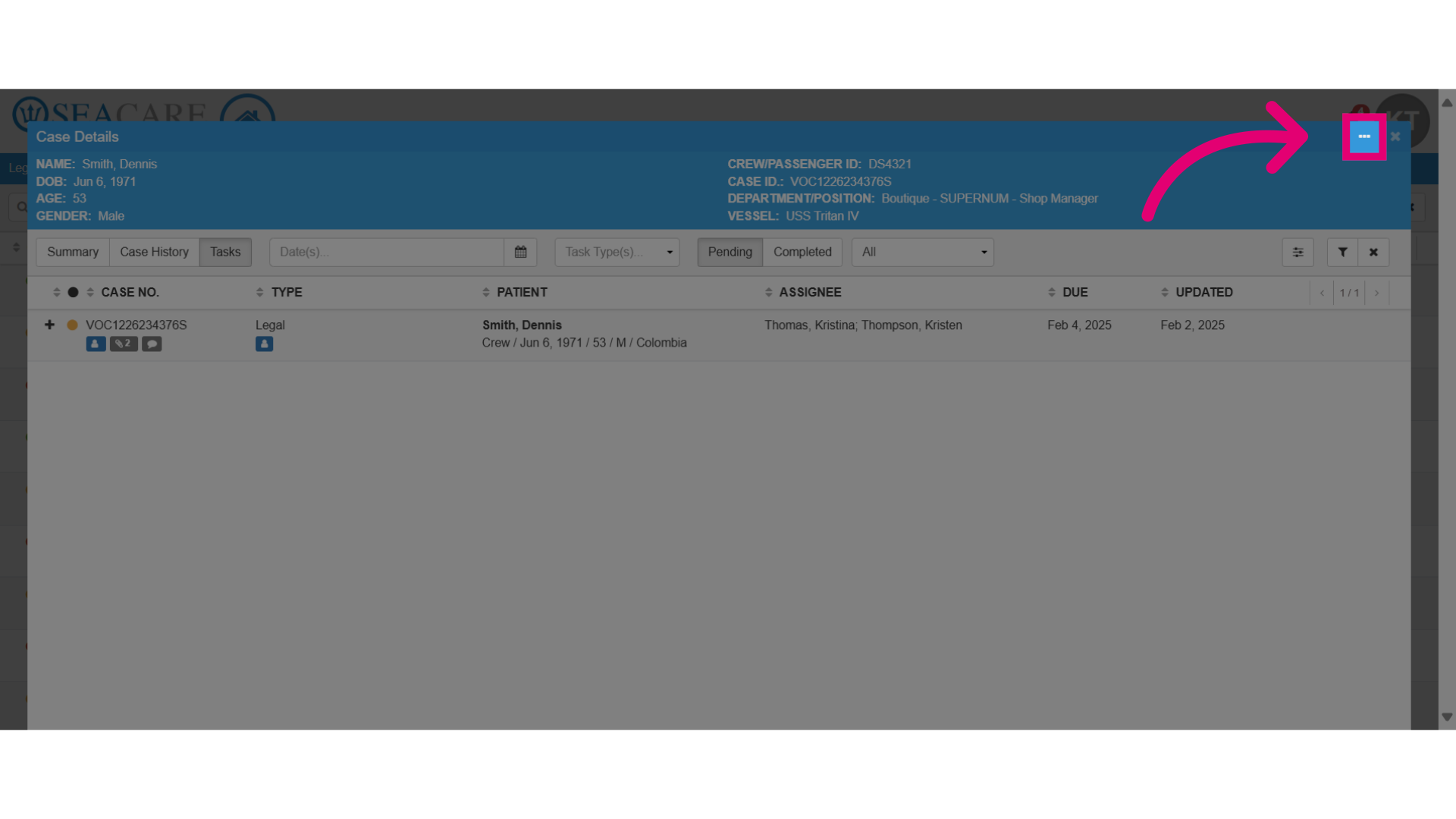
- Select the case summary or history to download.
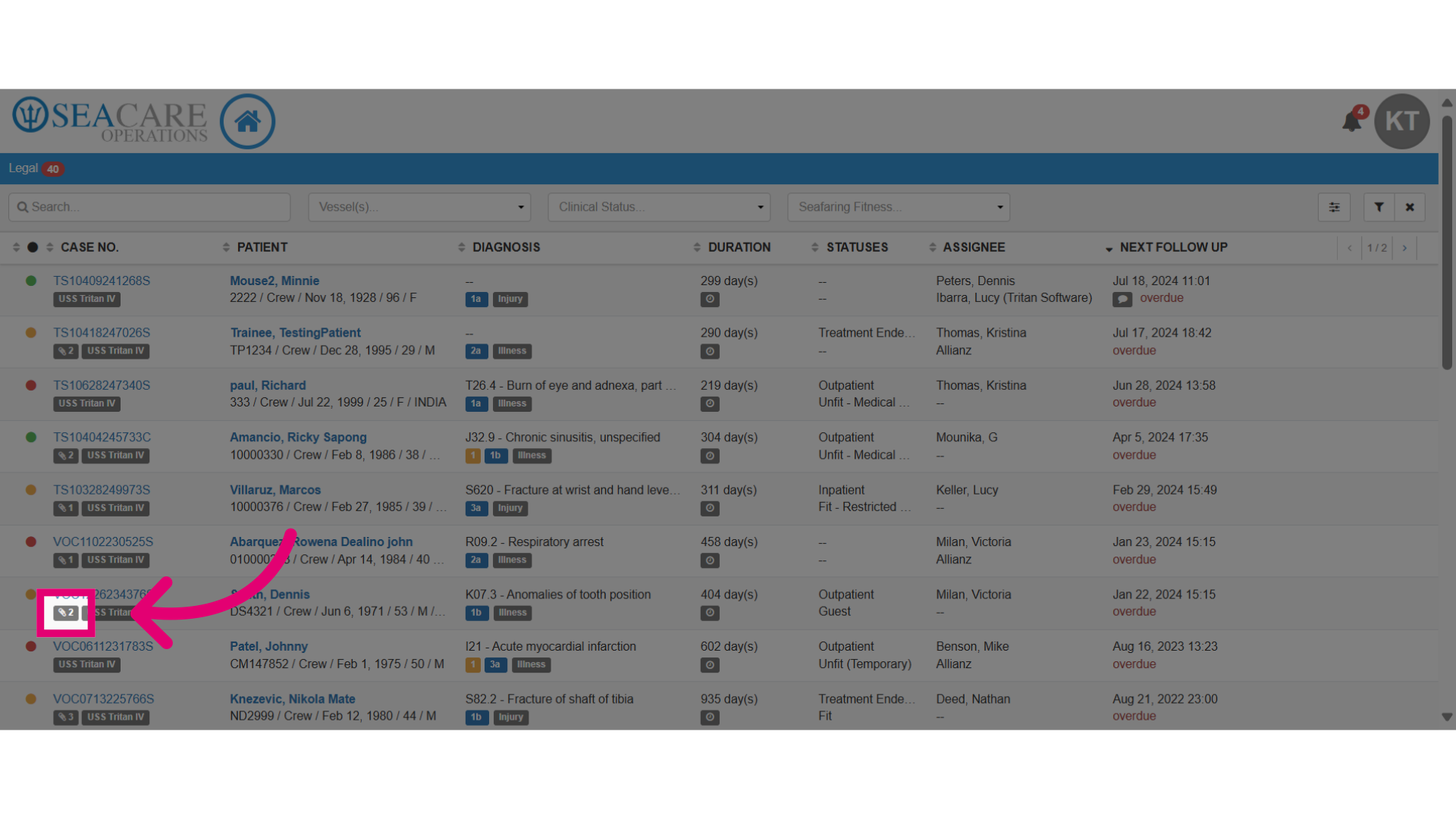
- Back in the patient list, to view documents attached to a case select the paperclip icon to open the documents section.
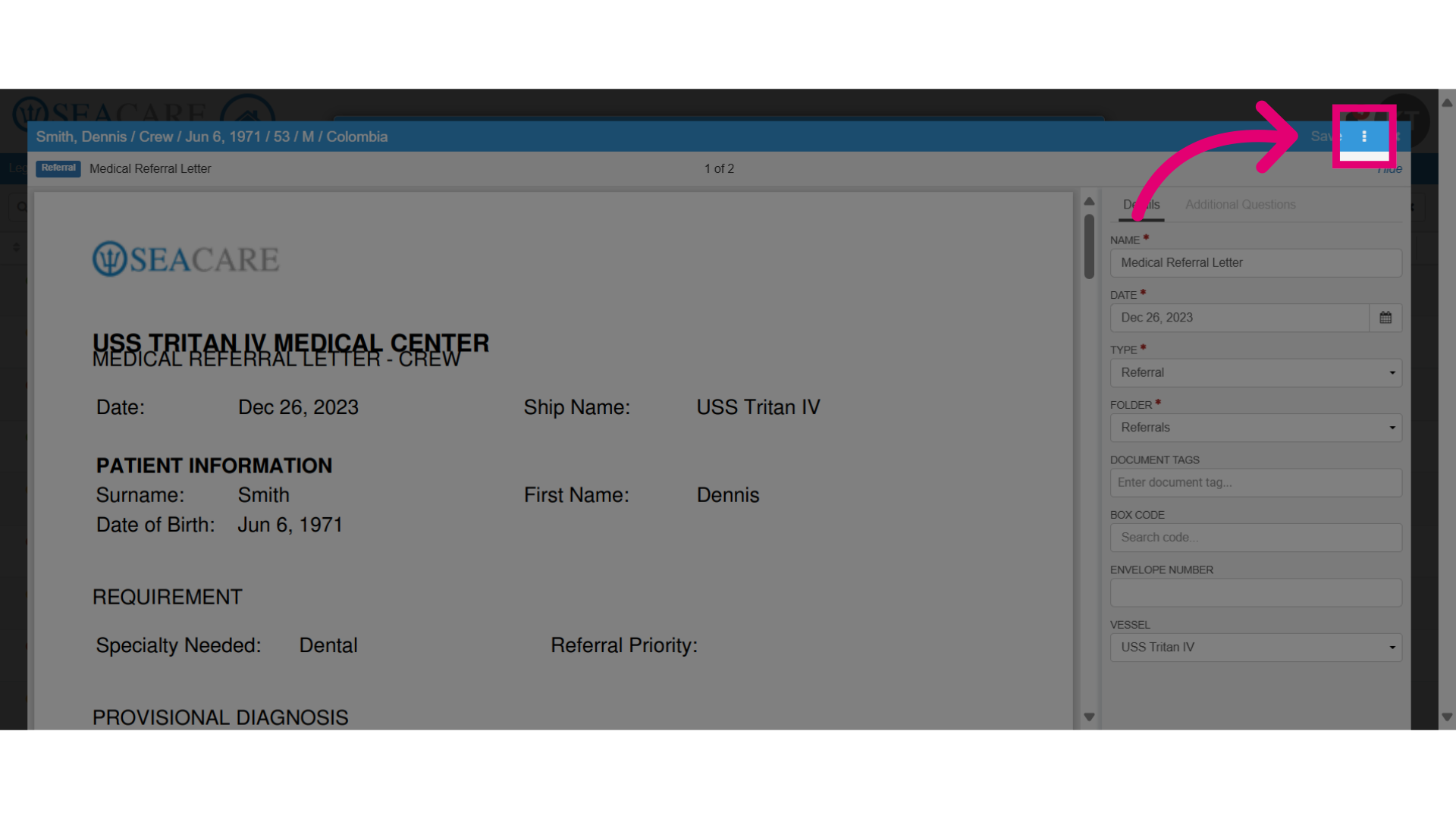
- This opens a preview window to view the document details. Select the More Options button to download or add comments to the document.
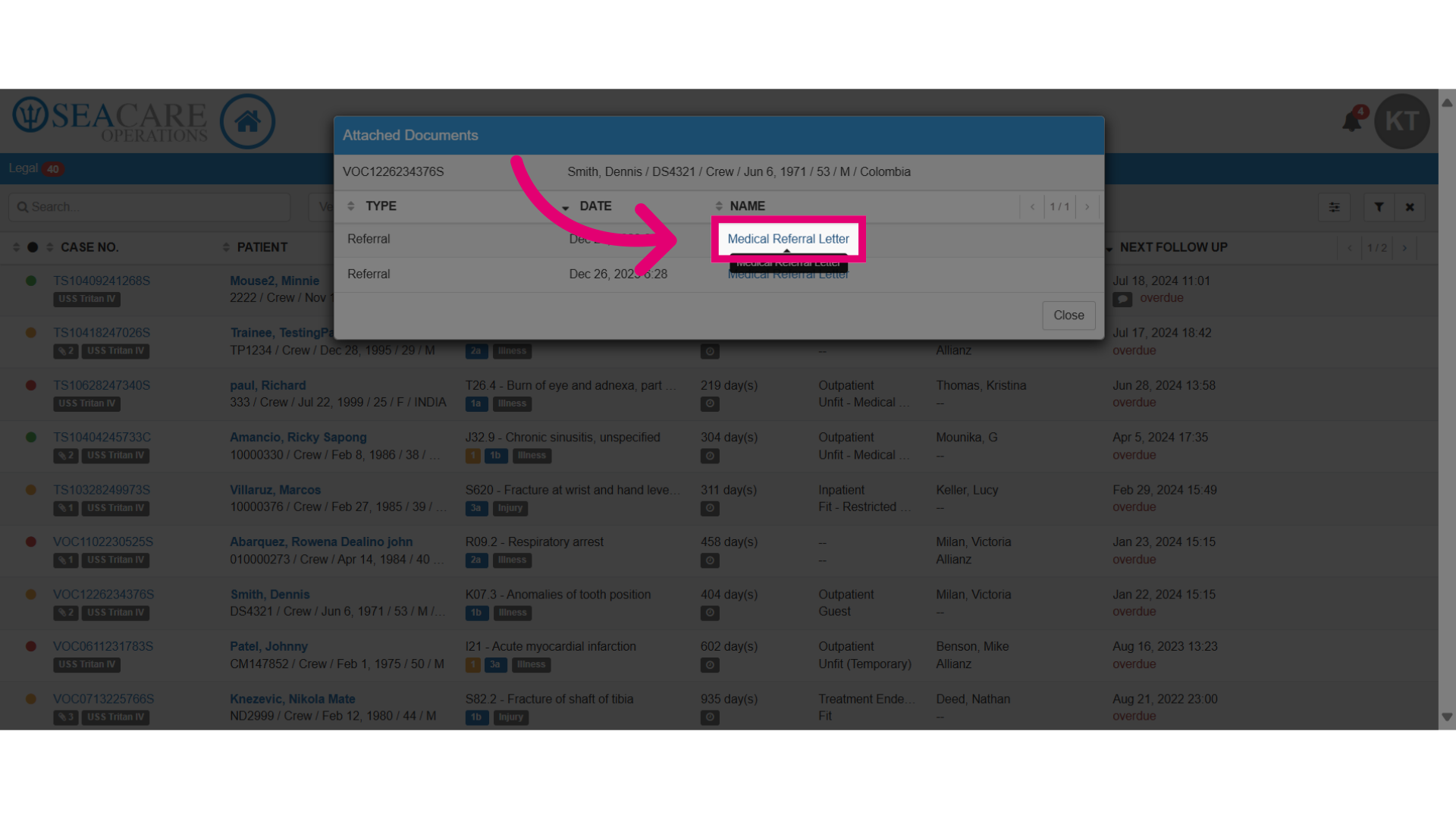
- View the document details, such as the type, date and open the document.
- Select to download or add comments to the document. Open the comment section.
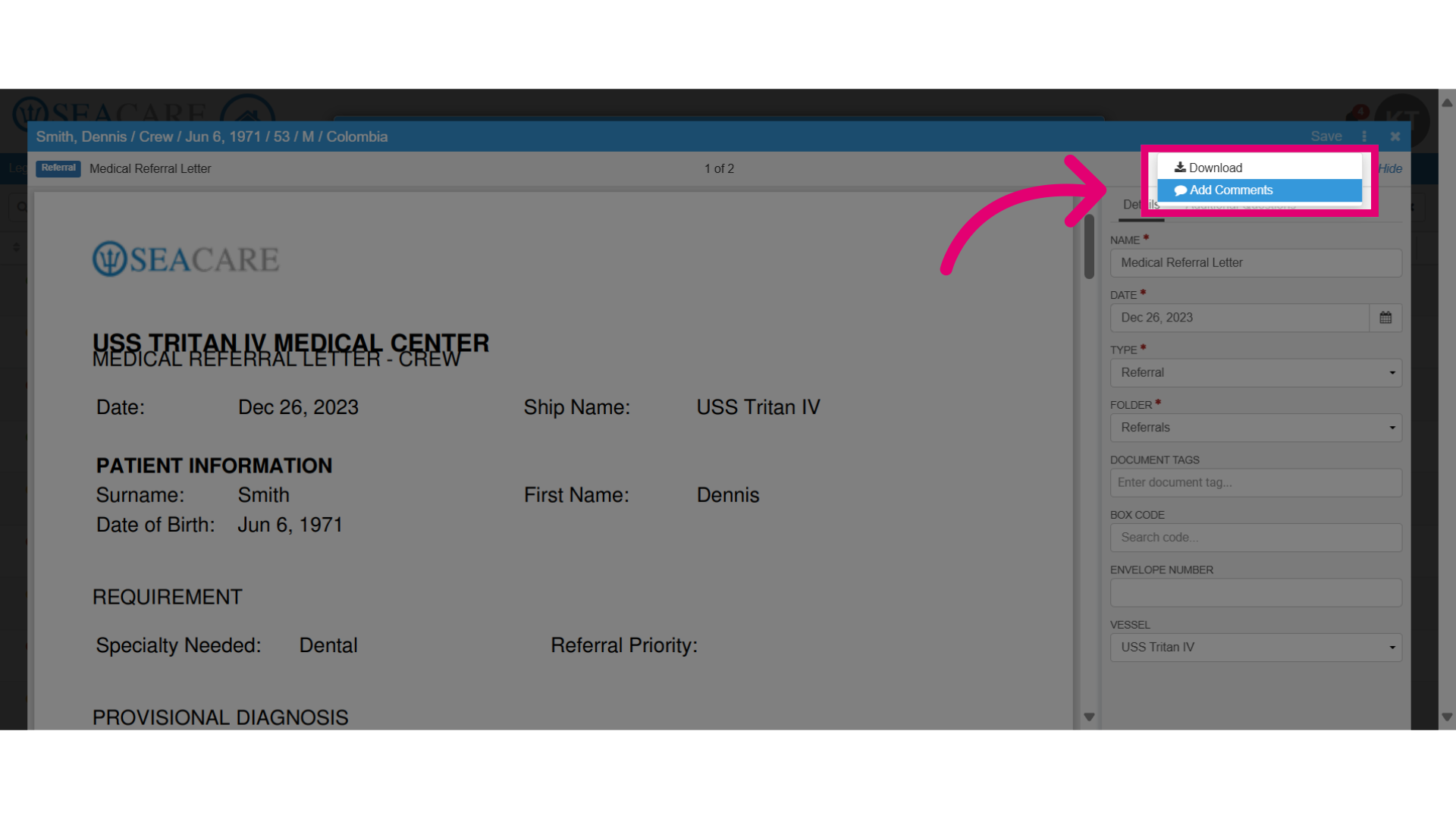
- Add the comment details.
- Select to make the comment Public which is visible to all users viewing the shared document or make the comment Private which is only visible to the internal team users. Then save the changes.
- Click save to save the comment.
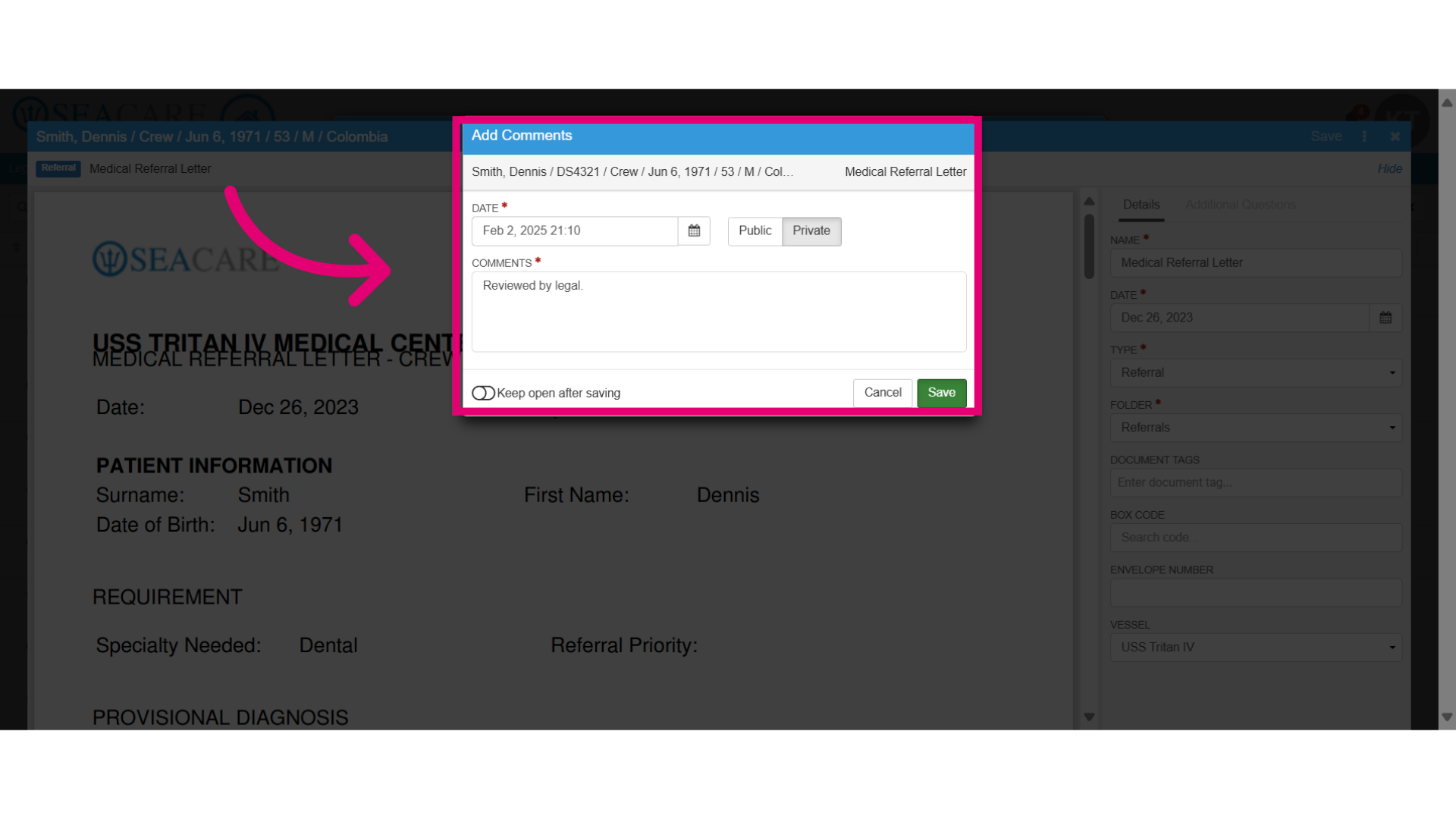
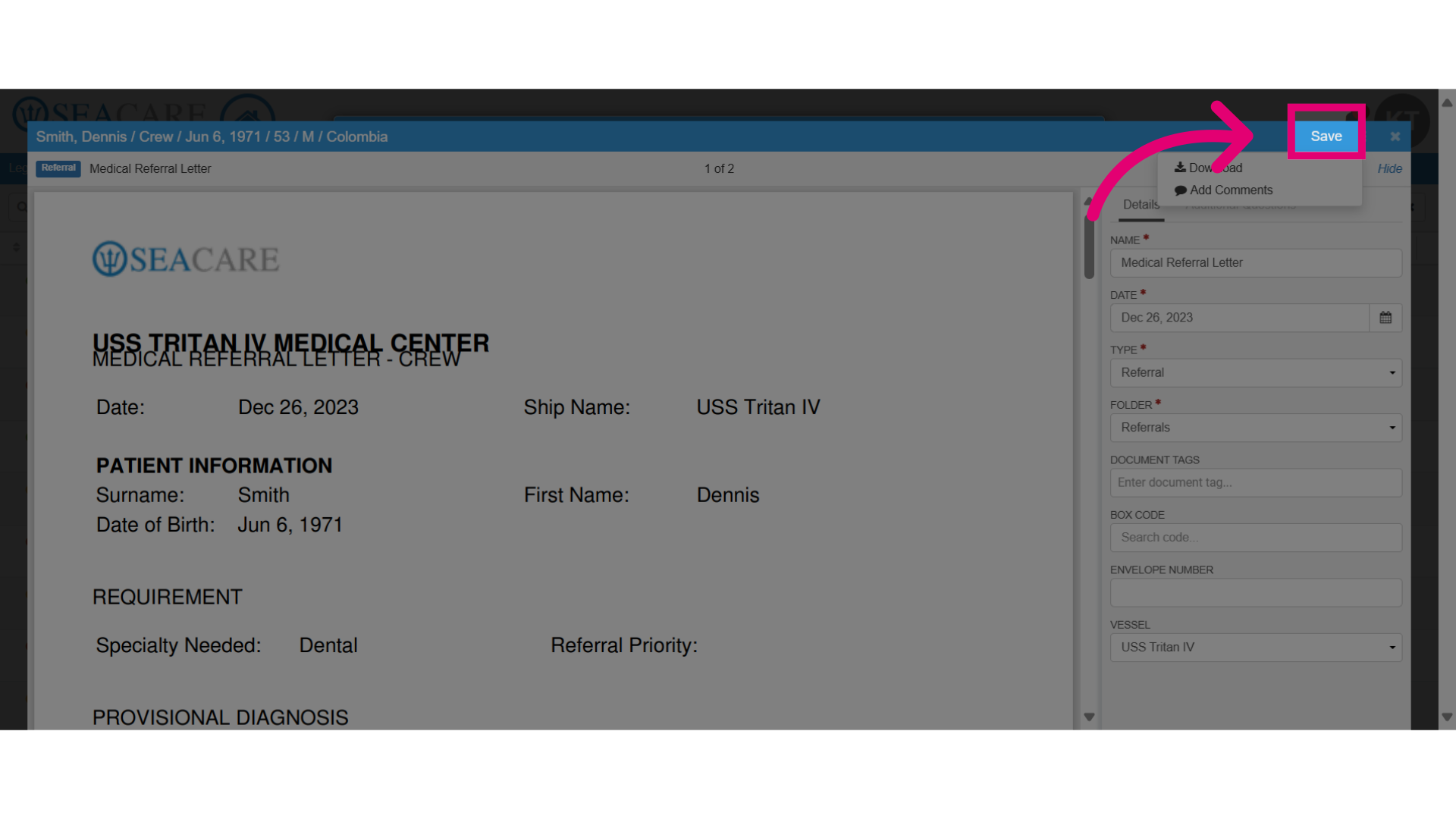
- Save your changes.
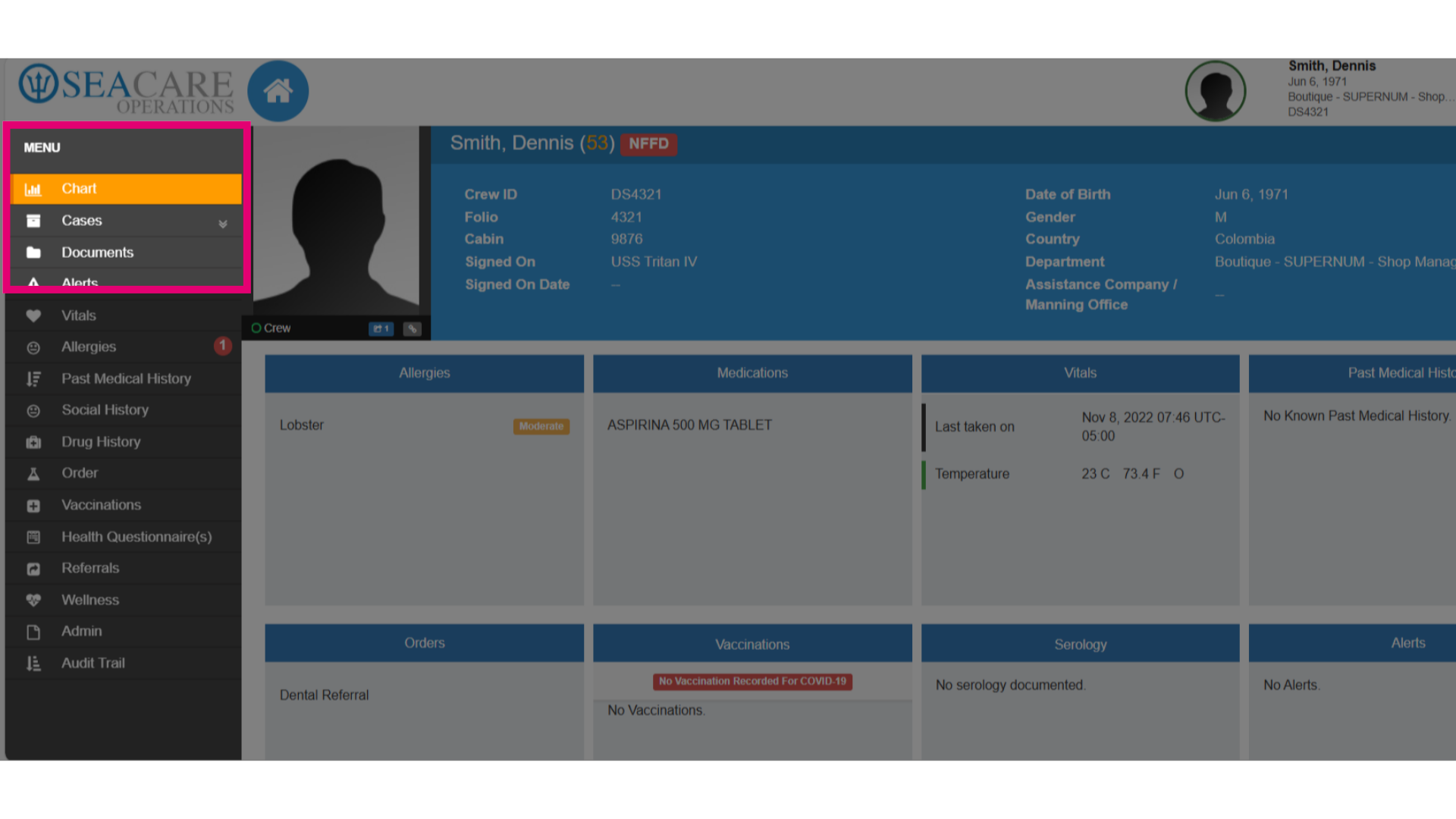
- If you have access, click on the patient's name to enter their patient chart.
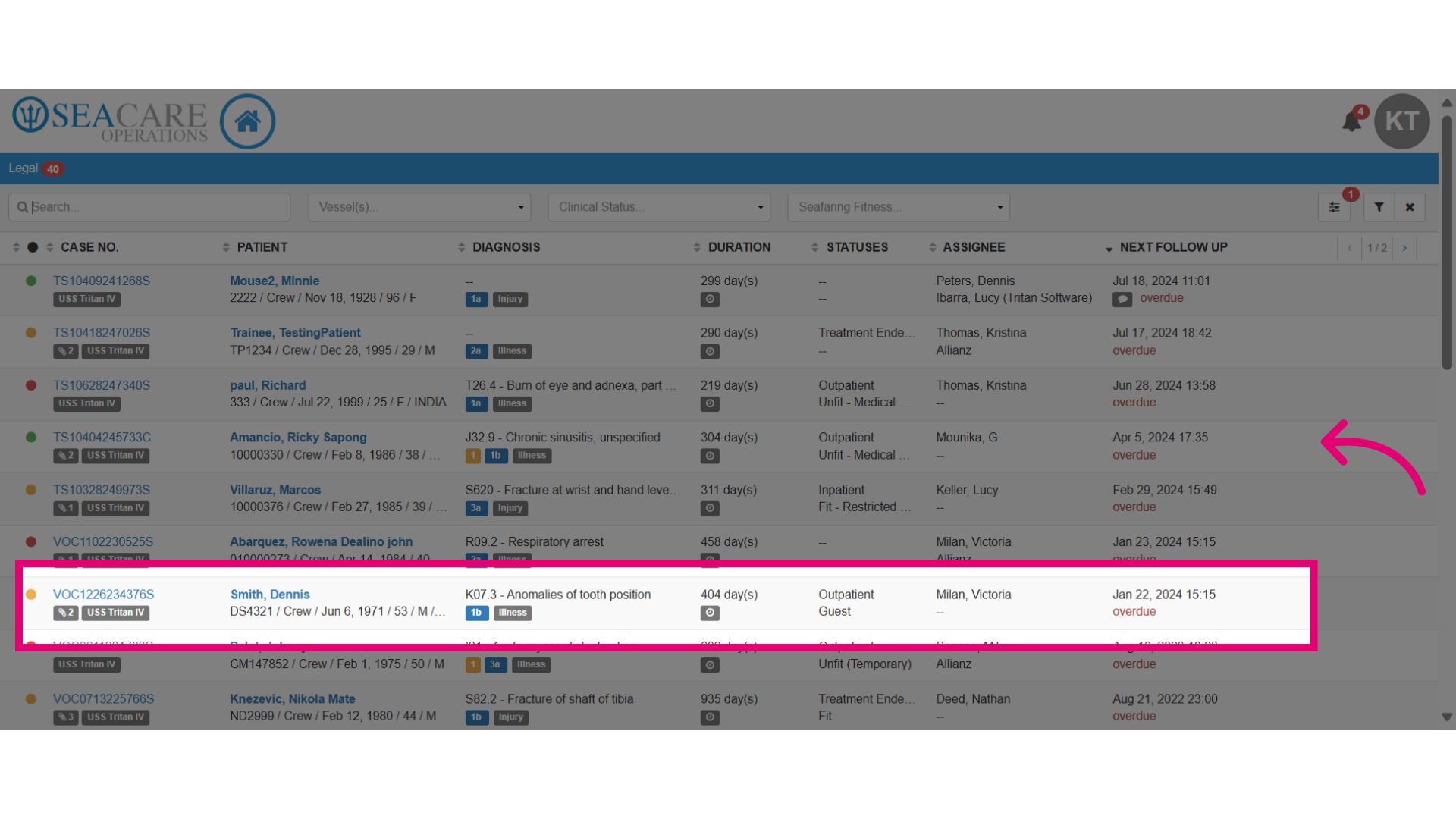
- This gives you access to more information related to the patient such as encounter details and the patient's documents folder.