


New article
Recently updated
Checking Out/In Patients in the Health Information Exchange

Who is this article for?Users who want to learn how to check patients out or back into the Health Information Exchange.
No elevated permissions are required.
In this guide, you'll learn how to check patients out and back into the Health Information Exchange. Completing document reviews or updating checked-out patients is essential for maintaining workflow and accurate tracking. Each step is outlined to streamline the check-in process, from confirming patient checkout to check-in.
1. Reviewing Documents in the Health Information Exchange
1.1. Video
1.2. Steps
- Start in the Health Information Exchange module.
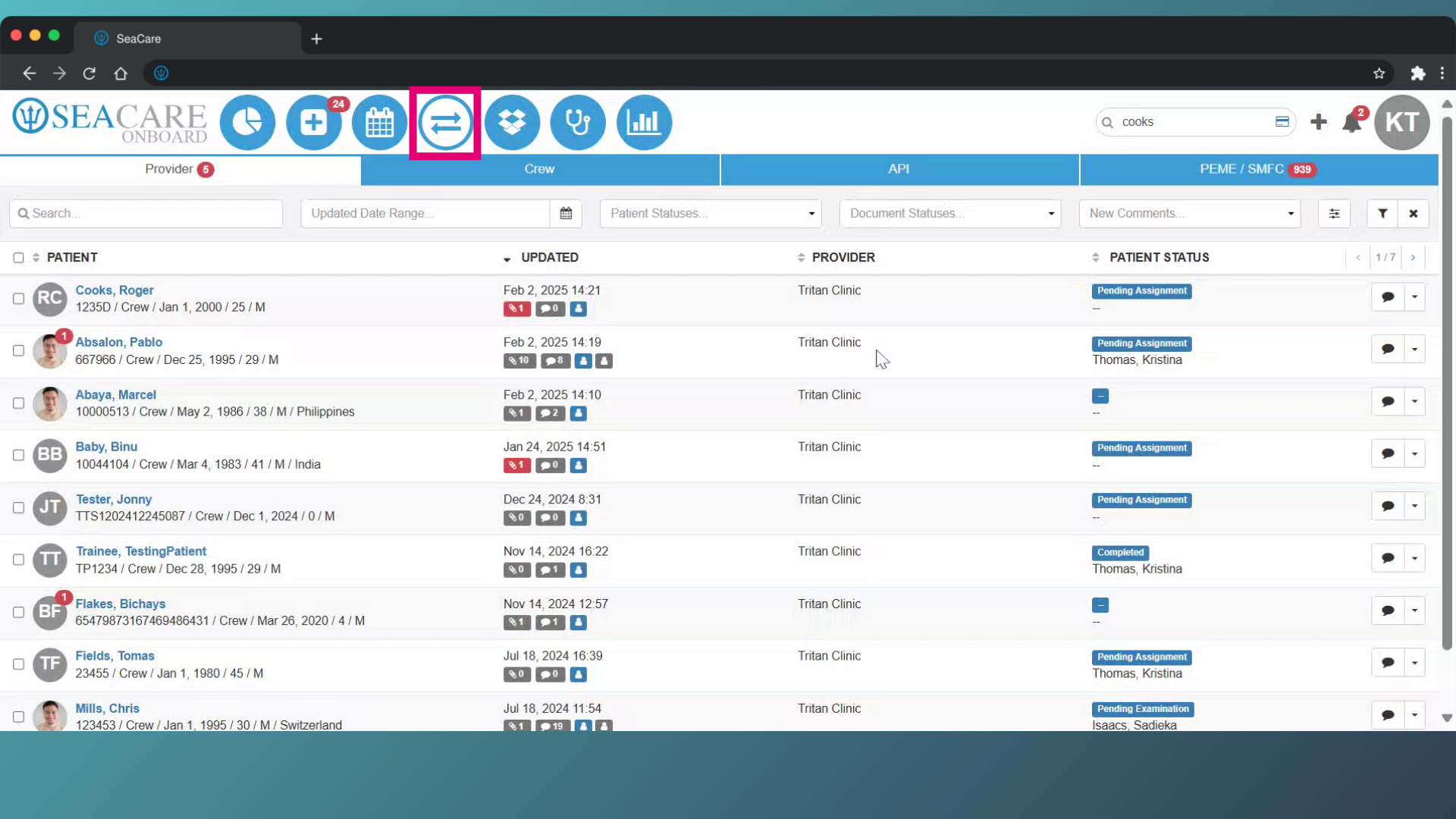
- Locate your patient and select the Actions button.
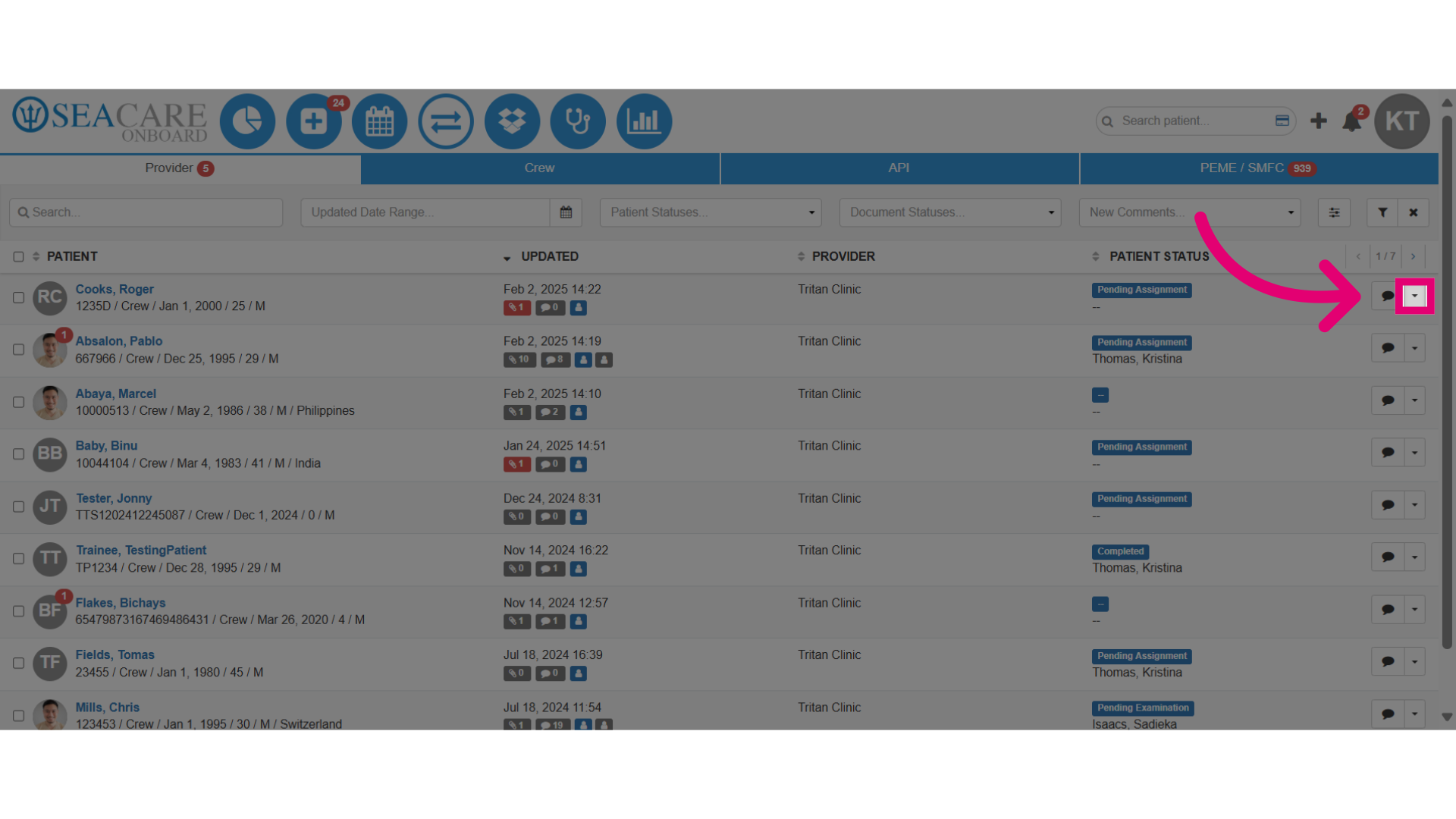
- Select Checkout.
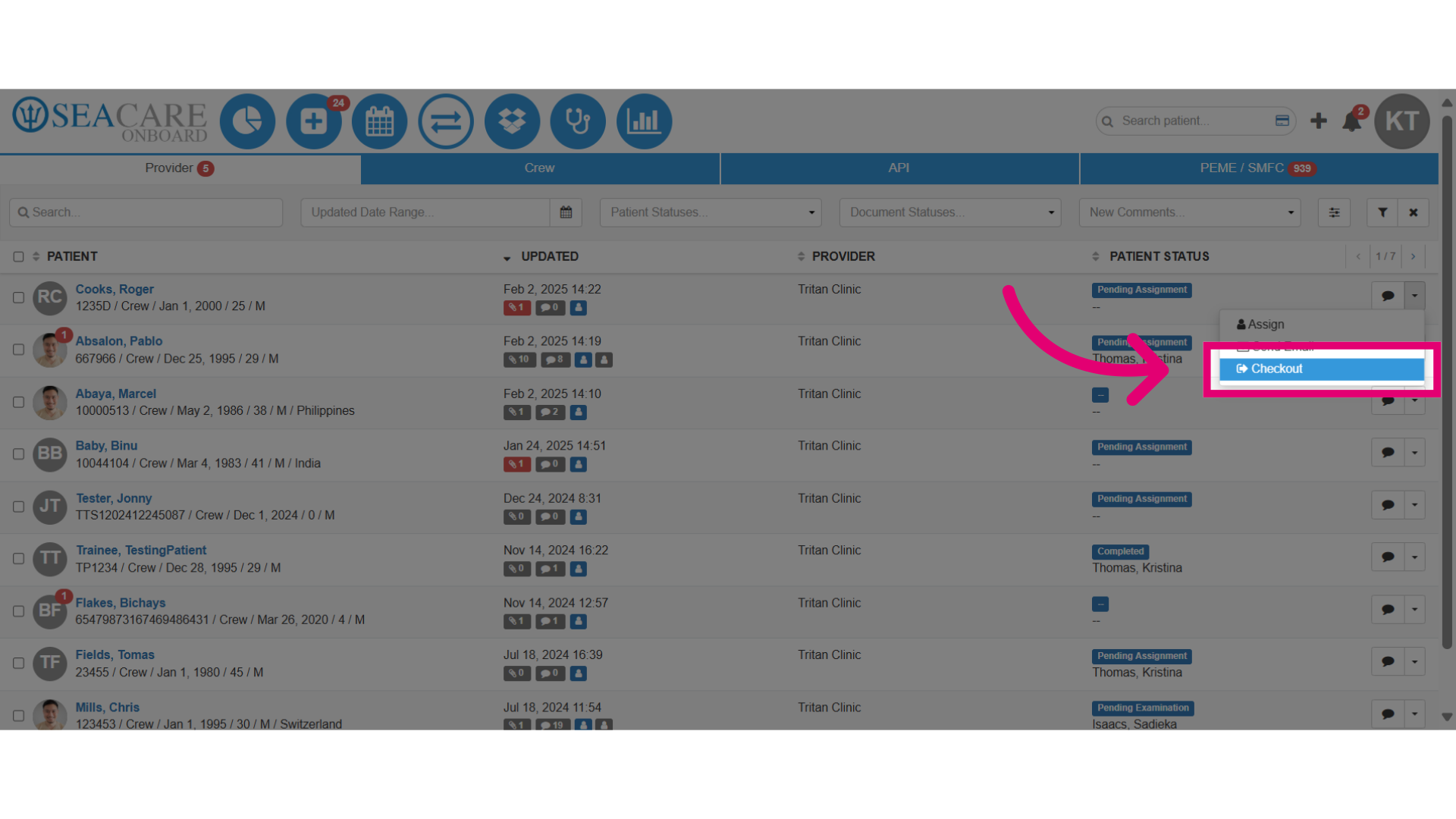
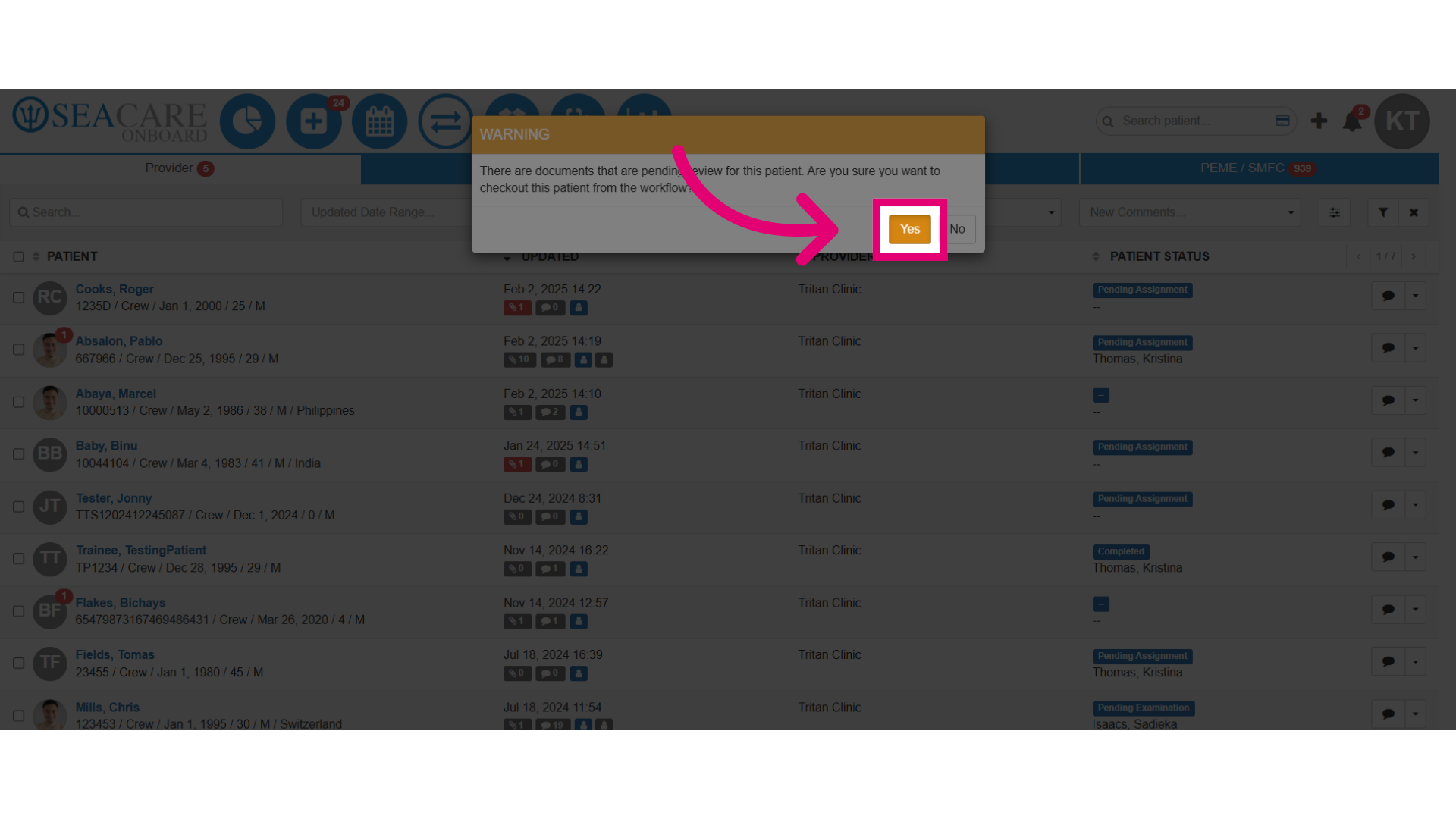
- Then, confirm the patient checkout.
- If there are pending documents, this will be noted in the message. You can either check the patient out or review the documents first.
- If there are no pending documents, you may proceed.
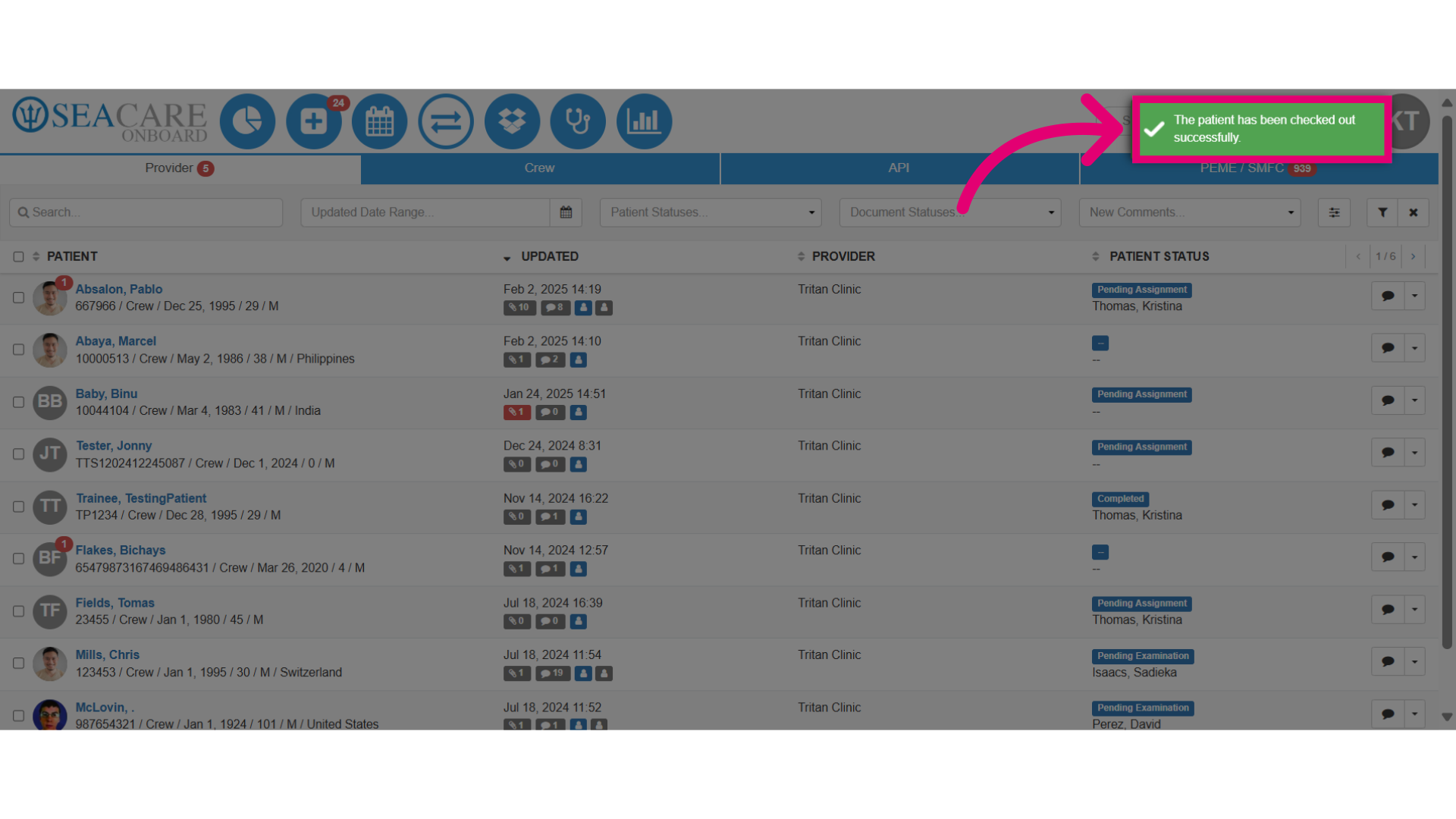
- The patient is now removed from the list and this message confirms the patient has been successfully checked out.
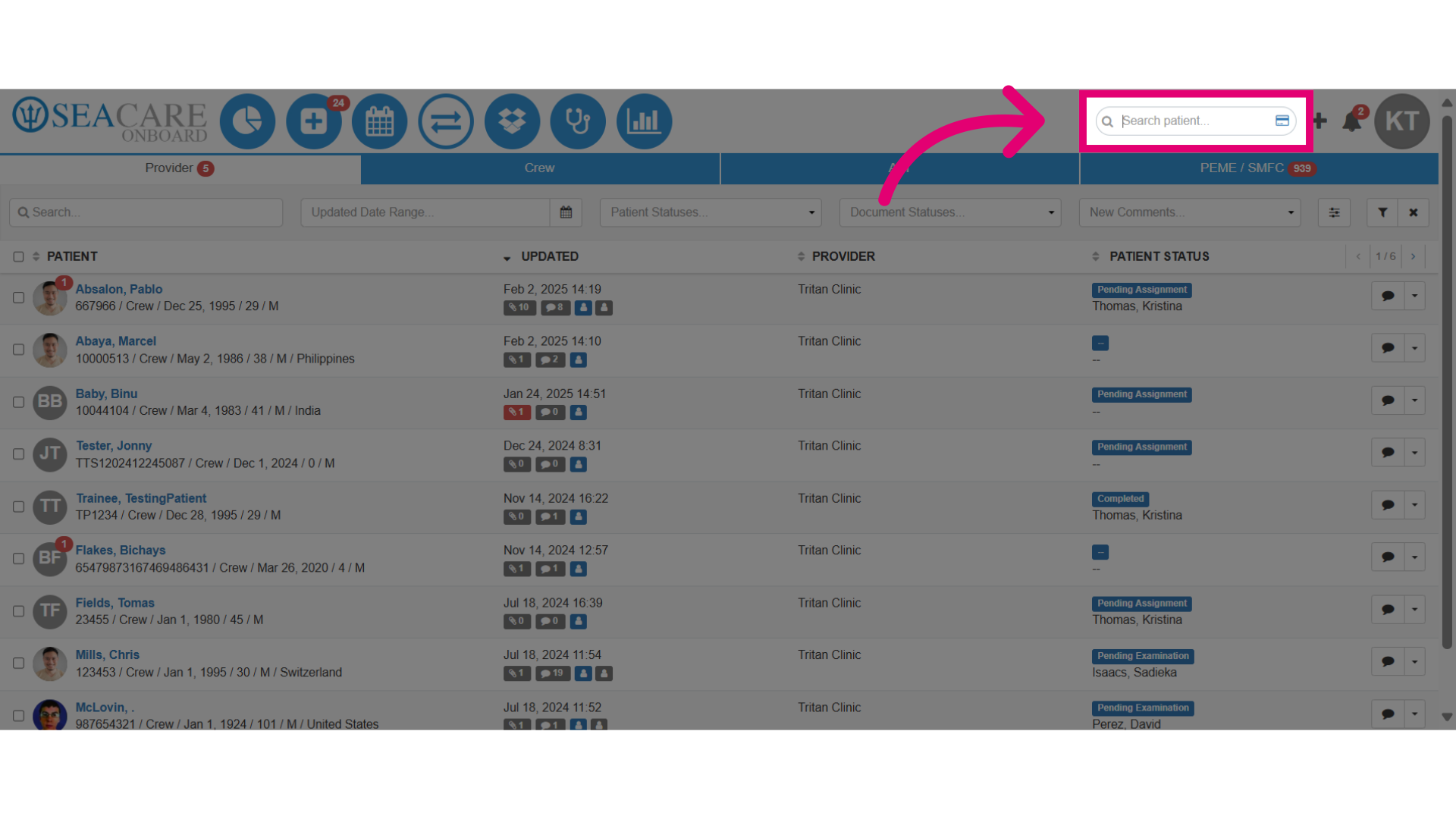
- To check a patient back into the Health Information Exchange for reasons such as reviewing documents that are still pending review, use the Global Search field to type in the patient name.
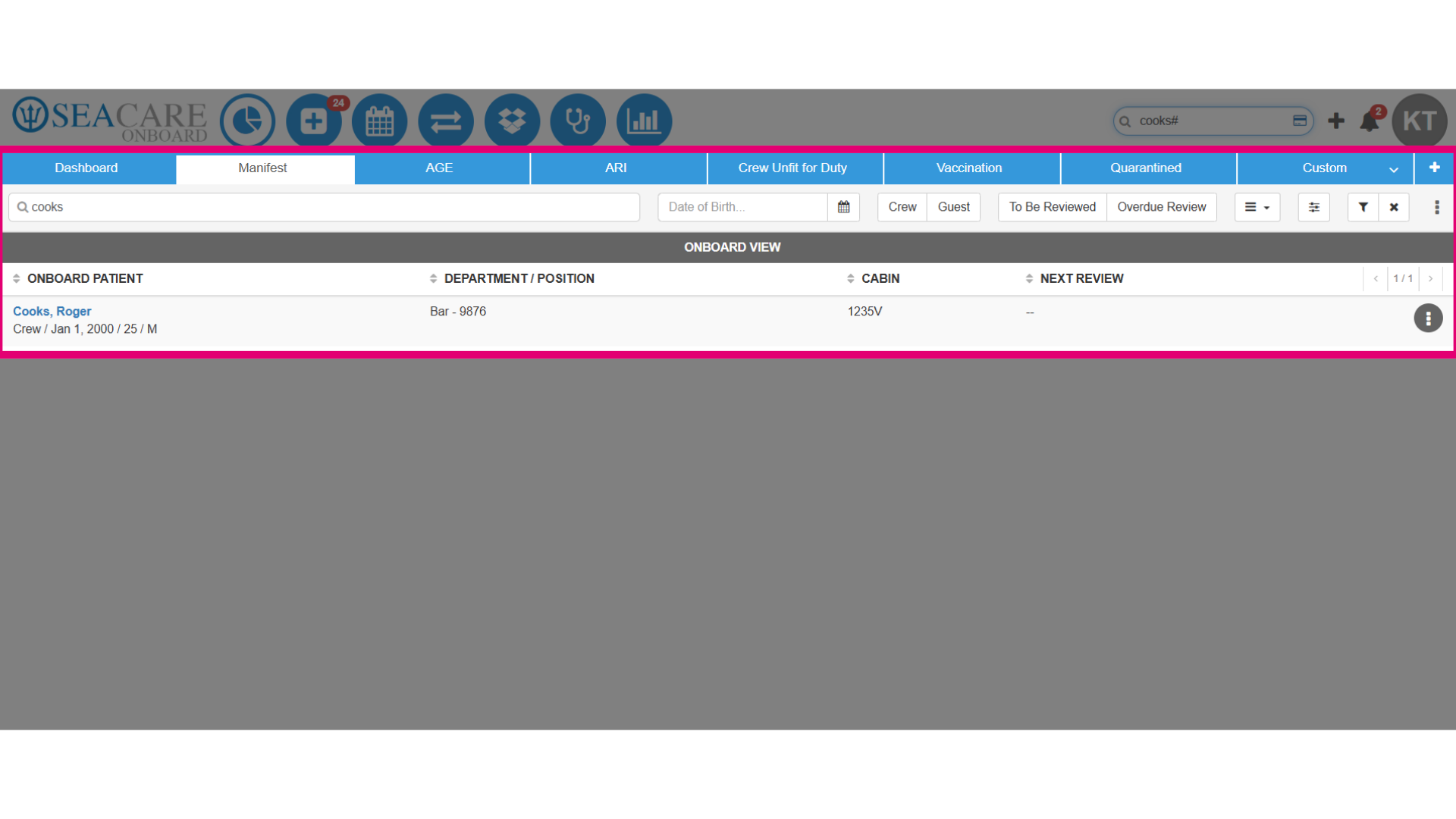
- Patient will be will appear in the Manifest tab.
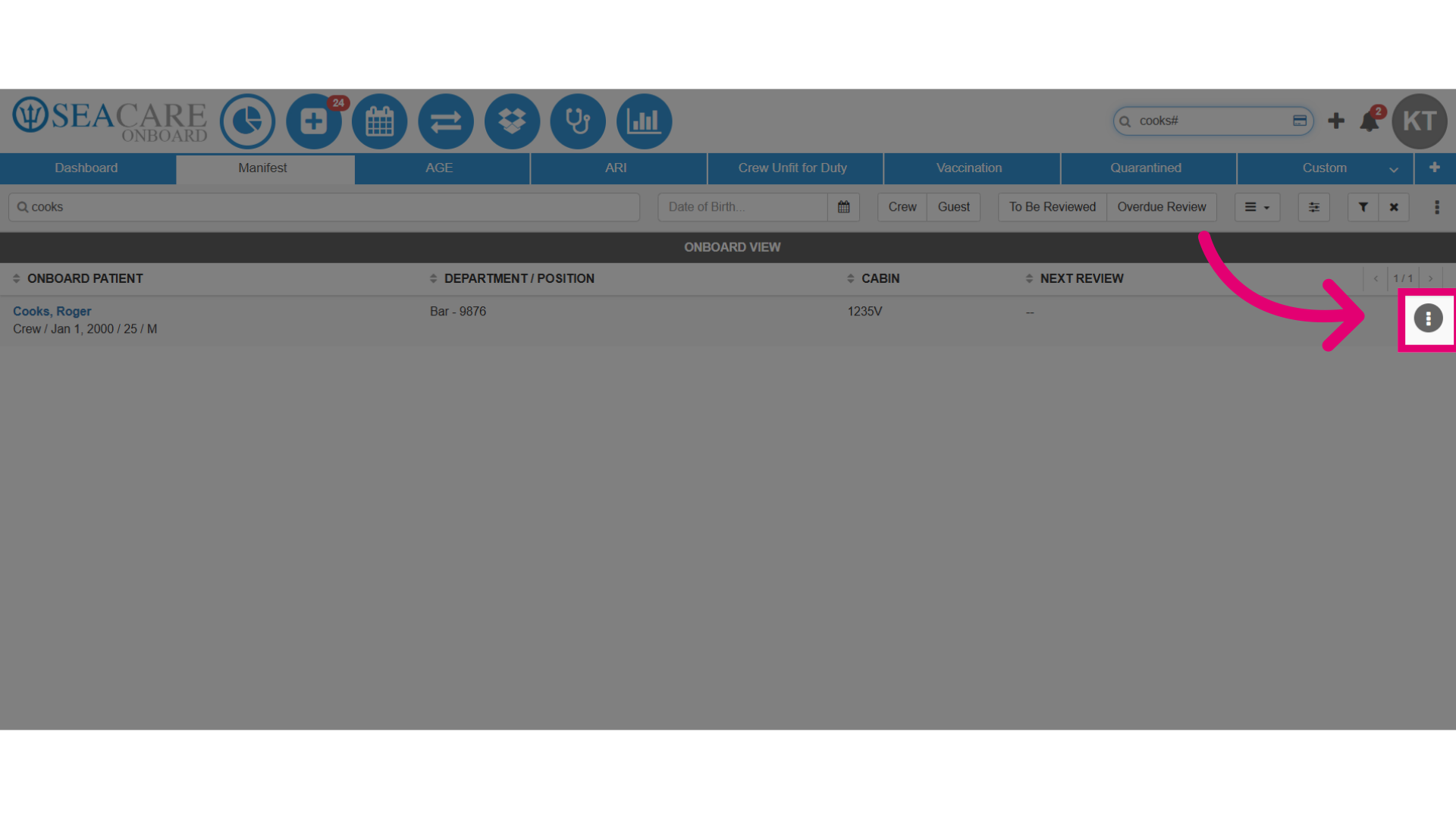
- Select the information button.
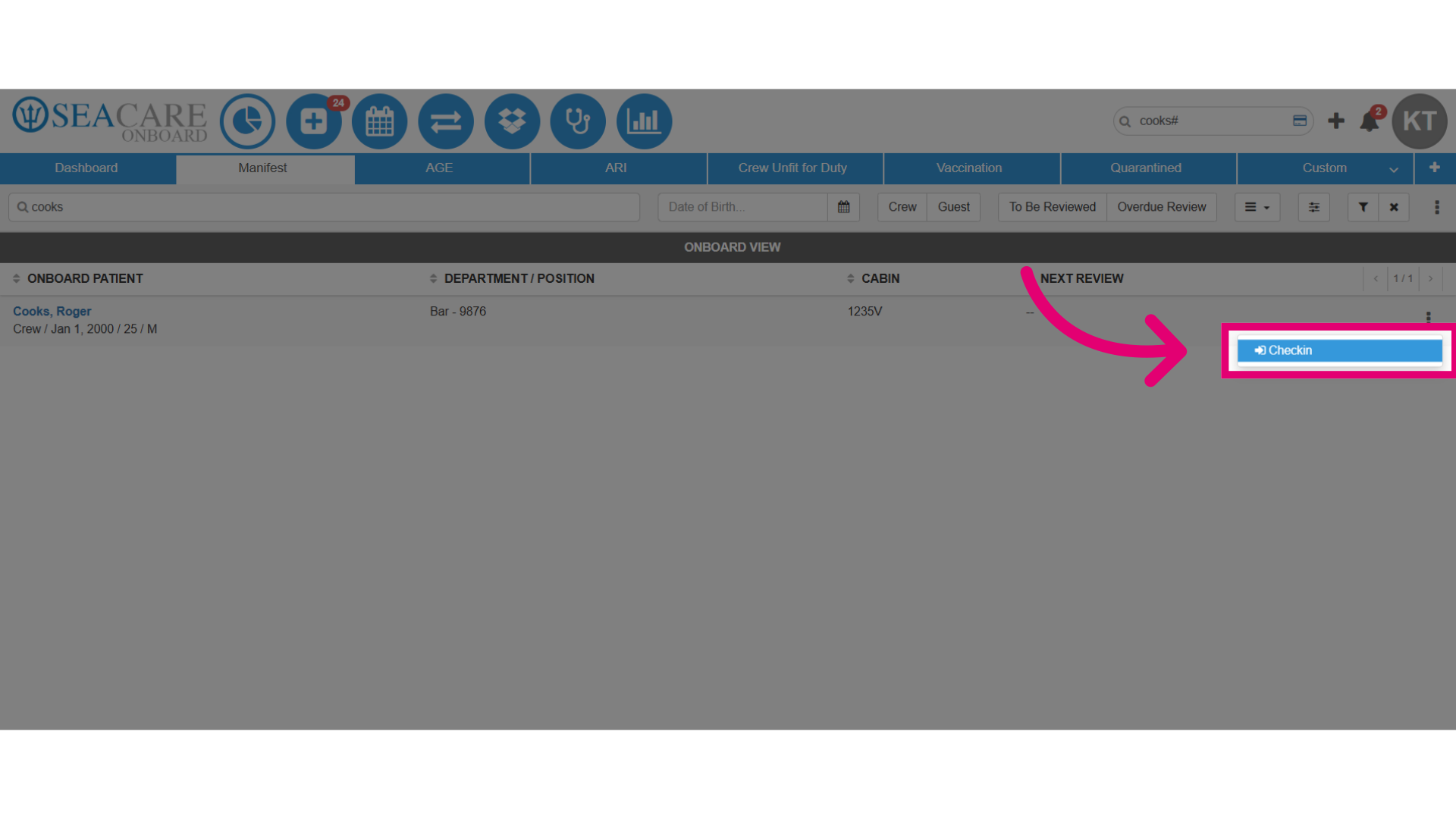
- Next, click on Checkin to start the patient check-in.
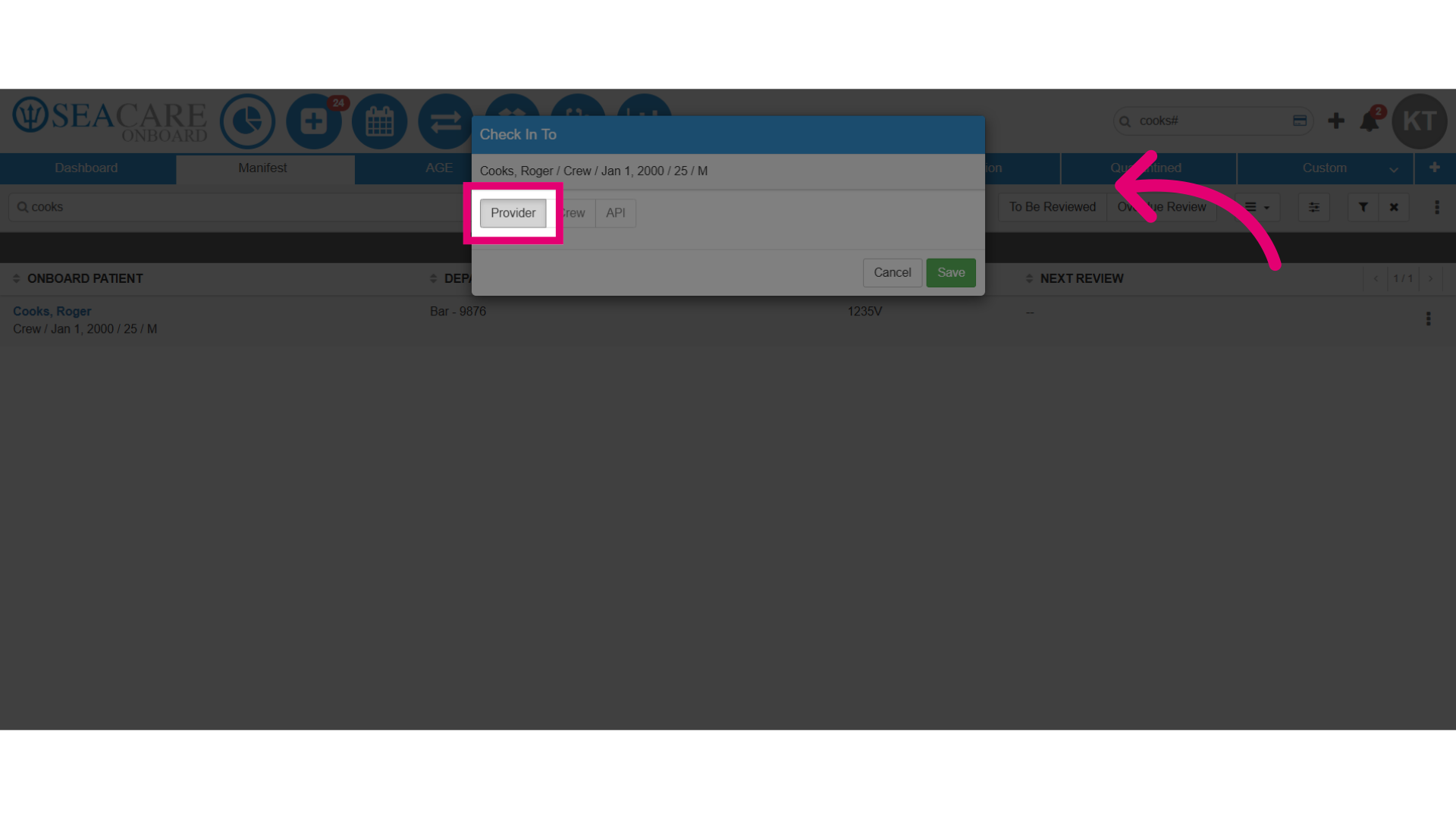
- Select the tab to check the patient back in to their previous location which was the provider. You can choose from the following options if documents were shared for the patient in the tab:
- Provider
- Crew
- API
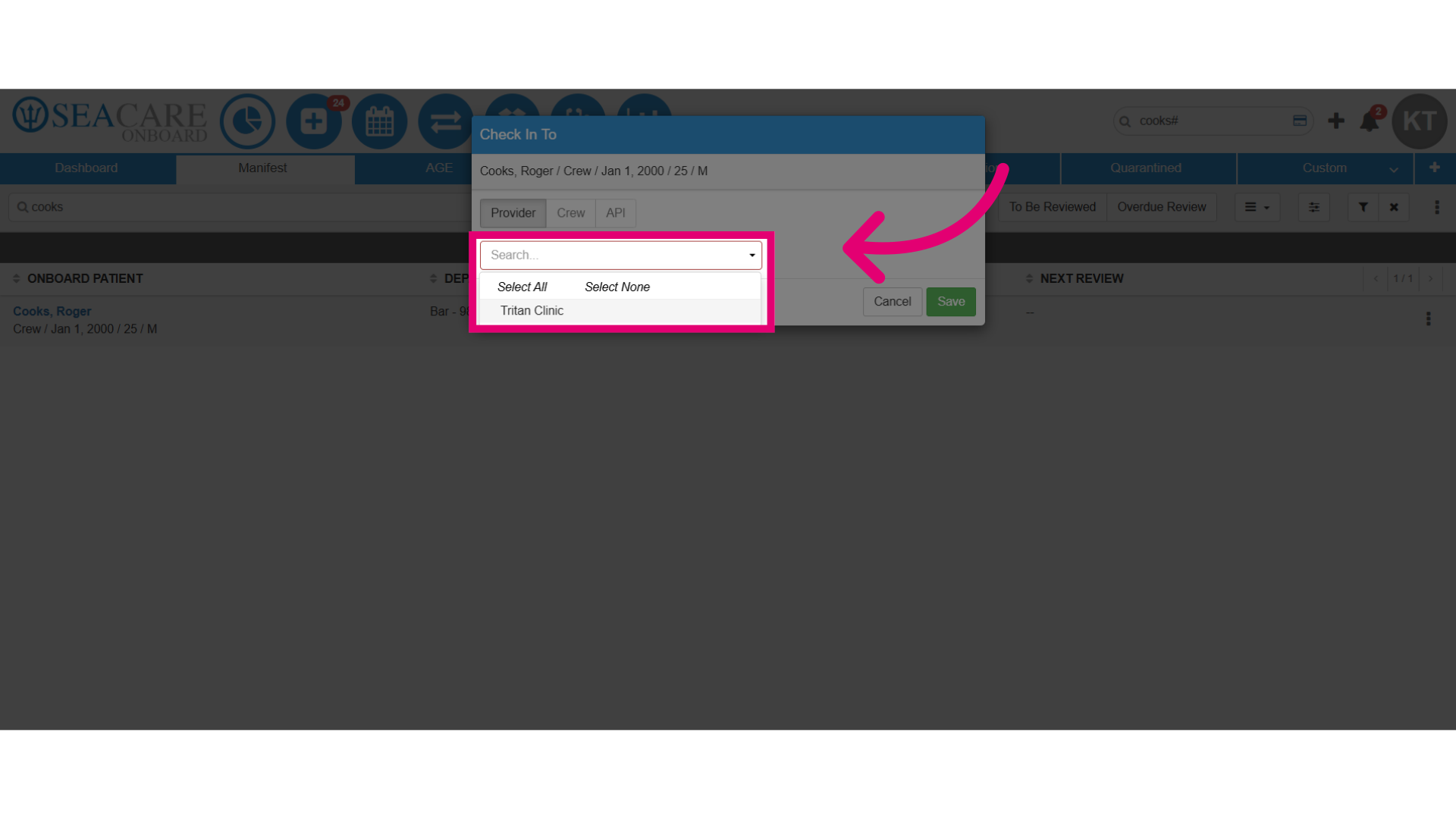
- Select the provider.
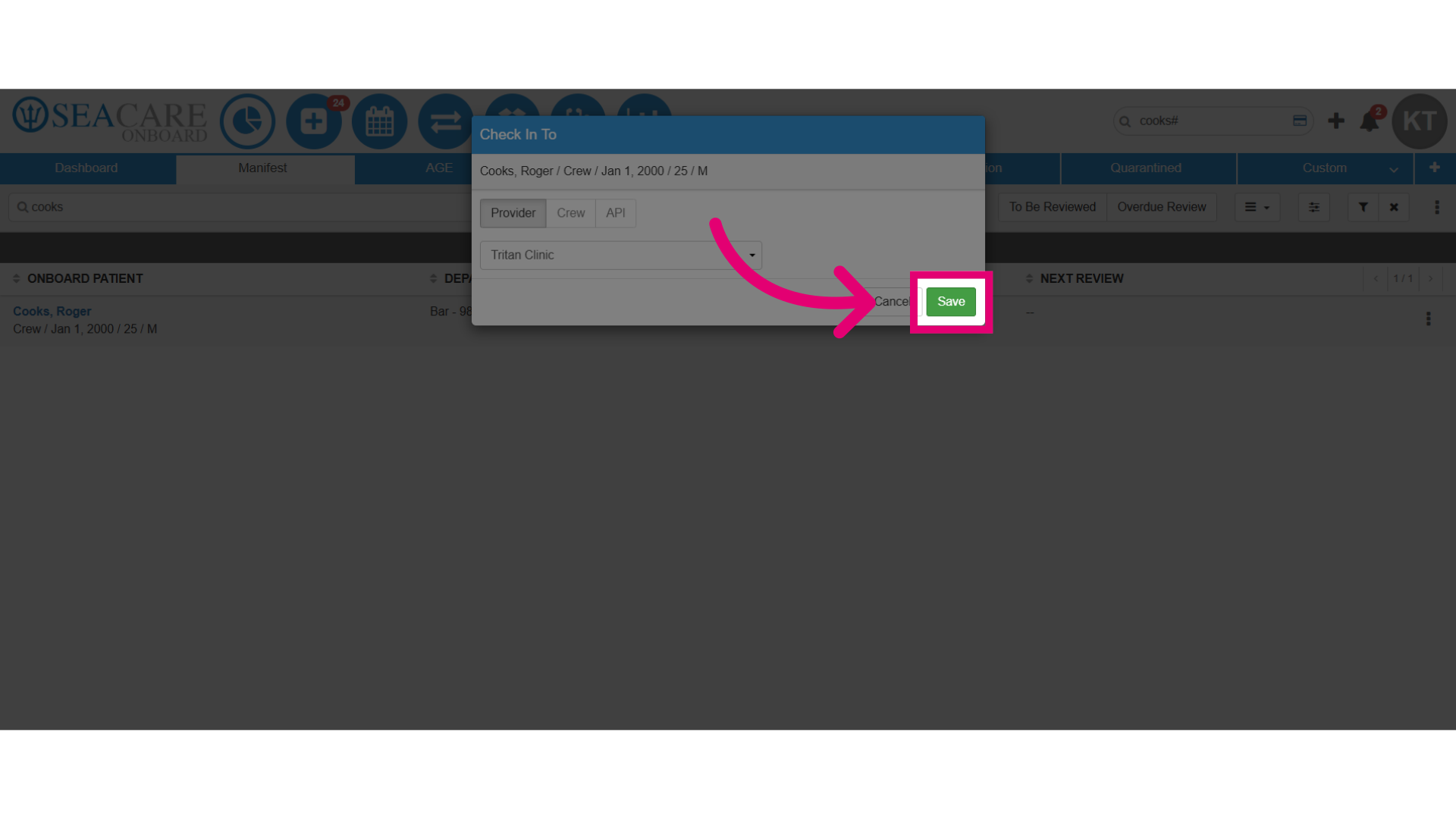
- Save the changes made during the check-in process.
- Review the update in the Health Information Exchange.
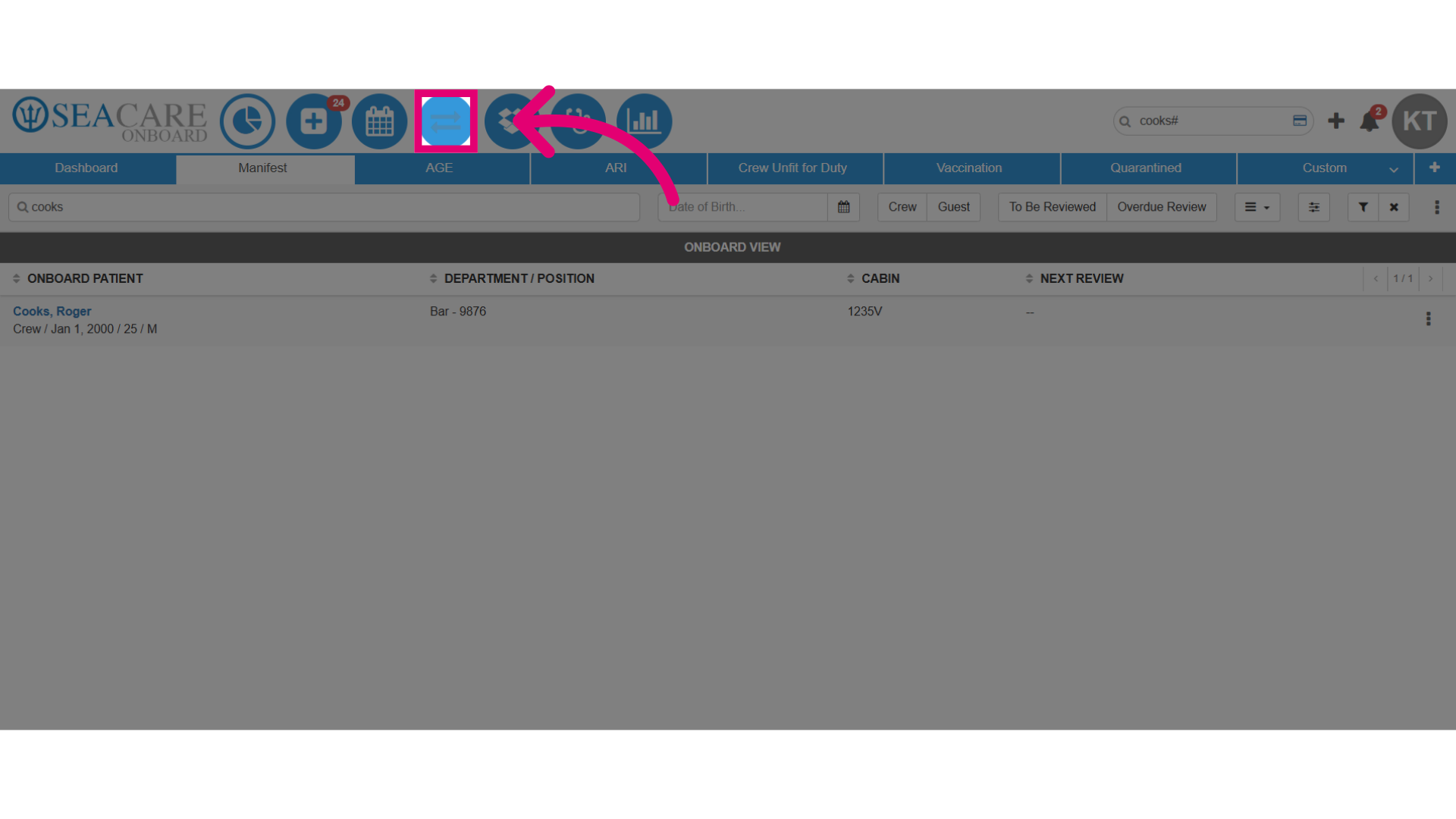
- The patient will be re-included in the Health Information Exchange Provider's tab within the patient list with the that are pending a review.