New article
Recently updated
Splitting Documents in the Health Information Exchange

Who is this article for?Users who want to split documents in the Health Information Exchange module.
No elevated permissions are required.
Documents can be split if multiple file types are attached to a single submission. Follow these steps to simplify the splitting process.
1. Splitting Documents in the Health Information Exchange
1.1. Video
1.2. Steps
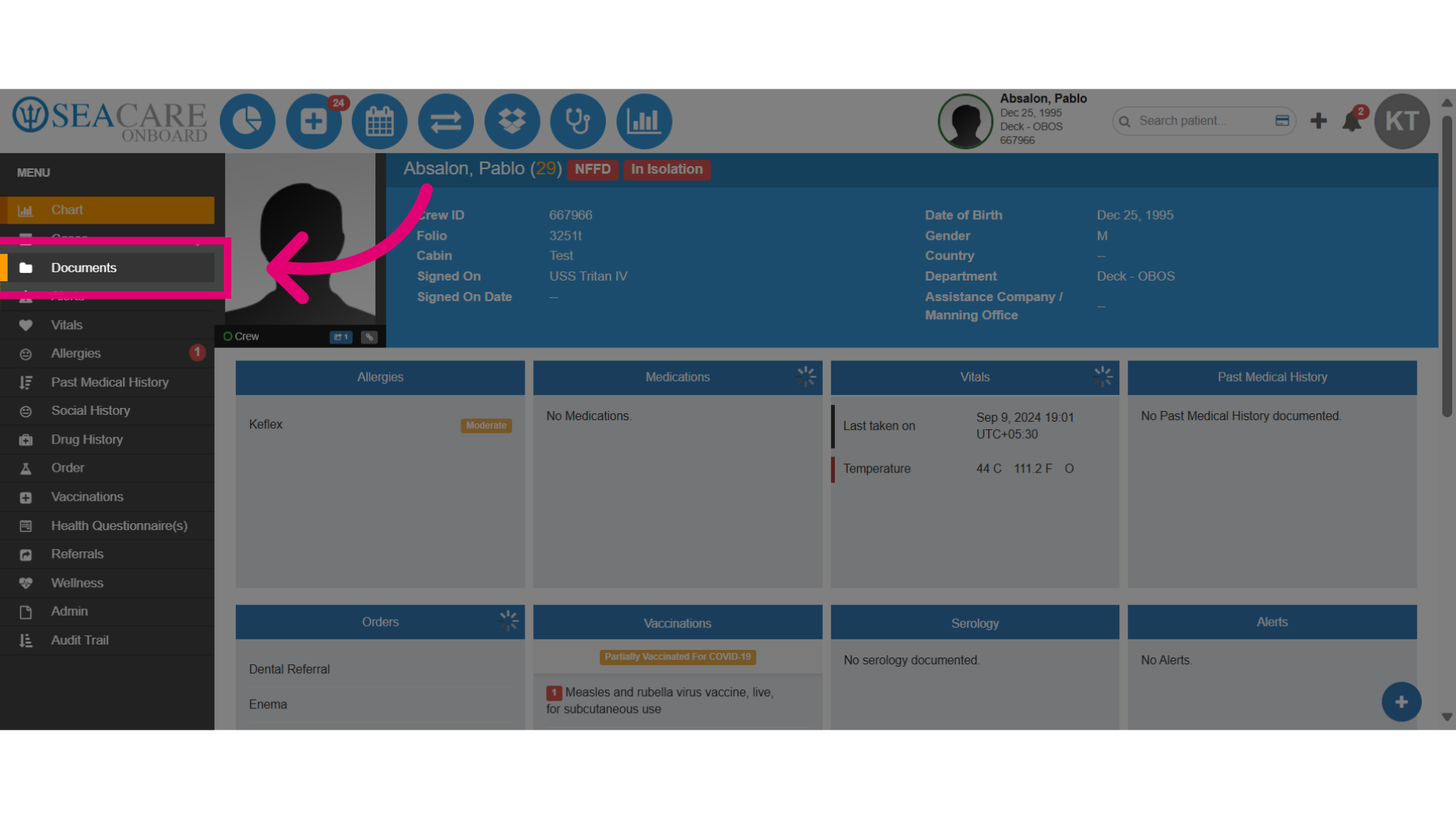
- Start by opening the document that needs to be split.
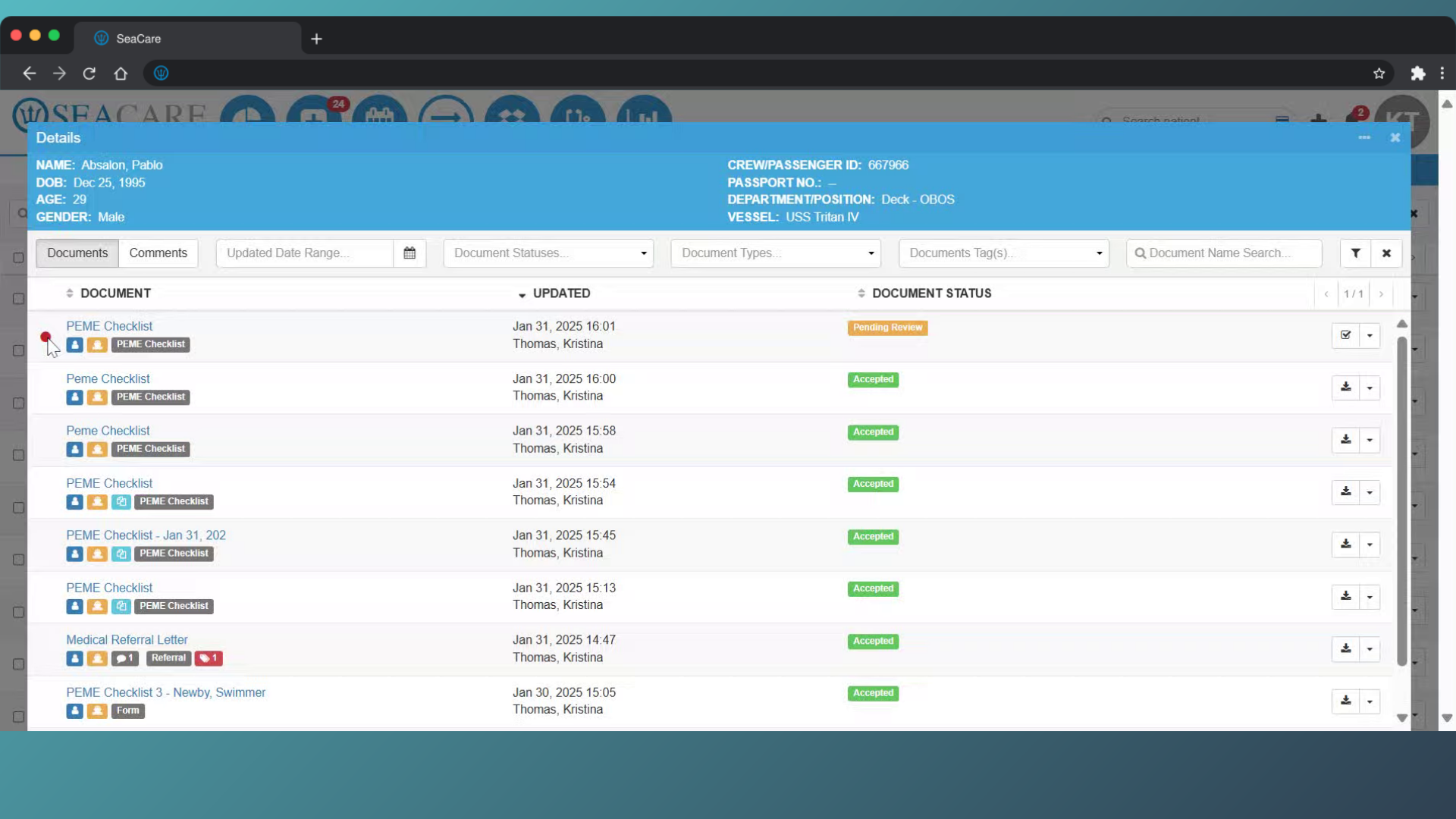
- Select the Actions button.
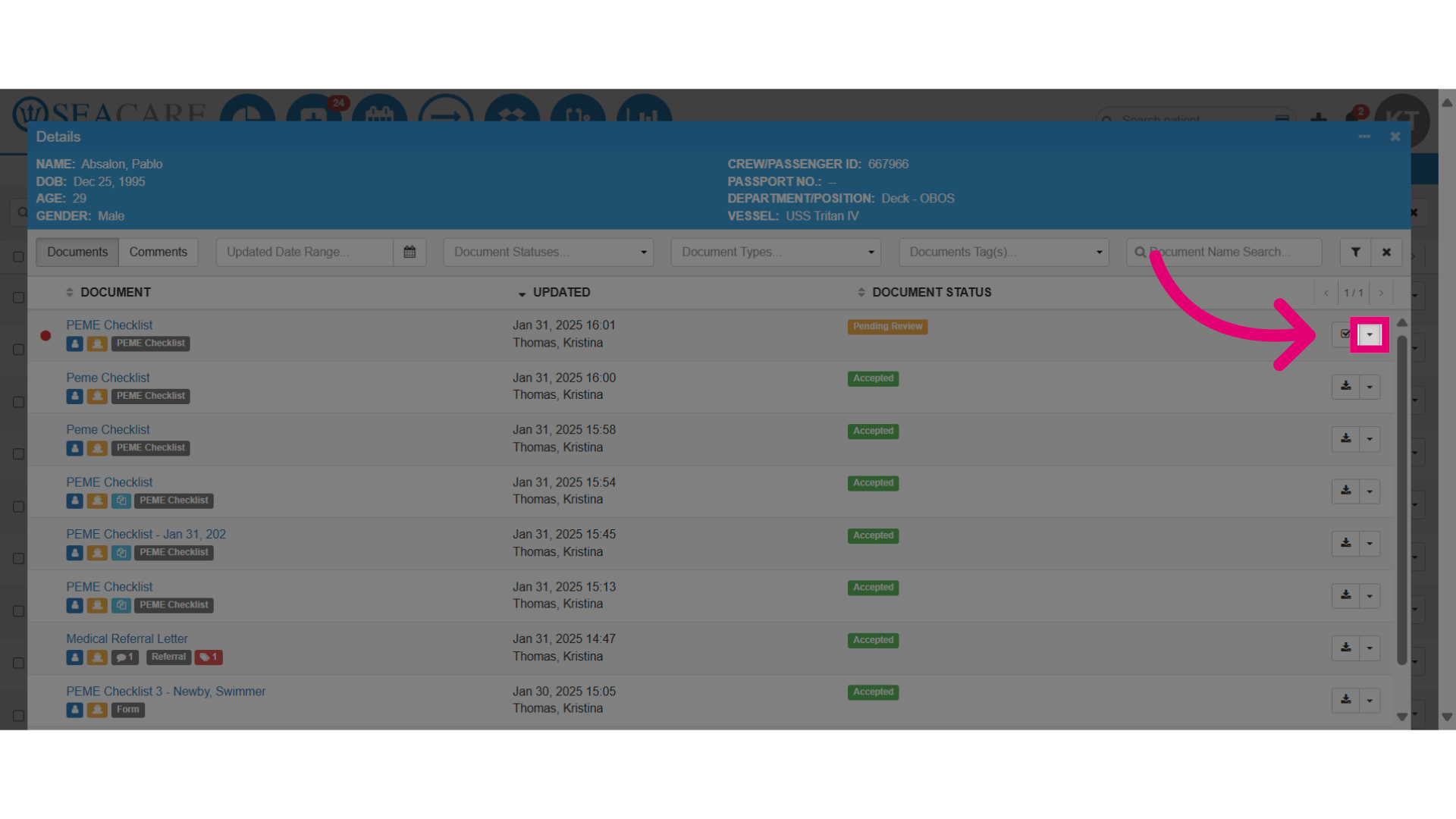
- Then, select the Edit/Split Document option.
- This opens the editing window for splitting documents.
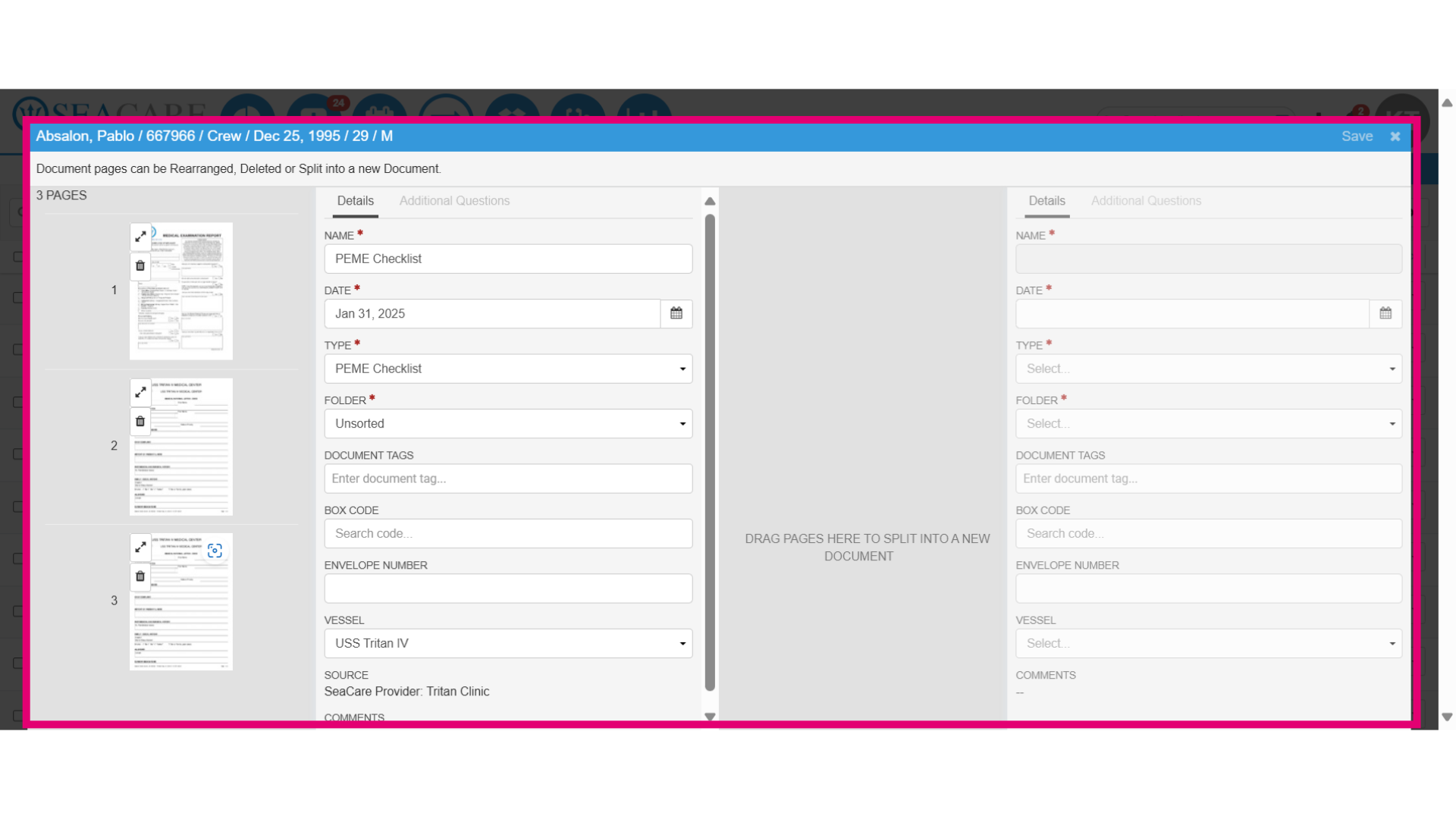
- On the left, review the number of pages in the document attachment.
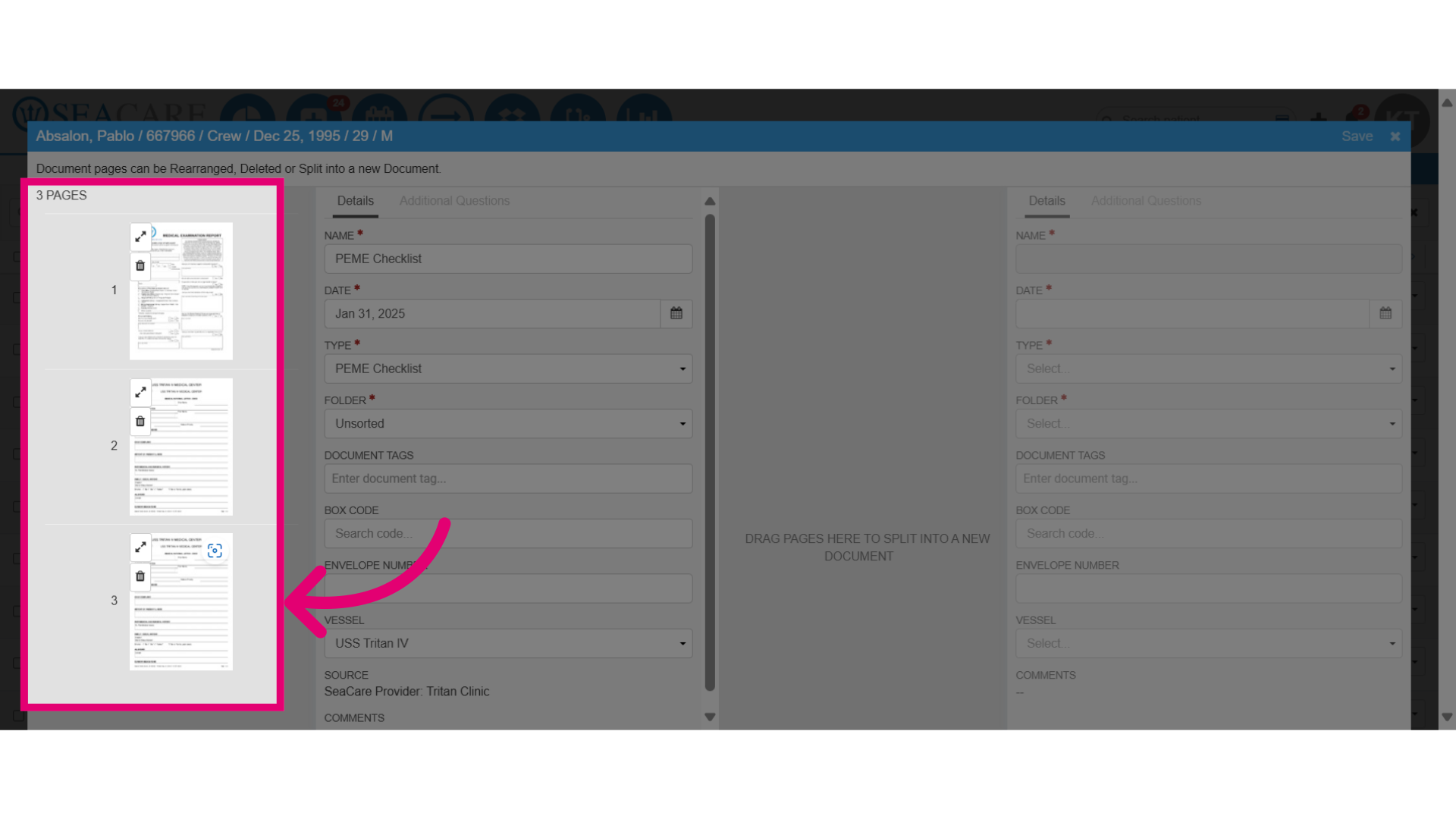
- You may want to use the tools to edit the pages by doing the following:
- Rearrange icon - Rearrange the pages in the order it appears in the file or when downloading.
- Web search icon - Select the web search icon to conduct a web search of the page
- Trash icon - Select the trash icon to remove and delete the page.
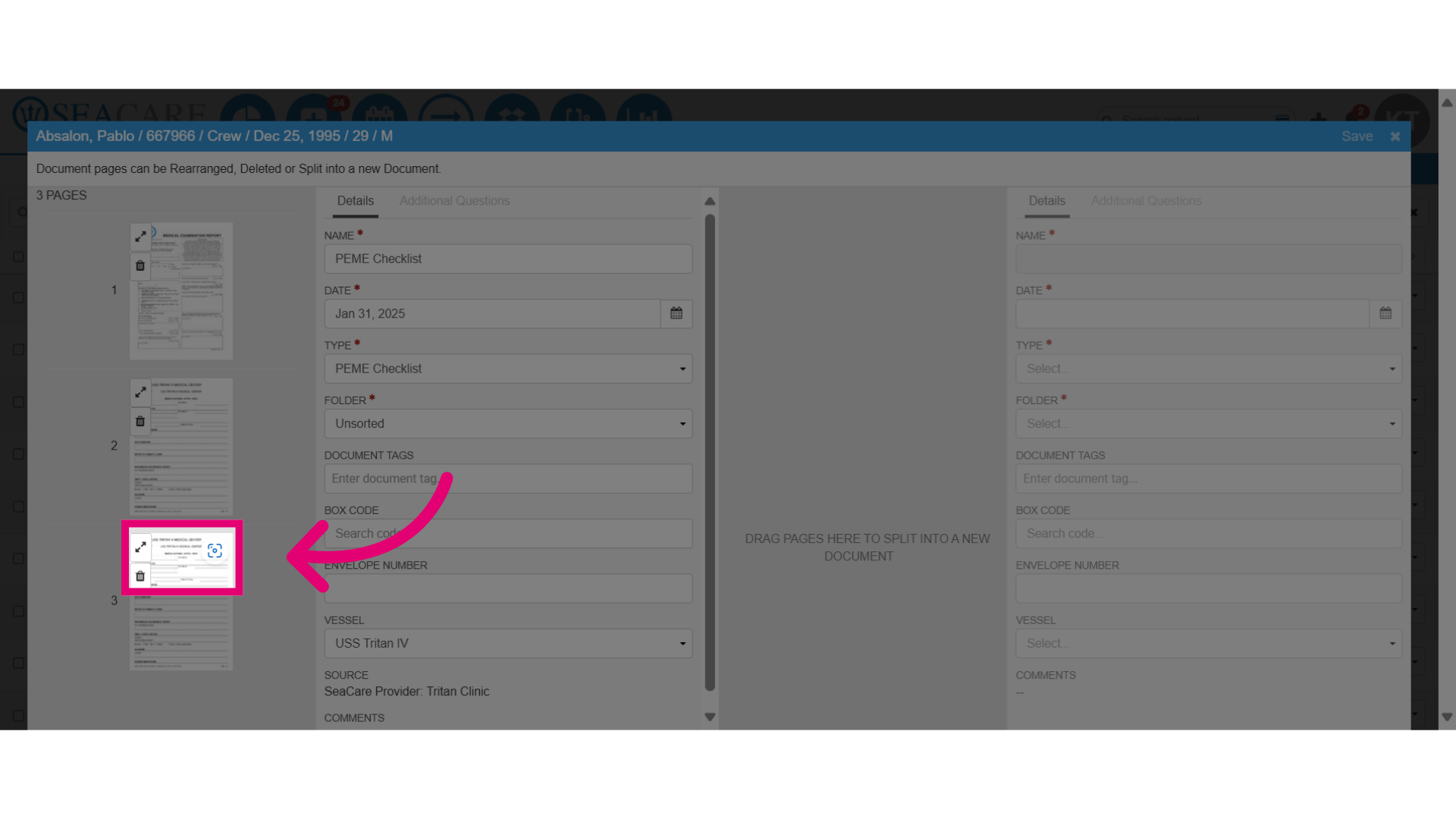
- Follow these steps for splitting the pages:
- Click on the page that you want to split.
- Drag the page to the right side of the split document window.
- Drop the page to split into a new document.
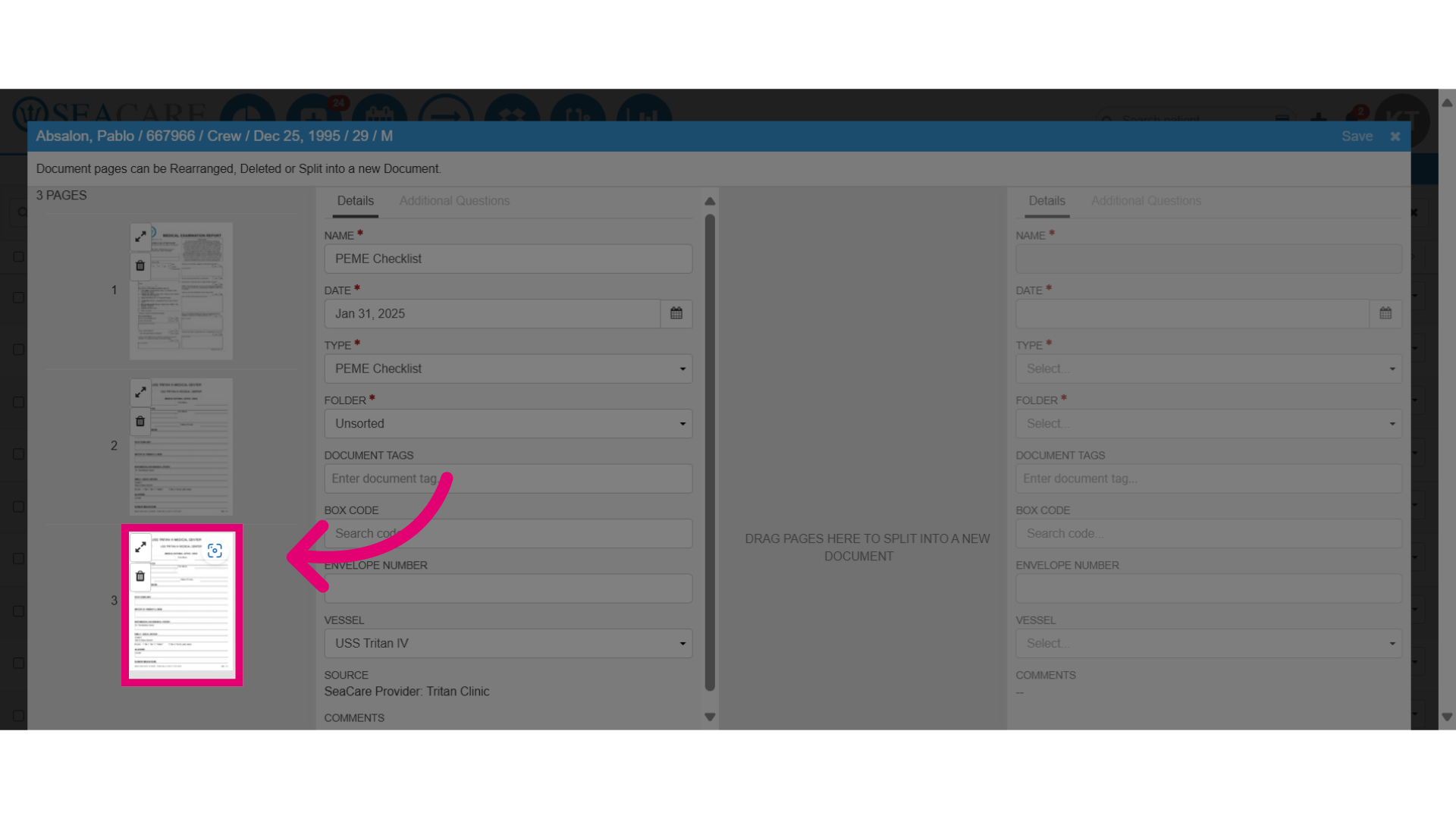
- Review the newly formed document and repeat those steps to add more documents.
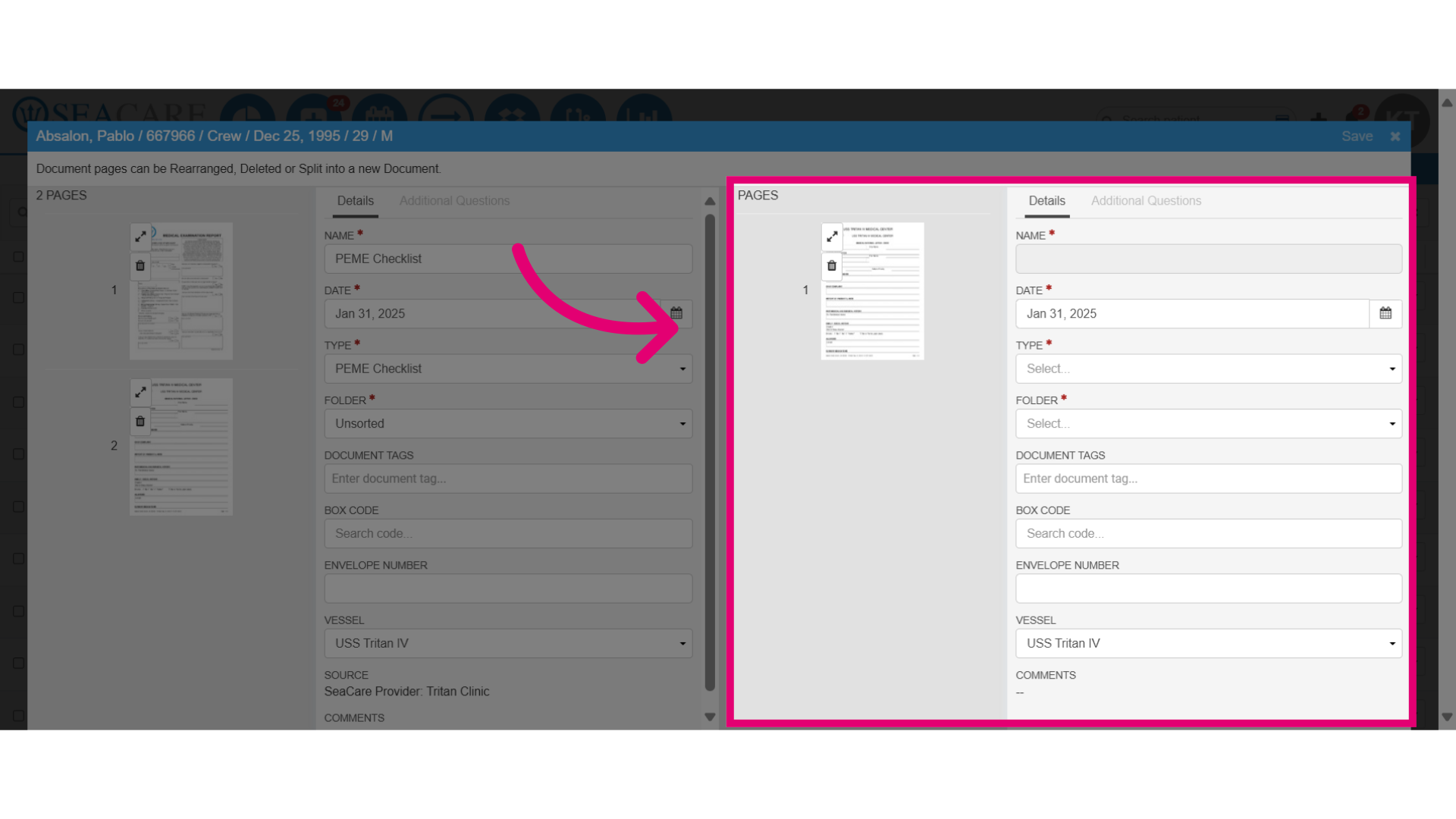
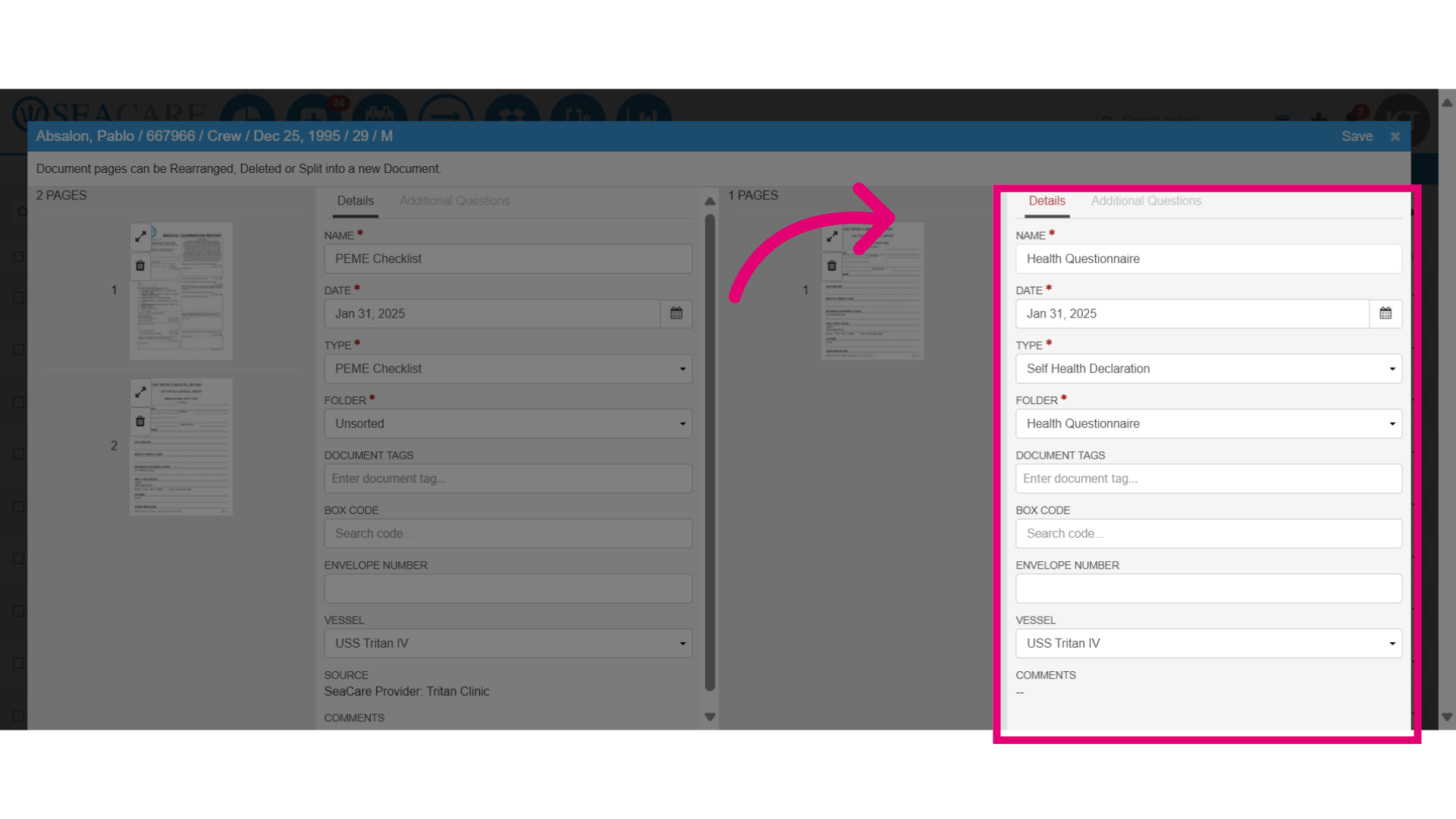
- Add the required information for the new document including:
- Document name
- Date
- Document Type
- Folder
- Vessel
- Document tags (optional)
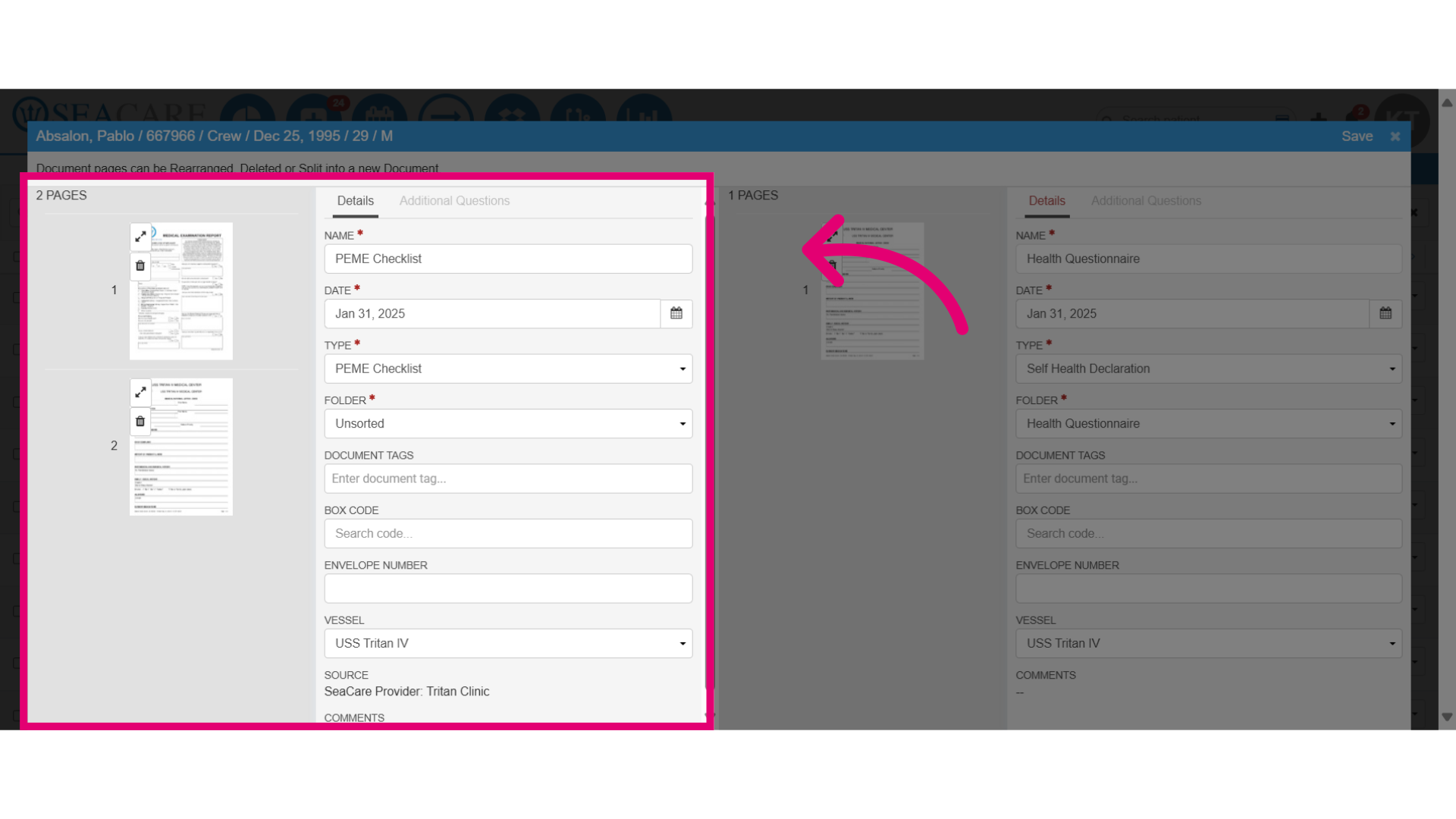
- Review the original document and the updated page number and verify the information is correct.
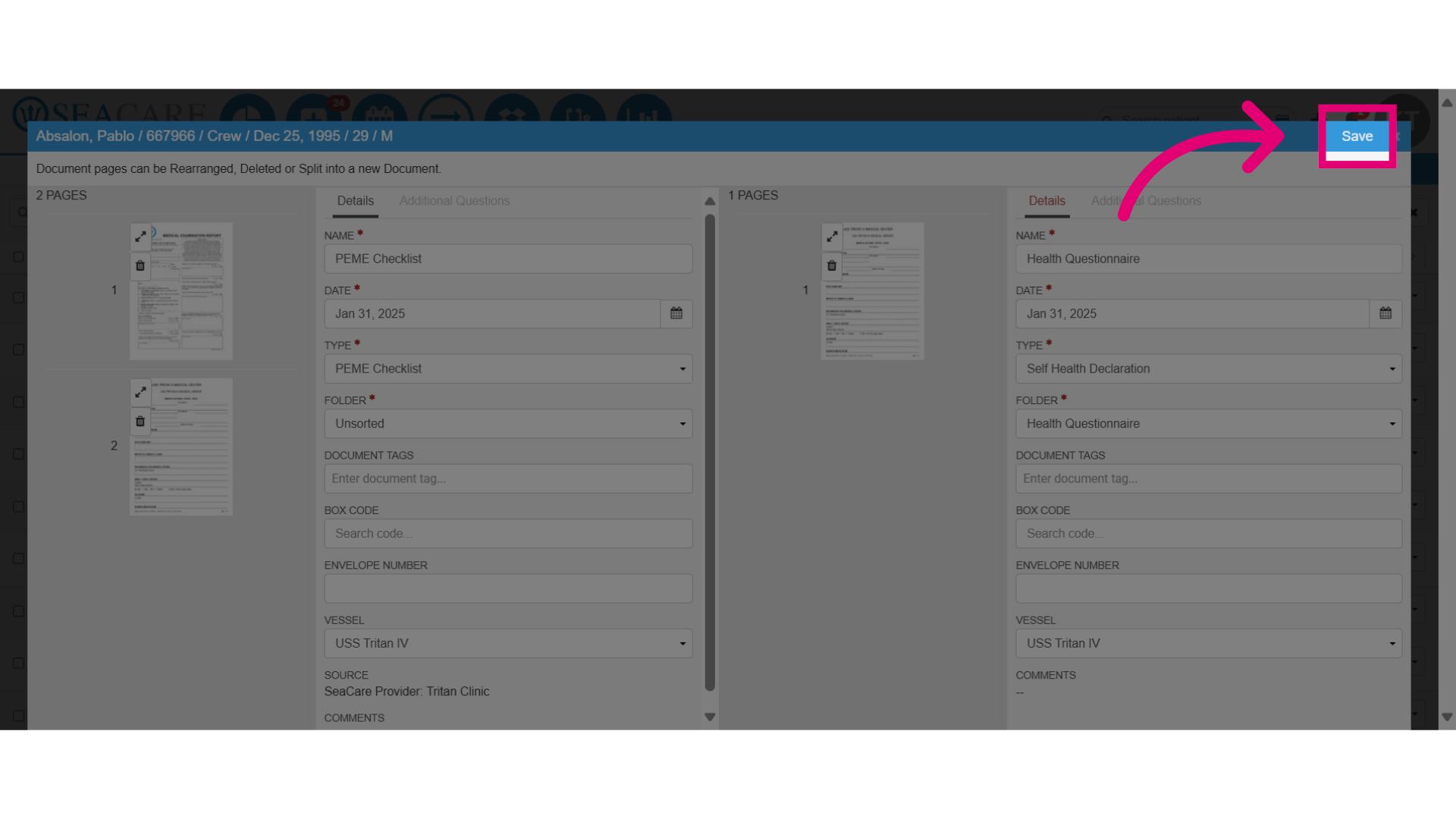
- Select Done to save your changes.
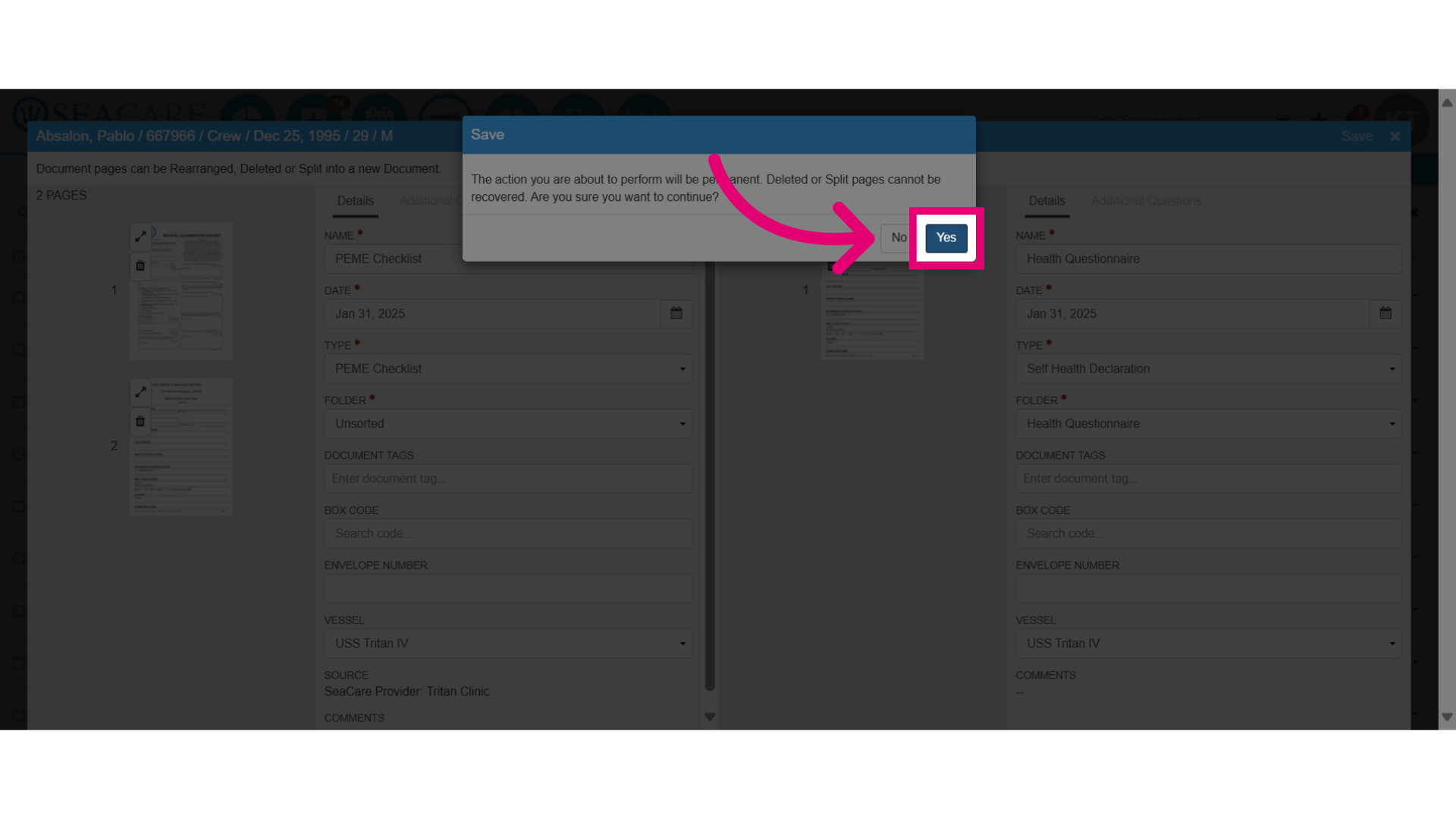
- Confirm Yes, which cannot be reversed.
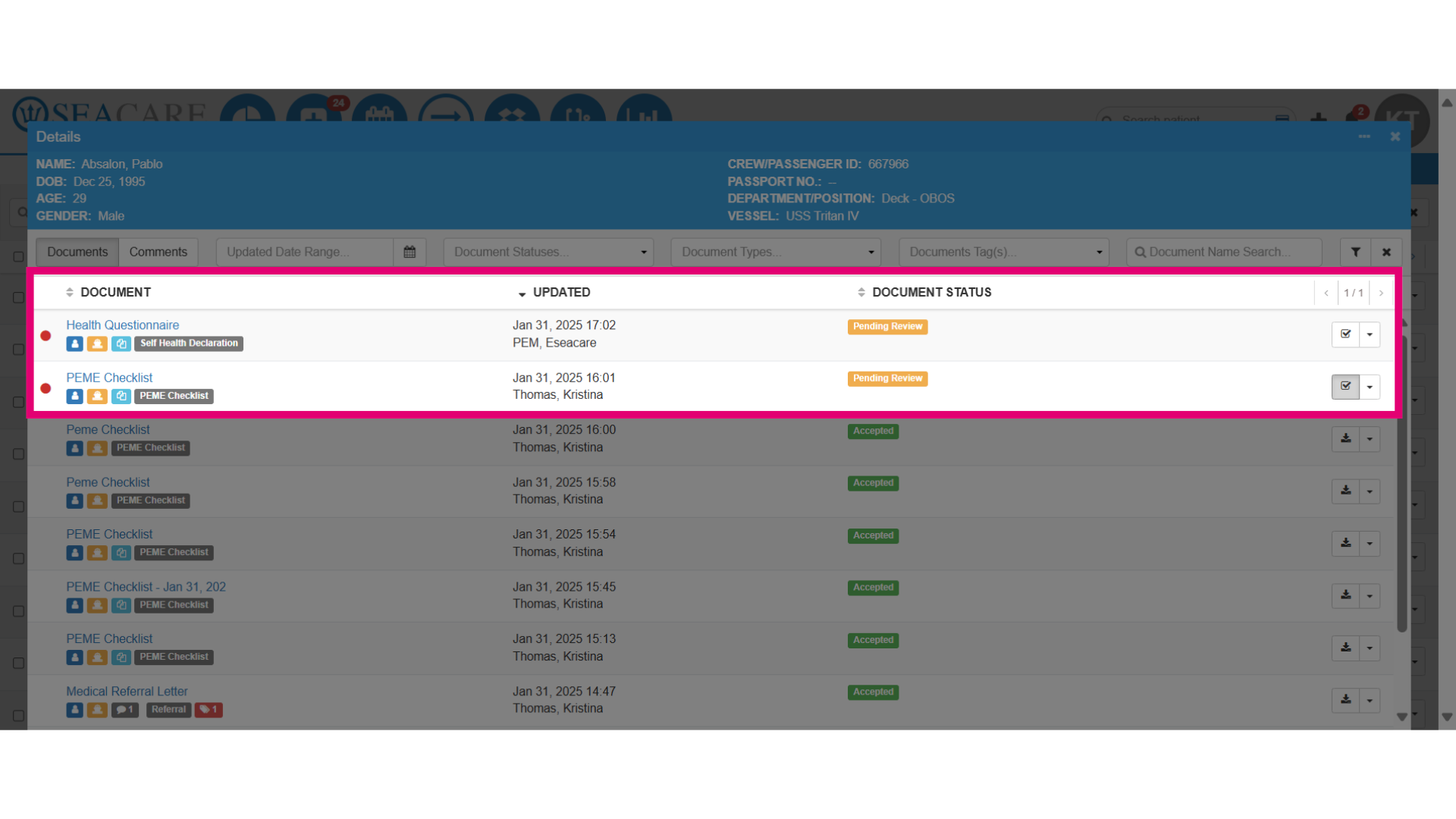
- Check the newly split documents in the list, marked with a light blue icon. This update will also reflect for the sender, like the provider.
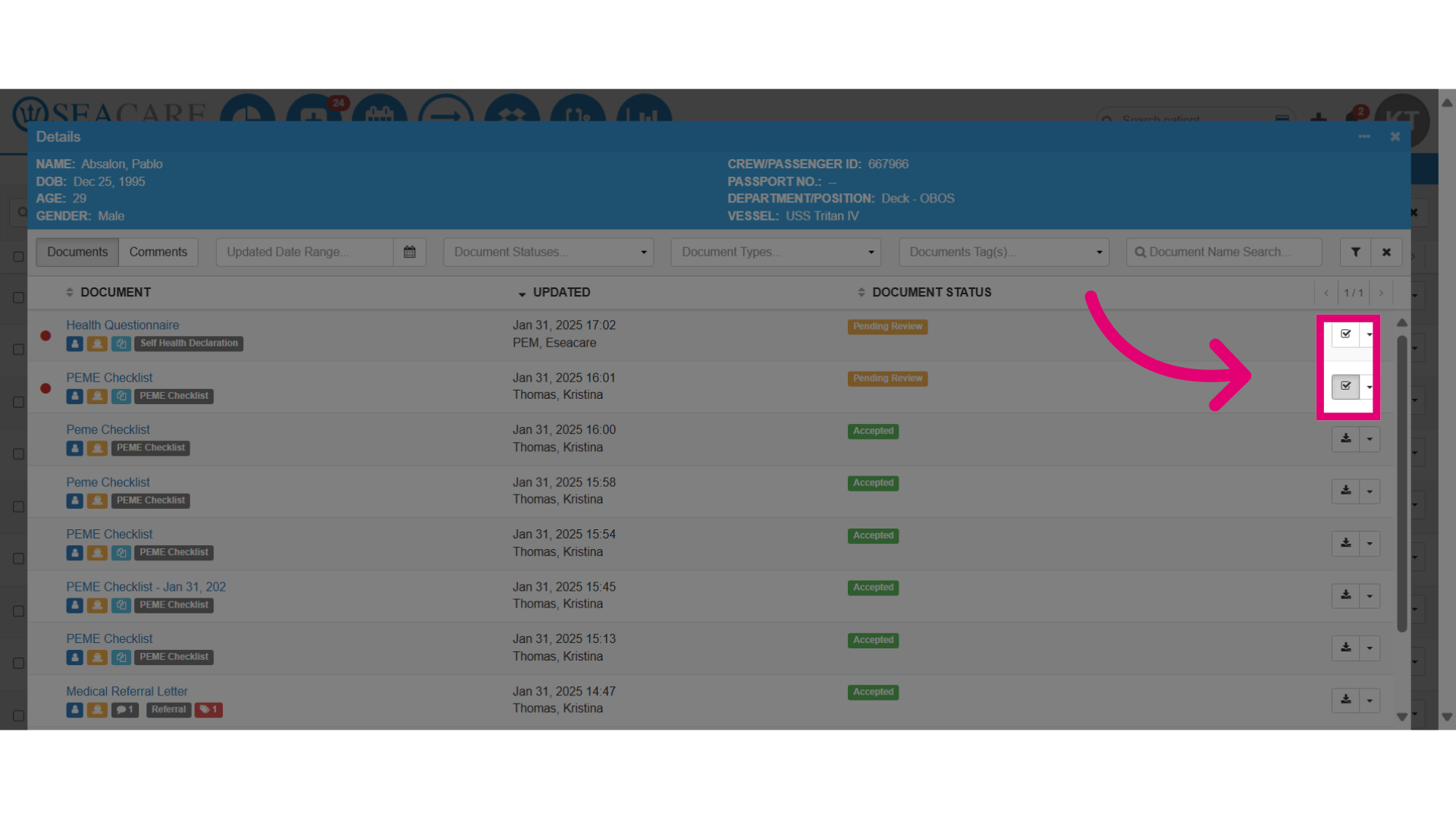
- Complete the document review for each split document.
- Review saved and accepted documents in the Patient Chart in the Documents module under the designated folder.