New article
Recently updated
Adding New Comments in the Health Information Exchange

Who is this article for?Users who want to add comments to a document in the Health Information Exchange.
No elevated permissions are required.
Learn how to add comments in the Health Information Exchange while reviewing patient documents. Commenting is essential for sharing insights, asking questions, and clarifying patient information. Start by accessing the relevant patient documents. This guide outlines the steps for effective communication with healthcare providers or your internal team members.
1. Adding New Comments in the Health Information Exchange
1.1. Video
1.2. Steps
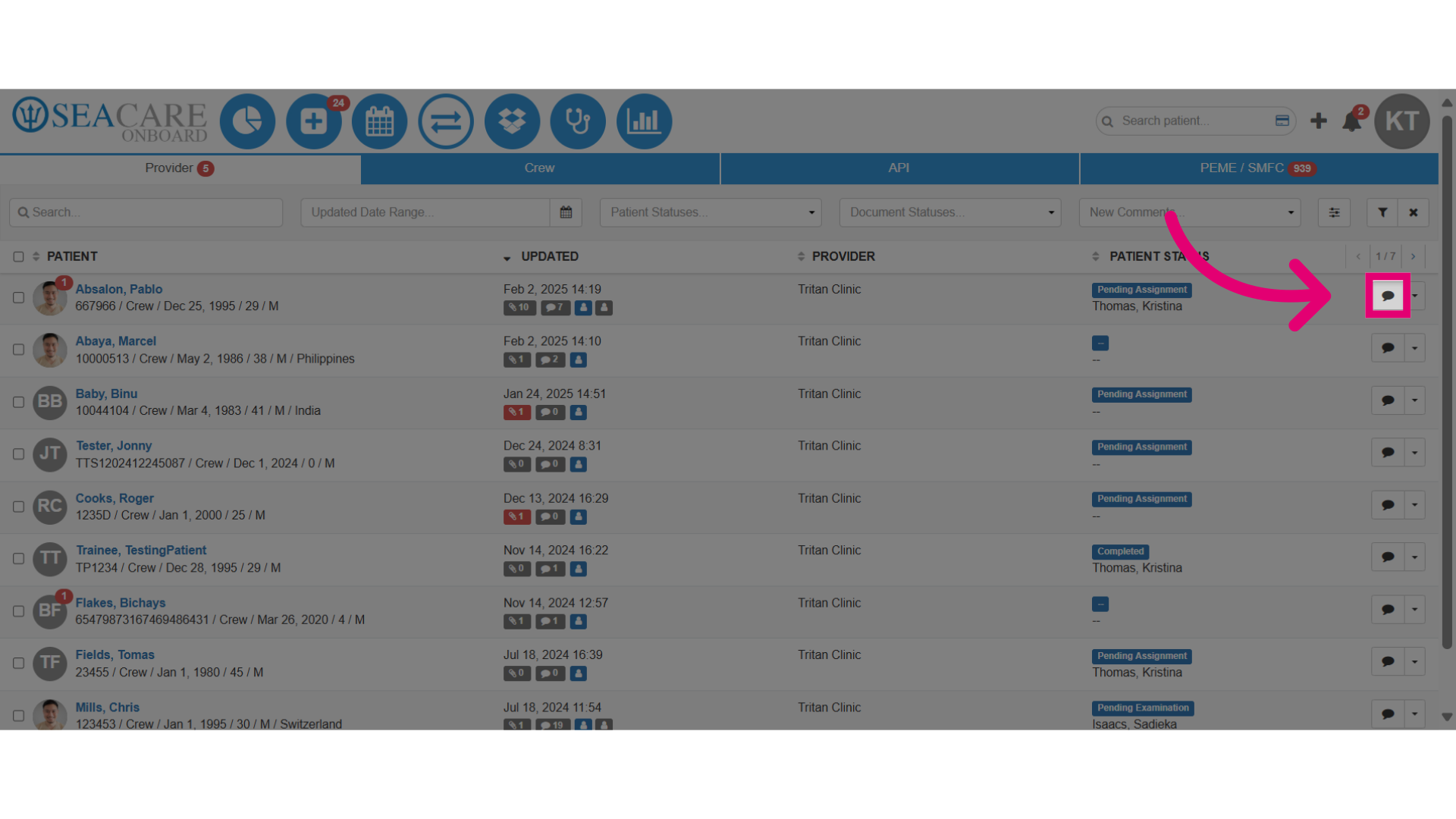
- Click on the paperclip to open the documents and comment sections.
- Locate the document and click on the Actions menu.
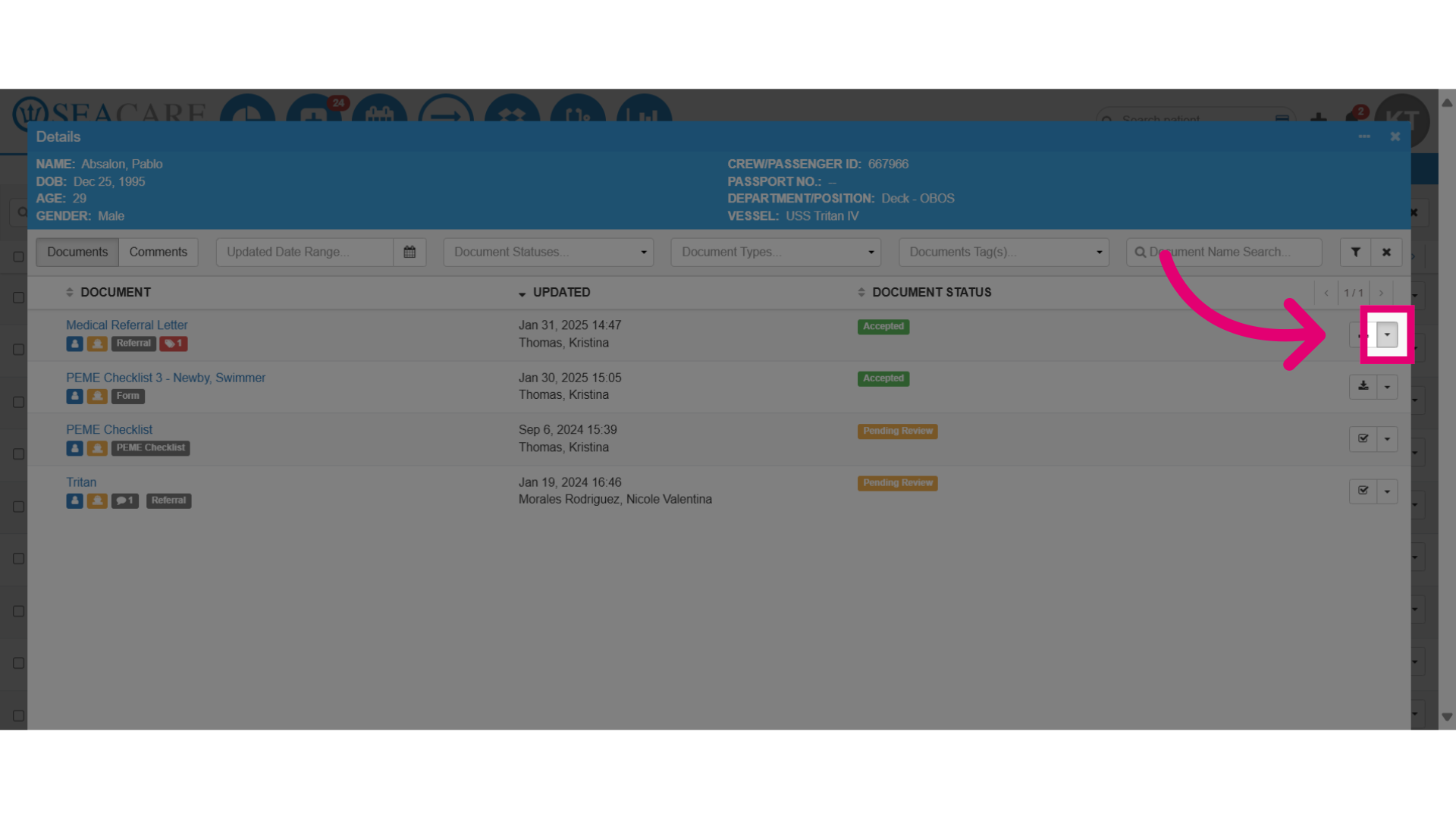
- Select Add Comments to add your feedback.
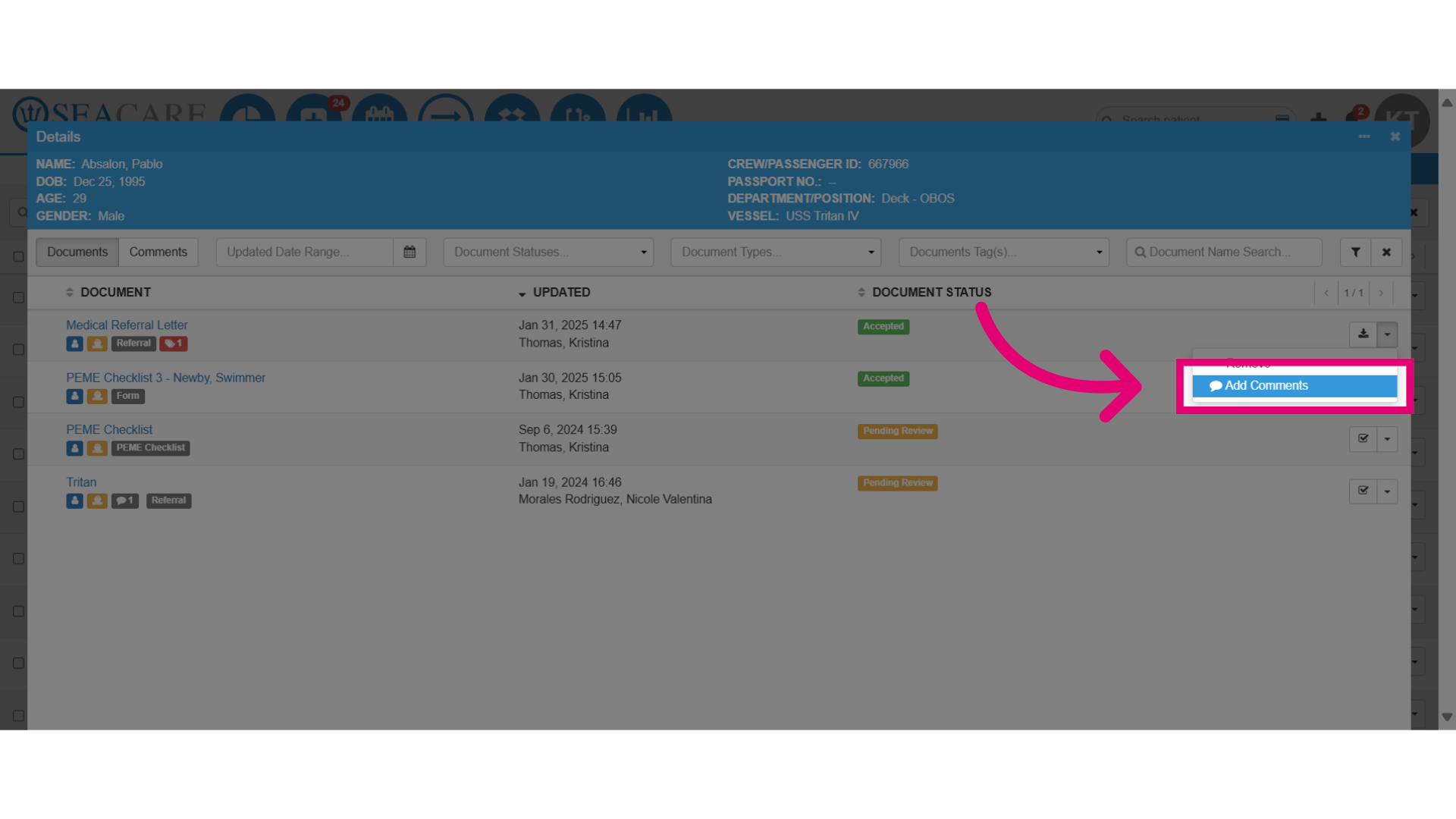
- Then, enter your comment details in the comments section.
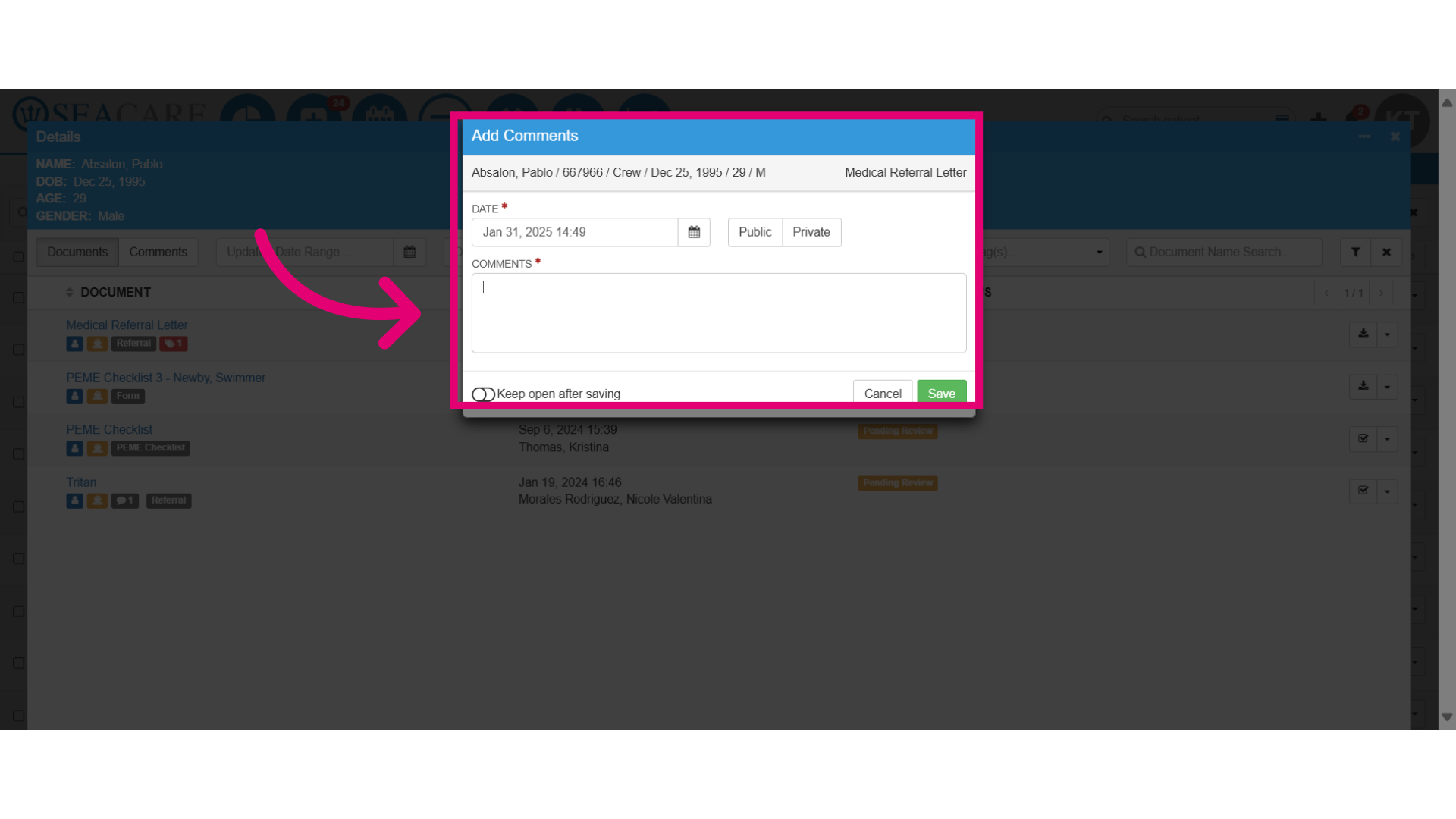
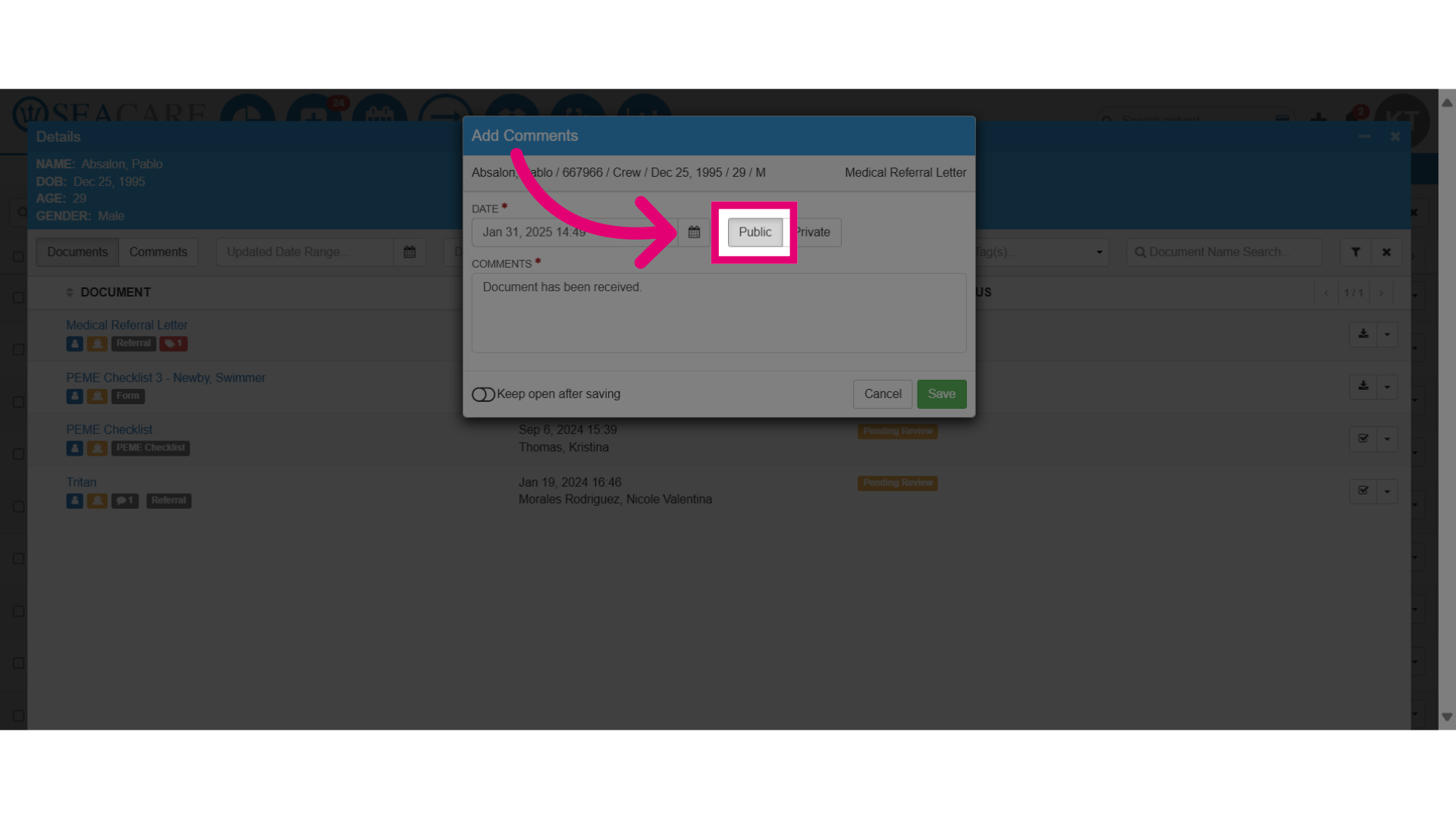
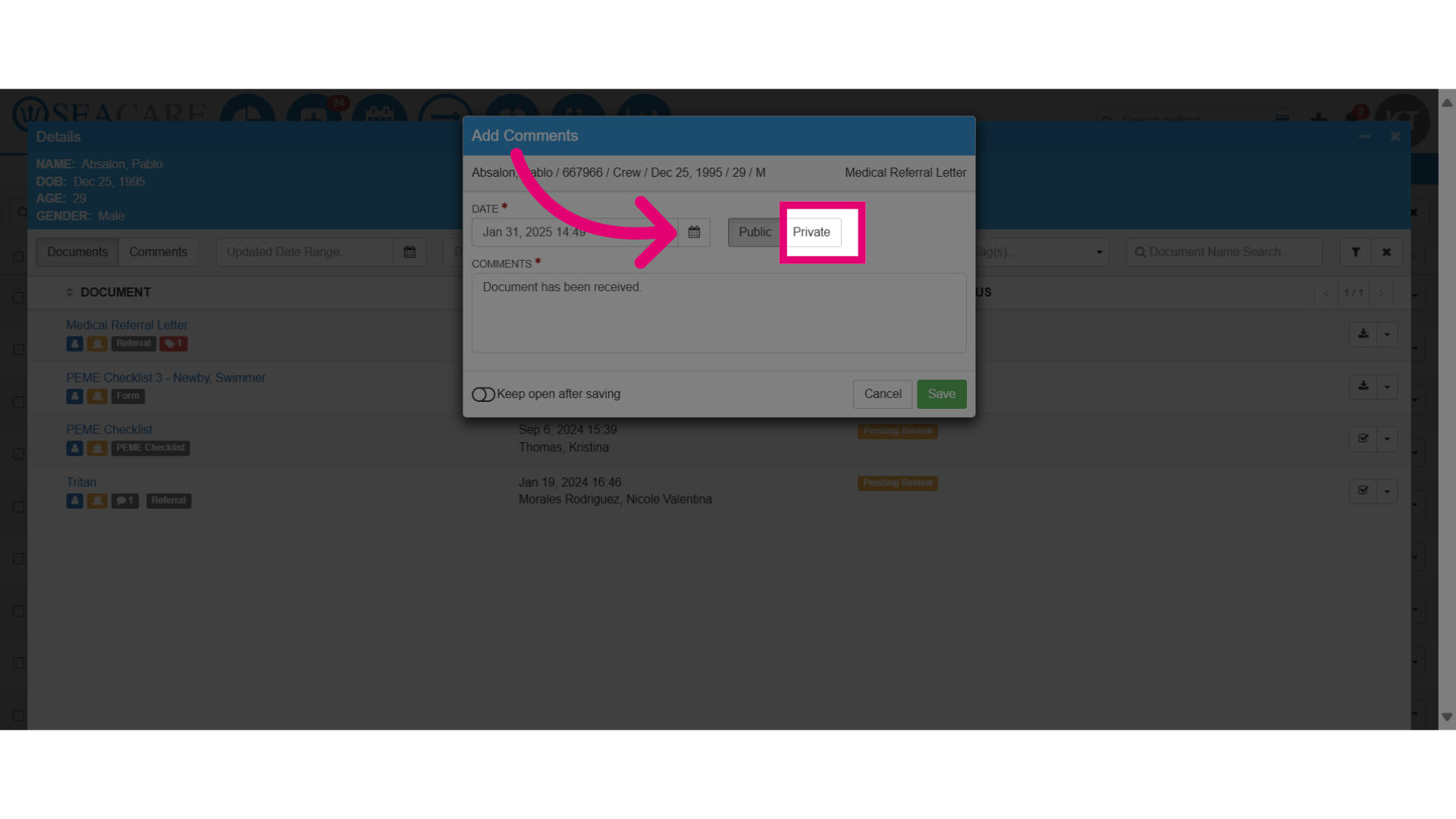
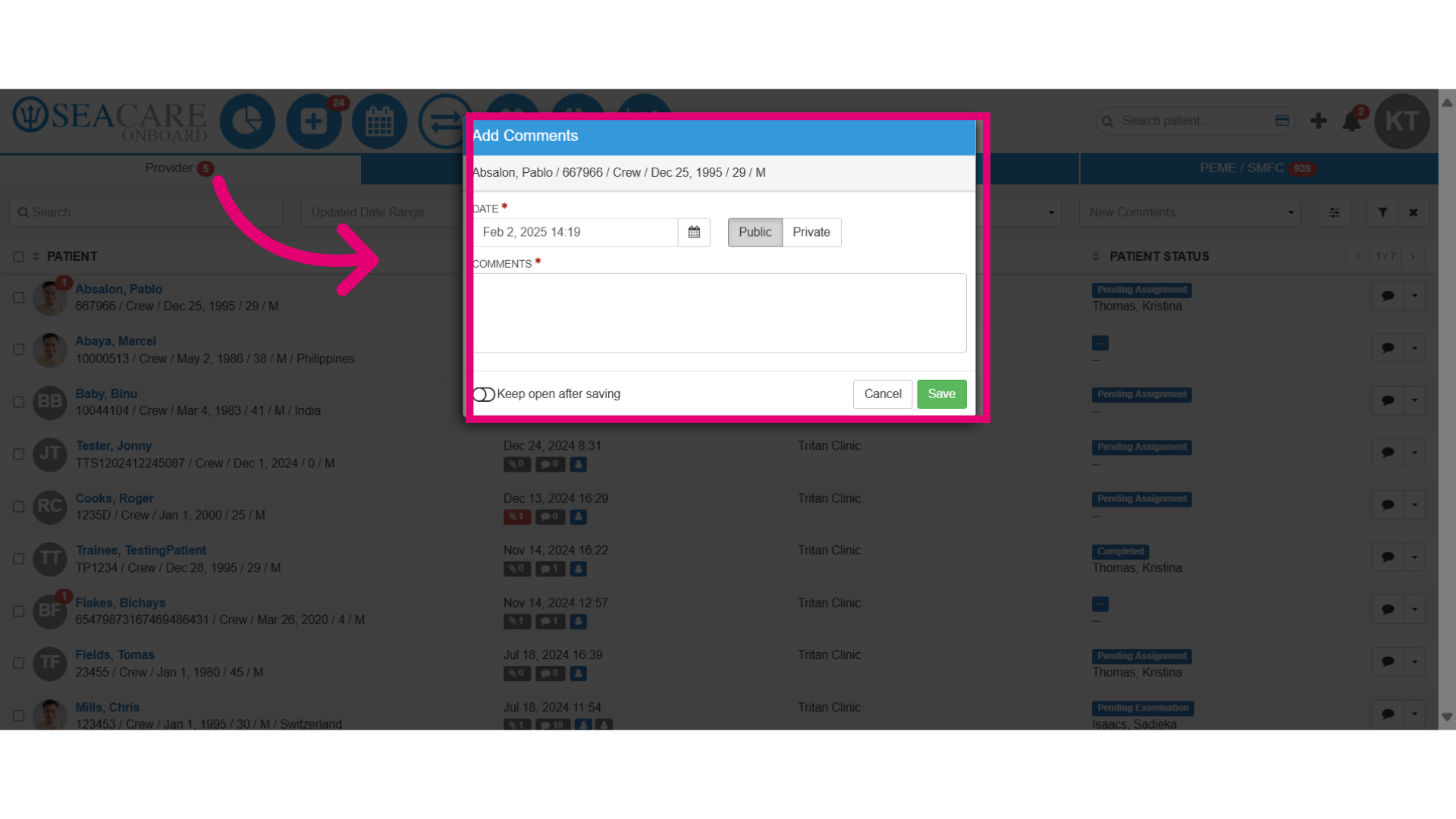
- You'll have two options when adding a comment to make it either public or private:
- Public - A public comment is visible to all users including your internal team and the provider clinic or users with access to the document.
- Private - A private comment can only be seen by your internal team and not the provider or other parties with access to the document.
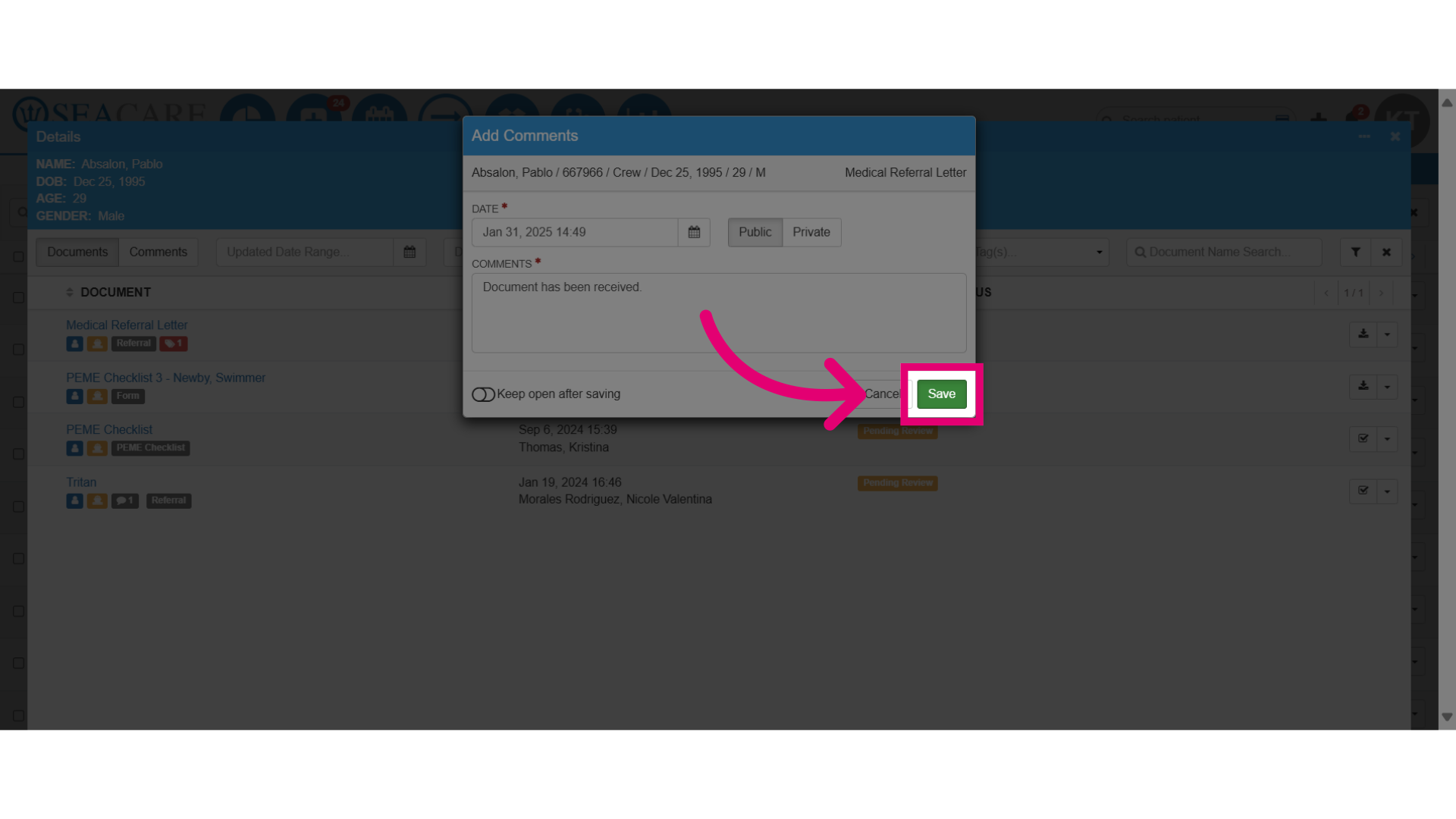
- Save your comment by clicking on Save.
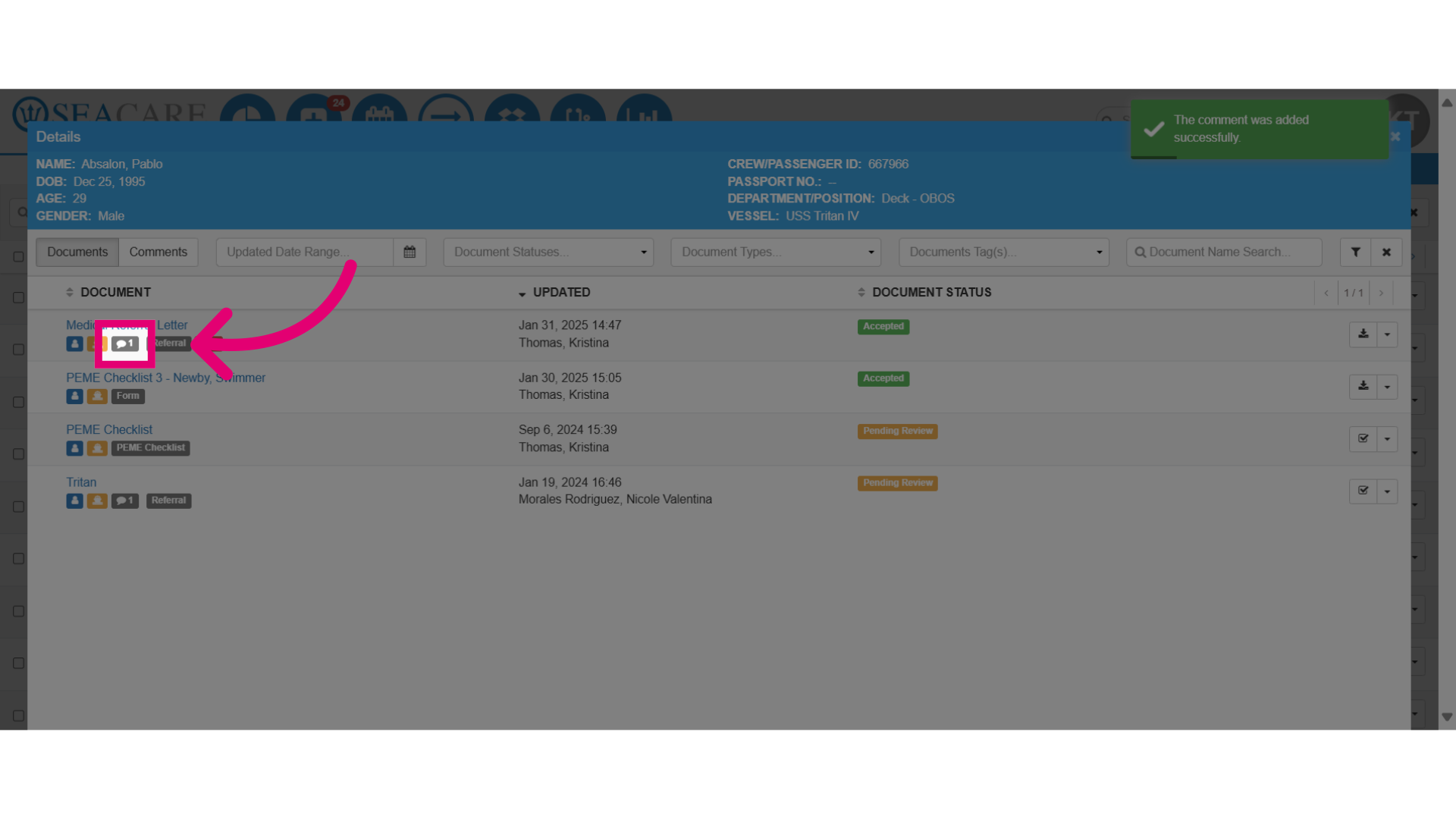
- An update will be made to the document with the new comment bubble icon appearing.
- A new comment can also be verified in the Comments tab and filtered by public or private to display only relevant comments.
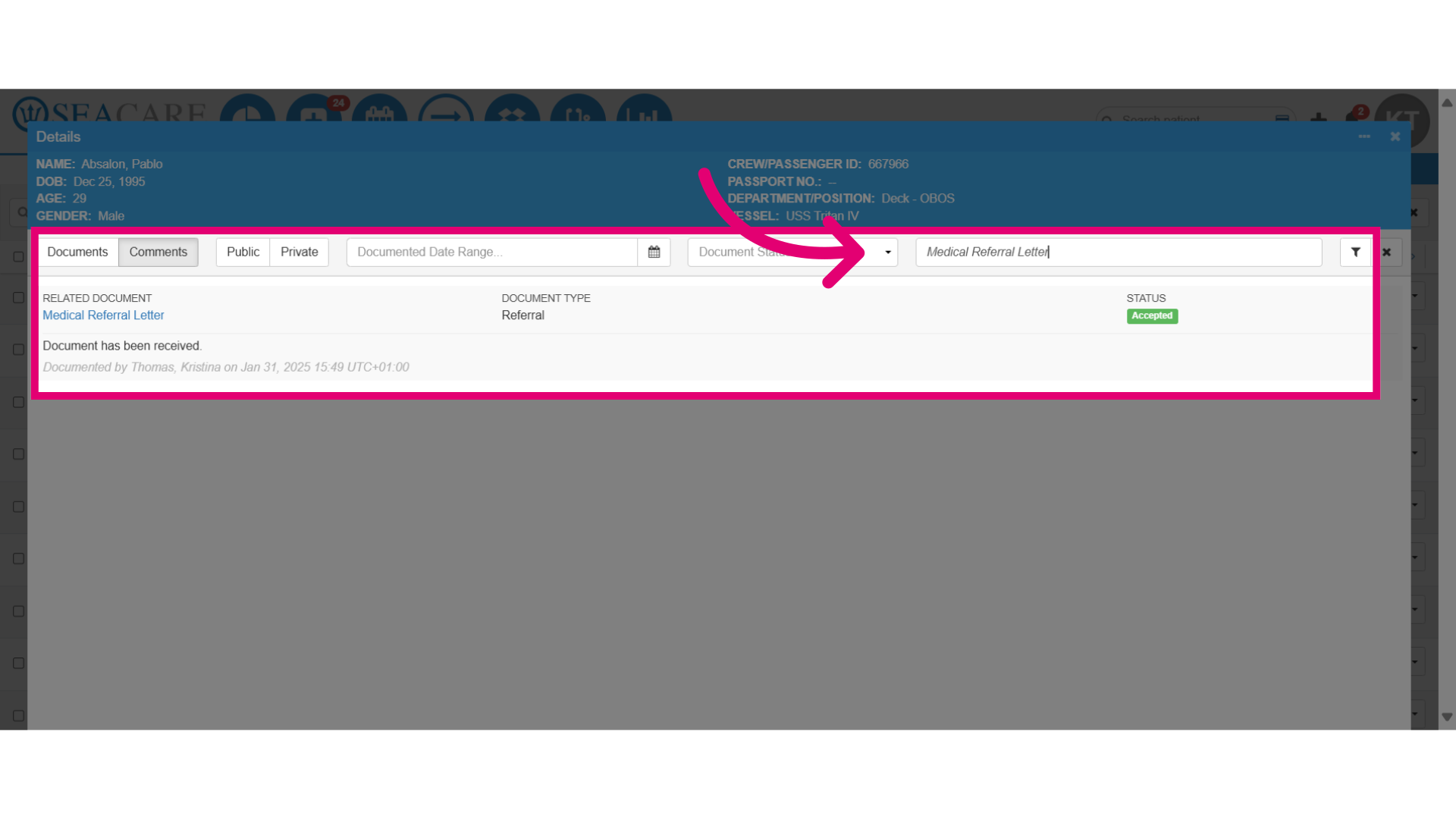
- Back in the patient list, when a provider or sender has added a new comment, it appears as a read bubble icon when unread where you can click to read the comment then it'll turn gray.
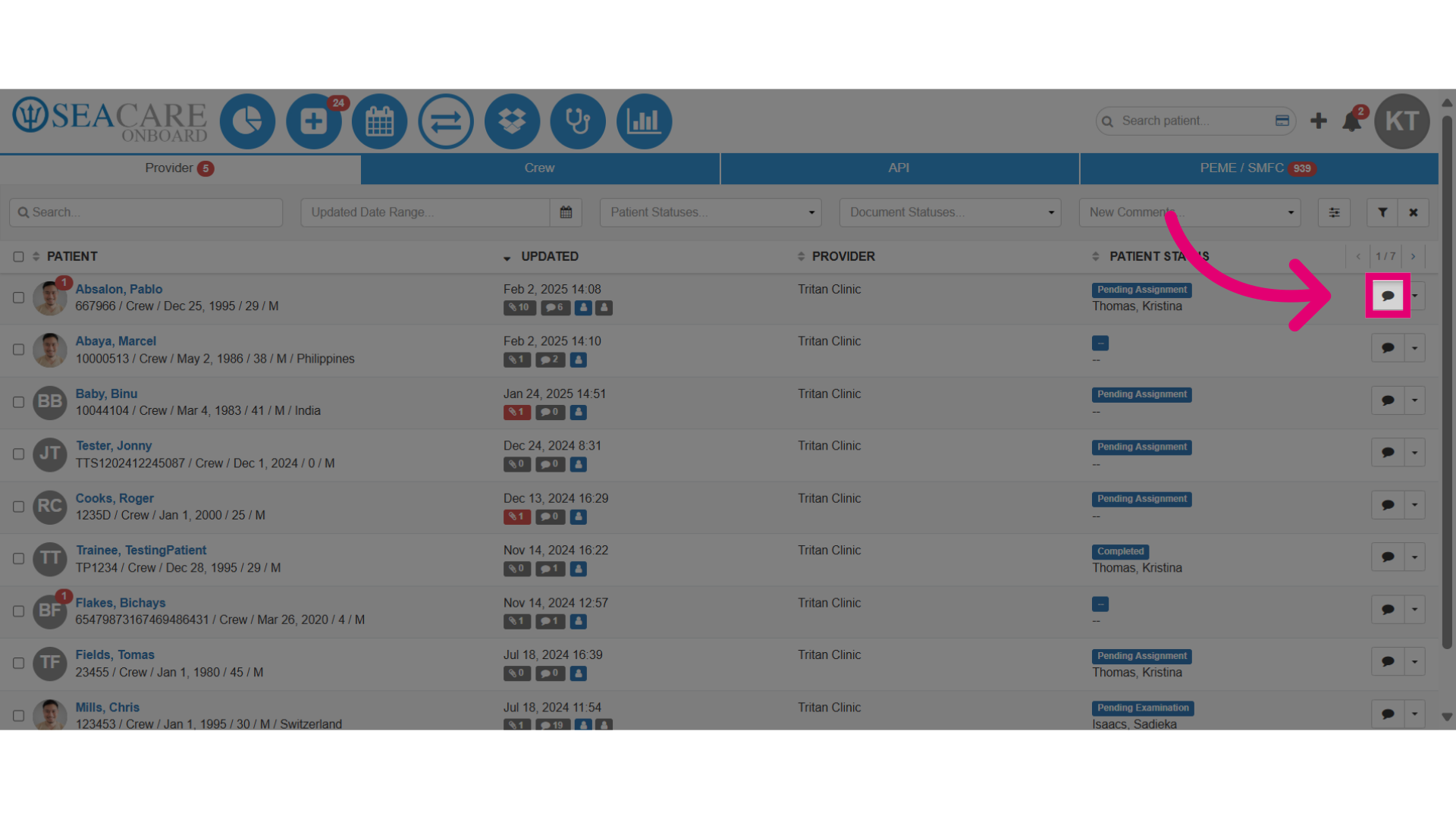
- New unread comments also appear here as a read bubble icon and gray when read. New comments can also be added here by selecting the comment bubble icon.
- Add the comment details, set it to public or private then save the changes.
- Track responses when the comment bubble turns read, indicating a new unread comment is pending.