New article
Recently updated
Adding User Information in the Admin Menu

Who is this article for?Users who want to add new users from the Admin Menu.
No elevated permissions are required.
The following guide covers all the necessary steps to add a new user to the Admin Menu within Ideagen Maritime Health Operations, from setting passwords to assigning user groups.
1. Adding Users in the Admin Menu
1.1. Video
1.2. Steps
- Start in the Admin Menu under the Users module.
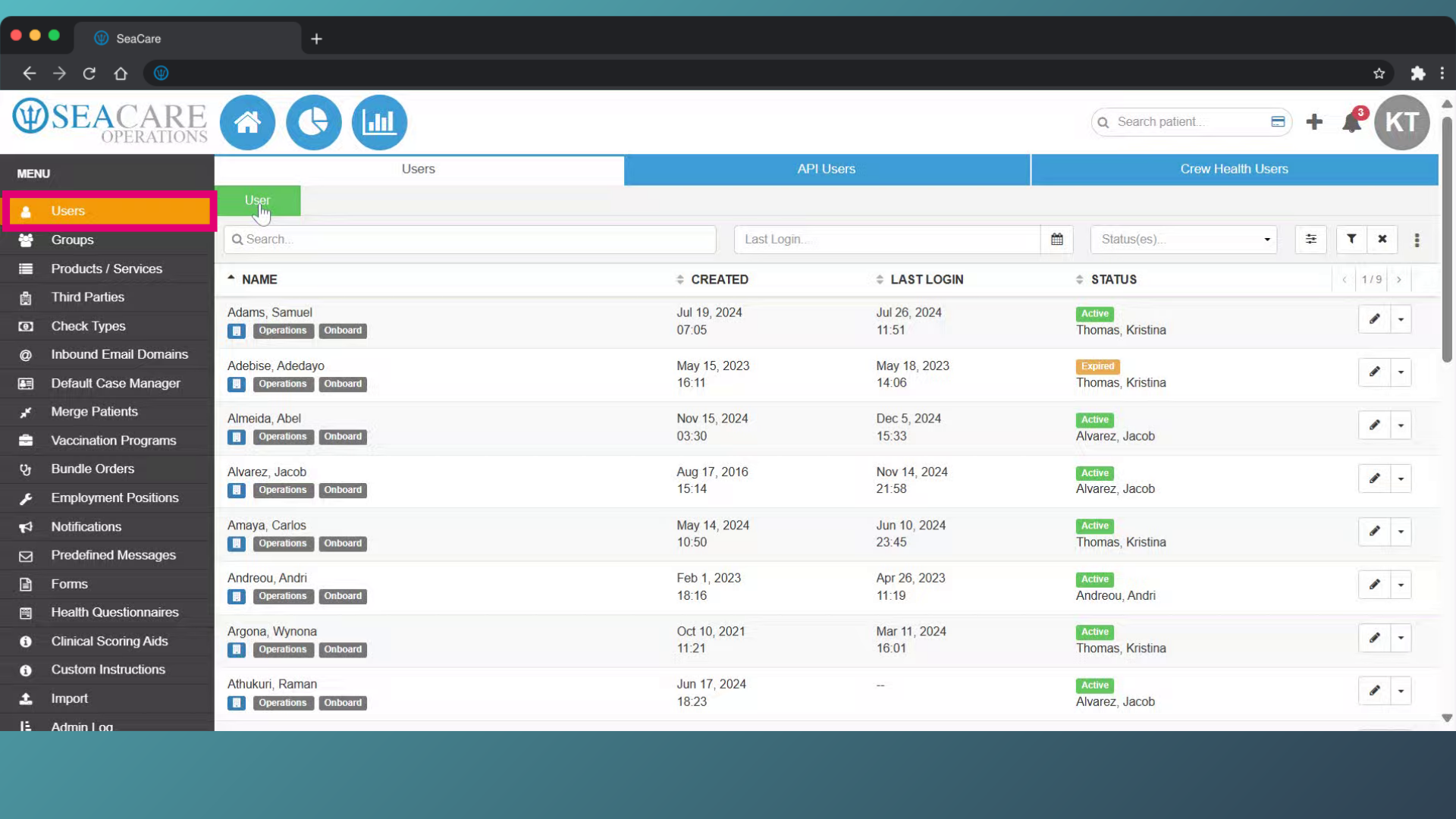
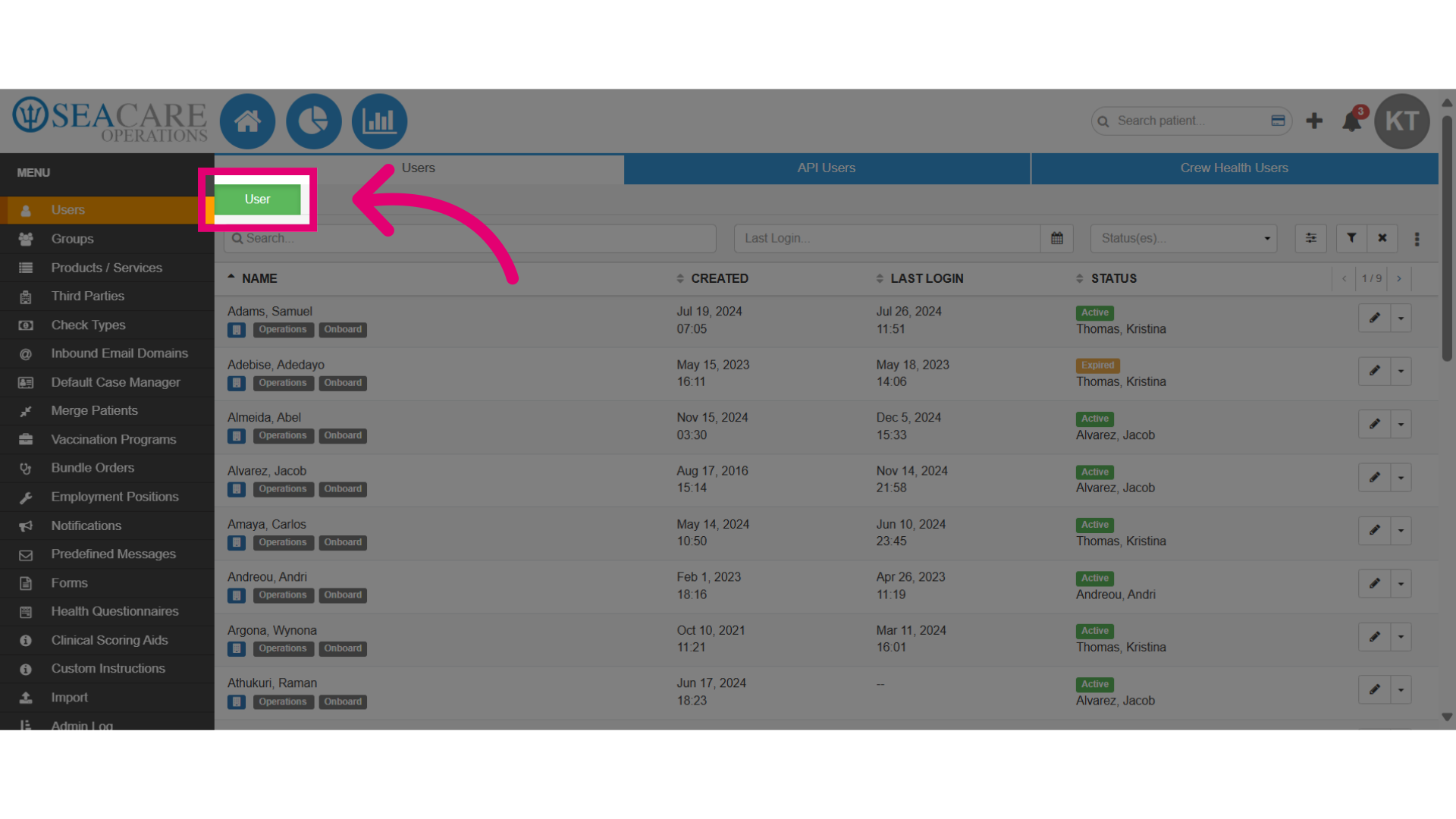
- Select the green User button.
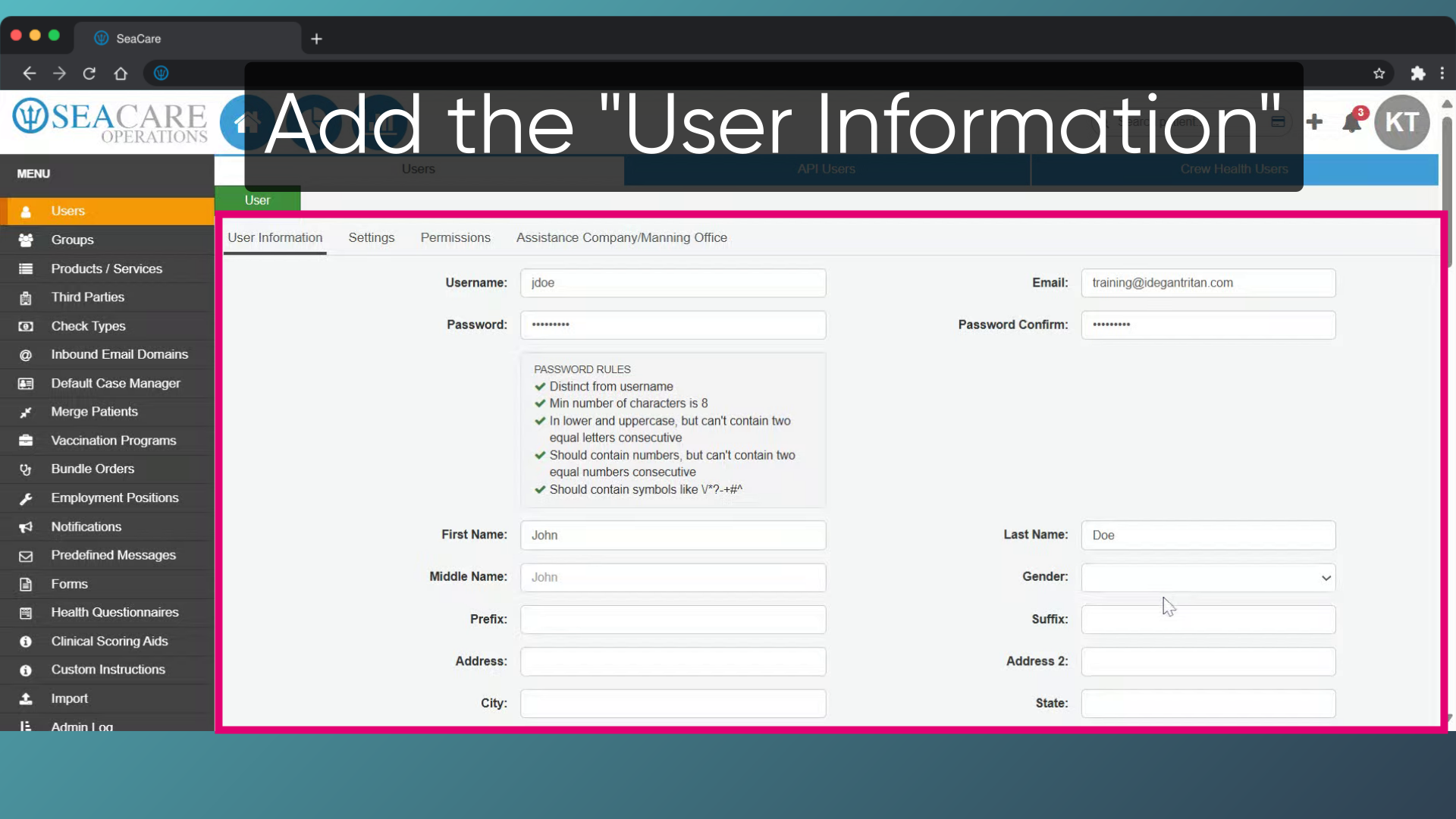
- Under the User Information tab, add the user information that includes:
- Username
- Password (Follow the password rules)
- First and Last Name
- Gender
- Date of birth
-
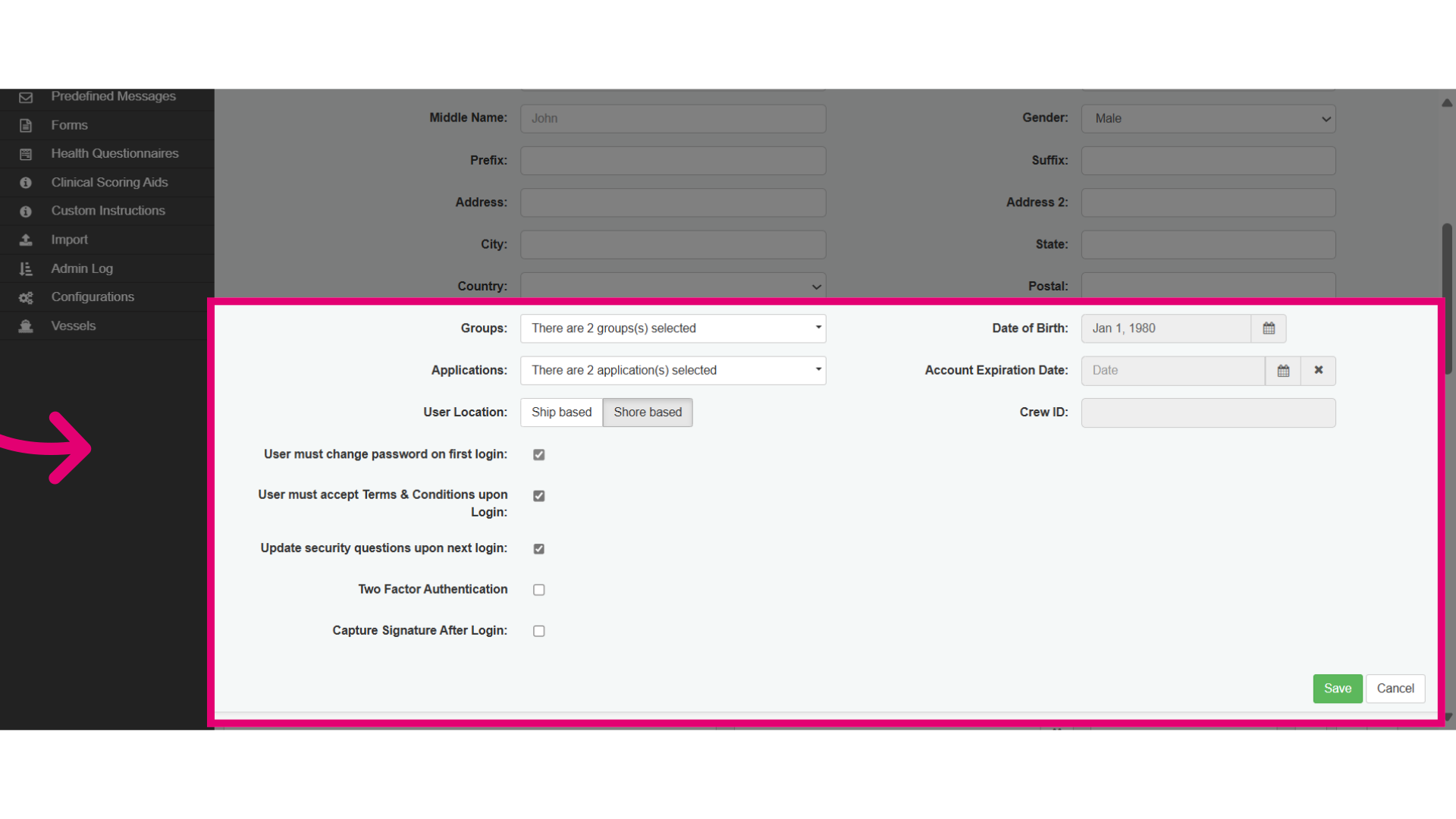
- Groups - User groups define system capabilities and are allowed specific tasks based on their roles.
- Application - Users must select either the Onboard or Operations application for essential task access. The Onboard app caters to ship operations, while the Operations application suits users in broader roles, overseeing shore-based activities.
- User Location - Identifying if a user is on a ship or shore is essential, as it influences the tools and access available. Ship users may require different functionalities compared to those on land.
- Checkboxes - Users can customise their login experience by selecting security measures like changing passwords, agreeing to terms, enabling two-factor authentication, or requiring a digital signature.
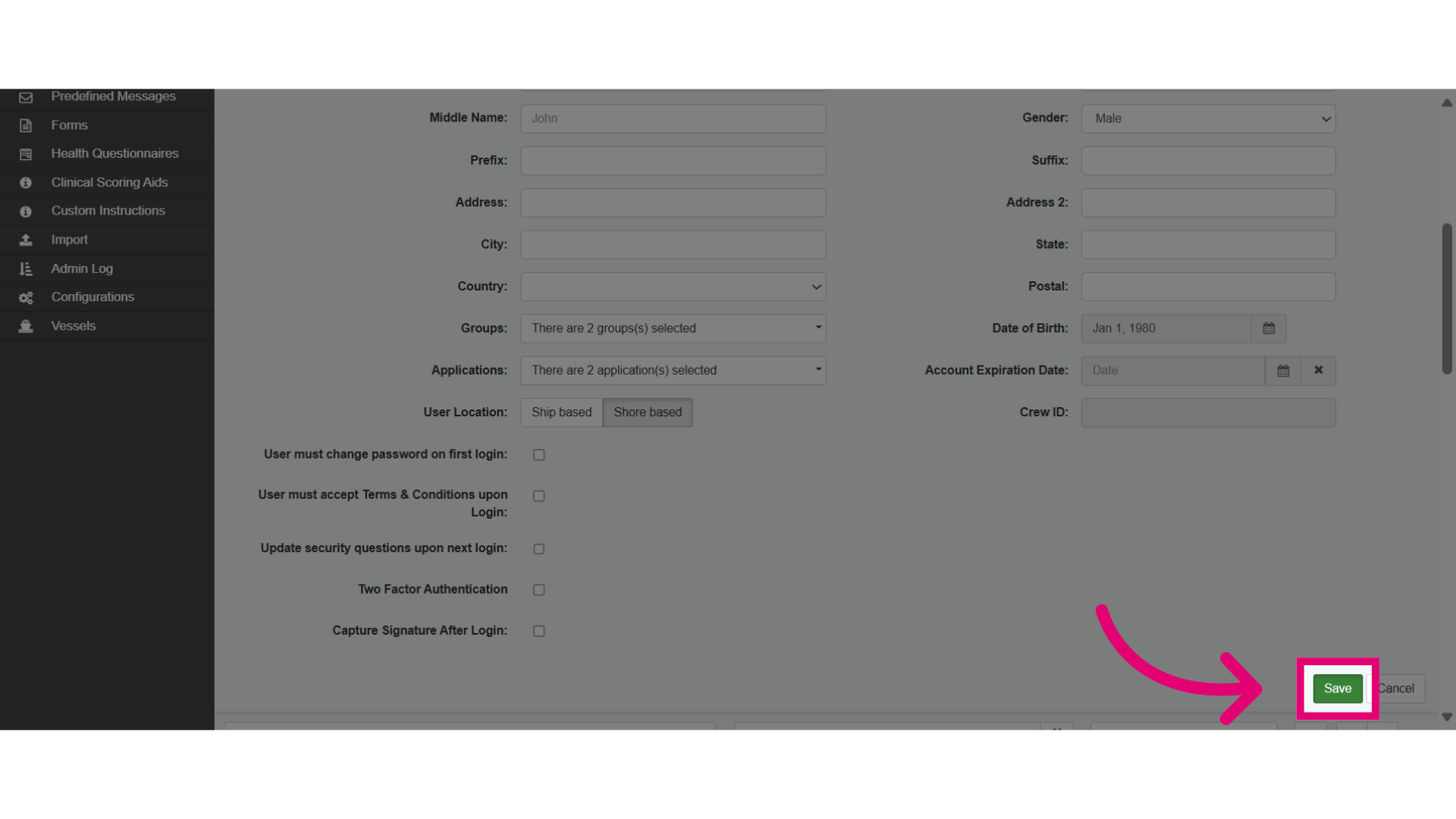
- Then, save the changes that were made.
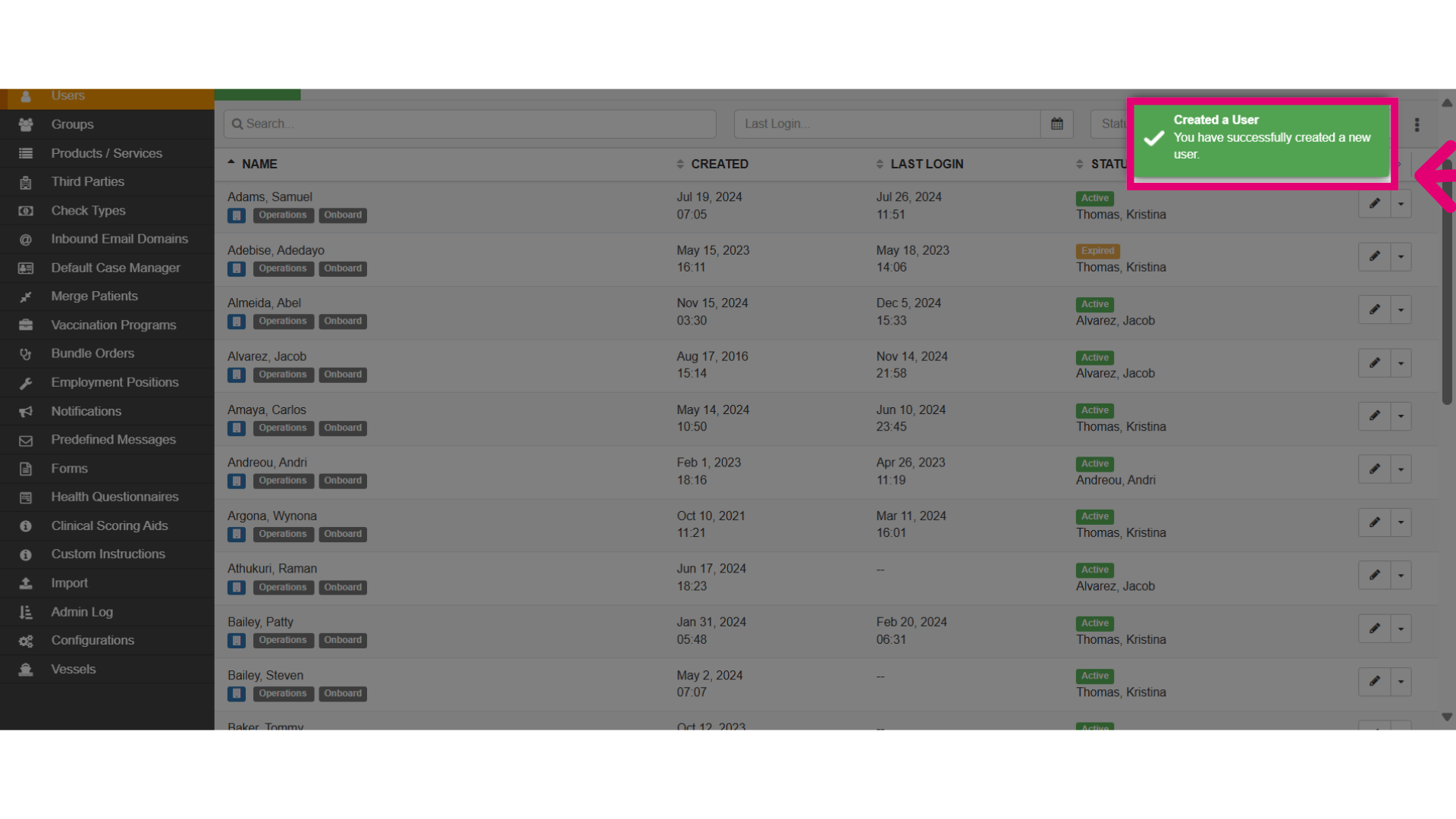
- Verify the confirmation message when the user has been created successfully.
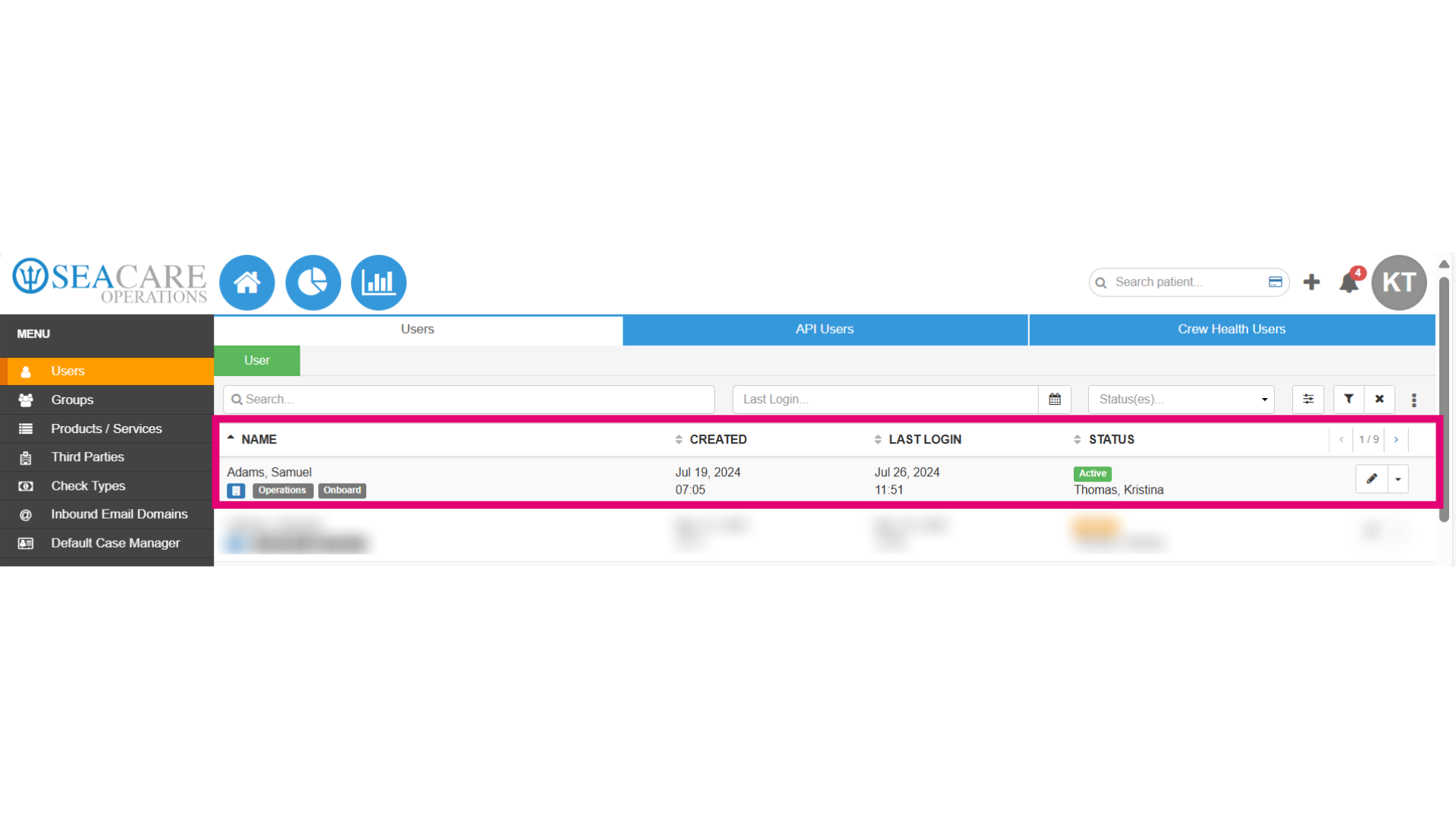
- Verify the user has been added to the user list.
- Manage the user using the Actions menu to edit, lock, deactivate, reset two factor authentication, or reset their password.
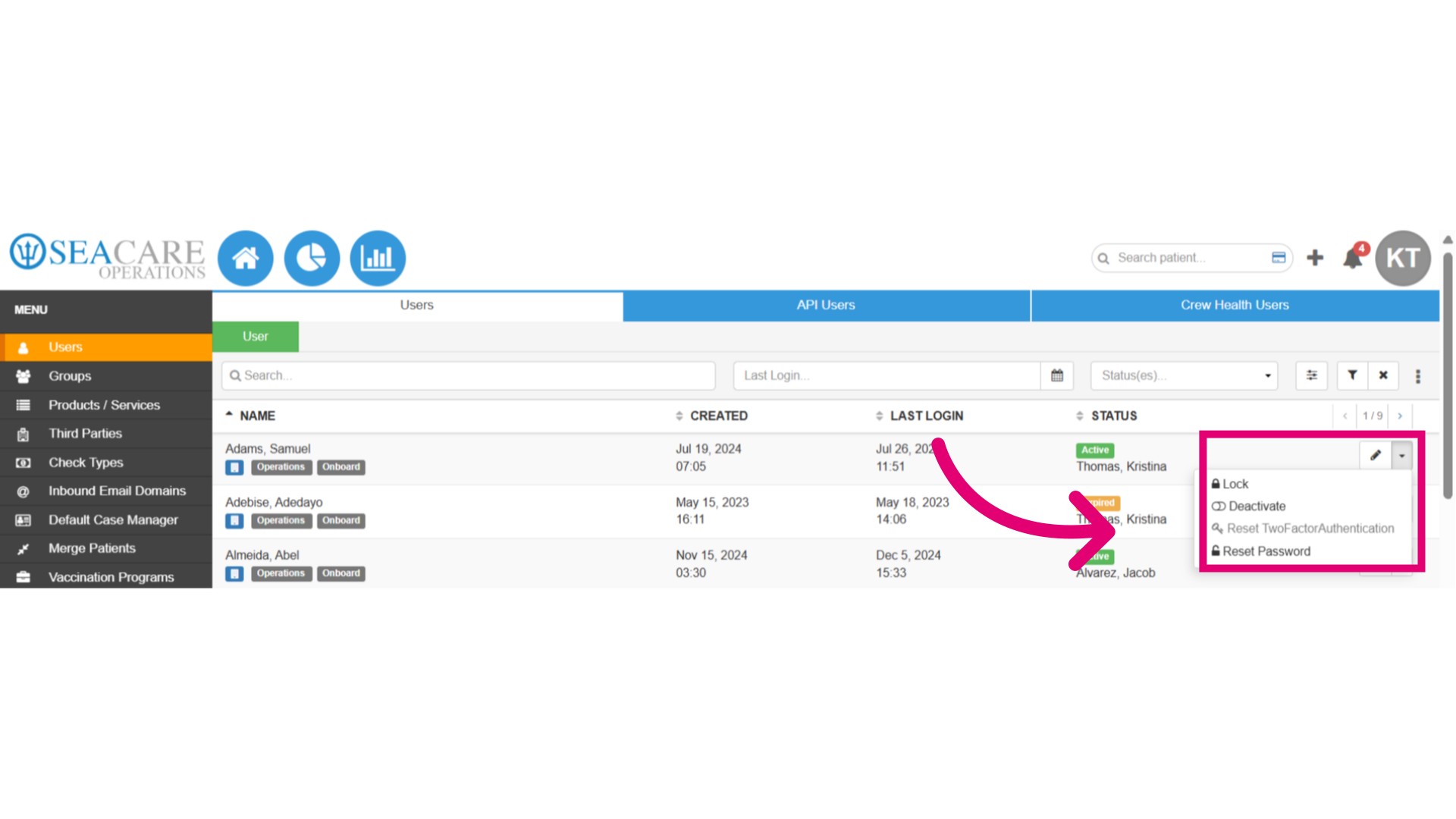
- Lock the user and provide a reason if needed to restrict access to all system functionalities, preventing any tasks or operations for security purposes.
- Select Lock
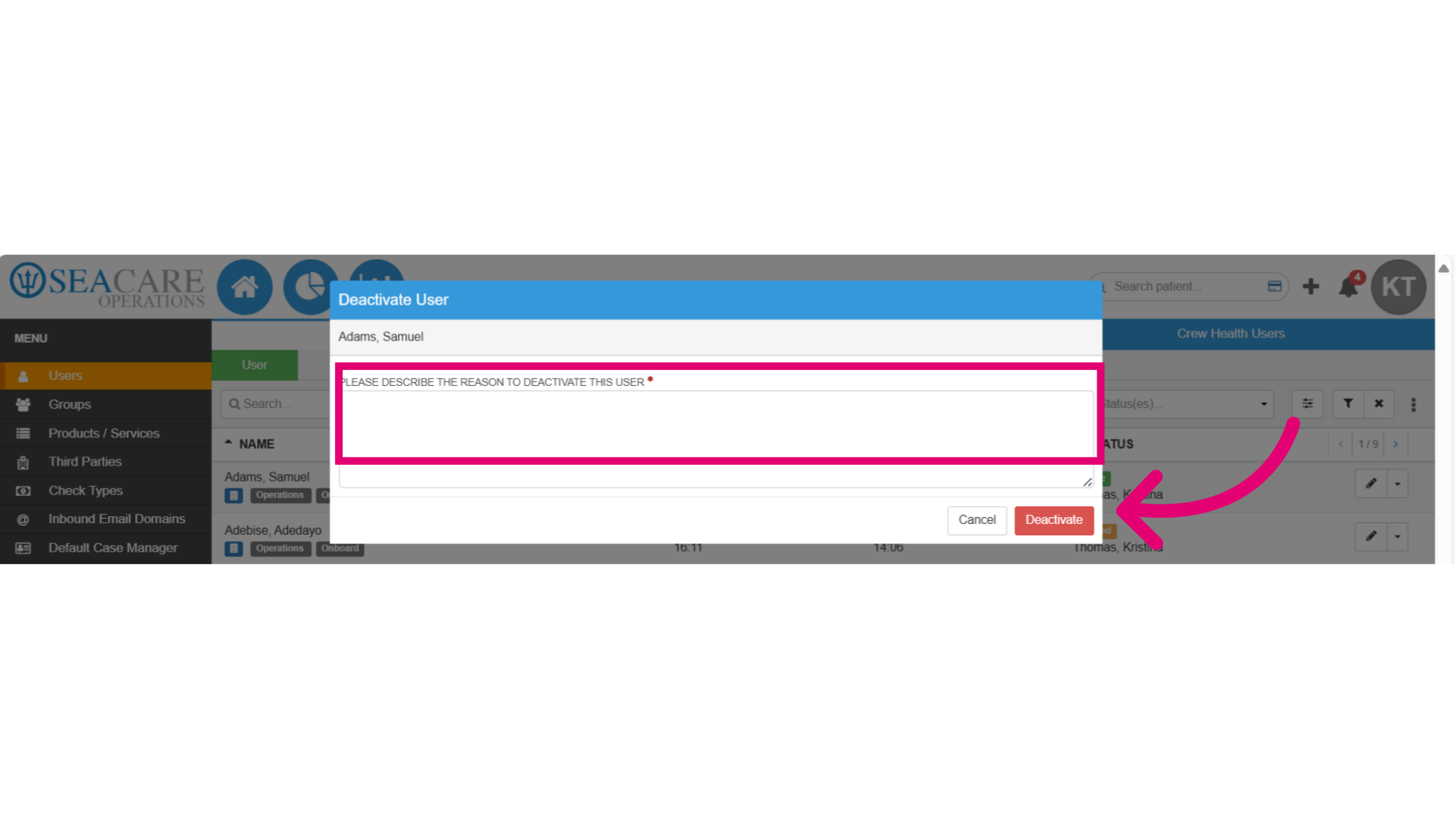
- Add the reason
- Select Deactivate
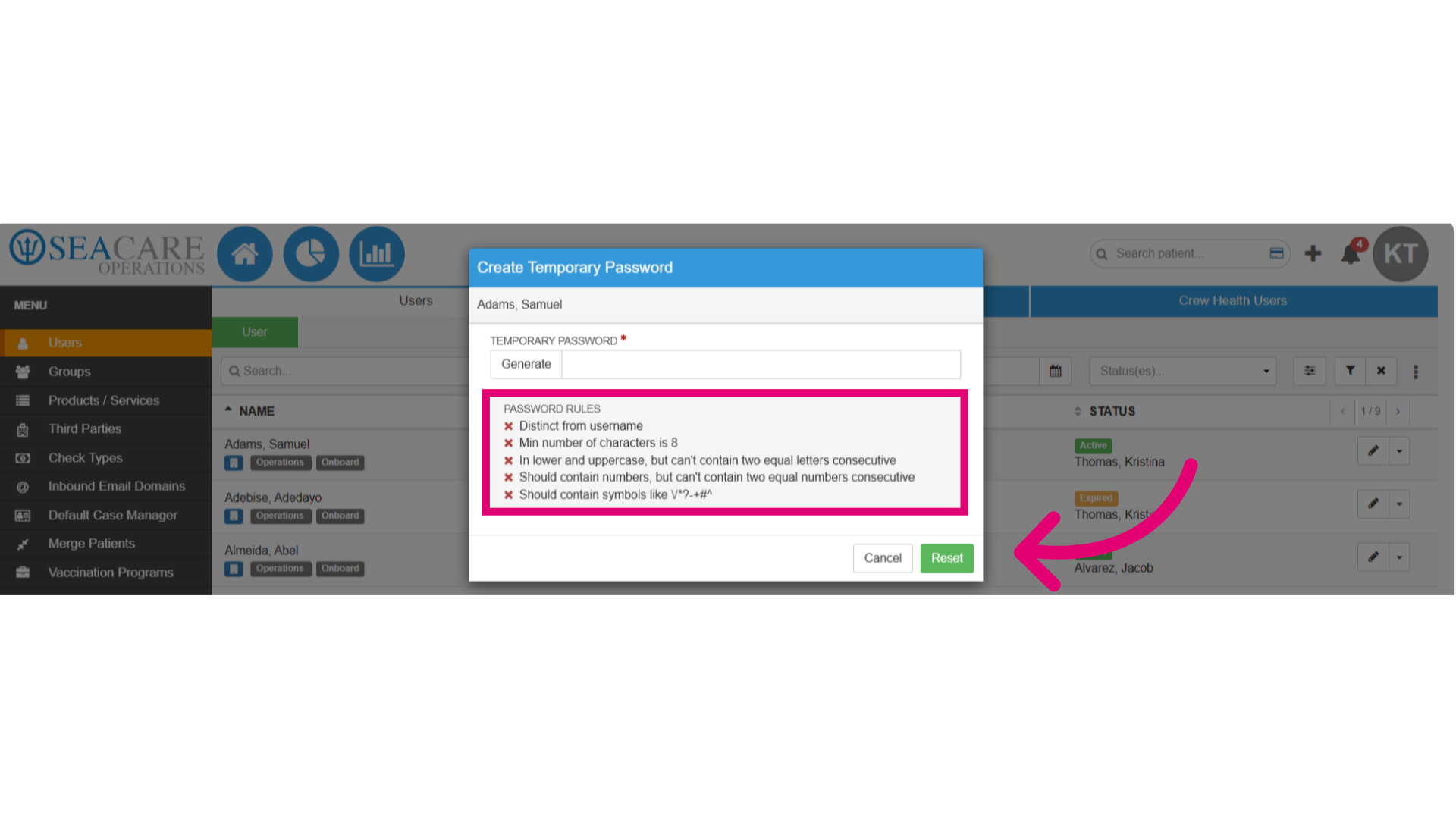
- Follow these steps for resetting a user's password:
- Select Reset Password
- Generate - Automatically generate a password.
- Manual - Manually add a password following the password rules.
- Select Reset