New article
Recently updated
Reviewing Documents in Health Information Exchange

Who is this article for?Users who want to review documents in the Health Information Exchange.
No elevated permissions are required.
From accessing documents to adding tags and saving changes, these steps will enhance your training on navigating the Health Information Exchange effectively. Begin by starting in the Health Information Exchange module in Ideagen Maritime Health Onboard.
1. Reviewing Documents in the Health Information Exchange
1.1. Video
1.2. Steps
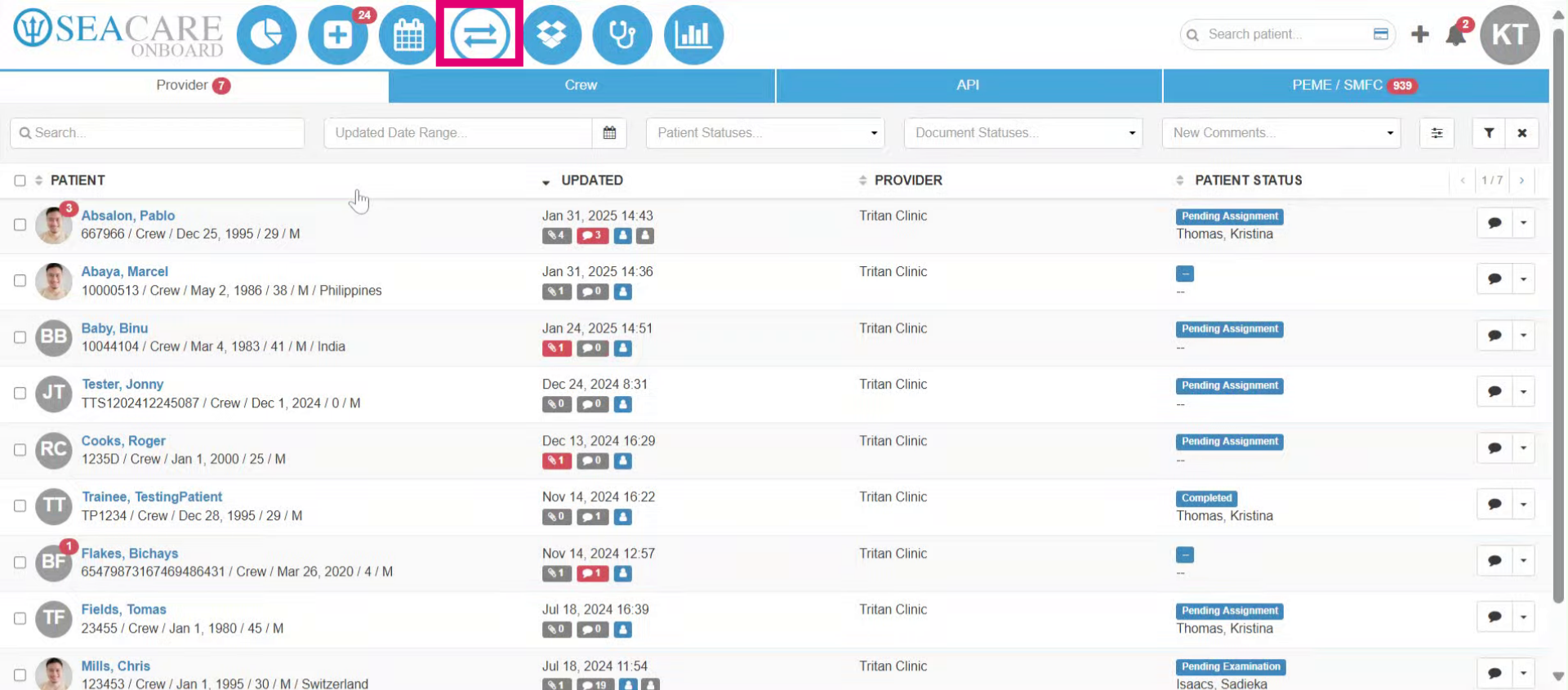
- Go to the Health Information Exchange module.
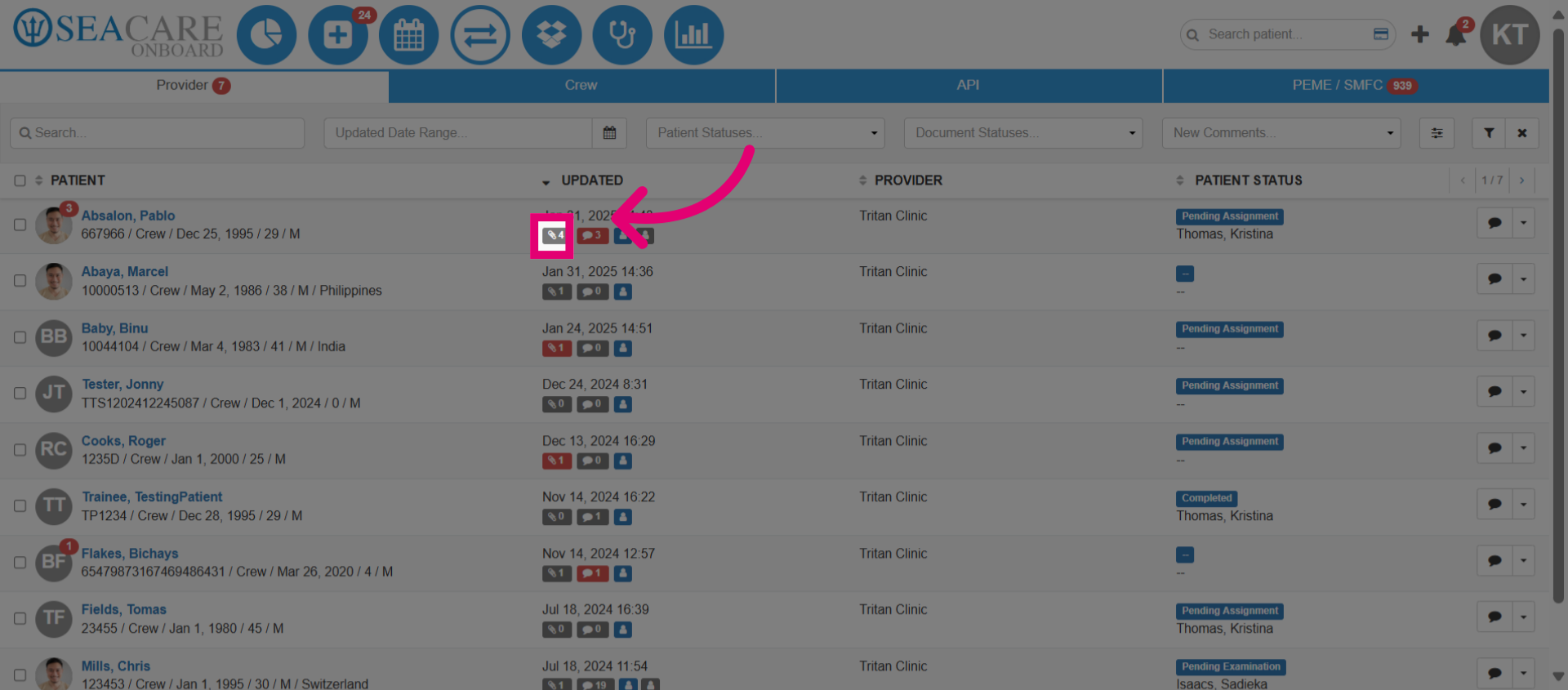
- Locate your patient in the patient list, then select the documents button represented by the paperclip icon with the number of documents. This will open and display all documents shared for the patient.
- Under the Documents tab, following these steps to locate the document:
- Search for the document directly from the list.
- You may also use the filters at the top to quickly locate pending documents from the list by Date Range, Document Status, Document Types, Tags, or Name Search.
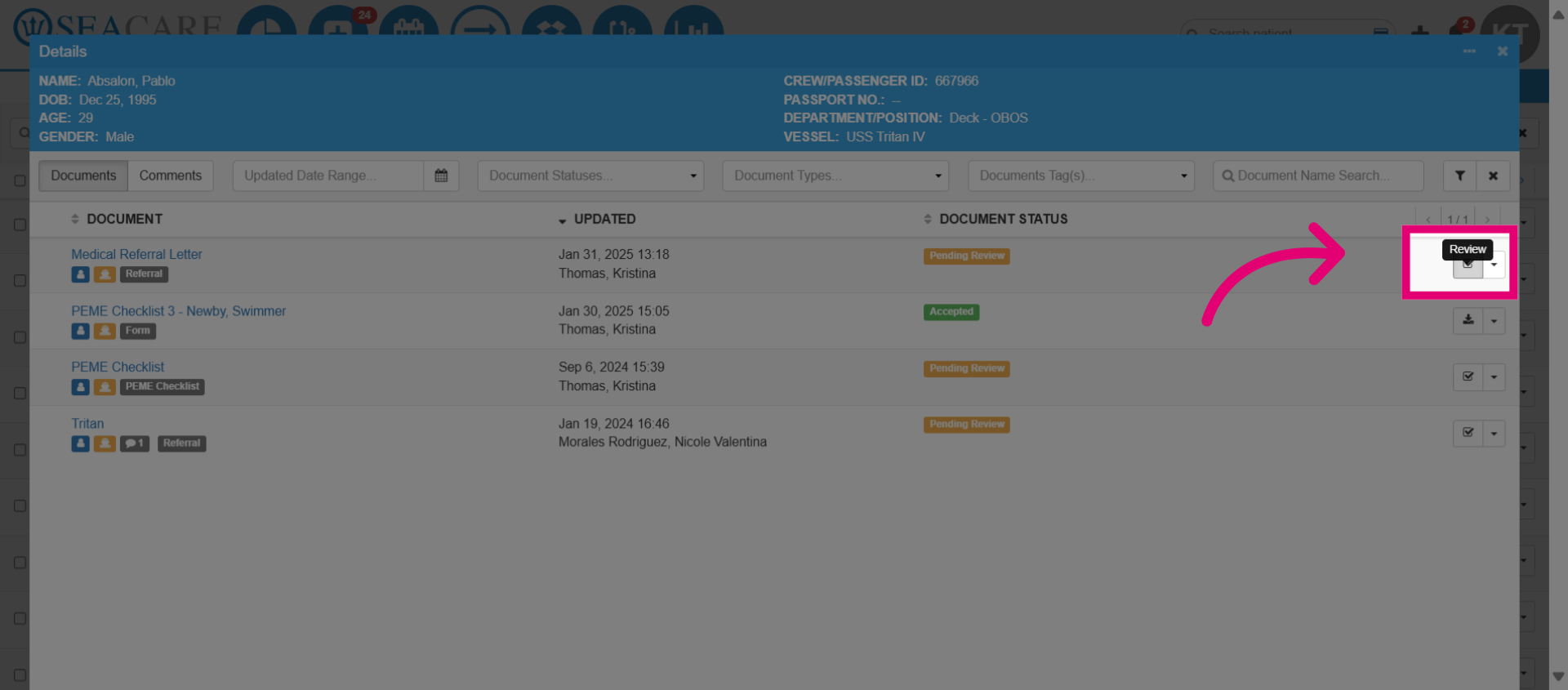
- Locate the document with the Document Status that is Pending Review that hasn't been reviewed yet.
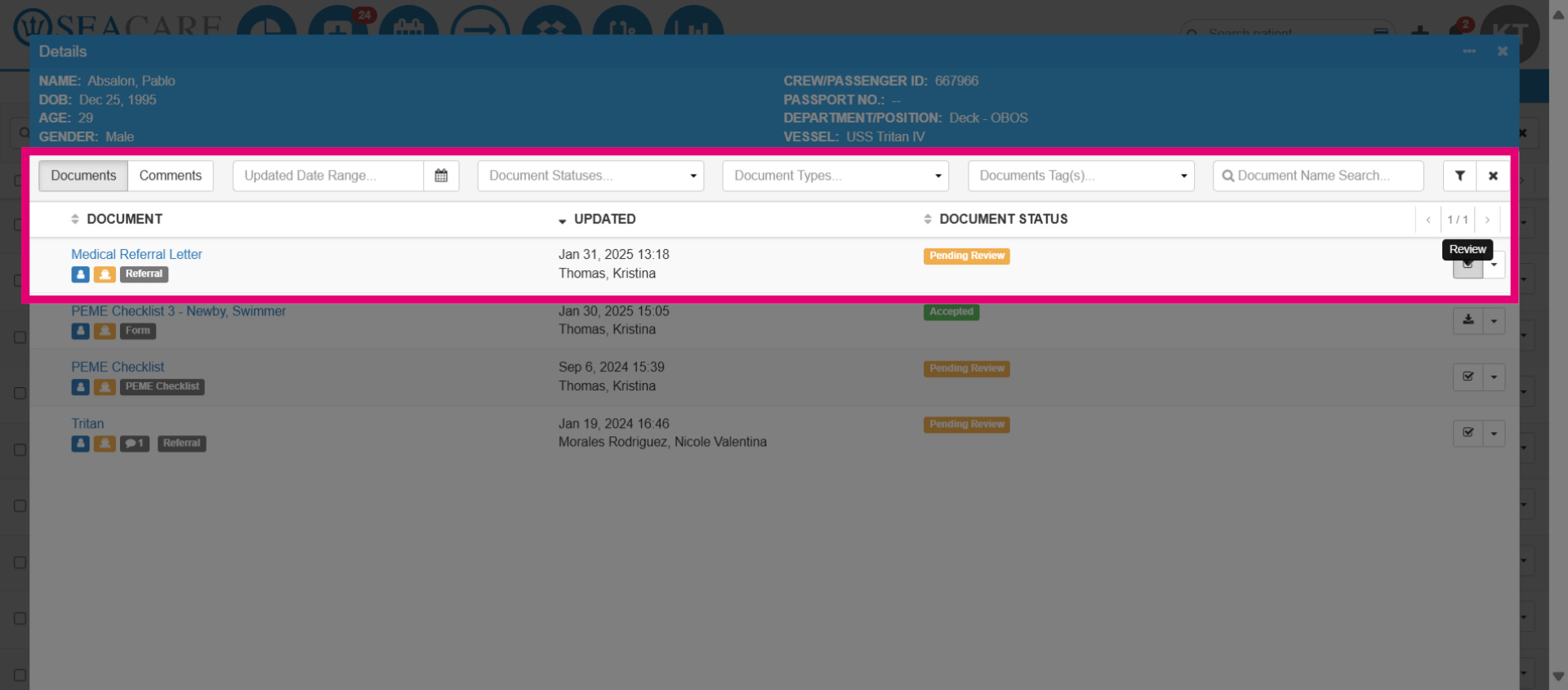
- Select the Review button to the right to open and review the document.
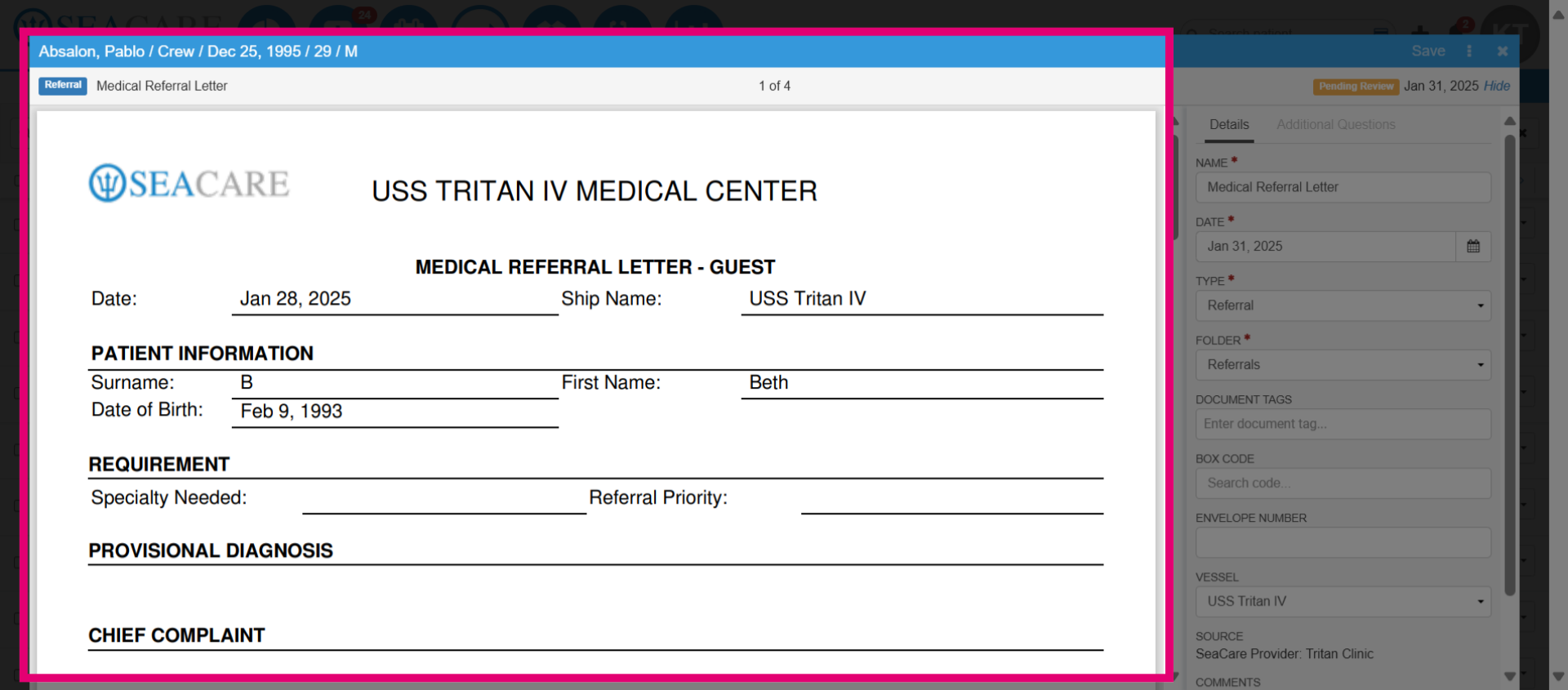
- View the document details and the files included which can be one or more. Scroll down if there are additional files attached to the document.
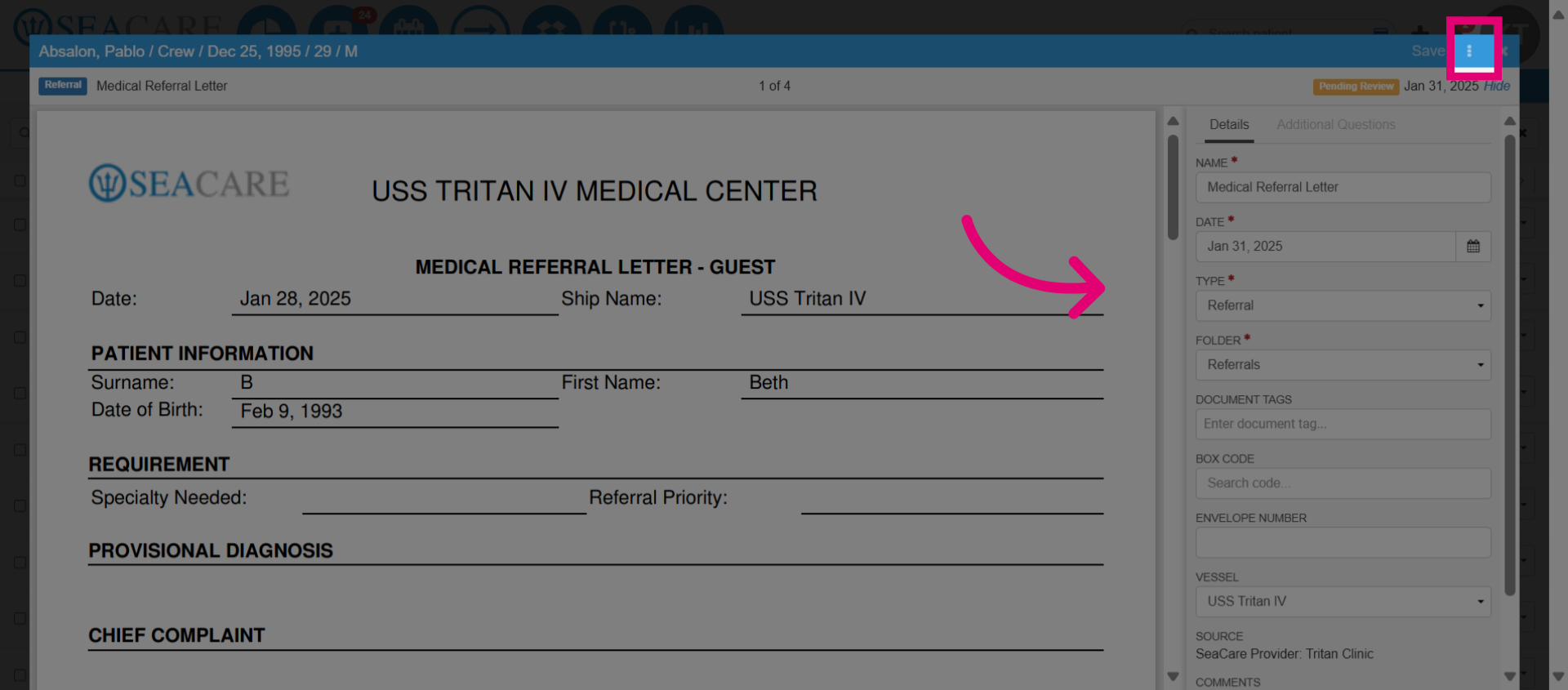
- Select the More Options button to download the document for a closer view.
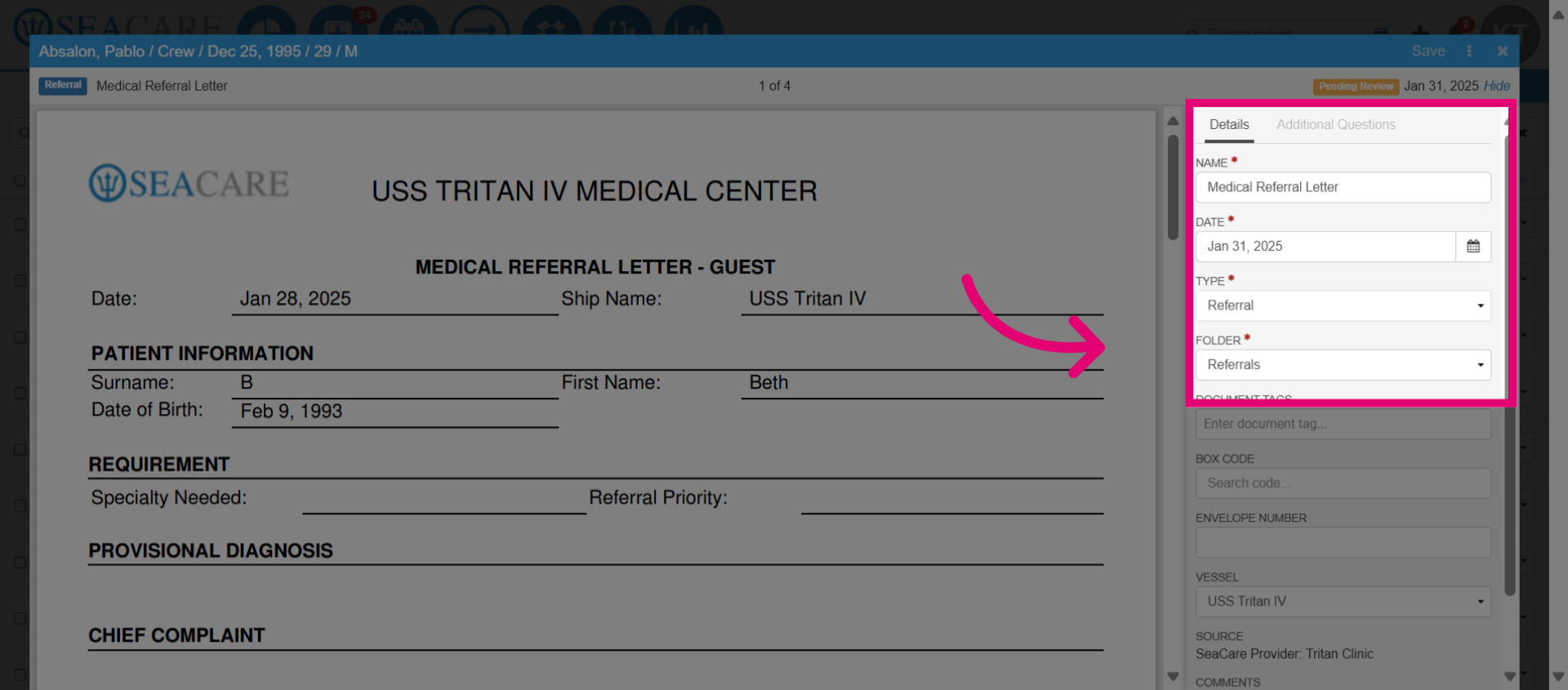
- Then, complete the review by completing the required fields marked by an asterisk to confirm the correct information has been entered by the provider. Verify the following information about the document:
- Name
- Date
- Document Type
- Document Folder
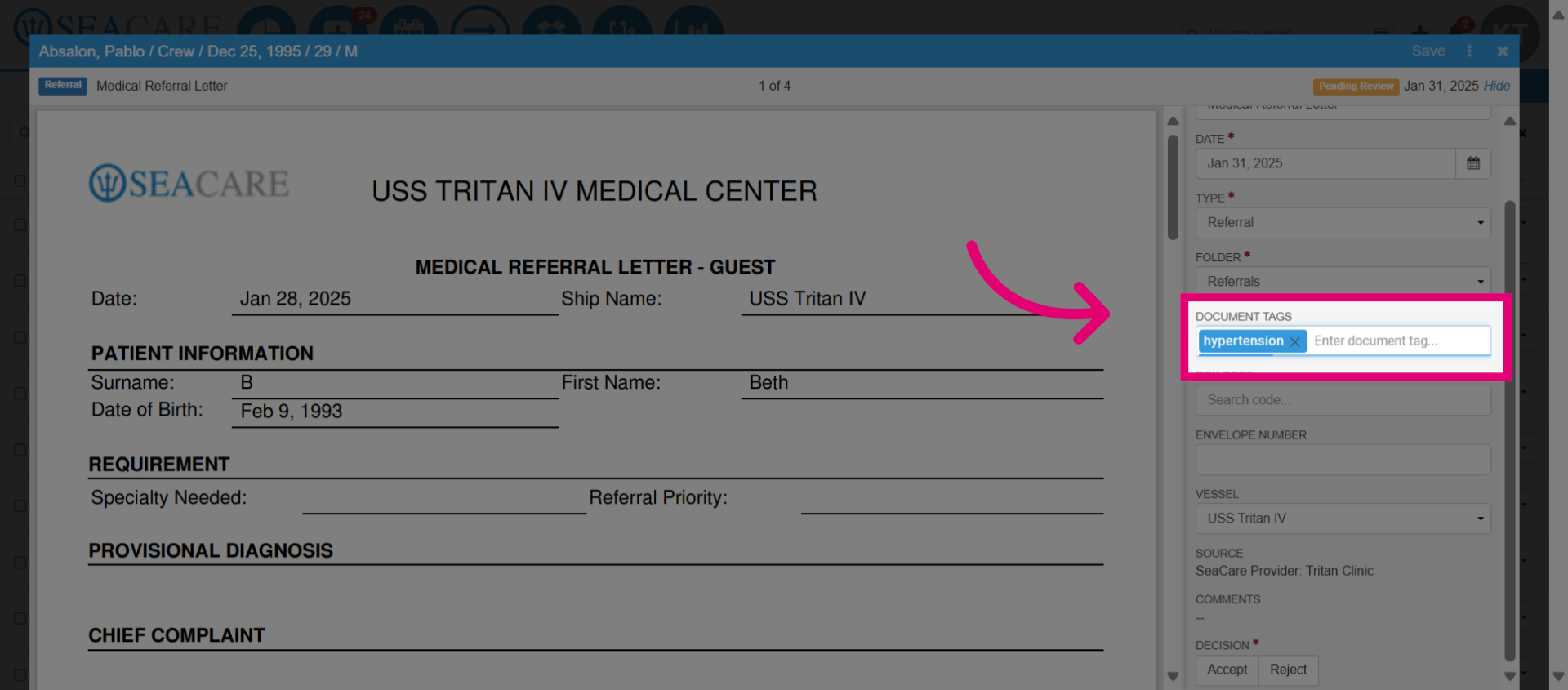
- Add Document Tags if a health condition has been shared. This information will be updated in the patient chart and stored under underlying health conditions badges.
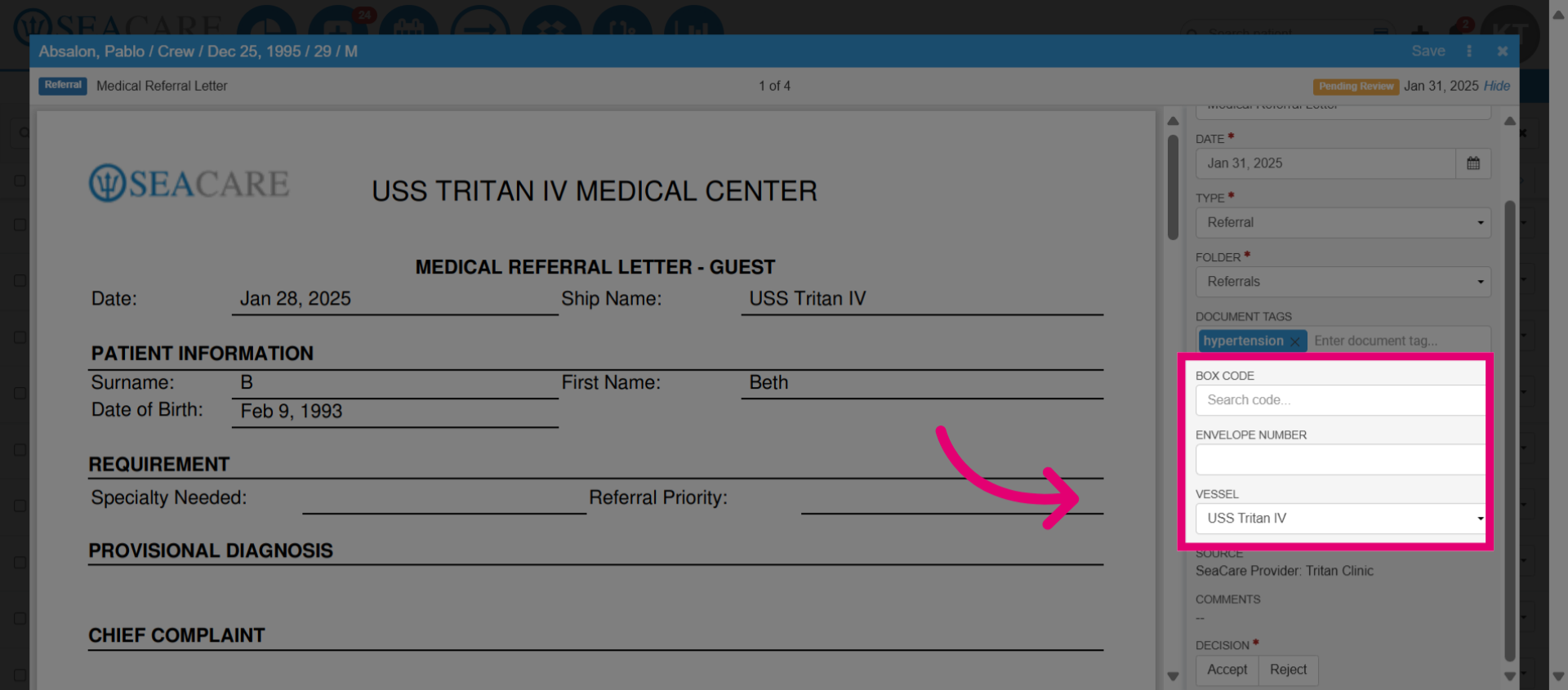
- Then, fill in other optional fields and ensure the correct vessel for the patient has been selected.
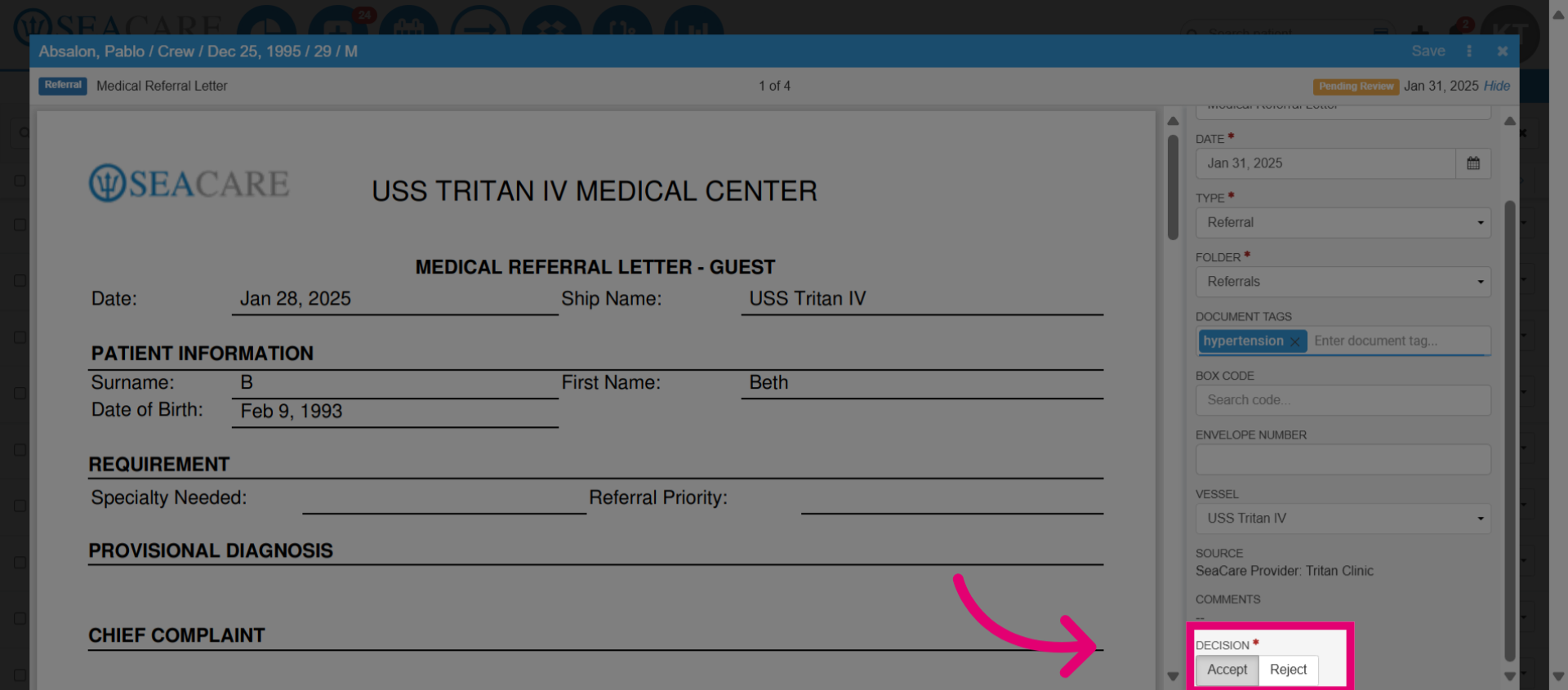
- Once you are done, select Accept to accept the document into the patients chart under the selected folder. You may also reject the document if corrections need to be made.
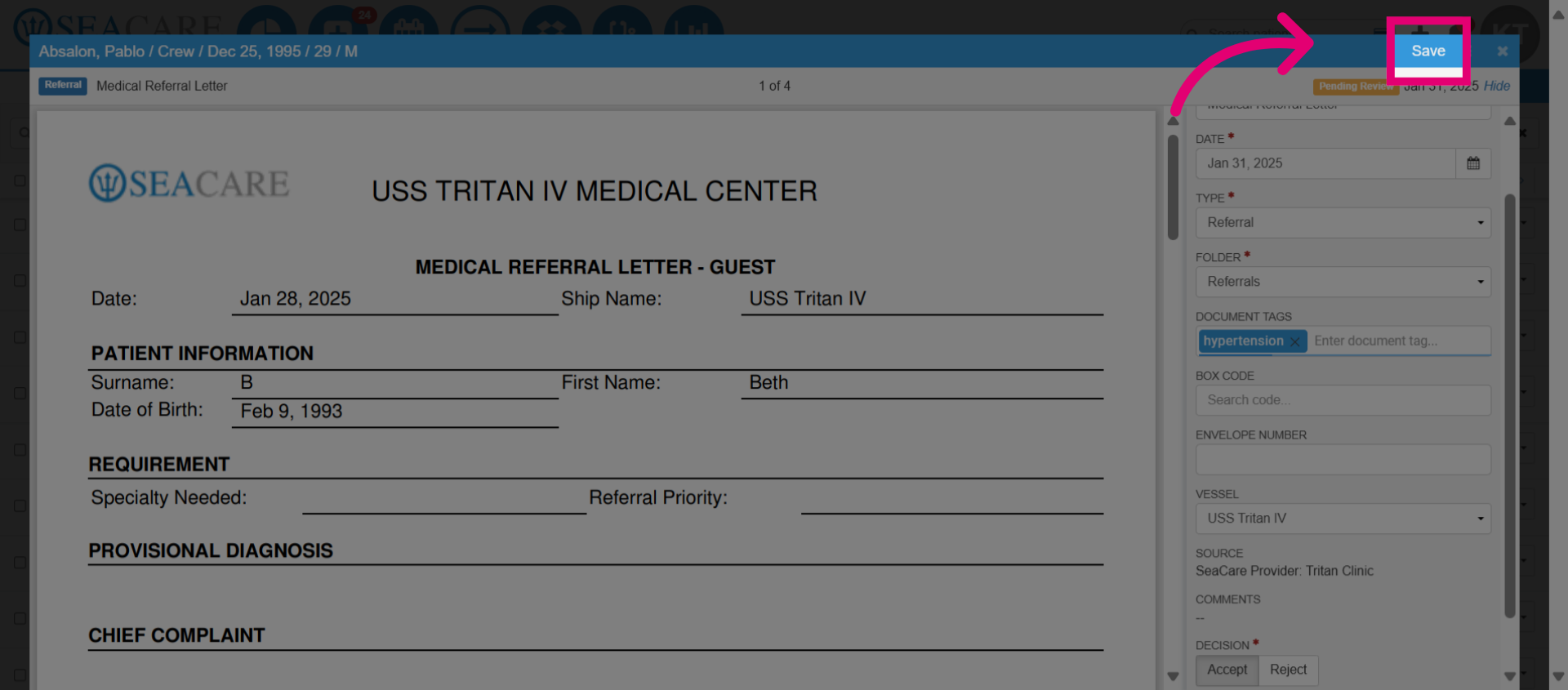
- Save the changes made to a document.
- View the updated Document Status with the green accepted badge.
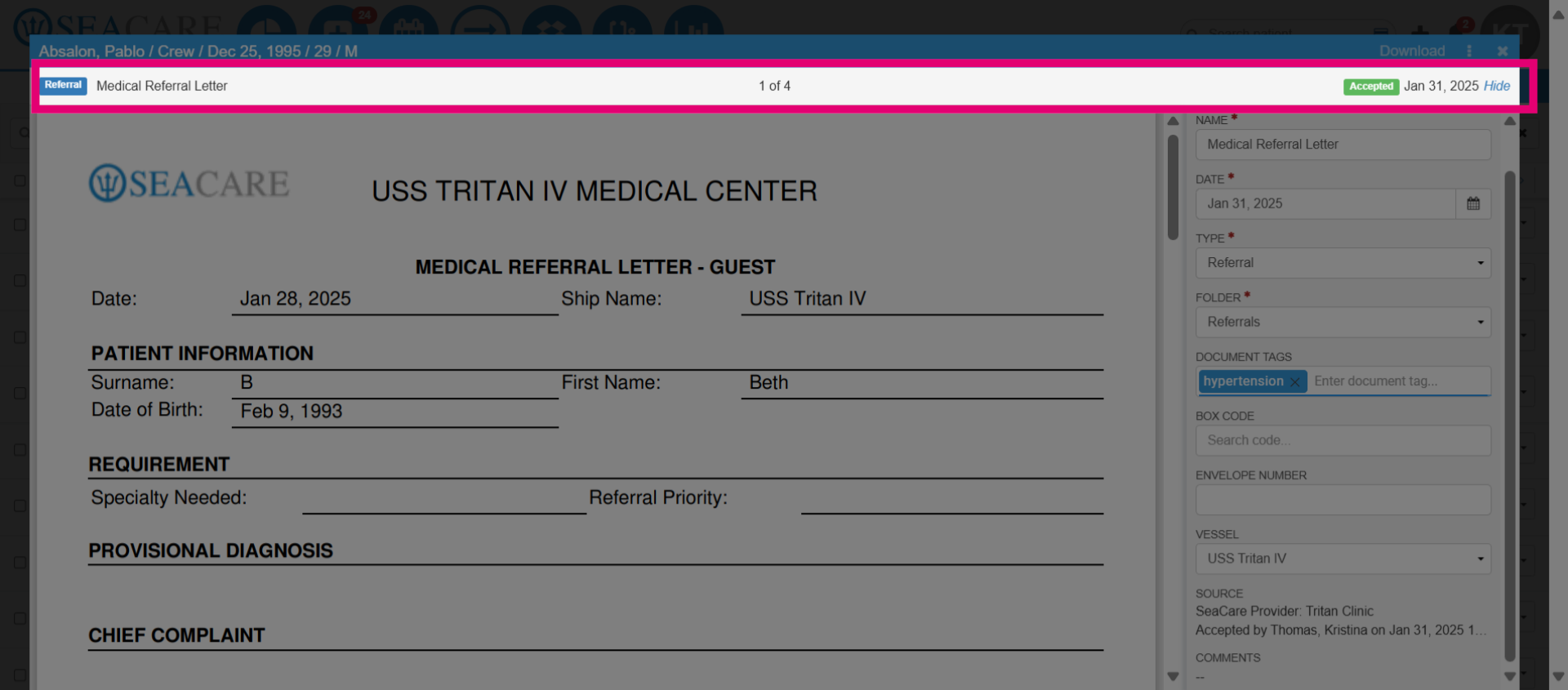
- If there were additional documents from the list, you can view them without closing the window and review them by scrolling right.
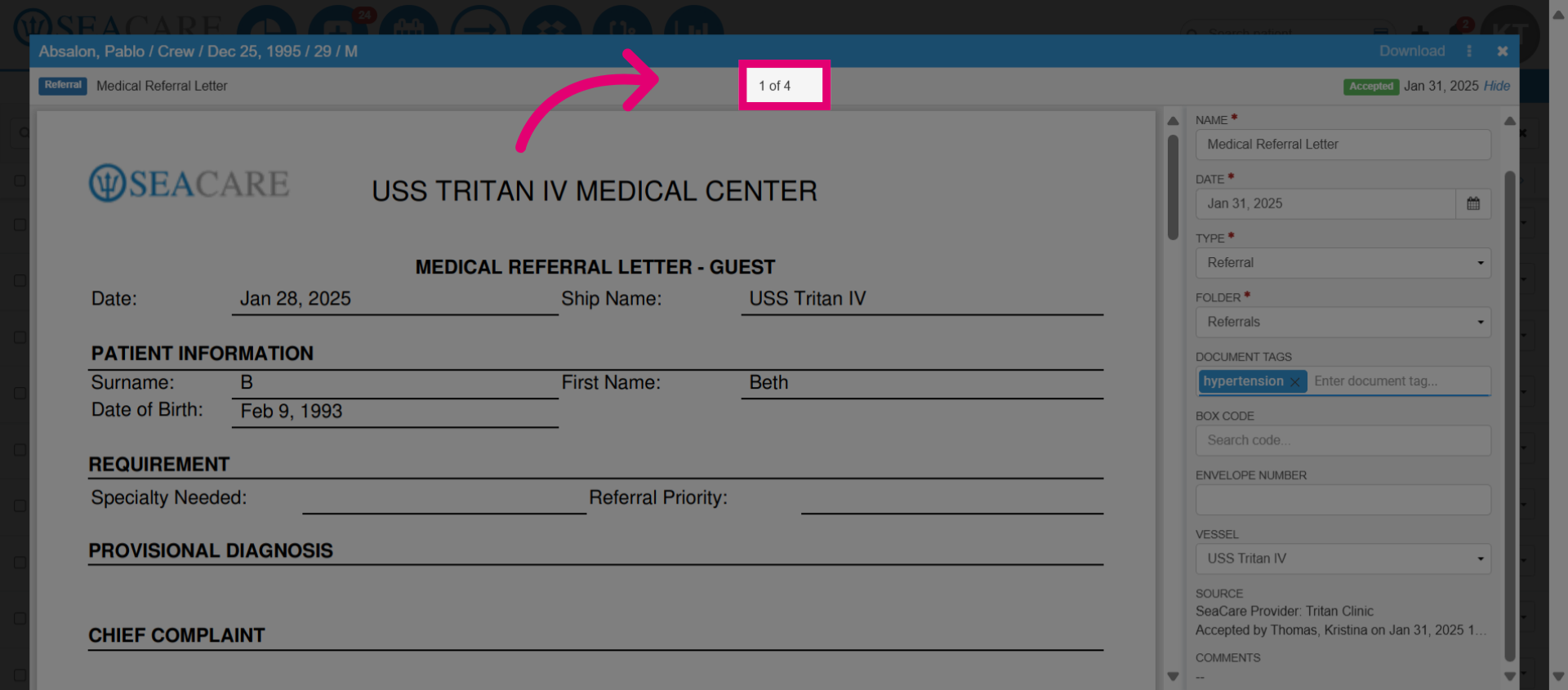
- Select the close button to navigate back to the main dashboard.
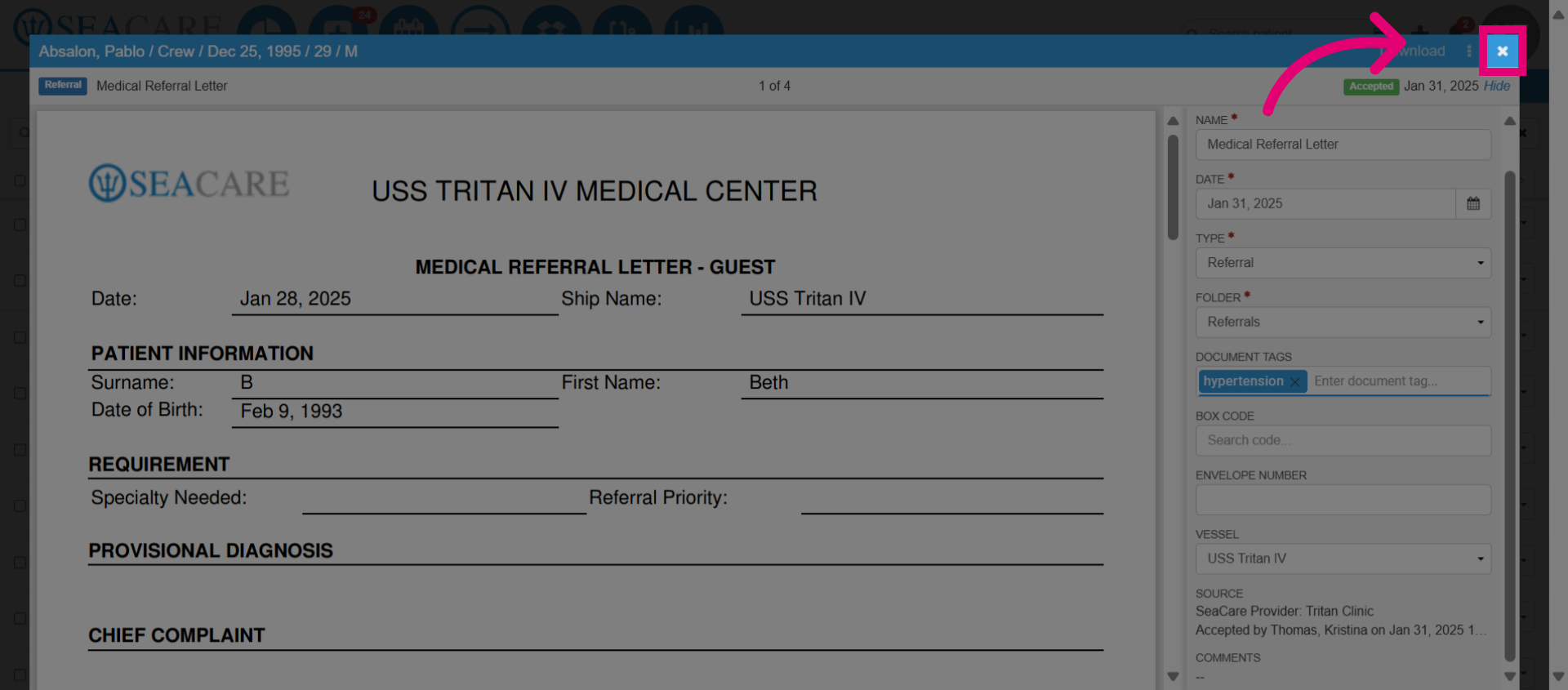
- View accepted documents.
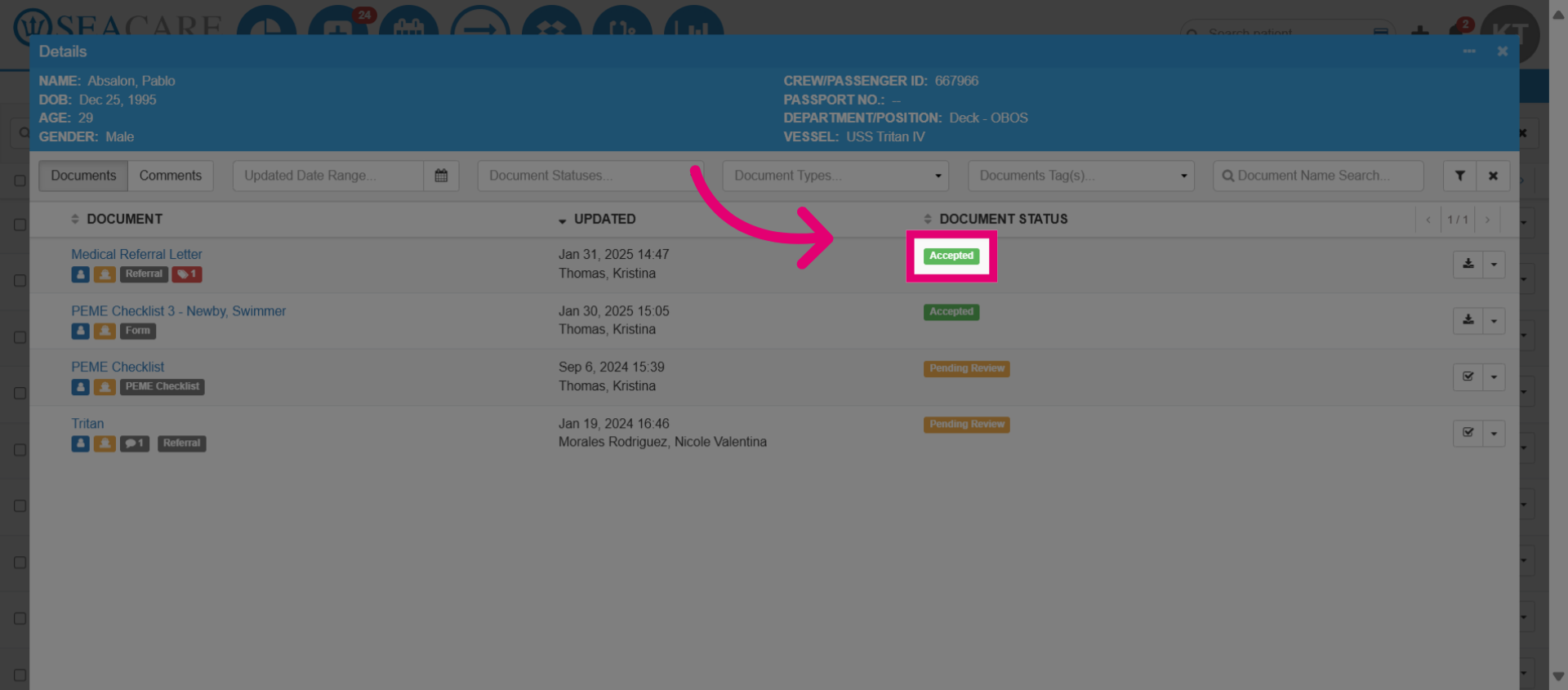
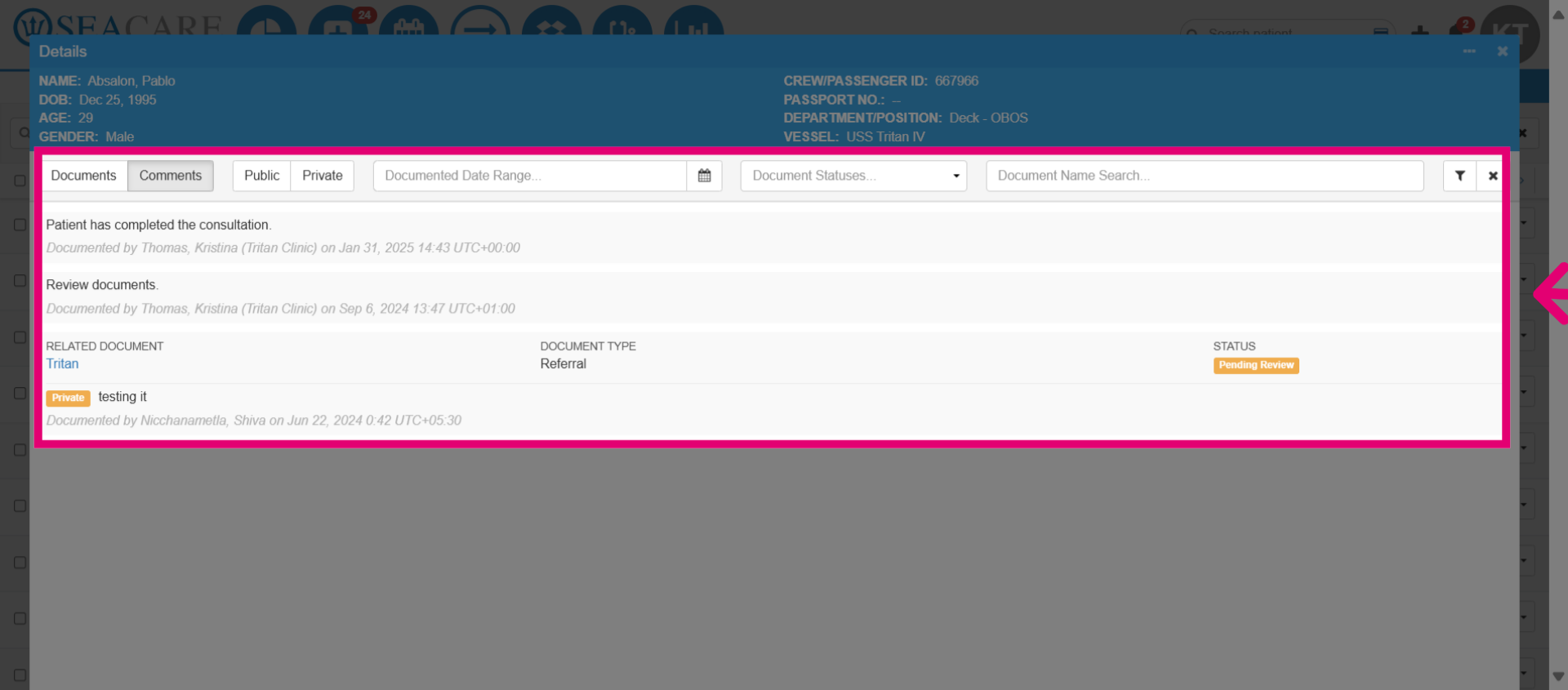
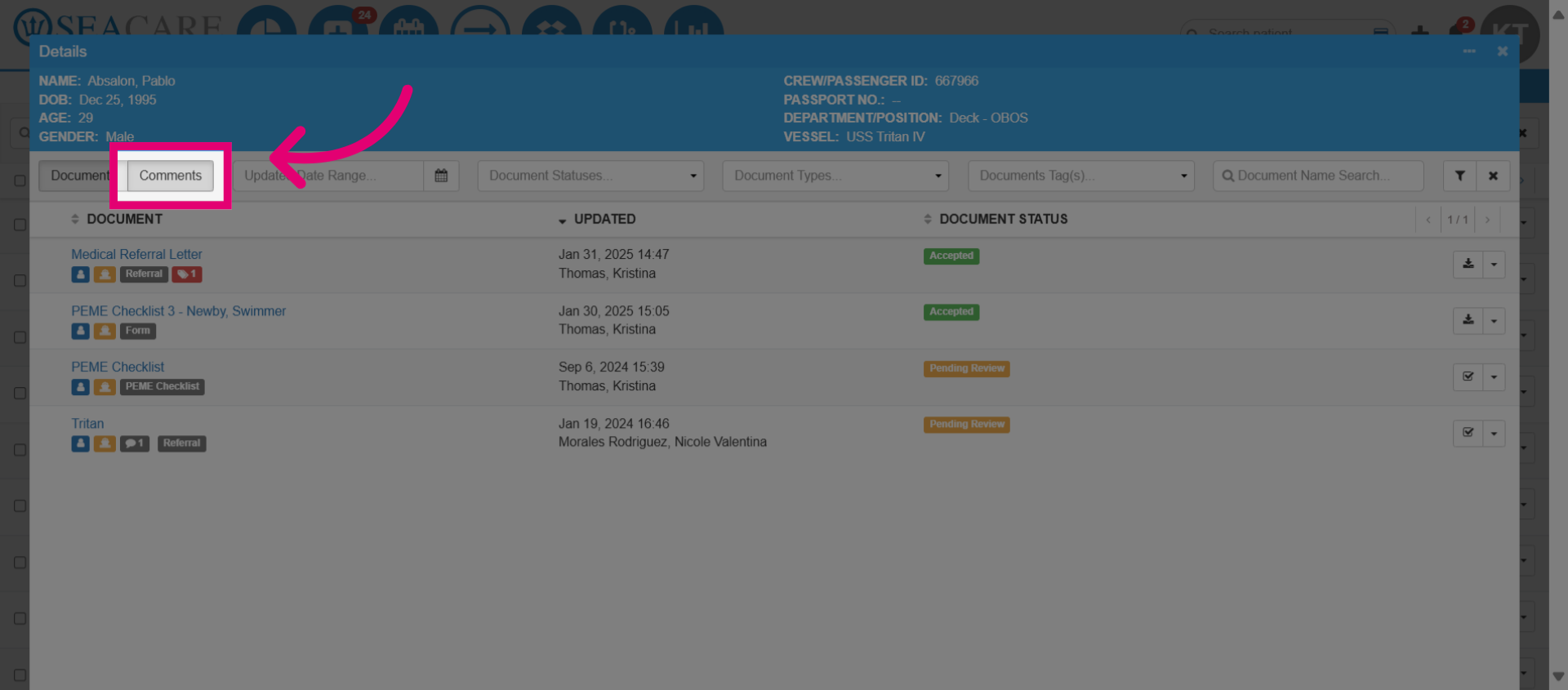
- Select the Comments tab to view comments shared by the provider.
- View comment details including author and timestamp.