New article
Recently updated
Ideagen Maritime Health Operations Public Health Overview

Who is this article for?Users who want to understand how to navigate the Public Health module in Ideagen Maritime Health Operations
No elevated permissions are required.
From selecting vessels to accessing disease reports, follow these engaging instructions to efficiently use the Public Health Module in Ideagen Maritime Health Operations to review data related to public health diseases and perform a non-symptomatic follow up for cases.
1. Ideagen Maritime Health Operations Public Health Overview
1.1. Video
1.2. Steps
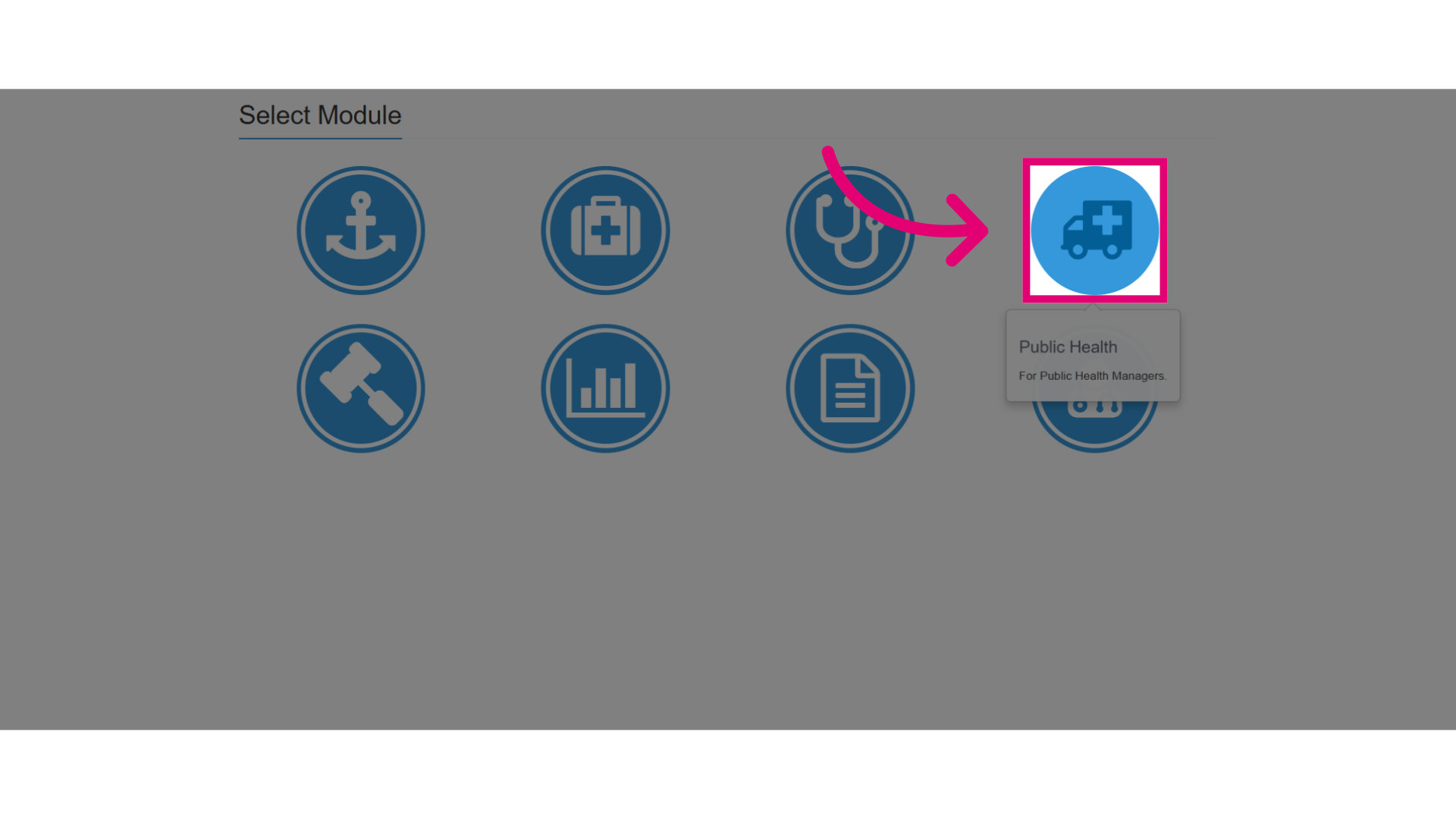
- Start in Ideagen Maritime Health Operations, and select the Public Health module.
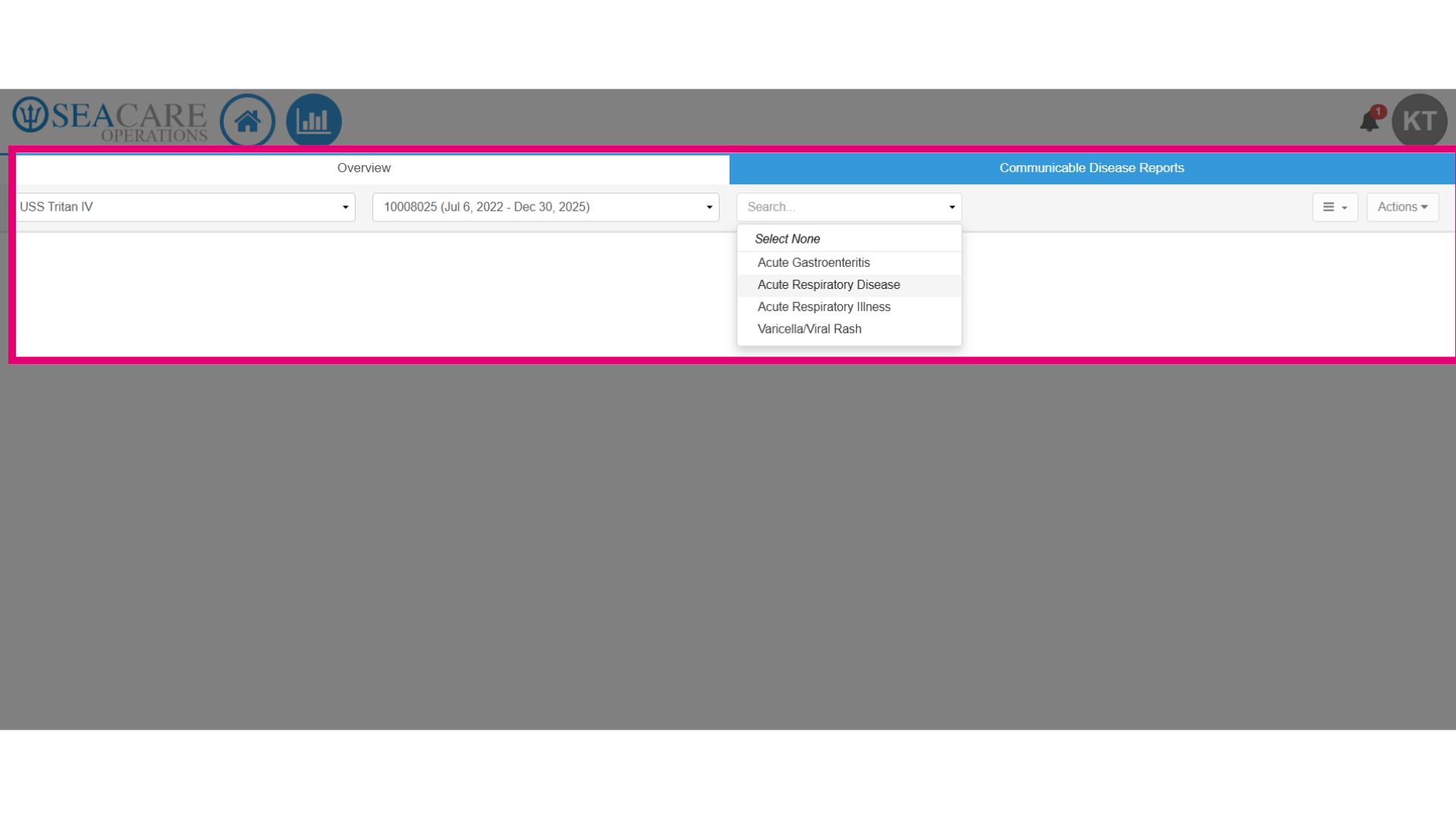
- Under the Overview tab, users see Public Health data and will be able to use the following filters to generate public health data:
- View public health data for a specific vessel.
- Choose the voyage to view public health data.
- View public health information by disease type for acute gastroenteritis, acute respiratory disease, acute respiratory illness and varicella/ viral rash that were recorded onboard ships.
- Apply the filters to generate a graph with data separated by crew and guest.
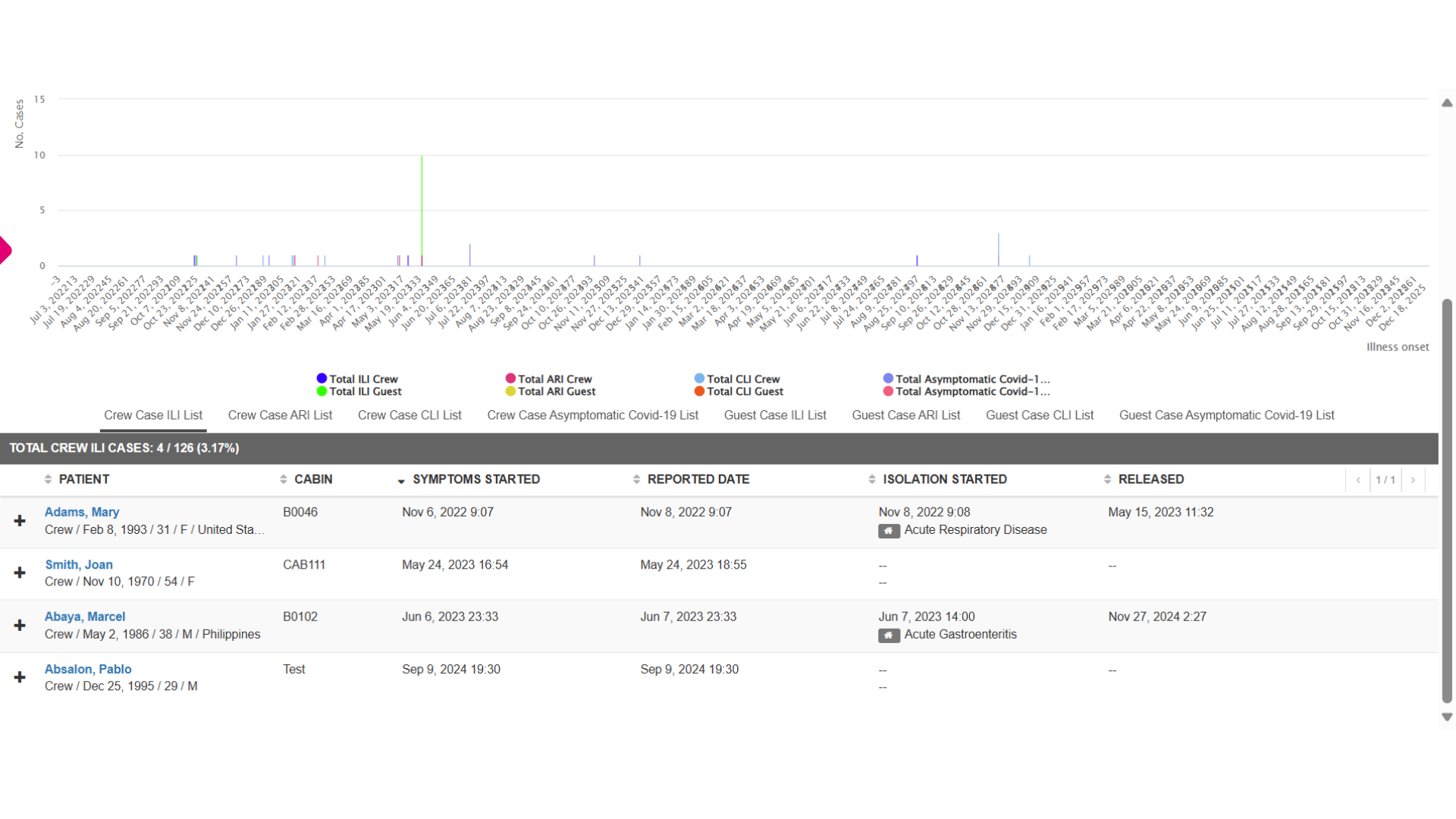
- This includes total case data for ILI, AR I, CLI, and Asymptomatic COVID-19 Illness.
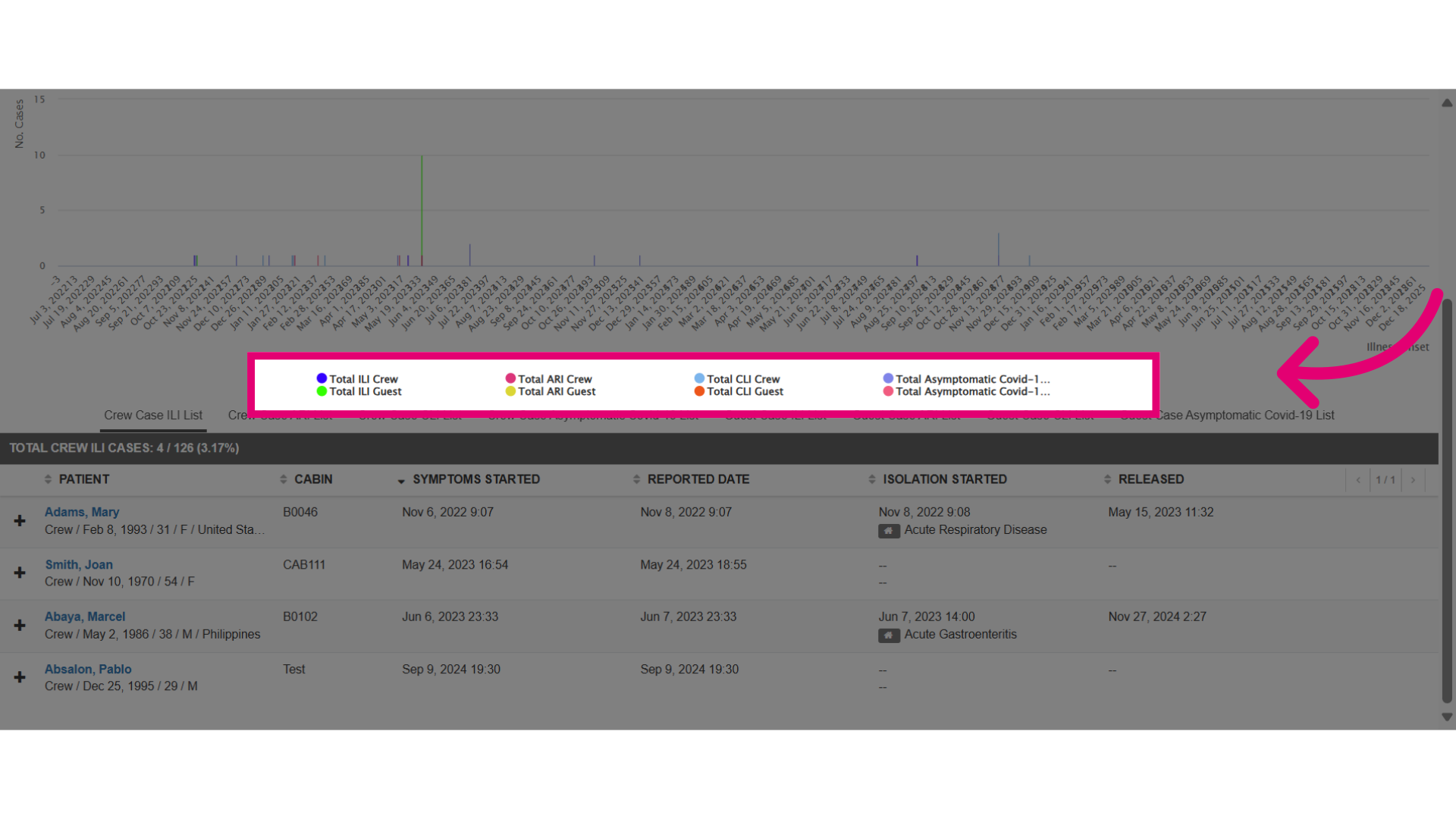
- You will also be able to view the following for cases:
- The case list separated by disease type for crew or guests.
- Data showing the patient’s name and demographics, cabin or department/position if a crew member, the date of symptom onset and reported date.
- The date of the start and end of isolation.
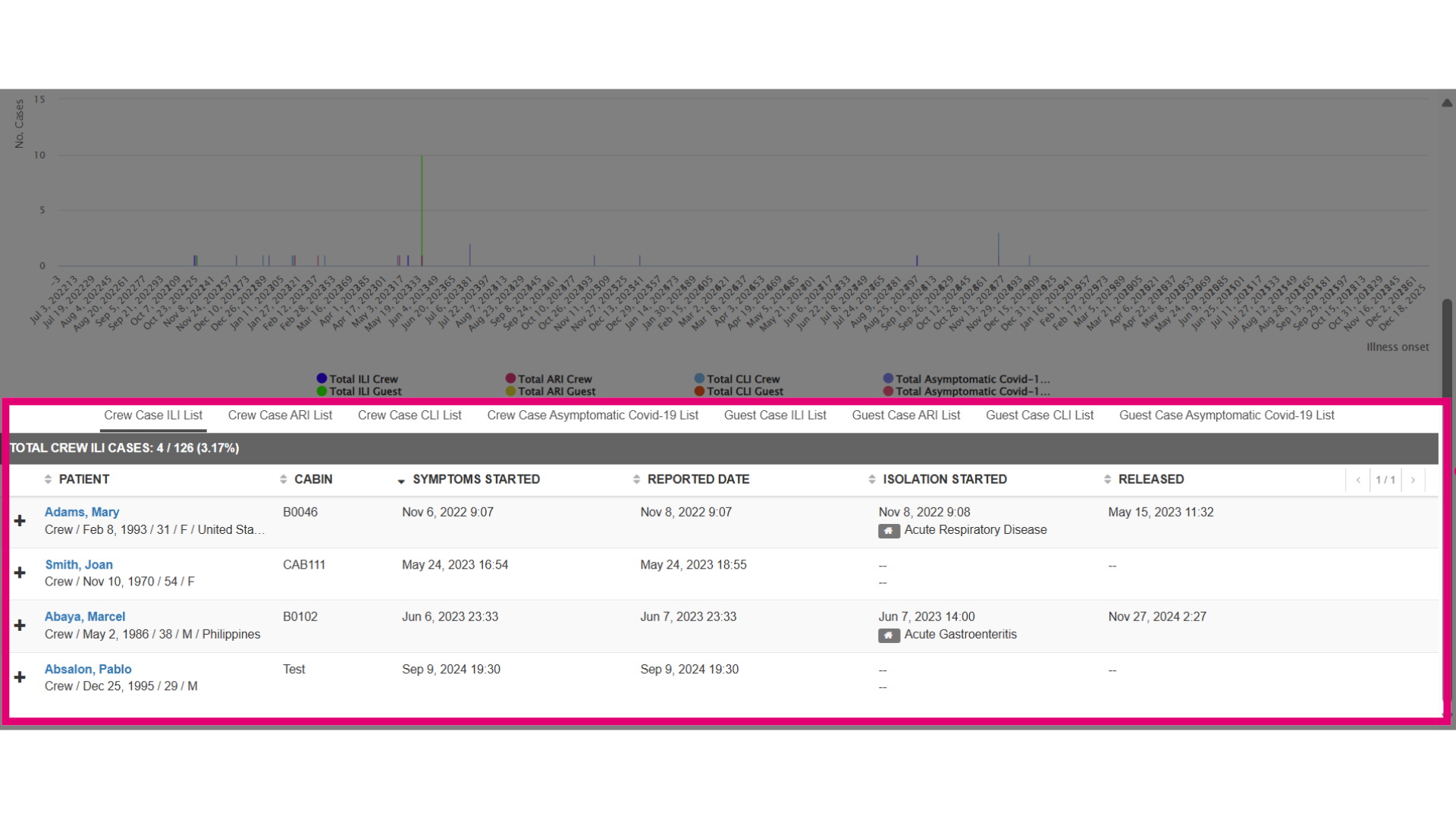
- Select the Expand button to view more information for an individual patient.
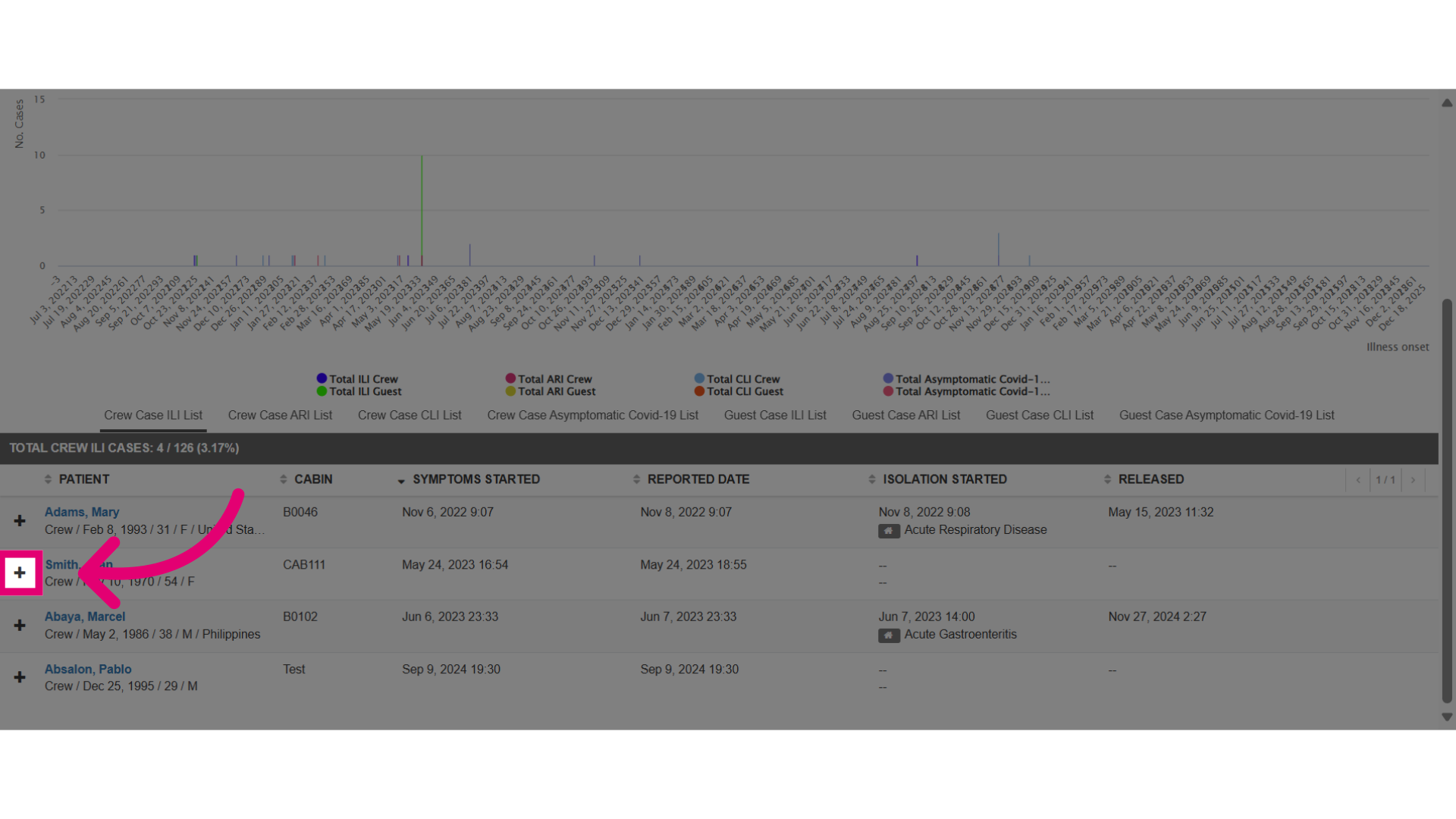
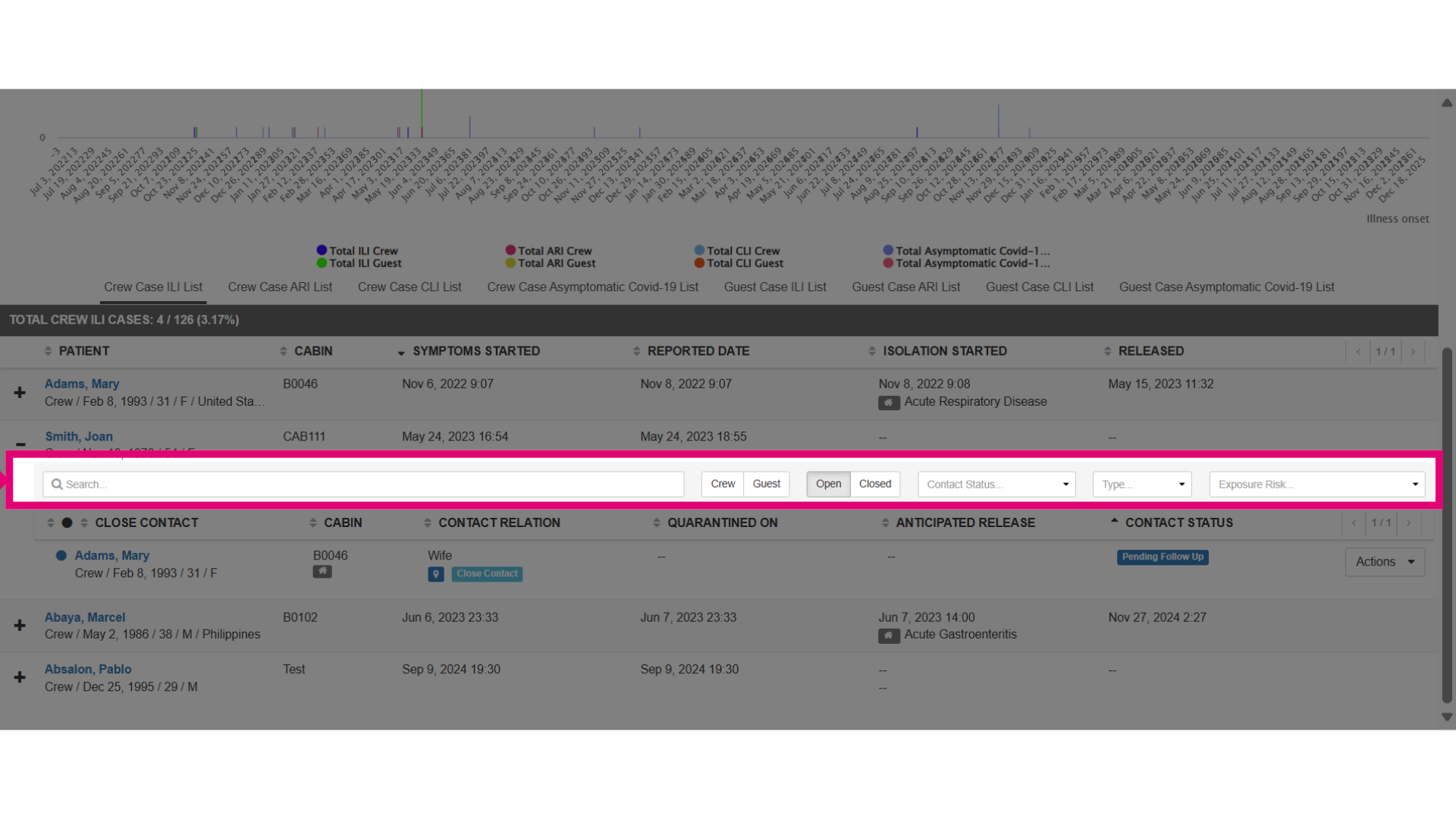
- You can view the close contact case details that was recorded for the patient with the close contact's name, cabin, relation, quarantine status, release from quarantine status and contact status.
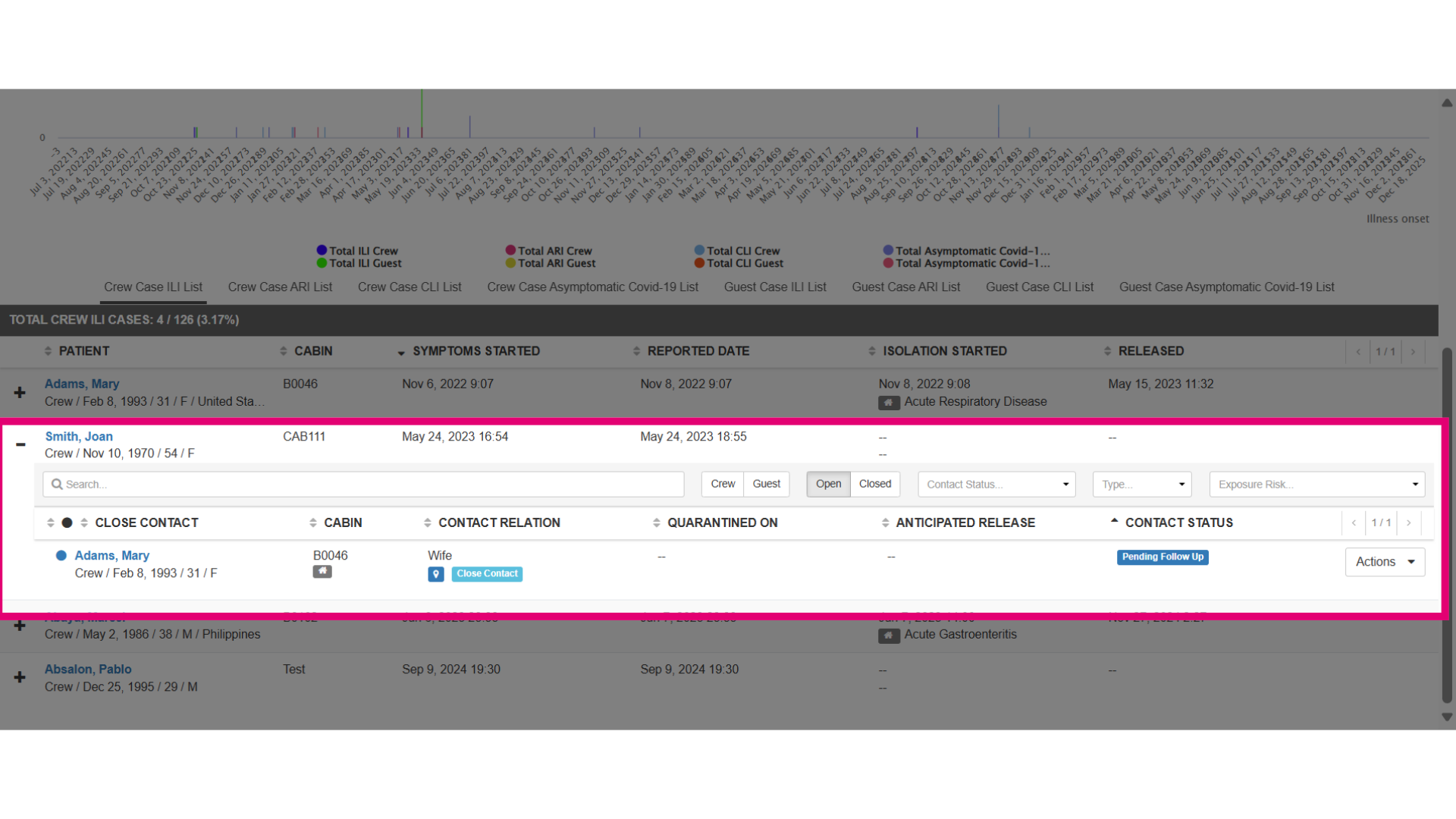
- Also, you may use the filters to search the close contact list.
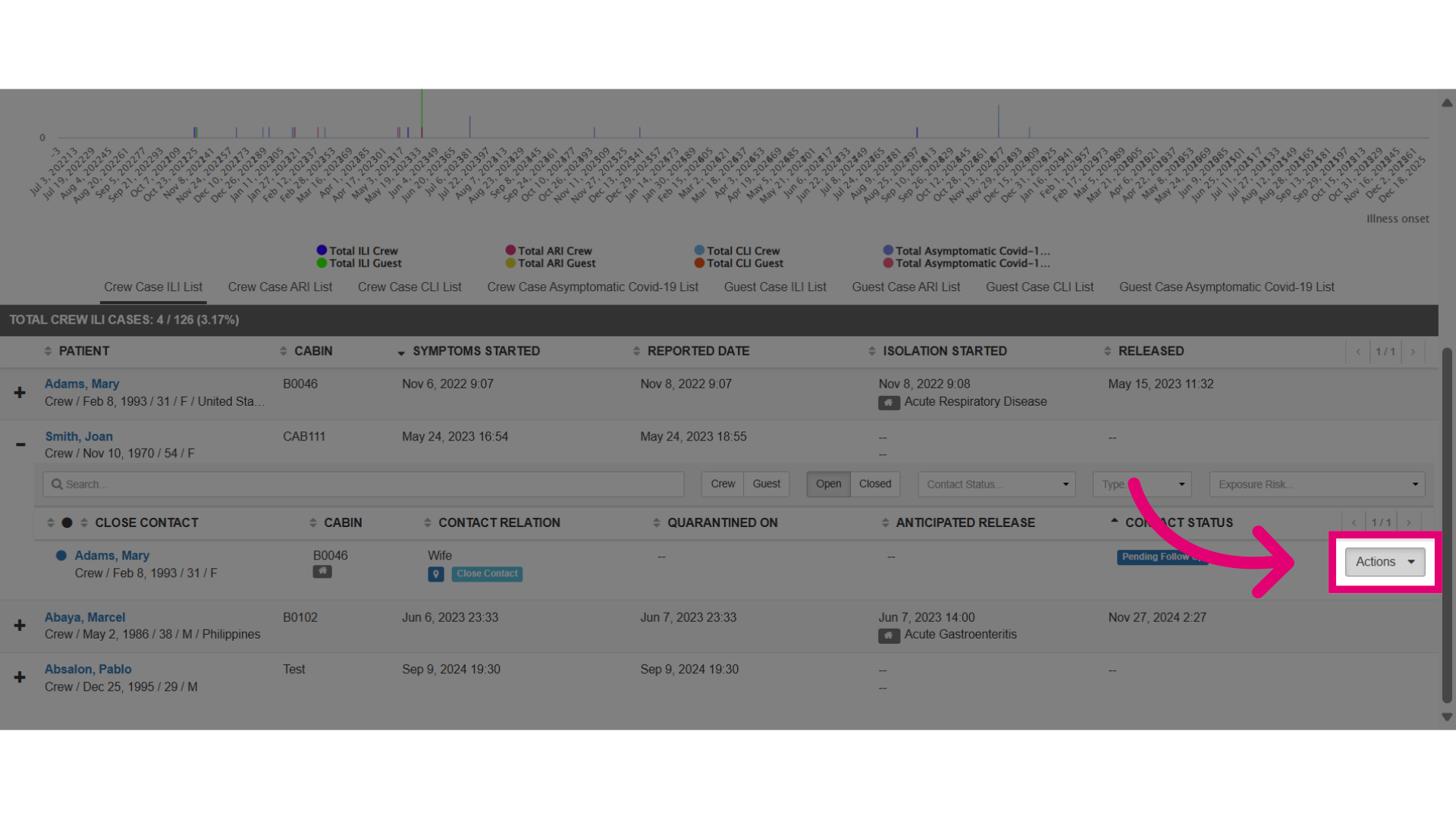
- Select the Actions button to perform more tasks.
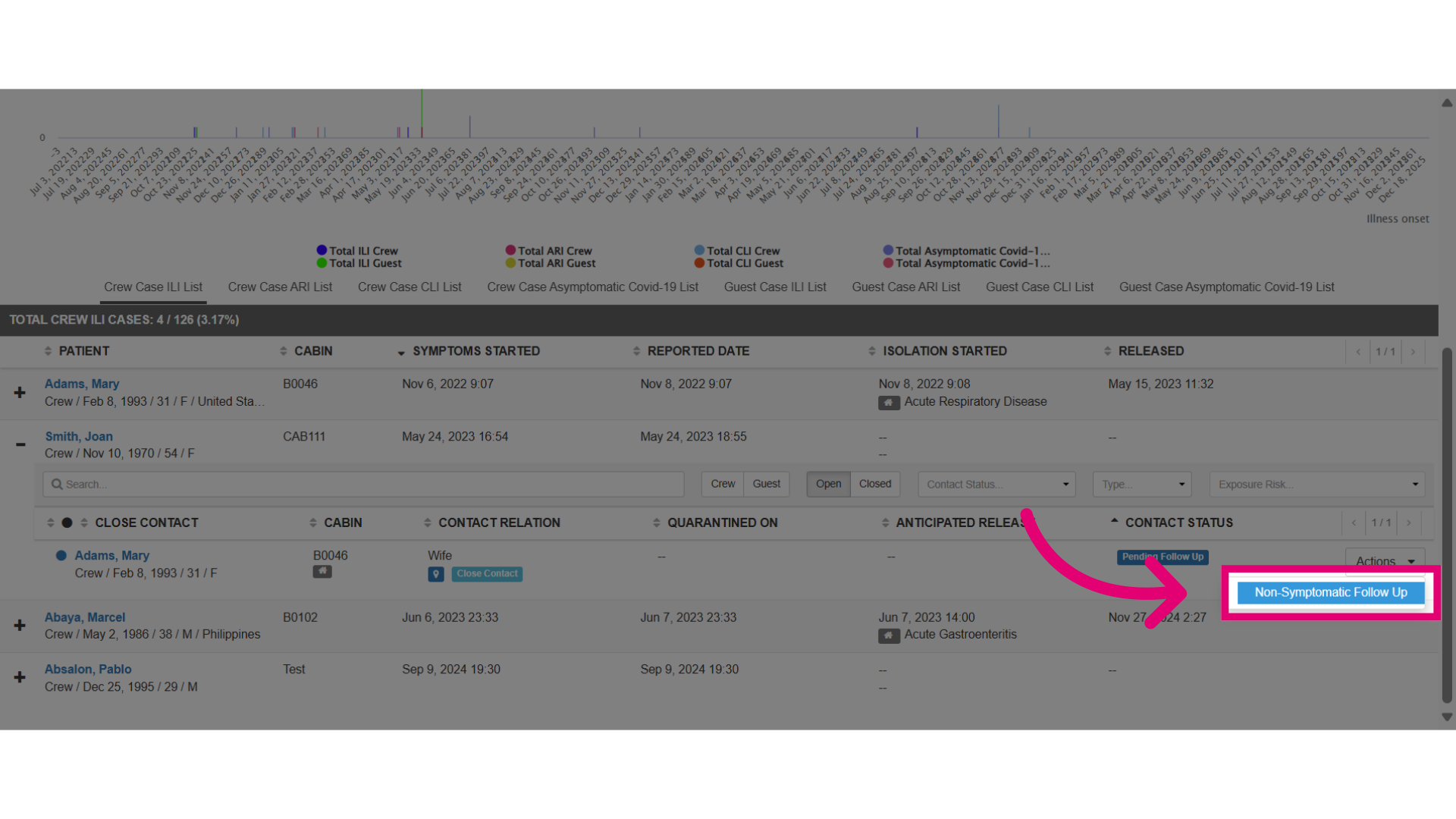
- This allows you to perform a non-symptomatic follow-up by selecting this non-symptomatic option.
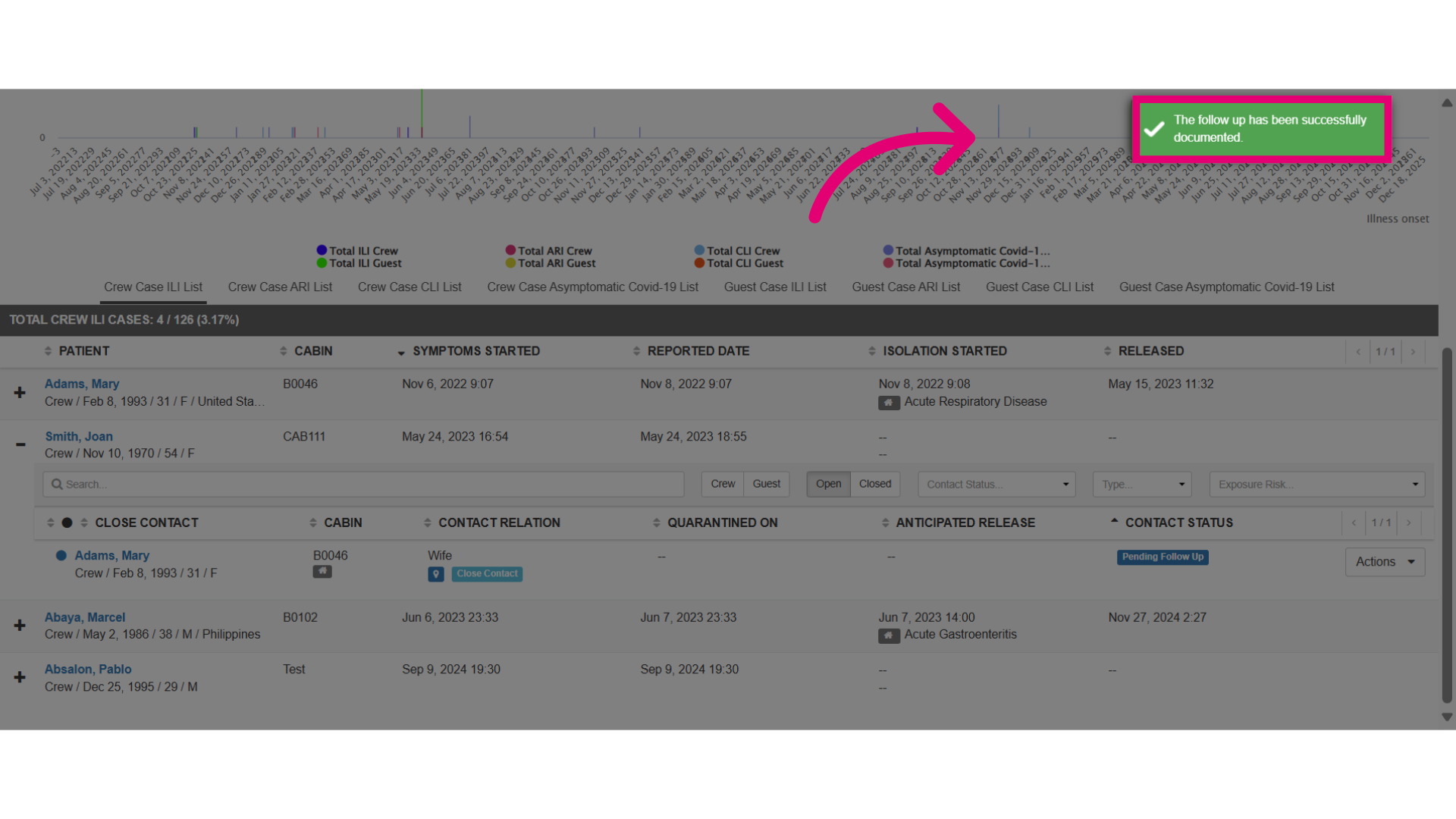
- A confirmation message will be shown when it has been successful.
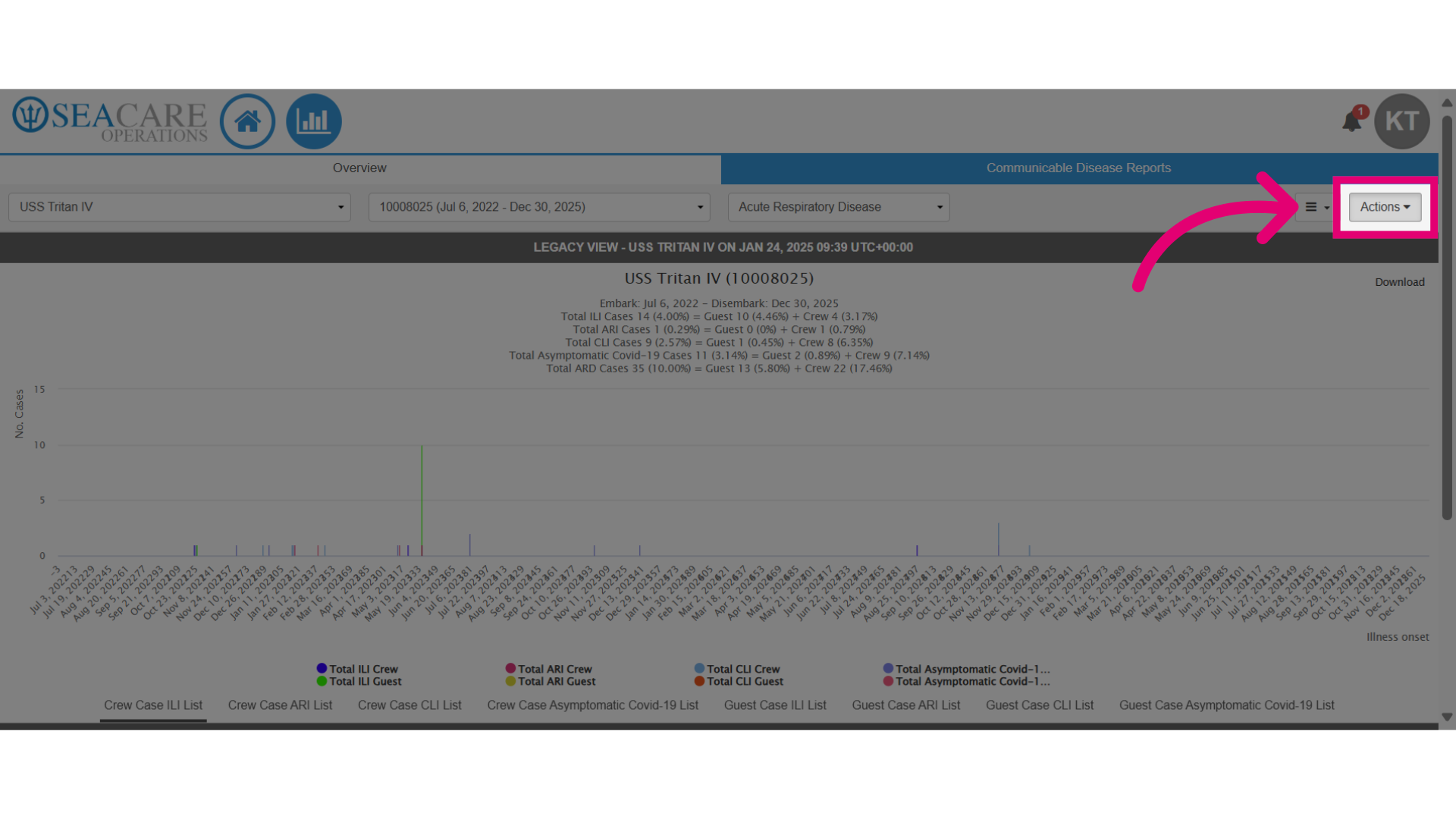
- Select the Actions button to download the ARD Master Log.
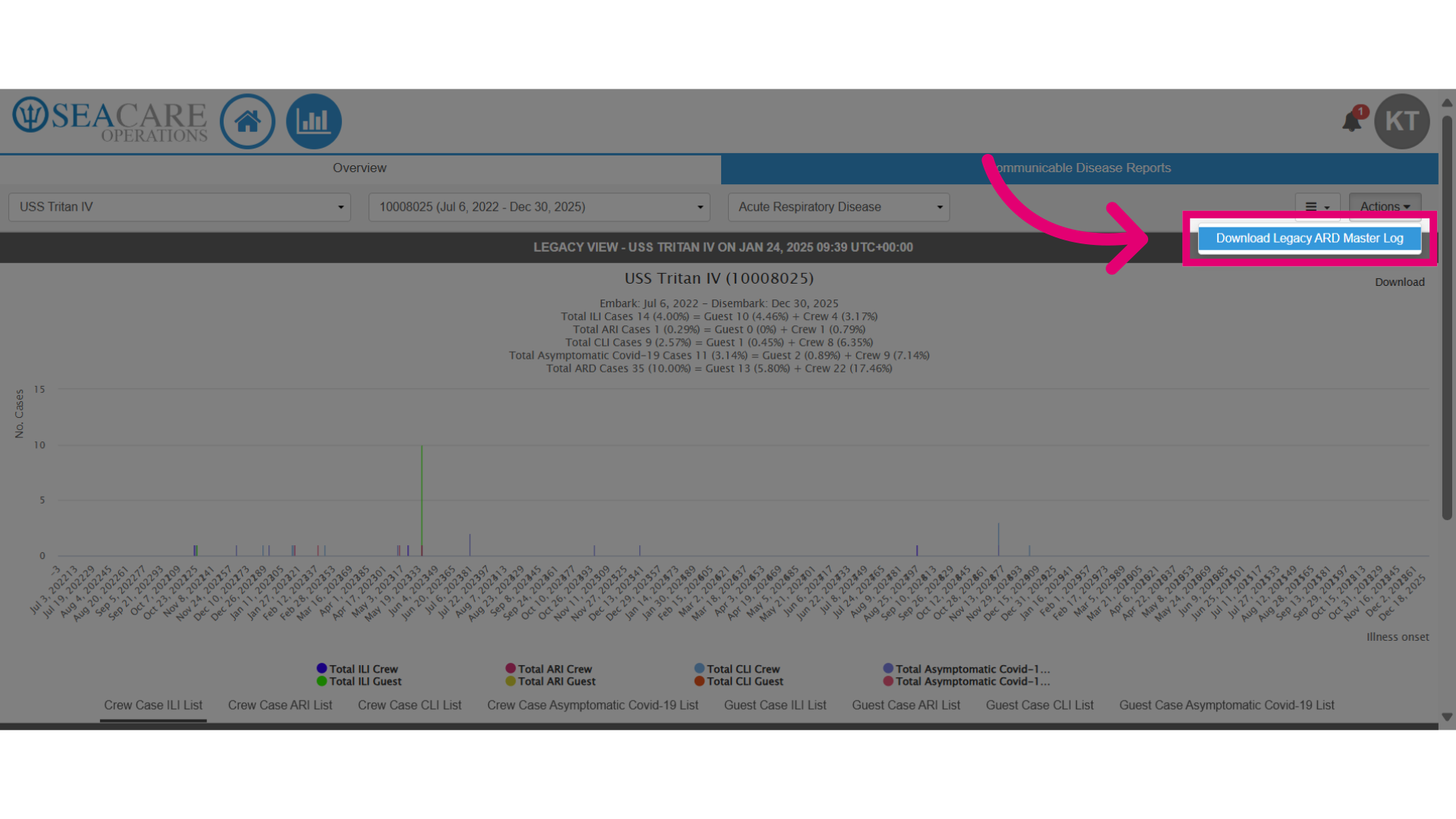
- Then, select Download Legacy ARD Master Log to download real-time reporting for communicable diseases onboard the ship including information about passenger, date of onset, reported by, symptoms, diagnosis, isolation start/end, etc.
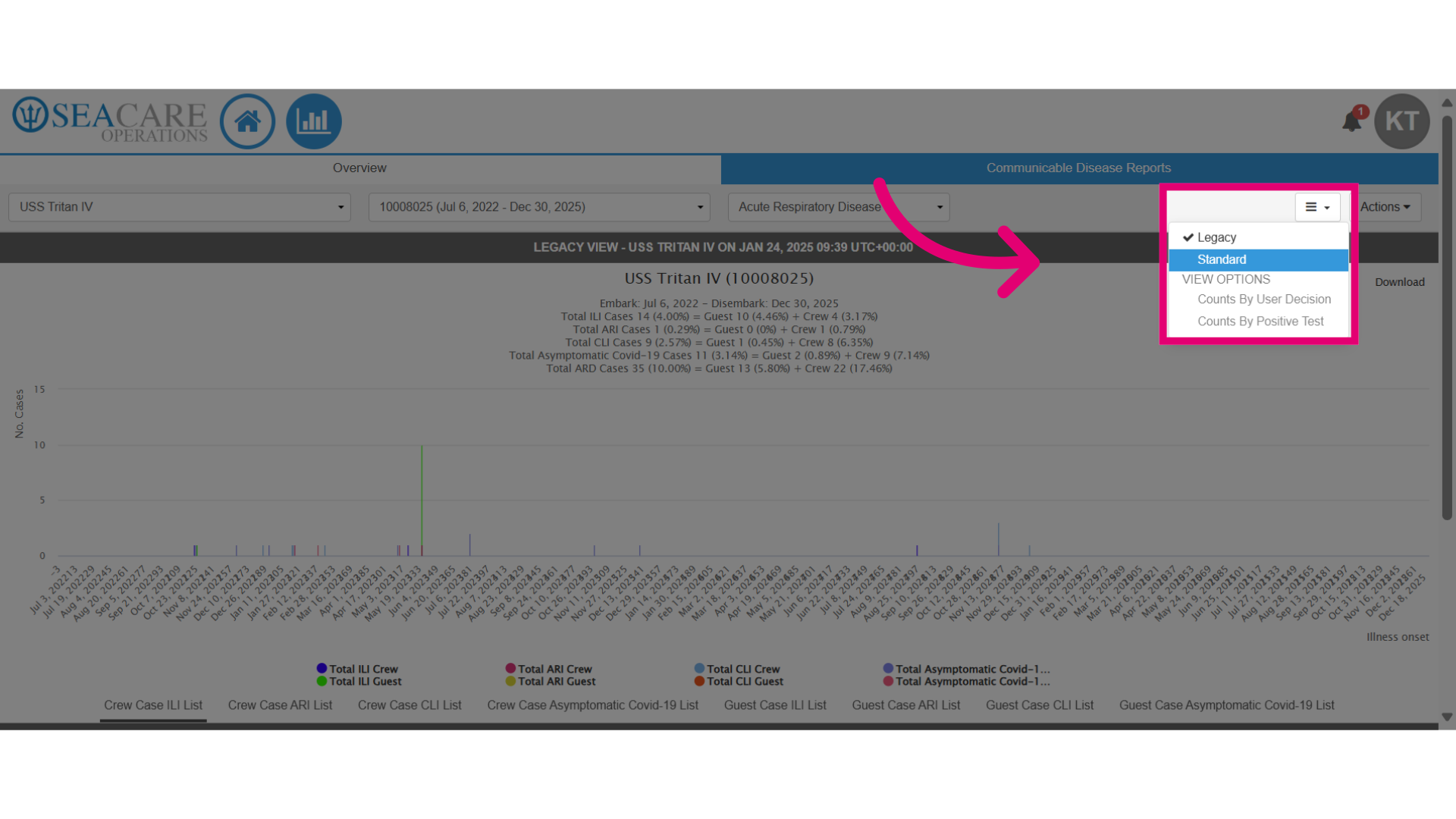
- Adjust the view of the report if necessary with these options:
- Legacy - Representing the old CDC disease types.
- Standard - To display data for the most updated CDC disease types.
- View Options - When it comes to assessing counters, there are two primary viewing options available by:
- User Decision - Viewing option focuses on the choices made by users
- Positive Test - Viewing option centres around the successful outcomes of tests conducted within the framework.
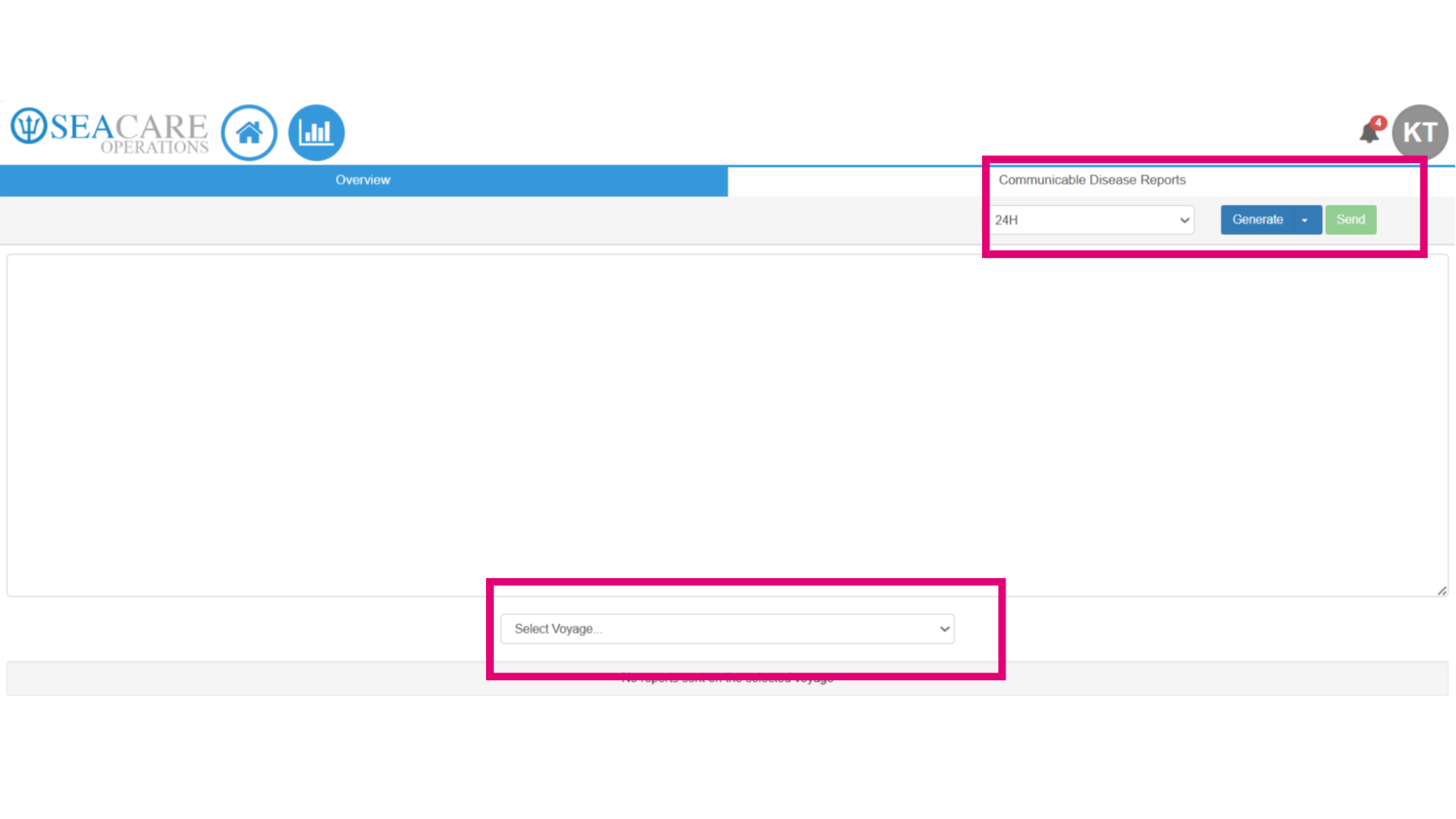
- In the Communicable Disease Reports tab, you can generate and submit reports to the CDC. Choose from the following options:
- 24 h - Routine report every 24 hours during a voyage.
- 4 h - Urgent report within 4 hours of outbreak identification.
- Special Report 2% - For over 2% of passengers or crew reporting symptoms.
- Special 3% - For more than 3% affected.
- ILI Routine (Legacy) - For influenza-like illness (legacy version).
- Routine (Legacy) - Previous general report form.
- ARI: Routine - Daily or periodic reporting for Acute Respiratory Illness.
- COVID-19 Enhanced Data Collection - Includes fields for vaccination status, lab confirmation, isolation, and contact tracing.
- Select the Voyage for the report.
- Click Generate to view the report data.
- Then, click Send to submit the data to the CDC.
- To download, click Download under the Generate menu; the report will be available in Standard Reports under the Requested Report tab.