New article
Recently updated
Logging Communication in Case Management

Who is this article for?Users who want to log a communication for a case in Case Management.
No elevated permissions are required.
By documenting each communication, you ensure that all team members and departments are kept informed and that any important information is preserved for future reference. These instructions will demonstrate how.
1. Logging Communication in Case Management
1.1. Video
1.2. Steps
- Locate the case from the list.
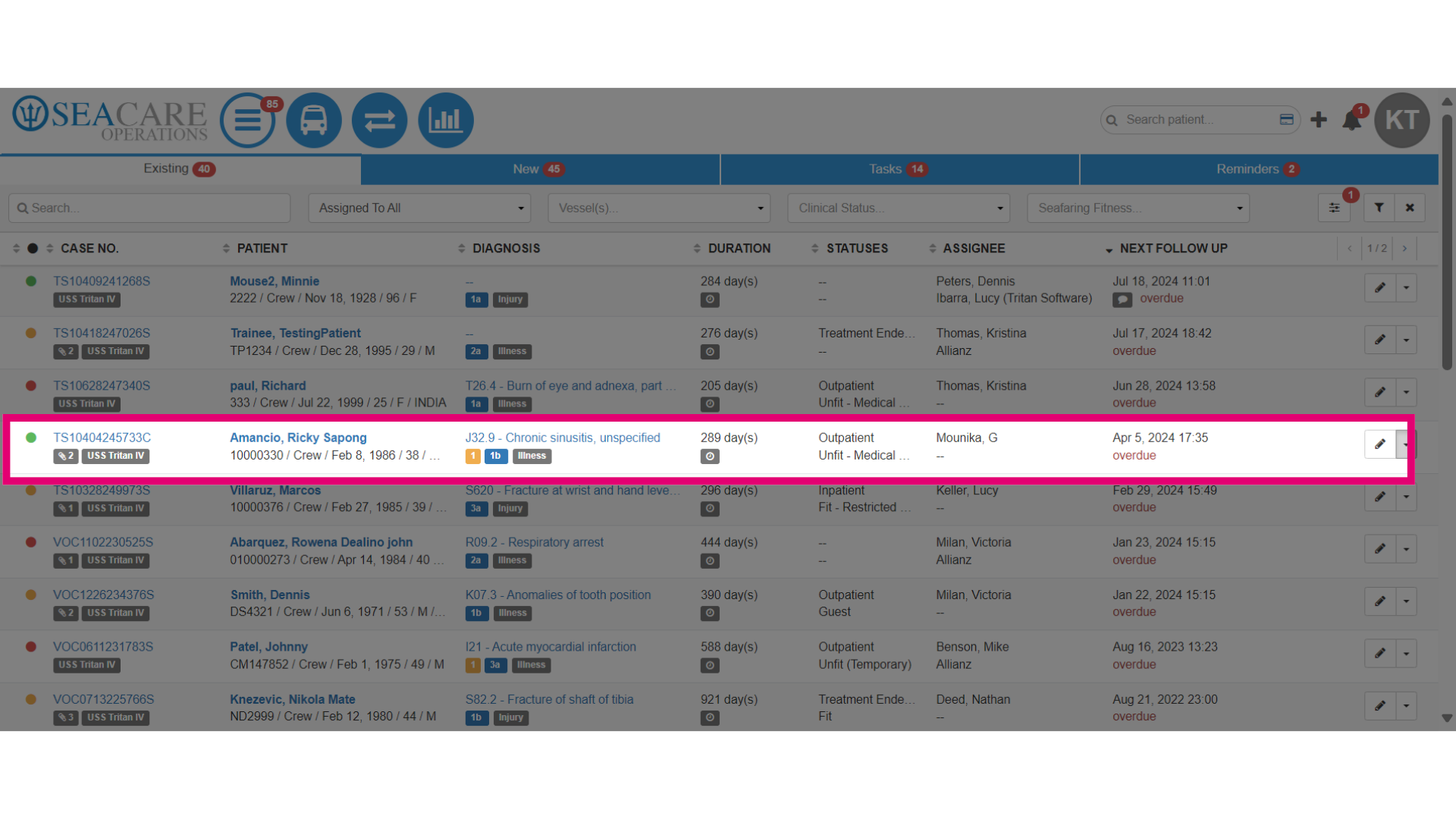
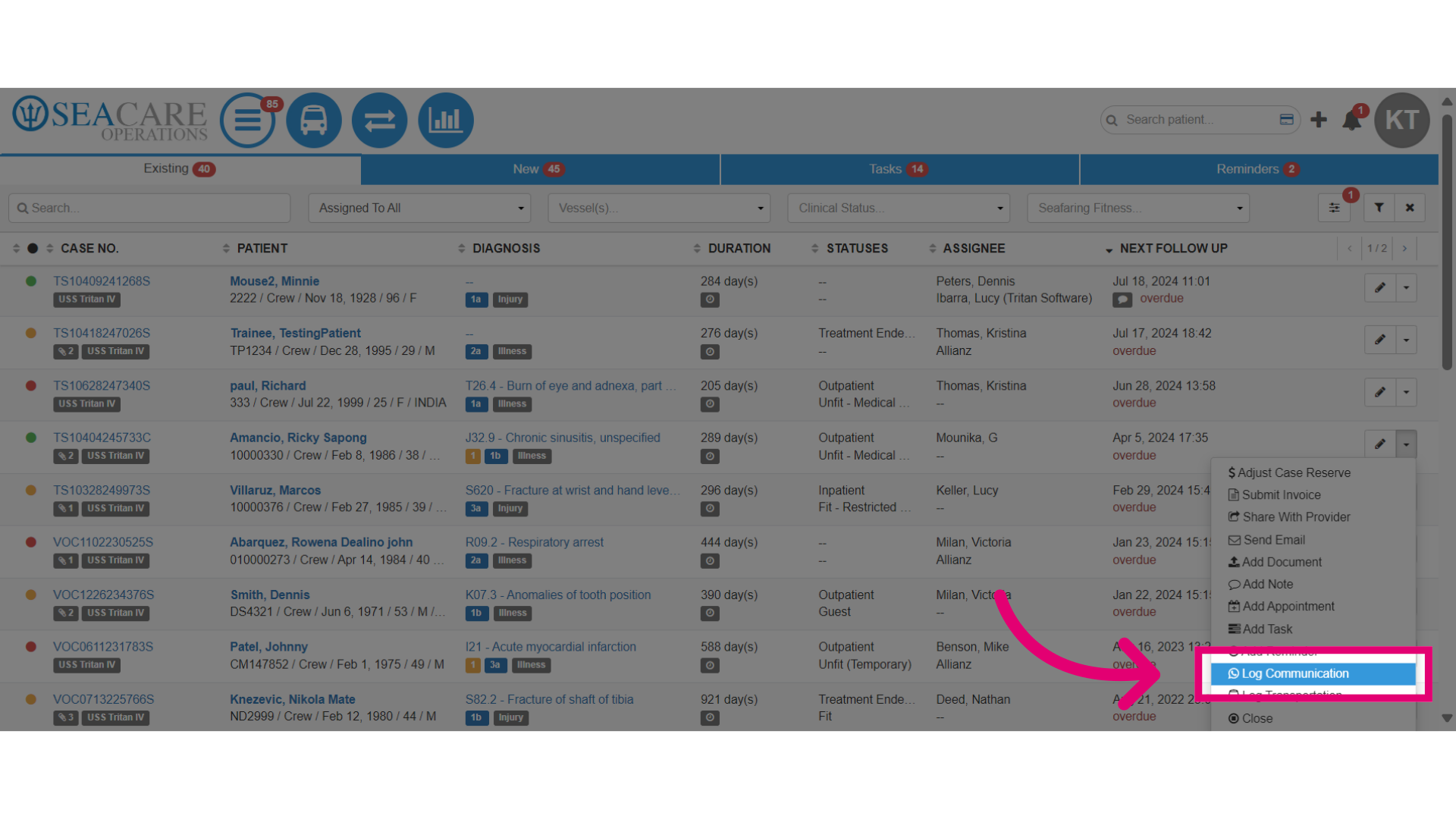
- Select the Actions dropdown menu.

- Select the Log Communication option.
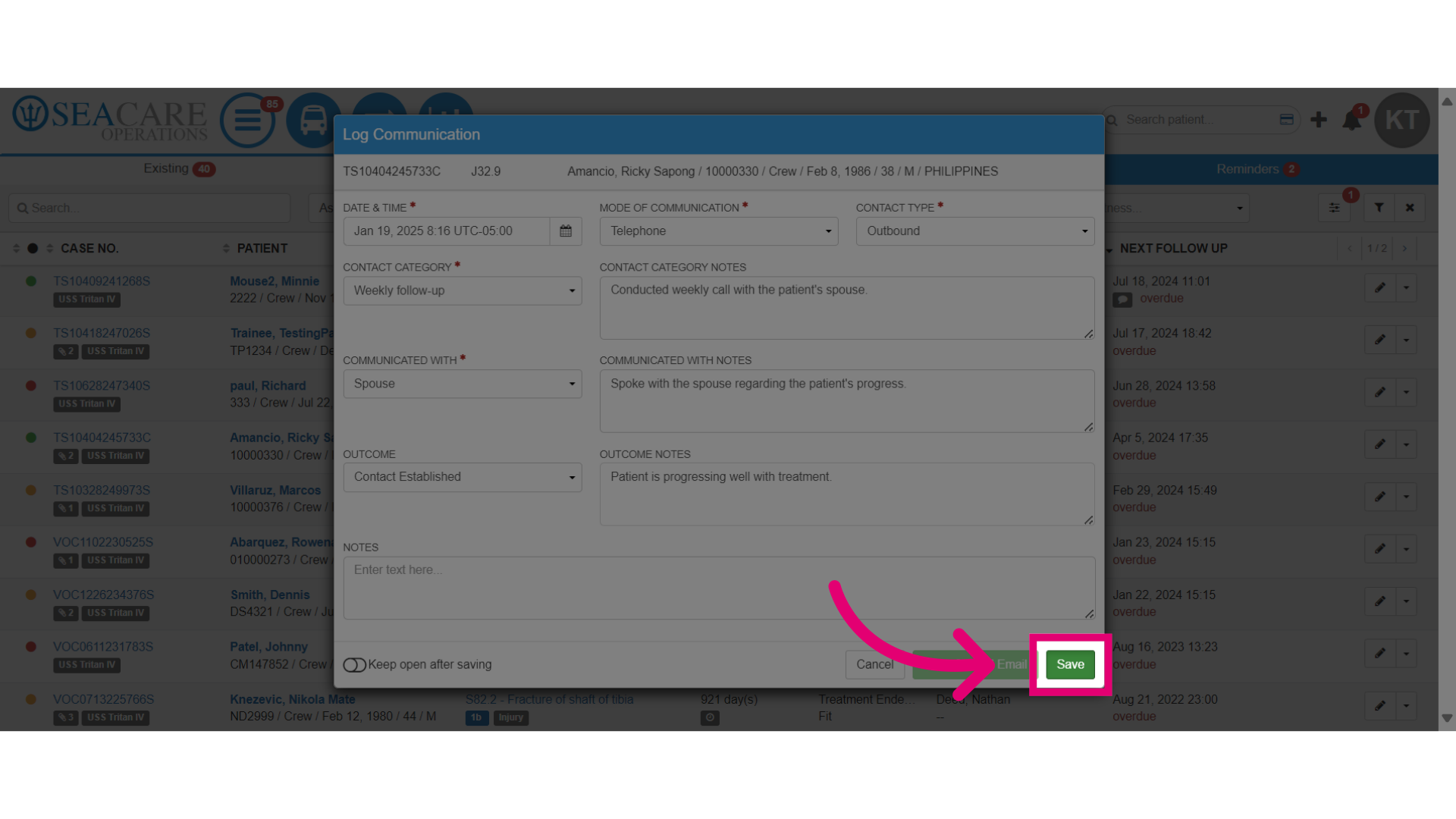
- Document the communication details here to maintain a record of all interactions regarding the patient's case. Fill all of the required fields.
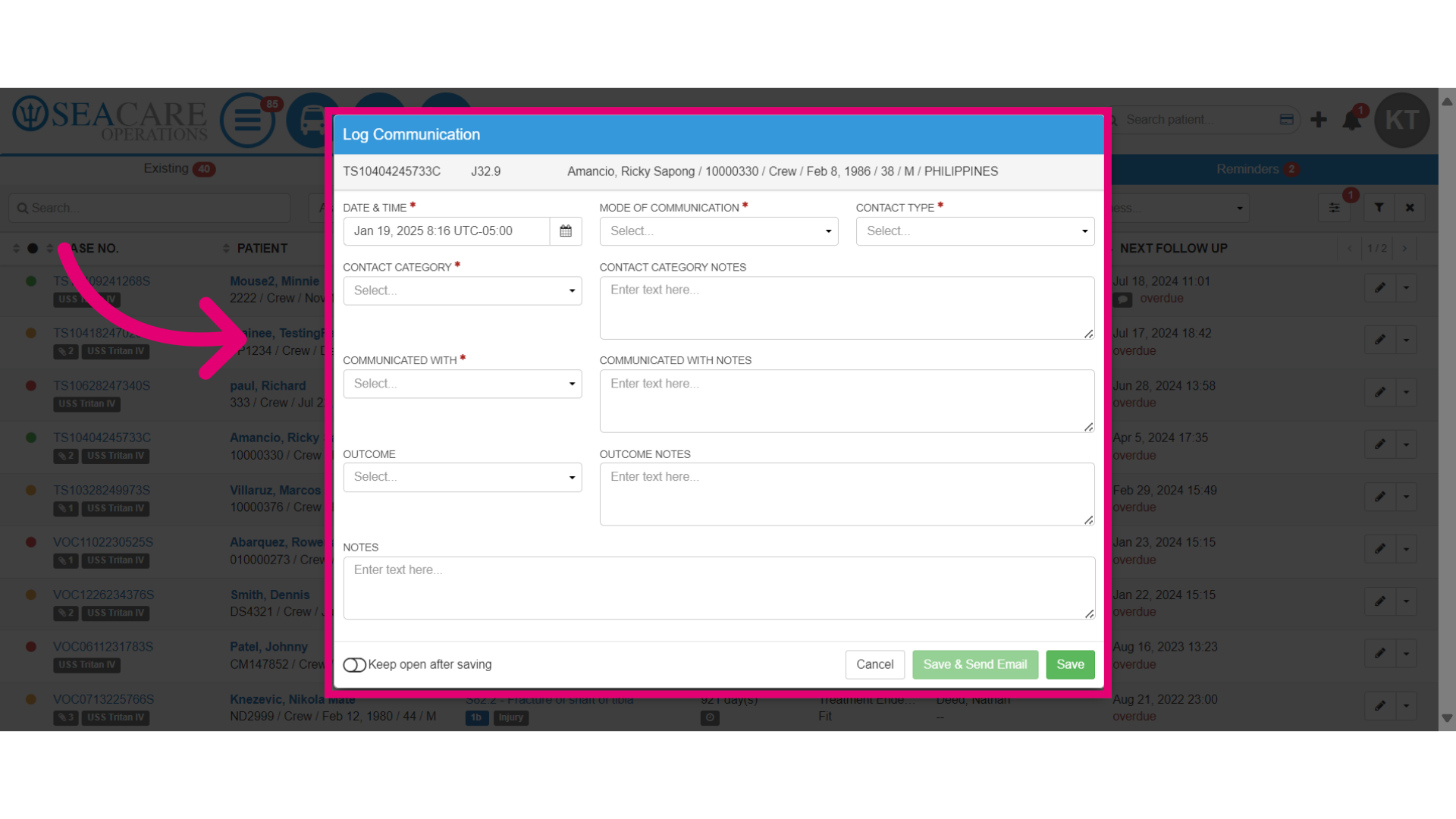
- Select the mode of communication which typically involves, an Email, Phone, In Person, USPS or another Carrier.
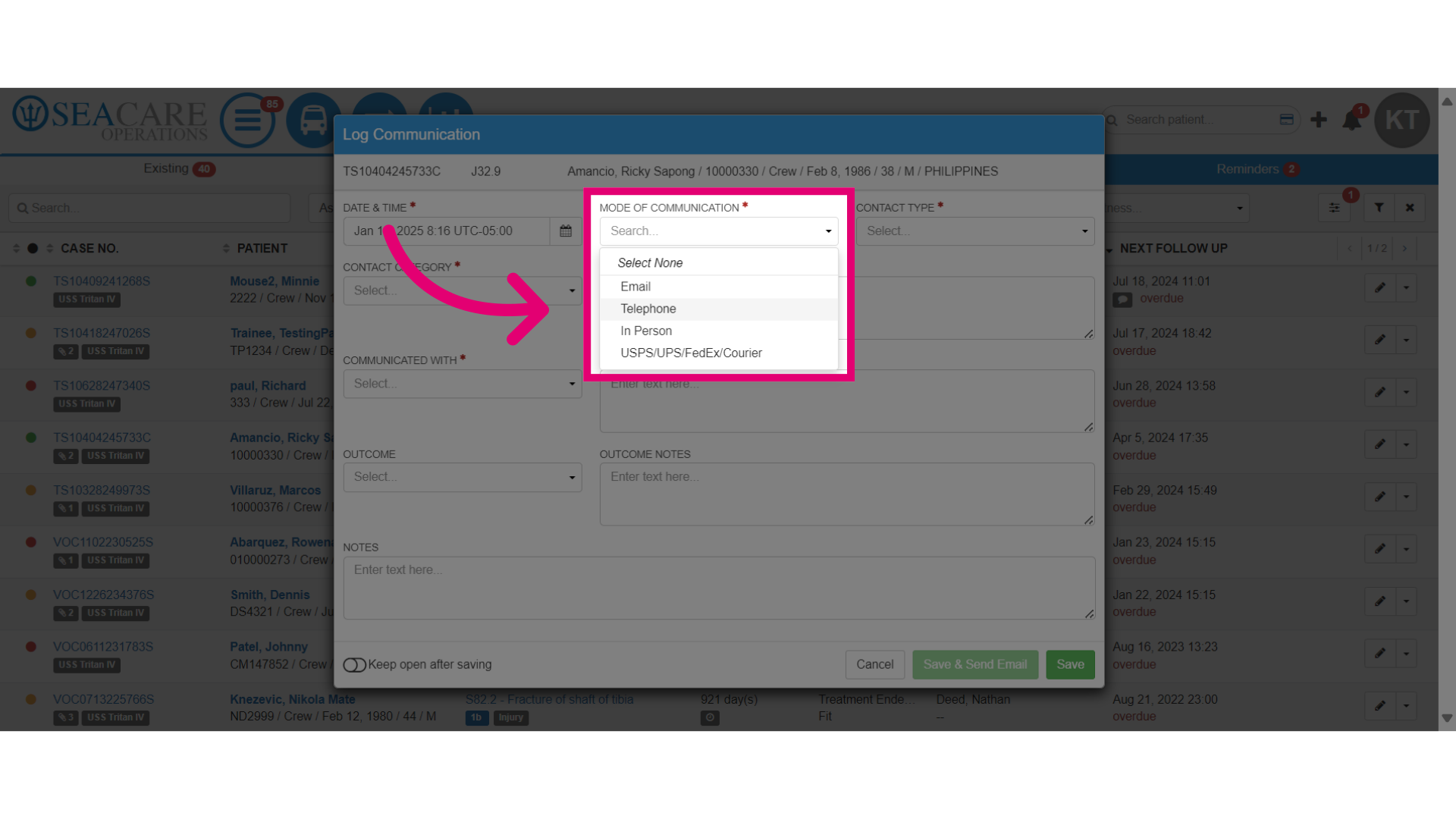
- Specify the Contact Type from one of these options:
- Inbound - If communication was initiated by the patient, family member or external party.
- Outbound - If communication was initiated by you or your team.
- Hotel Visit - When communication occurred during a visit to a hotel (i.e., to check a patient in lodging).
- Hospital Visit - If the communication was part of a hospital visit.
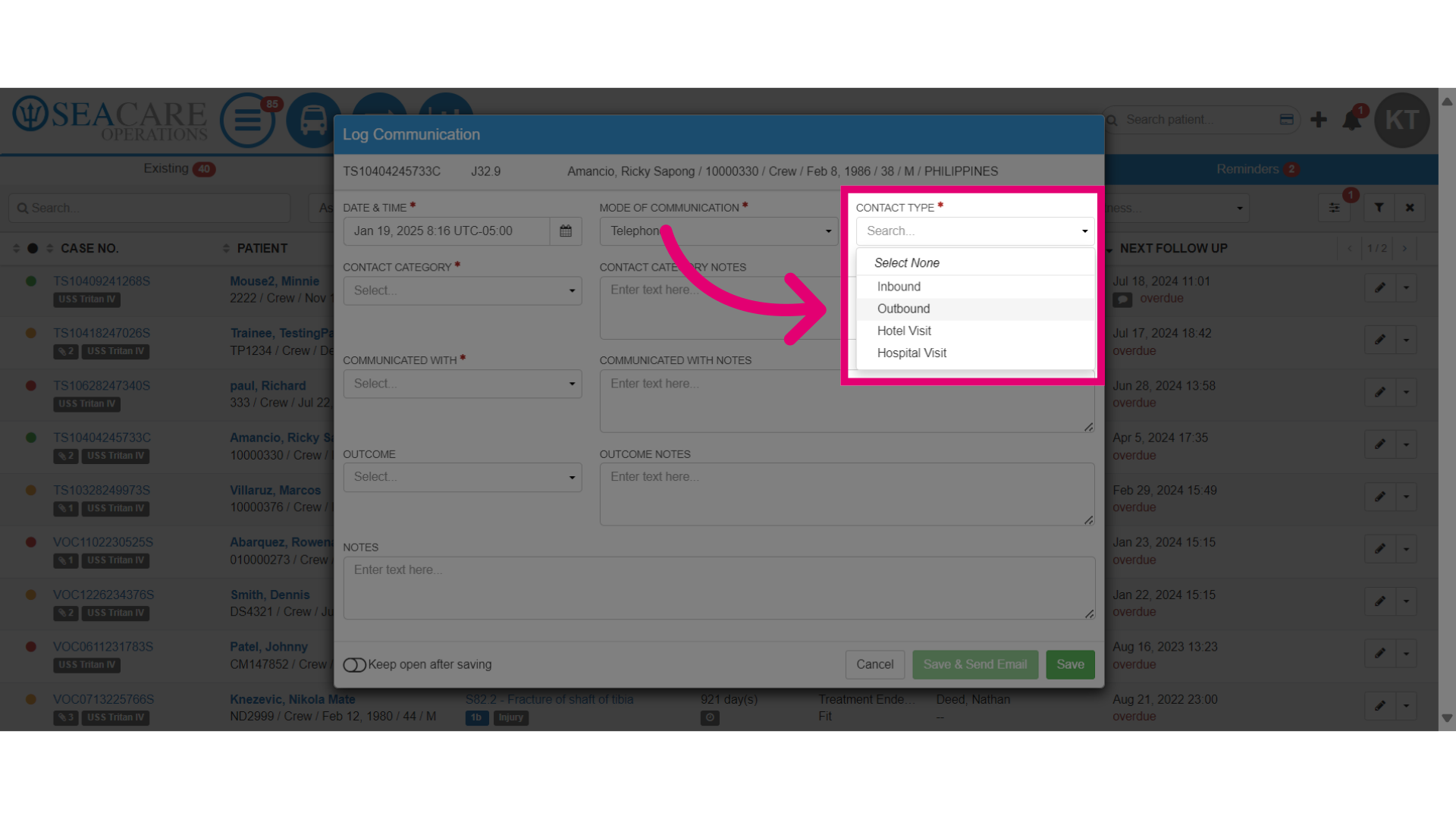
- Then, select the contact category to help organize the nature of communications, ensuring it's documented and tracked accurately from these options:
- Initial Outreach - When the communication was for the first contact made between the case manager and the patient or other involved parties at the start of case management.
- Weekly Follow-up - If it's for a routine communication.
- Bi-Weekly - When the communication was for a scheduled two week check-in.
- Payroll/Benefits -For communication about the patient's payroll and sick leave benefits.
- Care Advocacy Visit - If the communication was to assess the patient's living conditions and care needs.
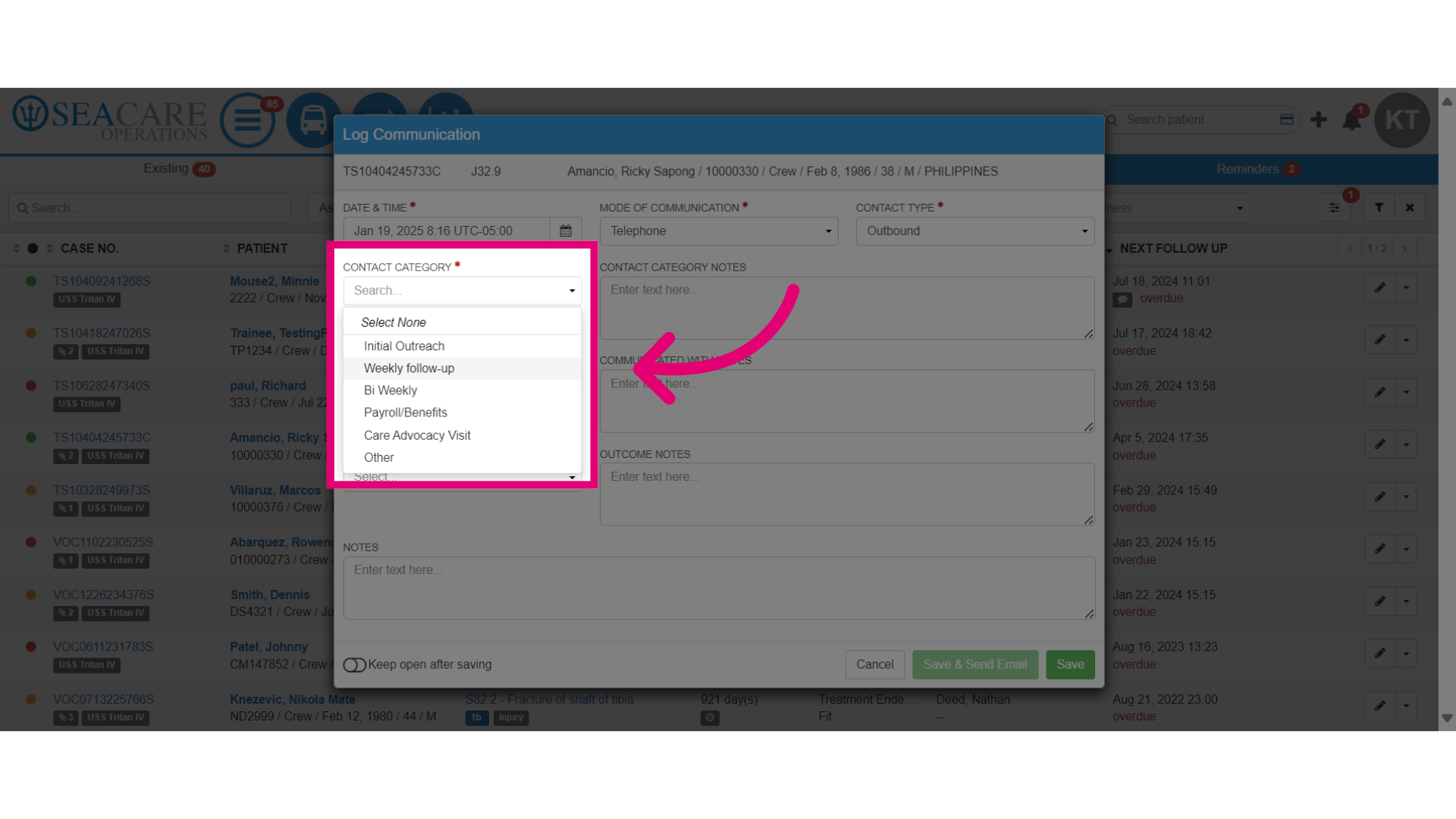
- Add Contact Category Notes to define the purpose and context of the interaction.
- Then, specify the individual or group you Communicated With. The options include the crew member, spouse, child, parent, sibling, or other.
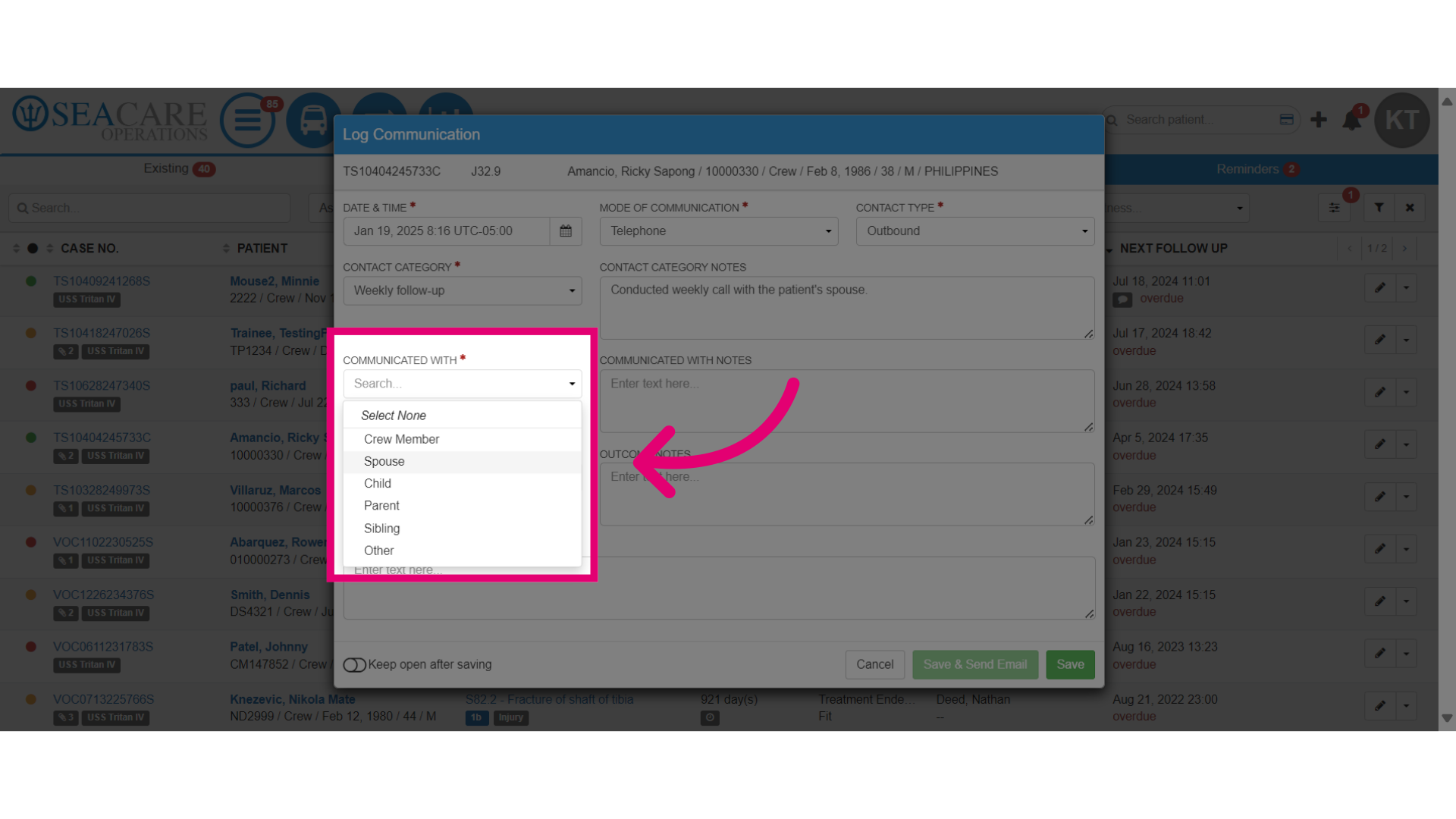
- Add additional notes for context of who was communicated with. This can be defining what was communicated to the individual or group.
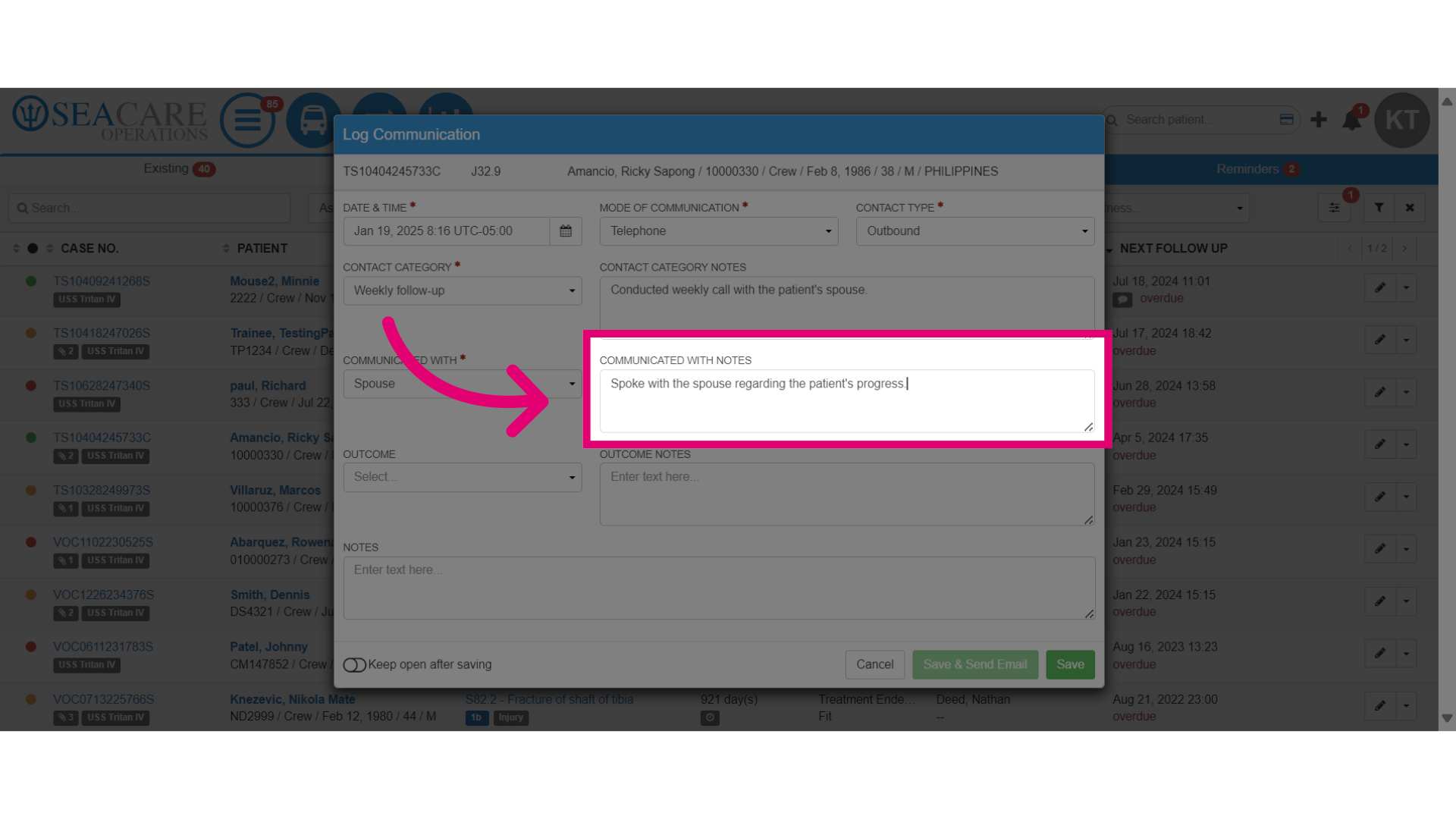
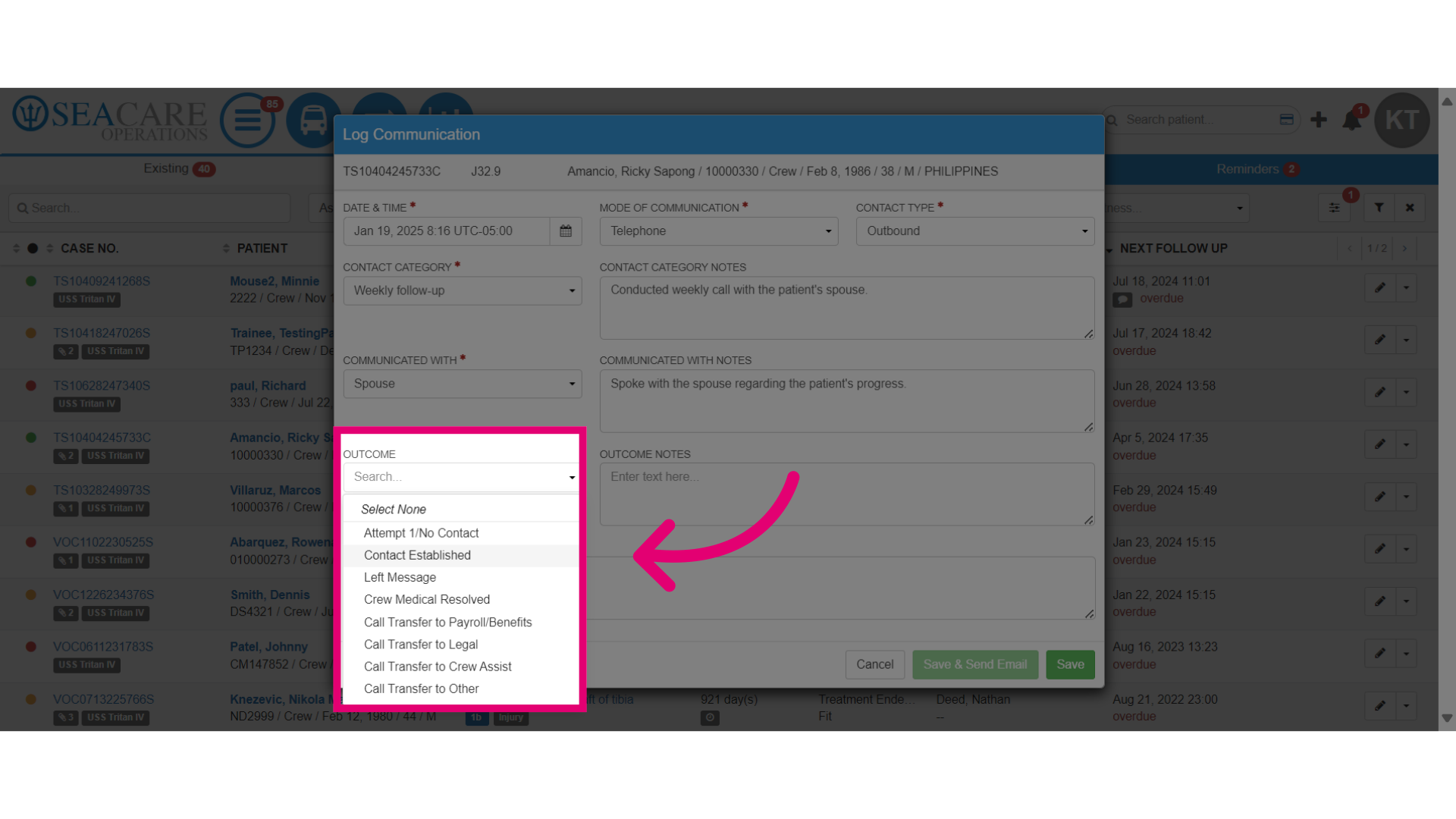
- Select the Outcome of the communication to maintain a comprehensive record of all interactions related to the case ensuring actions, decisions, and follow-ups required after each communication are captured.
- Attempt/No Contact - This category refers to instances where an attempt was made to reach out to an individual, but no contact was established.
- Left Message - In this scenario, a message was recorded and left for the individual. This could involve voicemail messages or written notes, indicating that an attempt to communicate was made.
- Crew Medical Resolved - This entry signifies that any medical issues pertaining to the crew have been addressed and resolved.
- Call Transfer to Payroll/Benefits - This means a call was redirected to payroll or benefits. Such transfers are needed for inquiries about compensation, benefits, or financial issues.
- Legal - This category covers legal matters needing attention, including compliance, contracts, disputes, and any legal queries related to crew operations.
- Crew Assist - This entry refers to assistance provided to crew members, which may encompass a wide range of support services. This could include guidance on operational procedures, addressing concerns, or providing resources.
- Other - This category covers matters not included in the specified categories, providing flexibility for unique situations or concerns.
- Add Outcome Notes, to document the result of the communication or interaction with:
- A patient
- Their family
- Healthcare providers
- Any other involved party to capture key decisions made, actions taken and next steps regarding the case
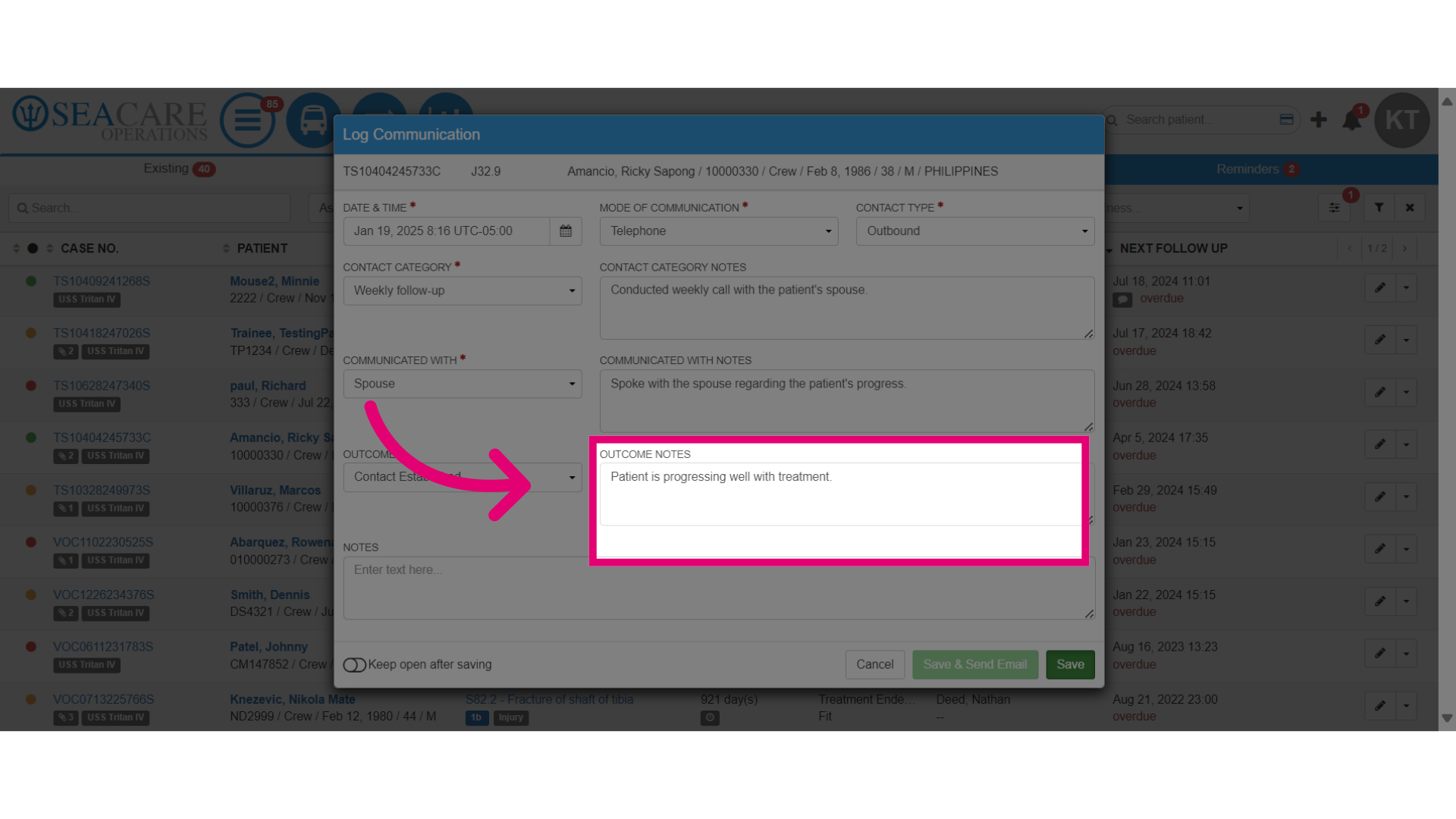
- Select Save when you are done
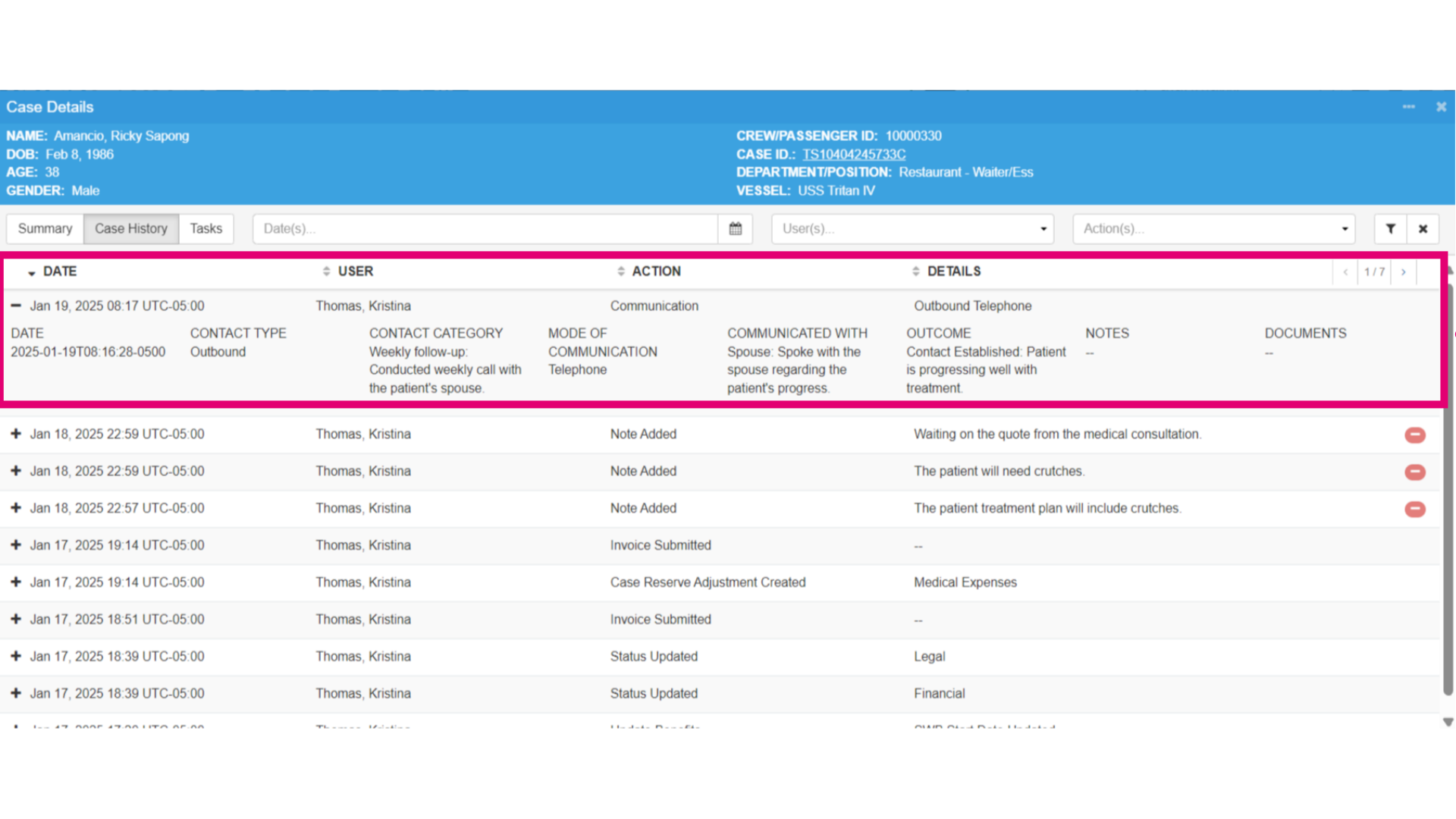
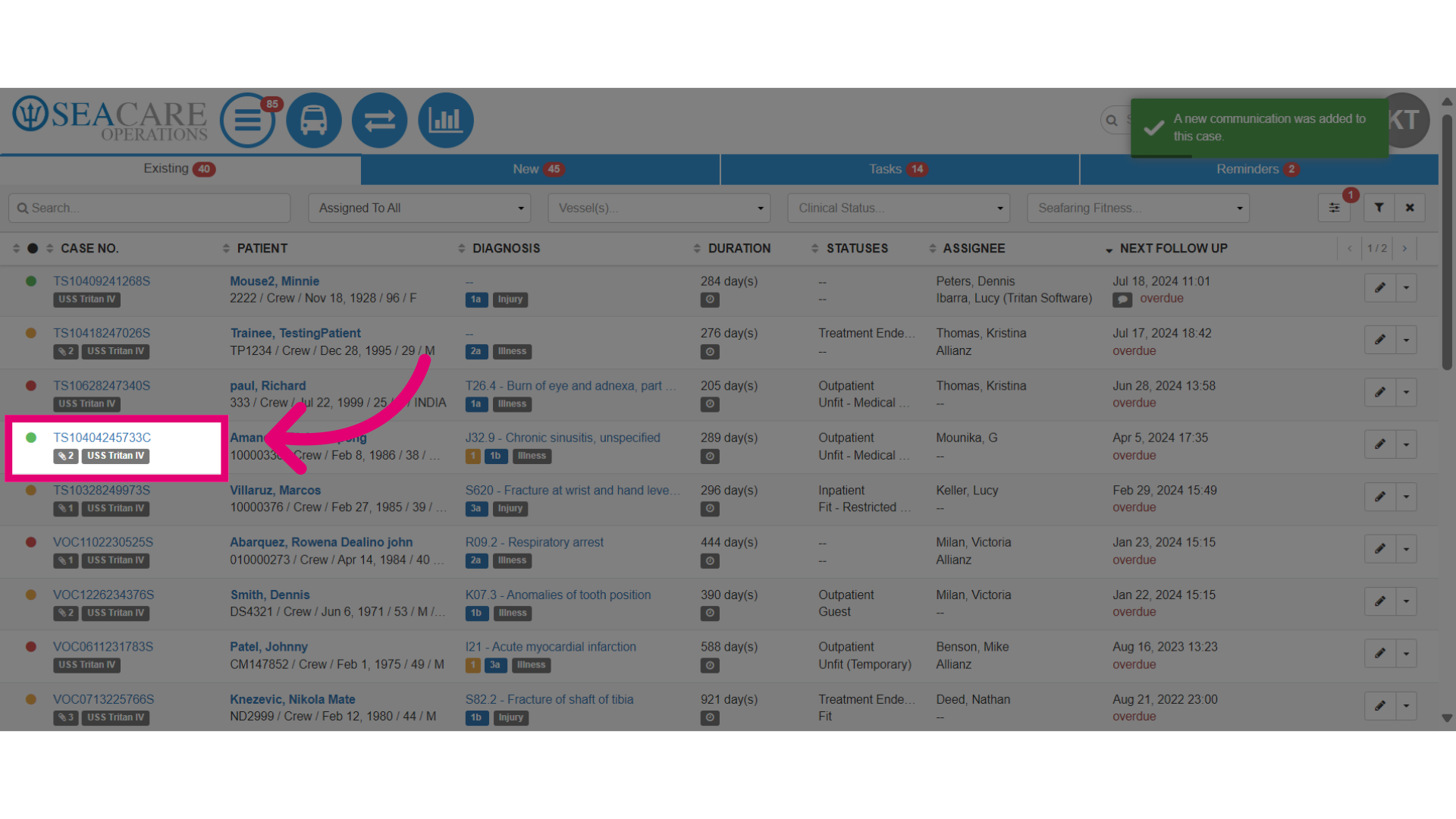
- Select the case to view the communication updates in the Case History section of the case.
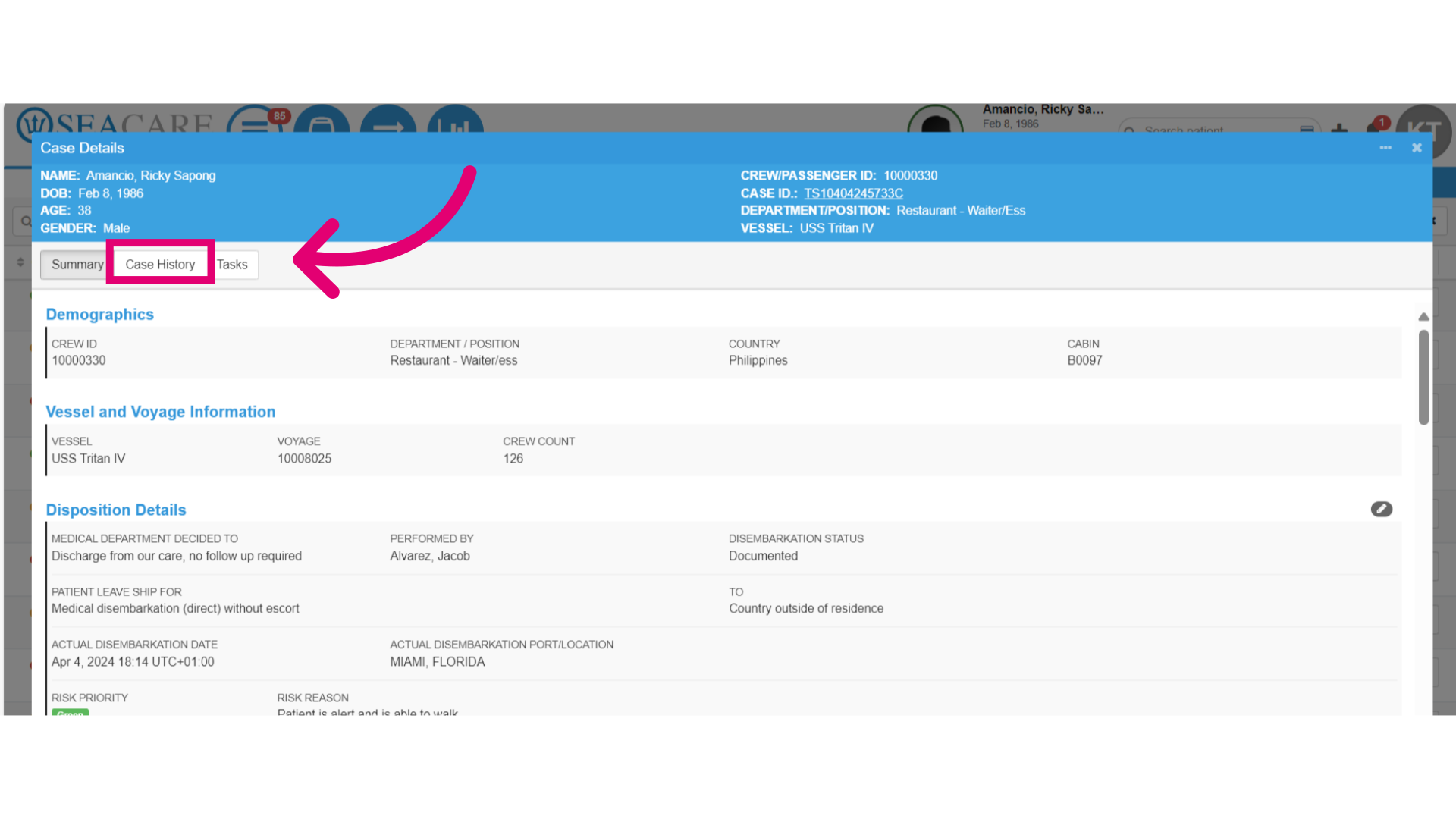
- Go to the Case History tab.
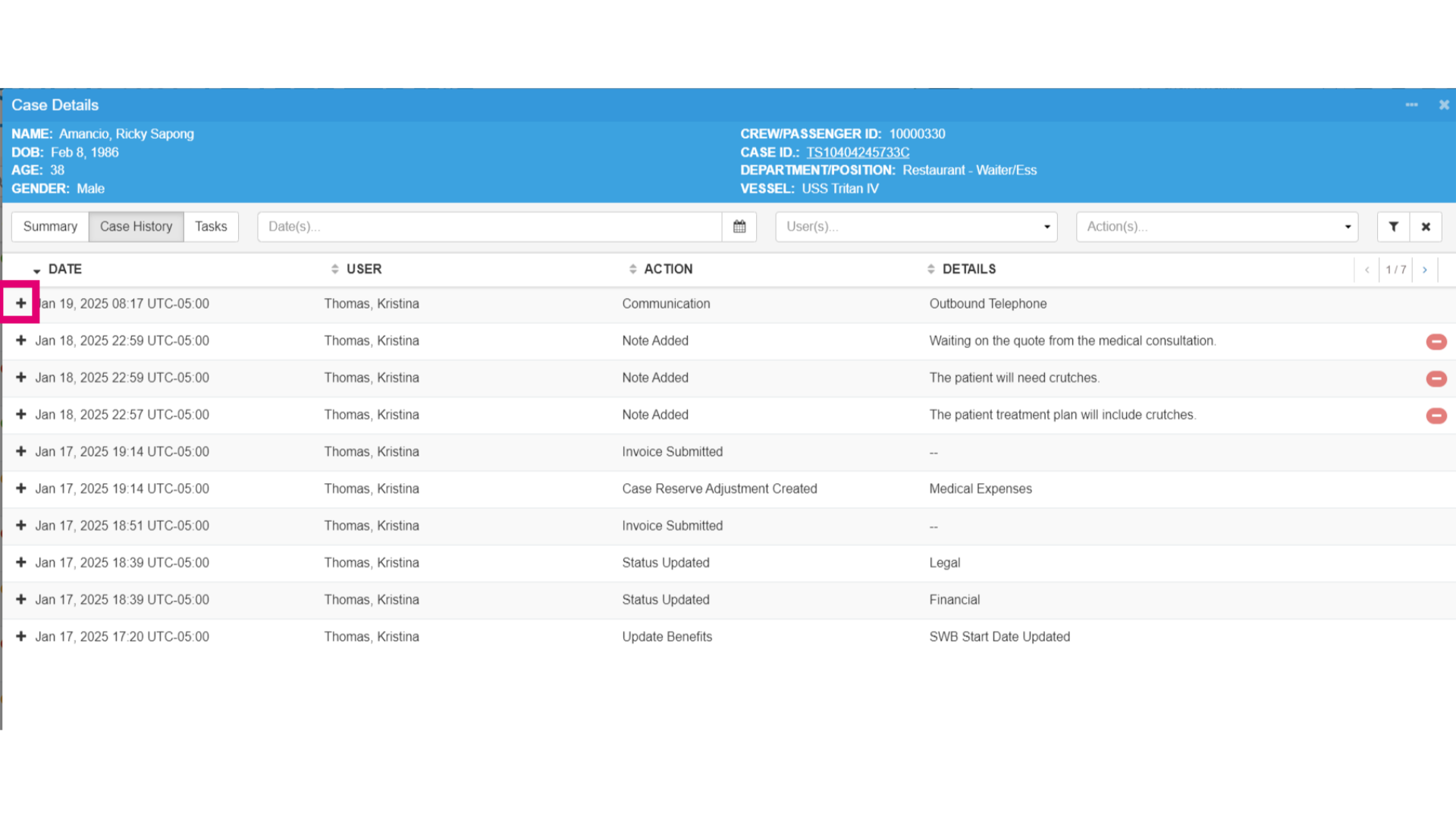
- Locate the communication that was logged from the case history list and select the plus sign to expand and view the details.
- Then, view the communication details.