New article
Recently updated
Adding Notes in Case Management

Who is this article for?Users who want to learn how to add notes to a case in Case Management.
No elevated permissions are required.
Adding notes to a case is essential for maintaining accurate and comprehensive documentation throughout the patient's care process. Follow these instructions to efficiently create and save notes for improved case documentation and management starting in the Case Management module.
1. Adding Notes in Case Management
1.1. Video
1.2. Steps
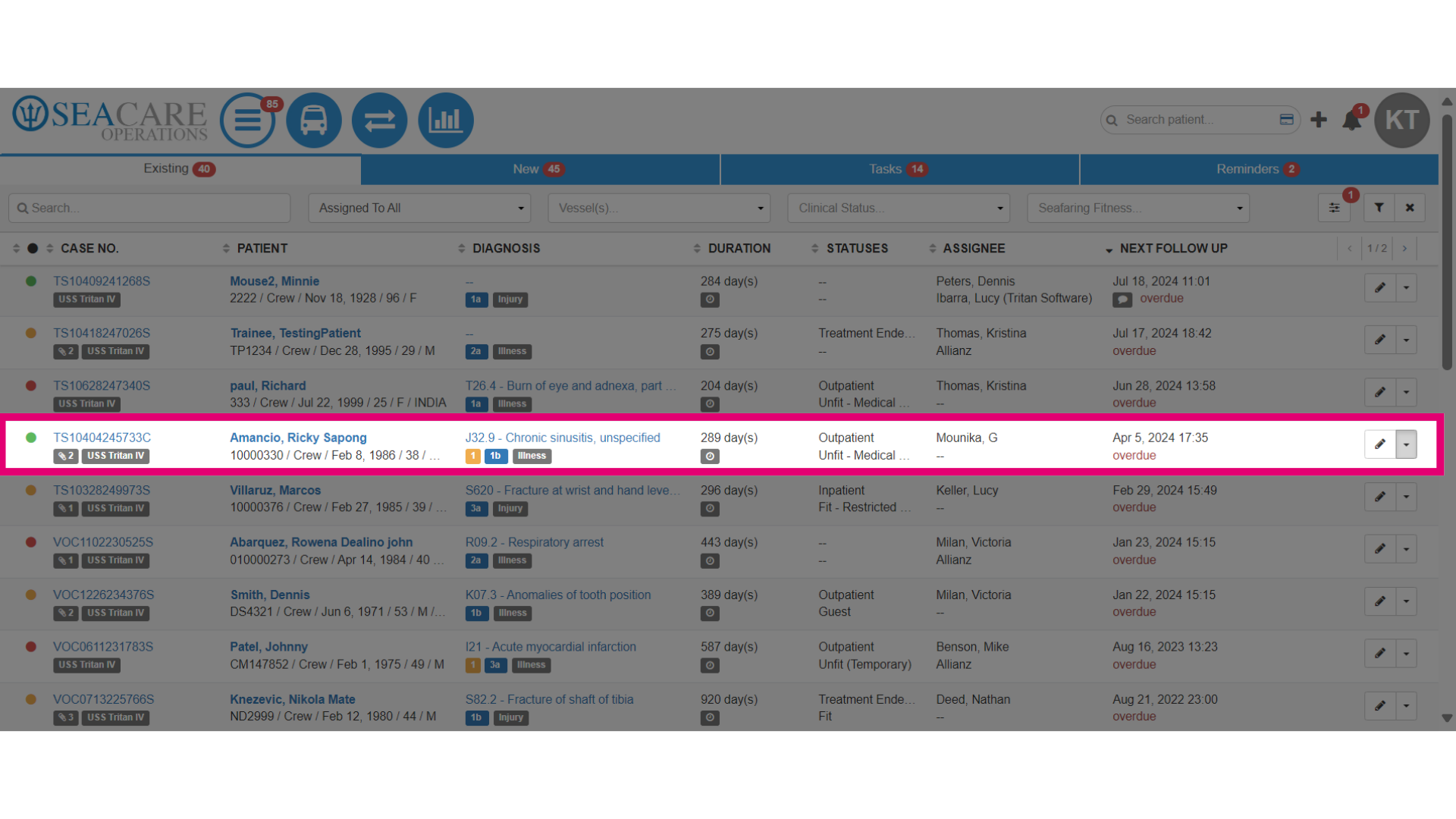
- Locate the case from the list of cases.
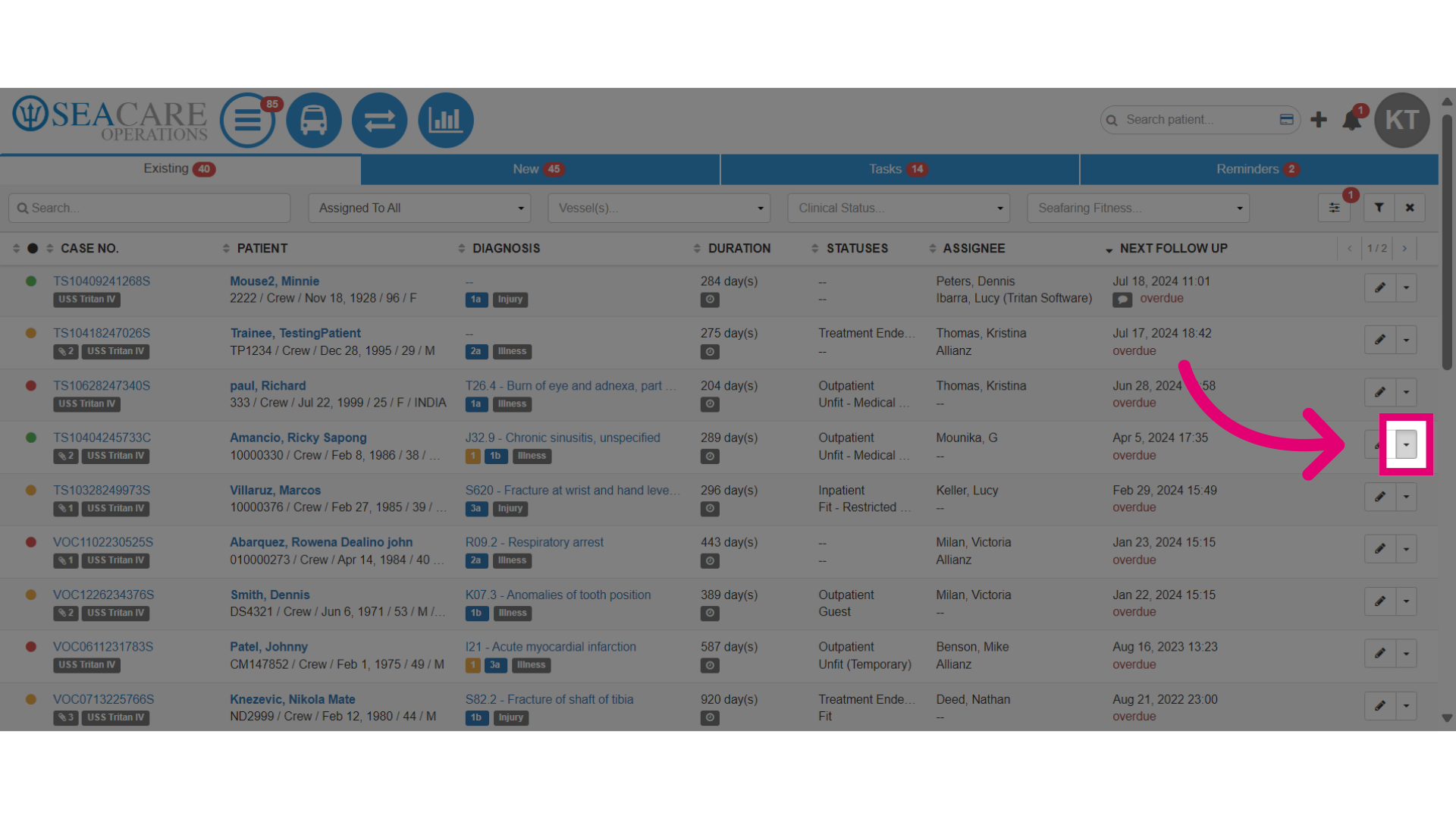
- Select the Actions dropdown menu.
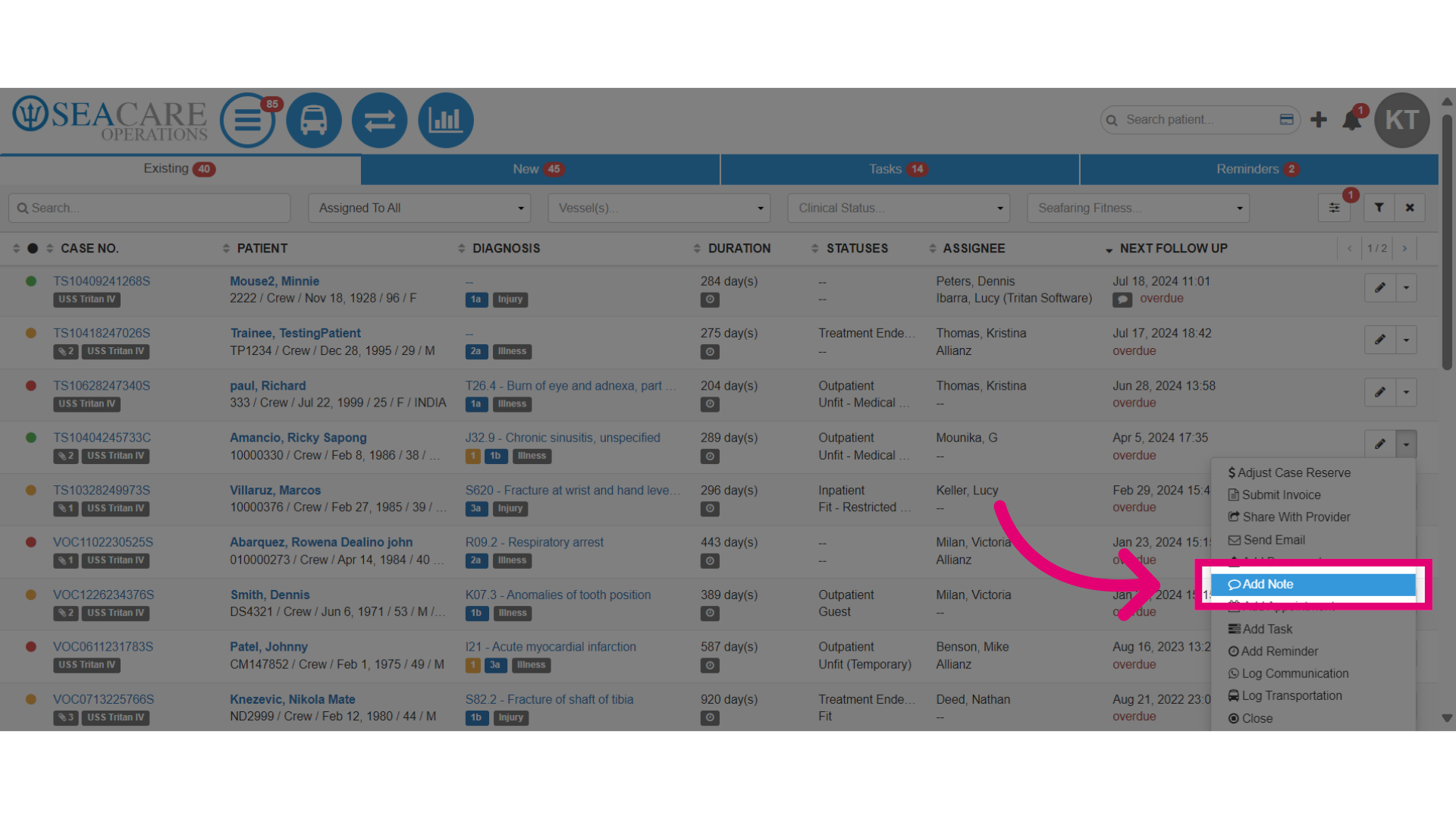
- Select Add Note to open the notes section to compose a new note.
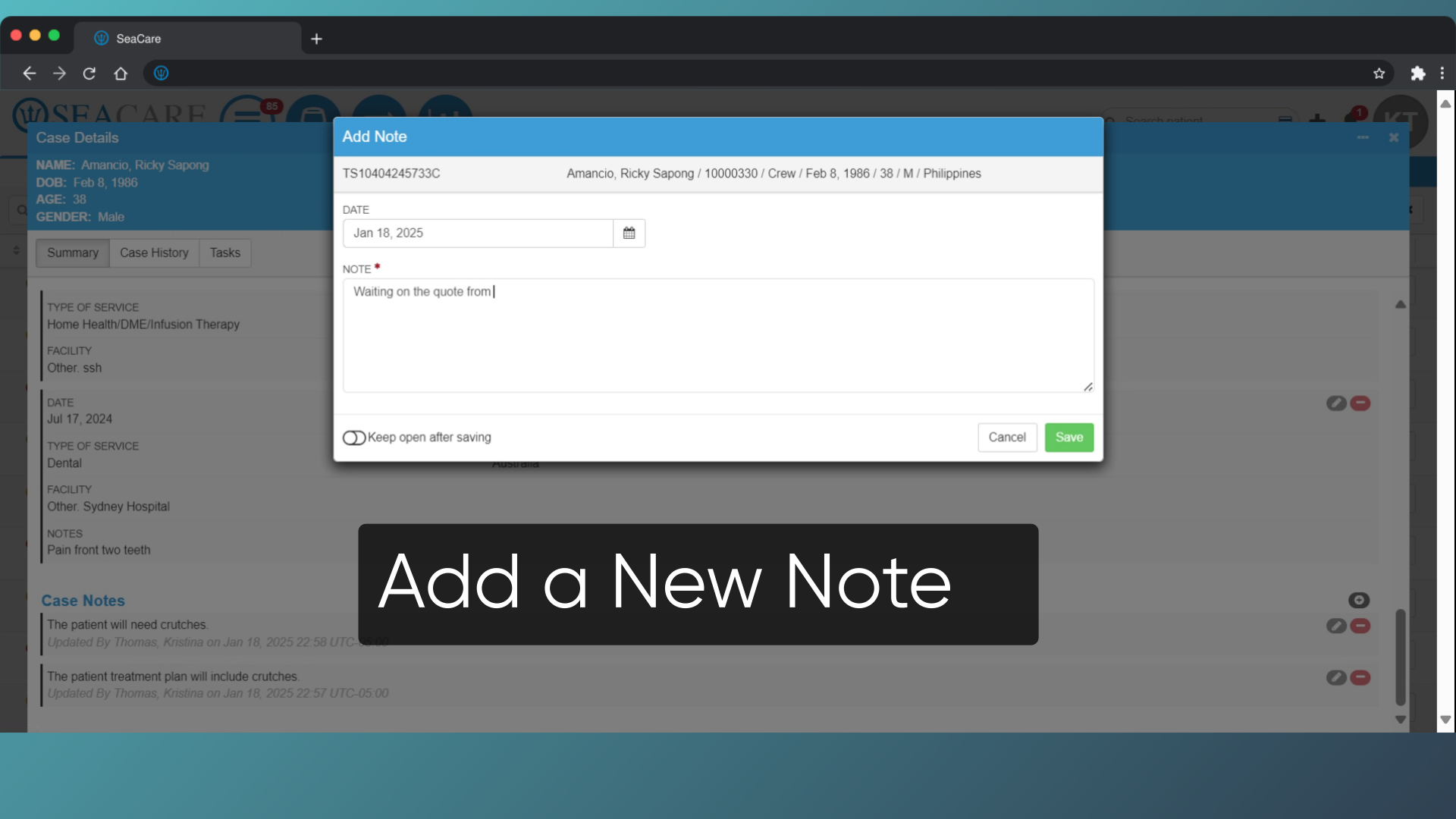
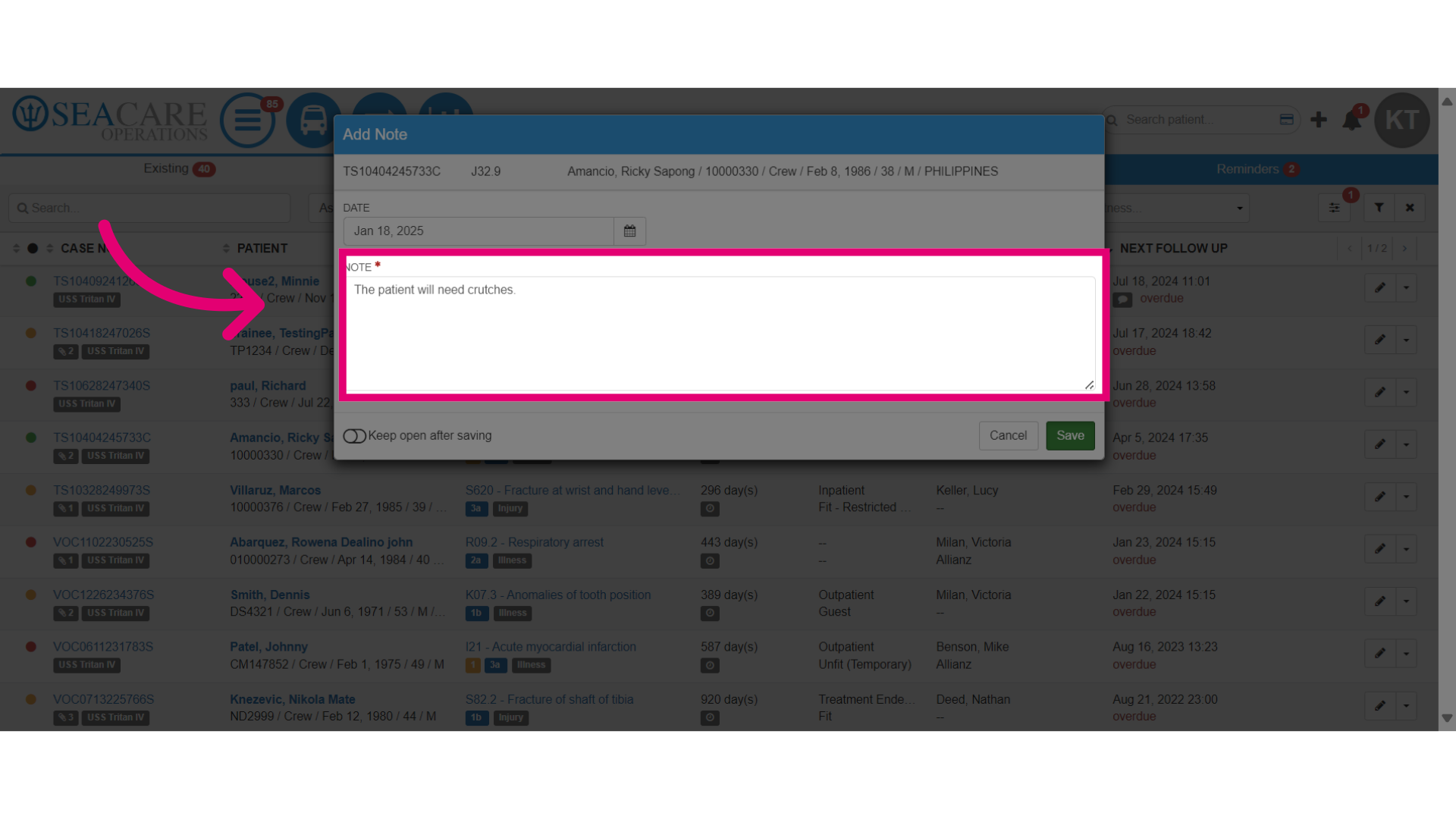
- In the Note text field, enter the details of the note you wish to add such:
- Information about the patient's condition
- Actions taken on the case
- Updates to treatment plans
- Important communication with external parties
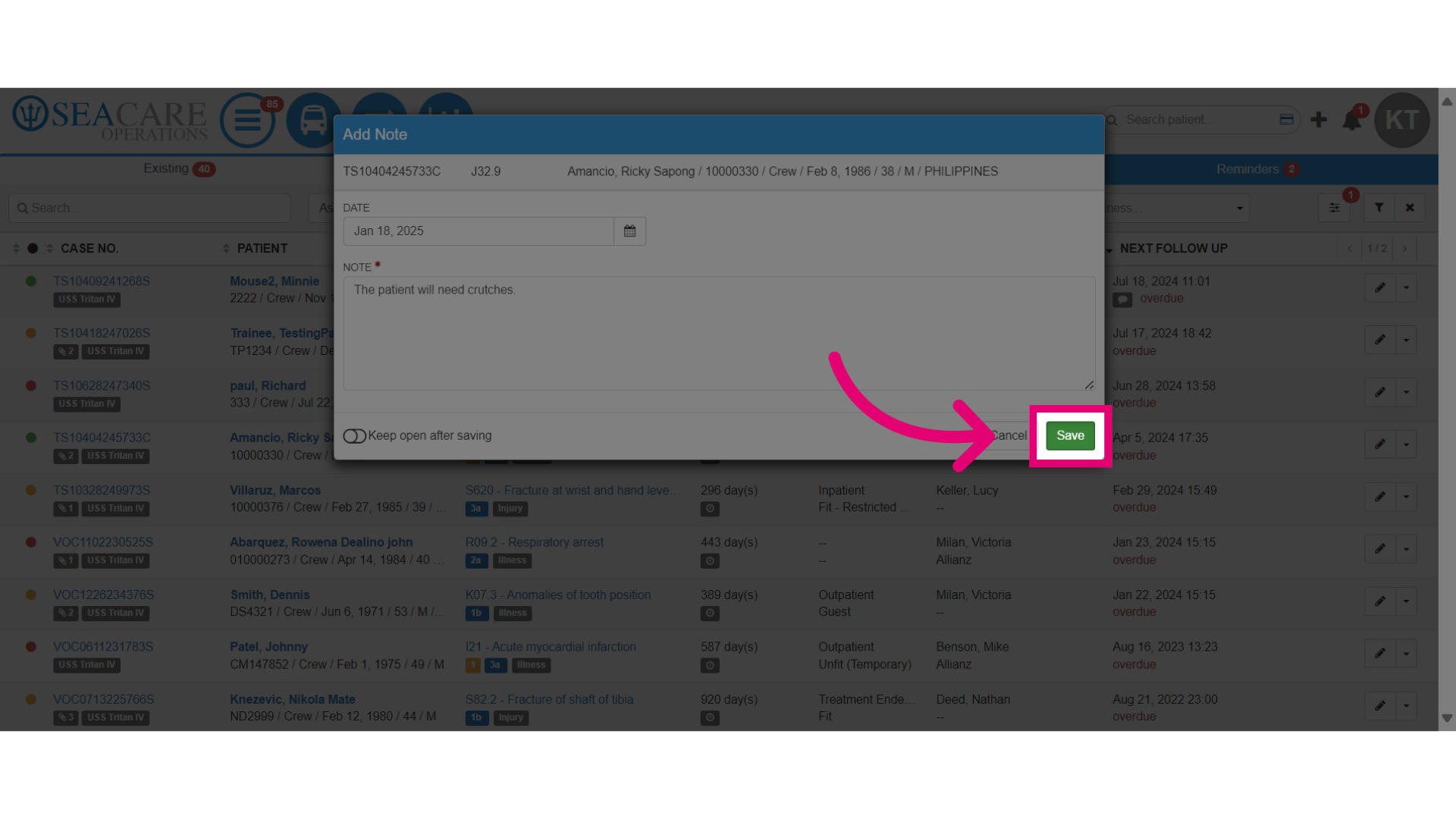
- Save the note by selecting the Save option.
- Then review the updates that were made:
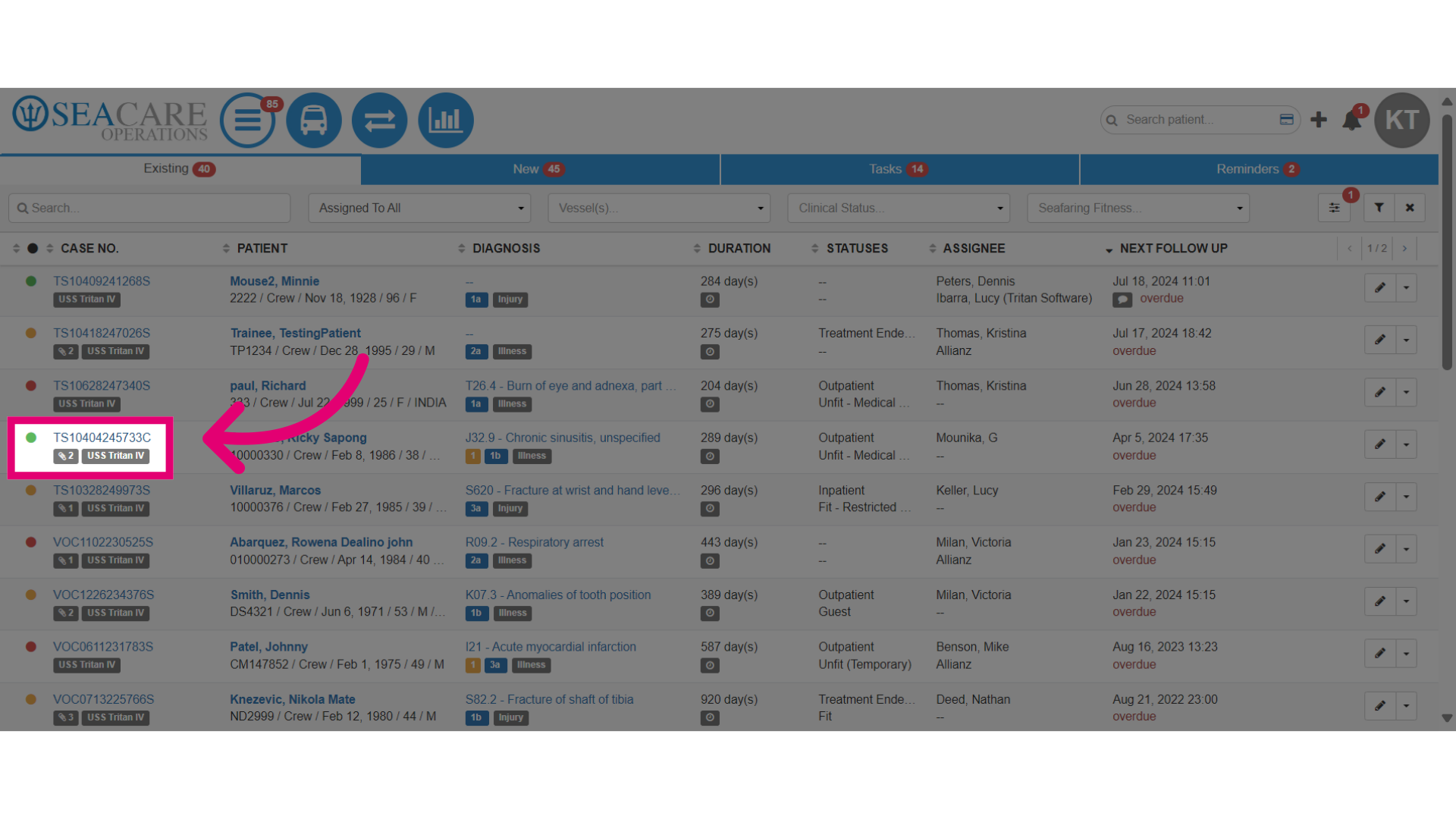
- Go to the case in the list.
- Click on the case number
- In the Summary tab view a summary and all updates made to the case.
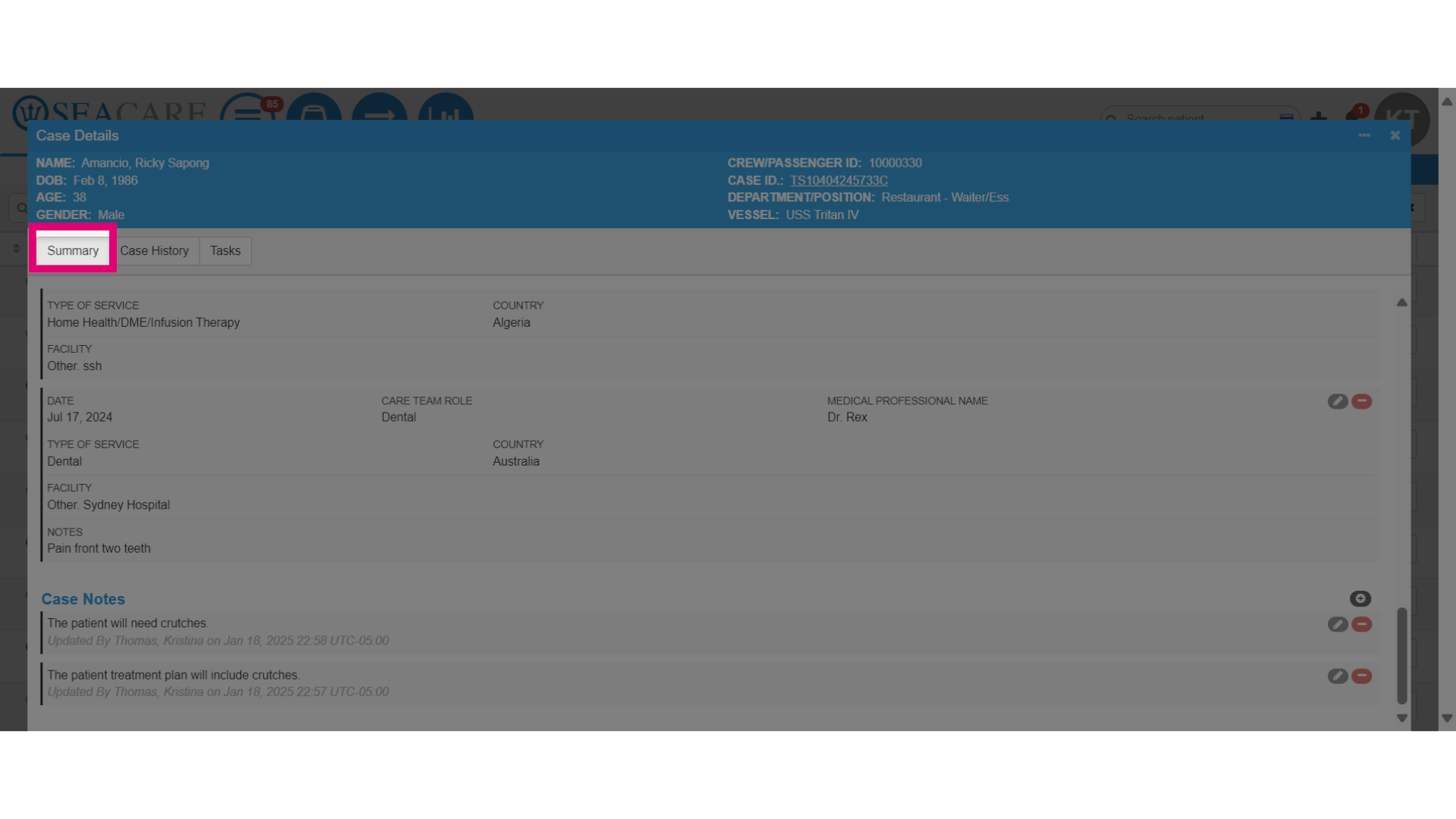
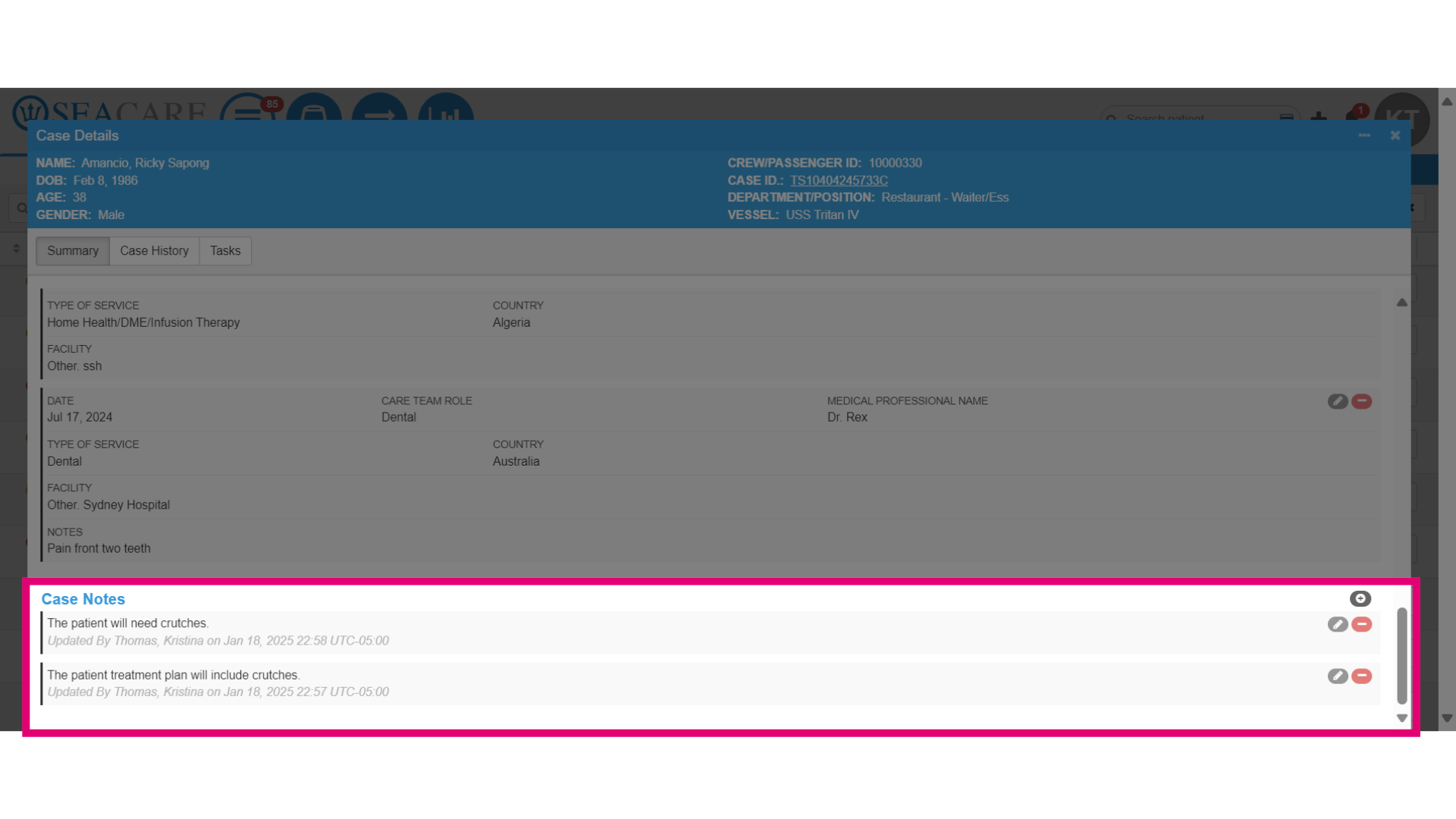
- Go to the Case Notes section of the case details. This section of the Case Summary provides:
- Consolidated chronological view of the patient's history.
- Insight into the ongoing care for the case.
- Updates for case managers to stay informed about the case.
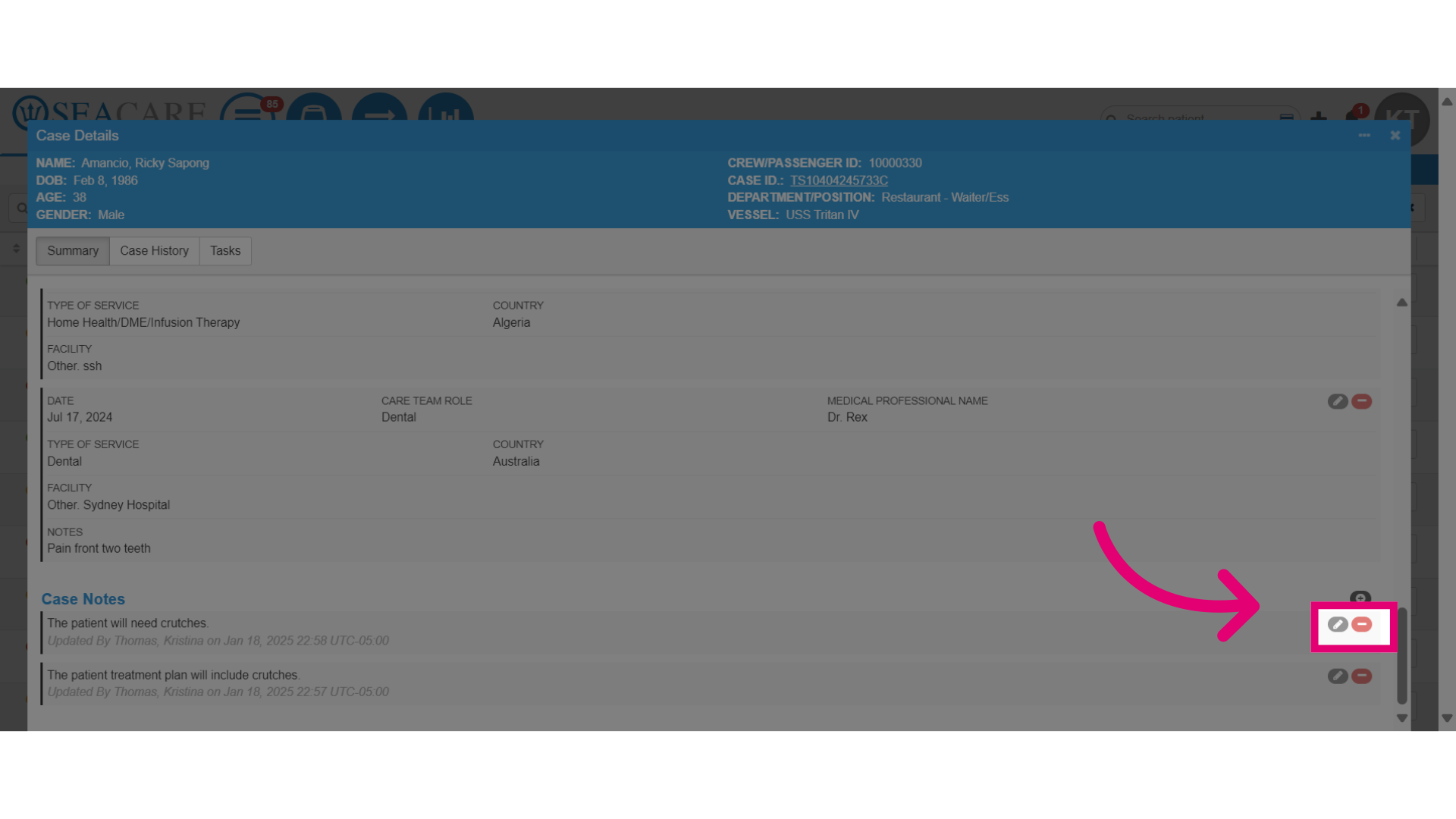
- You may also select to:
- Edit - To edit the existing note.
- Remove - To delete the note from the case.
- You can also add a new note by selecting the plus sign button.
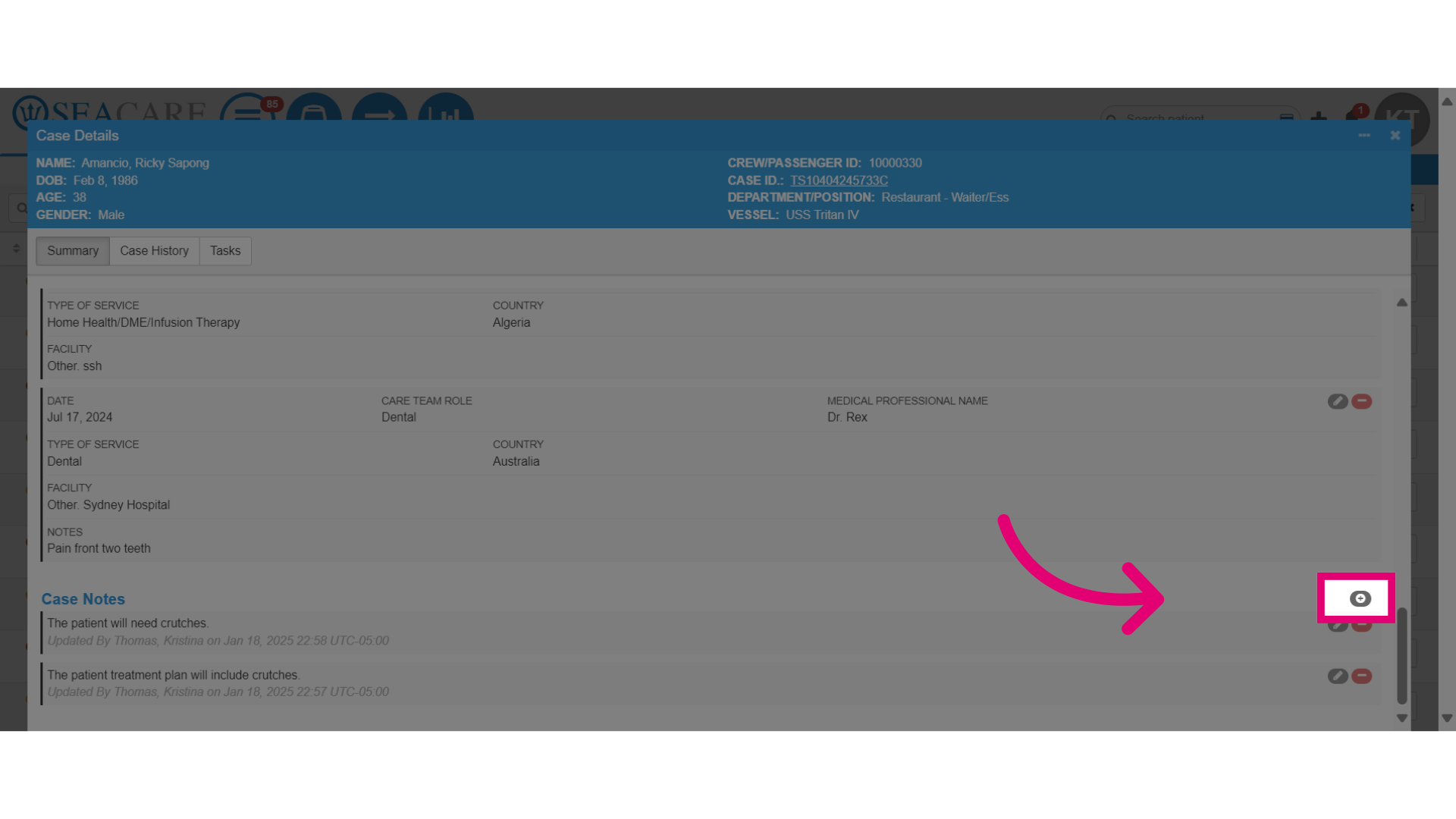
- This opens the Add Note window, allowing you to add a note without leaving the case summary section.