New article
Recently updated
Submitting invoices in case management

Who is this article for?Users who want to learn how to submit invoices in case management.
No elevated permissions are required.
This guide details the steps for submitting invoices in case management, covering charges for services, expenses, or healthcare providers. Follow these steps to efficiently create and submit invoices and understand the process better.
1. Submitting invoices in case management
1.1. Video
1.2. Steps
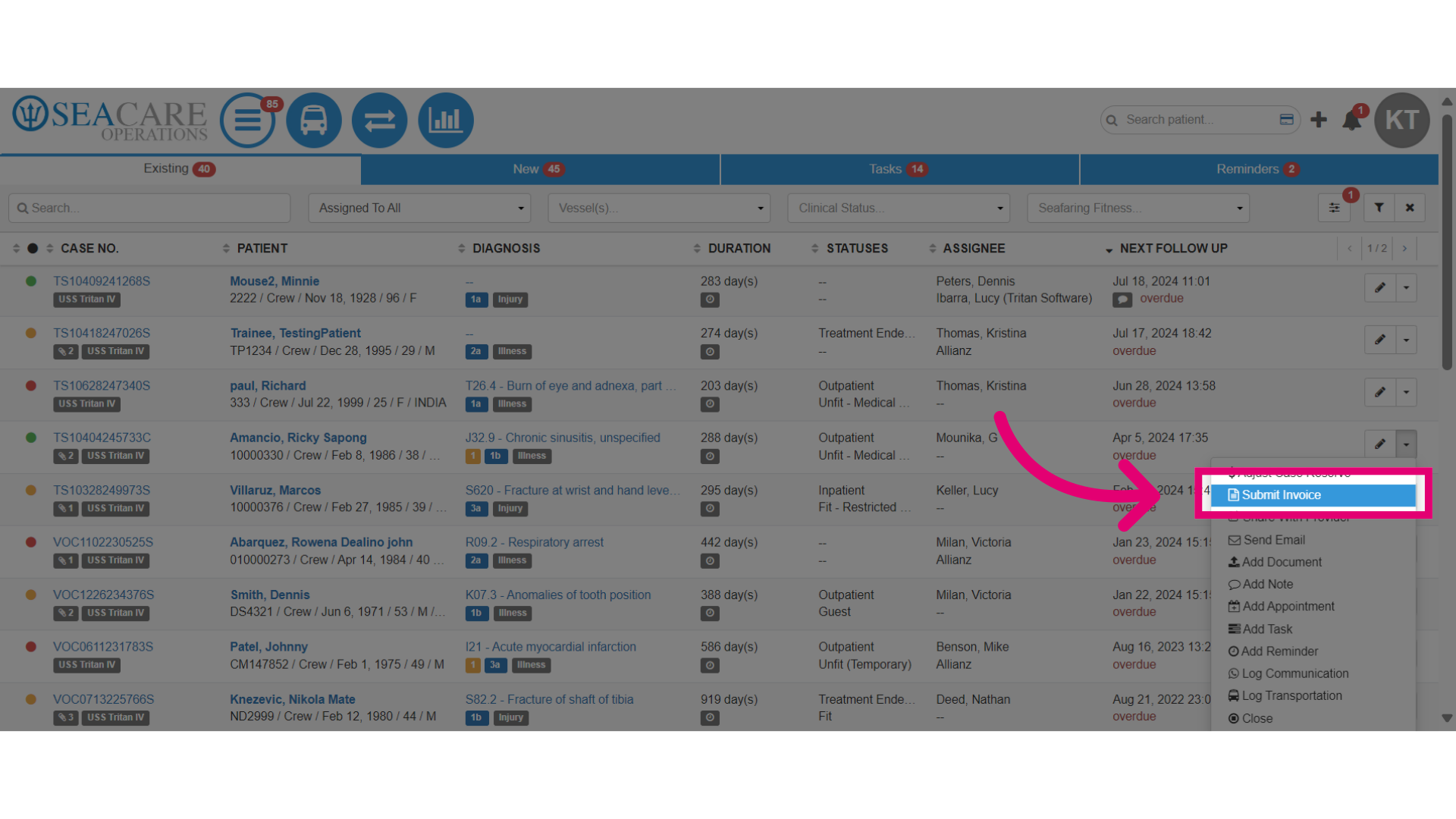
- Locate your case in the cases list and select the editing pencil button.
- Then, select the Submit Invoice option.
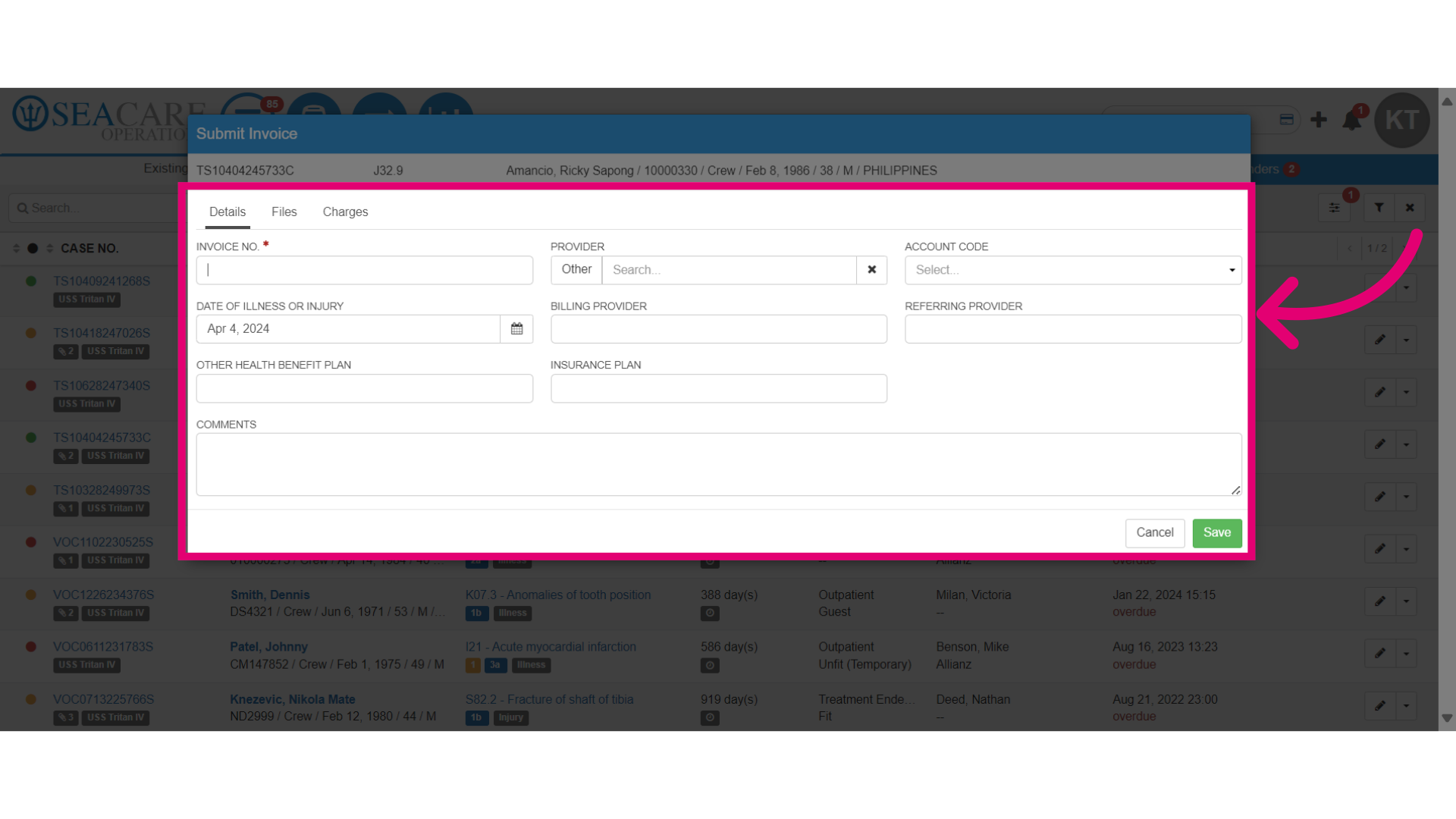
- Fill in the required fields for the invoice in the Details tab.
- Invoice Number - Enter the invoice number for tracking.
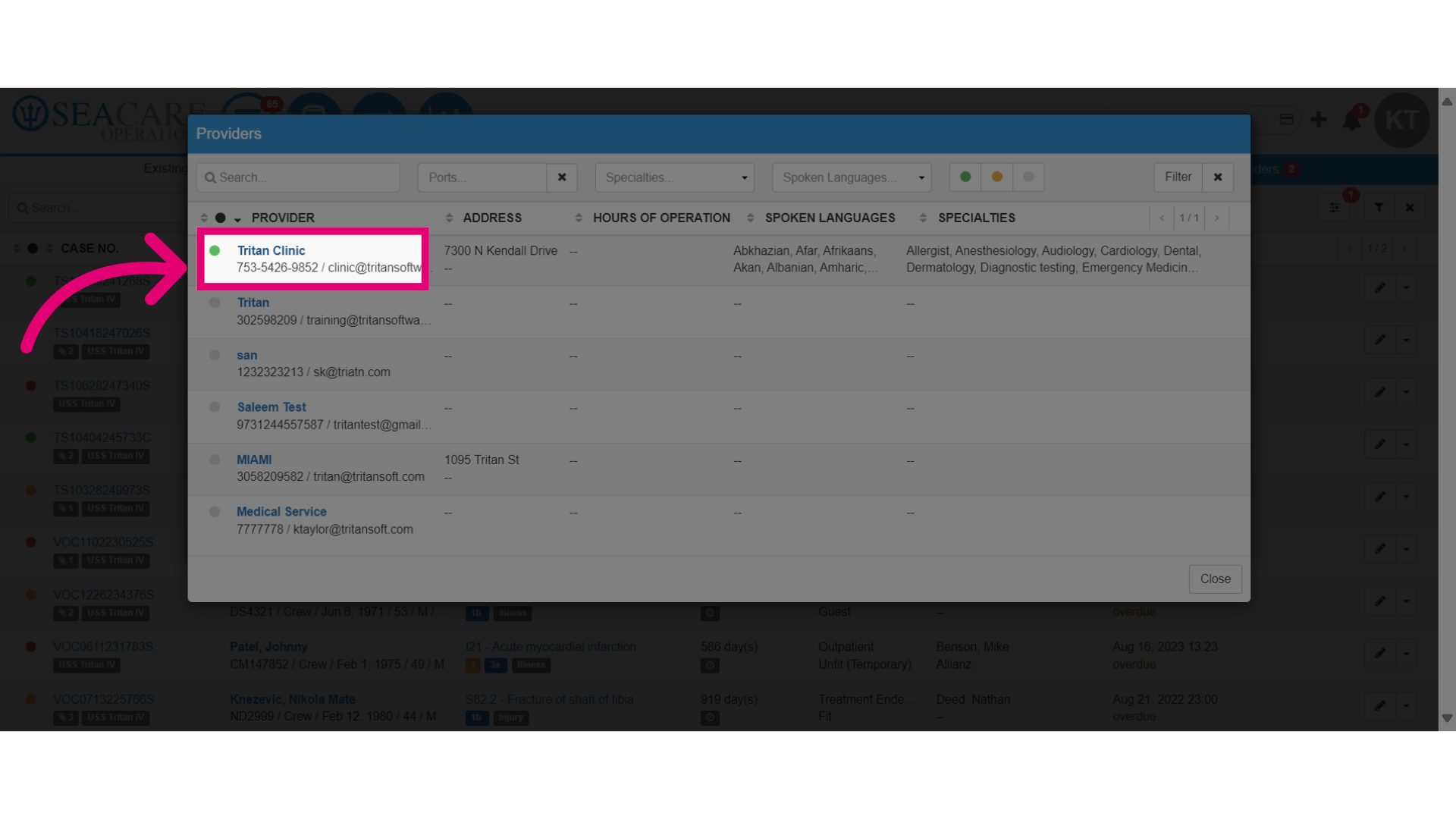
- Provider - Click to select a provider from the list.
- Account Code - Input the account code that categorises the invoice purpose.
- Clinic - Choose the clinic where the patient was treated, if applicable.
- Navigate to the Files tab.
- Enter the Document Name for the invoice.
- Optionally, upload a copy of the invoice or related document.
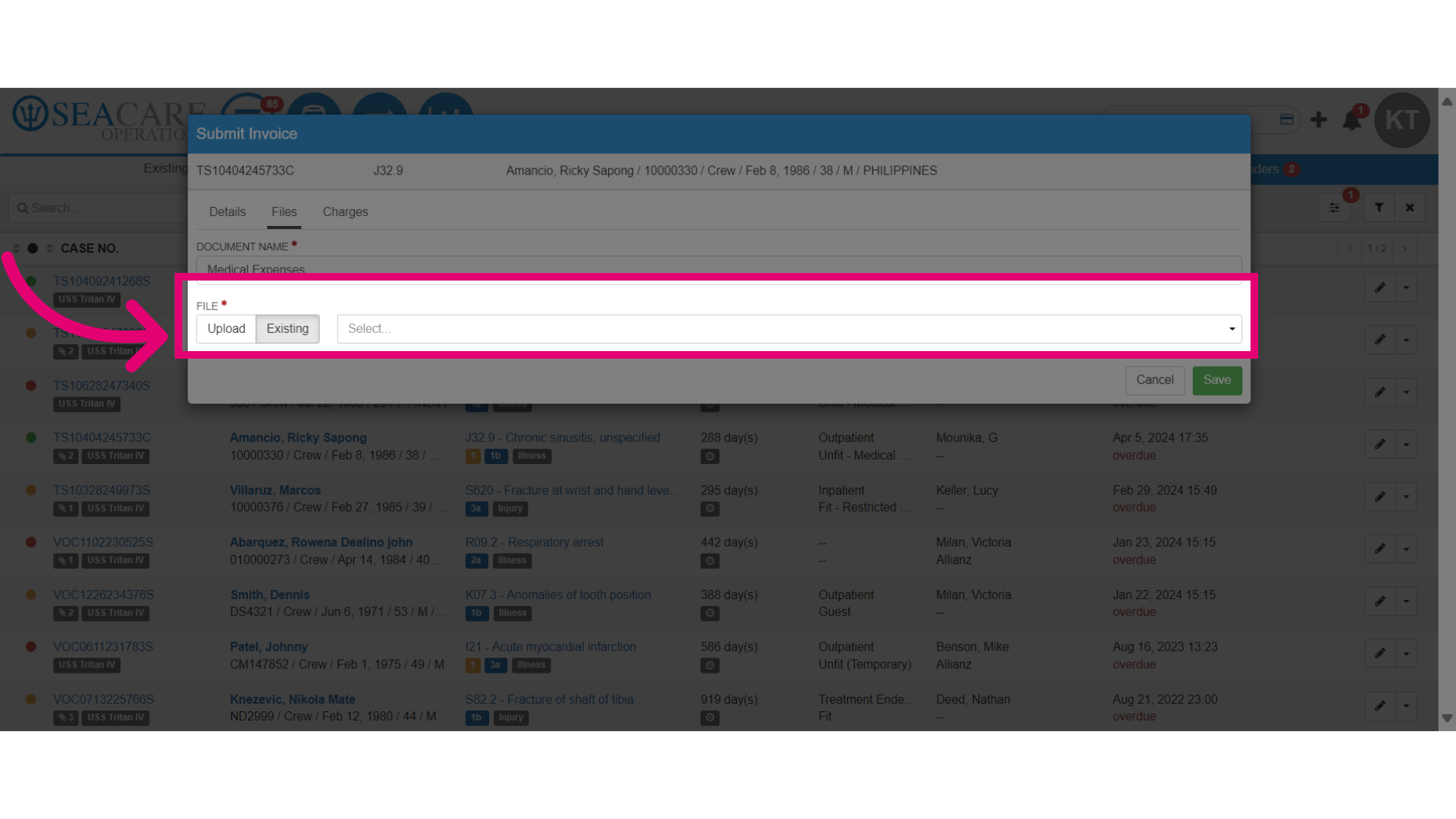
- Or, select an existing document to add for the invoice if necessary.
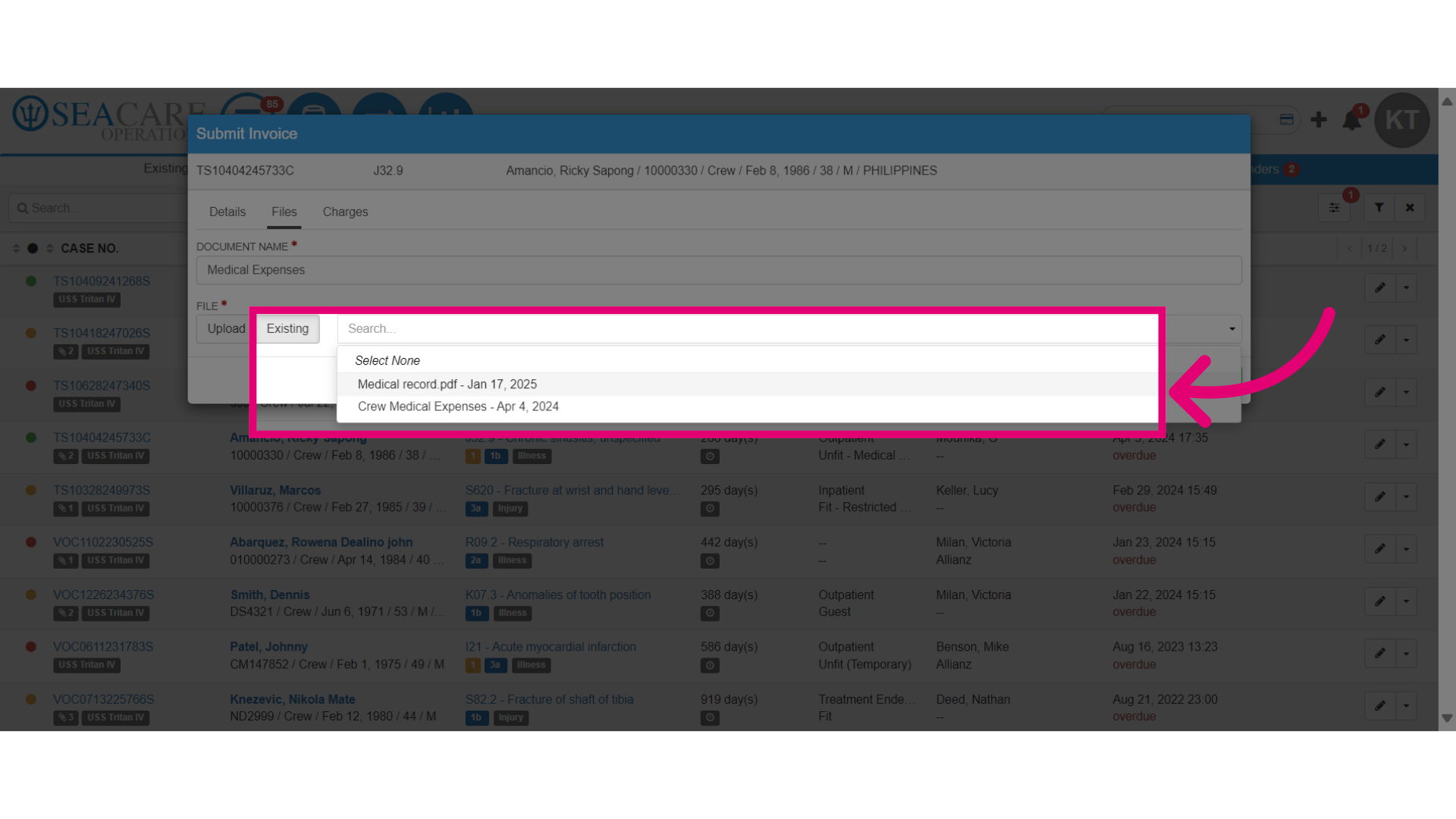
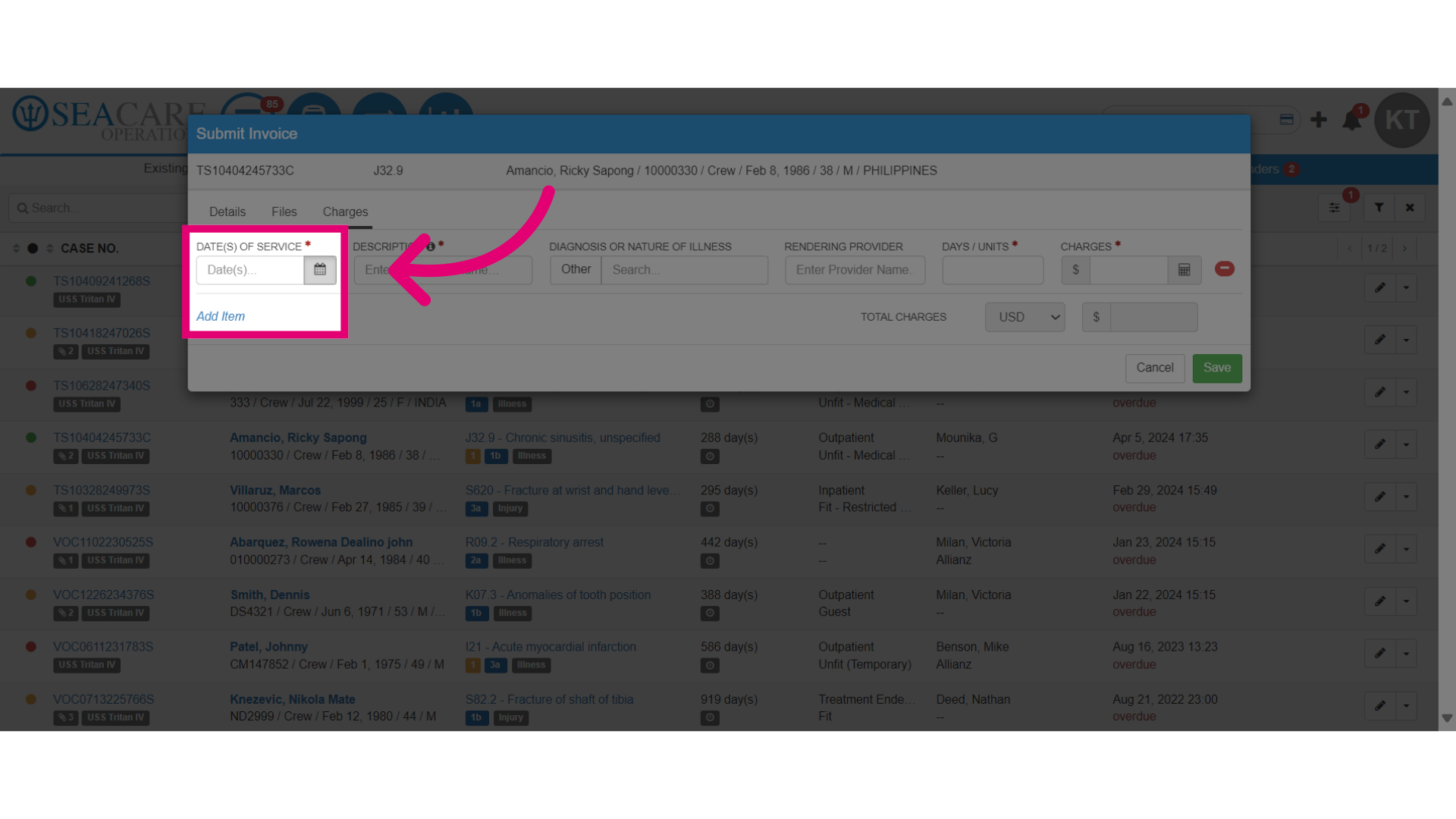
- Go to the Charges tab.
- Then, add the Date(s) of Service.
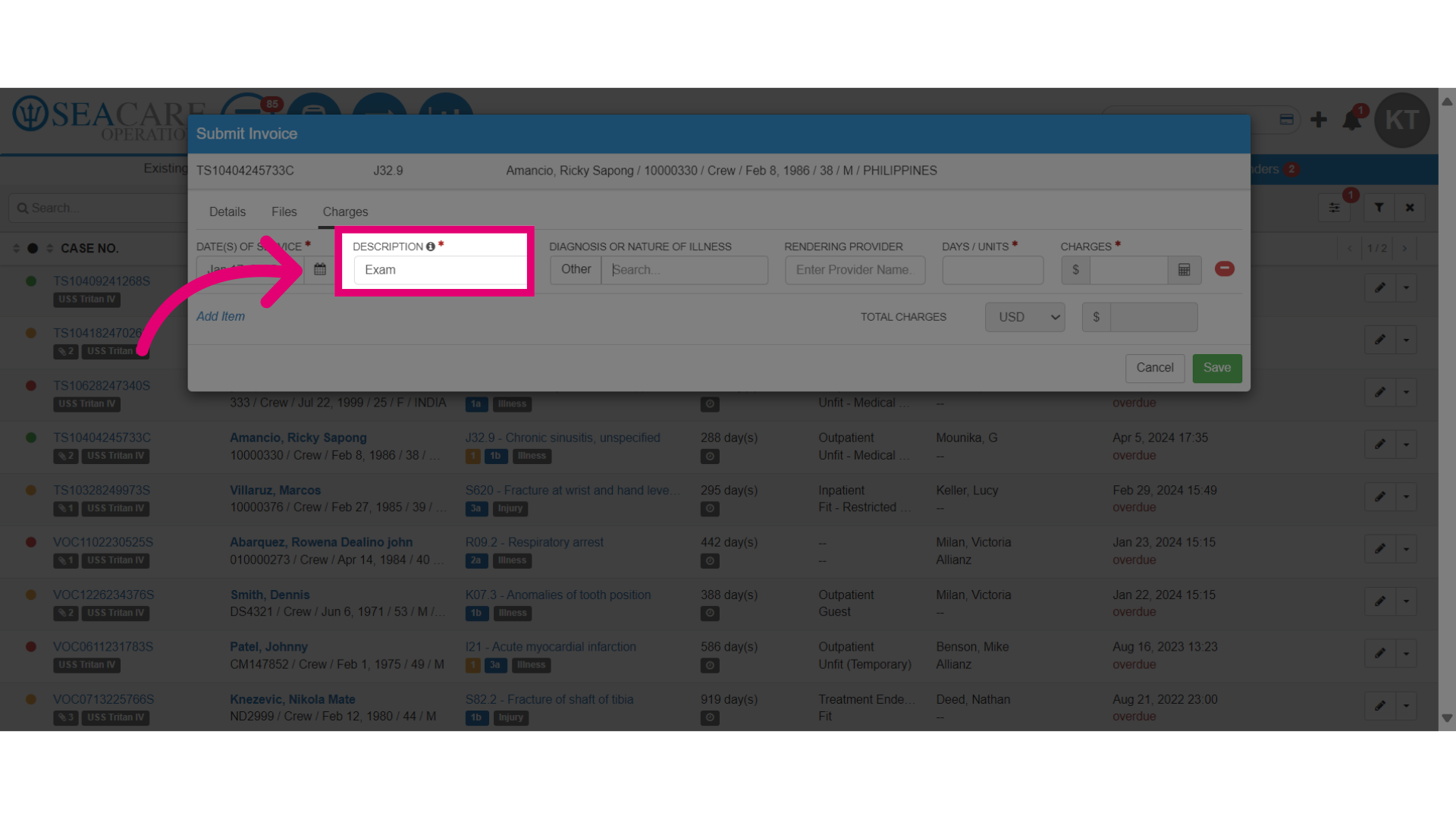
- Select to Enter Procedure Description. This is the treatment that received.
- Select the specific diagnosis or nature of illness.
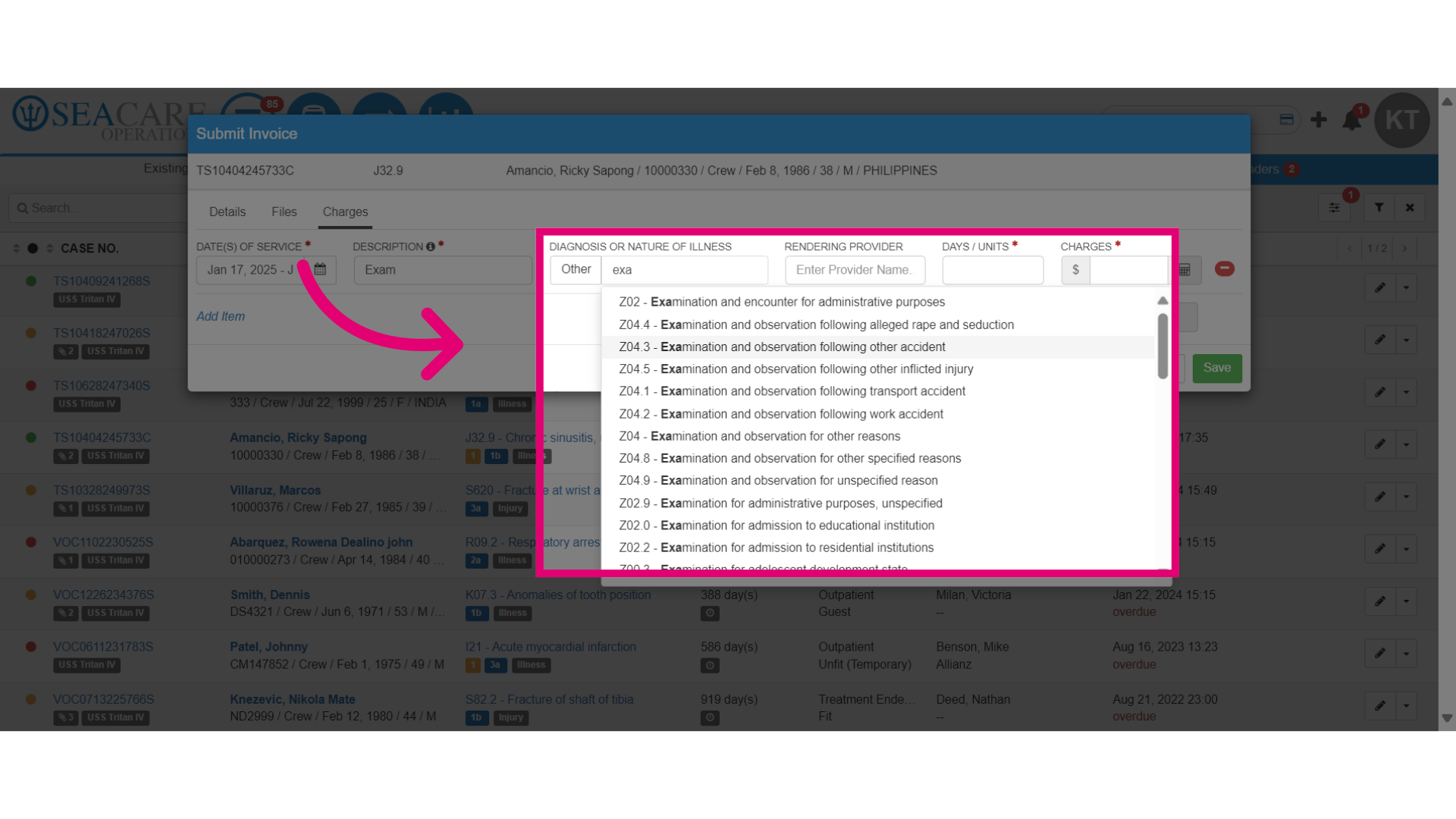
- Add the number of days the patient was in hospital or the quantity if this charge is for an item.
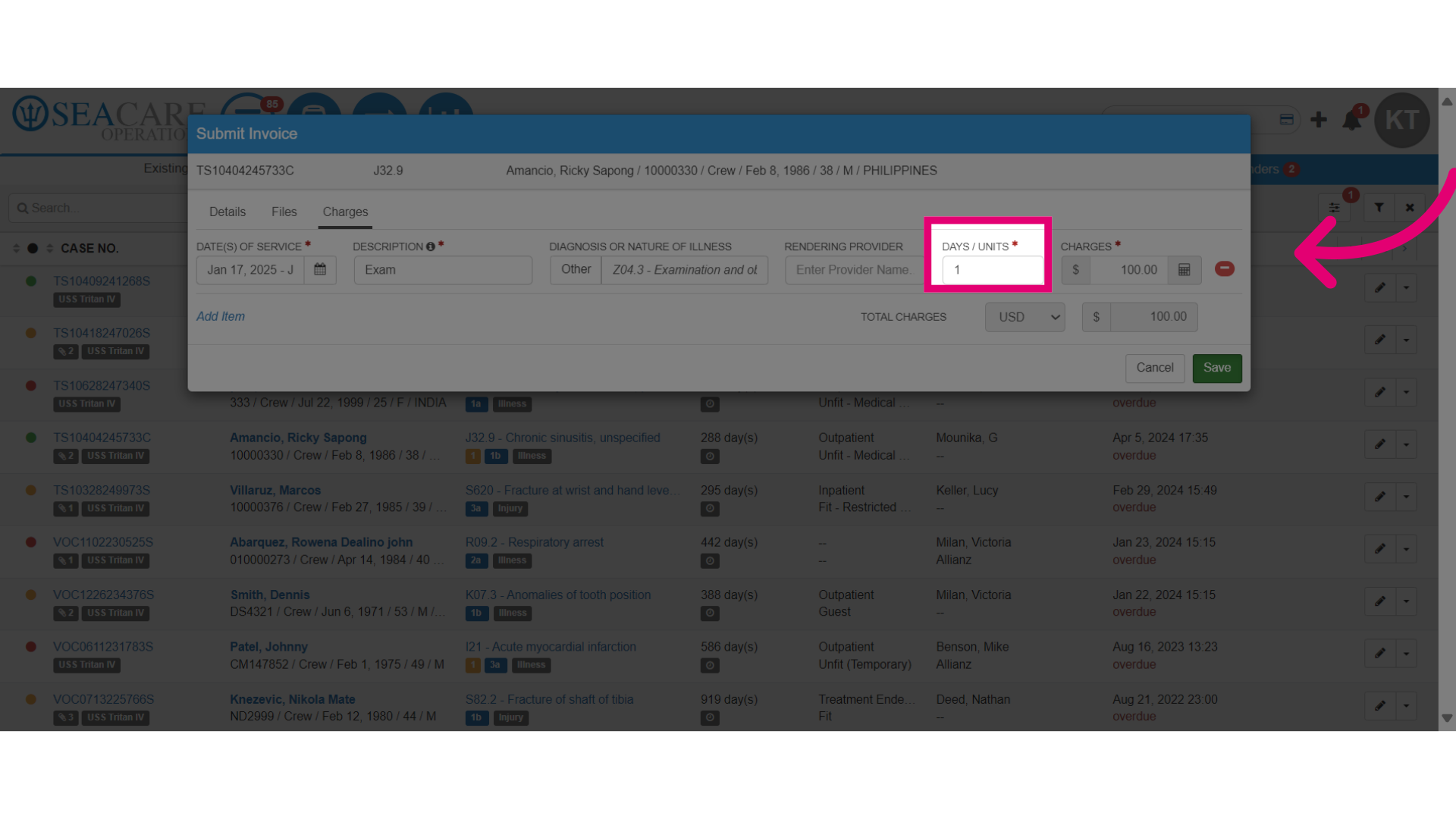
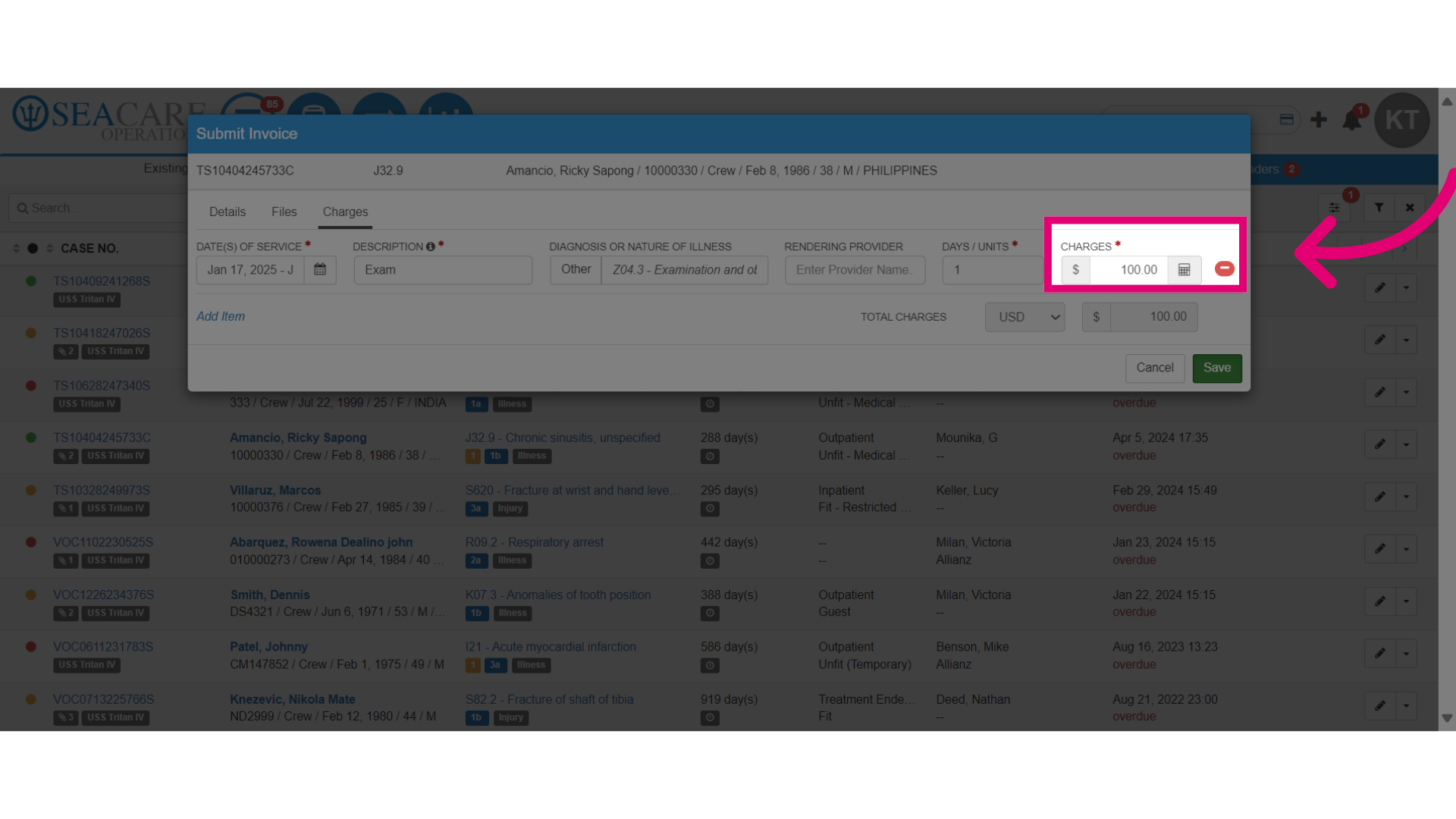
- Then, enter the charges.
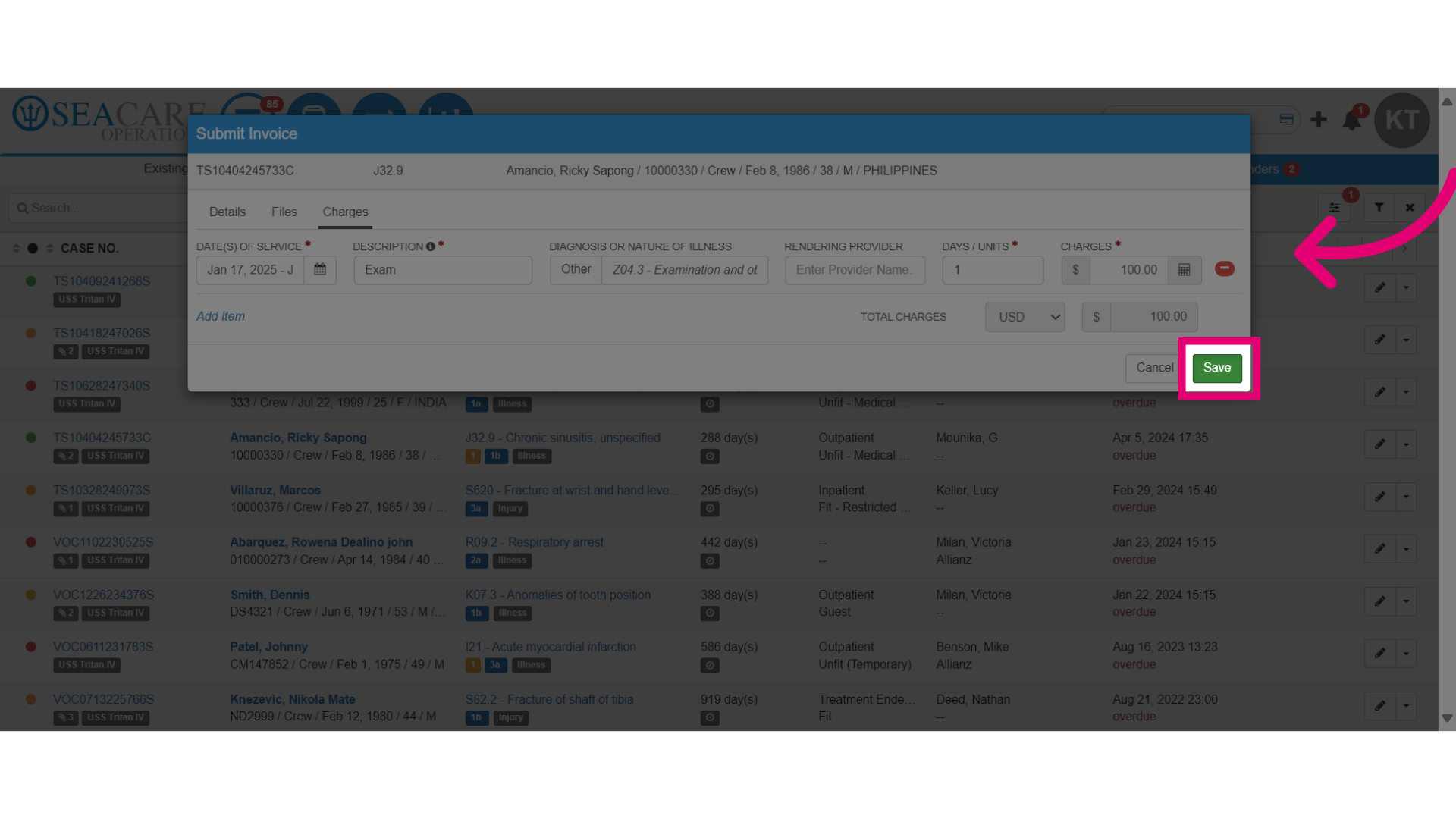
- Save your changes.
- Choose whether to use the case reserve for invoice charges:
- Yes - Automatically adds the invoice charge to the case reserve as a payment adjustment. Please provide an adjustment reason.
- No - Does not include the invoice charge in the case reserve.
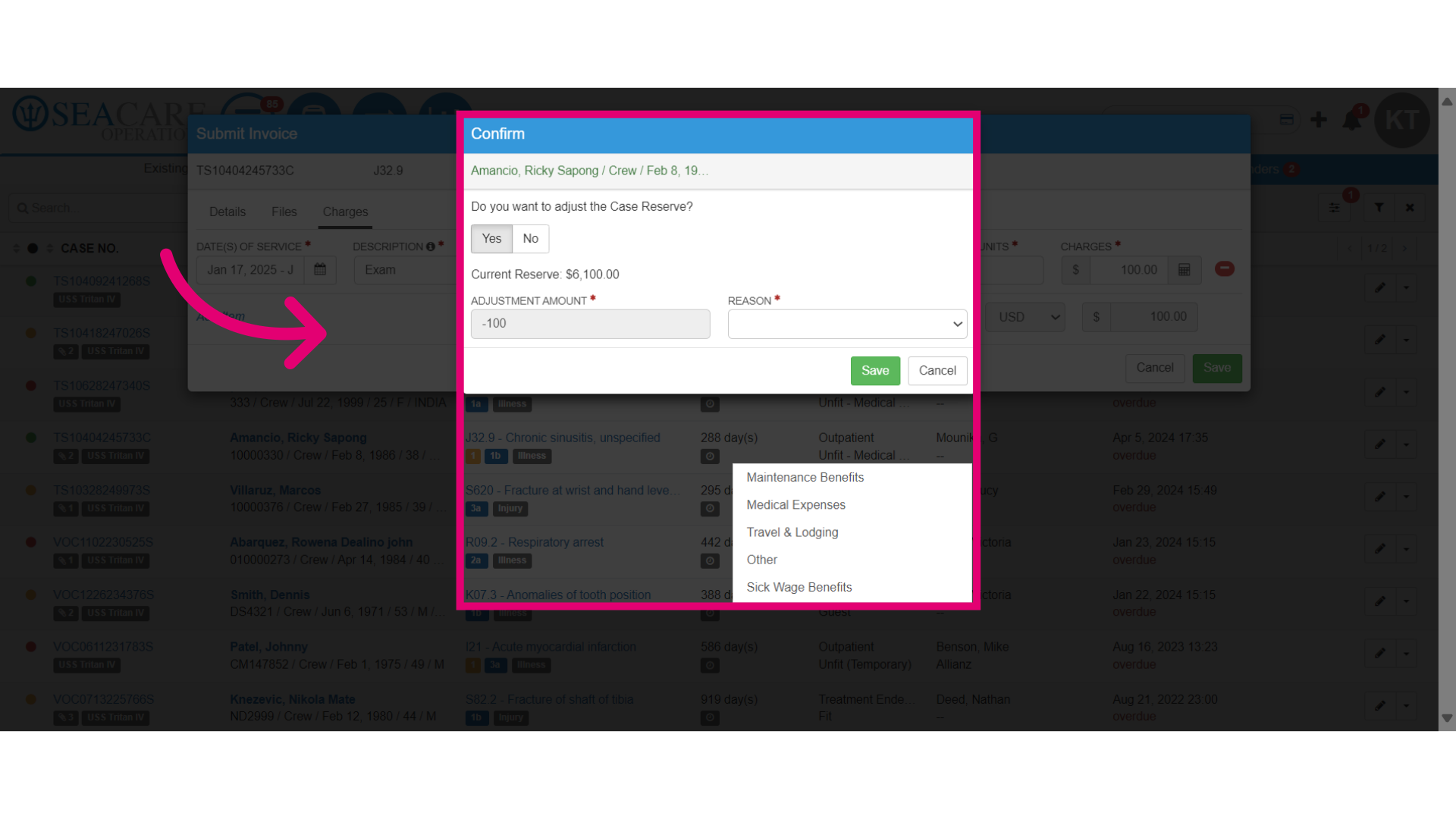
- Save the changes made.
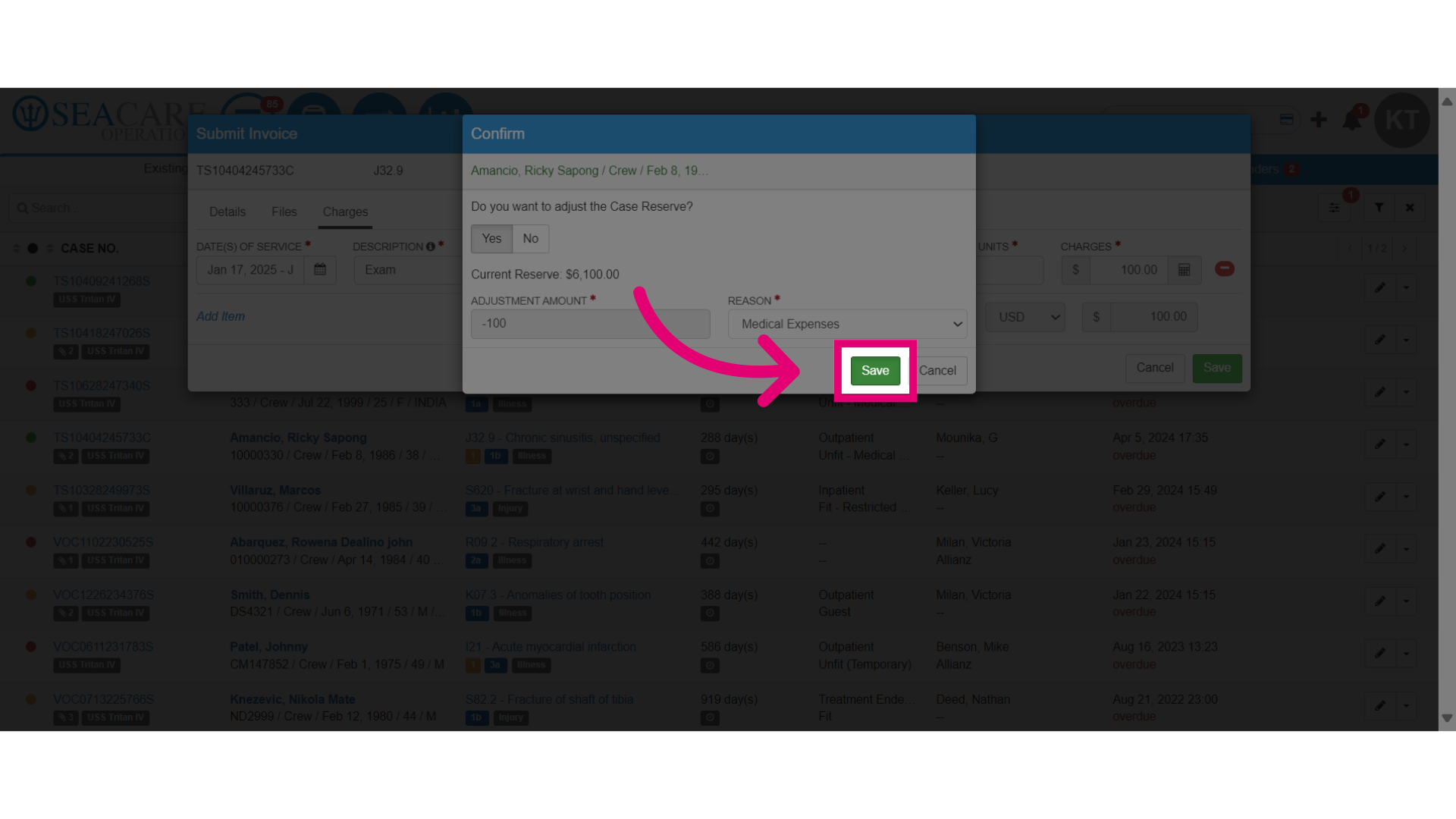
- Check the invoice details and track its progress via the Health Information Exchange module.
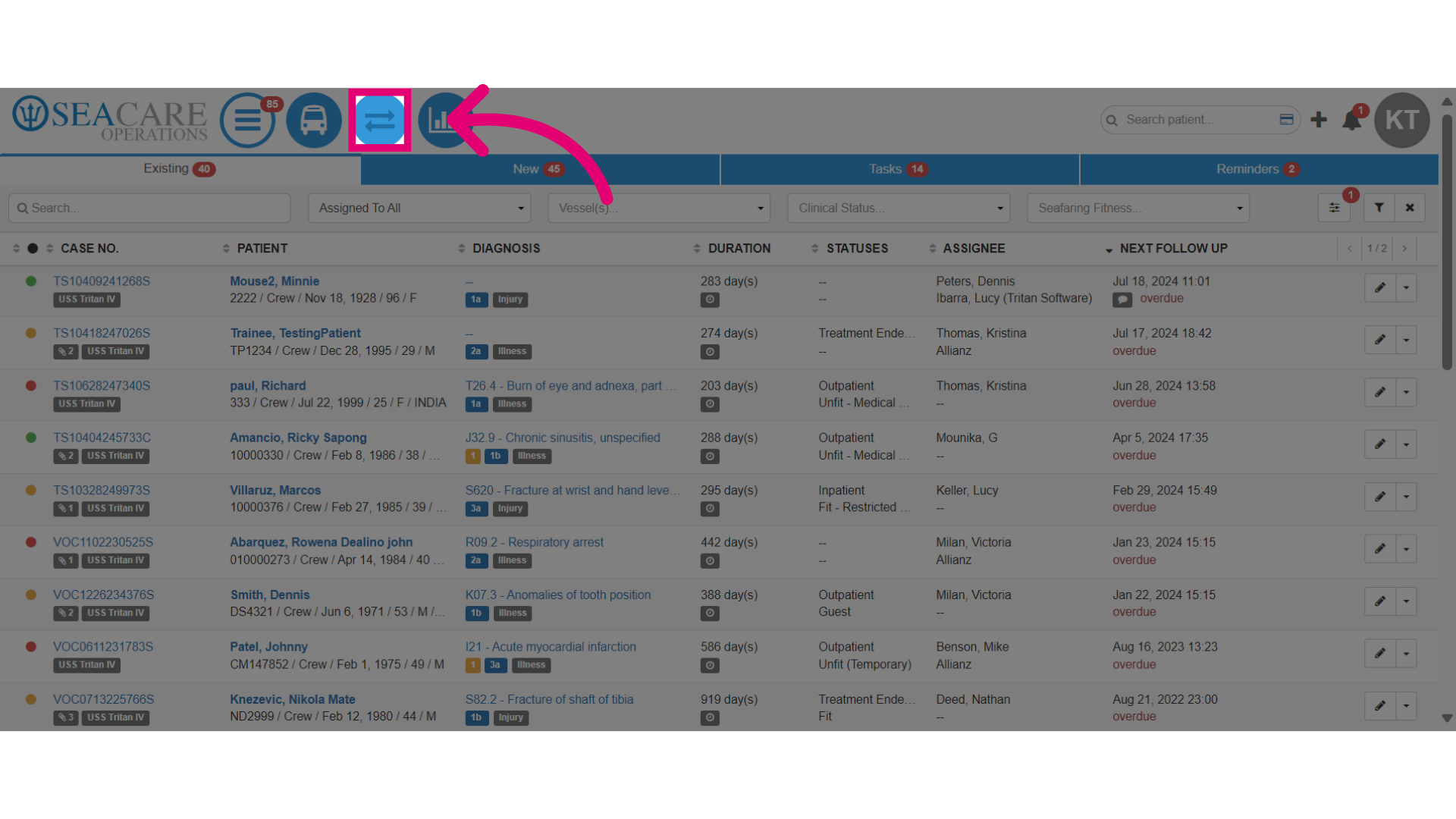
- Then go the Invoices tab.
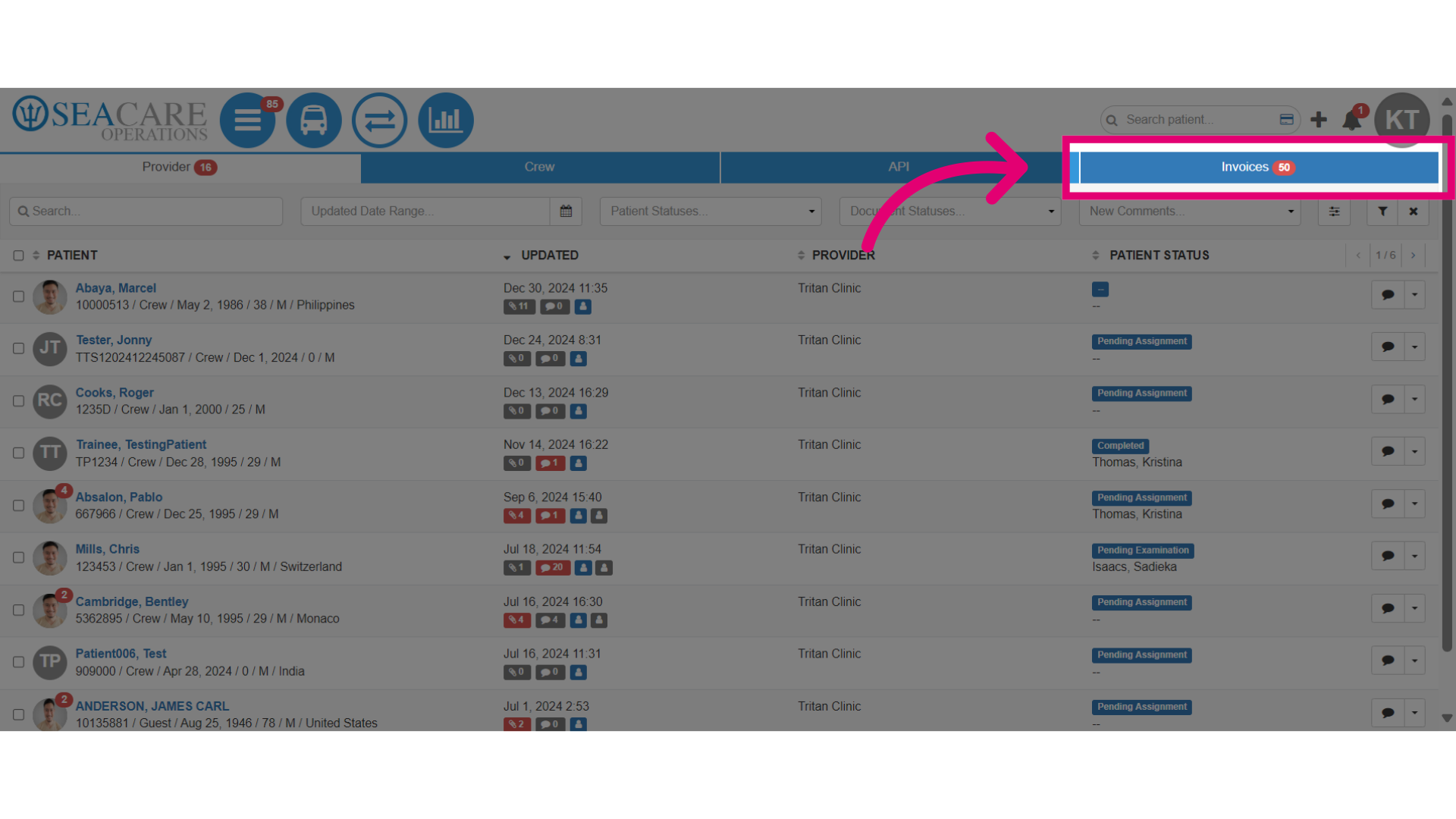
- The invoice may undergo review by your internal case management, accounting, or finance teams, as per company procedures. If a Medical Review is needed, please complete it.
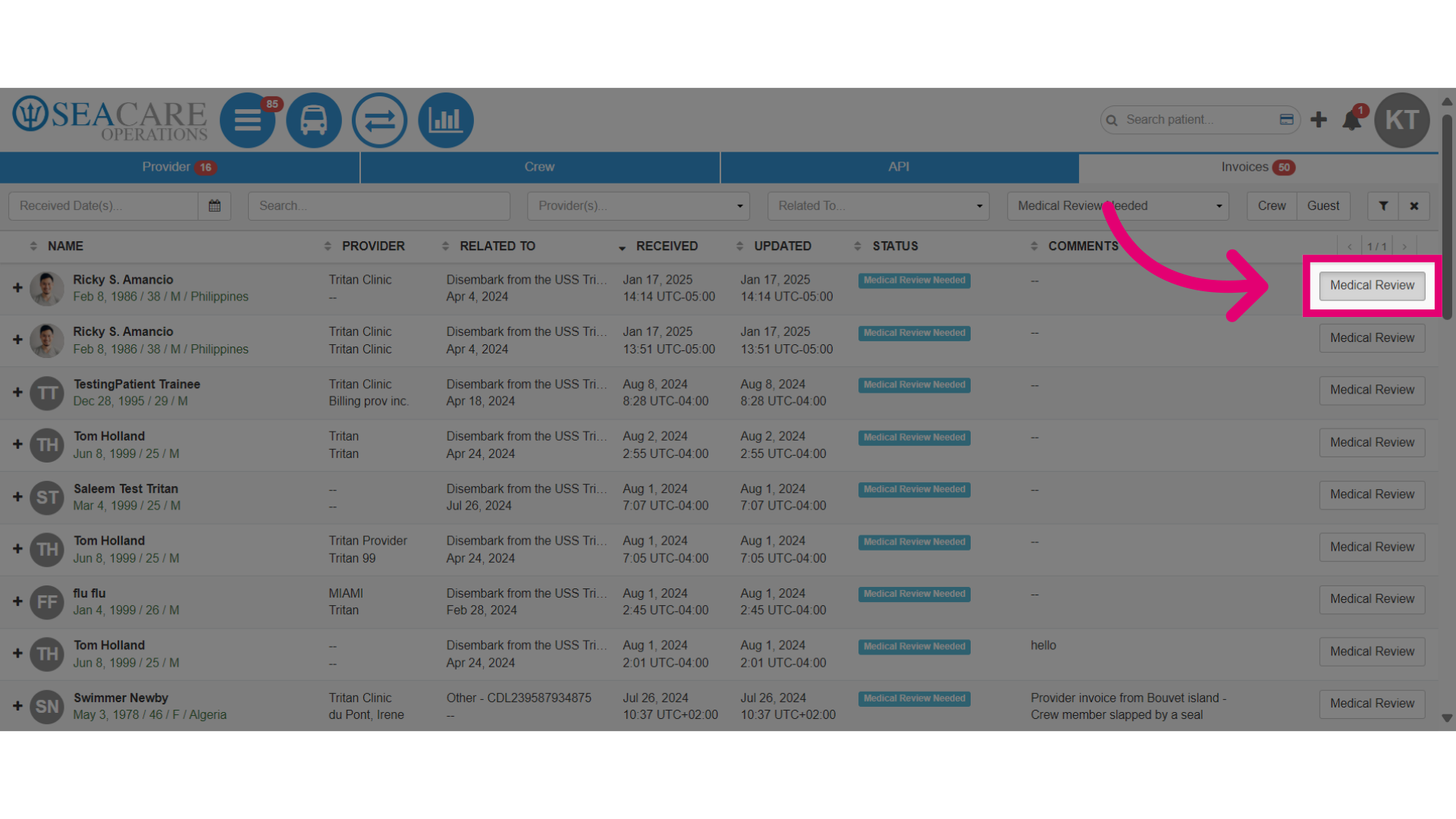
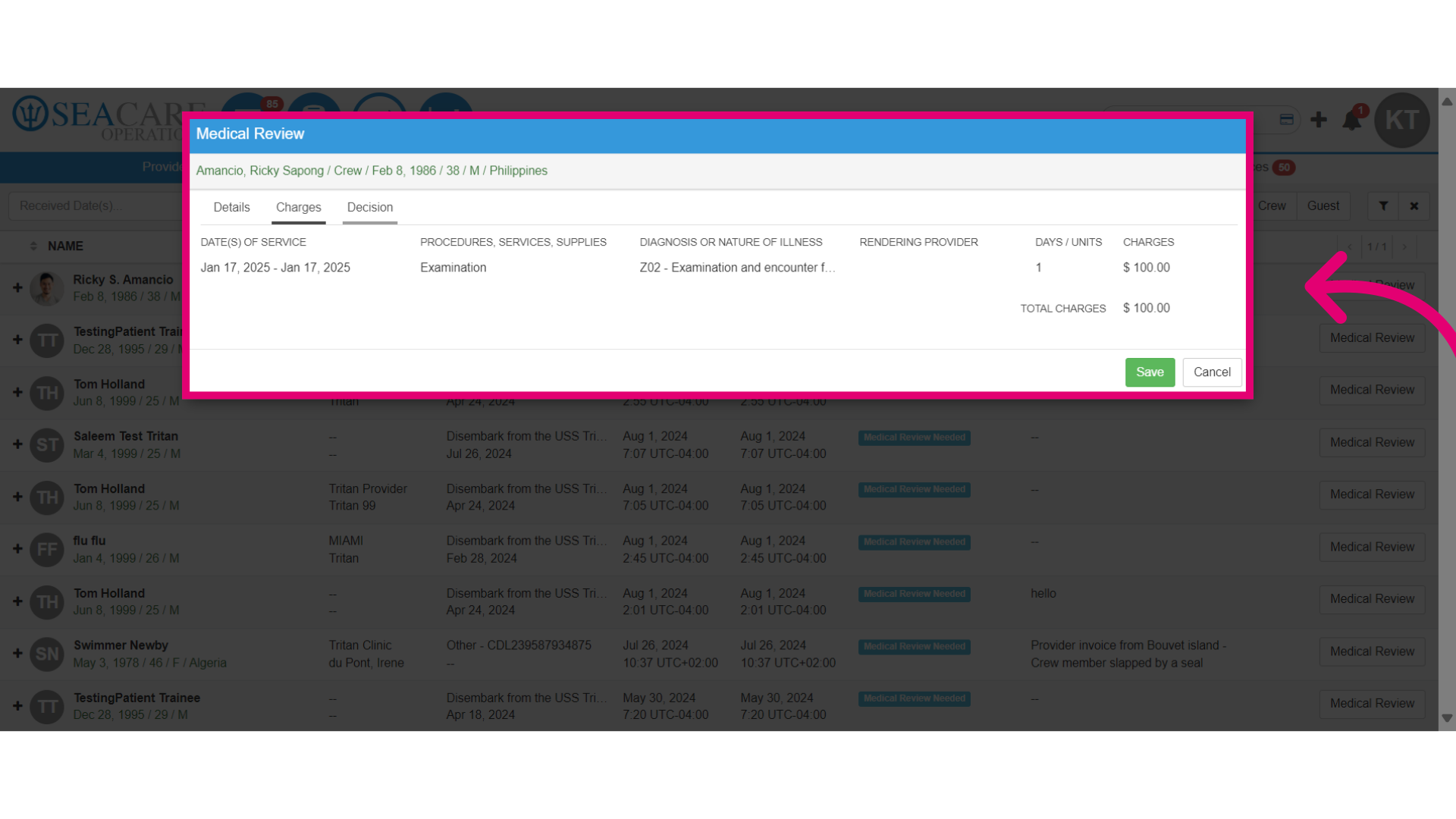
- Review the invoice details.
- Carefully examine the medical documentation and services.
- Decide to accept or reject the findings, which may need further investigation.
- This decision will significantly affect the financial aspects of the services.
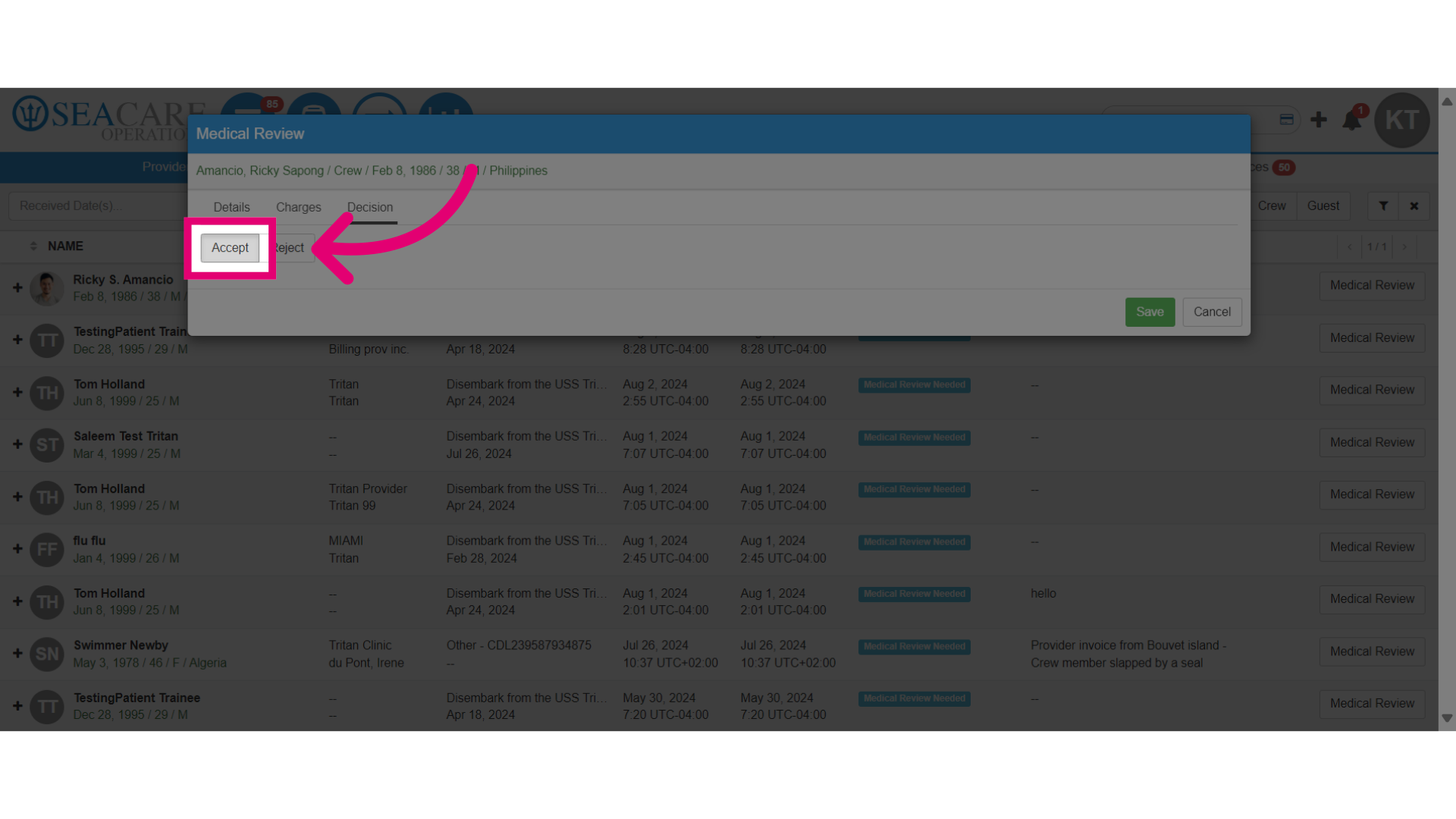
- Choose from:
- Accept - Select this if the invoice matches the services and charges, enabling payment initiation.
- Reject - Choose this if the details are incomplete or incorrect.
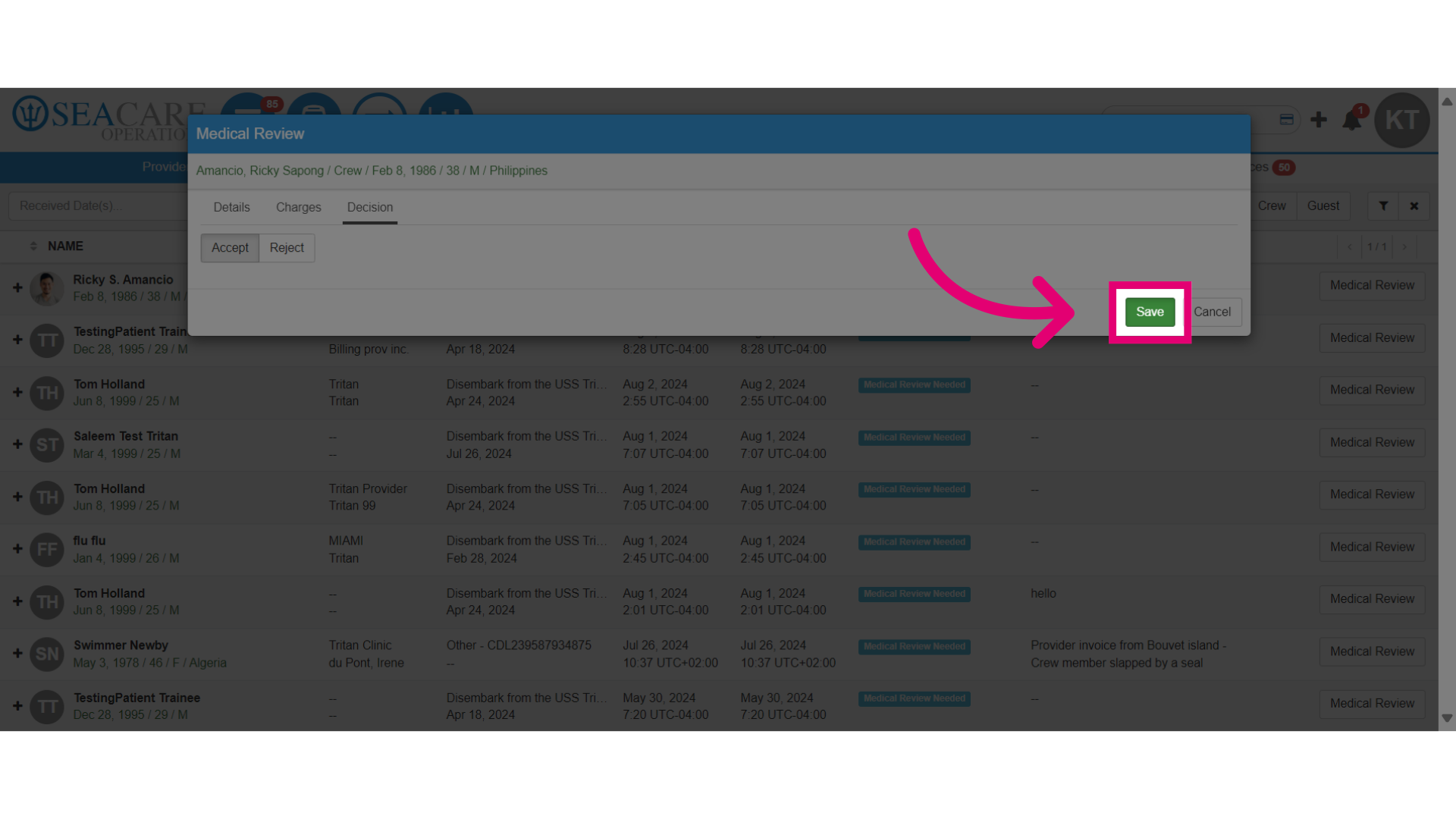
- Select Save when you are done.
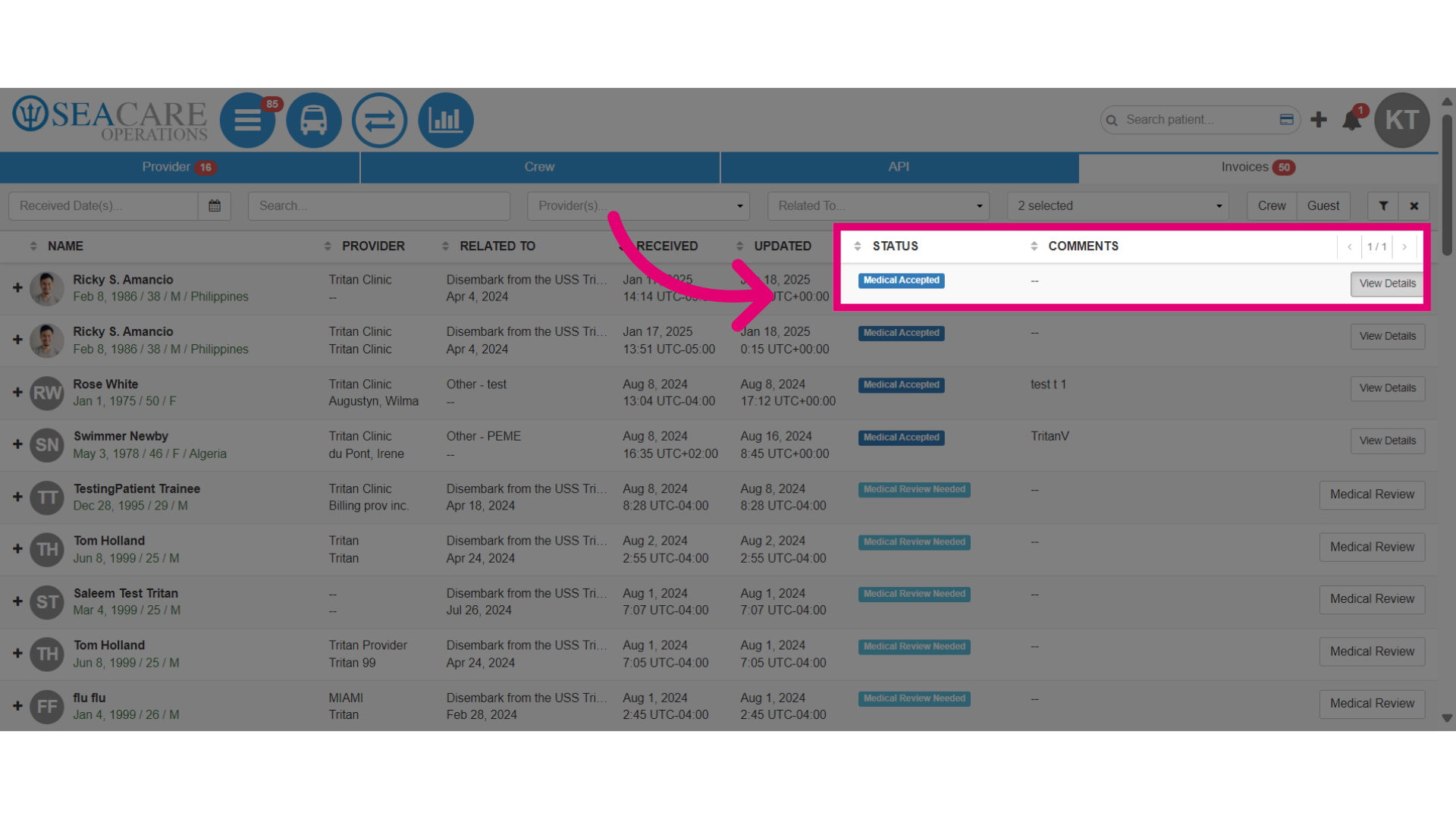
- Check the updated status: Medical Accepted since the invoice acceptance. Use other filters to track invoice progress.