New article
Recently updated
Adjusting the Case Reserve in Case Management

Who is this article for?Users who want to learn to adjust the case reserve in Case Management.
No elevated permissions are required.
By following these precise instructions, you will be able to complete the steps to make adjustments to the case reserve. This typically involves adding or reducing the amount of funds that have been set by the organization for a case based on expenses or costs for medical treatment, travel, lodging, or sick wage benefits.
1. Adjusting the Case Reserve in Case Management
1.1. Video
1.2. Steps
- Locate the case you want to adjust the reserve for.
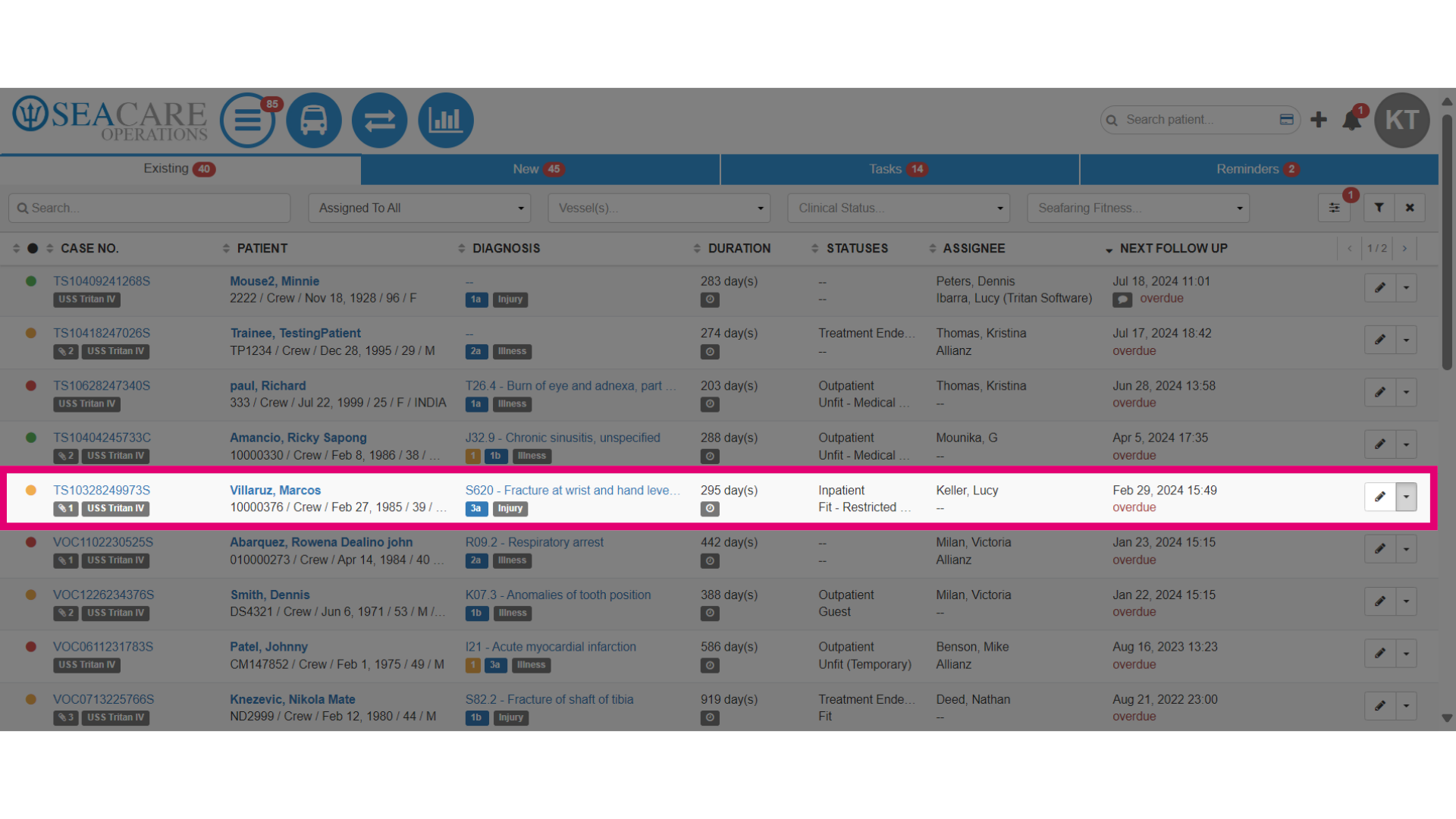
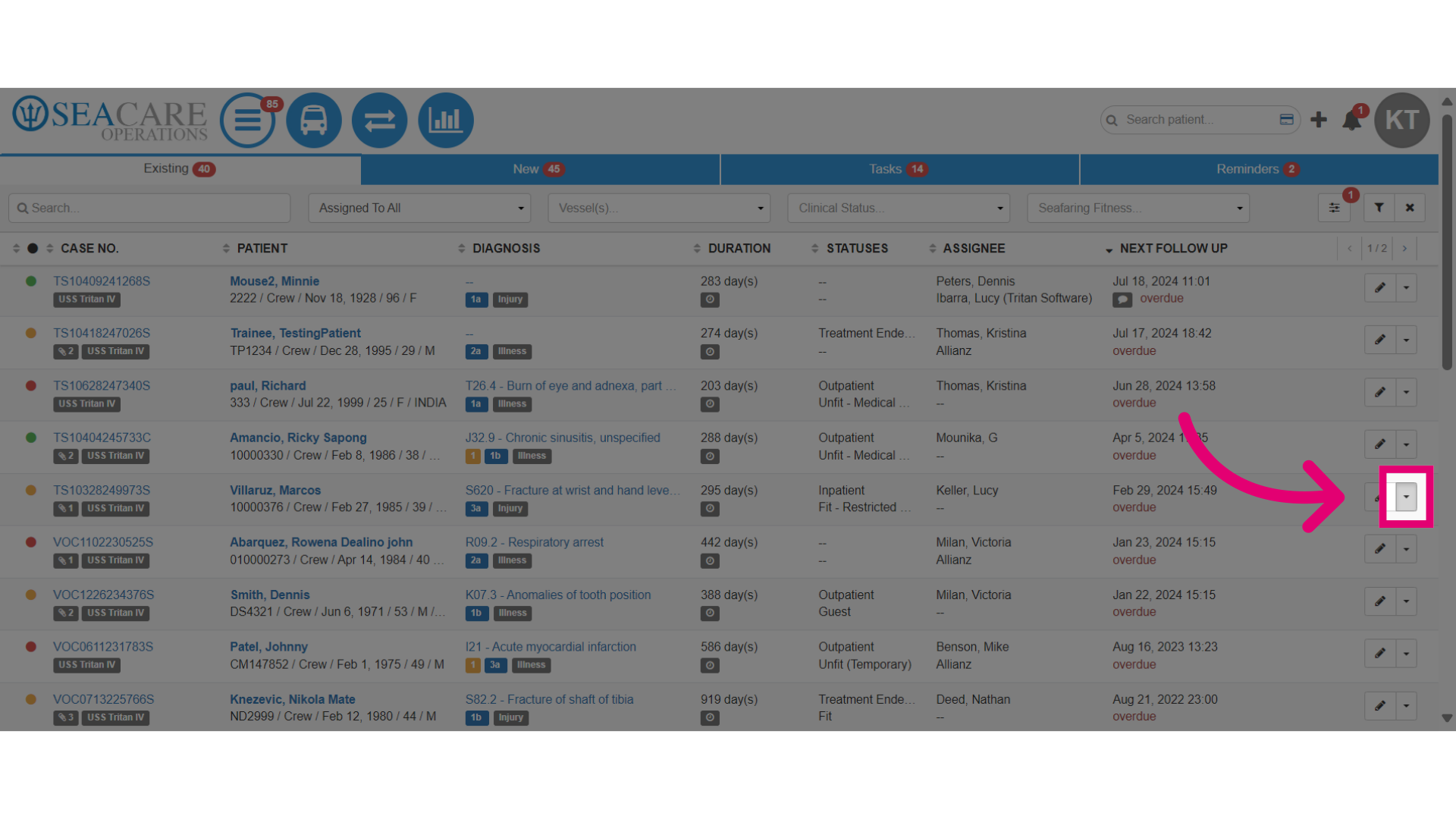
- Then select the Actions pencil edit button.
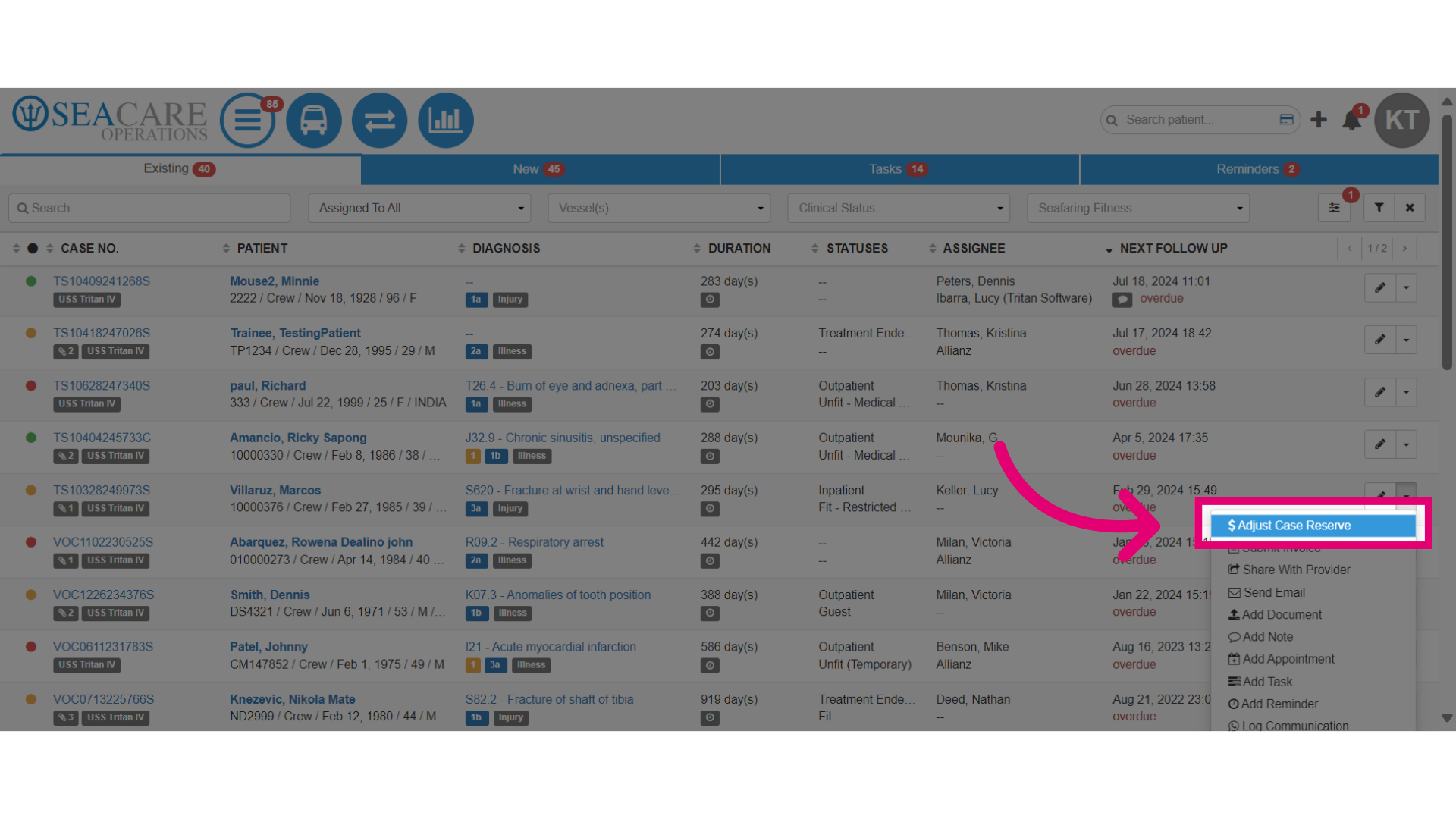
- Select Adjust Case Reserve.
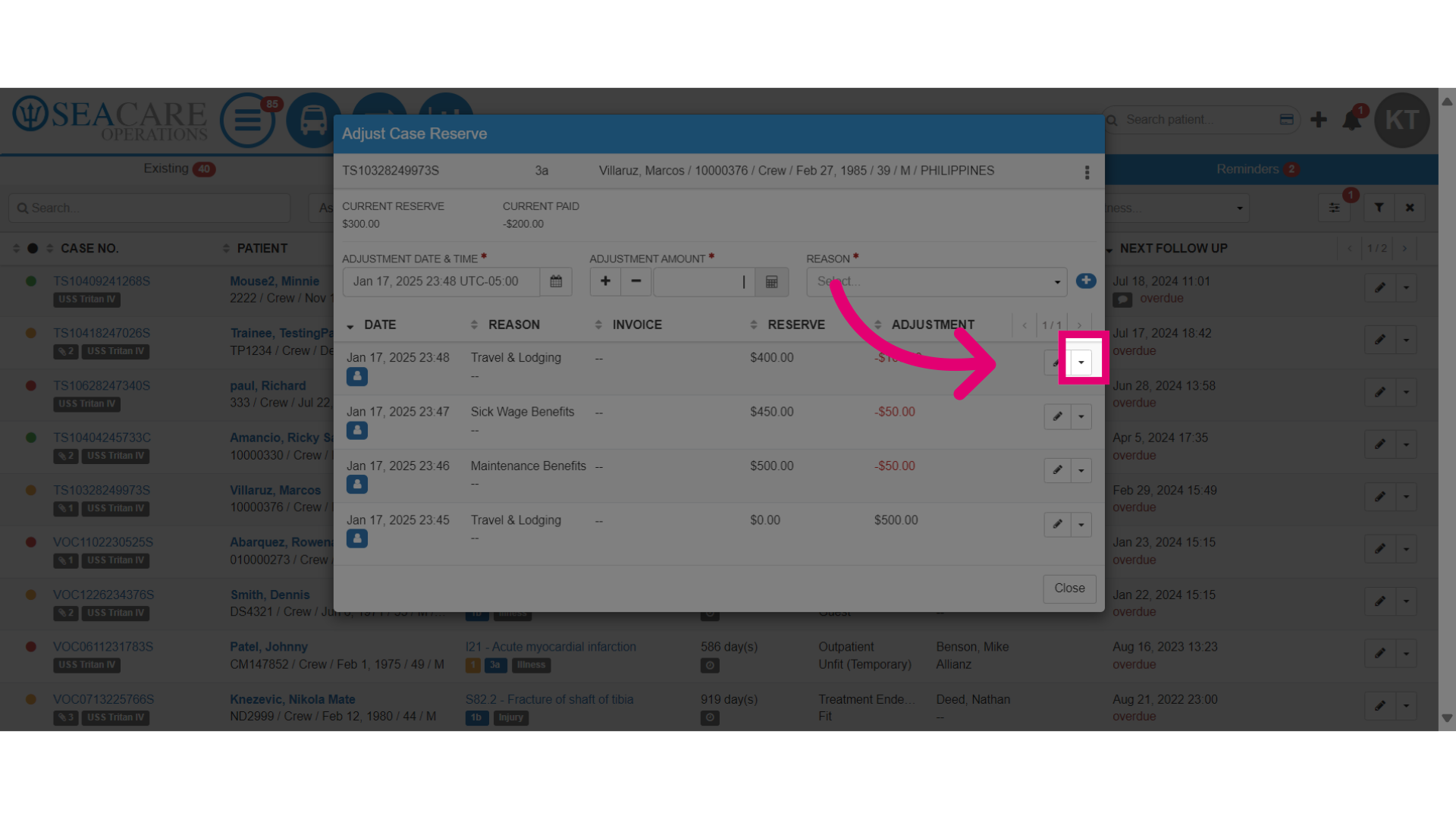
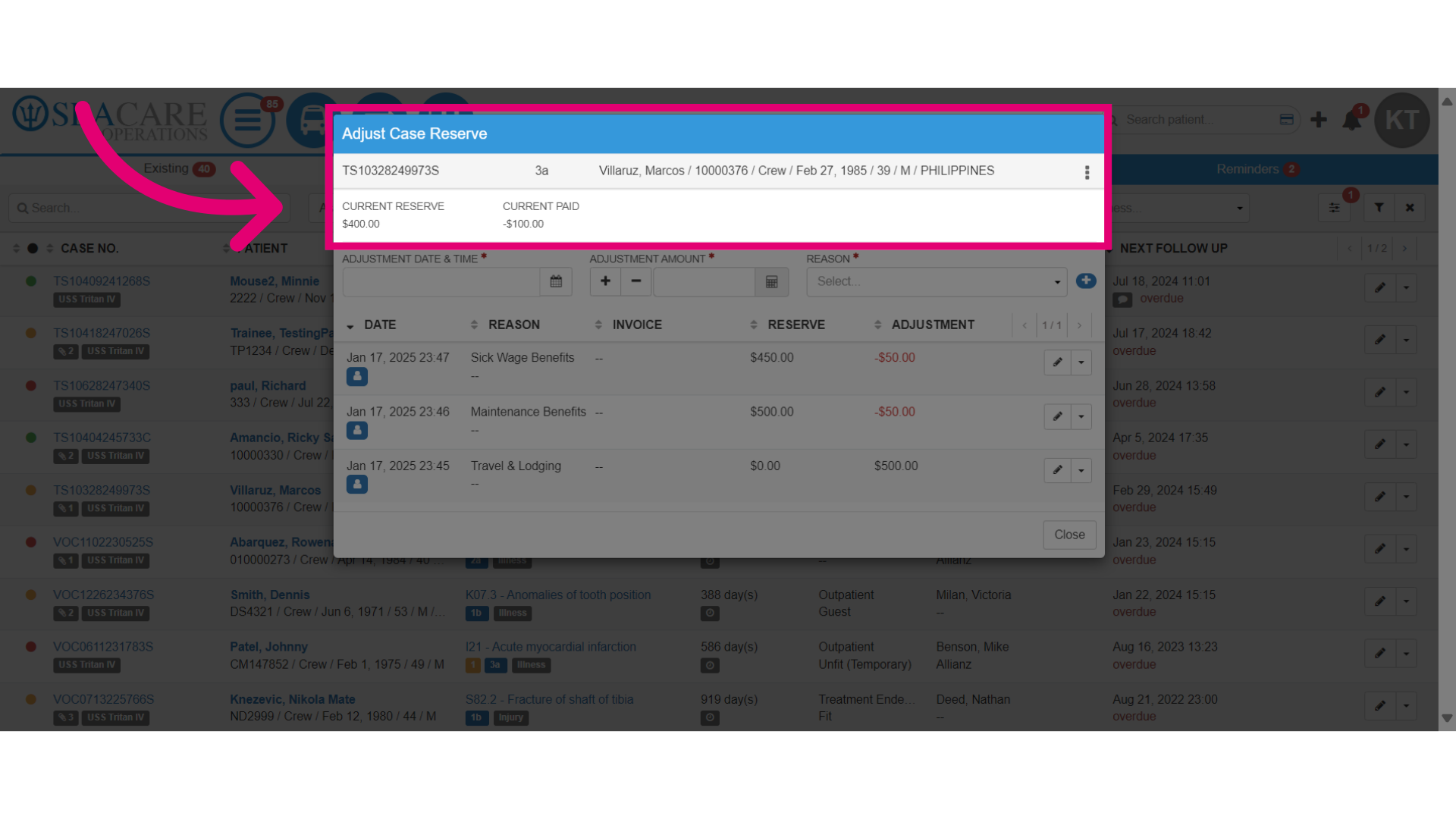
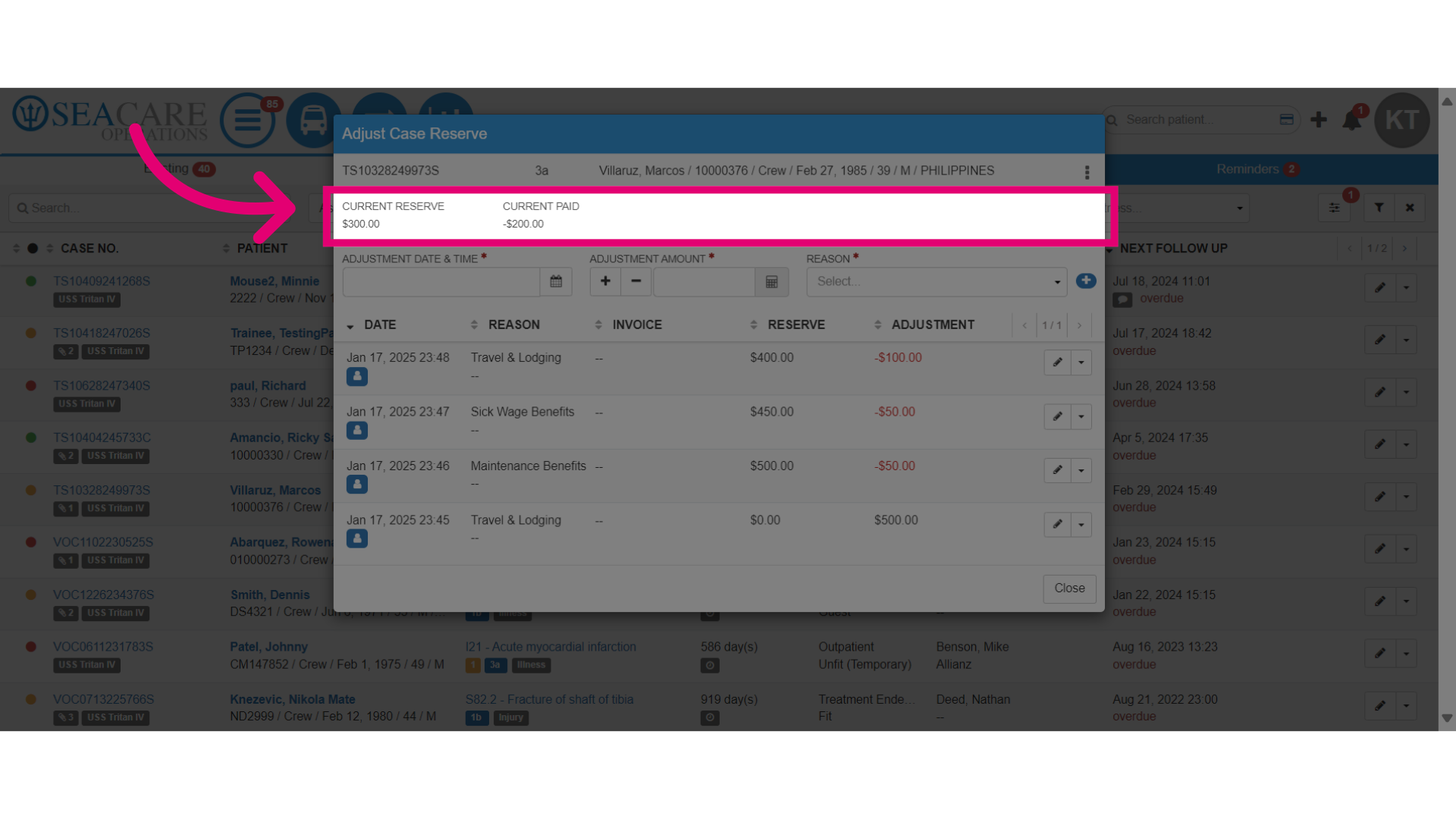
- First you may want to review the current reserve amount which is the amount available for the case and you may also view the current paid for the amount that has been paid for the case.
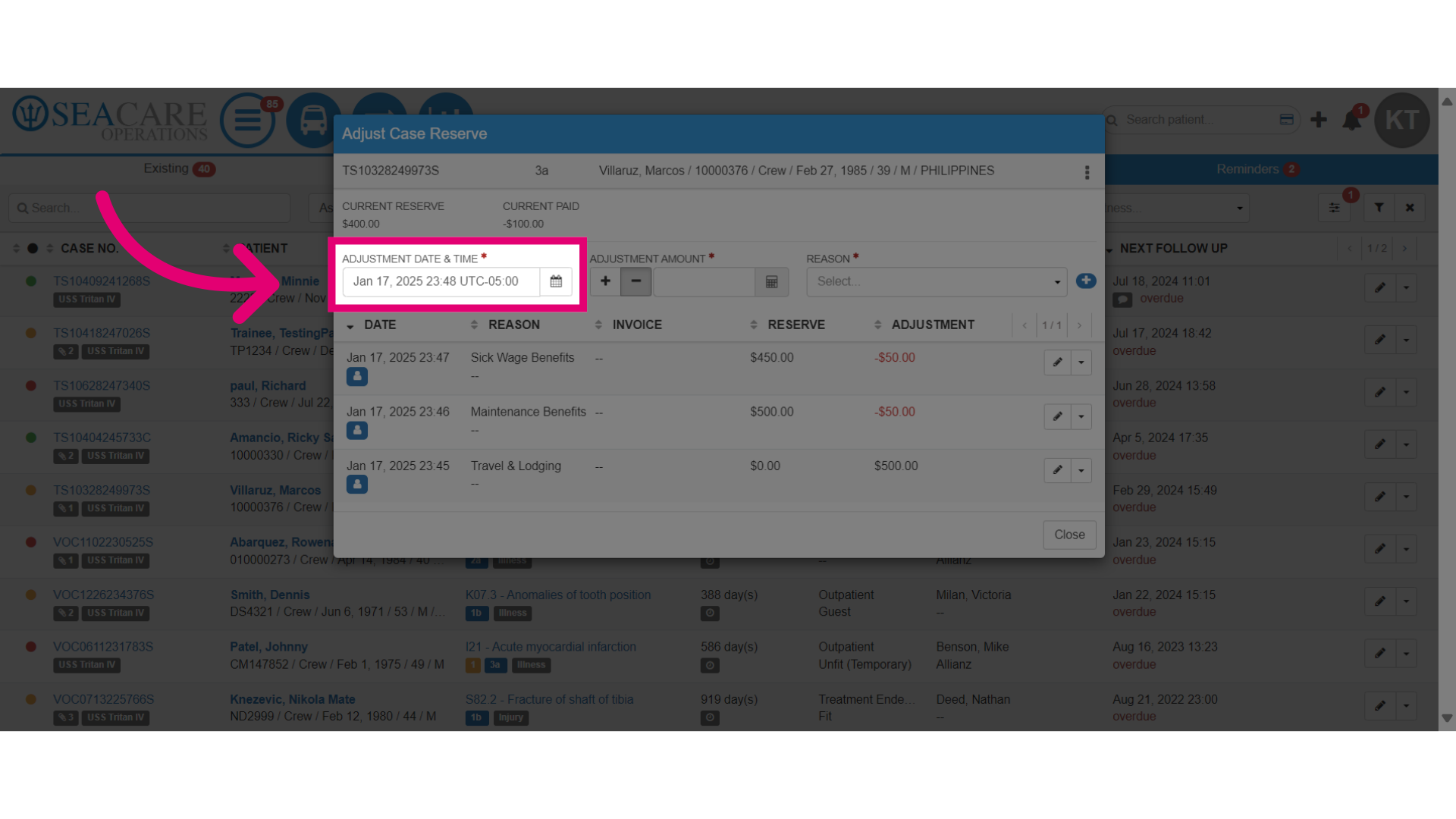
- Then, start by setting the adjustment date and time.
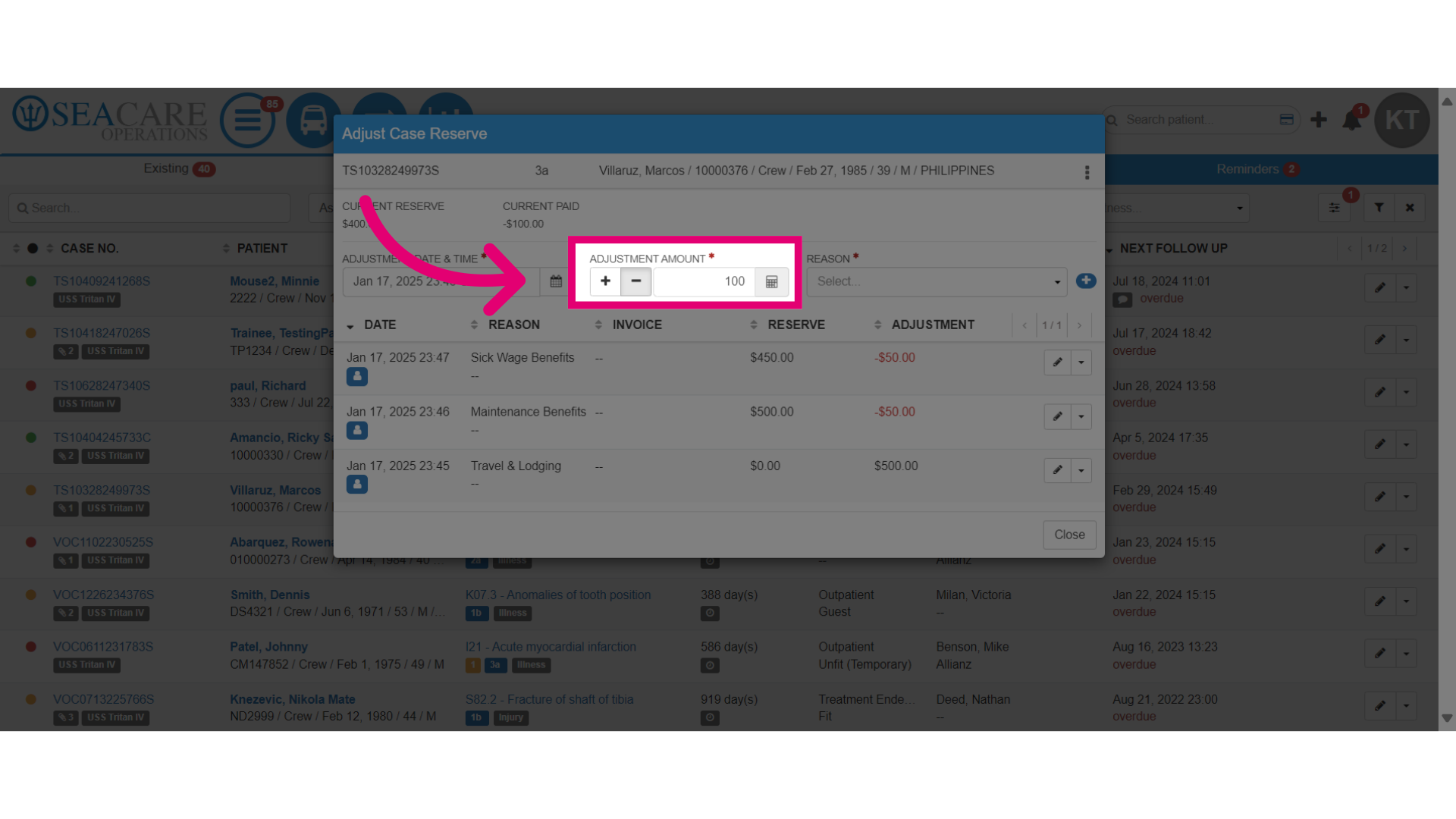
- Make the adjustment using the following this criteria:
- Determining whether you need to increase or reduce the reserve amount based on the patients needs.
- Select the plus sign if you need to add to the reserve amount.
- Choose the minus sign to deduct from the reserve.
- Enter the dollar amount for the adjustment.
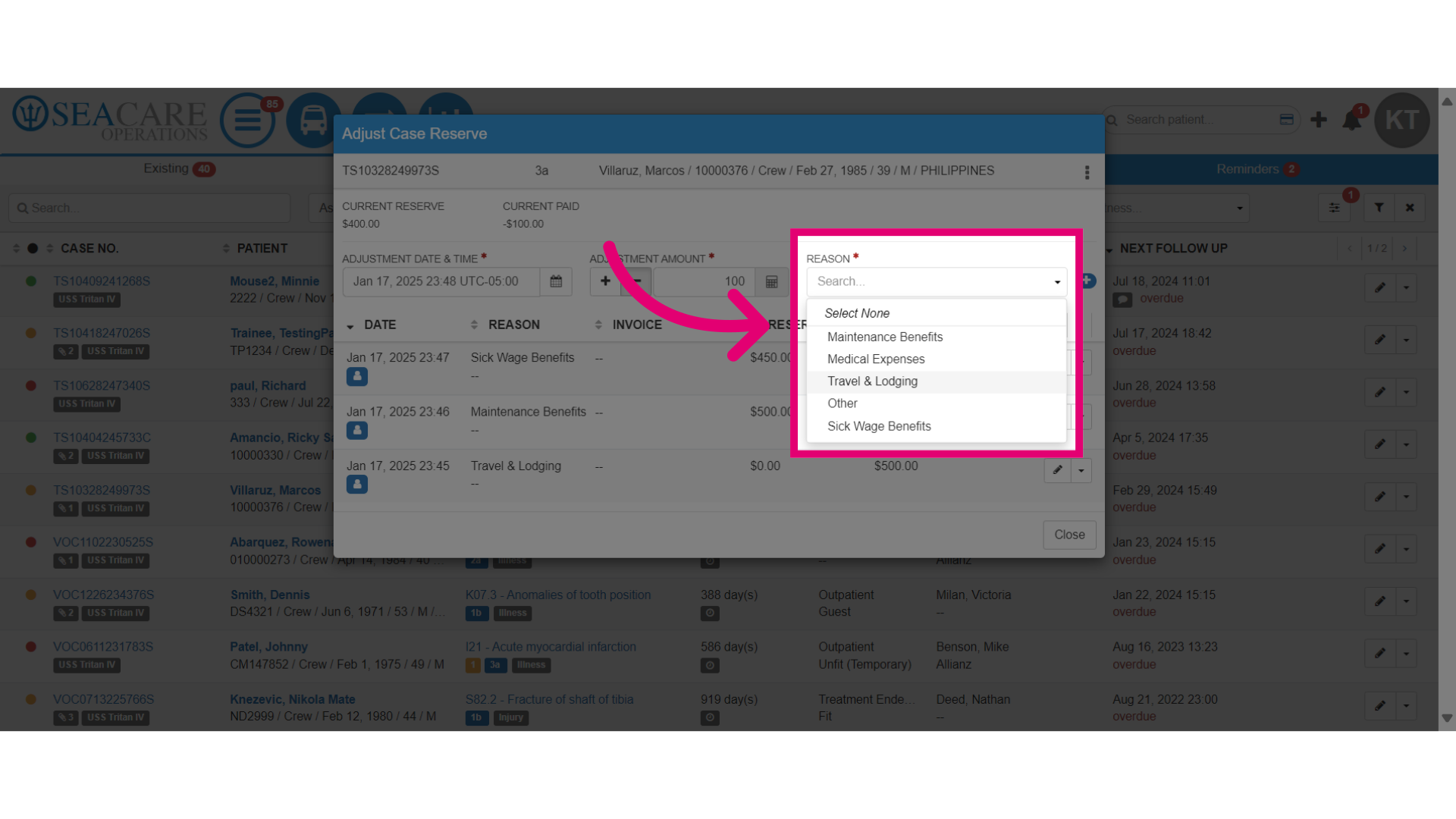
- Next, select the Adjustment Reasons from the following options:
- Maintenance Benefits - Choose this option if you are adjusting for daily living support, medical expenses such as treatment costs, hospital bills, prescriptions or medical consultations.
- Travel and Lodging - This can be used for travel-related expenses such as transportation for medical appointments, repatriation or accommodation during treatment.
- Sick Wage Benefits - Is used for the patient, such as compensation for lost wages due to illness or injury.
- Other - This option is used if the adjustment reason doesn't fall in one of these categories.
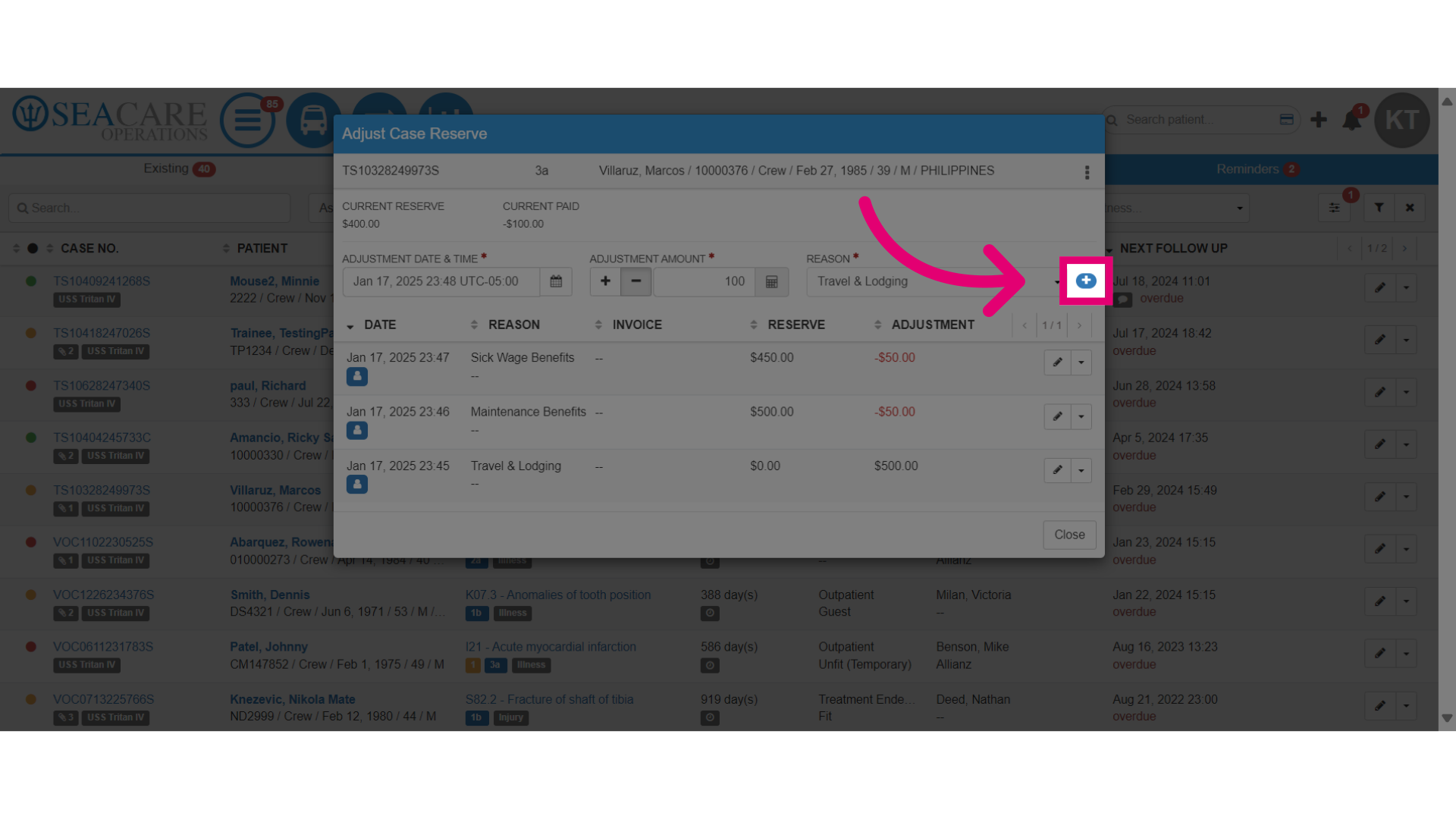
- Select the add plus button (+) to add and proceed with the adjustment.
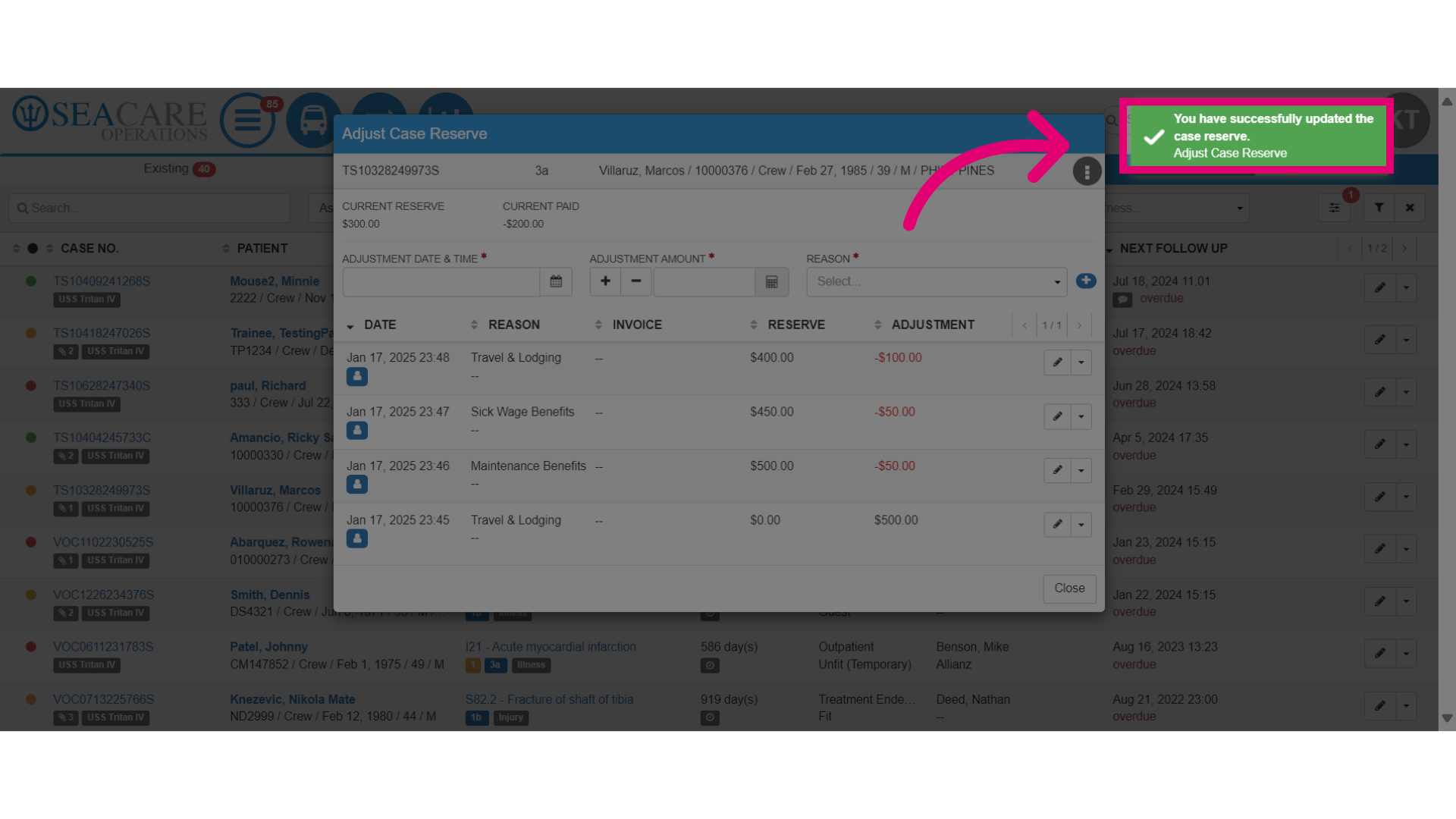
- Verify the confirmation alert appears when the adjustment has been successfully made.
- The Current Reserve will be updated to reflect the adjustment.
- For example, if $100 was deducted from the current reserve of $400, then the updated current reserve is $300 where $100 was reduced.
- Verify the adjustment by viewing the history of all of the adjustments that were made for the case which includes information regarding the following:
- Date
- Reason
- Reserve for what was previously available prior to the adjustment
- The adjustment amount of what was added or deducted.
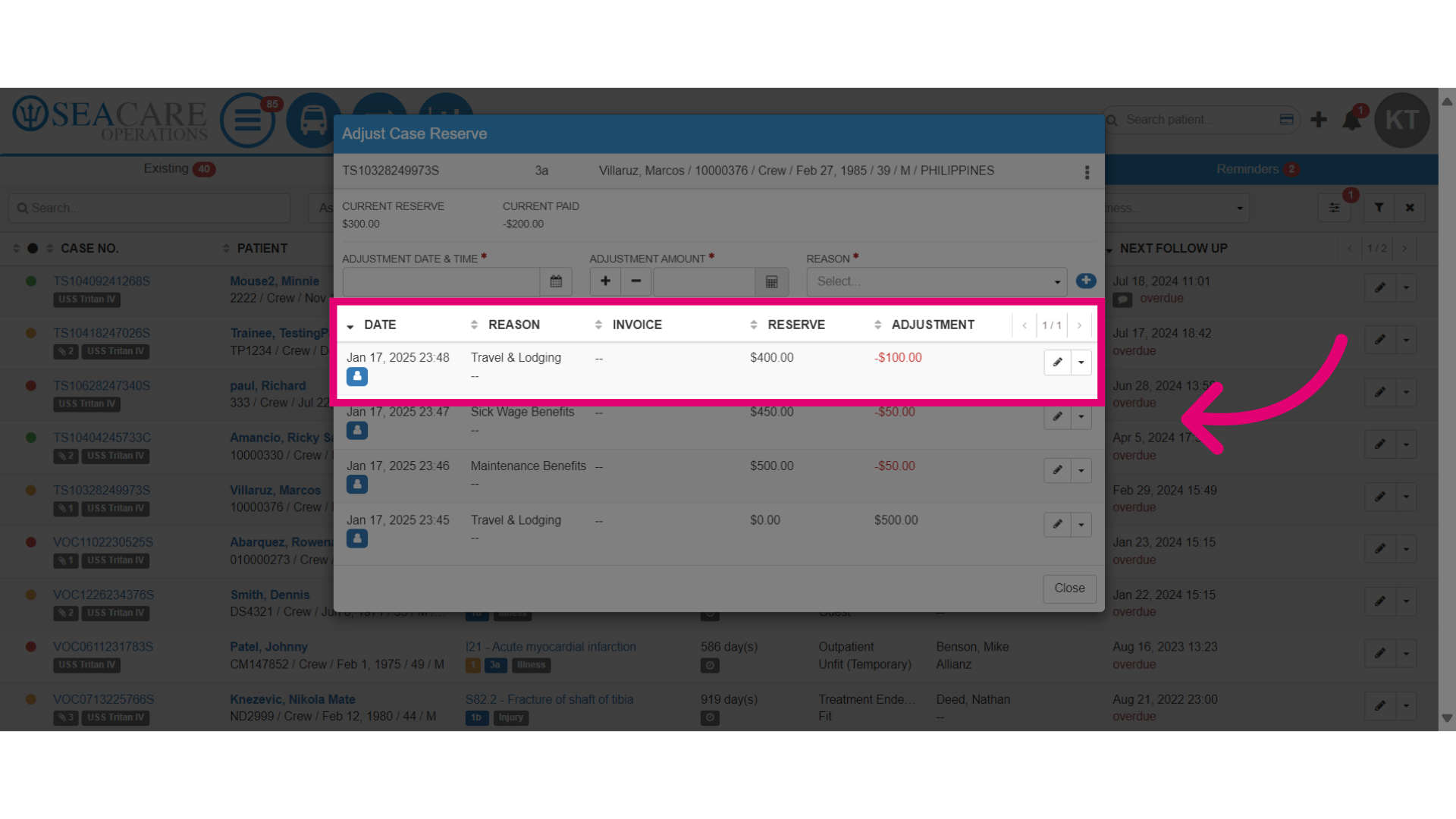
- For editing options to make modifications, select the pencil edit button to edit the adjustment.
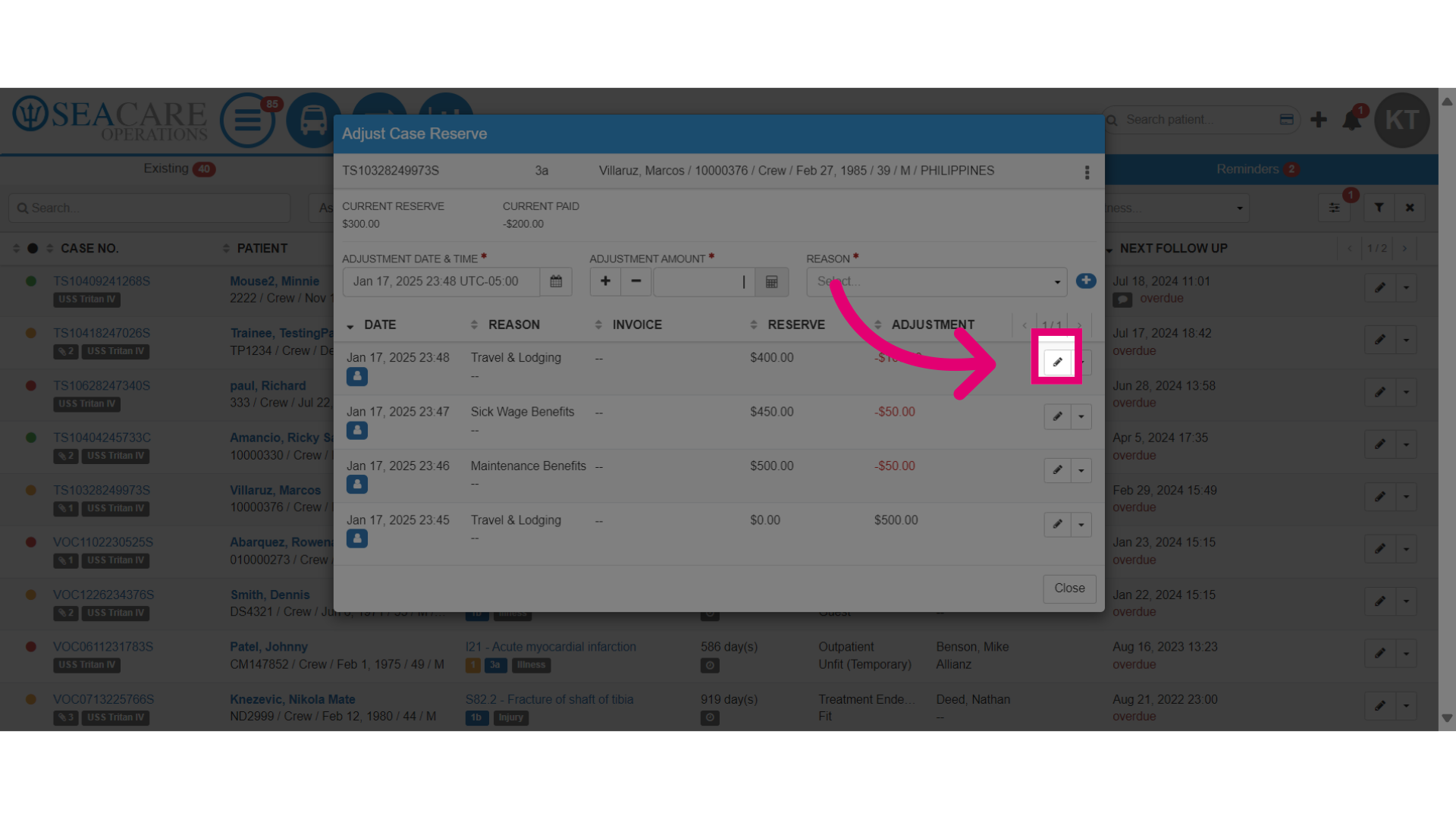
- To remove the adjustment, select the dropdown button to remove the adjustment.