New article
Recently updated
Uploading a Document in Case Management

Who is this article for?Users who want to learn how to upload a document to a case in Case Management
No elevated permissions are required.
From selecting categories to saving the document to the patient record, follow these instructions to efficiently manage documents from case management such as invoices, SMFC, medical documents, etc. Let's begin in the "Case Management" module.
1. Resetting your password using 'Forgot Password'
1.1. Video
1.2. Steps
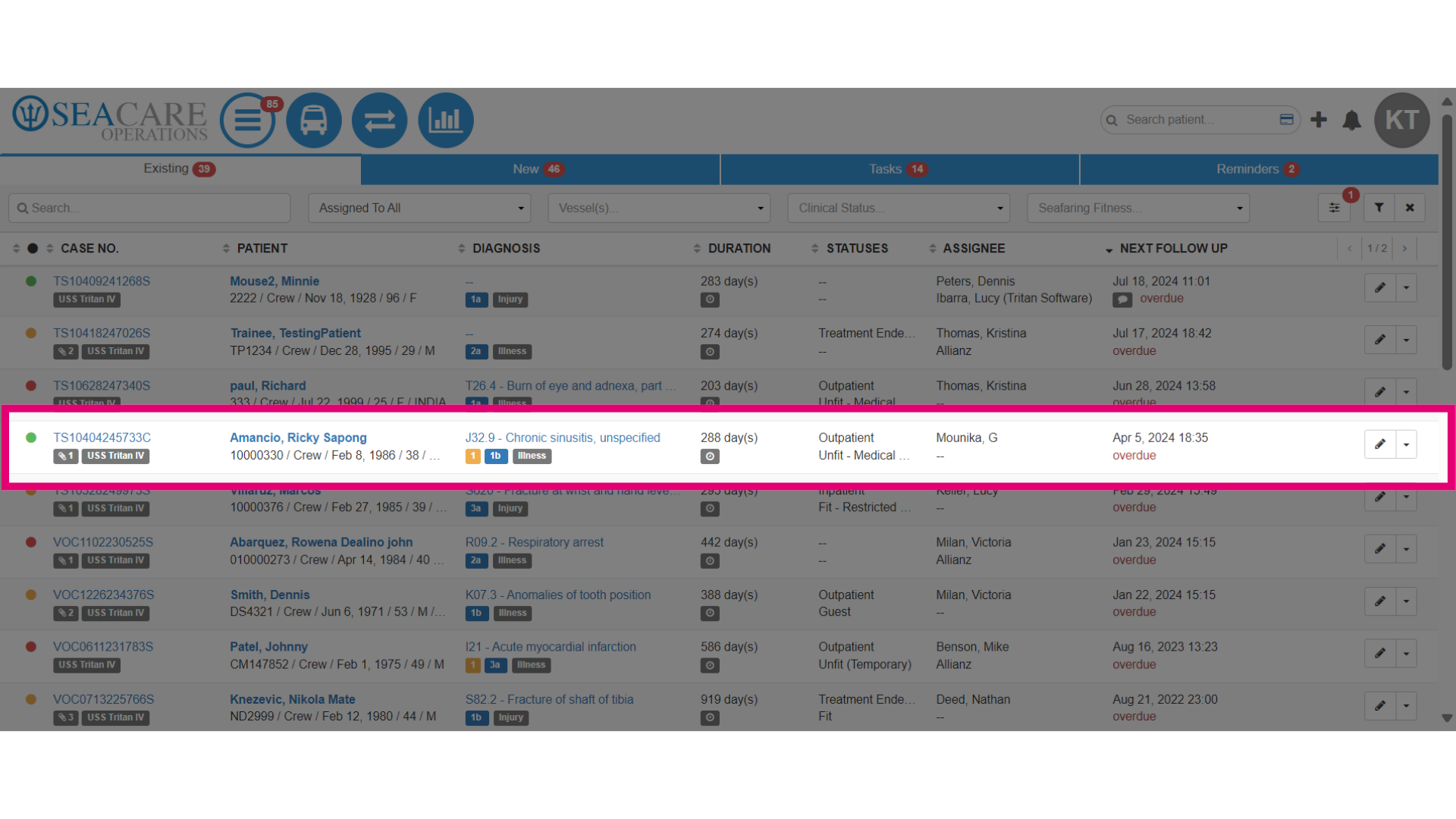
- First, locate the patient from the list of cases.
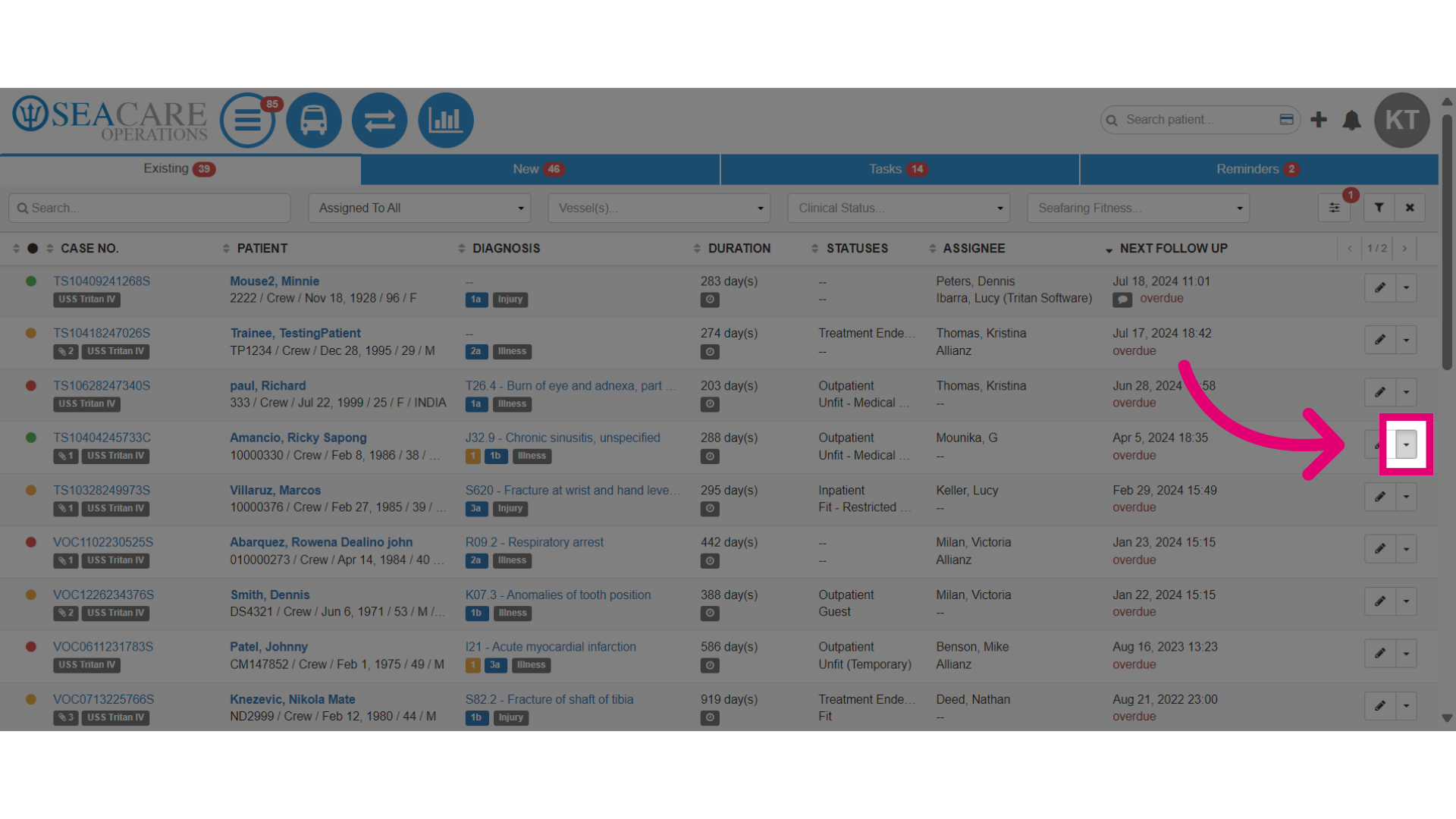
- Then, select the Actions menu button.
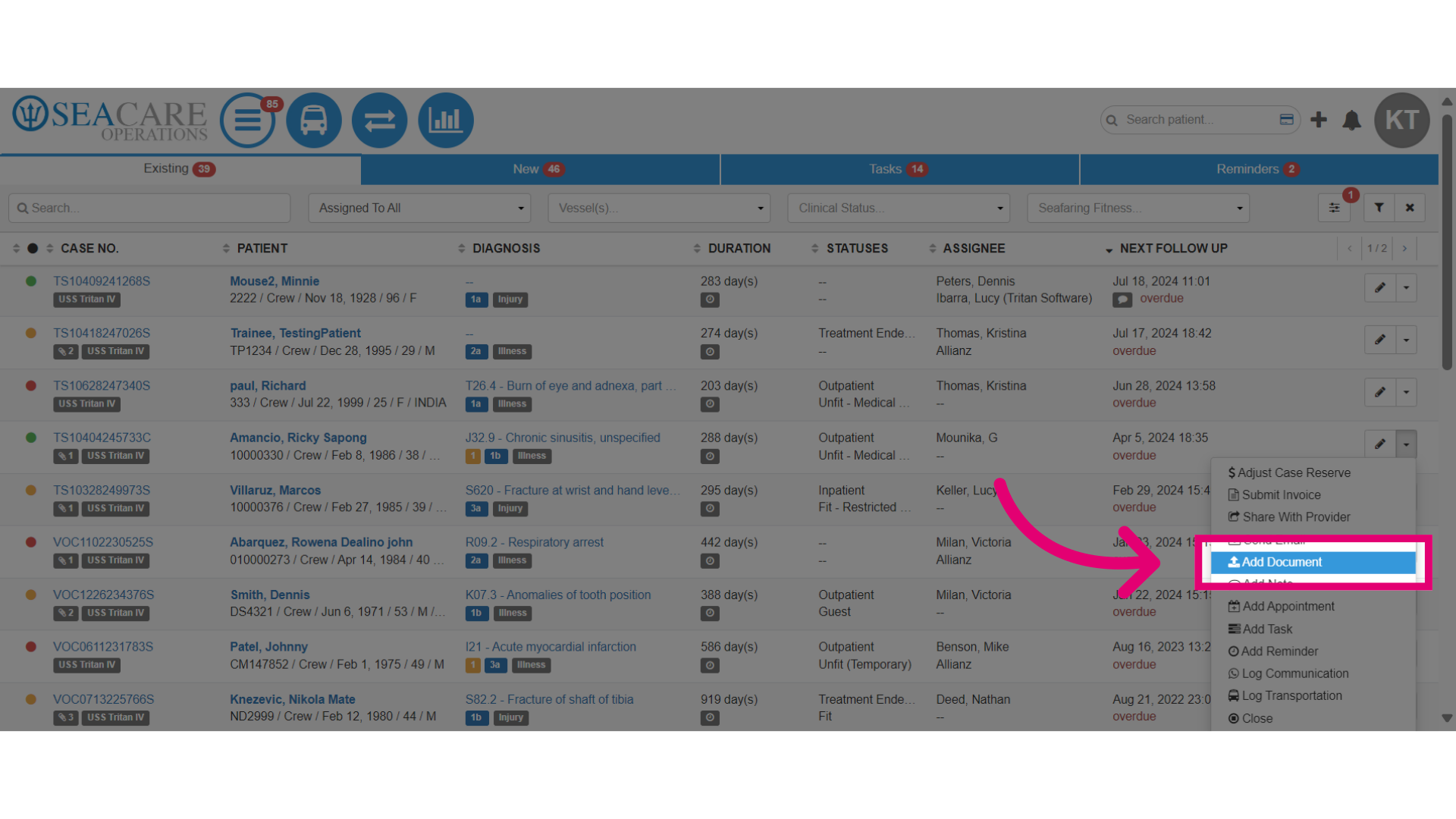
- Select the option to add a new document.
- Complete the required fields for uploading the document.
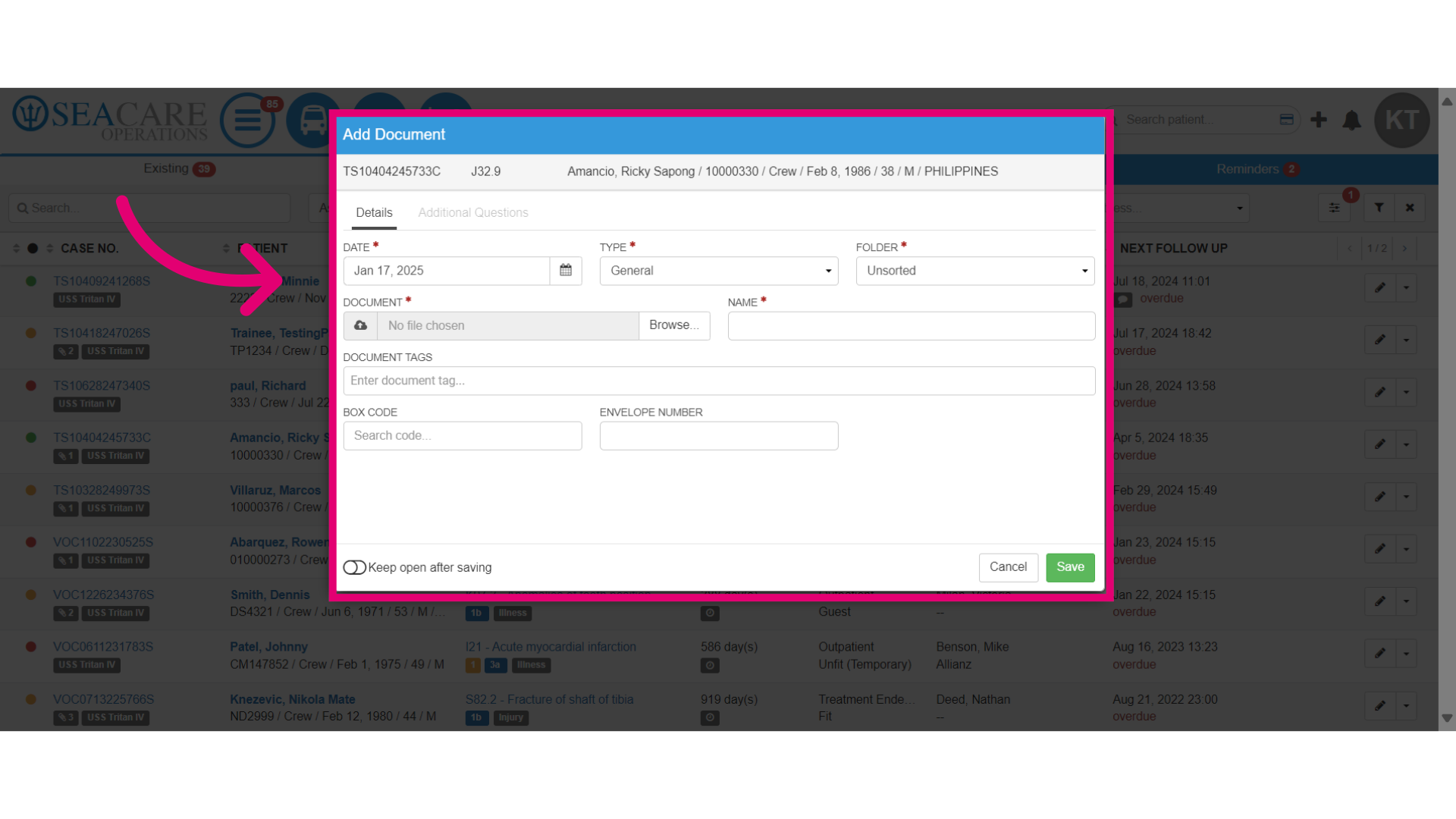
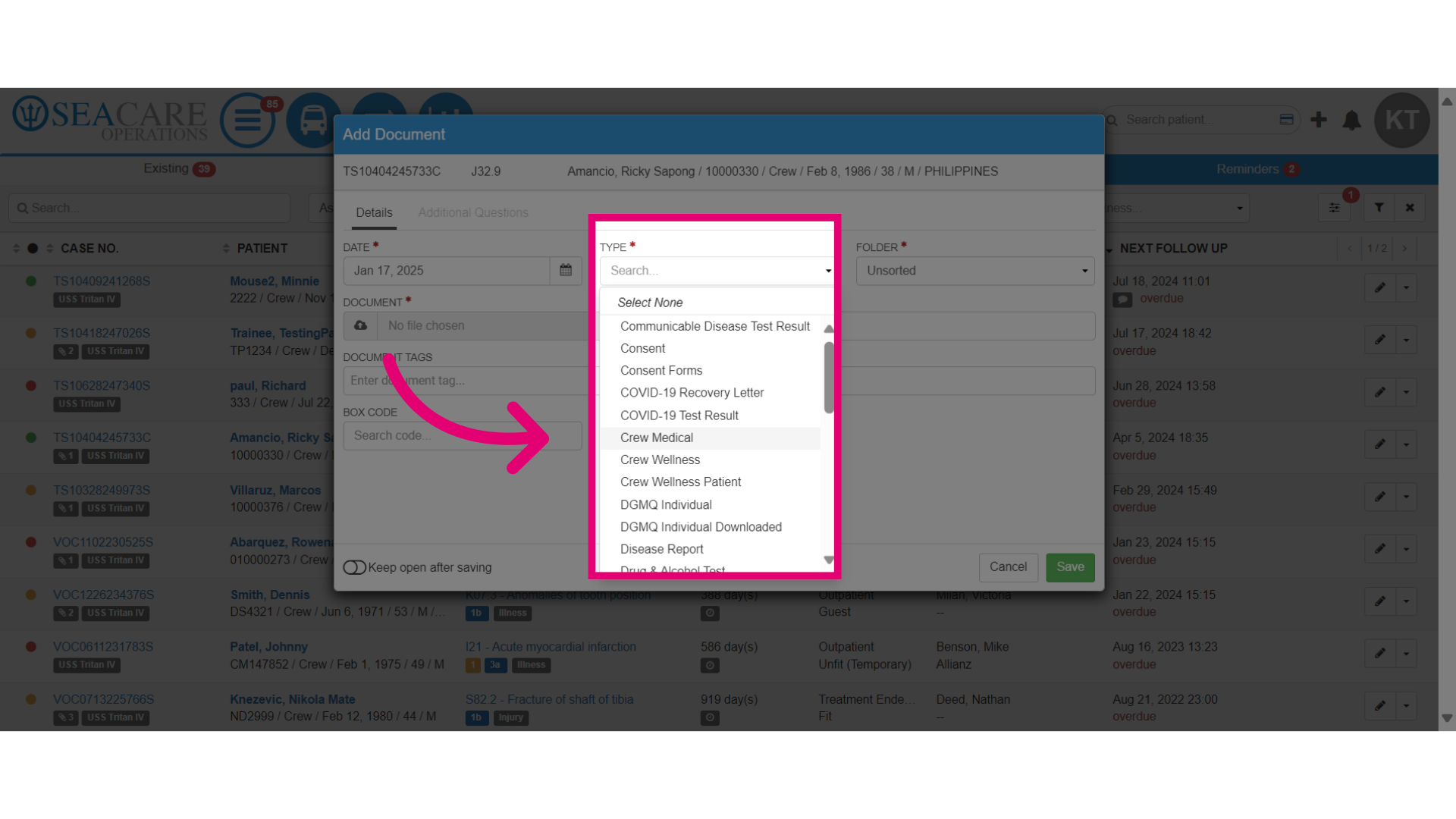
- Select the Document Type from the list, such as if the document is related to a medical record for a crew member then choose Crew Medical.
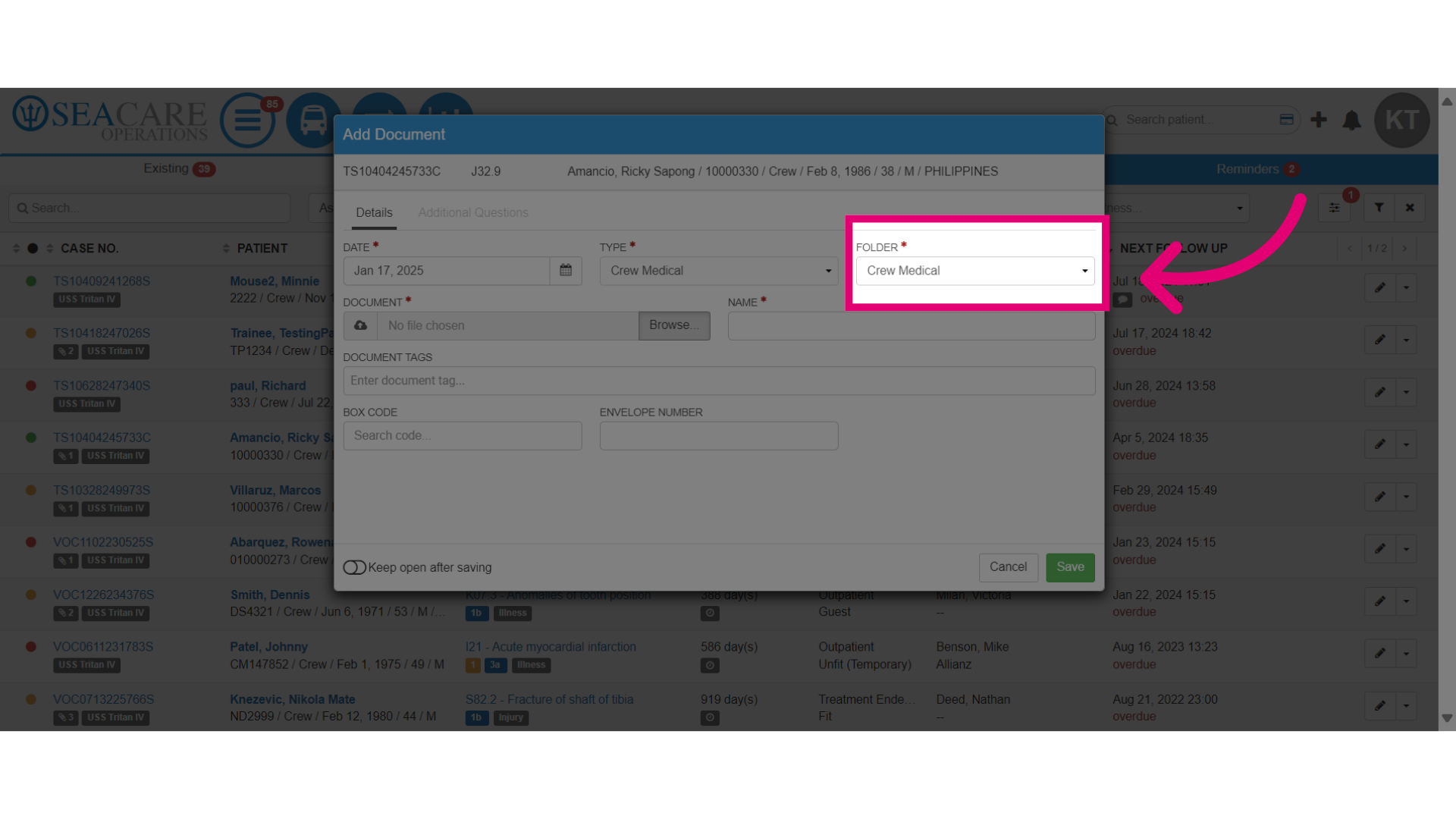
- Confirm the Document Folder is correct. The folder may be automatically populated after choosing the document type. In this case, it was populated to Crew Medical but you may select the desired folder.
- Next, upload the document from your device.
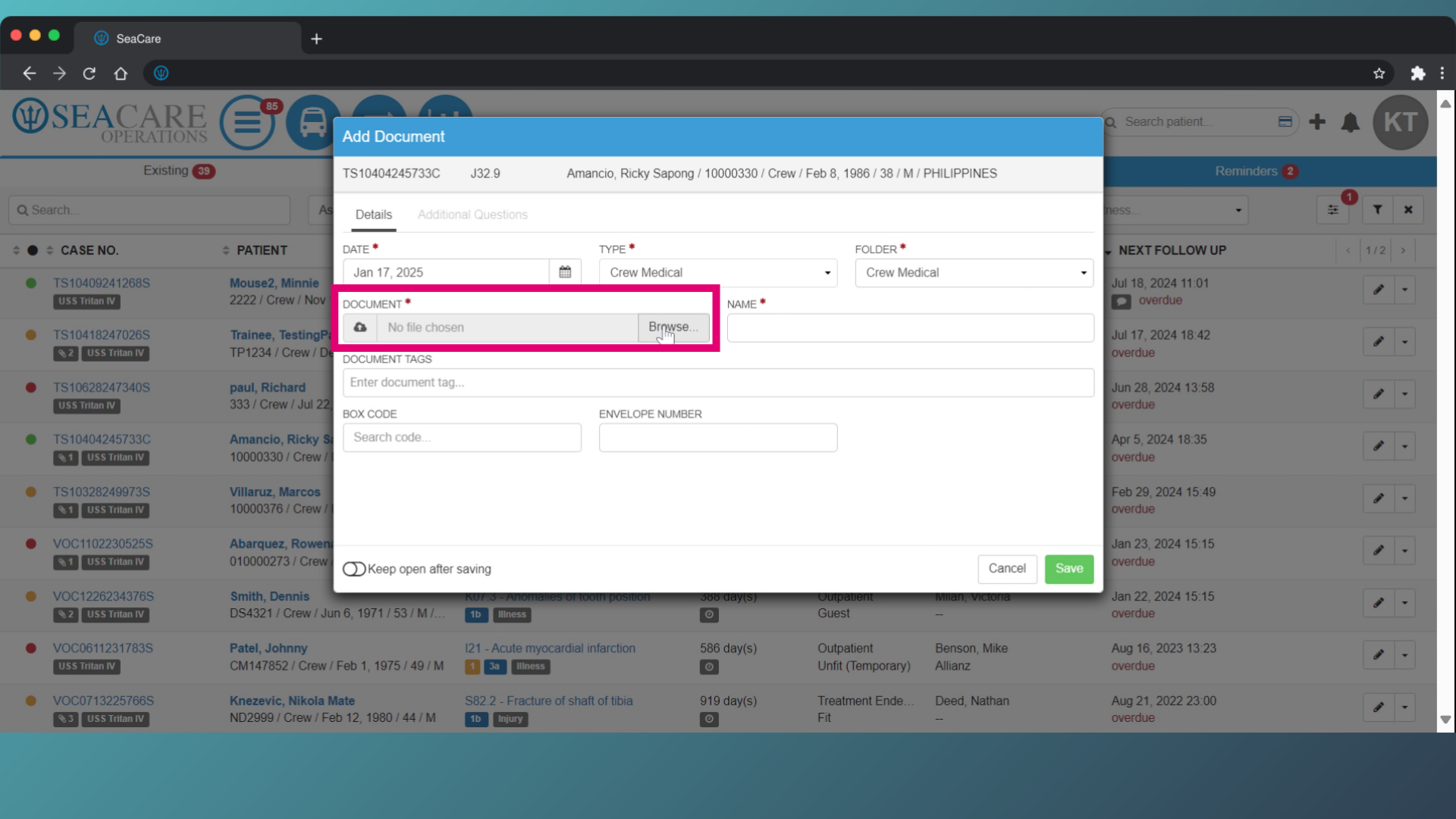
- Verify that the Document Name is correct.
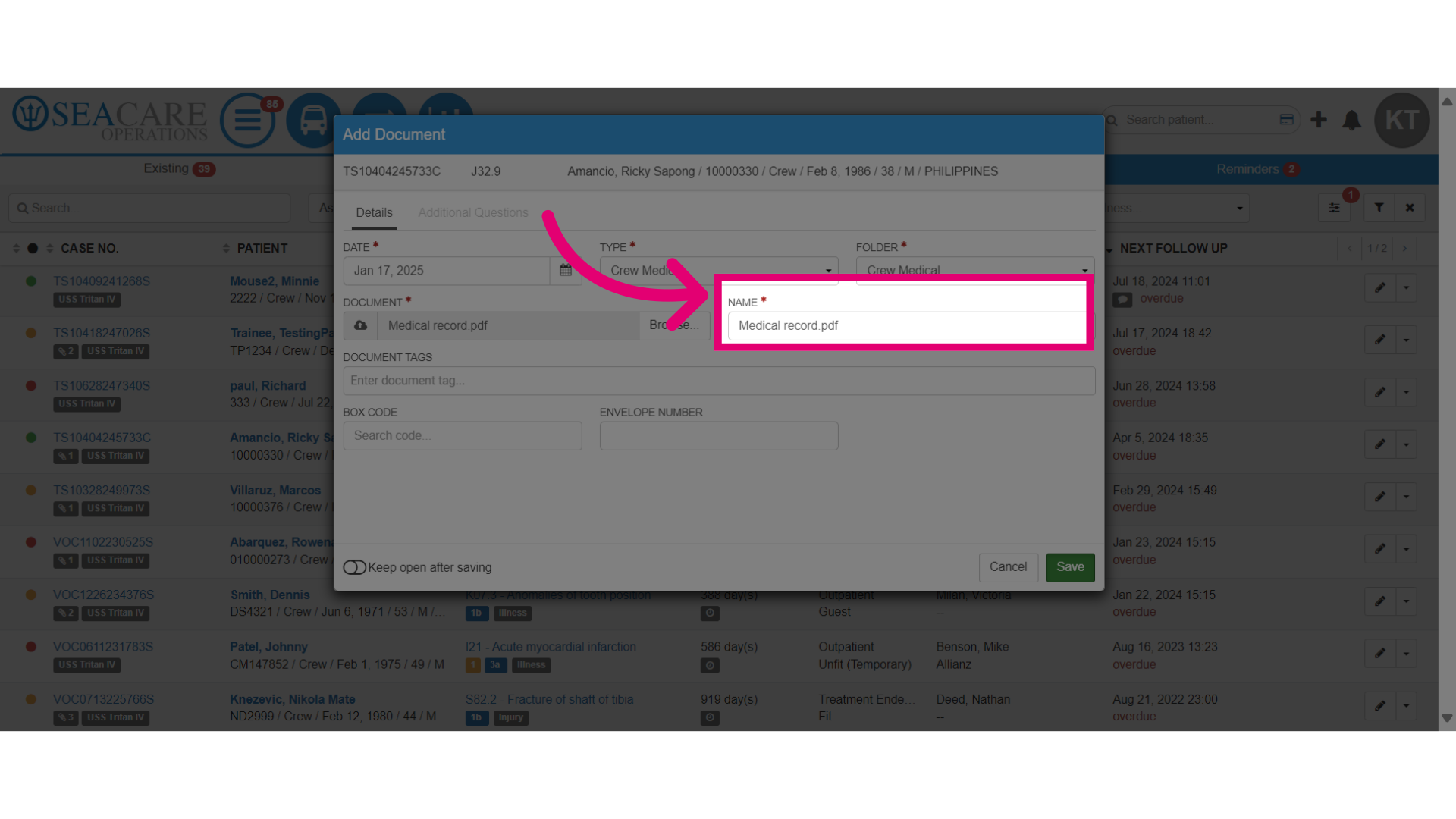
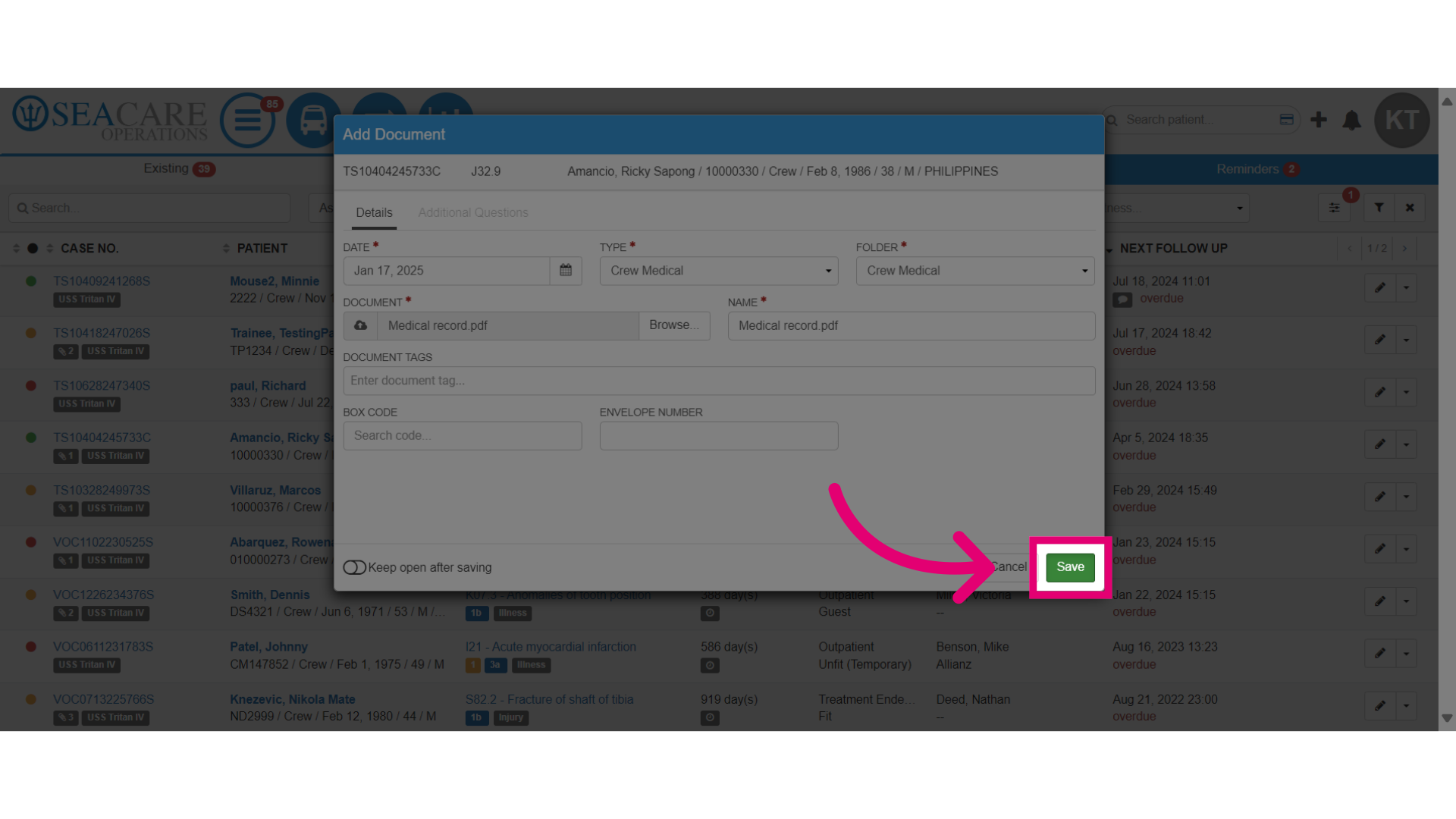
- Then, save the uploaded document details.
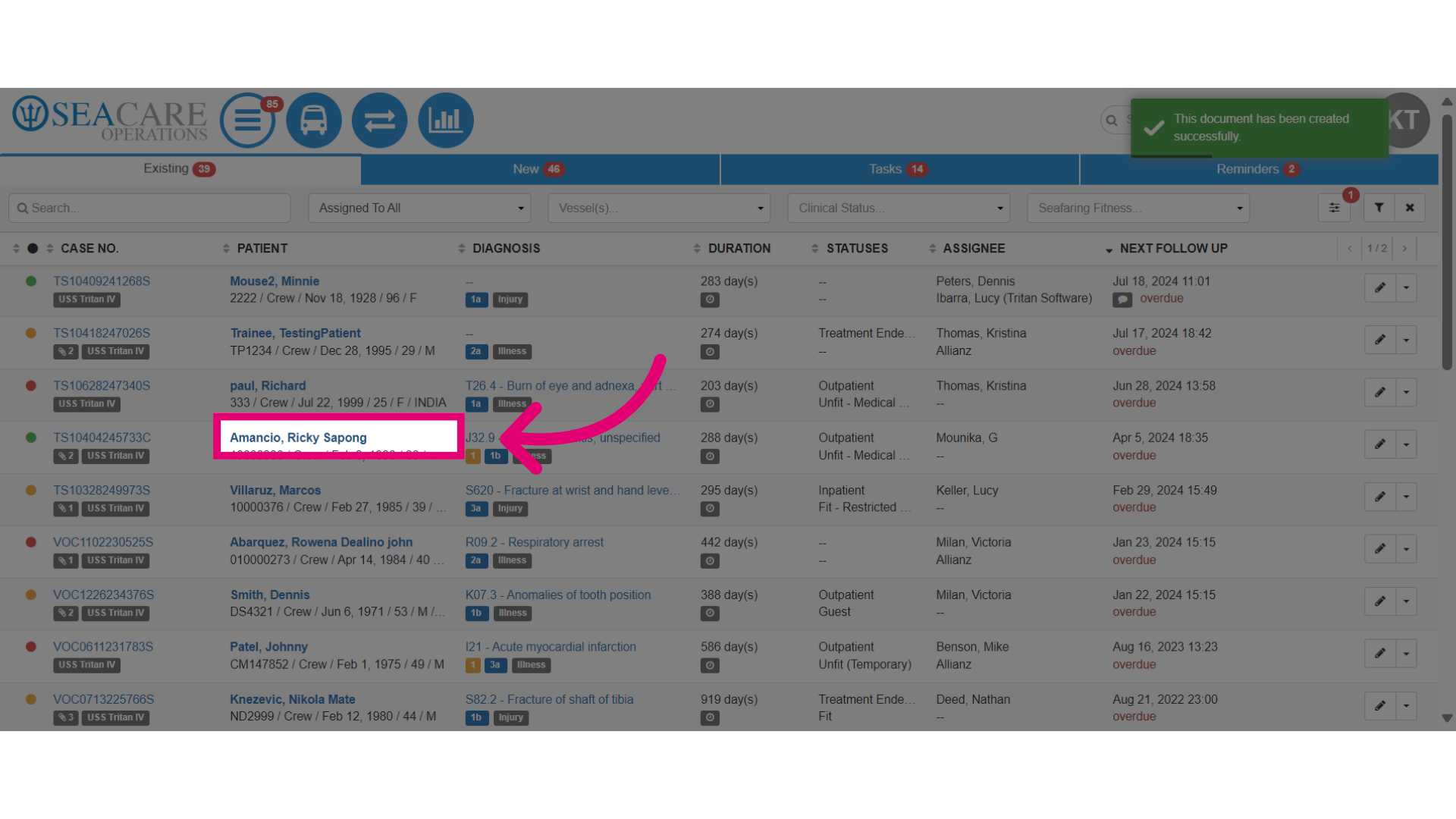
- Click on the patient's name to be redirected to the patient's chart to confirm that the document has been added to the patient's record.
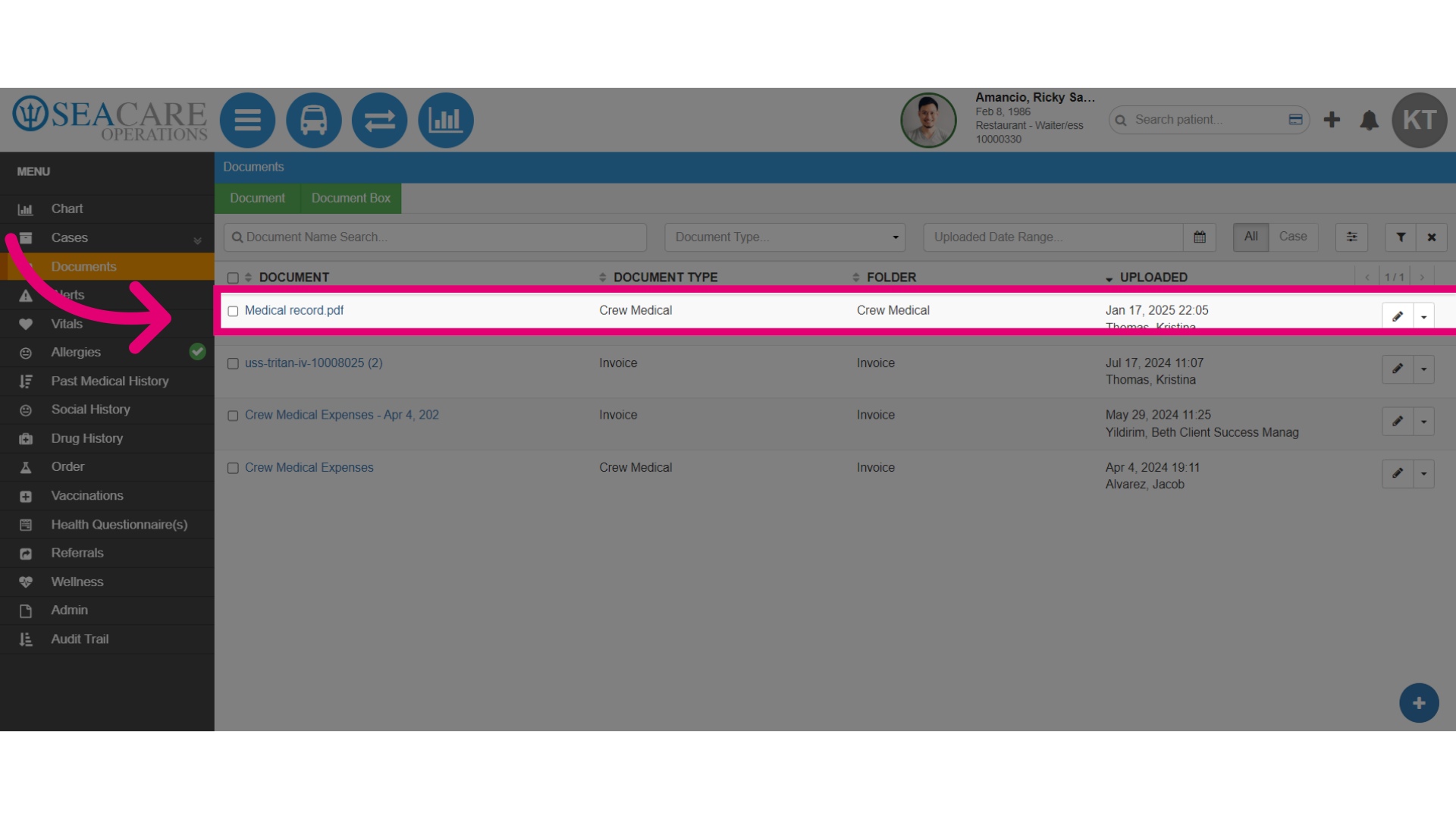
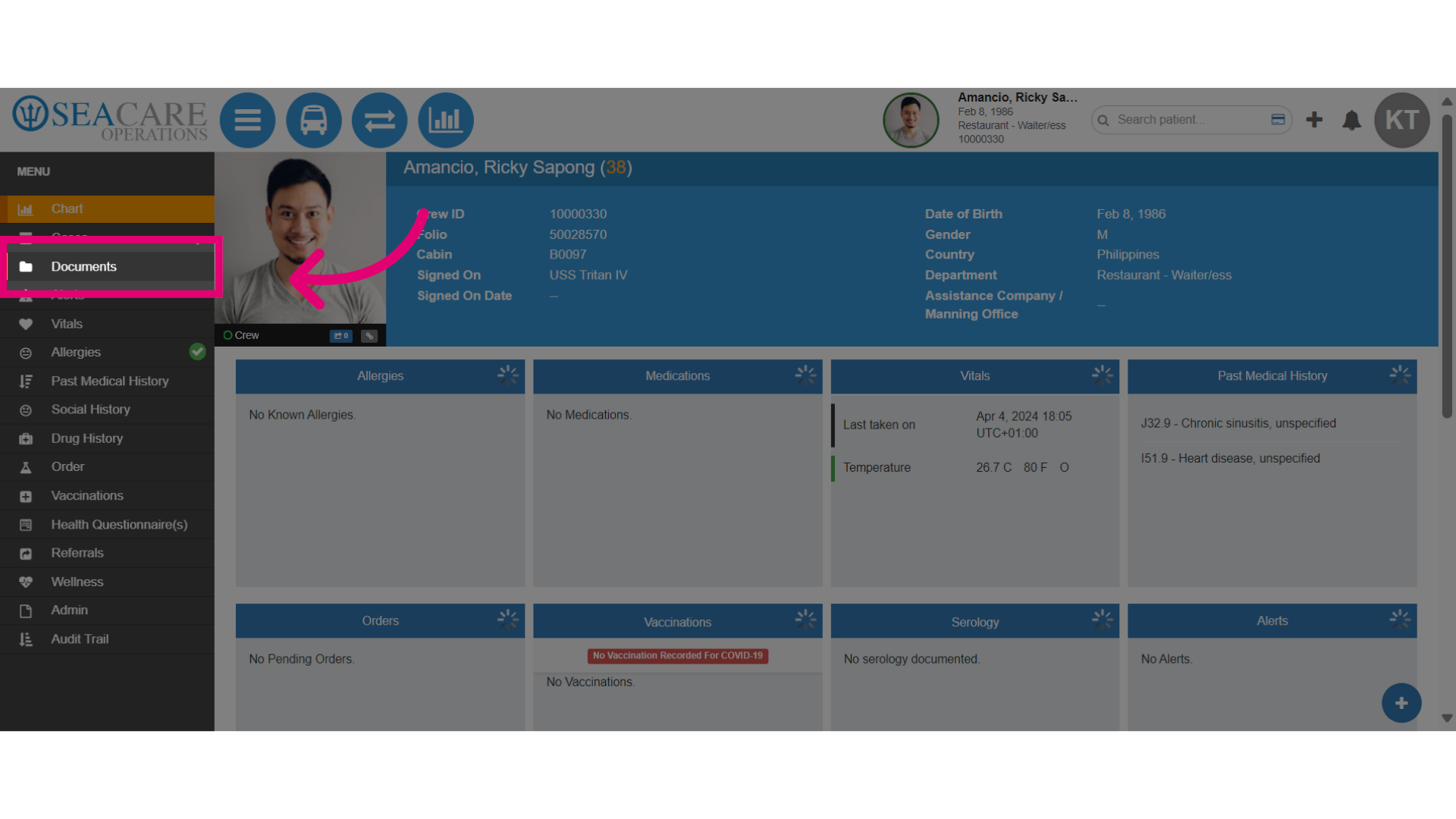
- Once you have been redirected to the patient's chart, select the Documents module.
- Confirm that the document has been added to the documents list.