New article
Recently updated
Uploading Mass Temperature Checks

Who is this article for?Users who want to upload Mass Temperature Checks in Ideagen Maritime Health Onboard.
No elevated permissions are required.
This guide helps you upload bulk temperature checks into Ideagen Maritime Health Onboard for crew or guest boarding as part of pre-boarding protocols. Follow the instructions to prepare, format, and upload your data successfully, saving time and enhancing record accuracy.
1. Uploading Mass Temperature Checks
1.1. Video
1.2. Steps
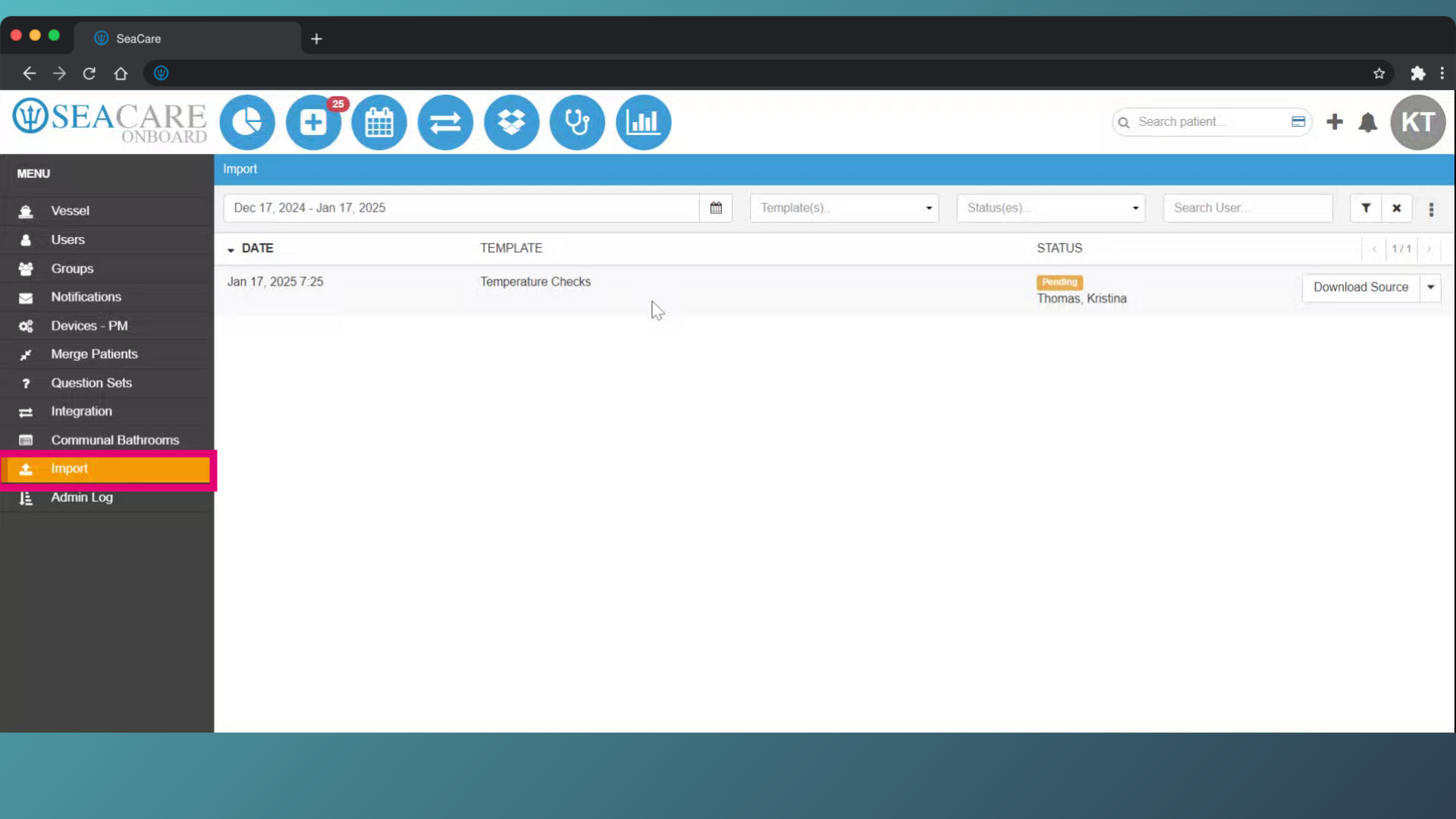
- Go to the Admin Menu and select the Import module.
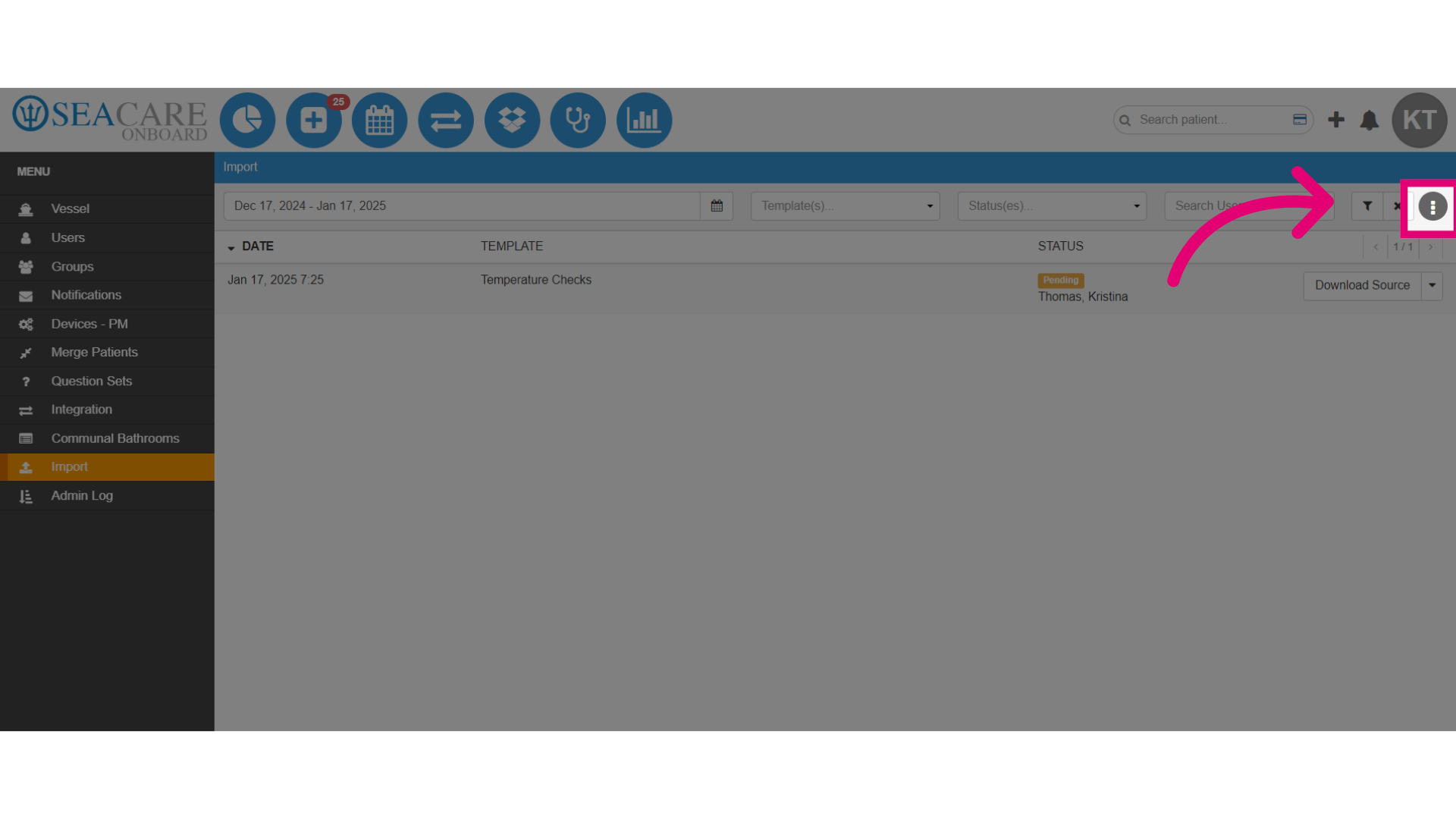
- Then, select the Import function.
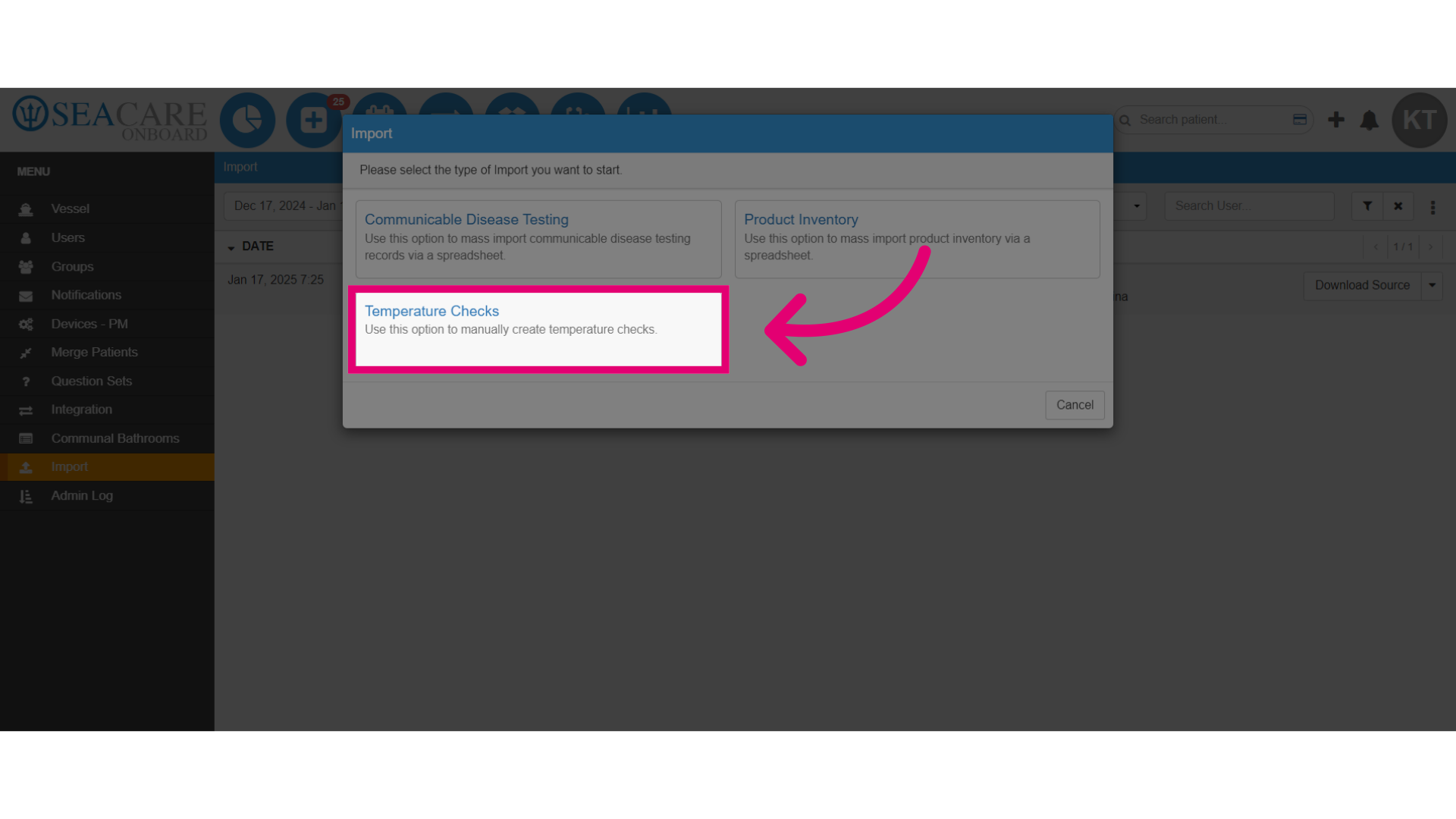
- Choose the Temperature Checks option.
- Once the Import window is opened, follow the instructions for importing the temperature data. There are 3 easy steps.
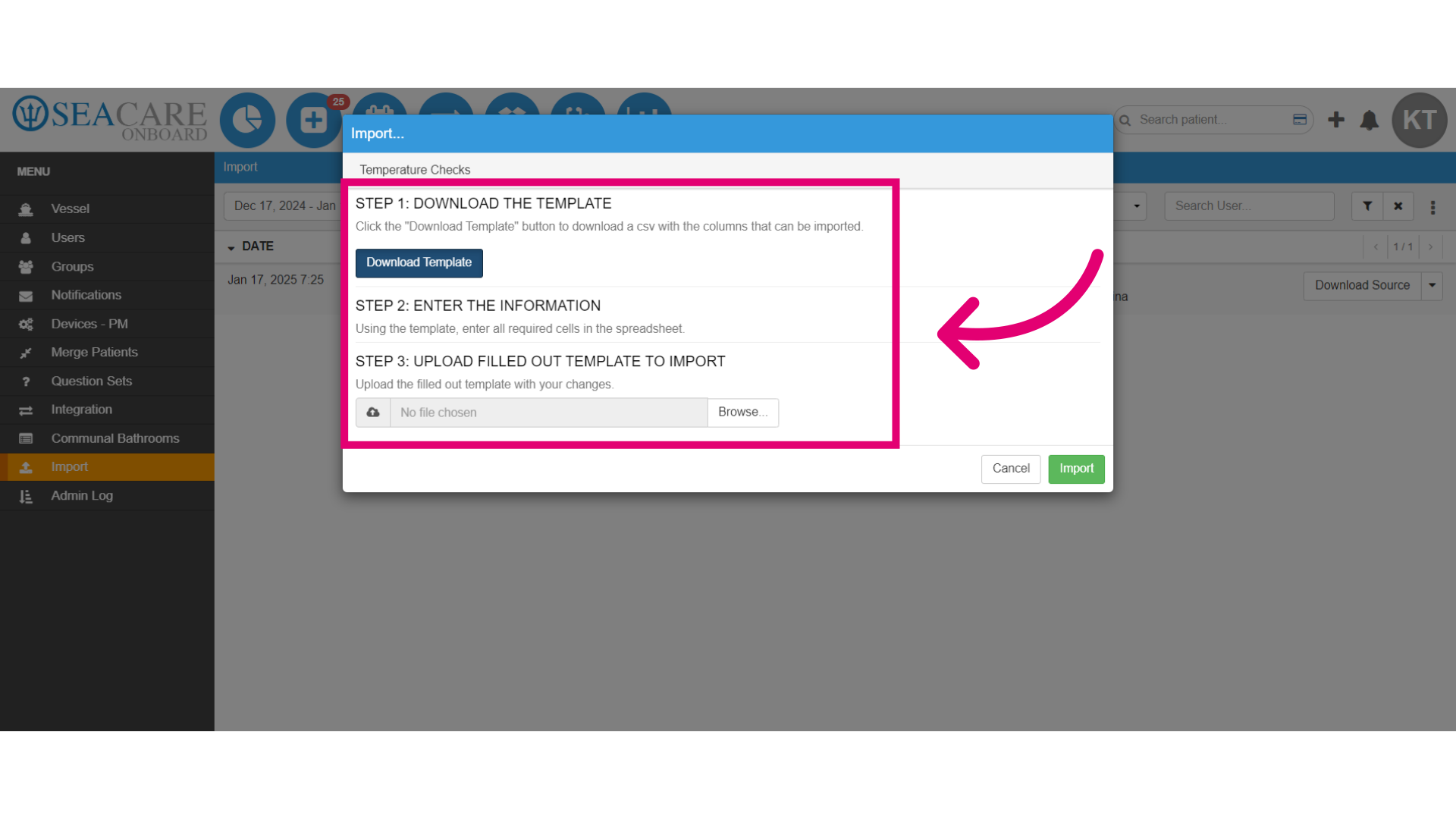
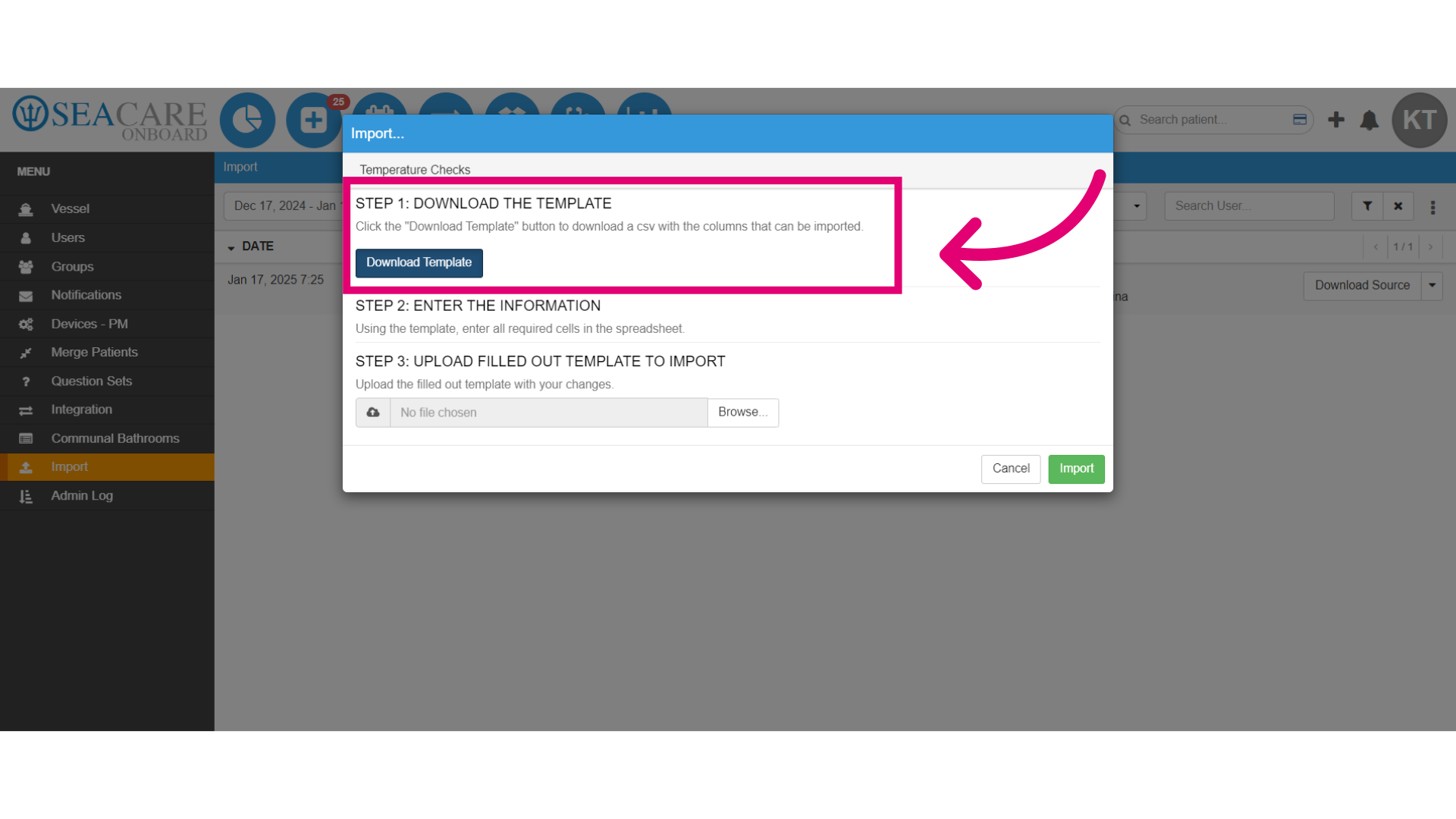
- The Step 1 requires you to click on the Download Template button to retrieve a pre-formatted CSV file that you'll use for input.
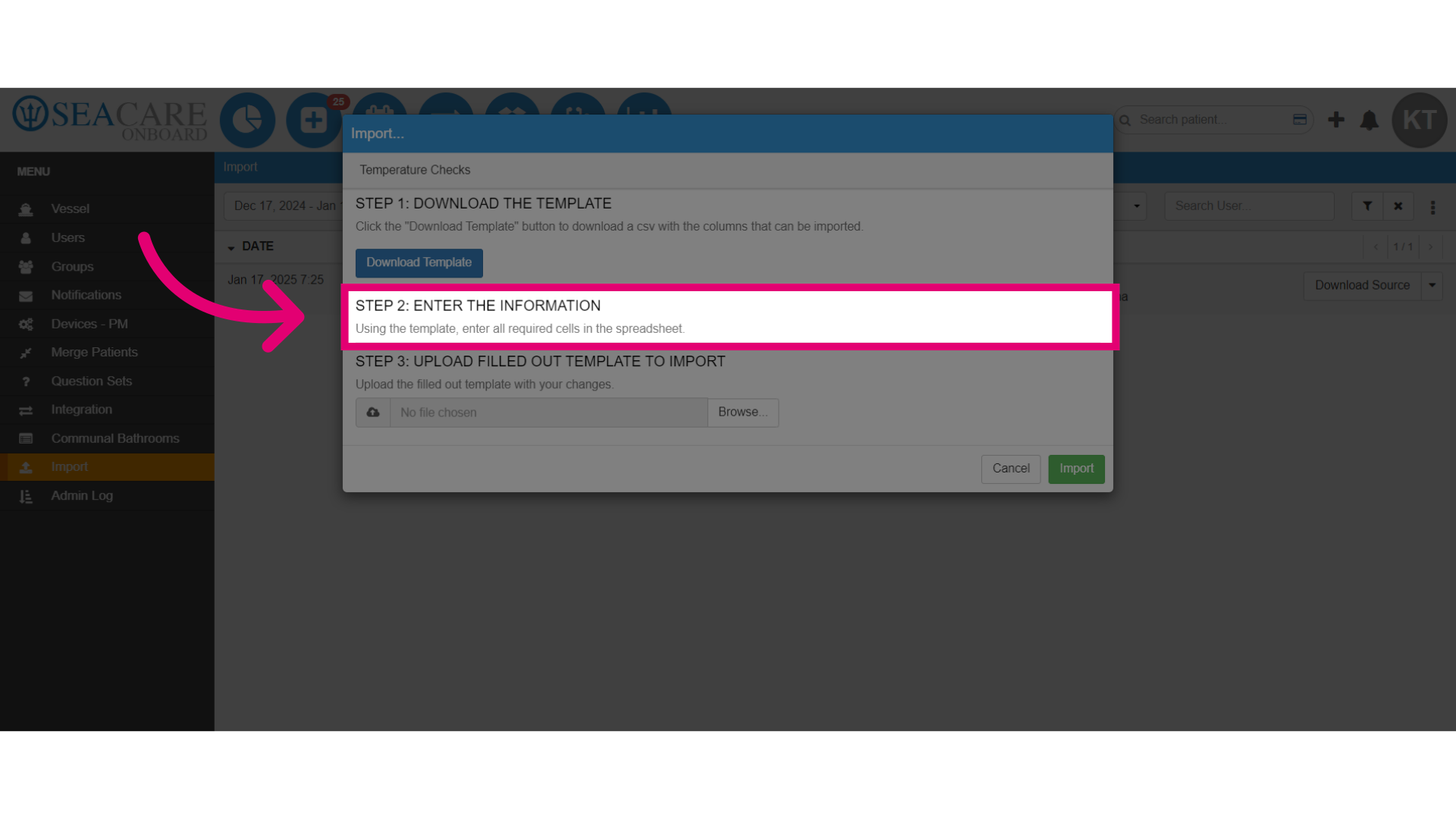
- Complete Step 2 by opening the downloaded template.
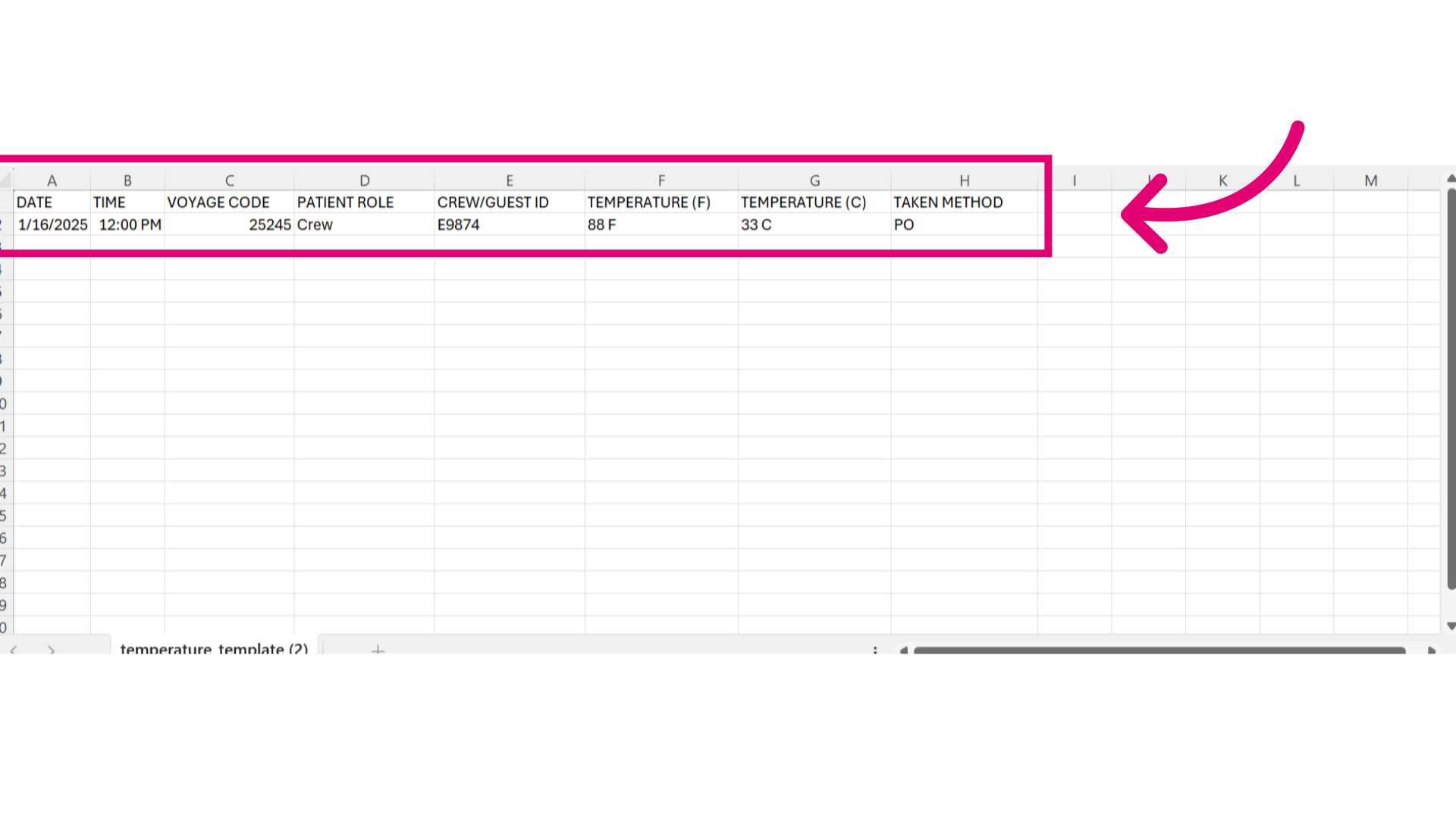
- Fill in the required information which includes:
- Date - The date the temperature was taken
- Time - The time the temperature was taken
- Voyage - The voyage the passenger will go on
- Patient - The patient name
- Temperature data - The temperature reading
- Ensure that you follow the proper format for the import.
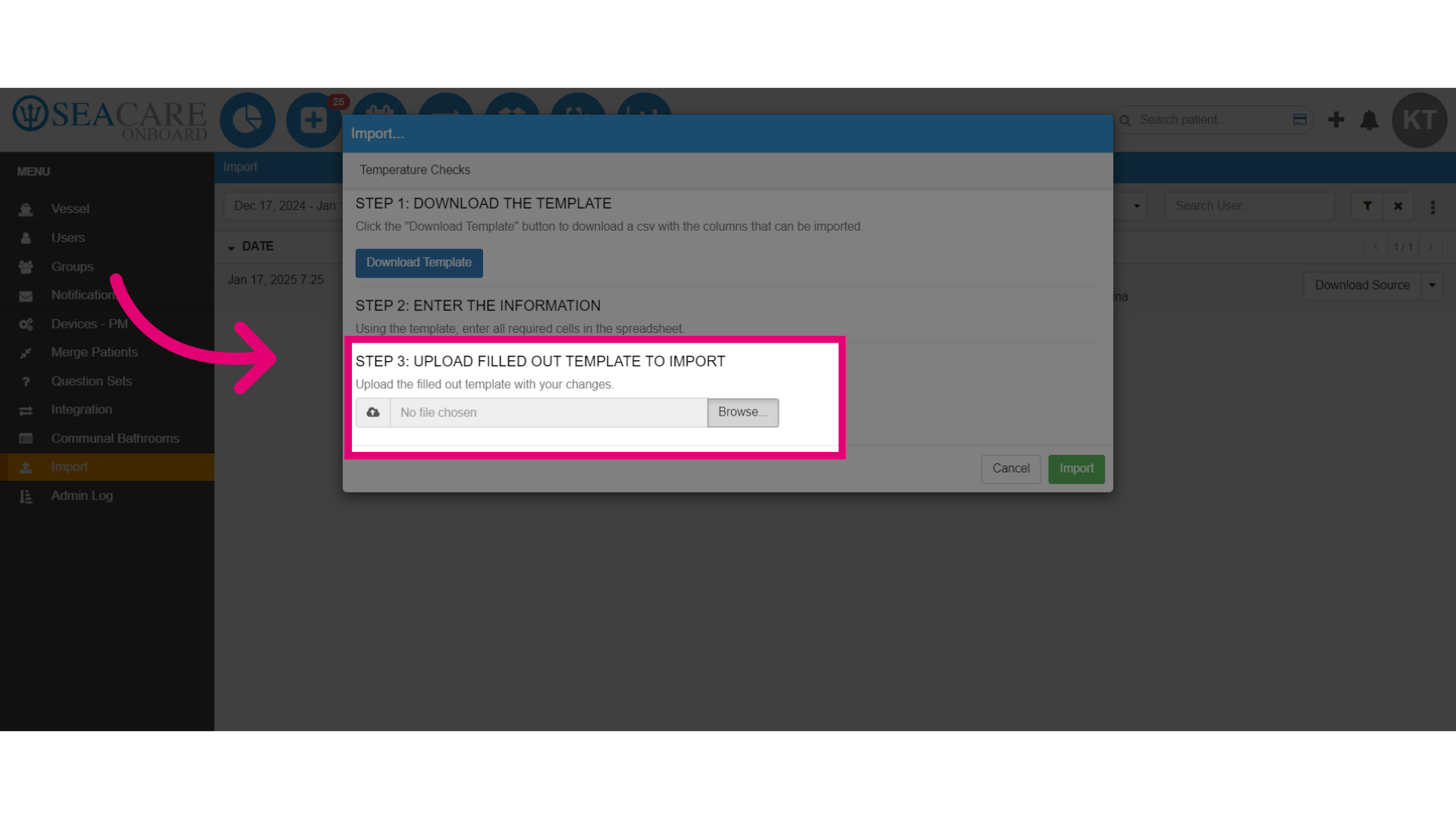
- Then, upload the completed template by selecting the file from your device.
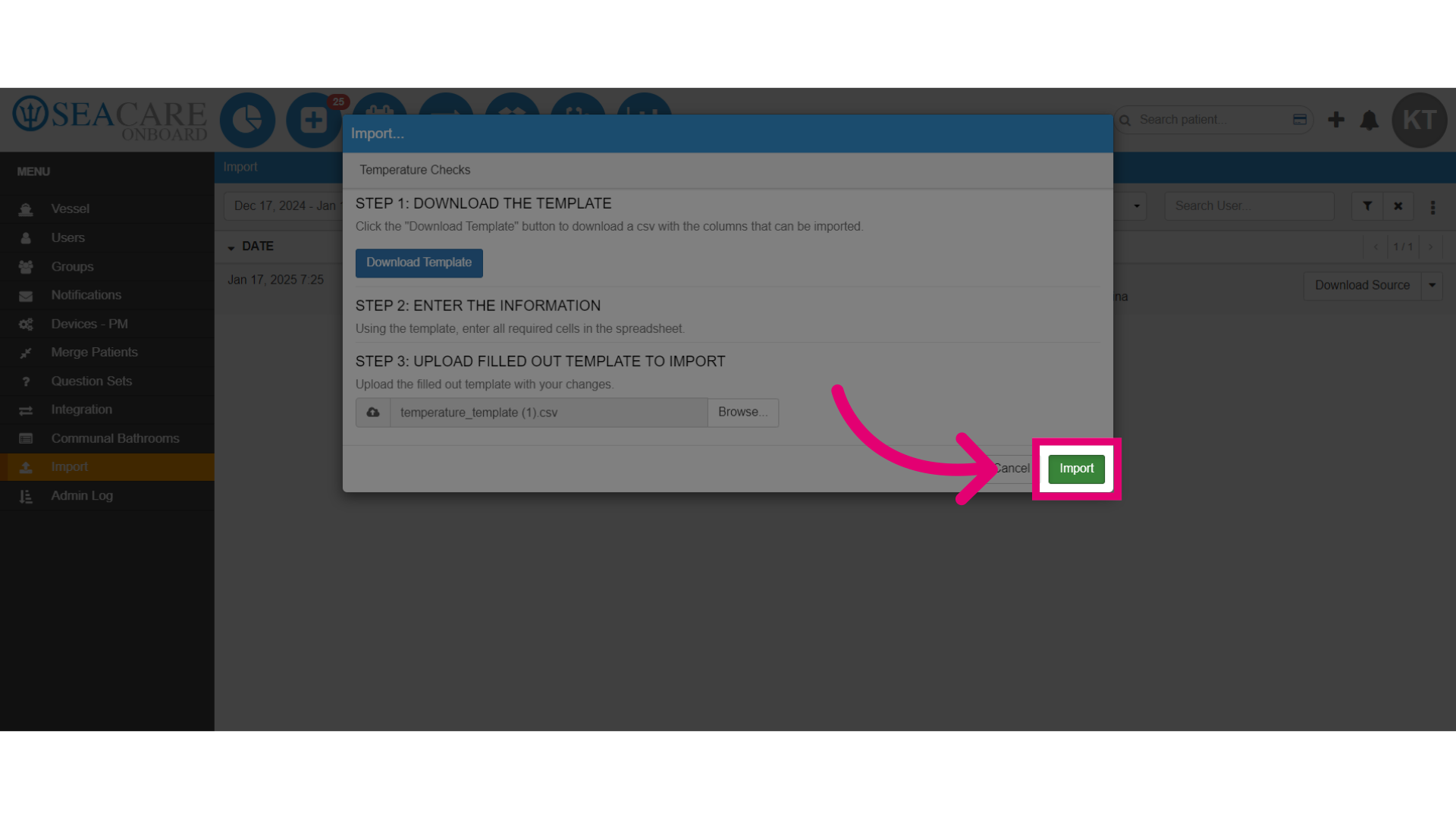
- Next, select Import.
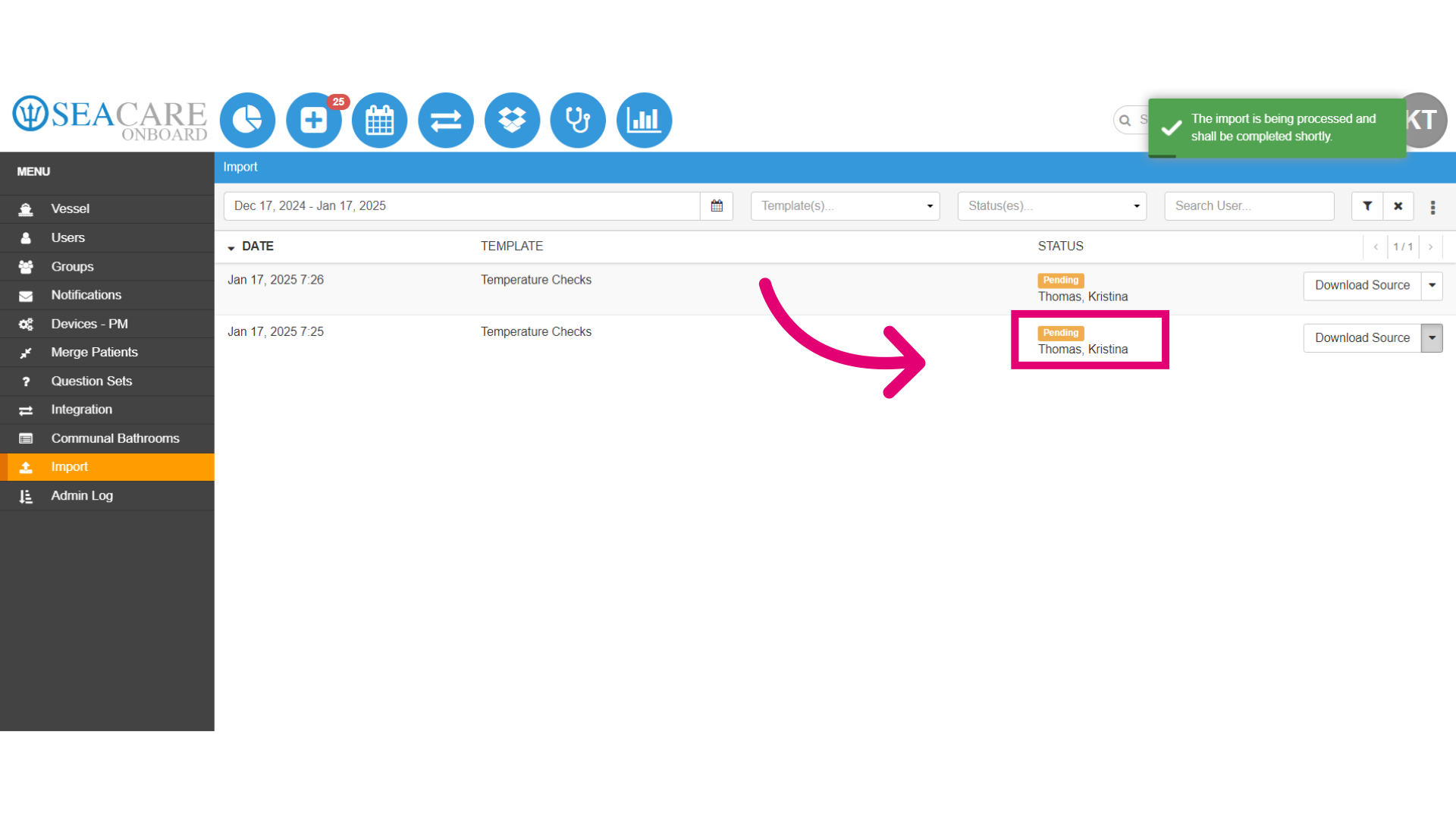
- Here is the process when the temperature is uploaded:
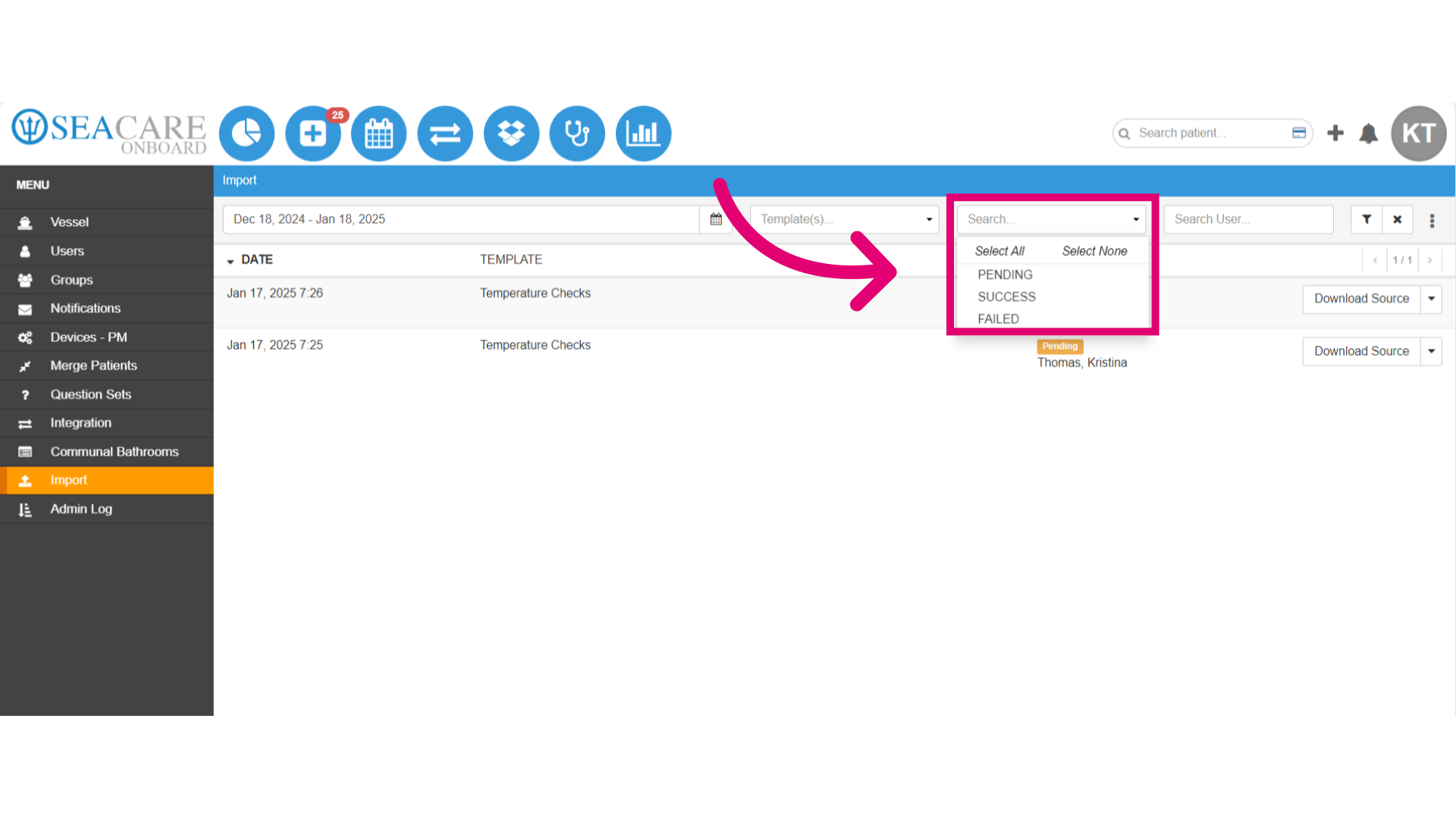
- Temperature check data will be uploaded with a default status of Pending for new uploads.
- When the import is complete, the status will change to Success.
- If the import fails you will see a Failed status.
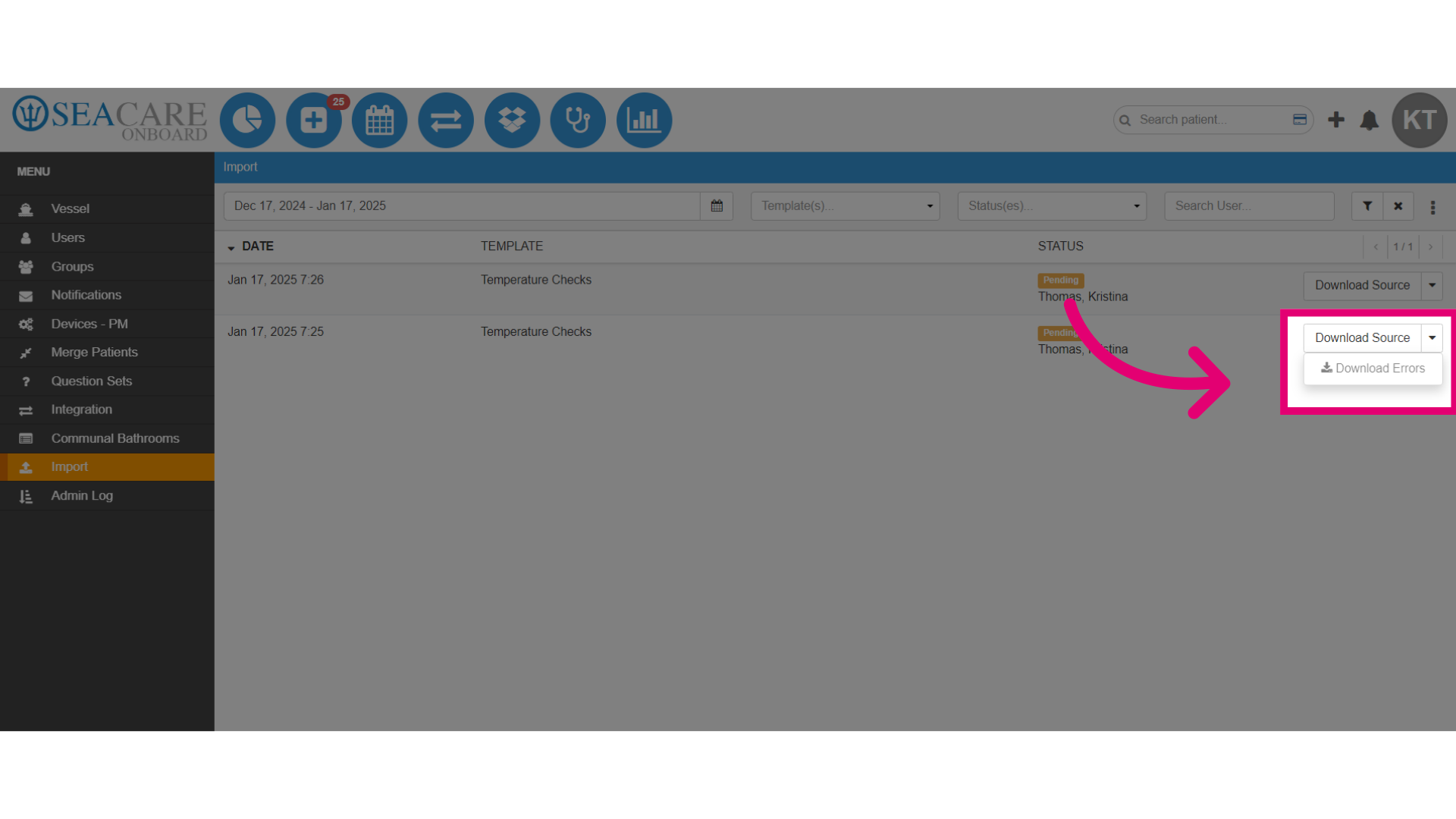
- Select Download Source to download a copy of the completed template data.
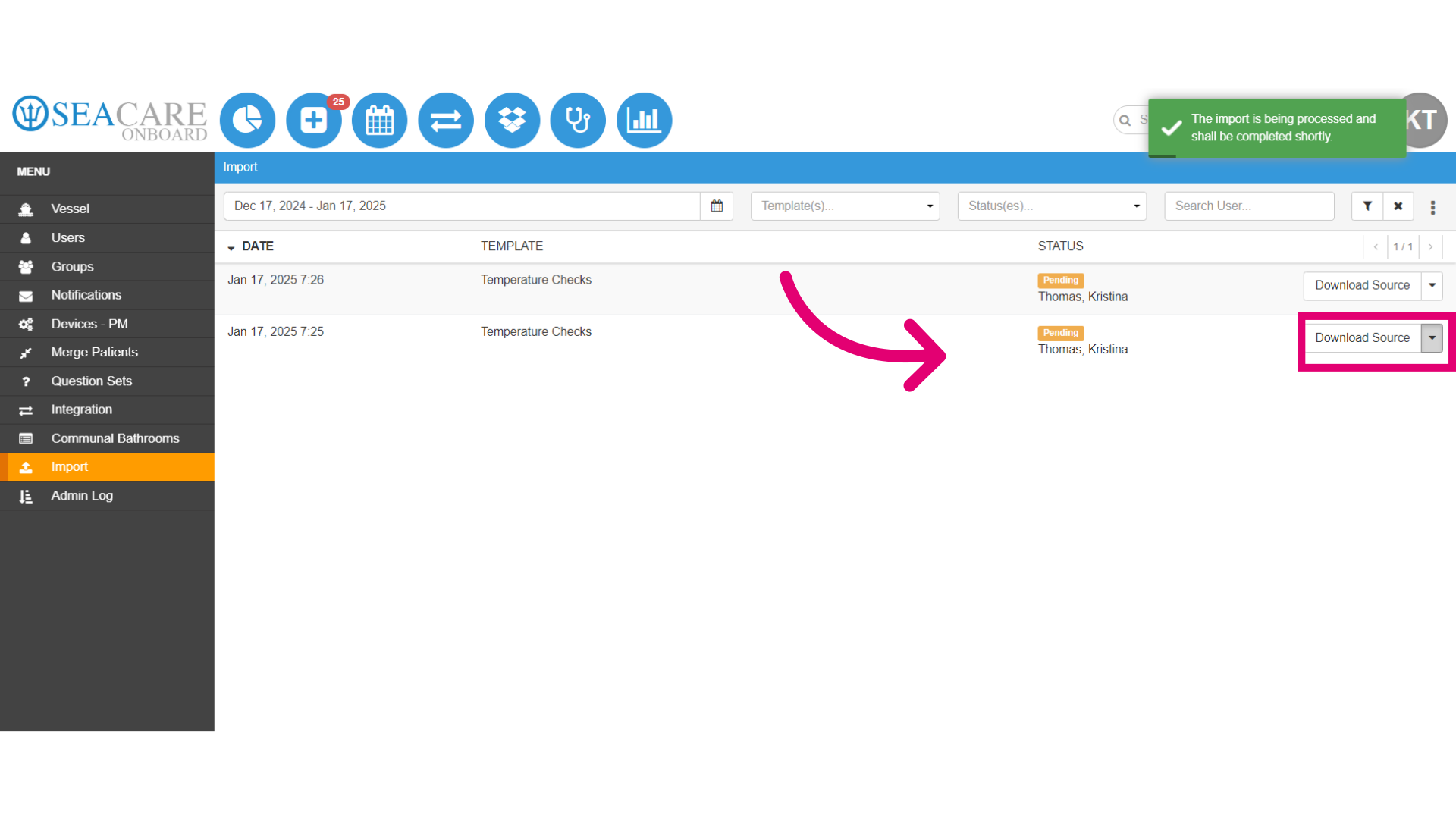
- Select the dropdown arrow and the Download Errors option, to download and view errors if there were errors during the import and it fails.
- You may check the statuses of the import under the Status filter to view imports that are pending, have succeeded or failed.