New article
Recently updated
Resetting a Password using "Forgot Password"

Who is this article for?Users who want to learn how to reset a password using the 'Forgot Password' feature in Ideagen Maritime Health Onboard.
No elevated permissions are required.
In the event that you are unable to access the Ideagen Maritime Health Onboard environment, you may utilise the "Forgot Password" option to reset your password. This guide will provide you with a detailed overview of the steps necessary to reset your password using the "Forgot Password" feature.
1. Resetting your password using 'Forgot Password'
1.1. Video
1.2. Steps
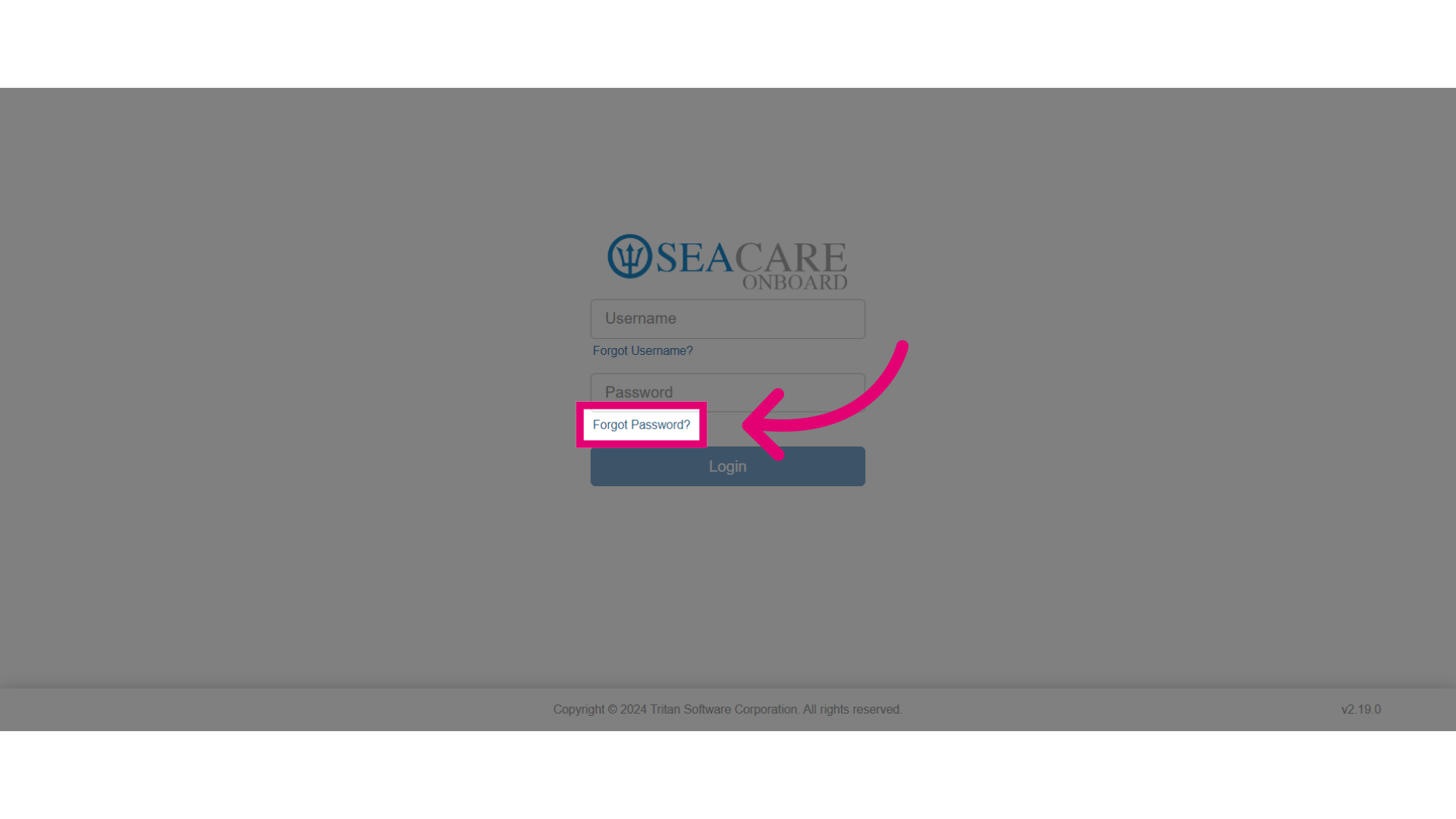
- Start by clicking Forgot Password?.
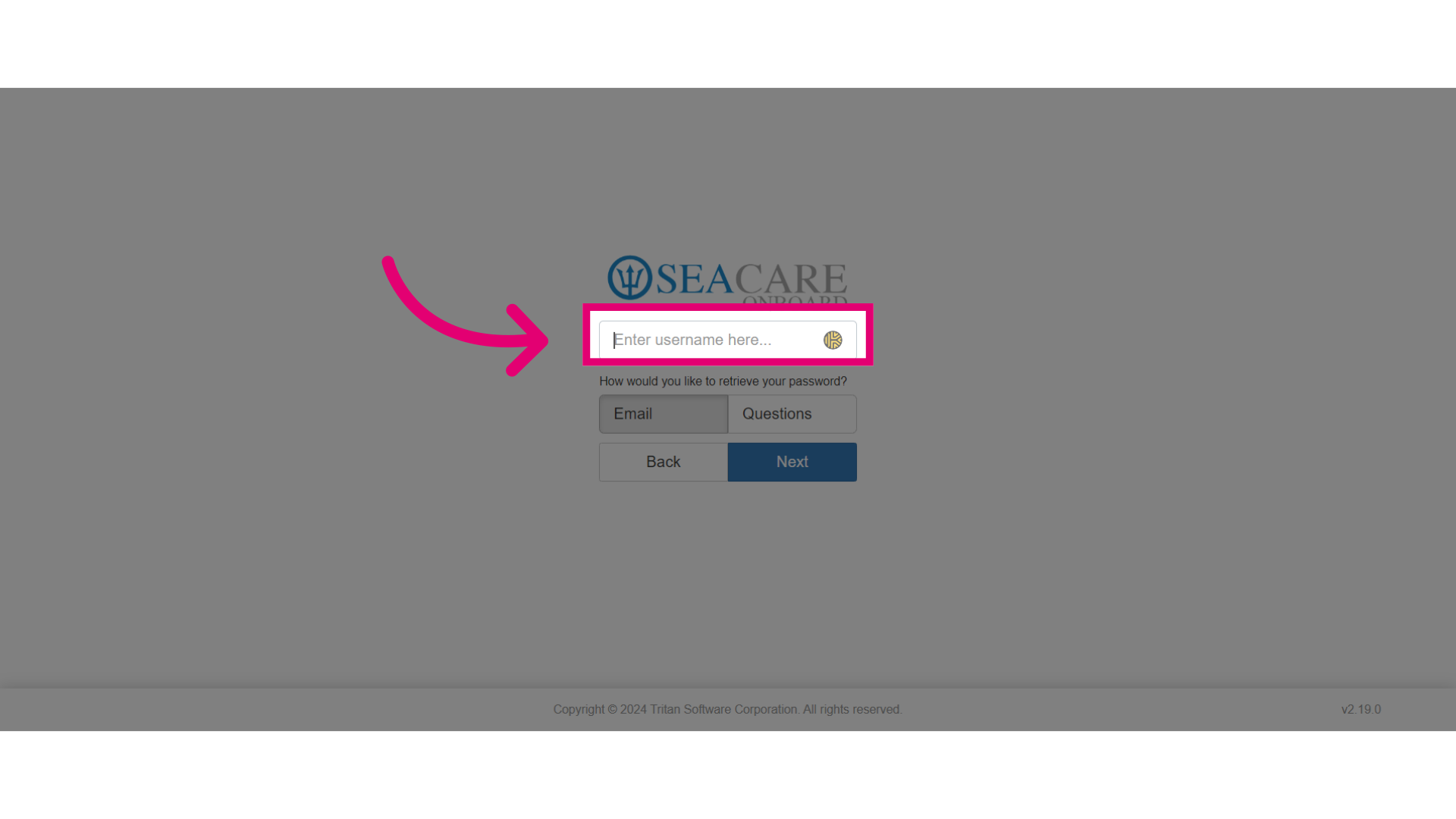
- Enter your username.
- You have two options for resetting your password:
- Choose to retrieve your password via email with a verification number.
- Reset your password by answering security questions.
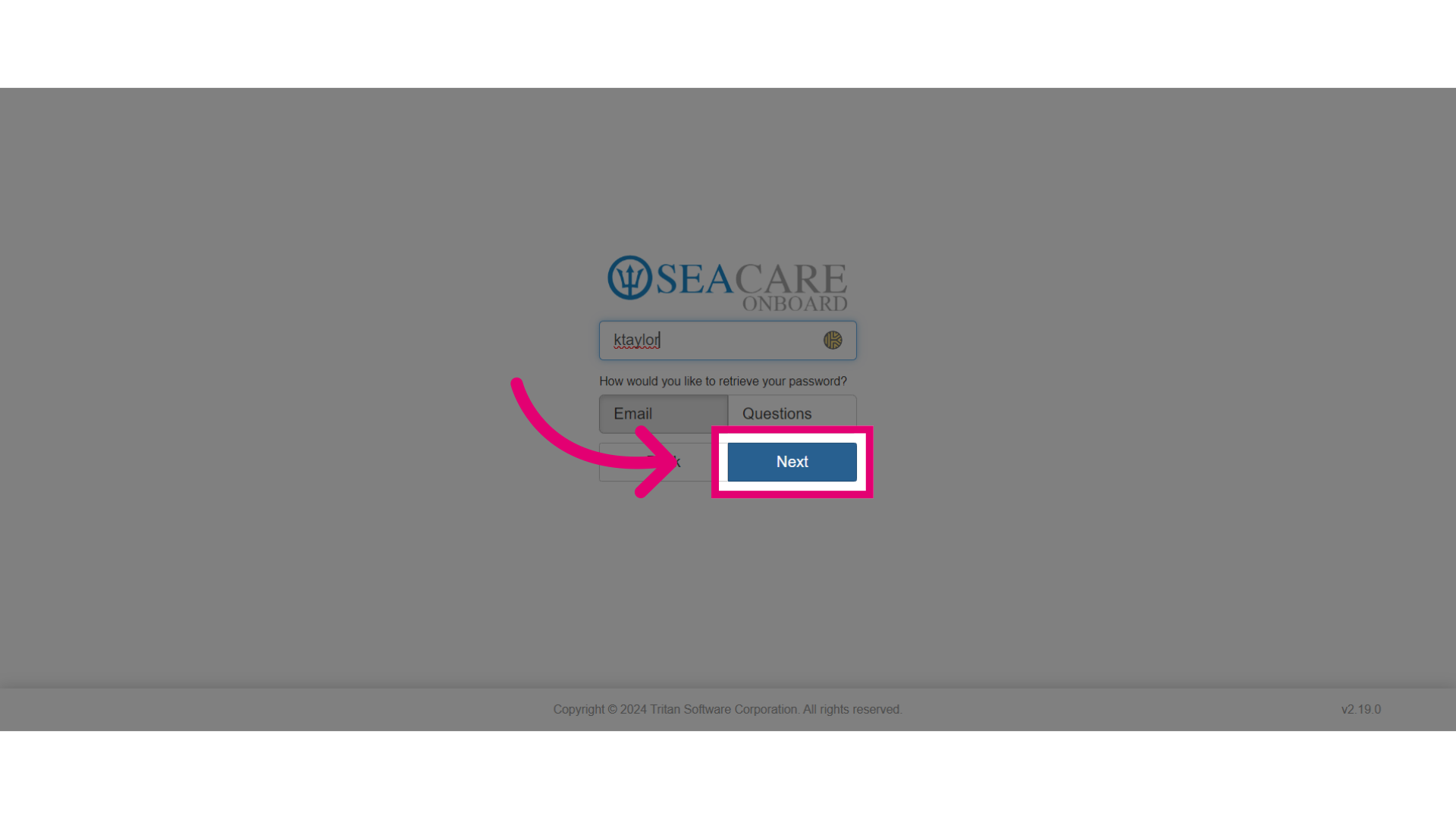
- Let's try email first. Select email, then click Next.
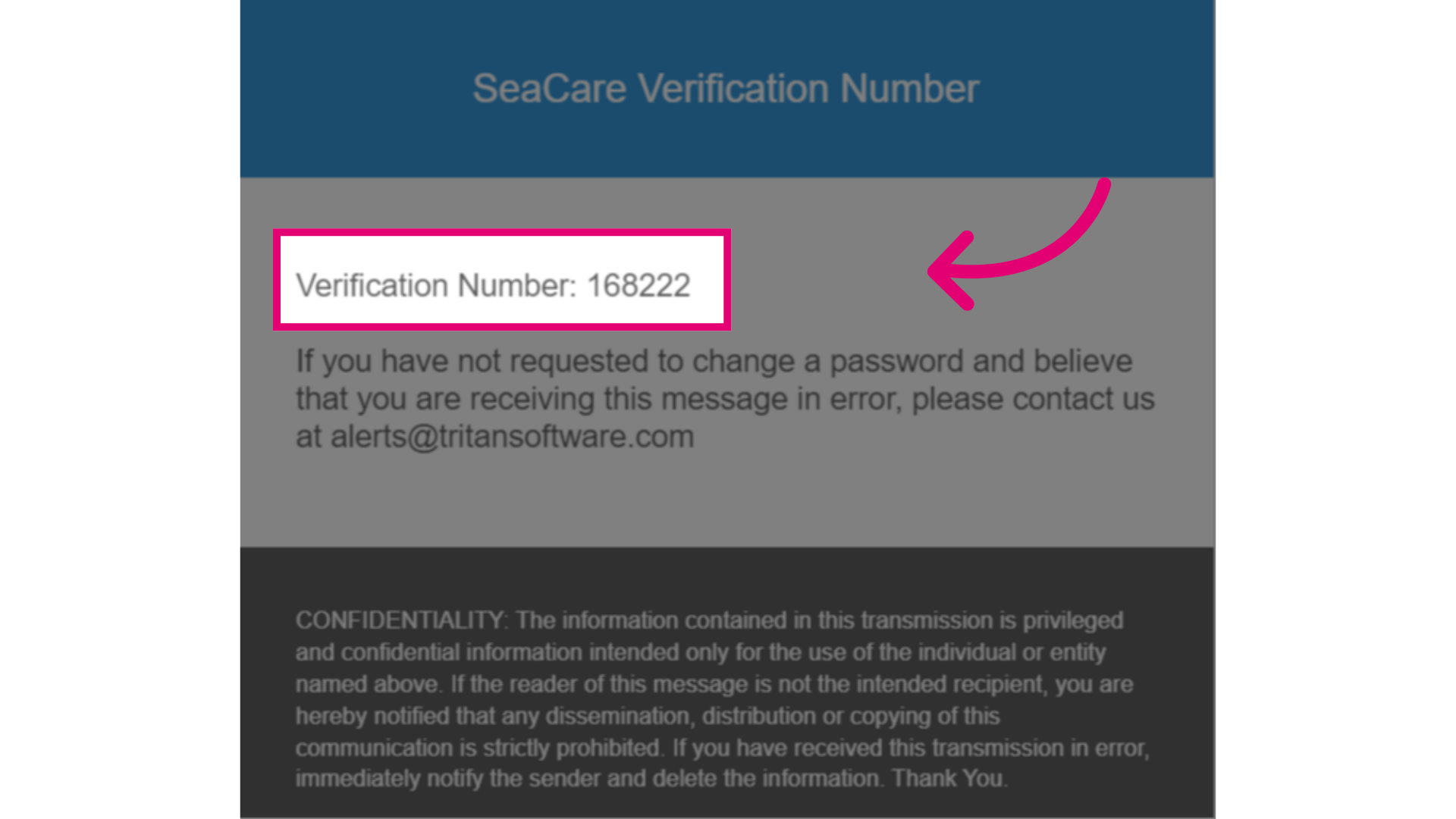
- Locate and open the Ideagen Maritime Health verification email. Then, copy the verification number.
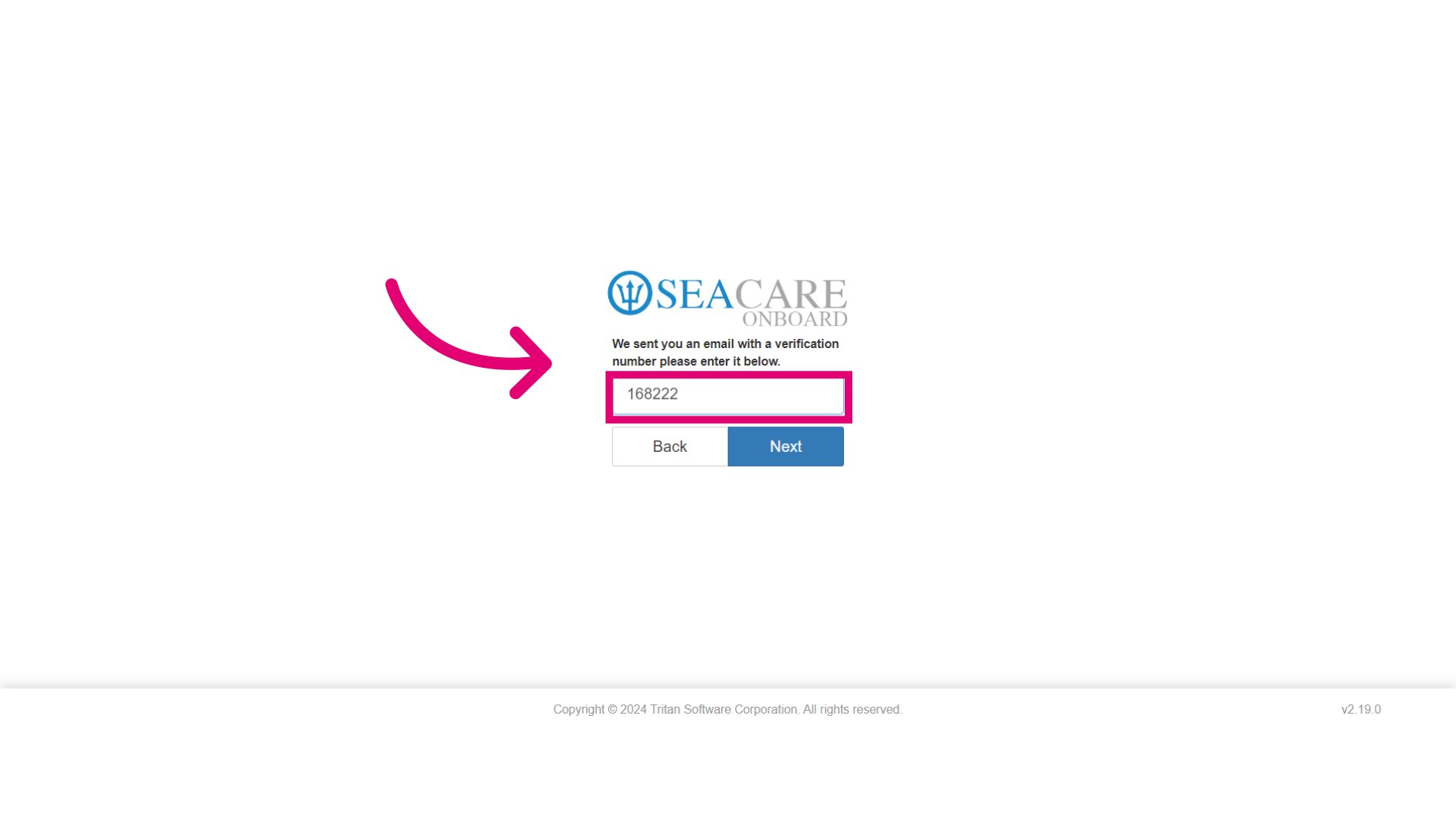
- Go back to the Ideagen Maritime Health login page and enter the verification number.
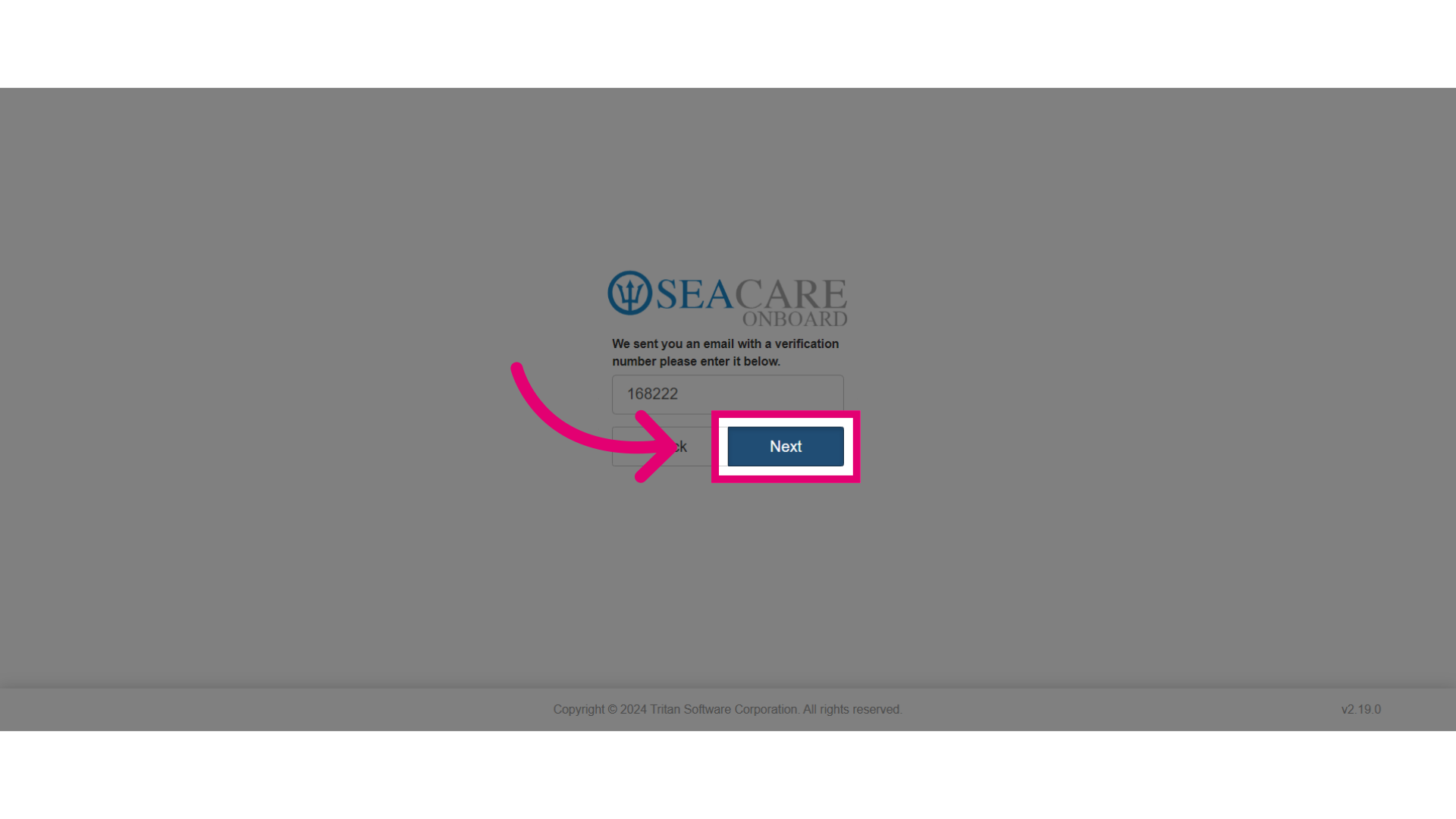
- Proceed to the next step by selecting Next.
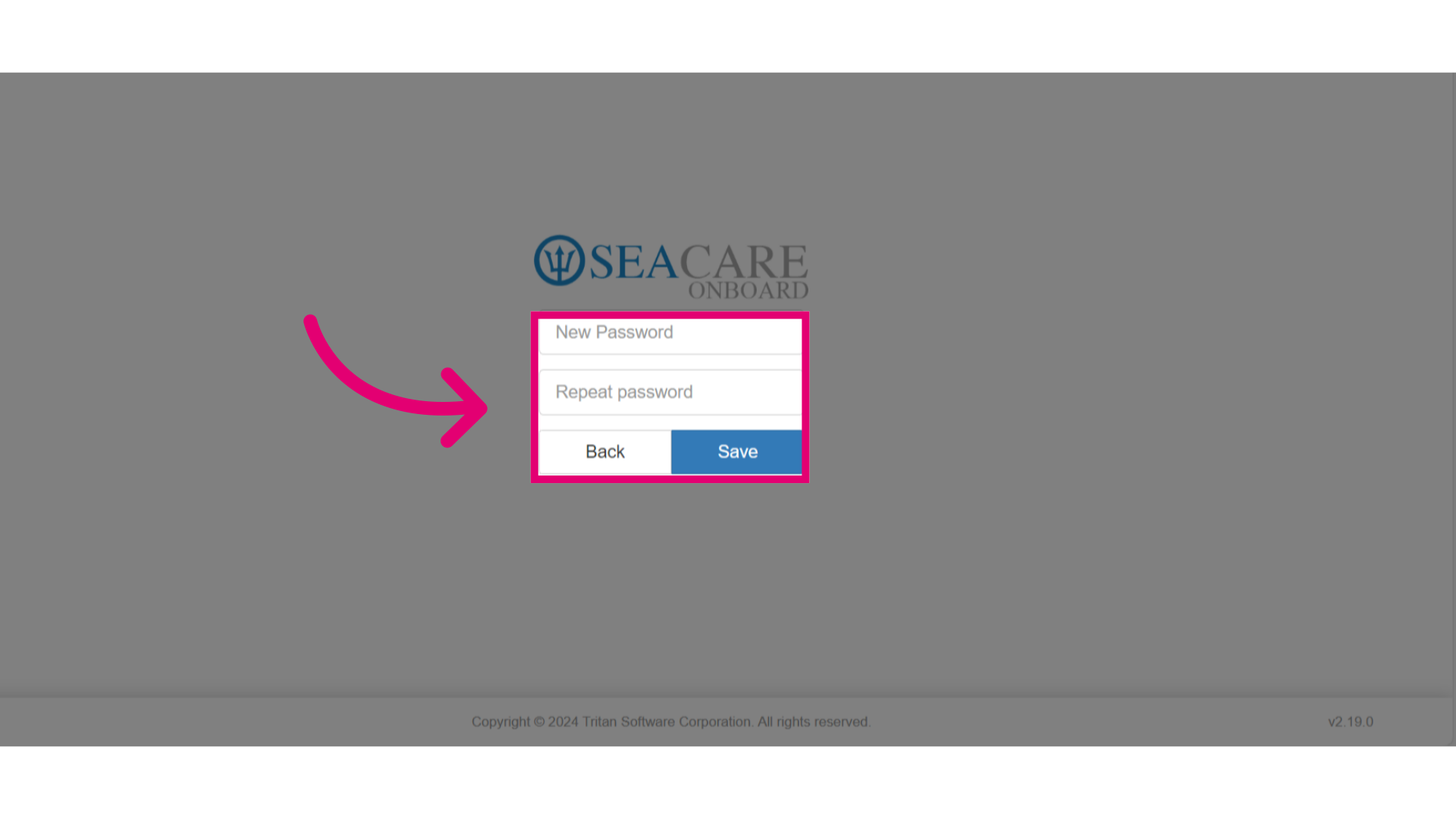
- In the next step, enter your new password.
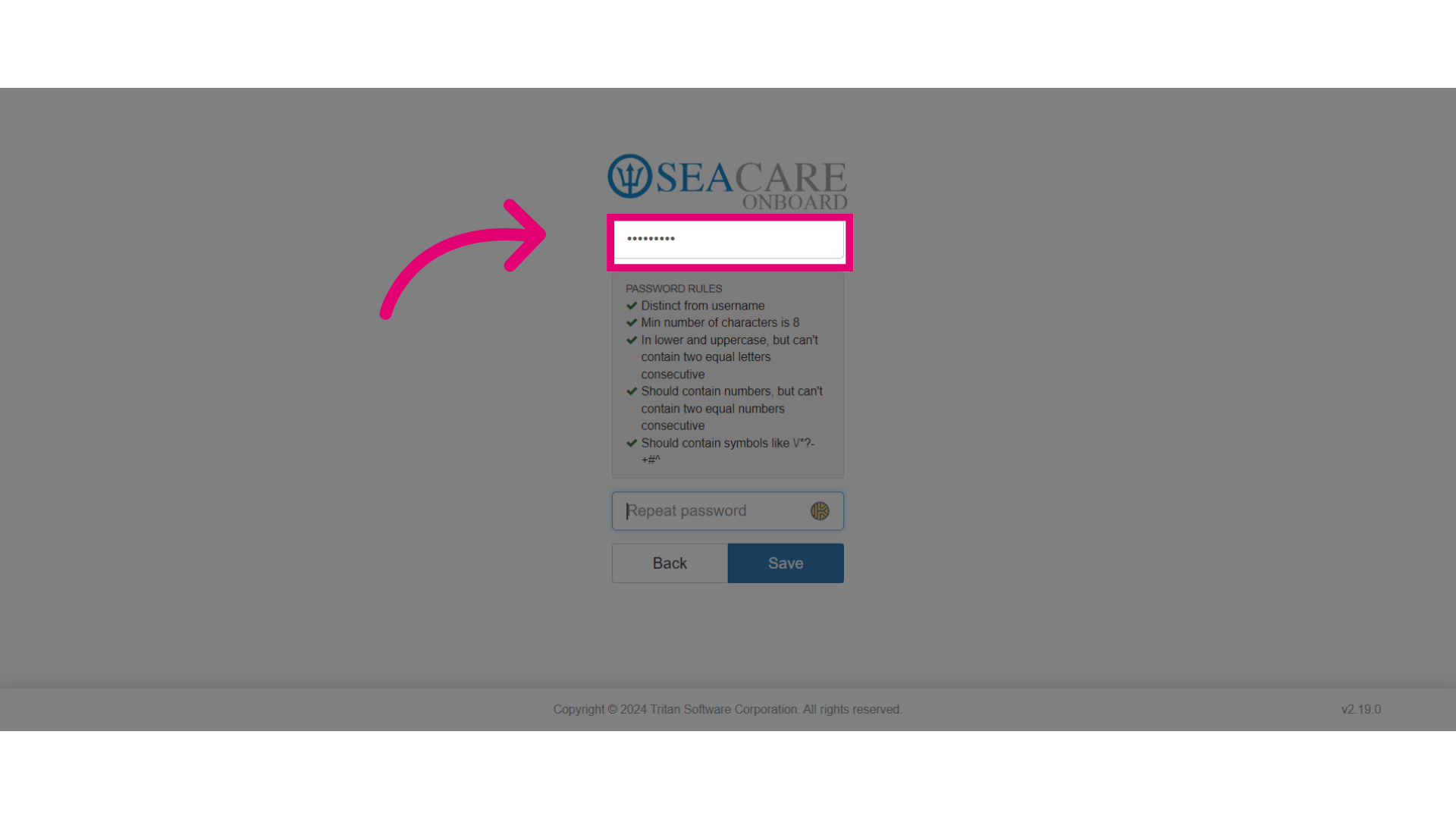
- Repeat the password to finalize the change.
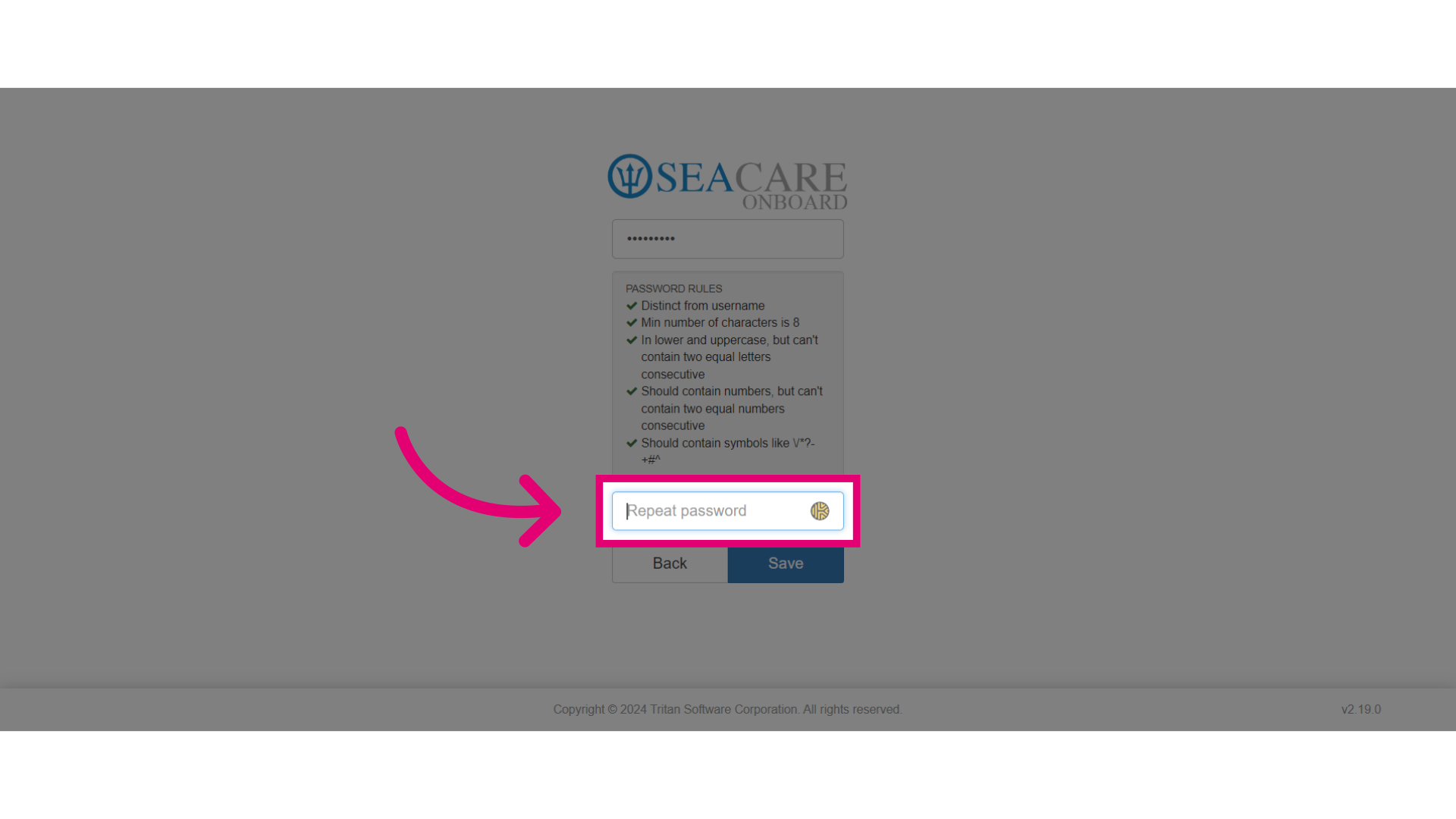
- Click Save.
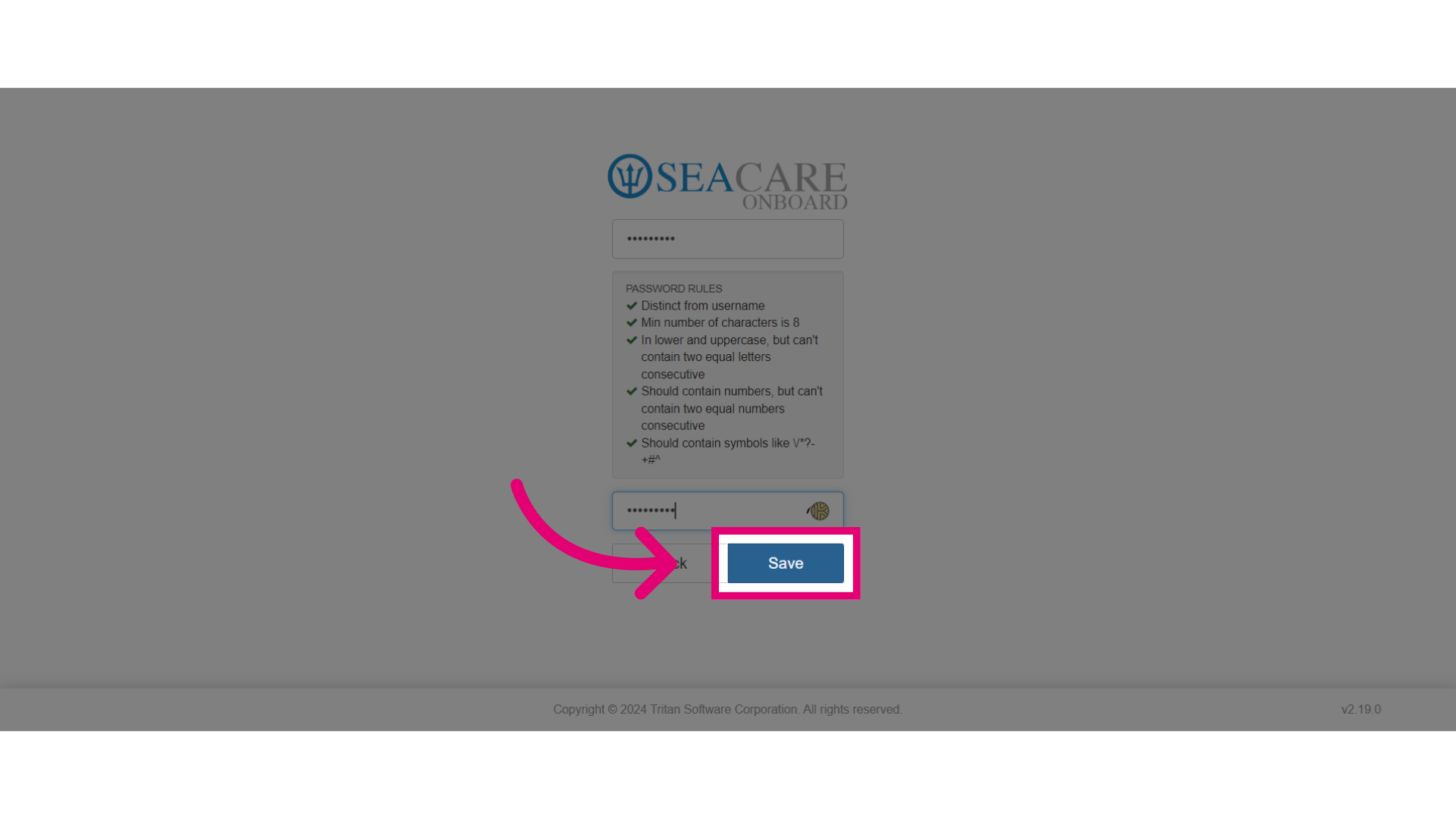
- Enter your new username and password. Then, select the Login button.
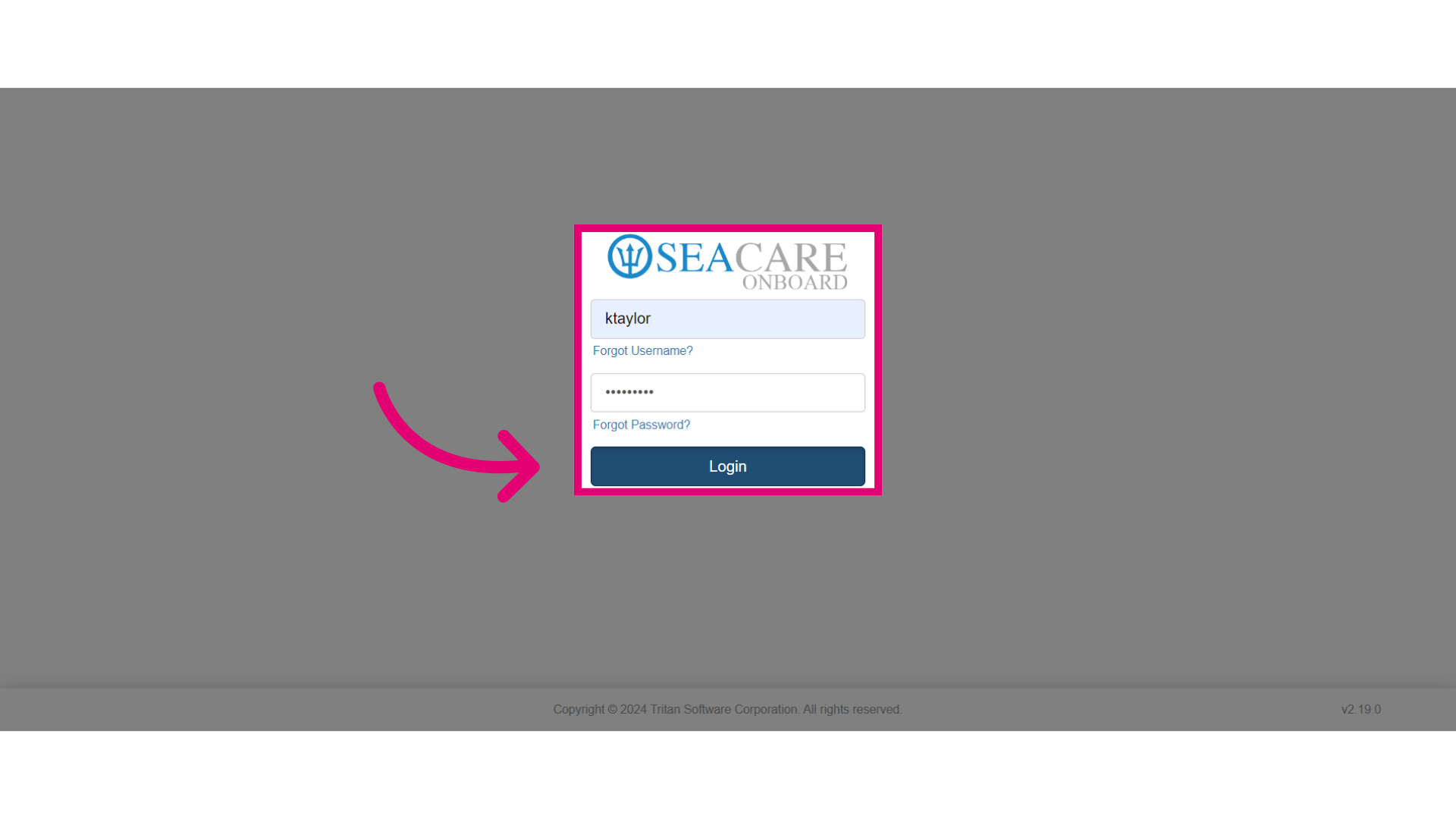
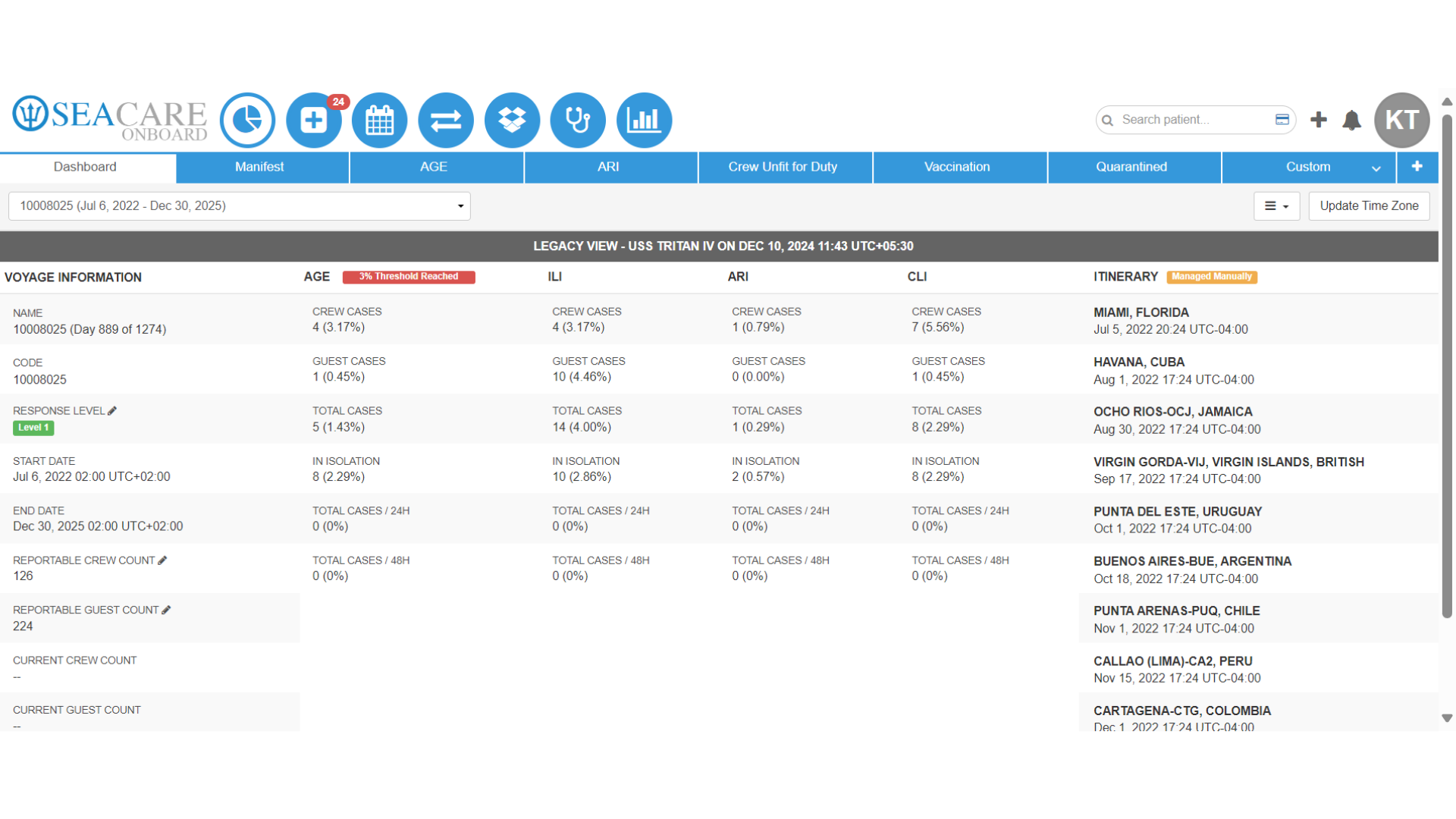
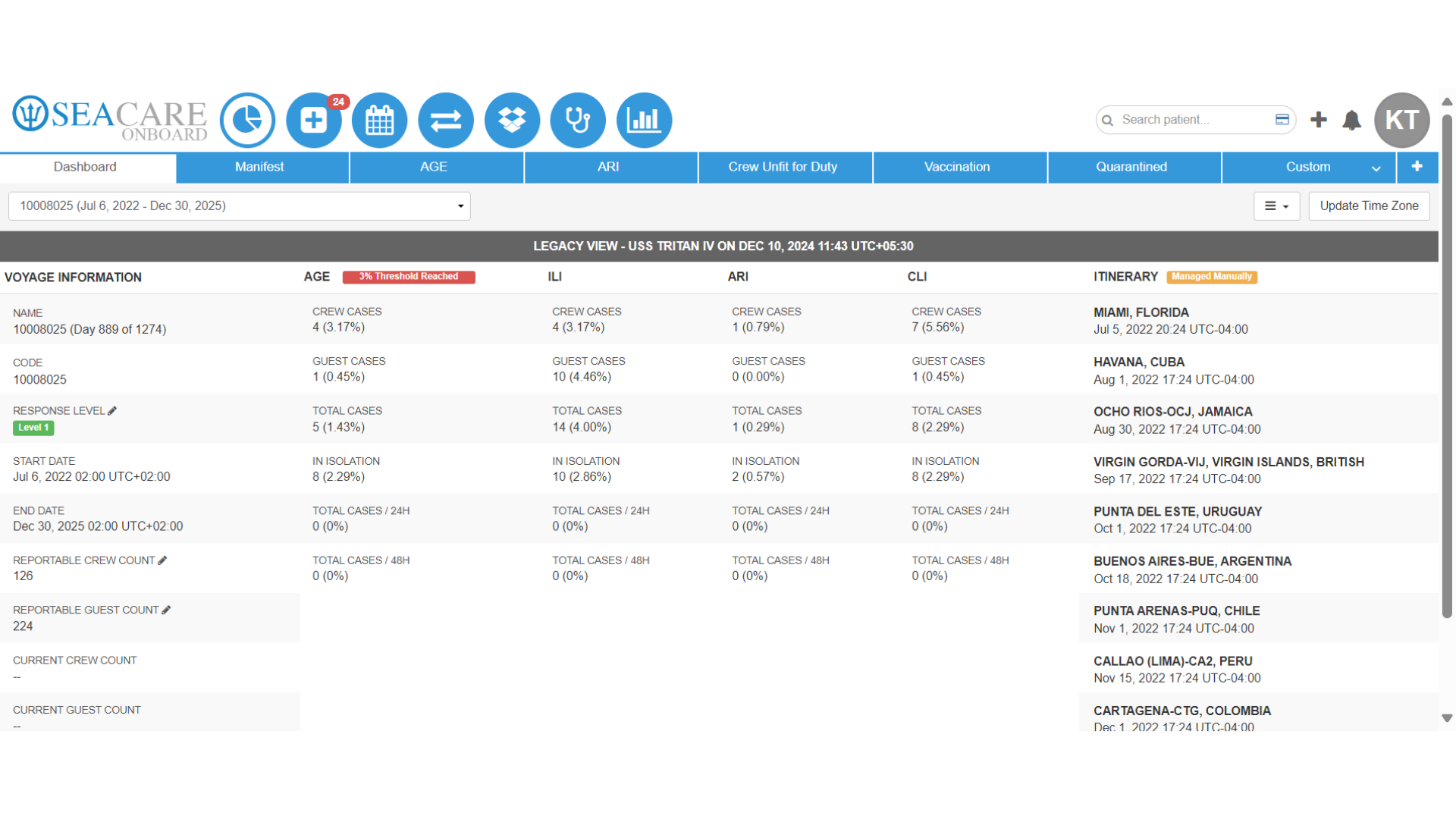
- Once you see this page, you have successfully logged in.
- Now, let's review the steps for using the security question option as the preferred method to reset your password.
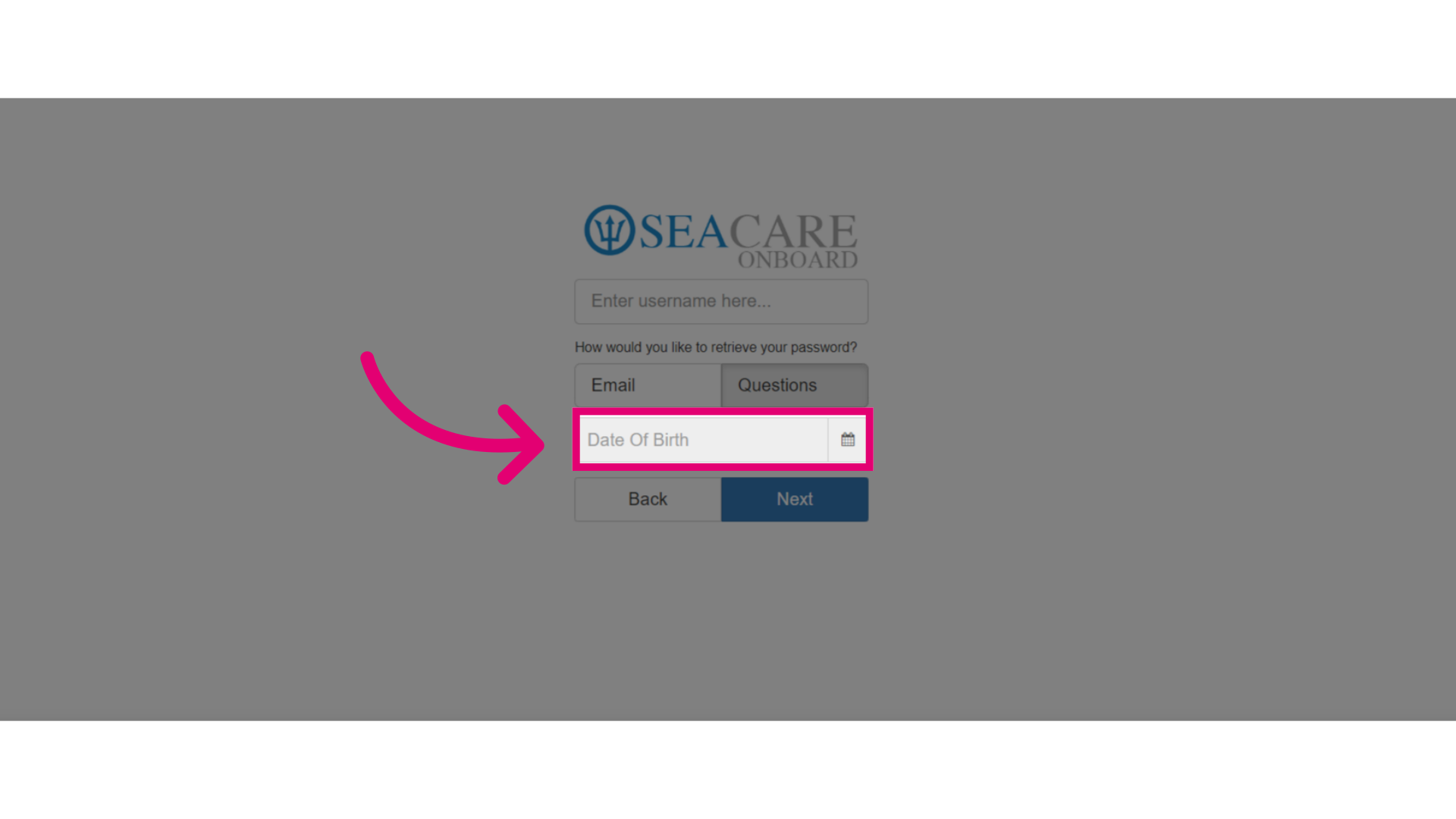
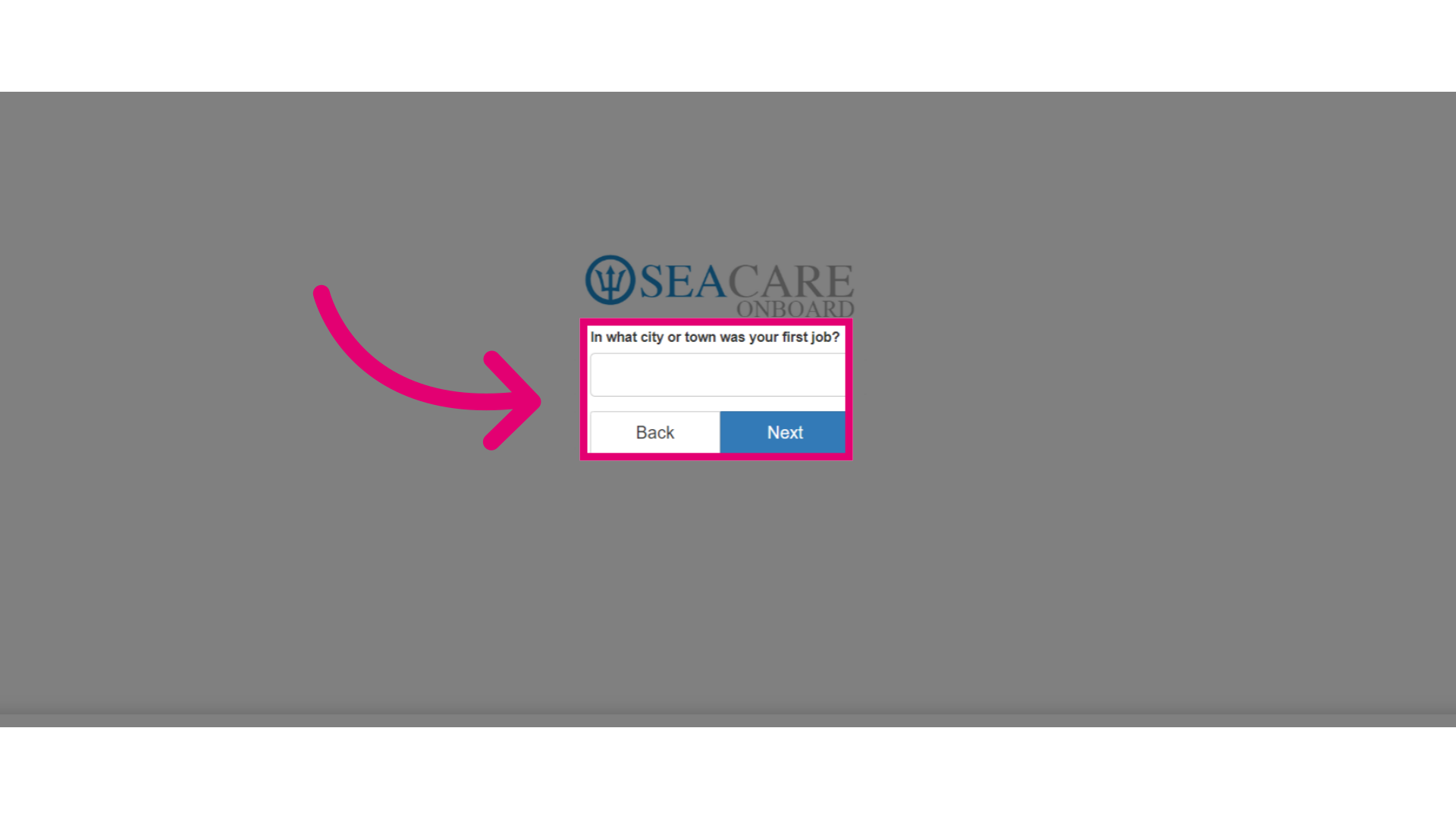
- If a security question has been set up in your profile by you, the question will appear on this page. Enter the answer for the security question. Then, select Next.
- Follow the same steps as before by entering and repeating your new password.
- In the login page, enter your username and new password.
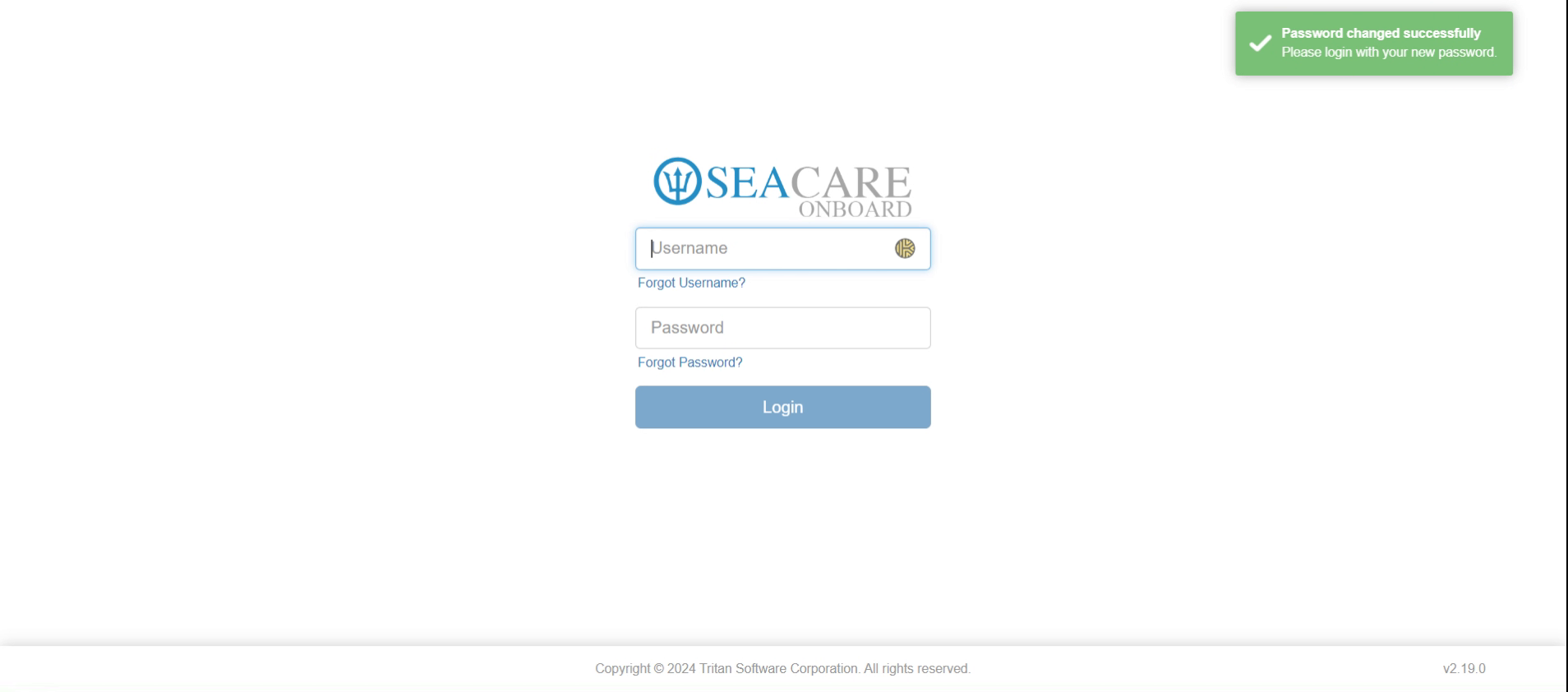
- Once you see this page, you have successfully logged in.