New article
Recently updated
Creating a Predefined Message

Who is this article for?Shoreside Users who want to learn how to create a predefined message in Ideagen Maritime Health Operations.
No elevated permissions are required.
This demo will walk you through the necessary actions to efficiently compose and save a predefined message template. Predefined messages allows Shoreside Administrators to set up standardized message templates for email communication onboard. This guide will show you how to create one.
1. Creating a Predefined Message
1.1. Video
1.2. Steps
- Start in the Admin Menu in Ideagen Maritime Health Operations.
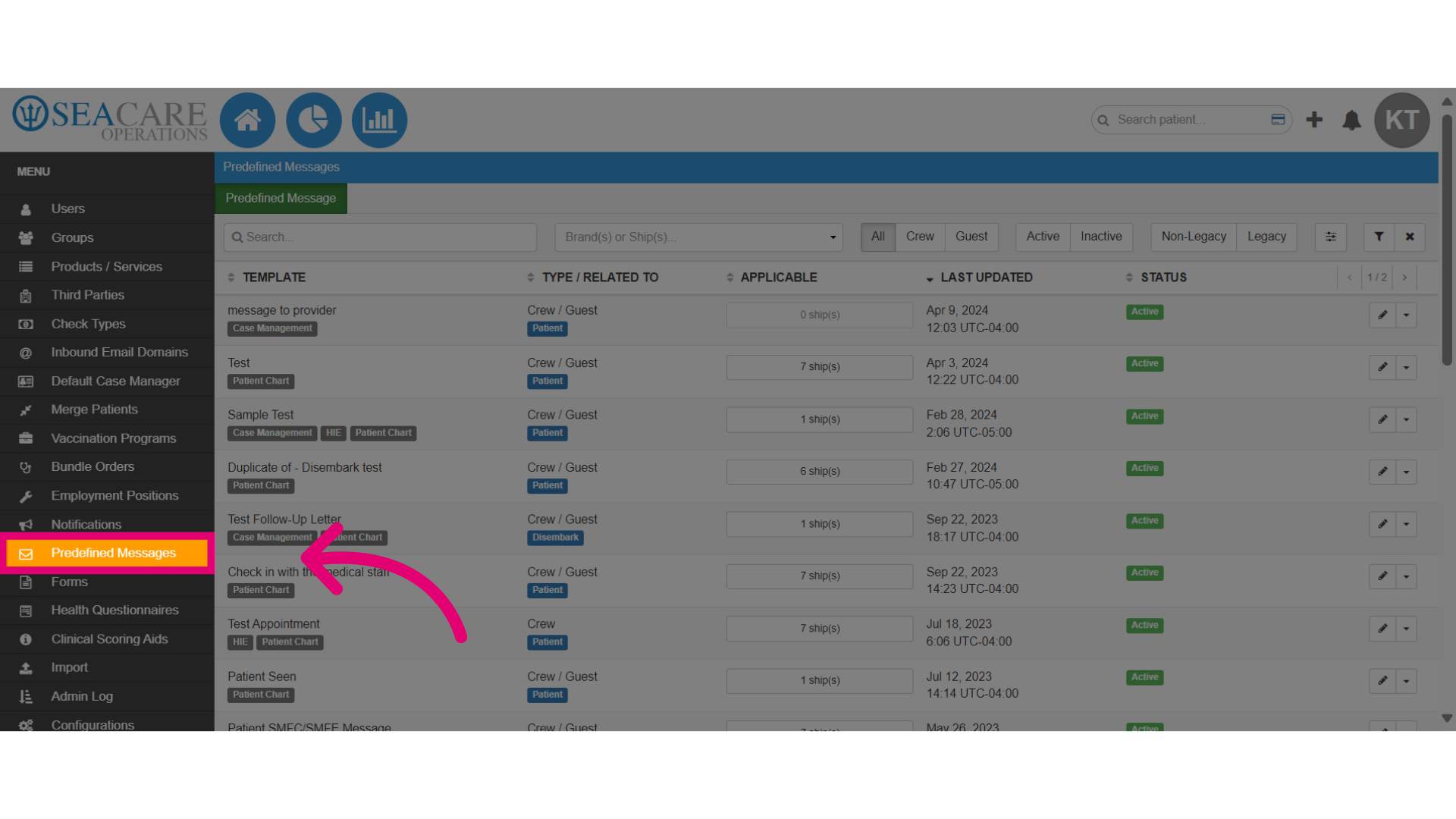
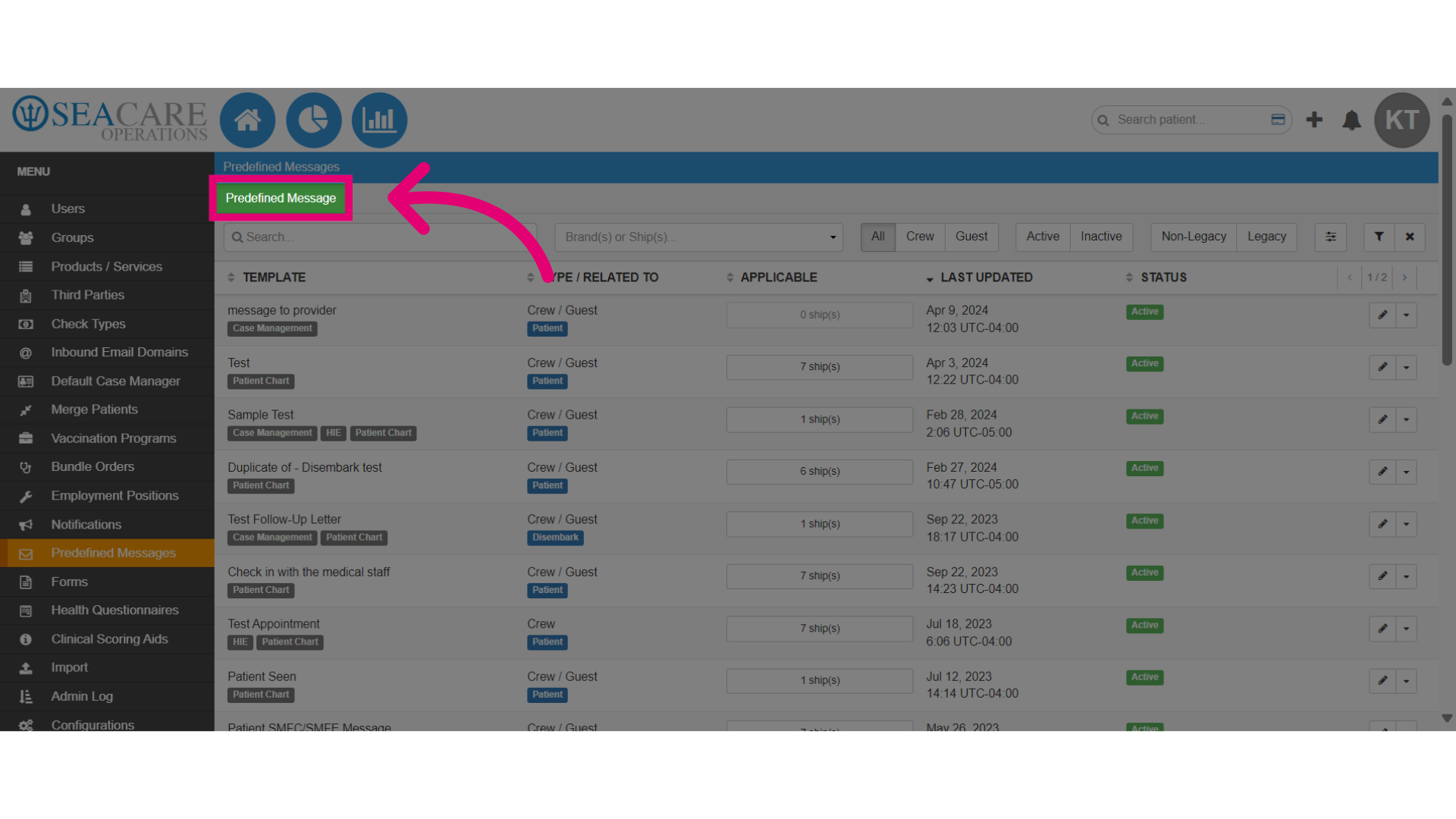
- Select the green Predefined Message module to access the message template features.
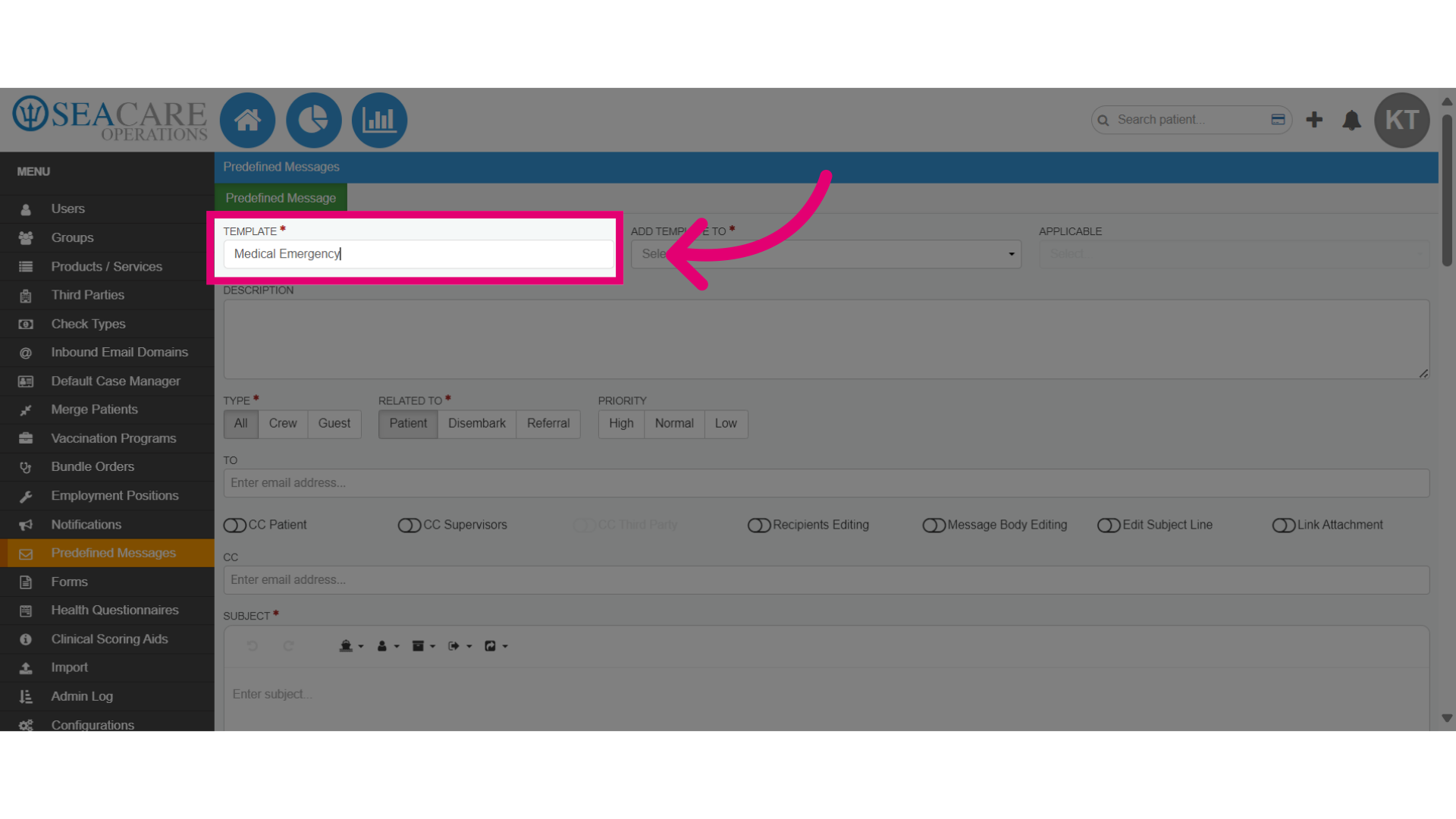
- Next, enter a clear and descriptive name for the message, for example Medical Emergency.
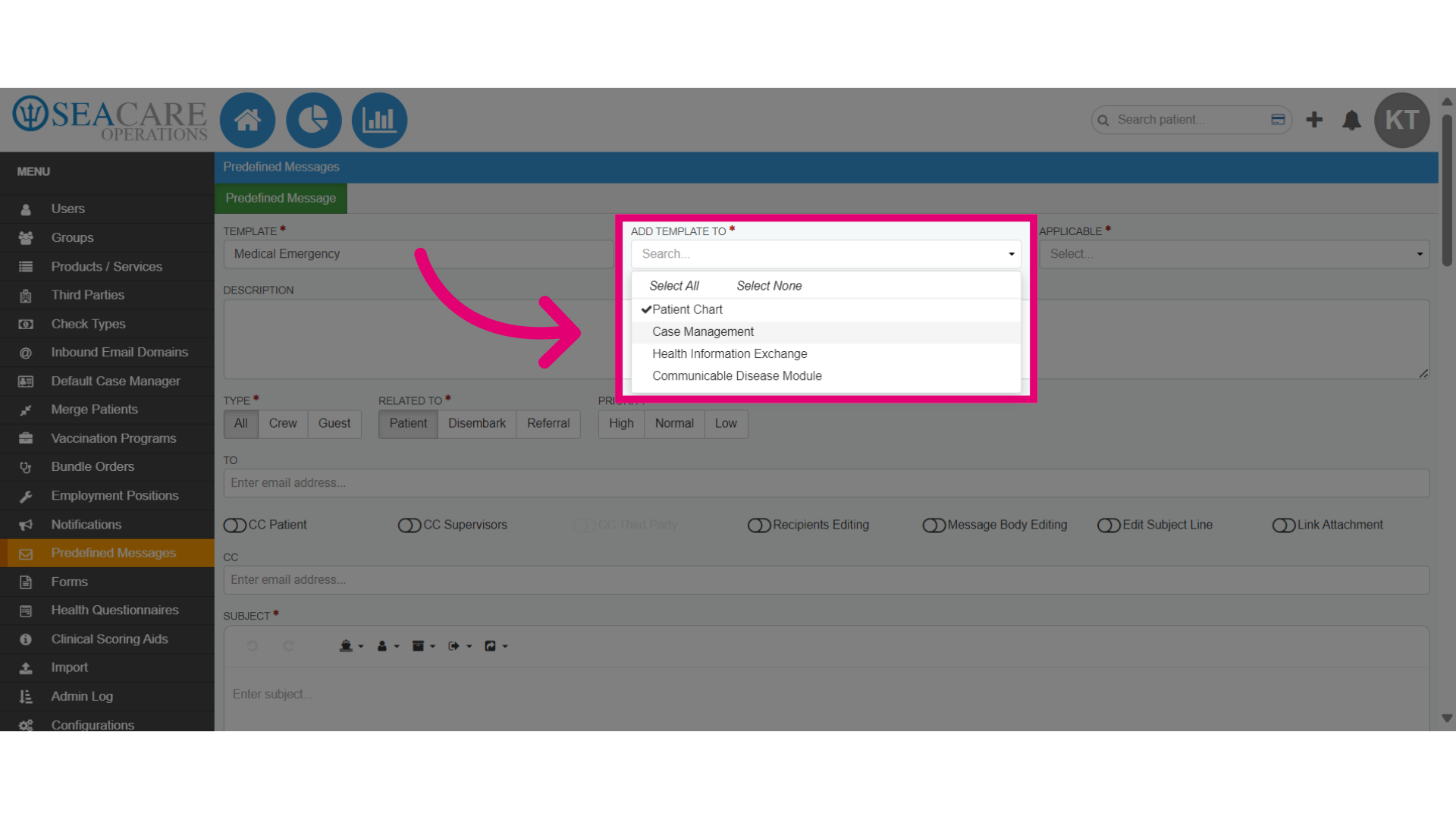
- Then, check all relevant locations to ensure the template appears in appropriate sections of Ideagen Maritime Health where an email message is sent, such as Patient Charts and Case Management.
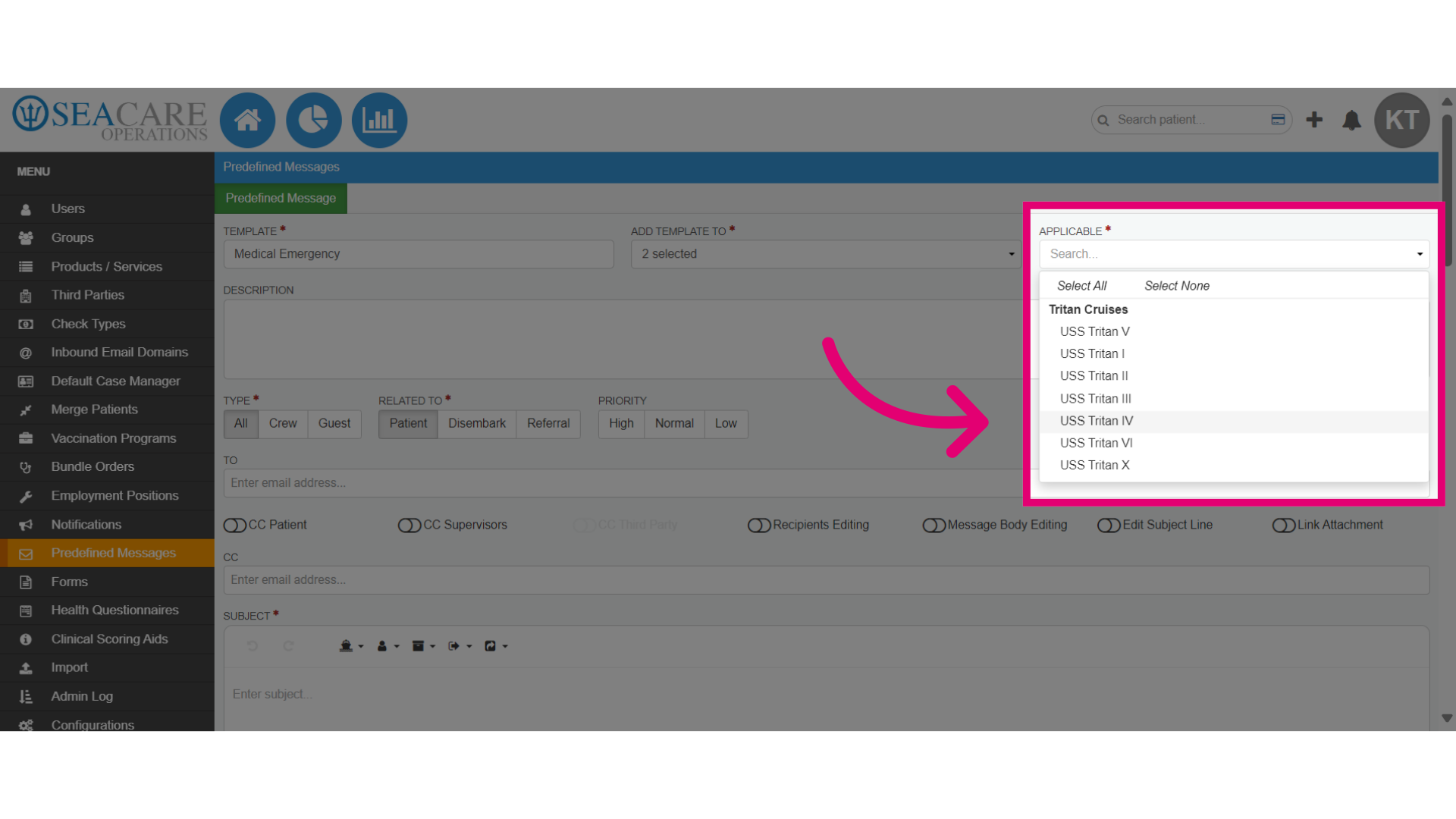
- Select the Vessel(s) the template will be available.
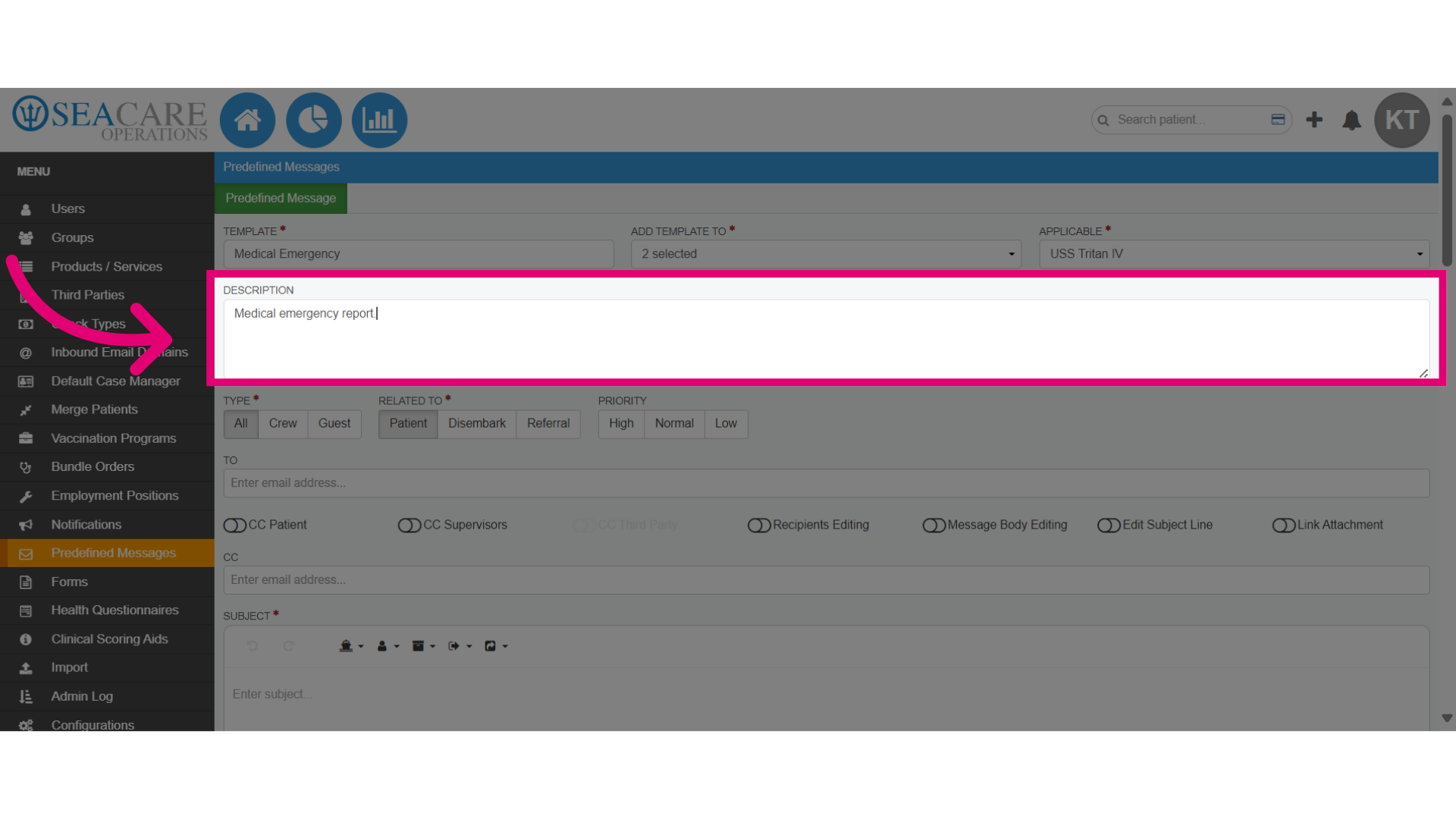
- It is optional to add a short Description that explains the template's purpose, for example, a medical emergency report.
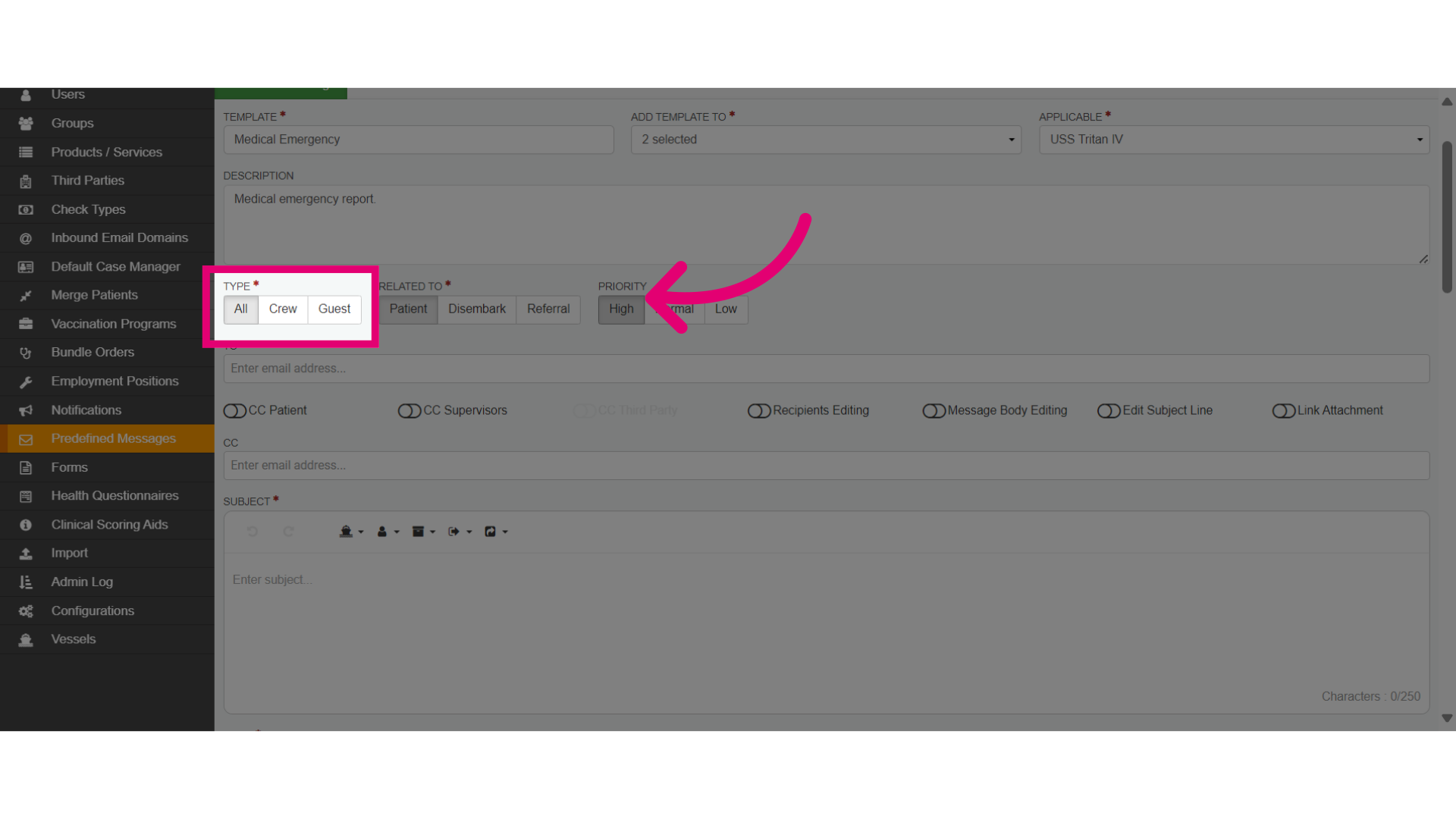
- Then, ensure you check the patient types the template is applicable to such as Crew, Guests or both.
- Select the relevant category the template is related to, such as Patient, Disembark, and/or Referral.
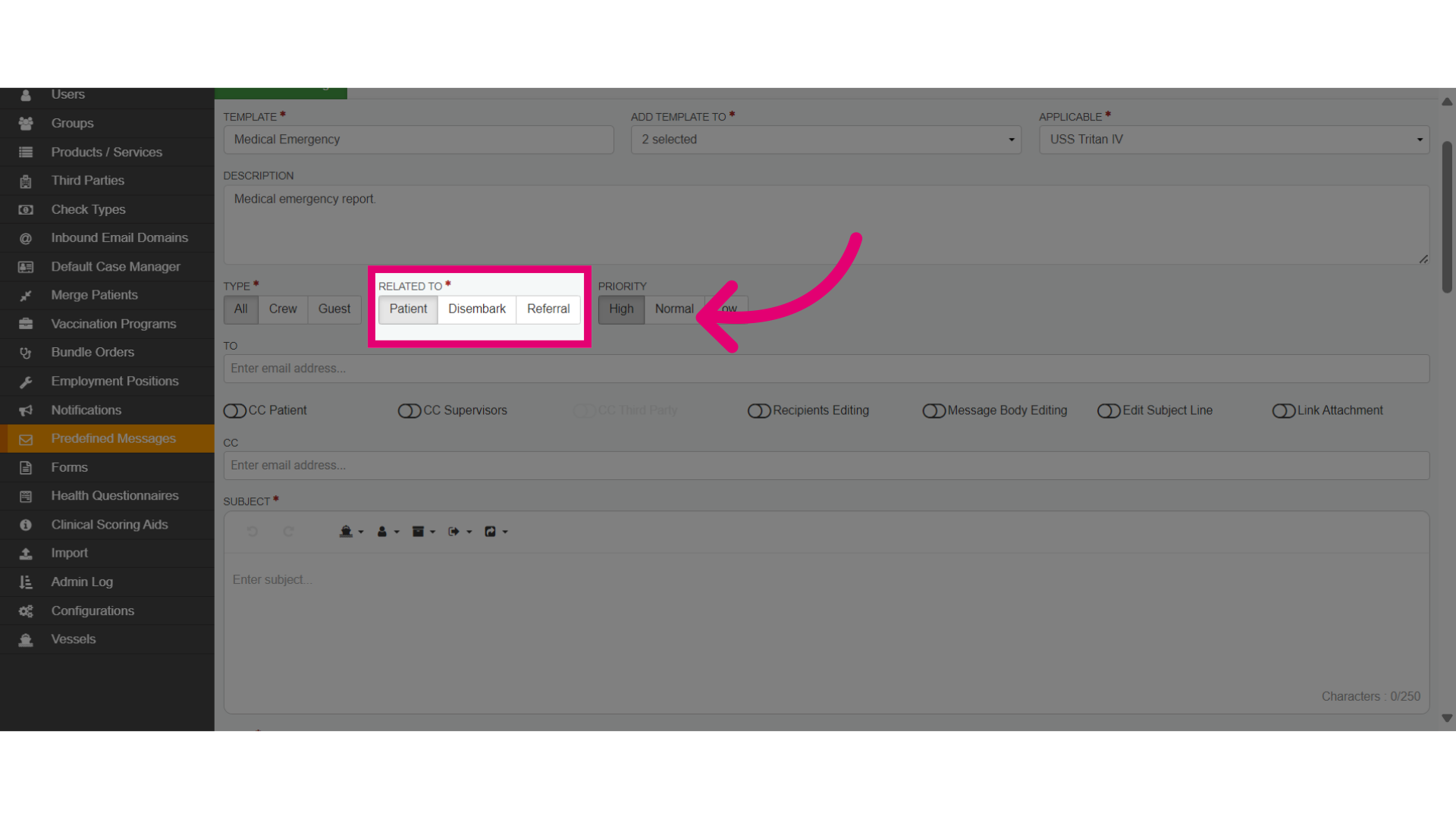
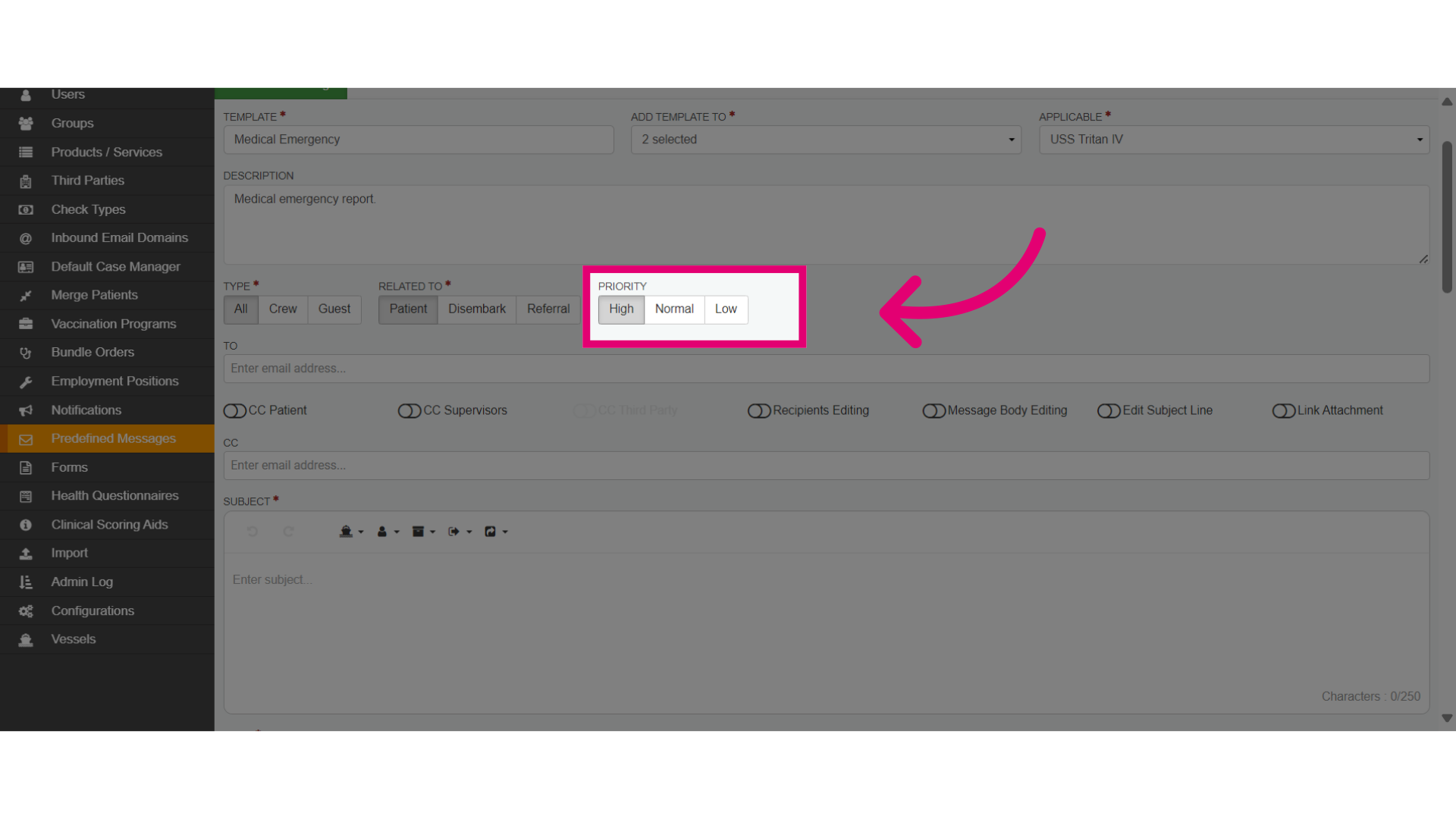
- Set the priority level for the message such as Low, Normal or High which represents the urgency of the communication you sending which informs the recipient how quickly they should respond.
- Low priority - This message indicates that the content is not urgent and can be addressed at the recipient's convenience, such as general updates or information that does not require attention.
- Normal priority - This type of communication suggests that the message is important and should be acknowledged in a timely manner, although it does not demand an immediate response such as inquiries that are relevant but not critical.
- High priority - These messages signifies that the communication is urgent and requires prompt attention from the recipient, involving time-sensitive issues, emergencies, or important decisions.
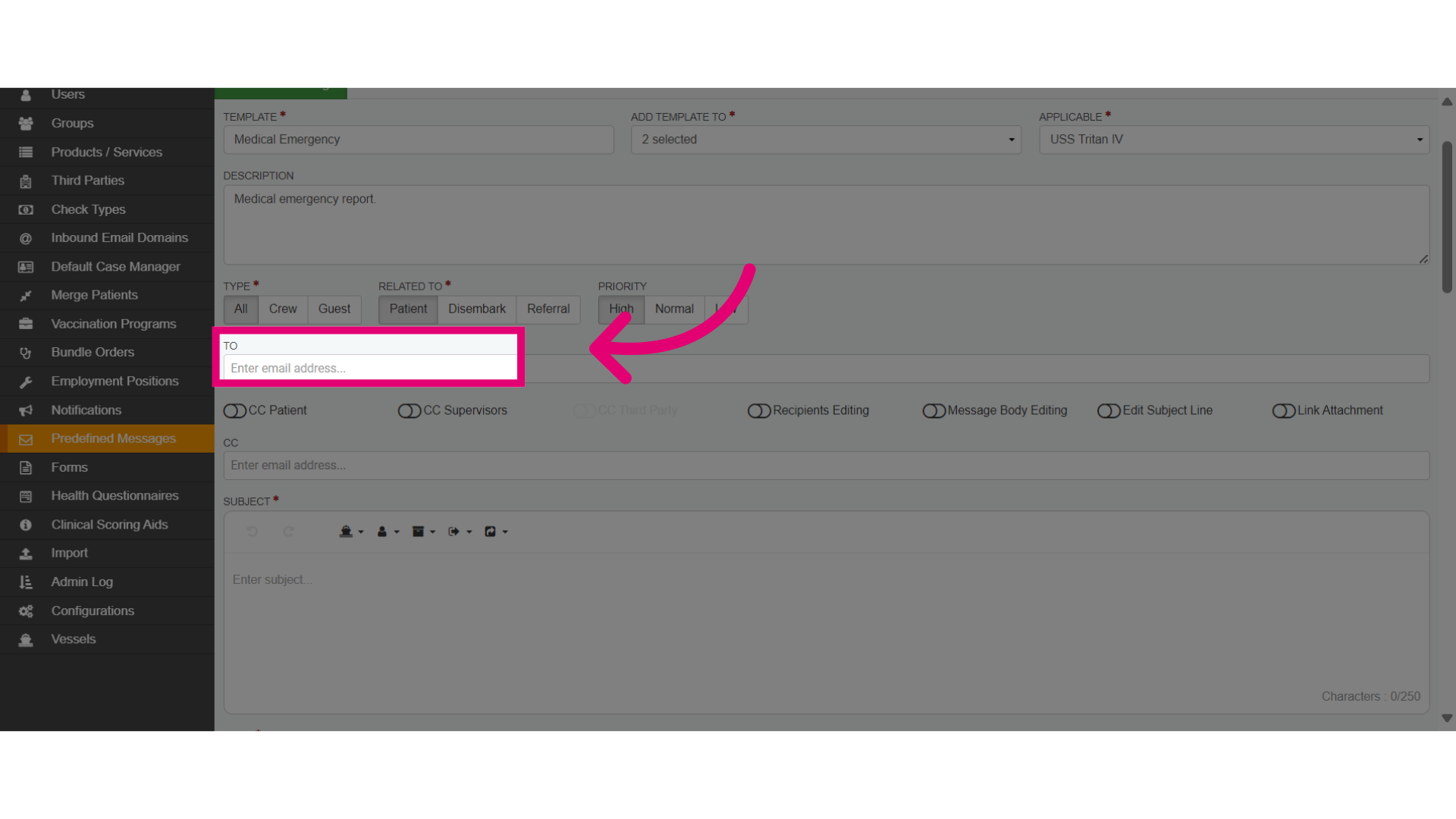
- Enter default email addresses for intended recipients. This will send a copy of the template to their email automatically, when it's used.
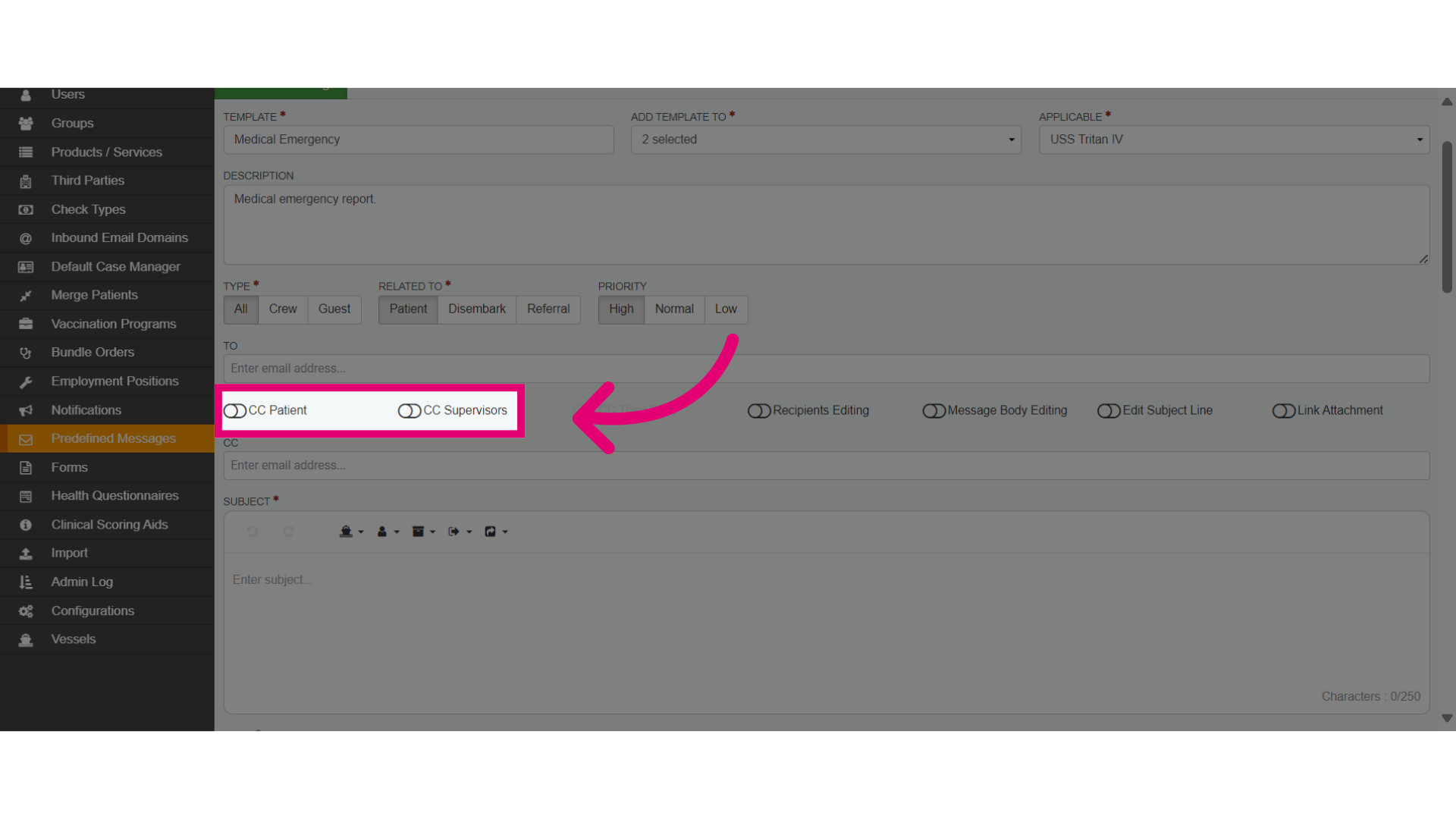
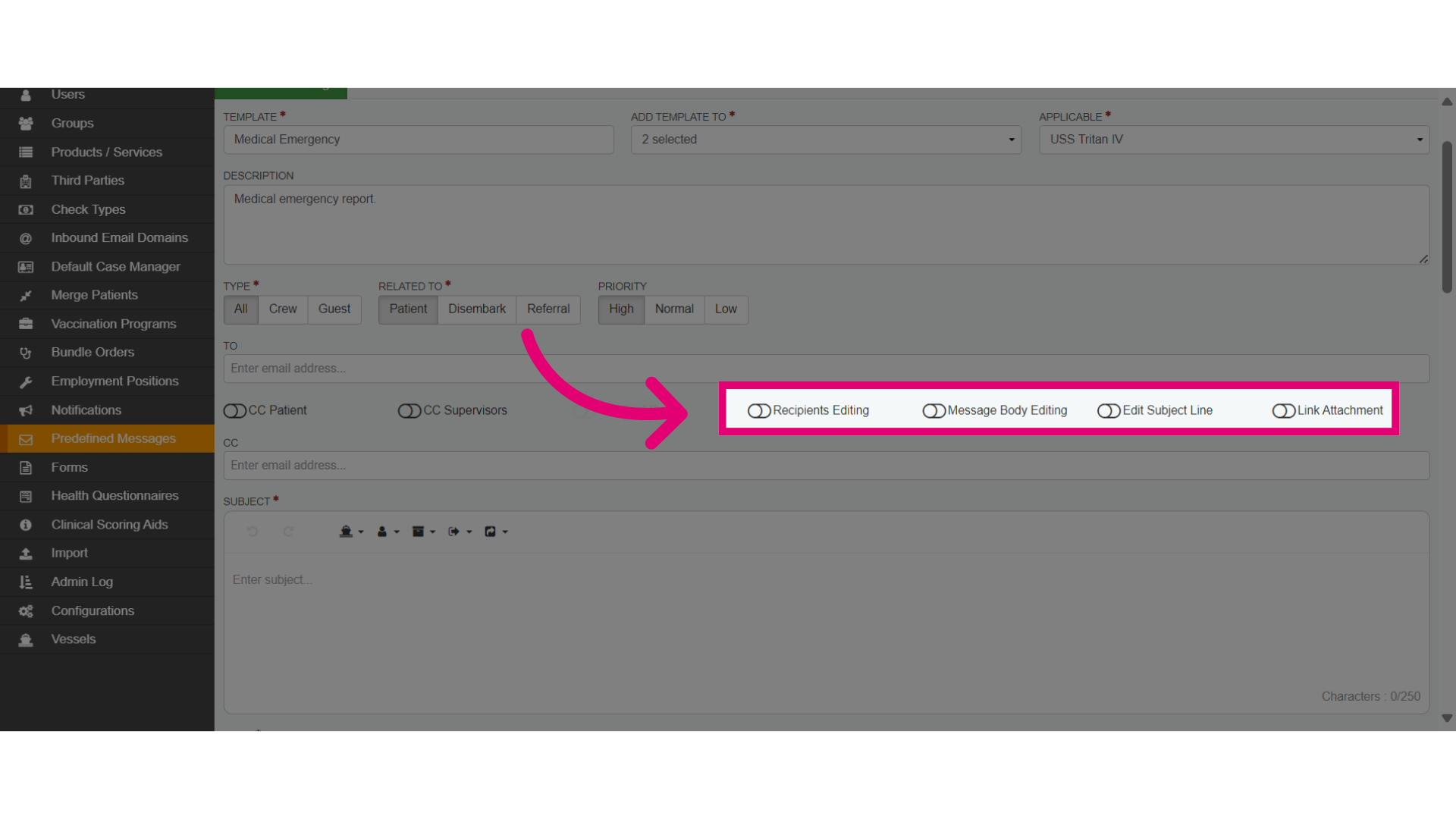
- Toggle options to CC specific groups, such as Patients or Supervisors. This will send a CC'd copy of the template to their email automatically, when it's used.
- The recipient will be able to edit the template, as well as edit the subject line, message body, and link attachments.
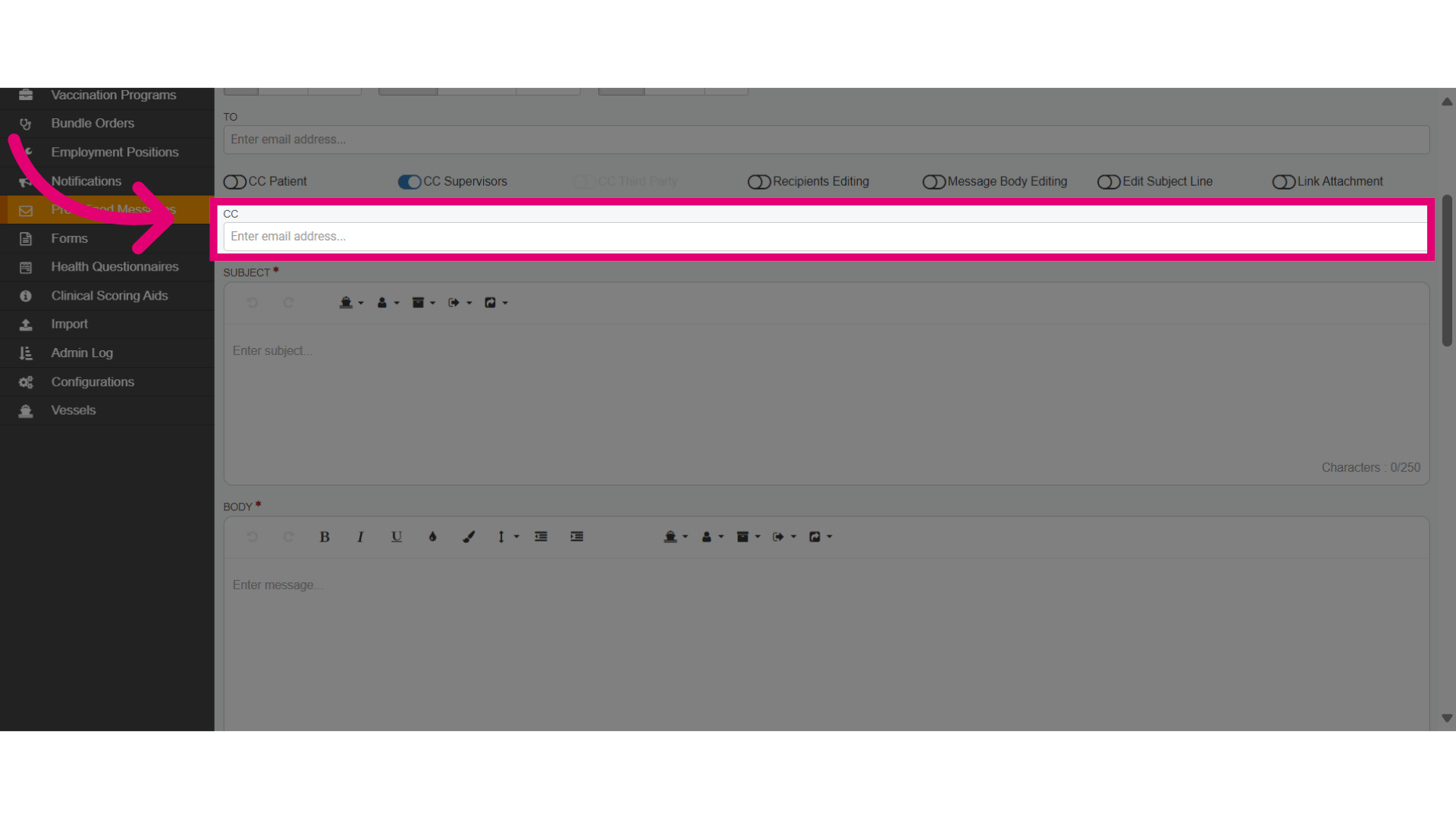
- Add additional default emails to CC in the template.
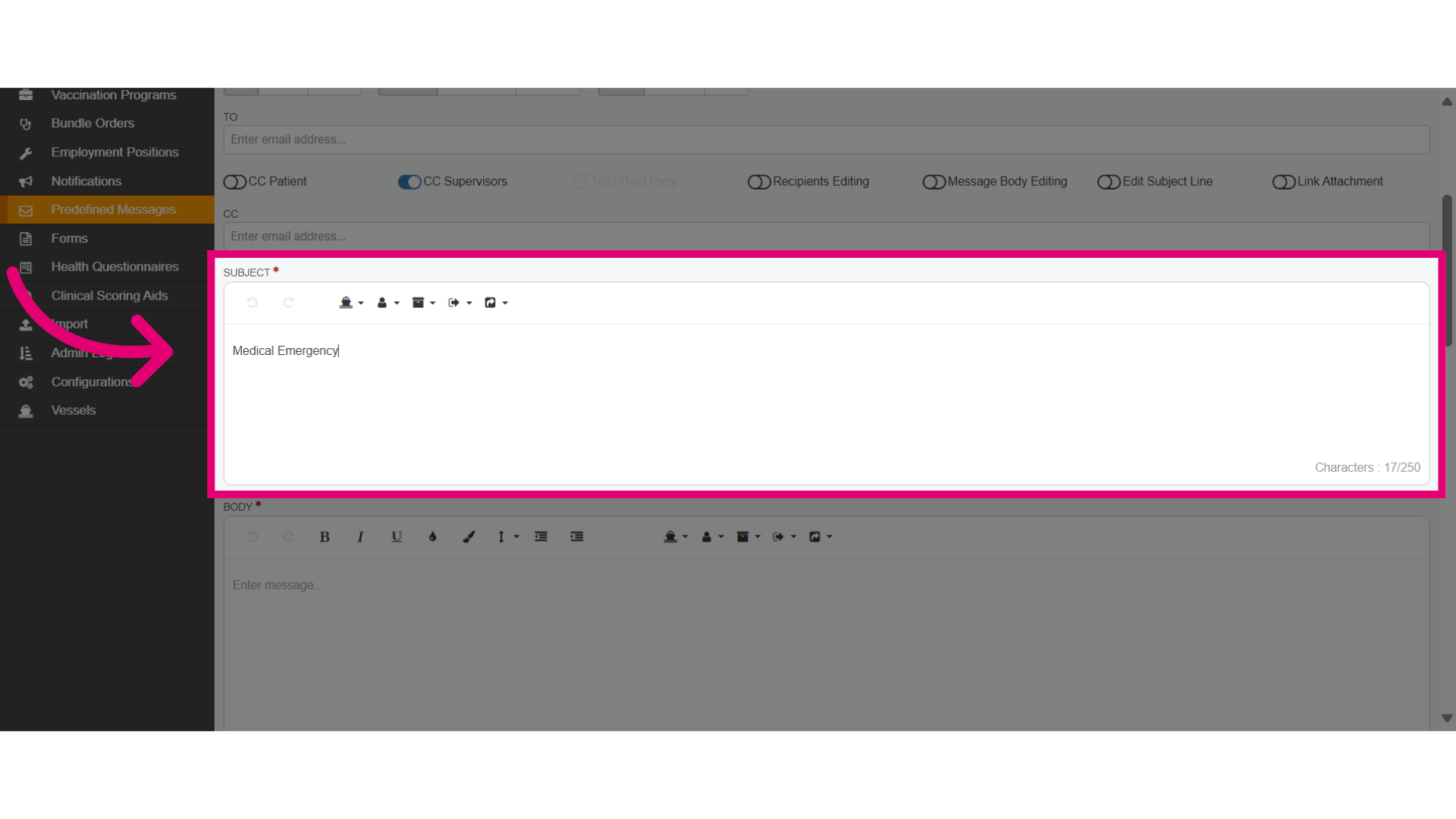
- Add a Subject Line such as Medical Emergency that appears in the recipients email.
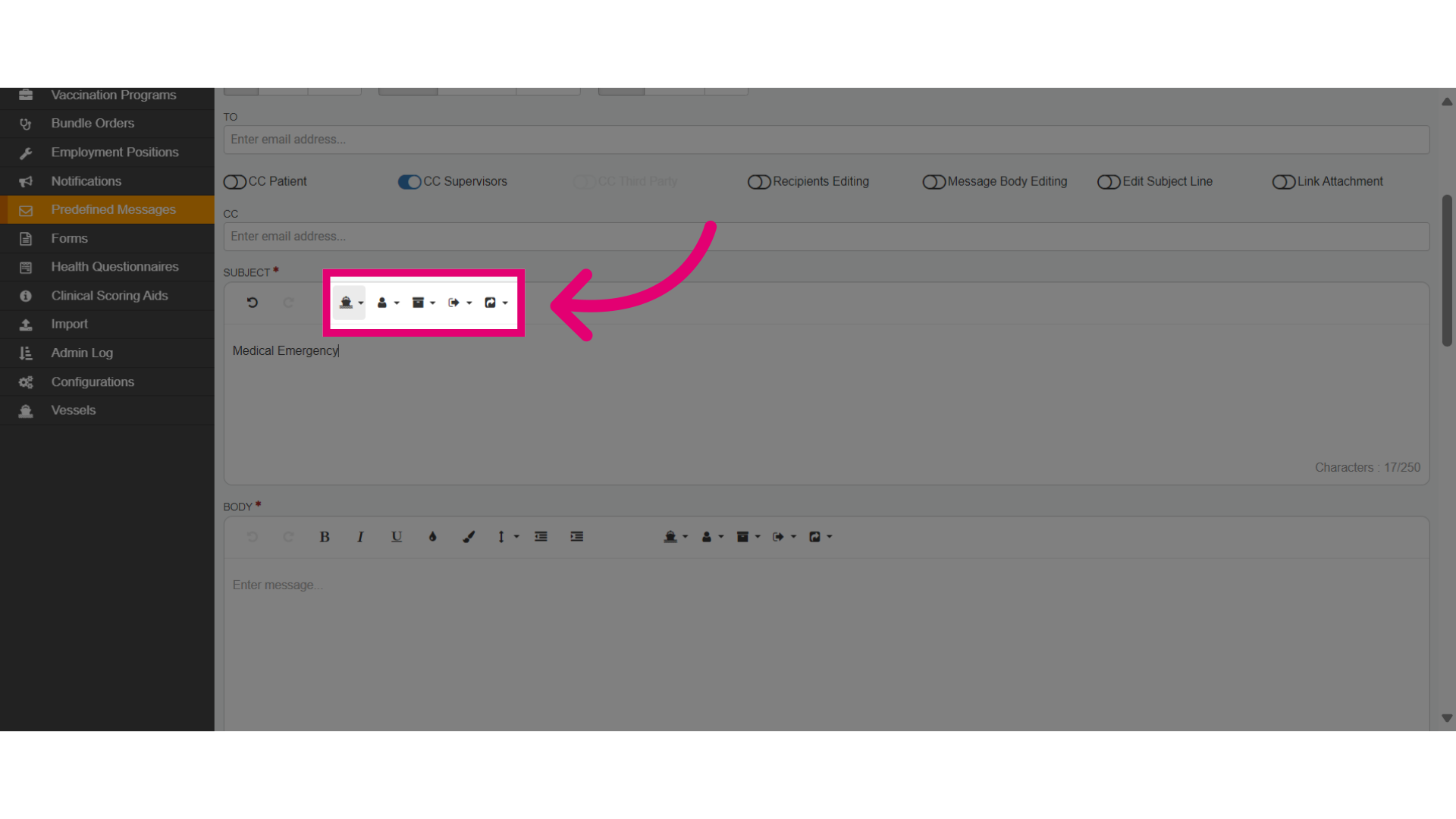
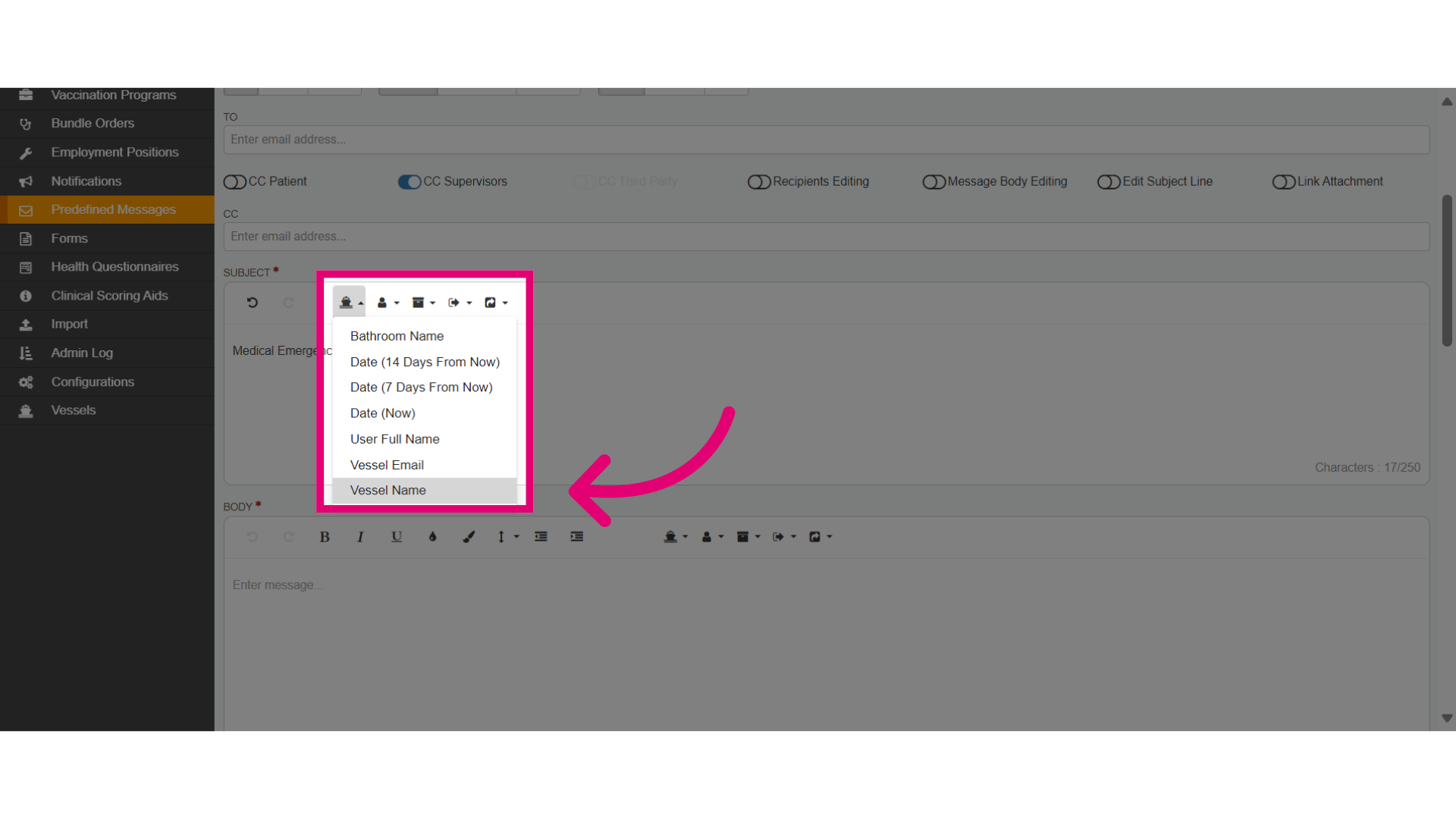
- Use variables to automatically populate messages. This method allows the system to retrieve the required data without manual input. Select from variable options for Vessel, Patient, Encounter, Disembark, and Referral.
- Choose the variable and then the data field, such as the Vessel Name data field under the Vessel variable.
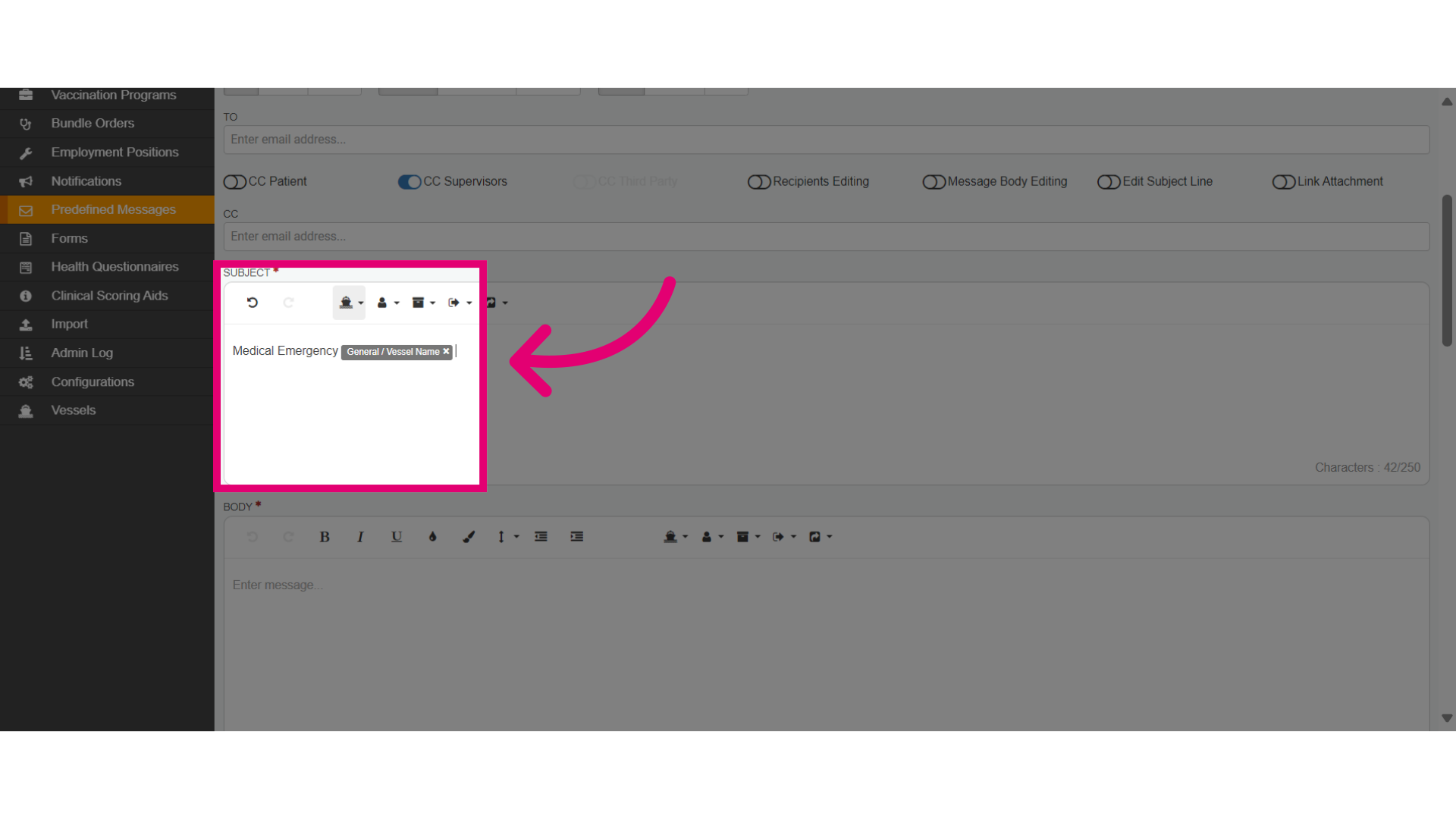
- Verify that the correct variable has been added.
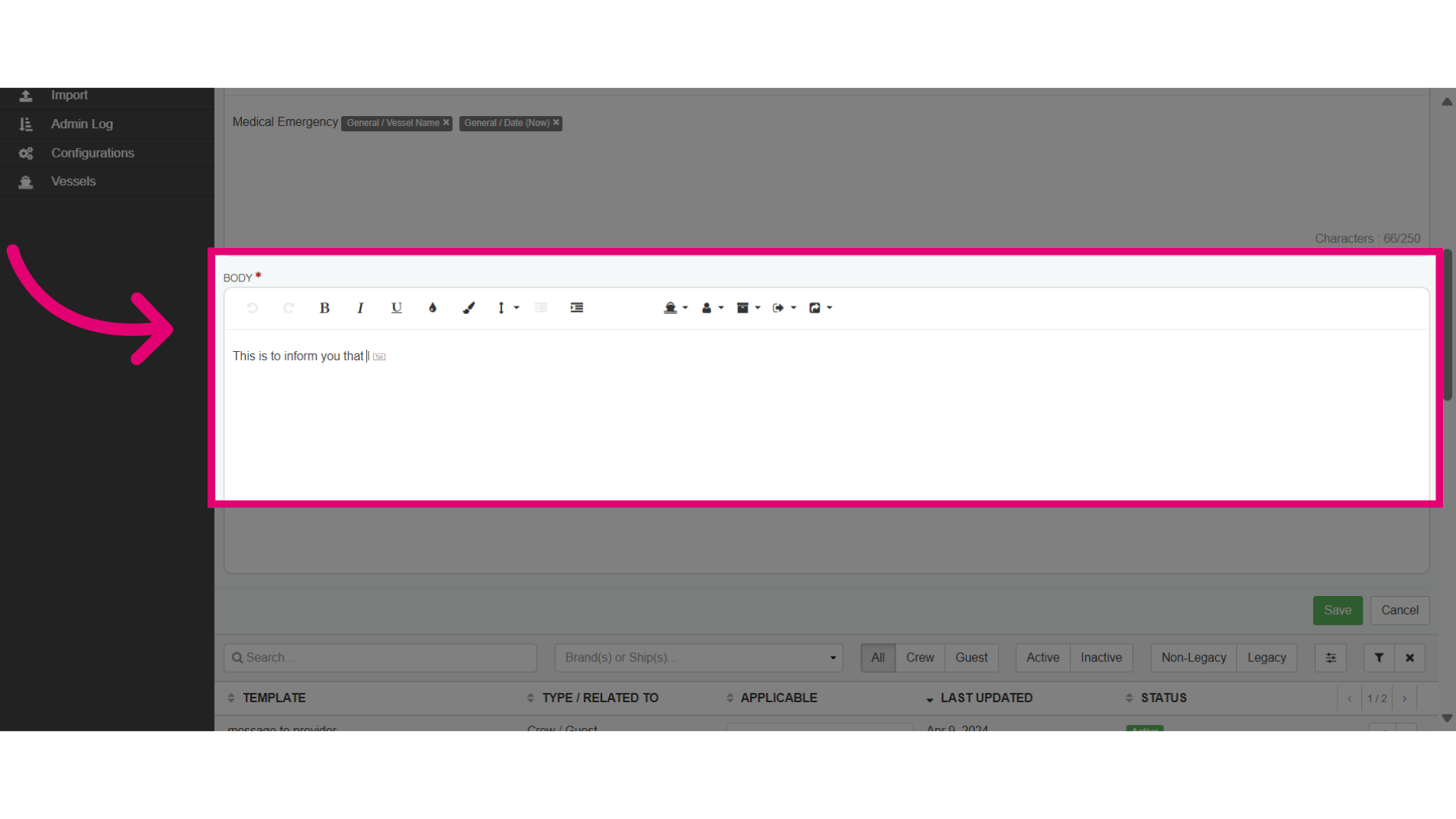
- In the Body field, add the core content of the body message.
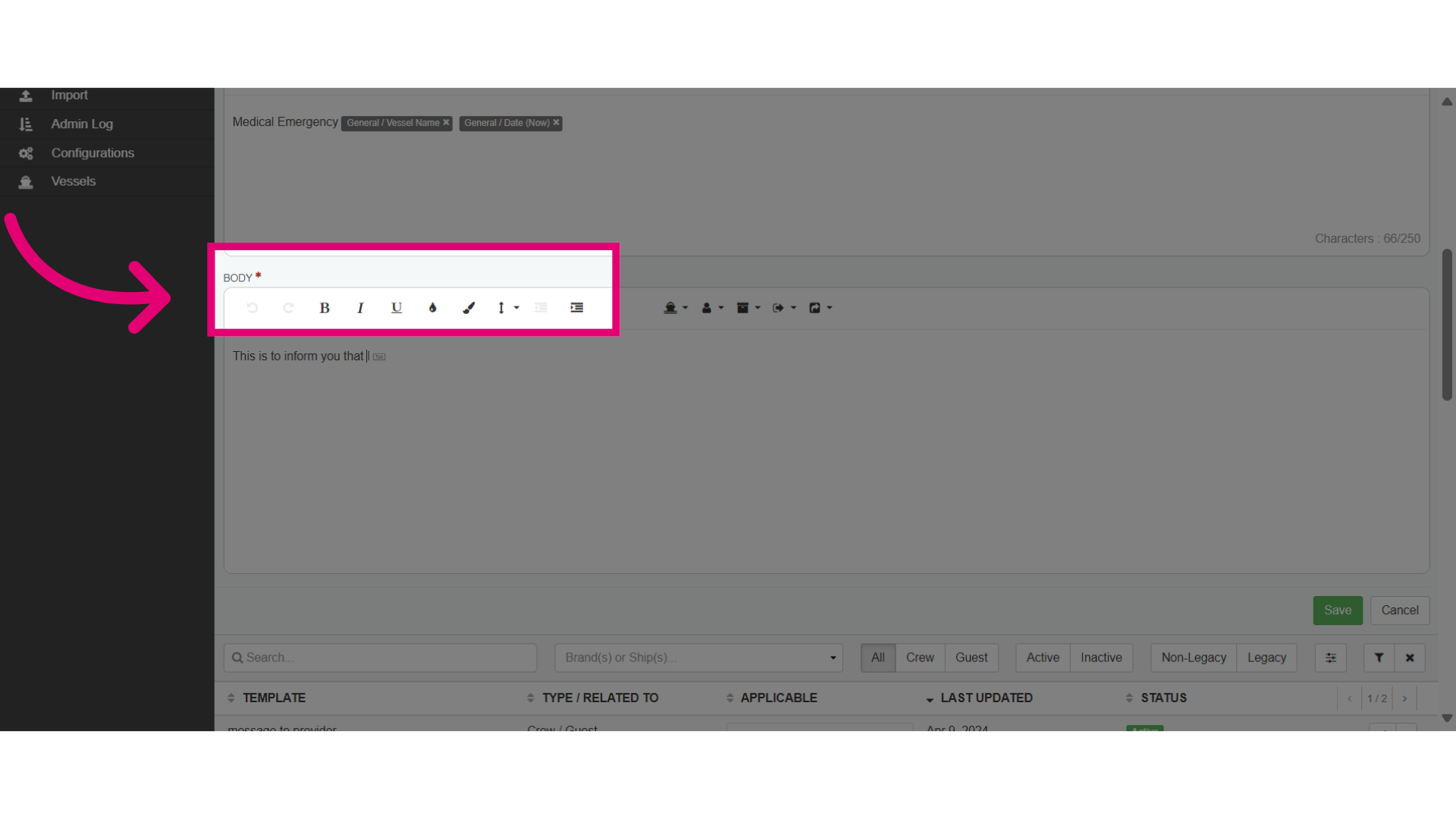
- You may also use the formatting tools such as bold, italic, bullets to enhance readability.
- You may also add the same Variables to the Body message that will be auto-populated in the template.
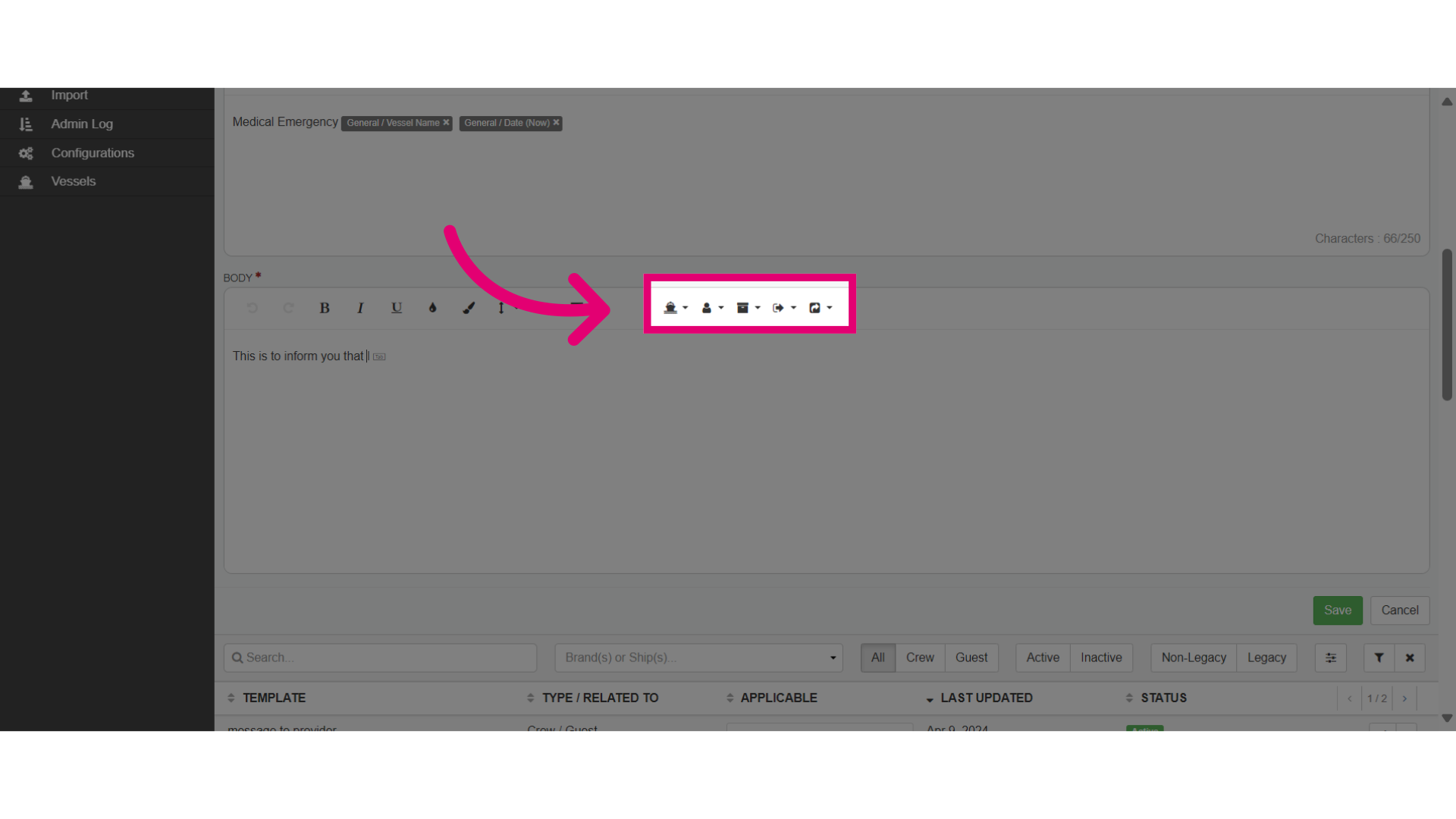
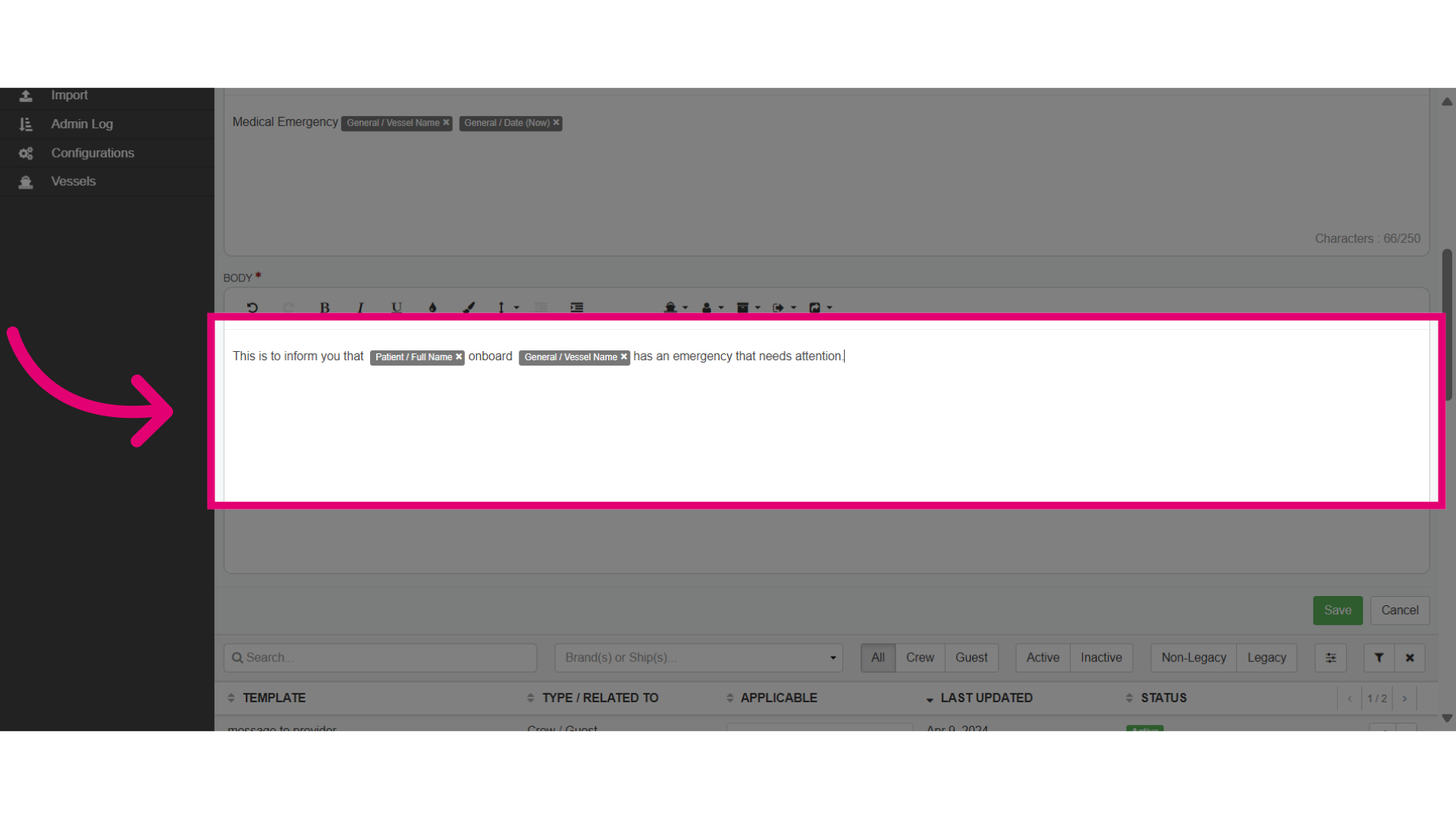
- Such as the patient's Full Name variable and their Vessel variable being auto-populated in the body message when the template is used.
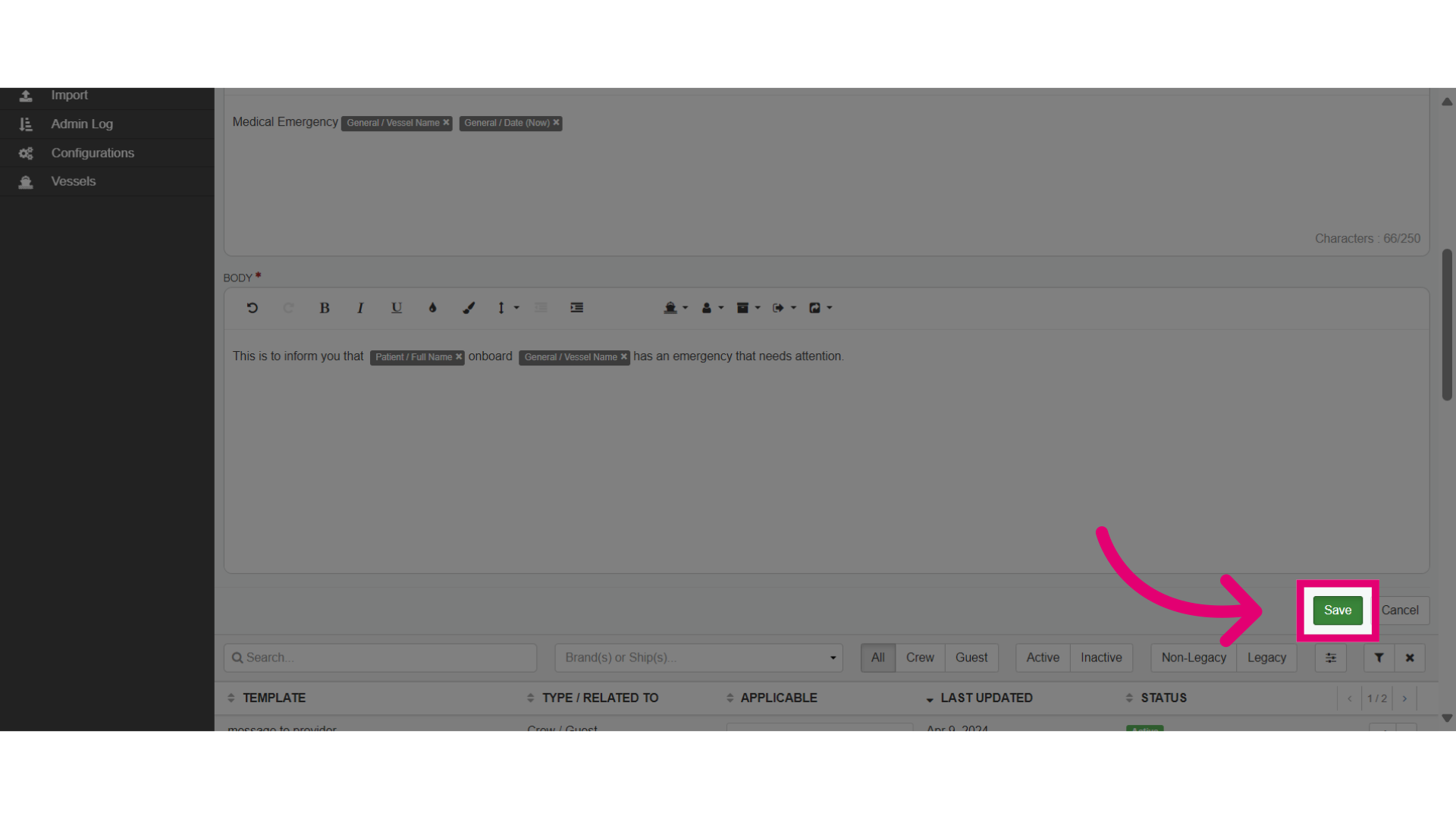
- When you are done completing the template, save the changes that were made.
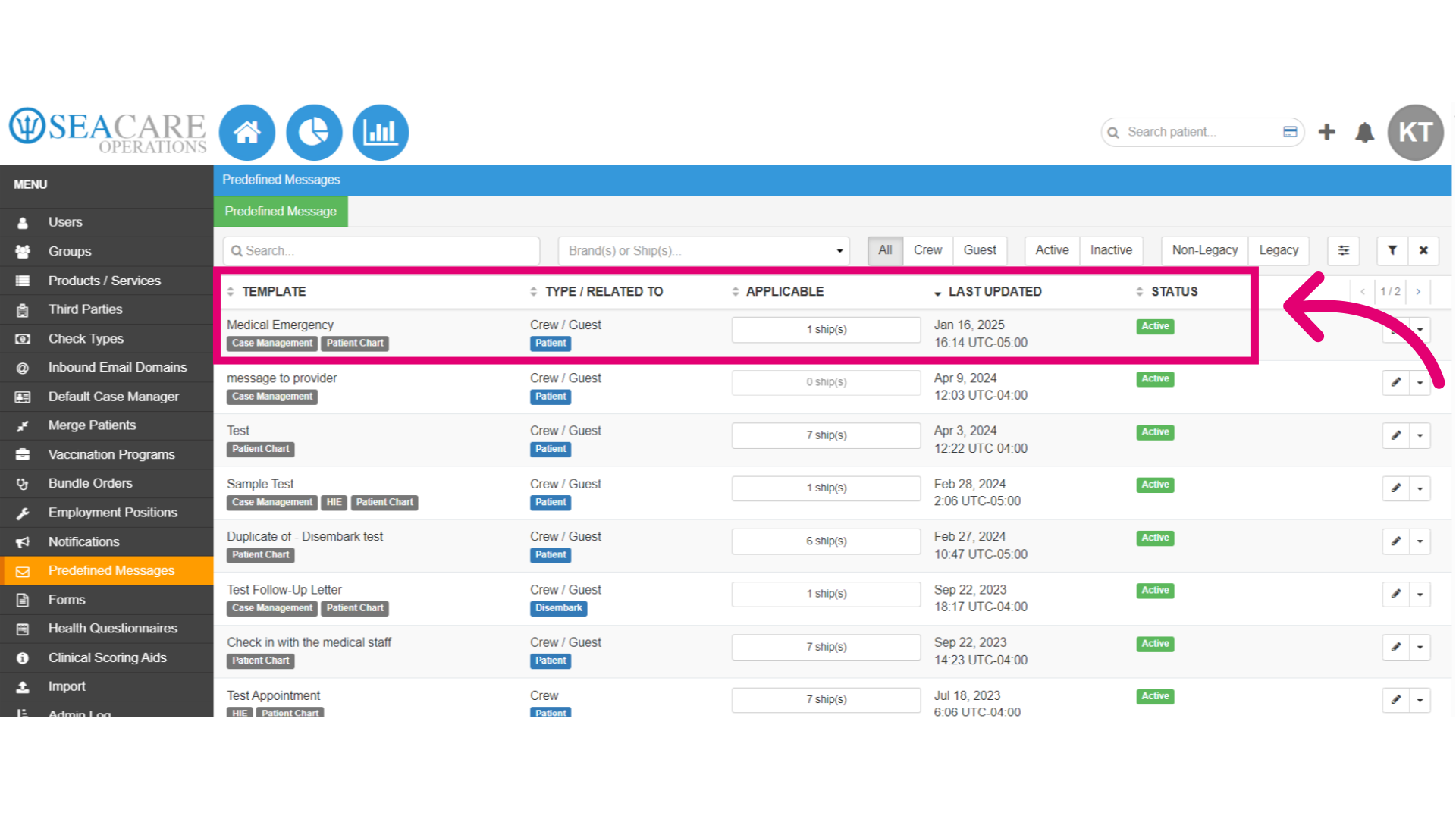
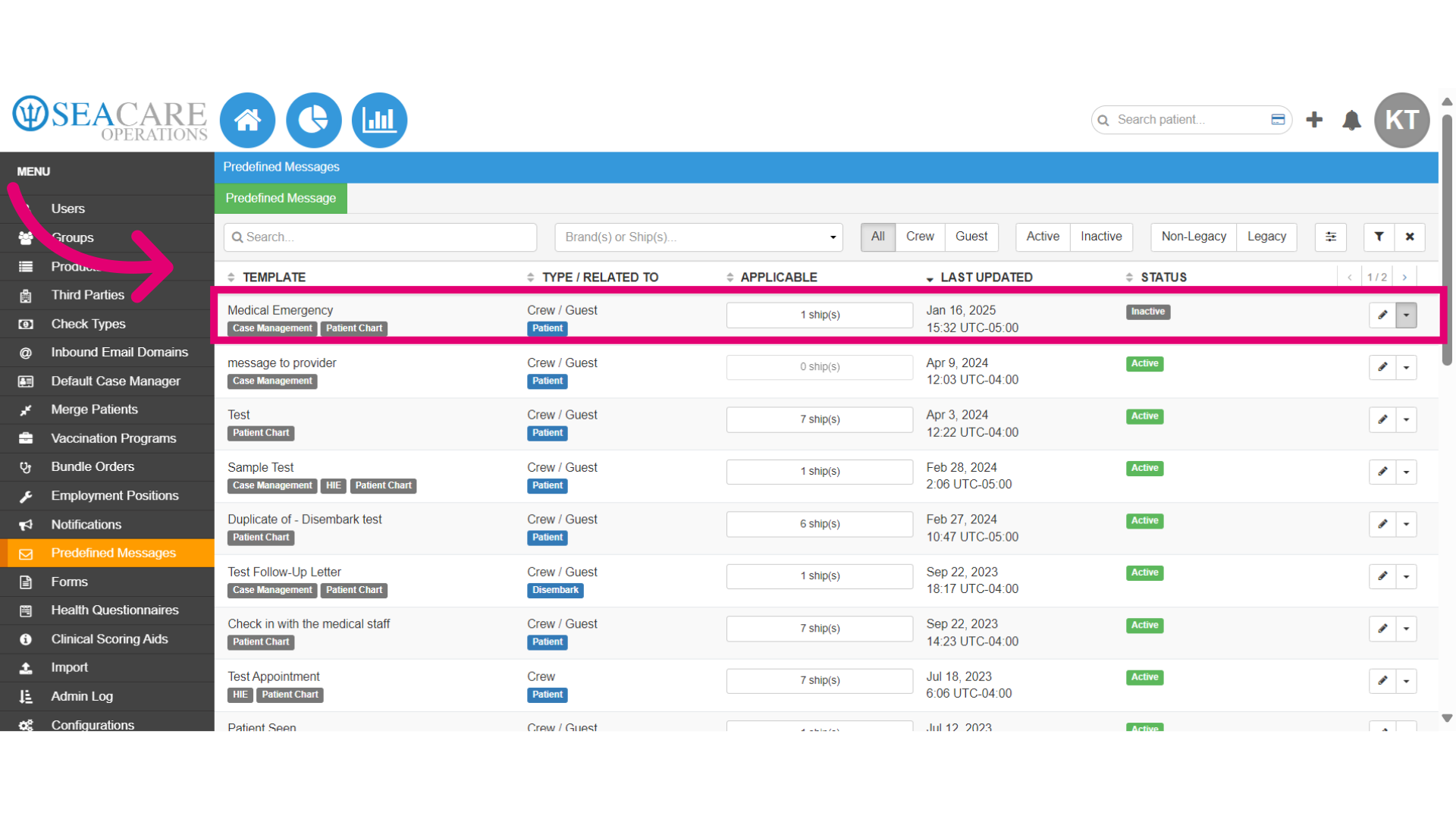
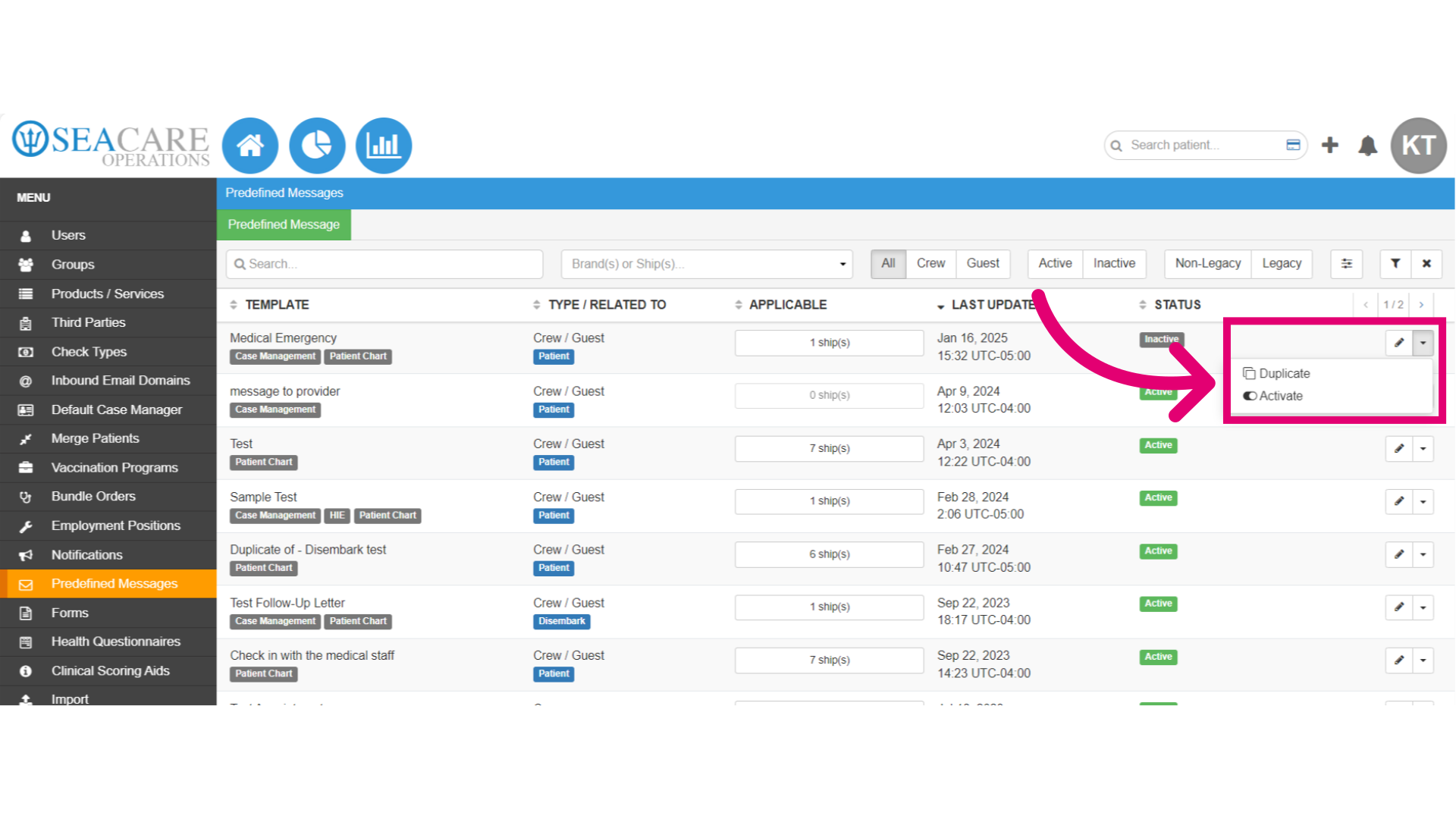
- Check the updated template list featuring the new template. View details like availability, related items, applicable ships, the last user who updated it, and its default inactive status.
- To activate the template, go to the Actions menu for the template and click on Activate.
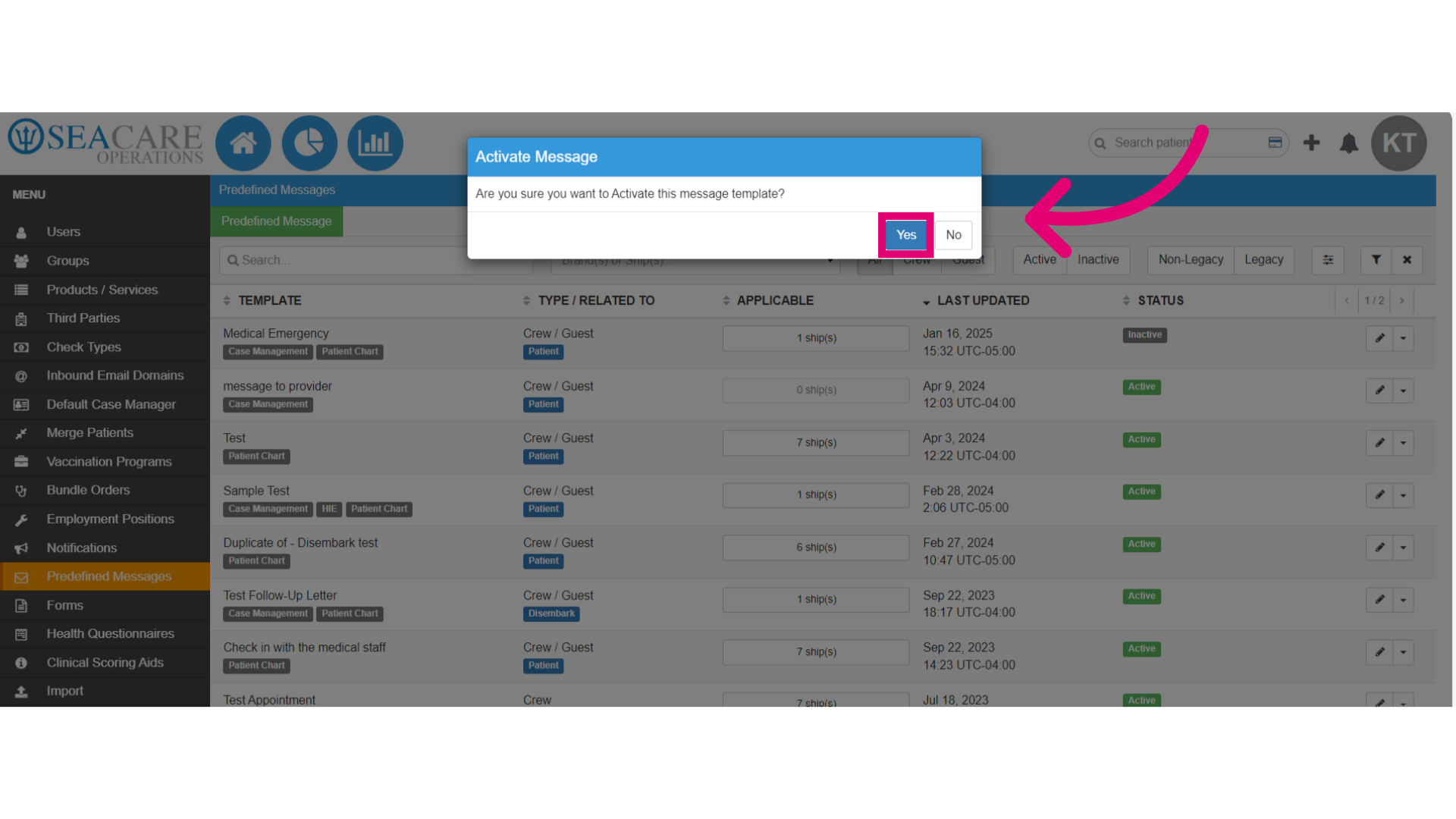
- Confirm the activation.
- View the updated Active Status.