New article
Recently updated
Scheduling Crew Wellness Appointments

Who is this article for?Users who want to learn to book a crew wellness appointment with the onboard clinic.
No elevated permissions are required.
When a crew member is enrolled in a crew wellness program, you can schedule appointments to conduct their follow ups and treatment while in the program. This demonstration is designed to provide you with a comprehensive guide that will walk you through each step of the scheduling process.
1. Scheduling Crew Wellness Appointments
1.1. Video
1.2. Steps
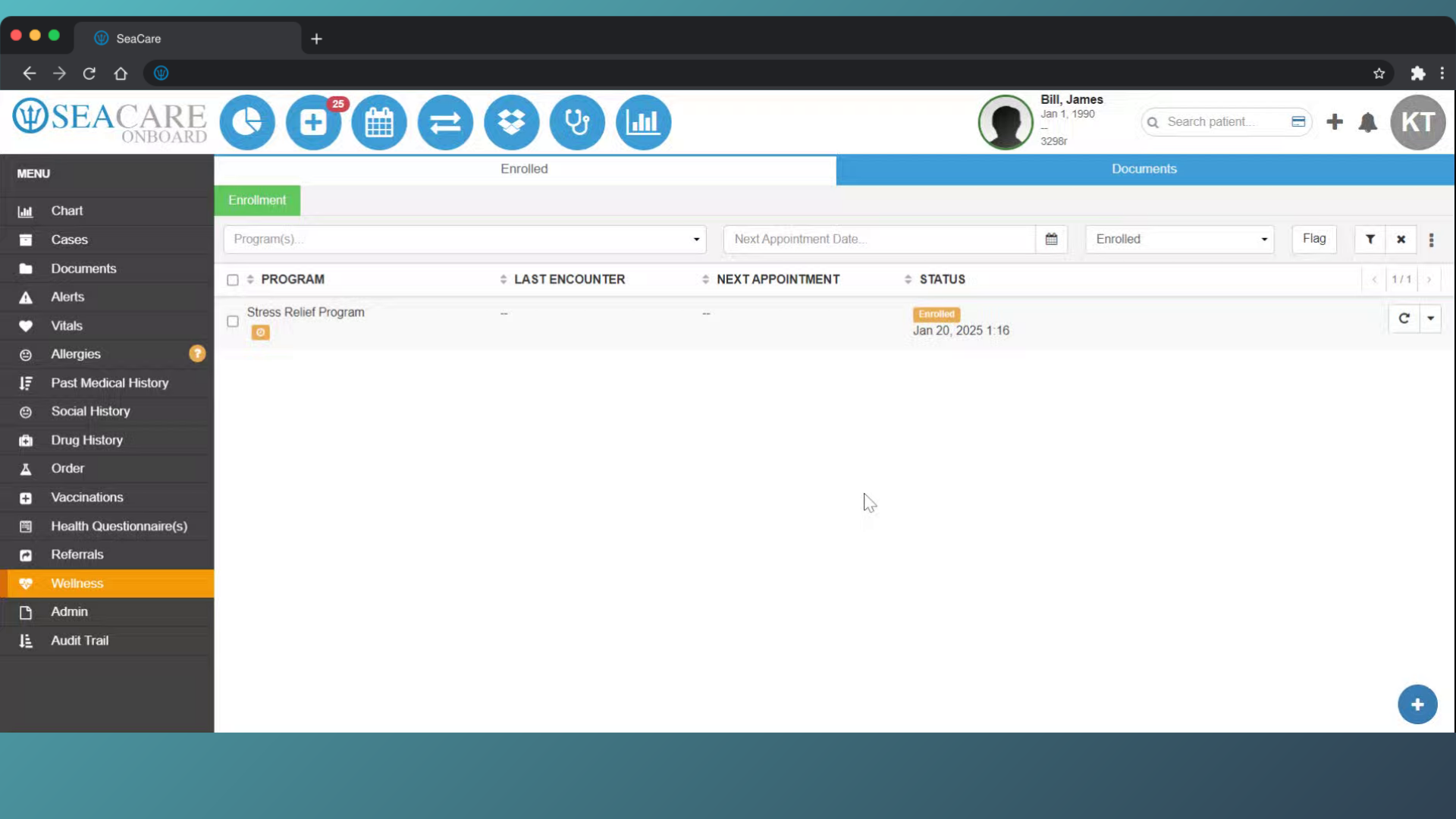
- Go to the Patient Chart, and select the Wellness module.
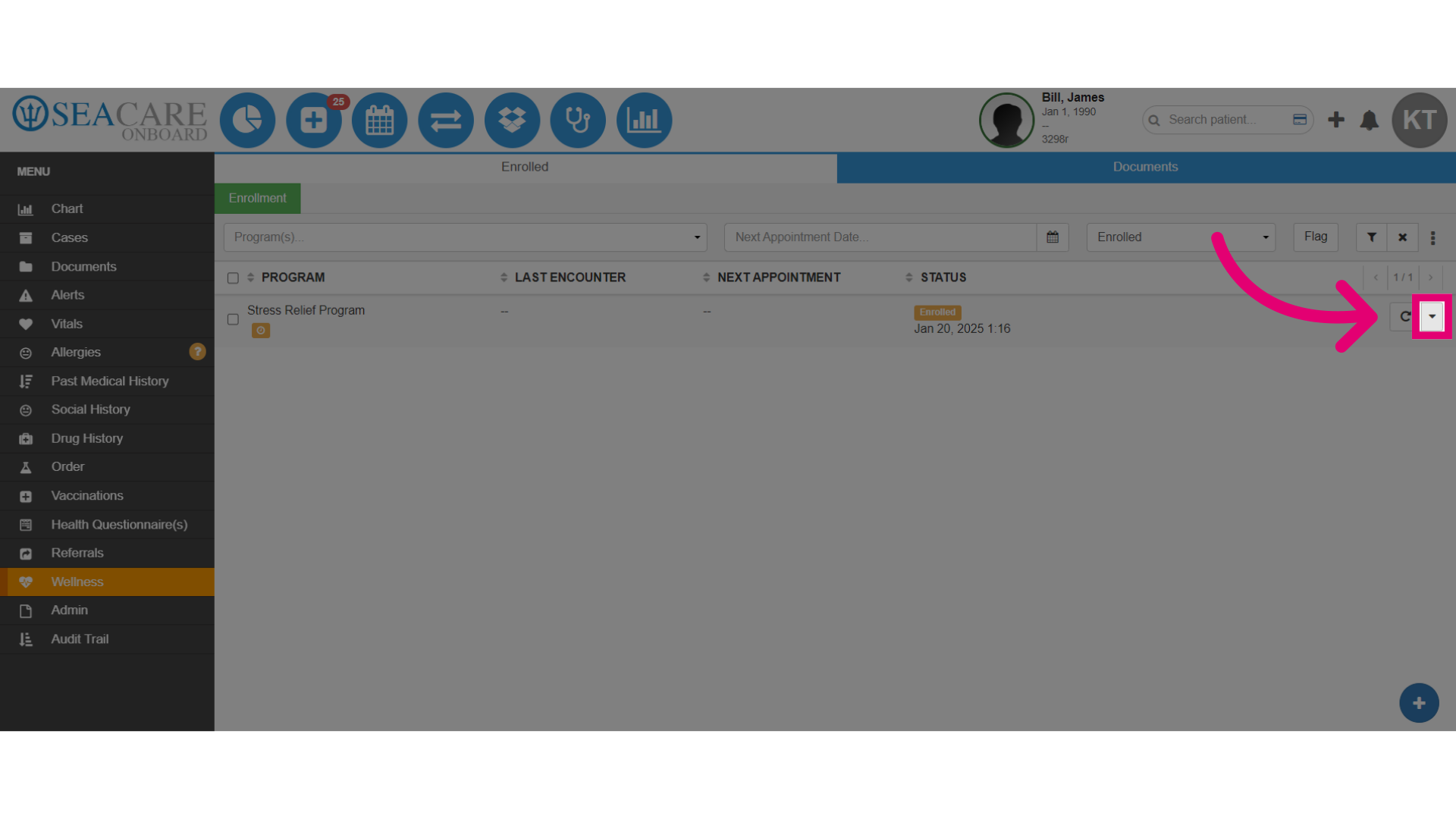
- Under the Enrolled tab, select the dropdown Actions menu.
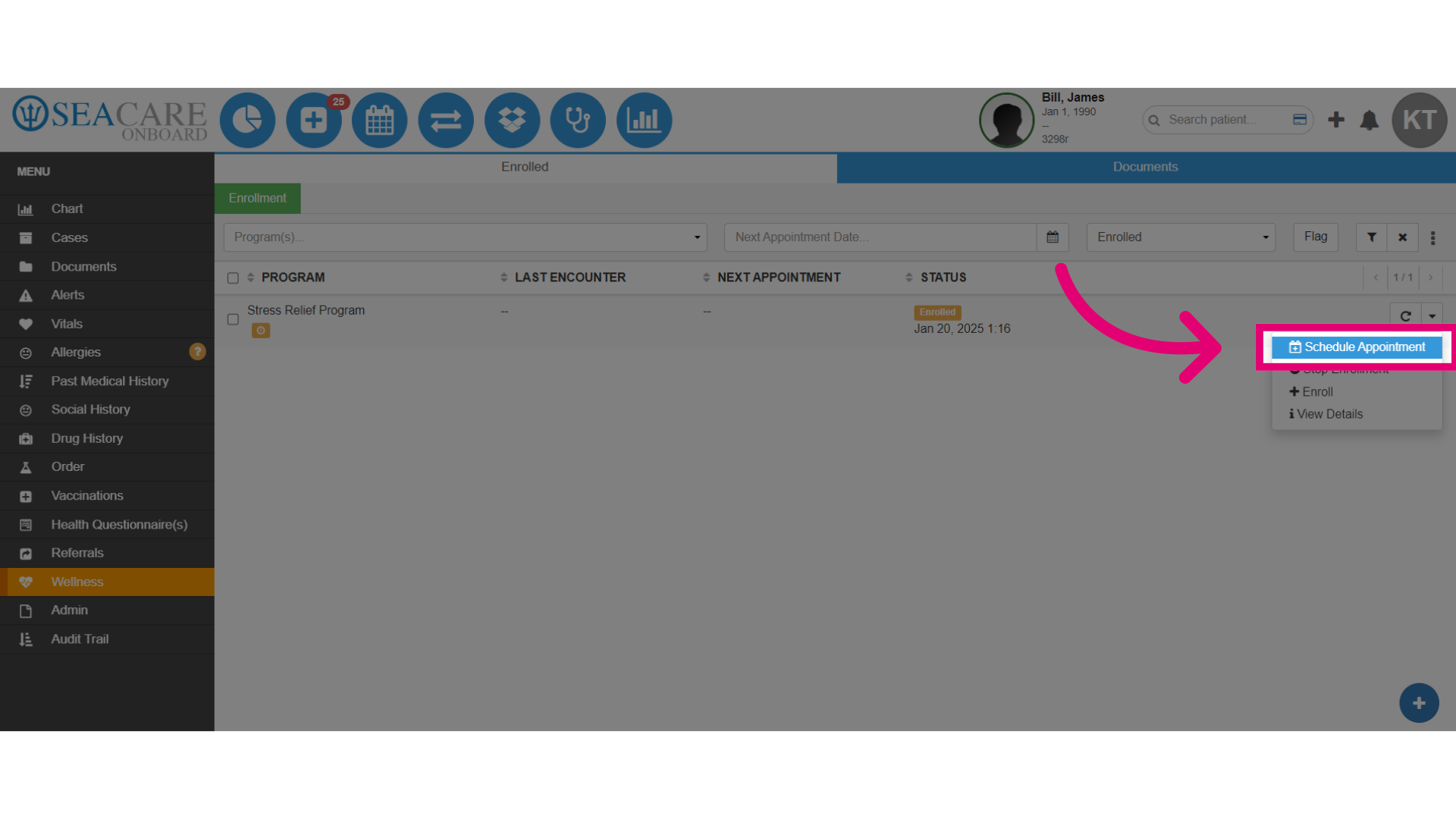
- Then, select Schedule Appointment from the options.
- Double-click on the calendar for the Start Time of the appointment. (e.g. 9 AM)
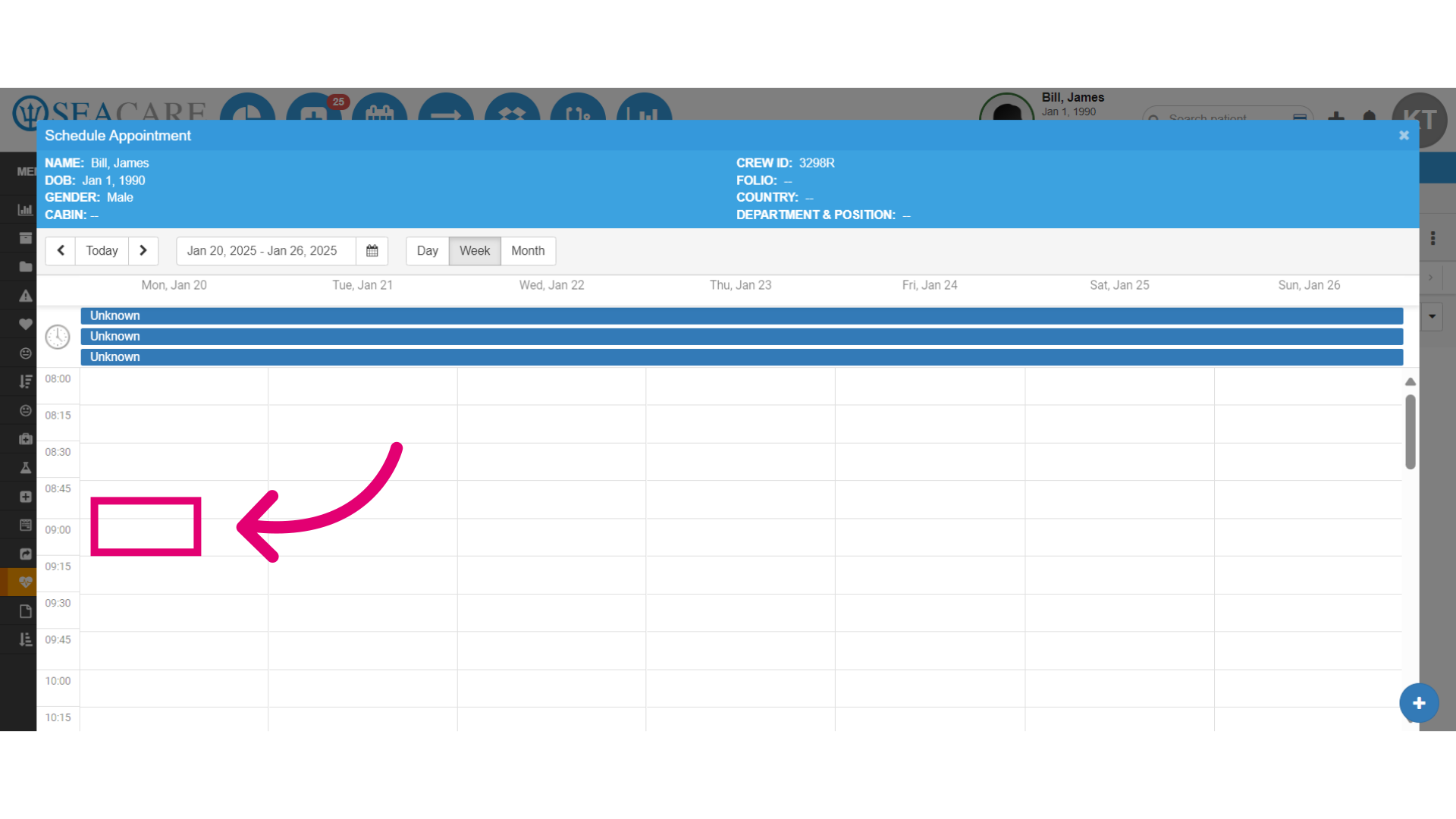
- In the Create Event window do the following:
- Complete the required fields marked with an asterisk.
- Select the Resource who will attend to the appointment.
- Verify the Start Time and End Time is correct.
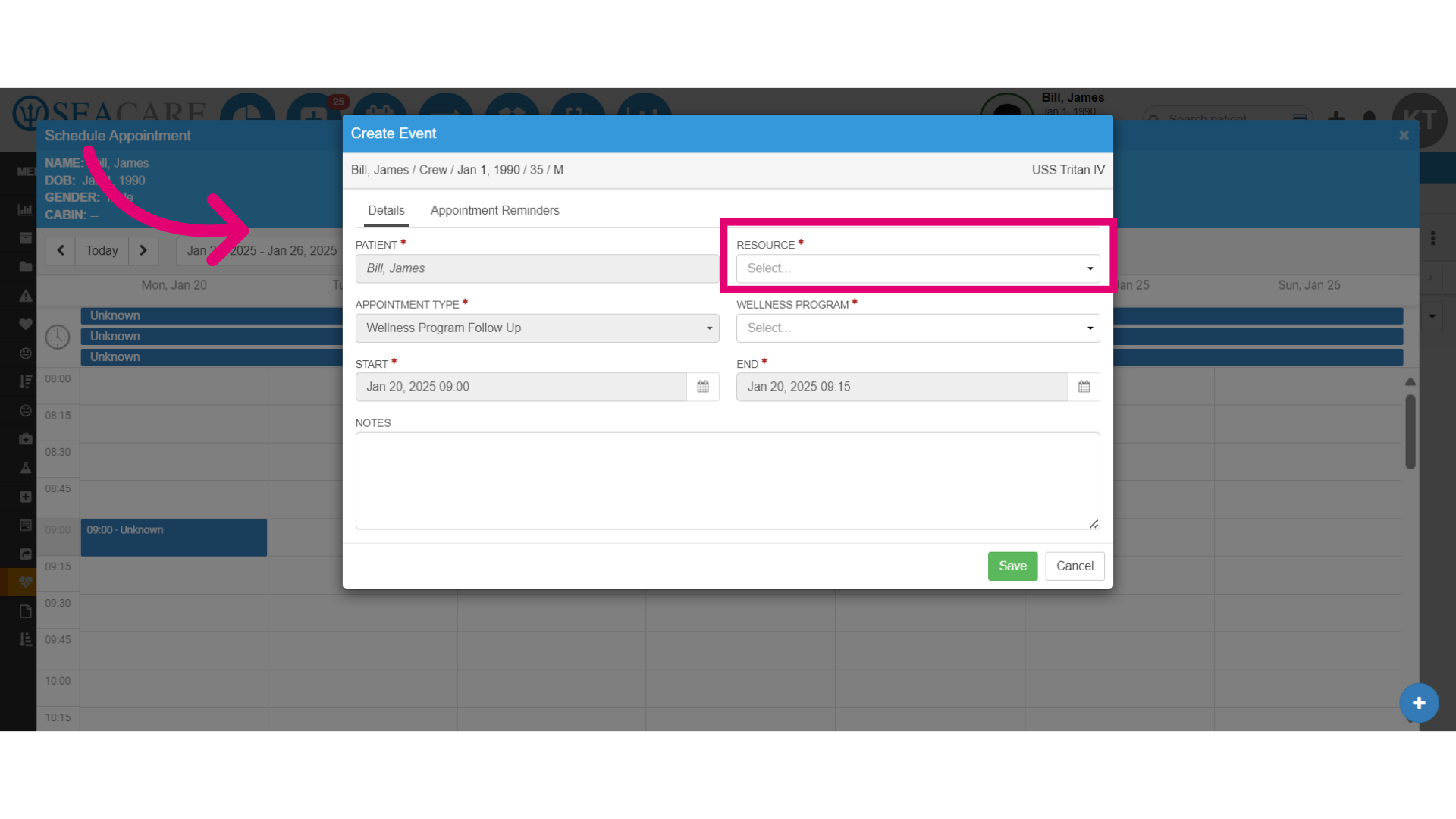
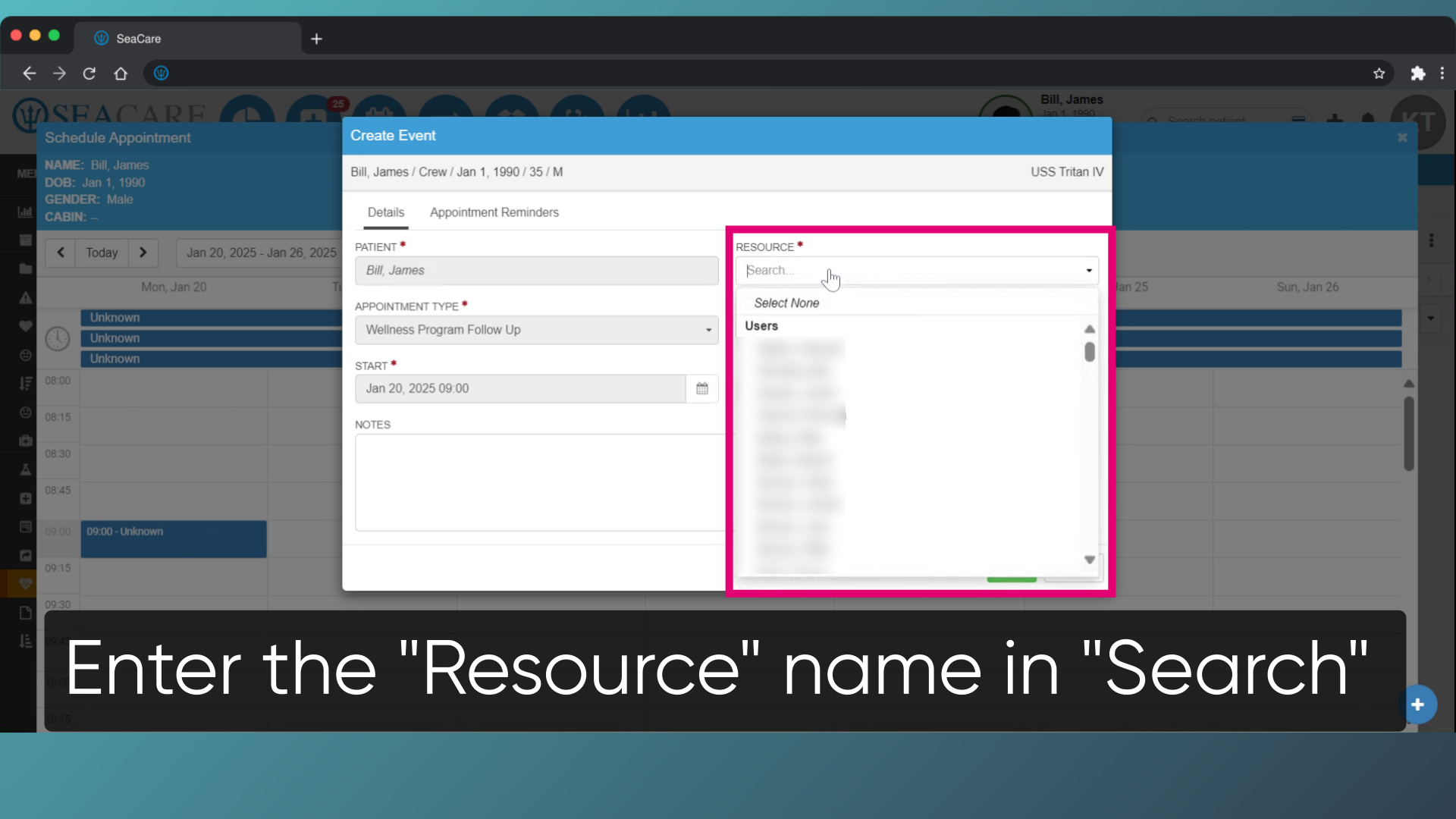
- Select a Resource user or a group from the list, or enter the user in search.
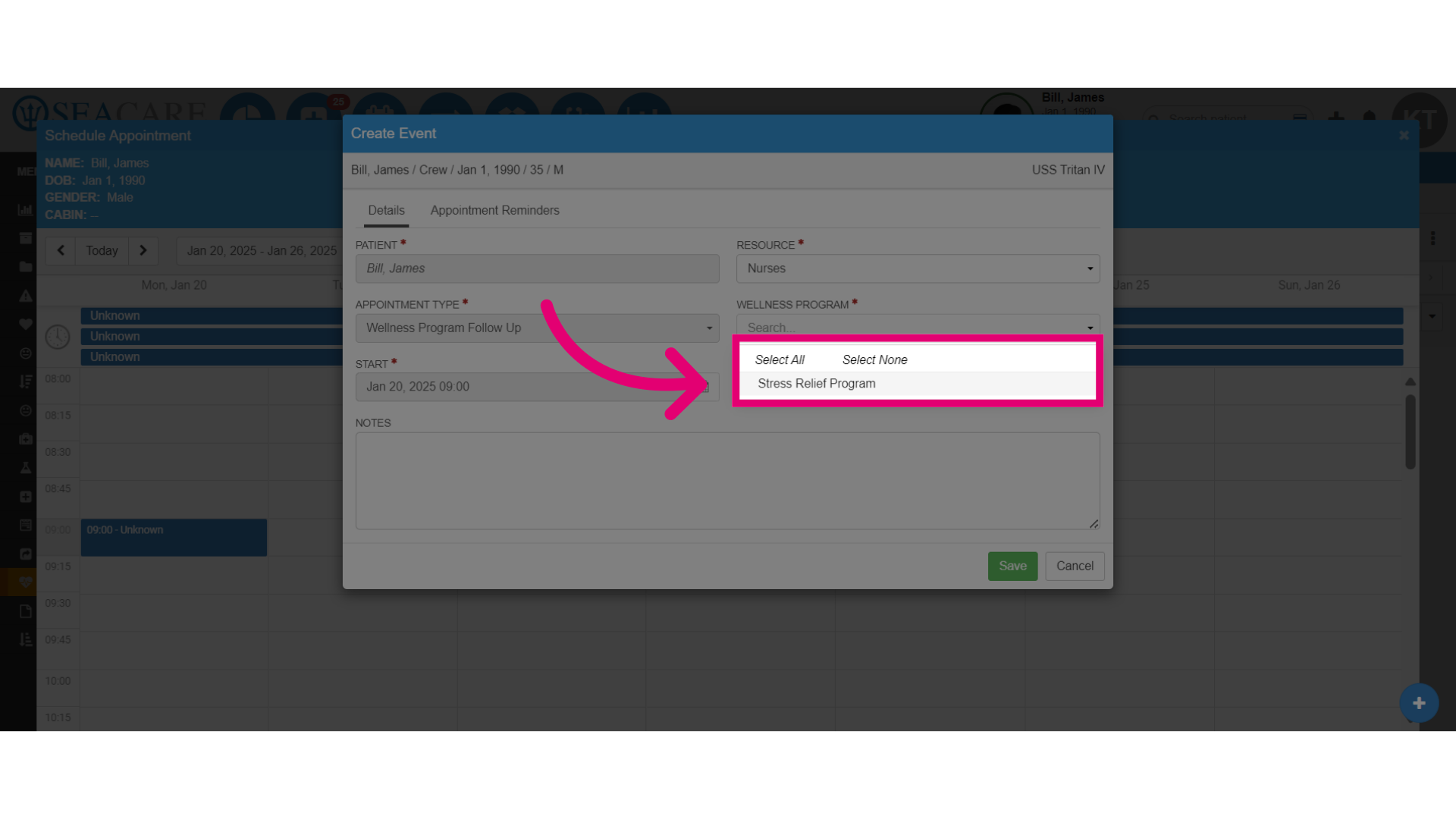
- Next, assign the appointment to a specific programme by selecting it from the list, if necessary.
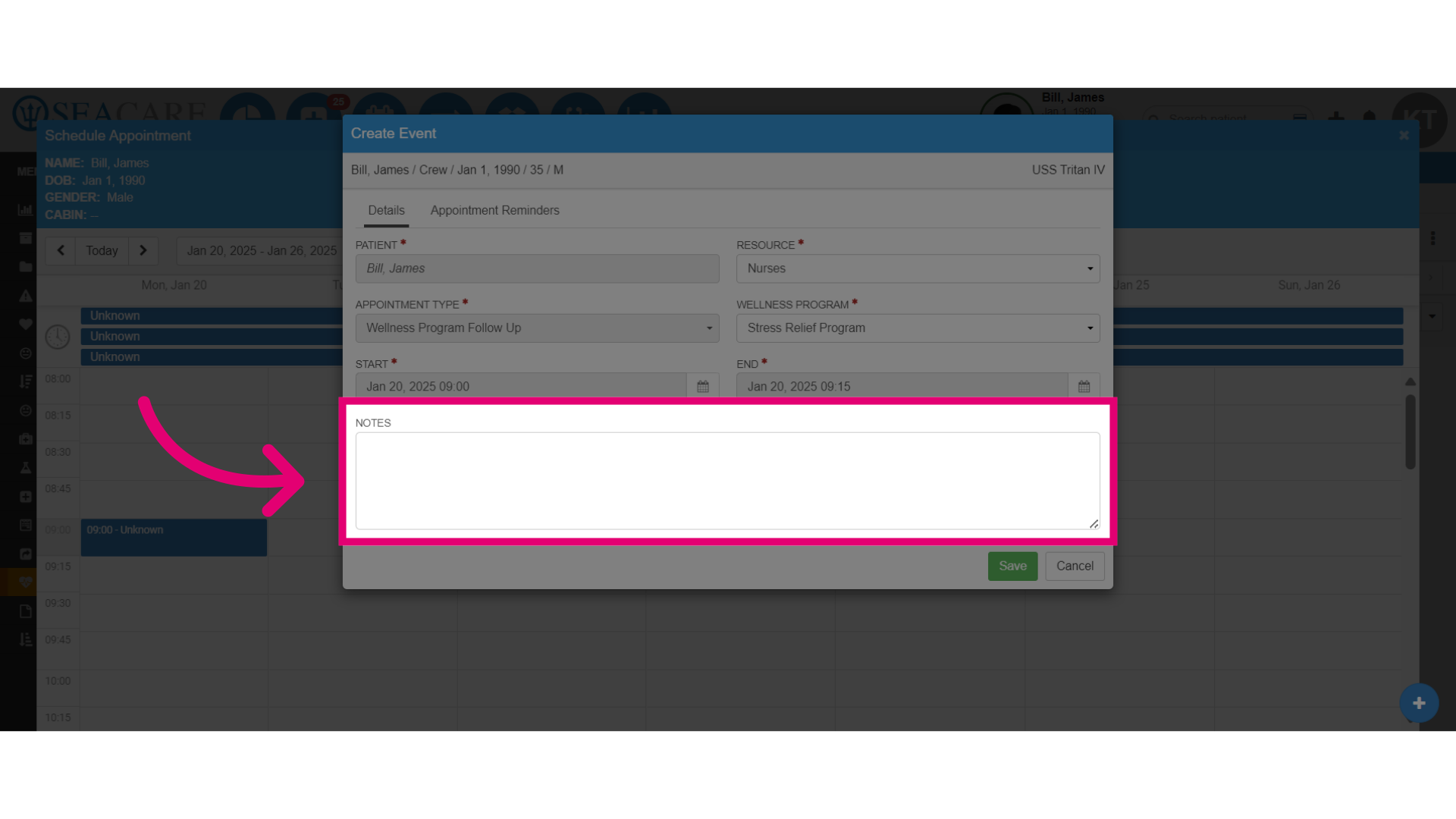
- Also, add notes if necessary.
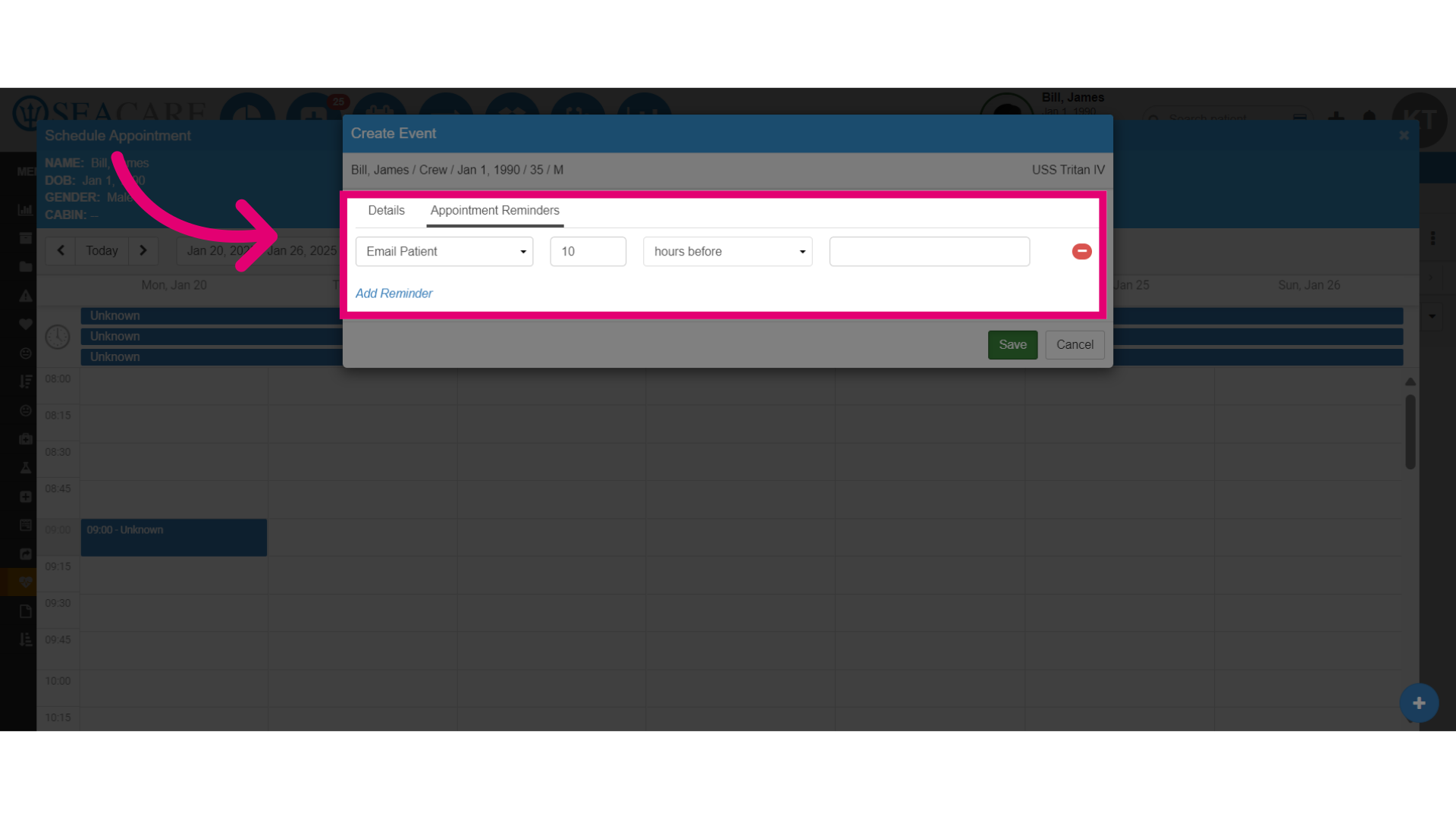
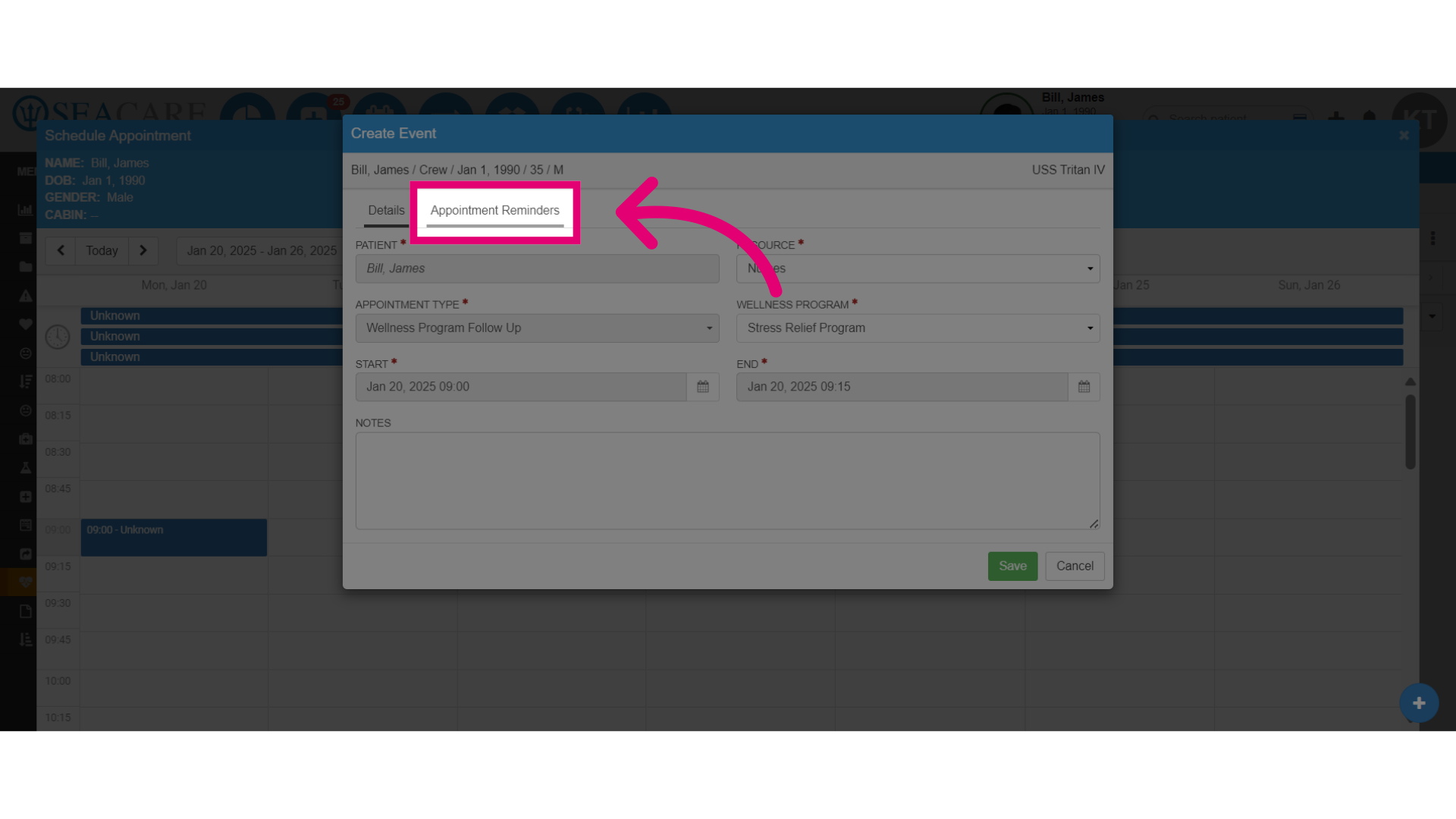
- Next, visit the Appointment Reminders tab to configure reminders for patients before their appointments.
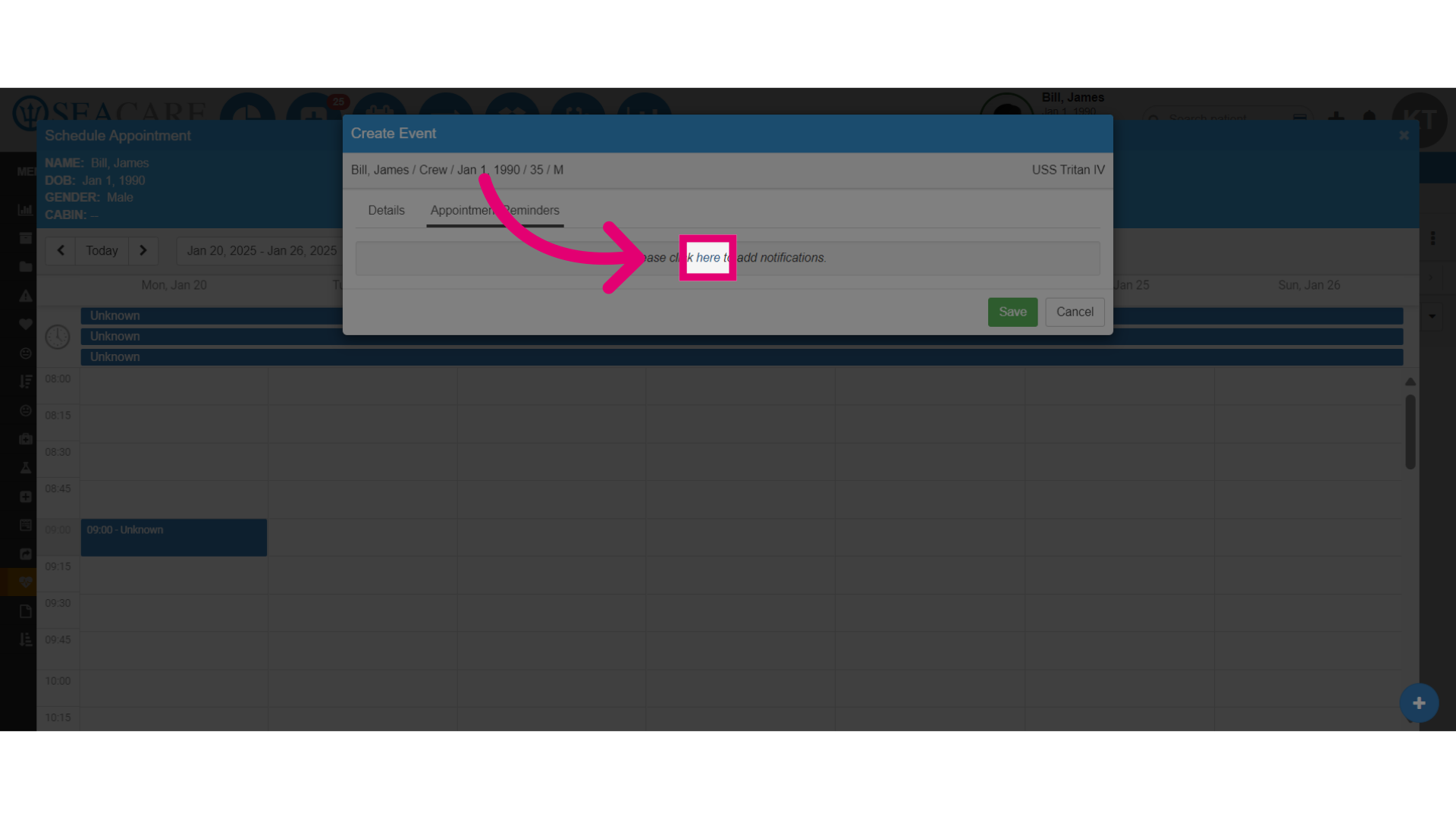
- Click here to open the settings.
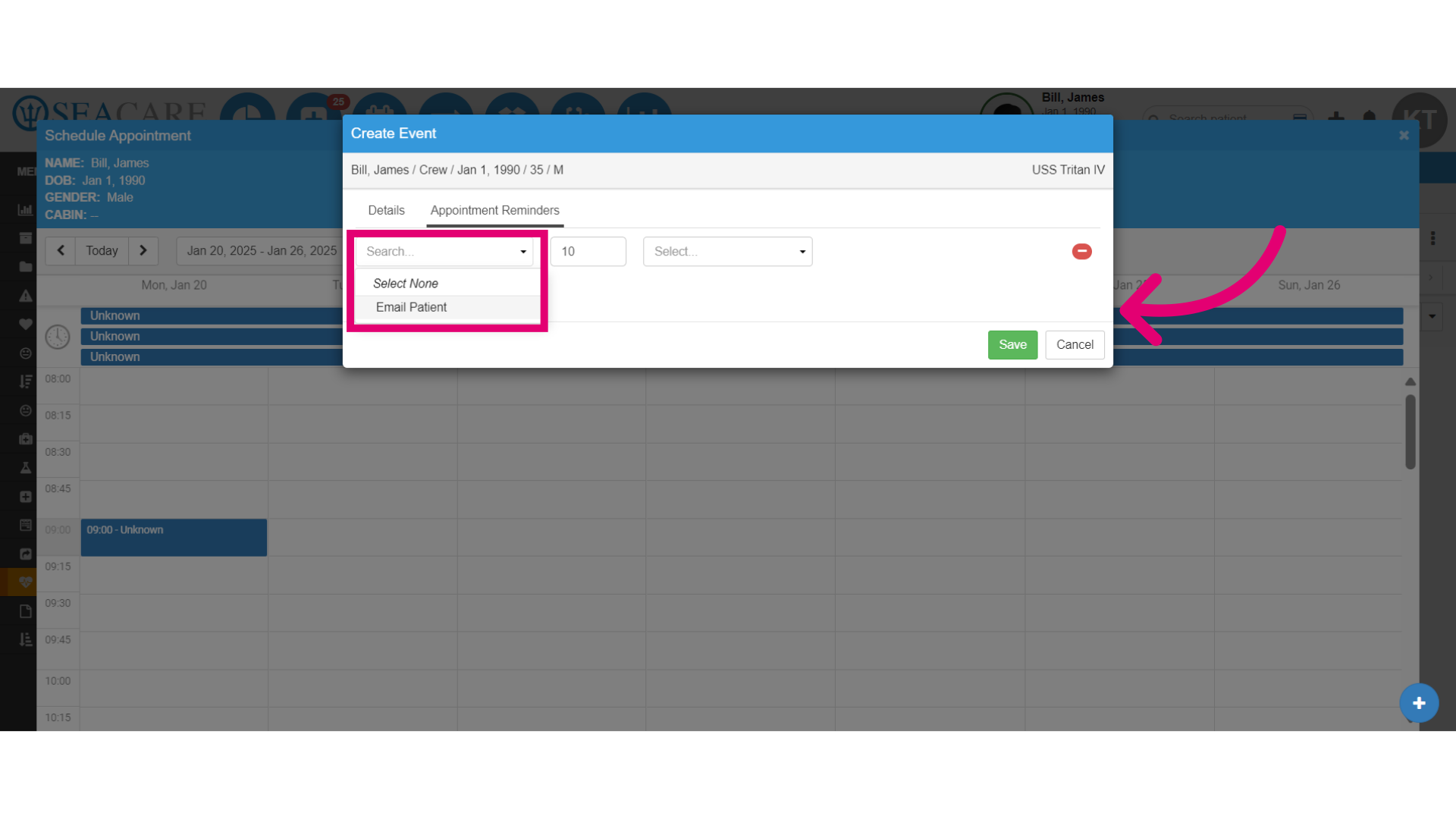
- Choose the communication method.
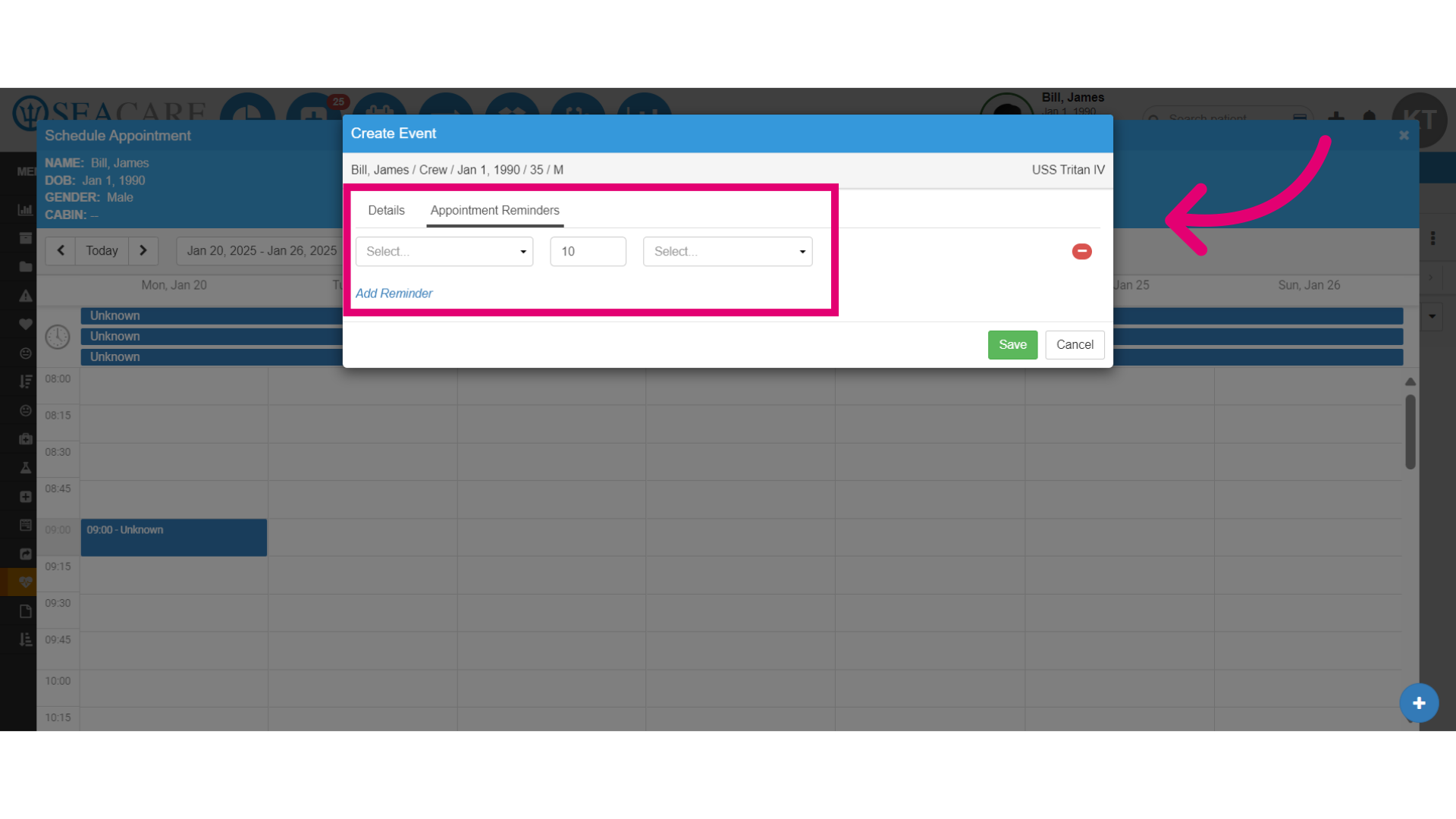
- Select Email Patient as the reminder method.
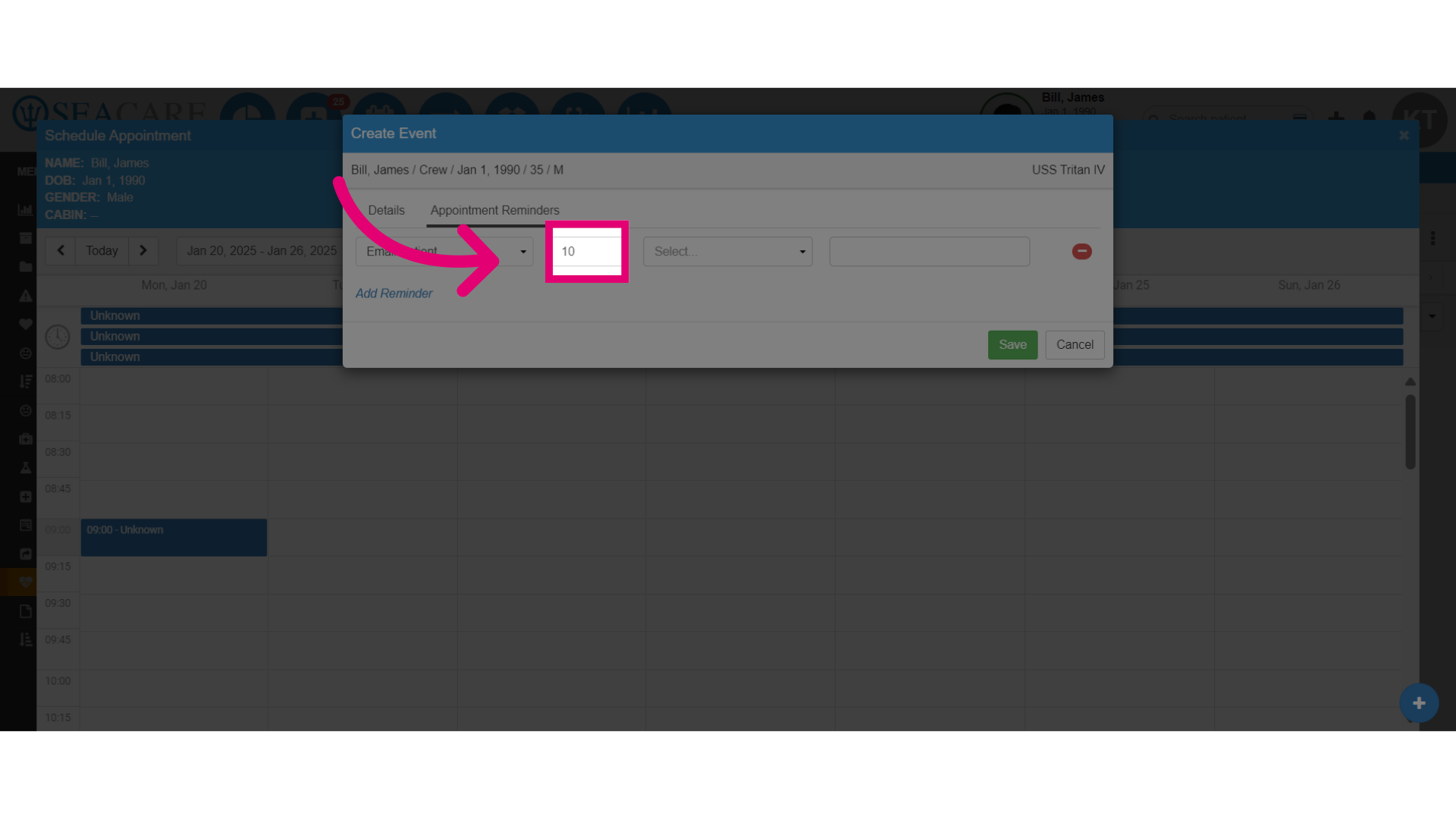
- Set the timing for the reminder by entering a number for the amount of time.
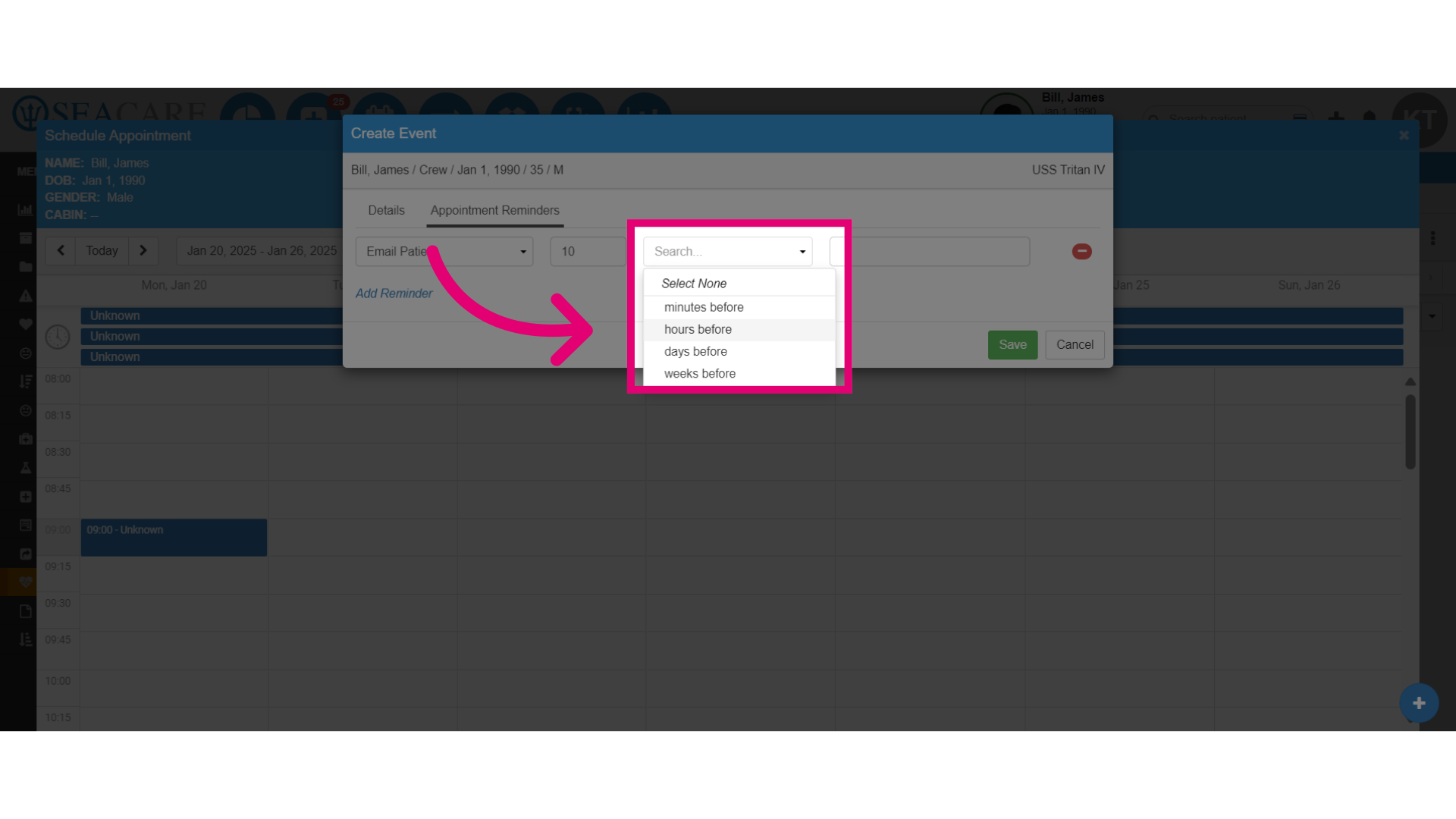
- Specify when the reminder should be sent to such as minutes, hours, days or weeks before the scheduled appointment.
- Then, confirm and save the appointment details.
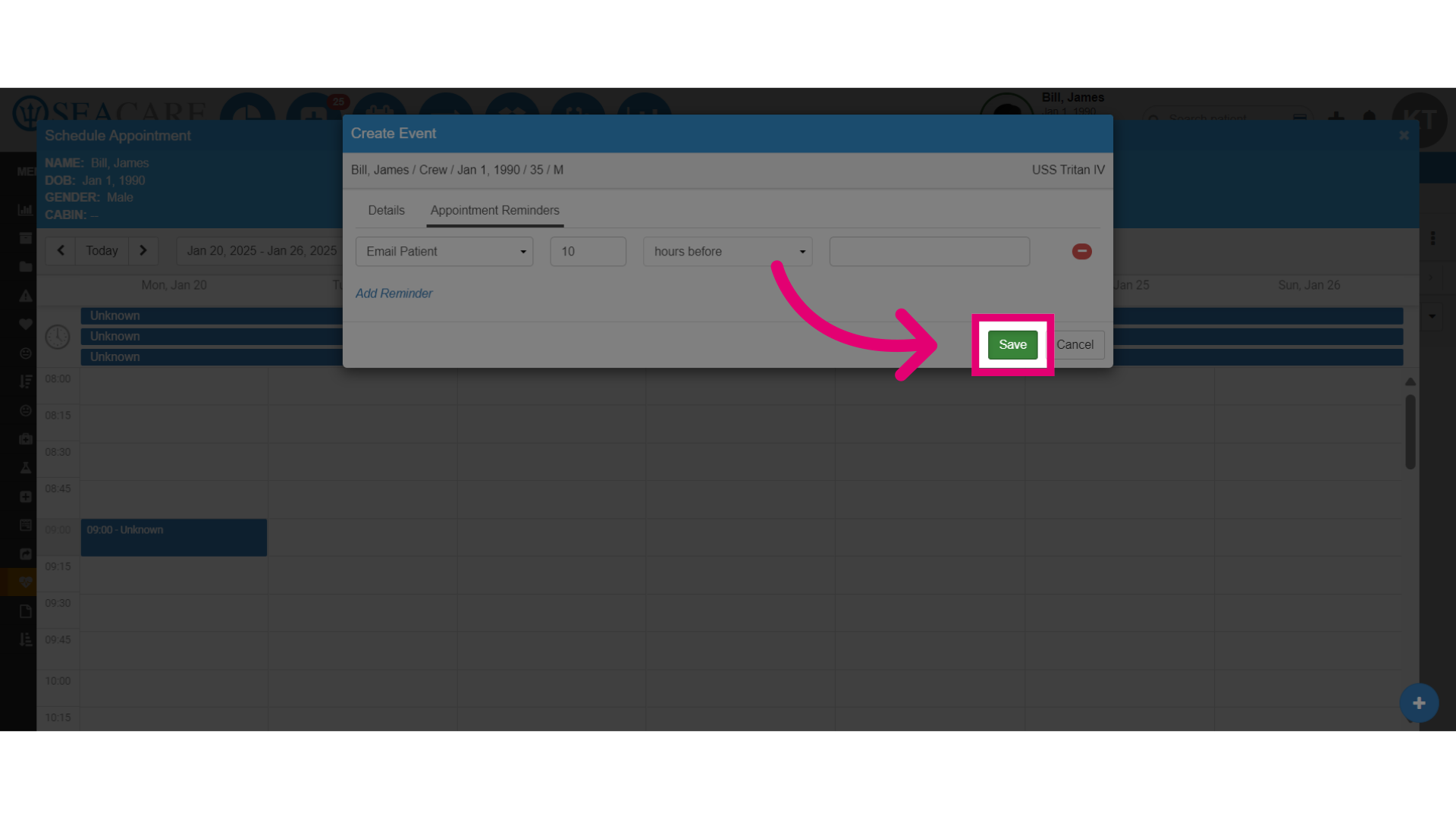
- This is now set to send a reminder to the patient 10 hours before the scheduled appointment.