New article
Recently updated
Crew Wellness Enrollment from the Patient Chart

Who is this article for?Users who want to learn to enroll a patient into a crew wellness program from the patient chart.
No elevated permissions are required.
This guide aims to provide you with a comprehensive overview of the steps involved in enrolling a patient into a crew wellness programme directly from their patient chart. From reviewing the available programmes to selecting the most appropriate one, please follow this guide to understand the process.
1. Crew Wellness Enrolment from the Patient Chart
1.1. Video
1.2. Steps
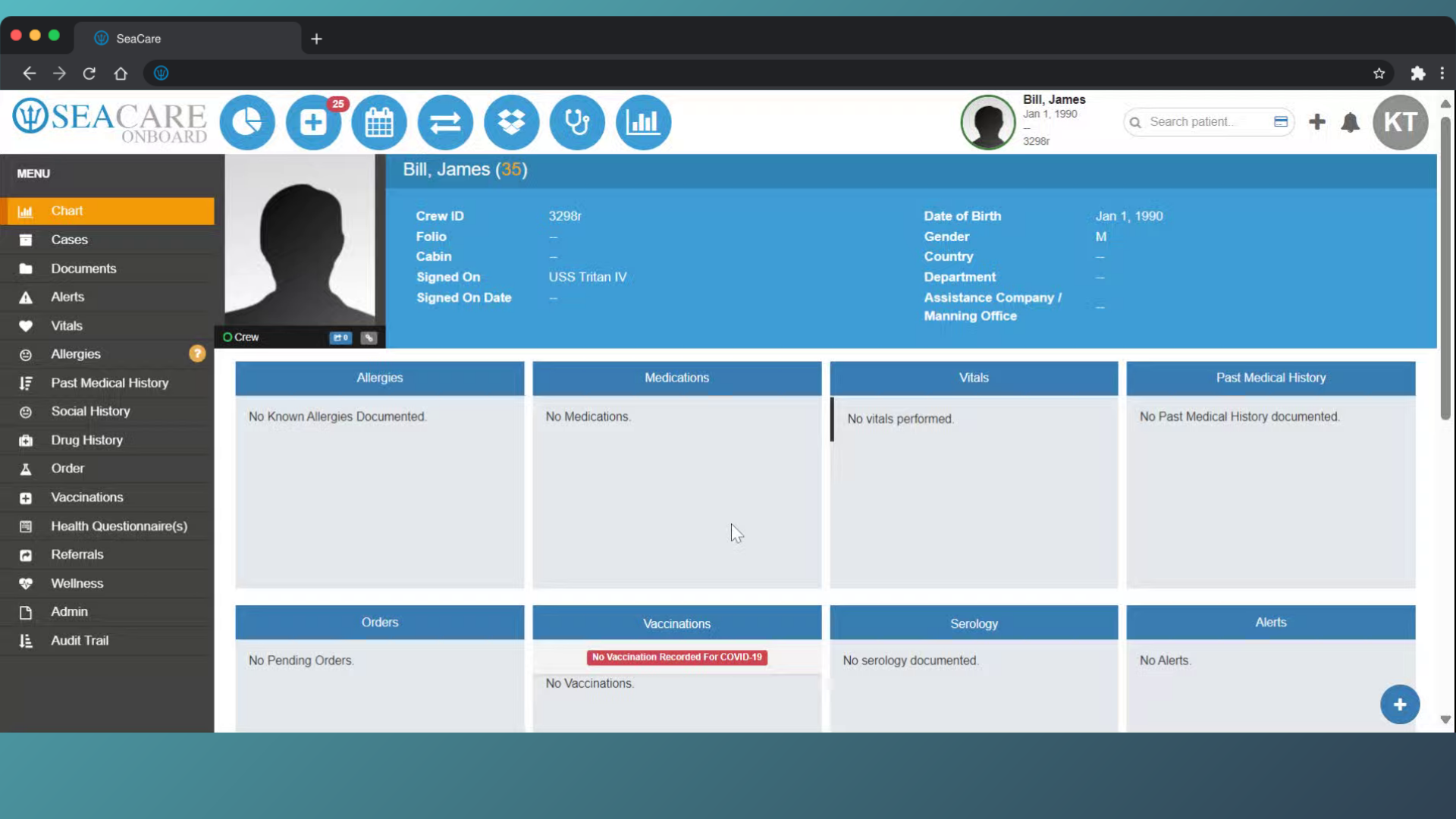
- Start in the patient chart.
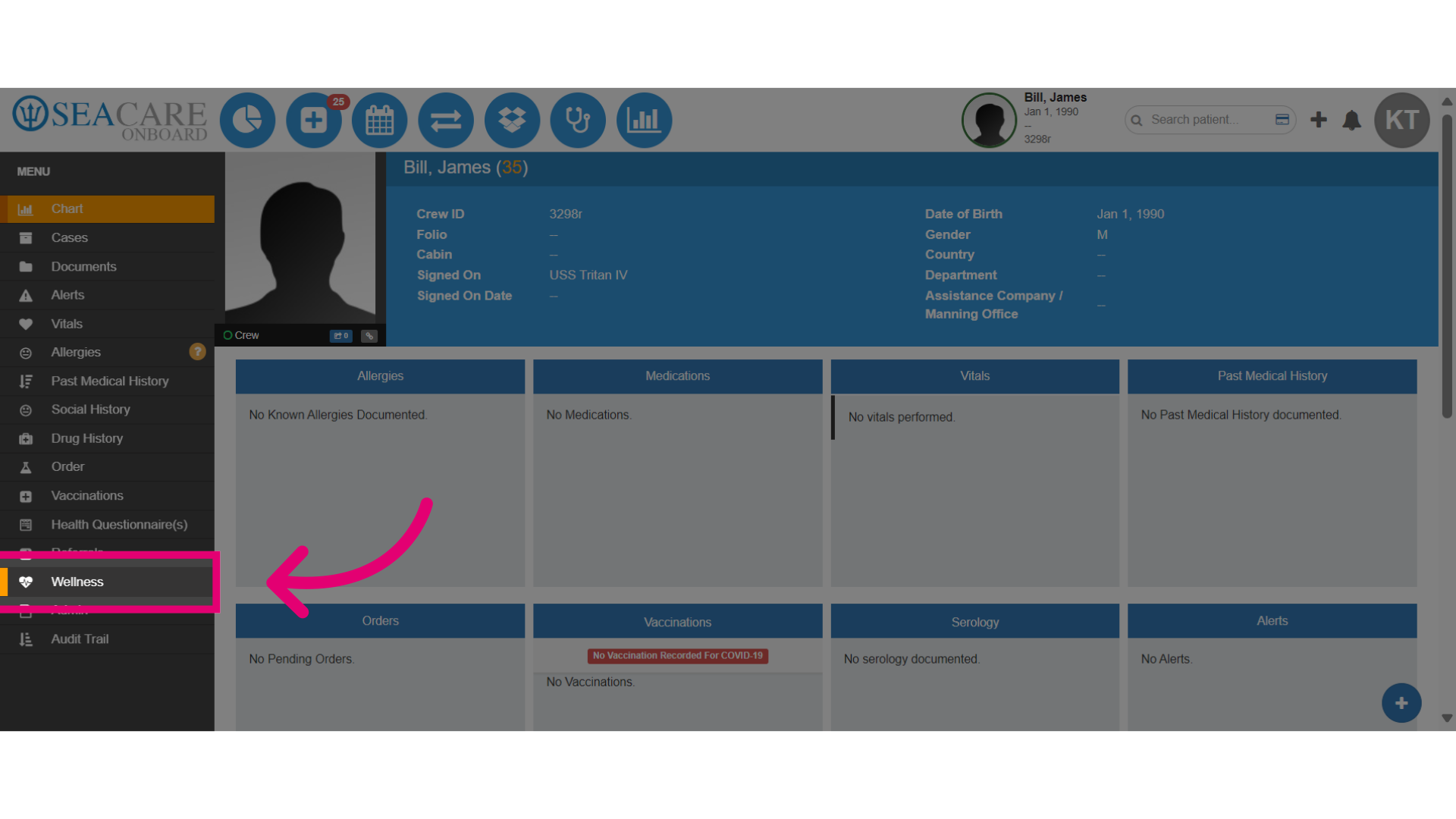
- Then, navigate to the Wellness module from the menu.
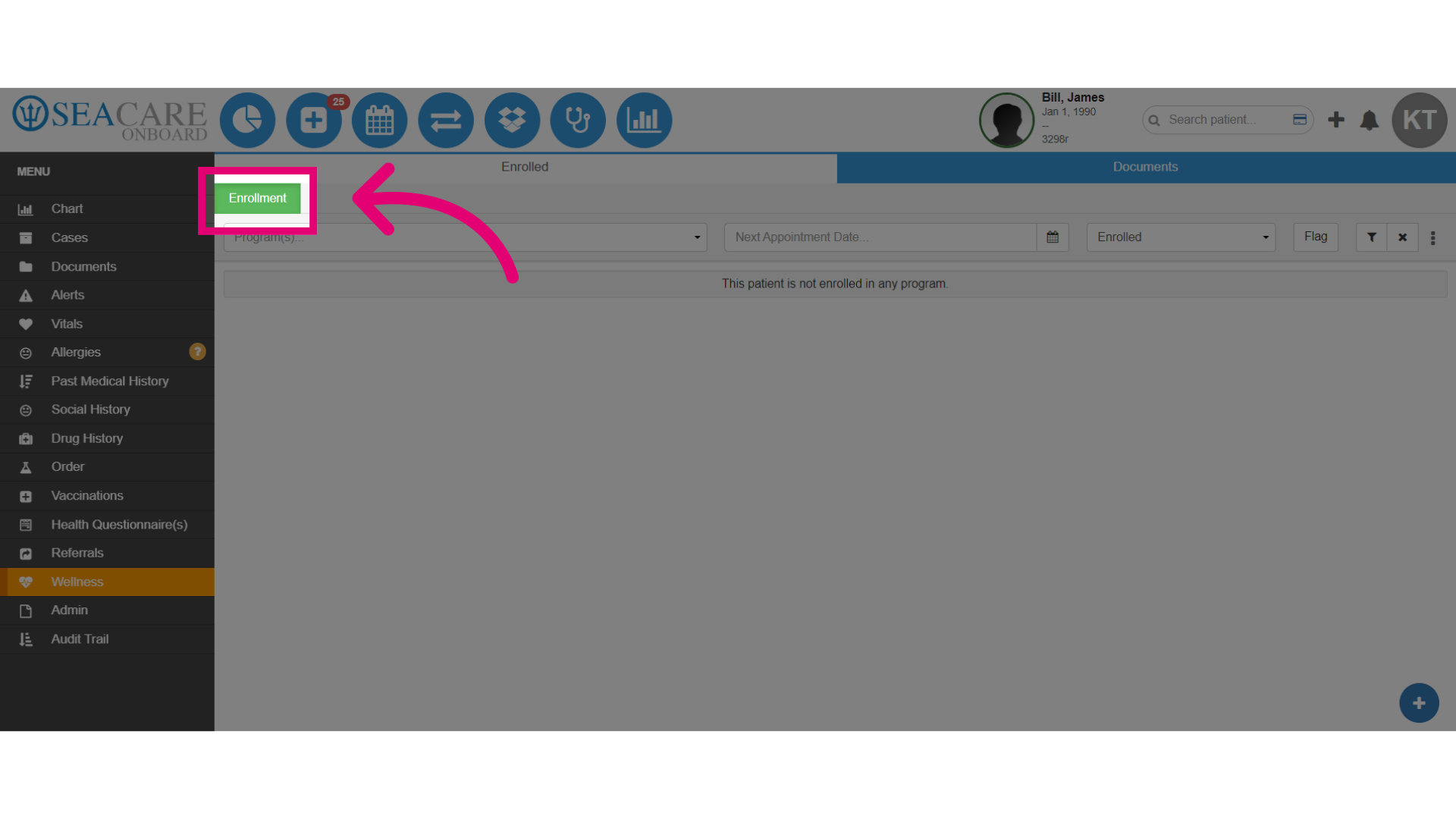
- Select Enrollment, to access the list of programmes.
- Enter the name of the programme that you want to enroll the patient in the search bar or select a programme from the list.
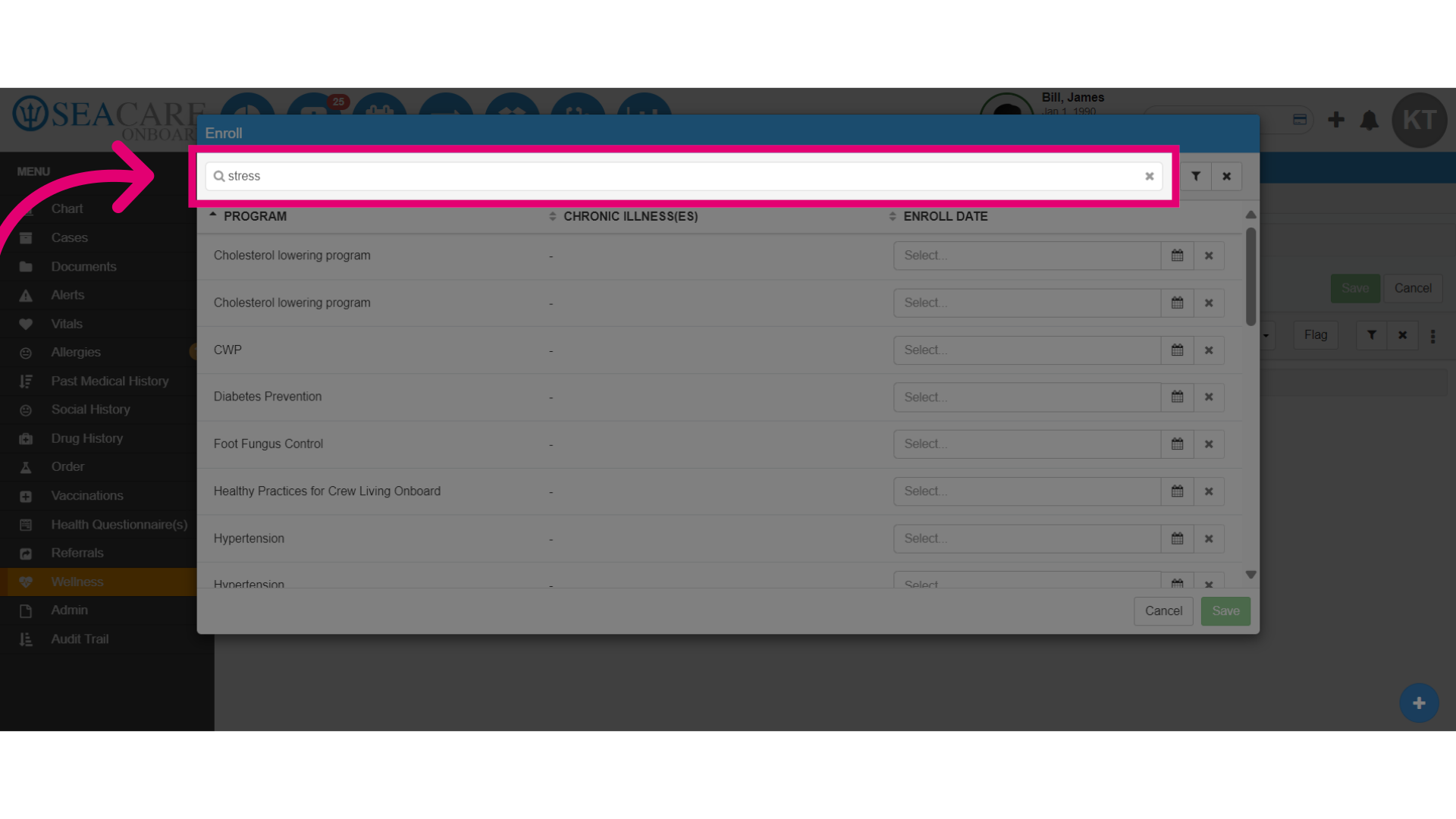
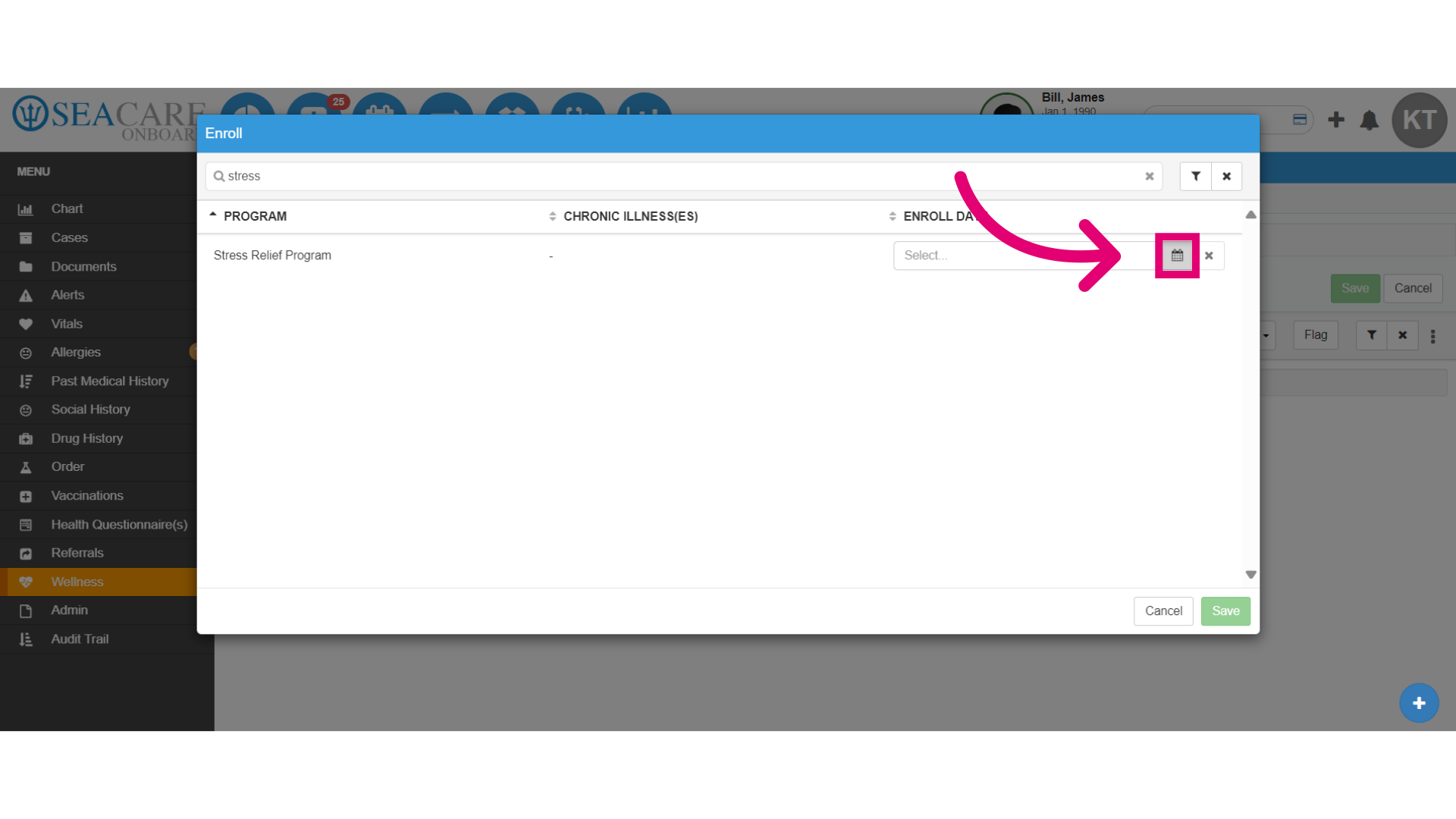
- You can view the program, any chronic illnesses related to the program and the enroll date. Select the Calendar option to set the enroll date.
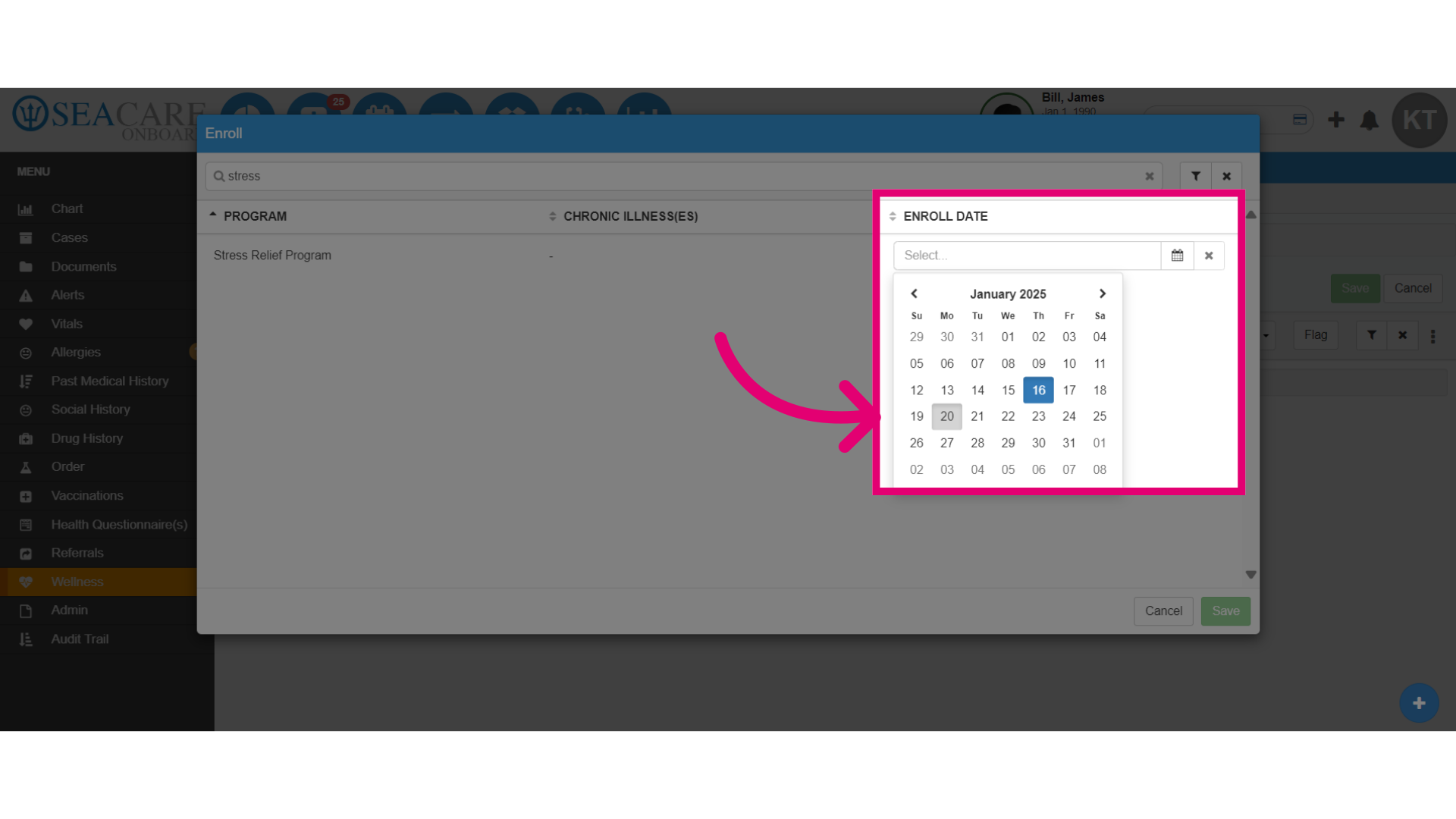
- Select the start date for the programme in the date picker, which can be the current date or a future date.
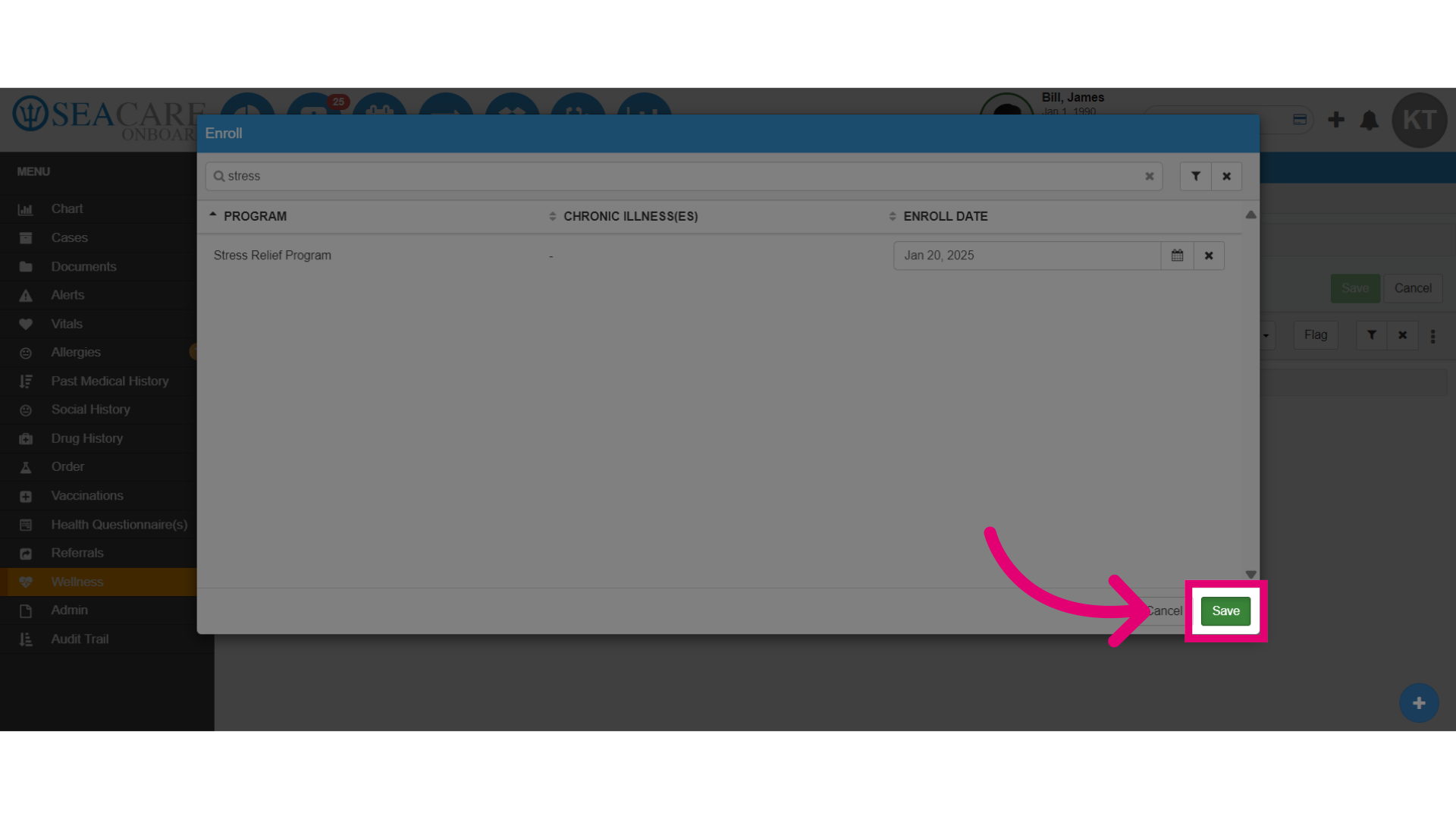
- Select Save to save the enrolment.
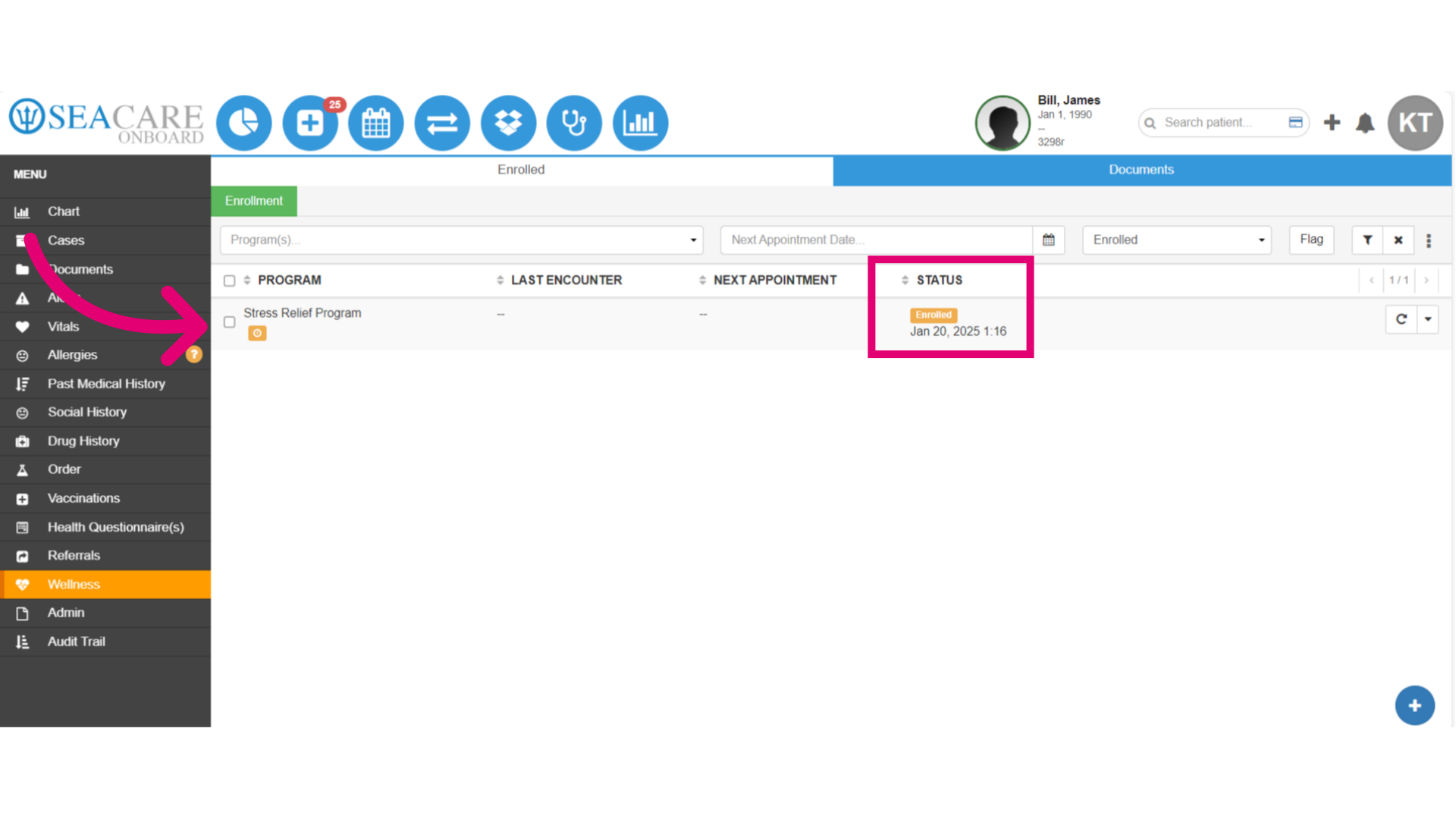
- Review the enrolment in the programme list.
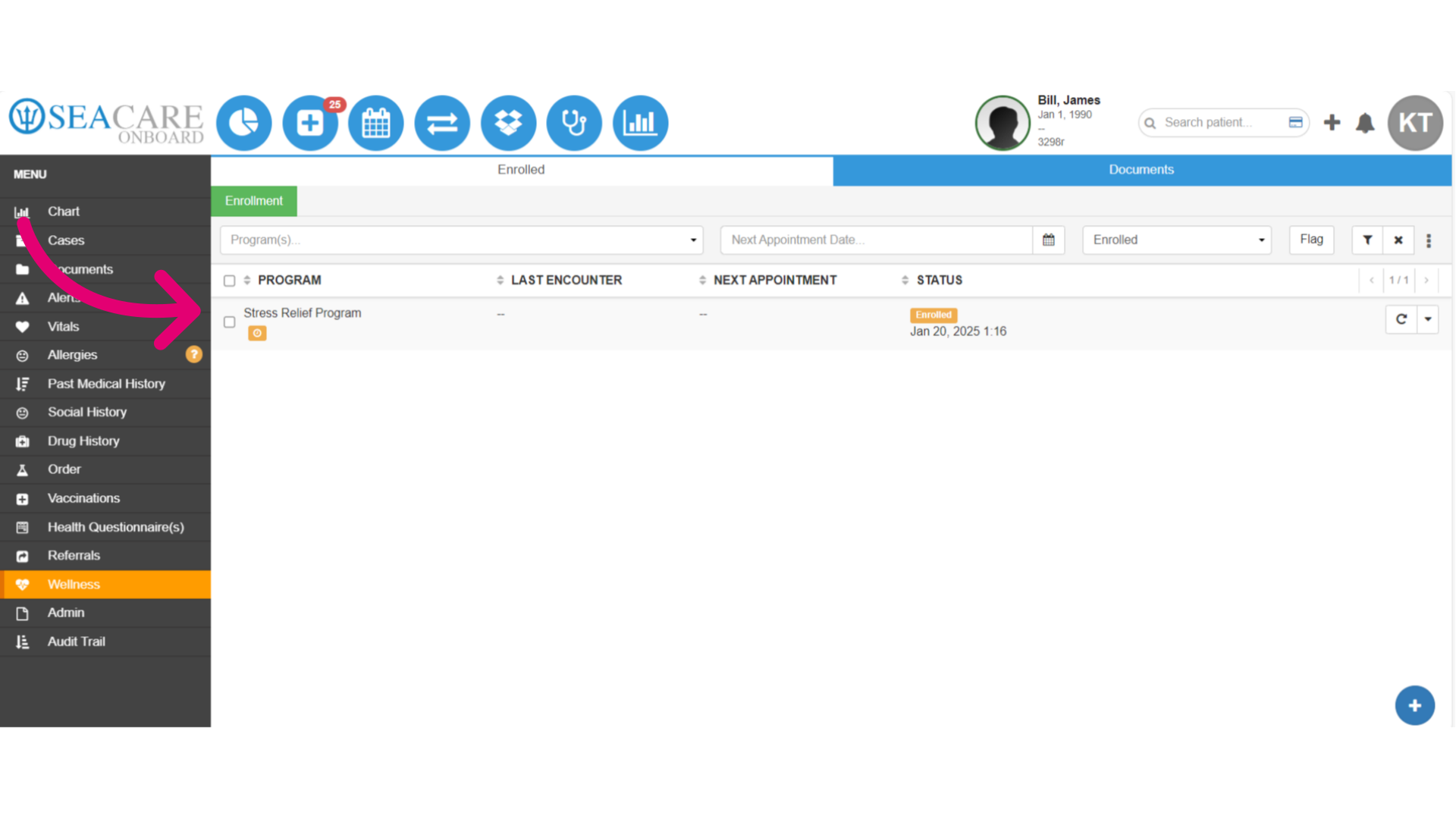
- View the Status column for the enrolled status, and verify the accuracy of the start date.