New article
Recently updated
Stopping a patient's Crew Wellness enrollment

Who is this article for?Users who want to learn to stop a patient from being enrolled in a crew wellness program.
No elevated permissions are required.
This demonstration will outline the steps to effectively stop a crew member's enrolment in a wellness programme. This is necessary if they have completed the programme, failed to meet the standards, or need to be removed for other reasons.
1. Stopping a patient's Crew Wellness enrolment
1.1. Video
1.2. Steps
- Start in the Patient Chart under the Wellness module.
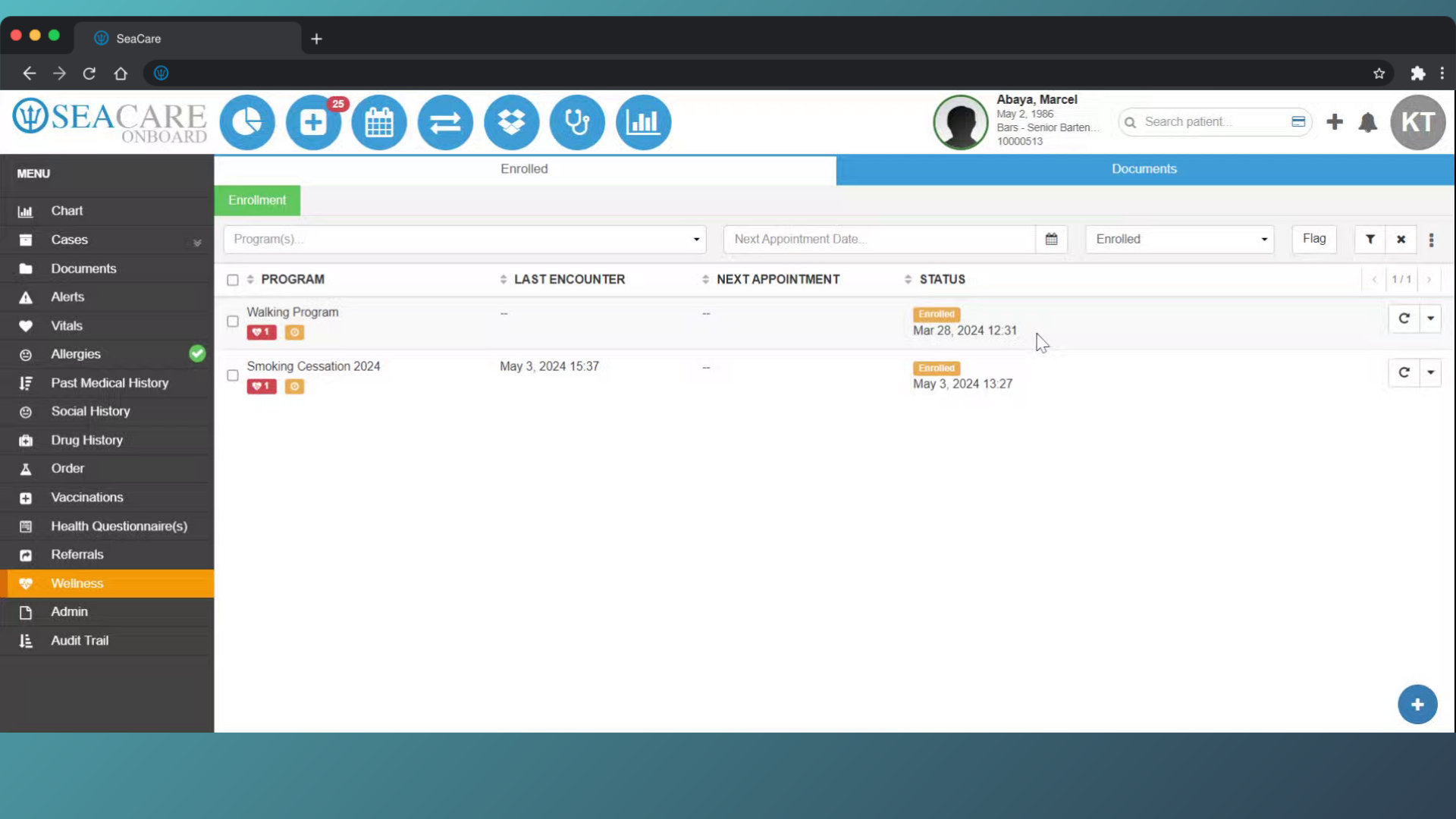
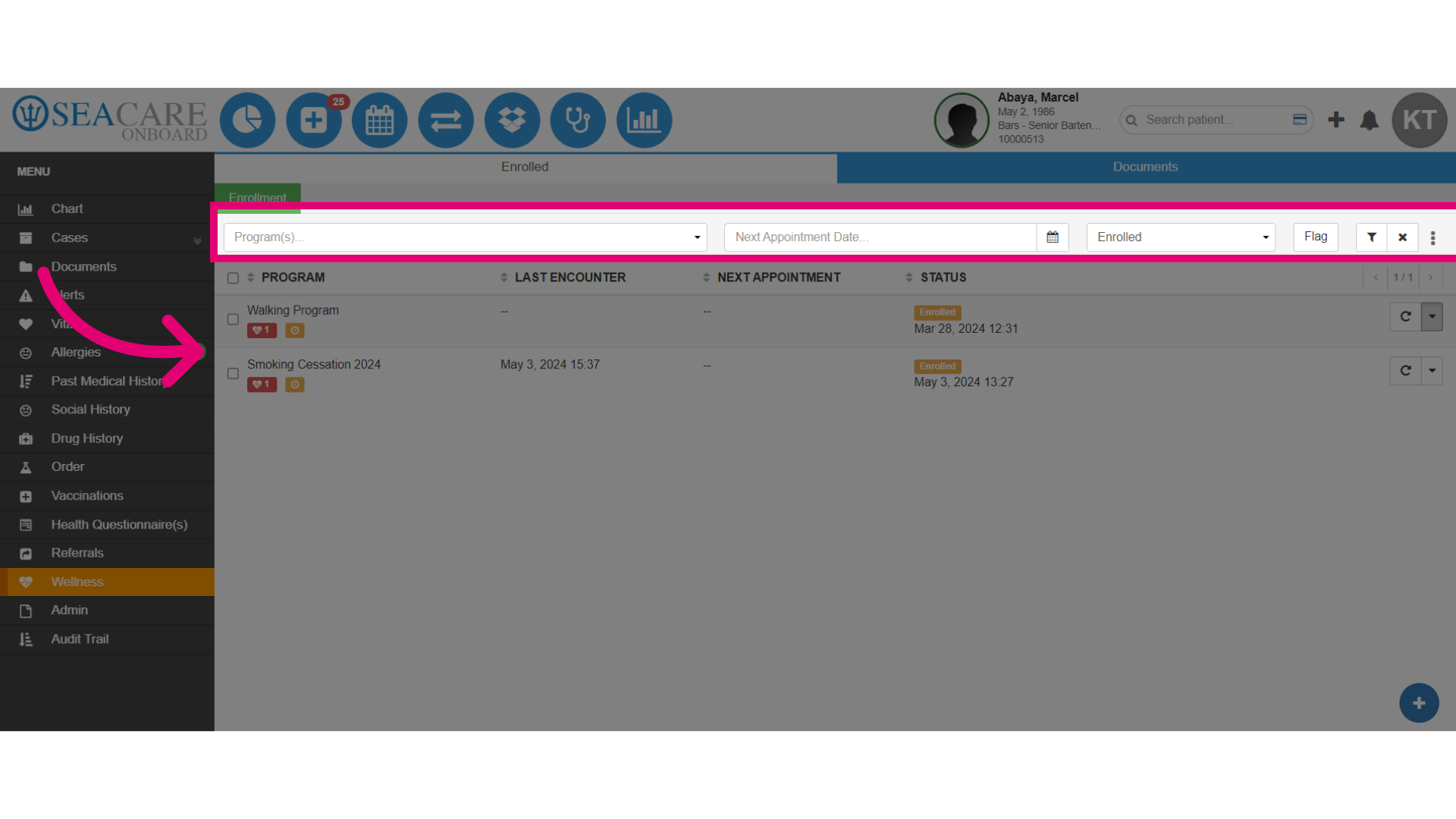
- Use the filters to locate the program.
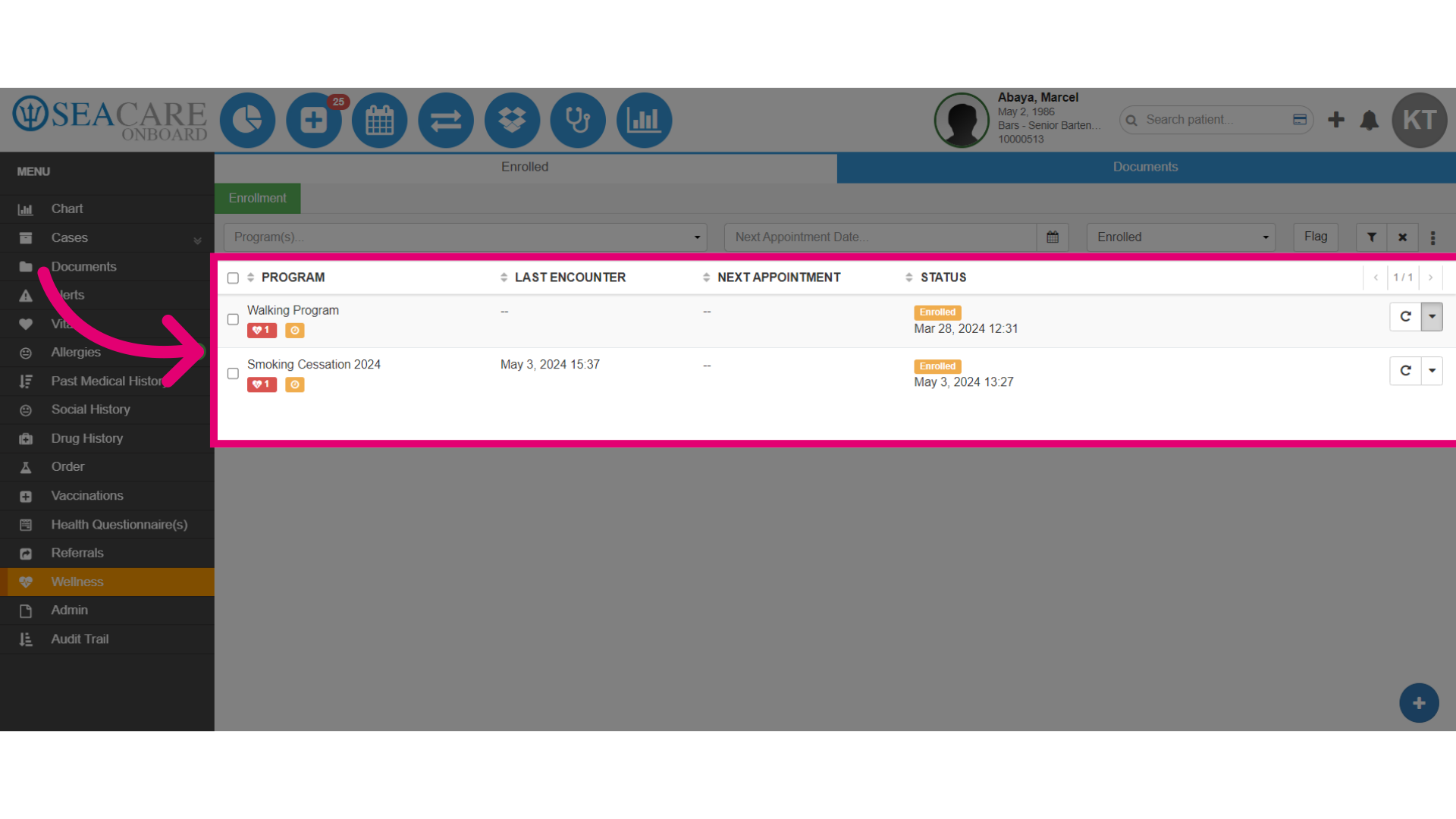
- Or, select the program from the list.
- Then, select the dropdown menu.
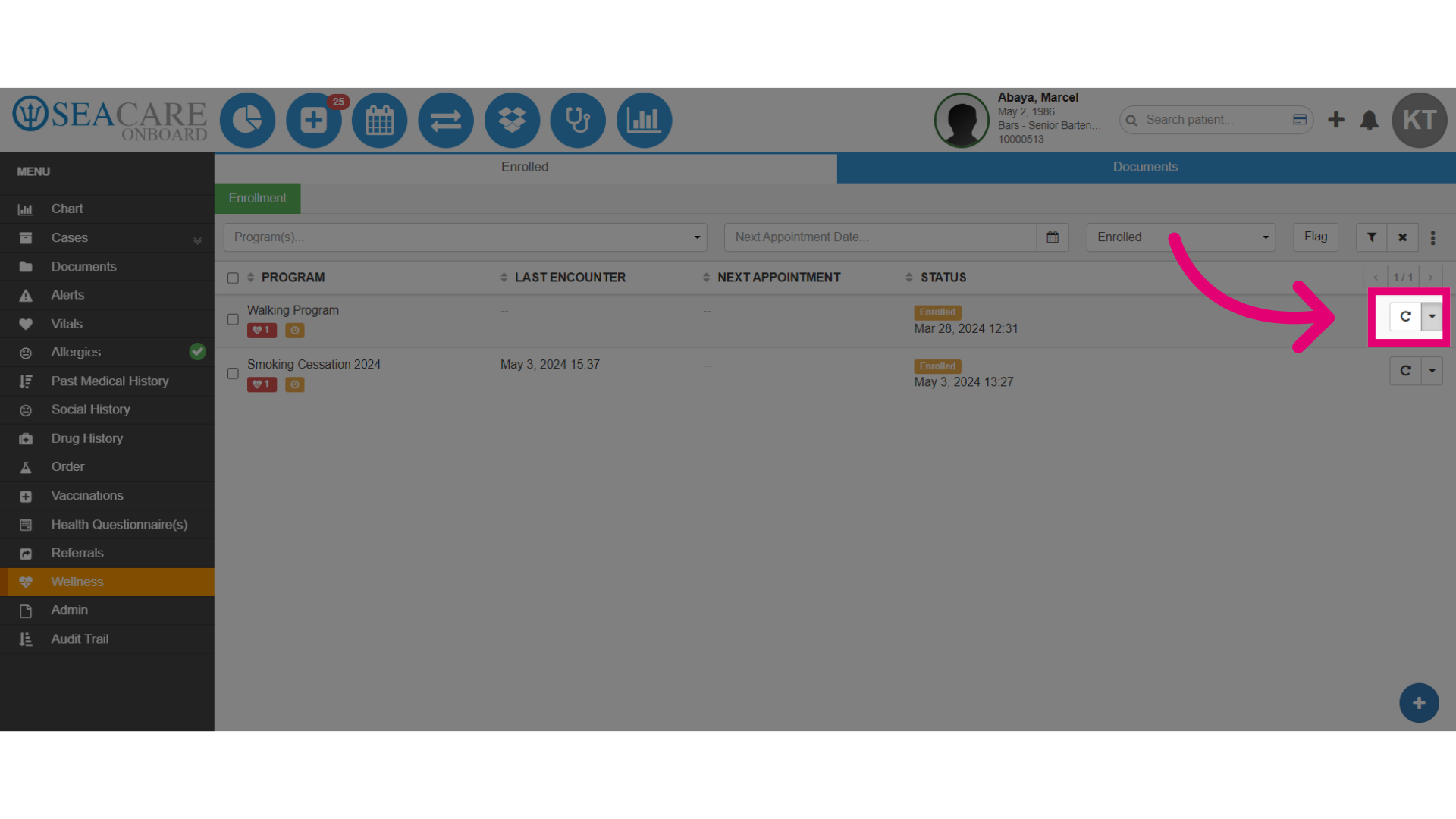
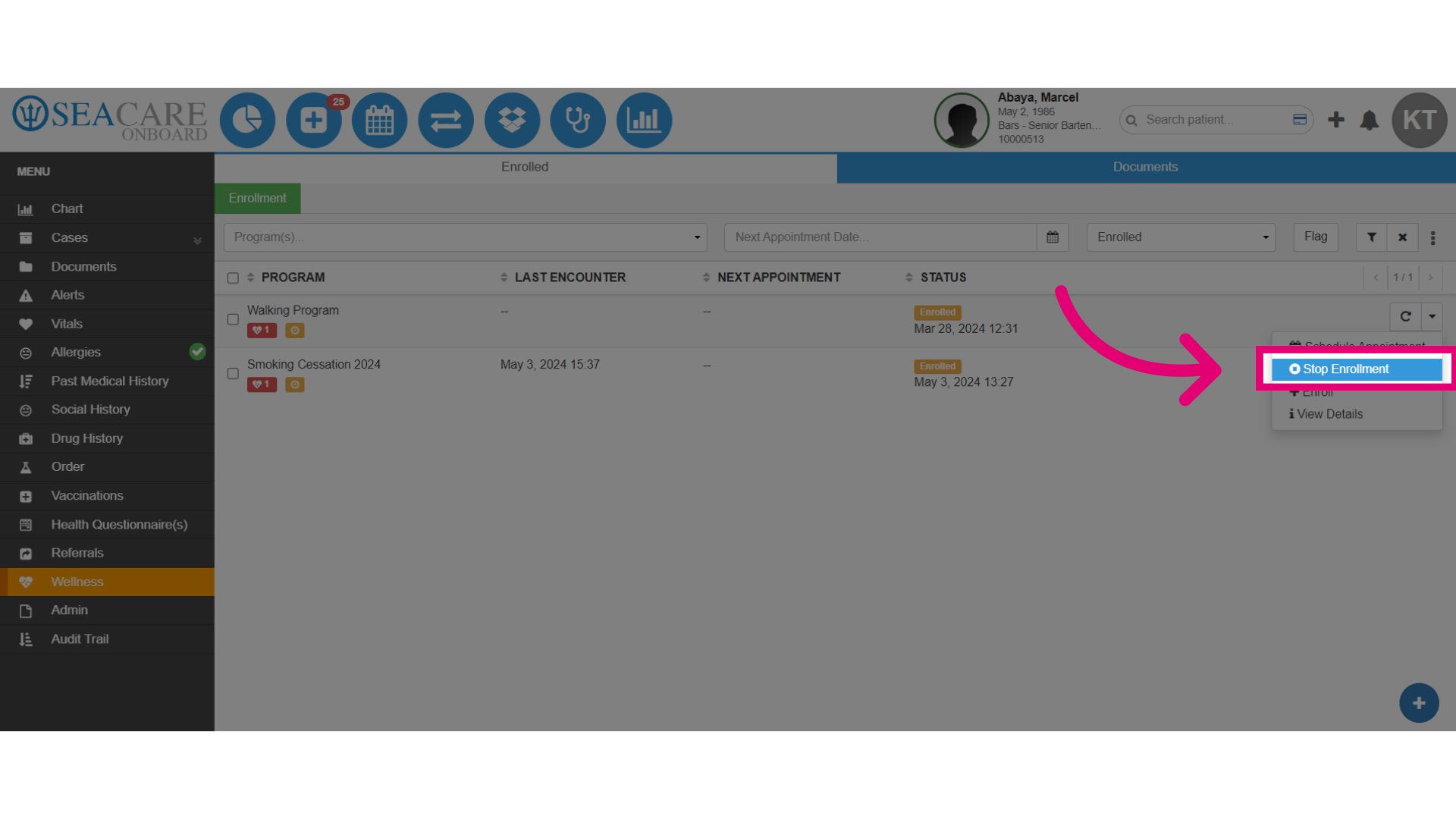
- Next, select the option Stop Enrollment.
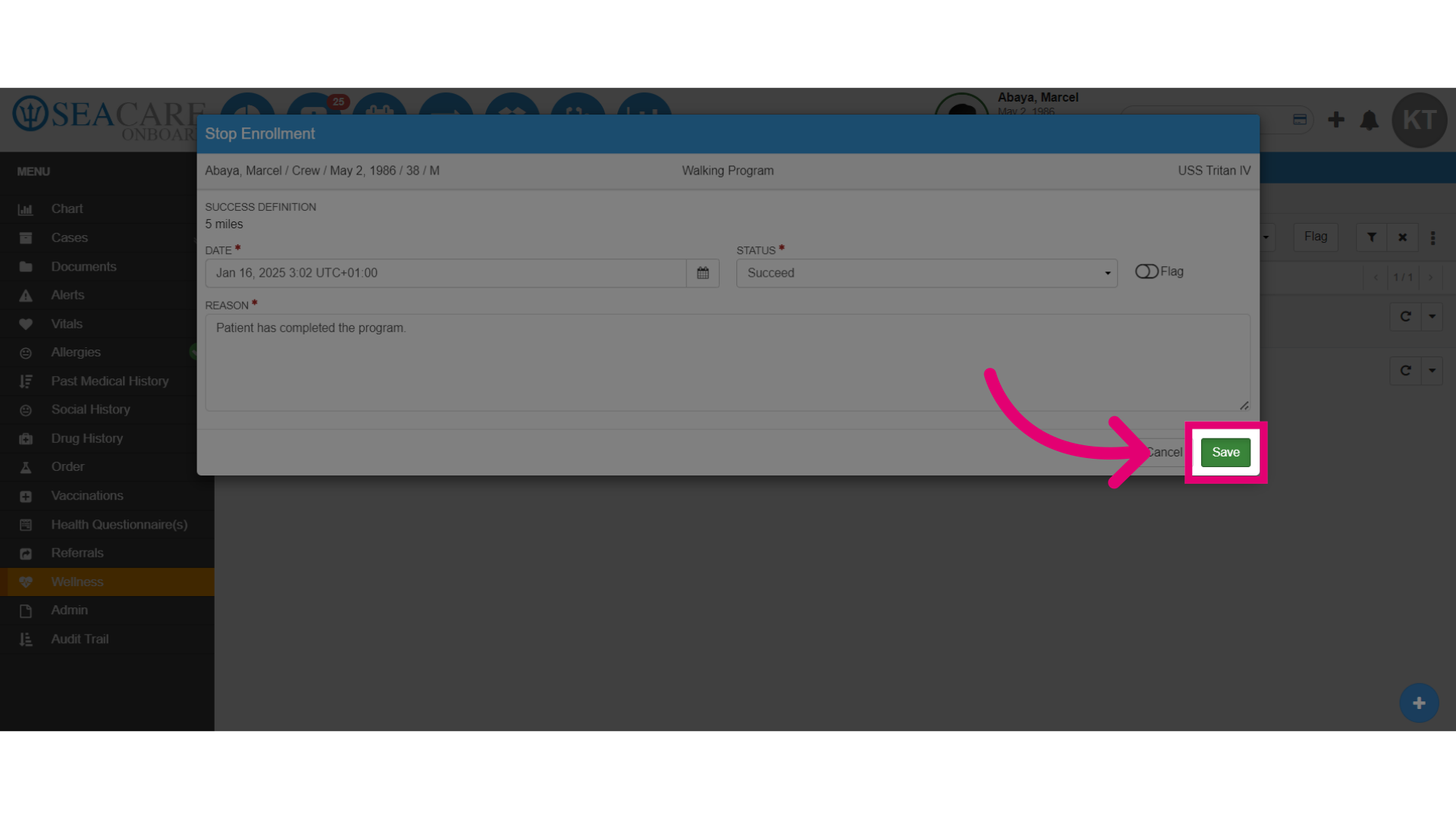
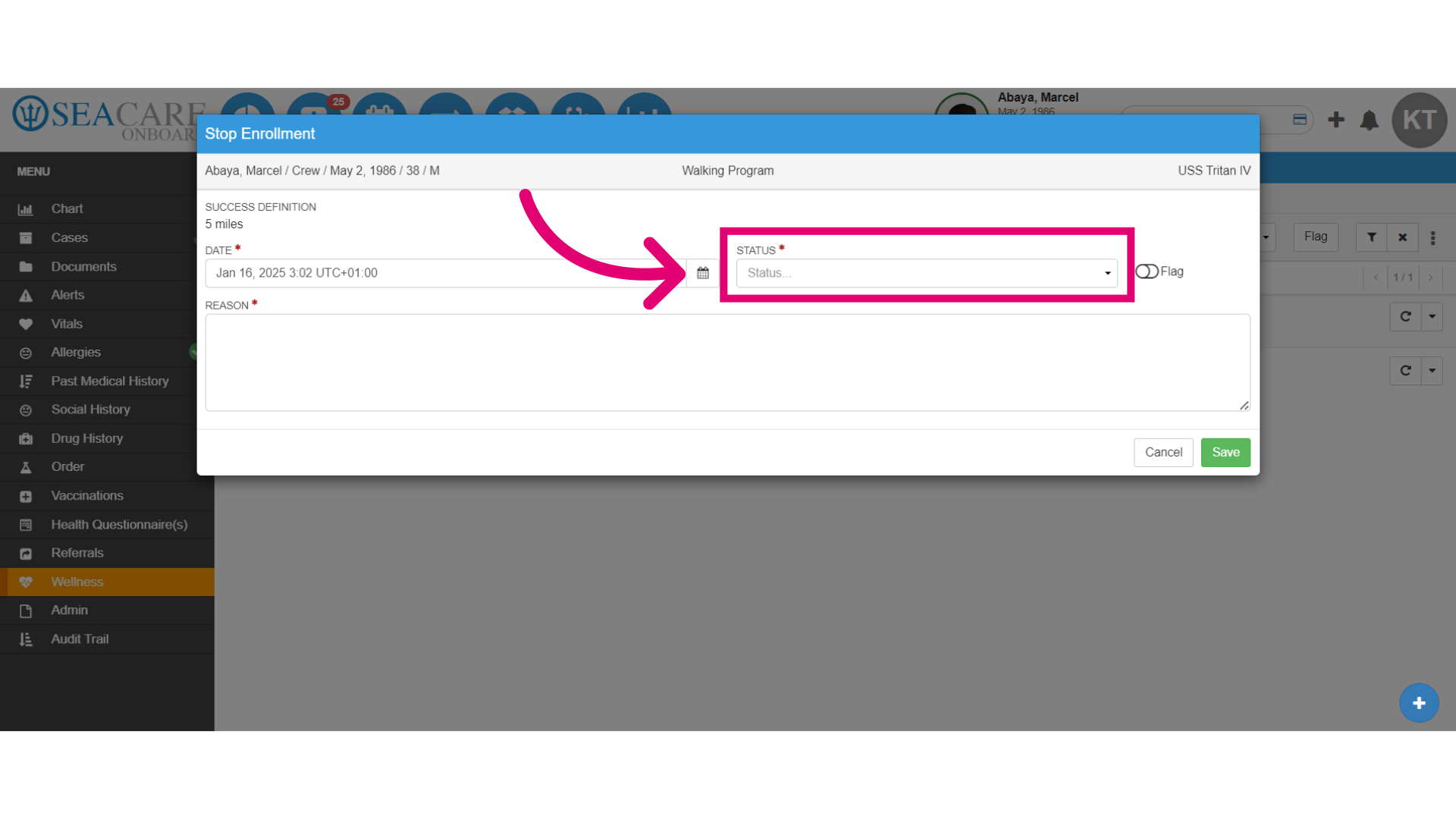
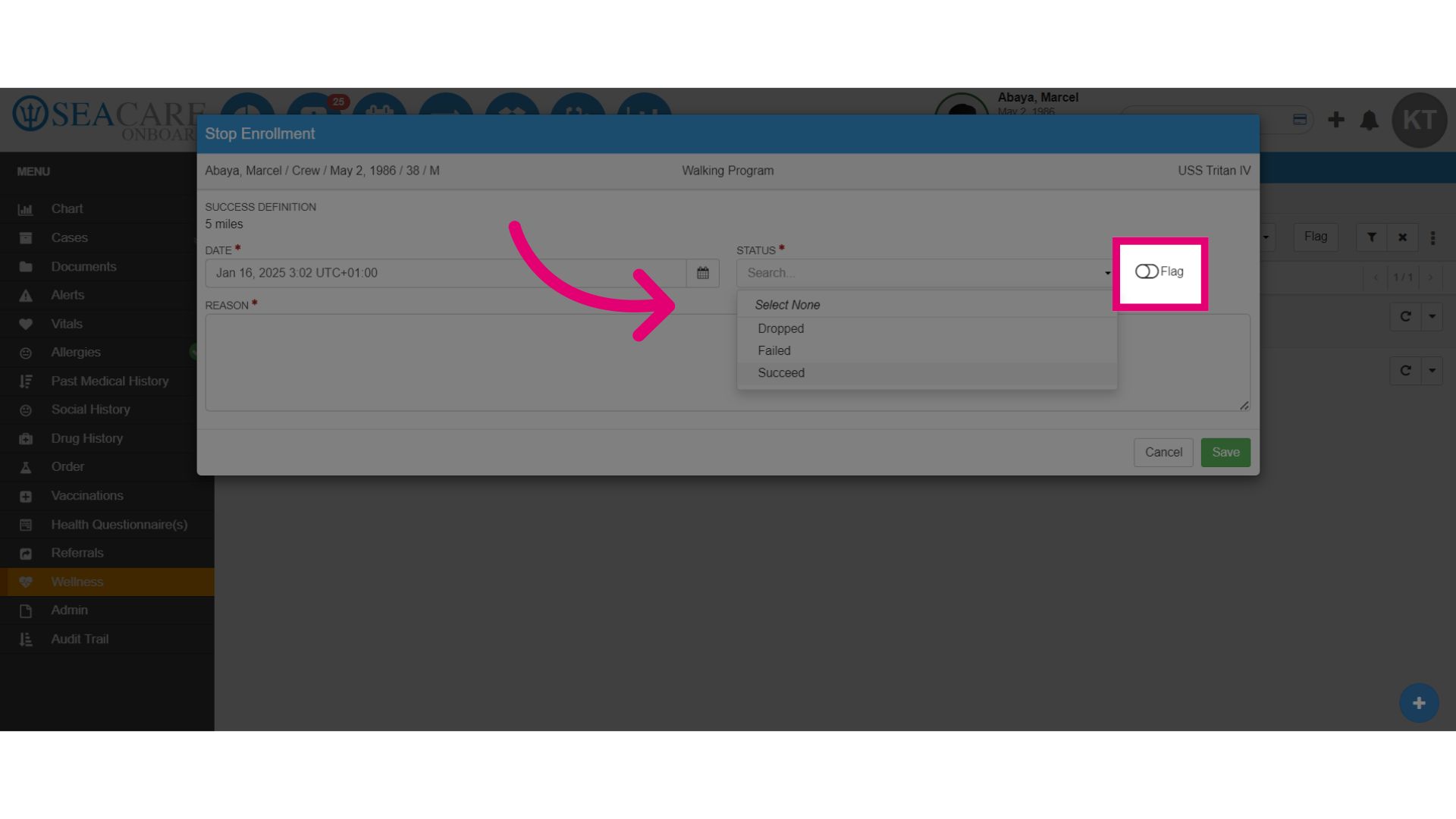
- Expand the Status dropdown menu to update the status for the patient
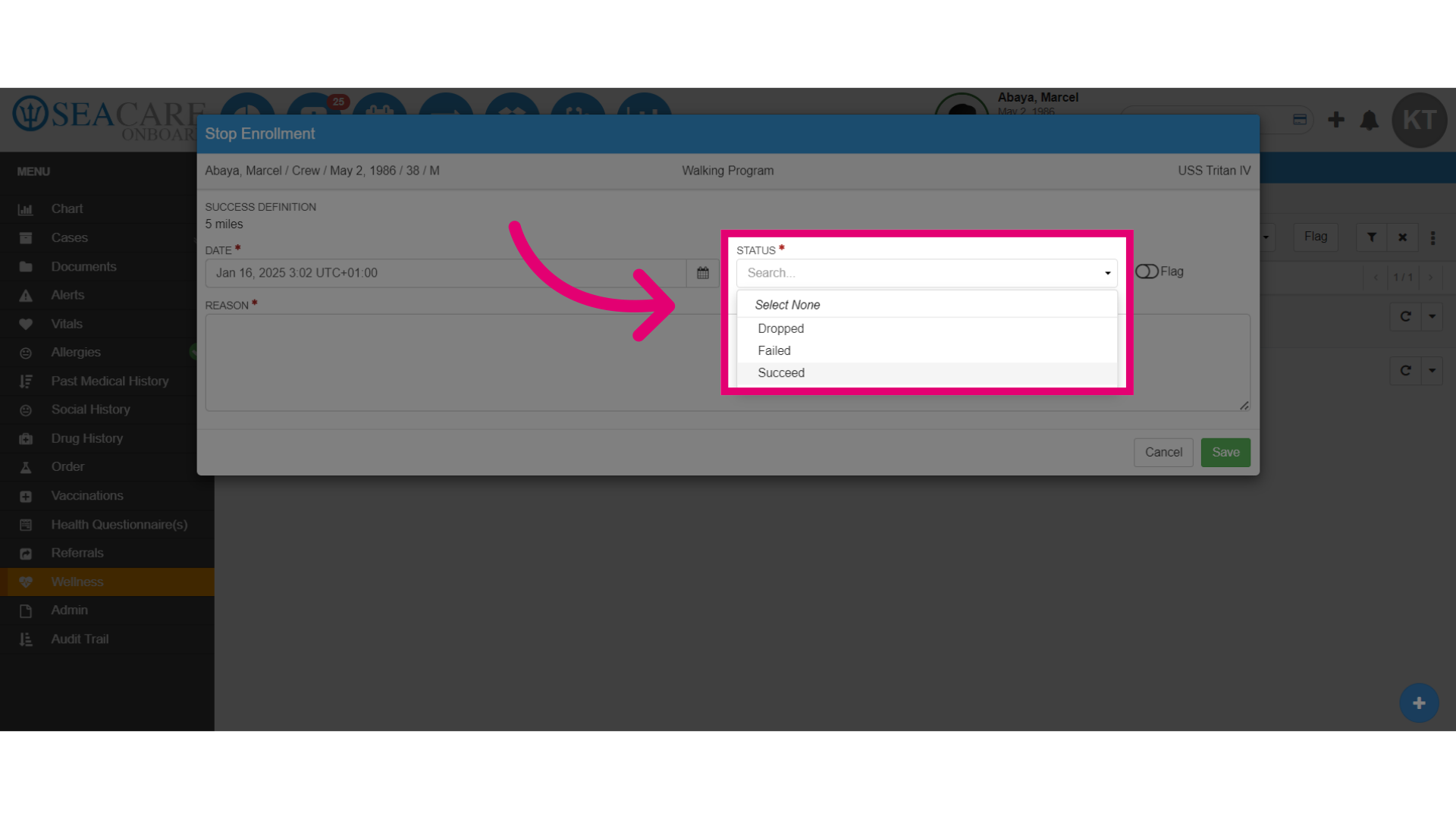
- Here are your options to choose from:
- Dropped - This can be selected if the patient was dropped due to reasons they are not at fault for.
- Failed - Select failed if the patient failed the program such as by not attending the scheduled appointments.
- Succeed - Choose this option if the patient met the Success Definition of the program.
- Add a Flag if necessary to indicate that the patient is at risk in the program of failing or has raise concerns while in the program.
- Then, add the reason for stopping the enrollment.
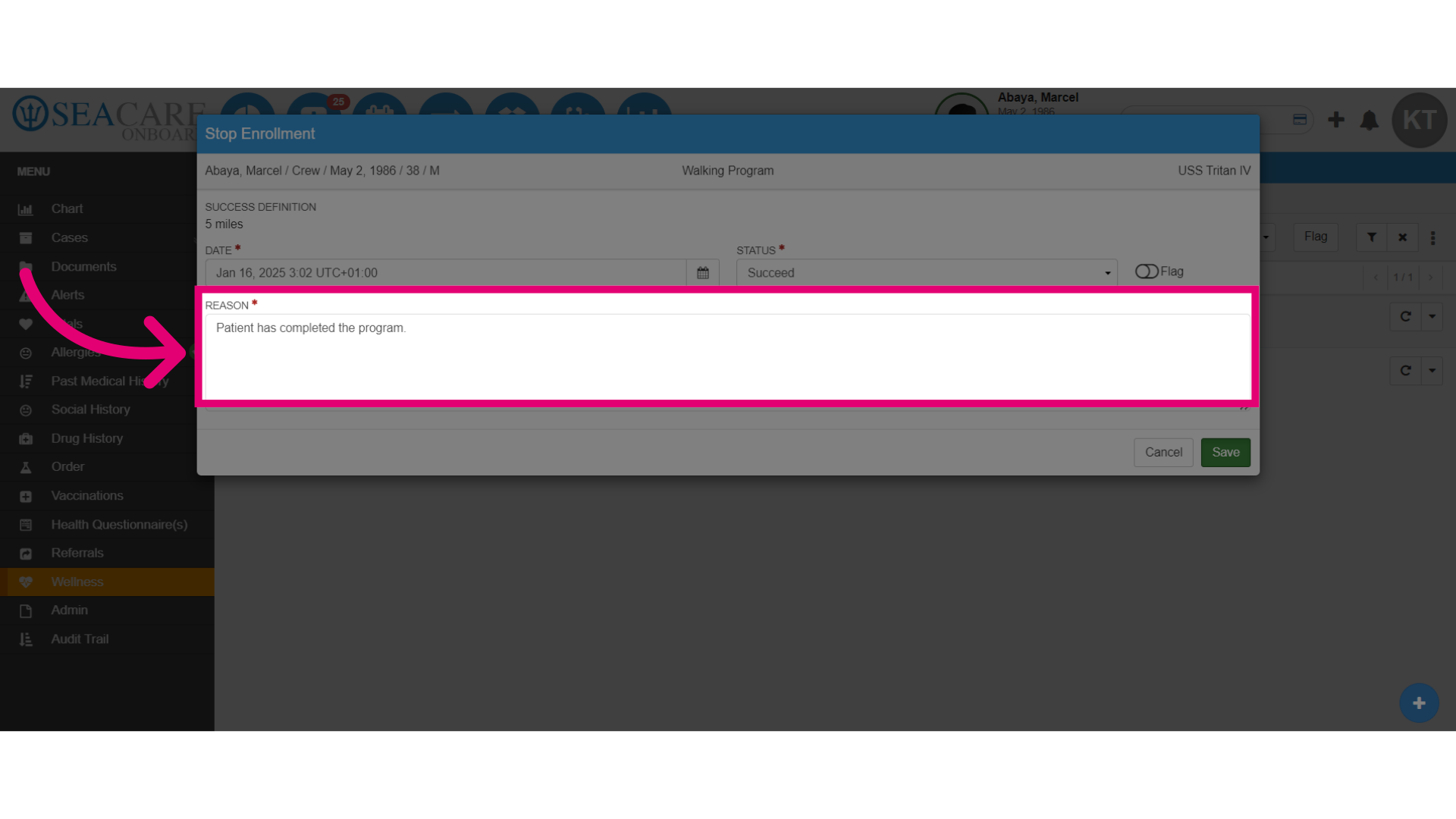
- Lastly, save the changes made.