New article
Recently updated
Downloading the SeaConsult Invite Details

Who is this article for?Users who want to learn how to download the SeaConsult Invite details.
No elevated permissions are required.
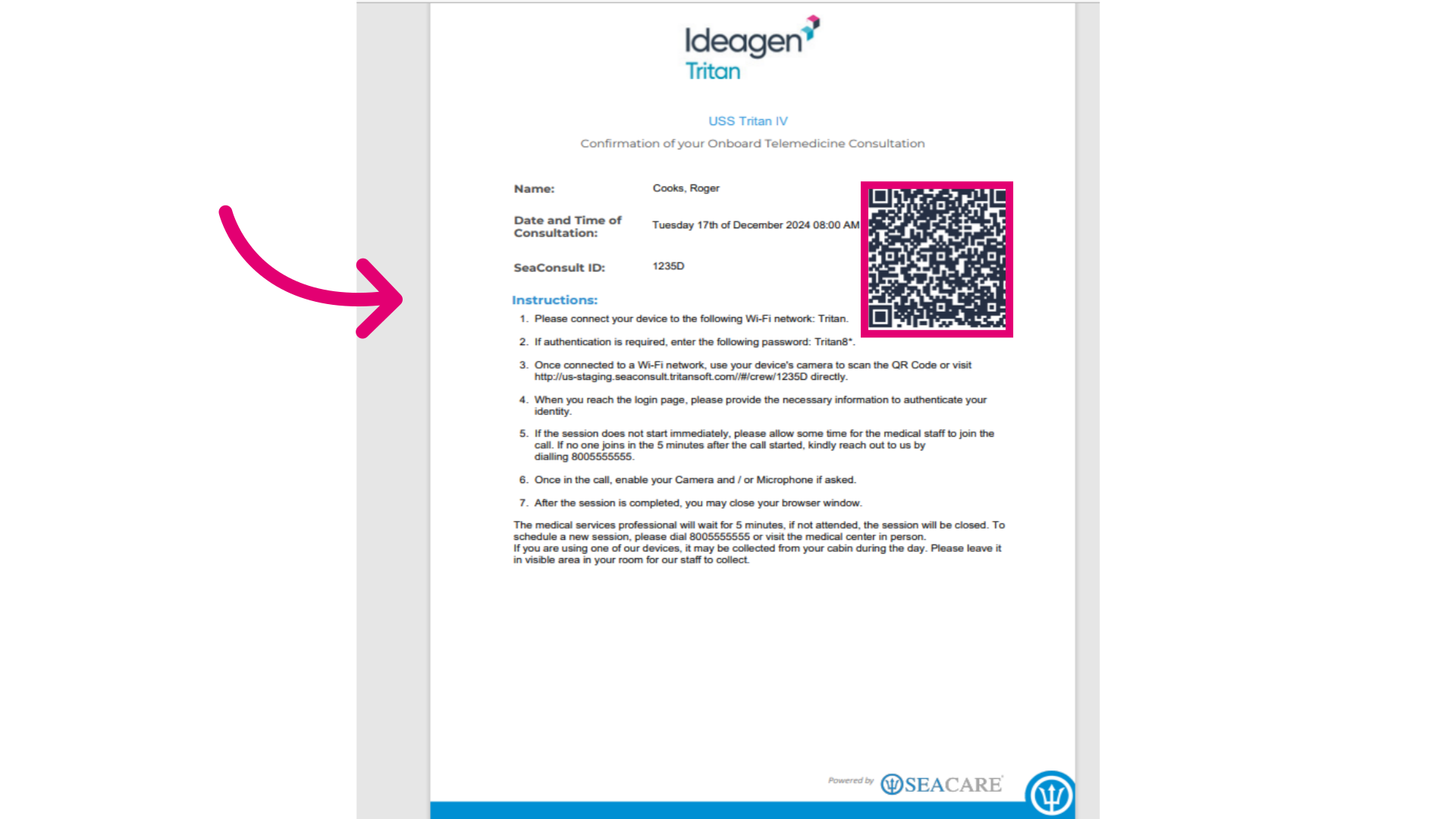
This guide will show you how to download the SeaConsult Invite document for the patient. This document includes the appointment details and a UR barcode for joining the SeaConsult call. Follow these steps to download it.
1. Closing a SeaConsult Call
1.1. Video
1.2. Steps
- Start in the Calendar module under the Scheduler tab.
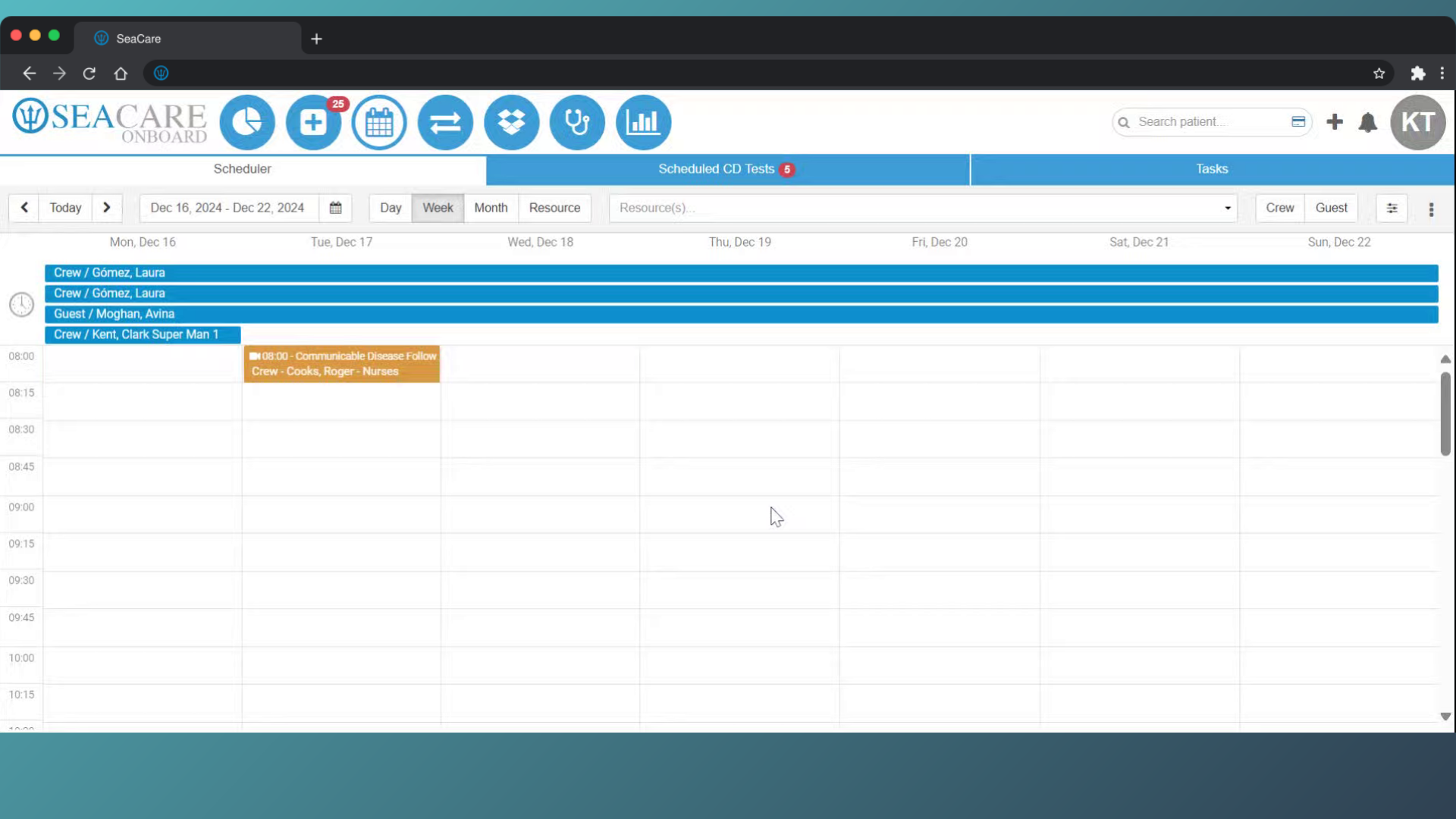
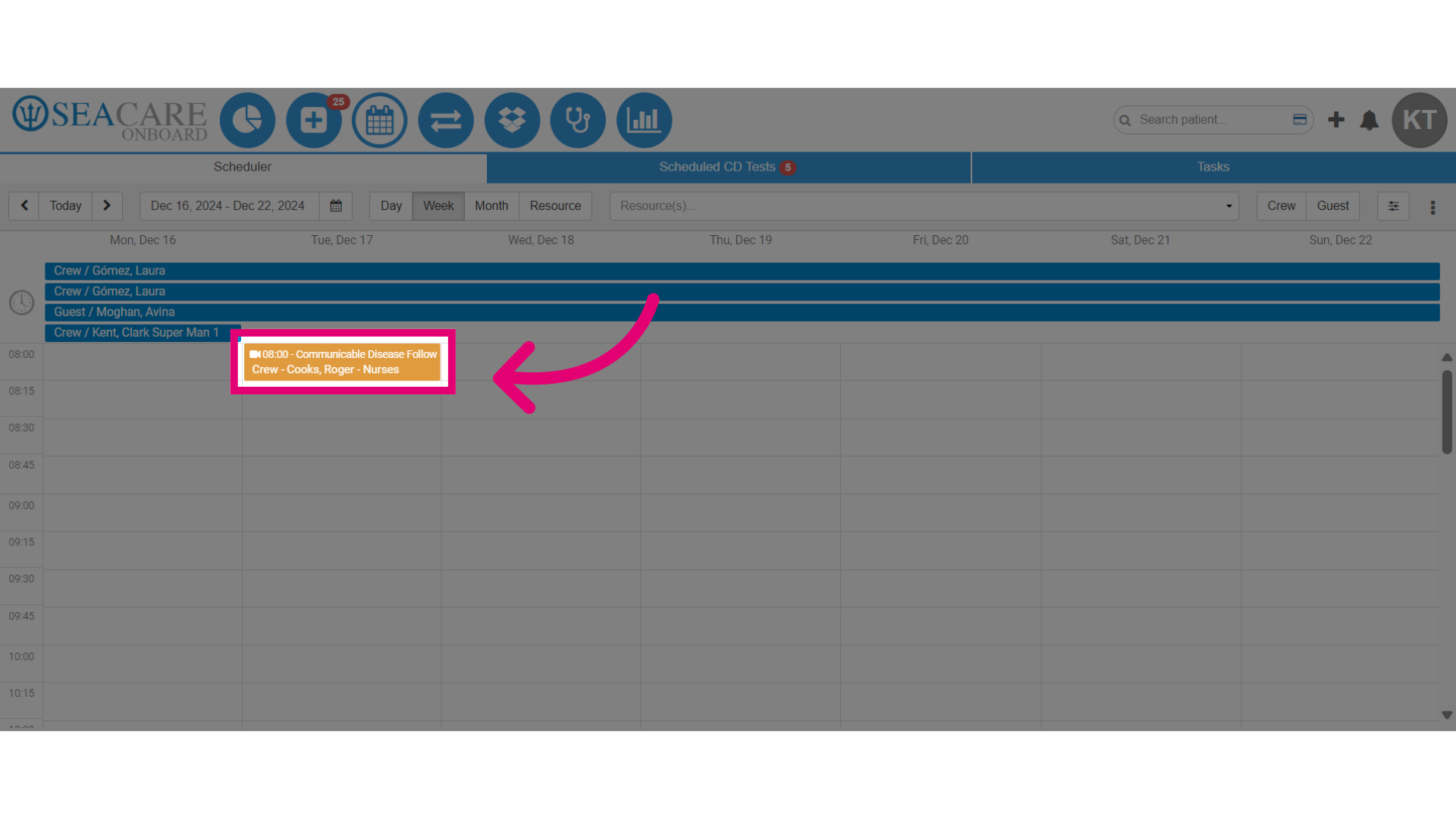
- Locate and select the scheduled SeaConsult call appointment on the calendar.
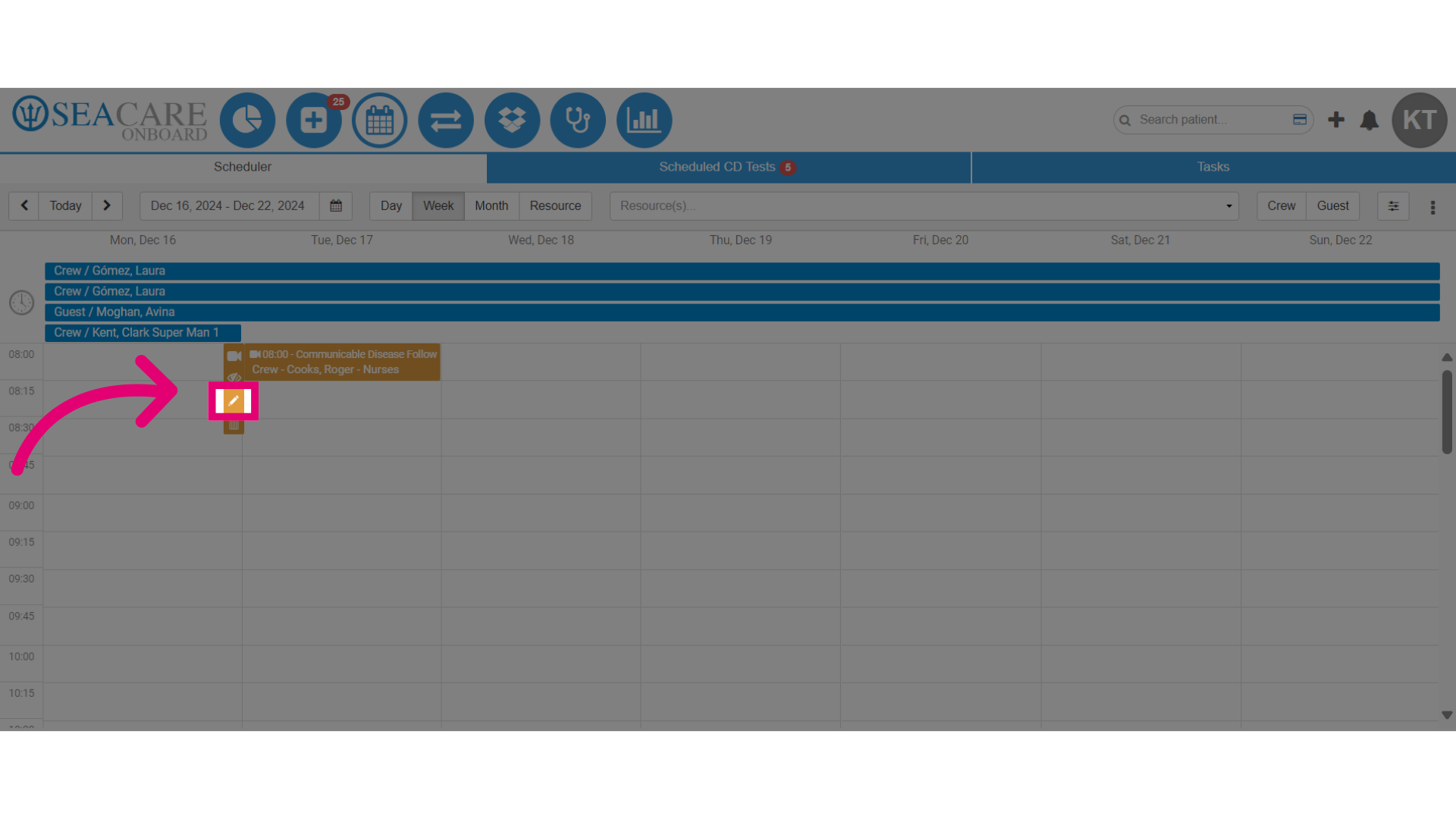
- Then, select the pencil icon for the Edit option.
- Expand the Start SeaConsult dropdown menu.
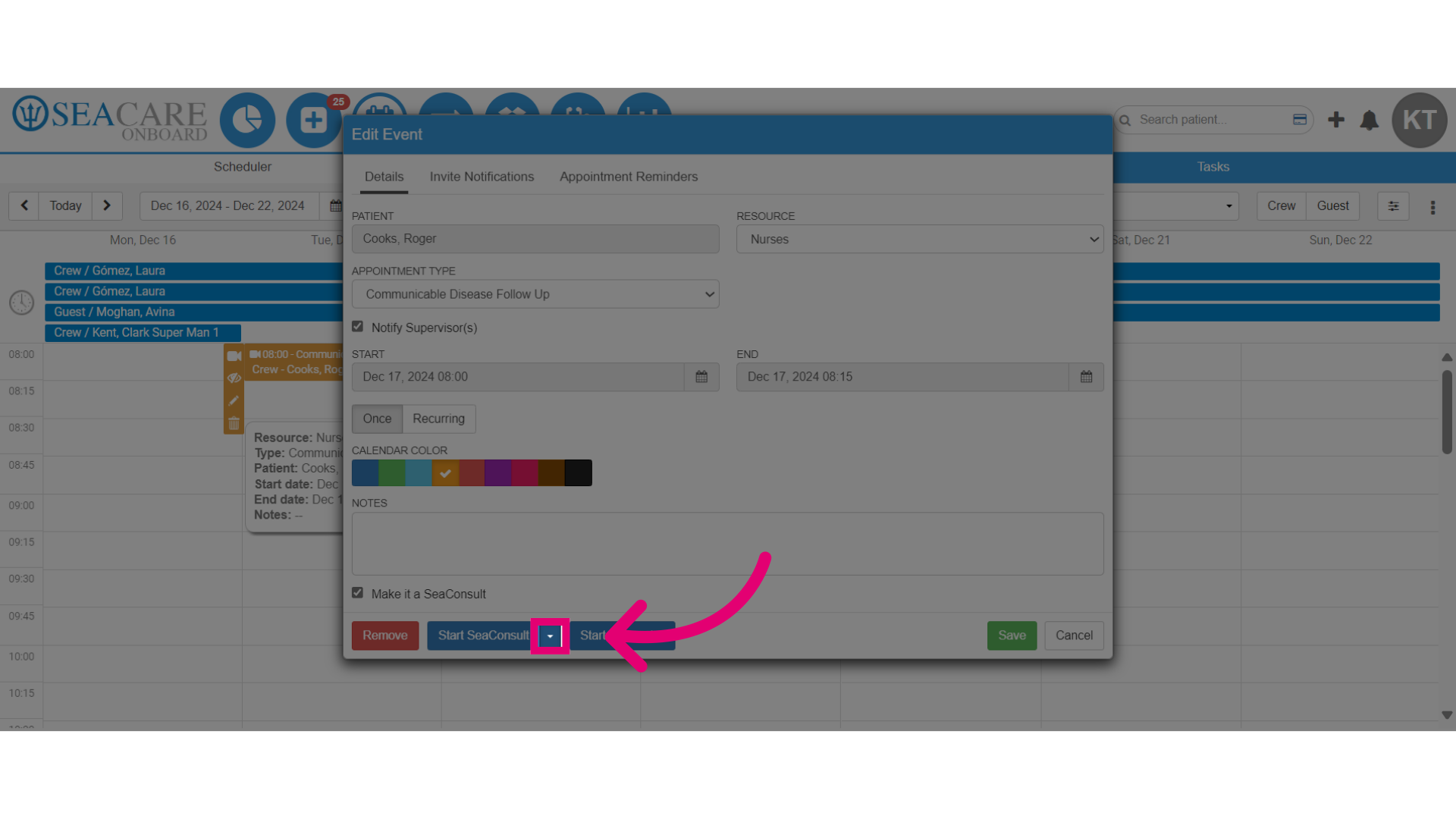
- Next, select the Download SeaConsult Invite option.
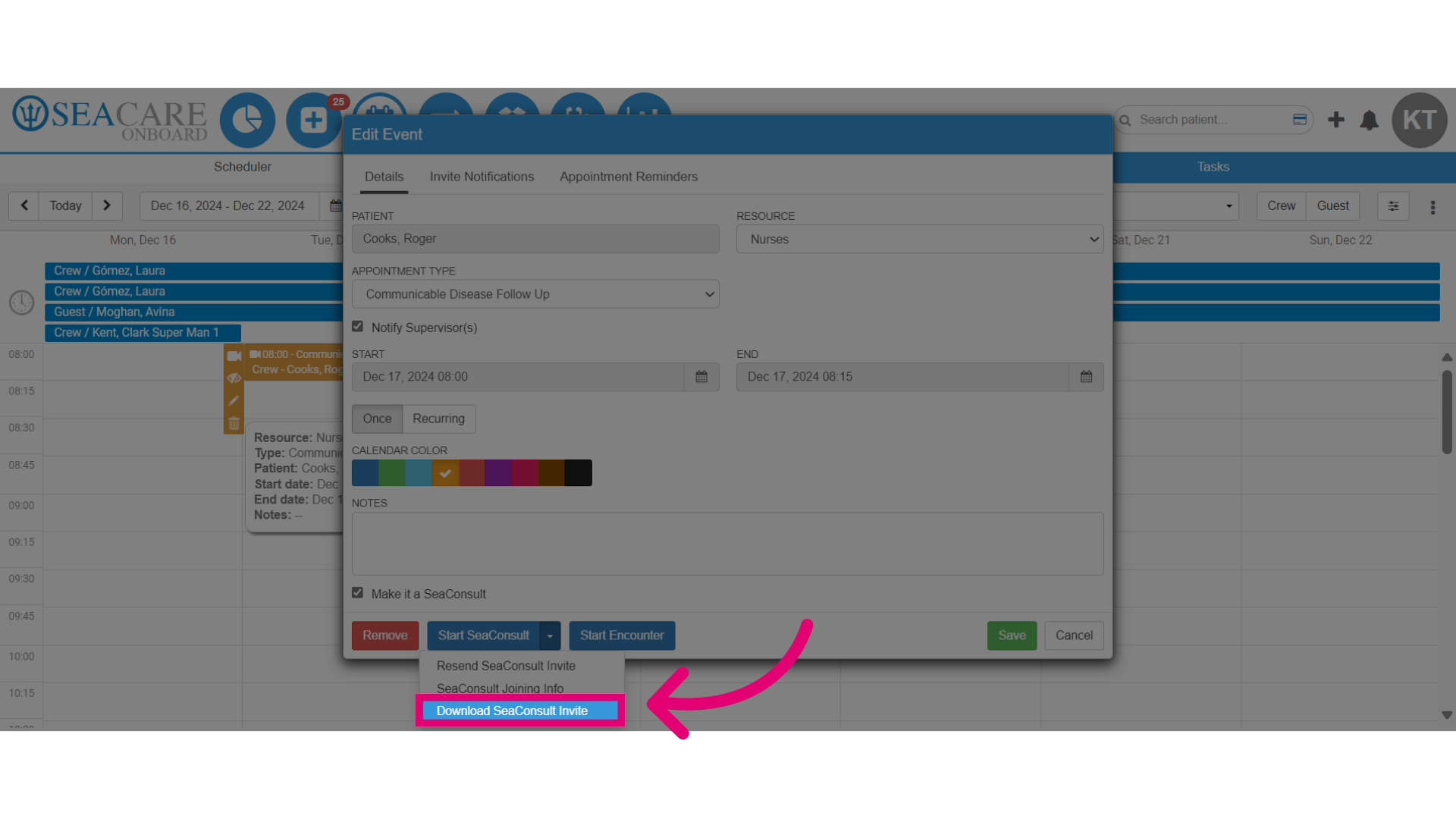
- After downloading the invite, please:
- Print and give a copy to the patient.
- Save to email the patient.
- Follow the instructions in the document to join the SeaConsult call.
- The patient can scan the QR code to join at their appointment time.
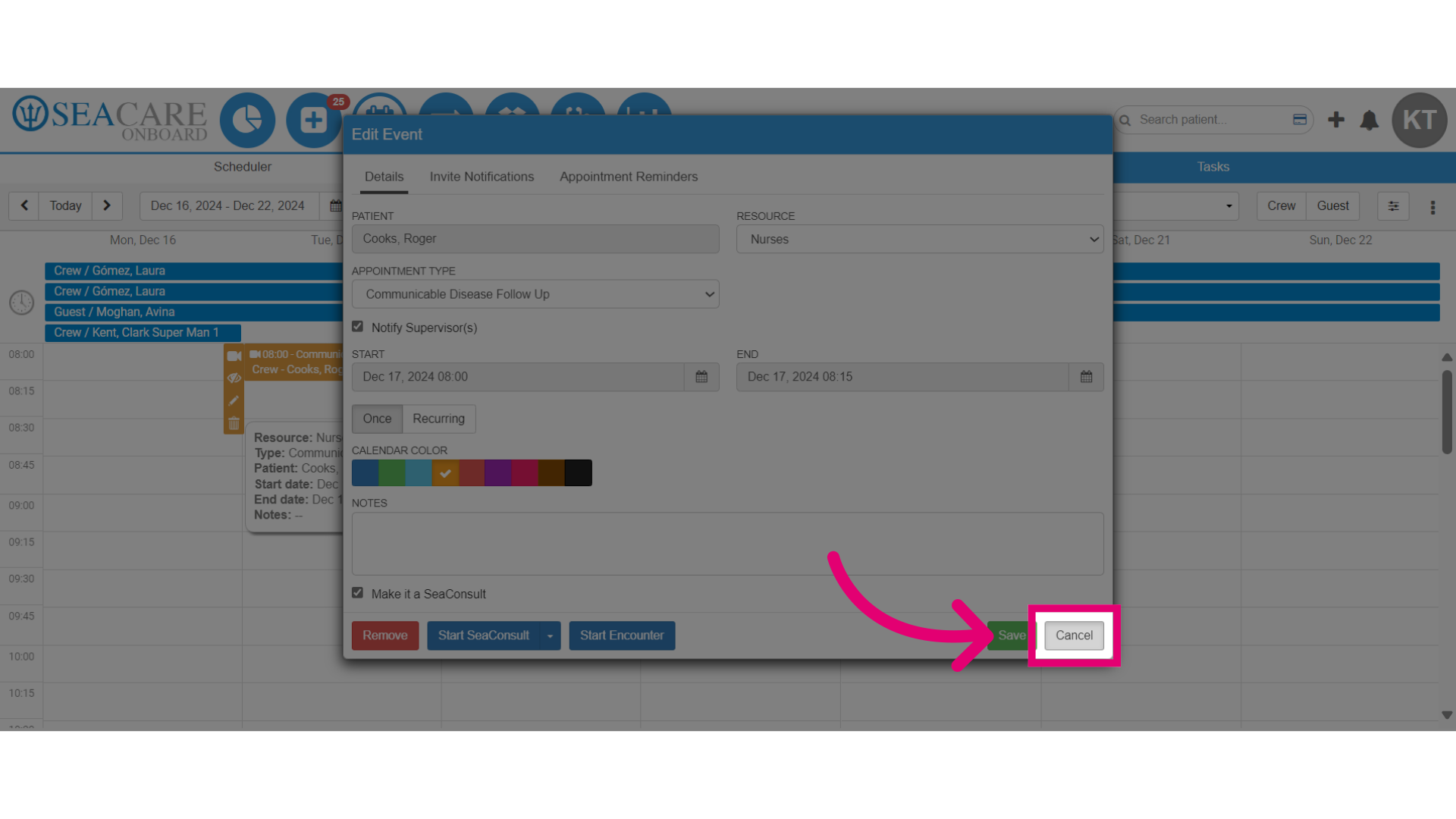
- Close the appointment window by selecting Cancel.