New article
Recently updated
Sending Documents to the Population in Crew Wellness

Who is this article for?Users who want to learn to generate SeaConsult call history reports.
No elevated permissions are required.
These steps wills how you how to share documents with crew members enrolled in a specific crew wellness program. Documents can be shared for health tips, informational purposes, or program updates related to the program. Before beginning, ensure that documents have been uploaded by your shoreside system administrator.
1. Generating SeaConsult call history reports
1.1. Video
1.2. Steps
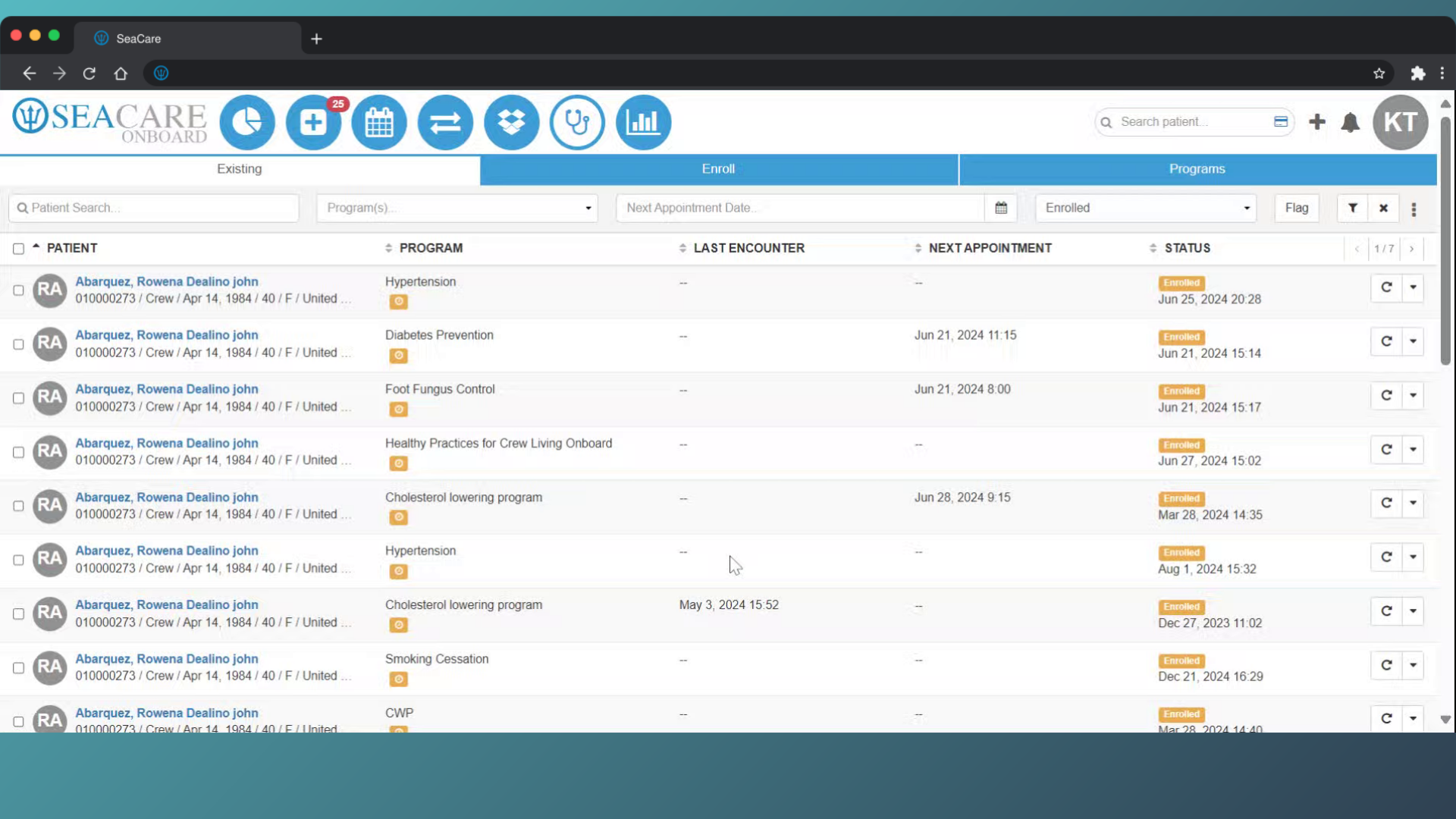
- Start in the Crew Wellness Module.
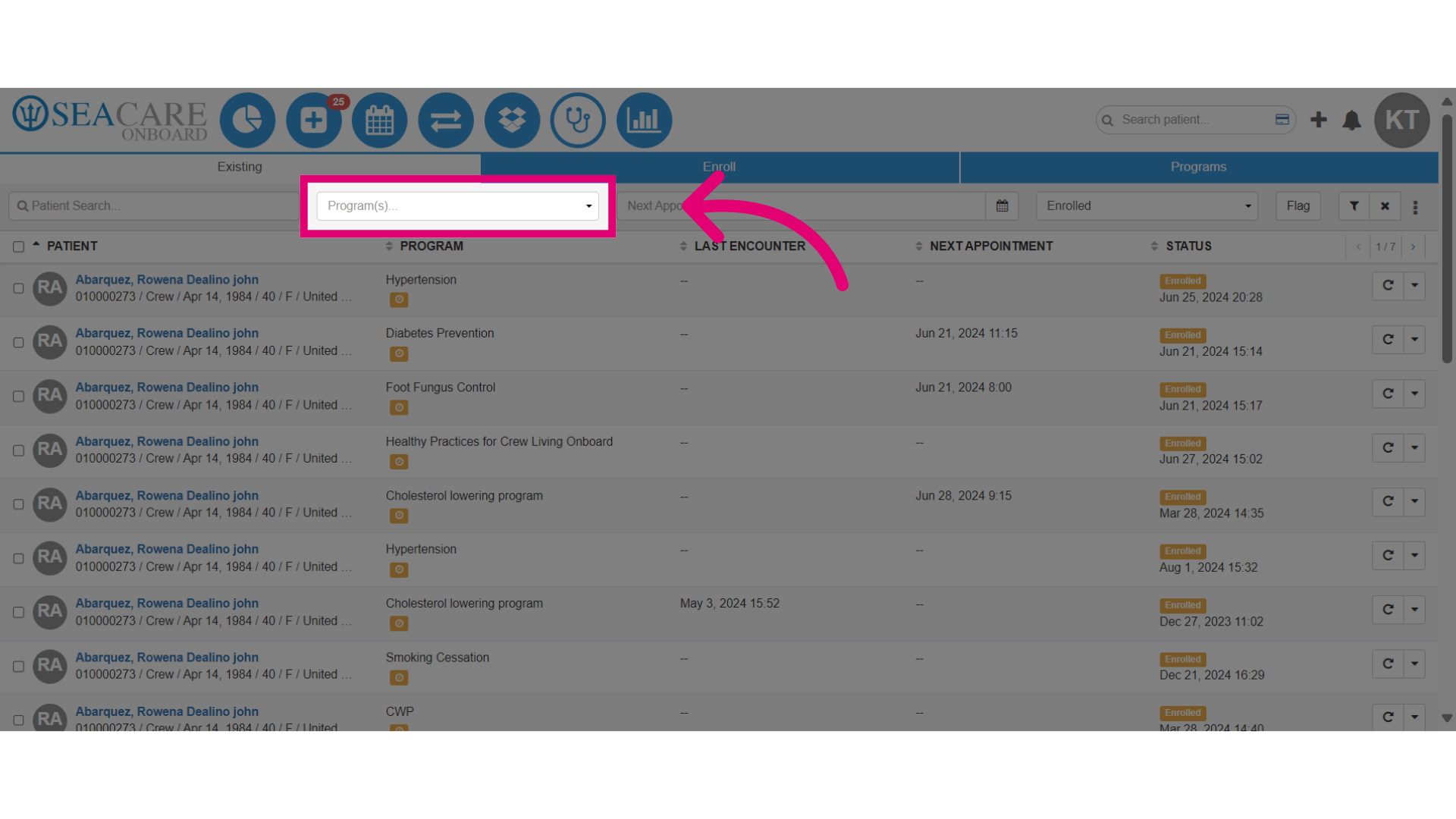
- Use the filters to select or search for the programme in which you will share documents with the participants..
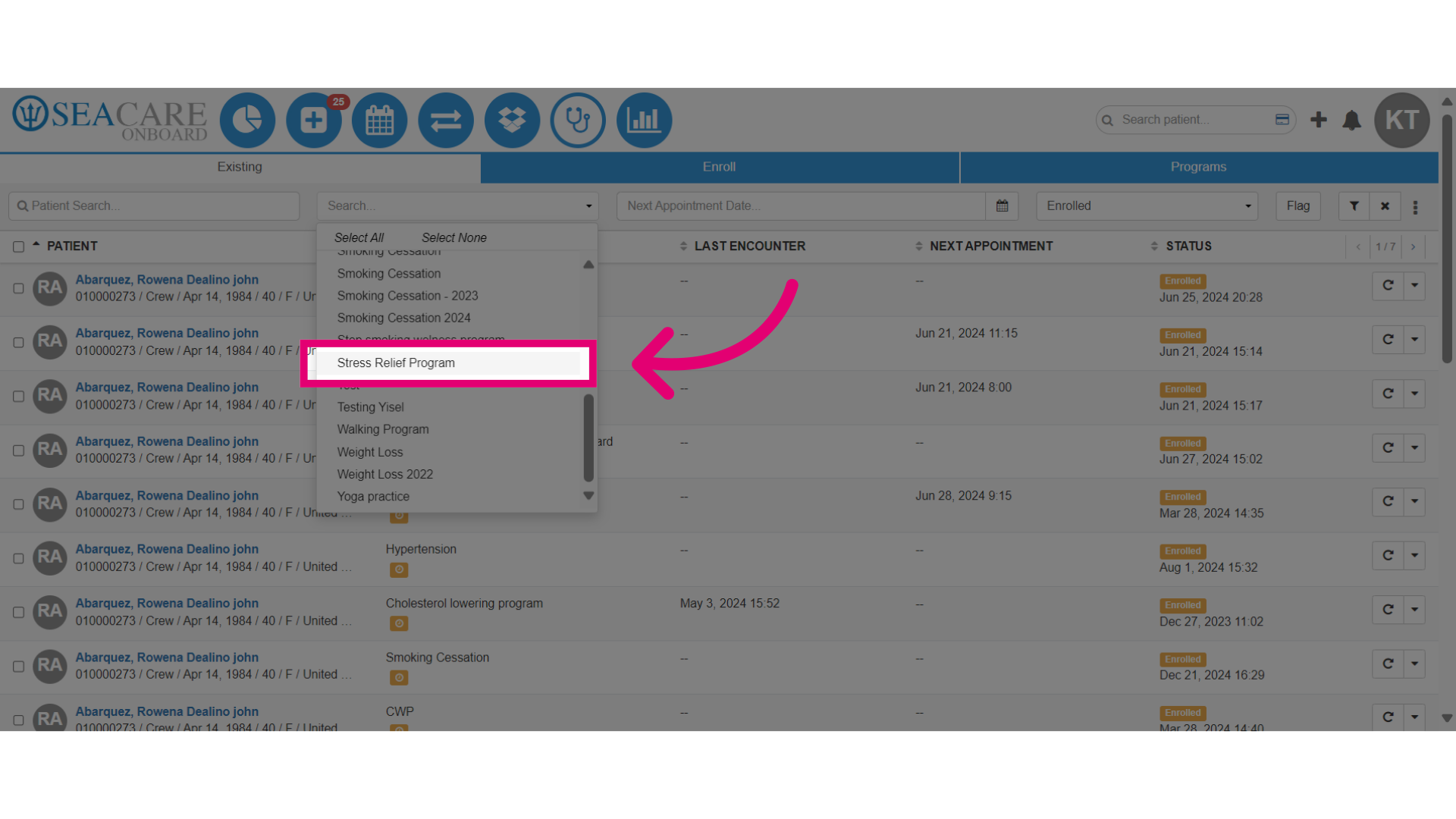
- Next, select the program from the list.
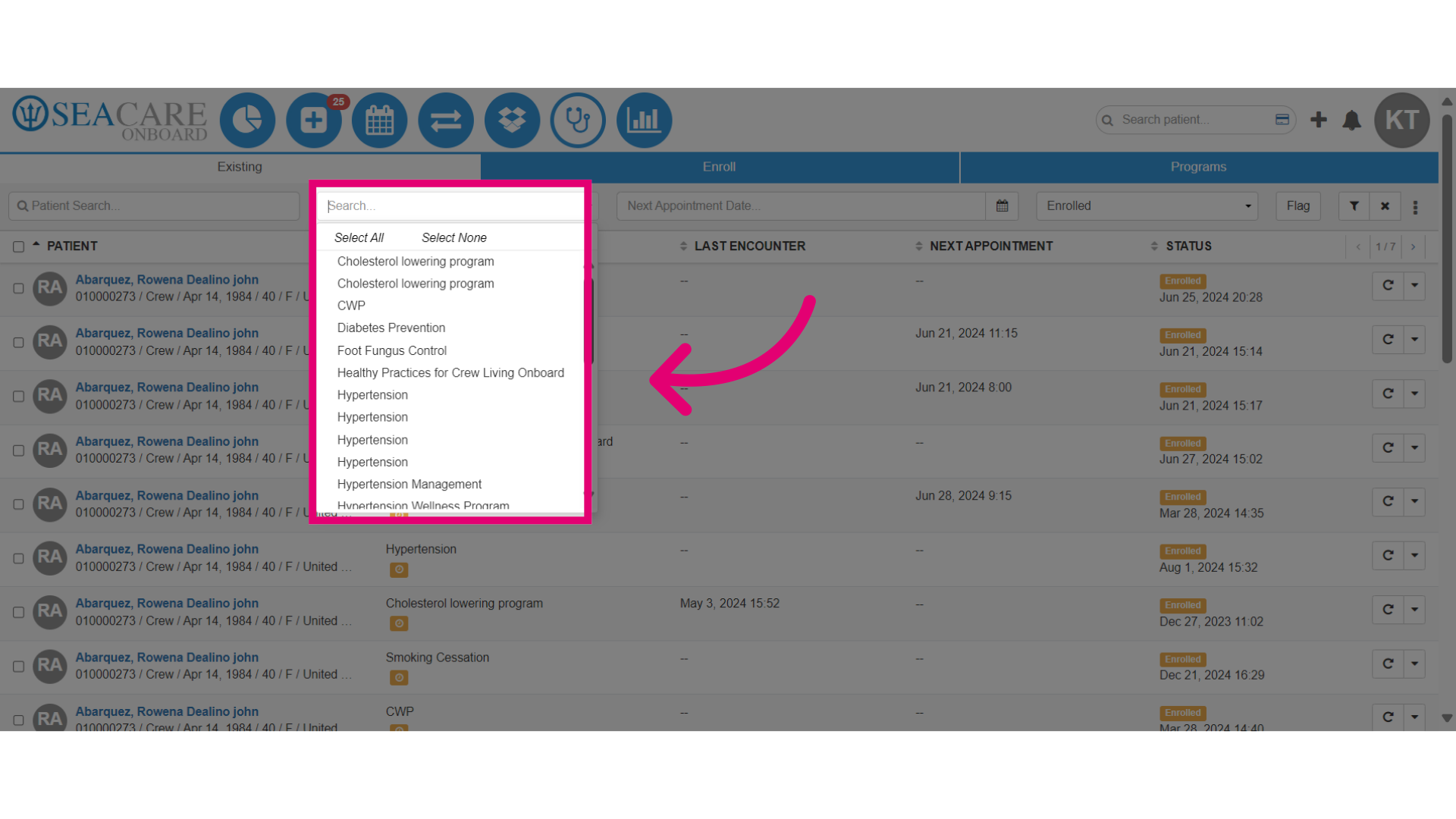
- For example, choose the Stress Relief Program.
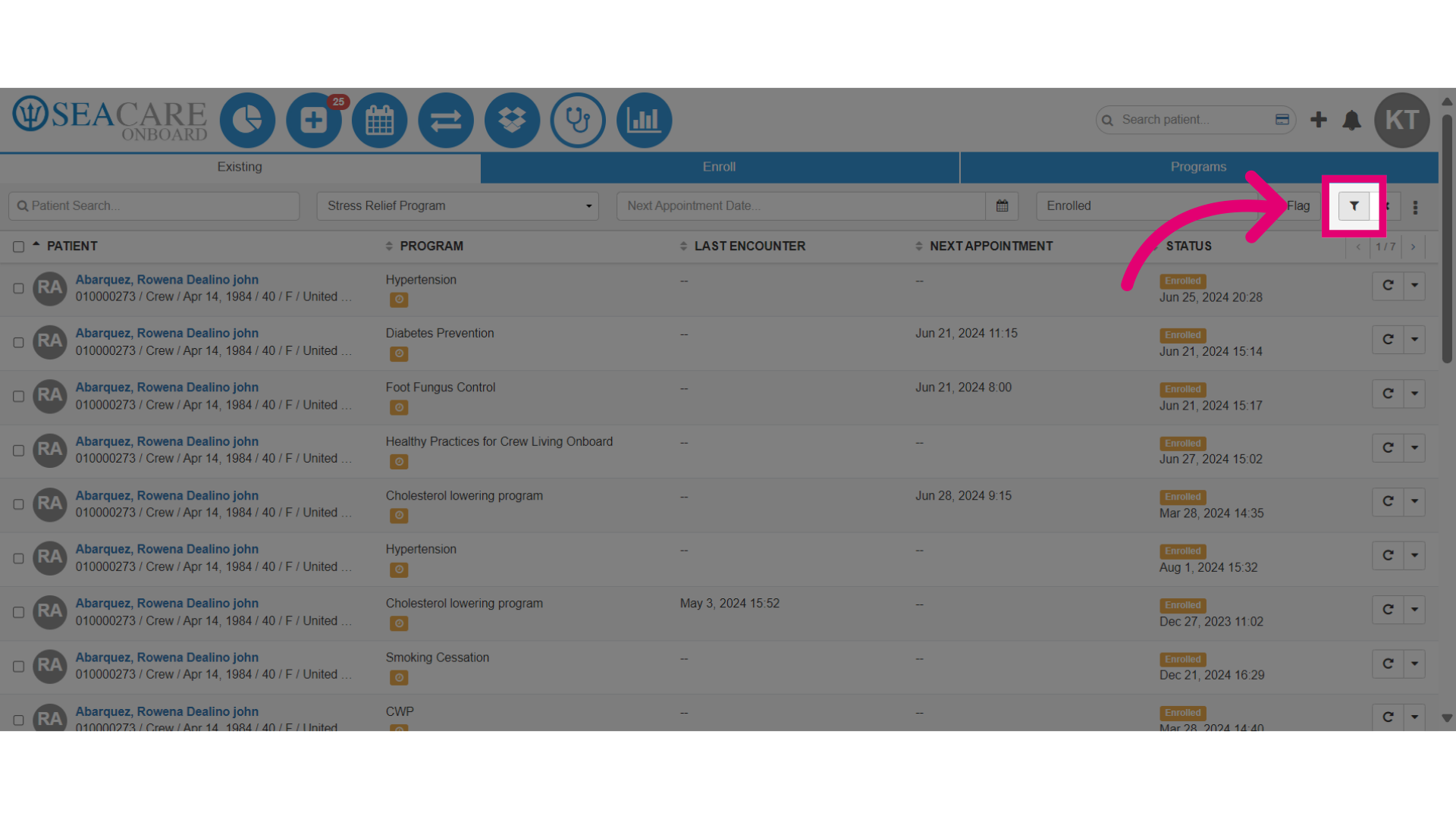
- Then, select the Filter button to generate the list of patients enrolled in the the program.
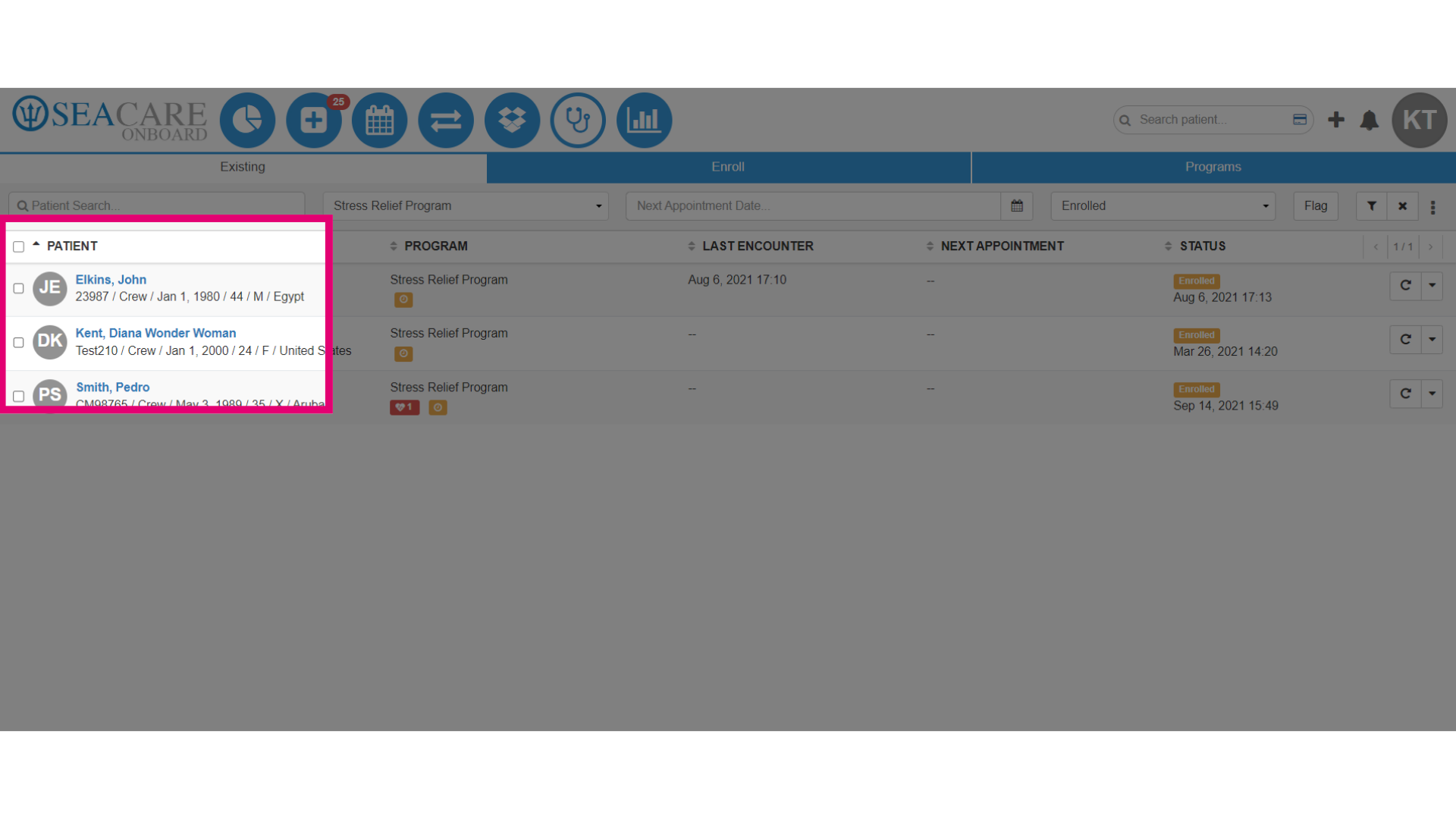
- Next, use the checkboxes to select the crew member(s) who will receive the documents.
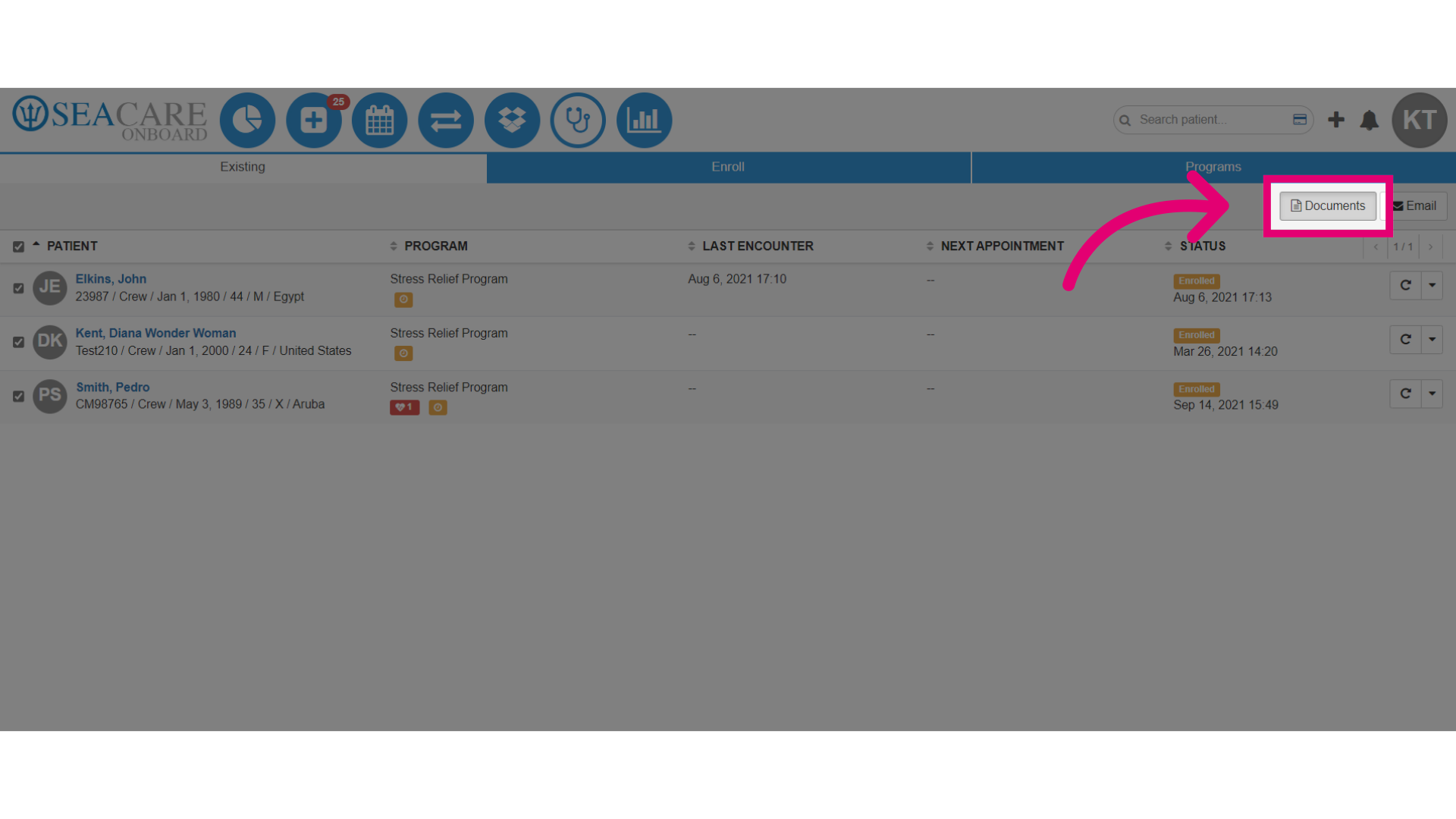
- Locate the Documents button at the top of the page and click on it.
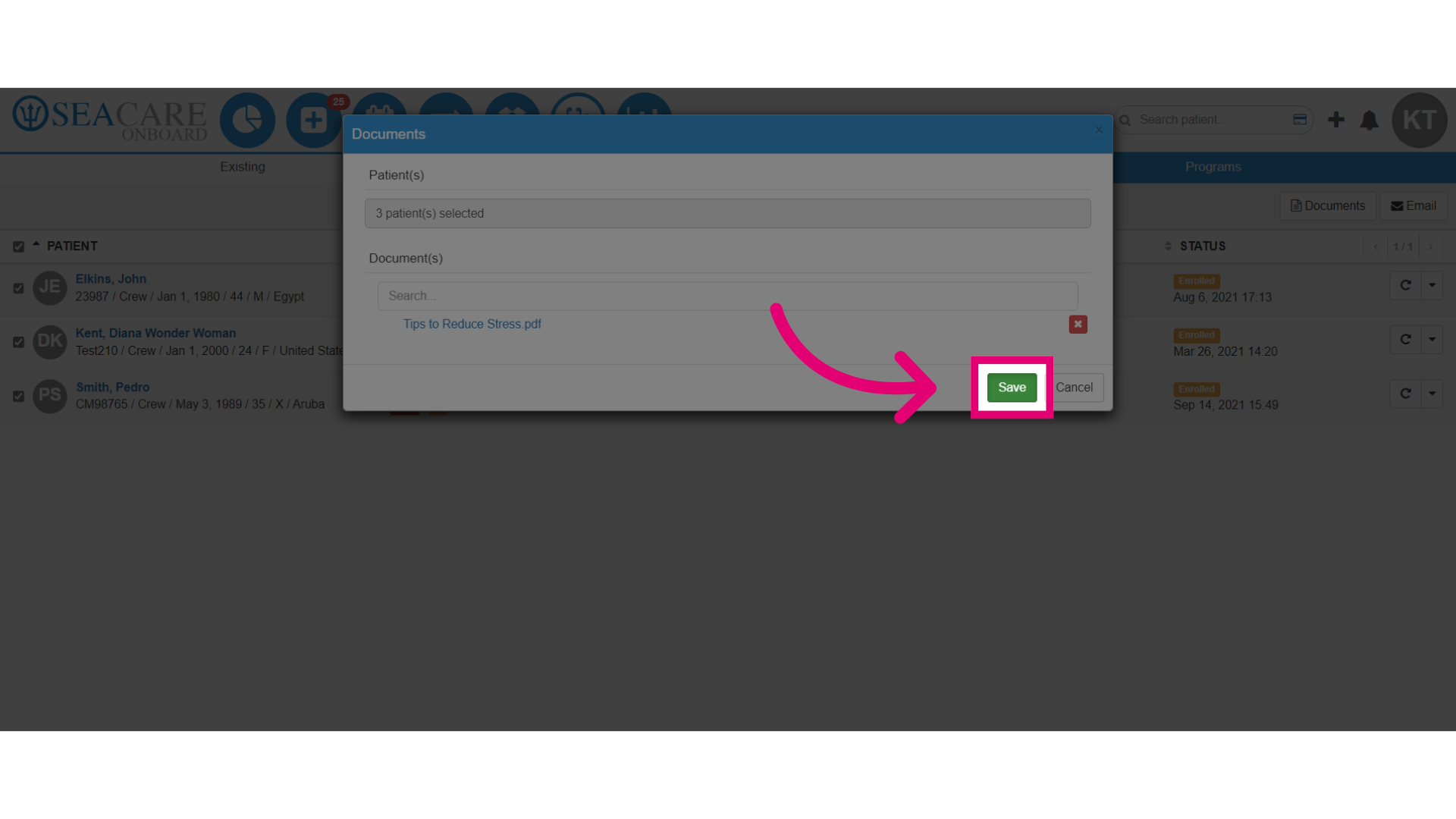
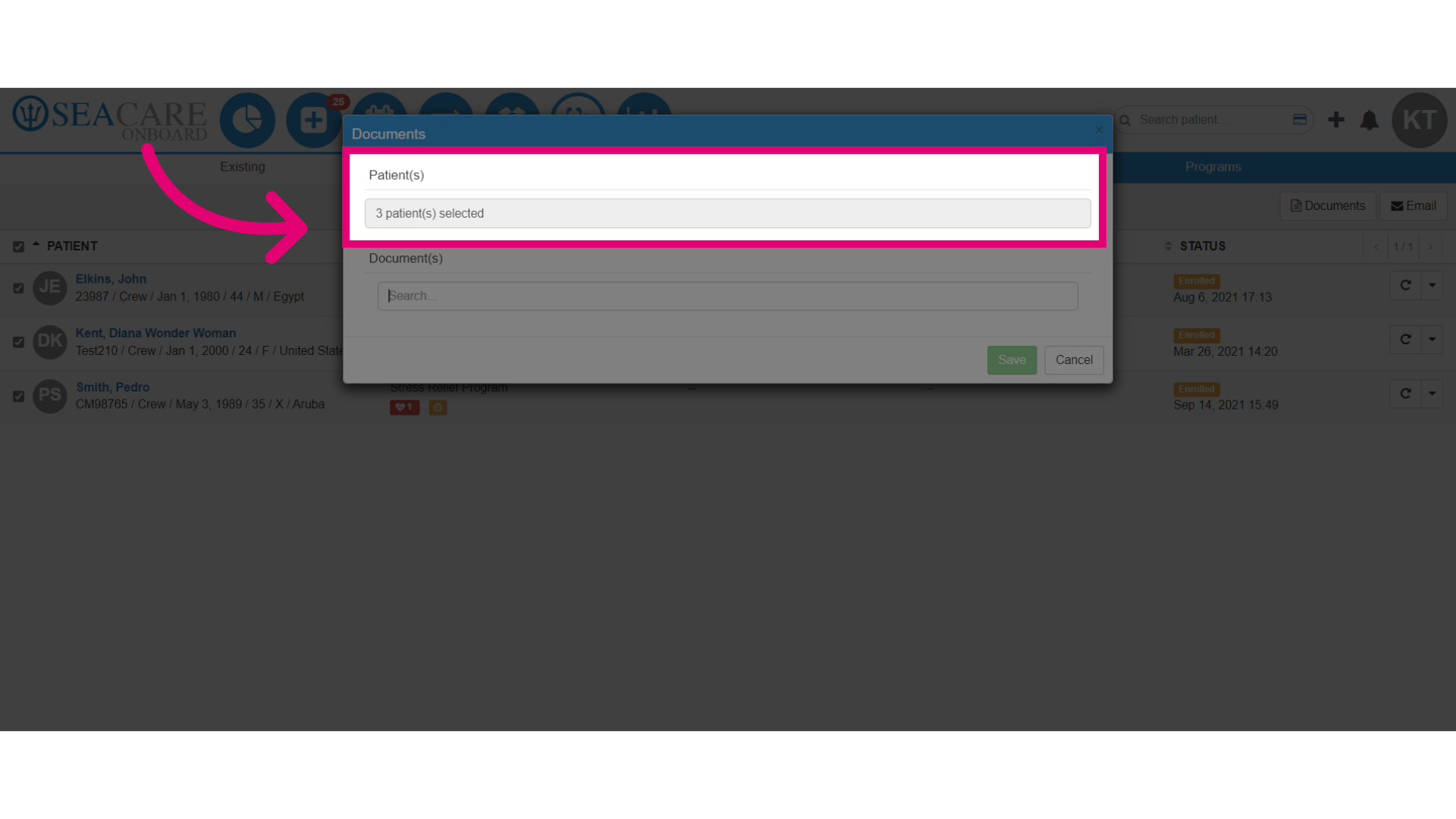
- It opens the Documents window, and under the Patient(s) section you can confirm the accuracy of the number of patients pre-selected in the previous step.
- In the Document(s) section:
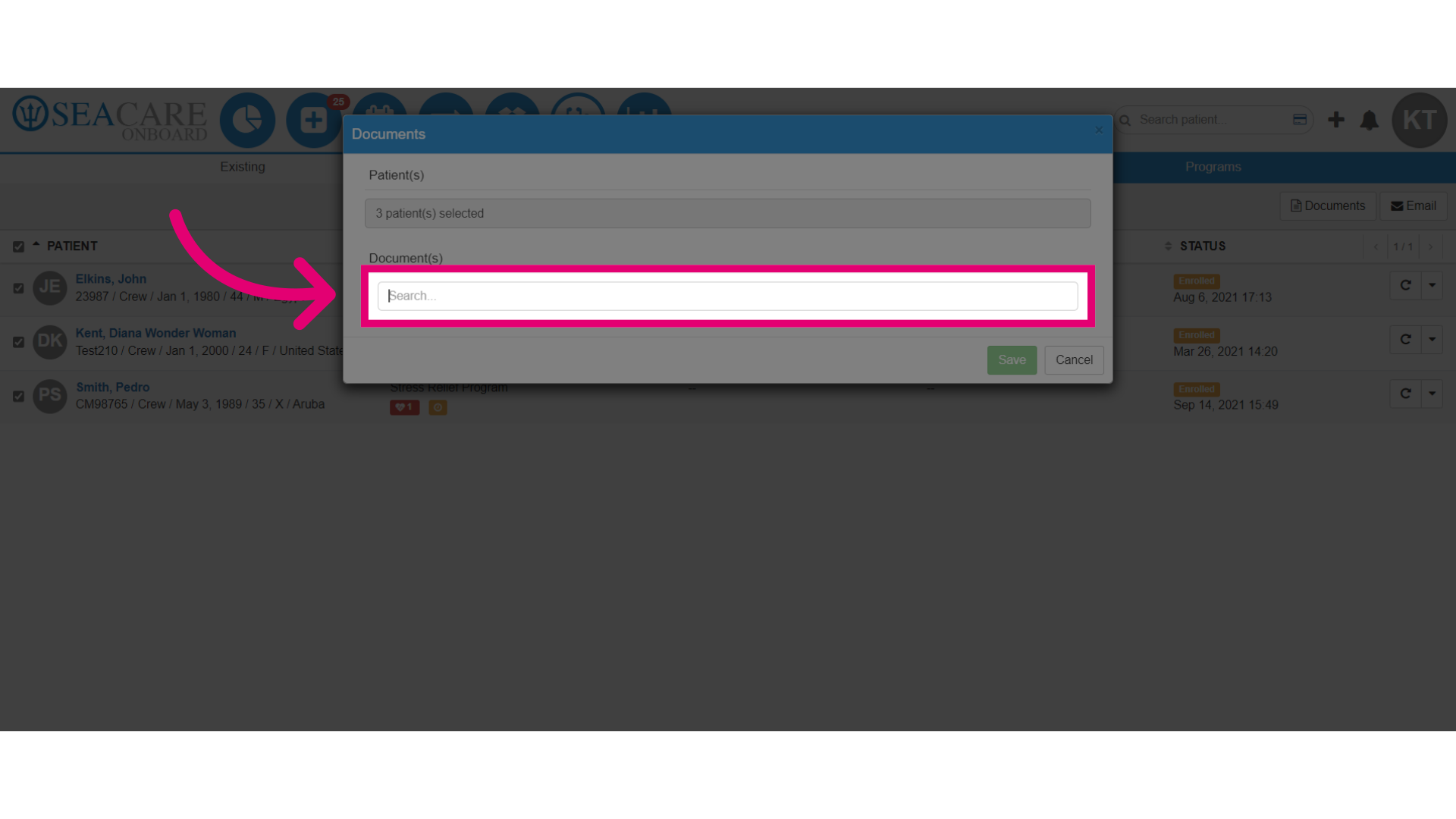
- Initiate a search to locate a specific document.
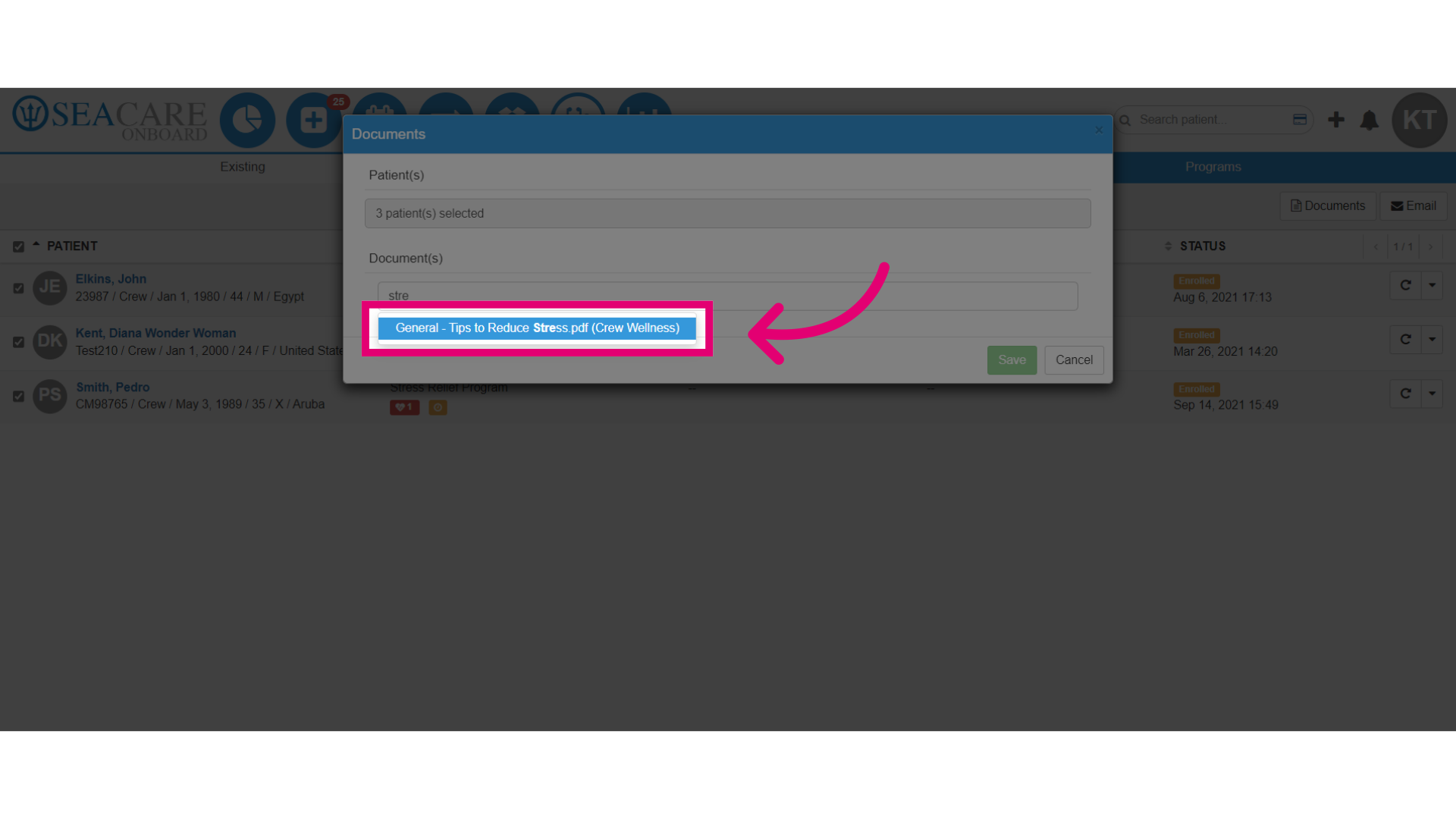
- You may type in key letters or words.
- Ensure the document has already been added by your shoreside system administrator.
- Select the document from the list.
- Select Save and when the selected document is saved, it will be shared in the patient chart under the General folder.