New article
Recently updated
Checking a Patient Out the Provider Workflow

Who is this article for?Users who want to learn to check patients out of the clinic within the Provider Workflow tab.
No elevated permissions are required.
A patient can be checked out after completing their examination, submitting necessary documents, arranging transportation and submitting an invoice, if applicable.
This guide outlines how to check a patient out of the clinical workflow in the Ideagen Maritime Health Provider application.
1. Checking a Patient Out of the Provider Workflow
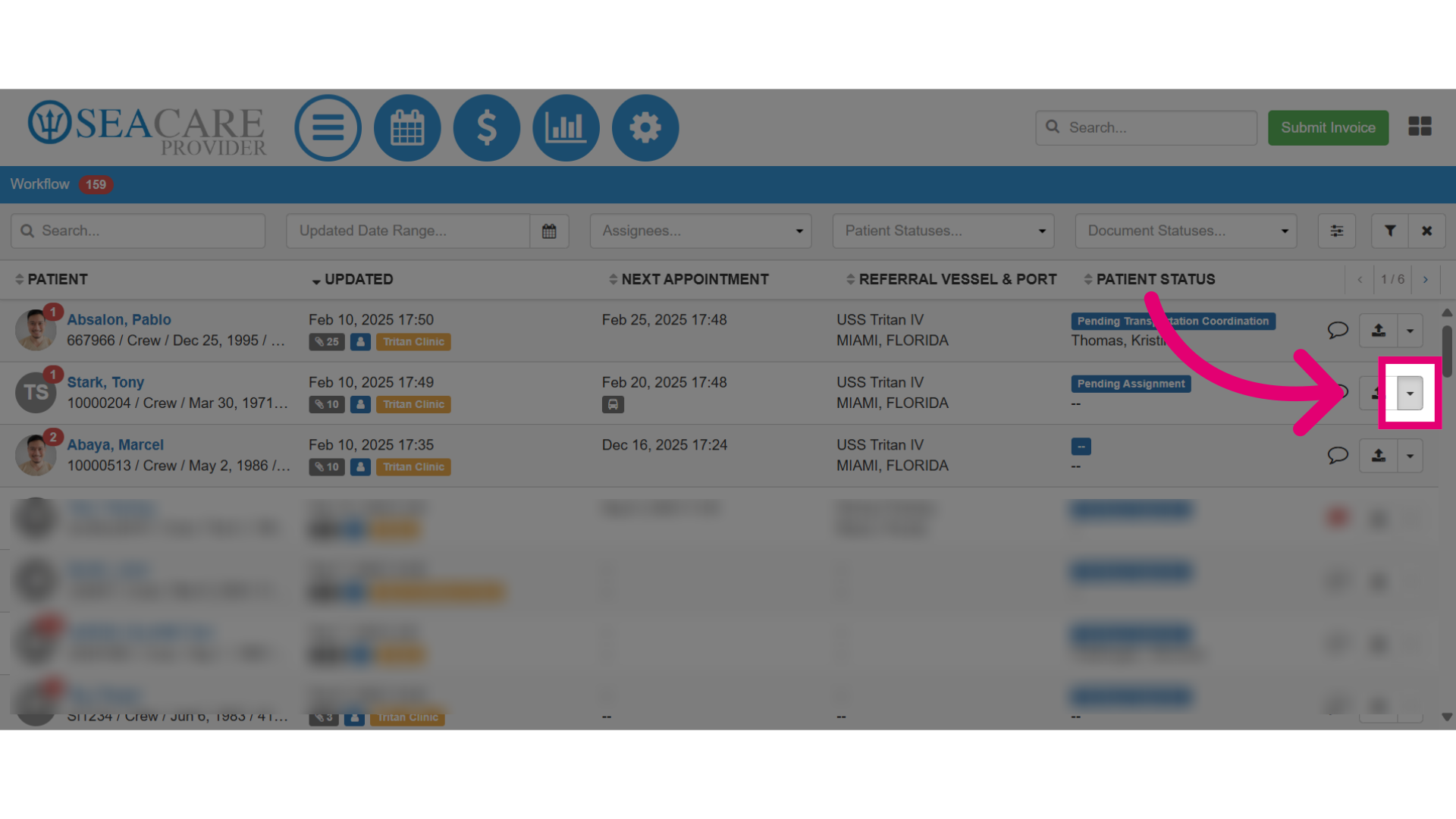
- First, locate the patient and select the Actions menu.
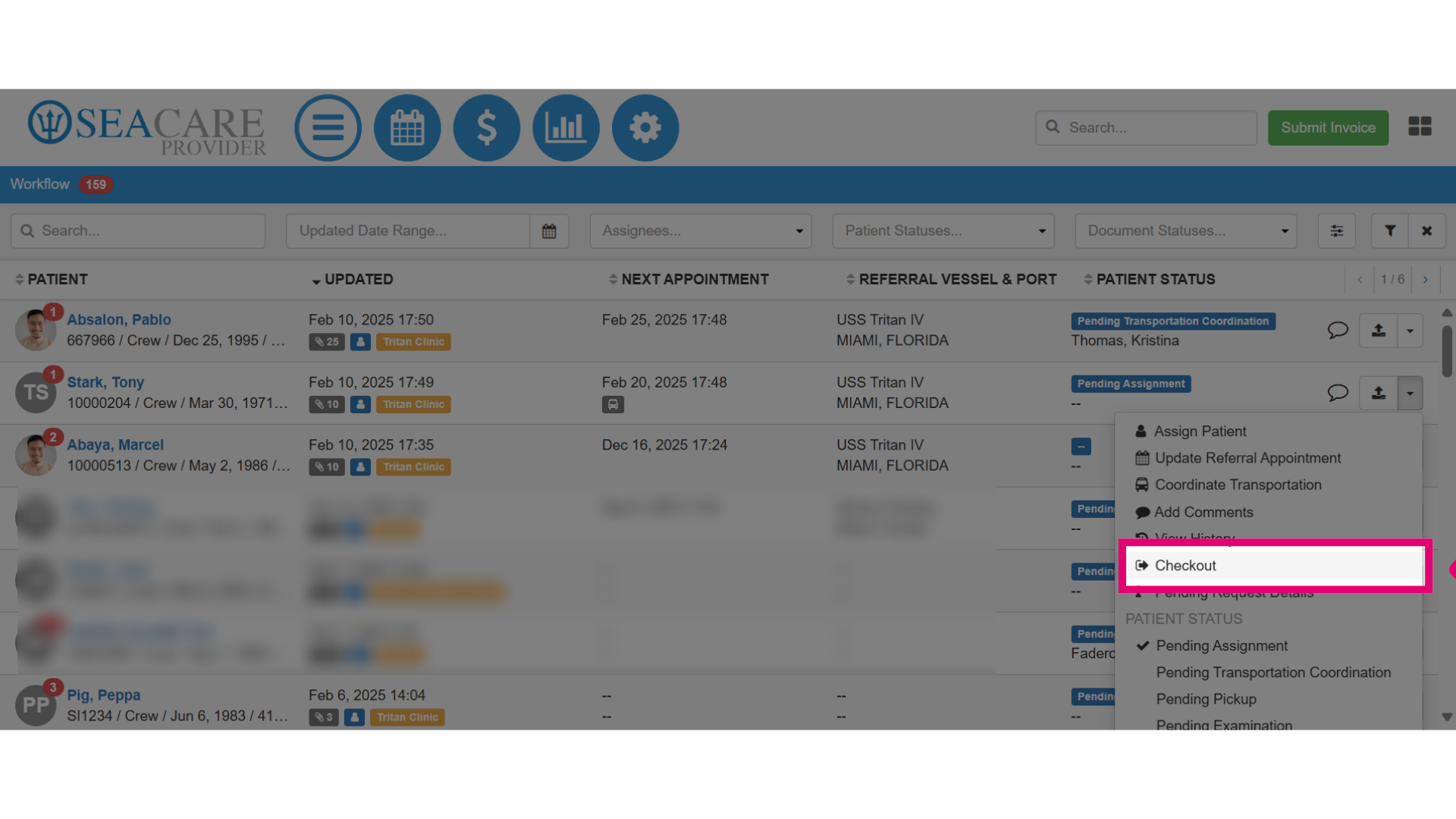
- Then, select the Checkout option.
- Next, here are the options that may be displayed.
- If no message appears, simply click Yes.
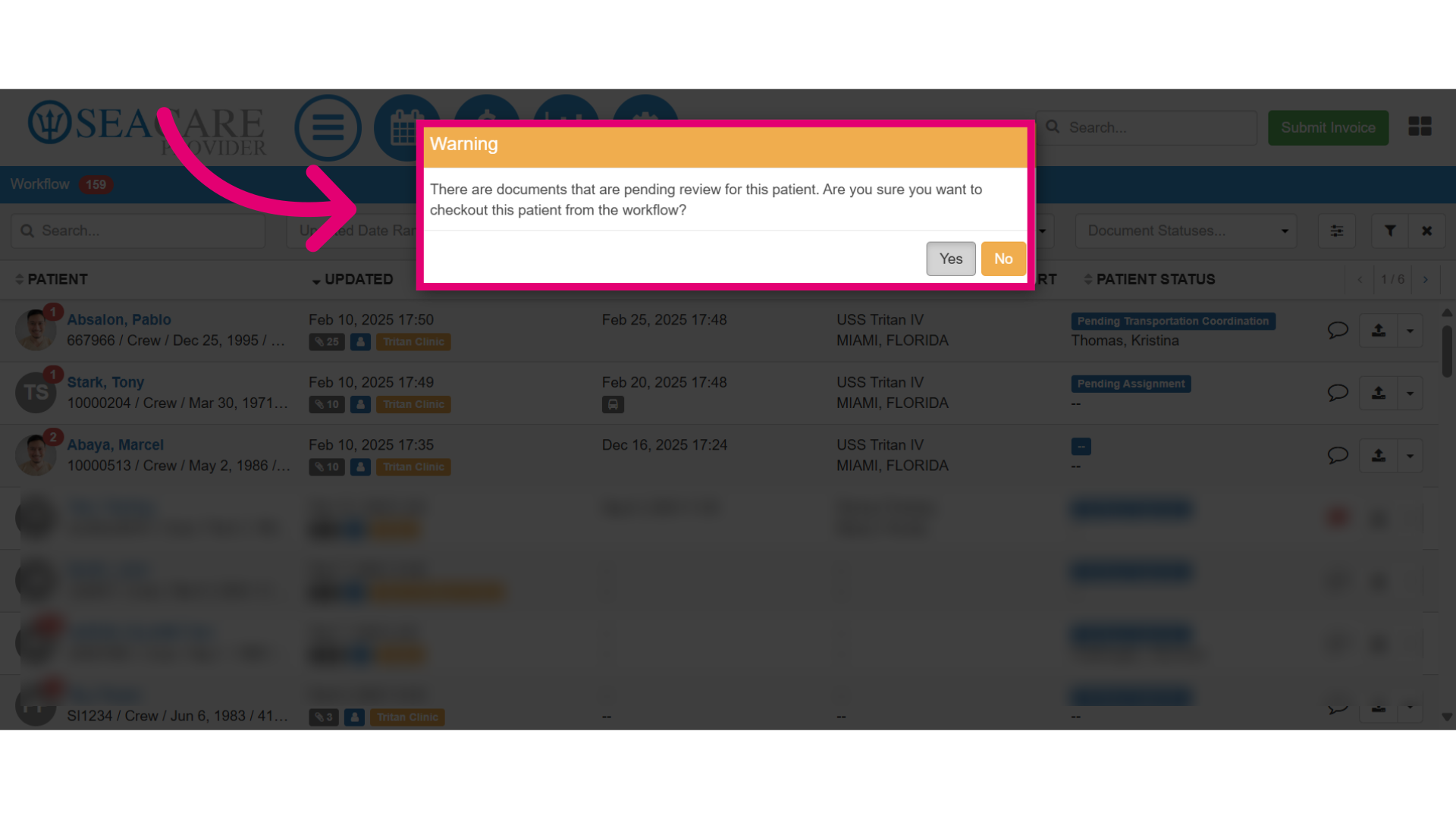
- If there are documents pending review, this message will show. You can either wait for the review and select No to checkout the patient afterwards, or proceed with checkout despite the pending documents by selecting Yes.