New article
Recently updated
Submitting Invoices in Ideagen Maritime Health Provider

Who is this article for?Users who want to learn how to submit invoices in Ideagen Maritime Health Provider.
No elevated permissions are required.
Once the examination period has concluded and all necessary documents have been submitted, users of the Ideagen Maritime Health provider platform are then able to proceed with the submission of their invoices. This guide aims to provide you with a comprehensive understanding of the invoice submission process, ensuring that you can complete it efficiently and without any unnecessary complications.
1. Submitting Invoices in Ideagen Maritime Health Provider
1.1. Video
1.2. Steps
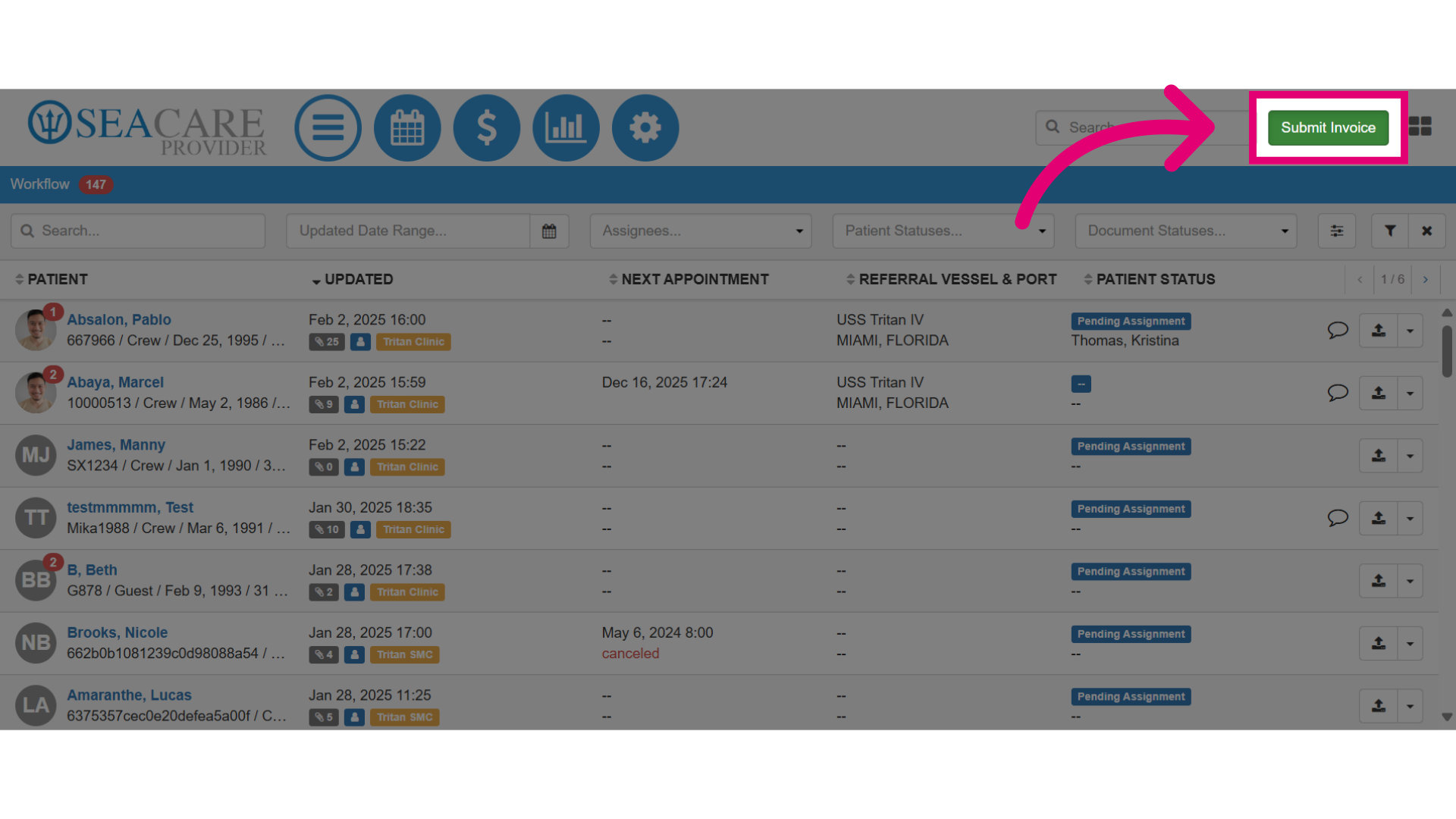
- Select the Submit Invoice button to begin the submission process.
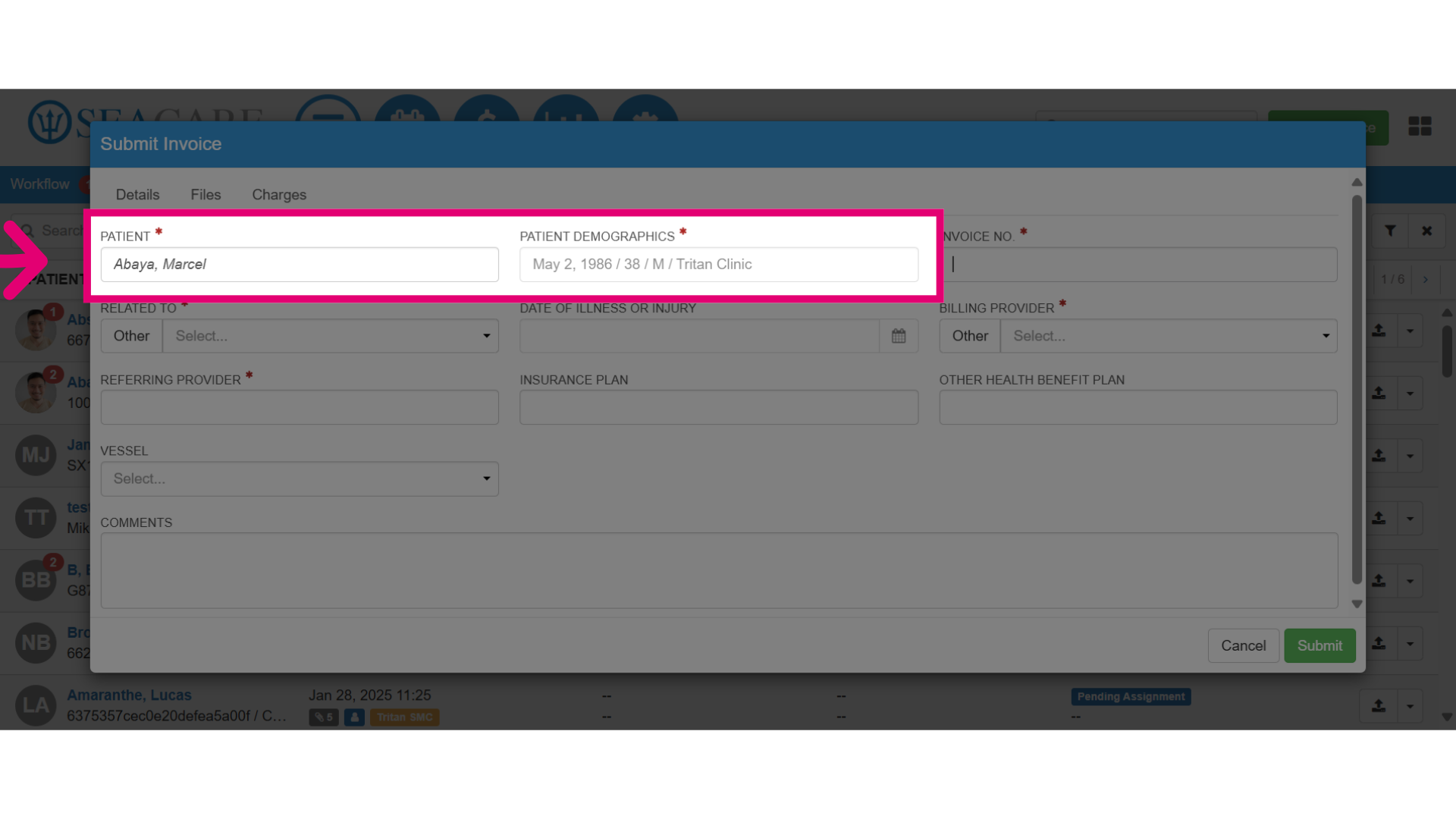
- Under the Details tab, fill in the required fields by adding the patient's name which generates the patient's demographic details that will be linked to the invoice.
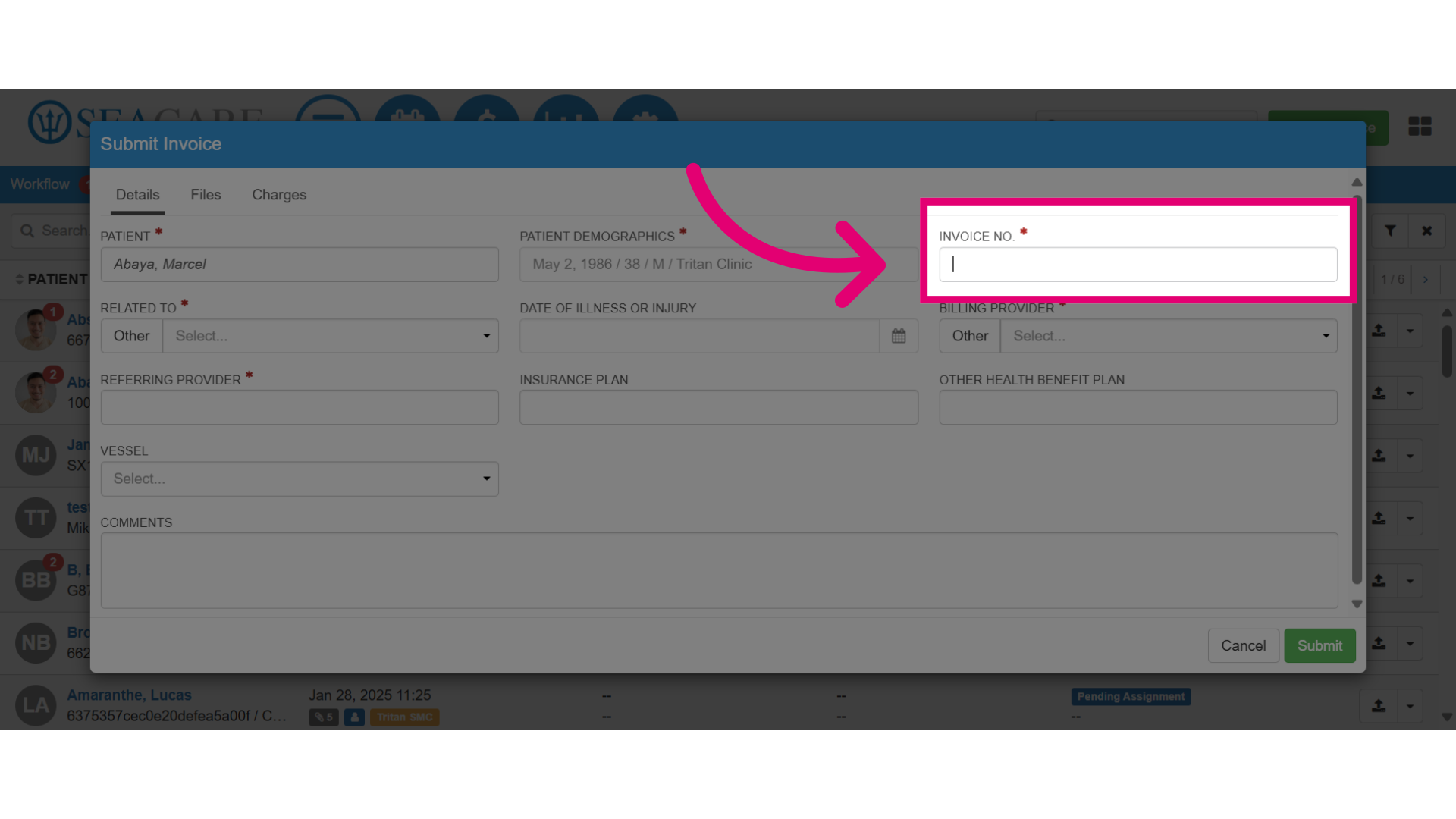
- Then, add the Invoice Number.
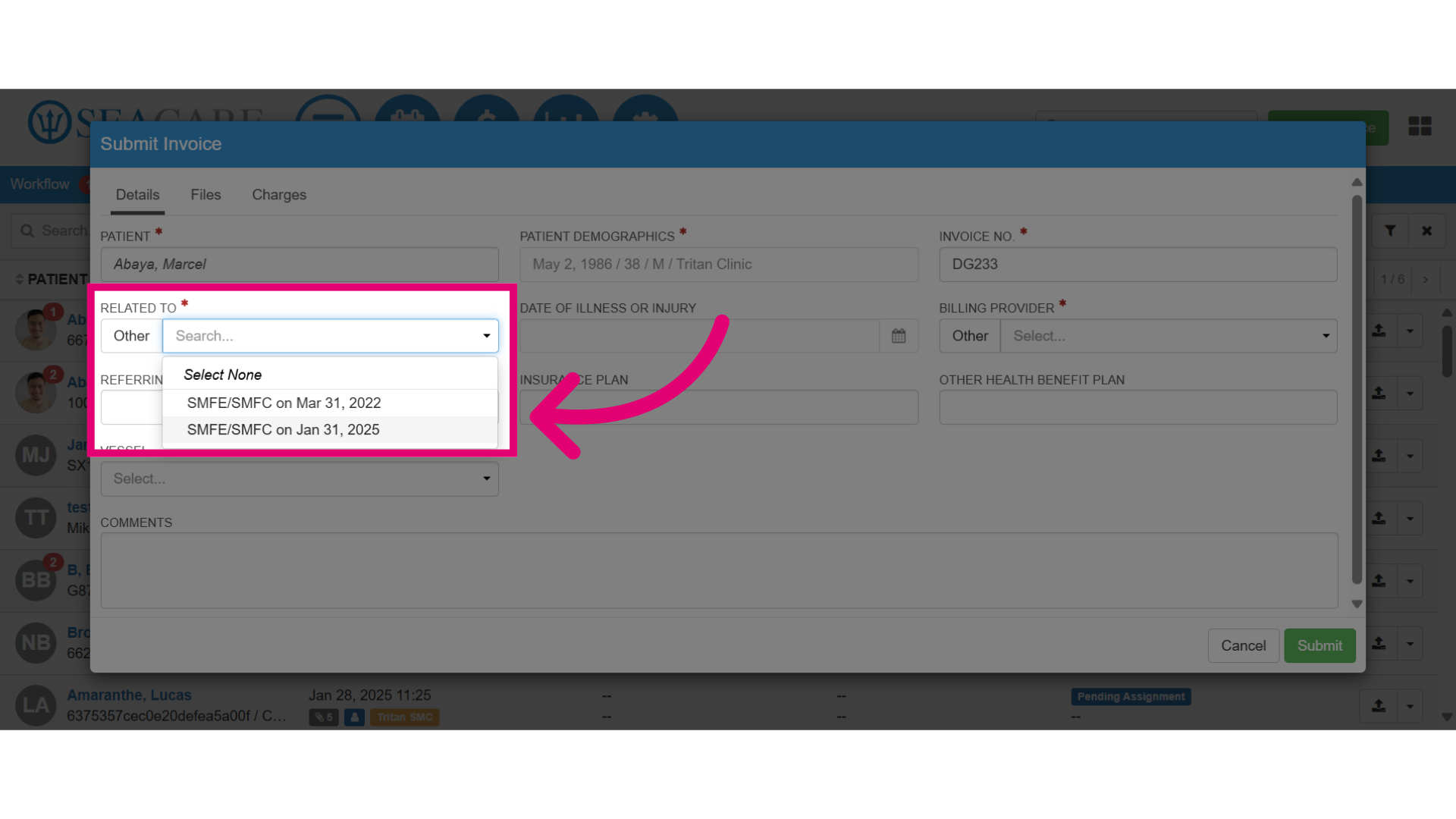
- Specify what the invoice is Related to. The options available are based on the documents that have been shared for the patient. If necessary, you can choose 'Other' to manually add this information.
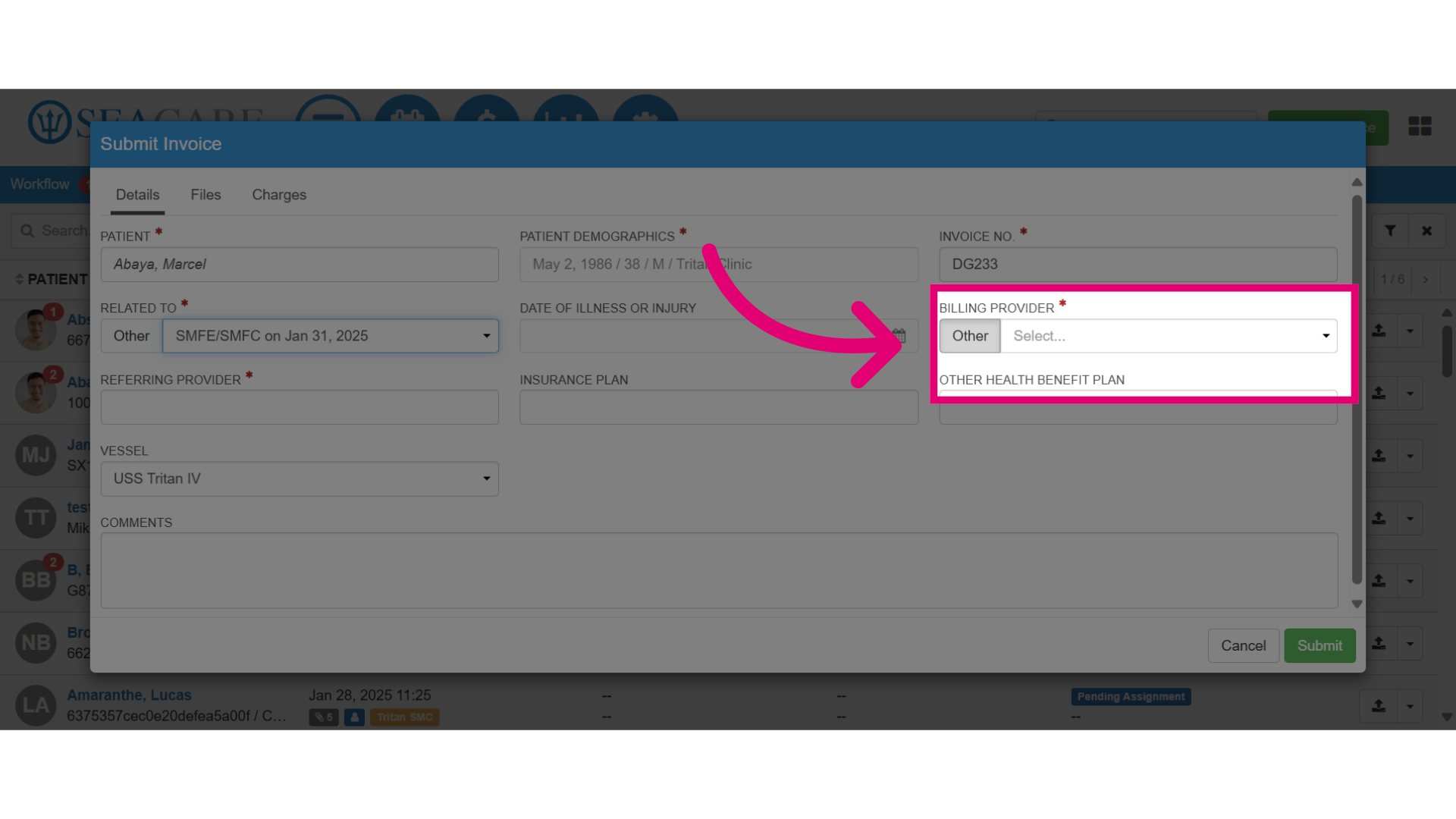
- Select the Billing Provider, which is the individual responsible for billing. Or, select the 'Other' option to manually enter this information.
- Enter the Referral Provider, for the individual who referred the patient for the examination or service, if applicable.
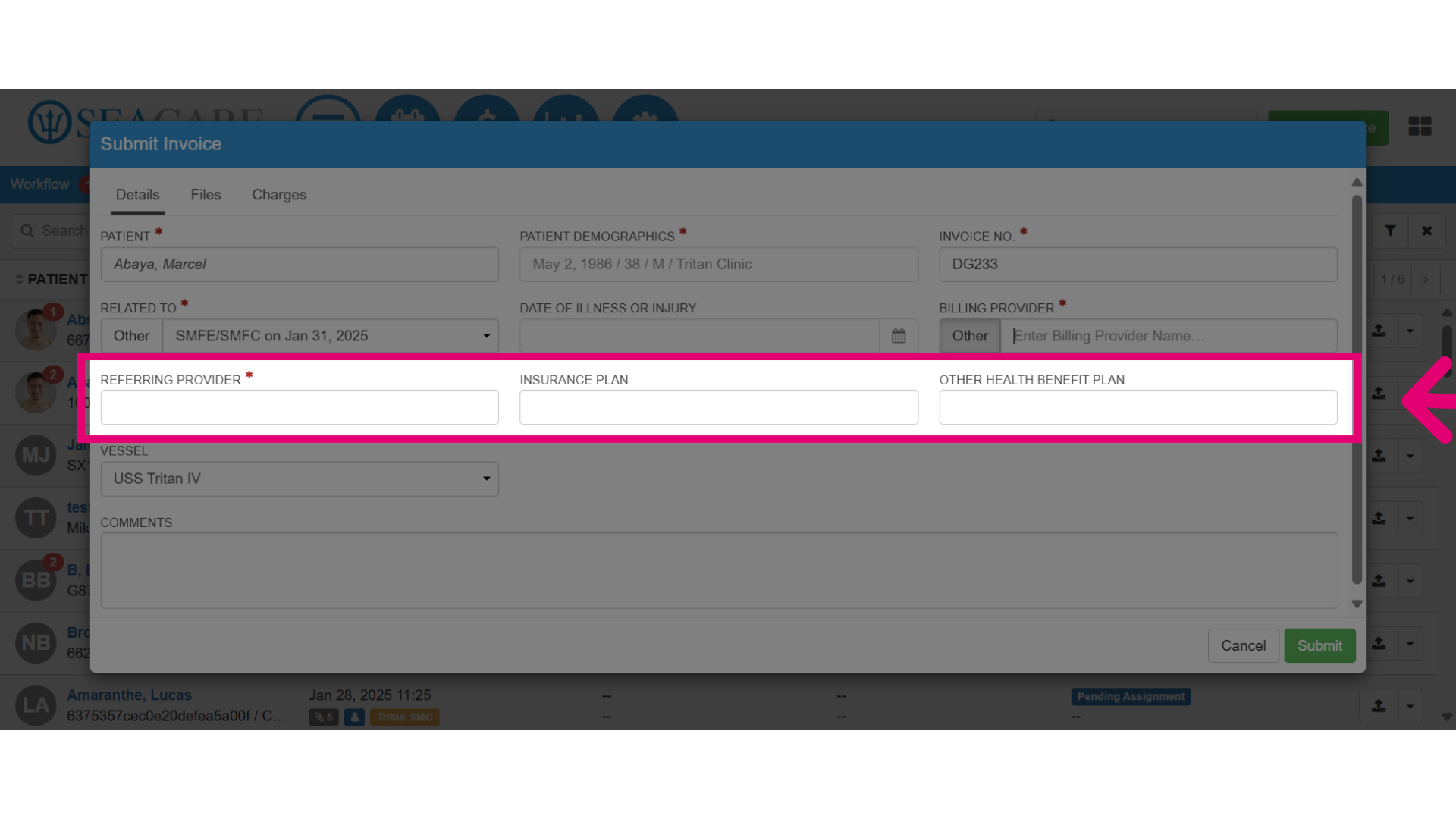
- Then, you have an option to complete the remaining optional fields:
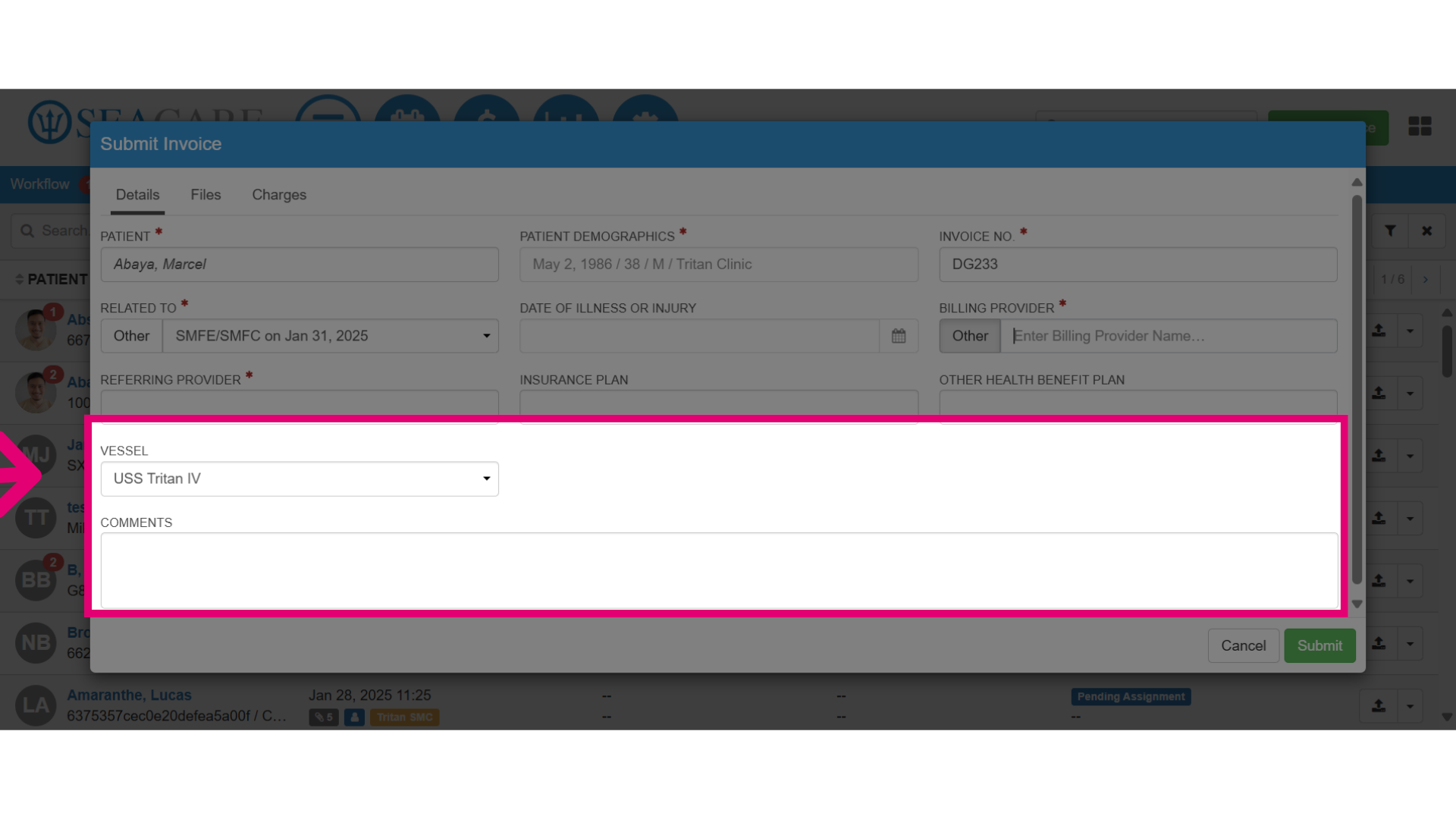
- Ensure that the correct vessel for the patient has been selected.
- Use the comment section to add any necessary comments regarding the invoice.
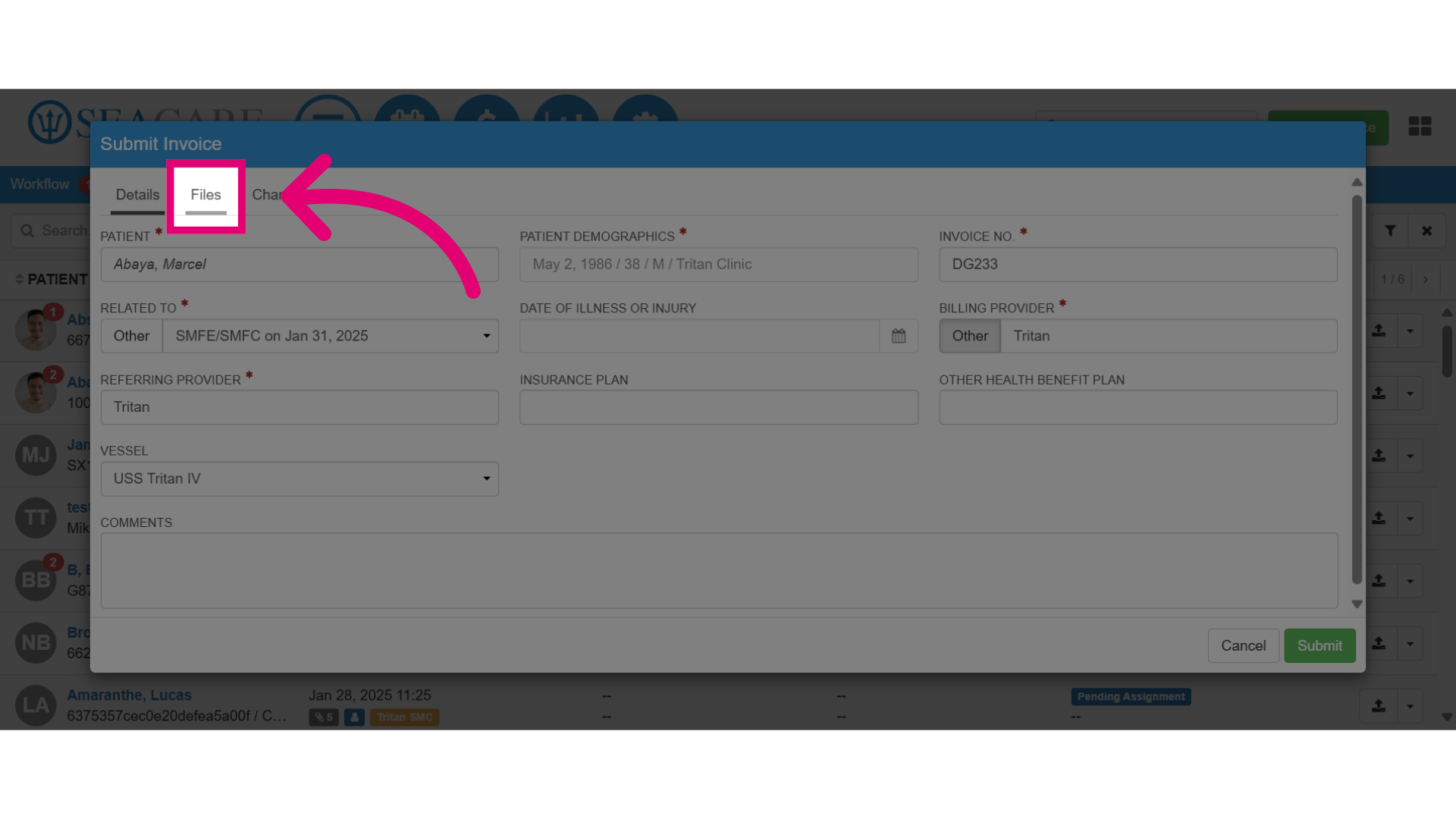
- Next, go to the Files tab to attach invoice document.
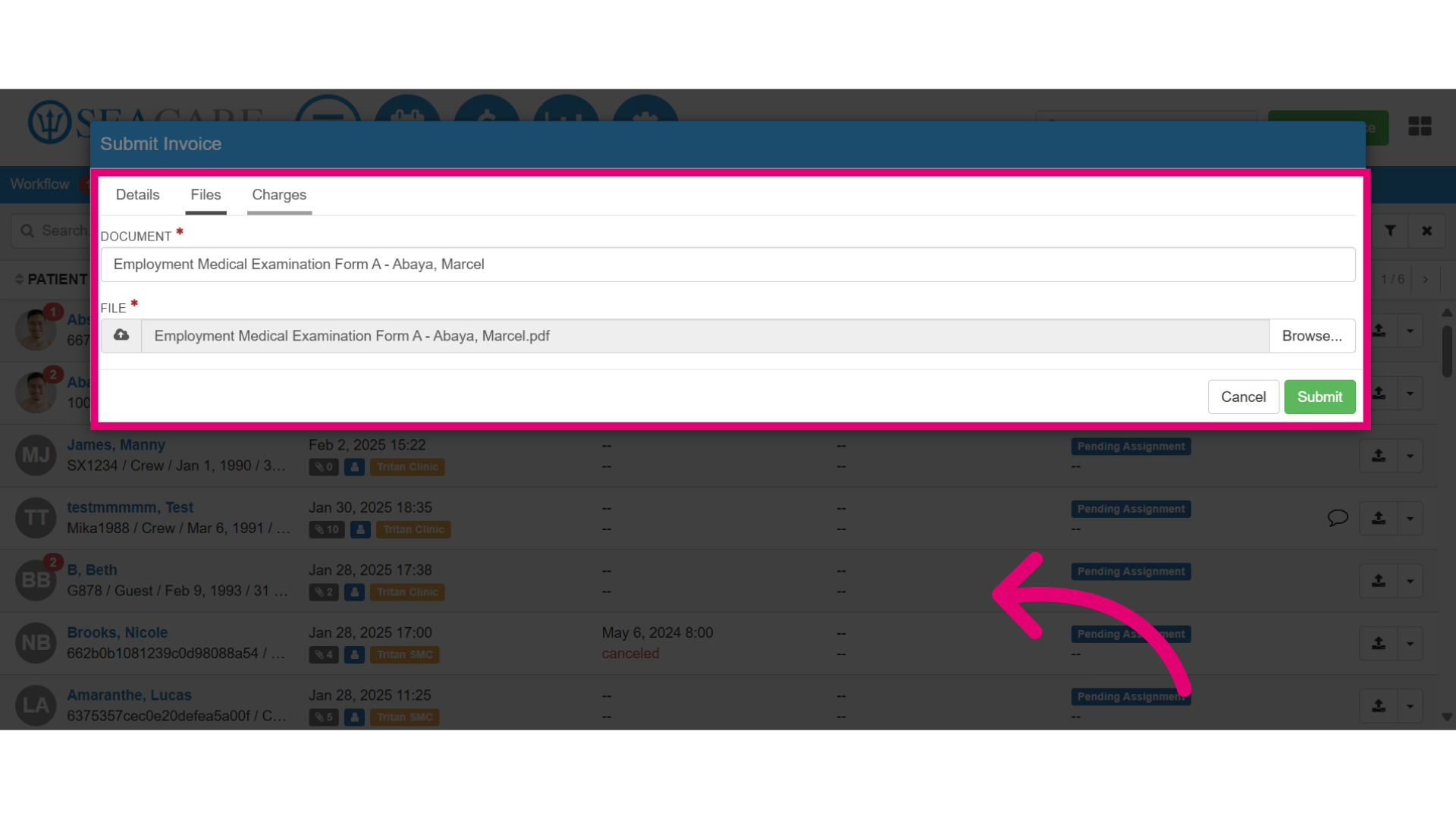
- Add the Document Name for the file being attached which will be displayed to the recipient. Then, attach the file from your device, which may be a copy of the invoice.
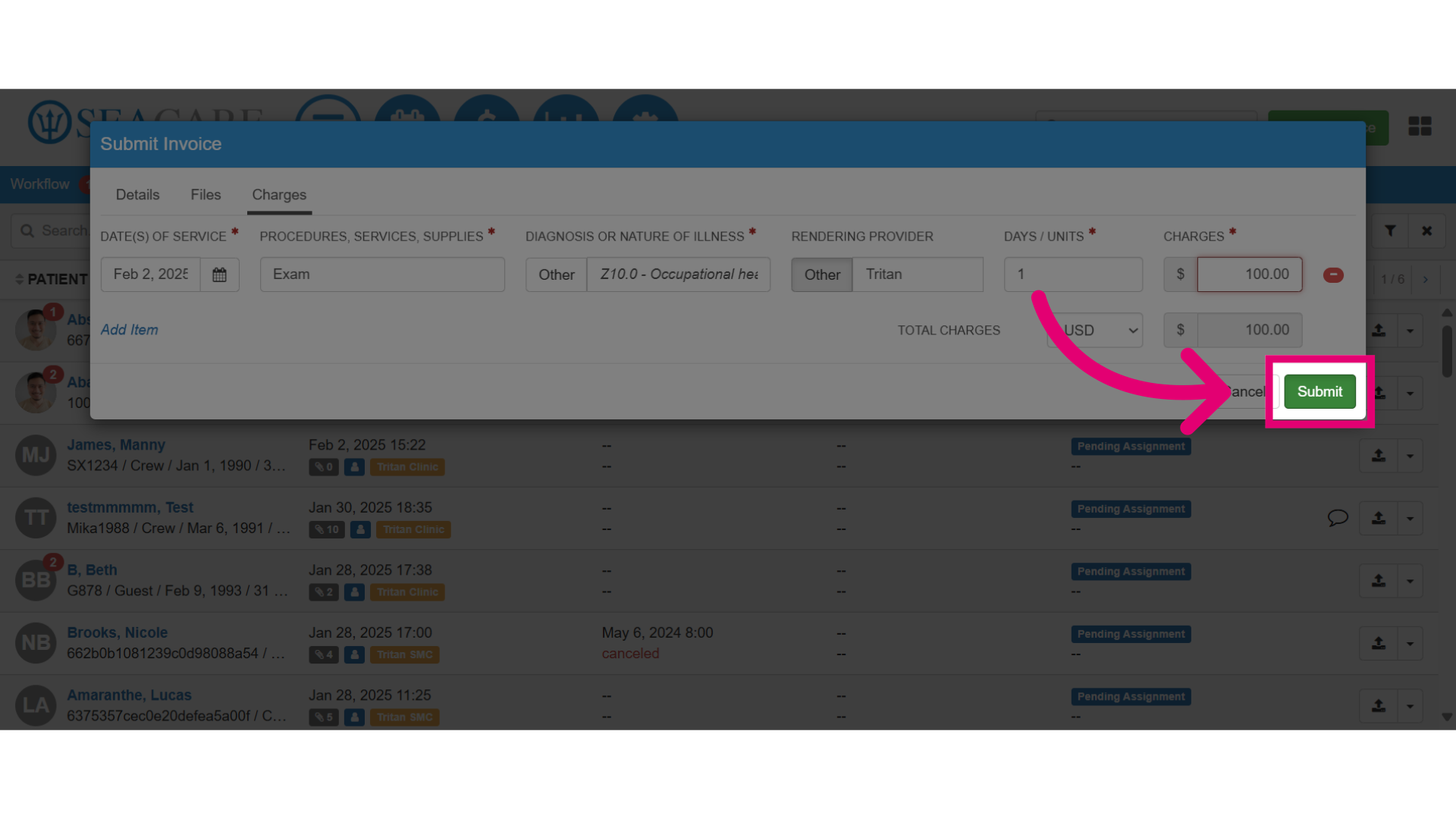
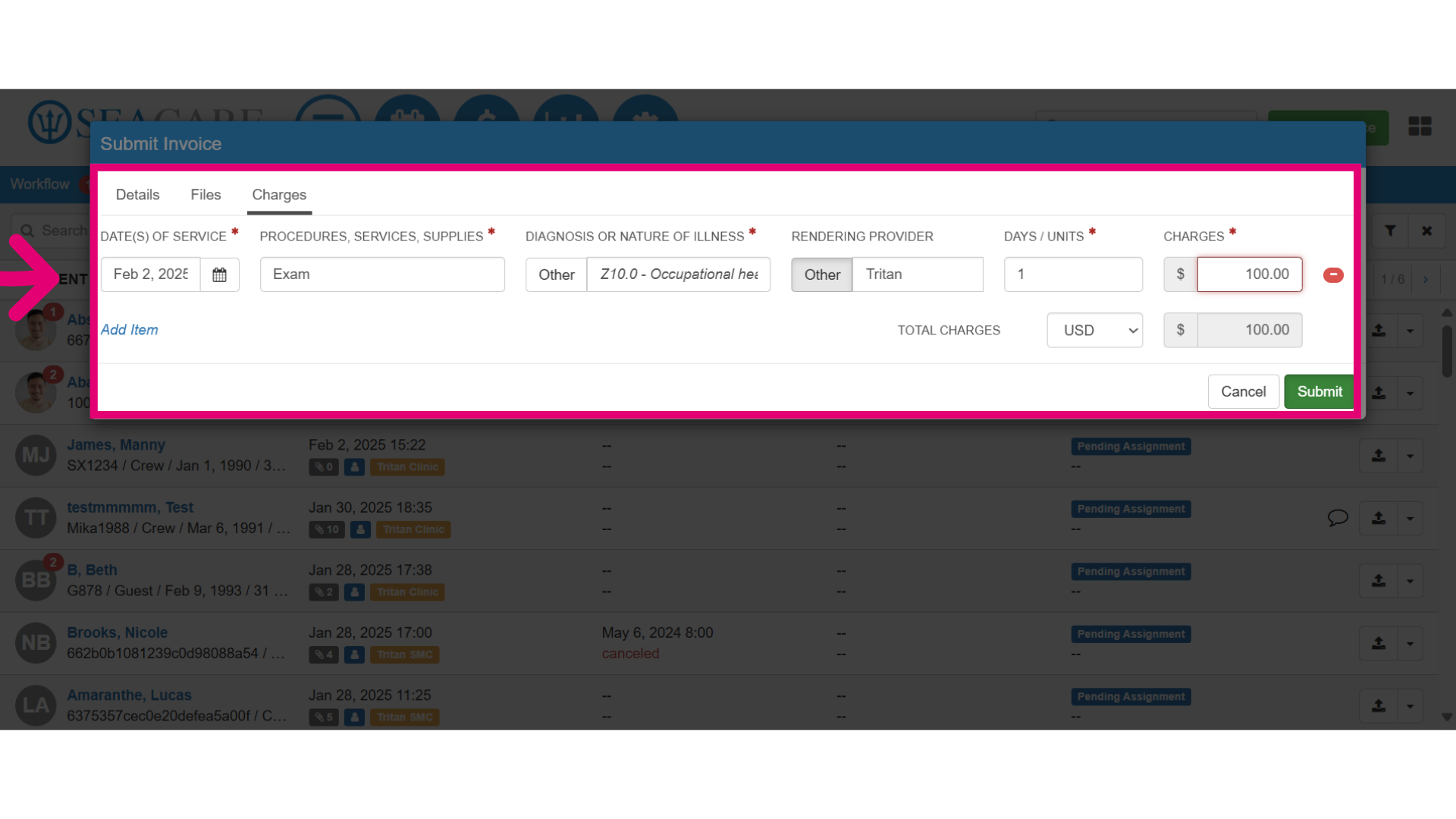
- Then, go to the Charges tab and enter the required information:
- Add the Date of Service for the date the patient received service.
- Enter the Procedure, Services, Supplies that were provided to the patient.
- Then, add the Diagnosis or Nature of Illness. This can be done by typing in ICD codes and selecting the diagnosis that matches.
- Add the Rendering Provider for the healthcare provider who performed the service.
- Enter the Days in the clinic or Units of an item to charge per item if additional supplies were provided.
- Then, add the Charges.
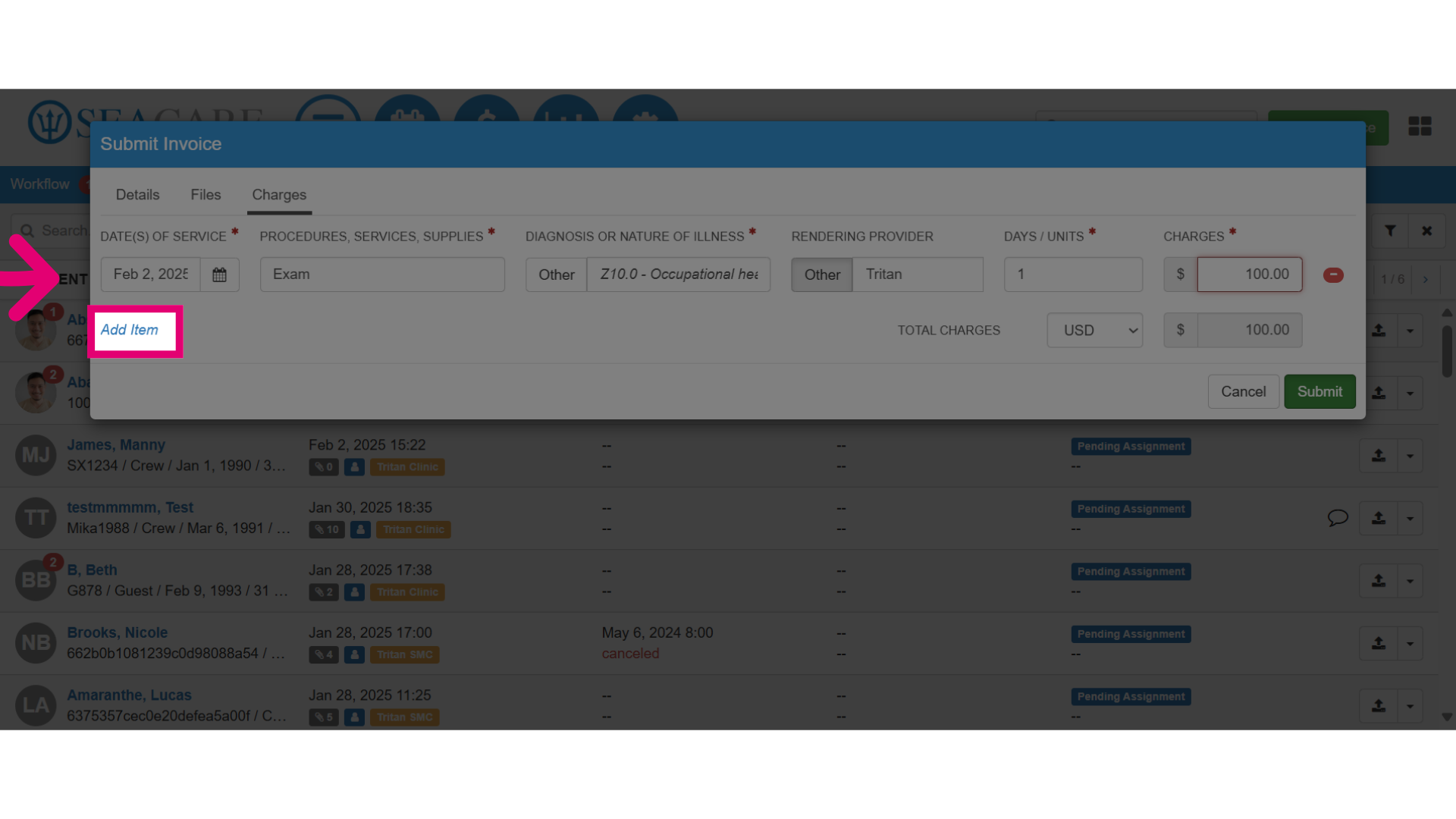
- Select Add Item to add the day and additional items and services separately.
- Then, select Submit to submit the invoice for processing.