New article
Recently updated
Submitting patient documents in Ideagen Maritime Health Provider

Who is this article for?Users who want to learn how to submit patient documents in Ideagen Maritime Health Provider.
No special access or permissions are required.
This guide provides instructions for submitting patient documents in the Ideagen Maritime Health Provider application. Following a patient's appointment at the clinic, which may include an examination or referral, the clinical user is responsible for submitting the necessary documents for review and incorporation into the patient's chart.
1. Submitting a document
To submit a document:
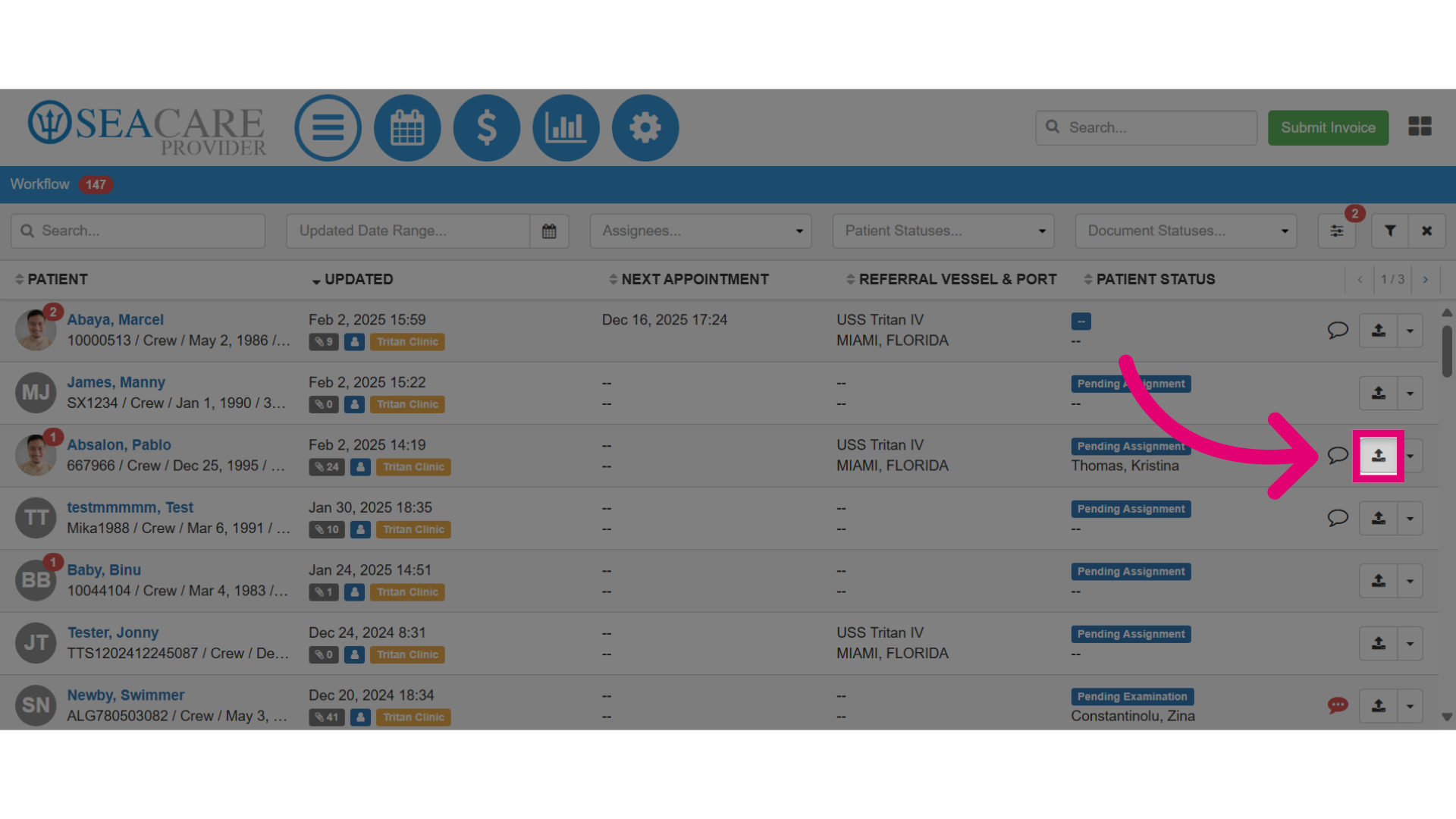
- Locate the patient in the Workflow list.
- Click the Upload button.
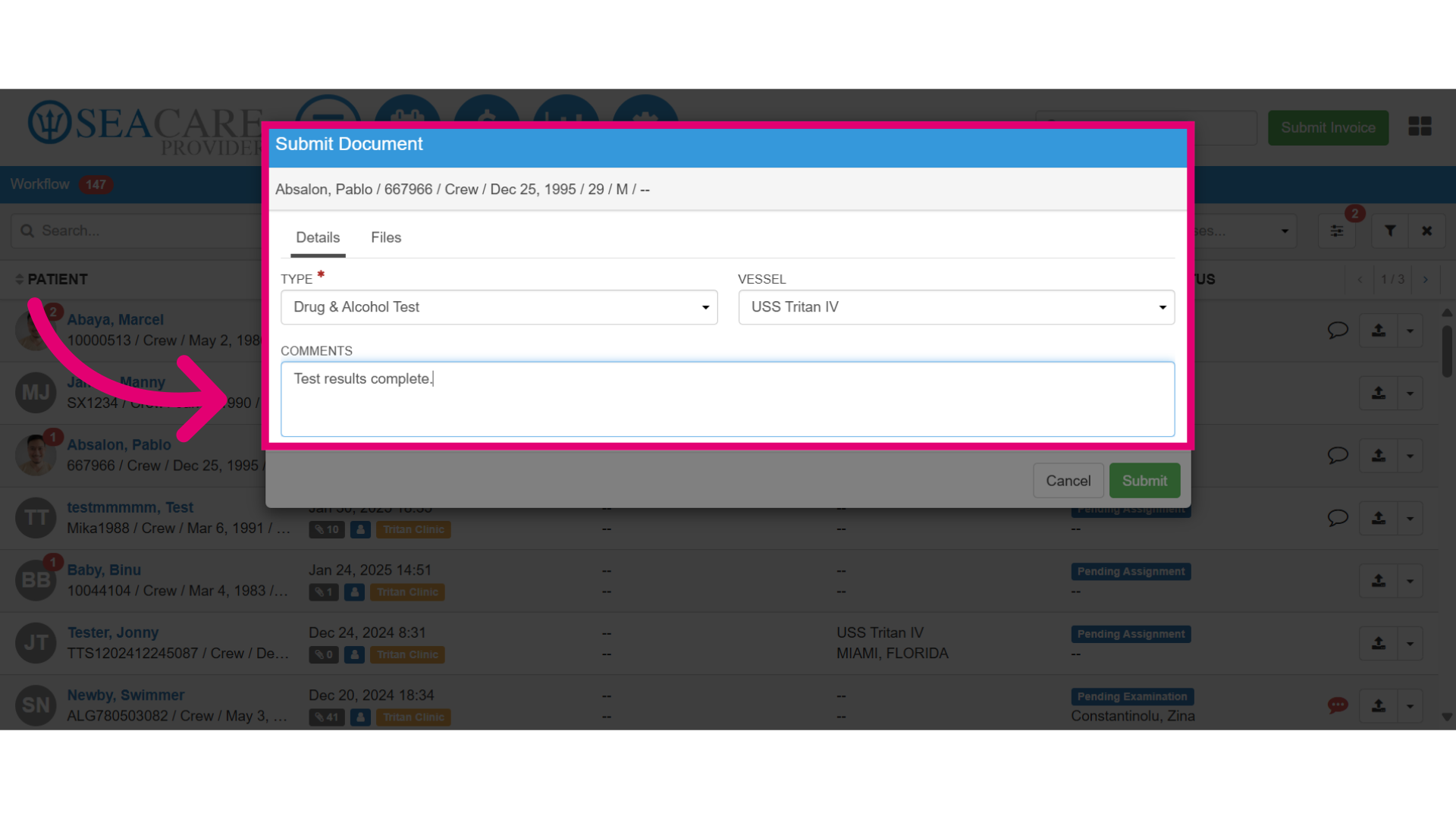
- Under the Details tab, select the Document Type.
- Choose the correct Vessel to save it to.
- Add Comments as needed.
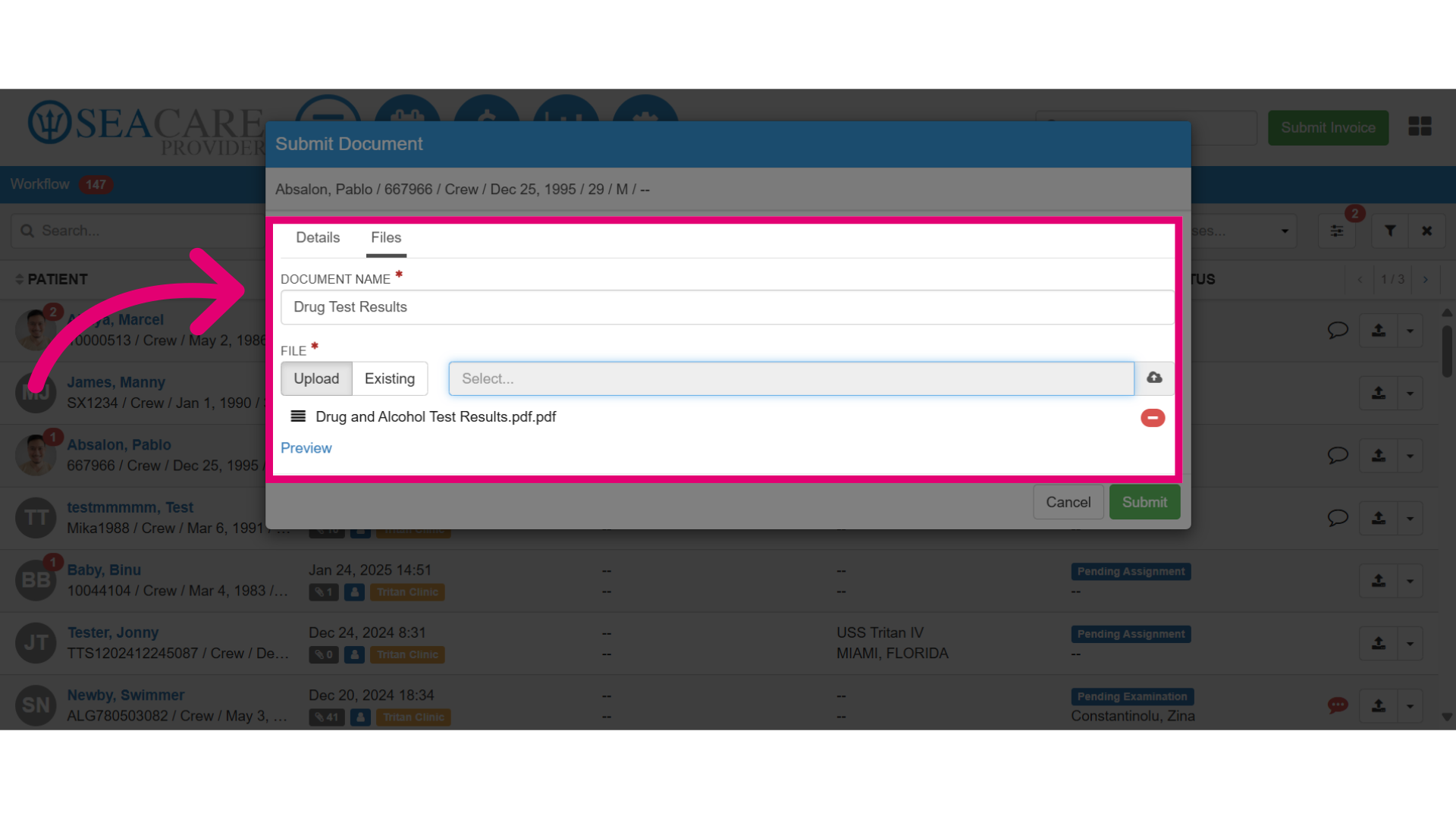
- Switch to the Files tab.
- Specify the Document name.
- Upload the document.
- Use the Upload option under to upload the document that you are sending.
- Use the Existing option to attach a document that was previously uploaded for the patient.
- Use the Preview button to review the document.
- Click Submit.
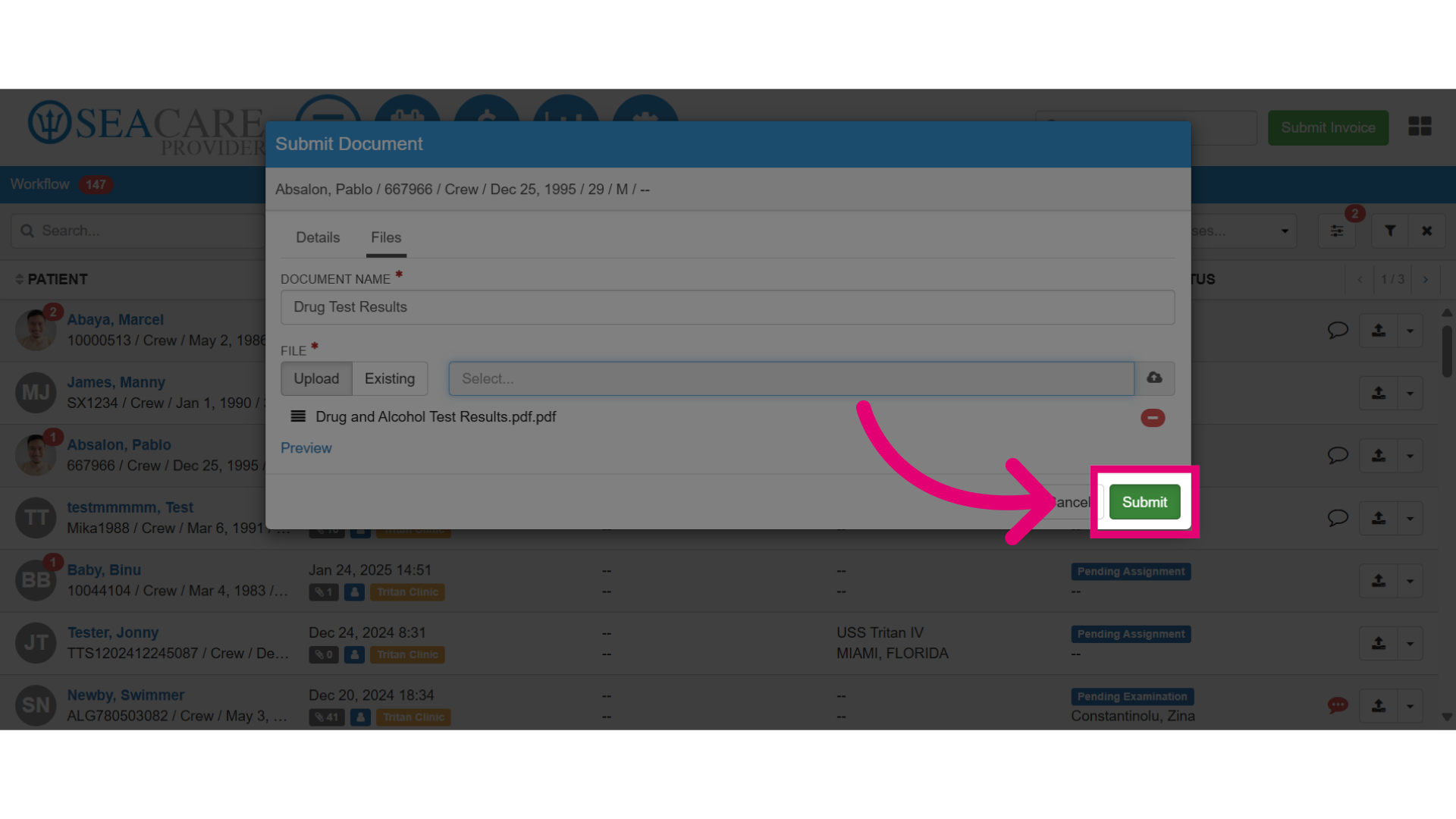
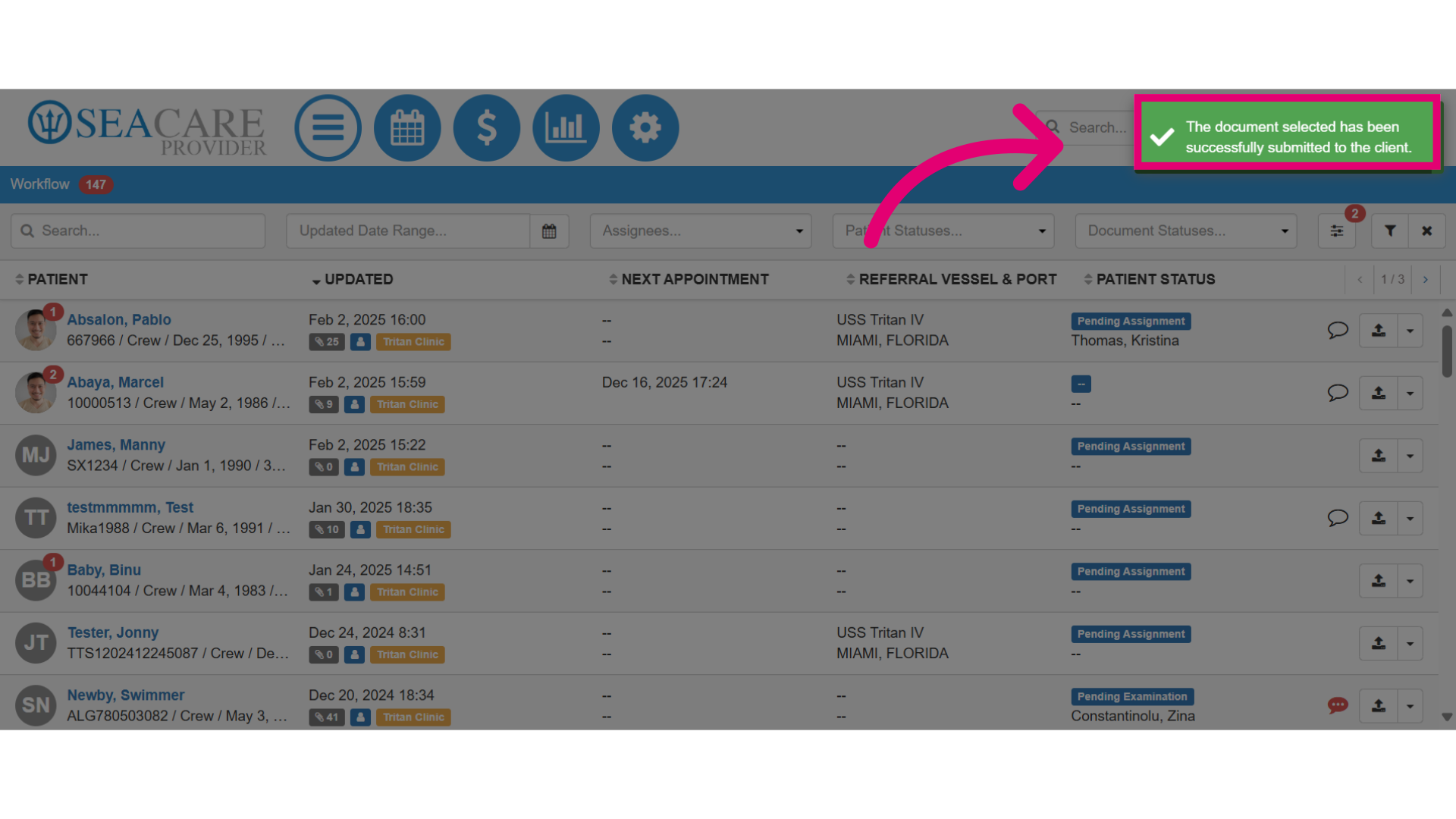
A confirmation message will appear if the submission has been completed successfully.
2. Viewing a document status
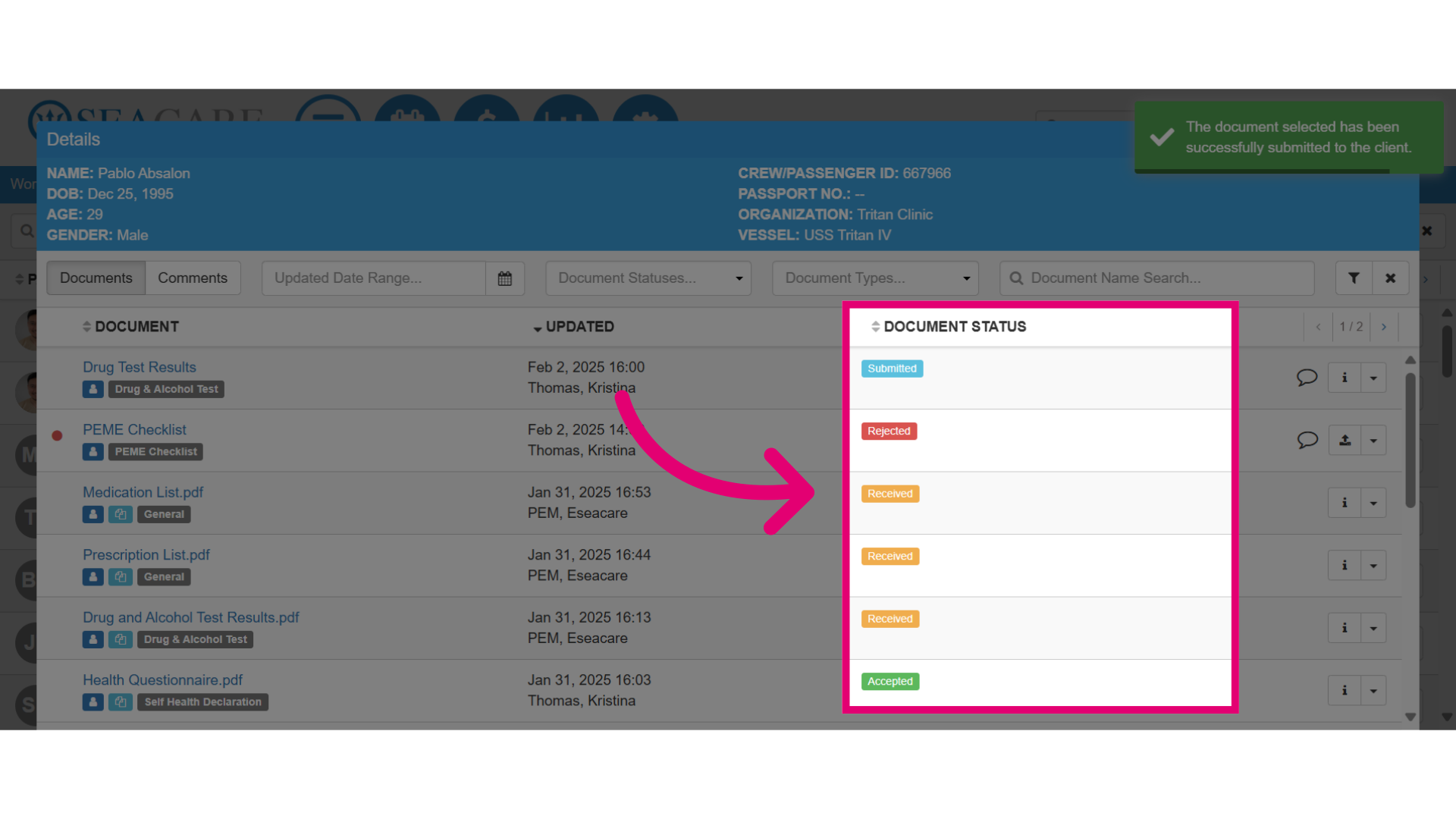
To view updates, select the Paperclip to open the documents window again. Under the Document Status column, the document will be displayed as the Submitted status.
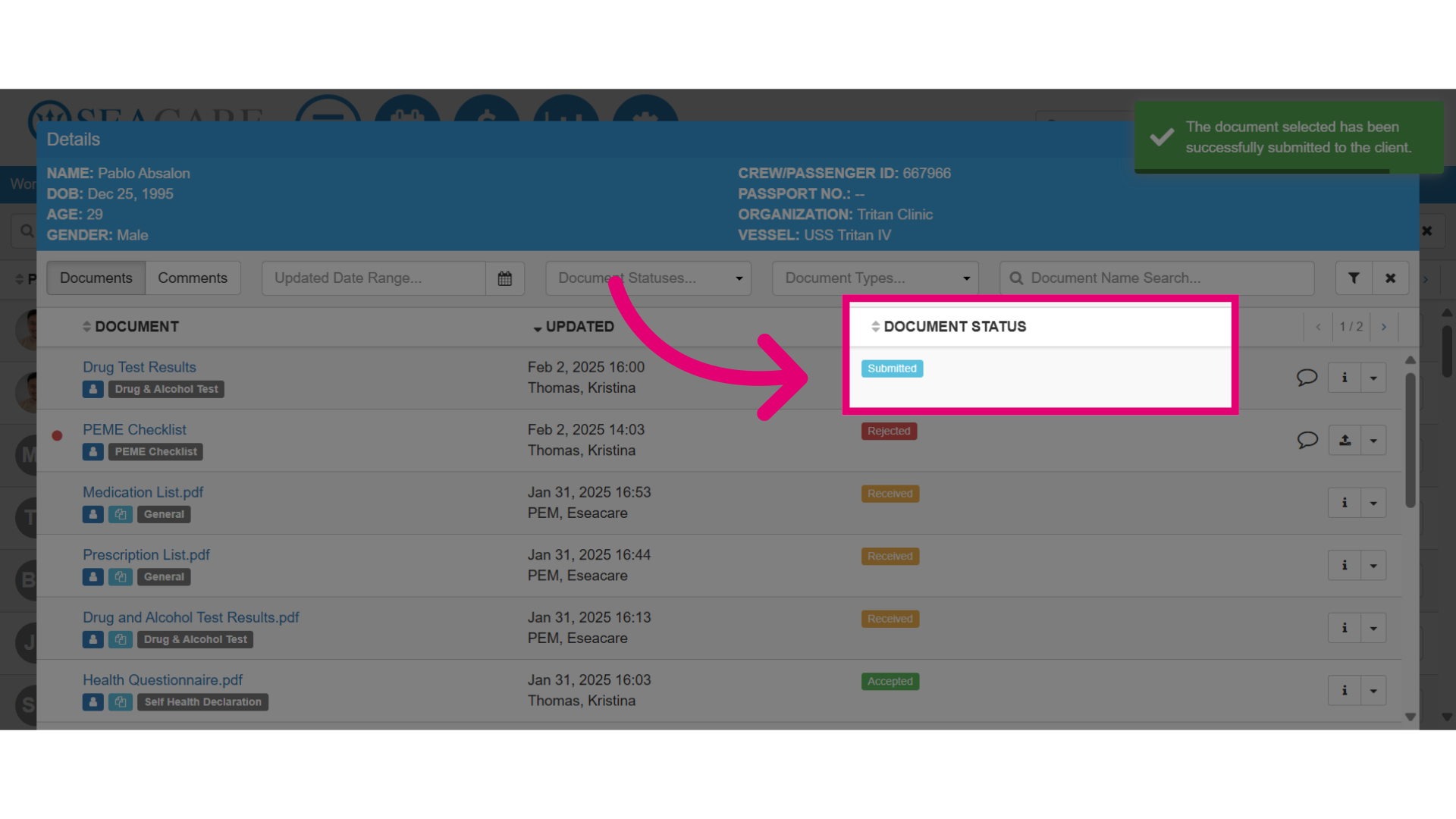
To track document updates and change in statuses, check the Document Status for:
-
- Submitted (blue) - Indicates that the document has been shared by the Provider.
- Received (orange) - Indicating that it has been received by the recipient.
- Accepted (green) - Indicating that it has been reviewed and accepted by the company.
- Rejected (red) - Indicating that the document was rejected and returned to your workflow.