New article
Recently updated
Viewing patient documents and adding comments in Ideagen Maritime Health Provider

Who is this article for?Users who want to learn how to view and comment on patient documents in Ideagen Maritime Health Provider.
No elevated permissions are required.
This guide explains how to access and view patient documents and add comments in the Ideagen Maritime Health Provider application, enabling users to navigate and find documents easily.
1. Viewing documents in Ideagen Maritime Health Provider
1.1. Video
1.2. Steps
- Follow these steps:
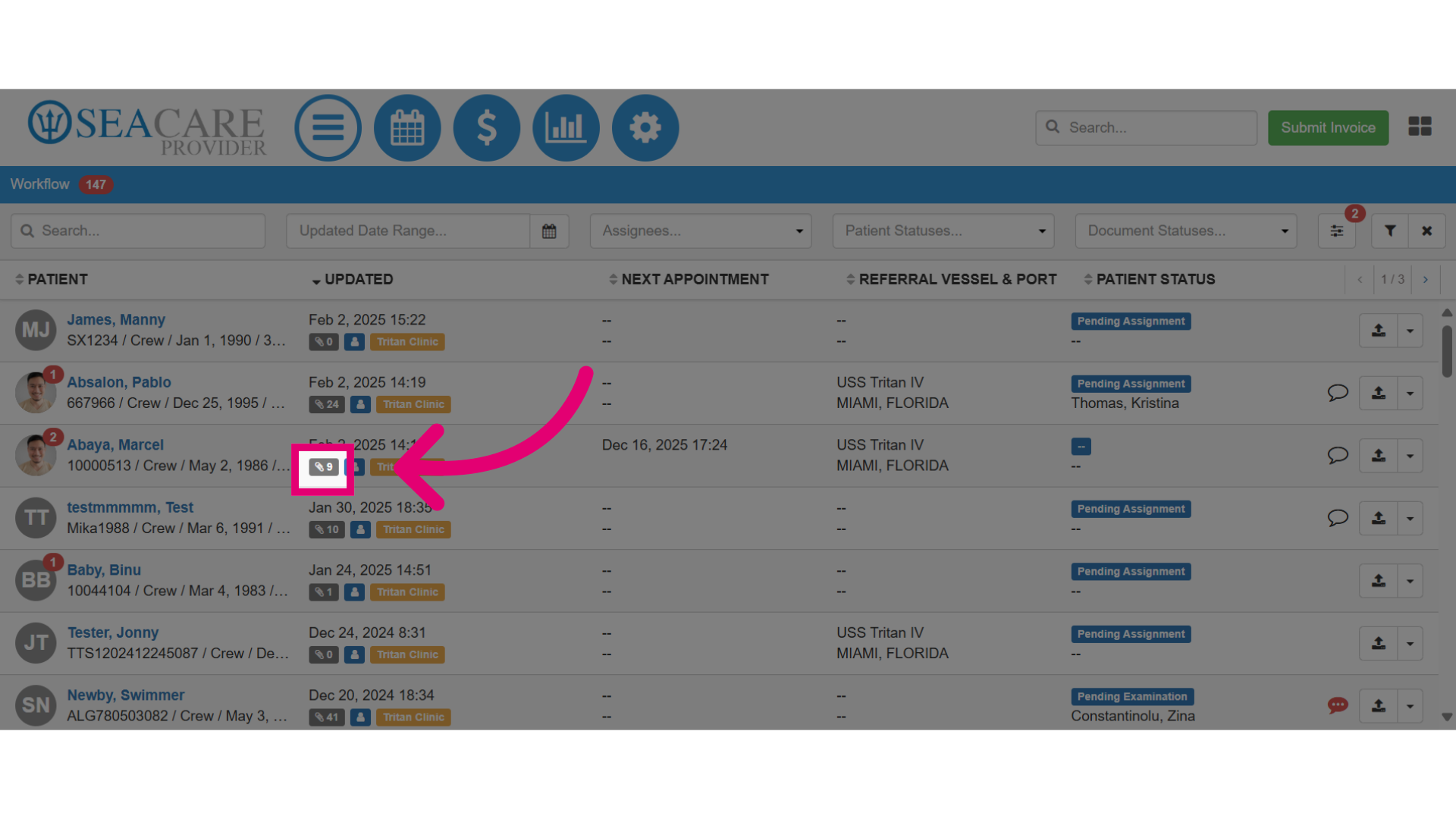
- Locate your patient.
- Click the paperclip icon to access the documents window.
- The paperclip icon displays the number of shared documents: grey for read and red for unread.
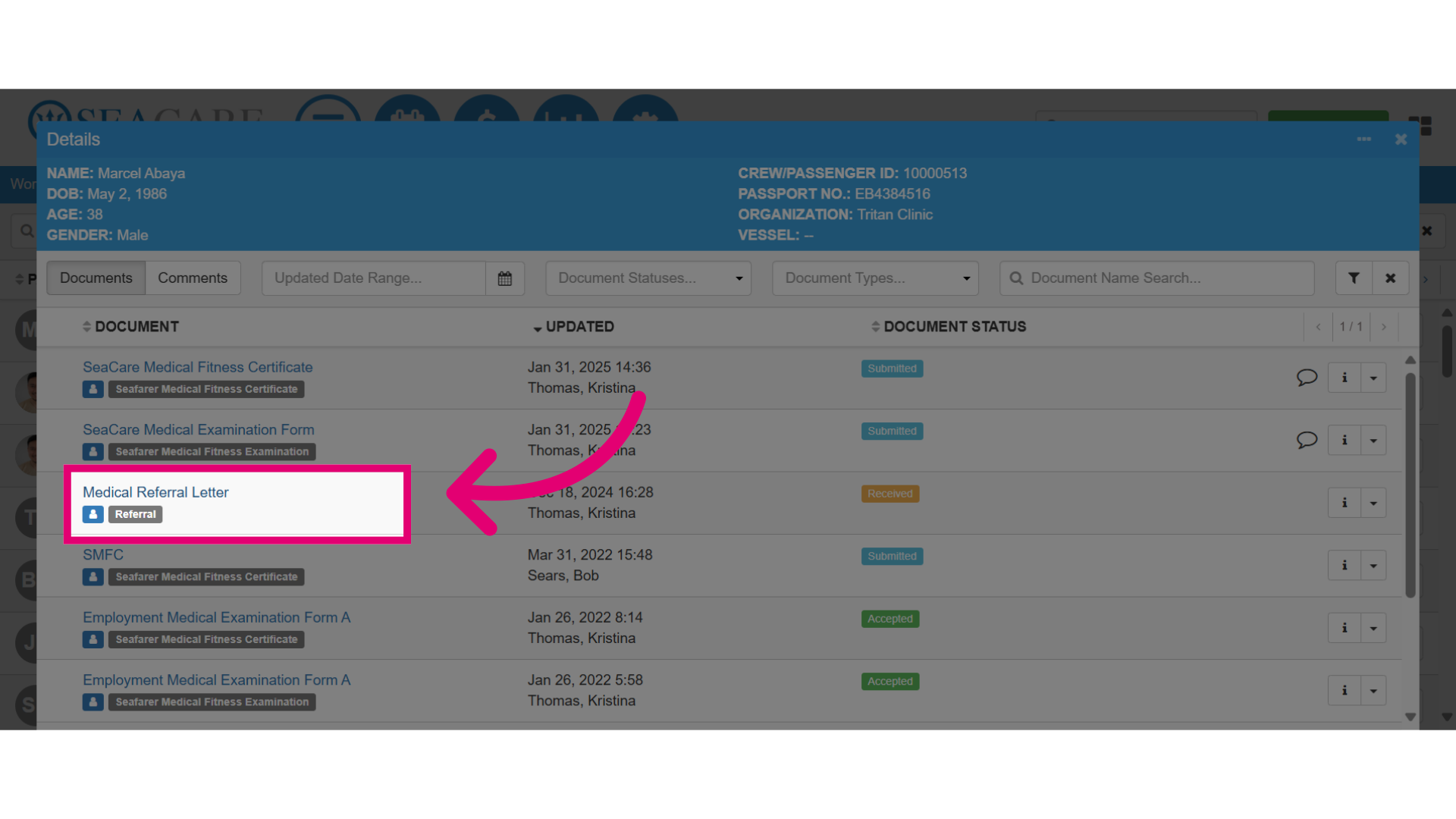
- Then, locate the document you want to view and click on the document link to open it.
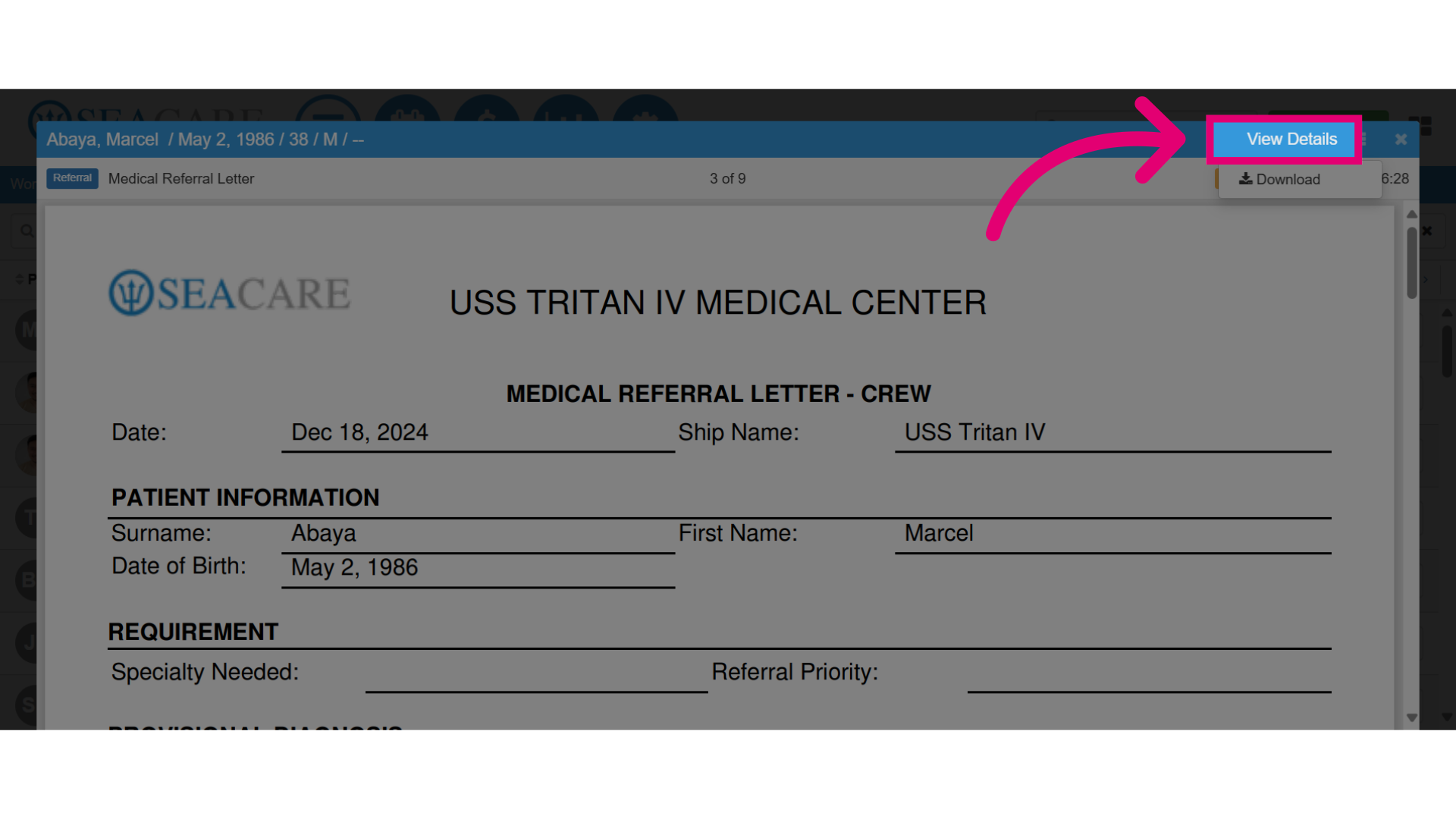
- This opens the document preview to view details and scroll through pages. Click the More Options button to download the document.
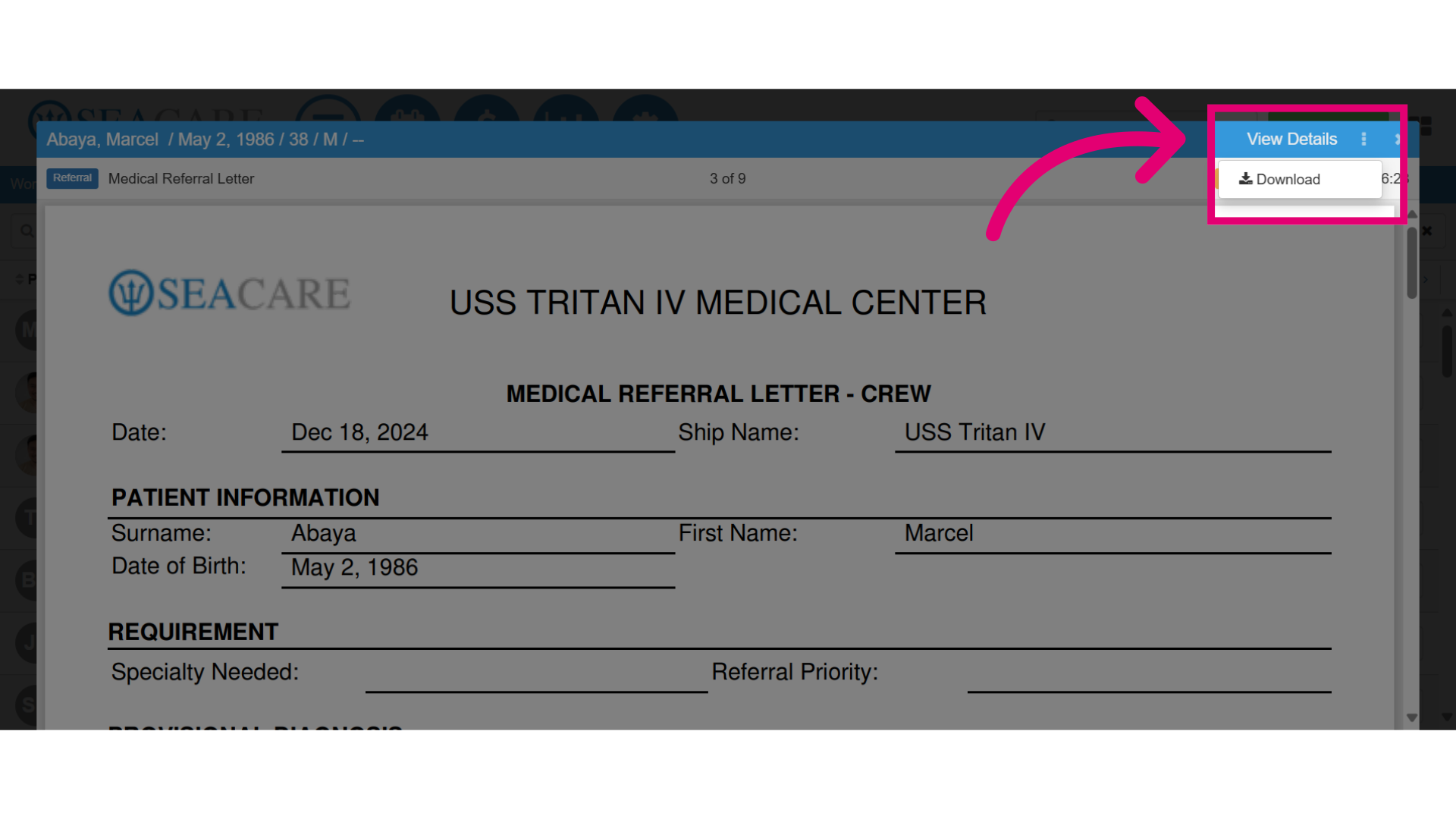
- To view more details on the document, select View Details.
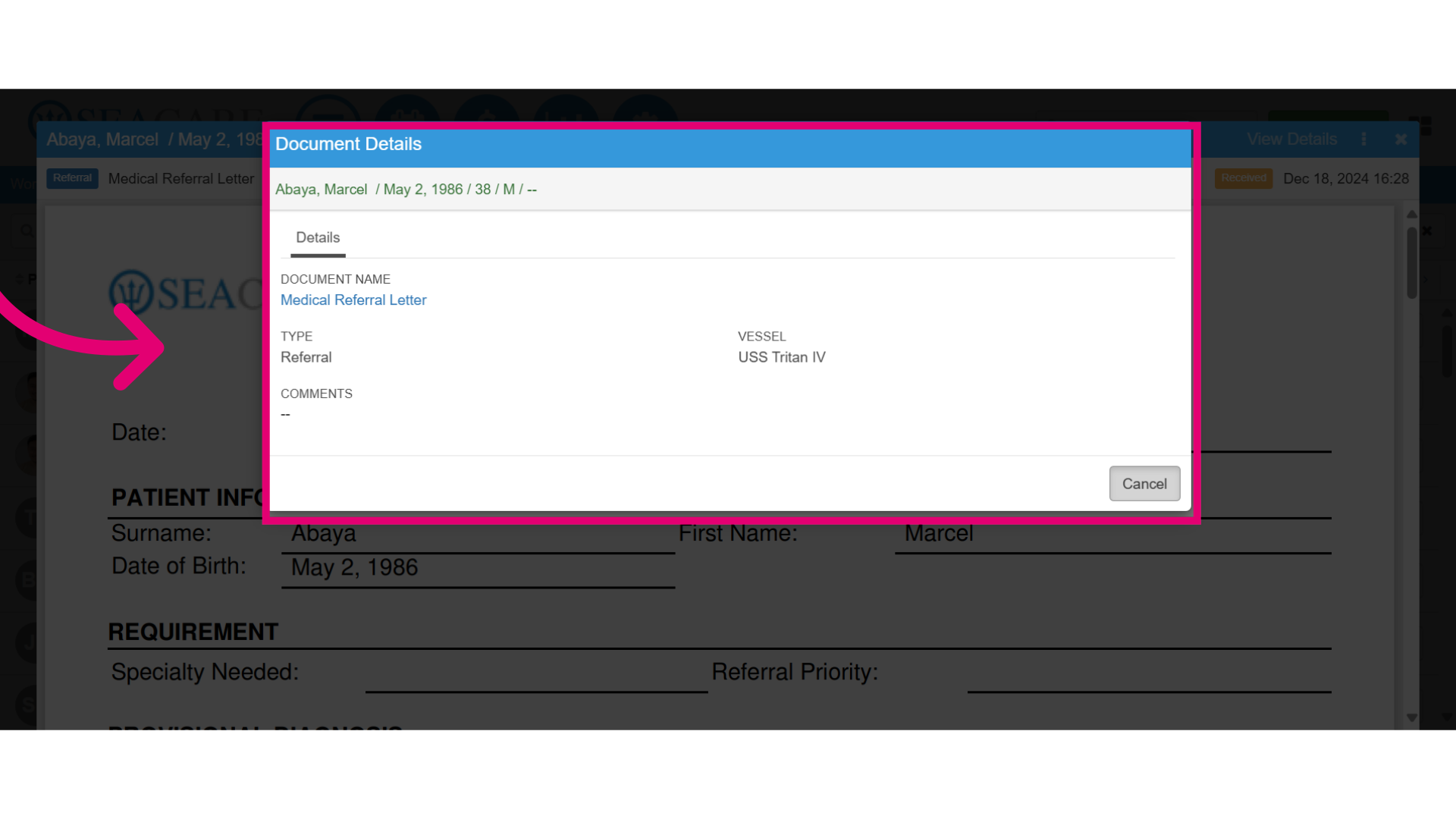
- This opens to the documents details that include the name, type of document, vessel it originated from and comments. When done, select the Cancel button to close this window.
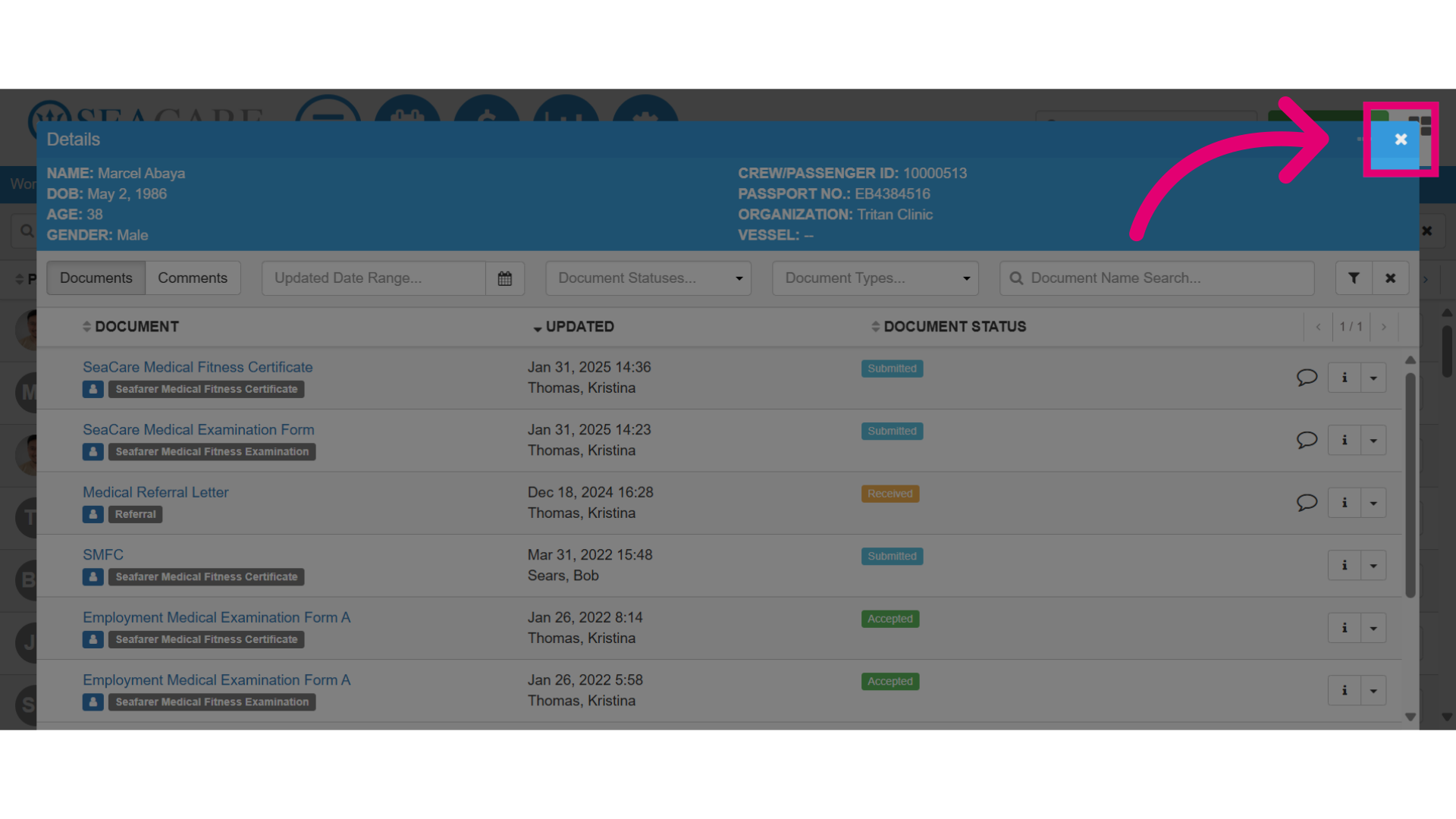
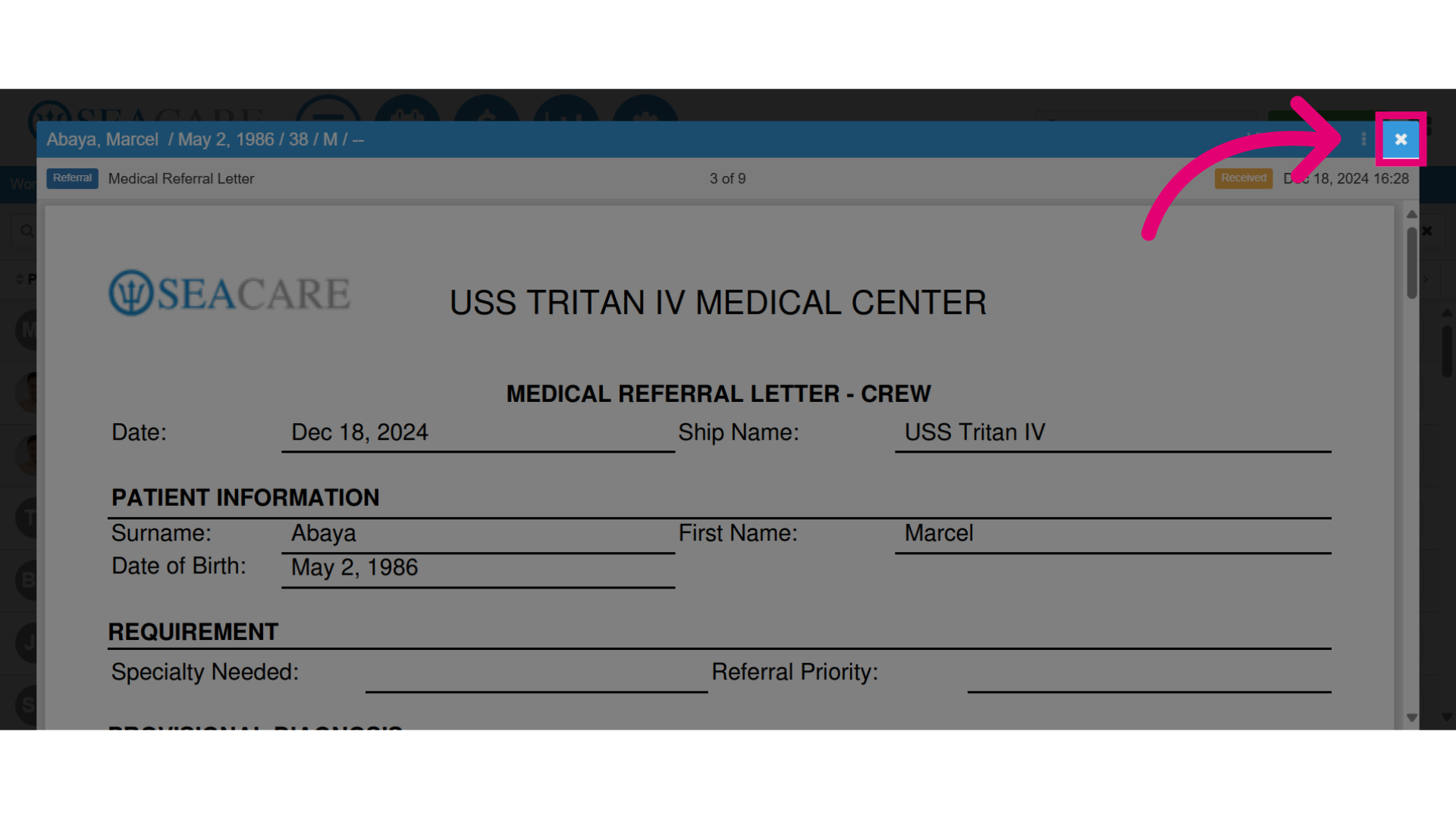
- Then, close the window when you are done.
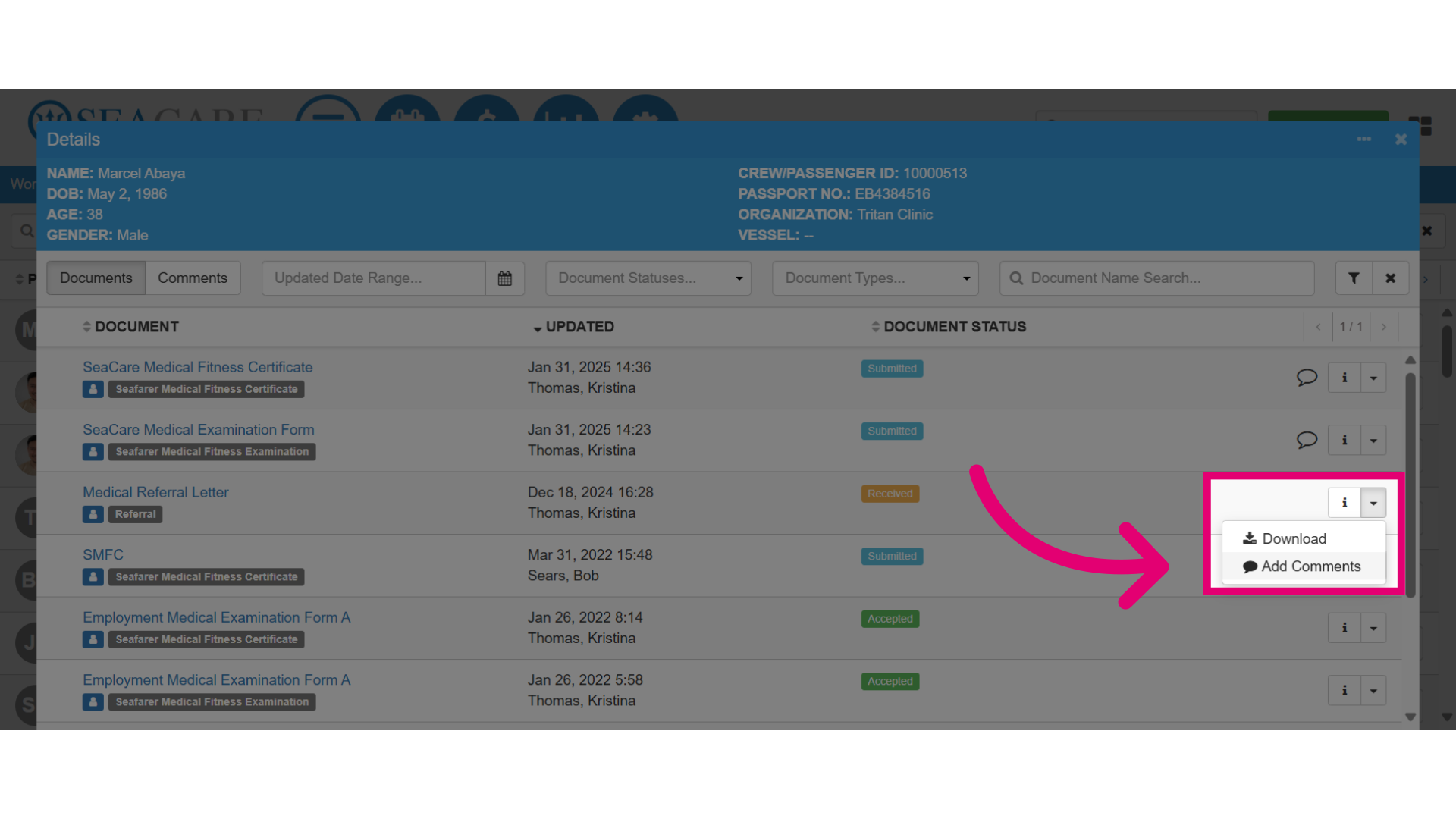
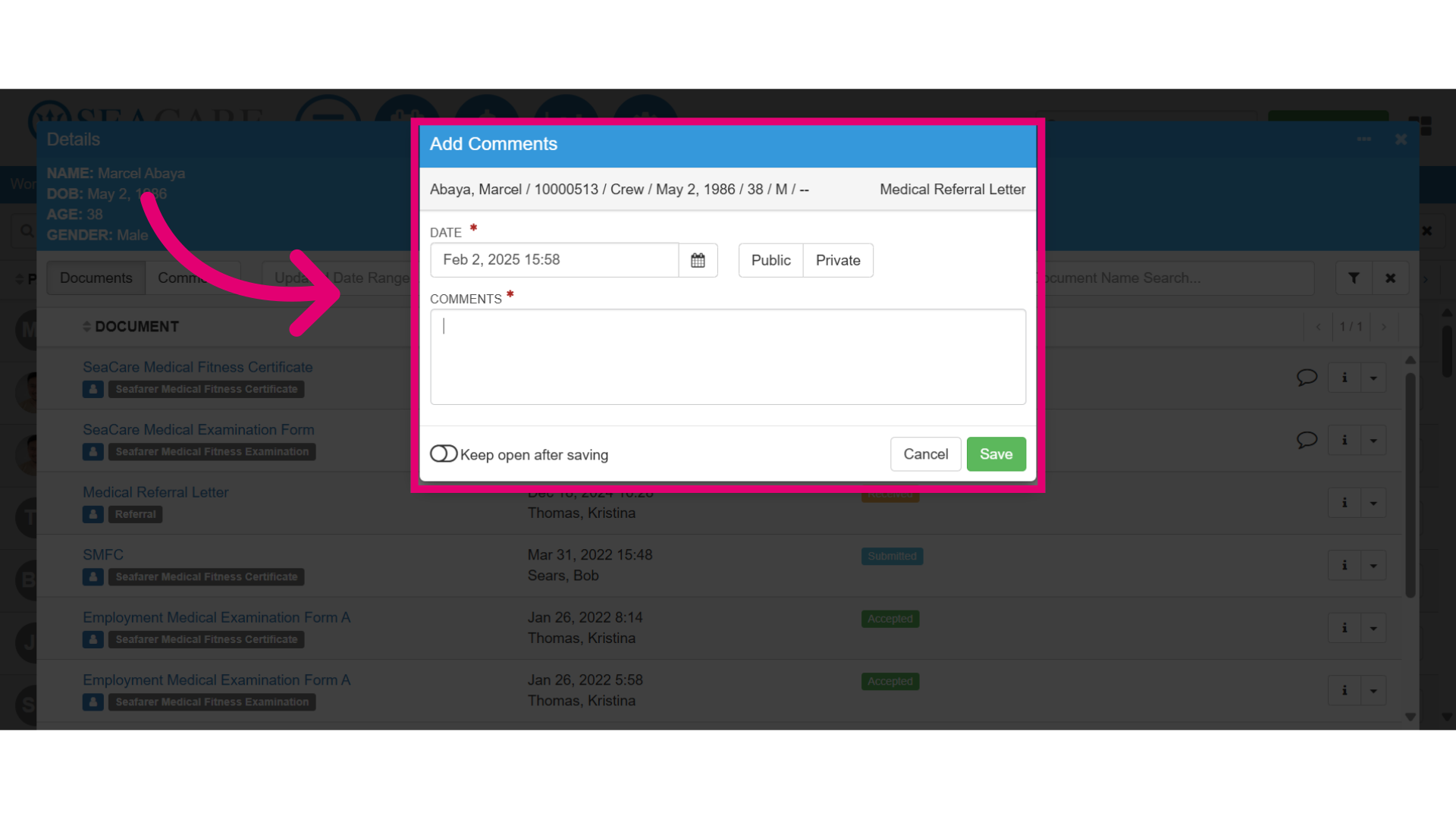
- Should you wish to include comments in the document for the purpose of communicating with the sender, please navigate to the Actions menu within the document and select the Add Comments option.
- Then, enter the comment details.
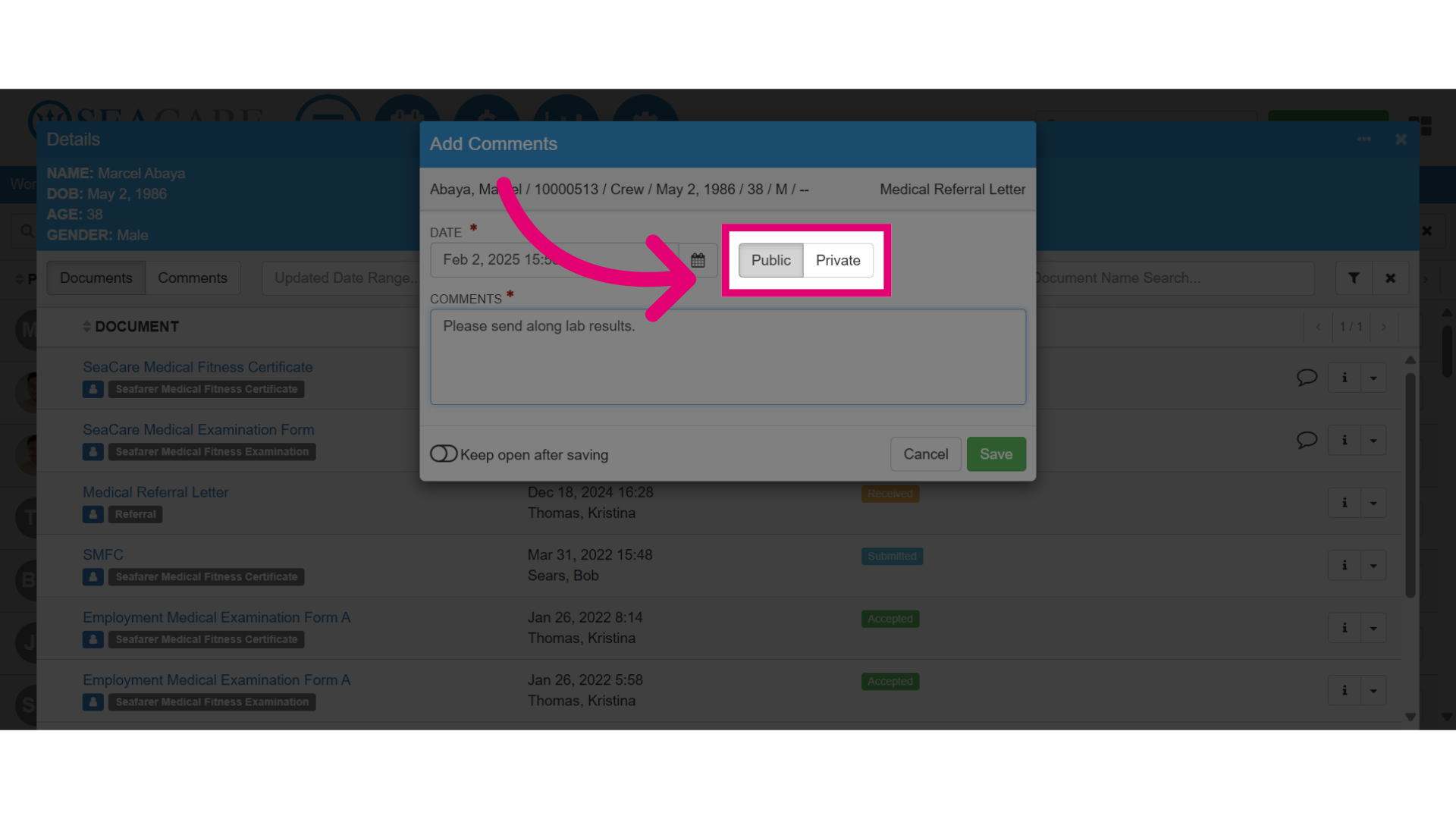
- Set the comment as public or private for communication with internal and external parties.
- The public option allows visibility to all users.
- The private option restricts visibility to users within the Provider application.
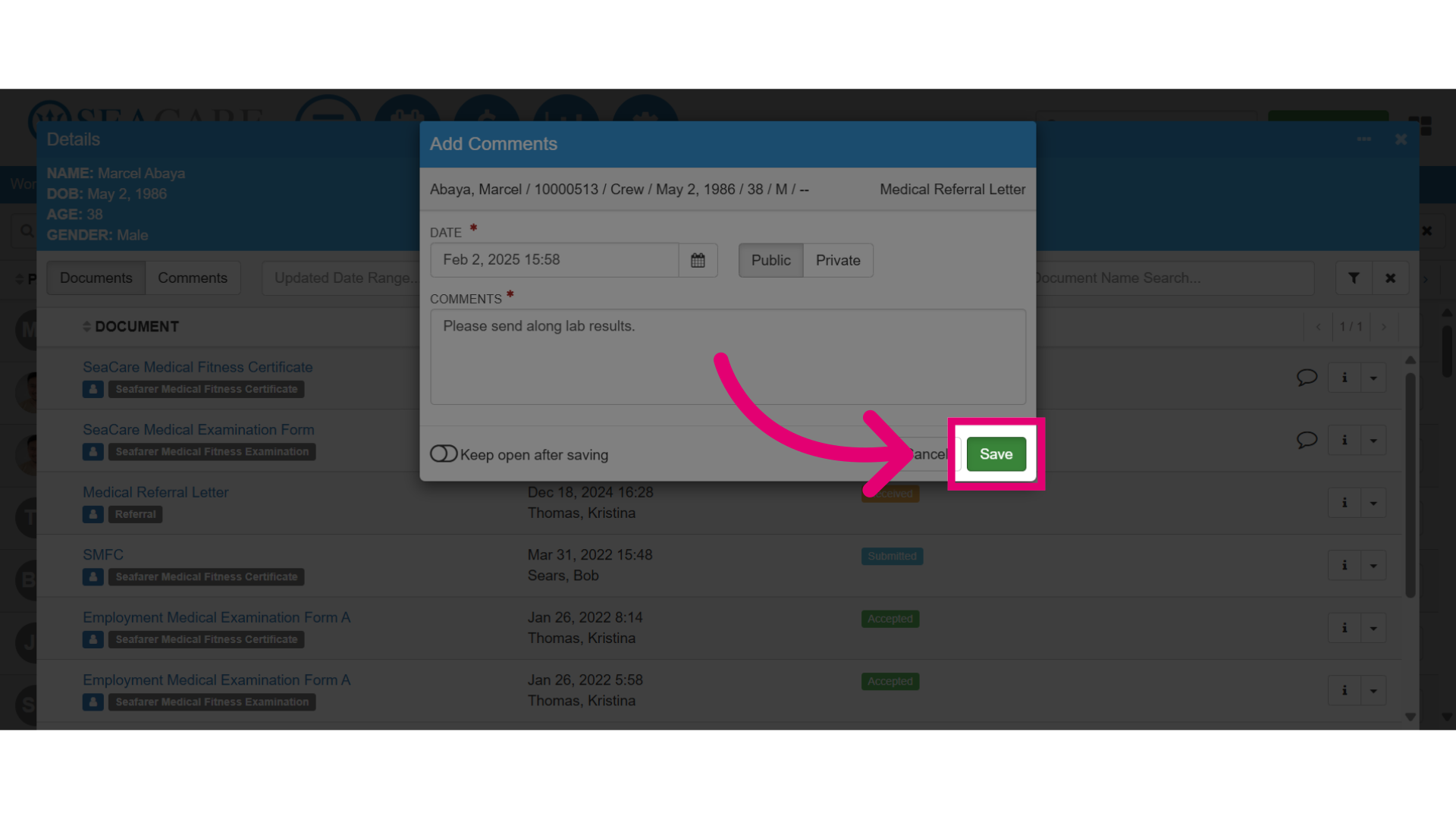
- Then, select Save to add your comment.
- Close the window when you are done.