


New article
Recently updated
Helping crew members complete the PEME process in Ideagen Maritime Health Operations

Who is this article for?
Users responsible for being a manning agent for crew members looking to complete the PEME process.
No special access or permissions are required.
This article will provide an overview of how to assist crew members with the Crew Health portal and use the Employment Medical Exam module in Ideagen Maritime Health Operations for the PEME process.
1. Creating a crew member profile
Before a crew member can register in the Ideagen Maritime Health Crew Health portal, you need to create their patient chart.
To create a patient:
- Click the Quick Entry (+) button.
- Select Patient.
- Fill out the required (*) details:
- Crew (Role)
- First and Last Name
- MRN/Crew ID (ensure that it matches the MPX number)
- Crew Portal Email
- Gender
- Date of birth
Please select the Test Patient checkbox if the patient is a test patient. This will ensure that the data entered for this patient is excluded from your official records.
Under the Employee Information section, select your Assistance Company or Manning Office. This will allow you to track your crew members. Then, save your updates.
Select Save when you are done.
2. Informing the crew member
Advise the crew member to create a Ideagen Maritime Health Crew Health portal account.
Crew members need to know how to access the Crew Health portal through the URL link provided by their employer.
Ideagen Maritime Health Crew Health is not an app, but a web-based platform they must access through the correct link.
3. Troubleshooting account creation issues
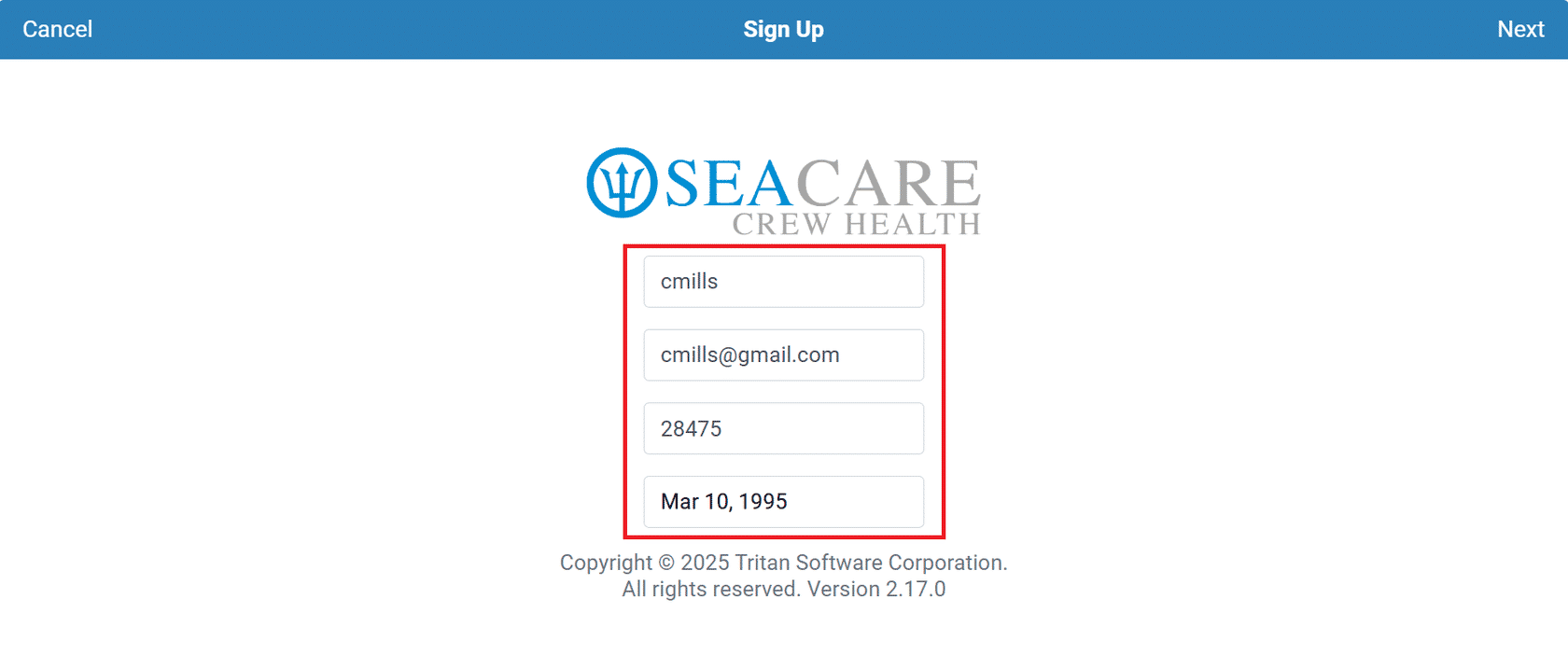
If the crew members is having trouble with creating their portal account, make sure that:
- their email has been entered manually and contains no spacing errors
- they use their MXP number, not Apollo number, when signing up
- their birth date matches the patient chart record you created
- they have verified their email address
4. Using the Crew Health portal
Read our guide to using the Ideagen Maritime Health Crew Health portal and advise crew members to do the same.
Using the Ideagen Maritime Health Crew Health portal
5. Using the Employment Medical Exam Module
As manning agents or assistance companies, you will have access to the Employment Medical Examination module within Ideagen Maritime Health. This module will enable you to perform the following actions:
- View Reports - You will have access to the reports pertaining to manning documents that are shared with your users.
- View Crew Members - You will have visibility of all crew members.
- Access Documents - You will be able to access referral documents and certificates (SMFC).
6. Using filters to find documents
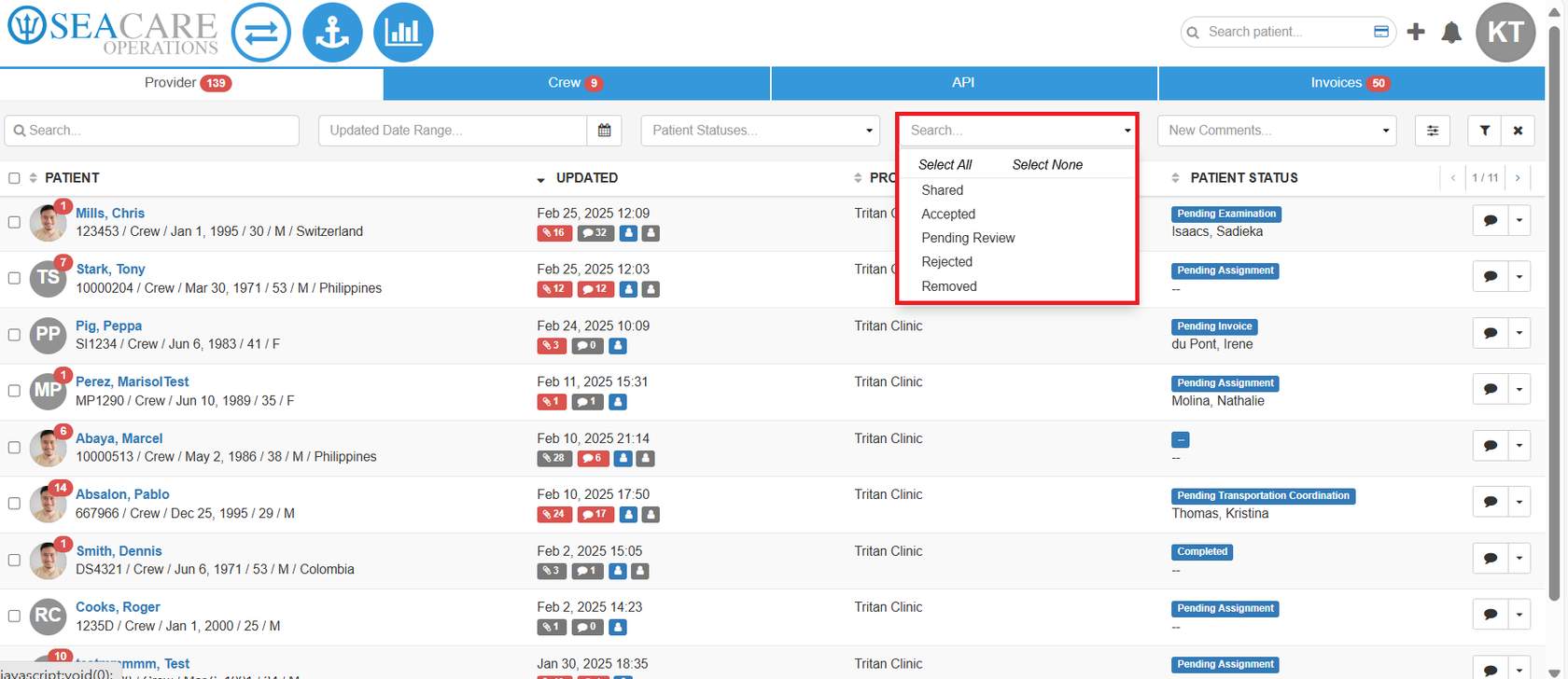
Use the filters to locate a document such as those still Pending Review.
Below are the possible document statuses:
- Shared - Document has been shared with you by the provider, crew member, etc.
- Accepted - Document has been reviewed and approved by the reviewer.
- Pending Review - Document has been submitted but is awaiting review and approval.
- Rejected - Document is not approved due to errors, missing information, or failing to meet requirements. Add comments for clarification and review comments for follow up responses.
- Removed - Document has been deleted from the system.
7. Locating crew members
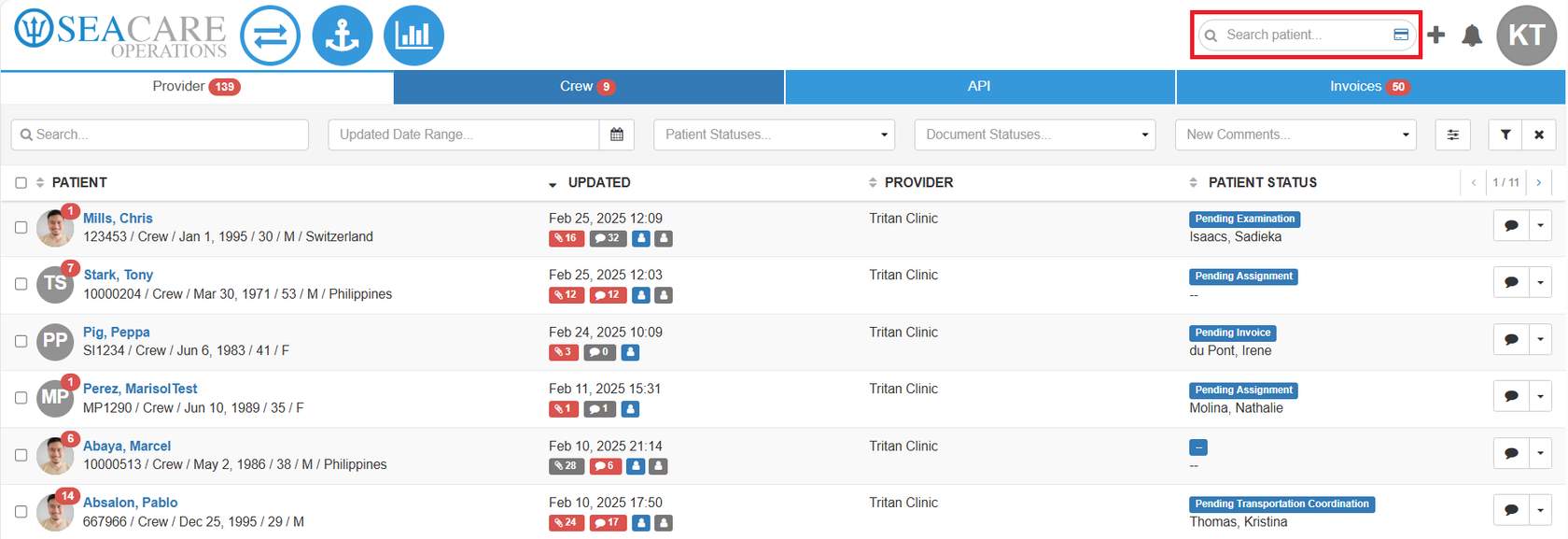
Use the Global Search to locate crew members, even if they have been checked out of the PEME workflow. This tool is useful for retrieving past records.
8. Getting further assistance
If you encounter technical issues with the Crew Health portal that you cannot resolve, you can submit a support ticket to our Support team for further assistance.