New article
Recently updated
Customising searches with filters in Ideagen Maritime Health Provider

Who is this article for?Users looking to customise their searches in the clinical Workflow tab.
No special access or permissions are required.
This article outlines the process of customising searches in the Ideagen Maritime Health Provider application, showing you how you can utilise filters to refine the search results.
1. Customising searches
To customise your search:
- Open Ideagen Maritime Health Provider.
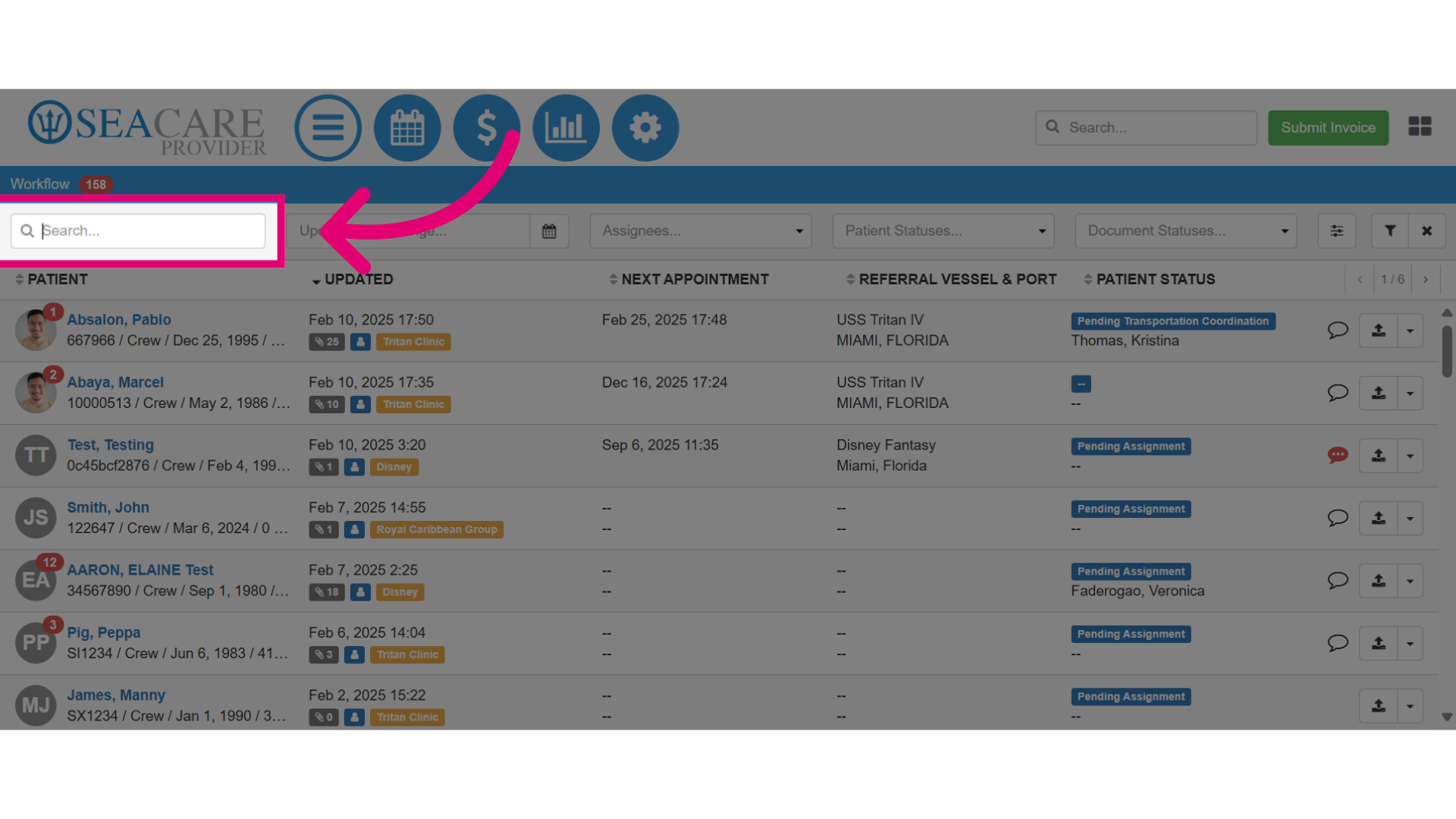
- Search for a patient.
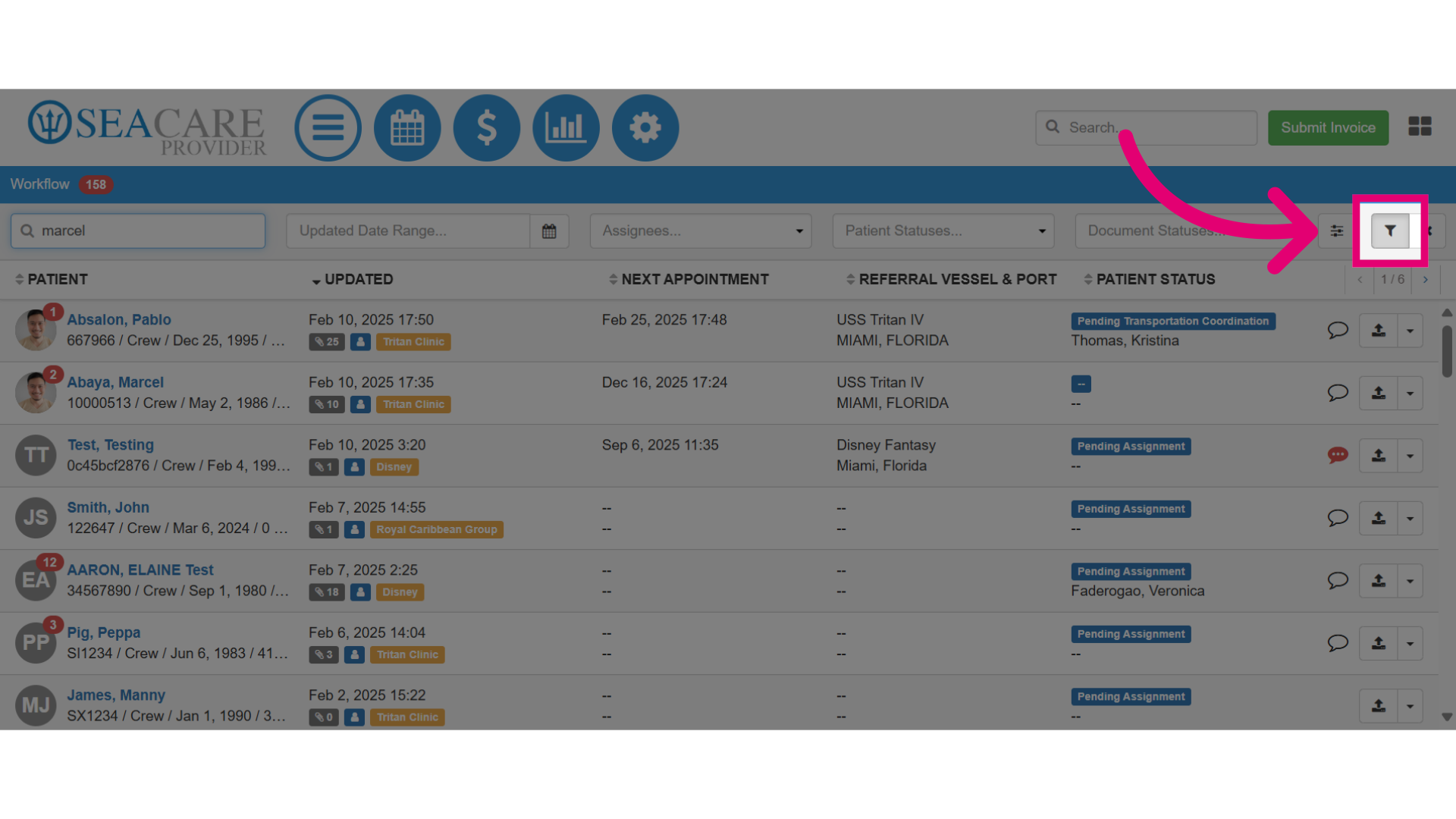
- Select the Filter button to generate results.
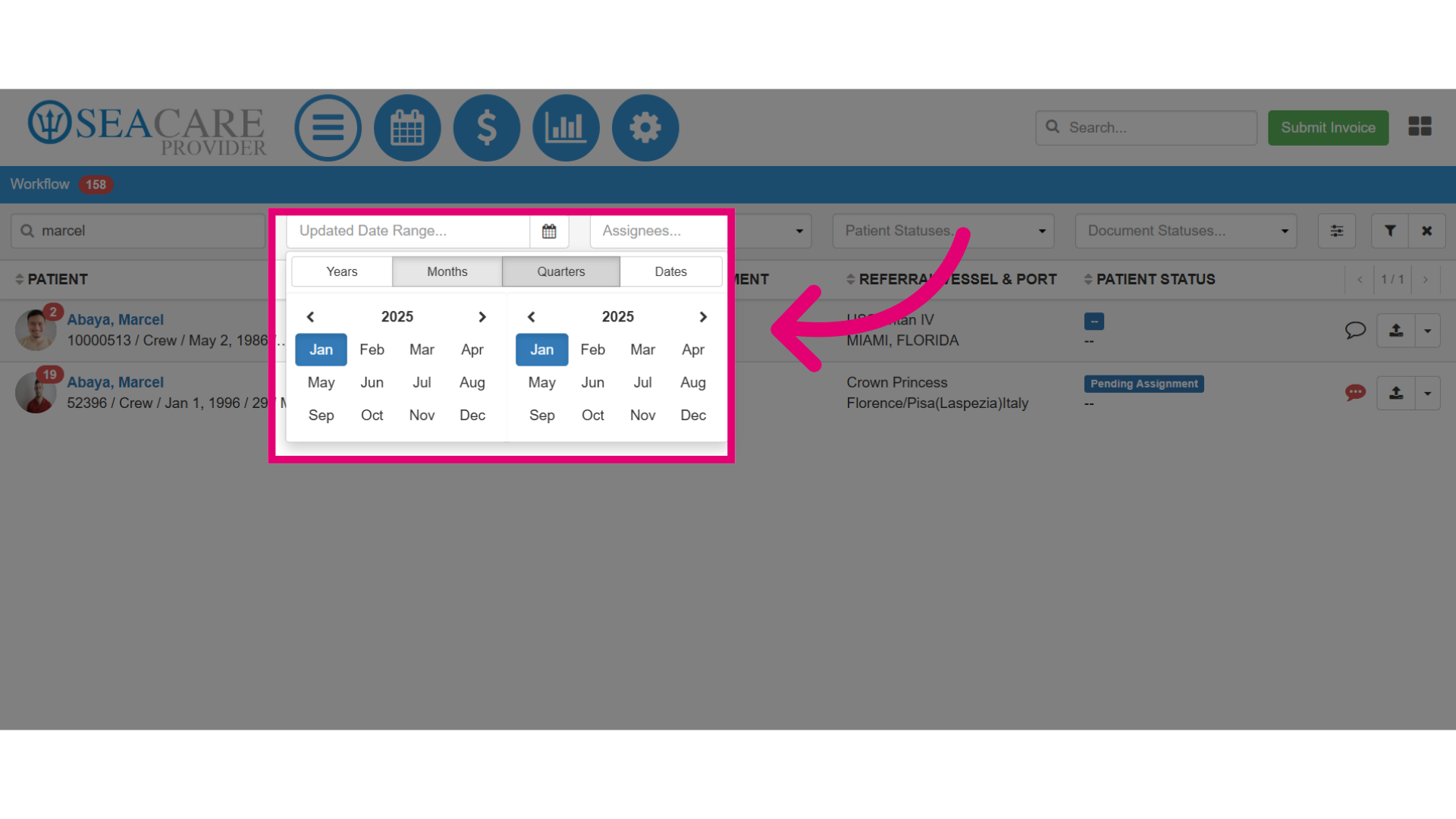
- Use the Date Range filter to tailor your search to specific dates.
- Use the Assignee filter to display patients assigned to a specific user.
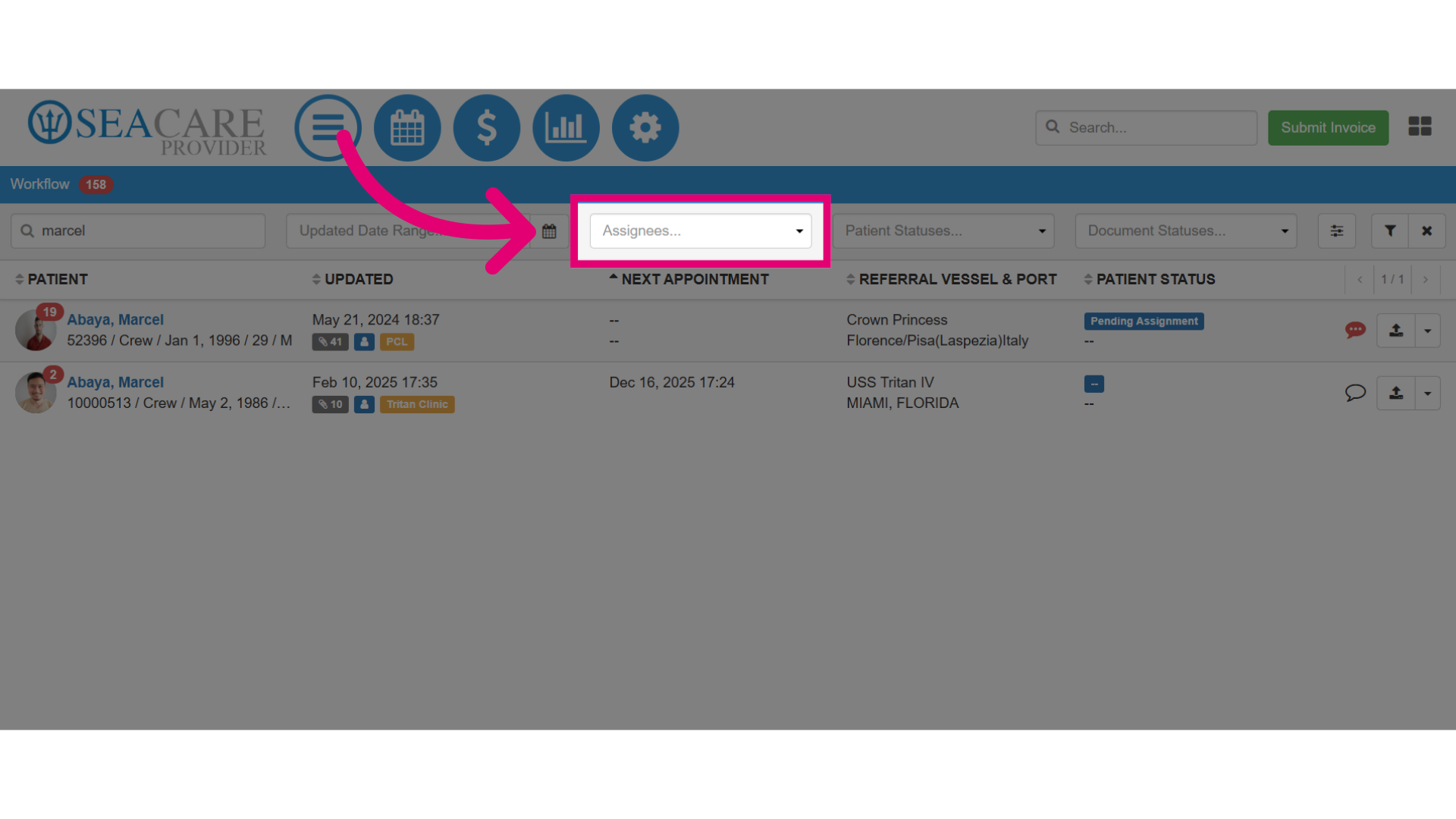
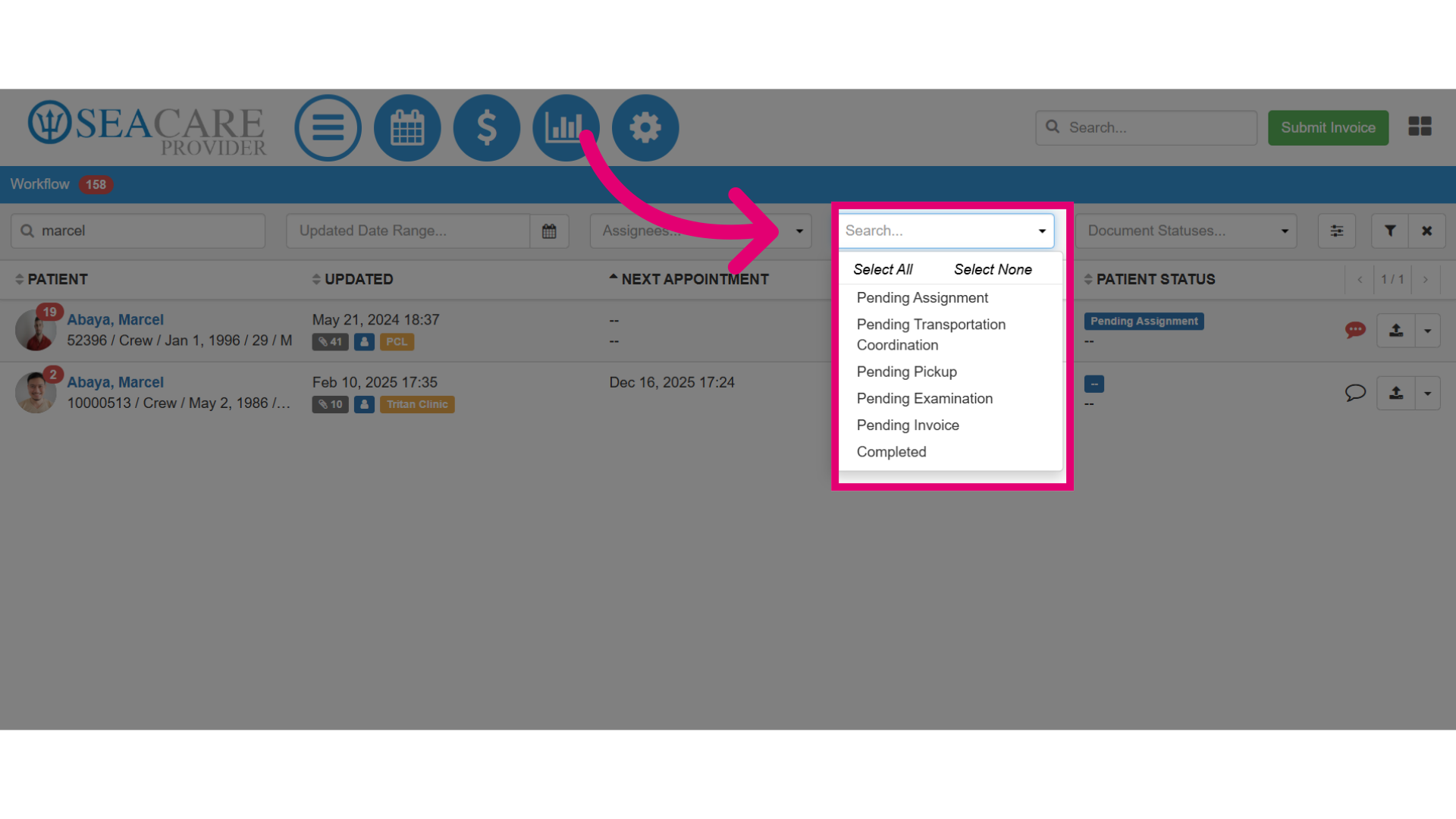
- Search by Patient Status to display patients under a specific status.
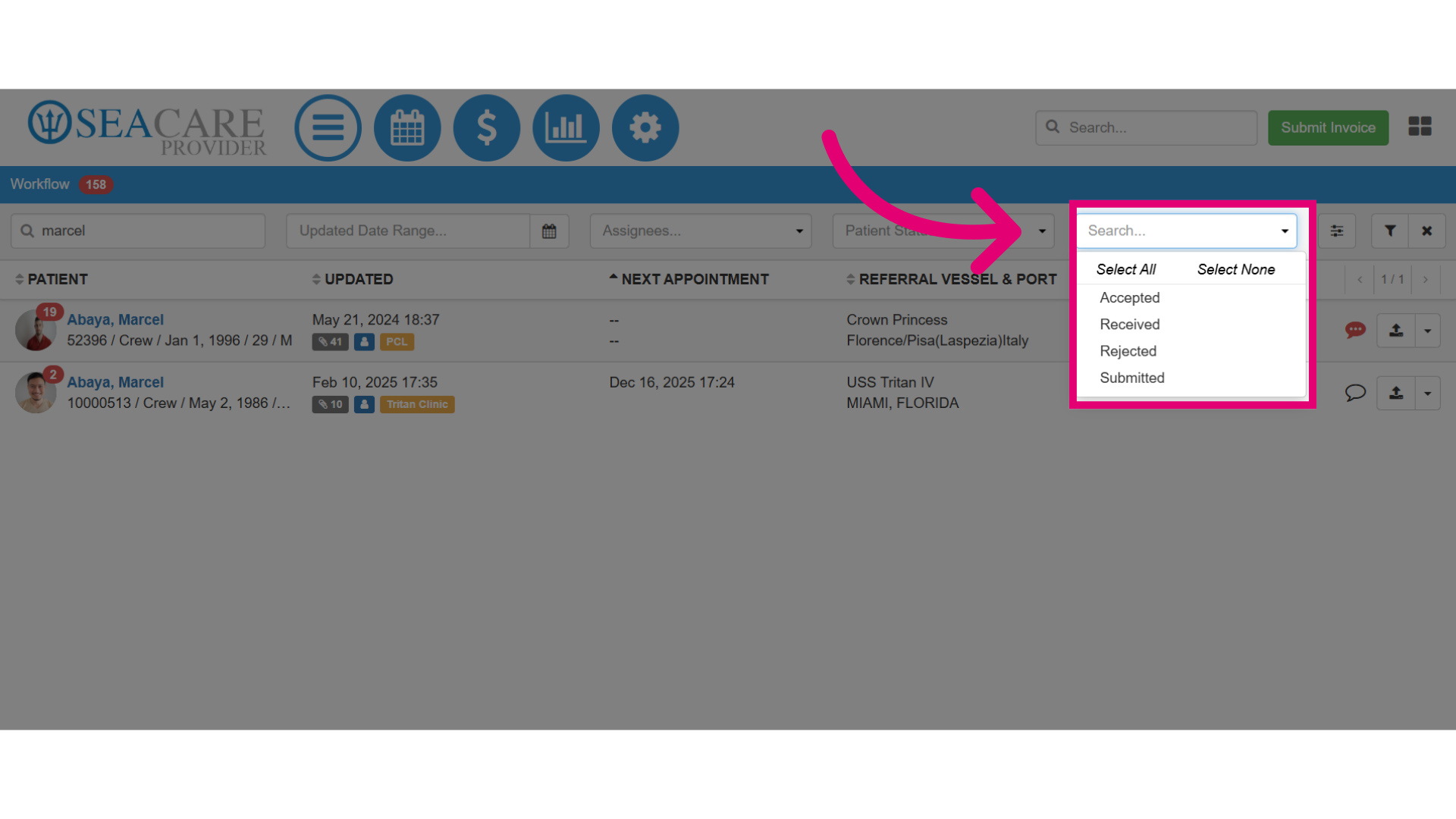
- Search by Document Status to display patients with documents in a specific status.
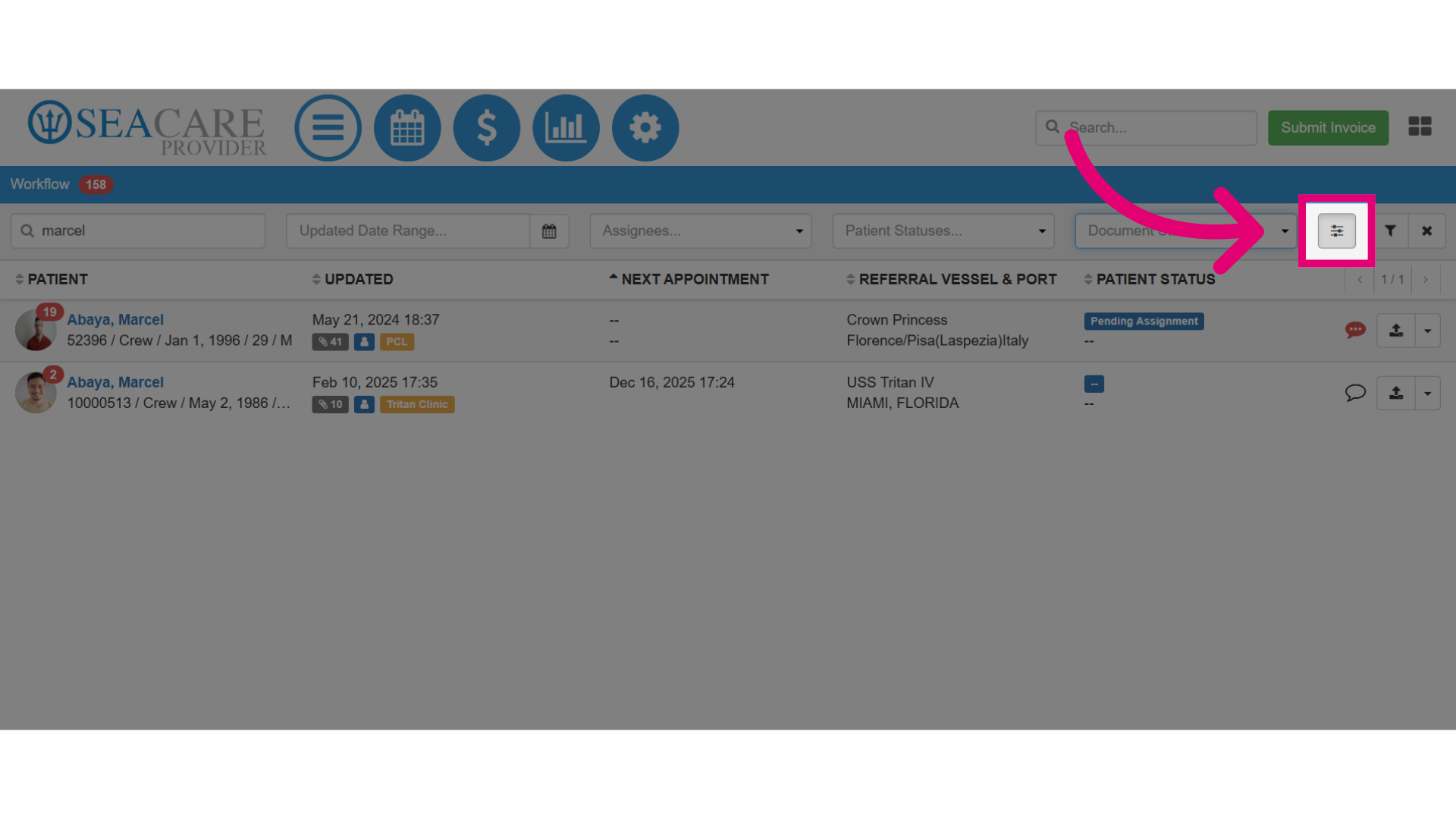
- Open the Additional Filters menu to further refine your search.
- Set the required filters.
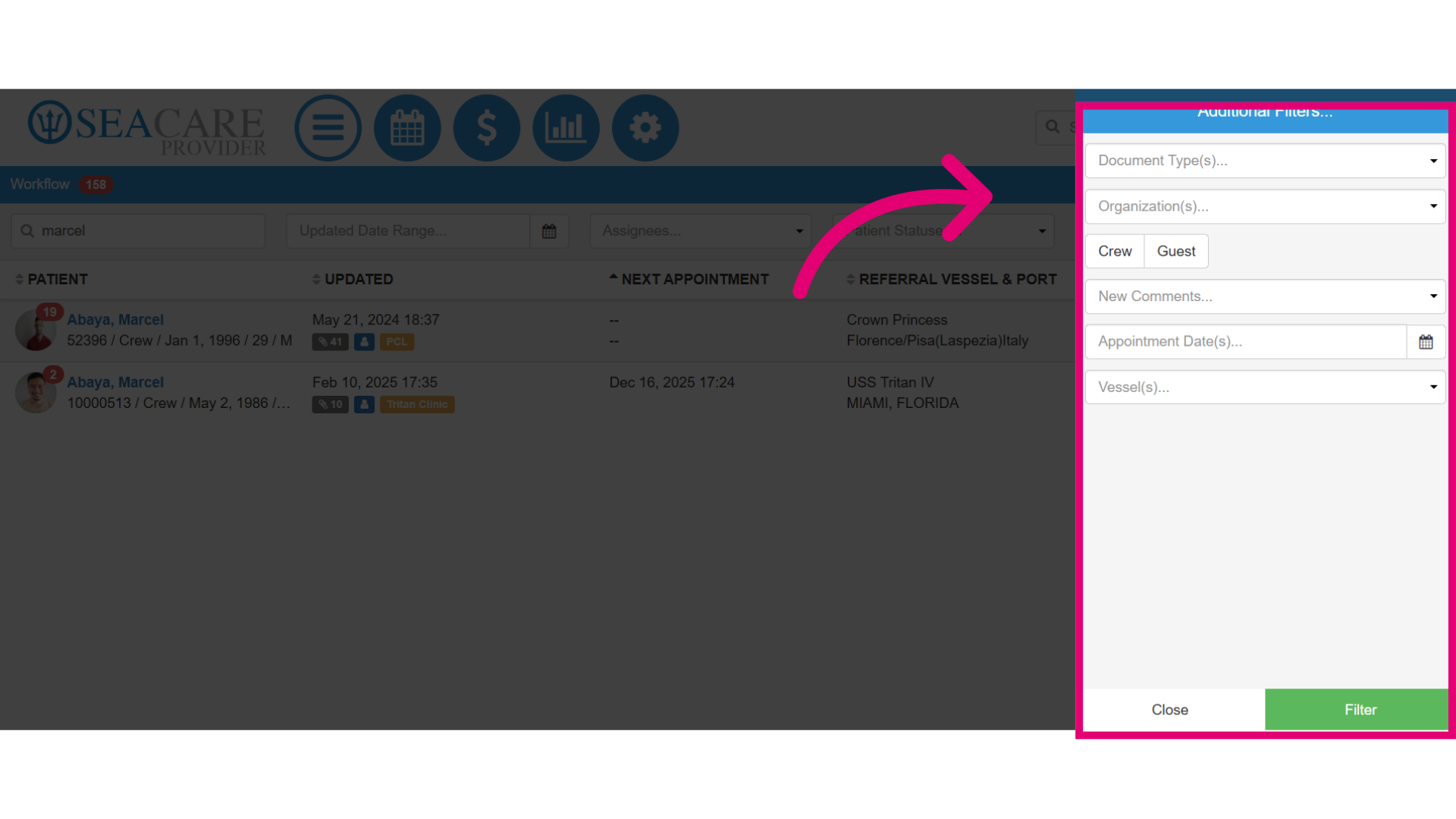
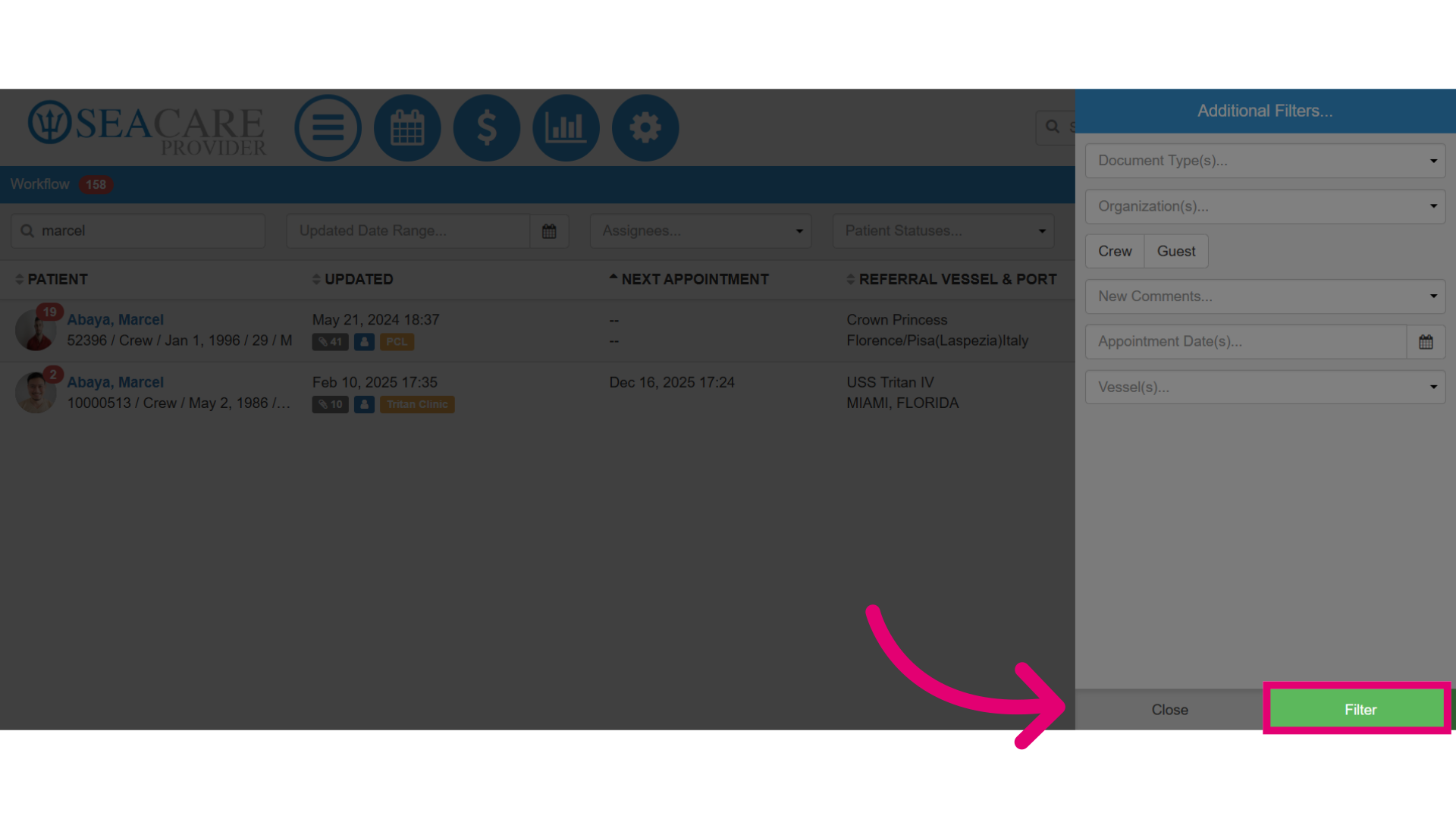
- Click Filter to generate refined results.